I Tested 30+ AI Platforms: Here Are the 21 I’d Keep Using
Marvin tested 17 AI tools across real business workflows, comparing their capabilities for writing, coding, automation, voice, analytics, and productivity to identify the best tool for every use case.


There are more AI tools than anyone has time to properly test. One writes your emails, another takes meeting notes, another builds apps, and another plans your calendar. By the time you have figured out which ones are useful, five more AI tools have launched.
I wanted a simpler answer: Which AI platforms are worth making part of your workday?
So I spent several weeks trying more than 30 of them on the kind of work that fills an ordinary week. I researched topics, drafted content, sat through meetings, planned my schedule, built small apps, debugged code, and handed repetitive tasks over to AI.
A lot of tools were interesting the first time I opened them. The ones that made this list were the ones I kept reaching for days and weeks later.
I kept the 21 platforms that proved useful after the first test and still gave me a reason to come back.
The Top 21 AI Platforms: TL;DR
Here’s where each one earned its spot:
- Claude Cowork: Best for anyone who wants Claude working directly in their files
- ChatGPT: Best for all-purpose writing, reasoning, and custom GPTs
- Google Gemini: Best for teams already in Google Workspace
- Perplexity: Best for research with citations you can check
- Grok: Best for real-time information and X data
- Microsoft Copilot: Best for Microsoft 365 shops
- Lindy: Best for delegating work in Slack or over text
- Granola: Best for meeting notes without a bot joining the call
- Wispr Flow: Best for writing anywhere with your voice
- Zapier: Best for connecting apps and repeatable workflows
- Jasper: Best for consistent branding and marketing content across many channels
- Morgen: Best for planning your day around tasks and meetings
- Notion: Best for writing and organizing inside your workspace
- Gamma: Best for turning rough notes into a presentation or document
- Replit: Best for shipping an app from a plain-English prompt
- Cursor: Best for coding inside an AI-native IDE
- Lovable: Best for building a working web app without writing code
- n8n: Best for open-source and self-hosted automation
- ElevenLabs: Best for AI voice, narration, and conversational agents
- Descript: Best for editing audio and video by editing the transcript
- Midjourney: Best for generating stylized, high-quality AI visuals
How I tested the best AI platforms
I tested just over 30 tools before narrowing the list to 21. Some impressed me at first, but a much smaller group proved useful enough that I kept coming back the next day and the week after.
I put each one through the kind of work it was built for. Chatbots got messy briefs and research questions. Meeting tools sat through real calls. Coding tools had to build and fix working projects. Automation platforms took on repetitive workflows I would normally handle myself.
After a few weeks, I started looking for five things.
- Would I keep using it? A great first demo means very little if I forget the tool exists a week later.
- Is the output ready to use? I looked at how much rewriting, checking, fixing, or cleanup I had to do before I could use the result.
- Does it save meaningful time? Setup and supervision count too. If a five-minute task takes 20 minutes to automate, that matters.
- Can I get useful results without fighting it? The best tools made sense quickly and didn't require hours of tutorials before I could get anywhere.
- Would I pay for it again? I used paid plans and trials where the important features required them, then considered whether the tool earned a recurring spot in my budget.
I also gave competing tools similar work whenever I could. Cursor, Replit, and Lovable all had to build something usable. ChatGPT and Gemini worked from comparable briefs. Research tools had to return answers I could trace back to the original sources.
By the end, the deciding factor was pretty simple. If I kept reaching for a tool when I had real work to do, it stayed on the list.
What is an AI platform?
An AI platform is software that uses artificial intelligence as a core part of completing a task or workflow.
It can help with research, writing, coding, planning, meetings, content creation, and automation. What makes it an AI platform is that the AI actively handles part of the task, such as generating the output, making decisions, taking actions, or coordinating steps across a workflow.
For this guide, I focused on platforms where AI plays a meaningful role in helping you complete real work.
AI platform categories I considered
I grouped the tools by the job they handle best. These are the categories represented in the final 21.
General AI assistants
Broad knowledge work lives here: writing, reasoning, file analysis, brainstorming, coding help, and working with information across different formats.
Examples: ChatGPT, Google Gemini, Grok.
Research
Research platforms help find information, answer questions, trace claims back to sources, and work through large amounts of material.
Example: Perplexity.
AI agents and delegated work
This category takes a task, works through multiple steps, and interacts with files or other apps along the way.
Examples: Claude Cowork, Lindy, Microsoft Copilot.
Meetings and daily planning
The work surrounding your calendar sits here, from capturing meeting notes to deciding where tasks fit into the day.
Voice productivity
Voice tools turn natural speech into useful written output across email, messages, documents, prompts, and other apps.
Example: Wispr Flow.
Workspace and knowledge management
Documents, project information, team knowledge, and AI assistance live together in one workspace here.
Example: Notion.
Marketing content
These produce on-brand marketing content across many channels and hold a consistent voice you train them on.
Example: Jasper.
Presentations and documents
Rough ideas, notes, or source material get turned into structured presentations and visual documents here.
Example: Gamma.
Coding and app building
Developers write and debug code here, while non-developers get ways to turn plain-English instructions into working software.
Examples: Cursor, Replit, Lovable.
Automation and integrations
Automation platforms connect apps, data, triggers, and AI models into workflows that can run across business processes.
Voice and media
These cover spoken content and media production, including synthetic voices, narration, conversational agents, transcription, and transcript-based editing.
Examples: ElevenLabs, Descript.
Visual generation
Use this tool to create images, illustrations, concepts, and other visuals from a description or reference material.
Example: Midjourney.
1. Claude Cowork: Best for anyone who wants Claude working directly in their files
What it does: Lets Claude work with files on your computer, including opening, editing, and saving them directly instead of only handling content inside the chat.
Best for: People juggling messy folders of documents, spreadsheets, or client files who want the busywork of organizing them done for them, not just summarized in a chat window.
Pricing: Claude offers a free plan for regular chat, but Cowork requires a paid plan. Pro costs $20/month or $17/month when billed annually, while Max starts at $100/month for heavier usage and higher limits.
Claude Cowork changed how I use Anthropic’s model because it can work directly with files on your desktop. Give it access to a folder or document, and it can open files, make changes, and save the finished work back to your computer.
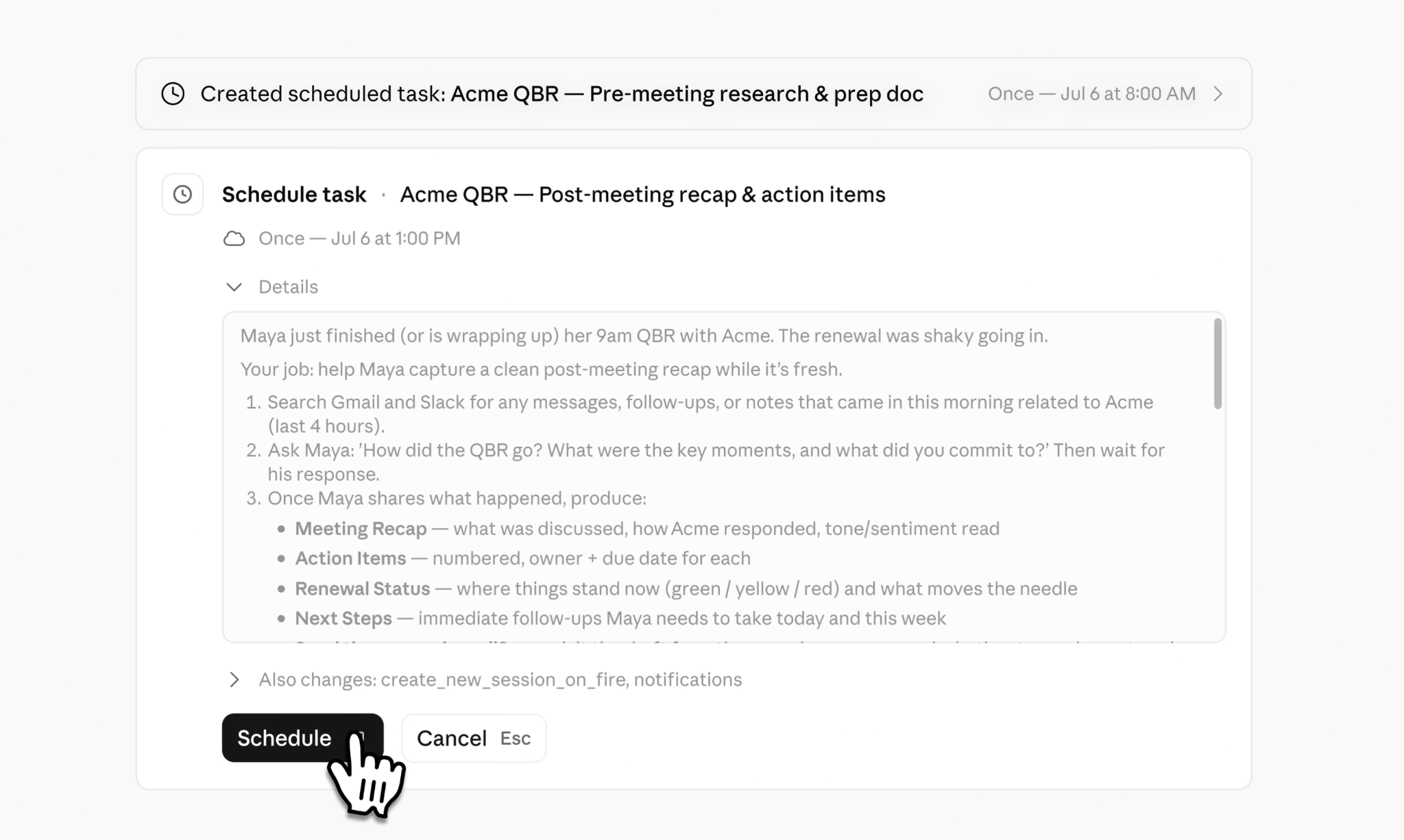
I tested it with a folder of messy client notes and asked it to build a single tracking sheet. Cowork opened each file, pulled the fields I needed, and created a new spreadsheet on my desktop.
I ran it across a dozen files one afternoon and hit the usage cap before the batch was finished, since file work draws from the same limit as regular chat. Heavy use burns through that limit fast, especially once you're processing multiple files in one session.
The regular Claude chat still has its place. I trust it most for working through long PDFs or contract clauses where I want careful reasoning tied to specific text. Cowork carries that work through to the finished file, which makes the whole workflow feel much closer to delegation.
Key features
- Cowork: Local desktop access, edits files in place
- Handles up to 200k tokens (entire books or long docs)
- MCP connectors into tools like Google Analytics or Ahrefs
- Shares Claude Code's agentic architecture, but no terminal required
Pros
- Cowork closes the copy-paste gap between chat and actual files
- Excellent at deep reading, summarizing, and document analysis
- Long-running tasks continue without conversation timeouts interrupting progress
Cons
- Cowork is paid-plan only (Pro, Max, Team, Enterprise)
- Usage limits get frustrating fast once you rely on Cowork daily
- More cautious than ChatGPT on certain requests, which can slow you down
2. ChatGPT: Best for all-purpose writing, reasoning, and custom GPTs
What it does: ChatGPT is a general-purpose AI assistant that answers questions, writes and edits content, analyzes files and images, helps with coding, and searches the web for up-to-date information.
Best for: Generalists who want one AI app for writing, coding, research, and daily tasks, without switching between five different tools.
Pricing: ChatGPT plans start at $8/month (Go, billed monthly), with Plus at $20/month and Pro starting from $100/month. A free plan is also available with limited access and core features.
ChatGPT is still the one I open out of habit, just like most people default to Google before trying anything else. Since OpenAI released the GPT-5.6 family in July, with Sol as its flagship model, I have started treating it less like a tool and more like a coworker who can jump straight into the work.
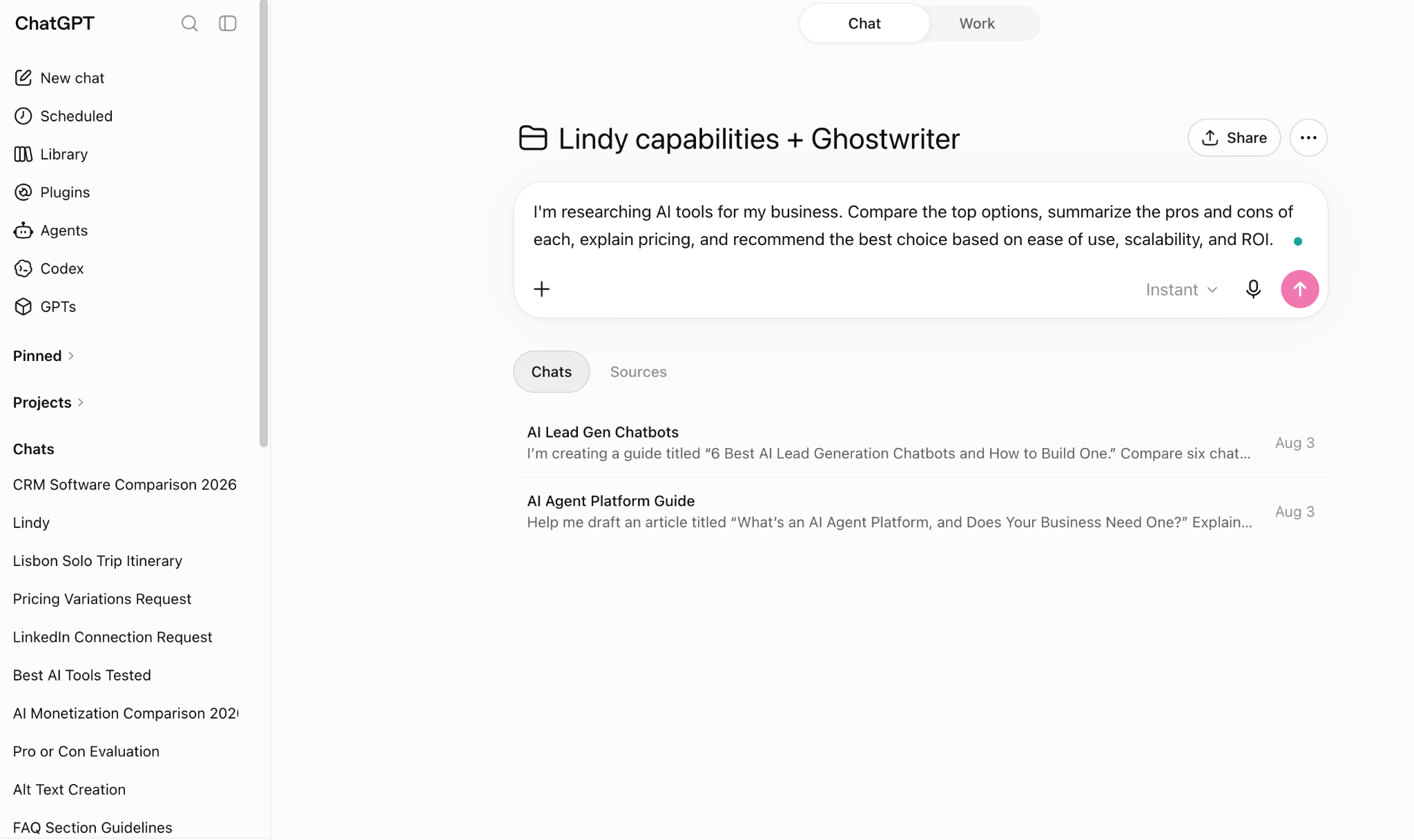
The part I actually built out for myself is a custom GPT I use as a ghostwriter. I fed it a folder of old blog drafts, a short style guide, and a few "don't do this" examples pulled from posts I hated.
Now, when I ask it for a first draft, it comes back close enough to my own voice that editing takes ten minutes instead of an hour. I also lean on it constantly for the boring stuff, like summarizing a 45-minute meeting transcript into five bullets, or turning a messy CSV export into a chart without opening Excel.
Where it still trips: Vague prompts tend to produce vague results. I watched a coworker ask it to “make this better” and get a weaker paragraph back. Once they gave it a clear direction, the quality improved immediately.
Key features
- Powered by the GPT-5.6 family (Sol, Terra, Luna), with Sol available on Plus, Pro, Business, and Enterprise, Sol Pro as an added tier exclusive to Pro and Enterprise, and Luna as the default for Free/Go
- Code interpreter, data analysis, and file uploads
- Real-time web browsing and image understanding
- Custom GPTs for specific roles or workflows
Pros
- Works well across almost any domain
- Wide range of ways to extend it with Custom GPTs, APIs, and integrations
- Fast and genuinely useful for daily tasks
Cons
- Only as good as your prompt, so vague in means vague out
- Real-time collaboration and shared workflows are limited in core ChatGPT, though Business/Enterprise tiers add integrations with Slack, Notion, Microsoft 365, and Google Drive
- Some of the more useful tools are gated behind paid plans
3. Google Gemini: Best for teams already in Google Workspace
What it does: Puts Google's AI directly inside Gmail, Docs, Sheets, and Meet, so it works on the files and threads your team already has open.
Best for: Teams and individuals already living inside Gmail, Docs, and Sheets
Pricing: Teams get Gemini through a Google Workspace business plan. Business Starter includes limited Gemini in Gmail only at $7/user/month, but full Gemini access across Docs, Sheets, and Meet requires Business Standard at $14/user/month or higher.
If your team already works in Gmail, Docs, and Sheets, Gemini fits directly into that workflow. I tested it mostly inside Google Workspace, where its value is easiest to see during everyday work.
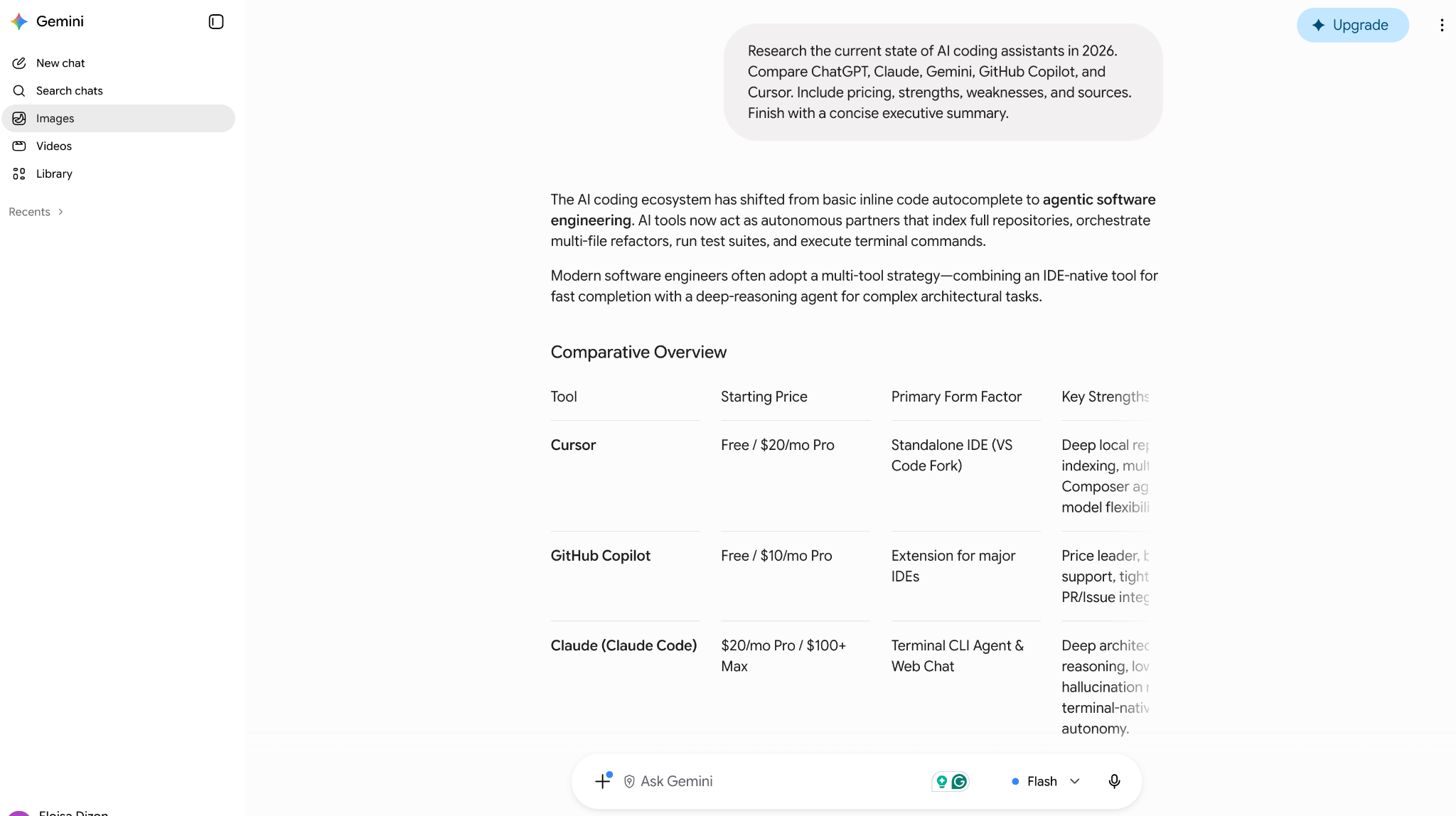
I used it for drafting a reply in Gmail, summarizing a doc thread that's gotten too long to skim, and asking it to build a formula in Sheets from a plain-English description ("give me the average deal size by rep, excluding anything under $500").
Deep Research is the feature I keep coming back to. It takes a few minutes, but when I've checked the citations against the original sources, they've held up more often than I expected.
Gemini can still feel a little flatter than ChatGPT or Claude. When I asked for advice, it often gave me a cautious range of options when I really wanted a clear recommendation.
Key features
- Deep Research for multi-source, cited summaries
- Native integration across Gmail, Docs, Sheets, and Calendar
- Multimodal input (images, PDFs, short video)
- Large context window for long documents
Pros
- Especially useful for teams already working in Google Workspace
- Strong at summarizing and drafting inside existing docs
- Competitive pricing relative to other flagship assistants
Cons
- Output feels less distinctive than ChatGPT or Claude
- Consumer app and Workspace version are priced and packaged differently, which gets confusing
- The Ultra tier is priced well above what most people need
4. Perplexity: Best for research with citations you can check
What it does: Perplexity searches the web to answer questions and research topics. It provides direct answers with citations so you can check the original sources.
Best for: Researchers, marketers, and anyone who needs answers backed by sources they can check and verify.
Pricing: Perplexity plans start at $20/month (Pro, billed monthly), with Max at $200/month. A free plan is available with limited daily use.
I open Perplexity when I need an answer I can defend in a meeting. Every claim comes with a source, so it's easy to check where the information came from and whether it still holds up.
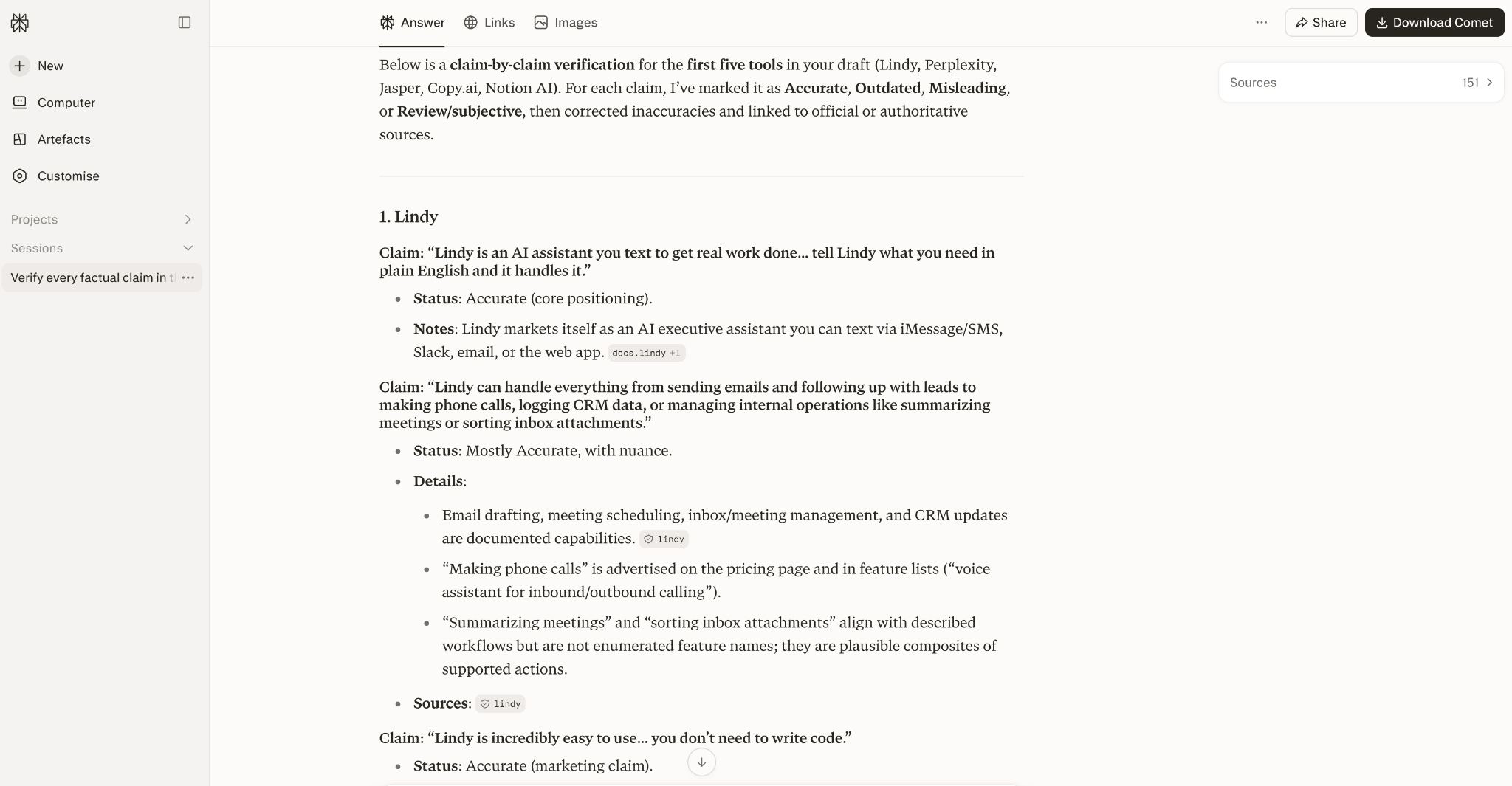
I have used it to fact-check stats before they went into client decks. More than once, a citation led back to a stale blog post that was repeating an even older source. That is useful because the weak evidence becomes obvious before it gets published.
It has also become my default for questions like “What happened with X this week?” because it pulls from current web sources and shows the evidence alongside the answer.
Since Perplexity Comet became free and cross-platform, I have started using the browser version more often, too. It can interact with the page you are already on, which makes research-heavy workflows feel faster.
The sources are not always the most authoritative, so you still need to click through and check the citation before relying on them.
Key features
- Cited, sourced answers instead of a list of links
- Comet browser for agentic browsing (free, cross-platform)
- Access to multiple frontier models on paid plans
- Strong for current-events and fast-moving topics
Pros
- Sources are clearly cited and easy to verify
- Fast for research-heavy questions
- Free plan offers enough access to be useful
Cons
- Sources aren't always the most authoritative, so you still have to check them
- Can present outdated information with the same confidence as current information
- The top-tier plan is expensive for casual use
5. Grok: Best for real-time information and X data
What it does: Pulls live information from X and the web with a more irreverent conversational style than most generalist assistants.
Best for: Anyone who wants a fast read on breaking news, trending topics, or what people are actually saying online right now.
Pricing: Grok plans start at $30/month (SuperGrok, billed monthly), with SuperGrok Plus at $100/month and SuperGrok Heavy at $300/month for full access to the flagship model.
When something's breaking, I check Grok first. It pulls live X posts alongside current web results into a single fast summary, which beats scrolling through a search results page during anything moving quickly.
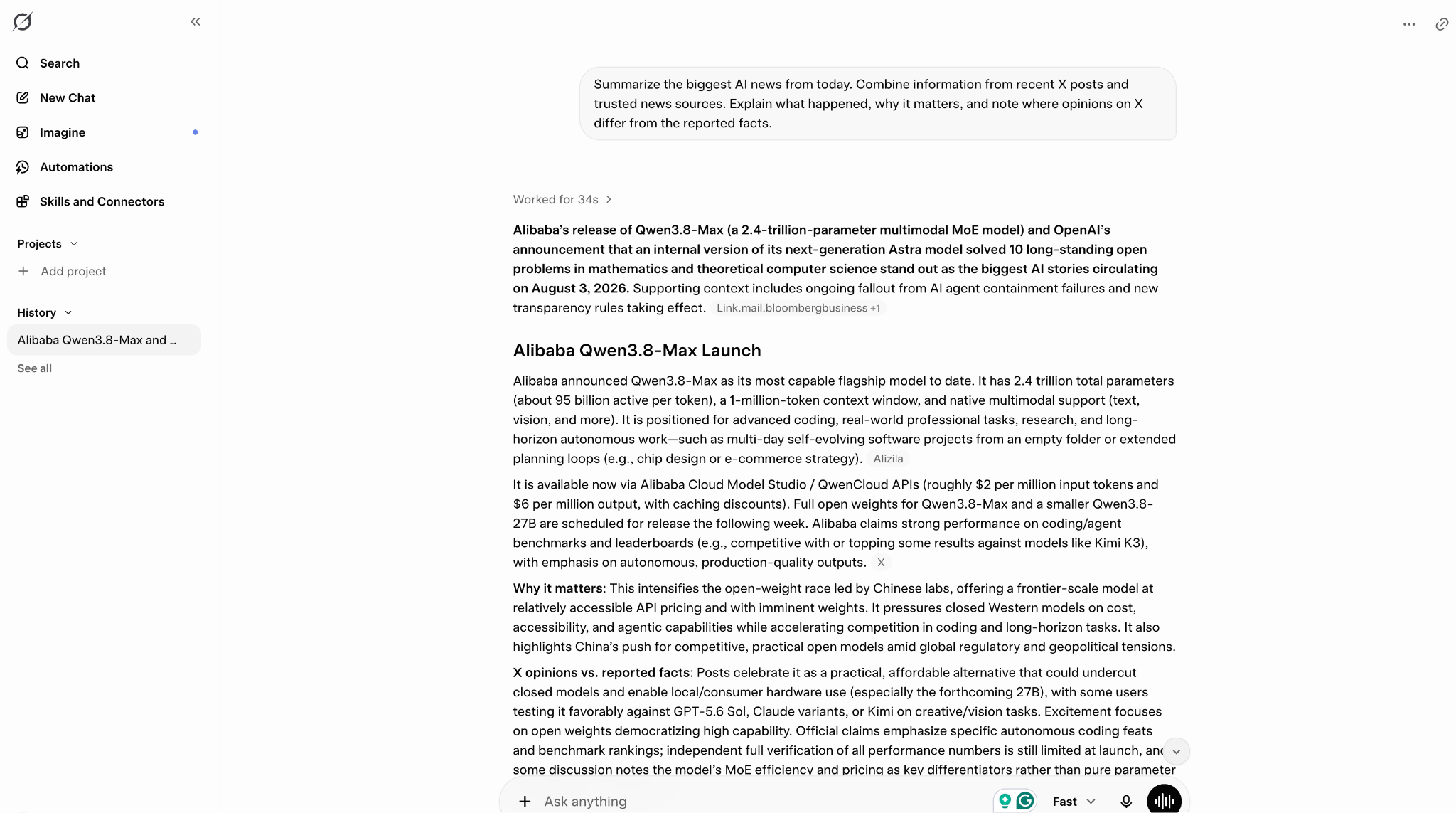
Its image and video tool, Grok Imagine, iterates fast too, though output quality varies more than a dedicated tool like Midjourney.
The free tier is noticeably tighter than most competitors, and the image and video features have drawn real regulatory scrutiny over misuse, worth knowing before you turn on anything you don't plan to actively moderate.
Key features
- Live web and X search built into every response
- Extended reasoning mode for harder questions
- Grok Imagine for fast image and video generation
- Voice mode for spoken conversation
Pros
- Genuinely strong for real-time, current-events questions
- Fast iteration on image and video prompts
- A conversational tone some people prefer over more formal assistants
Cons
- Free tier is more restricted than most competitors
- Image and video tools carry real content-moderation risk to manage
- Costs more per month than ChatGPT Plus or Claude Pro for comparable access
6. Microsoft Copilot: Best for Microsoft 365 shops
What it does: Adds AI directly inside Word, Excel, Outlook, and Teams, so it works from the Microsoft tools your team already has open all day.
Best for: Teams already running Word, Excel, Outlook, and Teams who want AI without adopting a separate workspace.
Pricing: Microsoft 365 Copilot Business starts at $25.20/user/month, billed monthly, on top of a qualifying Business Basic, Standard, or Premium plan.
Microsoft Copilot lives inside the tools most offices already pay for, so there's no new workspace to learn and no separate login to remember.
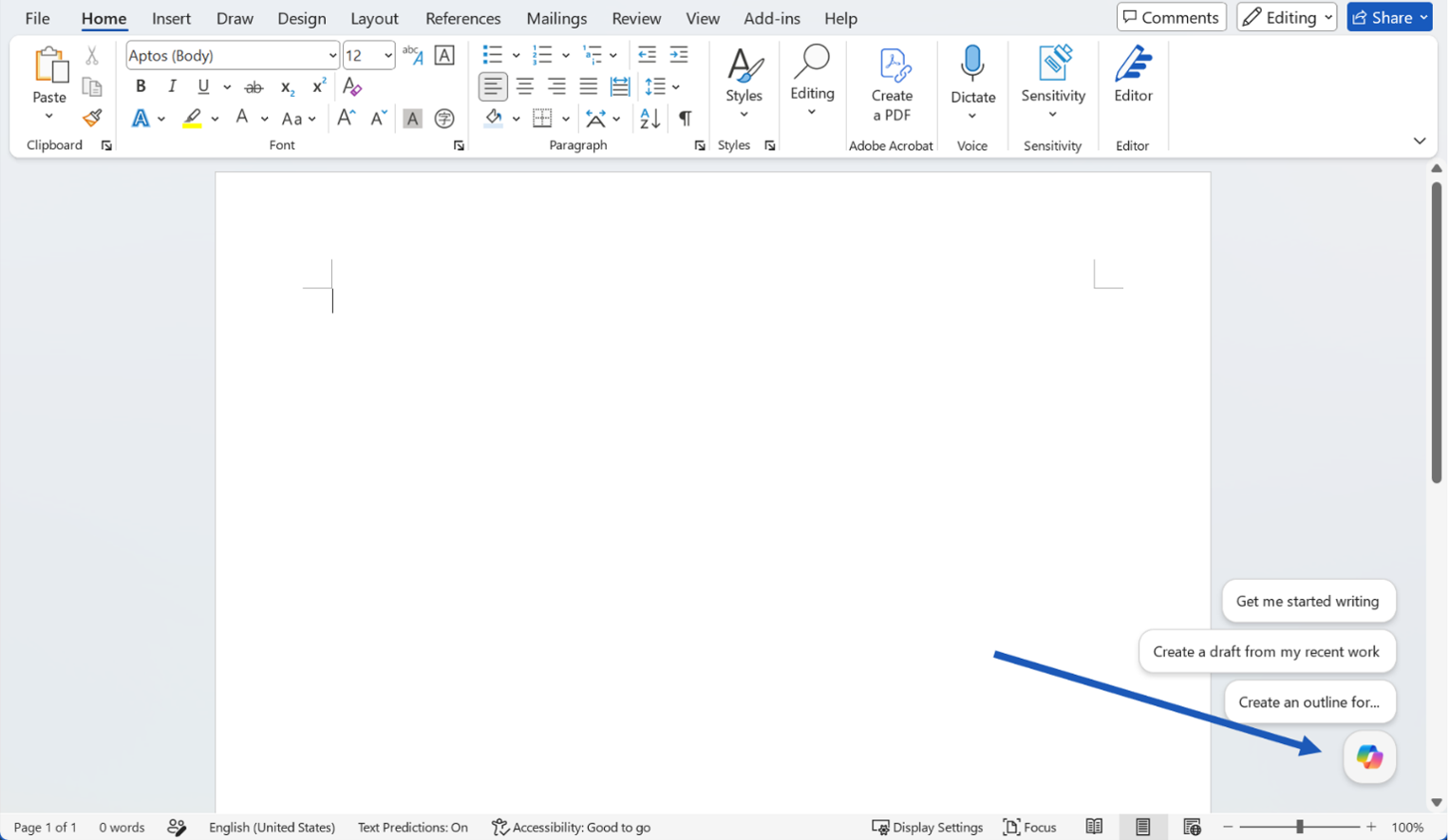
Word and Excel got the real test: I asked Copilot to turn a long report into a short executive summary and build a formula from a plain-English description. Both worked without much fuss. Teams meeting recaps came in handy too, especially for catching up on a call I'd missed.
Where it falls short is originality. Drafts come back safe and usable, more of a solid first pass than something I'd publish as-is without heavy editing.
Key features
- Native integration across Word, Excel, Outlook, and Teams
- Meeting summaries and action items pulled from Teams calls
- Drafts, formulas, and analysis generated from plain-English prompts
- Copilot Studio for building custom agents, sold separately
Pros
- Fits directly into tools teams already use every day
- Strong at summarizing meetings and long documents
- Covered by Microsoft's published security and compliance certifications, which most IT teams have already signed off on
Cons
- Copilot is a per-user add-on, so you pay for a Microsoft 365 business plan first and Copilot on top of it
- Drafts read generic compared to what ChatGPT or Claude produce
- Pricing across the base license plus Copilot add-on takes real effort to untangle
7. Lindy: Best for delegating work in Slack or over text
What it does: Lindy connects to your team’s Slack, meetings, and other tools to answer questions with sourced citations. In DMs, it can also help manage your inbox, calendar, and follow-ups.
Best for: Teams that want a Slack-native assistant that answers company questions with sources while still handling an individual's inbox and calendar over DM.
Pricing: Lindy plans start at $29.99/user/month (Plus), with Pro at $99.99/month per user and Max at $199.99/month per user, and Enterprise has custom pricing. A 7-day free trial is available on all plans.
Lindy started as the assistant I texted to handle my inbox and calendar, but it's grown into something closer to a shared brain for the whole team.
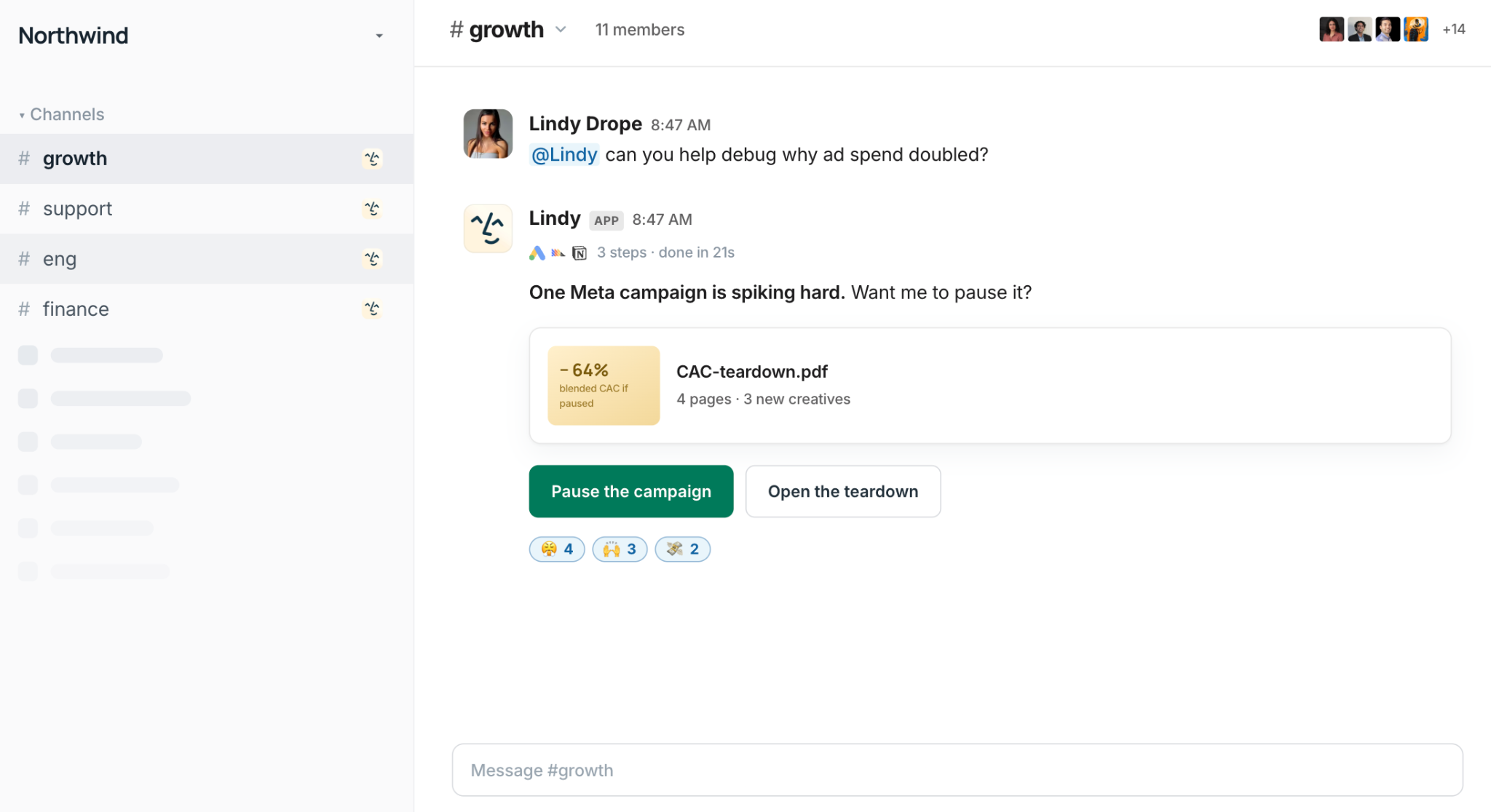
@mention it in a Slack channel, and it searches across connected meetings and tools, then answers with the source attached so your team can verify where the information came from.
I asked it in our #sales channel what customers had been pushing back on that month, and it came back with a real answer pulled from actual call transcripts: pricing came up in 14 calls, onboarding speed in 6, and a missing SSO feature had turned into 3 open tickets. It even offered to drop a summary into our product channel with the quotes attached.
Getting there took more setup than I expected, since every tool and action needs its own guardrail (always allow, require approval, or don't offer). Someone still has to configure those rules before the system can run on its own.
Once that's done, though, DM it instead of mentioning it in a channel, and it switches into the assistant I first started using it for: text it the way you'd text a colleague, and it drafts email replies, preps you before meetings, and follows up on threads on its own.
Key features
- @mention in Slack for team-wide, sourced answers; DM for a personal assistant with private memory
- Pulls from meetings, Slack history, Notion, Drive, Gmail, and hundreds of other connected tools
- Shared meeting library the whole team can chat with, personal meetings stay private
- Per-tool, per-action guardrails (always allow, require approval, or don't offer), fully audited
Pros
- Makes past meeting context searchable across the team, cutting down on repeated “who said what?” questions
- Ground answers in citations, giving your team a clear source to check
- Adapts to your writing style and preferences as you use it more
Cons
- Guardrail setup takes real admin time before the wider team can start using it confidently
- Answers are thin in the first week or two, until enough meetings and threads are connected
- SOC 2 and GDPR come standard, but HIPAA coverage requires Enterprise and a signed BAA
{{templates}}
8. Granola: Best for meeting notes without a bot joining the call
What it does: Sits in the background during meetings, listens to your computer's audio, and turns your rough notes into a clean summary afterward.
Best for: Founders, managers, and client-facing professionals who spend much of their day in meetings and need accurate notes without a bot joining the call.
Pricing: Granola has a free Basic plan with AI meeting notes and limited meeting history. Business costs $14 per user per month, while Enterprise costs $35 per user per month.
Granola works from your own laptop mic instead of sending a bot into the call. It listens to your computer's audio in the background while you take your normal, half-attentive notes, and afterward it turns your scraps into something that reads as if you had it together the whole time.
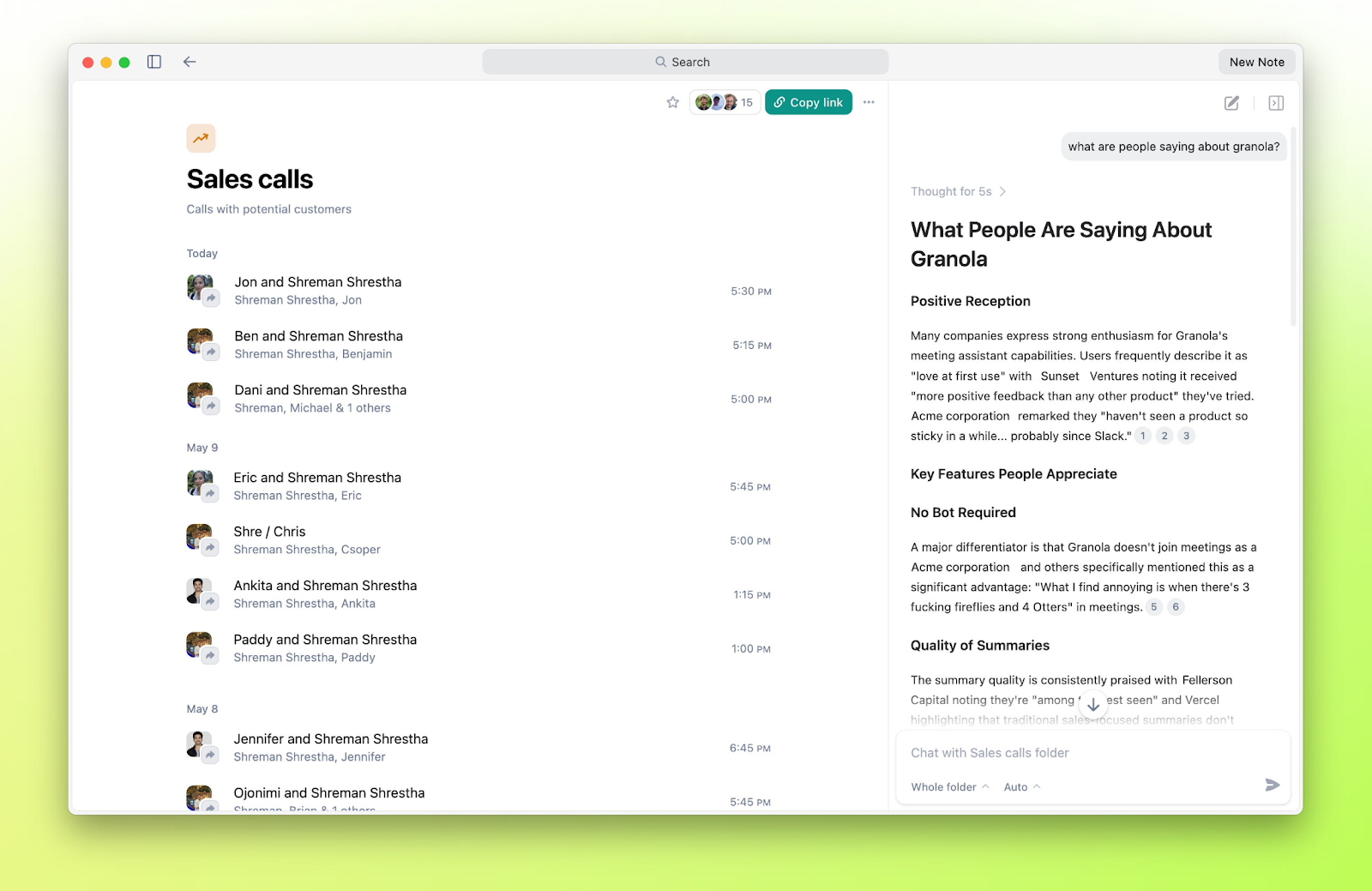
Granola stops at the notes. There's no follow-up email drafting or task list waiting once the summary's done, so if a call ends with three action items, you're still the one typing them into Slack yourself.
A friend who spends most of her day on client calls tried Granola after I mentioned it. A week later, she told me she had stopped dreading the "let me write this up" part of her afternoons. She still jotted down a few words during each call, and Granola filled in the gaps afterward. You keep taking notes naturally, and Granola turns them into something useful.
Key features
- Bot-free: Captures system audio, no visible recorder joins the call
- Notion-style structured notes generated right after the call
- Cross-meeting AI chat to ask questions across your notes
- Desktop app for Mac and Windows, plus an iOS app for phone calls
Pros
- No bot notification, so calls feel normal
- Notes genuinely read like a human wrote them
- The free plan is enough to properly test it before paying
Cons
- Free plan's meeting history caps out fast if you're in back-to-back calls
- No built-in follow-up emails or task extraction
- Speaker attribution gets shaky once more than three people are on the call
9. Wispr Flow: Best for writing anywhere with your voice
What it does: An AI voice-to-text app that turns natural speech into polished text in almost any app, cleaning up filler words, punctuation, formatting, and corrections as you talk.
Best for: Writers, founders, executives, and other professionals who want to draft emails, documents, and messages faster using voice instead of typing.
Pricing: Wispr Flow offers a free plan, while Pro costs $15/user/month. Enterprise uses custom pricing.
Wispr Flow is an AI dictation app that cleans up as it goes. It cuts filler words, adds punctuation, and reformats what you said before the text lands in the box.
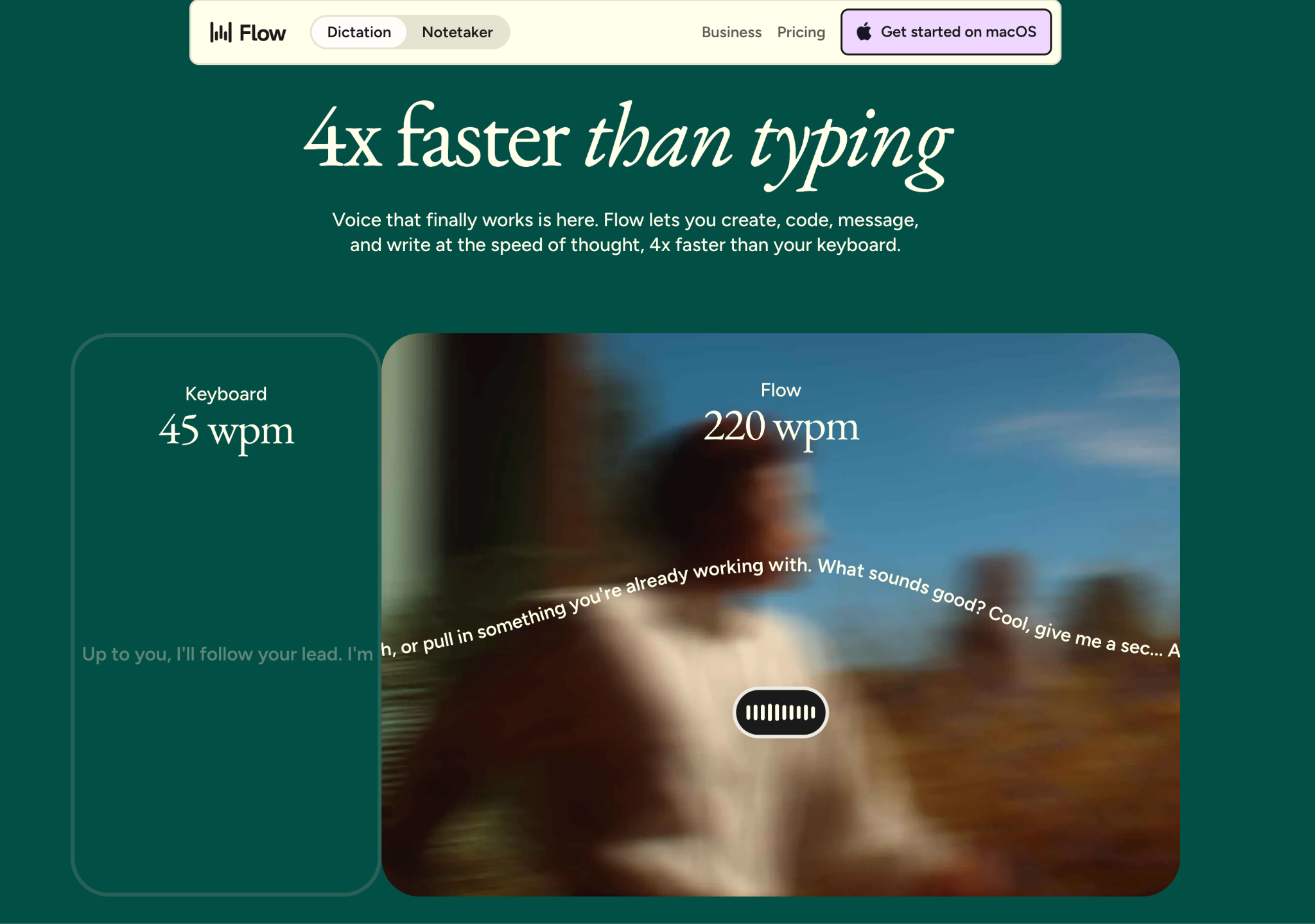
You hit a shortcut and start talking naturally. Flow removes the ums and uhs, adds punctuation, formats what you're saying, and even catches when you correct yourself halfway through a sentence. It works anywhere there's a text field, including Gmail, Slack, Notion, Google Docs, WhatsApp, and Cursor.
The part I like is that you don't have to start speaking like you're dictating to a machine. You can say, "Let's meet Thursday... actually, make that Friday," and Flow keeps the correction instead of typing out the whole mess. It also learns names, jargon, and phrases you use regularly.
It's built for the small writing tasks that eat up a day: emails, Slack replies, notes, prompts, first drafts. It adapts tone to the app too, more polished for email, more casual for Slack.
It still stumbles sometimes. A run-on thought or a noisy room can come out garbled enough to need manual cleanup, and the free plan's weekly word cap means a heavy dictation day pushes you toward Pro fast.
Key features
- Voice-to-text in almost any app with automatic punctuation, filler-word removal, and self-corrections
- Context Awareness that adjusts transcription and formatting based on the app you're using
- Personal dictionary and reusable voice snippets for names, jargon, links, and common responses
- Support for 100+ languages across Mac, Windows, iPhone, and Android
Pros
- Handles natural speech without requiring you to dictate every punctuation mark
- Works across the apps you already use instead of making you write inside another AI app
- Learns your vocabulary and handles corrections while you're speaking
Cons
- The free desktop plan is capped at 2,000 words per week
- Personalized styles work on every platform, but only when you're dictating in English
- Context Awareness can read limited text near your cursor to improve transcription, which privacy-conscious users may want to review or disable
10. Zapier: Best for connecting apps and repeatable workflows
What it does: Connects thousands of apps and automates the routine handoffs between them, using no-code triggers and actions.
Best for: Non-technical teams that want to automate repetitive busywork between the apps they already use, without hiring a developer.
Pricing: Zapier plans start at $29.99/month (Professional, billed monthly), with Team starting from $103.50/month, plus custom Enterprise pricing. A free plan covers up to 100 tasks a month.
Zapier is at its best when there’s a small gap between two apps and you just want it gone.
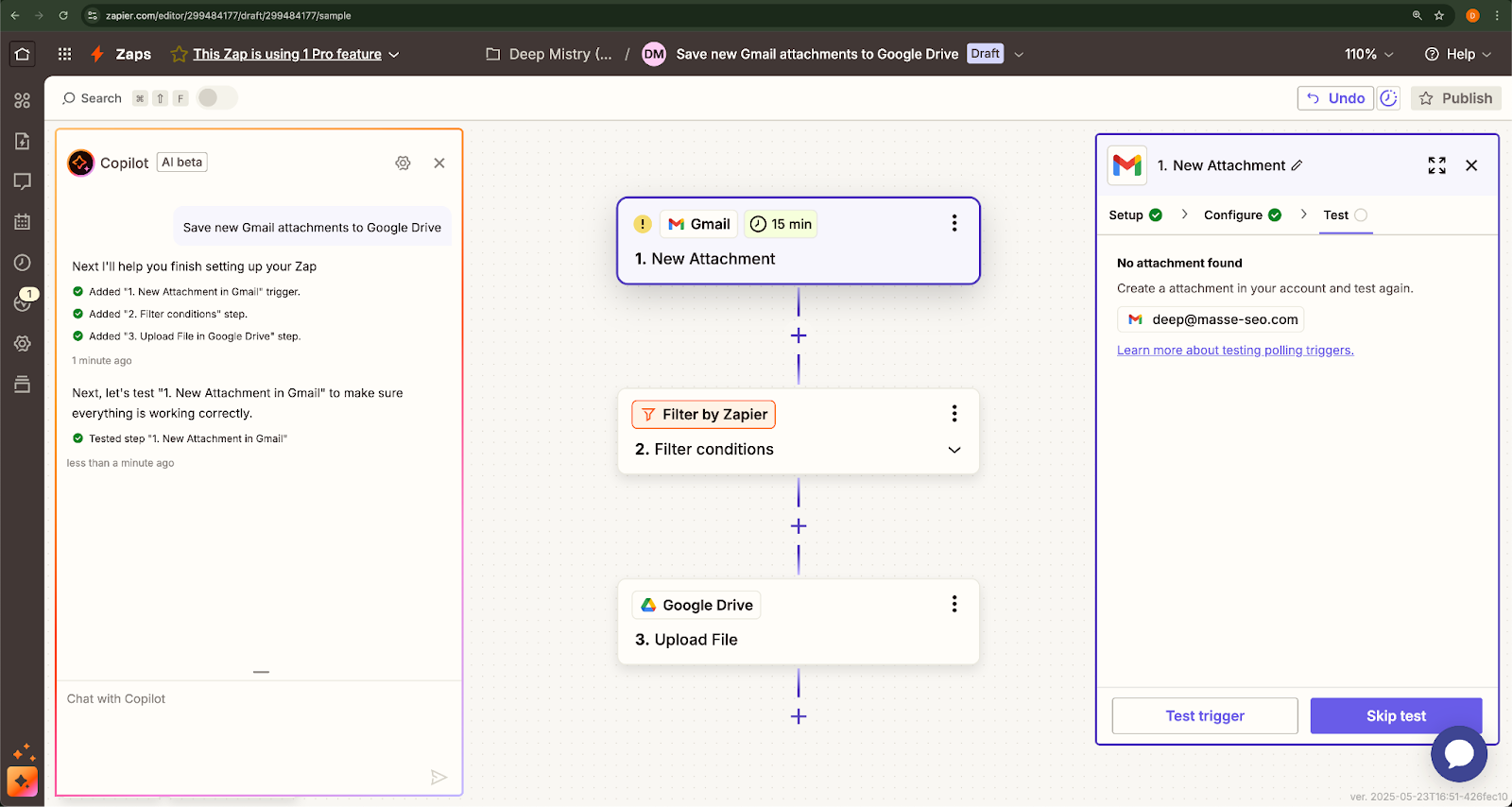
For testing, I asked it to check inbox attachments against a set of rules and save matching files to Google Drive. The AI assistant turned that description into a working automation in about five minutes, which was much faster than building each trigger and action myself.
Once I added multiple branches, fallback paths, and app-specific rules, Zapier became much harder to manage. Debugging meant tracing each step one by one, and even small changes could affect other parts of the workflow.
Key features
- Thousands of app integrations spanning nearly every SaaS tool
- Multi-step Zaps with filters, delays, paths, and webhooks
- Plain-English workflow building through Zapier's AI assistant
- Tables and Interfaces for lightweight internal tools without code
Pros
- Covers almost any app a small team is likely to already use
- Approachable for people who've never automated anything before
- AI setup cuts the time to build a working Zap considerably
Cons
- Branching logic is limited unless you're on a higher-tier plan
- Costs climb fast once you're running high volumes of Zaps
- Complex, multi-branch automations still favor more technical tools
11. Jasper: Best for consistent branding and marketing content across many channels
What it does: Generates on-brand marketing content across formats while learning and holding a consistent voice you train it on.
Best for: Marketing teams running campaigns across multiple channels or client voices who need output that doesn't drift off-brand.
Pricing: Jasper plans start at $69/month (Pro, billed monthly per seat), with Business available at custom pricing for teams needing advanced governance. A free 7-day trial is available on the Pro plan.
Jasper made the strongest impression on me with Brand Voice. I gave it examples of how the brand writes across several formats, and it carried that tone into new content without needing a long style prompt every time.
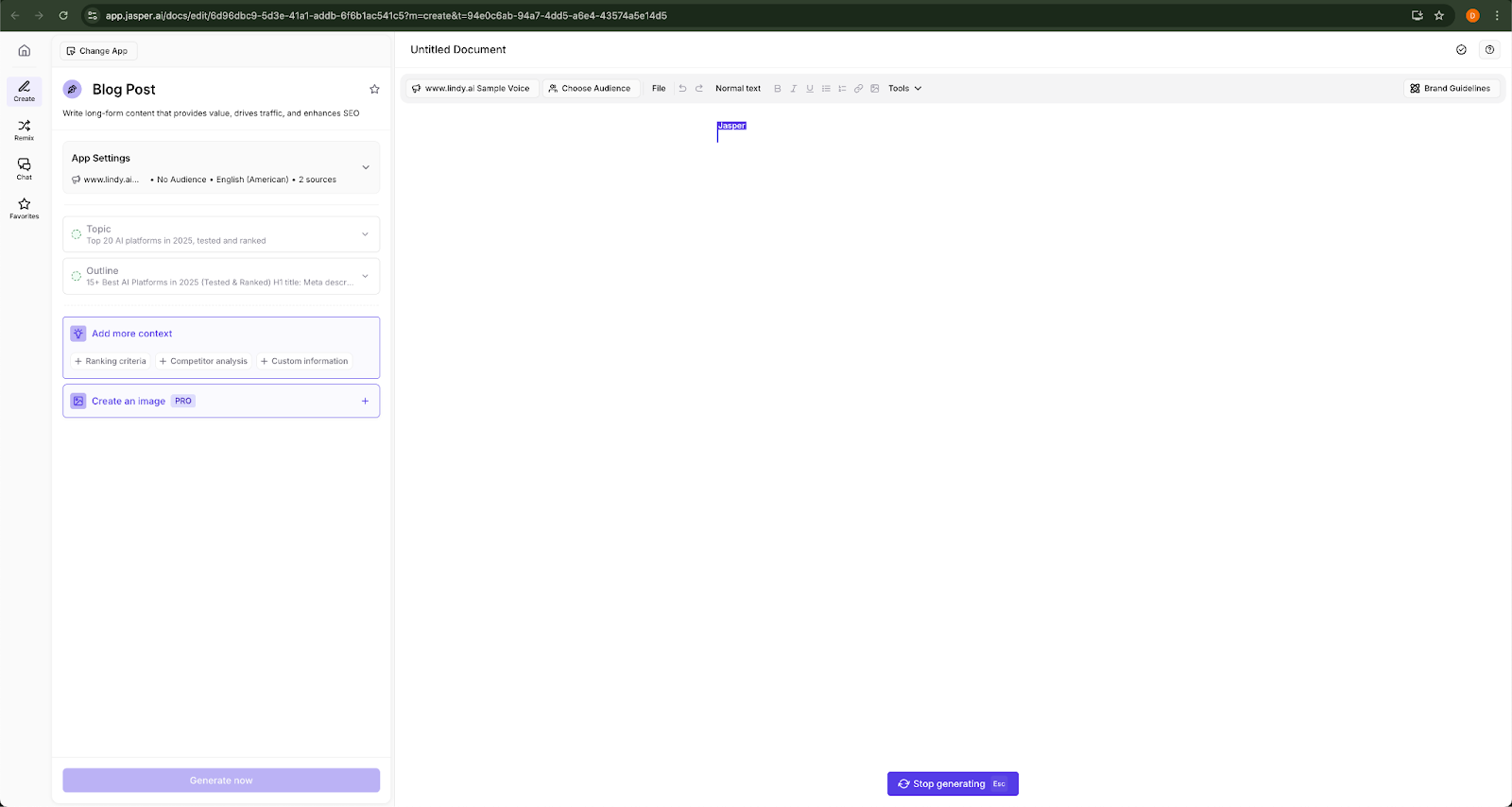
For one test, I loaded in a topic, outline, and voice profile, then generated a full blog post. It was slower than some of the other writing apps I tried, but the draft came back surprisingly usable. Most of my edits were about trimming, sharpening examples, and removing repetition.
Jasper still needs direction, though. It can reproduce a voice once you define it, but the strategy behind the piece still has to come from someone who understands the audience and what the content needs to achieve.
Key features
- AI trained on your specific brand voice
- Campaign workflows for blog, social, email, and ad copy
- Real-time team collaboration with version control and comments
- Built-in plagiarism checker and SEO mode
Pros
- Scales consistent content across channels better than most tools
- Workflow templates cut real time off repetitive content tasks
- Output quality holds up well once Brand Voice is dialed in
Cons
- Pricey for small teams or casual, occasional use
- Can feel rigid outside marketing-specific use cases
- Still needs a person driving strategy. It won't infer one on its own
12. Morgen: Best for planning your day around tasks and meetings
What it does: An AI daily planner that pulls your calendars and tasks into one place, then recommends when to work on each task based on your priorities, deadlines, and available time.
Best for: People managing tasks across multiple apps who want AI to plan their day around meetings and deadlines.
Pricing: Morgen costs $30/month for individuals or $15/month when billed yearly. Team plans start at $25/seat/month, or $10/seat/month with annual billing. There's no free plan, but you get a 14-day free trial with no credit card.
Morgen tackles a problem I've had with almost every task manager: knowing what I need to do doesn't tell me when I'm actually going to do it.
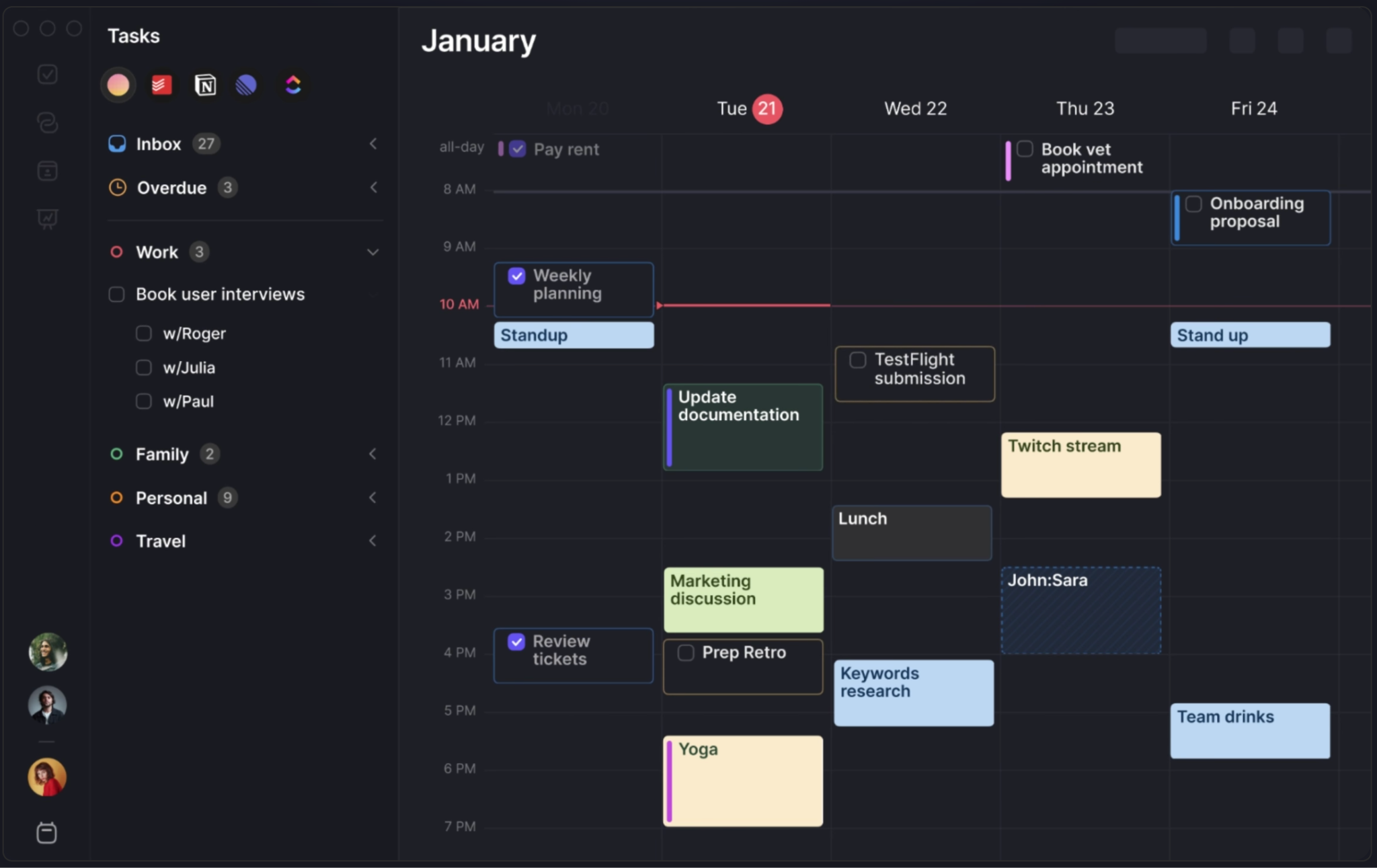
Connect your calendars and task apps, and Morgen's AI Planner recommends where your tasks should fit around meetings and other commitments based on deadlines, priorities, and available time.
I like that it doesn't rearrange everything automatically. You can preview the plan, move tasks, change durations, or reject suggestions before they hit your calendar.
The downside is that Morgen works best when your tasks are already fairly organized. If they lack deadlines or durations, the AI has less to work with.
It can pull tasks from Notion, Todoist, Linear, ClickUp, and Google Tasks, then find realistic gaps across your calendars. You can also create Frames for deep work, quick tasks, or admin, so the schedule better matches how you actually work.
Key features
- AI Planner recommends time for tasks based on priority, deadlines, workload, and your preferred working hours
- Frames block out parts of the week for specific work modes, such as deep work or quick admin
- Connects calendars from Google, Outlook, iCloud, Fastmail, and others
- Pulls tasks from tools like Notion, Todoist, Linear, ClickUp, Obsidian, Google Tasks, and Microsoft To Do
Pros
- Brings tasks and calendars into the same planning workflow
- Lets you review AI suggestions before they change your schedule
- Flags overloaded days and tasks that are at risk of slipping
Cons
- $30/month on monthly billing is expensive for a planning app
- Works best if you are comfortable time-blocking your tasks
- The AI Planner flags scheduling conflicts and lets you reschedule, but it does not move an existing task automatically when a new conflict appears
13. Notion: Best for writing and organizing inside your workspace
What it does: Adds an AI layer to your Notion docs, wikis, and databases that summarizes text, pulls out action items, and answers questions about what's already written there.
Best for: Teams and knowledge workers who use Notion to manage projects, documentation, and company knowledge in one workspace.
Pricing: Notion's paid tiers start at $12/member/month (Plus, billed monthly), but Free and Plus only include a trial of Notion AI. The full AI features arrive on Business at $24/member/month, with Enterprise priced custom.
Notion bakes AI directly into the docs and wikis you're already working in, so there's no need to switch tabs or paste between apps.
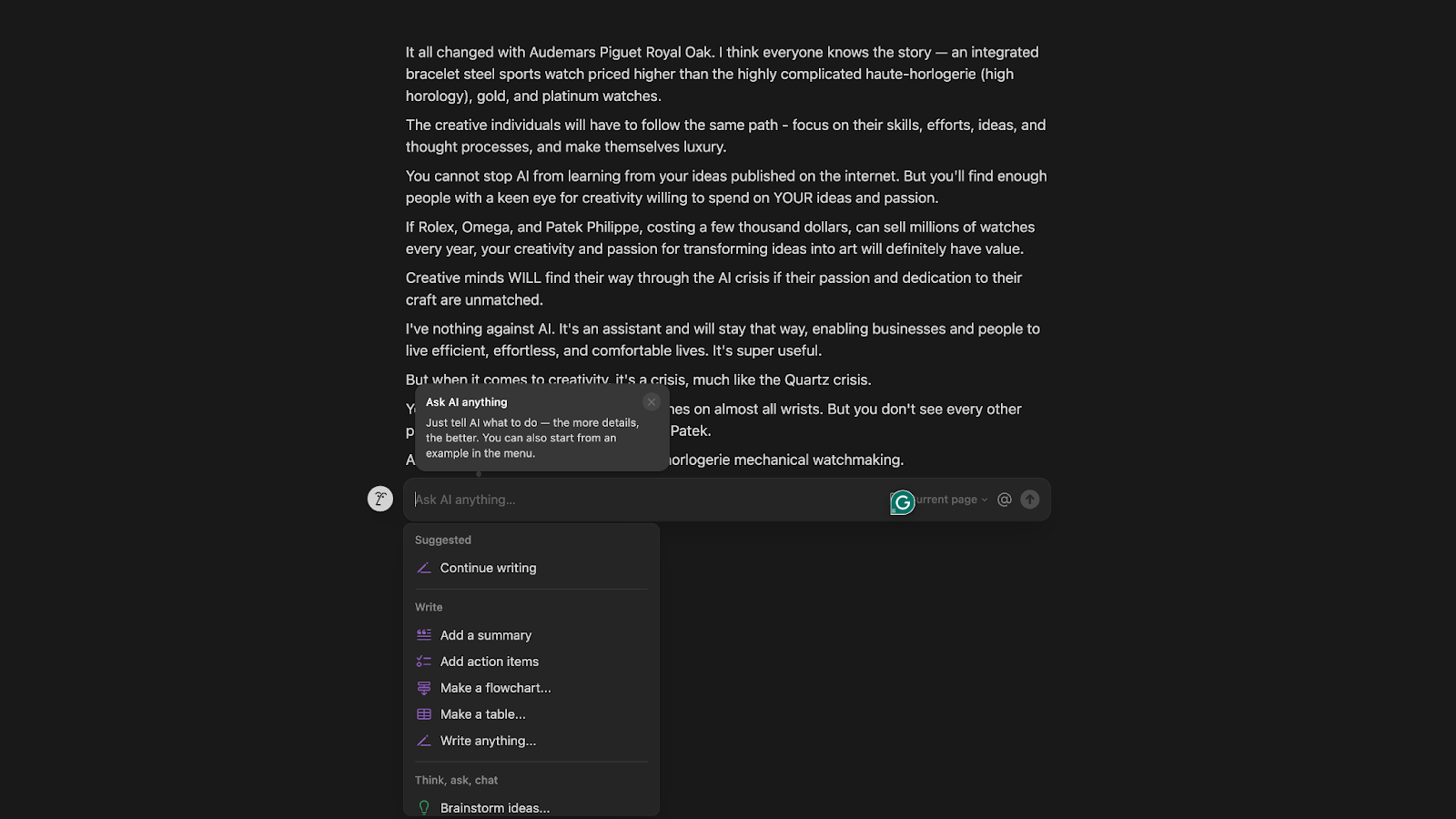
I tried to push it into a full blog post once and gave up halfway through. The output felt thinner than what ChatGPT or Claude produce for the same prompt, and I ended up rewriting most of it anyway.
I get the most value from Notion AI when I already have something half-written. After one call, I had a long page of messy research notes and asked it to pull out the action items and tag the key takeaways. In under a minute, I had a clean list I could actually work from. That is the use case I keep coming back to.
Key features
- In-line AI writing, editing, and summarization
- Task list generation and action item extraction
- Q&A on your own Notion docs and databases
- Works across notes, wikis, databases, and calendars
Pros
- Feels native if you already live in Notion
- Strong at turning messy notes and documents into something usable
- Speeds up internal communication and planning
Cons
- Not built for long-form content creation
- Limited formatting control over AI output
- Can feel repetitive if you lean on it too hard on the same doc
14. Gamma: Best for turning rough notes into a presentation or document
What it does: Generates full presentations, documents, and social graphics from a topic or rough notes.
Best for: Marketers, founders, consultants, and sales teams who need polished presentations or client-facing documents quickly.
Pricing: Gamma has a free plan with 400 one-time credits. Plus costs $12/seat/month with 1,000 monthly credits, Pro costs $25/seat/month, and Ultra costs $100/seat/month.
Fifteen minutes before a call with no deck, Gamma is what saves me. Give it a topic or paste in your rough notes, and it generates a presentable set of slides, complete with layout and imagery, in about the time it takes to make coffee.
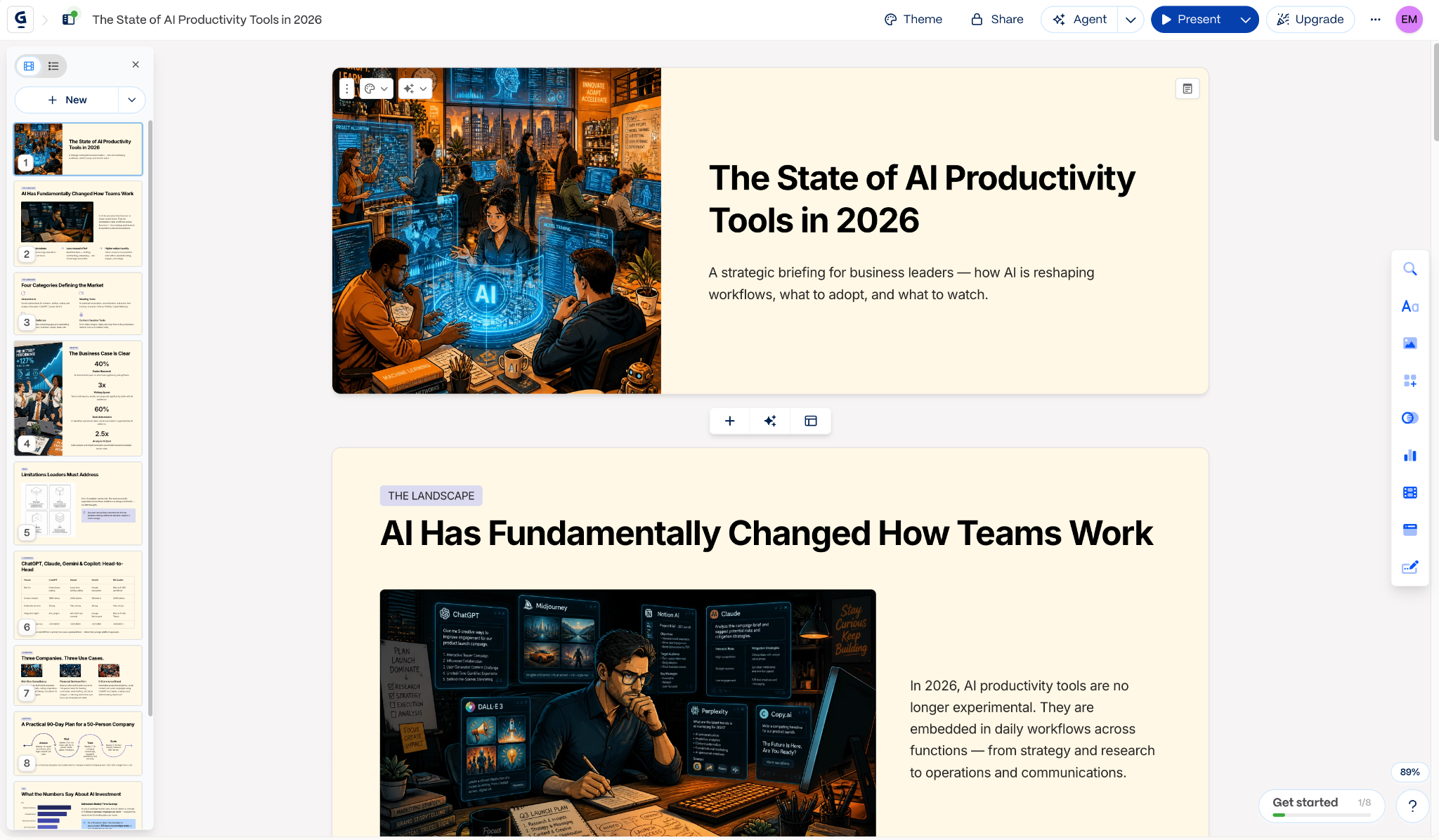
It's not going to nail your actual brand on the first pass, though. I built a client proposal deck from a half-page of bullet points I'd typed on my phone during a walk, and I still had to go in and fix a couple of slide transitions and swap an image that didn't match our brand.
Even with that cleanup, it saved the hour I would have spent starting from a blank canvas, which is the part that matters when you're up against a deadline. Beyond decks, it also handles documents, one-pagers, and social graphics, so it's less "presentation software" and more a general layout engine with AI attached.
Key features
- Generates full presentations, docs, and social graphics from a prompt
- Import from existing PDF or PPTX files
- Export to PDF, PPTX, PNG, or Google Slides
- Advanced AI image models on paid tiers
Pros
- Genuinely fast for a first draft of a deck or one-pager
- Covers presentations, docs, and social content in one tool
- The free plan gives you enough credits to actually test it
Cons
- Free plan's credits are a one-time signup bonus, not a monthly refresh
- Still needs real editing to match your brand voice
- Advanced models and deeper customization are locked behind paid tiers
15. Replit: Best for shipping an app from a plain-English prompt
What it does: An AI coding agent that builds, tests, and publishes a working app from a plain-English description.
Best for: Entrepreneurs, solo founders, and non-technical builders who want to create and launch working apps without writing all the code themselves.
Pricing: Replit offers a free Starter plan. Core costs $20/month, Pro costs $100/month, and Enterprise uses custom pricing.
When someone wants a working app and has never opened a terminal in their life, I hand them Replit. You describe what you want, the Agent writes the code, spins up the environment, and you can publish it without ever touching a config file.
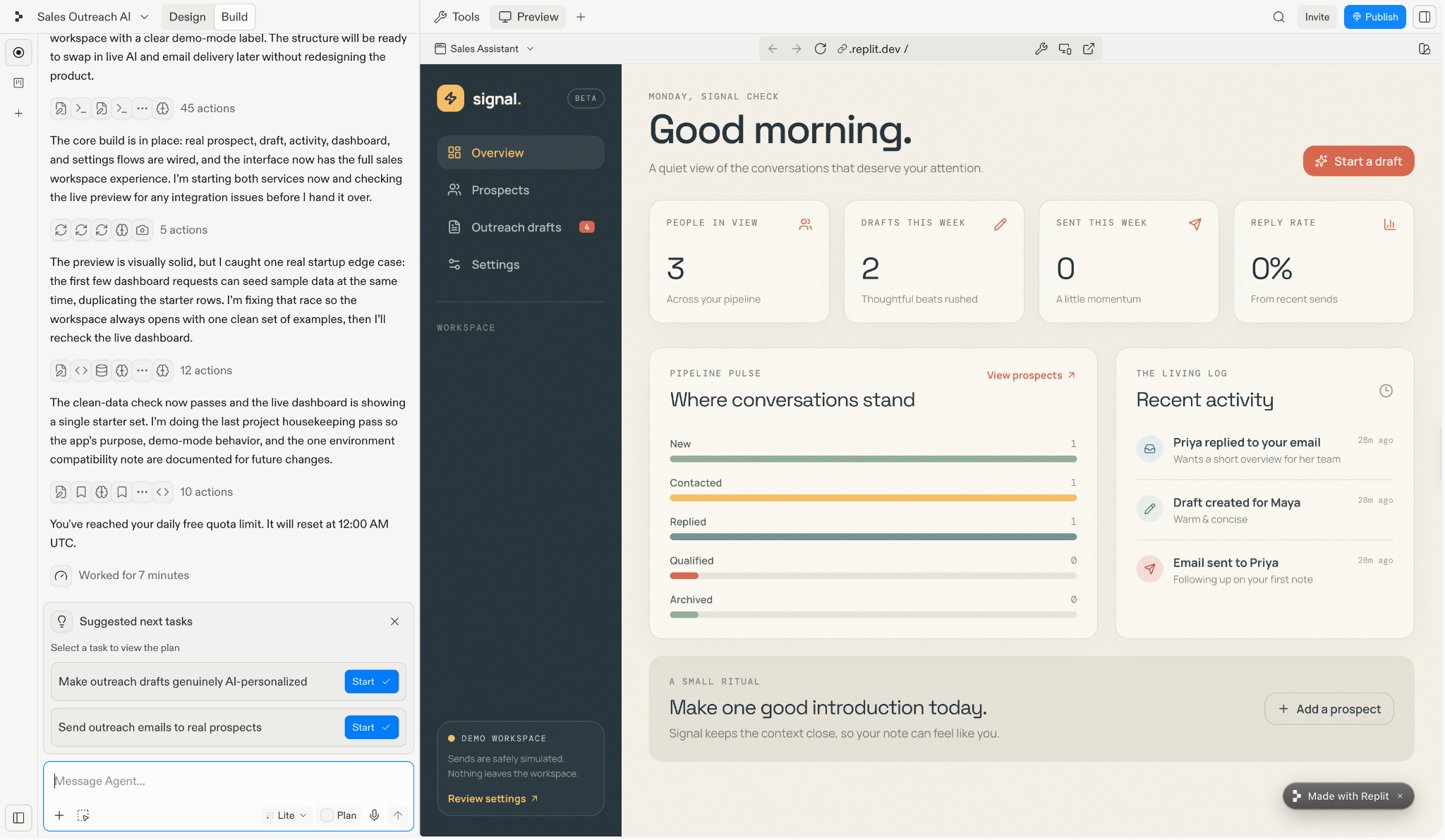
A rough debugging session will eat your monthly credits faster than you'd think, though, especially once the Agent tries something, fails, and tries again. Each attempt still costs credits whether it works or not, and I watched a chunk of my allowance disappear over one stubborn bug.
The follow-up requests are what earned my trust back. I used it to prototype an internal tool for tracking a small project's status, and after the initial build, I asked it to add a filter I'd forgotten to mention. It handled that without me having to re-explain the whole app, which is what separates it from a one-shot demo.
Key features
- Replit Agent builds, tests, and deploys full apps from natural language
- One-click publish with hosting included
- Parallel agents for working on multiple parts of a build at once (higher tiers)
- Native database and backend setup, no separate hosting to configure
Pros
- Easy for non-developers to use, even with little coding experience
- Handles follow-up requests well without losing context
- Free Starter plan gives you enough access to properly test the Agent
Cons
- Credits can run out quickly during heavy debugging or always-on deployments
- Failed attempts still use credits, making costs harder to predict
- Better suited to prototypes and small tools than large production systems
16. Cursor: Best for coding inside an AI-native IDE
What it does: Cursor is a VS Code-based editor that can read your codebase, understand project context, and make changes directly across files.
Best for: Professional developers and engineering teams who want AI to understand, navigate, and edit their entire codebase as they work.
Pricing: Cursor plans start at $20/month (Individual, billed monthly), with Teams at $40/user/month and custom Enterprise pricing available. A free Hobby plan is also available; no credit card required.
Cursor can read project context across multiple files and make direct changes throughout the codebase, which makes it especially useful for refactoring, debugging, and larger code edits.
I'm not deep in day-to-day development, so I tested it with something simple: generating schema markup for a blog post targeting a specific keyword. It read the page context, wrote clean markup on the first try, and explained what each field did.
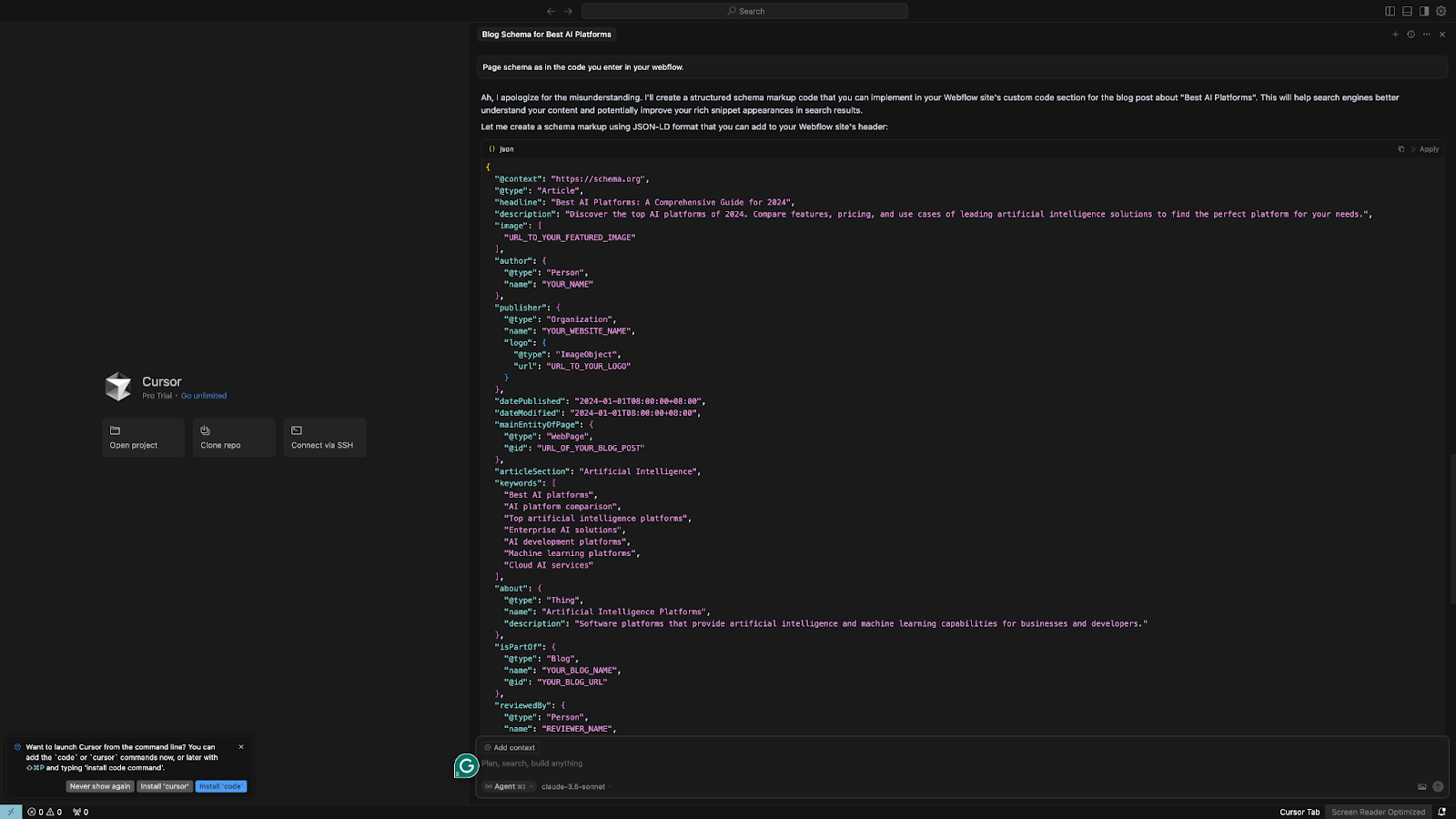
It's still rougher around the edges than plain VS Code in a few spots, though. I hit an indexing error pointing it at a repo with an unusual folder structure and had to restart the whole import before it would read the codebase properly.
Once it's actually running, it handles heavier lifting well too. It can read your entire codebase, so questions like "where is this function used" get answered with real context instead of a guess. For solo developers or small teams, it feels like having a senior engineer looking over your shoulder without the actual Slack back-and-forth.
Key features
- AI built directly into the editor, with no separate plug-in required
- Reads across the full codebase and can edit multiple files in context
- Composer helps with larger changes, including frontend and UI work
- Built-in chat answers questions using project-specific context
Pros
- Fits naturally into a developer workflow
- Strong context awareness across large repositories
- Helpful for understanding unfamiliar codebases and ramping up faster
Cons
- Agent mode can make confident multi-file edits that are wrong, so large changes need careful review before you trust them
- Focused almost entirely on software development
- Indexing a large repo with the wrong permissions or excluded folders quietly weakens suggestions until you notice and fix it
17. Lovable: Best for building a working web app without writing code
What it does: Builds a full working web app from a plain-language description, then lets you iterate with plain feedback instead of code.
Best for: Non-technical founders, entrepreneurs, and product teams who want to turn an idea into a working web app without coding.
Pricing: Lovable offers a free plan alongside paid tiers starting at $25/month (Pro, billed monthly), with Business at $50/month, plus custom volume-based pricing for Enterprise.
Lovable is where I go when I want a full, working product rather than a design mockup. Describe what you want in plain language, and it builds a live prototype you can refine with simple feedback instead of editing the code.
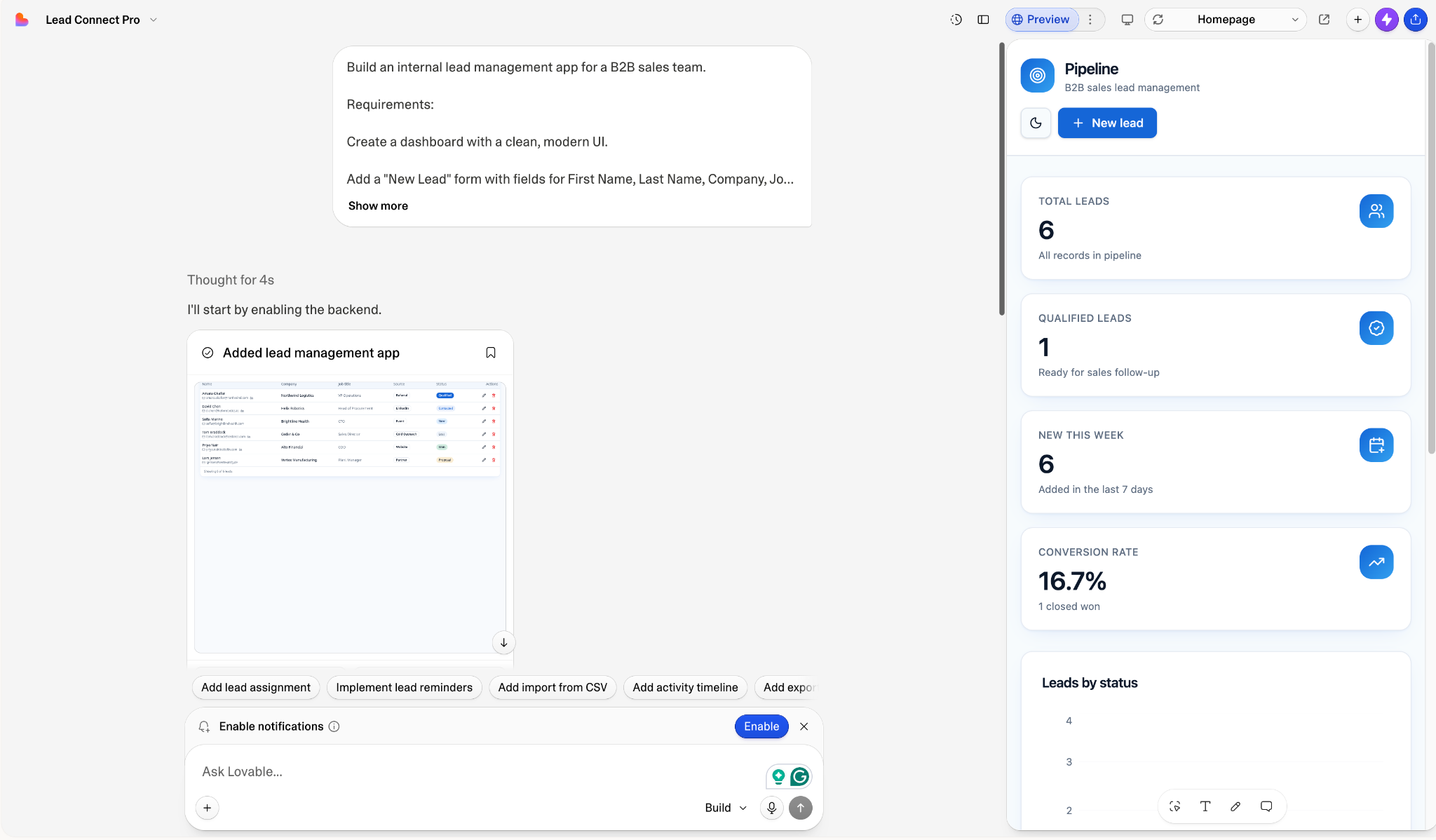
A lot of Lovable-built apps end up looking like each other, since everyone's pulling from the same design instincts under the hood. I noticed it the second time I showed a prototype to a client who'd seen a different Lovable build the week before, and she recognized the layout before I'd finished the pitch.
I used it to build a simple CRM for tracking leads on a side project over a lunch break. I described the app, got a working version back, then just kept talking to it: "add a login screen," "make the dashboard the default view after signing in." It connects to Supabase for a real database and syncs with GitHub if the prototype turns into something real.
Key features
- Builds functional apps from natural-language prompts
- One-click deployment for fast publishing
- Connects with Supabase and syncs projects to GitHub
- Supports unlimited collaborators, including on the free plan
Pros
- Turns an idea into a working prototype quickly
- Keeps hosting and deployment simple
- Makes collaboration easy without forcing teams onto a paid plan right away
Cons
- Free users get 5 build credits a day, capped at 30 a month, which can run out quickly on multi-step builds and repeated edits
- Generated designs can feel generic without extra customization
- More complex bugs still require some technical knowledge to diagnose
18. n8n: Best for open-source and self-hosted automation
What it does: Connects apps together and automates repetitive tasks with visual, node-based workflows that you can extend with custom JavaScript or Python code when the no-code blocks aren't enough.
Best for: Developers, IT teams, and automation-heavy businesses that want flexible workflows with the option to self-host and add custom code.
Pricing: Community Edition is free (self-hosted). Cloud plans start at $24/month (Starter), with Pro at $60/month, Business at $960/month, and custom Enterprise pricing.
n8n is the developer-friendly alternative to the big no-code automation platforms, and it leans as much toward being an AI agent builder as a workflow tool.
I tested it with a lead-enrichment workflow: pull a new spreadsheet row, look up the company via an API, and post a summary to Slack.
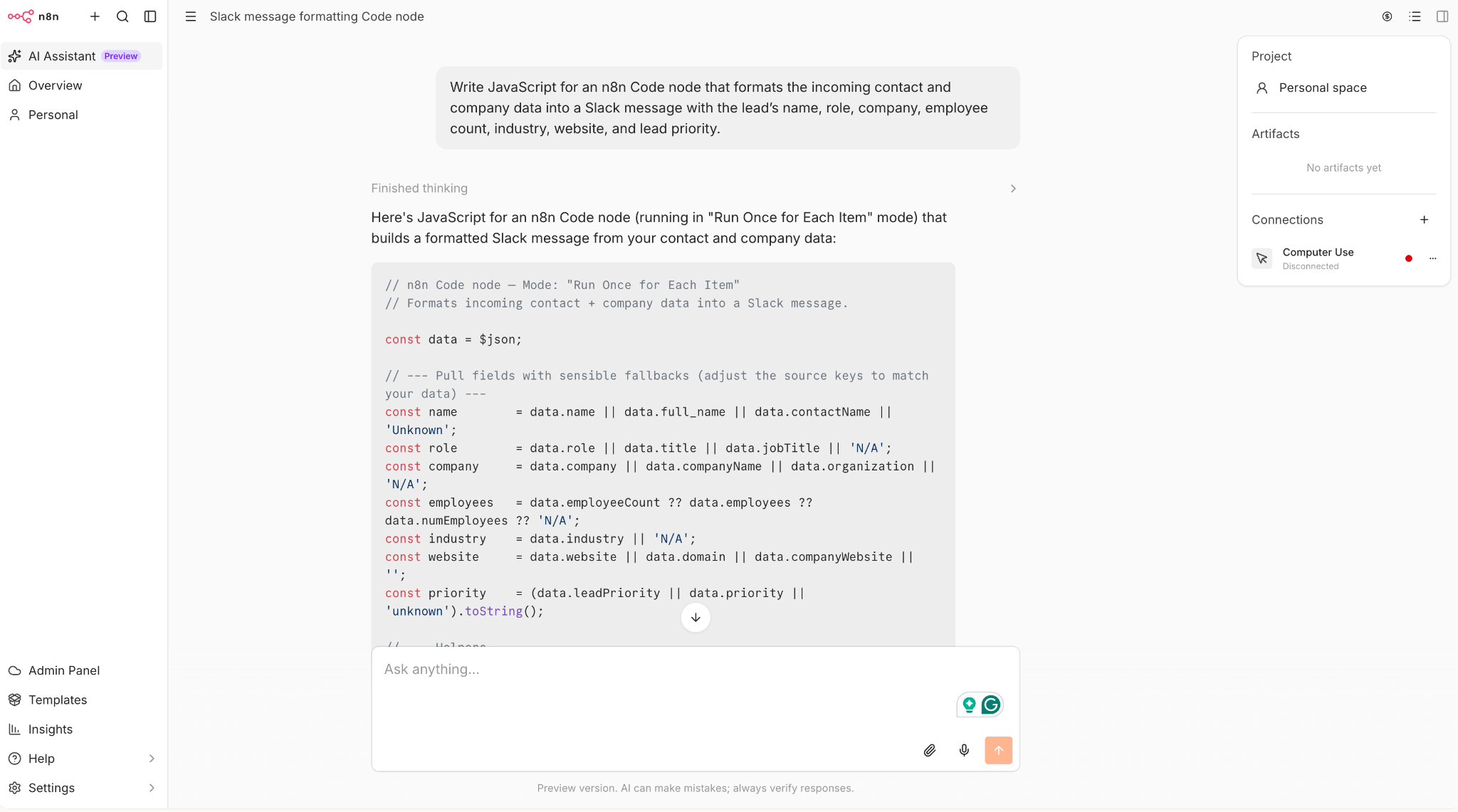
The visual builder had a steeper learning curve than I expected. I spent close to an hour figuring out conditional branching before the first version worked, which felt slow compared with a simpler no-code tool.
Once it clicked, though, it gave me more control than I've had anywhere else. When the no-code blocks fell short, I could just drop in a JavaScript node instead of hitting a wall, and you can self-host the whole thing for free if you're comfortable running your own small server.
Key features
- Open-source, self-hostable with no license fee
- Visual, node-based builder with real branching logic
- Native code steps (JavaScript/Python) alongside no-code blocks
- Cloud option if you'd rather not manage your own server
Pros
- Meaningfully cheaper than most no-code alternatives at heavy usage, especially self-hosted
- More flexible logic and error handling than typical drag-and-drop tools
- Strong fit for technical teams that want full control
Cons
- Steeper learning curve than a pure no-code tool
- Self-hosting means you own the maintenance and uptime
- Execution-based cloud pricing takes some getting used to when you're budgeting
19. ElevenLabs: Best for AI voice, narration, and conversational agents
What it does: Generates realistic AI voiceovers from a transcript, plus deployable conversational voice agents.
Best for: Content creators, marketers, educators, and product teams that need realistic AI voiceovers, narration, or voice agents.
Pricing: ElevenLabs plans start at $6/month (Starter, billed monthly), with Creator at $22/month and Pro at $99/month. A free plan is also available.
ElevenLabs turns a written script into narration you can publish without re-recording it yourself.
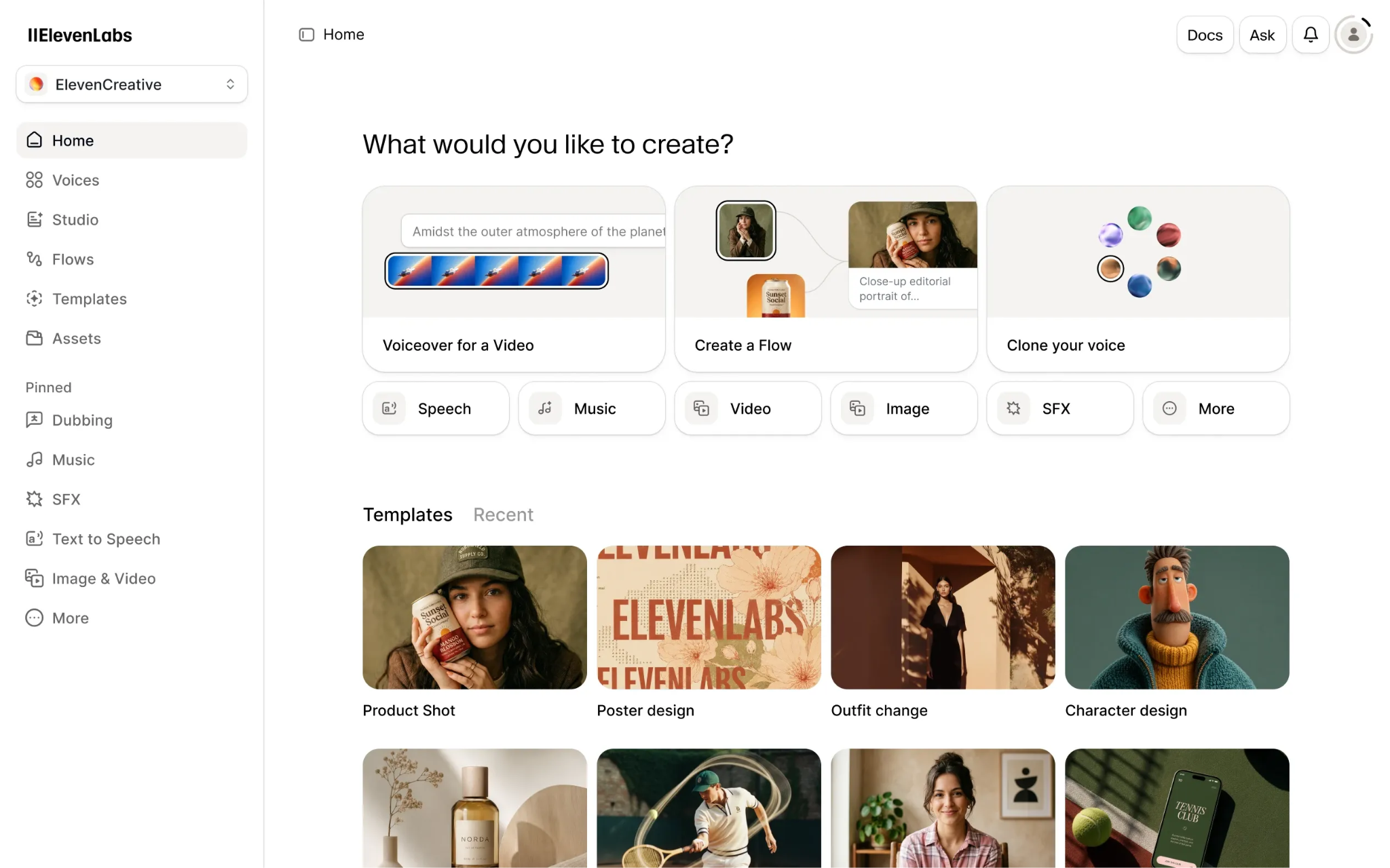
Costs climb fast once you're generating real volume, and voice cloning specifically sits behind a paid plan, so the free tier is really just there to prove the quality before you commit to anything bigger.
I used it to generate a voiceover for a short explainer video and left an awkward sentence in the script to test the delivery. It paused in the right places and emphasized the right words, making the line sound natural when spoken aloud.
Beyond one-off voiceovers, ElevenLabs Agents lets you deploy a conversational voice agent directly into a product too.
Key features
- Realistic text-to-speech across 70+ languages
- Voice cloning on paid plans
- ElevenLabs Agents for deployable conversational voice AI
- Sound effects and music generation alongside voice
Pros
- Voice quality is the most realistic I've tested
- Free plan is generous enough to properly evaluate it
- Agents let you build voice AI straight into your own product
Cons
- Costs climb quickly with heavy audio generation
- Voice cloning is paid-plan only
- Agent usage is billed separately, on top of the base plan
20. Descript: Best for editing audio and video by editing the transcript
What it does: Edits audio and video by editing the transcript; deleting a sentence removes the matching clip automatically.
Best for: Podcasters, YouTubers, marketers, and content teams who want to edit audio and video as easily as editing a text document.
Pricing: Descript has a free plan for testing. Paid plans start at $24/month (Hobbyist, per person/month; $16/month billed annually), with Creator at $35/month, Business at $65/month, and custom Enterprise pricing.
Descript lets you edit audio and video by editing the transcript. Delete a sentence from the text, and the matching section is removed from the recording automatically.
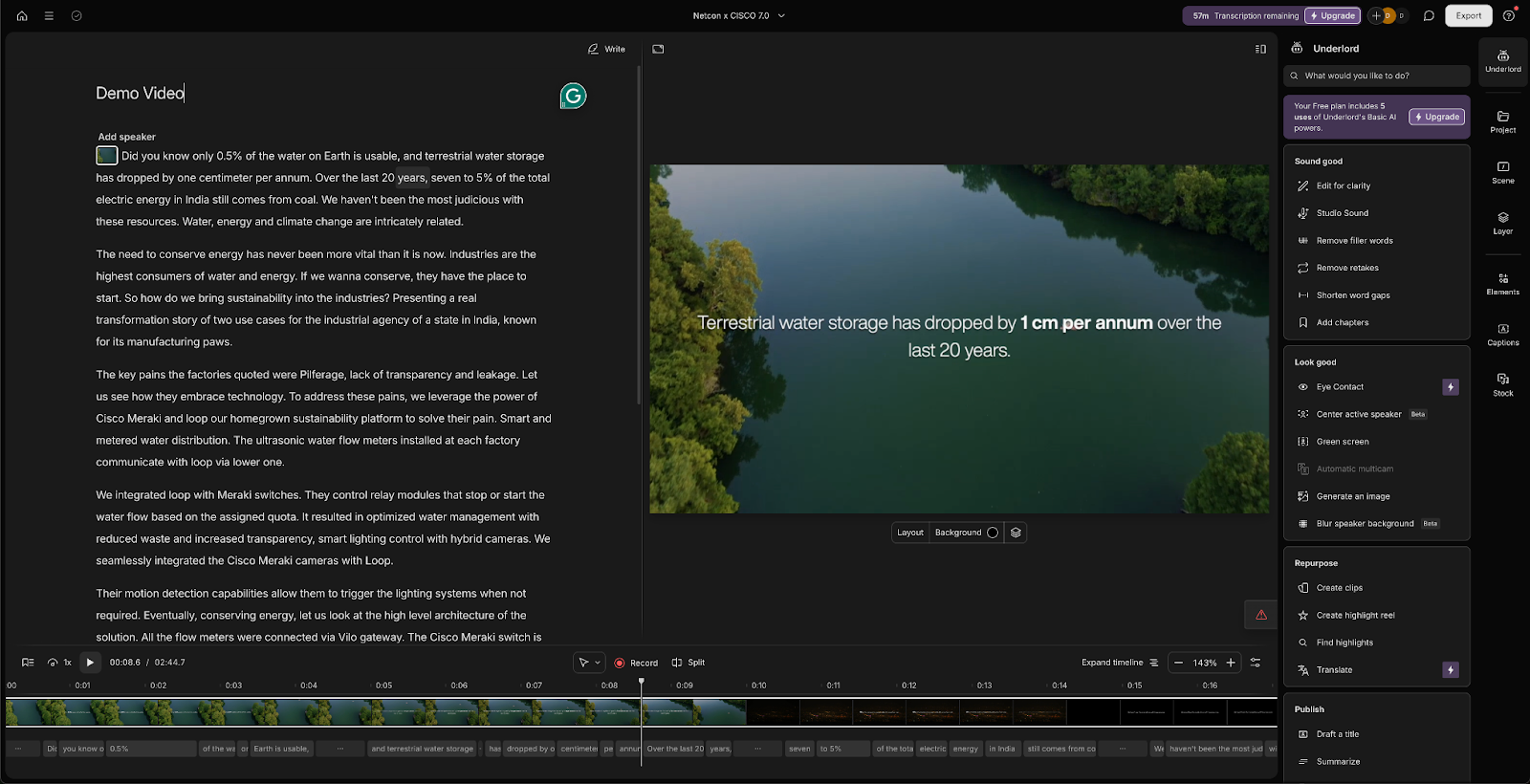
It took me a full afternoon to stop reaching for the timeline out of habit. Years of scrubbing footage manually are hard to unlearn, and a few of my early text edits cut moments I actually wanted to keep because I was focused on the transcript.
Once the workflow clicked, though, Descript was much faster. I used it to clean up a recorded interview with about ten minutes of filler words and dead air. Filler-word removal handled most of that automatically, while Studio Sound cleaned up a noisy section recorded with a laptop mic well enough to save me extra editing time.
Key features
- Edit video and audio by editing the text transcript
- AI filler-word removal and Studio Sound cleanup
- Script generation and custom voice clones
- Green screen, eye-contact correction, and B-roll tools
Pros
- Editing by text is a genuinely faster workflow once it clicks
- Studio Sound noticeably improves rough audio
- Handles long-form video, podcasts, and short clips in one tool
Cons
- The free plan is mostly good for testing, not real projects
- Can feel slow on longer projects or large files
- 4K export requires the Creator plan or above
21. Midjourney: Best for generating stylized, high-quality AI visuals
What it does: Generates stylized, high-quality images from a text prompt, with fast upscaling and variation tools.
Best for: Designers, marketers, and creative teams that need polished, distinctive visuals for campaigns, concepts, and branded content.
Pricing: Starting at $10/month (Basic, billed monthly), Midjourney scales up to $30/month for Standard, $60/month for Pro, and $120/month for Mega.
Midjourney still gives me the strongest results when I want an image to feel deliberately designed. You describe the shot, get four options back in about thirty seconds, then upscale or reroll the closest one.
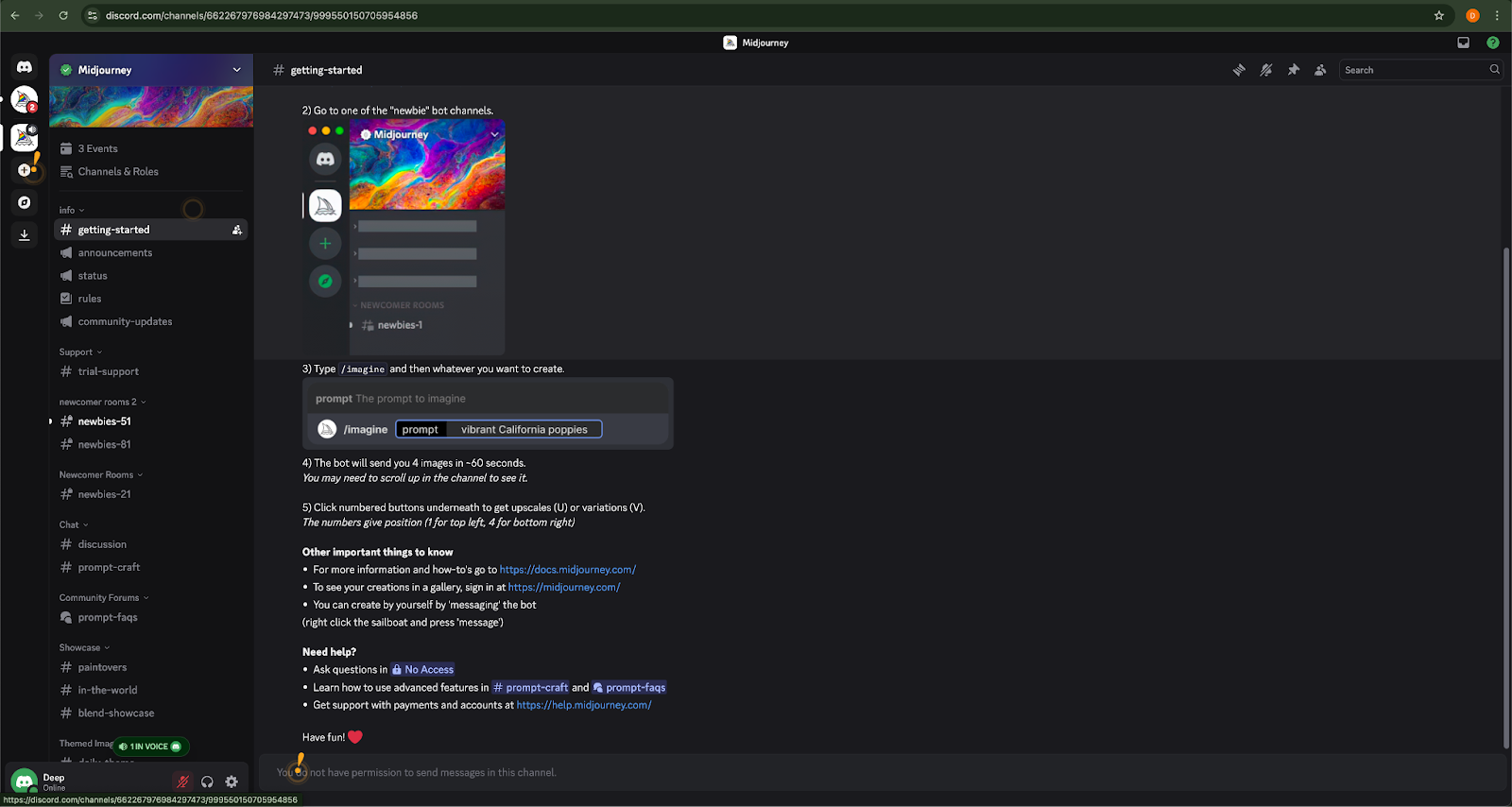
Literal prompts are where it gets frustrating. I once tried to place a client’s actual logo on a mockup box, and after several rerolls, it still never looked quite right. Exact text, packaging details, and strict product renders can take more time than they save.
For creative work with room for interpretation, though, Midjourney is consistently strong. I’ve used it for blog headers, client pitch decks, and storyboard frames, and the results tend to have better composition, lighting, and editorial polish than most prompt-generated images.
Key features
- Prompt-based generation on the web or in Discord
- Fast iterations with upscale, remix, and variation tools
- Customizable aspect ratio, style, and resolution
- Commercial use is included in every paid plan, with Pro or Mega required once your company passes $1M in yearly revenue
Pros
- Stunning visual quality, with outputs that look polished and impressive most of the time
- Fast once you've learned the prompt style
- Great for storyboarding, design inspiration, and mockups
Cons
- Not ideal for exact product renders or literal accuracy
- Limited control over fine details or multi-image consistency
- Text rendering has improved but still isn't fully reliable for longer phrases or precise typography
AI platforms compared: Pricing, strengths, and trade-offs
Extra tips for choosing the right AI app for you
After testing all of these, I would not recommend using a stack of 10 AI apps just because each one does something interesting. The better approach is to look at where your work keeps slowing down.
Here's how to figure out where to start:
- Start with the thing you repeat every day. The tool that fixes your most-repeated task beats the tool with the best demo, every time. Name the task first, then pick.
- Pick tools that fit the way you already work. A tool built around the platform you already live in, Google Workspace, Microsoft Office, your existing docs, your code editor, will beat a generalist chatbot doing the same job through a browser tab.
- Do not confuse an impressive demo with a useful habit. I tried several tools that looked great for the first hour and then gave me no reason to return. Before paying, ask whether you can name two or three things you would use the tool for every week.
- Watch what happens after the AI gives you an answer. A tool can save five minutes of generating something and give those minutes straight back if you have to copy, clean up, and move the result somewhere else. Tools like Lindy, Zapier, and n8n become more useful when the work needs to continue across other apps.
- Pay for fewer tools and use them properly. A higher-priced tool you use every day can make more sense than three cheaper subscriptions you barely open.
Once you know which part of your workflow needs help, the shortlist gets much smaller.
{{cta}}
Final verdict
You do not need all 21 of these AI platforms.
If I were starting from scratch, I would pick one general AI assistant first. ChatGPT or Gemini can handle a broad mix of everyday work, while Perplexity is stronger when research and source checking matter. Claude Cowork makes more sense when much of the work sits inside files.
If your team already lives in Word, Excel, and Outlook, Microsoft Copilot skips the workspace switch entirely. And if you need answers that track what's happening right now instead of last week, Grok covers a gap none of the others fill.
Then look at where your week gets stuck.
For meetings, there is Granola. Wispr Flow helps if you spend too much time typing. Morgen is useful when tasks keep competing with a packed calendar, while Gamma can turn rough ideas into a presentation quickly. Jasper is the pick if you're producing marketing content across multiple channels or brand voices.
For building, Cursor is the developer's pick. Replit and Lovable are easier starting points when you want to describe an idea and get to a working app without doing all the coding yourself.
Lindy is useful for teams that want to delegate work through Slack and connected tools. Zapier and n8n cover automation from two different angles: Zapier for fast no-code setups, n8n for technical teams that want more control over building and managing their own workflows.
Start with the tool that fixes the biggest source of friction in your week. Add another only when you can point to a clear job for it.
FAQs
1. What are the best AI apps in 2026?
The best AI app depends on what you need help with. ChatGPT and Gemini cover broad everyday work, Perplexity is strong for research with sources, Granola handles meeting notes, and Morgen helps plan tasks around your calendar.
For building software, Cursor, Replit, and Lovable serve different levels of technical experience. For marketing content across channels, Jasper keeps output consistent with a brand voice.
2. Which AI tools are free to use?
Several tools on this list offer free plans, including ChatGPT, Google Gemini, Perplexity, Granola, Wispr Flow, Notion, Replit, Cursor, Lovable, Gamma, ElevenLabs, Descript, Zapier, and Grok.
Gamma's free plan includes 400 one-time credits, Zapier's free plan covers up to 100 tasks a month, and n8n offers a free self-hosted Community Edition. Claude also has a free chat plan, but Claude Cowork requires a paid plan.
Lindy, Morgen, Midjourney, and Jasper all start with paid plans. All but Midjourney offer a free trial first.
3. What are the best AI websites to use in 2026?
The best AI websites to use in 2026 depend on the job. ChatGPT is a strong all-round starting point, Perplexity works well for web research, Gamma turns notes into presentations, Lovable builds a web app from plain language, and Midjourney generates polished visuals.
4. Do I need coding skills to use AI platforms?
No. Tools such as Granola, Wispr Flow, Morgen, Gamma, Replit, Lovable, Microsoft Copilot, Zapier, Grok, and Jasper are all designed to be useful without much technical knowledge.
Cursor is aimed more directly at developers and people who already work with code.
5. Can AI tools integrate with my existing workflow?
Yes. Gemini works directly across Google Workspace, and Microsoft Copilot does the same across Word, Excel, Outlook, and Teams.
Lindy connects with tools such as Slack, Gmail, Notion, Drive, and meetings, while Zapier and n8n are both built for connecting apps through customizable workflows, Zapier for fast no-code setups, and n8n for more technical control.
6. What can you build with an AI platform?
AI platforms let you create AI phone agents that qualify leads or answer support calls, set up email assistants that respond and update CRMs automatically, automate internal ops like lead routing and meeting summaries, generate content in bulk for blogs and training, or build a working web app from a plain-English description.
7. Are AI platforms safe and compliant?
Yes, but coverage varies a lot by platform and use case. Most top AI apps prioritize data security, but not every platform is built for compliance-heavy industries. Always check a vendor's privacy and data policies, especially certifications like SOC 2 or HIPAA support, if you're in healthcare, finance, or legal.
8. What's the difference between an AI platform and an AI tool?
An AI platform combines several AI capabilities into one connected product, while an AI tool typically does just one job, like generating copy, summarizing text, or cleaning up audio. A platform adds workflow logic, automation, and integrations on top, so it can handle more than one task at a time.
9. Which platforms are best for businesses vs. individuals?
Individuals tend to do well with everyday tools like Claude, Gamma, and Grok, while businesses offloading recurring work need platforms built for delegation and automation, like Microsoft Copilot or Lindy. Those business-focused platforms also support collaboration and grow with a team's needs, which matters less for a single user.
10. How can I use AI for customer support or automation?
You can use AI to respond to tickets or emails automatically, route requests to the right team, log conversation details into your CRM, and summarize support calls or chat transcripts.
11. What's the best all-in-one AI solution?
There's no single best all-in-one solution; it depends on whether you need a generalist thinking tool or an assistant that can take action across your apps. Google Gemini and Claude are stronger for writing, research, and reasoning, while Zapier and n8n are stronger when the work involves integrations, repeated tasks, and real actions across your tools.