
Your personal Lindy
Phone Calls
Talk to Lindy by phone, let it take messages, and ask it to make calls for you.
Set up your phone line
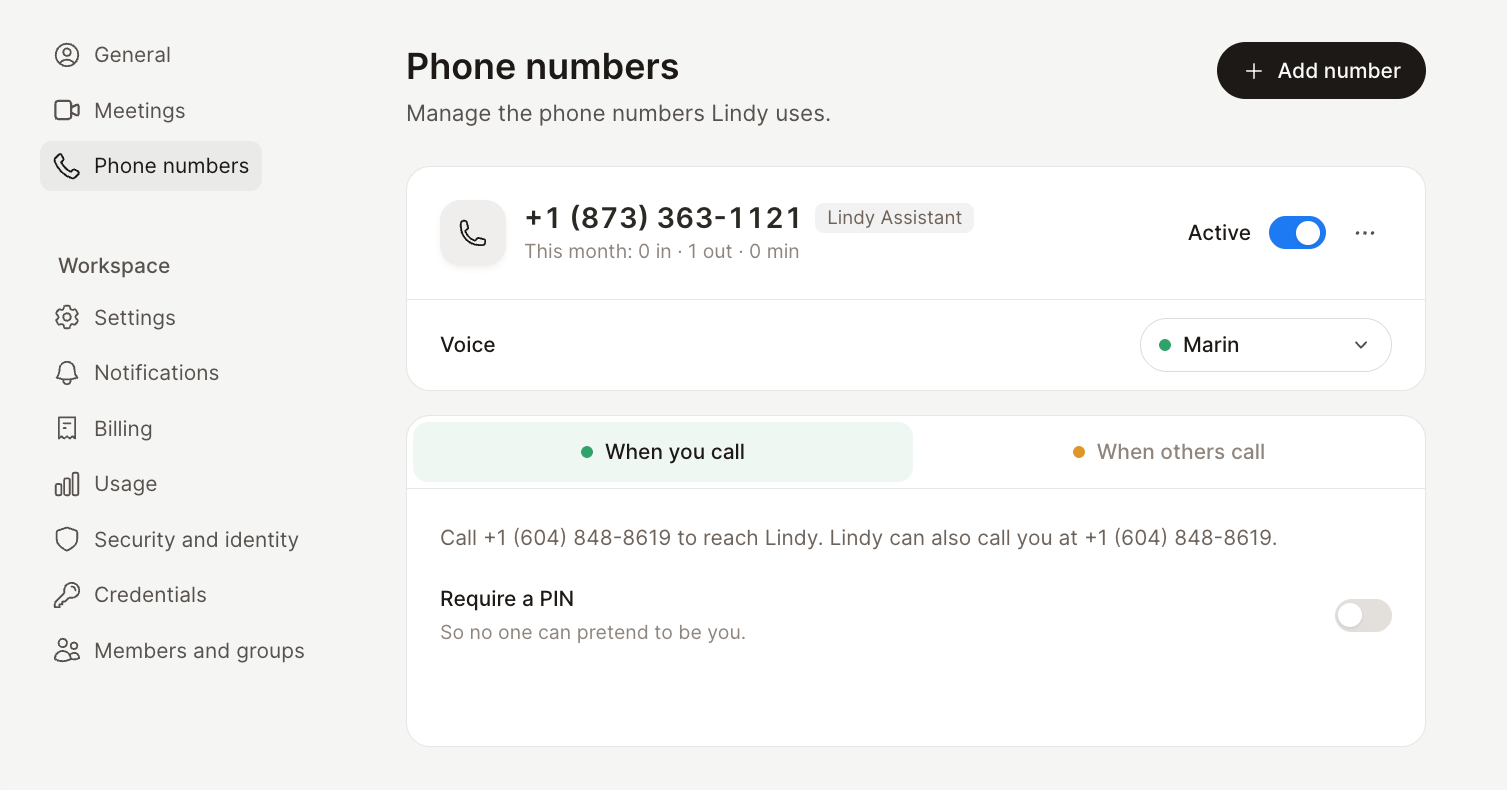
- Verify your personal phone number in Settings → General. This is how Lindy recognizes you and knows where to call you.
- Open Settings → Phone numbers and select Get a number. Choose a US or Canadian area code and confirm the details shown. If you have an eligible unused Lindy number, you can reuse it.
- Call the Lindy number shown at the top of Phone numbers from your verified personal phone. Try: “Walk me through my day.”
Choose a voice
In Settings → Phone numbers, open the Voice dropdown. Click the play button beside a voice to hear a sample, then select the voice you want Lindy to use for incoming and outgoing calls.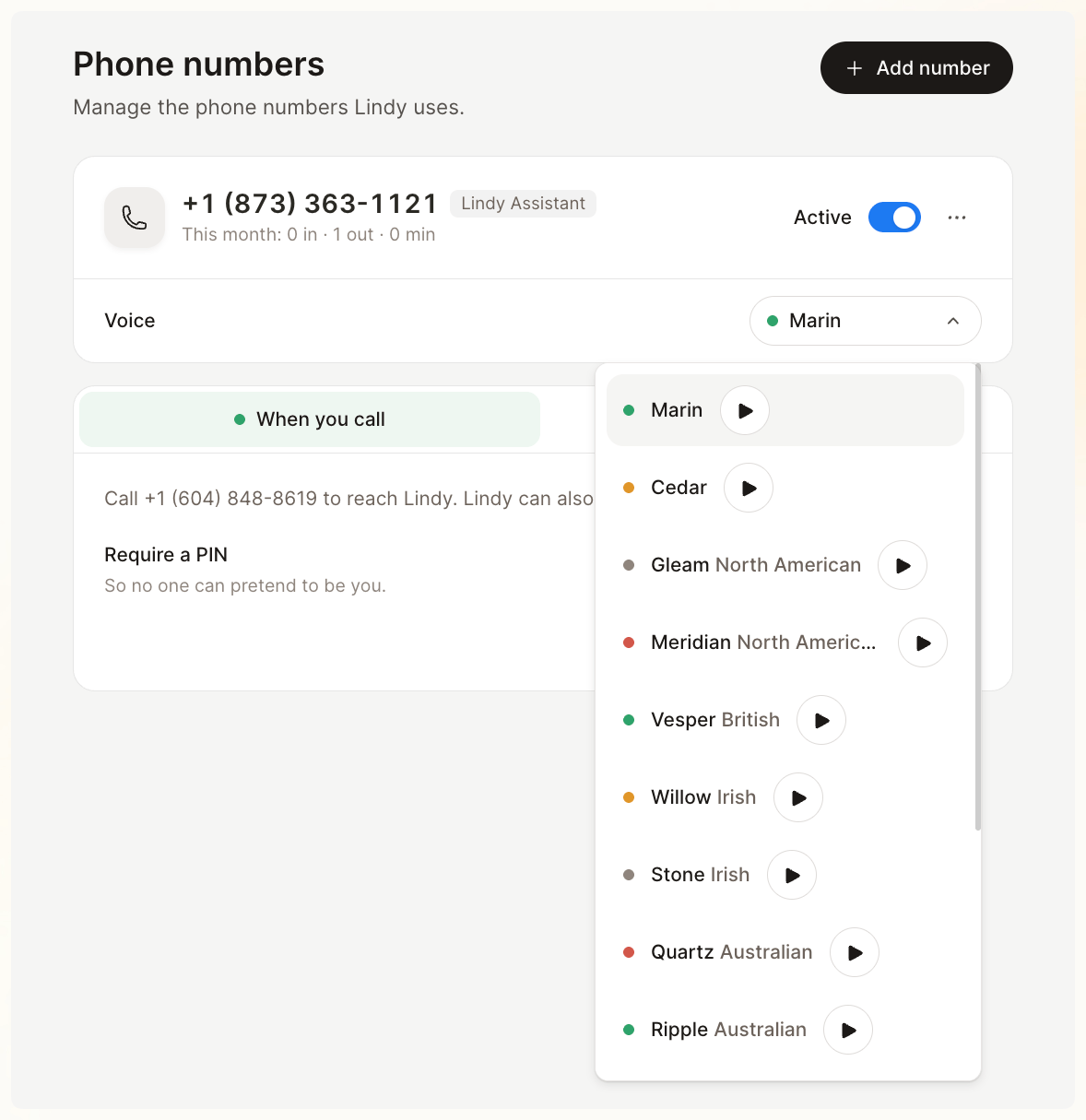
Talk to your assistant
When you call from your verified number, Lindy can help with your connected apps, calendar, files, and saved context. For example:- “What do I need to prepare for my next meeting?”
- “Find the document we discussed yesterday.”
- “Help me work through this decision.”
Have Lindy make a call for you
Tell Lindy who to call, their number, what you want done, and what information it can share. Include acceptable alternatives and what to do if nobody answers.Call the dentist to move my appointment to Thursday afternoon. Friday morning also works. Share my name and current appointment time. If neither works, ask for the next available afternoon. If it goes to voicemail, leave my callback number.Review the destination and purpose when Lindy asks for approval. It calls from its own number and uses the instructions you provided, without giving the other person access to your private assistant context. Lindy can navigate phone menus, wait on hold, and leave a voicemail. After the call, it reports what happened in chat. For recurring calls, include the schedule and call instructions in a routine.
Let Lindy answer for you
Open When others call in Settings → Phone numbers to set up how Lindy handles incoming calls.- Instructions: Explain how Lindy should introduce itself, what to ask, and what it may share.
- Messages: Lindy can take a caller’s name, reason for calling, and contact details, then pass the message to you.
- Book meetings: Enable booking and select an active booking link to let callers choose from its available slots.
Manage your line
The overview under your number shows this month’s call usage. Calls are recorded, and you can review the associated chat or task afterward. Regional, usage, and calling-hours limits apply; Lindy will let you know if a requested call cannot proceed.
Disconnect or release a number
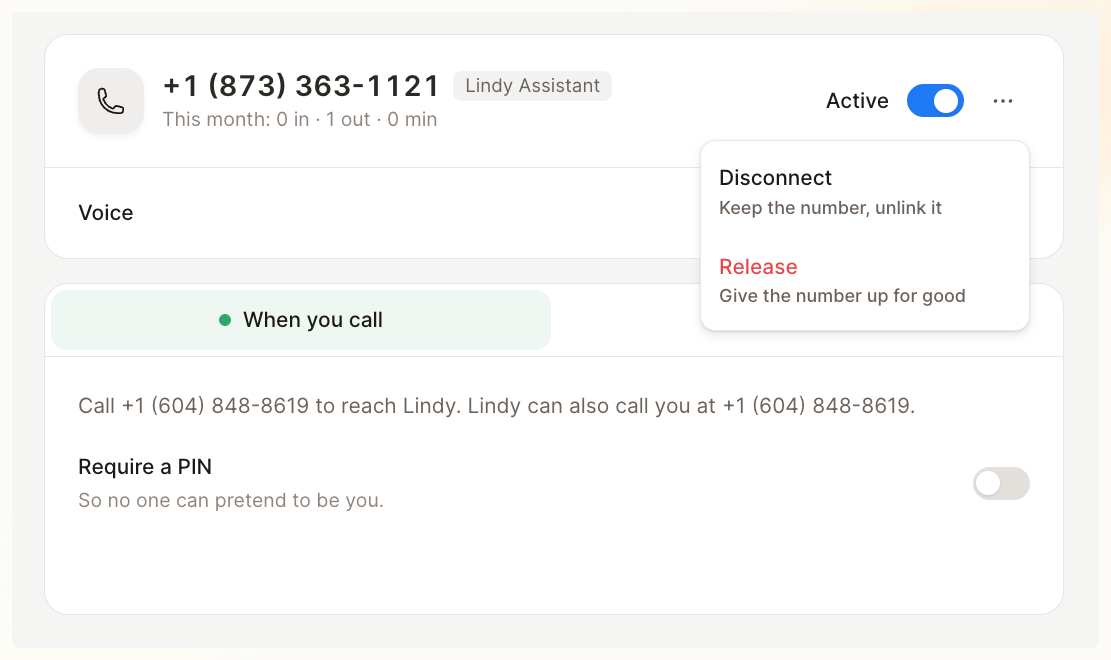
In Settings → Phone numbers, open the three-dot menu beside your number.- Disconnect unlinks the number from your assistant while keeping the number in your account.
- Release gives up the number permanently. Choose this when you no longer want to keep it.
FAQ
Why didn’t Lindy recognize me?
Why didn’t Lindy recognize me?
Call from the personal number verified in Settings → General. Lindy recognizes your calling number, not your voice. A call from a different number gets the restricted experience for other callers. If you enabled a PIN, enter it when prompted.
Can I change caller instructions in chat?
Can I change caller instructions in chat?
Yes. Ask Lindy to update your caller instructions, voice, or blocked numbers, then review the proposed change before approving it.
Does pausing my line stop the monthly charge?
Does pausing my line stop the monthly charge?
No. The Active switch pauses calls. To give up the number, use Release from its three-dot menu in Settings → Phone numbers.