
Lindy Teammate
Meetings
Record calls, find what was discussed, and turn decisions into follow-up work.
Record and summarize meetings · 0:46
Your meeting library
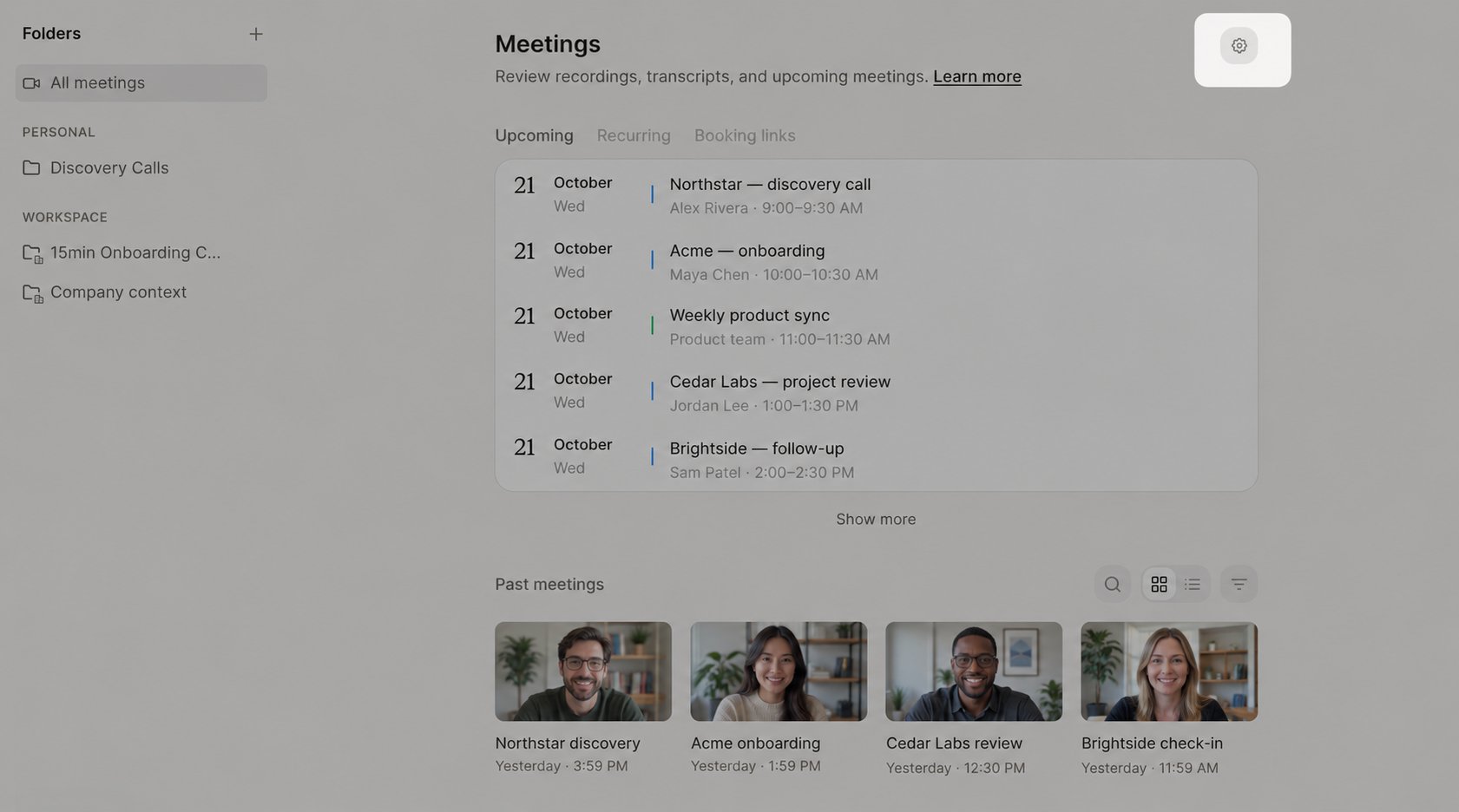
Open Meetings to find your recordings and meetings shared with you. Search for a meeting, filter by date, or switch between grid and list views. The sidebar groups your folders under Personal and Workspace.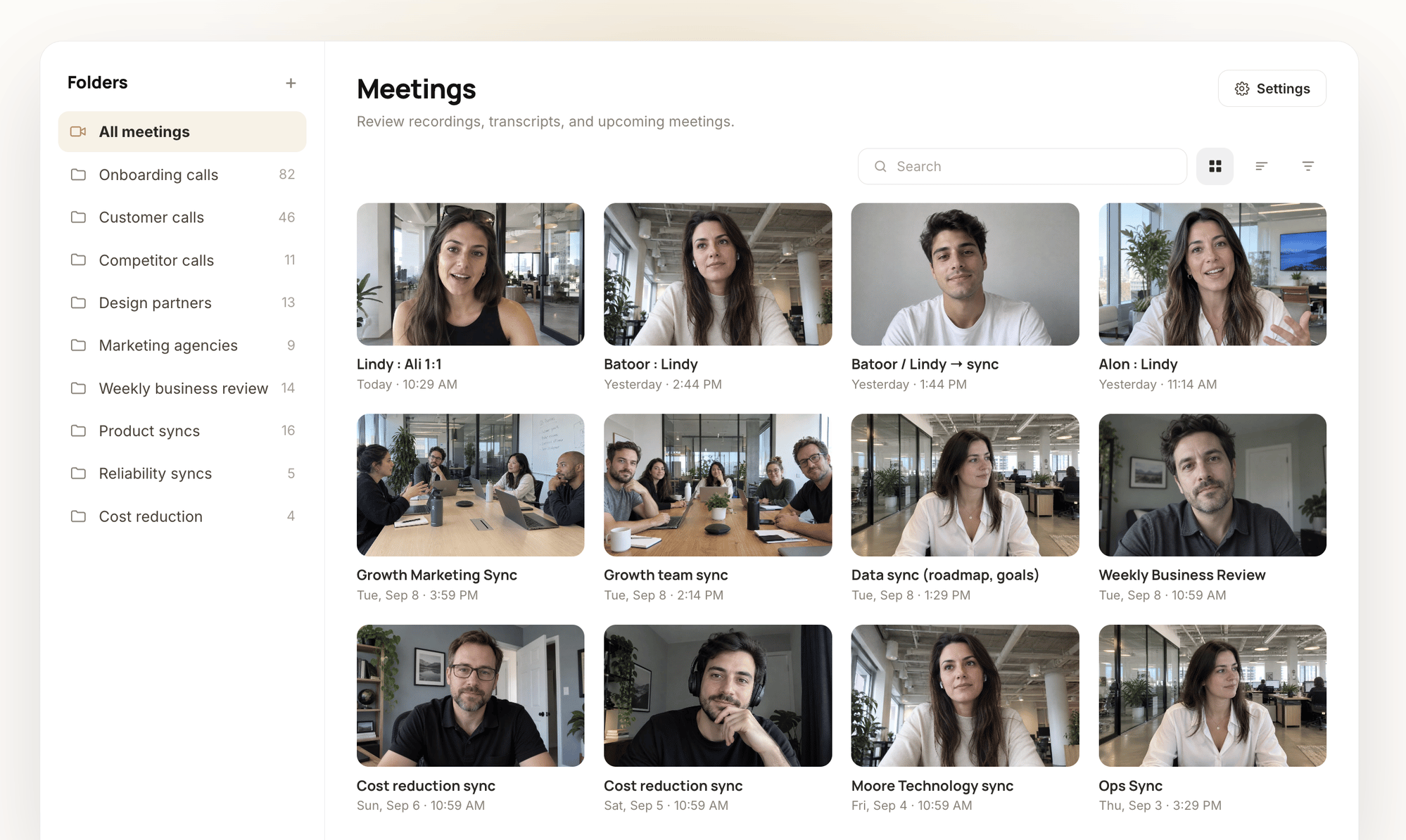
Ask questions and hand off work
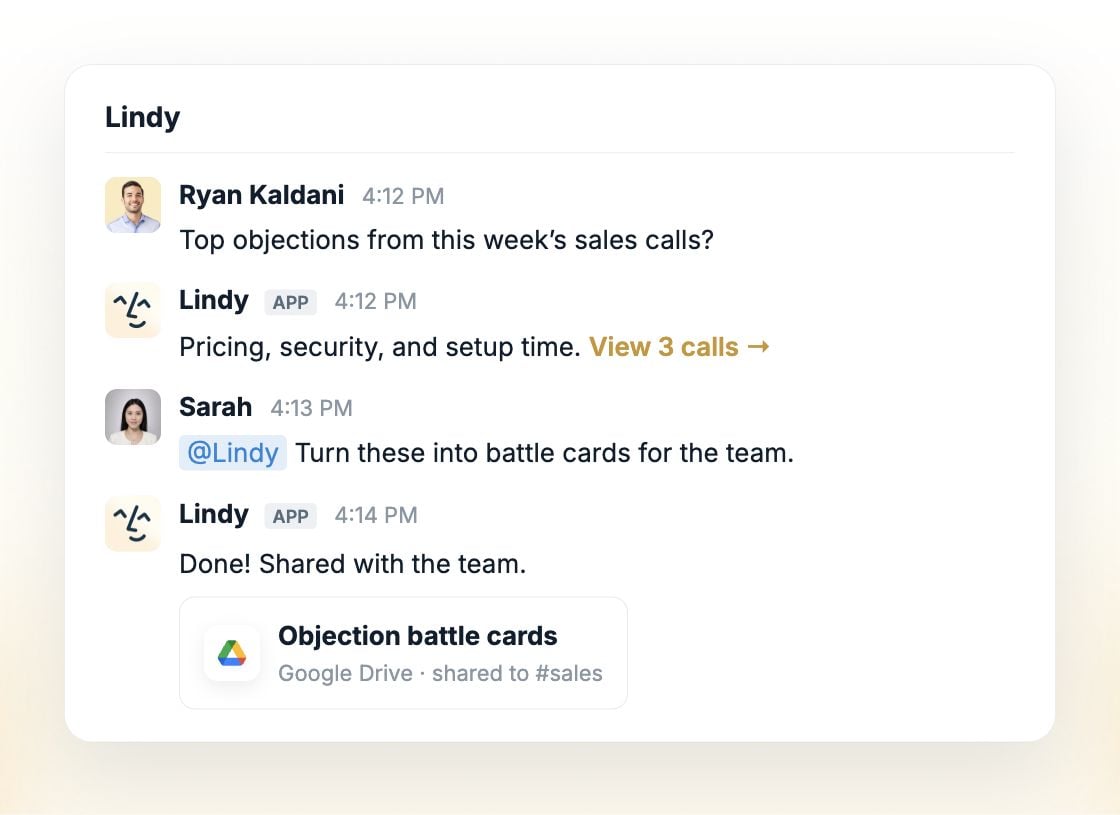
Use Chat with this meeting to ask about a specific call. Open a folder to ask across the meetings in it, such as a series of customer interviews or weekly team syncs.What did we agree to deliver, and who owns each next step?
Review our sales calls this month and create battle cards for the objections we keep hearing.You can also ask Lindy in chat, Slack, or by text. Name the meeting or shared folder you want it to use. Lindy can only use meetings you have access to. Continue the conversation to get work done: draft the follow-up email, update the HubSpot deal, create tasks from the action items, or write a handoff in Notion. Connect the relevant apps in Integrations.
Organize with folders
Group meetings by customer, project, or team. A meeting can belong to more than one folder.1
Create a folder
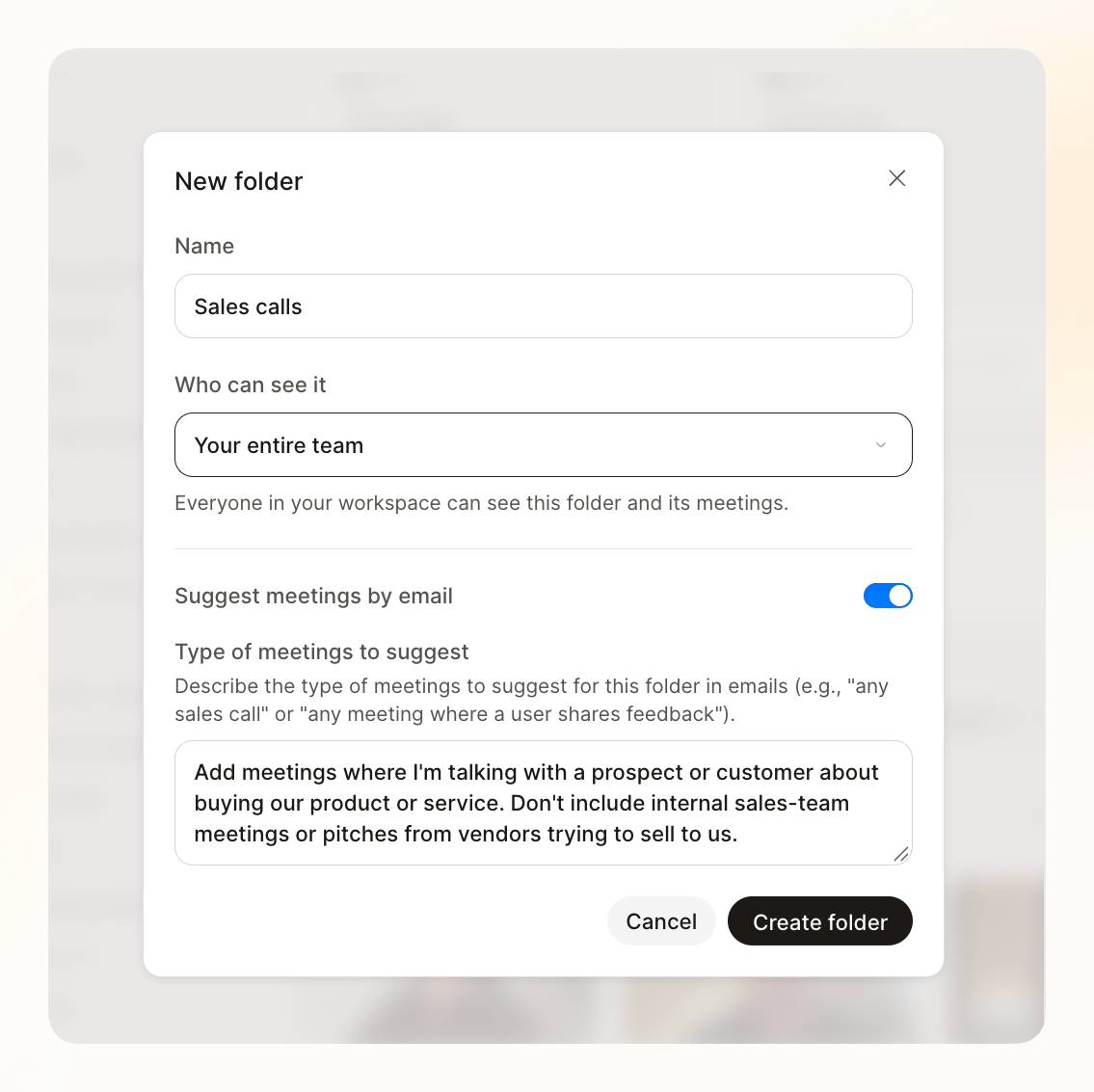
Click New folder beside Folders, then give it a name, such as Sales calls.
2
Choose who can see it
Under Who can see it, choose Only you, Specific people, or Your entire team. Sharing a folder gives those people access to its meetings, so they can review the calls and ask Lindy questions about them.
3
Describe the calls you want (optional)
Turn on Suggest meetings by email and describe what belongs, such as “Calls with prospects or customers about buying our product. Exclude internal sales meetings and vendor pitches.”
How meeting suggestions work
Lindy uses meeting titles, participants, and what was discussed to find calls that match your description. It checks your recent recordings when you enable suggestions, then checks new meetings after they finish. Review matches under Suggested for this folder. You’ll also receive an email when a new meeting matches, with a link to review it. By default, suggested meetings are added only after you approve them. Deselect any meetings you don’t want, then click Add. The button shows how many meetings you’ve selected. Dismiss skips all current suggestions.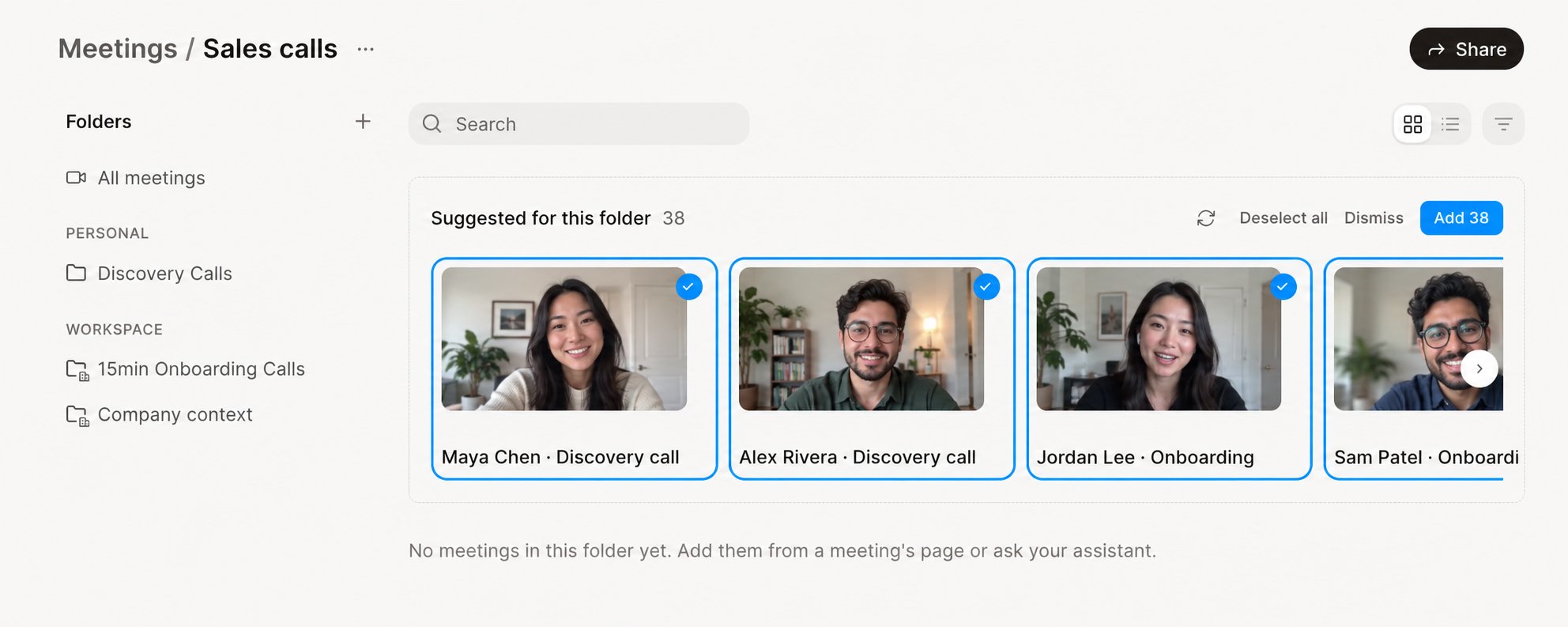
Turn on recording
- Connect your Google Calendar or Microsoft Outlook calendar in Integrations.
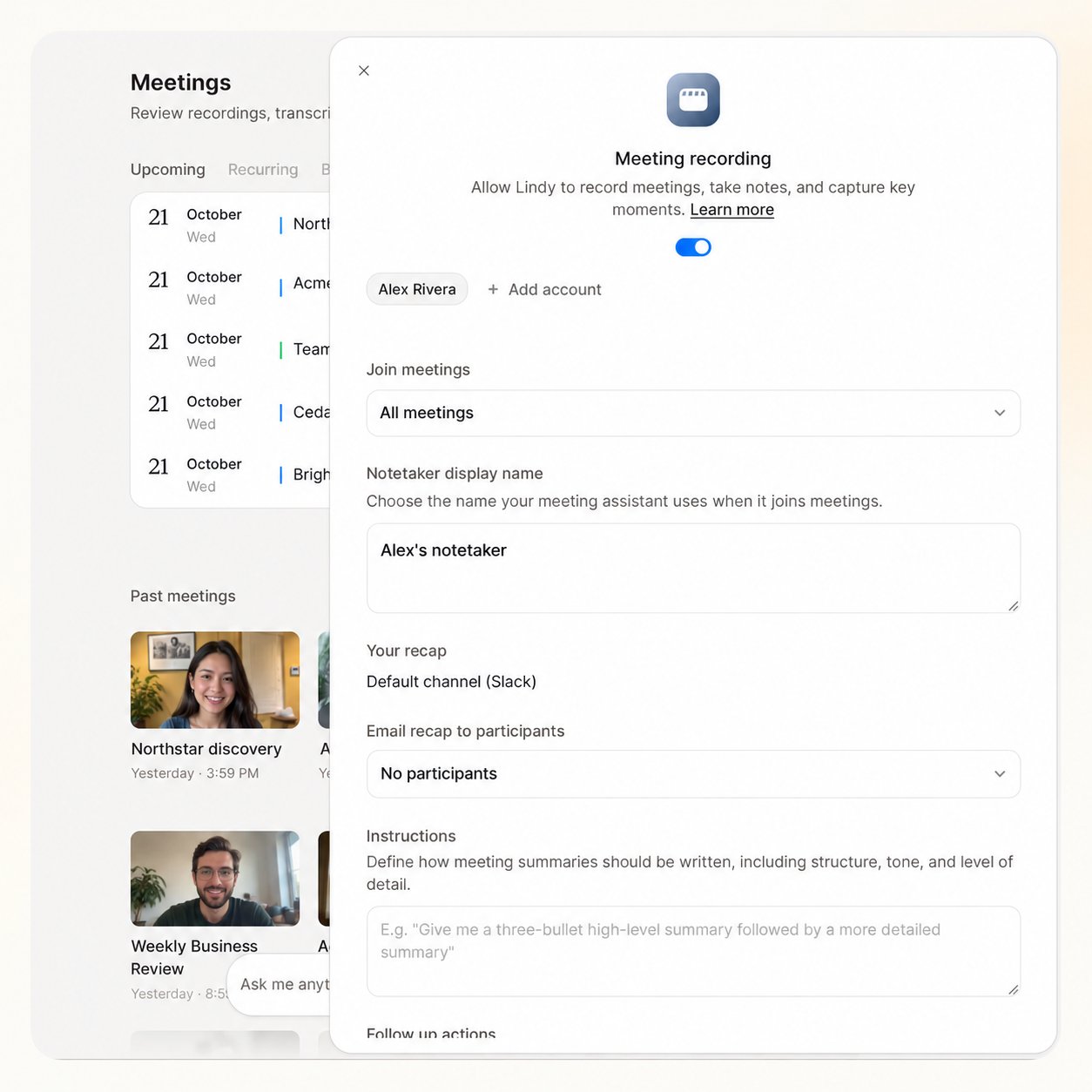
- On Meetings, click the settings gear in the top-right corner to open Meeting recording. You can also find it under Routines → Personal.
- Turn recording on and choose which meetings Lindy should join.
Post-meeting follow-ups
Turn calls into follow-ups · 0:43
- “After sales calls, update the HubSpot deal with decisions and next steps.”
- “Send me a Slack DM with action items, owners, and any agreed deadlines.”
- “After customer interviews, add the feedback to our Notion research page.”