AI Time Management Tools: 9 Tested and Ranked for 2026
Marvin tested nine AI time management tools across four weeks of real deadlines and packed meeting days, ranking them on auto-scheduling, focus protection, and time tracking.
.avif)

I ran nine AI time management tools through the same four weeks of actual work, juggling a content calendar with rolling deadlines, a mix of deep-focus sessions and back-to-back calls, and a task list that never quite emptied.
A few of them rebuilt my entire day without me asking, while others needed constant nudging to stay useful, and several handled one problem cleanly but left me reaching for a second app to cover the rest. Here's what I found.
9 AI time management tools: TL;DR
- Motion: Best for professionals who want AI to build and rebuild their full daily schedule on its own
- Reclaim AI: Best for knowledge workers who need focus blocks defended without manually rebuilding their calendar each morning
- Lindy: Best for teams that need an AI assistant handling email, meetings, scheduling, and follow-ups from a single thread
- Toggl Track: Best for agencies and freelancers who want automatic time tracking without surveillance
- Todoist: Best for individuals and small teams who want fast, consistent AI task capture across every device
- Timely: Best for consultants and client-service teams who need accurate time data without manual timers
- ClickUp: Best for teams that want project management, time tracking, and AI in one platform
- Trevor AI: Best for individuals who want lightweight AI time blocking minus the complexity of a full productivity suite
- Notion: Best for teams already living in Notion who want AI to surface knowledge and reduce repetitive work
How I researched and tested these AI time management tools
I ran every tool on this list through the same four weeks of live work across three types of days. Some were deadline-heavy production days, some were meeting-dense days with four or more calls, and some were fragmented days that required constant context switching.
I judged every tool on five things:
- AI scheduling quality: How well each tool auto-schedules tasks around live calendar constraints, and how it responds when things change mid-day
- Focus time protection: Whether the tool defends deep work blocks or lets meetings crowd them out without friction
- Integration depth: How cleanly each tool connects with Google Calendar, Outlook, and the task apps already in my workflow
- Autonomy vs. control: Whether each tool acts on your behalf or waits for a prompt every time
- Price-to-value: Whether the price matches what the tool does under four weeks of daily load
I also tested tools that didn't make the final list, including Clockwise (discontinued in March 2026 after joining Salesforce), Akiflow, and Sunsama. The nine here made the cut.
How the 9 tools compare at a glance
Pricing correct as of July 2026. Verify with the vendor before purchasing.
1. Motion: Best for AI auto-scheduling
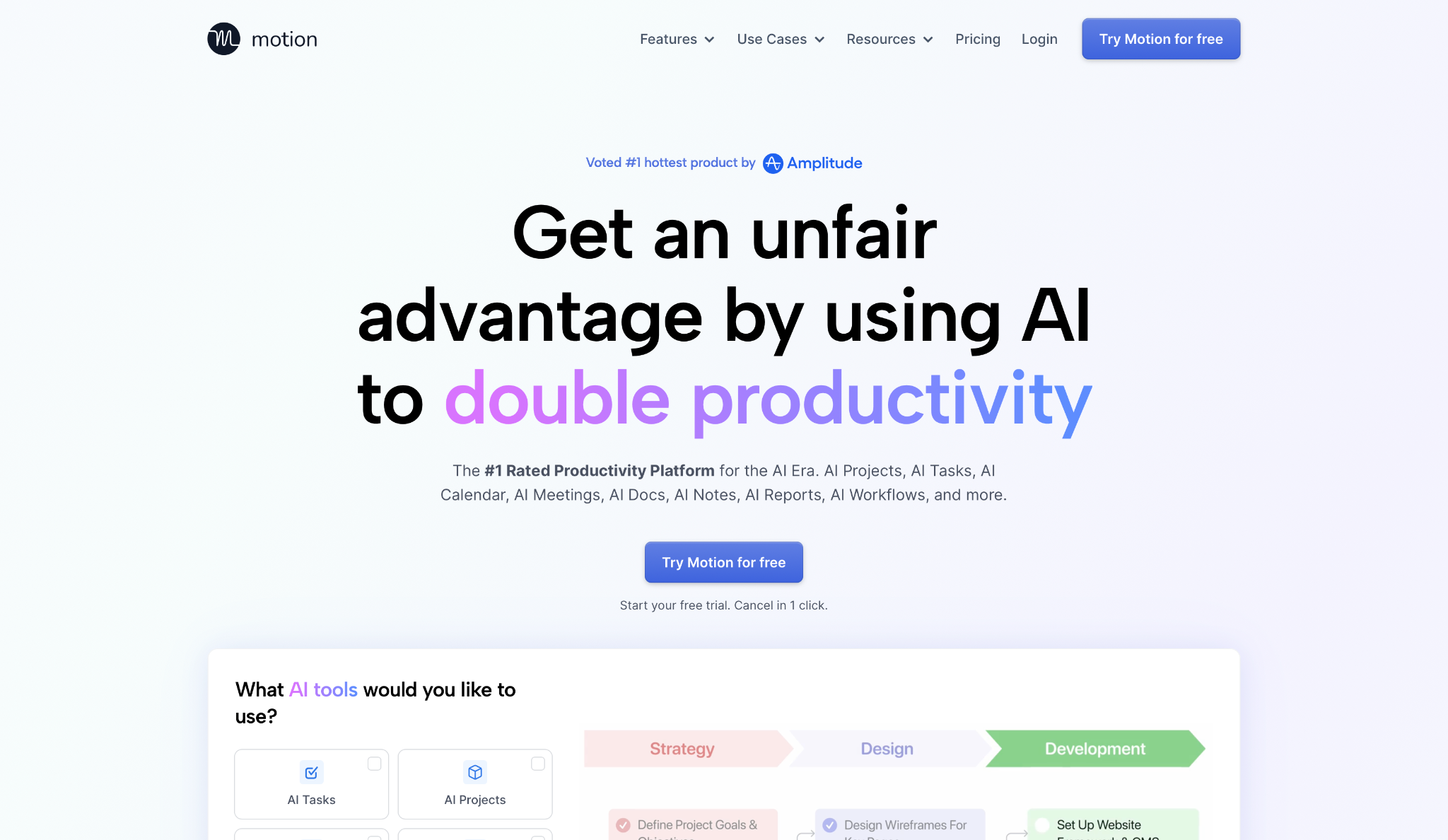
What it does: Motion builds your daily schedule on its own, dropping tasks into open calendar windows based on deadlines, priority, and available time, then rebuilds the plan in seconds whenever something changes.
Best for: Professionals and operators with constantly changing calendars who want AI to handle replanning for them.
When I added 12 tasks on Monday morning, Motion mapped every single one into the open windows between my existing meetings. By 10 AM, two meetings had been rescheduled by other attendees, and Motion rebuilt my day in under 30 seconds, moving three tasks to new slots without me touching anything.
The capacity flagging proved itself later that same week. I'd overloaded Wednesday with four client calls and three deliverables, and Motion caught it on Monday morning.
It suggested I move two tasks to Thursday, where the calendar had open space, so I shifted them before my first meeting started, well ahead of any deadline crunch.
Motion runs the calendar side end-to-end. Your inbox is a different story: triage, CRM updates, and meeting follow-ups all sit outside its lane.
Key features
- AI Task Planner: Ranks your to-do list by deadline and importance, drops each item directly onto your calendar so the next task is visible at a glance
- Automatic rescheduling: When a meeting runs over or a conflict lands, Motion reorganizes your day in seconds and pushes items to the next open slot
- At-risk alerts: Flags deadlines in danger of being missed before the day they're due, giving you time to delegate or reset expectations early
- Meeting Assistant: Learns your preferred booking windows and surfaces only the available times that work for you when contacts request meetings
Pros and cons
Pros:
- ✅ Automatic rescheduling handled three mid-day calendar changes in one week without me opening the app once
- ✅ Capacity flagging surfaced an overloaded Wednesday on Monday morning, early enough to redistribute work before deadlines became a problem
- ✅ Tasks sit directly on the calendar and move with it when meetings move
Cons:
- ❌ Tasks sync only to your primary calendar, so a shared calendar used by an EA or chief of staff doesn't see the full picture
- ❌ The UI has been called clunky by long-term users, and the steep learning curve can take a week or two to clear
What users say
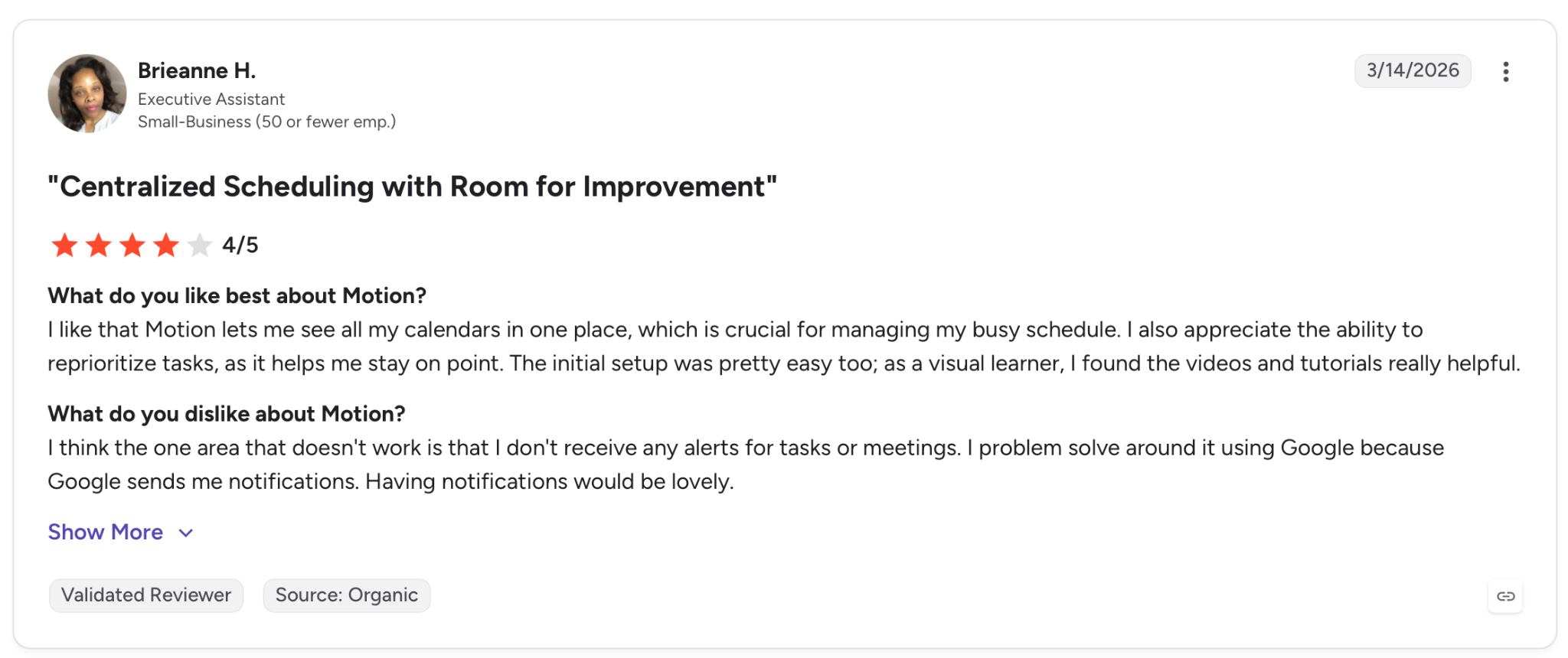
"I like that Motion lets me see all my calendars in one place, which is crucial for managing my busy schedule." — Brieanne H., G2
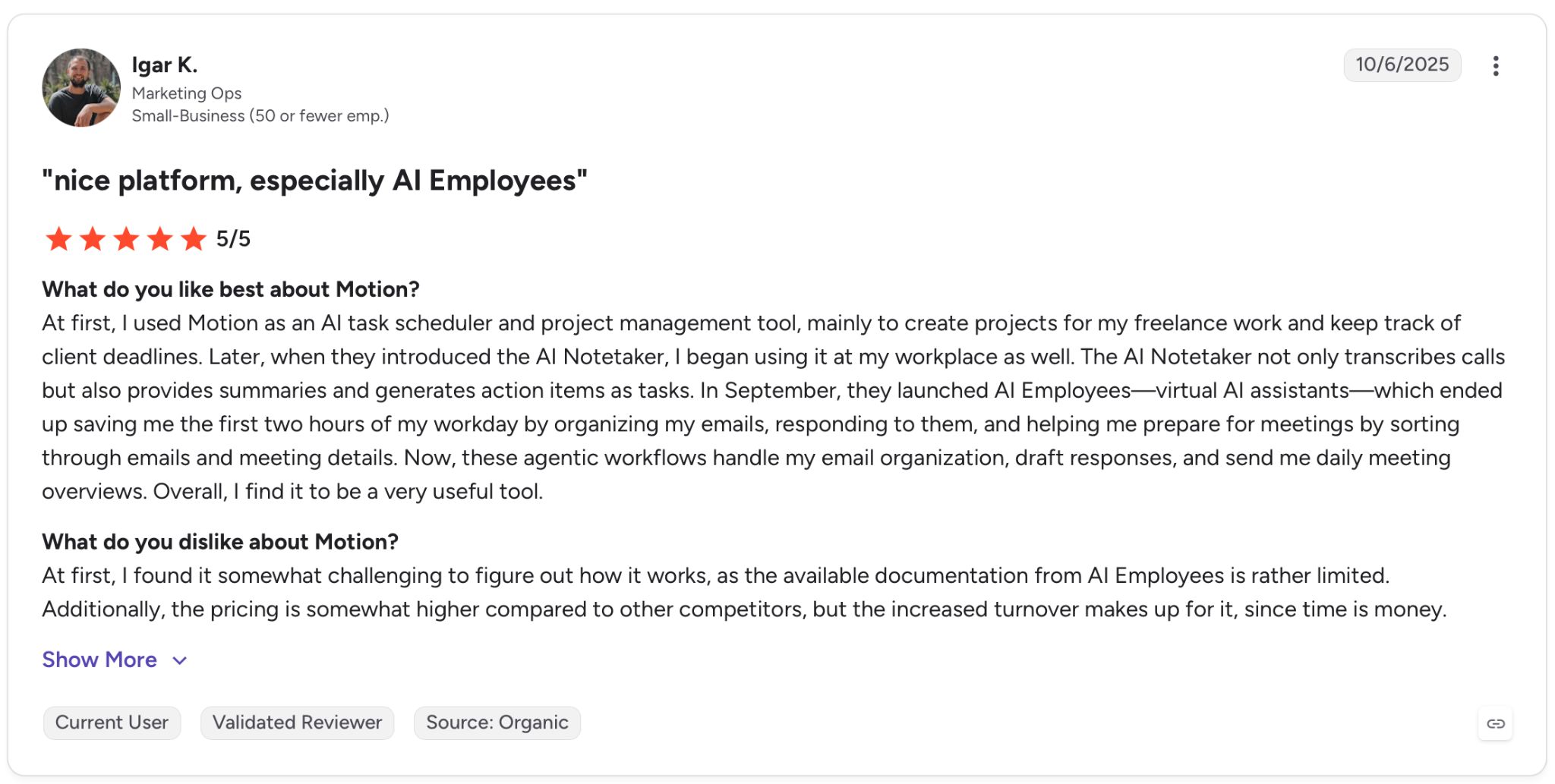
"At first, I found it somewhat challenging to figure out how it works, as the available documentation from AI Employees is rather limited." — Igar K., G2
Pricing
Motion Pro AI costs $49/seat/month, billed monthly. Business AI at $69/seat/month unlocks capacity planning, advanced dashboards, and time tracking.
Bottom line
Motion is worth it when your to-do list keeps piling up because the calendar has no open window for it. Inbox triage and CRM updates still need their own tools.
2. Reclaim AI: Best for focus time protection
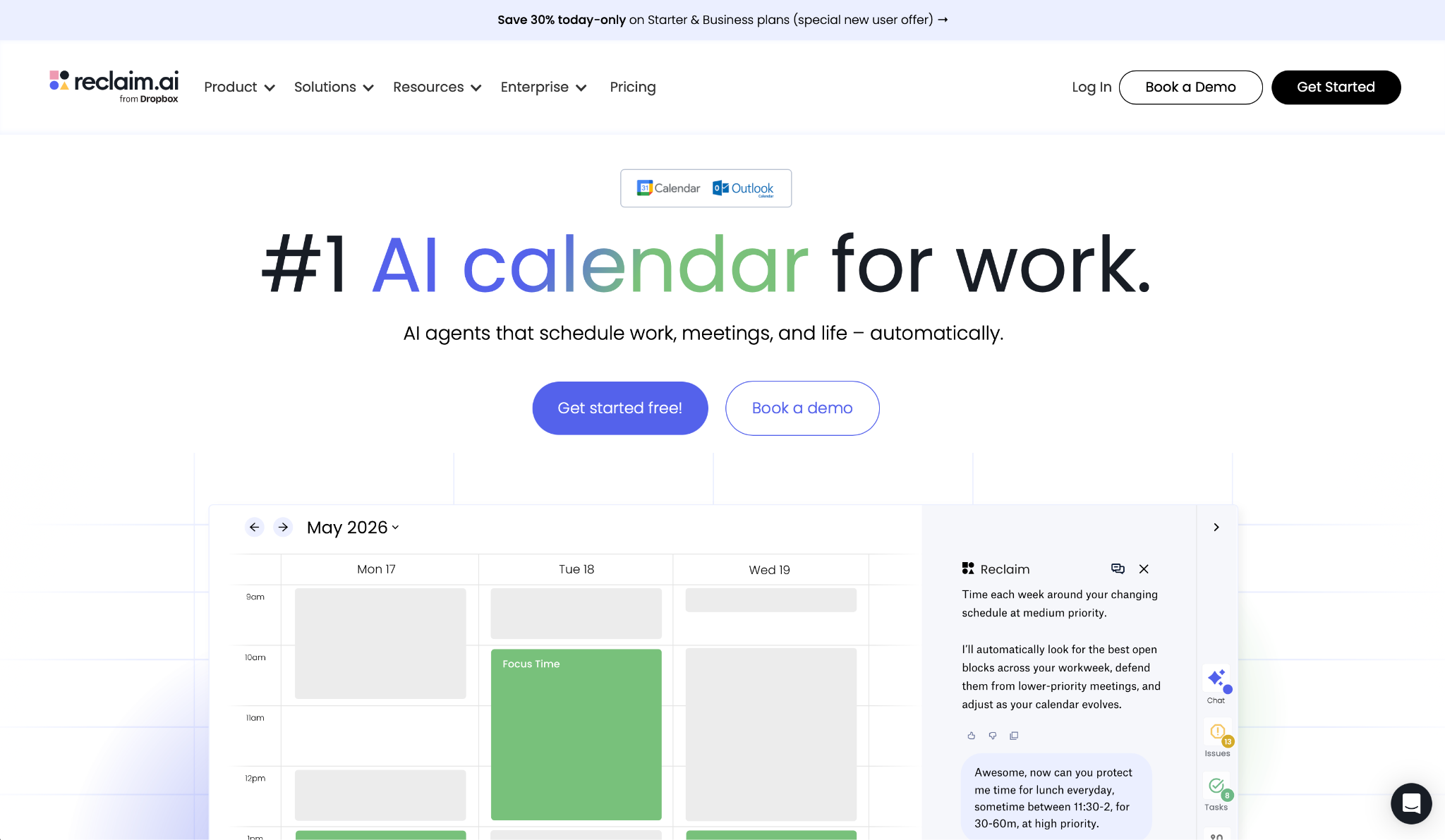
What it does: Reclaim AI defends focus time on its own, schedules recurring habits, and rearranges flexible blocks around meetings as your calendar changes, without you rebuilding the schedule each morning.
Best for: Knowledge workers and professionals with packed calendars who need focus blocks and personal routines protected from the constant pull of meeting requests.
Three habits went into Reclaim on my first day. I set a 90-minute deep work block every morning, a 30-minute lunch, and a 45-minute end-of-day review. Within the first week, an investor wanted a same-day slot.
Reclaim moved the deep work block to 2 PM, kept lunch untouched, and found 30 minutes for the call at 10 AM, without canceling a single existing meeting or dropping a habit.
What it won't do is read your inbox or summarize a meeting. Reclaim handles the calendar side well, but email triage and meeting notes still need their own tools.
Key features
- AI Focus Time: Set a weekly focus time goal and Reclaim defends those hours around your existing events, rescheduling flexible blocks when meetings land in the way
- Habits: Schedule recurring routines (exercise, deep work, lunch) and Reclaim finds the best time for each one, moving them when conflicts arise
- Tasks: Syncs with Todoist, Asana, Linear, ClickUp, and Jira to place tasks with due dates directly on your calendar
- Planner: Includes an AI Chat for analyzing your schedule, setting up scheduling rules, and getting recommendations, with a Preview Mode that stages changes for your approval before they go live
Pros and cons
Pros:
✅ Resolves scheduling conflicts on its own across a full week; habits and tasks move without manual intervention
✅ Free Lite plan includes basic habit scheduling and one scheduling link, enough to test the core value before paying anything
✅ Works with both Google Calendar and Outlook, so teams split across ecosystems can use the same scheduling layer
Cons:
❌ Calendar-only scope, so there's no inbox, CRM, or meeting-summary features
❌ No native mobile app for iOS or Android; management happens through the web interface or your calendar app on mobile
What users say
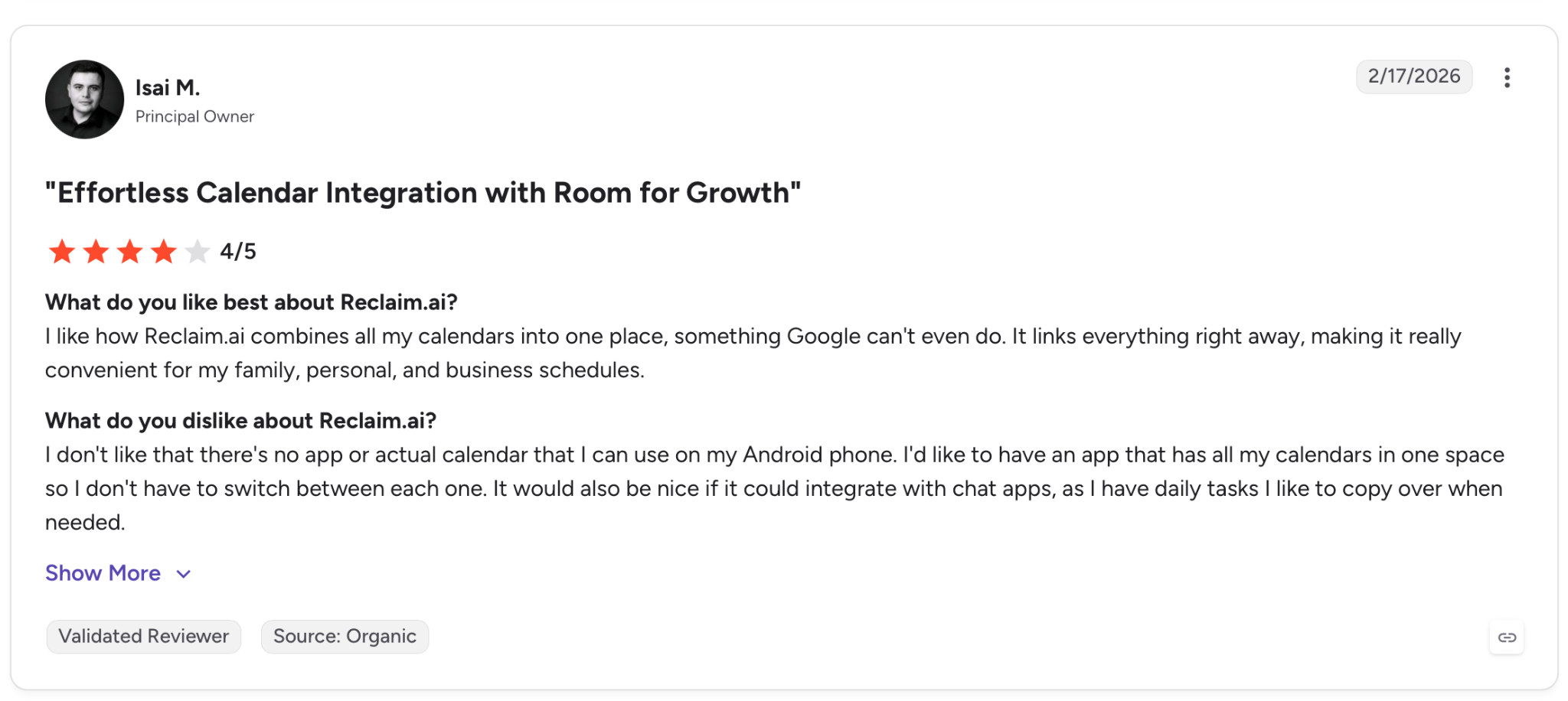
"I like how Reclaim.ai combines all my calendars into one place, something Google can't even do." — Isai M., G2
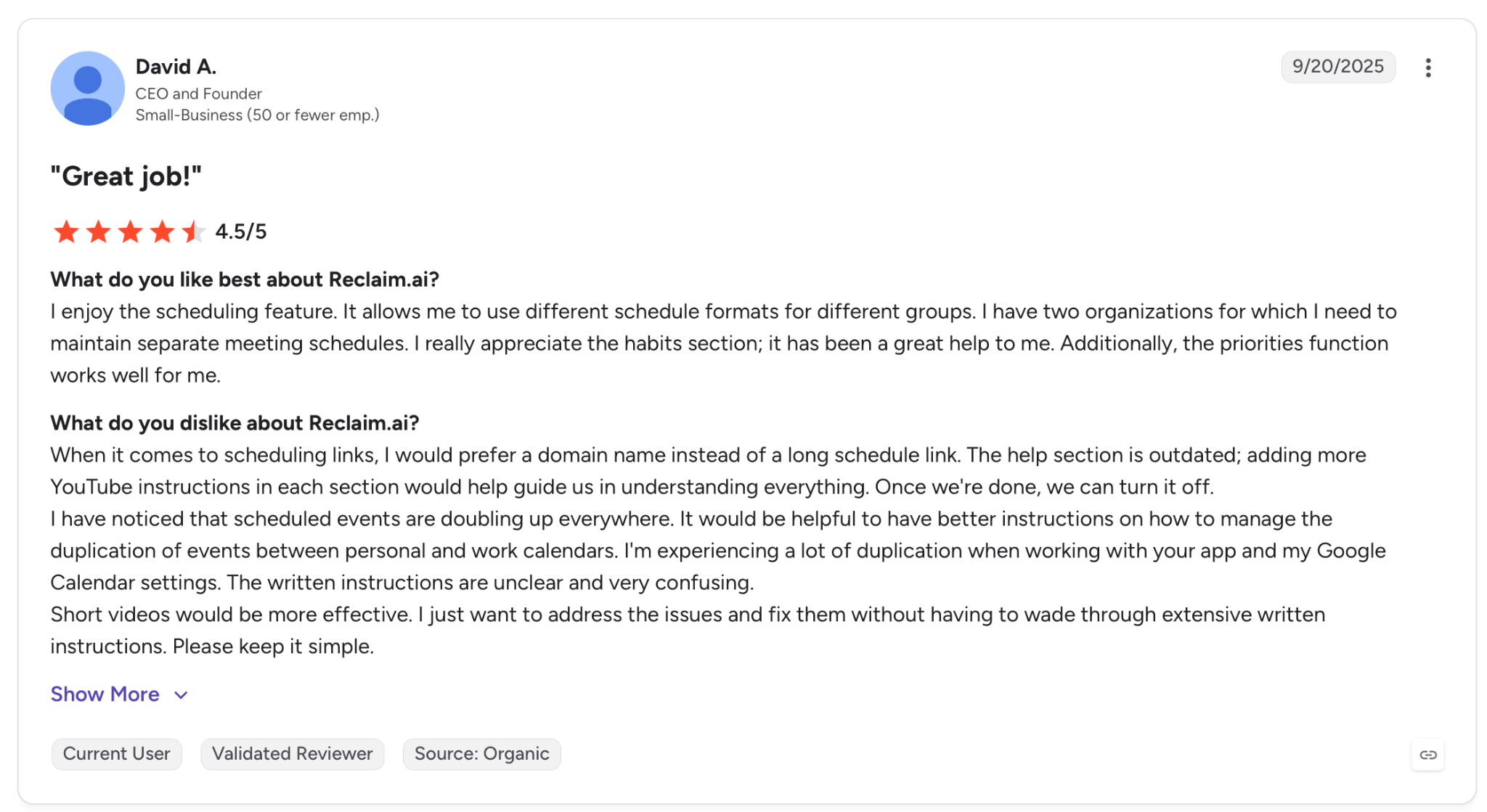
"The help section is outdated; adding more YouTube instructions in each section would help guide us in understanding everything." — David A., G2
Pricing
Reclaim from $12/user/month or $18/user/month billed annually, with unlimited habits, task integrations, and 3 scheduling links.
Bottom line
Reclaim addresses disappearing focus time directly. It protects your schedule on its own at a fraction of what the broader tools on this list cost. Inbox and CRM work lands outside its scope, which is where Lindy comes in.
3. Lindy: Best for AI assistant for admin and email
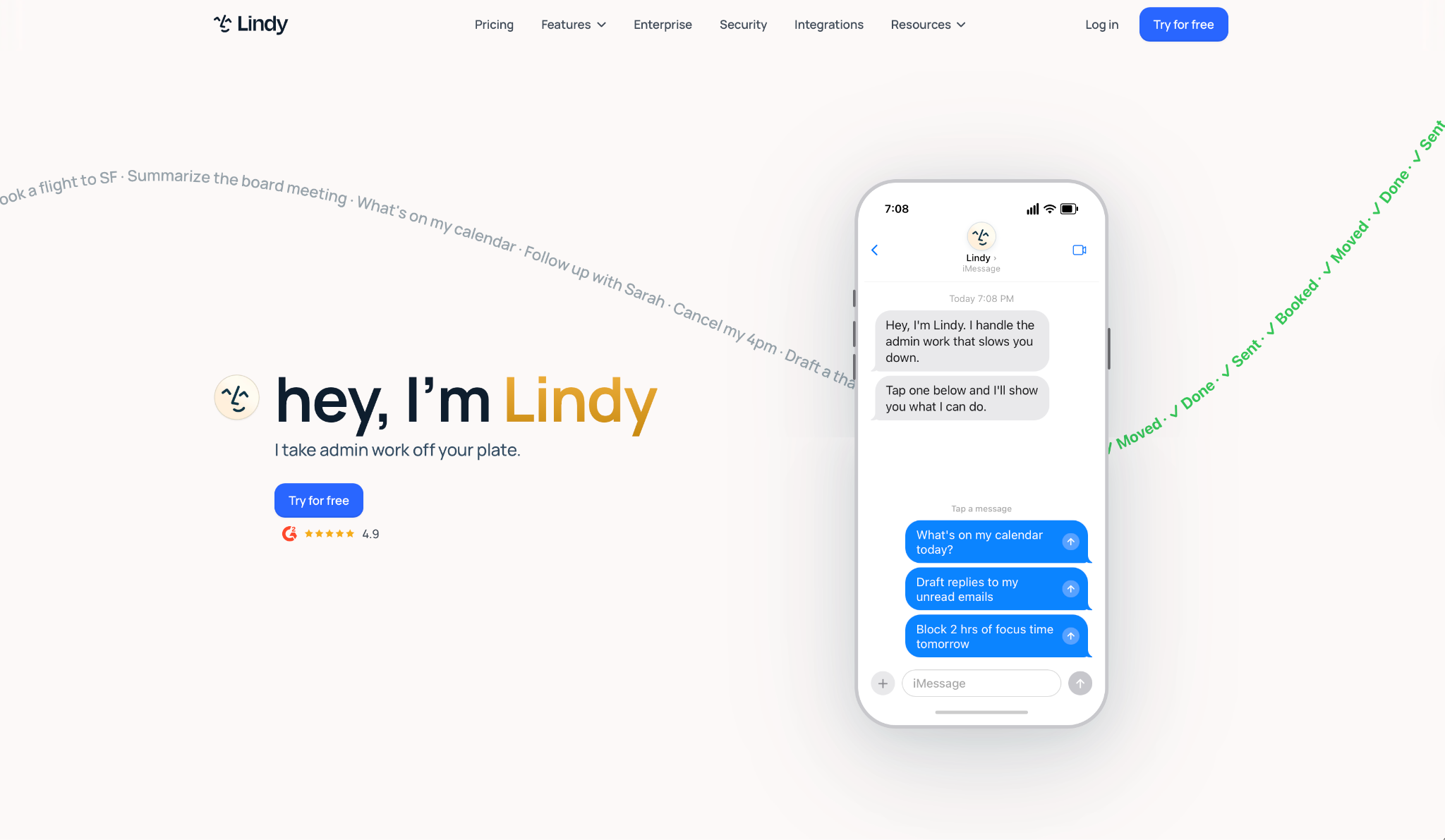
What it does: Lindy is an AI assistant that lives in your inbox and takes care of email triage, meeting scheduling, follow-ups, CRM updates, and meeting notes, all from a single text thread via iMessage or SMS.
Best for: Founders, operators, and teams who want one AI assistant managing the full administrative layer instead of stitching together five separate tools for each job.
Most tools on this list work inside the apps you already open, drafting or summarizing when you ask. Lindy runs from a text thread instead. You tell it what you need in plain English, and it handles the task across email, calendar, meetings, and CRM from that one thread.
The skill library won me over fast. Within 10 minutes of connecting Gmail and Google Calendar, I had Lindy catching meeting requests from my inbox, drafting calendar invites, and queuing follow-up emails for review.
Being able to @mention Lindy in a Slack channel, instead of opening a sidebar in another app, is what kept me using it past week one. Where the work happens turned out to matter more than any single feature.
The one area that requires patience is usage. Quotas aren't published as hard numbers, and branching workflows involving voice or browser-based tasks burn through usage faster than simple email automations.
Key features
- iMessage / SMS access: Text Lindy in plain English to manage email, scheduling, meeting prep, and follow-ups, no app required
- Meeting recording and notes: Joins calls, transcribes the conversation, extracts action items, and routes them to the right tools
- Hundreds of integrations: Plugs into Gmail, Outlook, Google Calendar, Slack, Notion, HubSpot, Salesforce, and more without custom setup
- Ready-to-use skills: Prebuilt workflows for common tasks, ready to adjust without starting from scratch
- SOC 2 and GDPR compliant: Enterprise-grade security with SSO, SCIM, and audit logs available on the Enterprise plan; HIPAA BAA is available on Enterprise only
Pros and cons
Pros:
✅ Covers the full admin loop from inbox to calendar to CRM in a single thread, without opening a separate app
✅ Ready-to-use skills cover the bulk of common tasks; a typical first workflow is running in under 10 minutes
✅ iMessage interface makes it feel like texting a human assistant rather than configuring software
Cons:
❌ Usage quotas behind "standard / 3x / 7x" labels aren't published as hard numbers; when you hit the limit, the assistant pauses
❌ Multi-step branching workflows take trial and error to get right; the setup tool occasionally builds flows that need human debugging
❌ Monthly billing only on individual plans, with no annual discount option currently
What users say
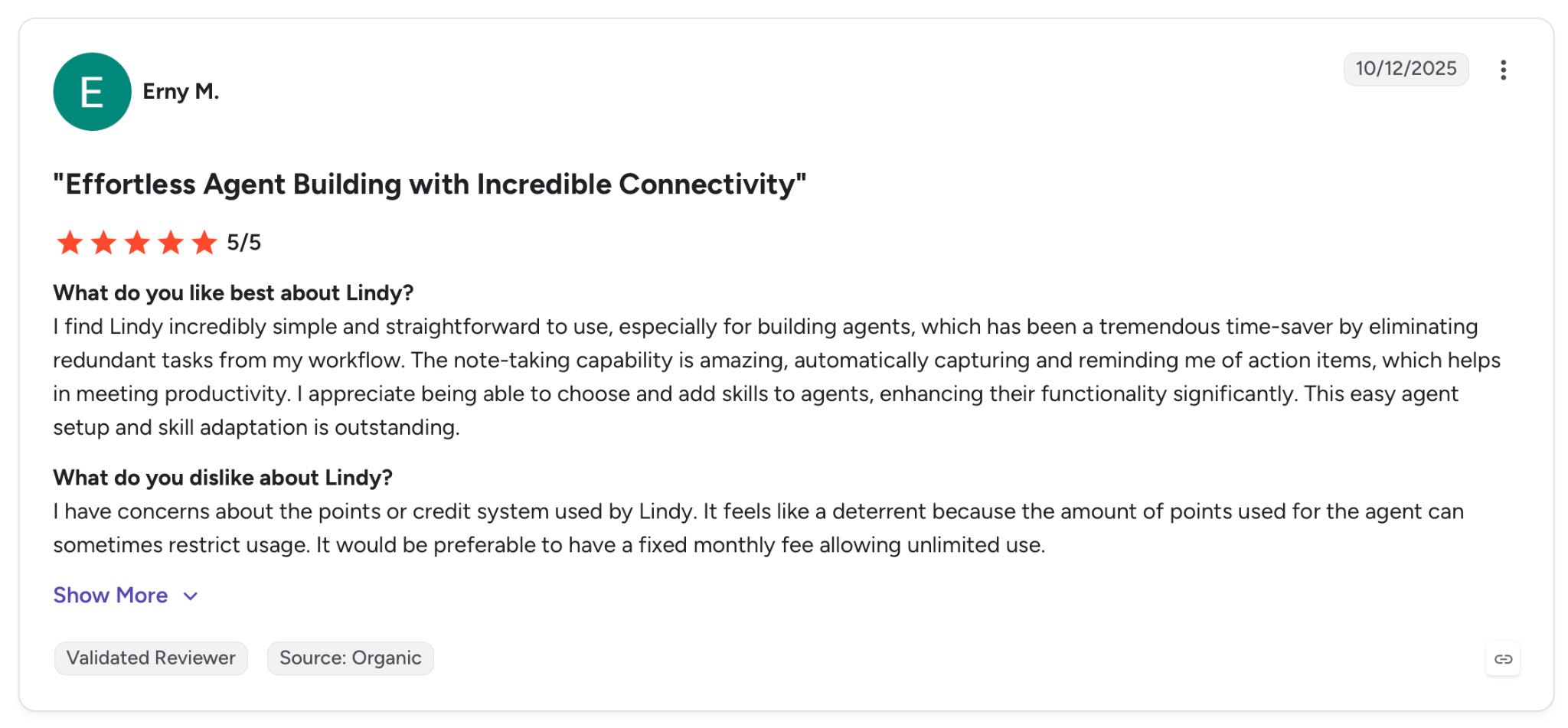
"The note-taking capability is amazing, automatically capturing and reminding me of action items, which helps in meeting productivity." — Erny M., G2
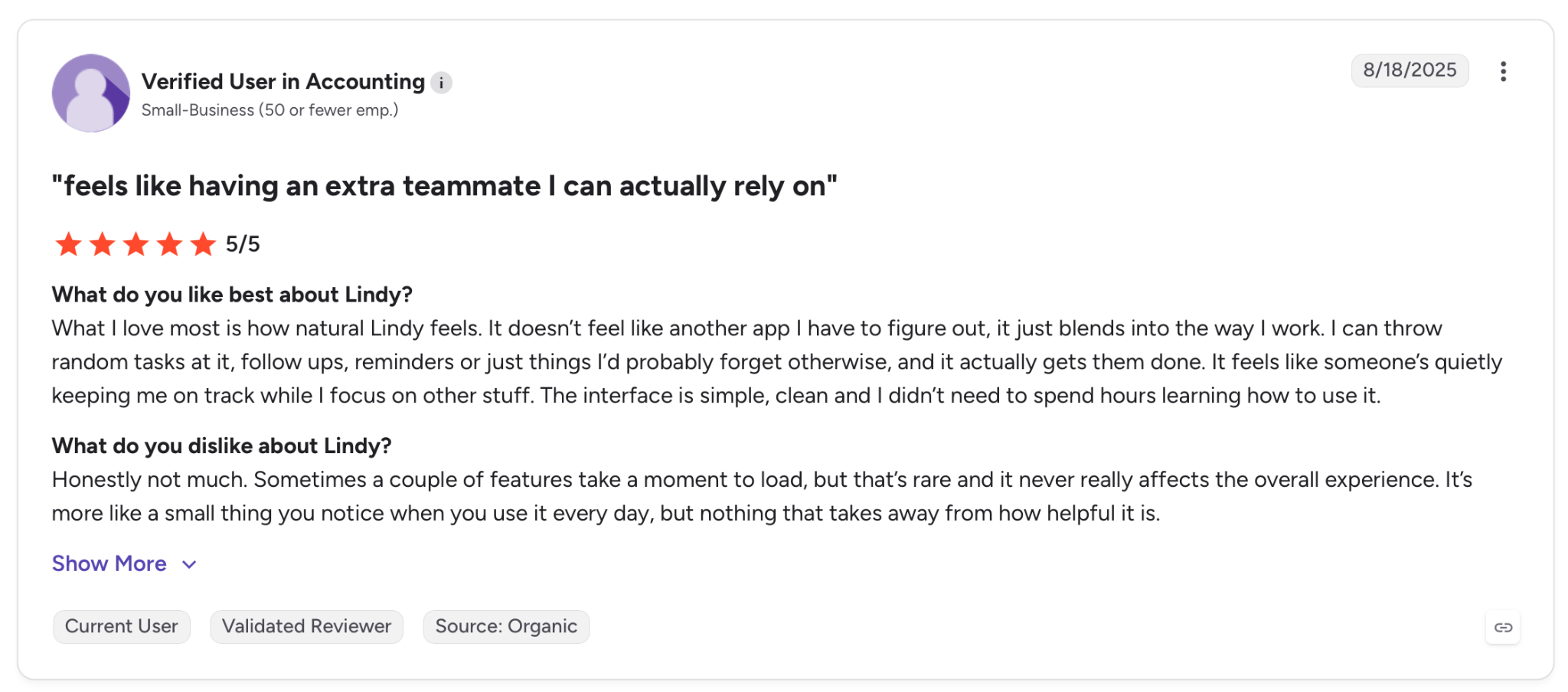
"Sometimes a couple of features take a moment to load, but that’s rare and it never really affects the overall experience." — Verified User in Accounting, G2
Pricing
Lindy Plus costs $49.99/month, which includes standard usage, up to 2 connected inboxes, and a 7-day free trial with no credit card required. Pro at $99.99/month scales to 3x more usage, computer use, and up to 3 inboxes.
Bottom line
Pick Lindy when inbox triage, meeting prep, and follow-ups are the part of your day that keeps running over. For line-by-line document editing or deep writing work, pair it with a second tool, such as Notion AI.
{{templates}}
4. Toggl Track: Best for automatic time tracking
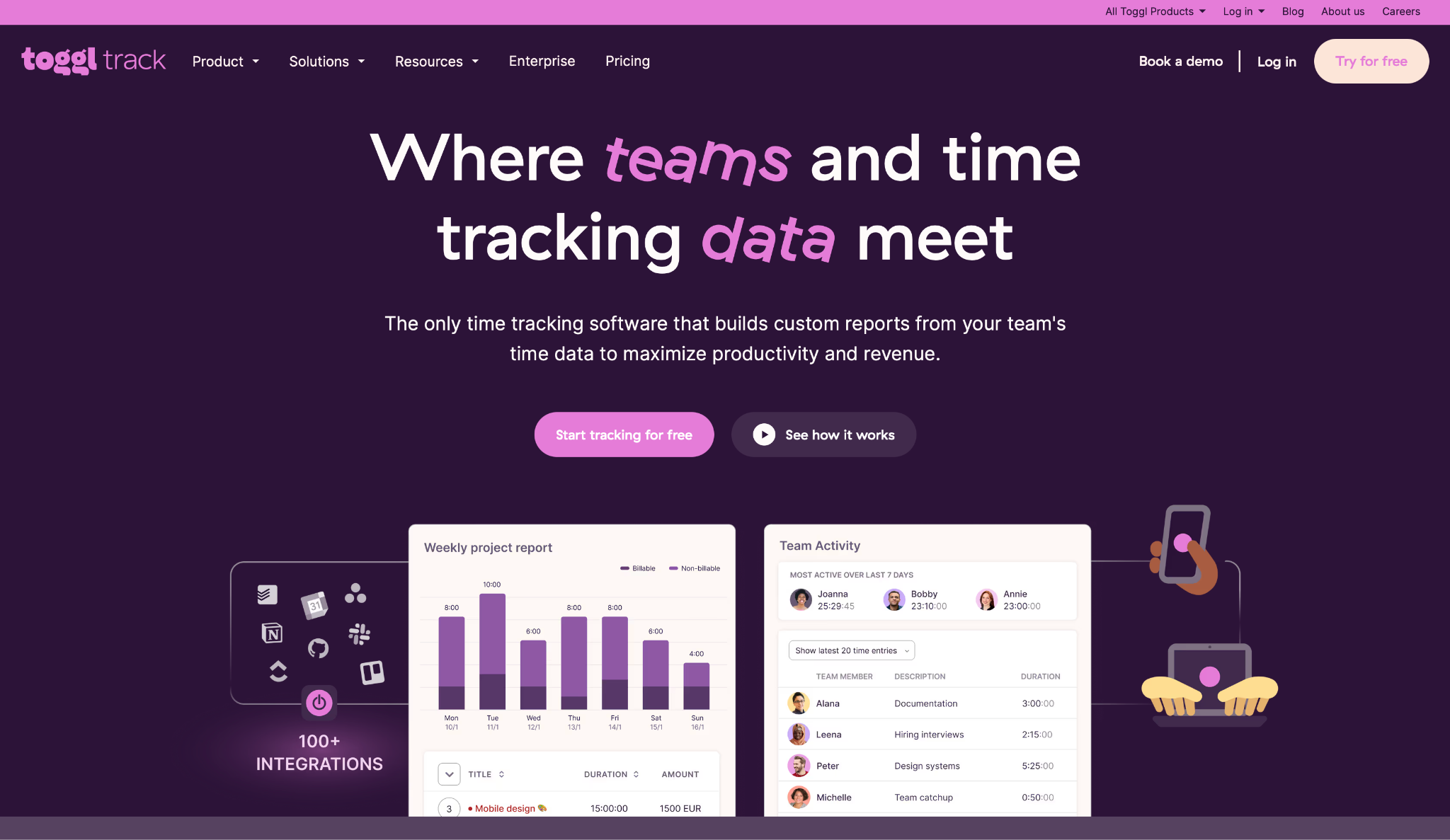
What it does: Toggl Track tracks the time you spend in every app and website on its own, drafts AI-assisted timesheets, and generates detailed reports by project, client, and team, with no manual timers required.
Best for: Agencies, consultants, and freelancers who need accurate billable-hour data without the friction of starting and stopping timers throughout the day.
The first thing I noticed when setting up Toggl Track was how little I had to do. The desktop app began logging my time across every application (Notion, Gmail, browser tabs, Zoom) within minutes of installation.
By the end of the first day, I had a complete timeline of where my hours went, and the AI-assisted timesheet drafts had already organized the bulk of it into the right project categories.
Part of why teams use it without pushback is the privacy model. It logs which apps you opened, no screenshots and no keystroke logs, and each person decides what actually makes it into the timesheet.
That design is exactly what G2 reviewers point to again and again, citing it as the reason their teams stick with the tool rather than resisting it.
Toggl Track tells you where your hours went. Planning the day and guarding focus time are jobs for other tools.
Key features
- Automatic time tracking: Logs time spent in every web and desktop app on its own, eliminating the need to start or stop timers
- AI timesheets: Drafts timesheet entries based on recorded activity, which users review and approve rather than fill in from memory
- Detailed reports: Filters time data by project, client, team member, or date range, with export options in PDF and CSV
- Integrations: Connects with Asana, Jira, Trello, Slack, Google Calendar, Outlook, and 100+ other tools
Pros and cons
Pros:
✅ Automatic tracking catches browser sessions, emails, and quick context switches that manual timers miss
✅ Free plan covers up to 5 users with full-time tracking, usable for solo freelancers and small teams without cost
✅ Privacy-first design: Toggl Track doesn't take screenshots, log keystrokes, or share raw app activity with managers
Cons:
❌ Mobile app has weaker sync and a less polished interface compared to the desktop and web versions
❌ Billable rates and project cost tracking require the Starter plan; the free plan is limited for client-billing workflows
What users say
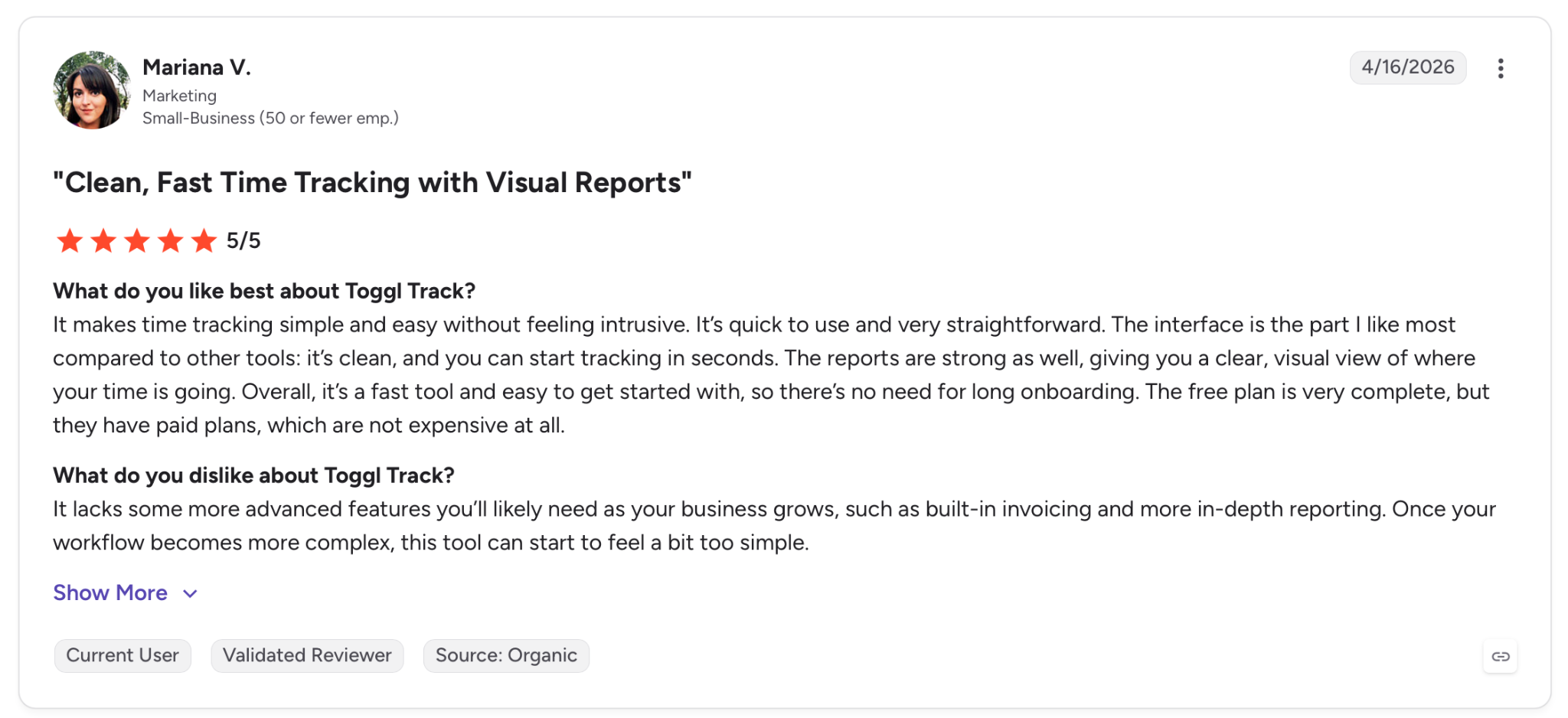
"It makes time tracking simple and easy without feeling intrusive. It’s quick to use and very straightforward." — Mariana V., G2
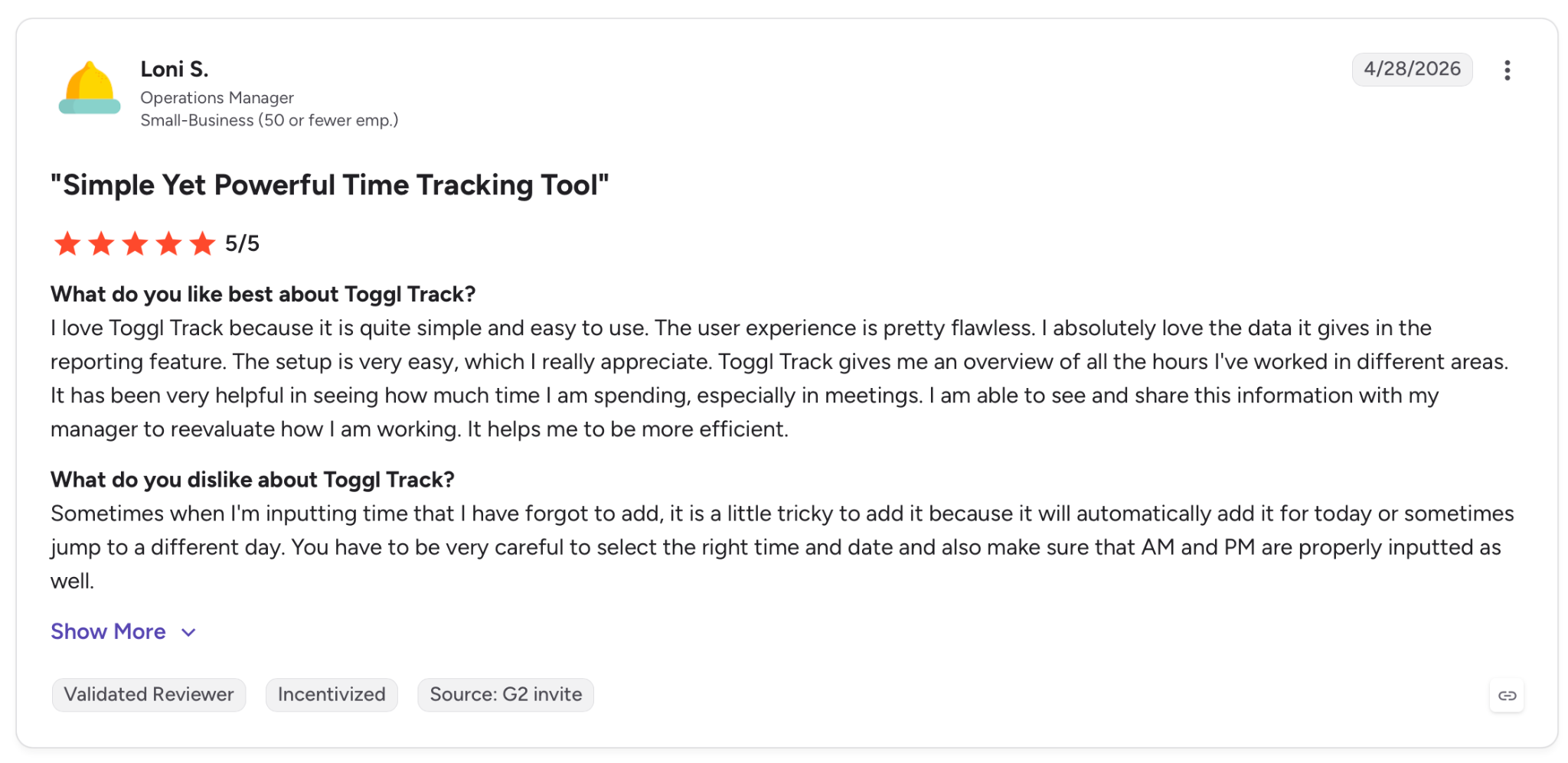
"Sometimes when I'm inputting time that I have forgotten to add, it is a little tricky to add it because it will automatically add it for today or sometimes jump to a different day." — Loni S., G2
Pricing
Toggl Track Starter costs $12/license/month, which opens up billable rates, project estimates, saved reports, and unlimited data storage. Premium costs $20/user/month and adds timesheet approvals, team management tools, and Jira and Salesforce integrations.
Bottom line
Toggl Track pays for itself when accurate time data is what your business runs on, whether that's billing, profitability reviews, or catching hours that slip through manual logs.
5. Todoist: Best for AI task capture
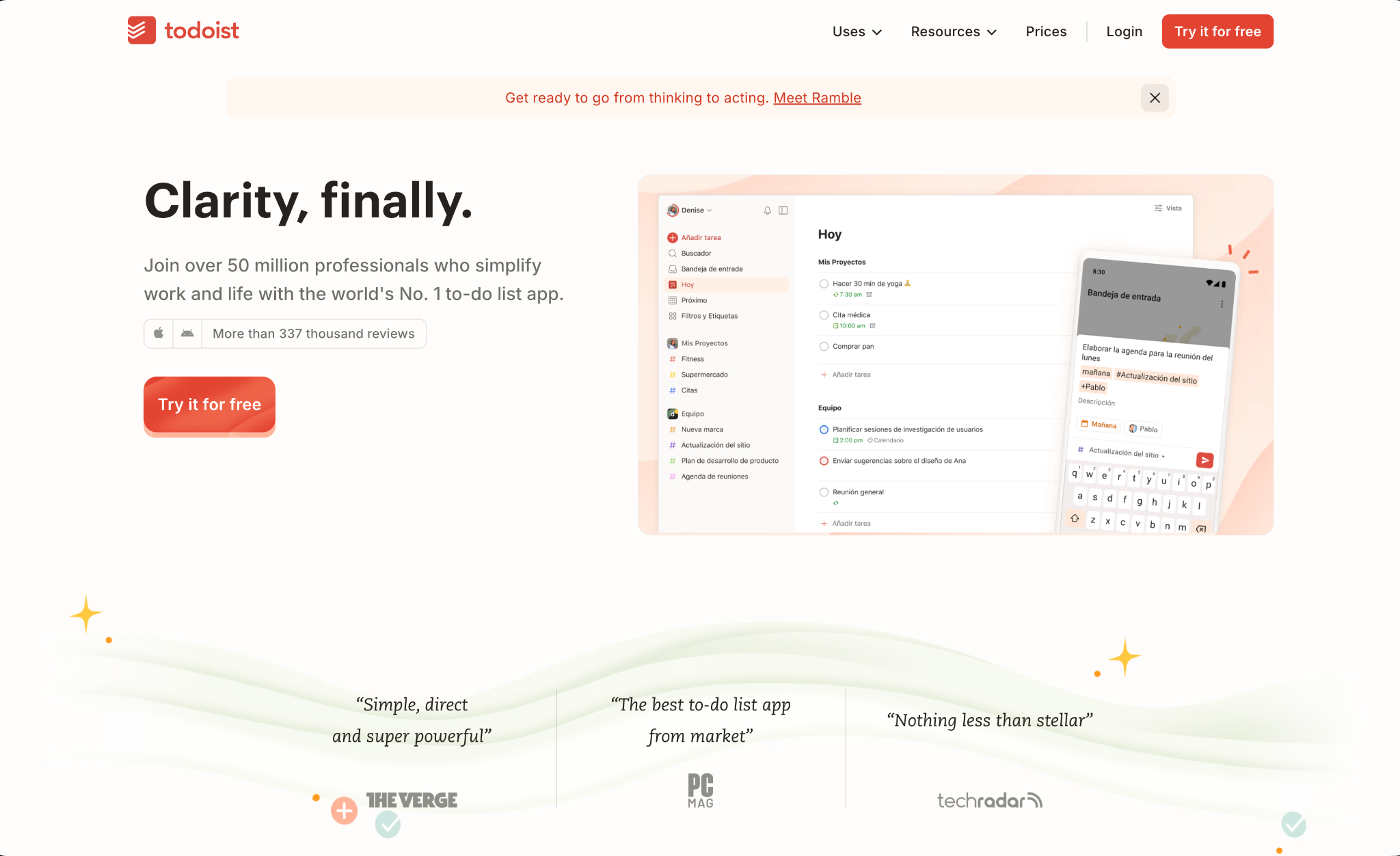
What it does: Todoist is a task manager that uses natural language input, AI prioritization, and voice-to-task capture to help individuals and teams organize everything they need to do, across web, desktop, and mobile.
Best for: Individuals and small teams who need a fast, consistent, cross-platform task manager with enough AI to surface what matters next, without the overhead of a full project management suite.
After the December 2025 pricing update, Todoist became more serious about AI. On day one, I typed a task in plain English to test the parser.
Typing "review client brief every Tuesday at 9 am #Work" created the recurring task instantly, landing the right label, day, and time without me opening a single menu or dropdown.
The Ramble feature (voice-to-task) changed how I log tasks during calls. Speaking them out loud into my phone while on a walk, then finding them neatly organized in the right projects when I got back, removed a friction point I hadn't noticed was costing me.
Todoist answers "what needs doing." Finding time on the calendar to do the work is Reclaim or Motion's job, and the two pair well together.
Key features
- Natural language input: Type tasks the way you think, with dates, recurrence, and priority, and Todoist parses them correctly without extra steps
- Ramble (voice-to-task): Speak tasks out loud and Todoist transcribes and files them into the right projects on its own; included in the Pro plan
- Karma system: Tracks your task completion patterns over time and highlights streaks and productivity trends with light gamification
- 60+ integrations: Works with Slack, Google Calendar, Outlook, Zapier, and Reclaim, letting tasks flow directly into calendar scheduling
Pros and cons
Pros:
✅ Natural language parsing works well; dates, priorities, and recurrence come through correctly on the first try
✅ Syncs across web, desktop, iOS, and Android with immediate updates
✅ Ramble lets you talk through a brain dump out loud and files each spoken item into the right project, useful for capturing tasks mid-walk or mid-call
Cons:
❌ Doesn't schedule tasks to your calendar or protect focus time; that requires a separate integration with Reclaim or Motion
❌ The free plan caps at 5 active projects and no reminders, which squeezes power users quickly
❌ Single-assignee per task, so you can't assign the same task to multiple team members without a workaround
What users say
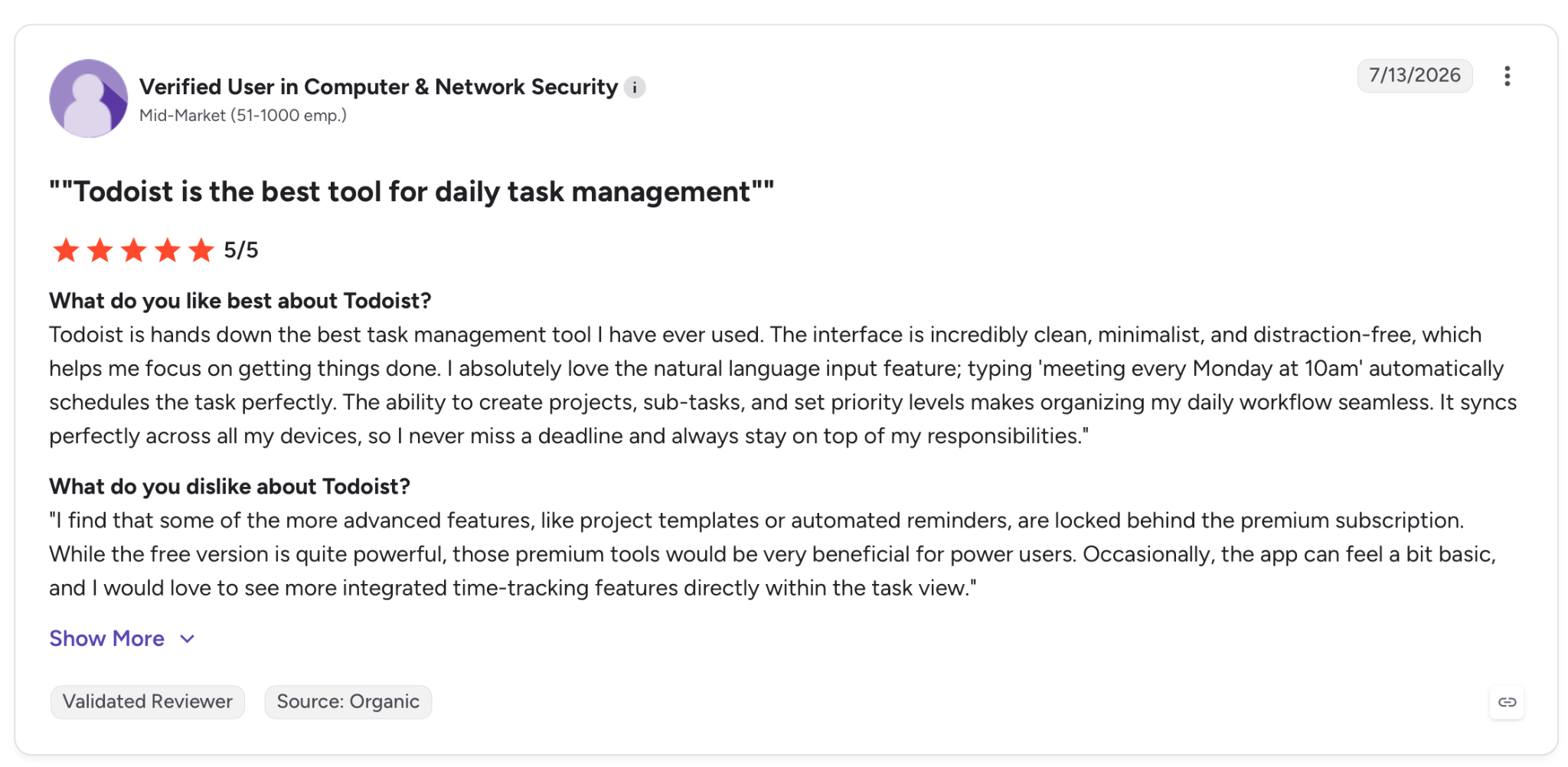
"Todoist is hands down the best task management tool I have ever used." — Verified User in Computer & Network Security, G2
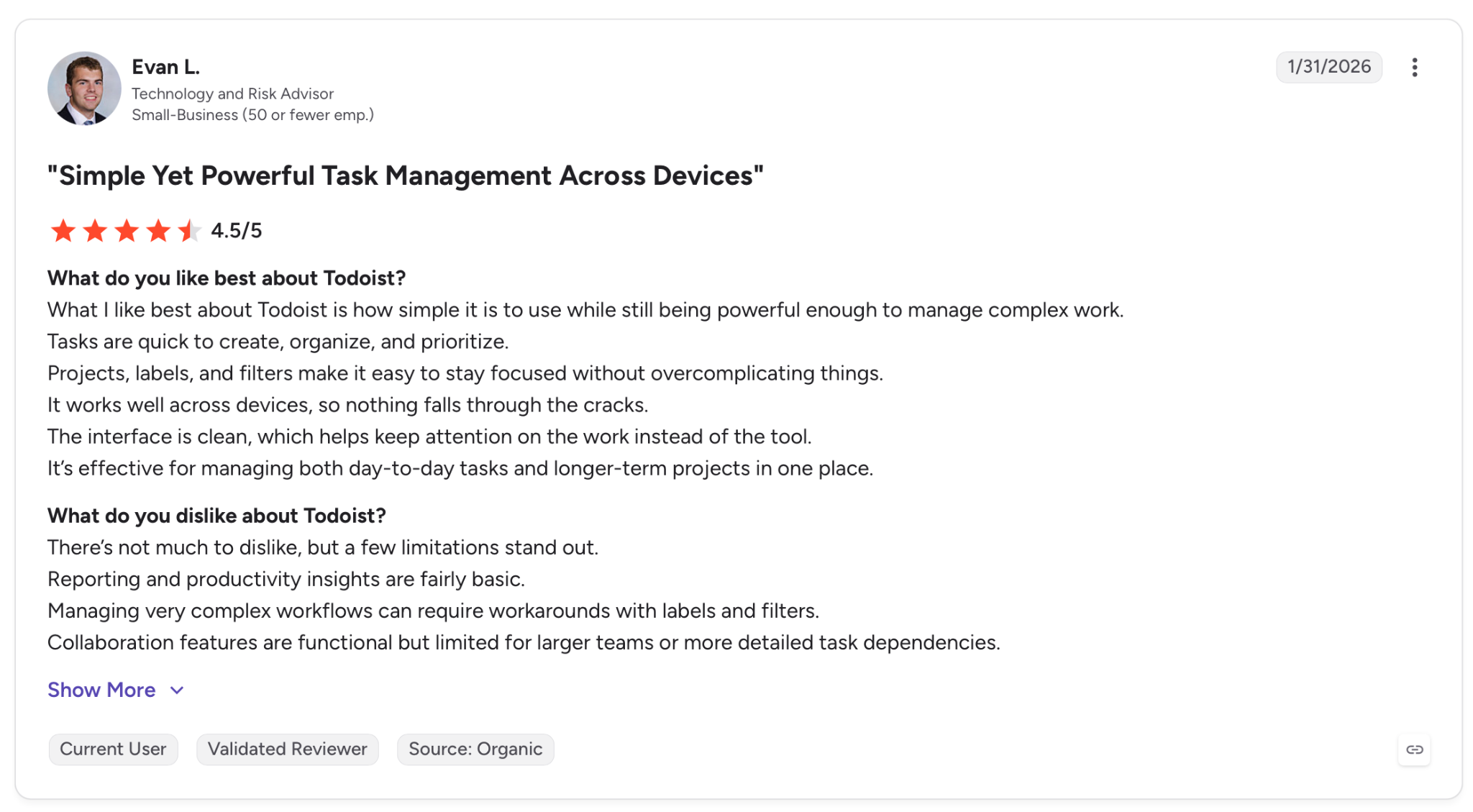
"Reporting and productivity insights are fairly basic." — Evan L., G2
Pricing
Todoist Pro costs $7/user/month and unlocks reminders, calendar layout, 300 active projects, and AI Ramble voice-to-task. Business at $10/user/month covers shared team workspaces, role-based permissions, and centralized billing.
Bottom line
Todoist is where to start if fast, consistent task capture is the bottleneck. Reclaim and Motion handle the calendar side, and Todoist feeds them the list.
6. Timely: Best for passive time tracking
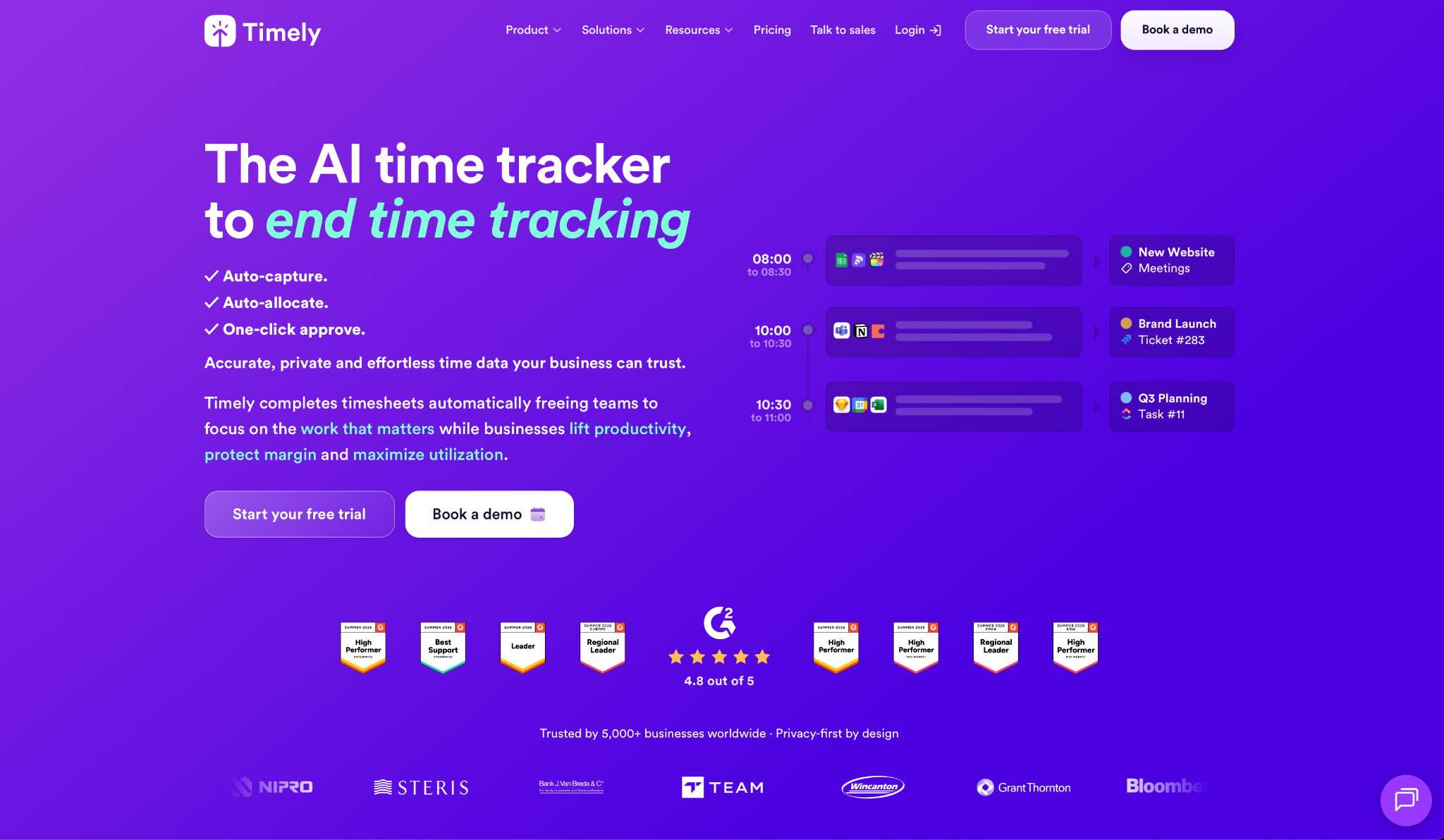
What it does: Timely logs every minute spent in apps, websites, meetings, and documents on its own, then uses AI to draft timesheets that users review and approve, cutting manual time entry out of the workflow entirely.
Best for: Consultants, agencies, and professional services teams where accurate time data is essential for billing and profitability, and where manual tracking leaves too many hours unlogged.
What sets Timely apart is the Memory tracker. It runs in the background while you work, recording time across every app and website without asking you to start timers or log anything.
At the end of each day, it surfaces a full timeline, and the AI drafts timesheet entries based on what it recorded. I reviewed and approved them, and the whole process took three to four minutes per day.
For consultants running several clients at once, the project budget dashboards proved their worth in the first week. Seeing that a client project was already at 80% of its budget two weeks before the deadline gave me room to adjust the scope or rate before the loss appeared on an invoice.
Timely tracks the hours. Deciding which client each one belongs to is still your call, and the tool leaves that to you after it handles the logging and draft timesheets.
Key features
- Memory tracker: Captures time in every app and website on its own, generating a complete daily timeline without timers or manual input
- AI timesheets: Drafts timesheet entries from recorded activity for users to review in minutes rather than reconstruct from memory
- Project dashboards: Track budget spend, billable hours, and team utilization against plan as work happens
- Privacy-first design: All tracked activity is private to each individual by default; managers see only what each person chooses to log
Pros and cons
Pros:
✅ Fully passive tracking removes timekeeping from day-to-day work; no timers to start, no end-of-week reconstruction from memory
✅ Project budget dashboards show spend against plan in real time, flagging when a client project crosses a budget threshold before the deadline hits
✅ AI timesheet drafts cut timesheet admin by up to 75%, according to Timely, freeing those hours for billable work
Cons:
❌ App-level tracking records which apps you used; assigning those hours to a specific client or task still requires a human call
❌ Tasks (assigning and scheduling deliverables) are a paid add-on rather than a built-in part of the tracker, so full project planning costs extra on top
What users say
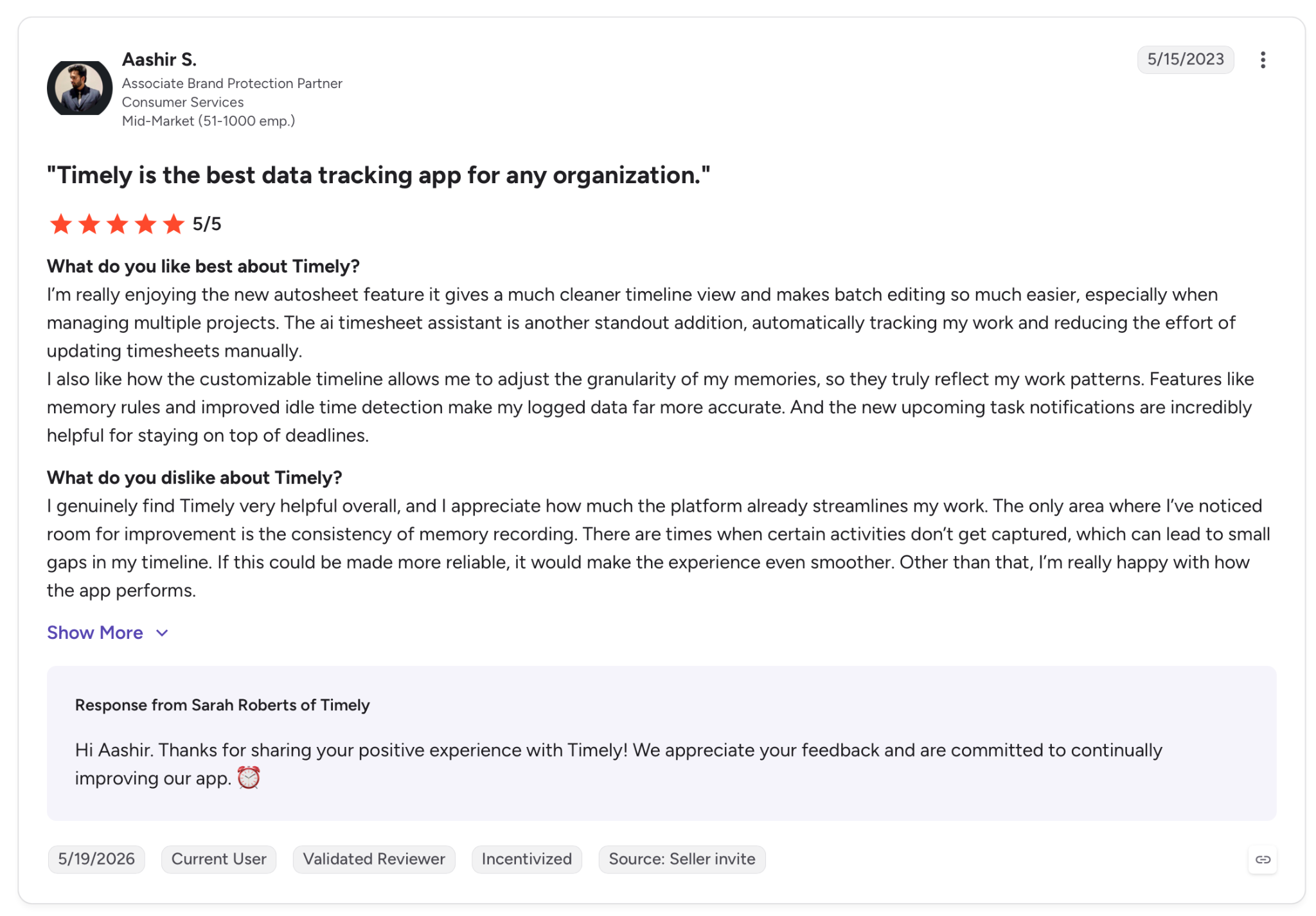
"I’m really enjoying the new autosheet feature it gives a much cleaner timeline view and makes batch editing so much easier, especially when managing multiple projects." — Aashir S., G2
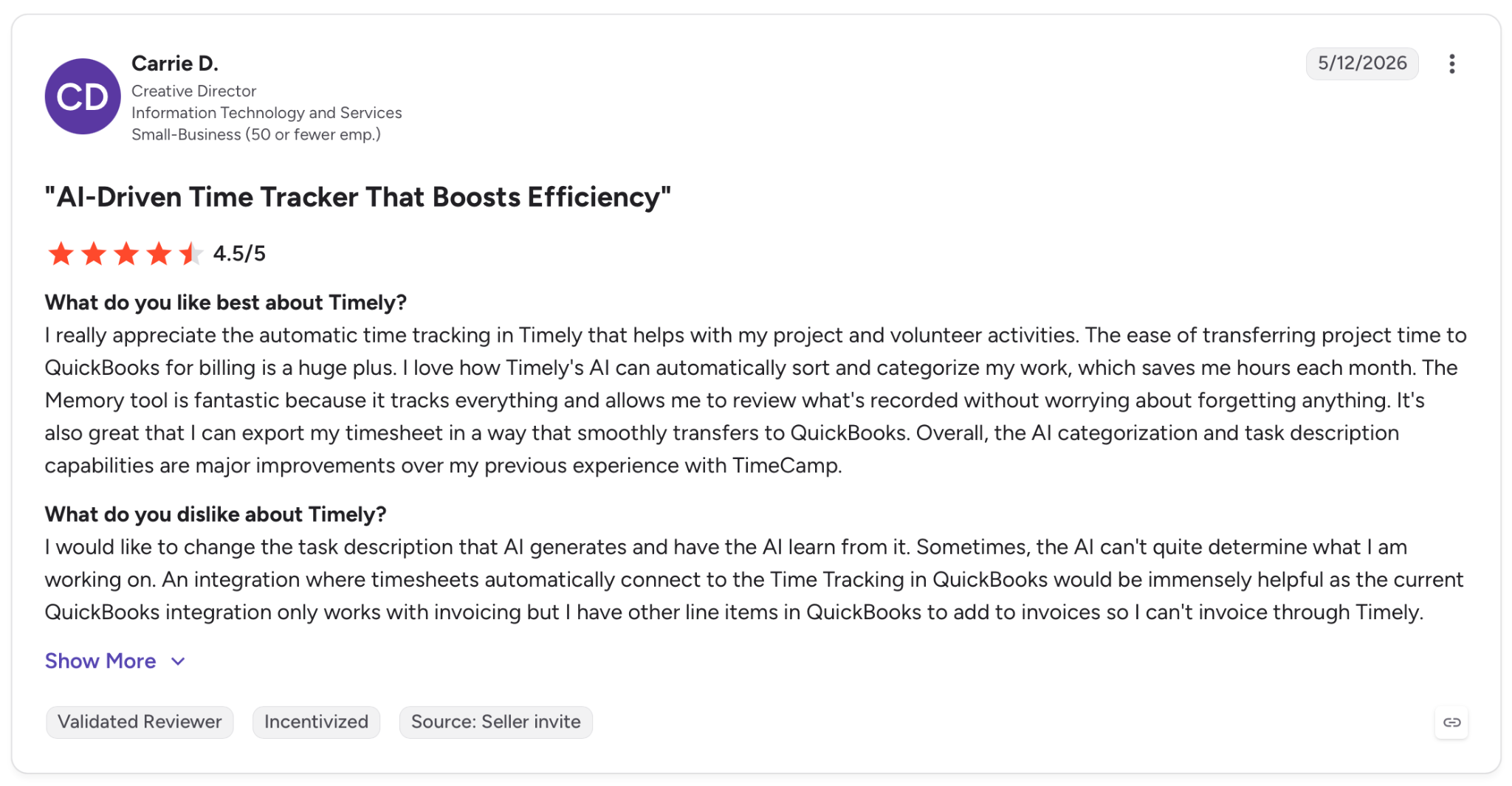
"I would like to change the task description that AI generates and have the AI learn from it." — Carrie D., G2
Pricing
Timely Starter costs $11/user/month and includes automatic tracking, AI timesheets, and project dashboards for up to 5 users. The Premium plan at $20/user/month adds team management, budget controls, and planning features for up to 50 users.
Bottom line
For teams where billable-hour accuracy drives billing, client trust, or profitability, Timely earns the subscription. Scheduling and focus protection require a separate layer.
7. ClickUp: Best for all-in-one project and time management
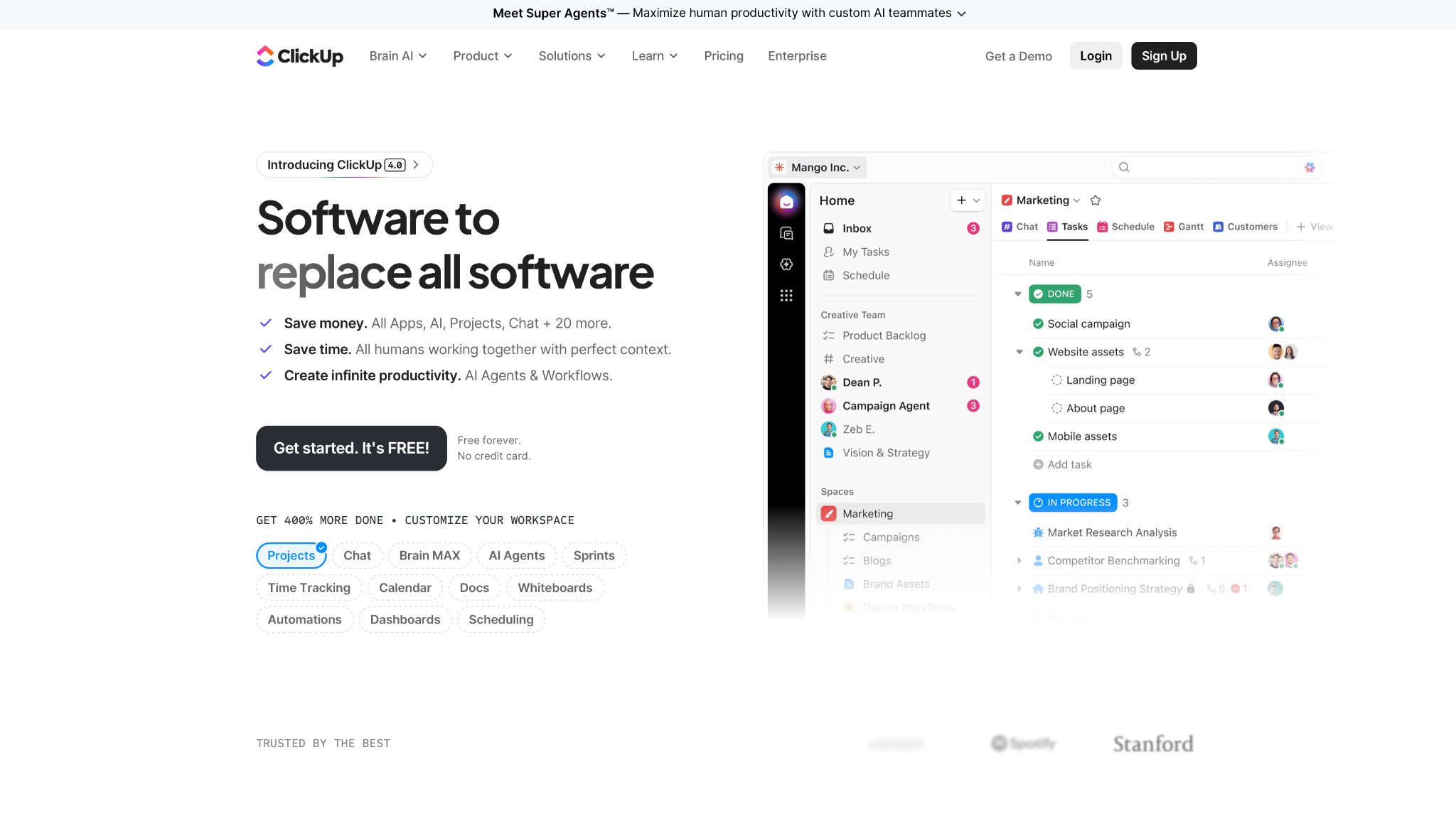
What it does: ClickUp combines project management, task tracking, time tracking, document management, dashboards, automations, and AI assistance into a single platform, designed to replace multiple productivity tools with a single hub.
Best for: Growing teams that want tasks, projects, time tracking, and AI under one roof rather than managing separate subscriptions for each.
I spent a month setting up live workflows for a marketing project inside it, building out boards, dashboards, time estimates, and automations. The native time tracking and ClickUp Brain both performed reliably once that structure was in place, but only then.
My first week, as a result, was mostly setup, and the payoff didn't arrive until the boards were fully configured.
By the end, the time tracking held its own without a separate tool, and ClickUp Brain handled drafting, summarizing, and answering questions about the workspace with reasonable accuracy.
Setup time is the variable that decides everything here. Teams that haven't established workflow discipline before adopting ClickUp tend to get lost in the feature set, and G2 reviewers cite a steep learning curve and UI overwhelm as the primary friction points.
The flip side is that it rewards teams that put in the configuration work up front.
Key features
- Native time tracking: A timer and time logging across every task, with reports exportable by team member, project, or date range
- ClickUp Brain (AI): Answers questions about your workspace, drafts content, summarizes tasks and docs, and suggests action items from meetings
- Automations: Sets up condition-based workflows (status changes, assignment triggers, deadline alerts) without code
- Views: Toggles between List, Board, Calendar, Gantt, and Timeline views depending on how you need to see your work
Pros and cons
Pros:
✅ Replaces four or five separate tools (tasks, docs, time tracking, dashboards, and basic AI) with one hub, so work stops scattering across subscriptions
✅ Views toggle between List, Board, Calendar, Gantt, and Timeline on the same data, so the same project reads differently for a planner and a doer
✅ Automations reduce manual status updates and assignment work once the workflow is configured
Cons:
❌ Steep learning curve and a dense UI mean teams often spend three or more weeks configuring and learning the tool before it feels productive
❌ Performance degrades in large workspaces, with slow page and board loads showing up once you stack deep nesting and heavy dashboards on top of each other
What users say
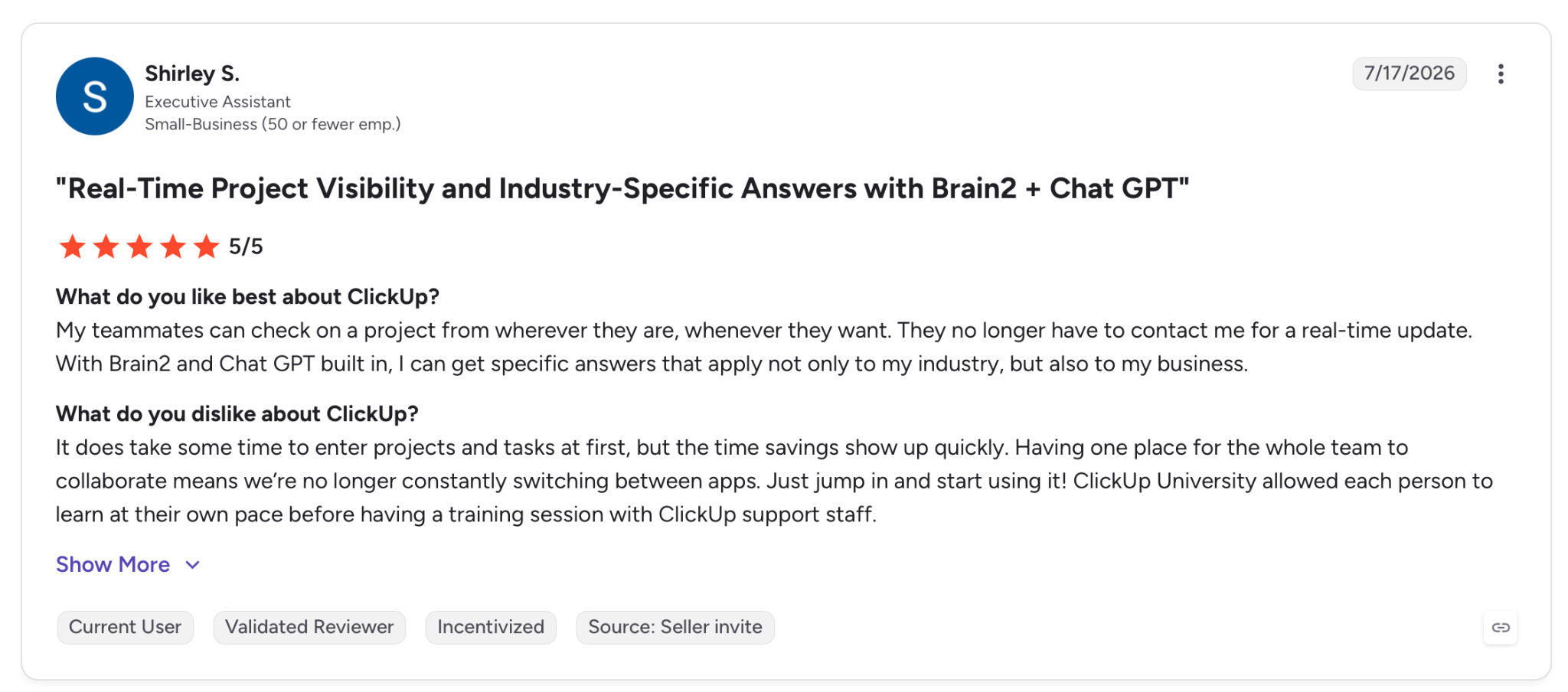
"My teammates can check on a project from wherever they are, whenever they want. They no longer have to contact me for a real-time update." — Shirley S., G2
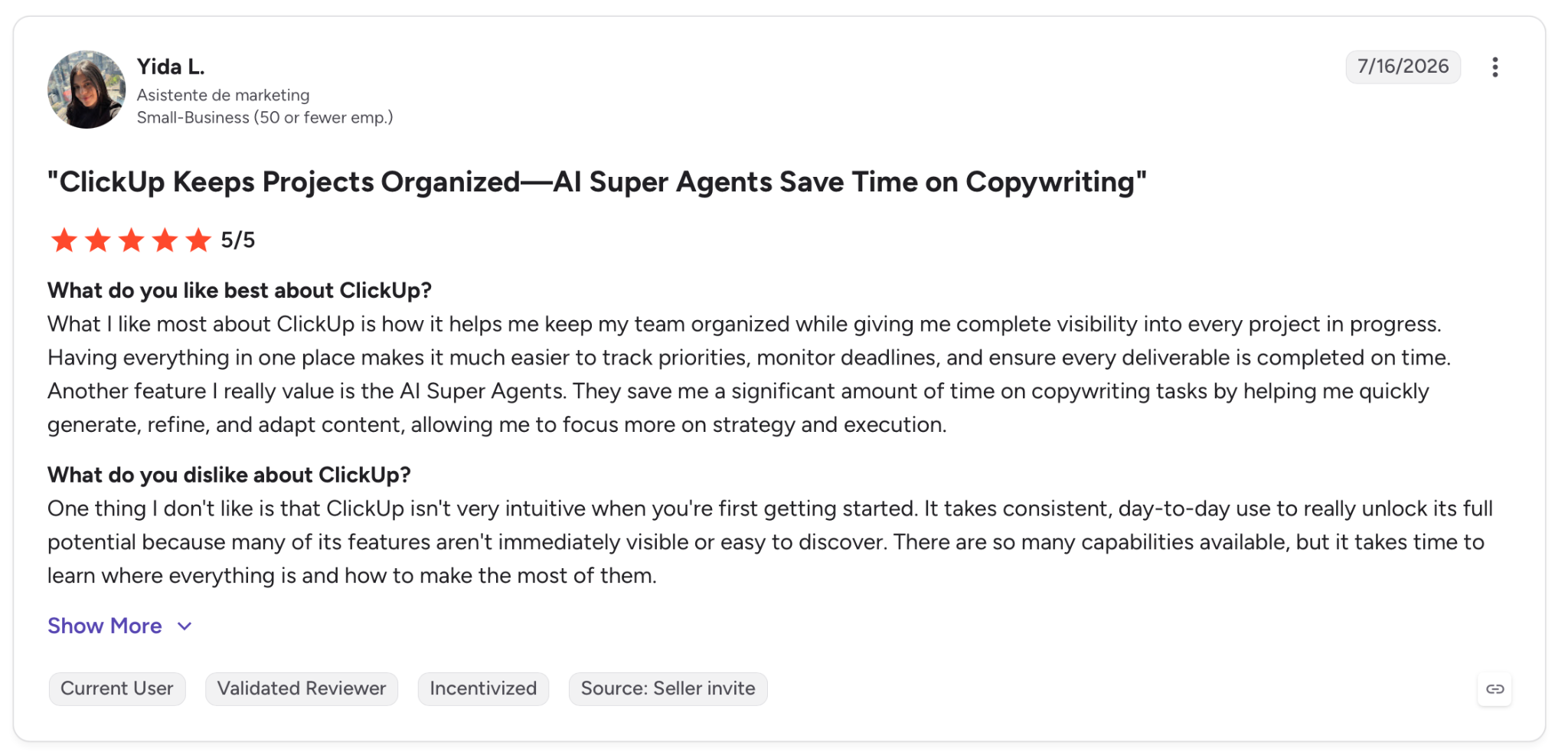
"One thing I don't like is that ClickUp isn't very intuitive when you're first getting started." — Yida L., G2
Pricing
ClickUp Unlimited costs $10/user/month, removing storage caps and adding integrations, time tracking, and Gantt charts. Business at $19/user/month layers in advanced automations, workload management, sprint reporting, and Google SSO.
Bottom line
ClickUp rewards teams that invest in setup. If your team needs a single platform covering projects, time, docs, and AI without juggling five subscriptions, the consolidation pays off. Solo users or teams that prefer lighter tools should look at Todoist or Reclaim instead.
8. Trevor AI: Best for lightweight time blocking
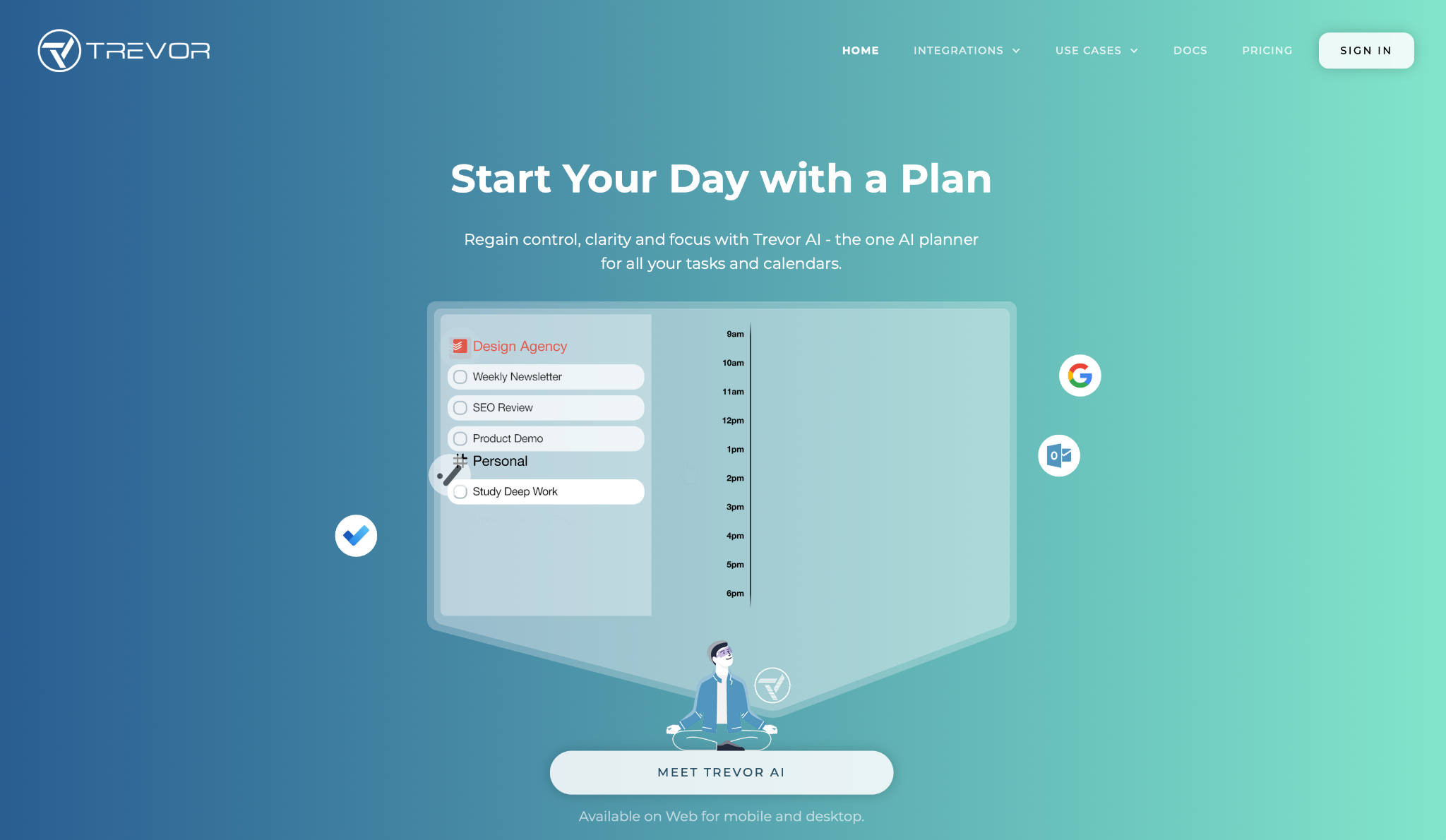
What it does: Trevor AI connects your to-do list and your calendar. You can drag tasks into time blocks yourself or let the AI suggest optimal slots, with live sync to Google Calendar and Outlook.
Best for: Individuals and freelancers who want simple, low-cost AI time blocking without the complexity or price tag of a full productivity suite.
What I liked most about Trevor is how little it asks of you. Connecting my Todoist tasks and Google Calendar took under five minutes, and by the end of the first day, I had a clear visual plan of when I was going to do each thing on my list.
The drag-and-drop interface is fast, and the AI scheduling suggestions come across as options. You decide which ones to take.
The "Ask Trevor" chat feature did more than I expected at this price. Typing "move my 3 pm focus block to tomorrow morning" and watching the calendar update in seconds is the kind of assistant-like interaction that pricier tools overcomplicate.
Trevor's scope is deliberate. The AI surfaces suggestions, and you act on them, which means a mid-day calendar change is on you to reshuffle, slot by slot.
Key features
- Task Hub: Centralizes tasks from Google Tasks, Todoist, and Microsoft To Do in one interface alongside your calendar
- AI scheduling suggestions: Predicts optimal time slots for tasks based on your calendar patterns and suggests them with one-click acceptance
- Drag-and-drop scheduling: Move tasks manually onto your calendar with full control, or accept the AI suggestions directly
- Focus Mode: A timer-based work session with a note field and AI-generated task breakdowns to maintain concentration on a single task
Pros and cons
Pros:
✅ Connects tasks from multiple sources to a unified calendar view in minutes, no lengthy onboarding required
✅ AI scheduling suggestions appear as one-click options the user can accept or ignore, keeping full calendar control in their hands
✅ Free plan available for personal use; Pro is the lowest-priced paid option on this list
Cons:
❌ No automatic rescheduling; when your day changes, you move tasks to new slots yourself
❌ Native integrations are limited to Google Tasks, Todoist, and Microsoft To Do; Asana and Jira only connect through Zapier, and ClickUp has no direct path
What users say

"I was using Trevor AI and liked it a lot, but it doesn't auto-re-schedule." — Verified User, Reddit
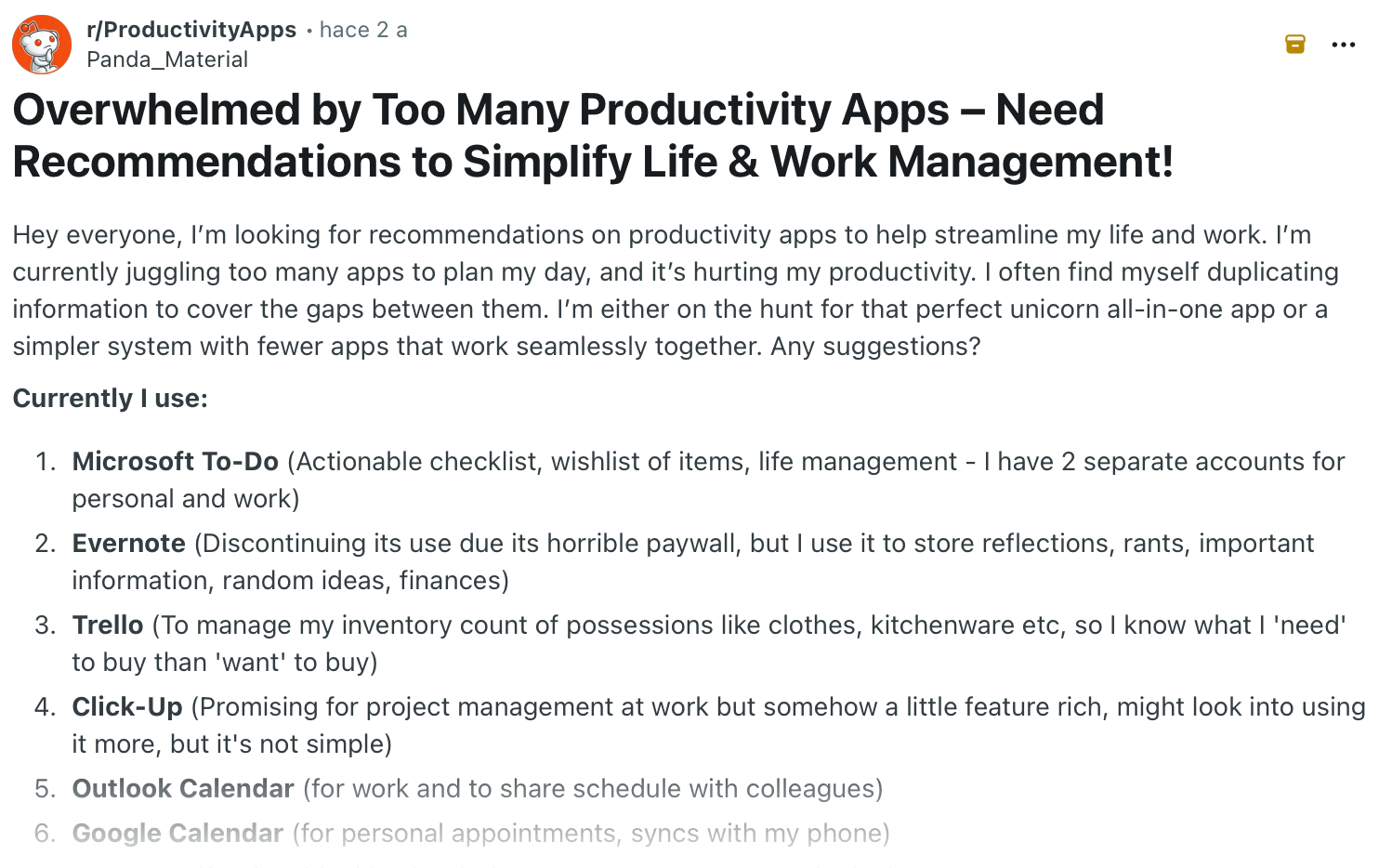
"Currently I use Trevor AI for time blocking, but it doesn't seem to sync to Outlook." — Verified User, Reddit
Pricing
Trevor AI is free for personal use with one calendar account and limited automation. Pro starts at $6/month billed monthly, or $5/month billed annually, and includes multiple calendar accounts, advanced AI scheduling, and full automation features.
Bottom line
Trevor AI suits solo professionals and freelancers who want a visual calendar tied to their task list without a full-featured suite to back it up. Step up to Motion or Reclaim when you need a tool to rebuild your schedule without you having to touch it.
9. Notion: Best for team knowledge and workspace productivity
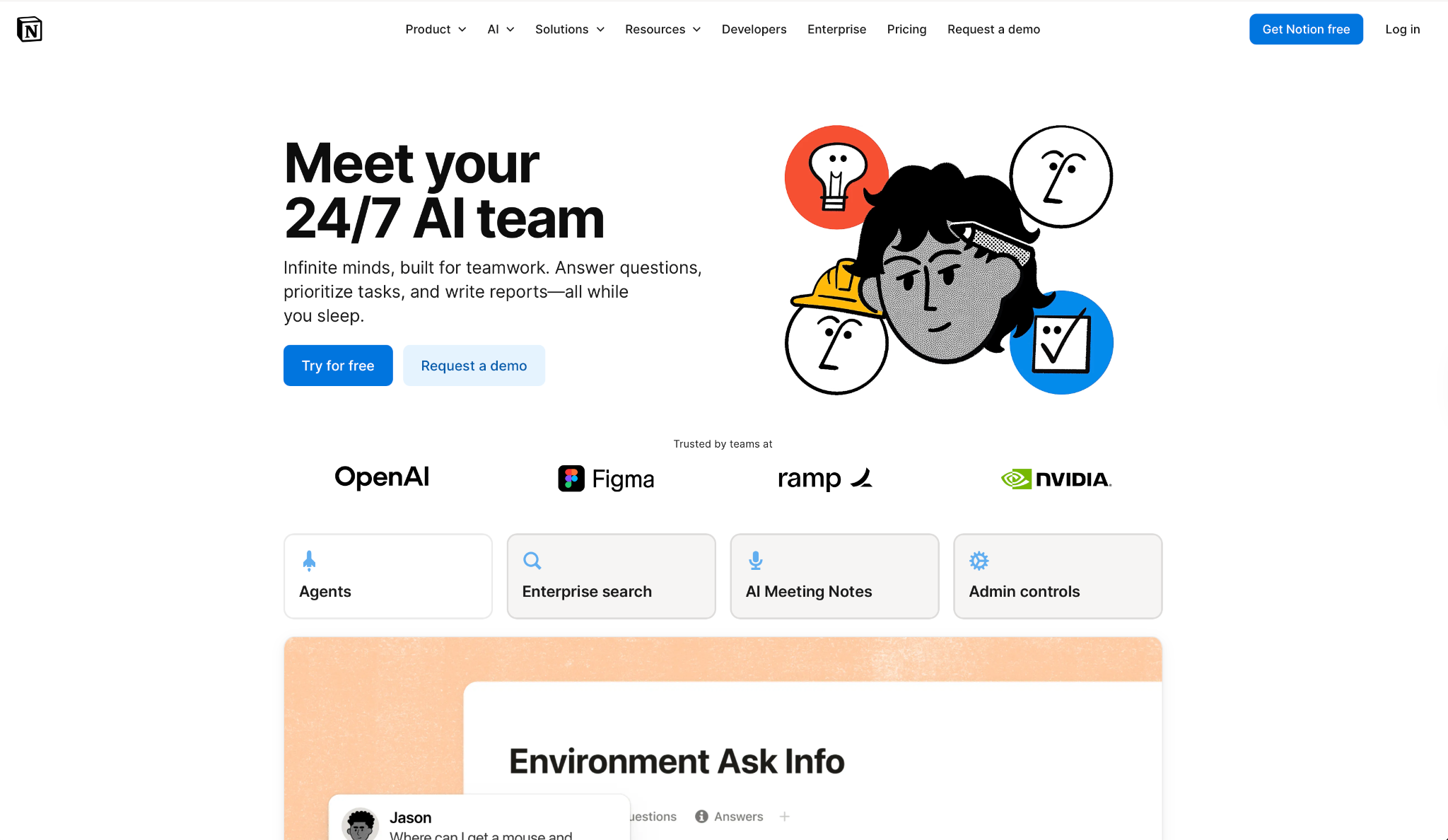
What it does: Notion turns your existing Notion pages into a knowledge base you can search in plain language, surfacing cited answers from docs, databases, and connected apps, while also handling meeting notes, writing, and database automation.
Best for: Teams already working in Notion who want AI to surface buried knowledge, reduce meeting note-taking overhead, and take repetitive database work off their hands without switching to a separate tool.
I tested it on a board meeting prep, the kind where the notes you need are scattered everywhere. Mine sat across five project pages, two databases, and a planning call from earlier in the testing period.
Asking one question, Notion's Q&A feature pulled from all of those sources in under 30 seconds, cited each one, and flagged a budget conflict between two teams that I'd missed entirely.
The boundary is the workspace itself. Notion AI won't trigger actions in Salesforce, Jira, or any external tool without a separate automation layer. If the next step is updating a record somewhere else, that work happens manually or through Zapier.
Key features
- Notion Agent (Q&A): Searches your entire workspace, including connected Google Drive and Slack, and delivers cited answers with links to the source page or database row
- AI Meeting Notes: Joins calls, captures the transcript, and generates summaries with decisions and next steps dropped directly into Notion
- AI Autofill: Populates database properties by reading linked pages, pulling out key details like deadlines and action items on its own
- Research Mode: Conducts deep research across your workspace, connected apps, and the web simultaneously for strategic decisions (Business plan)
Pros and cons
Pros:
✅ Q&A cites its source page or database row on every answer, so you can verify the AI's work before acting on it
✅ AI Autofill populated 40 incomplete database rows in under two minutes by reading linked project pages, replacing 30 minutes of manual entry
✅ Focus Mode runs a timed work session with a note field and AI-generated task breakdowns, keeping you on one task instead of scattering across the list
Cons:
❌ Notion AI stays inside the workspace; it can't trigger actions in external tools like Salesforce, Jira, or HubSpot without a separate automation layer
❌ Performance drops in large workspaces; users with hundreds of nested pages and deep databases report slower search and page loads
What users say
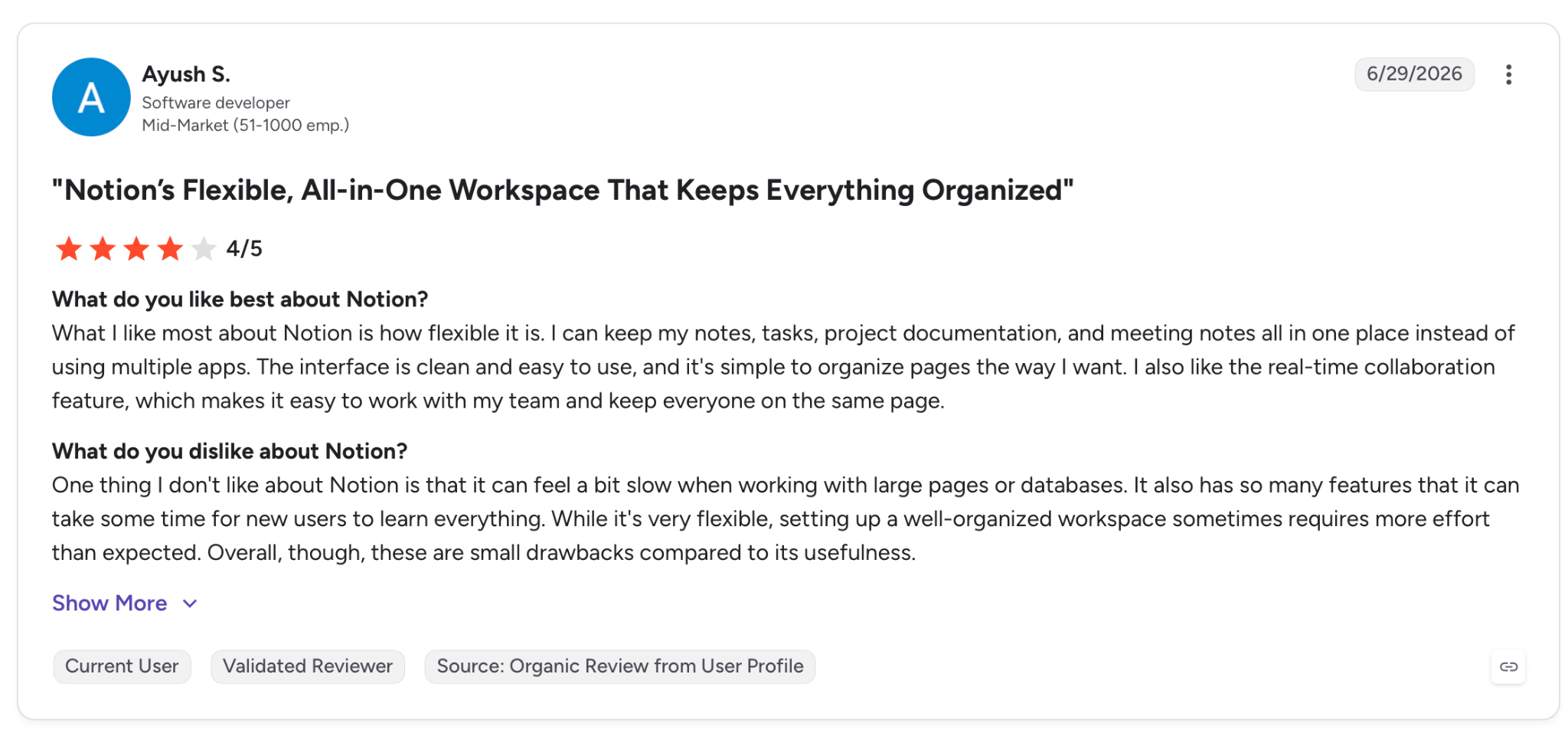
"What I like most about Notion is how flexible it is. I can keep my notes, tasks, project documentation, and meeting notes all in one place." — Ayush S., G2
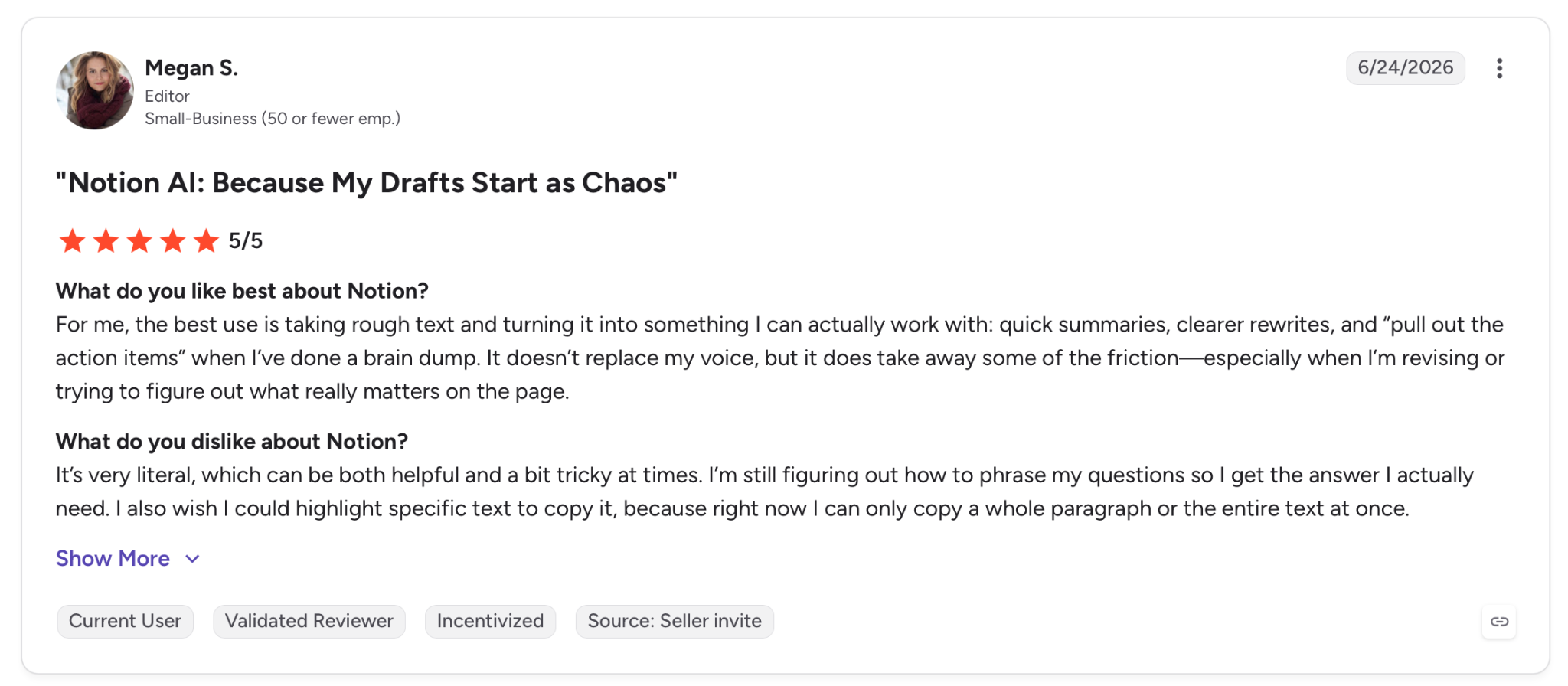
"It’s very literal, which can be both helpful and a bit tricky at times." — Megan S., G2
Pricing
Notion Plus costs $12/user/month, with limited AI trial usage. Business at $24/member/month (or $20 billed annually) includes the full AI suite (Notion Agent, AI Meeting Notes, and Enterprise Search) with no additional AI add-on required.
Bottom line
If your team already lives in Notion and its knowledge is buried across hundreds of pages, the platform pays off. It won't touch your inbox, your calendar, or cross-tool automation, and each of those wants its own dedicated tool.
{{cta}}
Which AI time management tool should you choose?
The right pick depends on where your day breaks down.
Choose Motion if you:
- Have a calendar that constantly changes and need AI to reschedule your task list automatically
- Want to see focus time protected without touching the calendar yourself
- Are managing projects with multiple stakeholders and changing deadlines
Choose Reclaim AI if you:
- Lose focus time to meeting creep week after week
- Want to protect recurring habits (exercise, lunch, end-of-day review) without manually blocking them each morning
- Work across Google Calendar and Outlook and need them managed from one place
Choose Lindy if you:
- Spend hours each week on email triage, meeting prep, follow-ups, and CRM updates
- Want one AI assistant handling the full admin layer from a single thread
- Are a founder, operator, or sales professional who needs the assistant to work without constant prompting
Choose Toggl Track if you:
- Bill clients by the hour and need accurate time data without manual timers
- Run an agency or consultancy where project profitability depends on capturing billable hours, including the ones that slip through manual logs
- Want time tracking your team will adopt because it doesn't feel invasive
Choose Todoist if you:
- Need fast, consistent task capture that works on every device
- Prefer a clean task manager without the complexity of a full project management suite
- Use natural language to create tasks and want the app to parse dates, recurrence, and labels without manual correction
Choose Timely if you:
- Work across client projects simultaneously and need time data organized by project automatically
- Have struggled with time tracking because manual entry is too easy to forget
- Run a team where timesheet accuracy matters for billing, budgeting, or payroll
Choose ClickUp if you:
- Want tasks, docs, time tracking, automations, and AI in one subscription
- Have an operations or project management background and are comfortable with a longer setup process
- Are building team workflows that need granular status tracking and workload visibility
Choose Trevor AI if you:
- Want a simple, affordable way to connect your task list to your calendar with light AI guidance
- Don't need automatic rescheduling; just a clear visual plan of when things will get done
- Are a freelancer or solo professional who doesn't need team features
Choose Notion AI if you:
- Already use Notion as your team's knowledge base and want AI to make it smarter
- Spend time hunting for information buried across dozens of pages and databases
- Need AI meeting notes and workspace search without paying for a separate tool
Skip this category entirely if:
- Your work is primarily hands-on, field-based, or doesn't involve a calendar at all
- Your team is small enough that a shared calendar and a basic to-do list handle what you need
Final verdict
Which tool wins depends on which problem takes up the largest share of your hours. The answer is different for a consultant juggling 12 client projects and a founder drowning in email.
Motion and Reclaim AI cover scheduling and focus protection, each suited to different types of calendars. Lindy takes on the inbox, meetings, and follow-ups that no pure scheduling tool touches.
Toggl Track and Timely serve teams where time data accuracy is a business requirement. Todoist is where task capture starts; Trevor AI and ClickUp extend that at different scales. Notion AI stands out for teams where knowledge lives in Notion and stays buried.
For a lot of people, that's the inbox or the calendar. Inbox overload points to Lindy. Calendar chaos points to Motion or Reclaim.
Frequently asked questions
What is the best AI time management tool in 2026?
The best AI time management tool depends on where your day breaks down. Motion leads for auto-scheduling tasks around a packed calendar, Reclaim AI for protecting focus time from meeting creep, and Lindy for handling email, meetings, and follow-ups from a single interface.
What's the difference between AI scheduling tools and AI task managers?
The main difference between AI scheduling tools and AI task managers comes down to the calendar.
Scheduling tools like Motion and Reclaim AI place tasks directly on your calendar and reschedule them when things change, while task managers like Todoist focus on capturing and organizing what needs to be done without touching your calendar.
Do any of these AI time-management tools offer a free plan?
Yes, several tools on this list offer free plans. Reclaim AI has a free Lite plan, Toggl Track's free plan covers up to 5 users, ClickUp's Free Forever plan includes unlimited tasks, and Todoist's free Beginner plan covers basic task management, capped at 5 active projects.
How long does it take to see results from an AI time management tool?
Users typically see results from AI time management tools within 48 hours to three days of setup. Reclaim AI and Toggl Track show the fastest value, while Motion and Lindy typically need 2 to 3 days to connect all sources and calibrate.
Is AI time management worth it for small teams?
Yes, AI time management tools are worth it for small teams. Reclaim AI and Todoist both offer free entry points, and ClickUp's Unlimited plan at $10/user/month covers tasks, docs, time tracking, and AI in one subscription.