Gmail Signature Settings: How to Set Up, Edit & Customize
Lindy covered Gmail signature settings on desktop, Android, and iPhone, showing how to set up, edit, and manage each one so the footer never renders broken.


If you've ever sent a work email from your phone and watched it land with no title, no phone number, and no company name, you already know the Gmail signature settings on mobile and desktop don't share what you enter.
Gmail keeps signatures in four separate places, and I set one up in each. There's the web client on desktop, the Android app, the iPhone and iPad app, and a Google Workspace admin account. Every one holds its own signature, and two of them override what you set elsewhere without warning.
This guide covers where every setting lives, how to build a signature that survives the jump between devices, and which overrides to watch for.
What are Gmail signature settings?
A Gmail signature is a block of text that lands at the end of every message you send. Set it once in your Gmail signature settings, and your name, title, and contact details show up automatically, so you never have to retype them.
The catch is that Gmail keeps these settings in more than one place. The signature you set in the desktop web client is separate from the one in the Gmail app, and the Gmail app stores a different signature for Android than it does for iPhone and iPad. Change one and the others stay exactly as they were.
Each signature can run up to 10,000 characters, which is far more than you'll ever use on a normal sign-off. If you add an image, that image counts toward the same limit, so a large logo can push a short signature over the cap and trigger an error.
On the desktop side, you can go further and keep multiple signatures under one address, then pick which one is the default for new emails and which one shows on replies.
Work and school accounts add one more layer on top of that. A Google Workspace admin can attach a footer that you never see while composing and cannot edit or remove.
What you'll need before starting
You don't need much to set up a signature, but the requirements change depending on where you want it to appear. Sort out which devices you send from before you start, because you'll repeat the setup once per place.
Prerequisites:
- A Gmail account with access to see all settings in the desktop web client, which is where the full signature editor and multiple-signature controls live. Everything you build on other devices still routes back through this screen.
- The Gmail app is installed on any phone or tablet you send work email from. The mobile signature is stored inside the app itself, so a signature set on the web never reaches your phone unless you add one there too.
- For a company-wide footer, a Google Workspace admin account with the Gmail settings privilege. Standard users can't reach the Admin console footer control, so this step only applies if you manage the domain.
What to decide up front:
- Whether you want one signature or several. If you switch between a formal client-facing sign-off and a short internal one, set up multiple signatures on desktop rather than editing the same block over and over.
- Which signature counts as your default for new emails versus replies. Gmail lets you assign these separately, and picking them now saves you from a half-configured setup later.
Time required (rough estimates from setup):
- Desktop text signature: about five minutes once you're in Settings, longer if you're formatting an image or building several versions.
- Mobile signature: under two minutes per device, though you'll repeat it on each phone and tablet.
- Workspace admin footer: plan for 10 to 15 minutes to write the footer, set its placement, and confirm it appends correctly on a test send.
{{templates}}
How to set up your Gmail signature settings: Step-by-step
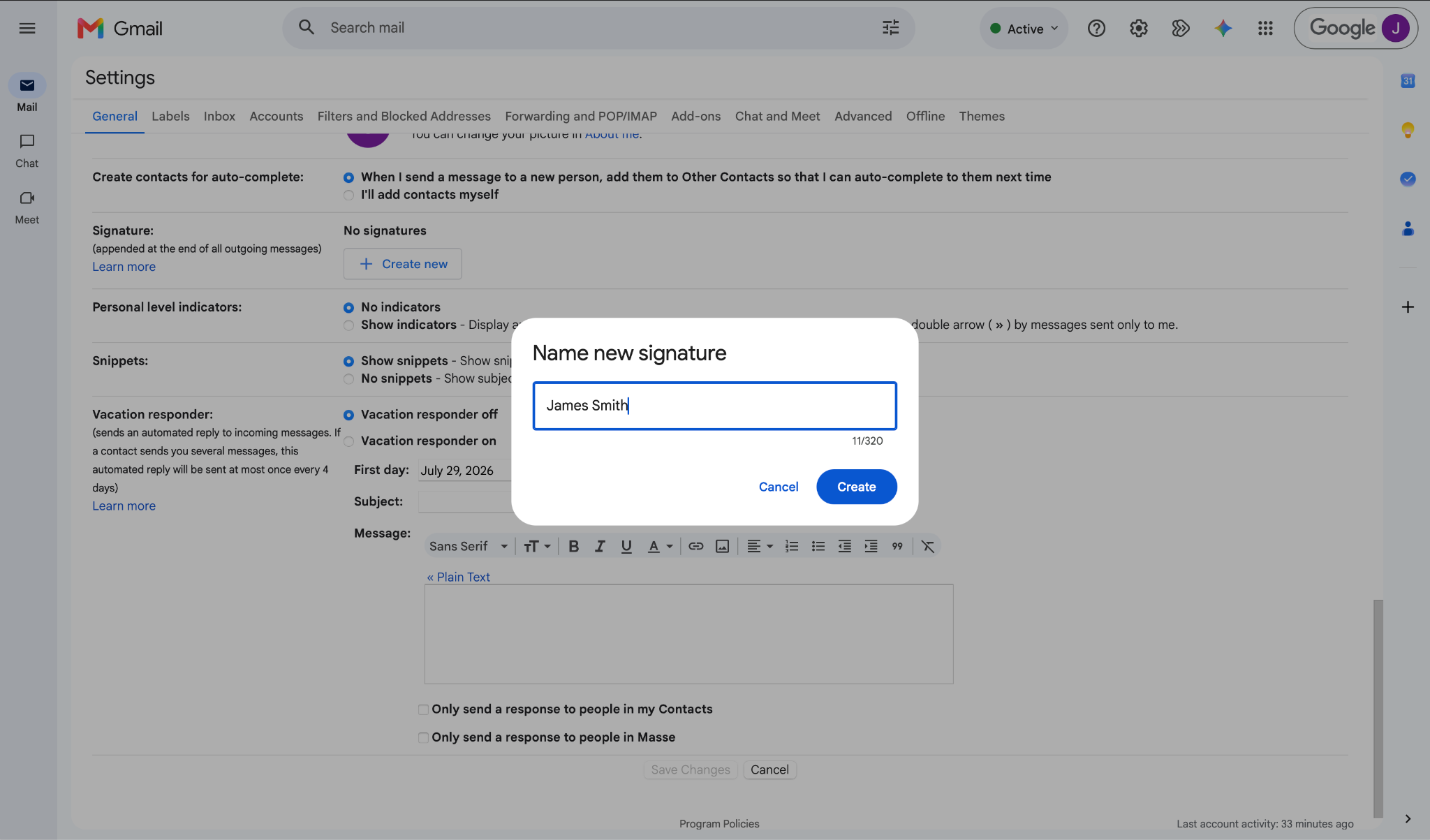
There are five steps here. You build the signature on desktop, manage multiple versions and defaults, add a mobile signature on Android, add one on iPhone or iPad, and set a company footer through Workspace admin. Do the ones that match how you send, and skip the rest.
Step 1: Create your signature in the desktop web client
Start on desktop, because this is the only place with the full editor, image tools, and multiple-signature controls.
Open Gmail, click Settings (the gear icon) in the top right, then click See all settings. Scroll to the Signature section under the General tab and add your first signature in the box.
Format it if you want, then click Save Changes at the very bottom of the page. Skip that last click and nothing you typed is kept.
Adding an image works three ways:
- Upload an image file straight from your computer, which is the simplest route for anyone starting out.
- My Drive lets you pick an image already in Google Drive, as long as its sharing is set to anyone with the link.
- Web address (URL) pulls in an image hosted publicly online, useful when your logo already lives on your site.
Pro tip: Google recommends a signature image 70 to 100 pixels tall by 300 to 400 pixels wide, with a hard ceiling of 100 by 1000. Anything bigger is usually why a signature looks stretched or won't display, so resize before you upload, not after.
Step 2: Manage multiple signatures and set your defaults
Gmail lets you keep several signatures on one address and decide which shows up where. People skip this part, then wonder why every email carries the same bulky footer.
Back in the Signature section, add each version you need, such as a full external sign-off and a stripped-down internal one.
Gmail also lets you assign a default signature for new emails and a different one for replies and forwards. Pick each one independently so your replies aren't carrying the same long block as a first-contact email.
A few controls worth knowing:
- Rename a signature with the pencil icon next to its name, which keeps your list readable once you have three or four.
- Delete a signature with the trash icon, then click Save Changes, or it stays on the list.
- Insert signature while composing lets you swap to a different signature mid-draft from the pen icon in the toolbar, without touching your defaults.
Pro tip: If you send from more than one address through Send mail as, a drop-down appears above the signature box so you can give each address its own signature. No drop-down means you only have one sending address configured.
Step 3: Add a mobile signature on Android
On Android, the signature you set in the app is the only one that touches mail sent from your phone, and it never syncs with desktop.
Open the Gmail app, tap Menu in the top left, scroll down and tap Settings, then choose the account you want. Tap Mobile signature, type your text, and tap OK. That's the whole flow, and it lives per account, so a second Google account in the app needs its own.
Pro tip: Leave the mobile signature blank and Gmail falls back to your desktop signature on new messages. Fill it in only if you want something shorter on the phone, like a single line; otherwise, the desktop version already carries over.
Step 4: Add a mobile signature on iPhone or iPad
The iOS path sits in a different menu than Android, so the muscle memory doesn't transfer even though the result is the same.
Open the Gmail app, tap Menu, then Settings, and under Compose and Reply, tap Signature settings. Turn on Mobile Signature, add or edit your text, and tap Back to save. If you run several accounts in the app, you set this per account, one at a time.
Pro tip: As on Android, skipping the mobile signature means iOS falls back to the one from your computer. Add an iPhone-specific version only when you want the phone to say something different.
Step 5: Set a company-wide footer through Workspace admin
Run a Google Workspace domain? You can append a footer to everyone's outgoing mail. Organizations use it for legal disclaimers or a standard contact line. Regular users can't reach or override this, so it only applies if you manage the domain.
In the Google Admin console, go to Apps, then Google Workspace, then Gmail, then Compliance. Select an organization on the left, scroll to the Append footer setting, and click Configure.
From there, enter your footer text (up to 10,000 characters), optionally tick the box to apply it to internal messages too, then click Add Setting and Save at the bottom.
Two limits that trip up admins:
- The footer editor doesn't support HTML, and images work only via public URLs, so a Google Drive image won't load in a footer the way it does in a personal signature.
- The Append footer setting doesn't apply to messages protected with Google Workspace client-side encryption. Footers still format correctly in clients like Outlook. Only messages sent as plain text get a plain-text footer, without images or formatting.
Pro tip: Footer changes can take up to 24 hours to propagate, though they usually land sooner. Send a test message to an address outside your domain before you assume it's live, since that's the only way to see what external recipients receive.
Common mistakes to avoid
Nearly every "why is my signature broken" complaint traces back to the same three slip-ups.
Don't let the image blow past the character limit
Your signature caps at 10,000 characters, and any image you add counts against that total. A photo pasted at full resolution can eat the whole budget on its own, which throws an error or leaves the signature half-saved.
The fix is simple. Keep the logo small, and your text has plenty of room left.
One signature won't reach every device
This is the one that catches people after they've done everything right. You build a polished signature on the web, fire off an email from your phone, and the recipient gets a bare line or nothing at all.
The web signature never rode along. Mobile signatures only apply to mail sent from the app, so set one on every device you actually send from.
Don't panic when the signature seems to vanish
Gmail separates your signature from the message body with two dashes, and in longer threads, it can collapse below a Show trimmed content button. The signature is usually there, just hidden.
So before you rebuild anything, scroll to the bottom of a sent message and click to expand the trimmed section to confirm it was sent.
{{cta}}
How to get the best Gmail signature settings
A good Gmail signature setup holds up on every device you use and in every inbox that receives your mail. A few habits get you there.
Test across inboxes. Send yourself one email from the web and one from mobile before you rely on either. Outlook and Apple Mail render logos differently than Gmail does, and a signature that looks right in your Sent folder can still break for the recipient.
Get Drive permissions right. A Google Drive image only appears if its sharing is set to anyone with the link as Viewer. Fix that before you insert it, and your recipient sees the logo instead of a broken-image icon.
Split your defaults deliberately. Assign a fuller signature to new emails and a lighter one to replies, so a quick "thanks, will do" doesn't drag a full contact card behind it.
Bold and links won't stick? Look for a Plain Text label above the signature box. Uncheck plain text mode in the compose window's More options, and the formatting tools come back.
Where Lindy fits into your email workflow
You set a signature once and move on. The rest of your email day goes to chasing replies, pulling context on an account before you write back, and remembering who's waiting on you. Gmail handles the footer and stops there.
Lindy is an AI teammate that lives in your Slack and connects to the tools your team already uses. It picks up the coordination work that a signature setting was never meant to handle.
What it handles around the message:
- Sourced answers on demand: @mention Lindy in a channel and ask what your team knows about a contact before you reply. It searches the sources you've connected, Gmail, Notion, Google Drive, meetings, and files, and every answer comes back with the citation attached.
- Follow-ups in plain English: describe recurring work the way you'd say it out loud, like "every Monday at 9, send me the threads still waiting on a reply," and Lindy runs it on schedule.
- Cross-tool coordination: Lindy offers hundreds of integrations, so a conversation can move from your inbox to wherever the work actually happens, like a CRM or ticketing system, instead of staying stuck in one place.
- Guardrails you control: admins decide per tool and action whether Lindy can act on its own, needs approval, or shouldn't offer at all. Every action is audited, private context stays out of public channels, and Lindy is SOC 2, GDPR, and HIPAA compliant.
Picture a client replying to a thread while you're heads-down. Tell Lindy, "remind me to answer the Acme thread tomorrow at 9 and add it to my task list," and it sets the reminder, creates the task, and pings you the next morning.
Start your 7-day trial to see how Lindy handles the work around your inbox.
Frequently asked questions
Why is my Gmail signature not showing on my phone?
Your Gmail signature isn't showing on your phone because the Gmail app uses a separate mobile signature, and it doesn't inherit the one from desktop. Add a signature in the Gmail app settings, or leave it blank to fall back to your desktop signature.
How many characters can a Gmail signature have?
A Gmail signature can hold up to 10,000 characters, and any image you add counts toward that same limit.
Can I add an image or logo to my Gmail signature?
Yes, you can add a signature image by uploading a file, picking one from Google Drive, or pasting a public image URL.
Can I use different Gmail signatures for different emails?
Yes, Gmail lets you save multiple signatures on desktop and set separate defaults for new emails and replies.
Can Lindy help me manage my Gmail workflow?
Yes, Lindy handles coordination in your inbox, including follow-ups, context with citations, and task creation from Slack.









