How to Automatically Forward Emails in Outlook (+ Fixes)
Ryan walked through auto-forwarding emails in Outlook using the Settings toggle and Rules across the new, classic, and web versions, and why it silently breaks.


Until last July, I didn't think much about email forwarding until it cost me a client. I set up a rule, tested it once, and assumed I was covered. Outlook quietly stopped forwarding her emails, and I was embarrassed.
So, if you're searching for how to automatically forward emails in Outlook, you've got two routes. One is a simple toggle buried in Settings. The other runs through Rules and gives you more control over what gets forwarded and where.
What they leave out is the part that trips people up, the reason forwarding quietly stops working on work or school accounts, where Microsoft blocks it by default. This guide walks through both setup methods, then fixes the part everyone else skips.
How to forward all emails automatically (the fast way)
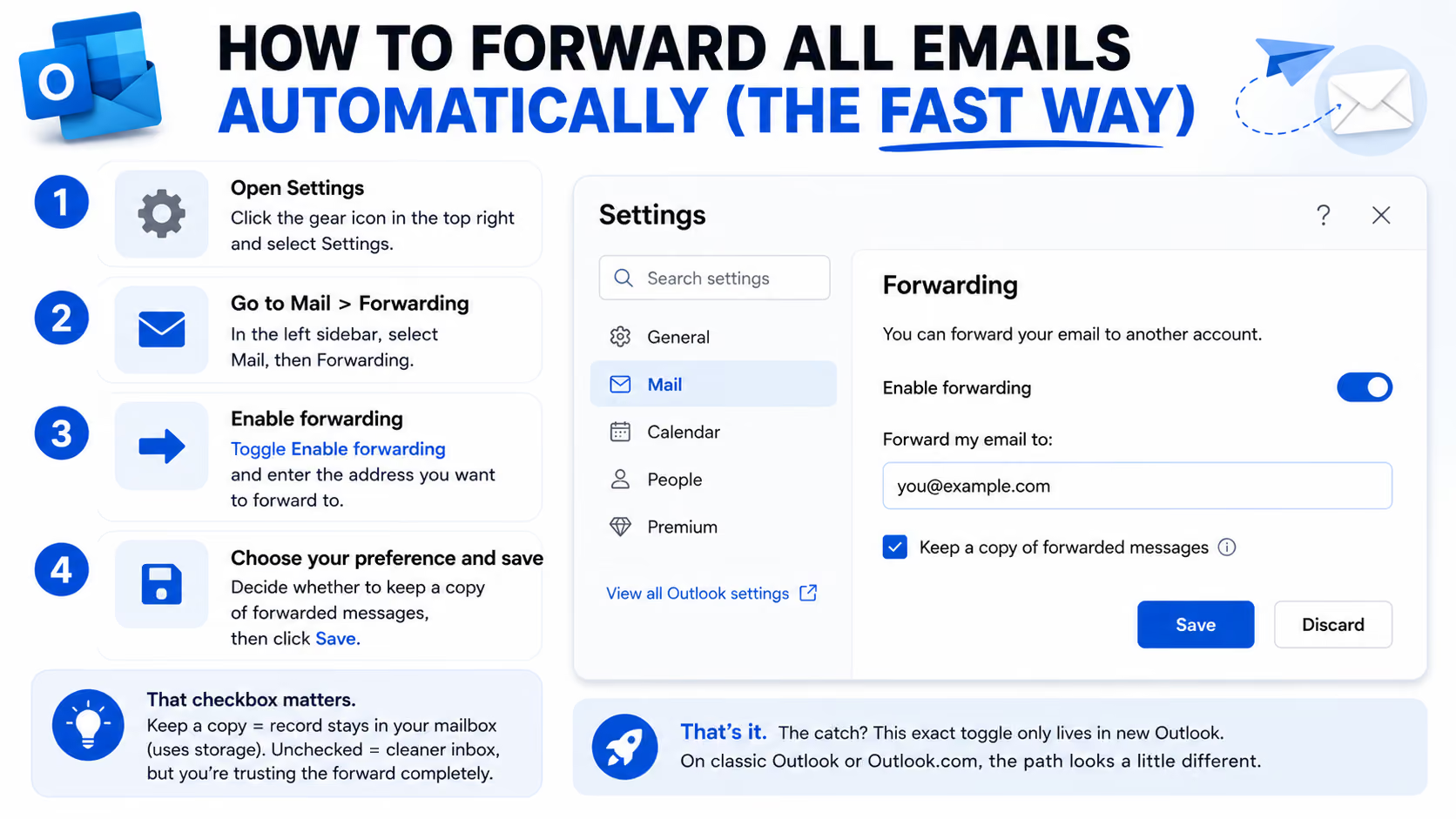
If you want to automatically forward every email, here's what you need to do. Open Settings, go to Mail > Forwarding, and toggle Enable forwarding. Enter the address you're sending mail to, decide whether to check "Keep a copy of forwarded messages," and save it.
That checkbox is worth a second of thought. Check it and copies stay in your mailbox, giving you a record. Leave it unchecked and things stay clean, but you're relying on the forward to work every time, with no backup copy.
The catch? This exact toggle only lives in the new Outlook. If you're on classic Outlook or Outlook.com, the path looks a little different.
Here’s how the setup differs:
- Classic Outlook doesn't have a forwarding toggle. You'll set this up through the Rules Wizard instead: Home > Rules > Manage Rules & Alerts > New Rule > Apply rule on messages I receive, with no conditions checked and a redirect action pointing to your destination address.
- Outlook on the web (OWA), used by Microsoft 365 business accounts, has its own version under Settings > Mail > rules. Create a new rule, apply it to all messages, and choose Forward, Redirect, or Send.
- Outlook.com (personal Hotmail or Live accounts) has the simplest version of the toggle: gear icon > View all Outlook settings > Mail > Enable Forwarding, where you flip on "Forward your mail to another account" and enter the address.
Menu paths shift as Microsoft rolls out UI changes, so if something doesn't match what you see, check which Outlook version you're running before assuming the steps are wrong.
How to forward only specific emails (not everything)
Most people don't want their entire inbox dumped elsewhere. They want one specific type of email routed automatically, like invoices from one vendor or anything from their manager. You do this through Rules, using a condition instead of "apply to all messages."
Here's the step-by-step:
- Open Rules (Settings > Mail > Rules, or the Rules Wizard in classic Outlook).
- Add a new rule and set a condition, such as from a specific sender or with a subject containing a keyword, instead of applying it to everything.
- Set the action to Forward or Redirect.
- Save it, then test with one matching email before you trust it with real mail.
Example
I set one of these up before a three-week client trip to Berlin. My work inbox was pulling in roughly 200 emails a day, but maybe five of them actually needed a same-day response. I created a rule that forwarded anything from my manager straight to my personal Gmail, nothing else.
Why your forwarded emails aren't showing up (and how to fix it)
You followed every step, the rule looks right, and the mail still isn't landing where it should. Forwarding email breaks from one of four things. Almost none of them are your fault, and only one is something you can fix yourself.
If you set everything up correctly and mail still isn't arriving, the second row is almost always your answer. That's the one that got me. My rule was perfect. My company's spam policy just didn't care.
What you'll need before starting and common mistakes to avoid
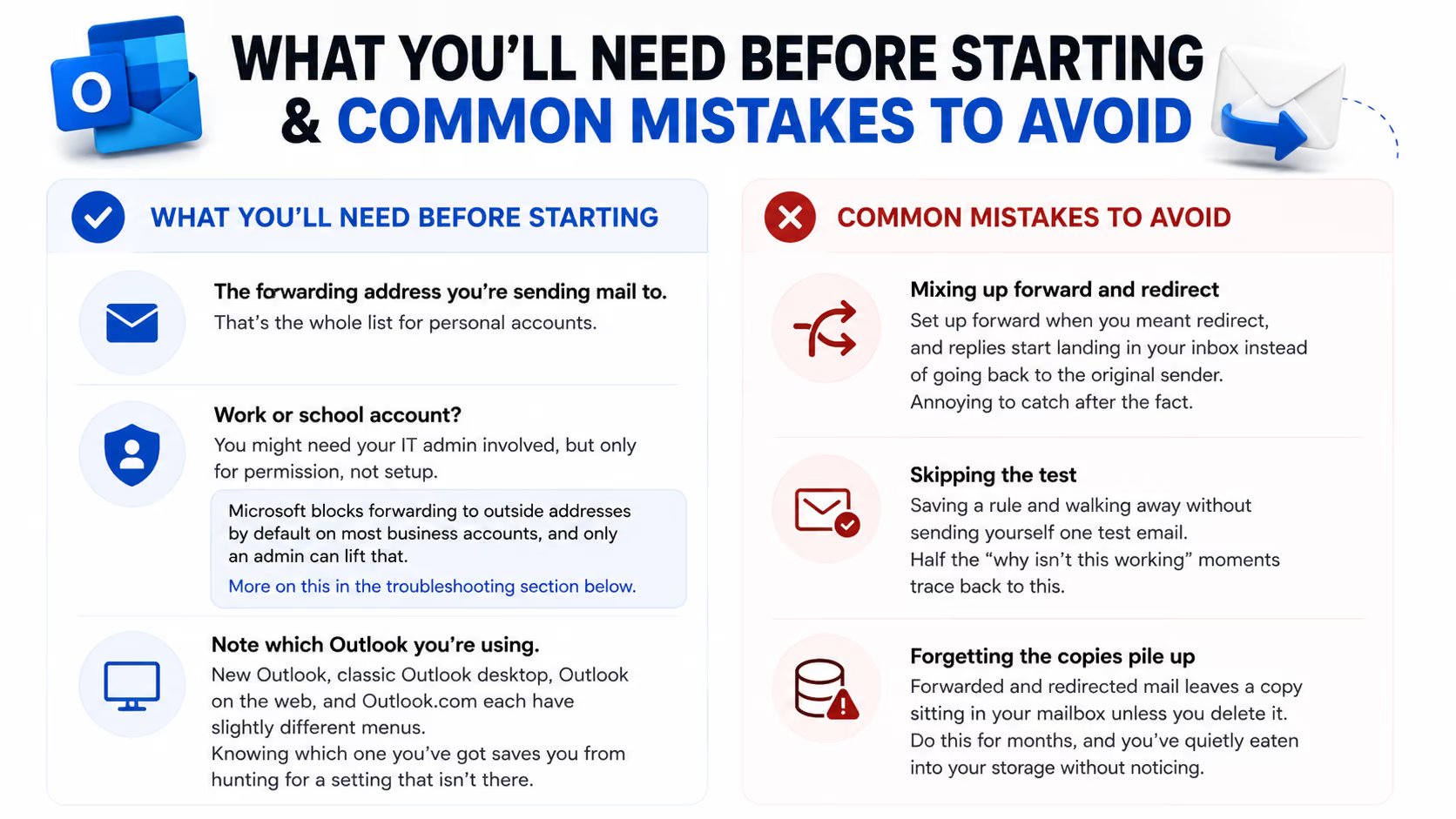
You only need the forwarding address you're sending mail to. For a personal account, that's all you need. If you're on a work or school account, you might need your IT admin involved, but only for permission, not setup. Microsoft blocks forwarding to outside addresses by default on most business accounts, and only an admin can lift that. More on this in the troubleshooting section below.
One more thing. Note which Outlook you're using. New Outlook, classic Outlook desktop, Outlook on the web, and Outlook.com each have slightly different menus, so knowing which one you've got saves you from hunting for a setting that isn't there.
A few common mistakes to avoid:
- Mixing up forward and redirect: Set up forward when you meant redirect, and replies start landing in your inbox instead of going back to the original sender. Annoying to catch after the fact.
- Skipping the test: Saving a rule and walking away without sending yourself one test email. Half the "why isn't this working" moments trace back to this.
- Forgetting the copies pile up: Forwarded and redirected mail leaves a copy sitting in your mailbox unless you delete it. Do this for months and it adds up.
{{templates}}
A smarter alternative to manually forwarding everything
Lindy goes beyond a forwarding rule and looks at the email. It connects to Outlook through its Microsoft Outlook integration and watches your inbox directly. Instead of routing a copy to another address and hoping someone notices, you tell Lindy what matters, and it acts on it.
Text Lindy "flag anything from my manager and forward it to my personal inbox," and it watches Outlook and does exactly that. You skip the rule builder entirely.
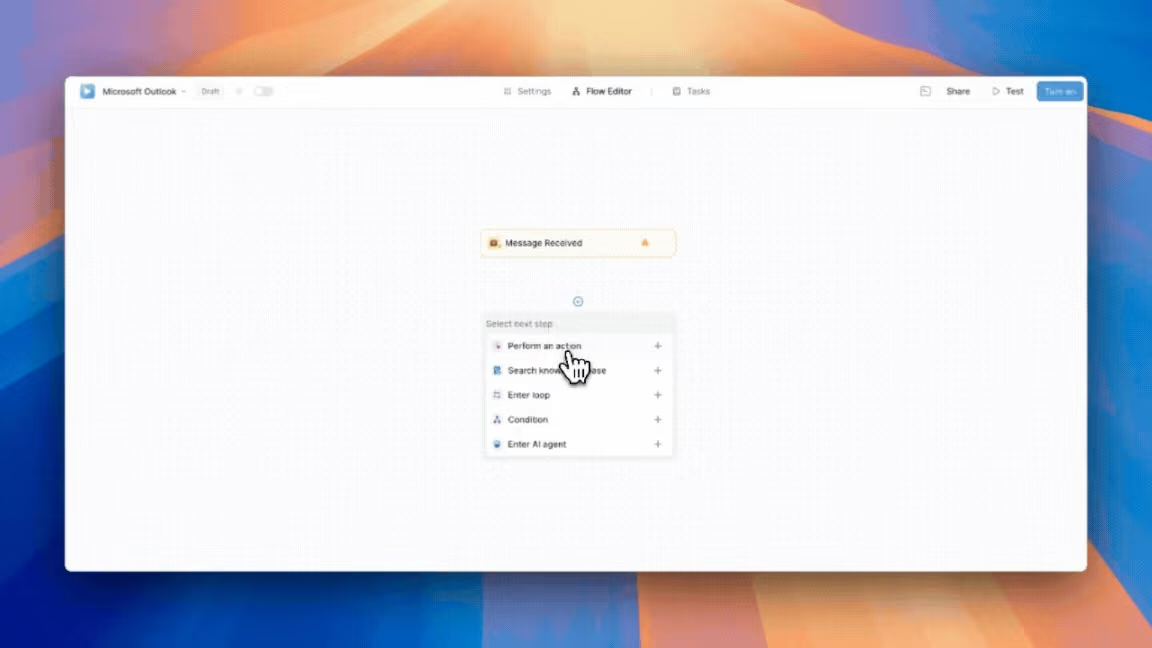
A few more things you can ask Lindy to do:
- Set up a calendar event straight from an email thread.
- Move an email to a folder or tag it with a label automatically.
- Draft a reply, or reply directly to a thread without losing context.
- Add a new contact, update an existing one, or look someone up.
- Flag emails from specific people the moment they land in your inbox.
- Search your inbox for a specific email or pull up everything from a specific sender.
You can even manage this over text. Lindy works through iMessage and SMS, so setting up an alert or asking it to check your inbox doesn't need a dashboard or a new rule, just a message.
{{cta}}
Frequently asked questions
1. Will the person I forward it to know I forwarded it, or will it look like it came from me?
Whether a person knows the status of a forwarded email depends on which action you took. If you forwarded the email, it appears to come from you because forwarding wraps the original message inside a new one you're sending. If you redirected it instead, it would land looking exactly like the original sender sent it, with no trace of you in the middle.
2. Can I forward emails from Outlook to a Gmail address?
Yes, you can forward emails from Outlook to a Gmail address with no extra setup. Outlook doesn't restrict where you send forwarded mail based on the destination provider. The only thing that can block it is your own organization's forwarding policy.
3. Does forwarding work in the Outlook mobile app?
Forwarding rules set up on desktop or web automatically apply across all devices, including mobile, since the rules live on the server. You can also create or edit forwarding rules directly from the Outlook mobile app, though the menus are a bit more condensed than on desktop.
4. Why did my forwarded email bounce back with an error about my organization?
A forwarded email bounces with an organization error when Microsoft 365's outbound spam policy blocks external forwarding by default, which is common on business and school accounts. The bounce usually includes "5.7.520 Access denied, Your organization does not allow external forwarding," and only your IT admin can lift that restriction.
5. Can I turn off forwarding without deleting the rule?
Yes, you can turn off forwarding without deleting the rule. Just toggle the rule off, or uncheck "Turn on this rule" if you set it up through Rules. The rule stays saved exactly as configured, so you can flip it back on later without rebuilding it from scratch.
6. What's the difference between forward and redirect?
Forward means the message appears to come from you, and replies route back to you rather than the original sender. Redirect means the message keeps the original sender intact, and replies go straight to them. Pick forward to stay in the loop, redirect to step out of it.