How to Retrieve Archived Emails in Gmail, Outlook & More


A client sent me a contract at 11 PM on a Wednesday. By Thursday morning, it was gone. It wasn't in the Trash, so I hadn't deleted it. It was nowhere in my inbox. I'd archived it while clearing out a backlog and had no idea where Gmail had put it.
That's what sent me looking into how to properly retrieve archived emails. I tested the process across Gmail, Outlook, Apple Mail, and Yahoo on desktop and mobile because each provider handles archiving differently. Gmail doesn't even use a folder for it, which is where most people get tripped up.
The steps aren't complicated once you know where to look. The problem is that each provider stores archived mail in a different place, and searching your inbox won't find them. Here's exactly where to look in each one.
How to retrieve archived emails in Gmail
To retrieve archived emails in Gmail, go to All Mail instead of a separate Archive folder. Gmail doesn't have one. Archived emails sit in All Mail alongside everything else in your account. Open All Mail, find the message, and move it back to your inbox.
On desktop
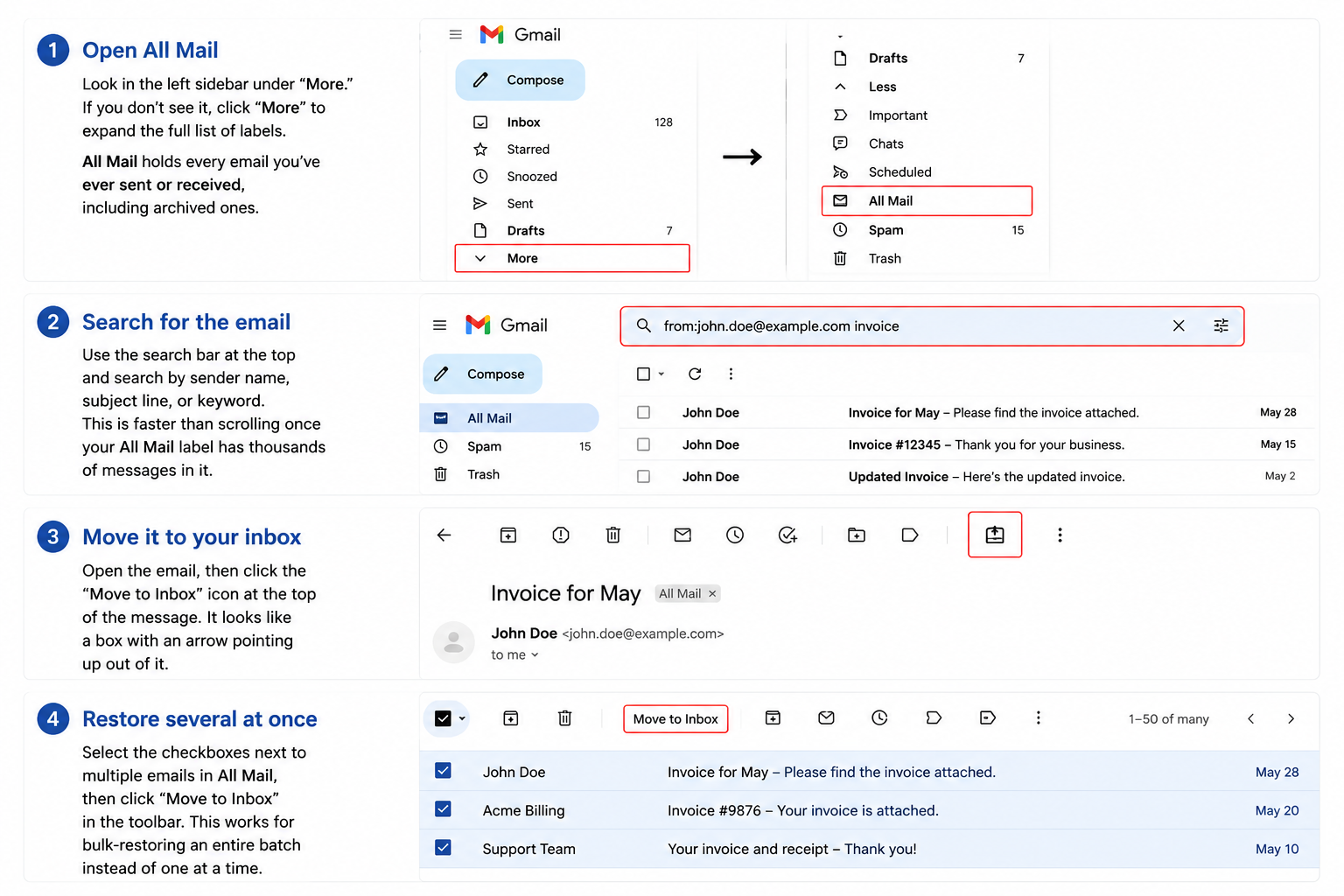
Look in the left sidebar for All Mail. If you don't see it, click "More" to expand the full list of labels. All Mail holds every email in your account, including archived ones.
Once you're in, use the search bar to find the message by sender name, subject line, or keyword. Searching is faster than scrolling if your All Mail label holds thousands of messages.
Open the email and click Move to Inbox at the top, the inbox-tray icon with a downward arrow. To restore several emails at once, tick the checkboxes next to them and click "Move to Inbox" in the toolbar.
On the mobile app
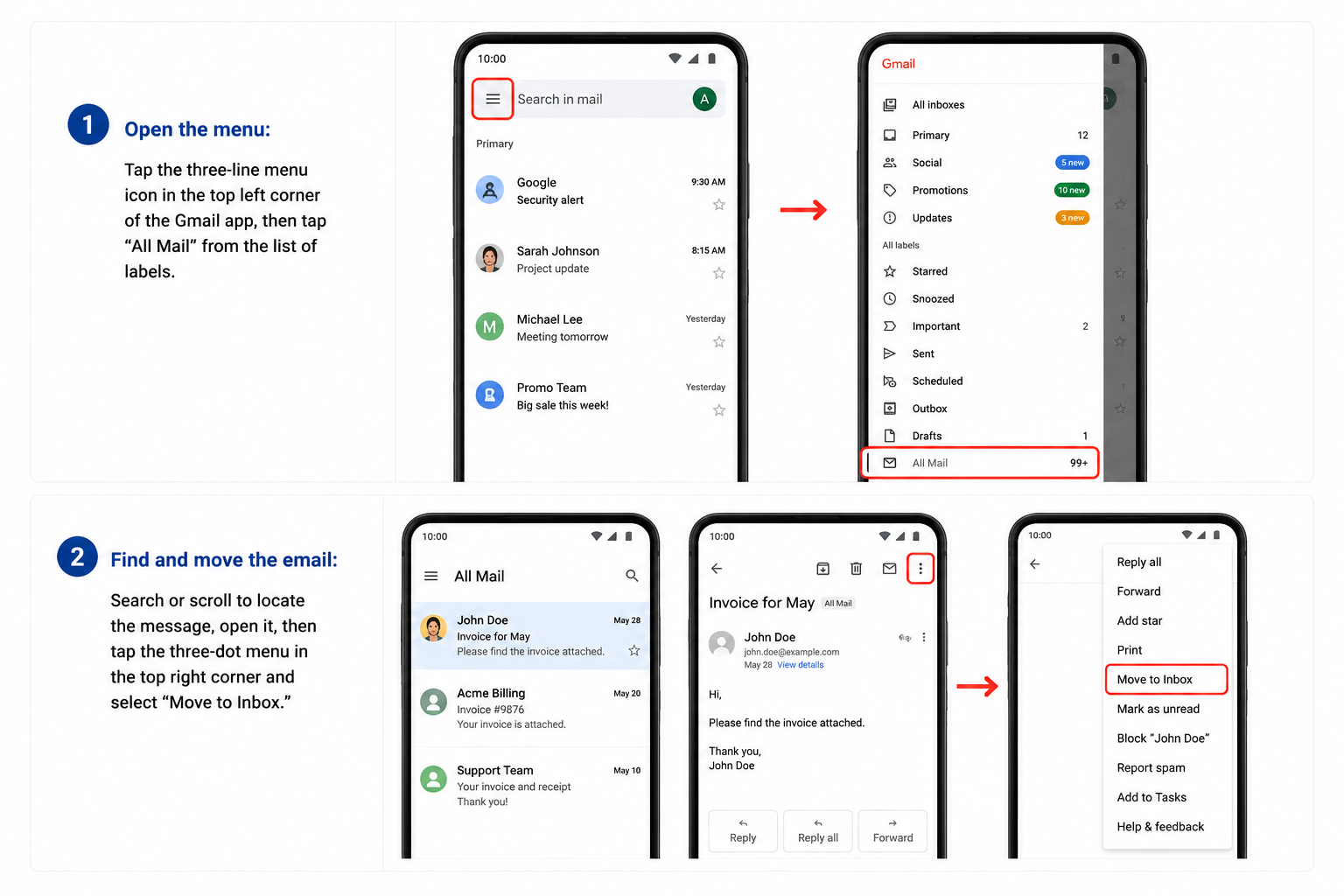
Tap the three-line menu icon in the top left corner of the Gmail app, then select "All Mail" from the label list. Search or scroll to find the message, open it, tap the three-dot menu in the top right corner, and select "Move to Inbox."
How to retrieve archived emails in Outlook
To retrieve archived emails in Outlook, open the Archive folder in the left panel, find the message, and move it back to your inbox. Unlike Gmail, Outlook uses a real Archive folder that sits separately from your inbox. You can find it directly in the folder panel on the left side of the screen.
On desktop and web
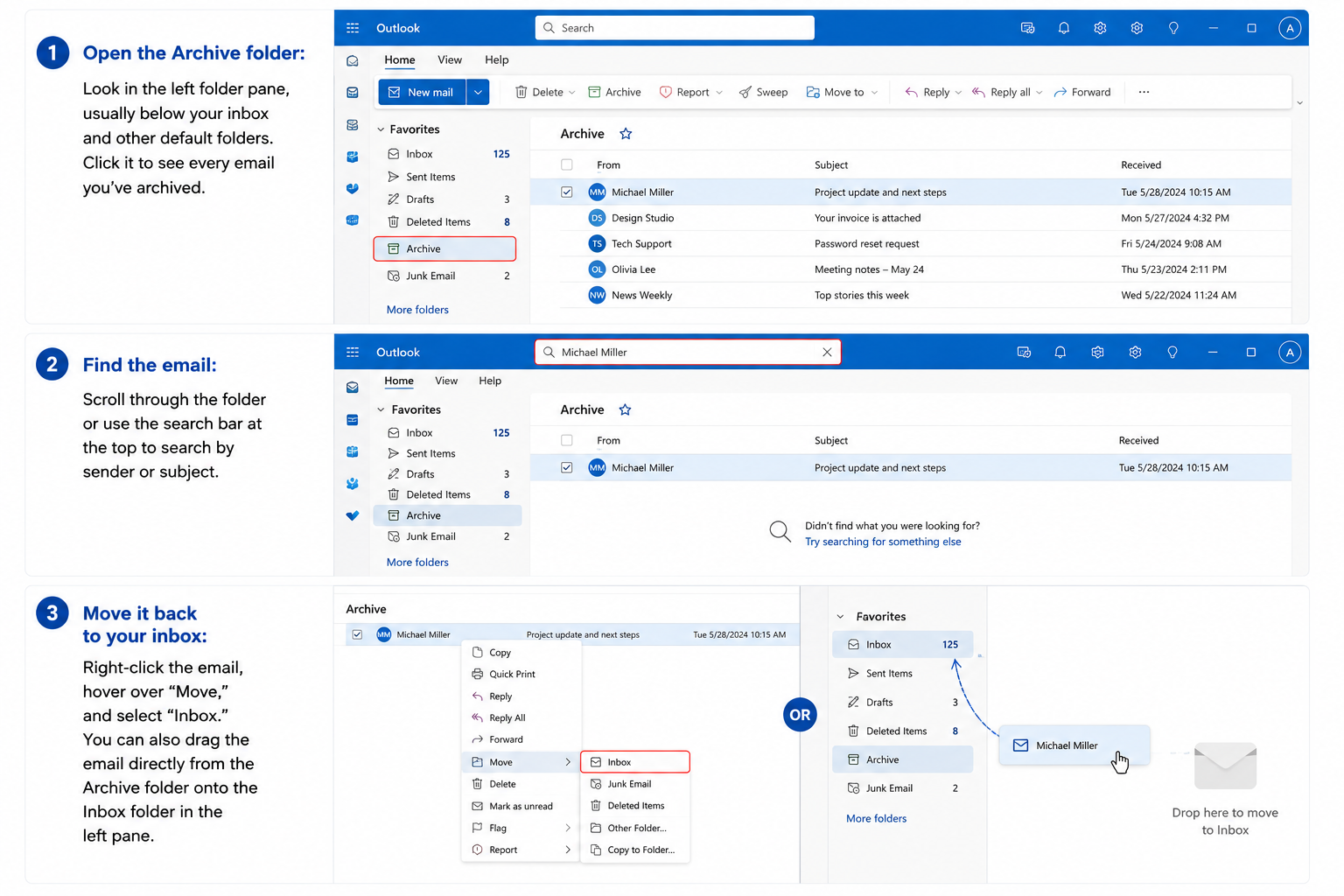
Open the Archive folder from the left folder pane.
It usually sits just below your inbox and other default folders. Click it to see everything you've archived. Search by sender or subject using the bar at the top, or scroll through the folder to find the message.
To move it back, right-click the email, hover over "Move," and select "Inbox." You can also drag the email directly onto the Inbox folder in the left pane.
On mobile
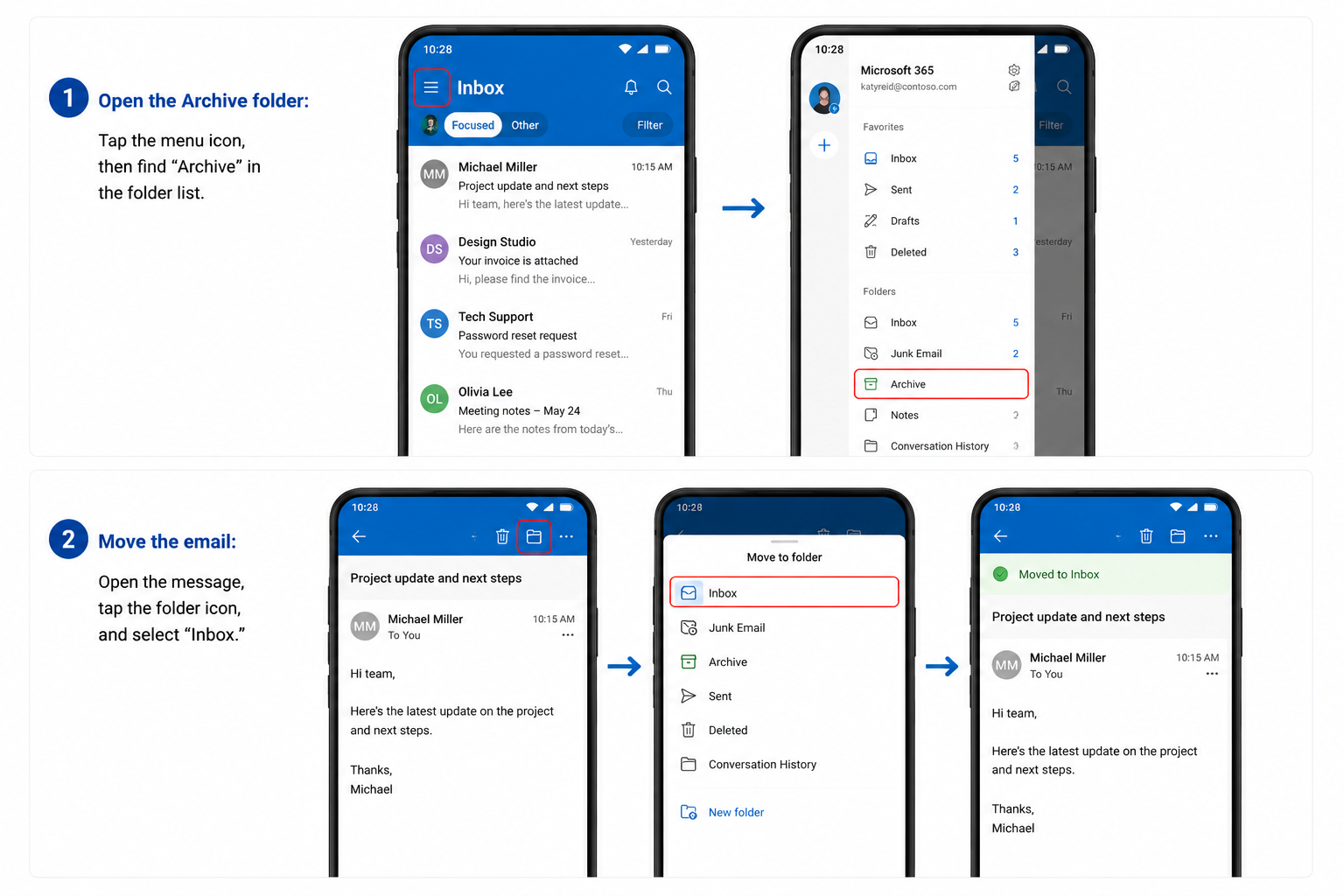
Tap the menu icon to open your folder list, then select "Archive." Open the message, tap the folder icon, and select "Inbox" to move it back.
Using a work or school account? There's a second kind of archive.
If your account runs on Microsoft 365 or Exchange, your organization may also have something called an Online/In-Place Archive. This isn't the same as the local Archive folder above.
It's a separate archive mailbox your admin sets up, usually to store older emails once your regular mailbox fills up.
If you can't find an email in your local Archive folder, check for an Online Archive section in your folder pane. It often appears as its own expandable mailbox. If you don't see it or can't open it, your organization's retention policy may be restricting access.
In that case, an admin can check folder details using the PowerShell command Get-EXOMailboxFolderStatistics, or contact your IT team for help.
How to retrieve archived emails in Apple Mail
To retrieve archived emails in Apple Mail, open the Archive mailbox in the sidebar, find the message, and drag it back to your inbox. Apple Mail creates the Archive mailbox automatically the first time you archive a message. You don't need to set it up manually.
On Mac
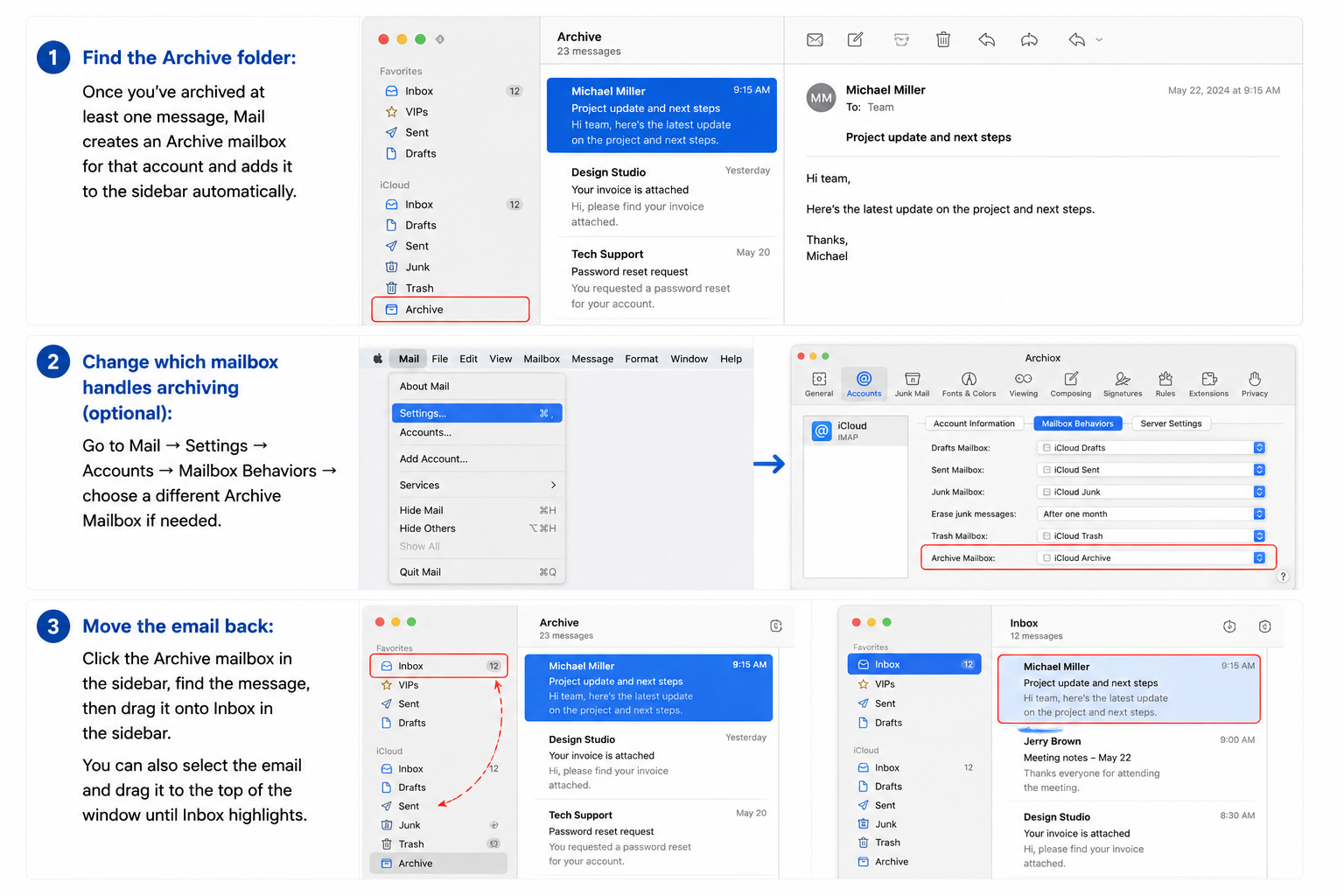
The Archive mailbox appears in your sidebar automatically once you've archived at least one message. You don't need to set it up. Click the Archive mailbox, find the message, then drag it onto Inbox in the sidebar to restore it.
You can also select the email and use the Move menu at the top of the screen.
If you ever need to change which mailbox handles archiving, go to Mail → Settings → Accounts → Mailbox Behaviors. Most people never need to touch this.
On iPhone
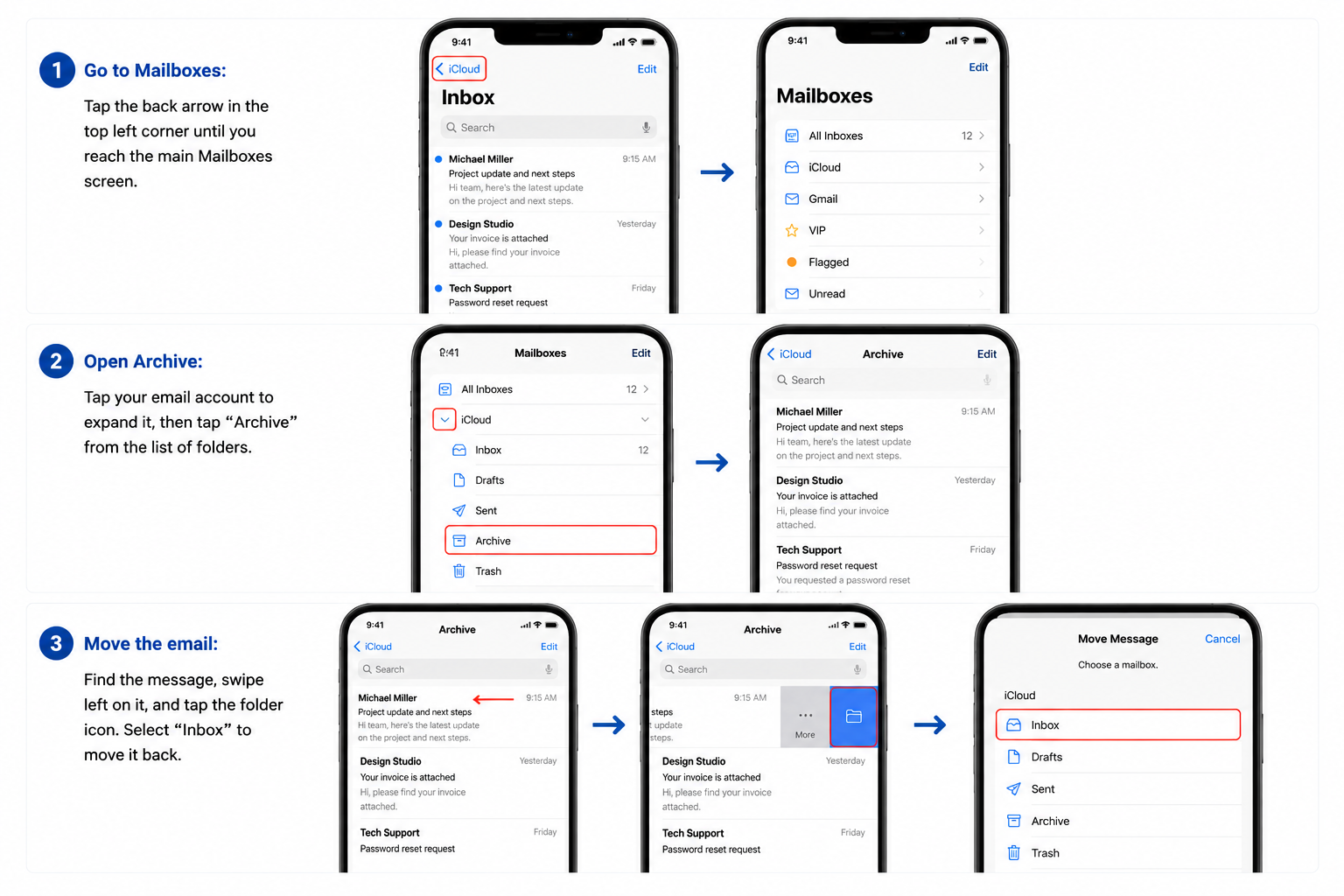
Tap the back arrow in the top left until you reach the main Mailboxes screen. Tap your email account to expand it, then tap "Archive." Find the message, swipe left on it, tap the folder icon, and select "Inbox."
How to retrieve archived emails in Yahoo Mail
To retrieve archived emails in Yahoo Mail, open the Archive folder in the left sidebar, find the message, and restore it to your inbox. Yahoo uses a dedicated Archive folder, so archived emails are easy to find. They don't mix in with the rest of your account the way they do in Gmail.
On the web
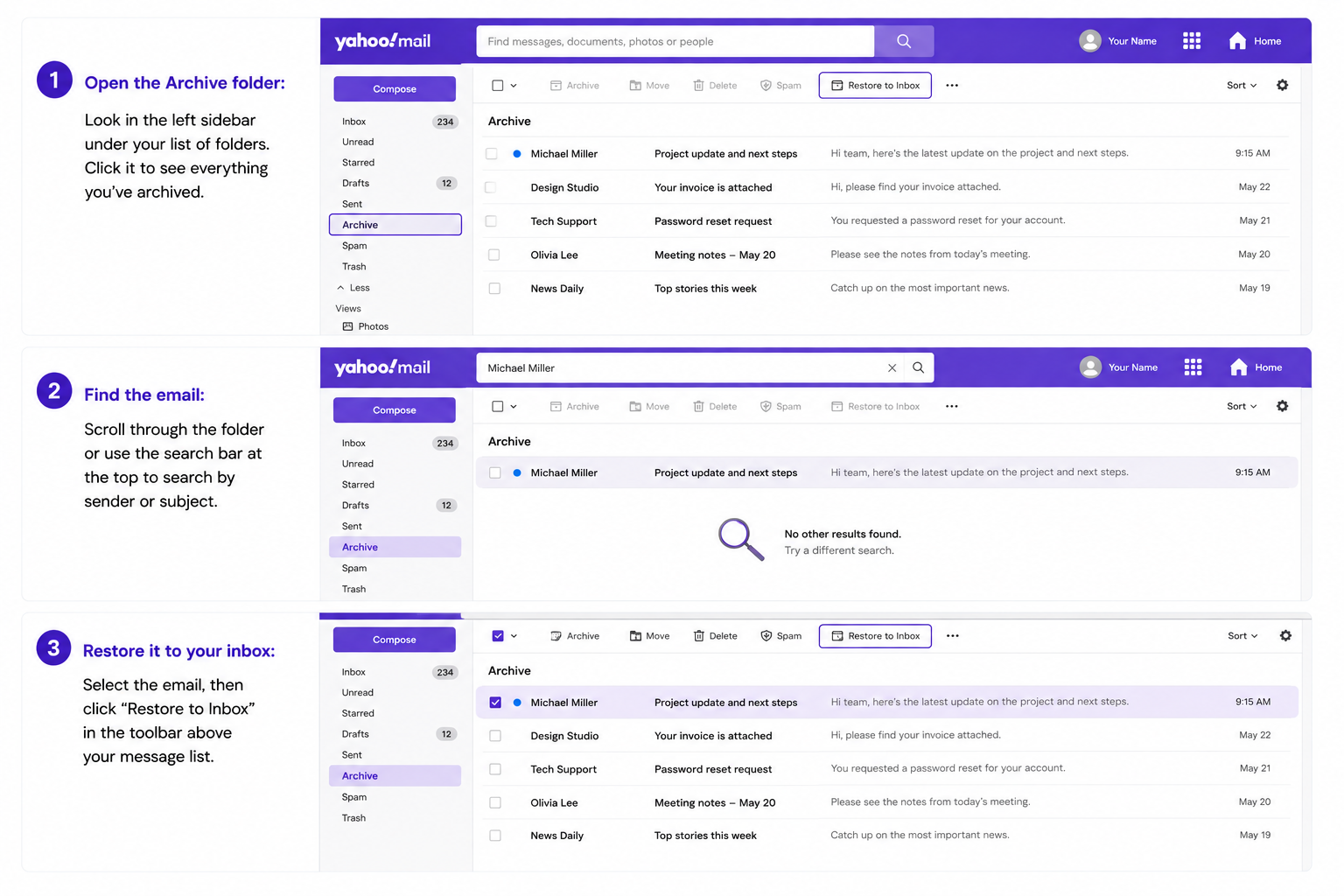
Open the Archive folder from the left sidebar. Use the search bar at the top to find the message by sender or subject, or scroll through the folder. Select the email and click "Restore to Inbox" in the toolbar above the message list.
{{templates}}
On the mobile app
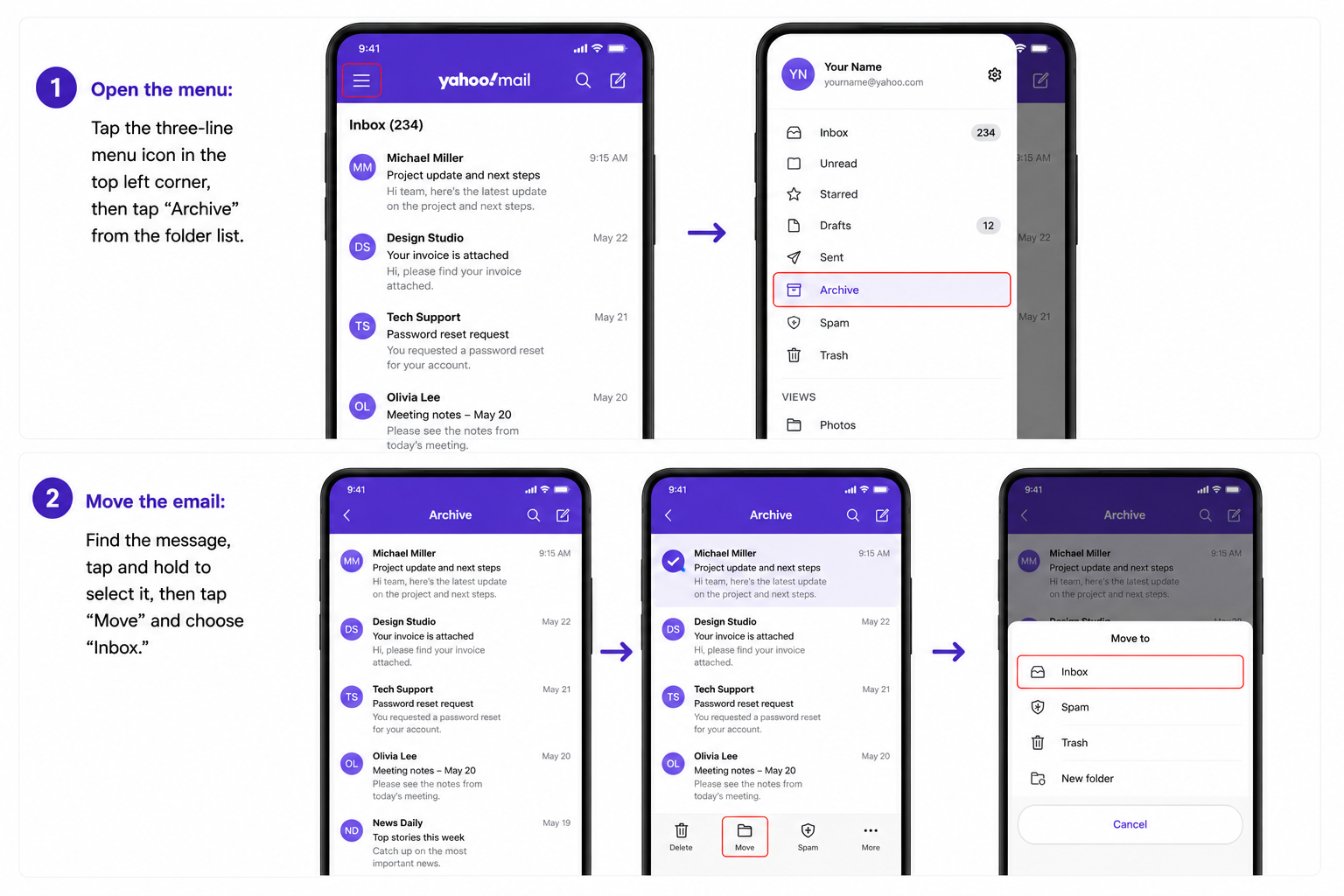
Tap the three-line menu icon in the top left corner of the app, then select "Archive" from the folder list. Find the message, tap and hold to select it, then tap "Move" and choose "Inbox."
{{cta}}
Why can't I find my archived emails?
If your archived emails have disappeared, archiving itself is rarely the cause. Something else is usually redirecting those messages before you ever see them, or your search isn't covering the right folders.
Here's what to check:
- Filters or rules redirecting mail are the most common culprits. A filter you set up months ago, or one an admin built into a work account, may be sending certain emails straight past your inbox before you see them. In Gmail, check Settings → Filters and Blocked Addresses. In Outlook, check Rules under Settings.
- Sync settings on mobile can also hide older mail. Mobile apps often only download a limited window of recent messages to save space. An email that exists on the web version of your account may not have synced to your phone yet.
- Searching the wrong tab is an easy mistake to make. If you're searching from inside a specific tab like Promotions or Social, you're only searching that tab, not your full account. Switch to All Mail, Archive, Spam, and Trash before assuming the email is gone.
- Retention or admin policies apply to work and school accounts on Exchange or Google Workspace. These accounts are sometimes governed by rules that auto-delete or restrict access to older mail. Contact your IT or Workspace admin directly if you suspect this is the issue.
- Accidental permanent deletion is worth checking last. Open your Trash folder and look there first. Gmail empties Trash automatically after 30 days, so if an email was deleted rather than archived, it may already be gone for good.
Most lost emails start with an inbox that has no real order. Meet Lindy, the AI teammate that lives in your company's Slack, like a brain the whole team can ask. @mention Lindy in a channel and it answers for everyone; DM it as your own assistant to sort your inbox, manage your calendar, and keep messages from getting buried.
FAQs
Are archived emails deleted?
No, archived emails are never deleted. Archiving only removes a message from your inbox view. Doing so doesn't remove it from your account. The email remains stored and fully searchable in All Mail or your provider's Archive folder until you manually delete it.
How do I find archived emails in Gmail on my phone?
To find archived emails in Gmail on your phone, open the Gmail app and tap the menu icon in the top left corner. Select "All Mail" from the list of labels, since Gmail doesn't use a separate Archive folder. Search or scroll to find your email, then tap the three-dot menu and select "Move to Inbox."
What's the difference between archiving and moving to a folder?
Archiving removes an email from your inbox while keeping it stored in one central place, like Gmail's All Mail or Outlook's Archive folder. Moving an email to a folder is manual organization instead. It doesn't always pull the email out of your inbox, depending on how your filters and rules are set up.
Why did my archived emails disappear completely?
Archived emails don't disappear on their own. The most common causes are filters redirecting mail before it reaches your inbox, a mobile app that hasn't synced recent messages, or a search covering only one tab. Check your Trash folder too. If an email was deleted rather than archived, it's gone after 30 days.
Can I retrieve archived emails from months or years ago?
Yes, you can retrieve archived emails from months or years ago. Archived emails aren't time-limited the way Trash is. They stay stored in your account until you delete them yourself. Search by sender, subject, or a specific date range in All Mail or your Archive folder to track down older messages faster.









