6 Best Gmail AI Assistants in 2026: Gemini vs Top Alternatives
Marvin reviewed seven Gmail AI assistants like Gemini, Shortwave, and Superhuman, comparing automation depth, Gmail integration quality, and output tone accuracy.


My Gmail has tens of thousands of unread messages, and I’ve mostly made peace with it. Although one still bothers me. It was a time-sensitive email from my boss that sat two screens down for two days, buried under promotions and CCs I was never going to read.
Gmail’s categories help with broad sorting, but they don’t tell me which message deserves an answer before lunch. A newsletter and an important request can still compete for attention inside the same crowded inbox.
I spent a few weeks testing more than 15 Gmail AI assistants, including Gemini. Some made search and summarization better. Others could help prioritize the inbox, draft replies, and handle work that continued after the email itself.
These 6 sorted my inbox in the most effective way.
6 best Gmail AI assistants: TL;DR
- Gemini in Gmail: Best for Google Workspace users
- Shortwave: Best for natural language email search
- Lindy: Best for getting things done beyond your inbox
- Superhuman: Best for fast email workflows
- MailMaestro: Best for drafting professional emails quickly
- Gmelius: Best for team collaboration and shared inboxes
What is a Gmail AI assistant?
A Gmail AI assistant reads your inbox and helps you take action. It sorts what matters, drafts replies, and the best ones can send follow-ups or handle tasks, so your inbox stops being the first thing that drains you in the morning.
Most people don’t even realize how much time gets eaten up just figuring out their inbox. You open Gmail, and before you’ve replied to a single email, you’re already 20-30 minutes deep just scanning, opening threads, deciding what matters, what can wait. It’s not hard work, it’s just… constant. Using a dedicated ai email organizer can help streamline this process and regain control over your inbox.
And that’s really the problem. None of this actually needs your full attention. It’s just a bunch of small decisions stacked together. But they add up fast, and by the time you get to the emails that actually need thinking, you’ve already spent a chunk of your energy.
A Gmail AI assistant takes that off your plate. It reads what came in, files the noise, drafts replies for the routine stuff, and leaves you with the emails that actually need you. Choosing the best ai email assistant comes down to how much of this daily routine you want to automate.
Some of them replace Gmail entirely. You open a different app, and your inbox looks completely different. Others just sit quietly inside Gmail as a sidebar or extension. The right pick really depends on how much control you want to hand over. If you are switching from human executive assistants, looking into fyxer alternatives software can help automate your inbox delegation.
If you send the same reply often, start with how to create a template in Gmail before you automate the rest.
How a Gmail AI Assistant helps your email workflow
A Gmail AI assistant saves time by handling the parts of email that don't need your direct attention. Tasks like sorting what matters, drafting replies, chasing follow-ups, and summarizing threads you haven't had time to read.
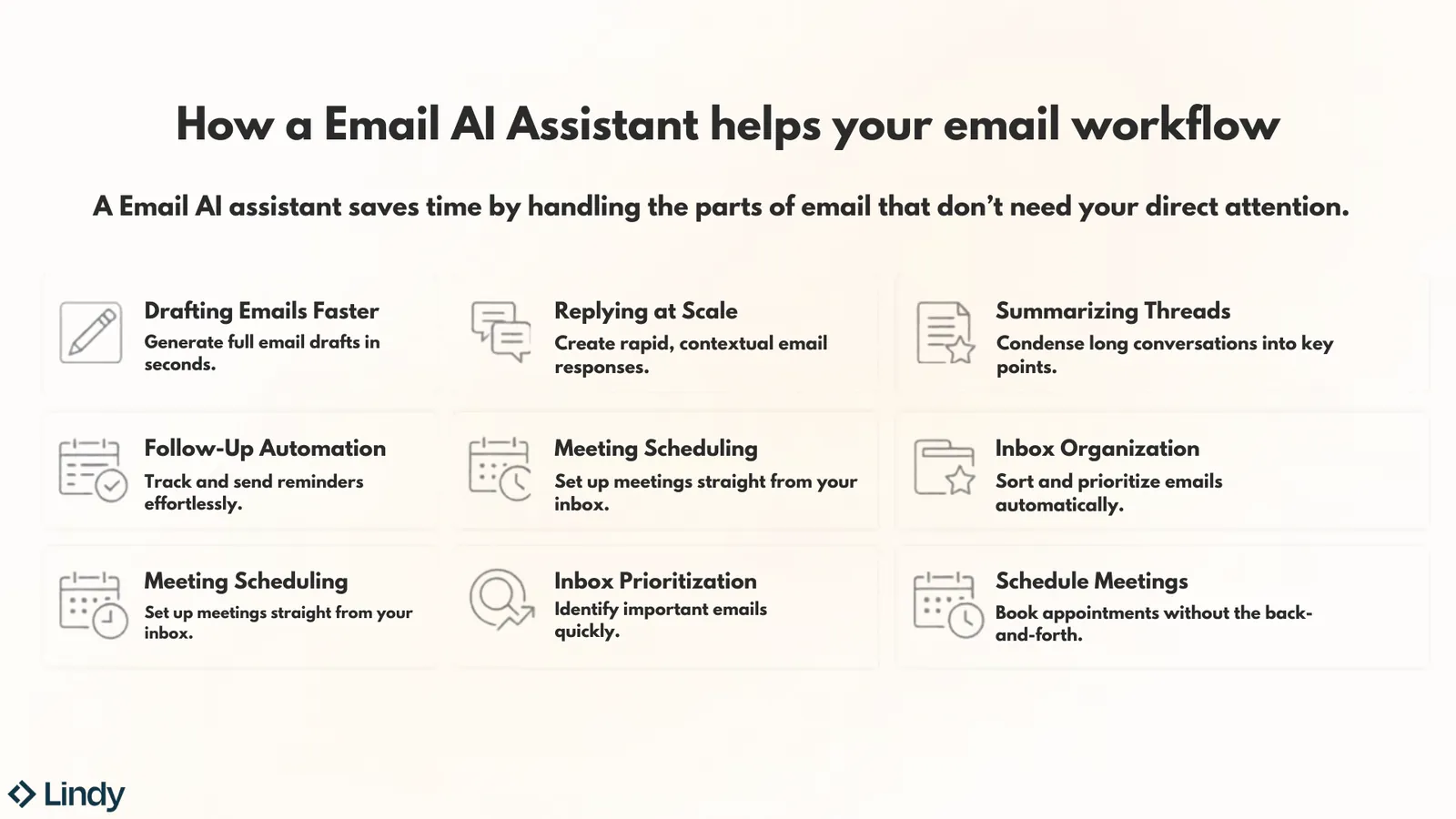
Here's where these tools make the biggest dent:
- Drafting emails faster: This is the most common use case, and the one most tools handle reasonably well. You give it a short prompt, pick a tone, and a full draft appears in seconds. What separates the good ones is how much the draft actually sounds like you wrote it.
- Replying at scale: For anyone handling 50 or more emails a day, generating relevant replies without starting from scratch on each one changes the math significantly. Gmelius handles this well for teams working from shared inboxes, while Superhuman keeps solo users moving fast with AI suggestions that fit into a keyboard-first interface. If you want similar speed with different features, consider looking into popular superhuman email alternatives.
- Summarizing long threads: A 20-message chain that needs a one-paragraph catch-up before you can reply is a real productivity drain. Gemini in Gmail, Lindy, and MailMaestro all handle thread summarization cleanly, pulling out the key points without you having to scroll back through the whole conversation. If you accidentally hide an important message while clearing threads, learning how to unarchive gmail can help you quickly restore it.
- Inbox organization and prioritization: The morning triage problem, where you spend 30 minutes figuring out what actually needs priority, is something several tools on this list address directly. Shortwave runs your emails through a triage system with 3 buckets: done, under two minutes, or to-do. AI filters auto-categorize by content and sender, so your inbox is easy to tackle. If you want to clear your clutter manually first, learning how to find unread emails in gmail can speed up your daily inbox cleanup.
- Follow-up automation: Gmail will flag you if you haven't responded. Tools like Lindy go further. Lindy writes the follow-up, pings you to review it, and sends it automatically if you want. Superhuman also nudges you when a thread goes quiet. Everything else on this list largely leaves follow-ups to you.
- Meeting scheduling from email: Jumping between your inbox and calendar to figure out availability is one of those small frictions that slows you down. Gmelius detects meeting requests in incoming emails and automatically drafts a reply with available times. Lindy handles it for you. Text it who you need to meet, and it finds the time, sends the invite, and reschedules if plans change.
For threads you need outside the inbox, here is how to save an email as a PDF straight from Gmail.
How I tested the best Gmail AI assistants
I tested each tool over four weeks using two Gmail accounts: one personal and one configured to simulate a small-business inbox with client threads, outreach sequences, cold emails, and support-style queries.
For each tool, I ran the same core tasks: drafting a cold email from a prompt, replying to a multi-message thread, summarizing a long chain, and setting up a follow-up to an unanswered email. Testing was done in Chrome on my desktop, with mobile testing on iOS where available.
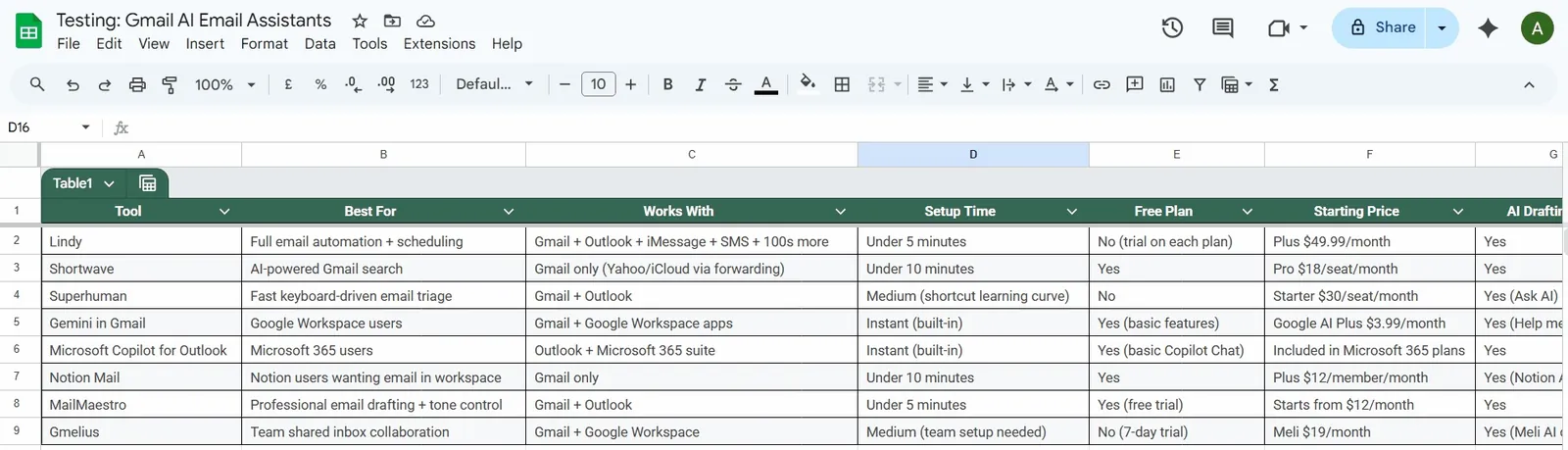
I also tracked setup time. How long before the tool was actually useful? Some were ready in under ten minutes. Others needed a full week before the drafts stopped reading like something generated by a committee.
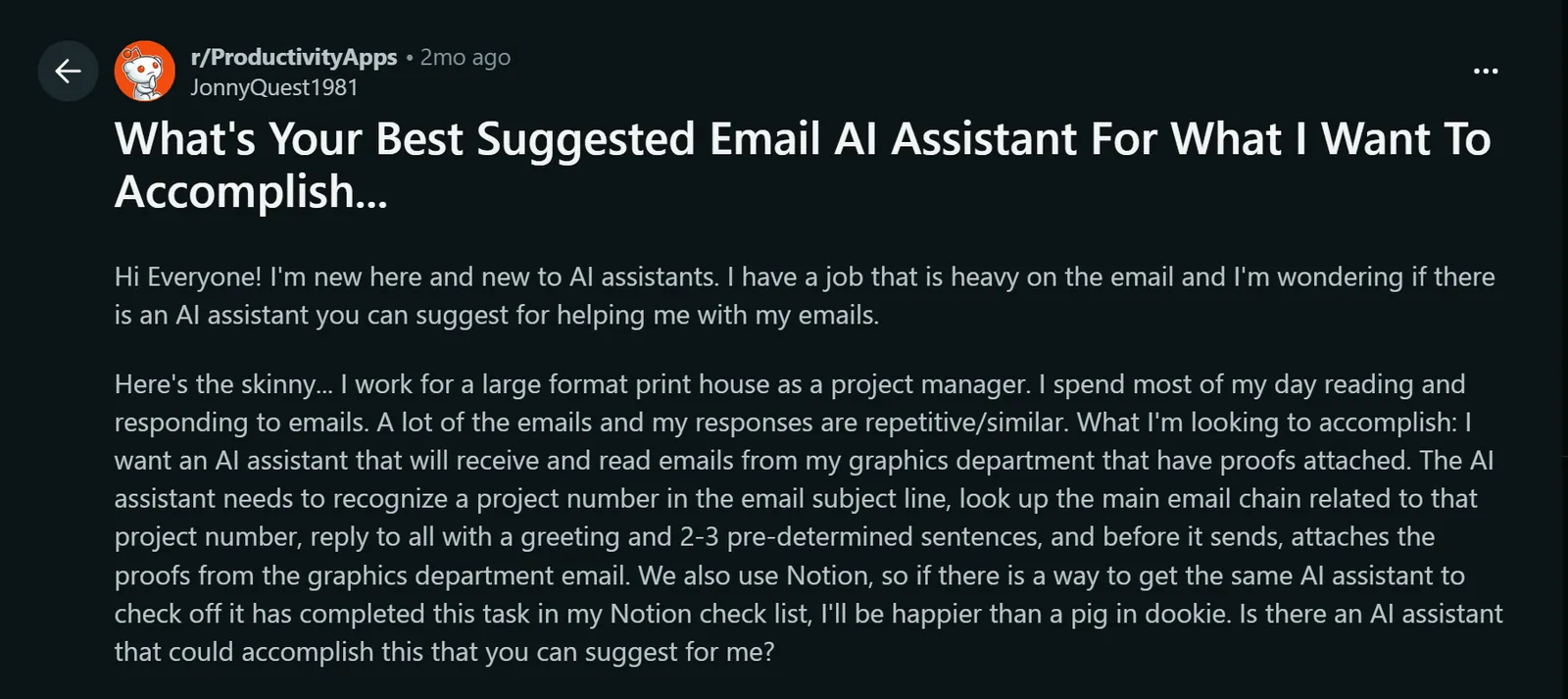
Hands-on testing tells you a lot, but it doesn't tell you everything. My own inbox is just one inbox. So, before finalizing any assessment, I spent time reviewing G2 reviews and Reddit threads on r/ProductivityApps, r/gmail, and r/SaaS about AI email tools.
I was specifically looking for patterns like complaints that appeared across multiple users, praise that matched or contradicted what I'd seen in testing, and edge cases I hadn't encountered myself.
At last, I rated each tool on four common metrics:
| Tool | Automation depth | Gmail integration quality | Output quality | Tone accuracy |
|---|---|---|---|---|
| Gemini | 2/5 | 5/5 | 3/5 | 3/5 |
| Shortwave | 3/5 | 5/5 | 4/5 | 4/5 |
| Lindy | 5/5 | 4/5 | 4/5 | 4/5 |
| Superhuman | 3/5 | 5/5 | 4/5 | 3/5 |
| MailMaestro | 2/5 | 4/5 | 5/5 | 5/5 |
| Gmelius | 4/5 | 5/5 | 4/5 | 3/5 |
1. Best Gmail AI Assistant for Google Workspace Users
Gemini in Gmail: What is it?
Gemini sits in the Gmail sidebar and connects to your calendar, Drive, and Docs from the same panel. I asked it 'When is my next meeting with Sarah?' and it pulled the answer from my calendar without leaving my inbox.
I used it to draft replies directly from the compose window, catch up on long threads without reading every message, and search Drive files from the same panel. The thread summaries and Help Me Write tool are free.
To access proofreading and natural language search, you need a Google AI subscription. Proofreading checks your draft for tone and clarity before it goes out. Natural language search lets you ask your inbox a question instead of hunting through keywords.
Use it for a simple thread or a straightforward draft, and it’ll do well. On longer threads with a lot of context or nuance, the suggestions can feel less tailored than tools built specifically for that.
Ratings:
- Automation depth: 2/5
- Gmail integration quality: 5/5
- Output quality: 3/5
- Tone accuracy: 3/5
Key features
- Help Me Write: Drafts new emails or refines existing ones based on a prompt, directly inside the Gmail compose window. Works across web, iOS, and Android.
- AI Overview in Gmail Search: Ask natural language questions like "when is my next meeting with Sarah" or "find the invoice from last month," and Gmail generates a direct answer from your inbox instead of a list of results.
- Thread Summarization: Condenses long email conversations into key points when you open a thread, so you can catch up without reading every reply.
- Suggested Replies: Context-aware reply suggestions at the bottom of a thread, more detailed than standard smart replies.
- Gemini Side Panel: Available across Gmail, Docs, Drive, and Sheets for summarizing, analyzing, and generating content using insights from your emails.
Pros
- Shows up inside Gmail, no extra tool to open or manage
- Cross-app awareness across Gmail, Docs, Meet, and Drive
- Enterprise-grade security with HIPAA compliance and built-in DLP controls
Cons
- Reply quality drops on complex or nuanced threads
- Several features are still US-only or rolling out gradually
Pricing
Gemini is included in eligible Google Workspace plans at no extra cost. For personal accounts, Google AI Plus is $4.99/month, Google AI Pro is $19.99/month, and Google AI Ultra starts at $99.99/month, with a $199.99/month tier for the highest level of access.
2. Best Gmail AI Assistant for Natural Language Email Search
Shortwave: What is it?
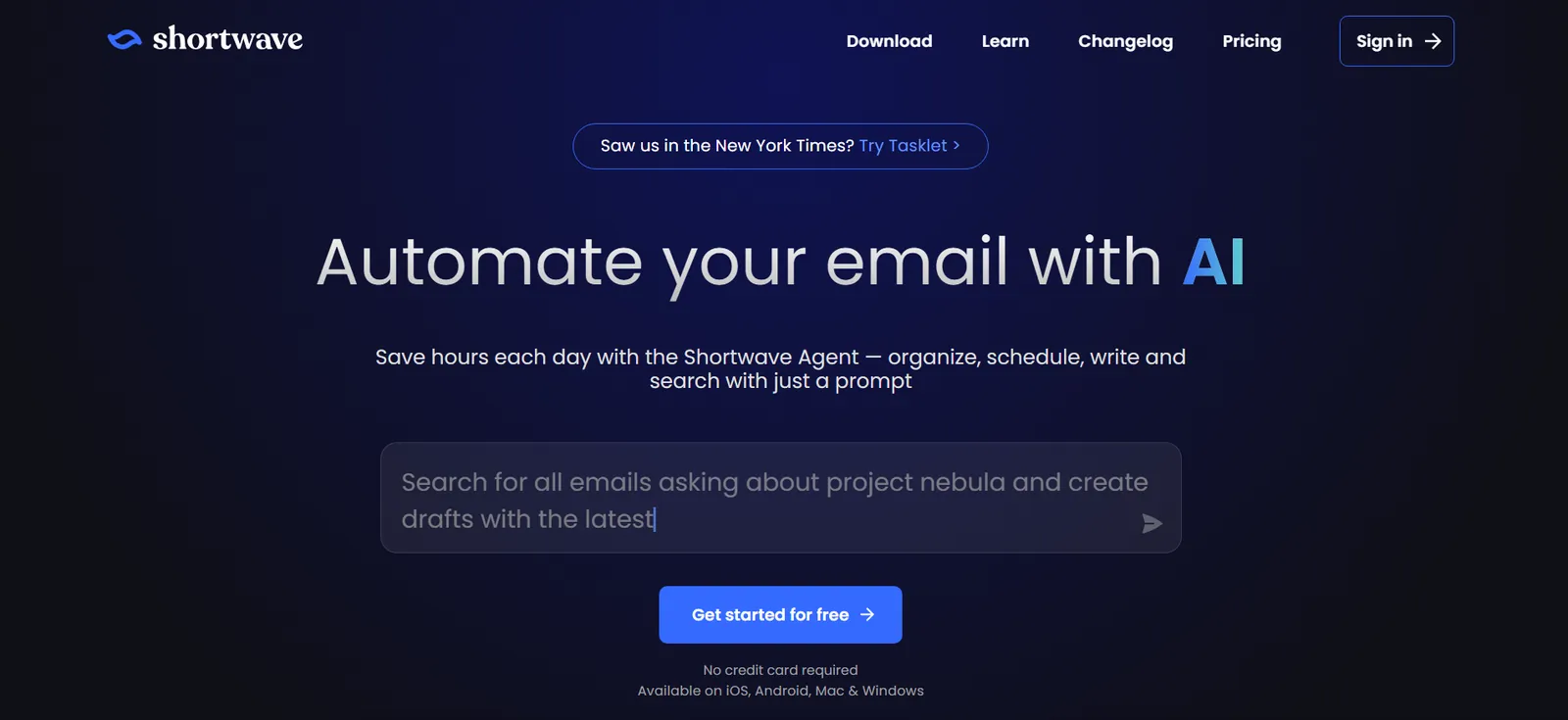
Shortwave is an AI email client built on Gmail that replaces your inbox interface entirely, with search, thread management, and AI-assisted drafting at its core. I used it as my primary Gmail interface for a couple of weeks, and instead of shuffling through months of threads, I just typed what I needed, and Shortwave pulled up the right email almost instantly.
If you have a cluttered inbox with years of backlog, Shortwave makes it easy to find old documents, invoices, bills, and personal emails in just a few simple steps.
Ratings:
- Automation depth: 3/5
- Gmail integration quality: 5/5
- Output quality: 4/5
- Tone accuracy: 4/5
Key features
- AI-Powered Search: Ask natural language questions like "find the contract from the Acme thread in October," and it pulls the right result in seconds. The best search I've come across in any email tool.
- Thread Bundling: Related threads automatically group into bundles, so a chaotic inbox with hundreds of unread emails actually looks manageable.
- AI Drafting: Writes contextual replies that read naturally. Personalized AI writing is available on Pro and above.
- The Shortwave Method: A built-in triage system that sorts every email into done, under two minutes, or to-do, keeping the inbox cleared and actionable.
- AI Filters: Automatically categorizes incoming mail based on content and sender, without manually writing rules.
Pros
- 14-day free trial on all paid plans
- Clean, structured interface that cuts inbox noise fast
- Natural language search that actually surfaces the right thread
Cons
- Gmail only, no native Outlook support
- Advanced AI features locked behind higher tiers
Pricing
Shortwave has a free plan for individuals who want to try the basics. Paid individual plans start at $18 per seat/month on Pro, billed monthly ($14 billed annually), while business plans run from $30 to $120 per seat/month billed monthly, depending on AI usage and feature depth. All paid plans come with a 14-day free trial.
3. Best Gmail AI Assistant for Getting Things Done Beyond Your Inbox
Lindy: What is it?
Lindy is an AI assistant you text to handle your Gmail inbox, follow-ups, meetings, and more. It’s the first tool on this list that lets you stop opening Gmail.
You text Lindy what needs to happen, and it handles the rest: drafts, replies, CRM updates, scheduling, whatever comes after the email lands.
Send a message like "Follow up with everyone who hasn't replied to the proposal thread." Lindy identifies who went quiet, writes a personal message based on past conversations, and shares a draft that reads like you, not like a template.
Most tools stop at the draft. Lindy sends it once you give the go-ahead. Later, when you trust it on a specific task, it can send on its own.
Lindy doesn’t just wait for instructions. When a task comes in that needs action, it texts you asking if it can start. For tasks you’ve pre-approved, it just starts. If a client shows interest in a follow-up call, Lindy schedules it, preps your notes, and logs it in your CRM.
You stay in control, but you're not doing the legwork.
Ratings:
- Automation depth: 5/5
- Gmail integration quality: 4/5
- Output quality: 4/5
- Tone accuracy: 4/5
Key features
- iMessage and SMS delegation: Text Lindy from your phone as you would a person. "Set up a 30-min call with Sarah next Tuesday." Lindy finds the time, sends the invite, and confirms. No app to open.
- Proactive morning briefings: Every morning at your preferred time, Lindy texts you a summary of your day, including your calendar, important emails, and anything that needs attention. Gemini waits for you to ask. Lindy tells you before you open your laptop.
- Autonomous follow-ups: Lindy tracks sent emails with no reply and drafts the follow-up after a set number of days. You can review it before it goes out, or set it to send automatically if you prefer. Either way, you're not writing it.
- Standing instructions: Since Lindy integrates with 1,000+ other apps, you can set a rule once, and it runs automatically. "Every time I finish a meeting, I send the notes to Slack." It just happens.
- CRM sync from your inbox: After a call or email thread, tell Lindy to update the record. It logs the interaction in Salesforce or HubSpot without you having to touch either.
Pros
- Learns your voice and priorities over time
- Ready-to-use skills let you get started on tasks in seconds
- Handles the full Gmail workflow in one place without switching between tools
- Complies with leading security frameworks like SOC 2, HIPAA, GDPR, and PIPEDA
Cons
- More than you need if Gmail drafting is all you're after
- Takes a week or two before drafts fully match your voice
Pricing
Lindy has a free plan with $50 in credits that last 7 days, no credit card required. Paid plans start at $29.99/user/month for 3,000 credits, with larger credit tiers available and credits pooled across your team. Enterprise pricing is custom and adds HIPAA with a signed BAA, SSO/SCIM, and audit logs.
{{templates}}
4. Best Gmail AI Assistant for Fast Email Workflows
Superhuman: What is it?
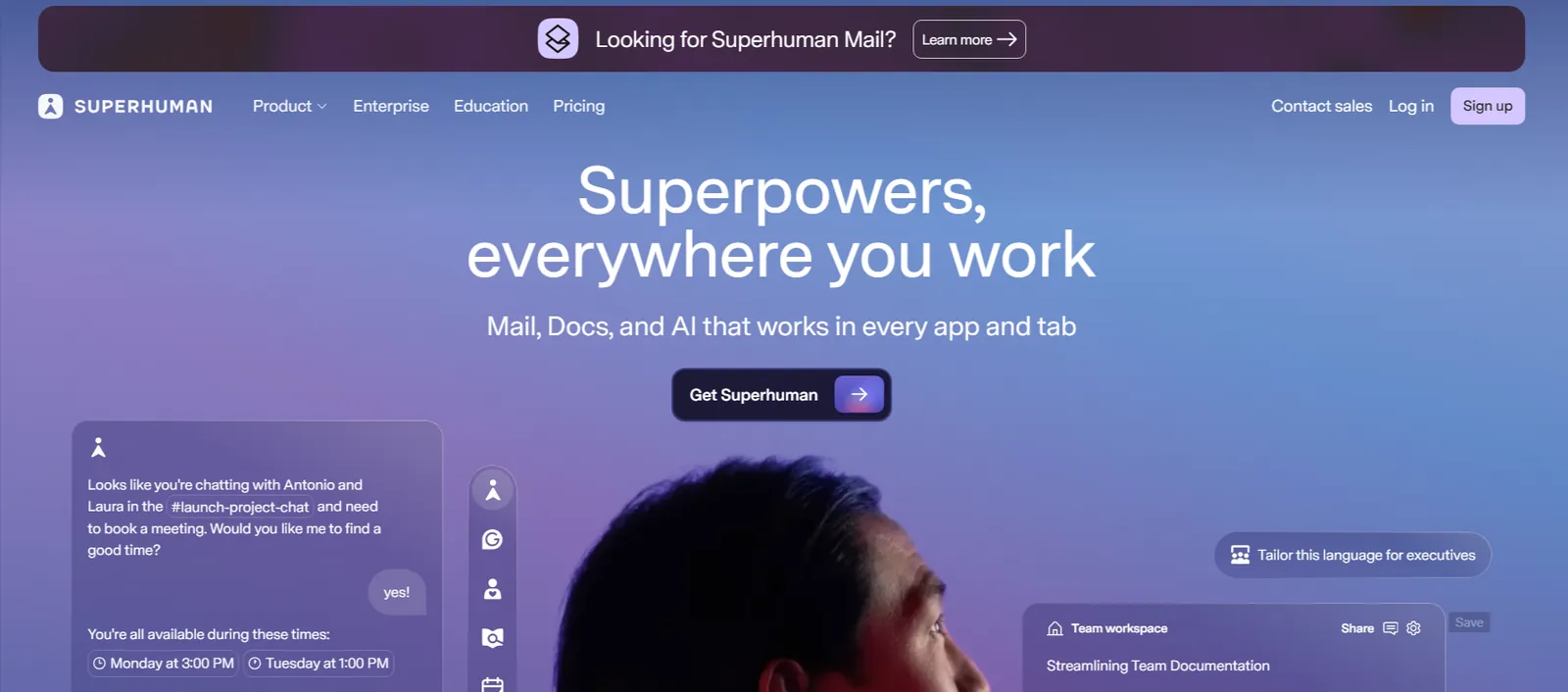
Superhuman is a speed-first email client for Gmail and Outlook built around keyboard shortcuts, AI drafting, and smart triage. I went in skeptical about paying $30/seat/month for an email client, and the first week was slow while the shortcuts were still unfamiliar.
By week two, I was moving through threads faster than before. Gmail already sorts newsletters into a Promotions tab. What Superhuman adds is custom splits built around who you actually care about. I had one for investors, one for customers, and one for my team. Everything else could wait.
Ratings:
- Automation depth: 3/5
- Gmail integration quality: 5/5
- Output quality: 4/5
- Tone accuracy: 3/5
Key features
- Keyboard-First Navigation: Every action has a shortcut. Once it clicks, moving through a heavy inbox gets noticeably faster than any standard email client.
- AI Drafting and Ask AI: Writes routine replies well and lets you check tone before something goes out. Reliable rather than impressive, but consistent at high volume. Auto Drafts and Ask AI are on the Business plan.
- Smart Triage: AI automatically splits your inbox into Important, Other, and custom categories, so the emails that need attention don't get buried.
- Read Receipts and Snippets: See when someone opened your email and use reusable snippets for replies you send often. Useful for sales and outreach-heavy roles.
- Superhuman Go: A proactive AI layer that pulls relevant context from connected apps like Jira, Drive, or Calendar while you're composing, before you think to look for it.
Pros
- Consistent AI drafting at scale
- Moves through high email volume faster than anything else
- Read receipts and snippets are genuinely useful for outreach
Cons
- Steep learning curve before shortcuts feel natural
- No email preview panel, you have to open each email fully
Pricing
Superhuman Mail starts at $30 per seat/month for Starter and $40 per seat/month for Business, billed monthly ($25 and $33 billed annually). Enterprise pricing is custom for teams that need advanced security and admin controls.
5. Best Gmail AI Assistant for Drafting Professional Emails Quickly
MailMaestro: What is it?
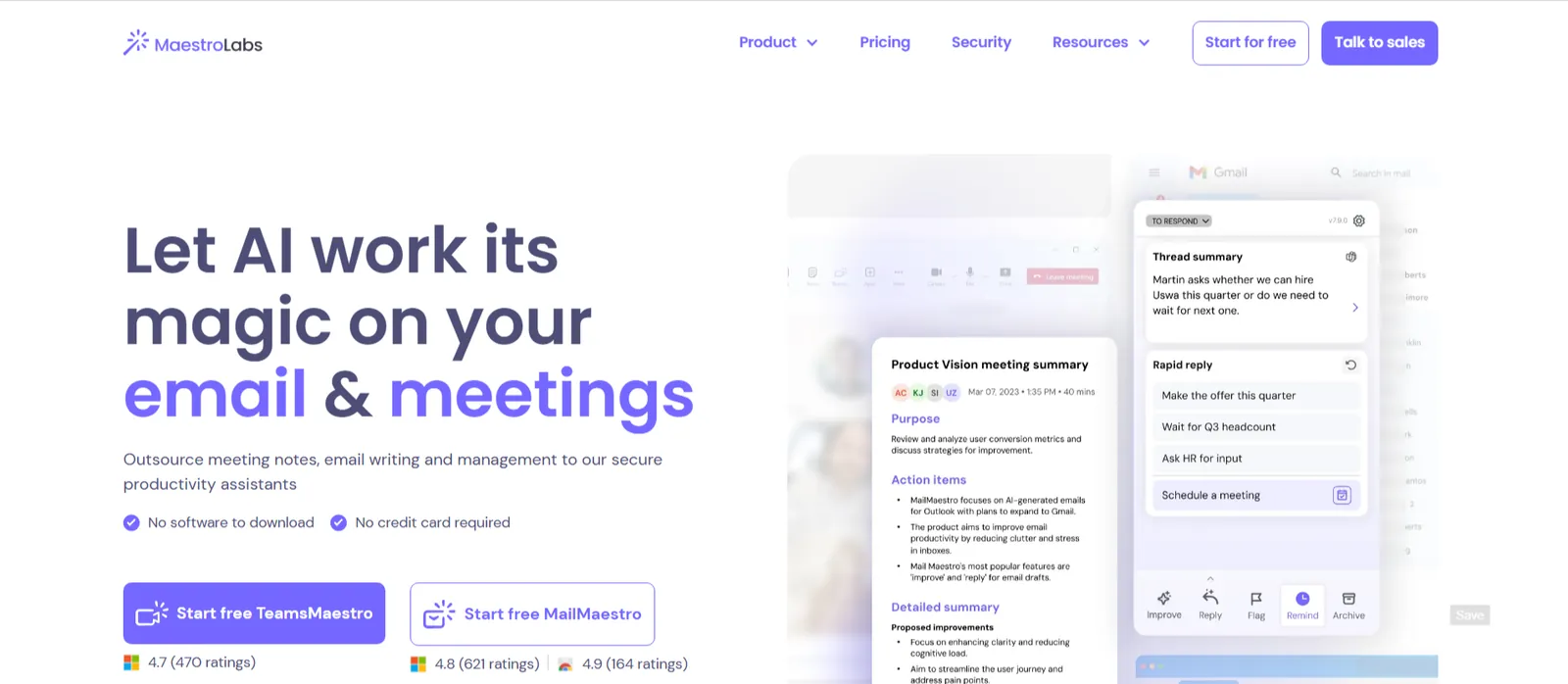
Most AI email tools send me straight back to ChatGPT to clean up the draft. MailMaestro is the first one that didn't.
It plugs into Gmail and Outlook, handles drafting, replies, and thread summaries, and lets you set tone. With multilingual support built in, you can easily switch between writing to a client in Germany one minute and a startup founder in California the next.
I gave it a short instruction and a tone preference, and what came back was something I could just send. The occasional tweak is still needed to nail your specific voice, but it gets close enough that the time saving is real.
Ratings:
- Automation depth: 2/5
- Gmail integration quality: 4/5
- Output quality: 5/5
- Tone accuracy: 5/5
Key features
- AI Email Writing: Give MailMaestro a short prompt, and it drafts a full email using best-in-class LLMs like GPT and Claude. You can adjust tone, length, and language before sending.
- AI Email Response: Reads the thread context and generates a contextual reply. You select the message style, formal, concise, or detailed, and it builds from there.
- Thread Summarization: Condenses long email threads into key points so you can catch up on a conversation without reading every reply.
- Tone and Language Control: Supports multiple languages and lets you set the tone per email, useful for teams writing across different cultures or levels of formality.
- Priority Inbox View: Surfaces the emails that need attention first, so you can focus replies where they matter most.
Pros
- Works across both Gmail and Outlook
- Drafts read professional without sounding templated
- Ready-to-use email templates for common professional scenarios
Cons
- Focused mostly on writing, with no CRM connection
- Occasionally needs tone adjustments to match your exact voice
Pricing
MailMaestro has a free plan capped at 3 AI requests a week. The Professional plan starts from $15/seat/month billed monthly ($12 billed annually), with a 14-day free trial of every feature before committing. The MaestroDuo bundle, which includes both email and meeting assistance, starts from $27/month billed monthly ($25 billed annually).
6. Best Gmail AI Assistant for Team Collaboration and Shared Inboxes
Gmelius: What is it?
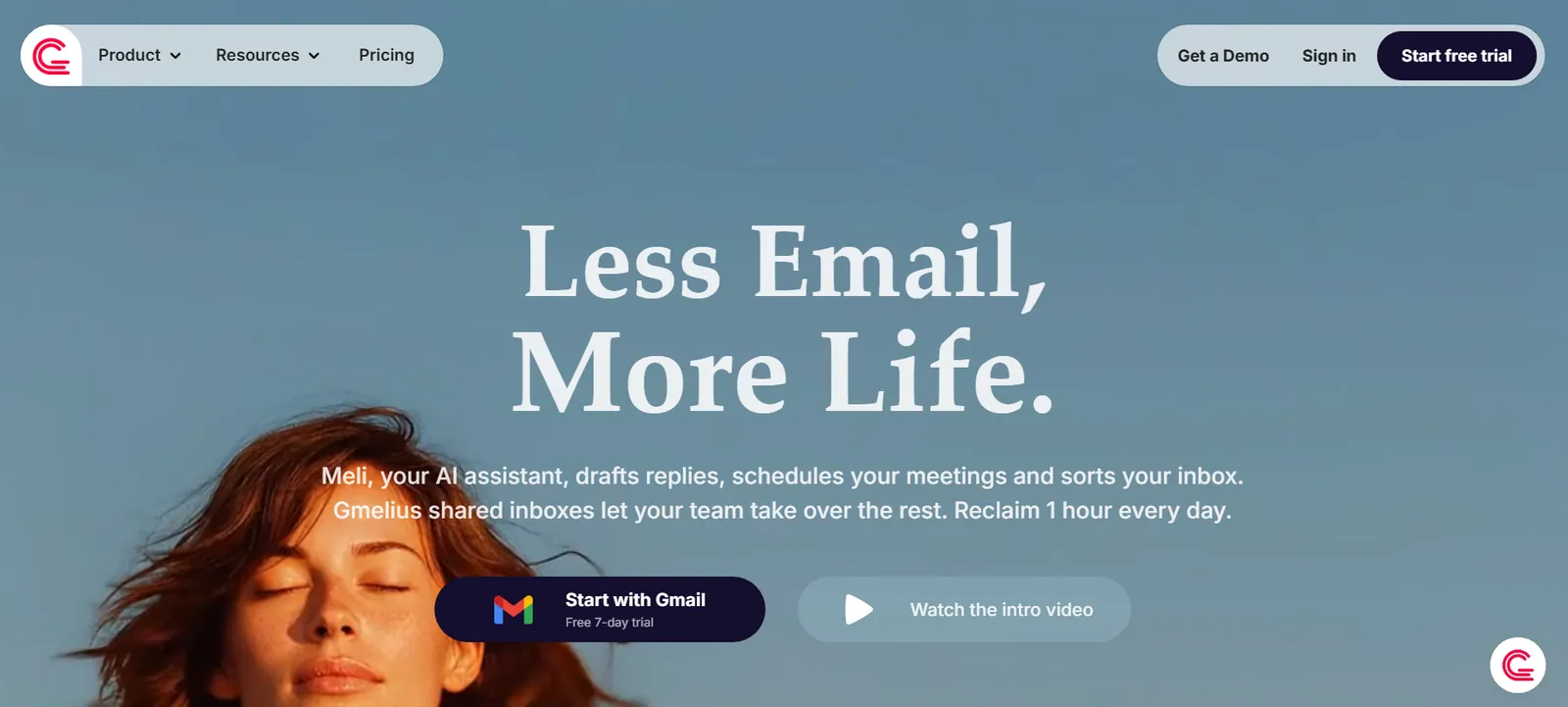
Gmelius is a shared inbox and email collaboration tool that combines AI drafting, smart sorting, and team assignment directly with Gmail. The problem it solves is a specific one: multiple people working out of the same inbox without stepping on each other.
I set up a three-person support inbox in Gmelius to see where it'd break. Email assignment removed the most friction. Threads stopped getting replied to twice by different people.
An email comes in, Meli, Gmelius's AI assistant, drafts a reply, and you assign it to the right person without a single forward or CC. Everyone sees the same thread, and nobody doubles up.
When an incoming email contains a meeting request, Meli automatically detects it, checks calendar availability, and drafts a reply with suggested time slots ready to send. That basically kills the need to spend another $15 on a separate scheduling tool.
Ratings:
- Automation depth: 4/5
- Gmail integration quality: 5/5
- Output quality: 4/5
- Tone accuracy: 3/5
Key features
- Shared Inbox with Email Assignment: Multiple team members work from a single Gmail inbox. Assign emails to specific people, track status, and avoid duplicate replies without forwarding threads.
- Meli AI Drafting: Gmelius's AI assistant drafts replies written in your tone based on thread context. Each draft lands ready to review before anything goes out.
- AI Meeting Scheduling: When Meli detects a meeting request in an incoming email, it automatically checks your calendar and drafts a reply with available time slots.
- AI Sorting and Labels: Meli automatically categorizes incoming emails into Gmail labels, keeping conversations organized across the team without manual tagging.
- Automation Rules: Set rules to route, label, or respond to emails based on content, sender, or thread status. Connects with Salesforce, HubSpot, Slack, Trello, and Zapier.
Pros
- 7-day free trial on Meli and Growth plans
- Custom views to filter emails by topic, sender, or label
- Shared inbox assignment removes the need for forwarding threads
Cons
- Mobile app lags behind the desktop version
- Noticeably slower with high-volume inboxes
Pricing
Gmelius offers a 7-day free trial on entry plans. Meli starts at $21/user/month, Growth at $33/user/month, and Pro at $50/user/month, all billed monthly ($19, $25, and $40 billed annually). Enterprise pricing is custom for larger teams.
How to choose the best Gmail AI Assistant for your work: My take
The right Gmail AI assistant depends entirely on what's actually slowing you down. A tool that saves a sales rep two hours a day might be useless to an engineer who just wants a cleaner inbox.
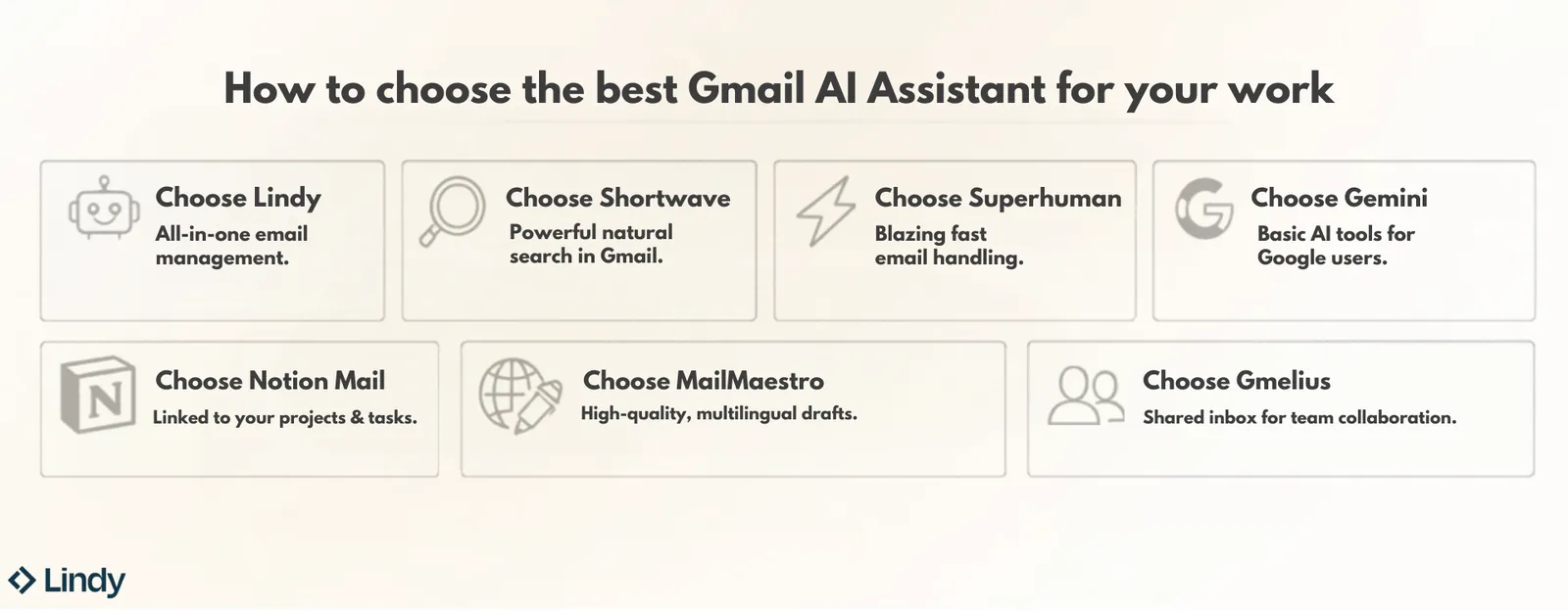
Here’s a quick checklist for you to choose the right tool:
- Choose Gemini in Gmail if you're already on Google Workspace and need basic AI assistance without paying for another subscription. It handles drafting, summarization, and smart replies well enough for lighter email workloads.
- Choose Shortwave if you live in Gmail and spend too much time hunting through old threads. The natural language search alone is worth the switch if your inbox goes back years.
- Choose Lindy if email is just one part of a bigger mess. You're not just triaging a Gmail inbox, you're chasing follow-ups, updating client records, and scheduling calls on top of it. Lindy handles all of that from one place, and you can run most of it from your phone over text.
- Choose Superhuman if inbox speed is the actual problem. High email volume, keyboard-first navigation, and consistent AI drafting make it the right pick for anyone who treats email as a competitive advantage.
- Choose MailMaestro if the quality of what you send matters as much as the speed. Tone control, multilingual support, and drafts that read like a person wrote them make it the strongest writing-focused option on this list.
- Choose Gmelius if more than one person is working out of the same inbox. The shared inbox, email assignment, and team collaboration features solve a problem the other tools on this list don't really address.
Try Lindy as your always-on email assistant
Gemini covers the basics. If you need more than that, Lindy is where to go next. It handles the parts of email that Gmail stops short of: autonomous follow-ups, CRM updates, meeting scheduling, and task delegation over iMessage. You don't open a dashboard. You text it like you'd text a person.
Here's what you can hand off from day one:
- Text Lindy to sort your inbox: It reads every incoming email, labels it automatically, and keeps priority messages front and center. Everything else gets filed.
- Drafting replies in your voice: Set your tone and preferences once, and Lindy saves drafts for review before anything goes out.
- Follow-ups that run without reminders: Lindy tracks sent emails without replies and drafts follow-ups after a set number of days. You decide the timing.
- Meeting scheduling without back-and-forth: Tell it who you need to meet and when. Lindy checks your calendar, sends the invite, and handles rescheduling if plans change.
- Works from your phone over iMessage and SMS: You can even use Lindy with iMessage and SMS. You don’t need to check any dashboards either.
FAQs
1. What is the best AI assistant for Gmail?
The best AI assistant for Gmail depends on what you need. If you want the best Gmail-native experience, Shortwave wins on search, and Superhuman wins on speed. If you need email handled end-to-end beyond Gmail, including follow-ups, CRM sync, and scheduling, Lindy is the stronger pick. For most Google Workspace users who just want a starting point, Gemini is already there for free.
2. Does Gmail have a built-in AI assistant?
Yes, Gmail has a built-in AI assistant called Gemini, which handles drafting, thread summarization, smart replies, and a natural-language search feature called AI Overview. It works well for basic tasks inside Google Workspace, but doesn't automate follow-ups, connect to your CRM, or take action outside Gmail the way third-party tools do.
3. Are Gmail AI assistants safe to use?
Yes, Gmail AI assistants are generally safe to use, but the level of protection varies by tool. Look for SOC 2 certification, GDPR compliance, and a clear policy on whether your data is used to train AI models. Lindy, Shortwave, Gmelius, and MailMaestro all meet these standards. Always check permissions before connecting your inbox.
4. Can AI write emails that sound like me?
Yes, though how close it gets depends on the tool. MailMaestro lets you set tone and formality per email before anything goes out. Lindy learns from your edits over time and gets closer to your actual voice the more you use it. Most tools get you to a point where you're editing a draft rather than writing from scratch.
5. How much do Gmail AI assistants cost?
Gmail AI assistants range from free to around $120/seat per month for dedicated email tools, depending on the tool and feature depth. Gemini for Gmail is included in Google Workspace plans. MailMaestro has a free plan, with Professional at $15/month. Lindy's paid plans start at $29.99/user/month. Many paid tools offer a limited free trial or demo period before you commit, though the duration and availability can differ by provider.
6. What is the difference between Gmail's built-in AI and third-party tools?
Gemini stays inside the Gmail window. It drafts, summarizes, and suggests replies. It doesn't send follow-ups, log calls to your CRM, manage a shared inbox, or work across apps outside Google Workspace. Third-party tools pick up where Gemini stops. Shortwave rebuilds the Gmail interface around search and triage.
Gmelius adds shared inbox assignment for teams. Lindy connects email to your calendar, CRM, and phone. The right tool depends on which of those gaps is actually slowing you down.
7. Can I use a Gmail AI assistant on mobile?
Yes, most Gmail AI assistants work on mobile, but the experience varies. Gemini and MailMaestro support iOS and Android. Lindy has no mobile app, but it works over iMessage, SMS, and Slack on your phone, so you can delegate tasks without opening a dedicated app at all. Shortwave and Gmelius have mobile apps, though both are stronger on desktop.