AI Schedule Generators: 14 Free and Paid Picks for 2026


Plenty of AI schedule generator tools produce a color-coded grid that looks organized and stops working within a day or two. The meeting you forgot lands on top of your focus block, one task runs long, and the plan no longer matches your day.
Microsoft's own Work Trend Index found that 57% of meetings are ad hoc calls that never hit a calendar, which is exactly the kind of thing a static plan can't survive.
The tools worth using take your tasks and deadlines, plus whatever's already on your calendar, and rebuild the schedule the moment something moves. I put 14 of them through the same one-week test to see which ones held.
Some generate a plan from a single prompt. Others run your whole day and hold it in place while you work. Several are free to start, and the table below says exactly what each free plan gives you. Below is where each one fits, what it costs once you outgrow the free tier, and who should skip it.
14 Best AI schedule generators: TL;DR
- Motion: Best for letting AI plan and defend your entire day
- Reclaim.ai: Best for protecting focus time on a meeting-heavy calendar
- Lindy: Best for an AI teammate that builds and reschedules from Slack
- Sunsama: Best for a calm daily planning ritual you stick to
- Akiflow: Best for pulling tasks from everywhere into one time-blocked day
- SkedPal: Best for automatic time-blocking that reshuffles itself, on Pro
- Trevor AI: Best free AI time-blocking assistant for one person
- Vimcal: Best for scheduling at speed with a keyboard
- Calendly: Best for generating meeting times with people outside your team
- Cal.com: Best free scheduler for developers who want unlimited event types
- Morgen: Best schedule builder across almost any calendar you own
- Taskade: Best free prompt-to-schedule generator you can edit as a project
- Venngage: Best generator for a visual schedule you can print
- Google Calendar: Best free calendar for anyone already living in Google
How I tested these AI schedule generators
Every tool got the same raw material. I gave each one a week with 18 meetings, a backlog of 25 tasks at different durations and deadlines, and two recurring blocks I wanted protected.
Then I changed things mid-week. I moved a meeting and added an urgent task to see which schedules adapted and which ones failed to adjust. Here's what I scored:
- How it generates: Whether you write a prompt and get a plan, or the tool auto-builds your schedule from tasks and deadlines on its own.
- Adaptation: What happens when the week changes. Does the schedule rebuild itself around a new meeting, or sit there stale until you fix it by hand?
- Calendar and task reach: Whether it connects to the calendars and task tools you already use, and syncs both ways.
- Free tier: What you get without paying, since half of these keep the useful generation behind a plan.
- Output: Whether you end up with a live, editable schedule you can work from, or a static picture you look at once.
Two different jobs kept separating as I tested. One generates a plan once; the other runs your schedule every day. Many tools lean one way, so each section below says which job it's made for.
One category I left out on purpose: staff shift scheduling. If you need a weekly rota, shift coverage for a team, or a class timetable, none of these 14 will help. They plan one person's work against one person's calendar. Rotas run on availability, qualifications, hours, and labor cost, and that's a different category of software. Every AI schedule generator on this list is built for the solo and small-team job.
Four more apps came up often but never earned a full section:
Clockwise: It shut down on 27 March 2026 when the team joined Salesforce, and its own site now points users to Reclaim. It optimized a calendar rather than generating one, so it was never a fit here anyway.
Routine: It's a polished tasks-and-calendar workspace, and its smart scheduling will place a task for you, but the planning still runs through its notes-and-tasks workspace rather than a schedule generator. A day of planning in it was enough to set it aside.
Canva: Its schedule maker turns a prompt or a template into a designed schedule you can edit and share, which is the same job Venngage does below. I tested one design tool rather than three, and Venngage is the one that made the list.
Template.net: Same category again. You describe a schedule and get an editable document out of it, so it's a document generator with a calendar-shaped output, not a tool that plans or reschedules your week.
14 AI schedule generators side by side
Prices reflect each vendor's listed starting paid tier, in the vendor's own unit.
1. Motion: Best for letting AI plan and defend your entire day
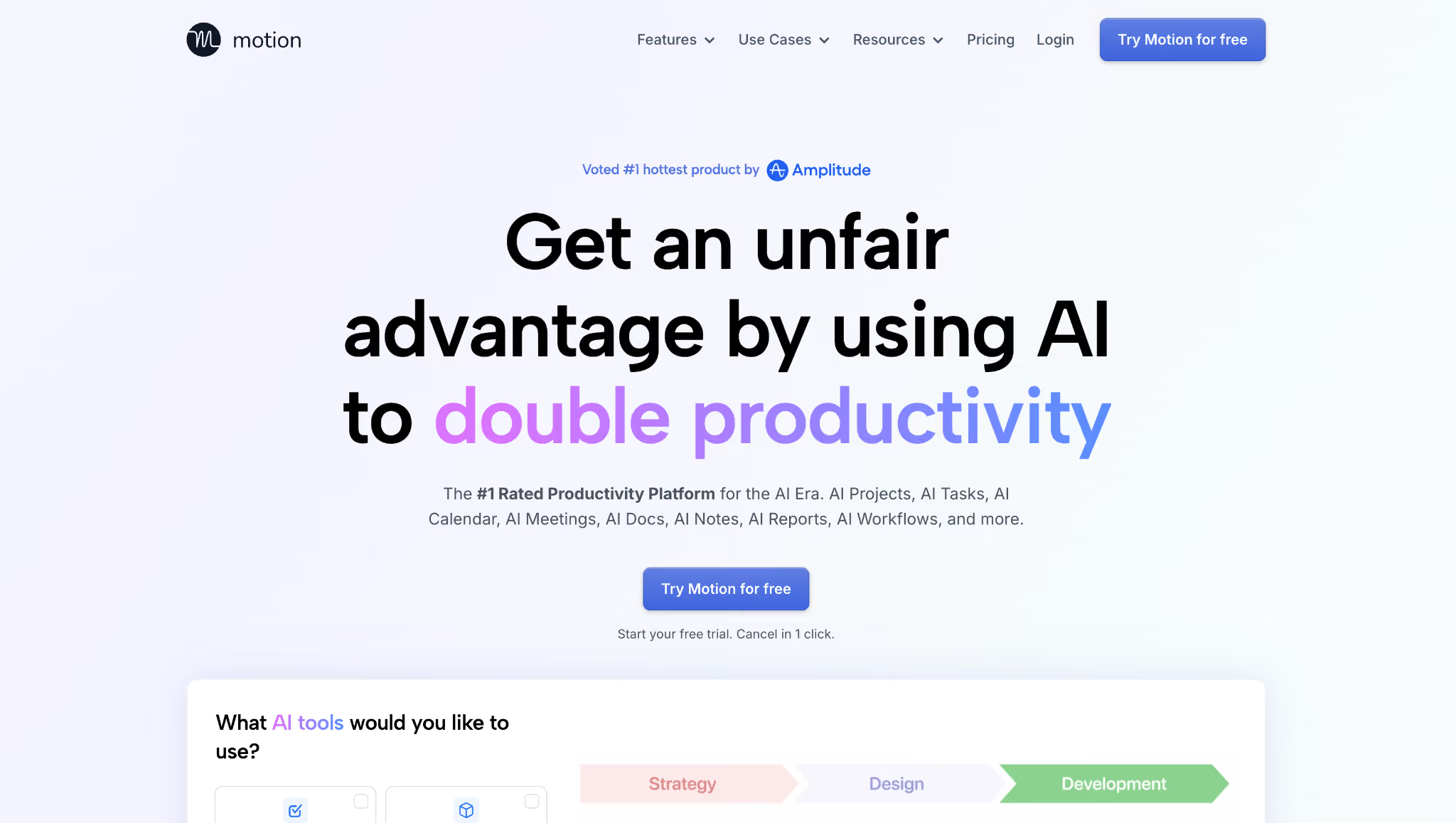
What it does: Motion takes your tasks, deadlines, and meetings and builds each day for you. When something changes, it reshuffles the whole plan.
Best for: People who would rather hand the "when does this happen" decision to AI than drag blocks around a calendar by hand.
I fed Motion my 25-task backlog with durations and due dates, and it placed every task on the calendar without me sequencing a thing.
The test came mid-week, when I dropped an unplanned meeting into a full afternoon. Motion rebuilt the rest of the day around it within seconds. Five tasks shifted, deadlines held, and I hadn't touched anything.
That reaction to a mid-week change is one thing; handling task order is another. When one task couldn't start until another finished, Motion kept the second one on hold until the first cleared, so a multi-step project stayed in order by itself.
Holding downstream tasks until the blocker clears is the part a to-do list with due dates rarely gets right.
Key features
- AI task planner: Turns a task list into scheduled blocks by priority, duration, and deadline, and reprioritizes as things move.
- AI calendar assistant: Auto-schedules tasks around fixed meetings and re-optimizes the day the moment one shifts.
- AI project manager: Tracks task dependencies across a project, with timeline and Gantt views on Business AI.
- Meeting notetaker: Joins calls, captures notes, and turns action items into scheduled tasks on your calendar.
Pros and cons
Pros:
✅ Rebuilds the whole day within seconds of a disruption, the quickest of the five tools here that rebuild at all.
✅ Respects task dependencies, so later work waits for the step it depends on instead of being scheduled too soon.
✅ It placed all 25 tasks from my backlog on the calendar without me sequencing one.
Cons:
❌ It scheduled from day one, but it took me a couple of weeks of daily use before the plans matched how I actually work.
❌ It is a planner first, so simple prompt-to-schedule generation takes a back seat to full automation.
❌ At $49/month, it starts higher than any other tool here.
What users say
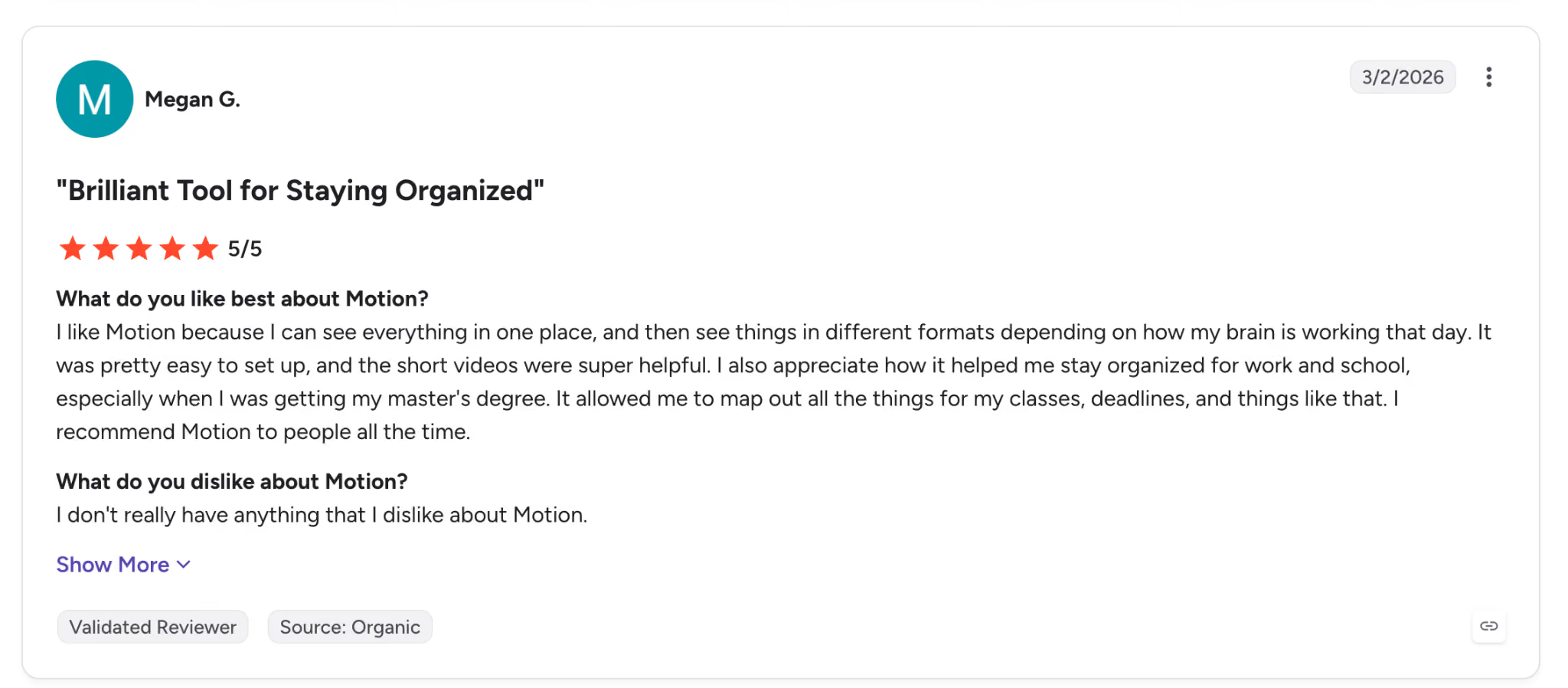
"I like Motion because I can see everything in one place, and then see things in different formats depending on how my brain is working that day." — Megan G., G2.
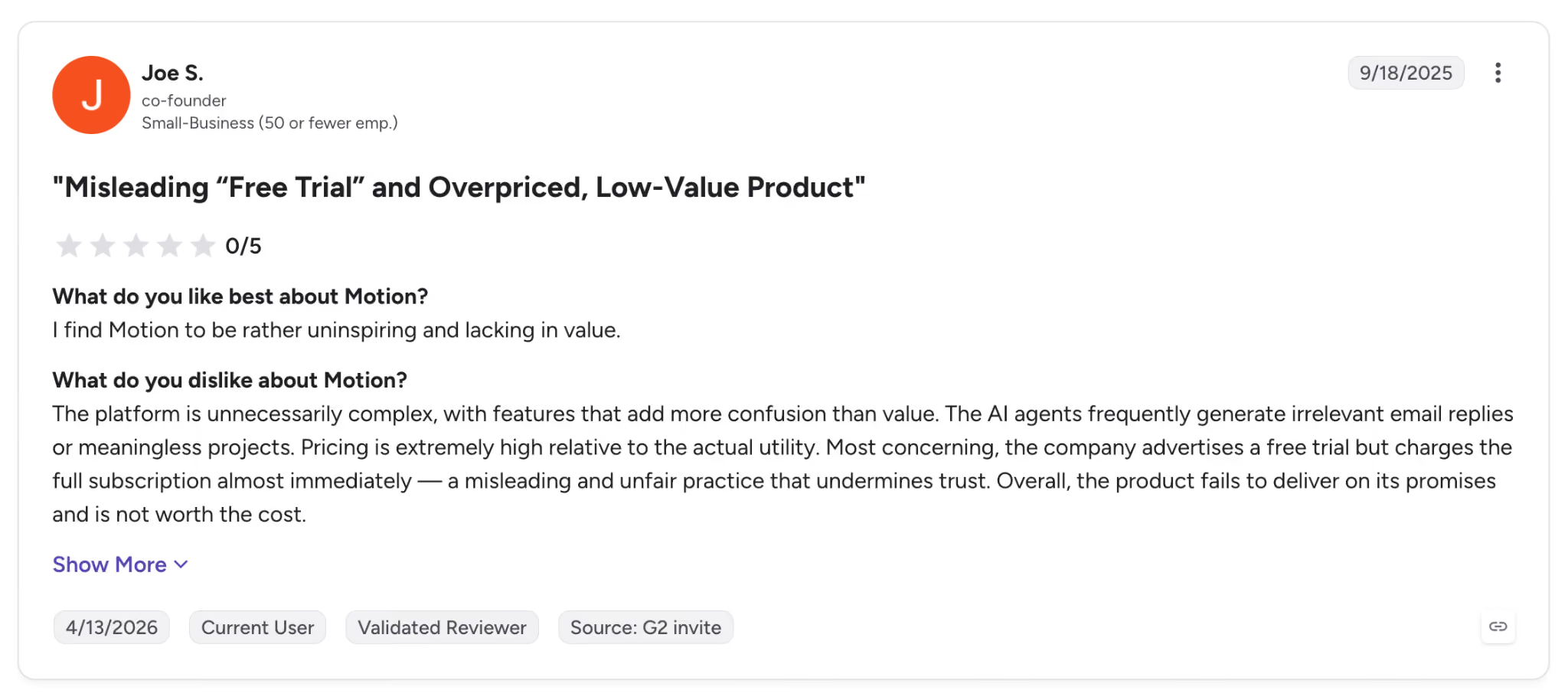
"The AI agents frequently generate irrelevant email replies or meaningless projects. Pricing is extremely high relative to the actual utility." — Joe S., G2.
Pricing
Motion's Pro AI plan is $49/month, billed monthly, and Business AI runs $69/month.
Bottom line
Motion is the pick when your hard problem is deciding when work should happen rather than remembering what's due, and it handles that better than the others I tested. If you want to keep manual control of your own calendar, you'll spend the ramp-up period fighting it.
2. Reclaim.ai: Best for protecting focus time on a meeting-heavy calendar
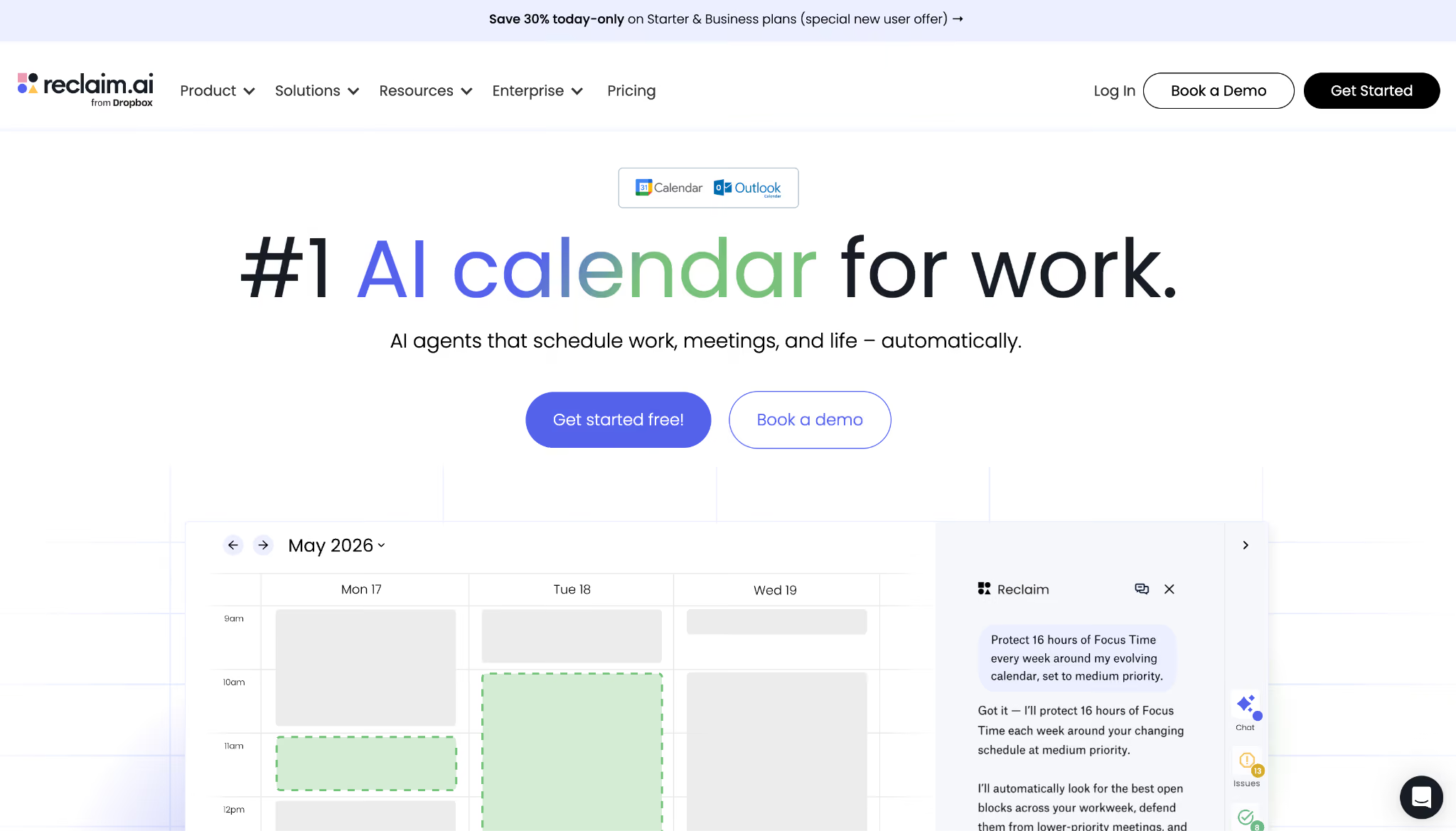
What it does: Reclaim.ai, part of Dropbox since 2024, runs on top of Google Calendar or Outlook, opening up time for focus work, habits, and tasks around the meetings already on your week.
Best for: Anyone whose calendar fills with meetings and who keeps losing the hours they need for focused work.
Setup asked almost nothing of me. I connected Google Calendar, set a weekly focus goal, and added two recurring habits, and within the hour those blocks were sitting on my week.
Over the next few days, they moved themselves whenever a meeting landed on top, instead of getting erased the way a manually blocked hour would.
The time-tracking view told me more than the scheduling did. It showed a chunk of my week going to meetings I'd never counted, a figure high enough to make me turn some meetings down.
Reclaim runs on the calendar you already use; getting that view costs you nothing: no new tool, no migration.
Key features
- Focus Time: Set a weekly deep-work goal and Reclaim defends those blocks, moving them when conflicts hit rather than dropping them.
- Habits: Recurring routines like lunch or a weekly review get flexible time that adjusts around your meetings.
- Smart Meetings and Scheduling Links: Find the best time across attendees and share availability with built-in meeting controls.
- Time tracking: Breaks your hours down across focus, meetings, and habits with weekly balance reports.
Pros and cons
Pros:
✅ My focus goal and two habits were sitting on the week within an hour, and they moved themselves when a meeting landed on top instead of getting wiped.
✅ Runs on your existing Google Calendar or Outlook, so there's no migration and no new interface to learn.
✅ The time-tracking report shows where your week really goes, down to the hours you'd have sworn went somewhere else.
Cons:
❌ It sits on top of a calendar instead of replacing one, so it needs a Google or Outlook base underneath.
❌ The analytics show where time goes but stop short of telling you what to cut.
❌ There's no full native mobile app, so events are best edited through your calendar on a phone.
What users say
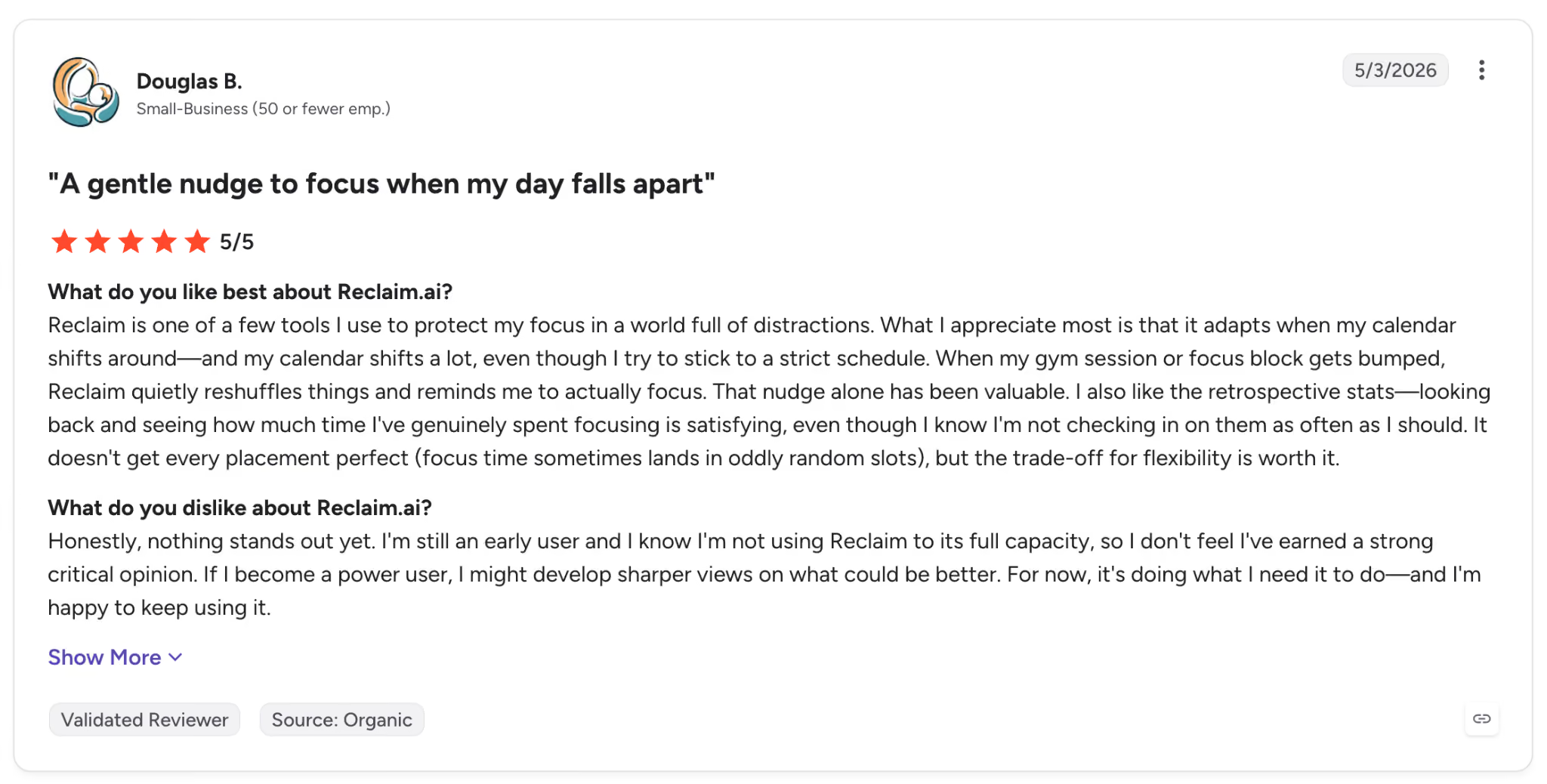
"What I appreciate most is that it adapts when my calendar shifts around, and my calendar shifts a lot, even though I try to stick to a strict schedule." — Douglas B., G2.
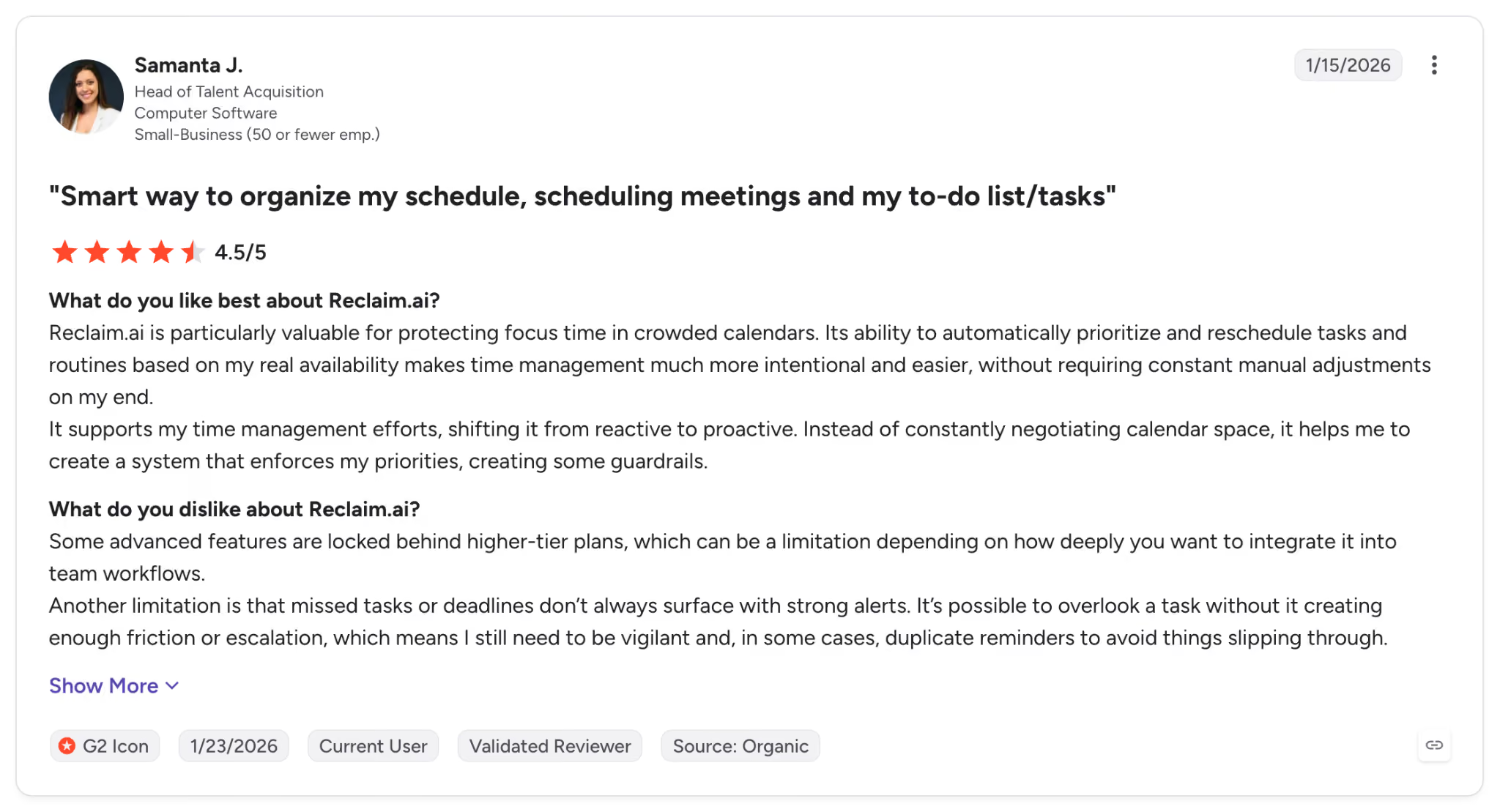
"Some advanced features are locked behind higher-tier plans, which can be a limitation depending on how deeply you want to integrate it into team workflows." — Samanta J., G2.
Pricing
Reclaim has a free Lite plan, with Starter at $12/seat/month billed monthly and Business at $18/seat/month. Reclaim is now part of Dropbox.
Bottom line
On a calendar that's already packed, where the challenge is finding hours to do the work, Reclaim protects that time automatically. A team that also needs task and project management bundled in will get more out of Motion, though it costs several times as much for one person.
3. Lindy: Best for an AI teammate that builds and reschedules from Slack
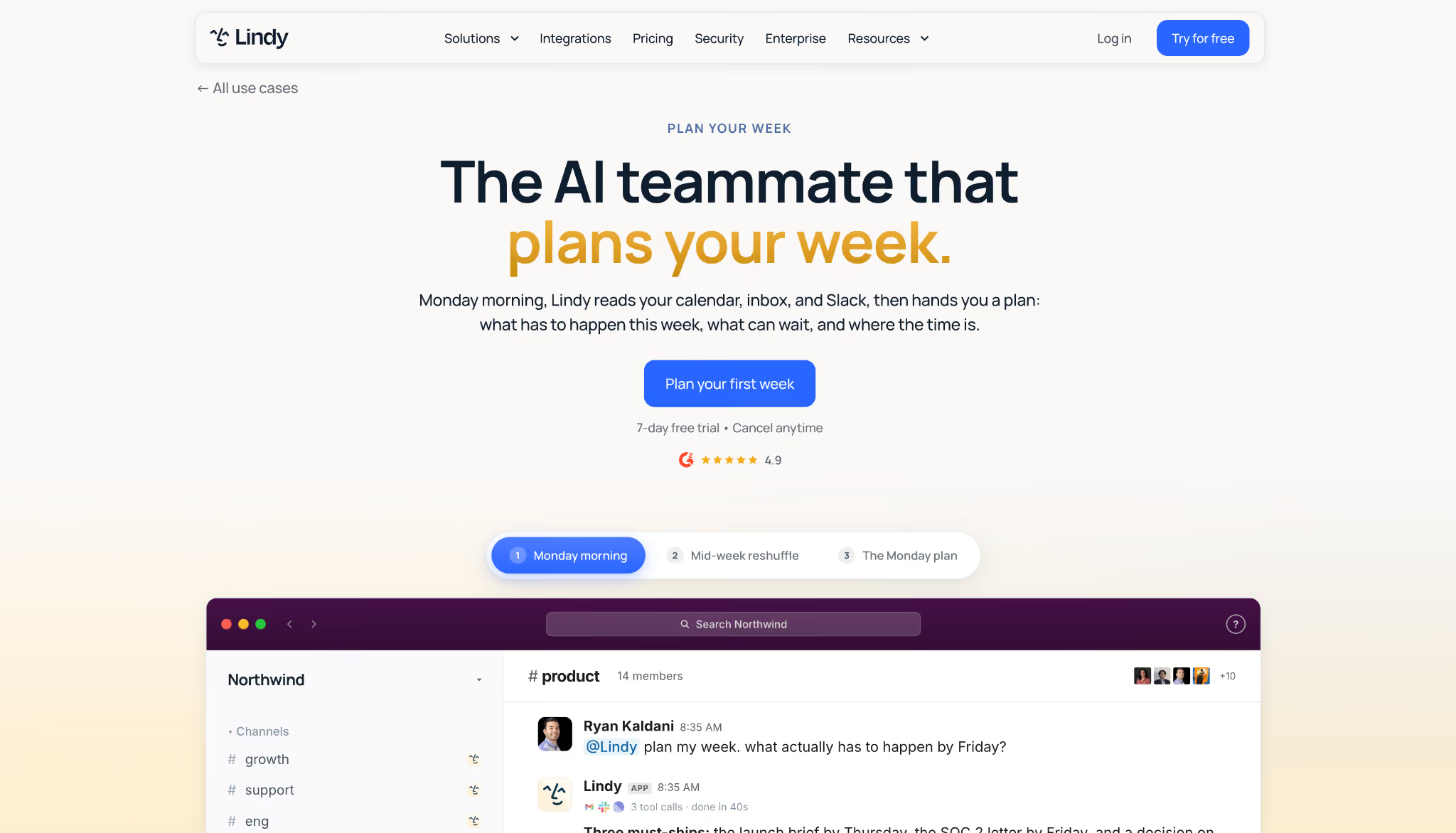
What it does: You message Lindy in plain language, and it works your calendar. It finds a time, sends the invite, reschedules when plans move, and handles the inbox and follow-ups.
Best for: Busy operators and teams who'd rather hand scheduling and admin to an AI scheduling assistant they can text than open another planner.
With Lindy, you don't open a schedule builder at all. I asked it in a Slack channel to find a time for a call and send the invite, and it did both without me touching my calendar.
When I moved that meeting later, it handled the reschedule and the heads-up to the other person on its own, and it answered in the thread with the sources it used.
It connects to Gmail or Outlook and drafts in your voice, but nothing goes out without approval, since it pauses and asks before it sends an invite or an email.
I set up a Monday morning check-in by typing it in one line, then opened the notes file it keeps and corrected a name it had wrong. Every answer comes back with its source.
Key features
- Scheduling by message: Text Lindy to find a time, send the invite, and reschedule when plans change, with no calendar app in front of you.
- Lives in Slack with receipts: Mention it in a channel, and it answers in the thread, with links to where each answer came from, across 1,000-plus connected apps.
- Approvals on every action: It proposes and drafts but pauses for a named approver before anything leaves your account.
- Routines and memory: Recurring work runs as skills you write in plain English, and its memory sits in plain files you can review or change.
Pros and cons
Pros:
✅ You run scheduling from a text thread instead of clicking through a calendar interface.
✅ It drafted the invite and the follow-up, then waited for my yes before either one left my account.
✅ Answers arrive with citations, so you can see which meeting, email, or file each one came from.
Cons:
❌ It works your calendar for you rather than showing a shared team view, so it sits beside a group calendar instead of replacing one.
❌ Early drafts read plain until you tell it how you want replies to sound.
❌ Multi-step requests take a couple of tries to phrase before they run cleanly.
What users say
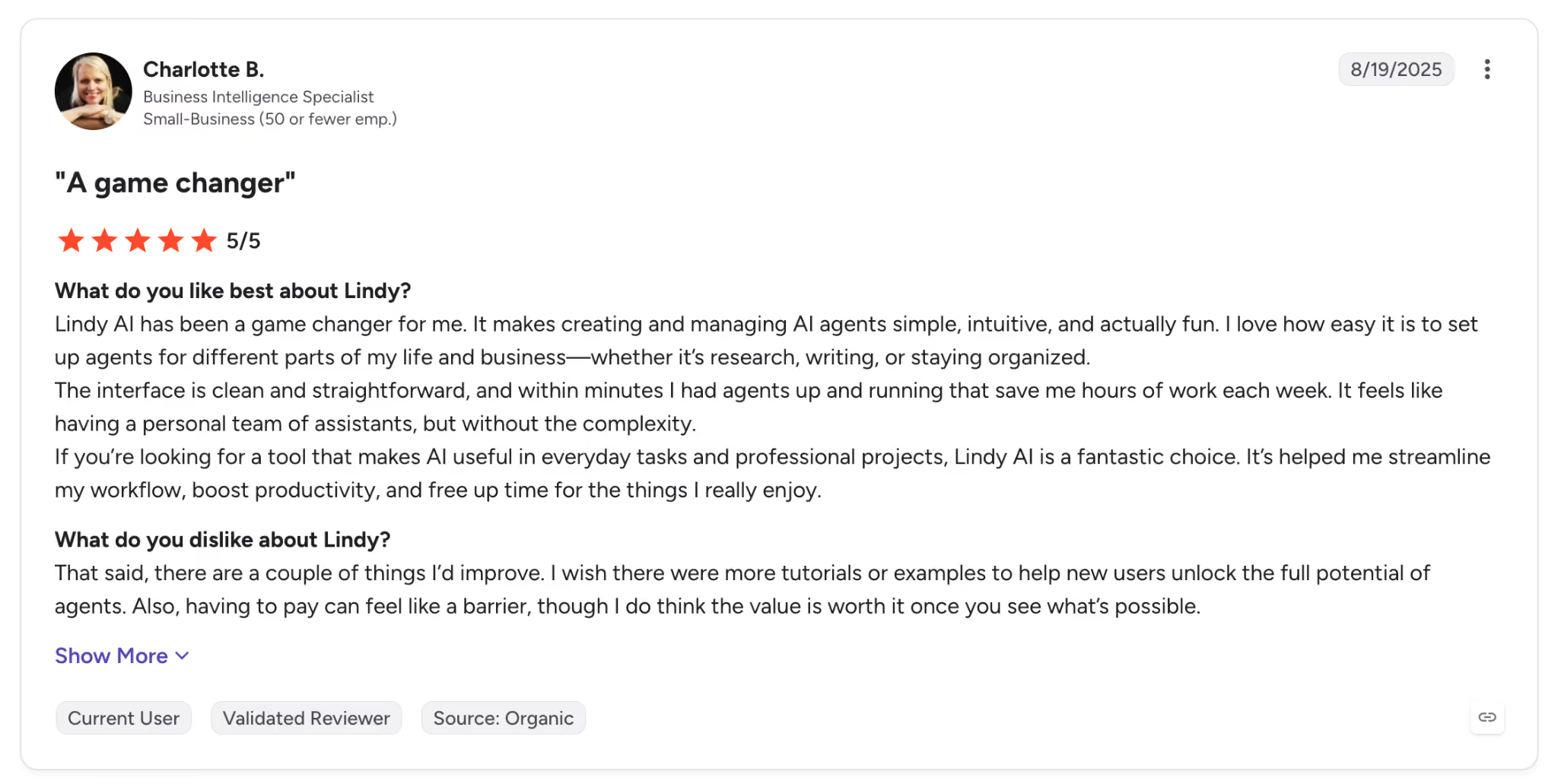
"It feels like having a personal team of assistants, but without the complexity." — Charlotte B., G2.
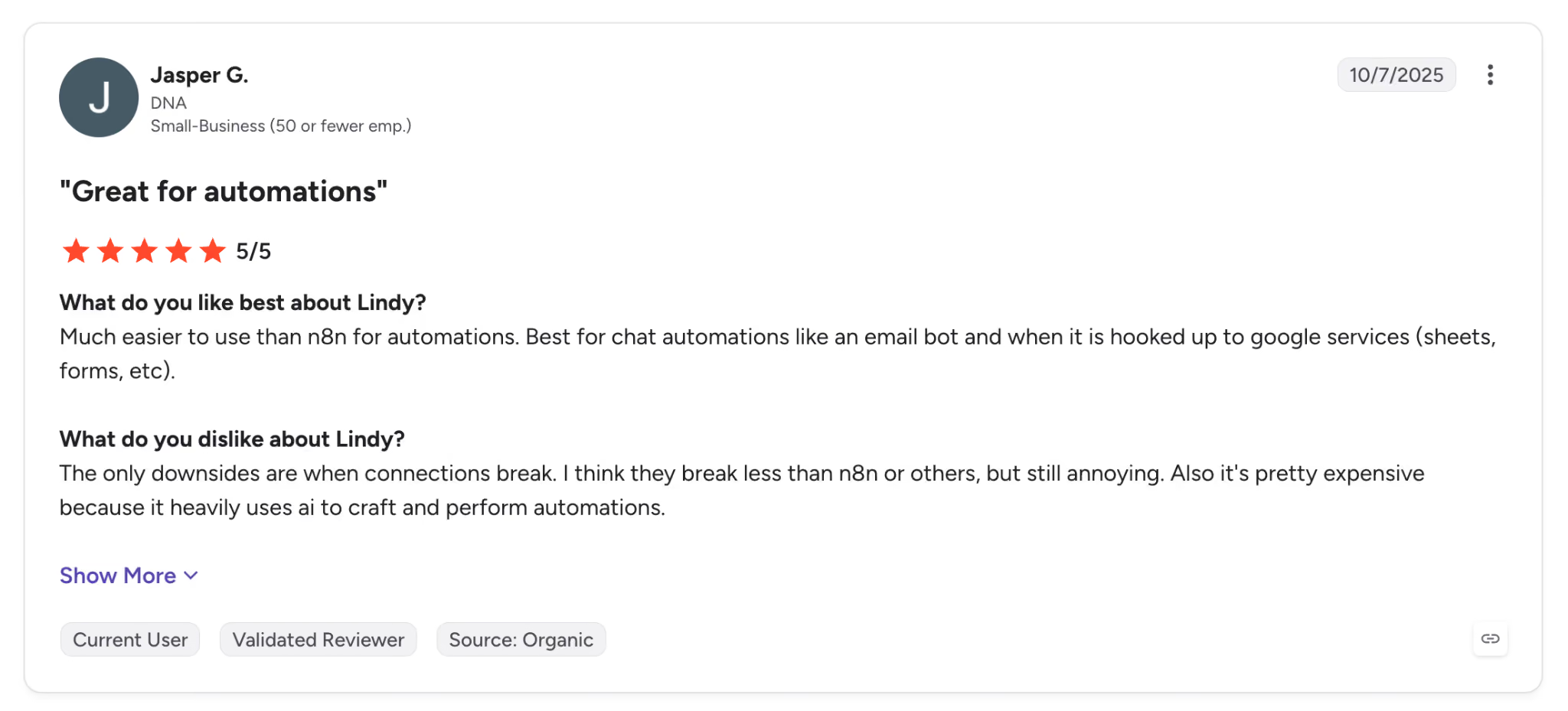
"The only downsides are when connections break. I think they break less than n8n or others, but still annoying." — Jasper G., G2.
Pricing
Lindy's Plus plan is $29.99 per user/month, with Pro at $99.99 and Max at $199.99 per user/month. There's no free plan, just a 7-day free trial.
Bottom line
When the burden is the admin around your calendar, the scheduling, and the inbox plus every follow-up that trails behind them, Lindy takes it off your plate from a text thread and shows its work as it goes.
It runs the calendar for you rather than putting one on screen, so a group that just wants a shared view will use half of it.
{{templates}}
4. Sunsama: Best for a calm daily planning ritual you stick to
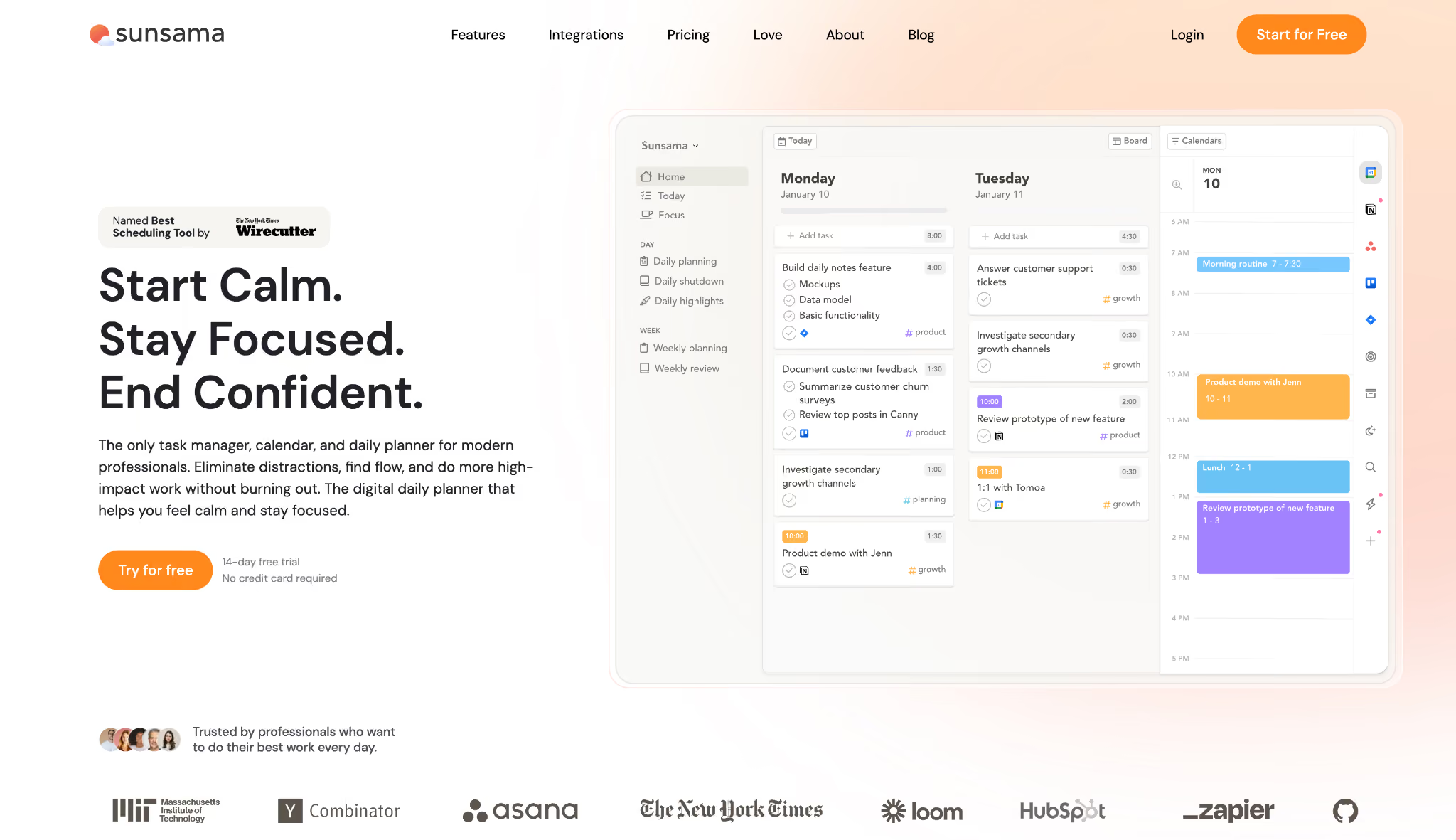
What it does: Sunsama walks you through a short planning ritual each morning, pulling tasks from your other tools and time-boxing them onto your calendar for a realistic day.
Best for: People who want a guided routine that keeps the plan honest, with AI help on tap rather than running the day for them.
Sunsama leads with the guided step rather than the automatic one, and that ordering is the whole idea. Each morning it opened a guided flow that asked me to pick the day's tasks, pulled them in from Todoist and my calendar, and made me estimate how long each one would take.
Forcing that estimate every morning is what broke my habit of planning twelve hours of work into eight. By the third day, it had stuck.
The friction is deliberate, and it has two sides. Sunsama puts the day's decisions in your hands, so the plan costs you a few focused minutes each morning.
The morning check-in is the main draw for some people and a burden for others, and you'll quickly know which it is for you.
Key features
- Guided daily planning: A morning ritual that walks you through choosing tasks and setting a realistic workload.
- Task pull-in: Brings tasks from Asana, ClickUp, GitHub, Jira, Linear, Monday.com, Notion, Todoist, Trello, Google Tasks, Microsoft To Do, and more into one place.
- Time-boxing: Blocks each task onto your Google, Outlook, or Apple calendar with a set duration.
- Daily Shutdown and analytics: An end-of-day wind-down plus a weekly review that breaks your time down by day.
Pros and cons
Pros:
✅ The planning ritual builds a realistic day instead of an aspirational one you abandon by noon.
✅ It pulled my Todoist tasks and my calendar into one morning list, so I planned from a single place instead of three.
✅ The shutdown routine and weekly review make the practice stick past the first week.
Cons:
❌ The guided ritual comes first, so the AI help sits a layer back instead of building the day for you.
❌ The daily ritual takes a few minutes every morning, which not everyone will keep up with.
❌ There's no free plan, only a 14-day trial, so keeping it means paying.
What users say
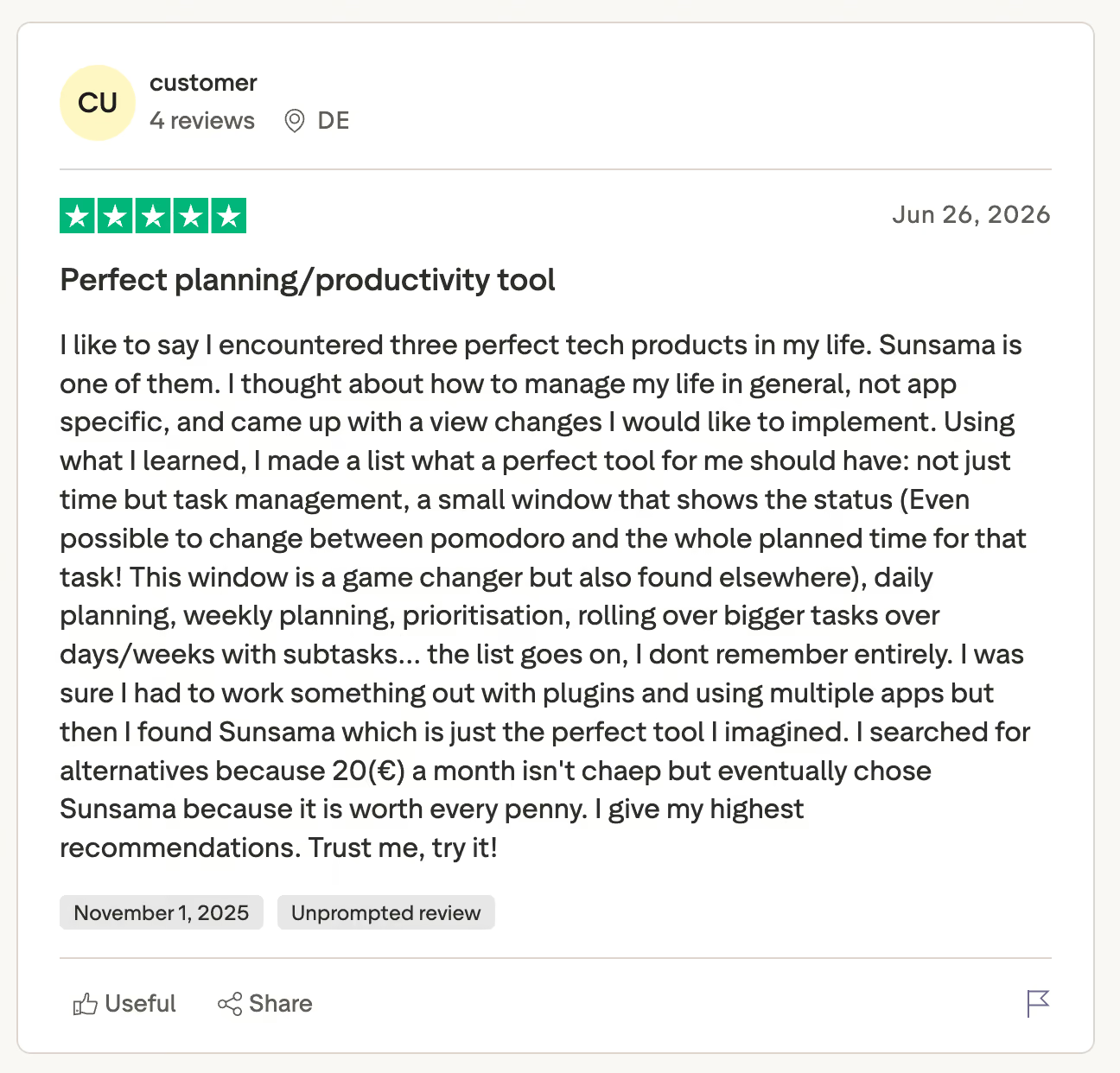
"I was sure I had to work something out with plugins and using multiple apps, but then I found Sunsama, which is just the perfect tool I imagined." — Verified User, Trustpilot.
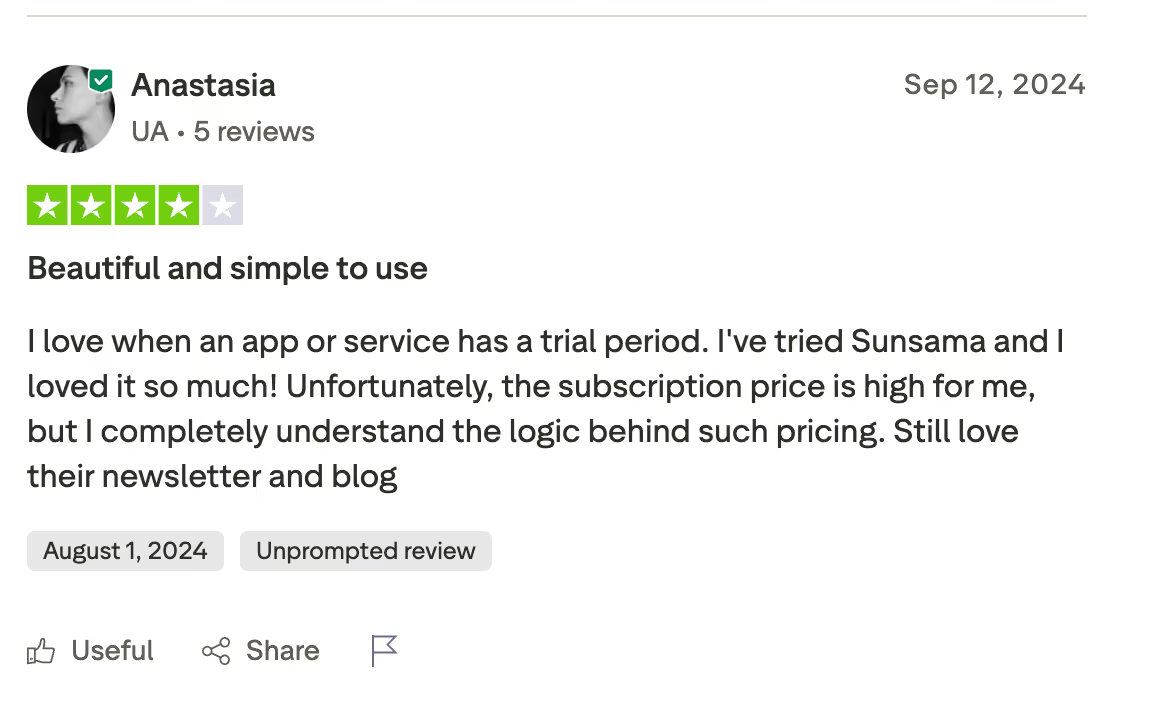
"Unfortunately, the subscription price is high for me, but I completely understand the logic behind such pricing." — Anastasia, Trustpilot.
Pricing
Sunsama's Pro plan is $22/user/month billed monthly, or $17/user/month billed yearly, after a 14-day free trial, with Enterprise on request.
Bottom line
Sunsama is the one tool here built entirely around a guided daily and weekly ritual, so it fits people who plan better when a routine holds them to it. If you want the schedule to build itself while you look away, this is the opposite of what you want.
5. Akiflow: Best for pulling tasks from everywhere into one time-blocked day
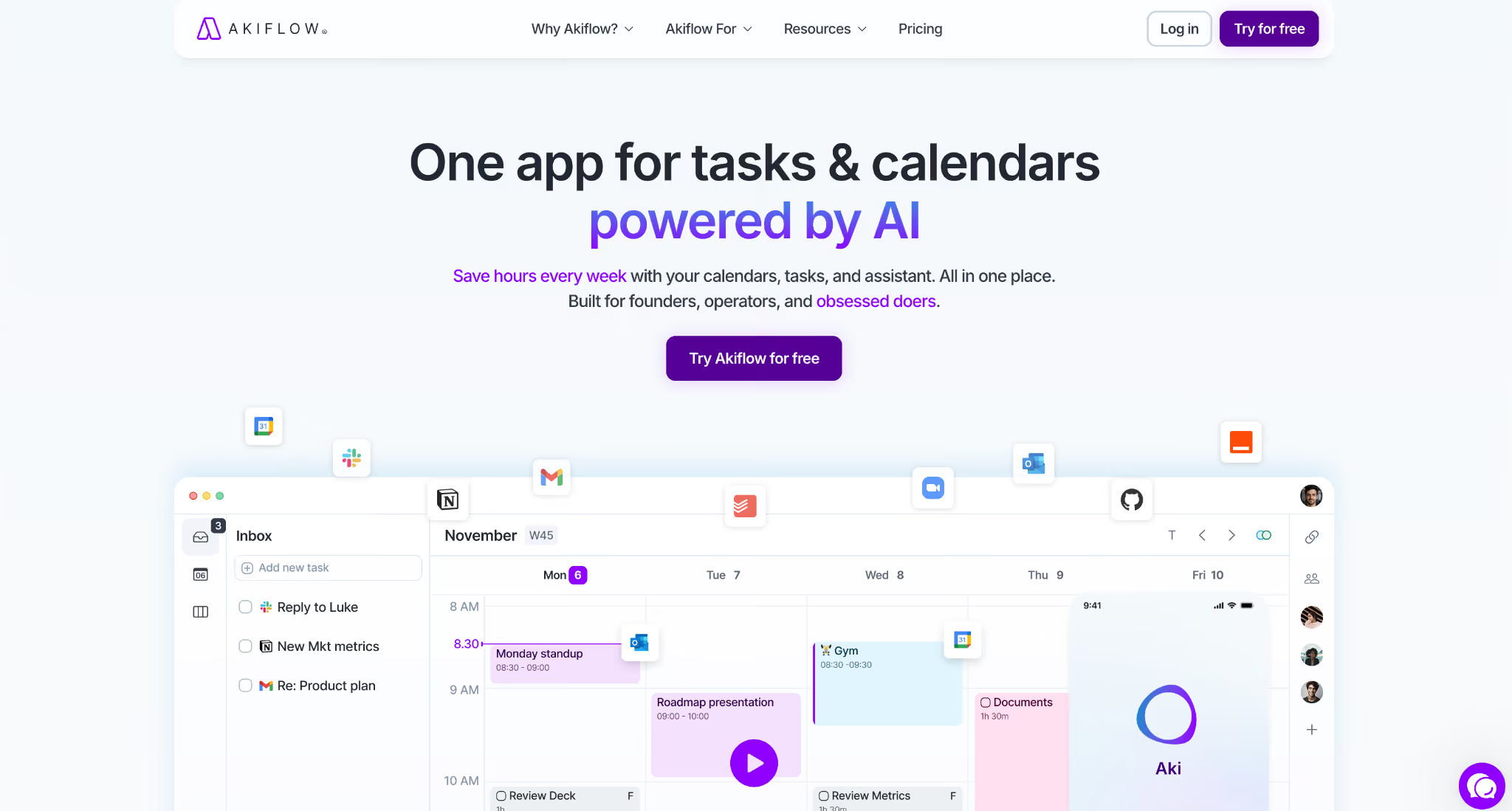
What it does: Akiflow collects tasks from your email, Slack, and task apps into a single inbox, then helps you time-block them onto one unified calendar.
Best for: Anyone overwhelmed by tasks scattered across many apps who wants them all in one place before scheduling.
Capture is where Akiflow stood out first, before the scheduling did. I turned emails into tasks in one click, saved Slack messages to deal with later, and added things by voice, all landing in one inbox instead of scattered across my apps.
From there, dragging a task onto the calendar took one click, and Akiflow's Smart Time Slots suggested open windows that fit around what was already booked.
Akiflow's AI is half-built. Aki handles capture and auto-scheduling well, and its Schedule Optimizer will replan a day that runs long, but the coach and the phone and text conversations are still marked as coming soon.
Key features
- Universal Inbox: Turn emails, Slack messages, and voice notes into tasks in one click from any device.
- Smart Time Slots: Suggests open windows and time-blocks tasks around your existing calendar.
- One unified calendar: Syncs work and personal events into a single view with two-way sync.
- Command bar and briefings: A Cmd+K bar for fast capture, plus daily briefings and reminders from Aki.
Pros and cons
Pros:
✅ Emails and Slack messages became tasks in one click, so I stopped hunting through apps for what I owed people.
✅ One-click time-blocking with suggested slots makes building a day quick.
✅ Two-way sync keeps the unified calendar in step with the tools underneath it.
Cons:
❌ Parts of the AI are still coming, so it isn't the full hands-off assistant the marketing points at.
❌ The capture-first workflow is more than someone who just wants a quick generated plan needs.
❌ There's no free plan, only a trial, so you commit to a subscription to keep using it.
What users say
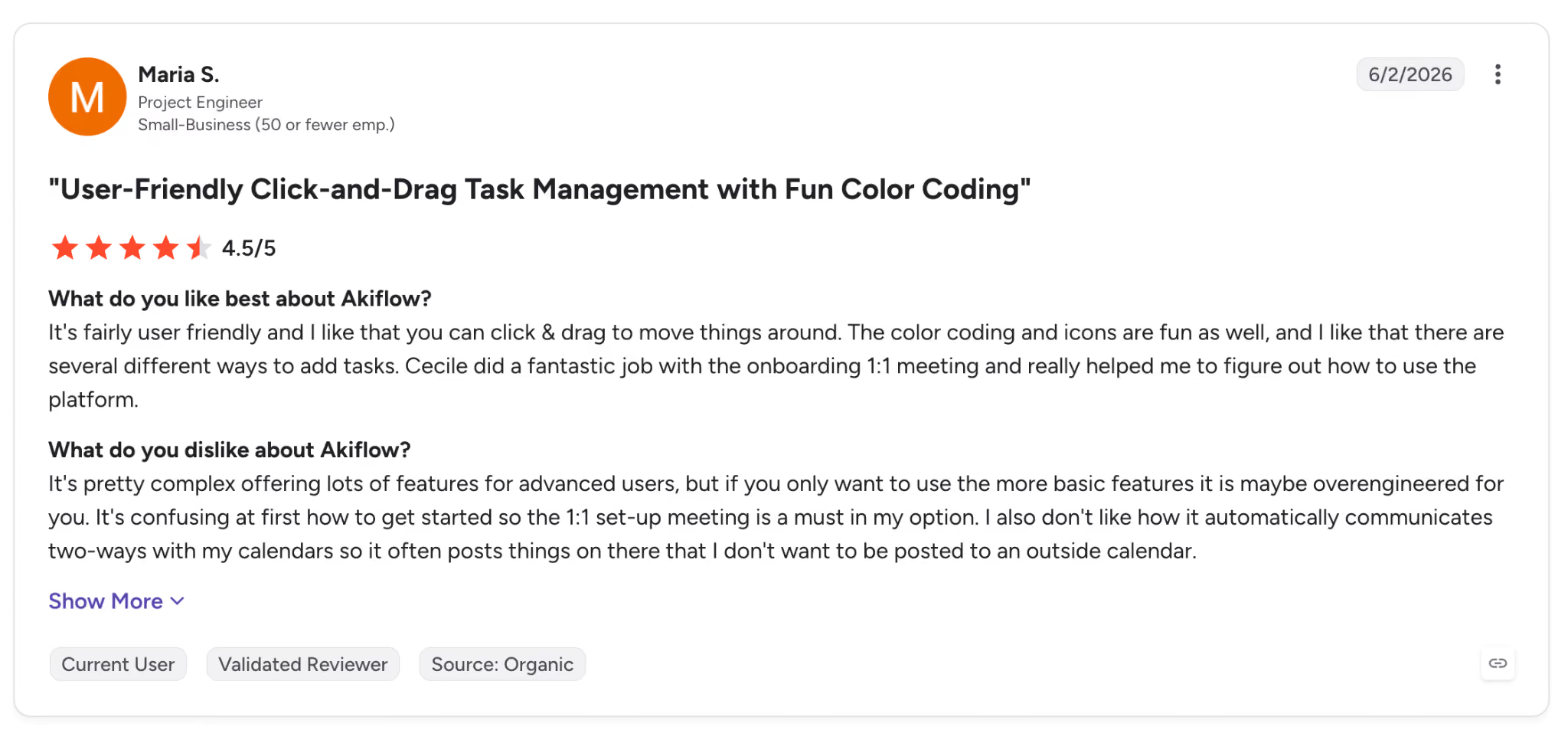
"The color coding and icons are fun as well, and I like that there are several different ways to add tasks." — Maria S., G2.
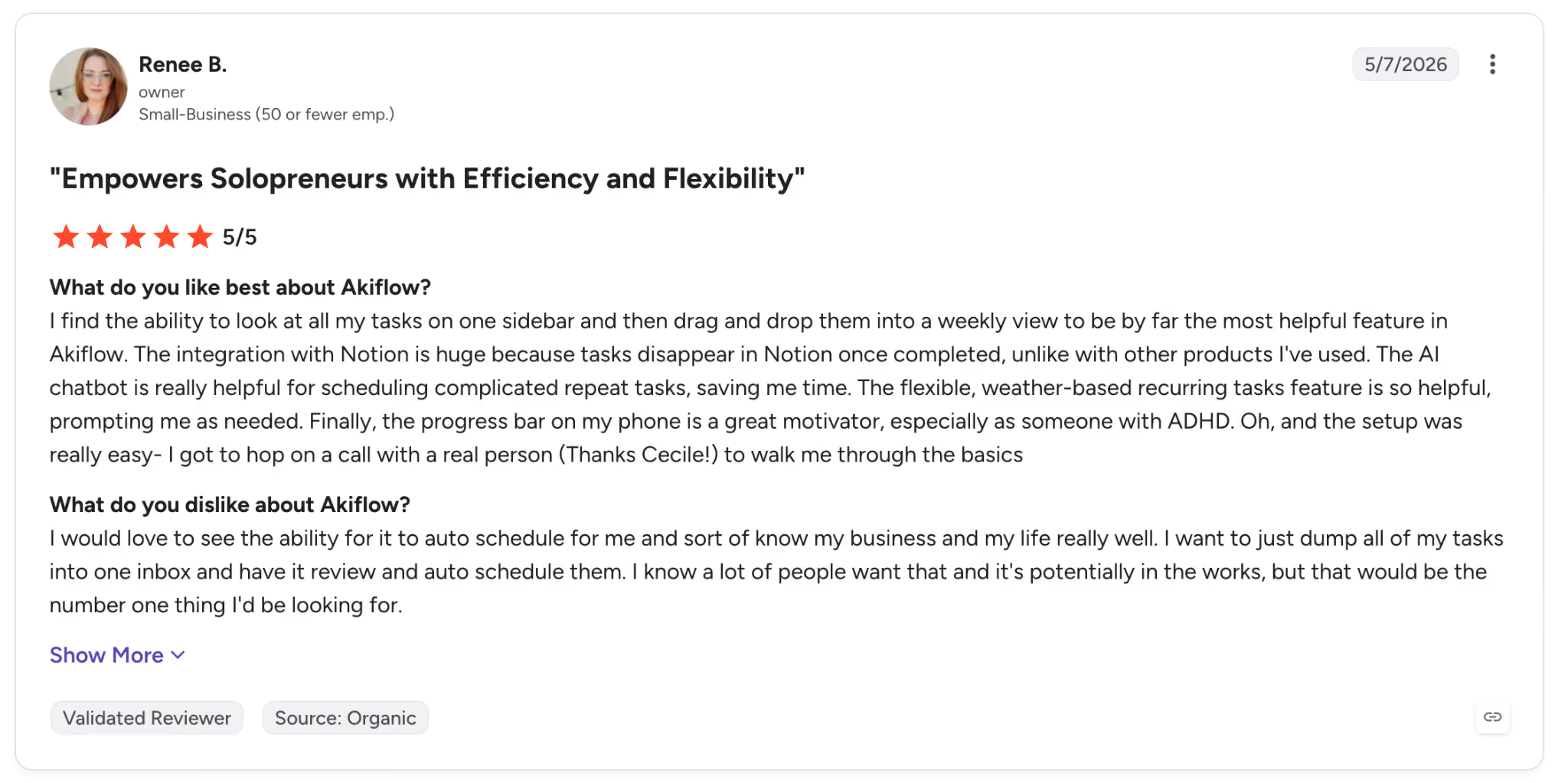
"I would love to see the ability for it to auto-schedule for me and sort of know my business and my life really well." — Renee B., G2.
Pricing
Akiflow runs $34/month on Pro Monthly, or $19/month on Pro Yearly with the current promo, after a 7-day free trial.
Bottom line
When tasks live across many places before they ever reach a calendar, Akiflow pulled them into one inbox from email and Slack in one click, which none of the daily-ritual tools here do.
6. SkedPal: Best for automatic time-blocking that reshuffles itself
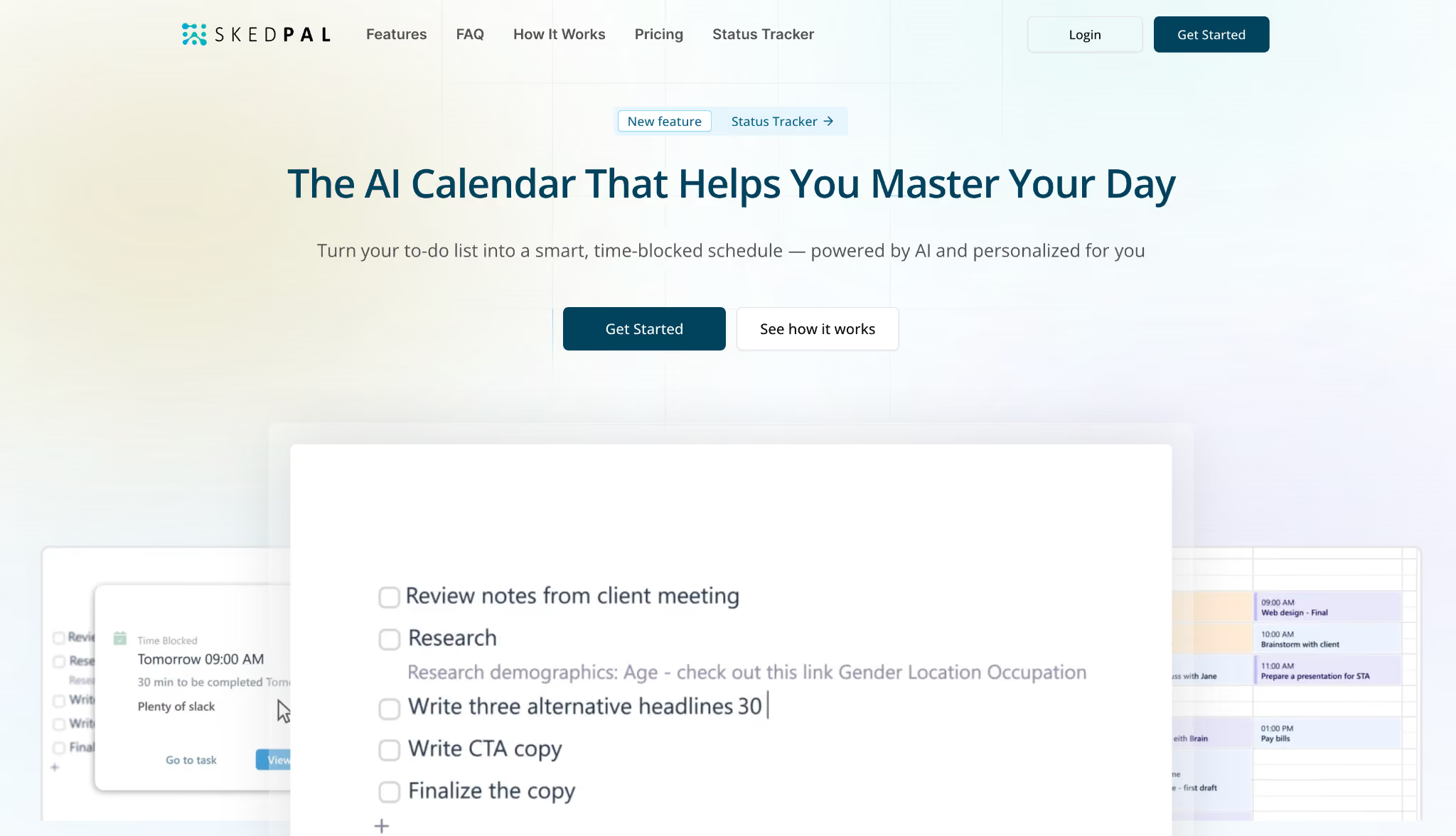
What it does: SkedPal takes your to-do list and priorities and automatically builds a time-blocked schedule, then re-plans it whenever something changes.
Best for: People on Pro who want hands-off time-blocking that runs without constantly managing the calendar.
SkedPal automates more of the scheduling than the daily-ritual tools like Sunsama. I entered tasks with priorities and rough durations, and its scheduler laid them into open time across the week on its own, respecting the constraints I set.
Marking one task done early and pushing another back, I watched the schedule re-plan the rest of the day without me asking.
SkedPal's automation is powerful, but it demands upfront setup. Before the AI schedules well, you have to define your time maps and priorities carefully, so the first week is mostly setup before you see the benefit. Skip that groundwork and the plans it builds feel off.
Key features
- AI auto-scheduler: Converts a to-do list into time-blocked calendar entries based on your goals, priorities, and constraints.
- Time maps: Set your preferred times for each category of work, so tasks only land in the right kind of time.
- Immediate re-planning (Pro): Reschedules automatically after each change to keep today's plan current.
- Two-way calendar sync: Syncs with Google, Office 365, or iCloud and avoids double-booking, with one calendar on Core.
Pros and cons
Pros:
✅ Builds and rebuilds a time-blocked week on its own, with less hand-holding than the daily-ritual tools.
✅ It laid my whole task list into open time across the week and kept the deep work out of my admin hours.
✅ On Pro, marking one task done early pushed the rest of the day into place without a prompt.
Cons:
❌ The upfront setup of time maps and priorities takes serious effort before it pays off.
❌ There's no free tier, only a 14-day trial, so you're paying to keep it.
What users say
"I've been using it for two years now, and it has helped me tremendously. The Slack community is very active, and the owner, Saied, will answer (or at least acknowledge) all questions and requests." — Andre M., Capterra.
"The UI feels clumsy and is overloaded with features that are not yet fully implemented." — Harald B., Capterra.
Pricing
SkedPal starts at $14.95/month on Core, with Pro at $21.95/month. Yearly billing takes a third off, after a 14-day trial.
Bottom line
SkedPal does more of the work than daily-ritual tools once you've dialed in the setup. Skip that setup time and its plans won't reflect how you really work.
7. Trevor AI: Best free AI time-blocking assistant for one person
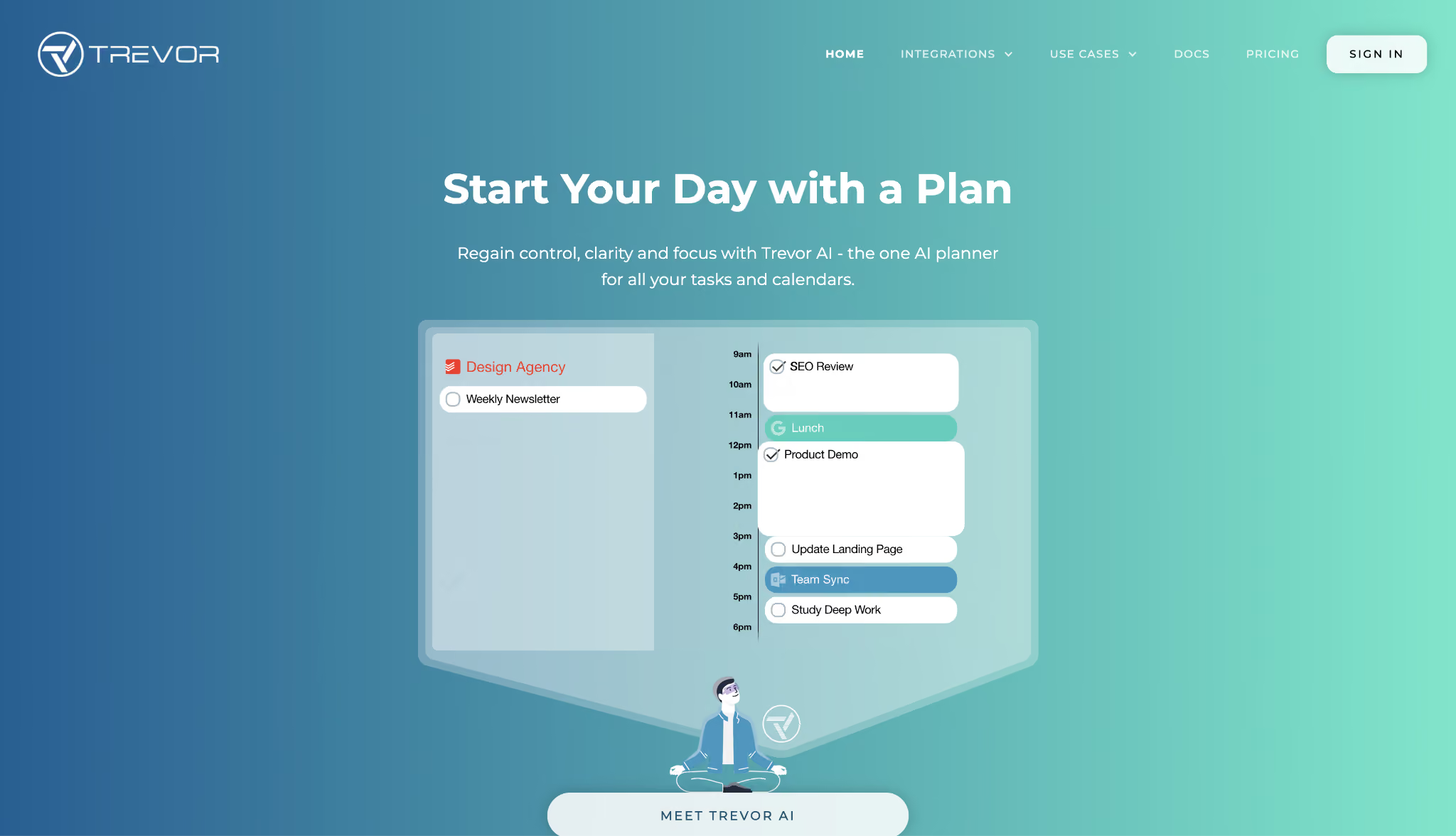
What it does: Trevor AI syncs with your calendar and task list and helps you drag tasks into time-blocked slots, with AI suggesting when each one should go.
Best for: Individuals who want AI-assisted time-blocking without paying, and without a heavy platform around it.
Trevor keeps everything on one clean two-panel screen, tasks on one side and the calendar on the other. I connected Google Calendar and Todoist, and dragging a task onto the day was immediate.
It predicted how long each task would take and suggested a slot, which I accepted with one click instead of guessing.
Its limit is what you'd expect from a focused free tool. Trevor plans one person's day well, and its team scheduling is thin: you can share a task list and see a teammate's schedule, but there are no progress reports for collaborators, and its connector list is short next to the paid tools.
It solves the solo problem and stops there, and that's exactly why the free tier is enough for one person.
Key features
- Drag-and-drop time-blocking: Move tasks straight onto the calendar with live two-way sync.
- AI scheduling suggestions: Trevor proposes an optimal slot for each task, accepted in one click.
- Predicted task duration: The AI auto-assigns a likely length to each task, which you can overwrite.
- Focus Mode and daily emails: A distraction-free timer on the free plan, plus "Start My Day" coaching emails on Pro.
Pros and cons
Pros:
✅ The free plan includes AI scheduling suggestions and duration estimates, not a stripped demo.
✅ It suggested a slot for every task, which I accepted with one click instead of guessing.
✅ Syncs two-way with Google, Microsoft, and Todoist, so tasks and calendar stay aligned.
Cons:
❌ Team scheduling is basic, with no progress reports or analytics for the people you share with.
❌ The integration list is shorter than the paid tools, so some stacks won't connect.
What users say

"Very cool look and I like the interaction of sliding your tasks onto your calendar." — Chris Oslund, Producthunt.

"I've been trying to add tasks through Trevor, but none of them are getting saved." — Jon Wood, Product Hunt.
Pricing
Trevor AI has a free plan, with Pro at $6/month paid monthly.
Bottom line
Trevor is the simplest to recommend for a solo user who wants AI to suggest time-blocking on a free plan that delivers it. A team or anyone needing shared scheduling will hit its limits quickly.
8. Vimcal: Best for scheduling at speed with a keyboard
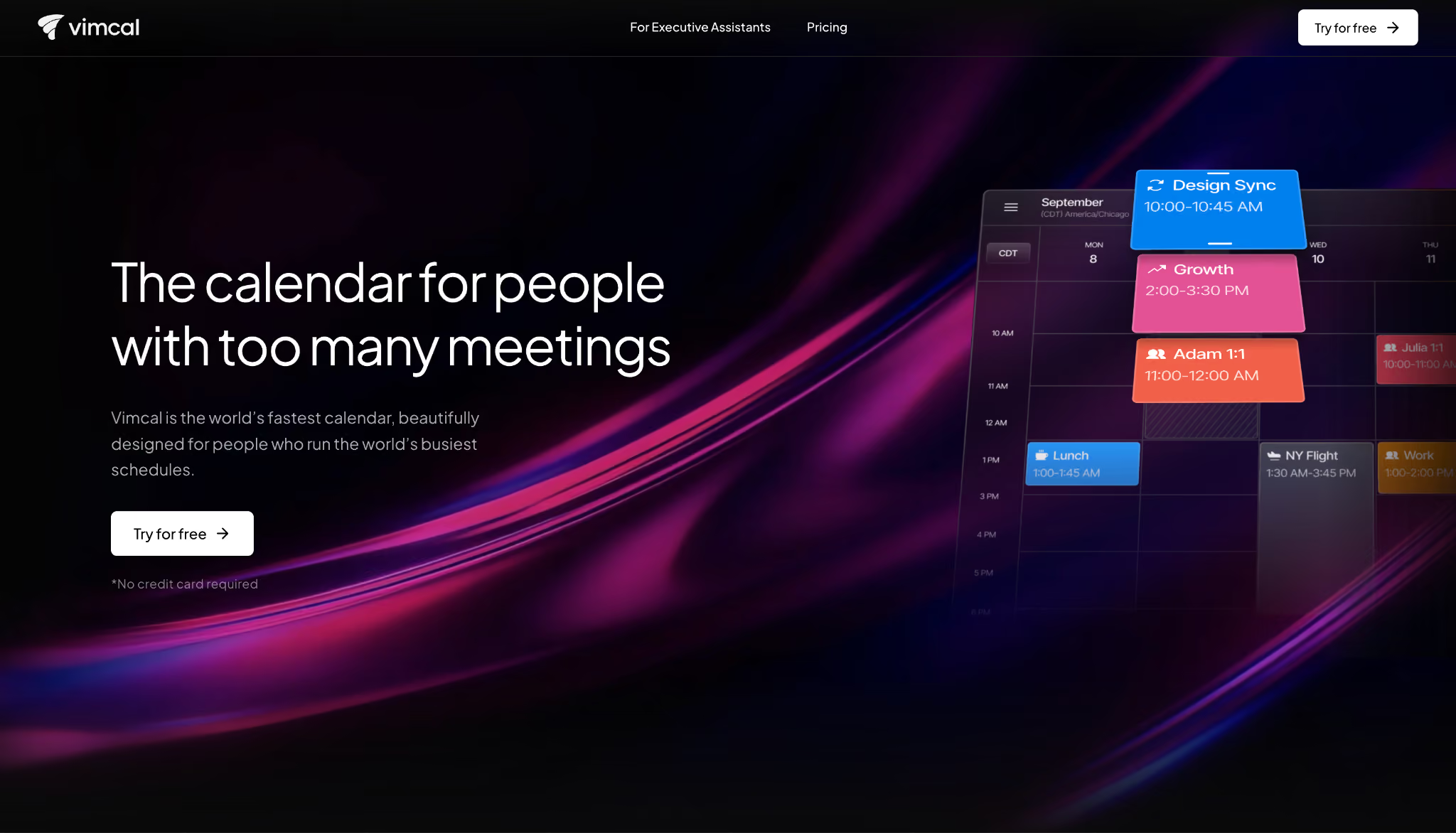
What it does: Vimcal is a fast calendar designed around keyboard shortcuts and quick availability sharing, with an AI layer that schedules from plain text.
Best for: People who work in their calendar all day and want every action to happen in a keystroke.
Actions in Vimcal responded with no lag, and instead of pasting a booking link, I dragged across open times to share availability in a couple of seconds.
Typing a plain sentence like "lunch with Sam Thursday at noon" scheduled the event without a form, and its time-zone view saved me the mental math on a call spanning three time zones.
All that speed points at one kind of user. Vimcal is made for one person working fast through their own calendar, not for AI that builds your whole day from a backlog, so it won't do the automatic planning Motion or SkedPal do.
You give up planning depth and get raw speed in return, and for the right person, the tradeoff works.
Key features
- Keyboard-first speed: Sub-100ms response and shortcuts for nearly every action in the calendar.
- Drag-to-share availability: Share open times by dragging across the calendar instead of sending a link.
- Vimcal AI: Type a meeting in plain language, and it's scheduled, no form required.
- Time Travel: See overlapping work hours across regions to book across zones without the math.
Pros and cons
Pros:
✅ The fastest keyboard-driven scheduling in this set, by a wide margin over the others I tested.
✅ I shared my open times by dragging across the calendar in a couple of seconds, with no booking link to paste.
✅ Time-zone overlap view makes cross-region scheduling painless.
Cons:
❌ It's a fast calendar for working the day you already have, so it won't build one from a task list.
❌ The full experience needs the paid desktop plan; the free tier is iOS-only.
❌ The power-user focus means a learning curve before the speed pays off.
What users say
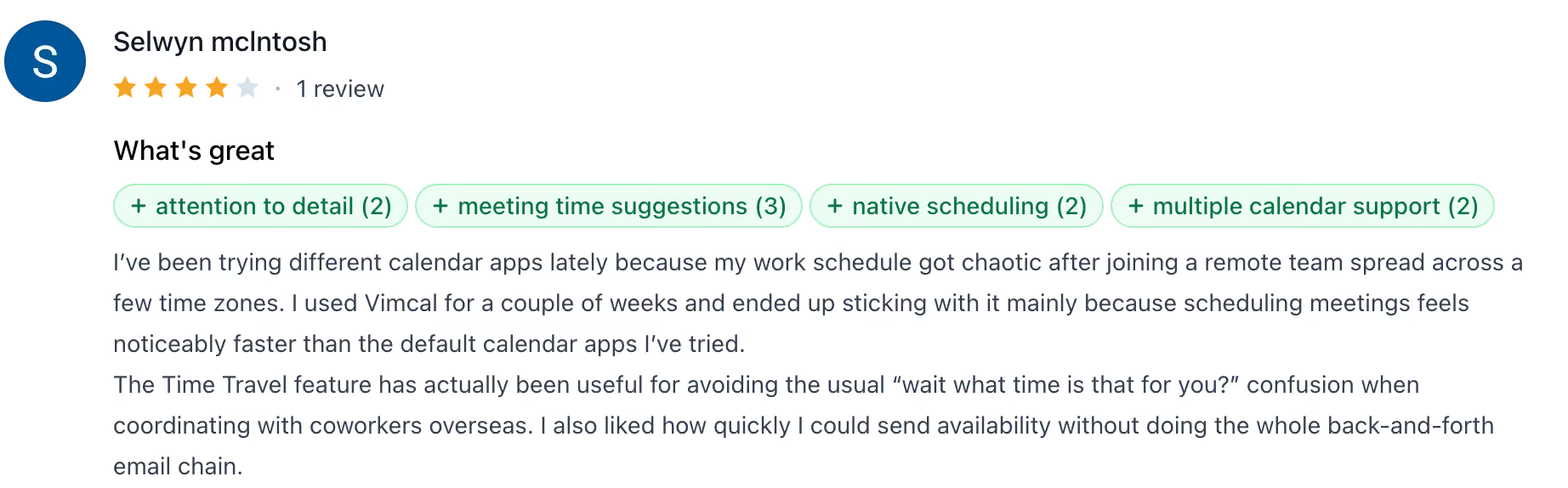
"I used Vimcal for a couple of weeks and ended up sticking with it mainly because scheduling meetings feels noticeably faster than the default calendar apps I've tried." — Selwyn McIntosh, Producthunt.
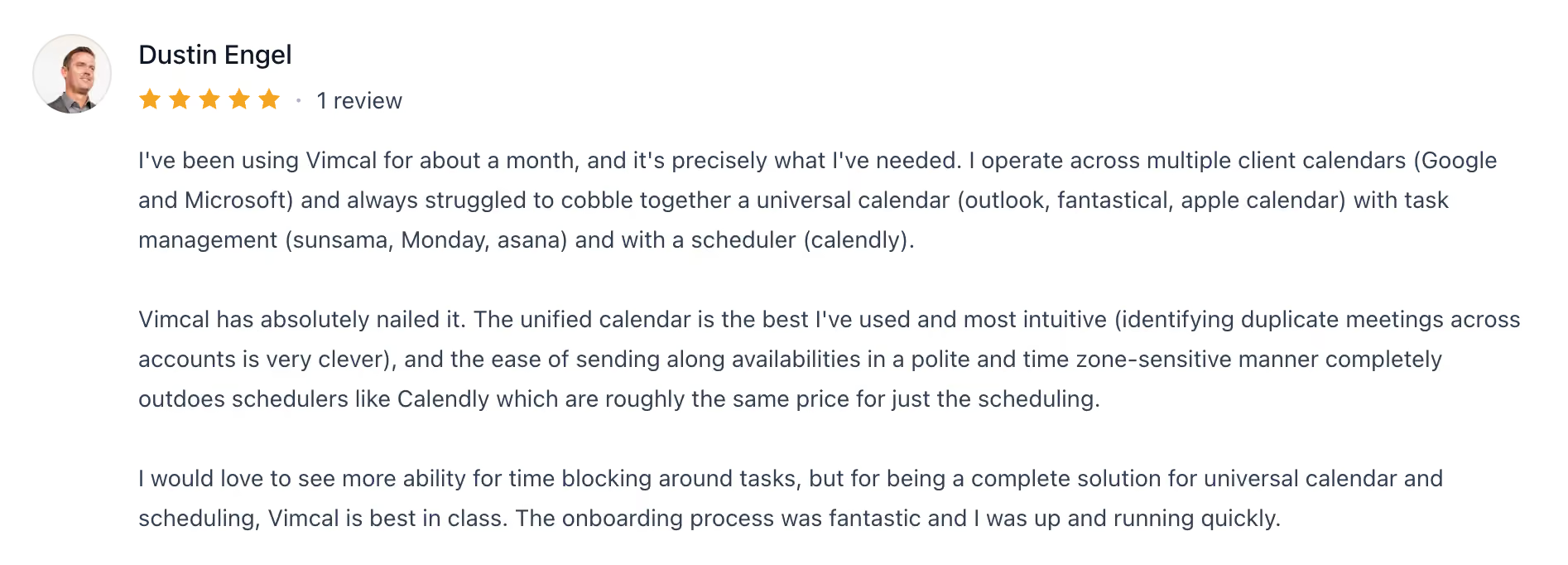
"I would love to see more ability for time blocking around tasks." — Dustin Engel, Producthunt.
Pricing
Vimcal is $35/month billed monthly, or $25/month billed annually, with an iOS-only free tier.
Bottom line
Run your day from the calendar and value speed over automation, and no tool in this set was faster than Vimcal. Want AI to generate the plan for you instead of building it by hand? Look at the auto-schedulers above.
9. Calendly: Best for generating meeting times with people outside your team
What it does: Calendly shares your live availability as a booking link, so people outside your team pick an open slot and the meeting lands on both calendars automatically.
Best for: Anyone who books a lot of meetings with clients, candidates, or partners and wants to end the back-and-forth of finding a time.
Calendly hands out meeting times from your live availability, a different job from the planners here. A link to my working hours was all it took; the other person booked a slot without seeing my full calendar, with a video link already attached to the event.
For finding a mutual time, it also runs meeting polls that surface the time that works for the most people.
Team routing is what takes it beyond a personal booking page. A request can rotate round-robin across a group or route to whoever qualifies, which is how sales and recruiting teams assign meetings in practice.
It won't build your internal day, so treat it as the layer for outside bookings. Leave planning your own work to another tool.
Key features
- Availability booking links: Share a link to your live calendar so invitees book only open slots.
- Round-robin and routing: Spread bookings across a team by availability or route them by form answers.
- Meeting polls: Propose several times and let a group vote for the time that works for the most people.
- Reminders and integrations: Automated reminders and follow-ups, plus 100-plus integrations and a browser extension.
Pros and cons
Pros:
✅ Lets anyone outside your team self-book an open slot with no email thread.
✅ Round-robin and routing match how sales and recruiting teams assign meetings in practice.
✅ Checks all your connected calendars at once, so it avoids double-booking you.
Cons:
❌ It shares your open times for others to book, so it sits alongside a planner instead of replacing one.
❌ The routing and integrations carry a learning curve before a team runs them smoothly.
❌ The free plan covers one event type, so a second meeting type means paying.
What users say
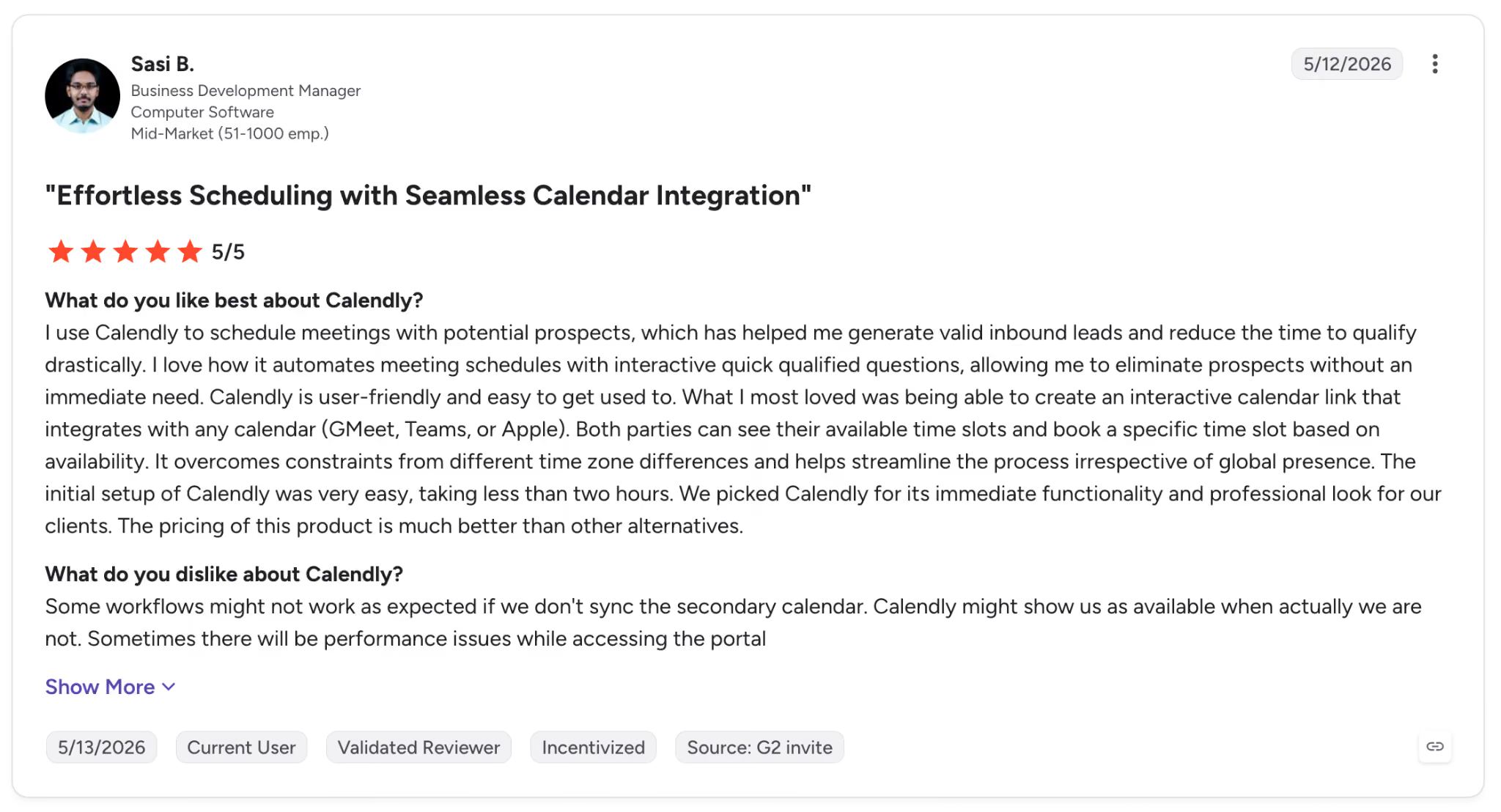
"I use Calendly to schedule meetings with potential prospects, which has helped me generate valid inbound leads and reduce the time to qualify drastically." — Sasi B., G2.
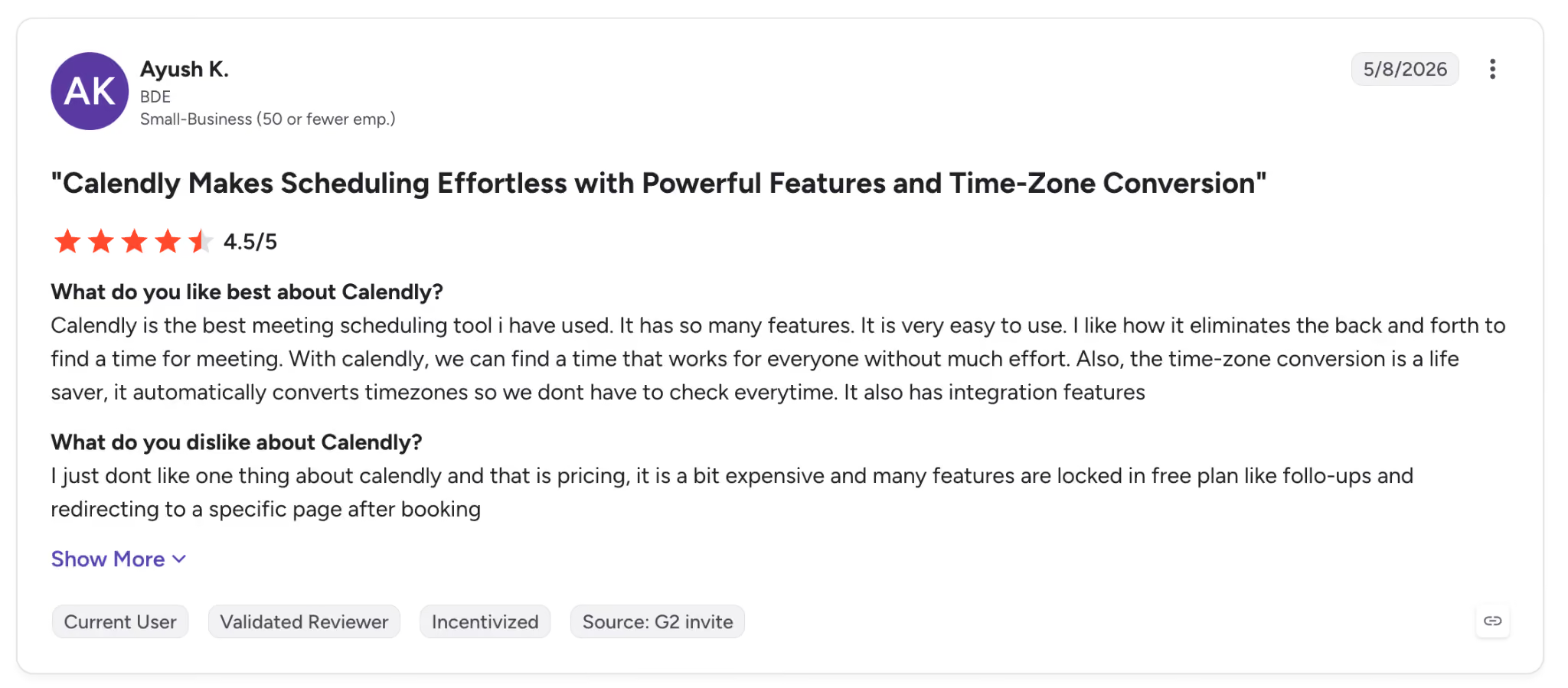
"I just don't like one thing about Calendly, and that is pricing; it is a bit expensive, and many features are locked in the free plan, like follow-ups and redirecting to a specific page after booking." — Ayush K., G2.
Pricing
Calendly has a free plan for one event type, with Standard at $12/seat/month, Teams at $20/seat/month, and Enterprise from $15k/year on a 30-seat minimum.
Bottom line
When the scheduling that hurts is booking with outsiders more than planning your own week, Calendly targets exactly that. Treat it as the layer next to your schedule builder, one that works with your planner rather than in place of it.
10. Cal.com: Best free scheduler for developers who want unlimited event types
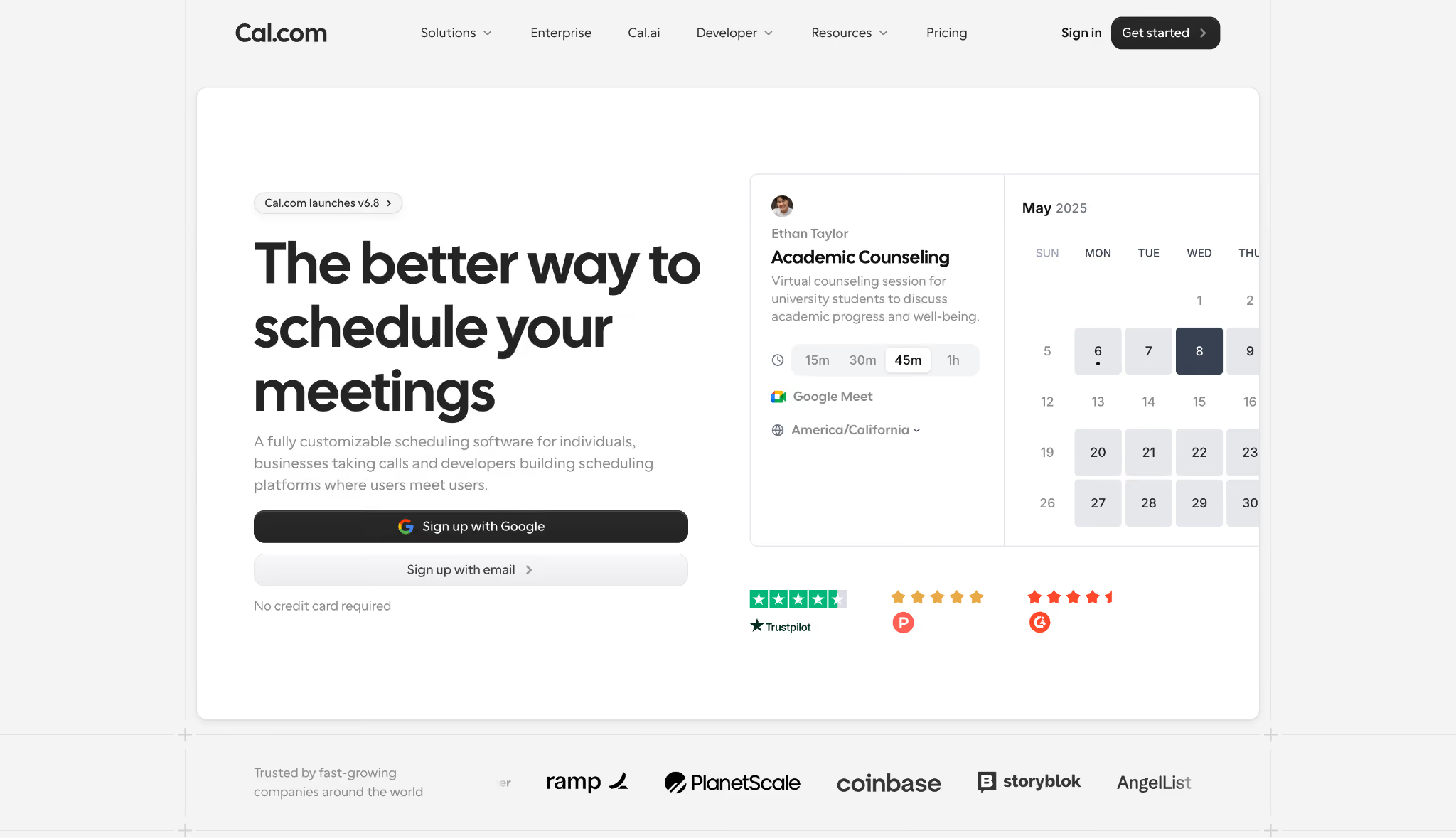
What it does: Cal.com is a scheduling platform you can run in the cloud or host yourself, with unlimited event types and an AI phone agent for booking by call.
Best for: Developers and small teams who want unlimited event types on the free plan, with open code they can read and extend.
Cal.com gives you the booking engine and full control. On the free Individuals plan, unlimited event types and connected calendars gave me a working booking page in minutes, and the code sits on GitHub for anyone who wants to self-host or customize it.
For teams, round-robin and collective events distribute meetings across people the way Calendly's paid tiers do.
The cloud version is as easy as any booking tool, but the self-hosting and deeper customization that make Cal.com appealing assume some technical comfort, so its best features ask more of you than a ready-to-use page does.
Key features
- Unlimited event types: Create as many booking types and connect as many calendars as you want, free.
- Round-robin and collective events: Distribute meetings across a team or book several hosts at once.
- Cal.ai phone agent: An AI agent that schedules and manages bookings over a phone call, billed at $0.29 a minute with no credits included on the free plan.
- Open code and 100-plus integrations: Read and extend the source, and connect Slack, Salesforce, and more on the hosted plans.
Pros and cons
Pros:
✅ I had a working booking page live in minutes on the free plan.
✅ The code is public, so you can see exactly how the scheduler works before you commit to it.
✅ Team routing costs less here than on Calendly, where the same round-robin sits on a pricier seat.
Cons:
❌ Self-hosting and deeper customization assume technical comfort that many tools don't require.
❌ It hands out booking times for others to grab, so time-blocking your own tasks is outside what it does.
❌ Some team and enterprise routing features sit behind the paid tiers.
What users say
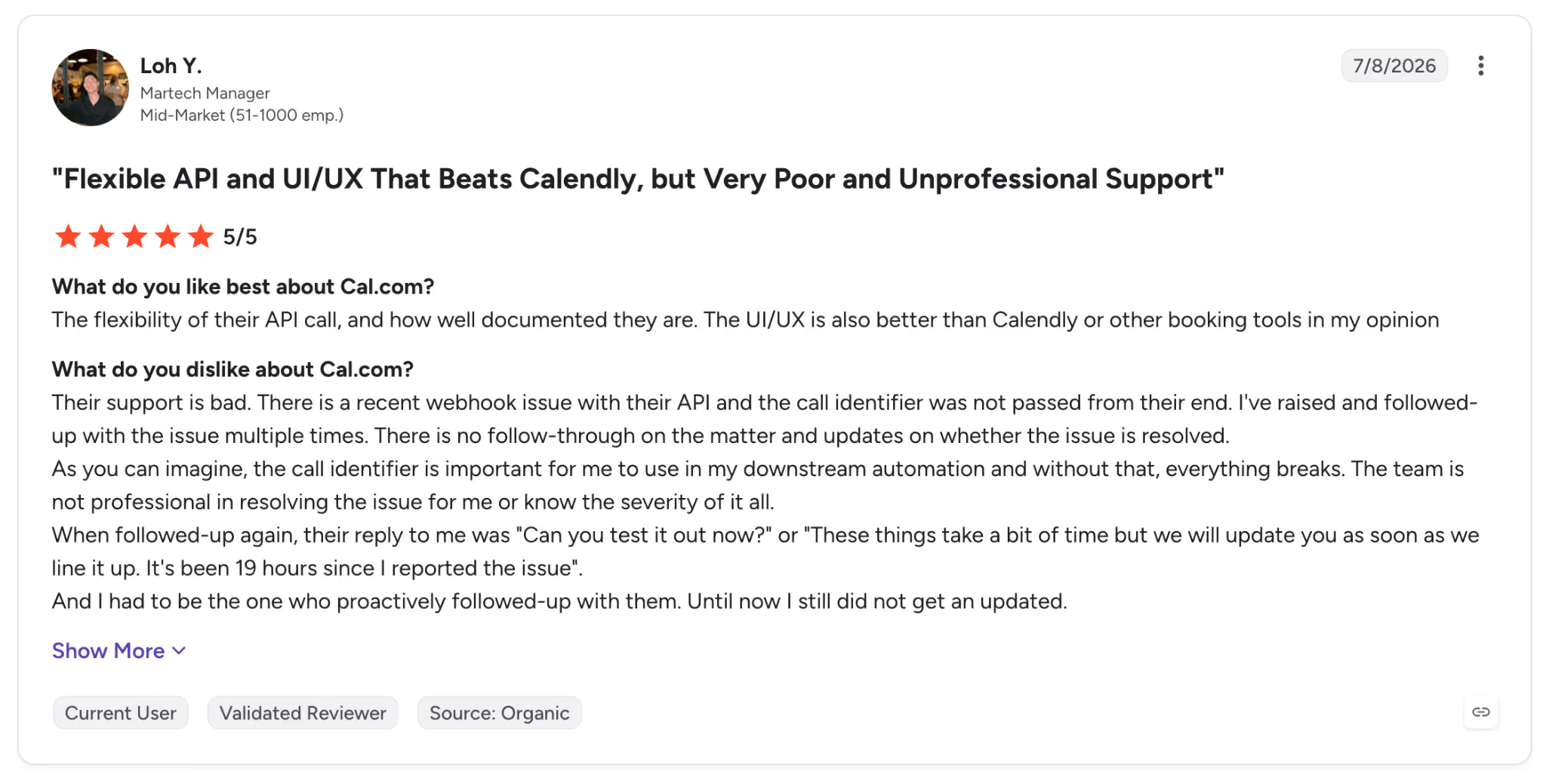
"The flexibility of their API call, and how well documented they are. The UI/UX is also better than Calendly or other booking tools in my opinion." — Loh Y., G2.
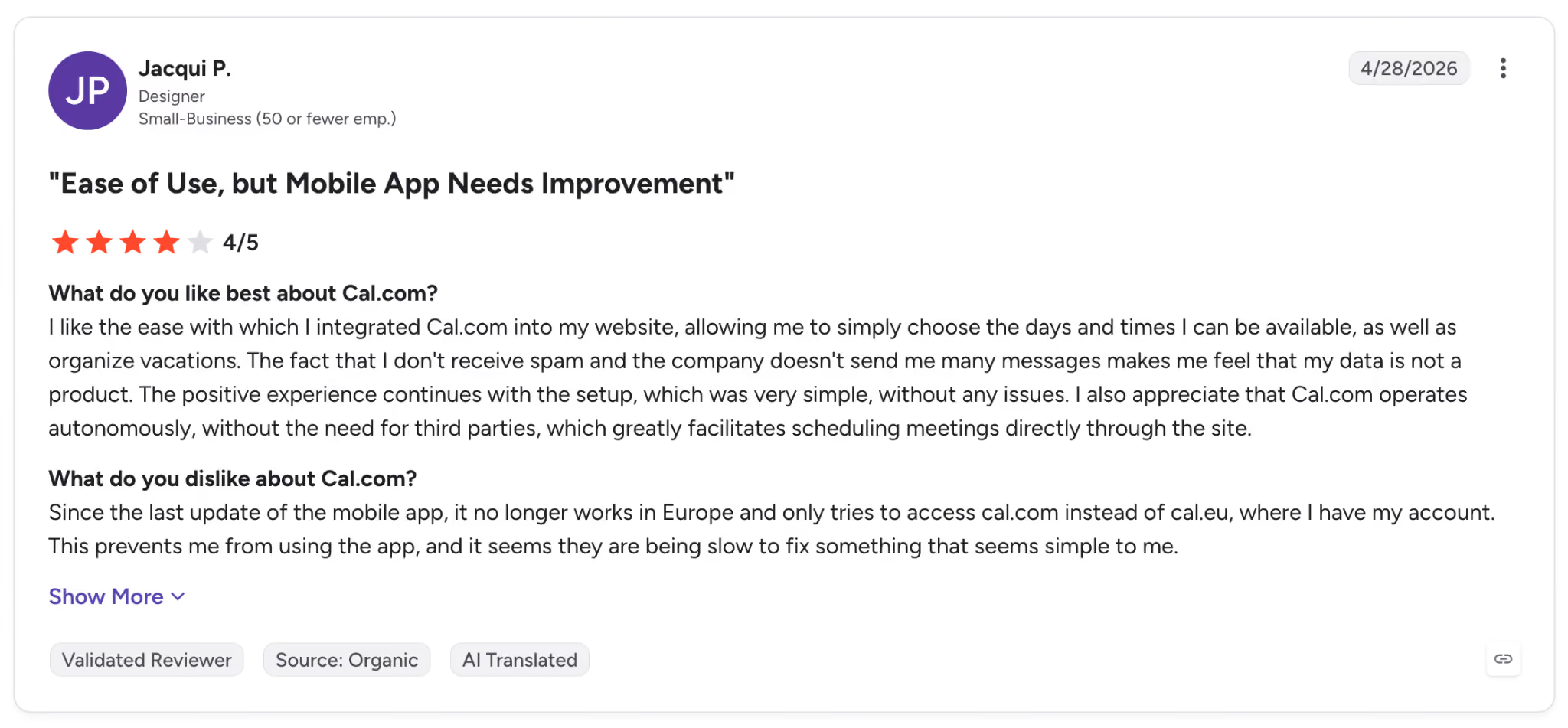
"Since the last update of the mobile app, it no longer works in Europe and only tries to access cal.com instead of cal.eu, where I have my account." — Jacqui P., G2.
Pricing
Cal.com's Teams tier runs $16/user/month, billed monthly, or $12/user/month, billed yearly, with Organizations at $37/user/month billed monthly, or $28/user/month yearly. Individuals are free.
Bottom line
A team that wants a booking tool it can read and extend gets unlimited event types and calendars free in Cal.com, where Calendly's free plan stops at one event type. If you want a plan of your day instead of a booking page, the auto-schedulers do that, and this doesn't.
11. Morgen: Best schedule builder across almost any calendar you own
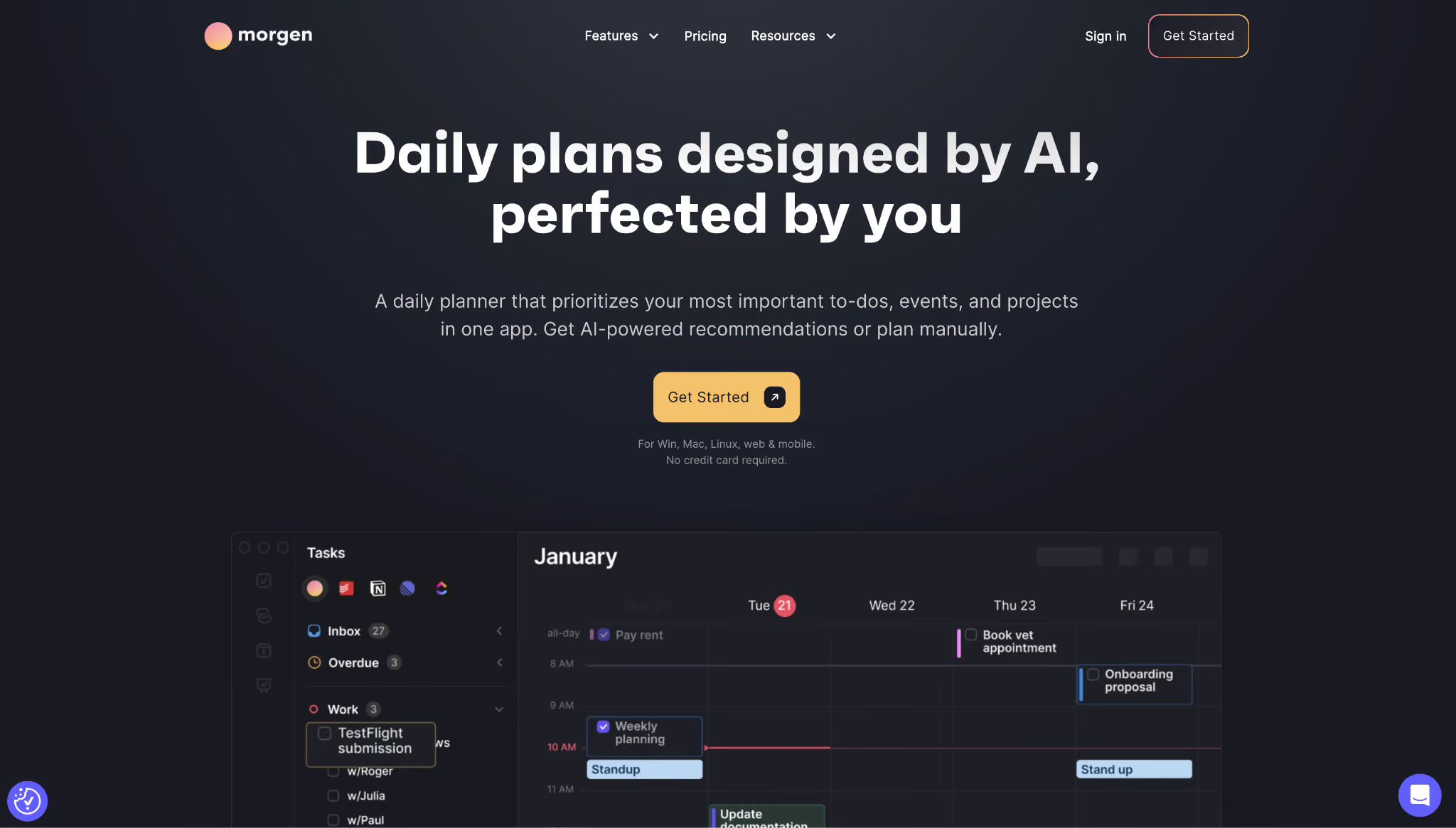
What it does: Morgen pulls all your calendars into one view and uses an AI Planner to time-block tasks and reprioritize when conflicts come up.
Best for: Anyone juggling several calendars across Google, Outlook, Apple, and Fastmail who wants one place to plan.
Morgen impressed me first with the multi-calendar problem. It pulled my Google, Outlook, and Apple calendars into a single view and let me group them into "Calendar Sets" I could toggle, so all my calendars finally read as a single week.
From there, its AI Planner time-blocked tasks from Notion and Todoist onto open slots and flagged when I'd overcommitted a day.
Morgen runs on a 14-day trial and then a subscription, with the AI Planner and calendar automations on the paid tier. You get full access while the trial lasts, so you can test the planning before you commit to it.
Knowing the AI sits behind the paywall is the piece to weigh before you judge the free version.
Key features
- Multi-calendar unification: Bring Google, Outlook, Apple, and Fastmail calendars into one view with Calendar Sets.
- AI Planner: Time-blocks tasks and reprioritizes your plan when conflicts or deadline risks appear.
- Booking links and automations: Custom booking pages plus automatic travel and buffer time around meetings.
- Cross-platform apps: Runs on Windows, Mac, Linux, web, and mobile, with a free schedule builder tool.
Pros and cons
Pros:
✅ Grouping my accounts into Calendar Sets let me toggle work and personal on and off without losing either from the week.
✅ It read my Google, Outlook, and Apple calendars as one week from the first day.
✅ Auto travel and buffer time keep back-to-back days realistic without manual padding.
Cons:
❌ There's no free plan, only a 14-day trial, so keeping it means paying.
❌ Task scheduling connects to a set list of tools directly, and anything outside it has to come through Zapier
❌ Paying month to month costs double the yearly rate.
What users say
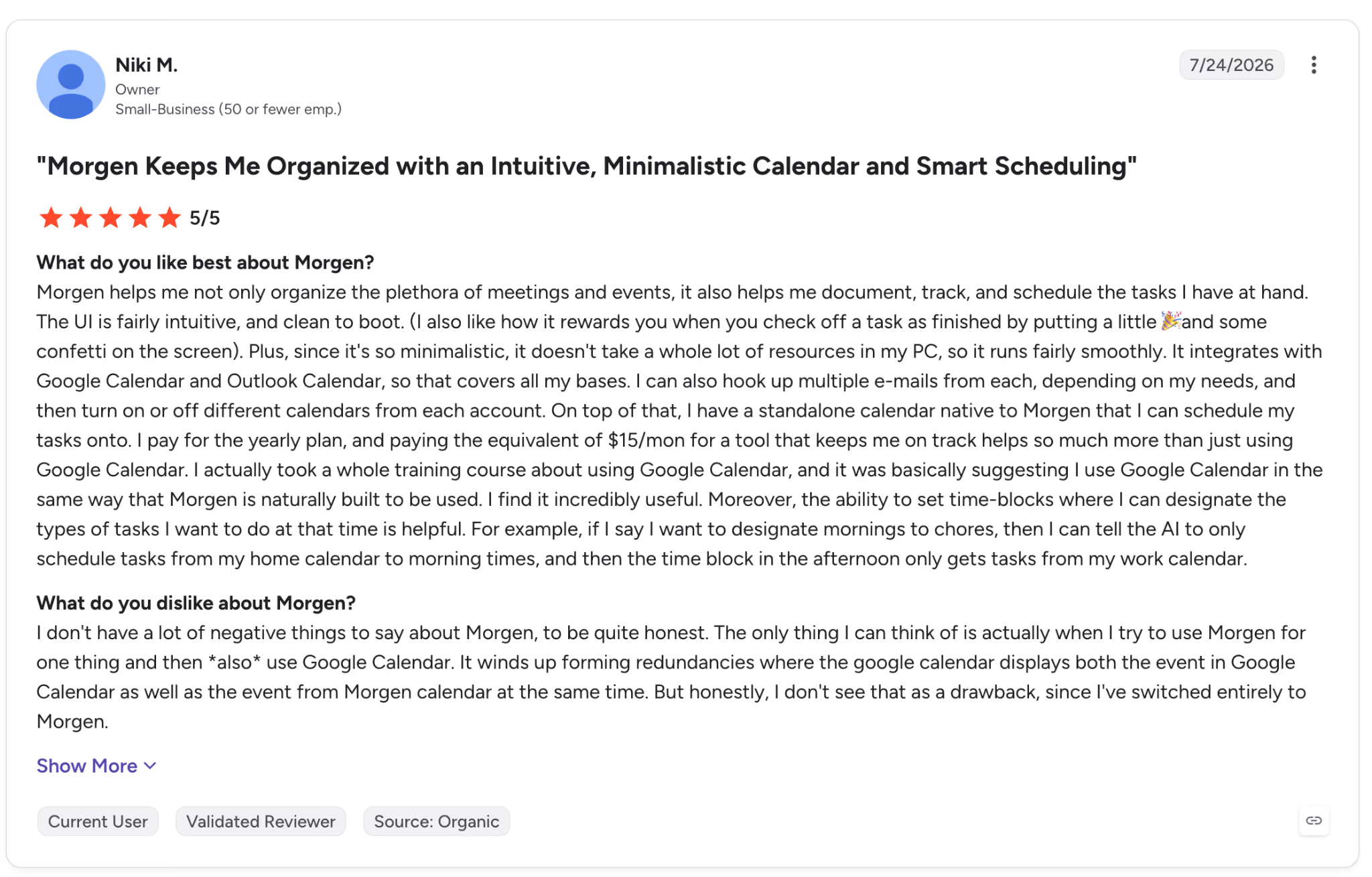
"Morgen helps me not only organize the plethora of meetings and events, but it also helps me document, track, and schedule the tasks I have at hand." — Niki M., G2.
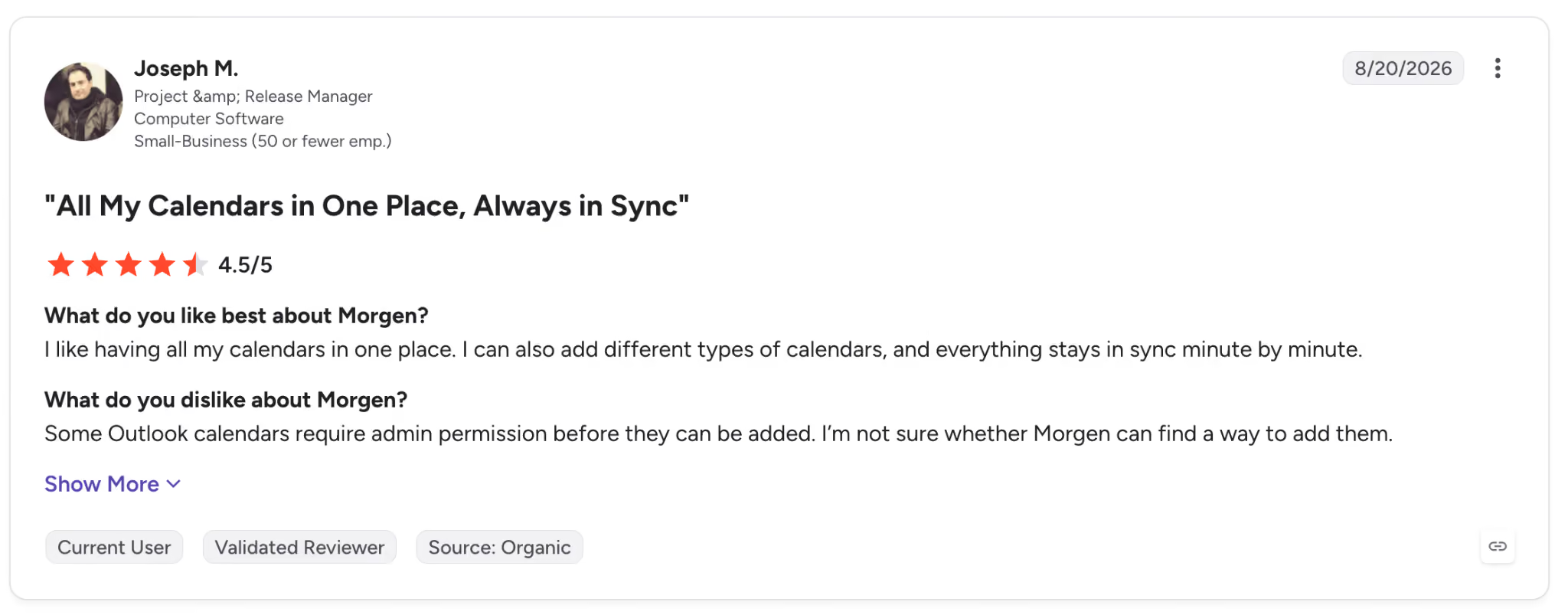
"Some Outlook calendars require admin permission to be added. I'm not sure whether Morgen can add them." — Joseph M., G2.
Pricing
Morgen is $30/month billed monthly, or $15/month billed yearly, after a free trial.
Bottom line
Got calendars scattered across providers? Morgen read my Google, Outlook, and Apple accounts for one week and plans on top of them, which no other tool here did.
12. Taskade: Best free prompt-to-schedule generator you can edit as a project
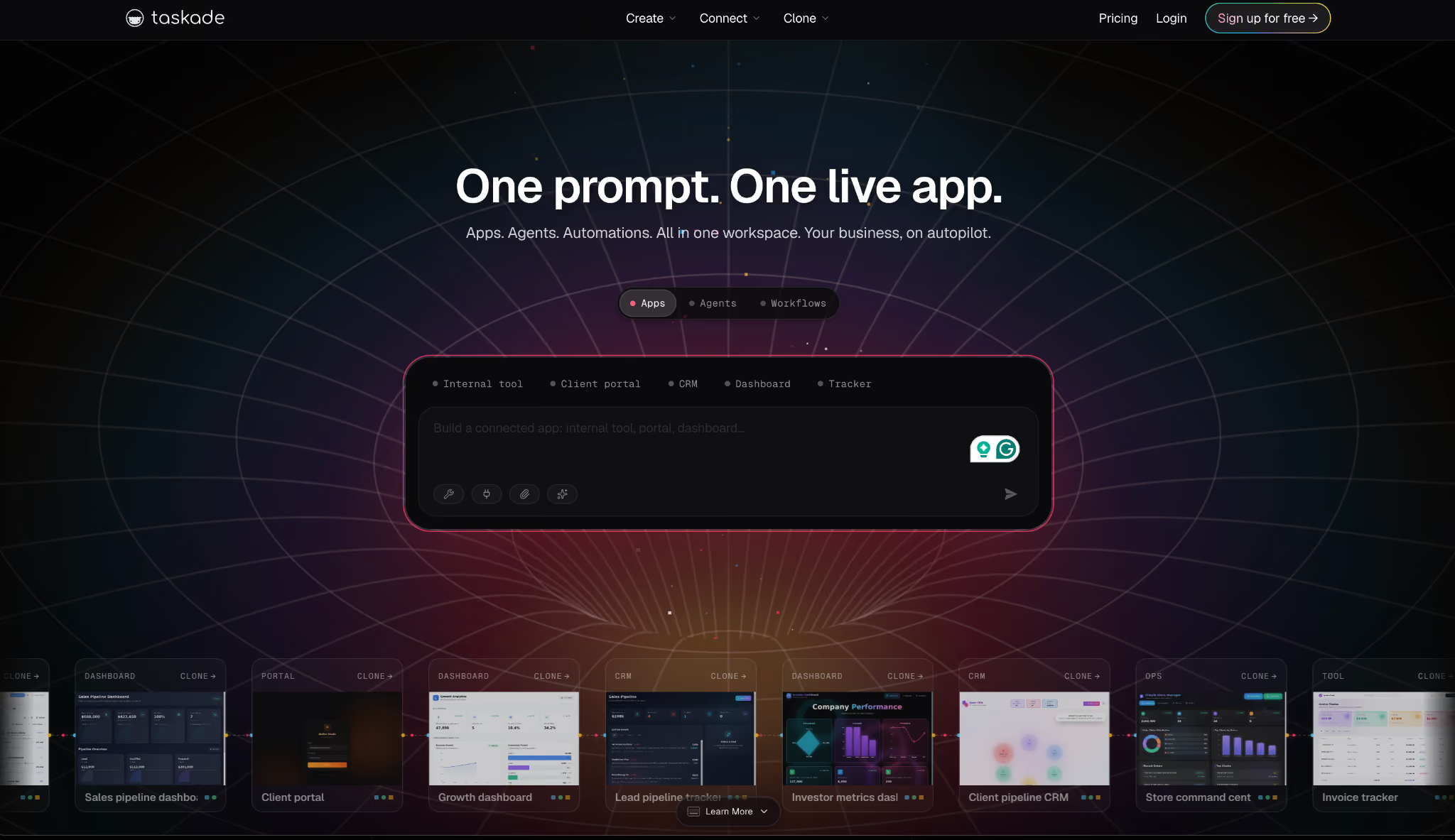
What it does: Taskade turns a plain-language prompt into a live, editable schedule that opens across several project views, not a static file.
Best for: Teams and individuals who want to generate a schedule from a prompt and then keep working in it.
This tool comes closest to the literal "type a prompt, get a schedule" idea, and it does more than that. I typed "plan my work week around three deadlines," and Taskade generated a schedule that opened as a live project I could see in List, Board, Calendar, or Table view.
Each item was a working task with an owner, a due date, and a reminder, so I dragged blocks in the calendar view and the whole thing updated for everyone in the workspace.
Taskade's scope is what pulls it out of a plain scheduler. It's a full workspace with AI agents and automations, so a schedule is one job inside a much bigger tool, and all those extra agents and views are more than someone who just wants a clean daily plan needs.
The generation is free to start, which few tools here can say, though the free AI credits are a one-time grant rather than a monthly allowance.
Key features
- Prompt-to-schedule: Describe your scheduling need and Taskade generates an editable schedule in seconds.
- Multiple project views: See the same schedule as a List, Board, Calendar, Table, or Mind Map for free, with Gantt and Org Chart on the paid tiers.
- Live collaboration: The schedule lives in a shared workspace where every edit updates live, with role-based access.
- AI agents and automations: Reminders and automations notify each person before a task, with 100-plus integrations on Pro.
Pros and cons
Pros:
✅ Generates a working, editable schedule from a prompt on the free plan, not a locked preview.
✅ I dragged a block in the calendar view, and the change reached everyone in the workspace at once.
✅ Every block is a live task with an owner and reminder, so the plan stays actionable.
Cons:
❌ It's a full workspace, so a simple schedule is one small piece of a much larger tool.
❌ The many views and agents add a learning curve past the initial generation.
❌ Heavier AI and team features move you up to the paid tiers.
What users say
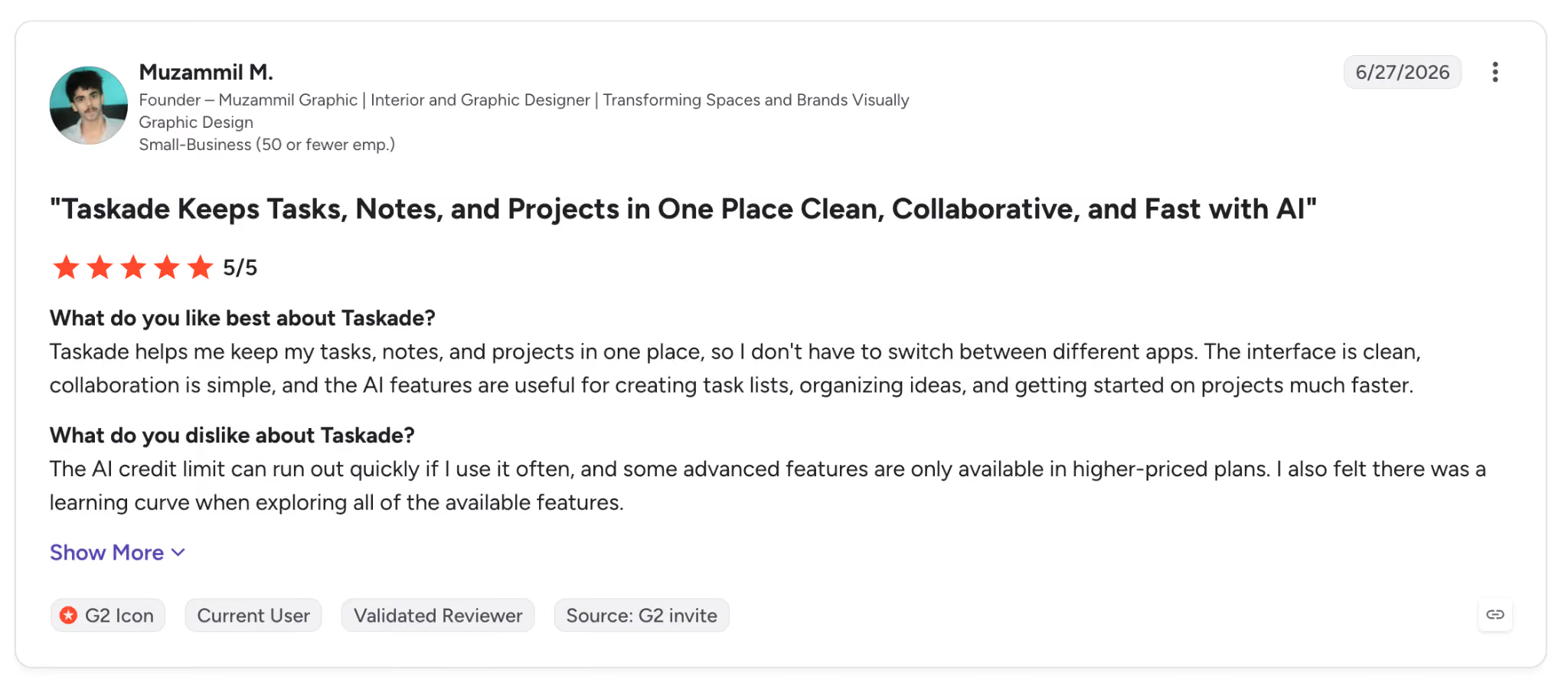
"Taskade helps me keep my tasks, notes, and projects in one place, so I don't have to switch between different apps." — Muzammil M., G2.
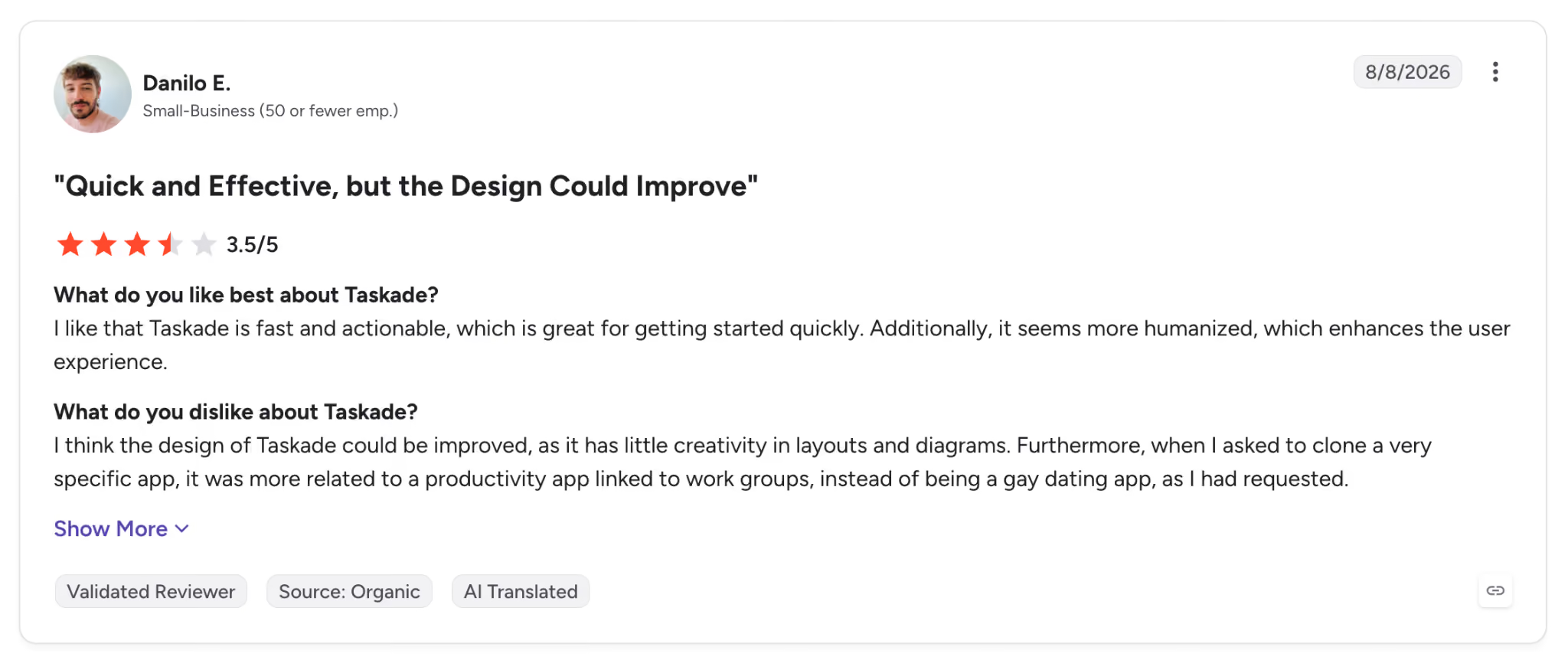
"I think the design of Taskade could be improved, as it has little creativity in layouts and diagrams." — Danilo E., G2.
Pricing
Taskade has a free plan with AI, with Pro at $20/month billed monthly and Business at $50/month.
Bottom line
If you want the literal prompt-to-schedule experience and a free plan that delivers it, Taskade is the one to grab, especially if the plan should live somewhere your team can edit. If all you need is a personal daily block, its workspace is more tool than the job calls for.
13. Venngage: Best generator for a visual schedule you can print
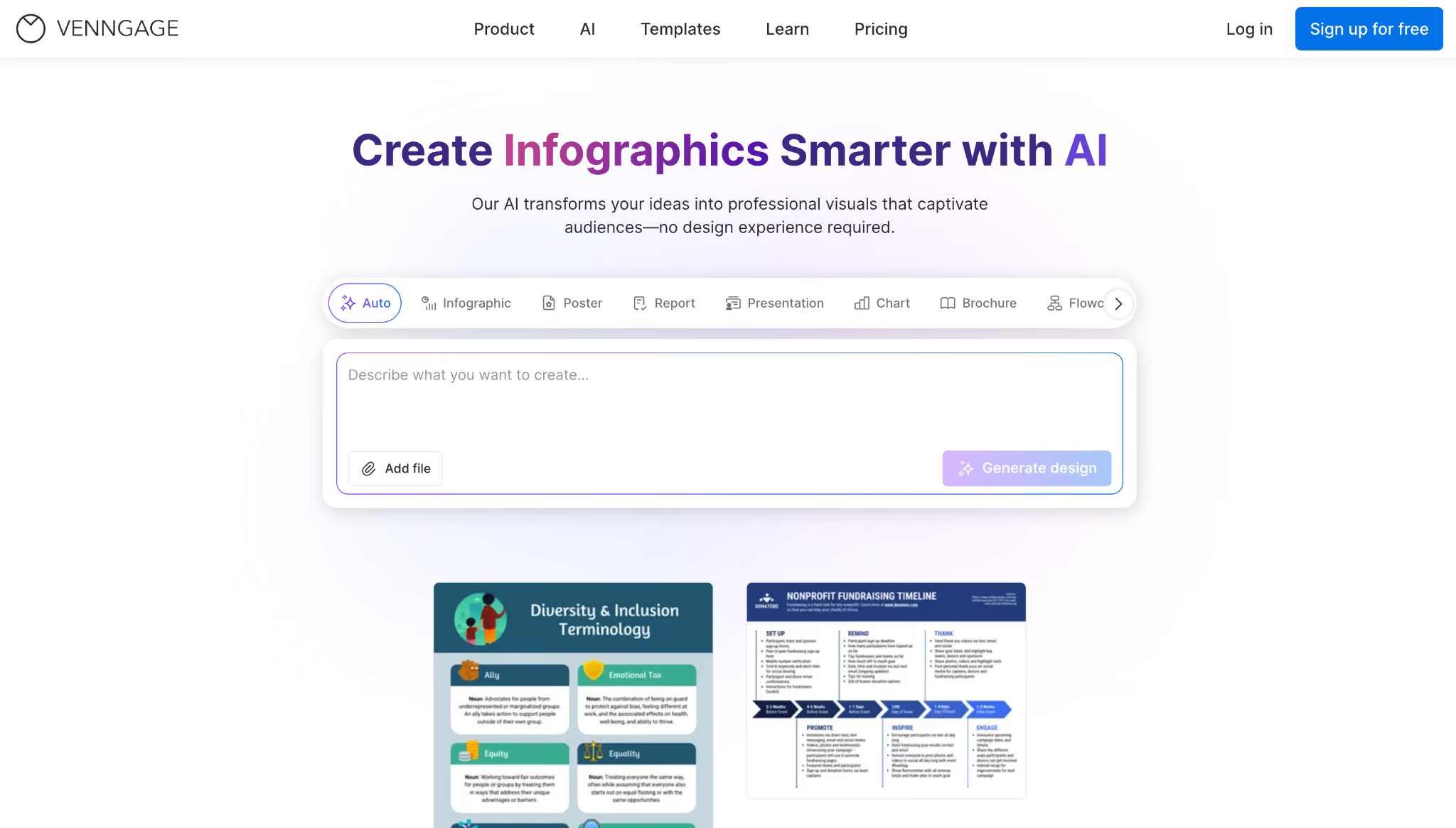
What it does: Venngage generates a visual, designed schedule from a prompt, which you edit in a drag-and-drop editor and download as a PNG on Premium or a PDF on Business.
Best for: People who need a schedule that looks good and is shareable or printable, like a class timetable, shift chart, or event run-of-show.
Venngage is playing a different game than the rest of this list, and it doesn't pretend otherwise. On the free plan's AI trial, I described a weekly study schedule, and it generated a laid-out, color-coded design in seconds, which I then customized in its editor by moving blocks and changing colors.
The output is a polished visual you download as a PNG on Premium or a PDF on Business, the kind of thing you'd post on a wall or hand out, not sync to your phone.
It's a design tool that outputs schedule-shaped graphics, so it skips calendar sync, adaptation, and live updates. Once you export it, you're holding a picture of a schedule that stays put.
For a visual you need to share, it's a good fit; for running your week, it isn't.
Key features
- AI visual generation: Turn a prompt into a designed, color-coded schedule template in seconds, on a trial on the free plan and 100 credits a day on Business.
- Drag-and-drop editor: Fully customize any generated schedule by moving blocks and changing colors.
- Export options: PNG downloads on Premium, PDF and accessible PDF on Business, both ready for sharing or printing.
- Template library: Start from work schedules, timetables, event timelines, and other schedule formats.
Pros and cons
Pros:
✅ Produces a clean, shareable visual that plain calendar tools don't offer.
✅ The free plan generates and edits schedules, so you can build the whole thing before you pay for it.
✅ I moved blocks and swapped colors on the generated design in minutes, instead of laying one out from scratch.
Cons:
❌ It skips calendar sync entirely, so once you export it, the plan is fixed.
❌ Every download sits behind a paid tier, so the free plan only gets you a public link to share.
What users say
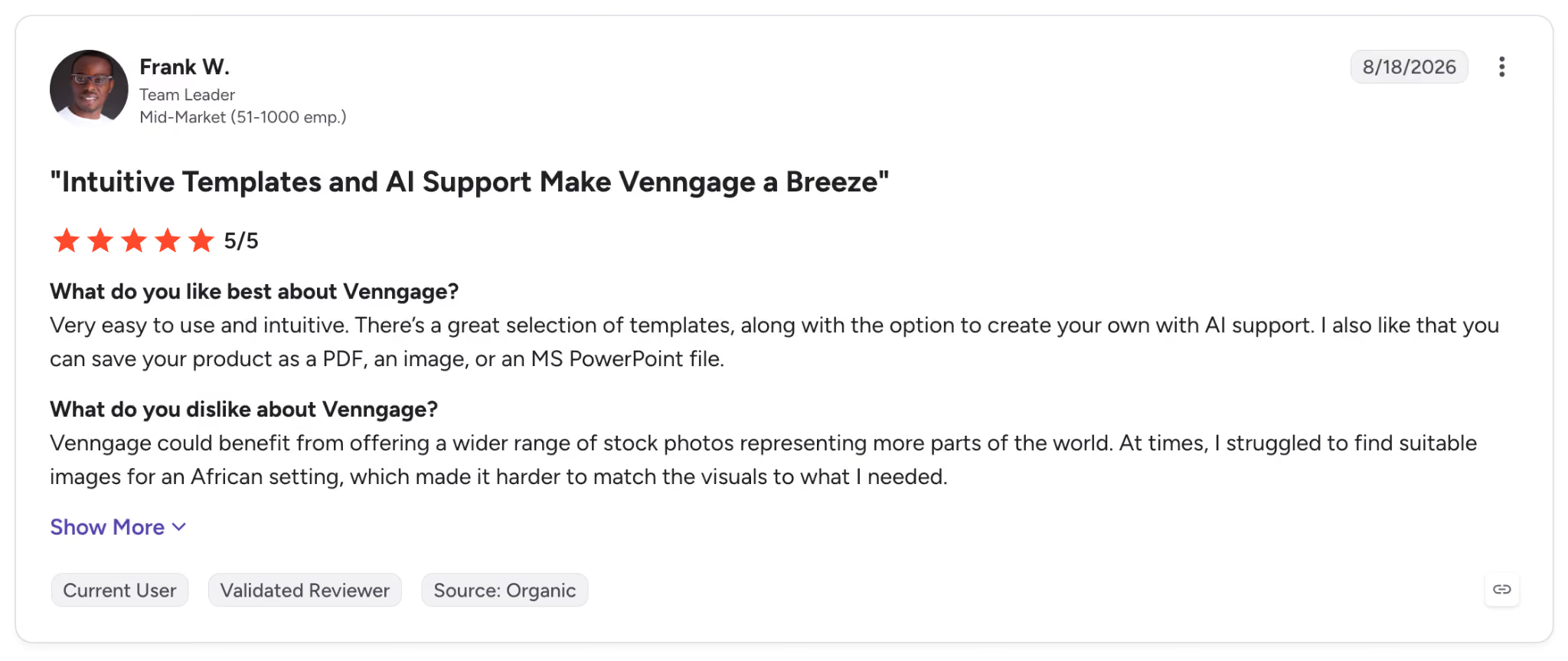
"Very easy to use and intuitive. There's a great selection of templates, along with the option to create your own with AI support. I also like that you can save your product as a PDF, an image, or an MS PowerPoint file." — Frank W., G2.

"Pricing is my main concern; the Business plan is quite expensive for an individual educator without institutional funding, and the free Premium tier doesn't offer enough features for creating detailed lecture materials." — Md Mostafizur R., G2.
Pricing
Venngage has a free plan with five designs, with Premium at $19/month, Business at $49/user/month, and Enterprise from $499/month on a 10-member minimum.
Bottom line
When you need a schedule that looks designed and prints clean, Venngage generates it faster than building one by hand. Just don't expect it to sync, adapt, or run your day, because that was never its job.
14. Google Calendar: Best free default for anyone already living in Google
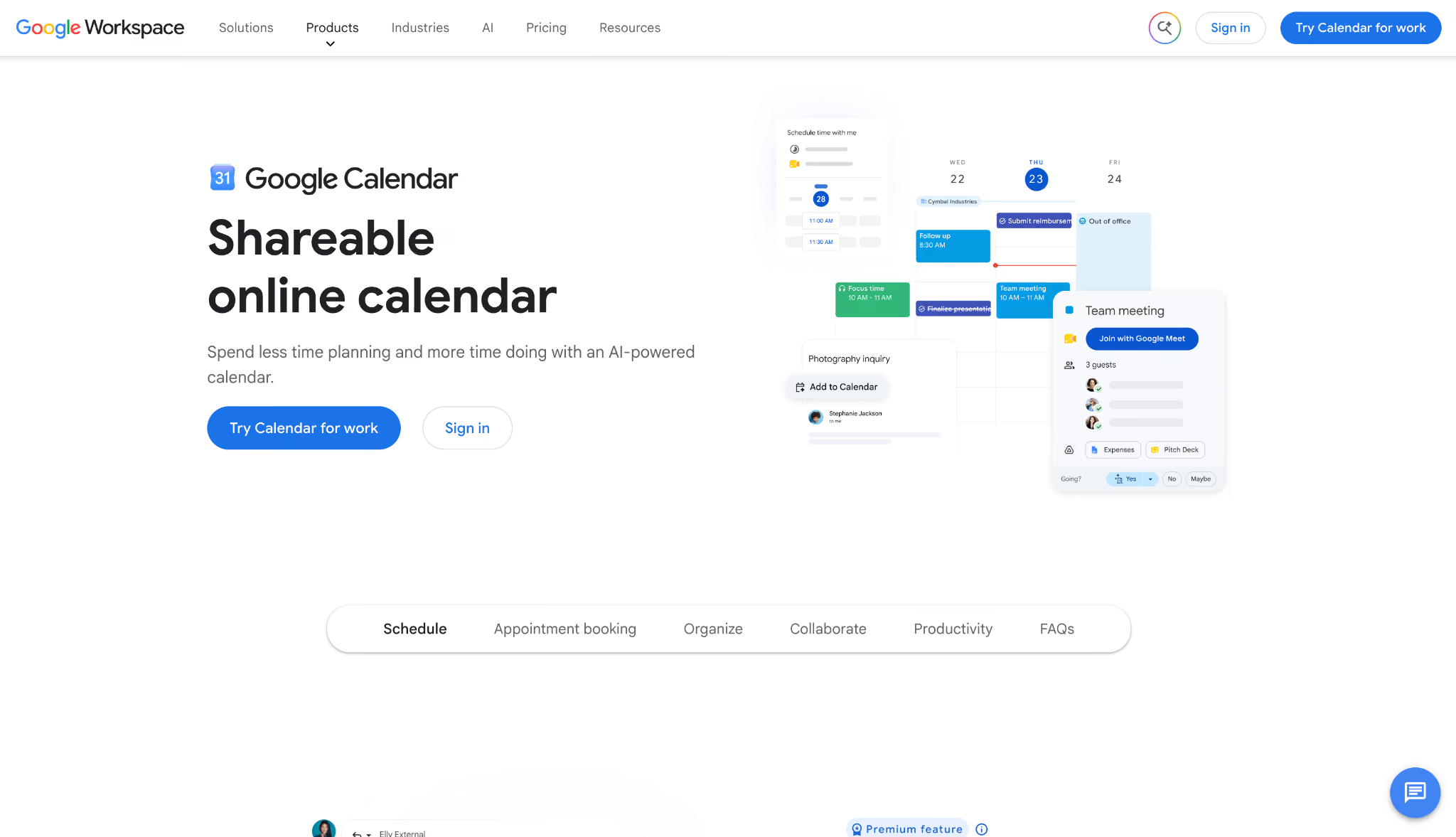
What it does: Google Calendar handles scheduling inside Google Workspace, with Gemini suggesting meeting times and appointment booking pages included.
Best for: Anyone already on Gmail and Google Workspace who wants scheduling that's already there and free to start.
If you already use Gmail and Google Workspace, your scheduling covers the basics, and Gemini upgrades it.
When an email held a meeting request, "Help me schedule" in Gmail read the context and proposed times from my calendar, and the event details got an "Add to Calendar" button without me retyping anything.
Appointment booking pages let people grab a slot themselves, and Business Standard adds Stripe payments and email reminders.
Google Calendar shows and shares your schedule, suggests meeting times, and lets you block time for a single task by hand, but it won't rebuild your day the way the auto-schedulers do.
It's the free baseline the others build on, covering scheduling and meeting suggestions while leaving the week-planning to tools that layer on top.
Key features
- Gemini scheduling (Business Standard and up): "Help me schedule" in Gmail suggests meeting times from your email context and calendar.
- Appointment booking pages: Let people book time directly. One page on Free and Business Starter, with Stripe payments and reminders from Business Standard up.
- Sharing and Find a Time: Share calendars and surface mutual availability across a team.
- Workspace integration: Ties into Gmail, Meet, Tasks, and Drive so links and files travel with the invite.
Pros and cons
Pros:
✅ Free to start and already installed for anyone on a Google account.
✅ On Business Standard and up, it read a meeting request out of my inbox and proposed times without me opening the calendar.
✅ One booking page is included for free, covering external scheduling without a second tool.
Cons:
❌ You can block time for one task at a time, but it won't generate or rebuild a whole day from your backlog.
❌ The Gemini and advanced features scale with a paid Workspace plan, not the free tier.
❌ Cross-provider sharing with Outlook or iCloud is awkward and usually read-only.
What users say
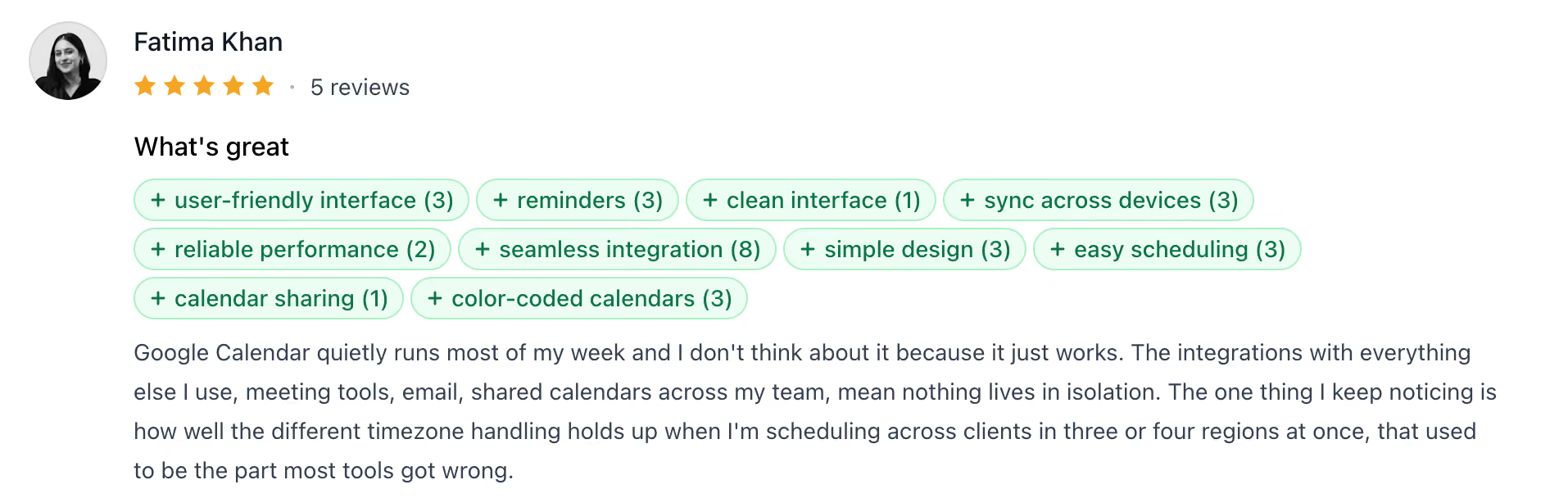
"The integrations with everything else I use, meeting tools, email, shared calendars across my team, mean nothing lives in isolation." — Fatima Khan, Producthunt.
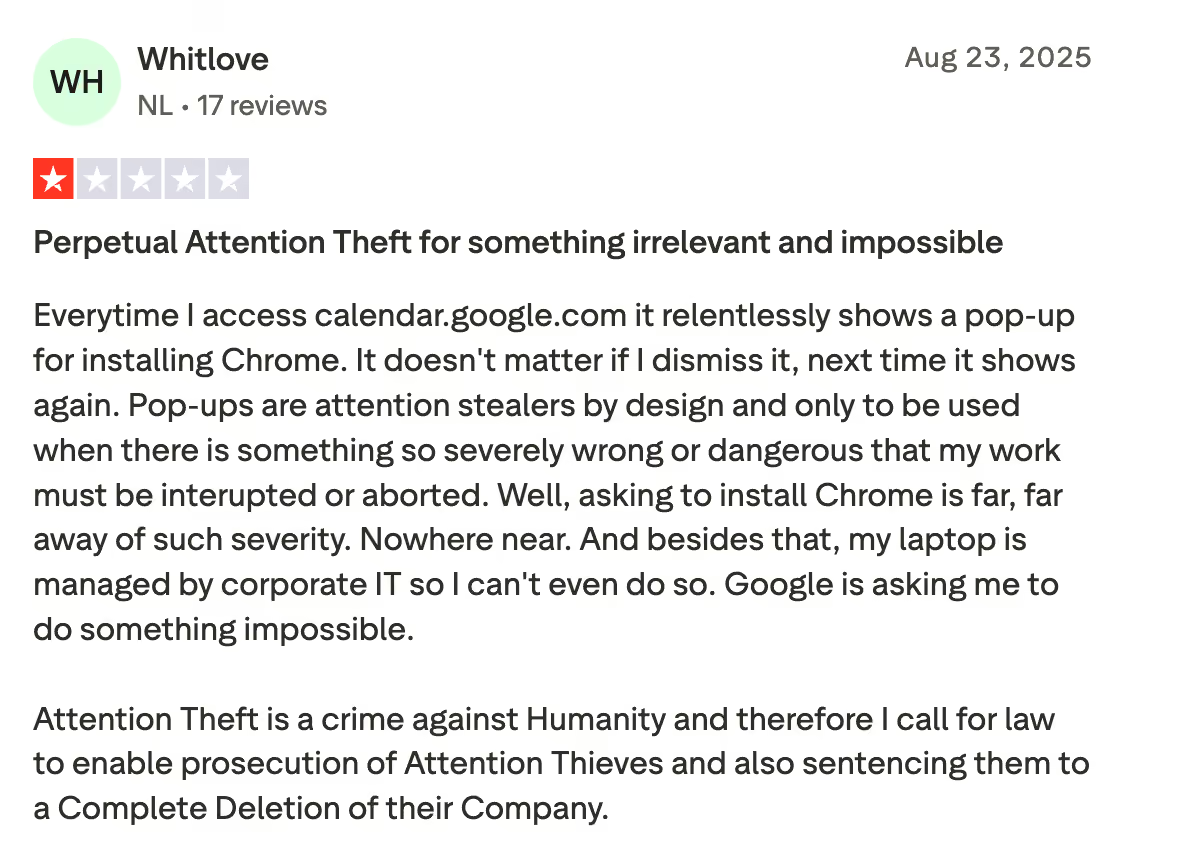
"Pop-ups are attention stealers by design and only to be used when there is something so severely wrong or dangerous that my work must be interrupted or aborted." — Whitlove, Trustpilot.
Pricing
Google Calendar is free with a personal Google account. Business Starter is $8.40/user/month.
Bottom line
If you already work in Google and just want scheduling that runs without setup, Calendar covers the scheduling basics for free, and Gemini's meeting suggestions start on Business Standard. For AI that builds and holds a plan from your tasks, one of the auto-schedulers above is worth adding on top.
{{cta}}
Which AI schedule generator should you choose?
Your choice turns on whether you want a plan generated once or a schedule that runs itself every day, and how much of the work you're willing to hand to AI.
Choose Motion if you:
- Want AI to build your day and rebuild it the moment a meeting moves.
- Run projects where task dependencies decide the order things happen.
Choose Reclaim.ai if you:
- Keep losing focus hours to back-to-back meetings.
- Want that time defended on top of the Google or Outlook calendar you already use.
Choose Lindy if you:
- Want to build and reschedule from a text thread instead of a planner.
- Need the inbox and follow-ups handled alongside the calendar, with approval on every send.
Choose Sunsama if you:
- Plan better when a daily ritual holds you to a realistic workload.
- Want to pull tasks from your other tools into one deliberate plan.
Choose Akiflow if you:
- Have tasks scattered across email, Slack, and task apps.
- Want them all captured in one inbox before you time-block.
Choose SkedPal if you:
- Want automatic time-blocking that reshuffles itself when things change.
- Will invest the setup to define your priorities and time maps up front.
Choose Trevor AI if you:
- Want free AI time-block suggestions for one person.
- Plan solo and don't need team scheduling or shared calendars.
Choose Vimcal if you:
- Run your day from the calendar and want every action in a keystroke.
- Book across time zones and want availability shared in seconds.
Choose Calendly if you:
- Book regularly with clients, candidates, or partners outside the team.
- Want round-robin routing that hands meetings to whoever's free.
Choose Cal.com if you:
- Want a booking tool with open code you can read and extend.
- Need unlimited event types without paying per event.
Choose Morgen if you:
- Juggle calendars across Google, Outlook, Apple, or Fastmail.
- Want one view that unifies them with AI planning on top.
Choose Taskade if you:
- Want to type a prompt and get an editable schedule for free.
- Need the plan to live somewhere your team can work in it.
Choose Venngage if you:
- Need a schedule that looks designed and prints clean.
- Are making a timetable or run-of-show to share, not run.
Choose Google Calendar if you:
- Already live in Google and want free scheduling with no setup.
- Want Gemini to suggest meeting times without a second tool.
Skip this category entirely if you:
- Only need a plain calendar and never generate or plan a schedule.
- Want one tool to run every part of the business, since none of these reach that far.
Final verdict
Picking an AI schedule generator comes down to one question: a schedule generated once, or a system that runs your week. If you just need a plan from a prompt, Taskade does it for free and keeps it editable, and Venngage is the one when the schedule has to look designed.
If the problem is meetings consuming your focus time, Reclaim.ai protects the hours automatically, and Motion takes over the whole day when you'd rather AI decide when work happens.
If the biggest burden is the admin around the calendar, the scheduling, the inbox, and the constant rescheduling, Lindy handles it from a text thread and shows its sources as it works. It runs the calendar for you rather than putting one on screen, so a group that only wants a shared view won't need it.
If you're weighing the broader move toward automated calendars, Lindy's own roundup of AI calendar assistants is worth a read. Lindy offers a free trial worth testing before you commit to ramping up a heavier system.
Frequently asked questions
What is the best AI schedule generator?
Motion, for most people, since it builds your whole day from your tasks and deadlines and rebuilds it when plans change. Reclaim.ai fits better if the goal is protecting focus time.
What is the best free AI schedule generator?
Taskade, for turning a prompt into an editable plan on its free tier. Trevor AI is the free pick for solo time-blocking, and Google Calendar covers free scheduling in Google, though its Gemini suggestions need a paid plan.
Can an AI schedule generator reschedule automatically when plans change?
Yes, the stronger ones do. Motion, SkedPal, Reclaim.ai, Morgen, and Lindy all rebuild around new conflicts, while static generators like Venngage stay fixed once exported.
Do I need an AI scheduling assistant, or is a calendar enough?
A plain calendar shows your time; an AI scheduling assistant decides how to use it. If your week fills faster than you can plan it, the assistant saves hours the calendar alone won't.









