7 Best AI Calendar Assistants in 2026: Tested and Ranked
Lindy ran 12 AI calendar assistants including Motion, Reclaim, and Calendly through the same real workweek, tracking booking speed, focus-time protection, and how each one handled last-minute rescheduling.


Every AI calendar assistant promises to end your scheduling chaos. I decided to test 12 of them after spending 47 minutes booking a 30-minute call. One prospect, two time zones, six emails, and a "just to confirm, is this 3 PM your time?" reply after the invite was already sent.
I ran all of them through the same real workweek: 14 meetings, focus blocks I needed to protect, and two external stakeholder bookings to coordinate from scratch.
I tracked how fast each one went from "I need to schedule a call" to "invite sent", whether focus time survived when conflicts hit, and what happened when a meeting moved at the last minute.
Some only manage inbound booking requests. Others quietly restructure your whole day, and a few act like an assistant you can talk to directly.
This guide sorts that out first.
The 7 best AI calendar assistants at a glance
| Tool | Best for | Free option |
|---|---|---|
| Motion | Automated full-day planning | 7-day trial |
| Reclaim | Protecting focus time | Free plan |
| Lindy | AI assistant calendar automation | 7-day trial |
| Calendly | External meeting booking | Free plan |
| Akiflow | Integration-heavy task scheduling | 7-day trial |
| Trevor AI | Lightweight personal scheduling | Free plan |
| Scheduler AI | Conversational booking via email | Watch a demo |
What is an AI calendar assistant?
An AI calendar assistant helps manage your schedule for you. Instead of spending time finding open slots, coordinating meetings, or rearranging your calendar when plans change, it handles much of that work automatically.
What began as simple scheduling links has evolved into tools that can protect focus time, reorganize your calendar when conflicts arise, and keep your day running smoothly. Using dedicated ai planner software makes it even easier to keep complex daily schedules organized automatically.
The confusing part is that not all AI calendar assistants do the same thing. Some are booking tools designed to help other people find time on your calendar. Others work quietly in the background to optimize your schedule. A newer generation acts more like a virtual assistant, helping with scheduling, follow-ups, and multi-step workflows across different apps. Understanding these differences is key to choosing the best ai scheduling assistant for your workflow.
How to tell which AI calendar assistant you need
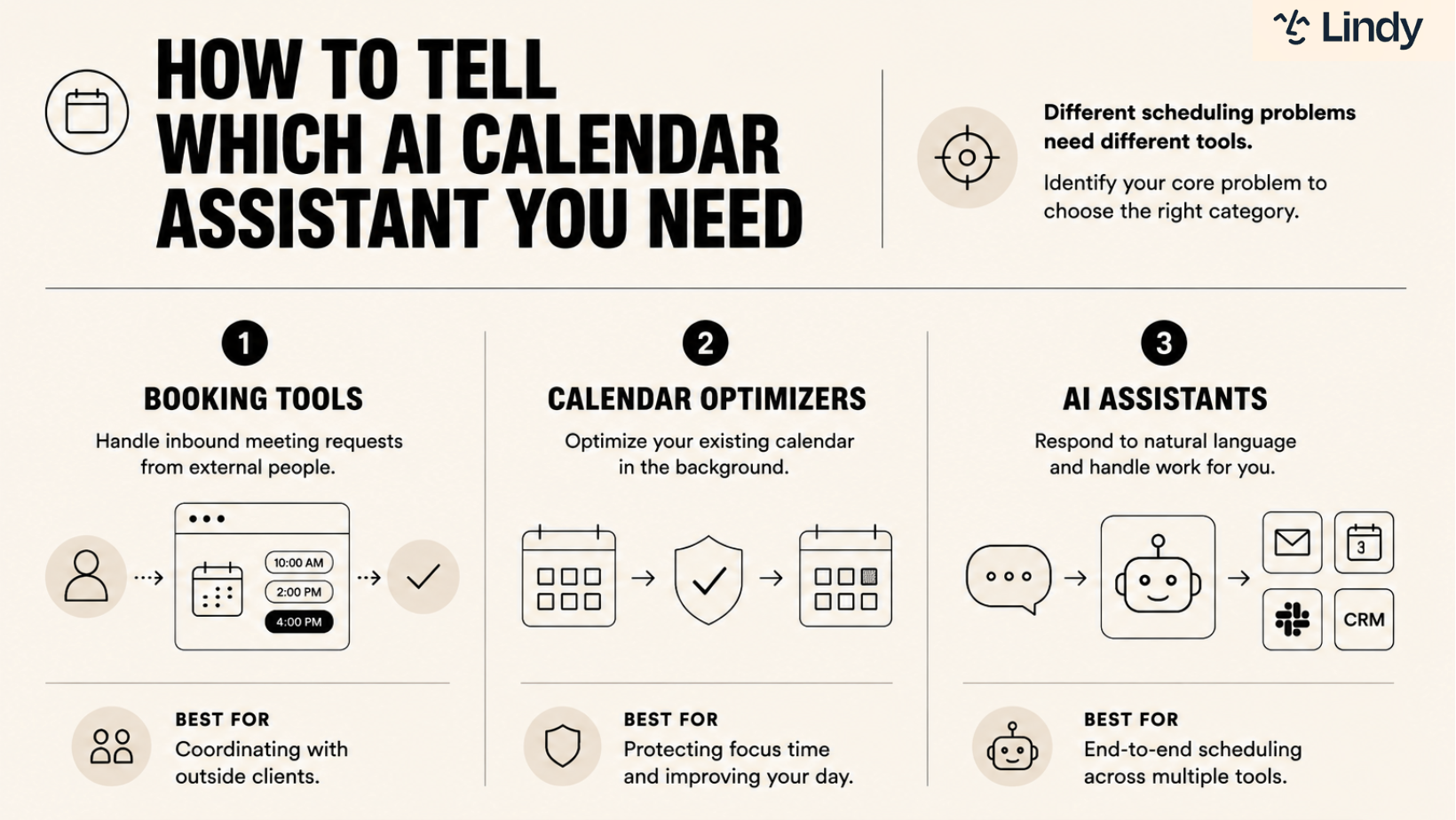
To figure out which AI calendar assistant you need, start by identifying where your scheduling problem lives. Inbound requests from external people, a fragmented calendar with no protected focus time, and a booking process that touches four tools at once are three different problems. Each one has a different category of tool built to solve it.
Most people buy the wrong type of tool because they don't realize three distinct categories exist:
- Booking tools handle inbound meeting requests from external people. You share a link, they pick a time, and the AI manages availability and time zone math automatically. They do not optimize your calendar or protect focus time. If your problem is coordinating more efficiently with outside clients, this is your category.
- Calendar optimizers work on your existing calendar in the background. You don't interact with them conversationally. They run on rules you set upfront: protect deep work from 9 to 11, auto-schedule recurring tasks, and move lower-priority meetings when a conflict hits. You configure preferences once and they handle the rest. Pairing a calendar optimizer with the best daily planner ensures your tasks and meetings stay perfectly aligned.
- AI assistants respond to natural language instructions and handle the work for you. They can check availability, create the invite, send confirmation emails, and update your CRM without requiring you to switch between tools. Through integrations, they automate work across multiple apps and operate much more like a human assistant.
Confuse the categories and you end up with a tool that solves a different problem than the one you have.
How I tested these AI calendar assistants
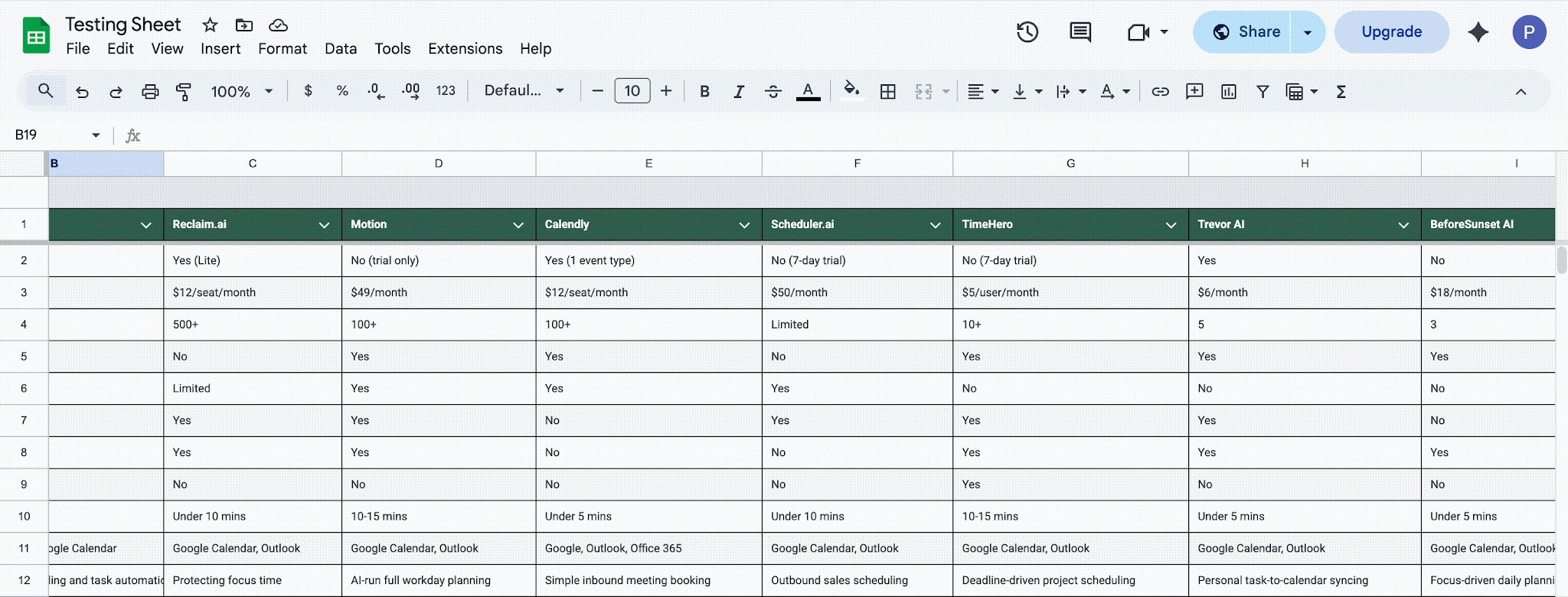
Most scheduling tools look identical on a feature page. To find out what works, I tested 12 of them against a real workload over several weeks, tracking setup time, meeting coordination speed, whether focus blocks survived conflicts, and how each tool handled last-minute rescheduling.
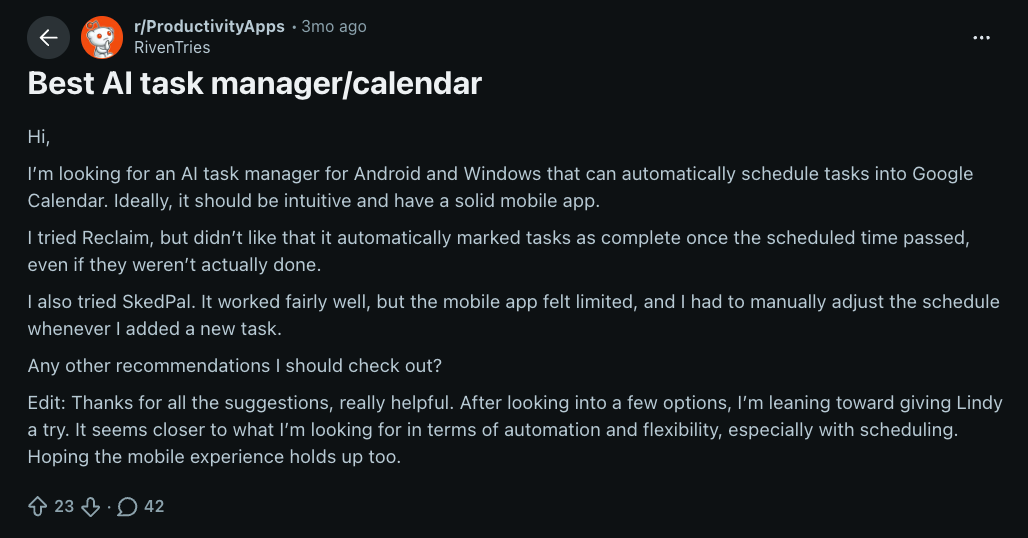
Before narrowing to seven, I spent time on Reddit to see what real users were frustrated by. Morgen, BeforeSunset AI, TimeHero, and SkedPal all came up regularly but didn't make the cut. Clockwise came up constantly, too, mostly from people who hadn't yet heard it shut down in March 2026.
Here’s what I was looking for:
- Scheduling smarts: Some tools follow rigid rules, but the best ones understand your priorities. If a meeting runs long, they'll shuffle your lower-priority stuff around so your day doesn't fall apart without you having to lift a finger.
- Automation that helps: A good assistant should save you time, not create more work. I checked to see which tools handled rescheduling and conflict resolution on their own. The best ones fix your schedule automatically when plans change.
- How well they play with others: We don't live in a vacuum; meetings usually kick off in email, Slack, or a project management tool. I rated tools higher if they worked right inside the apps I was already using, since hopping between apps is a total productivity killer.
- Ease of use: If a tool takes more than ten minutes to set up, it’s already losing. I tracked how quickly I could connect my calendar and get things moving, because a scheduling tool should be faster than just doing it myself.
I connected a real work calendar, loaded it with tasks and meetings, then deliberately created conflicts to see how each tool responded. Every score reflects three to four weeks of daily use across the same conditions.
I also rated each tool across three metrics that matter regardless of which category you fall into. Not setup time or pricing.
The things that determine whether a tool earns a permanent place in your stack:
| Tool | Scheduling intelligence | Breadth of use cases | Reliability |
|---|---|---|---|
| Motion | 5/5 | 4/5 | 4/5 |
| Reclaim | 4/5 | 4/5 | 4/5 |
| Lindy | 4/5 | 3/5 | 4/5 |
| Calendly | 2/5 | 3/5 | 5/5 |
| Akiflow | 3/5 | 3/5 | 3/5 |
| Trevor | 2/5 | 3/5 | 3/5 |
| Scheduler AI | 3/5 | 2/5 | 2/5 |
1. Motion: Best for automated day planning
Who it's for: Professionals and teams who want AI to own their daily schedule entirely.
Pick this if: You have hard deadlines, back-to-back meetings, and no mental bandwidth left to figure out when the actual work is supposed to happen.
Key features
- AI meeting notetaker: Joins your calls automatically, transcribes the conversation, and delivers structured summaries with decisions and action items after the call ends.
- Deadline risk alerts: Flags tasks at risk of missing their deadline before it happens, giving you time to reprioritize while there's still room to move things.
- Capacity planning: Shows when your team is overloaded across projects before deadlines start slipping, so you can reallocate work while it's still manageable.
- External booking links: Share a link that only surfaces times inside your defined meeting windows, keeping focus blocks protected from outside scheduling requests.
- Natural language task input: Describe a task in simple words, set a deadline, and Motion figures out where it fits in your week without you placing it manually.
Why I picked it
The first two days with Motion, I was ready to uninstall it. It kept moving tasks I had mentally committed to, slotting them into windows I wouldn't have chosen. I overrode it constantly.
Then a call ran 40 minutes over on Tuesday, and I had three tasks sitting in my schedule below it. I expected to spend the next 15 minutes manually reshuffling things. Motion had already done it. Two tasks moved to the afternoon, one pushed to Wednesday, deadline still safe. I hadn't touched anything.
That's when I stopped fighting it. Motion works best when you give it actual control, not when you treat it like a smarter version of your existing calendar. If you need to block yourself every time, this tool will frustrate you. If you can let go of that, it frees up mental space you didn't know you were burning.
What could improve
Motion's biggest friction point is also its core feature. The automation moves things you've mentally committed to, and if you have a fixed working style, that's going to bother you more than you'd expect. There's also no free plan to ease into it, just a 7-day trial before you're paying.
And if you work with external clients who need visibility into project progress, you'll hit a wall fast. Sharing dashboards outside the team isn't supported, which is a real gap for anyone doing client-facing work.
Pricing
Motion's individual plans start at $49/month for Pro AI and $69/month for Business AI, both on monthly billing. Teams pricing drops to $29/seat per month for Pro AI and $49/seat per month for Business AI.
2. Reclaim: Best for smart time blocking
Who it's for: Professionals who need to protect deep work time without micromanaging their own calendar.
Pick this if: You have recurring focus blocks that keep disappearing whenever a new meeting lands.
Key features
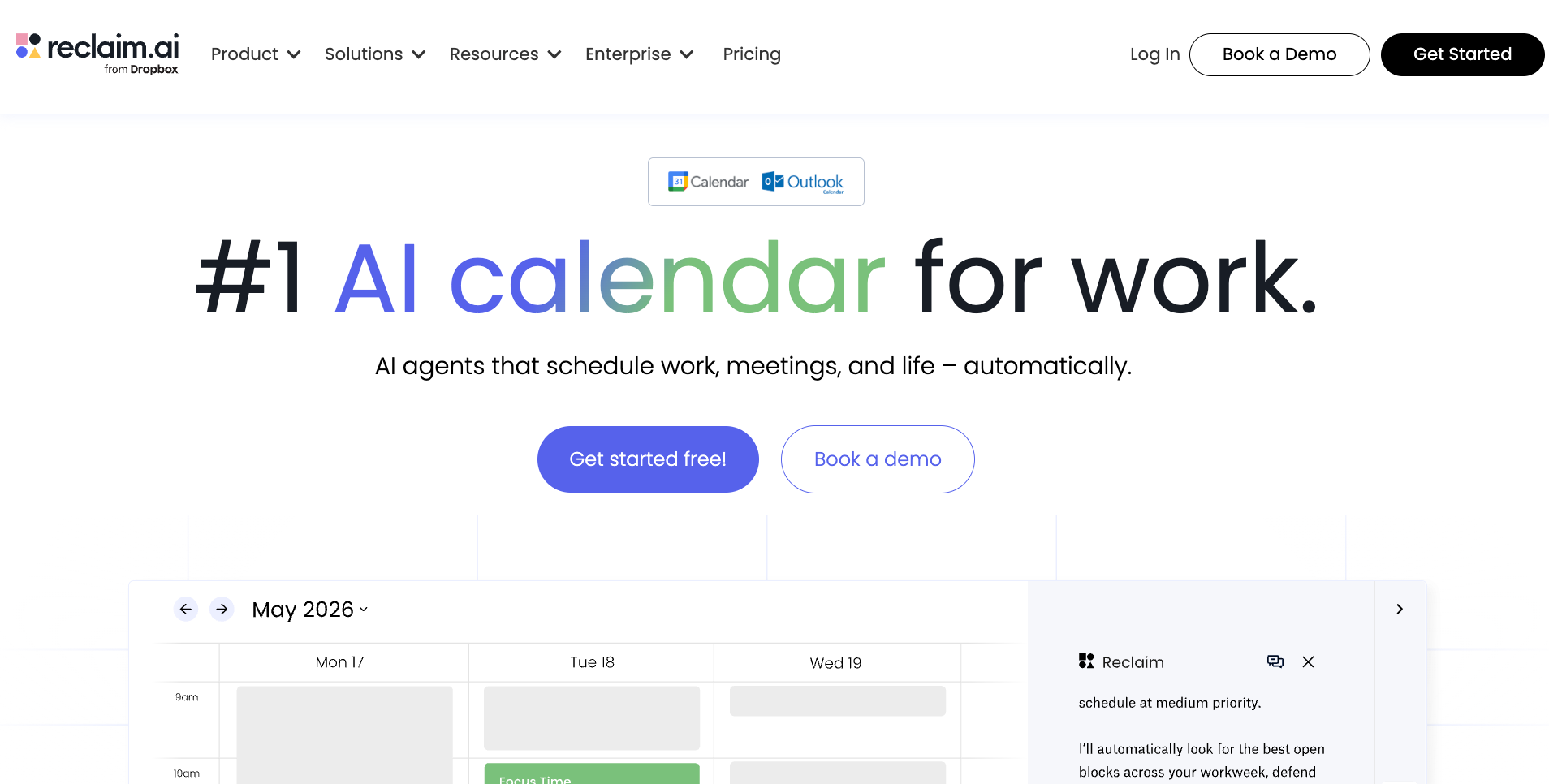
- Habit scheduling: Recurring routines like lunch, exercise, or focused reading get treated as real calendar commitments, shifting dynamically when meetings land without disappearing entirely.
- Smart scheduling links: The availability you share accounts for your focus blocks and existing tasks, not just empty slots. External guests can't accidentally book over deep work time.
- Task sync from PM tools: Reclaim pulls tasks directly from Asana, ClickUp, Jira, Linear, and Todoist, and schedules them onto your calendar around your existing commitments.
- Decompression time: Automatically adds buffer time before and after meetings so back-to-back calls don't bleed into each other.
- Sandbox preview mode: Schedule changes are drafted first and shown to you before anything moves. You review, adjust, and apply rather than opening your calendar to something you don't recognize.
Why I picked it
I had two deep work blocks set for a Thursday: 9 to 11 and 2 to 4. By Wednesday afternoon, three meeting requests had landed for those exact windows. Every other tool I tested either flagged the conflict and waited for me to resolve it, or quietly gave up the focus time.
Reclaim moved both blocks to the remaining gaps in the week and kept them intact. I didn't notice until I opened my calendar Thursday morning and saw focus time had shifted to Friday, deadline still safe. Reclaim isn't trying to orchestrate your entire day the way Motion does. It's specifically defending the parts you've decided matter. That's a narrower job, and it does it better for it.
When Clockwise shut down in March 2026, Reclaim built a dedicated migration tool for displaced users, including price-matching. So, if you were a Clockwise user looking for a landing spot, Reclaim is the most direct replacement on this list.
What could improve
Reclaim isn't built for teams with heavy project dependencies. If your work involves complex task hierarchies or resource allocation across multiple people, you'll hit its ceiling fast. The mobile app has some rough edges, and iCloud users are out natively. It works best when Google Calendar or Outlook is your primary calendar and your scheduling needs stay on the individual or small-team side.
Pricing
Reclaim has a free Lite plan covering the basics. Paid plans start at $12/seat per month for Starter, covering up to 10 seats with unlimited habits and focus time. Business runs $18/seat per month for teams up to 100, adding team analytics, webhooks, and unlimited scheduling links.
3. Lindy: Best AI assistant for calendar automation
Who it's for: Founders, ops leads, and customer-facing teams whose scheduling problem doesn't start and end with the calendar.
Pick this if: Booking a single meeting requires you to touch your email, calendar, and CRM, and you want one place to handle all three.
Key features
- Full meeting lifecycle: Lindy handles scheduling, meeting prep, note-taking, and follow-up in sequence. You don't have to coordinate those steps or switch between tools to complete them.
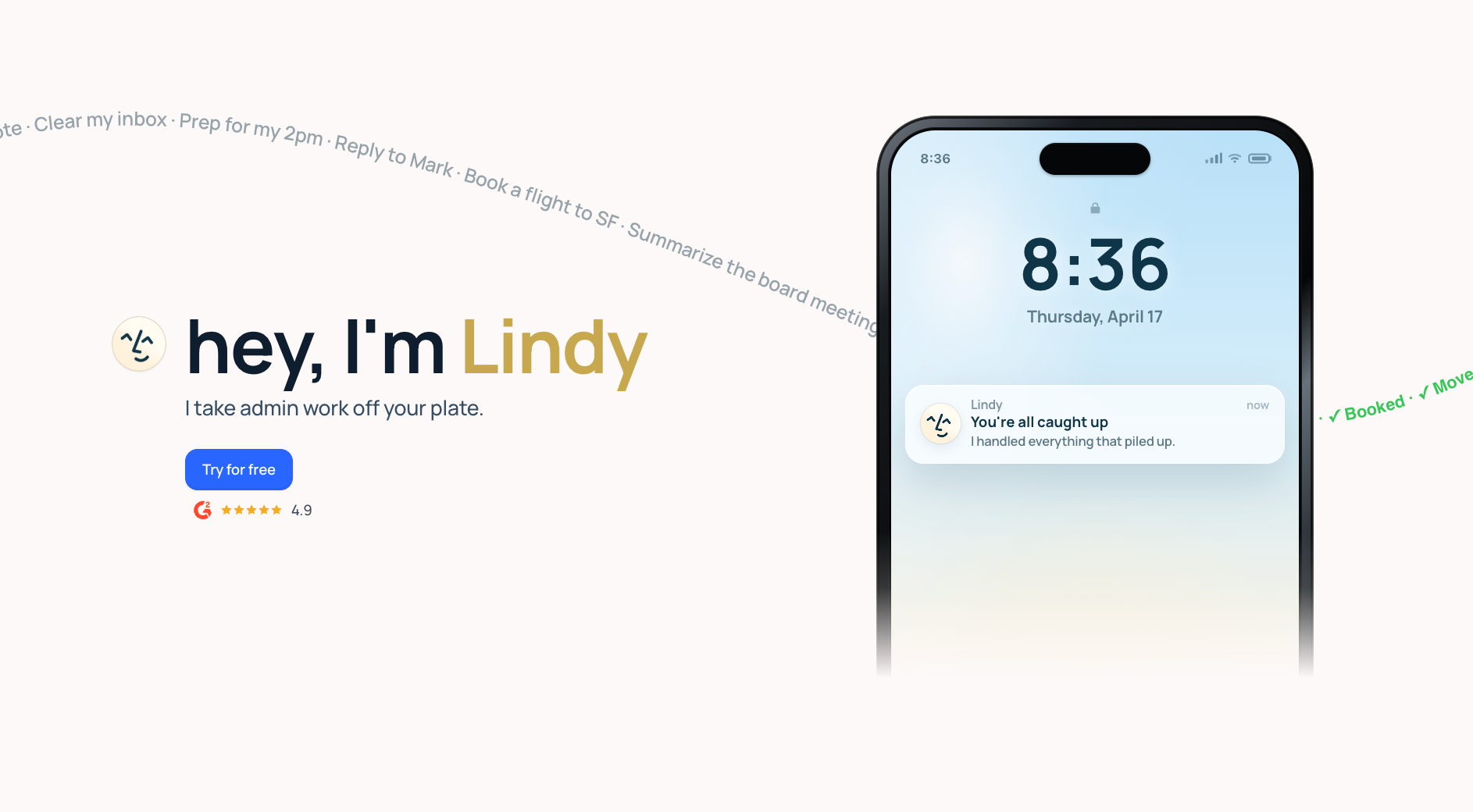
- Text delegation via iMessage and SMS: Tell Lindy what needs to happen through a text, the same way you'd message a human assistant. No new app to open.
- Searchable meeting notes: Every call gets a full transcript, a structured summary, and action items stored on your dashboard. Text Lindy "What did we decide in last week's call with Sarah?" and it pulls the answer instantly.
- Proactive alerts: Lindy texts you 10 minutes before every call, flags important emails the moment they land, and follows up automatically when someone doesn't reply within a set window.
- Integrations for connected tools: Lindy connects to hundreds of tools, including Google Calendar, Gmail, Slack, HubSpot, and Salesforce. Once connected, Lindy reads from and updates them for you: pulling a contact from HubSpot, logging a call note in Salesforce, posting a recap to Slack.
Why it stands out
Lindy handles the whole loop around a meeting. On Wednesday, a prospect emailed asking to connect. Lindy replied with three times before I'd seen the email, booked the 2 p.m. once she picked it, added it to my calendar, and logged her in to HubSpot. The brief was sent 10 minutes before the call, pulling her last three emails. I walked in already knowing the context.
Before the call, Lindy pulls the contact's email history and sends you a brief. After the call, it updates the deal stage and sends a summary to your team. You can review and approve before anything goes out, so you stay in control of what gets sent.
Lindy manages everything that surrounds the meeting, not just the booking.
What could improve
Lindy isn't the most budget-friendly option on this list. The Plus plan starts at $49.99/month, which reflects how much ground it covers across your inbox, calendar, and CRM. If your needs are light, that price won't make sense. Each plan also has usage limits, and once you hit them, Lindy pauses and checks in before continuing.
Pricing
Lindy's Plus plan starts at $49.99/month, Pro at $99.99/month, and Max at $199.99/month. Each tier adds more usage capacity and connected inboxes, with Pro unlocking computer use and model selection. Enterprise is custom pricing through sales. All plans include a 7-day free trial.
{{templates}}
4. Calendly: Best for external meeting booking
Who it's for: Sales teams, recruiters, and consultants who need external clients to book time without the back-and-forth.
Pick this if: Your scheduling problem is inbound requests from outside your organization piling up faster than you can respond.
Key features
- Round robin scheduling: Distributes incoming meeting requests across your team automatically, balancing workload so no one person absorbs all the bookings.
- Lead routing: Qualifies inbound leads through a form and sends them to the right person's booking page based on CRM ownership or form responses.
- Meeting polls: Lets groups of up to 40 people vote on a preferred time, then automatically books the winner without a separate follow-up.
- Payment collection: Connects with Stripe and PayPal to collect payment at the time of booking, useful for coaches and consultants running paid sessions.
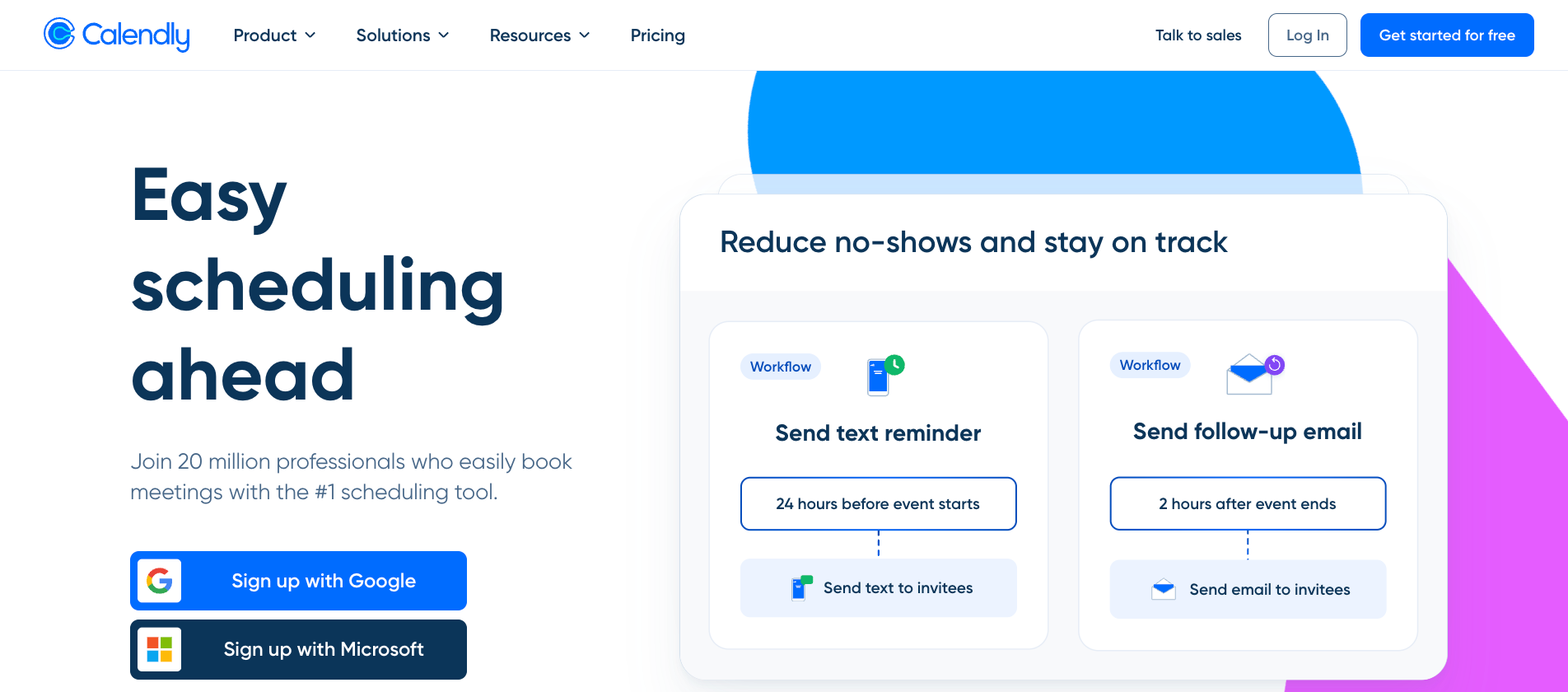
- Automated reminders: Sends email and SMS reminders before meetings on a schedule you set, cutting no-shows without any manual follow-up.
Why I picked it
Setting up my first Calendly booking link took a few minutes. I connected my Google Calendar, set a 30-minute event type, blocked out my focus windows, and had a live link ready to drop into an email. The two external guests I was coordinating with were in London and Singapore.
Calendly detected their time zones when they opened the link and showed availability in their local time without me configuring anything.
Calendly made this list because it worked. Both guests booked without any extra emails from me, both attended, and the meetings appeared on my calendar immediately. It sounds basic, but that's exactly what a booking tool is supposed to do, and Calendly was the most reliable one I tested.
What could improve
Calendly is built for inbound scheduling from external people and doesn't pretend otherwise. It won't protect your focus time or reshuffle your day when meetings run over. If your problem is internal calendar chaos, this tool won't touch it.
The free plan is limited to one event type, which most professionals outgrow immediately. Round Robin across a team also requires a paid seat for every host, which adds up fast for larger groups.
Pricing
Calendly's free plan covers one event type and one connected calendar, enough to test the basics. Standard runs $12/seat per month on monthly billing and unlocks unlimited event types, multiple calendar connections, and automated reminders. Enterprise starts at $15,000/year for organizations needing SSO, domain control, and audit logs.
5. Akiflow: Best for integration-heavy task scheduling
Who it's for: Founders and PMs managing high volumes of incoming tasks across multiple tools who want one place to plan their day.
Pick this if: You start every morning with several open tabs and no clear sense of what to work on first.
Key features
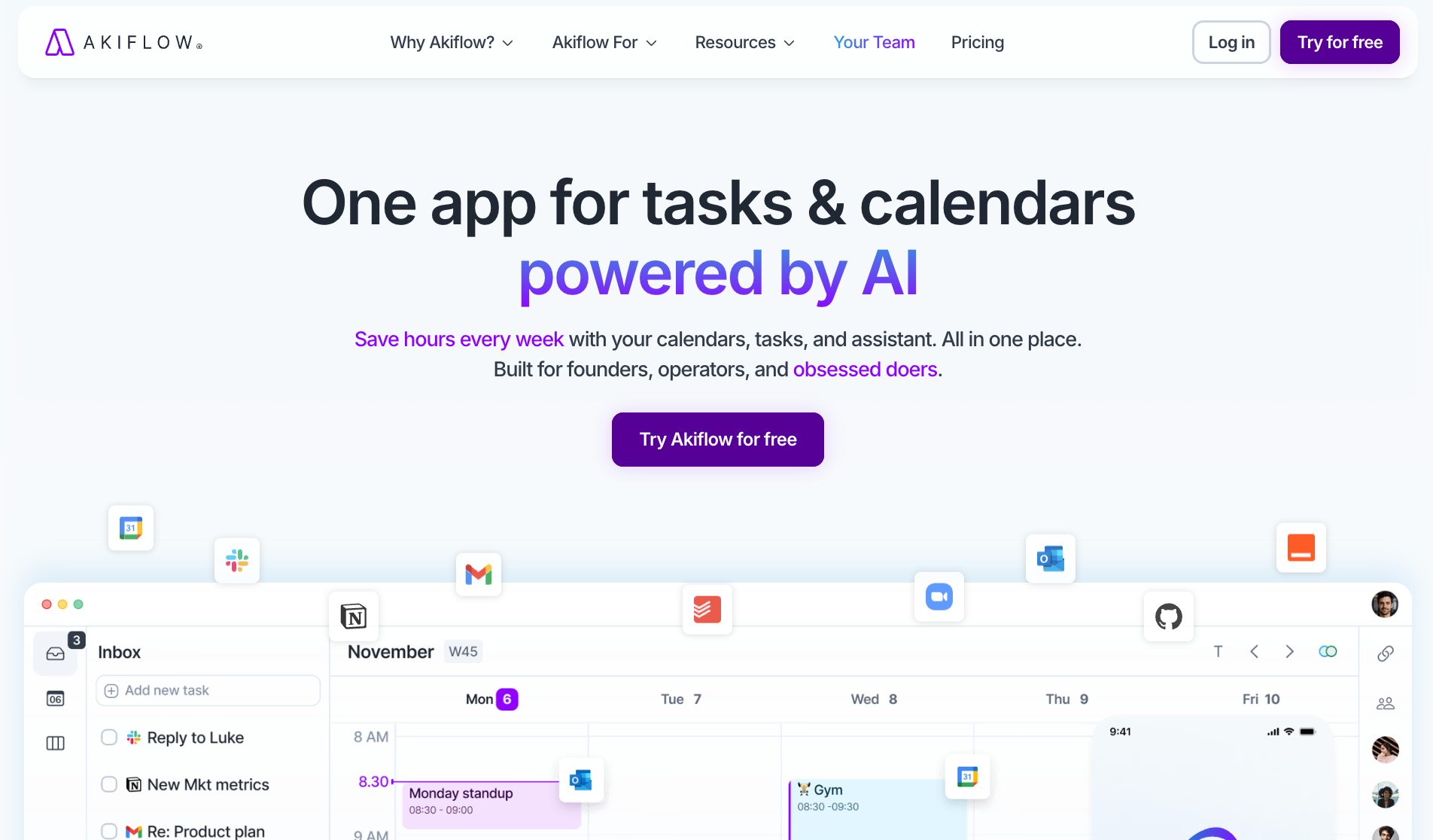
- Universal inbox: Pulls tasks, emails, and notifications from 30+ apps into a single triage view, including Notion, Asana, Jira, ClickUp, Slack, and Gmail.
- Time Slots: Groups multiple small related tasks into a single calendar block, keeping your schedule readable without losing track of individual to-dos.
- Aki AI via WhatsApp and SMS: Send Aki a voice or text message while away from your desk and it creates or schedules the task directly on your calendar.
- Daily planning rituals: Structured start-of-day and shutdown workflows that walk you through your task list and help you close out with a clear plan for tomorrow.
- Command Bar: A keyboard-first interface (⌘+K) for creating, scheduling, and navigating tasks without touching your mouse, built for people who move fast.
Why I picked it
I started by connecting Notion, Gmail, Slack, and Jira. Within a few minutes, tasks from all four were sitting in one inbox. No copy-pasting, no tab switching. I pulled the three most important ones onto Tuesday morning, blocked 9 to 11 for focused work, and had a plan that reflected what I needed to do.
The keyboard shortcuts made that faster than anything else I tested. Once you internalize a few commands, planning a morning takes under five minutes.
The friction showed up around day three. Two of my Slack integrations disconnected without warning. Reconnecting them wasn't painful, but it broke the habit of trusting the inbox as complete. For a tool that sells itself on consolidation, that's a real gap.
What could improve
Akiflow is built for individual use, and that ceiling becomes obvious quickly. There's no meaningful team coordination, and tracking task dependencies across people isn't something it handles.
The interface also has a learning curve that takes a few days to clear. If you don't use keyboard shortcuts regularly, the first week will feel slower than whatever you're replacing. At $34/month on monthly billing, that's a steep entry point for a personal productivity tool with no free plan behind it.
Pricing
Akiflow runs $34/month on monthly billing or $19/month billed annually. There's no free forever plan. The 7-day trial covers full access, and Akiflow extends it by another week if you complete an onboarding call.
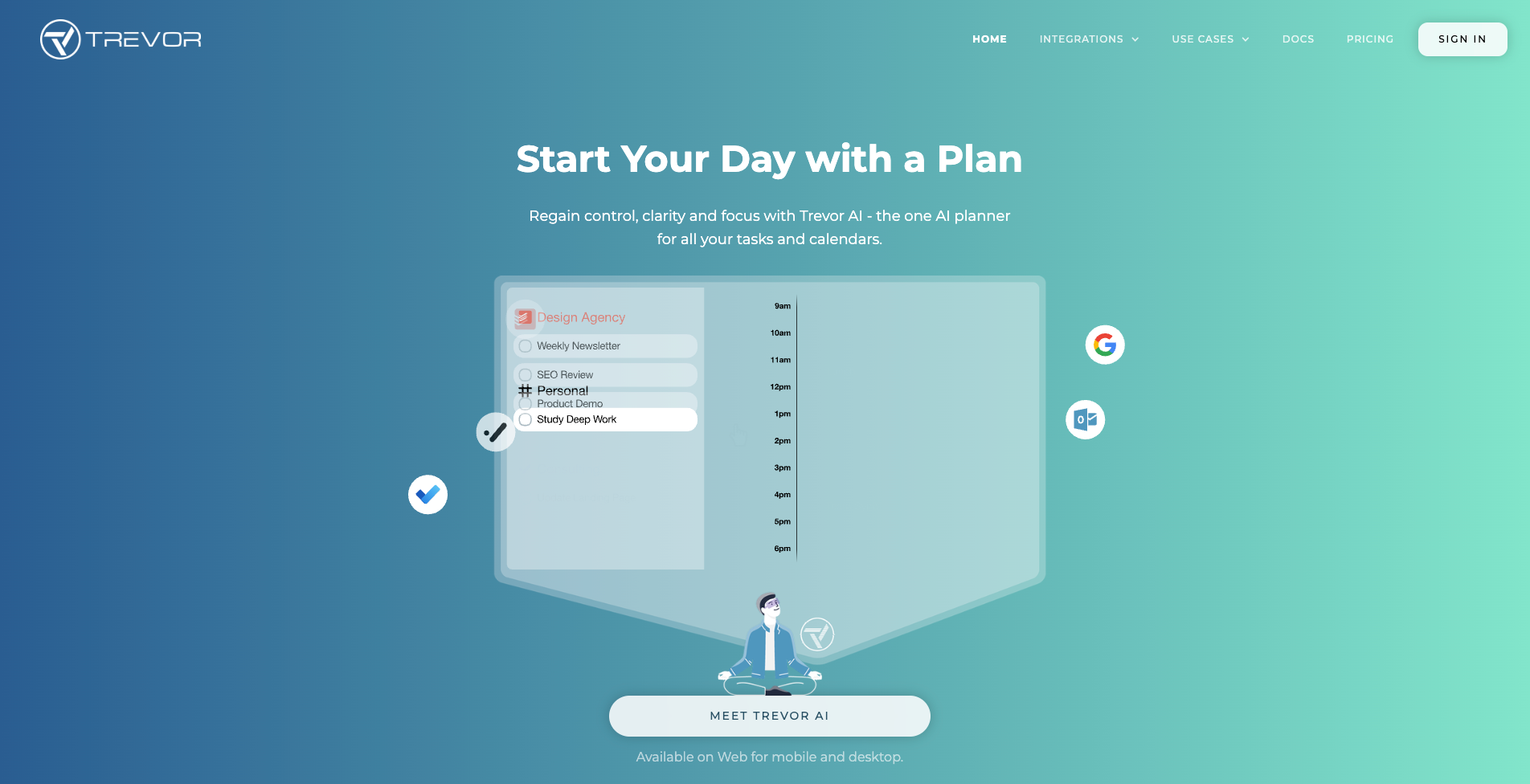
6. Trevor AI: Best for lightweight personal scheduling
Who it's for: Solopreneurs, students, and freelancers who want structured time-blocking without the complexity of a full productivity platform.
Pick this if: You want AI to handle your daily planning decisions and your budget is closer to $5 than $50.
Key features
- Smart scheduling queue: Add individual tasks or full lists to a queue and Trevor schedules them proactively around your existing calendar, including in bulk.
- Personal scheduling insights: Tracks your scheduled hours in a progress dashboard and surfaces specific advice on your planning patterns in your daily morning email.
- Personal AI model: Learns how long your tasks take over time and adjusts duration predictions based on your history, not generic estimates.
- AI coach morning email: Sends a daily digest that includes your schedule, overdue tasks, and specific coaching advice on how to improve your planning habits.
- Apple Calendar support: Works with Google Calendar, Outlook, and Apple Calendar. One of the few tools here with native Apple Calendar support.
Why I picked it
My first morning with Trevor, I had 11 tasks and no idea what to tackle first. I dragged three onto the calendar, pressed Plan My Day, and had a schedule in four minutes. Nothing dramatic. Just faster than I expected from something this cheap.
A $5/month tool, there’s almost no friction. The interface is clean, and the planning is fast. The Focus Mode's 5-step task breakdown is something I didn't expect to find useful, but did. That client project you've been circling for three days gets split into five steps.
I used the AI coach emails for a few weeks after testing. Every morning, Trevor would flag what I'd pushed from the day before and tell me where I was losing time. One email pointed out that I was consistently underestimating writing tasks by 40 minutes. I hadn't noticed. Adjusted my estimates, stopped running over into client calls.
What could improve
Trevor has a small integration footprint. If your task list lives in Notion, Asana, Jira, or ClickUp, it won't connect. You'd have to manage tasks inside Trevor directly, which works for individuals but breaks down fast for anyone working across a team.
Another downside is that there's also no native app. Trevor runs as a web app, and the mobile experience requires adding it to your home screen. It's English-only as well, which rules it out for a portion of international users.
Pricing
Trevor's free plan covers core personal use features with one calendar account and limited automation. Pro runs $6/month, adding multiple calendar connections, the personal AI model, recurring scheduled tasks, and the progress dashboard.
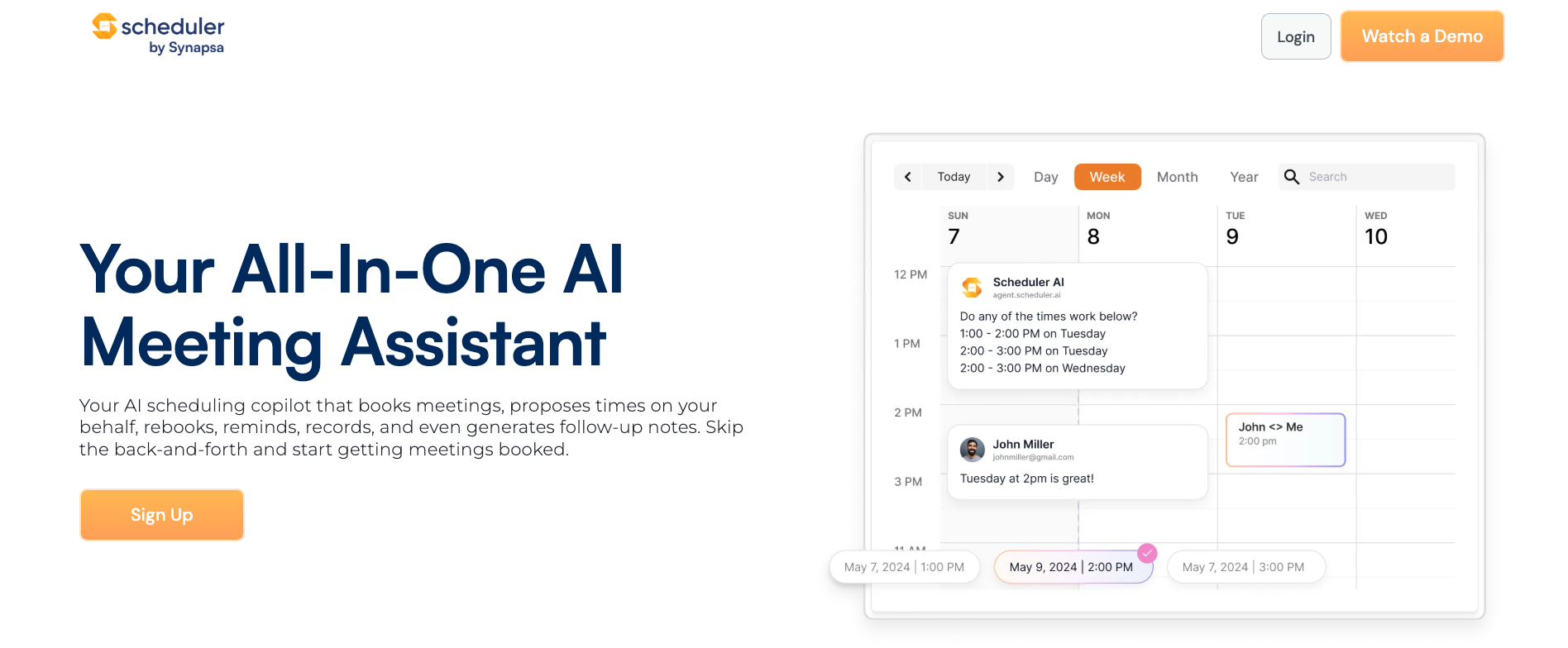
7. Scheduler AI: Best for conversational meeting booking
Who it's for: Sales and revenue teams who want meeting booking to happen inside email threads, not through a separate link.
Pick this if: You're losing time following up on scheduling requests that come in through email and want the back-and-forth handled automatically.
Key features
- Email thread scheduling: CC Scheduler AI into any thread and give a command. It reads the conversation, checks your calendar, proposes times to the other person, and books once they confirm.
- Lead qualification and routing: Qualifies inbound leads automatically and assigns them to the right rep based on your rules, then books the meeting without manual handoff.
- Automatic rescheduling: When a prospect emails asking to move a meeting, Scheduler AI reads the message, finds a new time, and updates the invite. The email sits unread in your inbox.
- Follow-up meeting scheduling: Schedules the next meeting before the current one ends, keeping deals and projects moving without a separate coordination step.
- Meeting summaries and action items: Captures what was discussed and pulls out action items automatically after each call.
Why I picked it
Scheduler AI lives inside email. I CC'd it on a thread with a prospect, typed one command, and it ran the back-and-forth from there. It works with both Google Calendar and Outlook, and auto-adds Zoom or Teams links to every booked meeting without any manual setup on your end.
You're in an email thread with a prospect. You CC Scheduler AI and type "find us 30 minutes next week after 10 AM." It reads the thread, checks your calendar, proposes times directly to the prospect, and books the meeting once they confirm. You never follow up or check back.
If I had to choose between Scheduler AI and Calendly, the difference is outbound. Calendly waits for someone to use a link. Scheduler AI goes into the conversation and closes the booking there. For sales teams where speed matters, that distinction is worth more than any feature list.
What could improve
Scheduler AI is a focused tool with a narrow use case, and that shows outside of sales contexts. If you're not running a high volume of external scheduling threads, the price won't justify itself. The routing rules also require careful setup upfront: get them wrong and leads go to the wrong person. The documentation situation is the most noticeable gap.
There's no dedicated knowledge base or support hub. For a tool at this price point, if you hit a problem, you're largely on your own compared to what Motion or Reclaim have built around their products.
Pricing
Scheduler AI starts at $50/month on the Basic plan, which covers the AI scheduling assistant, booking links, calendar reminders, rescheduling, call recordings, and summaries. The entry point is a demo rather than a self-serve trial, so expect a short sales conversation before you get access.
Which AI calendar assistant should you choose? My take
My pick depends on your bottleneck. For most people shuffling between email, calendar, and CRM, it's Lindy. For pure focus-time defense, Reclaim. For full-day auto-planning, Motion.
Here's how to find the right AI calendar assistant for your situation:
- Calendly or Scheduler AI: Inbound requests from outside people are piling up. Calendly for self-serve booking links; Scheduler AI for bookings handled inside the email thread.
- Reclaim: Focus time keeps disappearing. Reclaim defends deep work blocks automatically and pulls tasks in from your project management tools.
- Motion: No room for actual work between meetings. Motion plans your entire day and reshuffles when something shifts.
- Lindy: Scheduling touches email, calendar, and CRM. Text Lindy what needs to happen and it handles all three in one go.
- Akiflow: Tasks scattered across multiple apps with no clear daily plan. Akiflow pulls everything into one inbox and lets you schedule directly from there.
- Trevor: Simple time-blocking, no complexity needed. Trevor's free plan covers most personal use cases, and Pro is $6/month if you need more.
{{cta}}
Why Lindy is worth a closer look
Lindy handles everything around the meeting. Text it what needs to happen and it works across the tools already in your stack.
Here's what that looks like in practice:
- Get answers instantly: Text Lindy to pull information from your email, calendar, or CRM without digging through tabs.
- Send emails and follow-ups automatically: Ask Lindy to draft, personalize, and send outreach and handle replies.
- Take meeting notes and share summaries: Lindy joins meetings, writes structured notes, and follows up afterward.
- Update your CRM without manual entry: After a call, Lindy logs notes and automatically fills in missing fields.
- Find and qualify leads in minutes: Tell Lindy your ideal customer profile and get curated lead lists ready for outreach.
- Hundreds of app integrations: Lindy connects with the tools you already use, so everything stays in sync.
FAQs
What is the best AI calendar assistant in 2026?
Motion is the best AI calendar assistant for automated day planning in 2026. If you want AI to own your entire schedule and reshuffle it in real time, nothing else on this list comes close. That said, Reclaim is the better pick for protecting focus time, and Lindy leads if your scheduling problem touches email, CRM, and Slack simultaneously.
Is there a free AI calendar assistant?
Yes, there are free AI calendar assistants worth using. Reclaim's Lite plan is free forever and covers habit scheduling and focus time protection. Calendly's free plan handles one event type and one calendar. Trevor AI also has a functional free tier for personal time-blocking. For anything more advanced, expect to pay.
Can an AI calendar assistant replace an executive assistant?
No, an AI calendar assistant cannot fully replace an executive assistant. It handles scheduling, reminders, and meeting coordination well, but it can't read political context, manage relationships, or exercise the judgment a human EA brings to complex situations. Lindy comes closest for administrative tasks, but it works best alongside a human, not instead of one.
Do AI calendar assistants work with both Google Calendar and Outlook?
Most AI calendar assistants work with both Google Calendar and Outlook, but not all. Motion, Reclaim, Calendly, Akiflow, Scheduler AI, and Lindy all support both. Trevor AI supports Google Calendar, Outlook, and Apple Calendar. Always verify on the live product page before committing, as integration depth varies even when both calendar types are technically supported.









