The 6 Best Calendar Apps in 2026: Tested and Ranked


I had four calendar apps open on a Tuesday afternoon. Google Calendar in one tab, Fantastical running alongside it, Apple Calendar pinging my phone, and Outlook open because a client insisted on it for meeting invites. I still missed the call. The problem was that I had too many and trusted none of them.
Over the next eight weeks, I tested 11 calendar apps as a freelance ops consultant, managing client calls, deep-work blocks, and shared scheduling for a team spread across three time zones. Most didn't survive the first week. The six that did each cleared every bar I set.
Most calendar app roundups rank by feature count. The ones worth using in daily work rarely top those lists. Here's what I found.
What are calendar apps?
Calendar apps let you create, view, and manage scheduled events in a shared visual timeline. At the most basic level, they store meetings, deadlines, and reminders in a day, week, or month view, so you can see what's coming without having to hold everything in your head.
The calendar app market is crowded, and most options market themselves as doing roughly the same things. The differences that matter to daily scheduling are narrower than the feature lists suggest.
Here's what separates a calendar app worth keeping from one you stop opening after two weeks:
- Cross-platform consistency: A calendar that works on your Mac but struggles on your phone, or syncs cleanly with Gmail but fails with Outlook, creates coordination problems rather than solving them. Check whether the version you'll use most (mobile, desktop, or web) has full feature parity before committing. Verify this for the specific platforms your team uses day-to-day.
- Free tier depth: Most apps offer a free tier, but many cap the useful features in ways that aren't obvious until week two. A free tier worth using should handle your core scheduling without requiring an upgrade. If the free version feels like a demo with time limits, budget for the paid plan from the start.
- Scheduling friction: The best calendar app is the one you update under pressure. If creating an event takes more than three steps, you'll stop updating it when things get busy. If sharing your availability requires exporting a link from a separate screen, that's two extra steps you'll skip the moment your day accelerates. Test the one-action creation flow before anything else.
- Integration stack: Your calendar lives inside a tool stack. At a minimum, it needs to sync with your email, connect to your video conferencing tool, and cleanly share events with people on other platforms. Integration gaps create the manual-copy problem the calendar was supposed to remove.
- AI that changes something: A growing number of apps label features as AI. The only version worth paying for is one where the AI saves a concrete step. Scheduling around existing blocks, prepping you before a meeting, or flagging a conflict before it happens. AI that summarizes your calendar back to you in a chat window doesn't clear the bar.
How I tested these calendar apps
I ran 11 apps through eight weeks of real scheduling work as a freelance ops consultant, covering client calls, deep work blocks, and shared coordination with a team across three time zones. Every app got at least one full week as my primary calendar before I made a call on it.
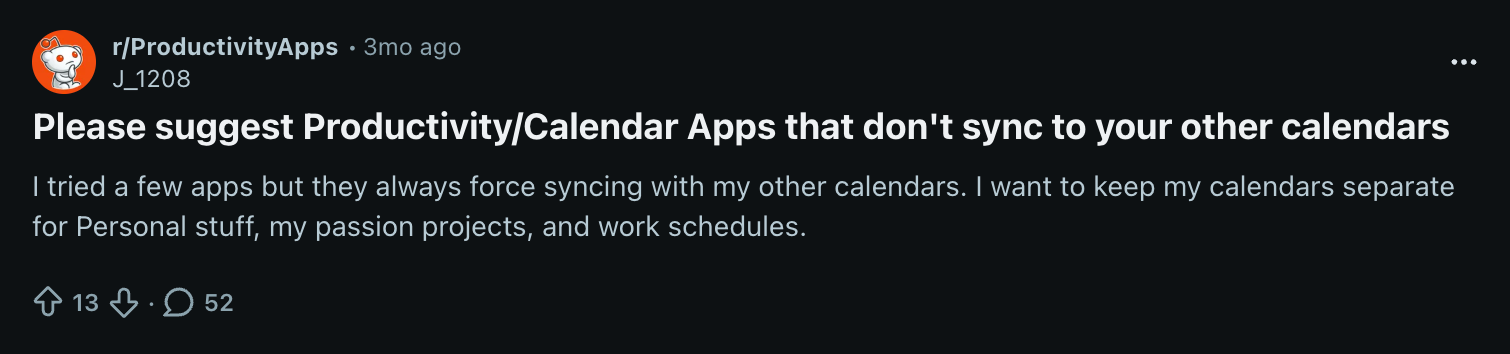
I also cross-referenced the findings with community discussion on r/ProductivityApps to see what people were running in production. Tools that consistently proved frustrating in real-world threads received extra scrutiny during testing.
Each was measured against the same six criteria:
- Cross-platform availability: Works equally well on Mac, iPhone, and Windows without a workaround.
- Free tier quality: The free version has to work as a real daily driver. Artificial feature caps were disqualifying.
- Design: Something you would open without dreading it.
- Calendar as backbone: Has to stand on its own as a primary scheduling layer.
- Team sharing: Lets you share availability and send invites without extra friction.
- AI depth: AI features had to earn their place through observable daily impact. Suggesting a time slot and calling it intelligence didn't count.
Notion Calendar, Reclaim, Motion, Akiflow, and TickTick didn't make the final six. Each had real strengths but fell short on at least two criteria, whether platform gaps, AI that felt bolted on, or a design that made daily use feel like a chore.
The six that made it each solve a distinct scheduling problem well enough to recommend to a specific kind of user.
The 6 best calendar apps at a glance
| Tool | Best for | Starting price | Free plan | Platforms | Standout feature |
|---|---|---|---|---|---|
| Google Calendar | Most people | Free | Yes | Android, iOS, Web | Syncs with every tool in your stack |
| Apple Calendar | Apple-only users | Free | Yes | iOS, Mac, iPad, Web | Deep Siri and Reminders integration |
| Microsoft Outlook Calendar | Microsoft 365 Teams | Free (Microsoft 365 from $8.40/user/month with Teams) | Yes | Windows, Mac, iOS, Android, Web | Scheduling Assistant and room booking |
| Fantastical | Apple power users | Free basic; $6.99 per month | Yes | Mac, iOS, iPad, Windows | Natural language input and Calendar Sets |
| Morgen | Task-aware scheduling | $30 per month | No | Mac, Windows, Linux, Web, iOS, Android | AI Planner that time-blocks tasks alongside meetings |
| Lindy | Teams on Slack who need scheduling handled end-to-end | From $29.99 per month per user | No free plan. 7-day trial for Slack joiners. | Slack, iMessage, Web | End-to-end meeting coordination from a single Slack mention |
1. Google Calendar: Best free calendar for most people
What is it? Google Calendar is a free cloud-based calendar from Google that syncs across every major platform and connects natively to Gmail, Google Meet, and Google Workspace. It stores meetings, deadlines, and reminders in a shared visual timeline, lets you share your availability with anyone via a link, and updates in real time across all devices signed in to your Google account.
Best for: Google Workspace teams and anyone who wants a calendar that works out of the box.
Why I picked it
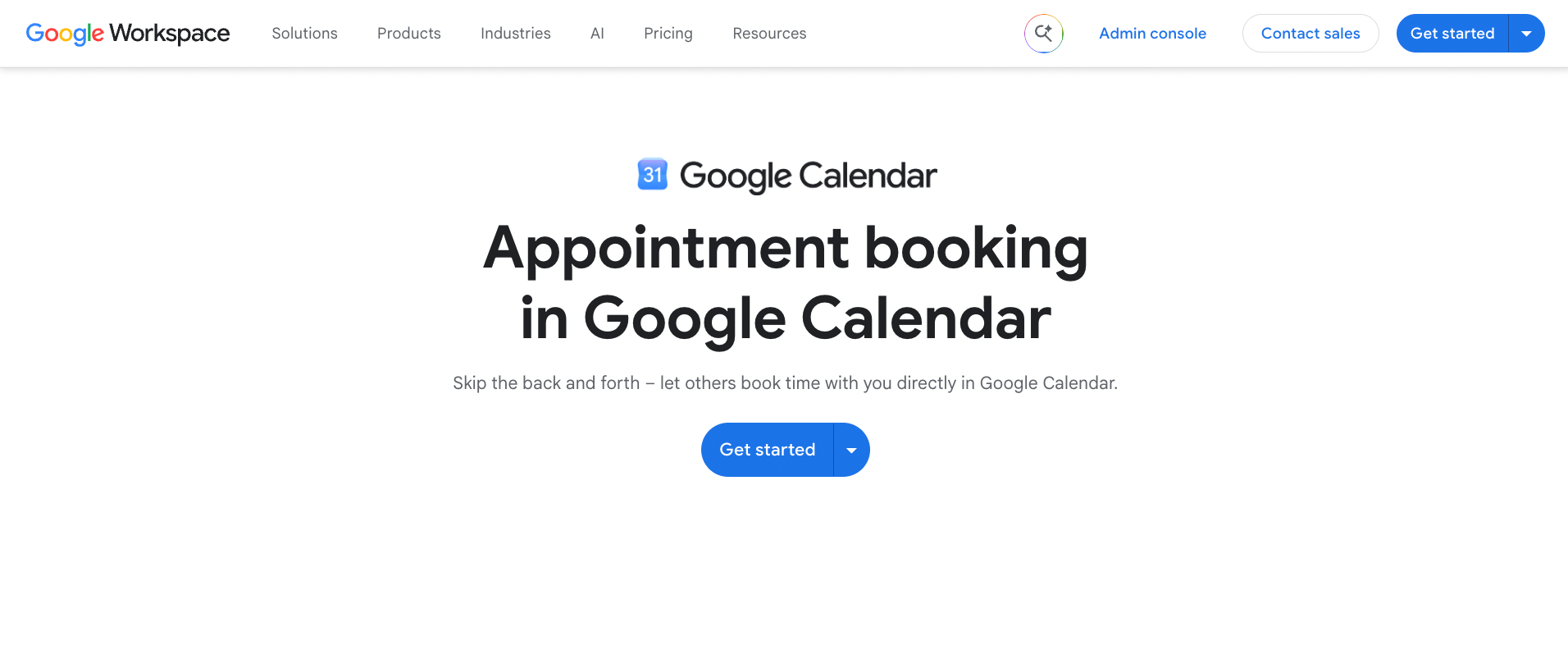
I ran a test I'd been putting off. Sharing my availability with three different clients without paying for a separate scheduling tool. I set up Google Calendar's appointment scheduling page, shared the link via email, and had all three book slots within the same afternoon. One was on Android, one on iOS, and another was booked from a Windows desktop browser. All three synced without any lag.
The booking page pulled from my live calendar, blocked time I already had, and confirmed appointments automatically. It works across the full range of how people use calendars, and it does it for free.
Key features
- Gemini integration: Ask Gemini to find a time that works for everyone and it reads the whole group's availability, then suggests slots. It needs a Business Standard plan or higher, so it is not part of the free version.
- Google Tasks in calendar view: Surfaces your task list as checkboxes directly alongside your calendar events, so your to-dos and meetings share a single view without any switching.
- Working hours: On a work or school account, set your availability once and Google Calendar warns organizers when they try to book outside those hours, so you stop receiving meeting requests at 7 pm.
- Appointment scheduling: Generates a shareable booking page from your live calendar, blocks time you already have, and confirms appointments automatically when someone books a slot.
Limitations
Google Calendar has no native Mac desktop app. You get the browser version or a full third-party client like Fantastical, and most Mac users have stopped noticing the gap. Gemini will create, find, move, and reschedule single events for you, but it stops there. Rebuilding your whole week after a client fires you on Monday morning is still your job.
Pricing
Teams can upgrade to Google Workspace Business Starter at $8.40/user/month, or $7/user/month on a one-year commitment, which includes business email, Meet, and shared drives. Business Standard at $16.80/user/month covers larger storage and Meet recording.
2. Apple Calendar: Best free option for Apple users
What is it? Apple Calendar is the built-in calendar app on iPhone, Mac, and iPad that syncs across Apple devices via iCloud and integrates directly with Siri, Reminders, and Focus modes. It supports multiple accounts, including Google, Outlook, and Exchange, and updates events in real time across all Apple devices on the same iCloud account.
Best for: iPhone and Mac users who want their calendar to integrate with the rest of their Apple setup, with no configuration required.
Why I picked it
I switched to Apple Calendar as my sole calendar for one full week on an all-Apple setup. The moment that confirmed it was a push notification 23 minutes before a client meeting telling me I needed to leave now, based on current traffic.
I hadn't set a travel-time reminder. It's a feature that estimates how long it'll take you to get somewhere and alerts you when it's time to leave, using live traffic data. I had put the address on the event and nothing else. Apple Calendar did the rest on its own.
Key features
- Siri event creation: Ask Siri to add an event with the time, location, and attendees, and it lands in your calendar without you opening the app.
- Reminders integration: Tasks from the Reminders app appear alongside your calendar events in a single view, so your to-dos and your schedule stay in one place.
- Siri Suggestions: When a flight confirmation or reservation lands in Mail, your iPhone spots it and offers the event in Calendar, so you confirm it in one tap instead of typing it out.
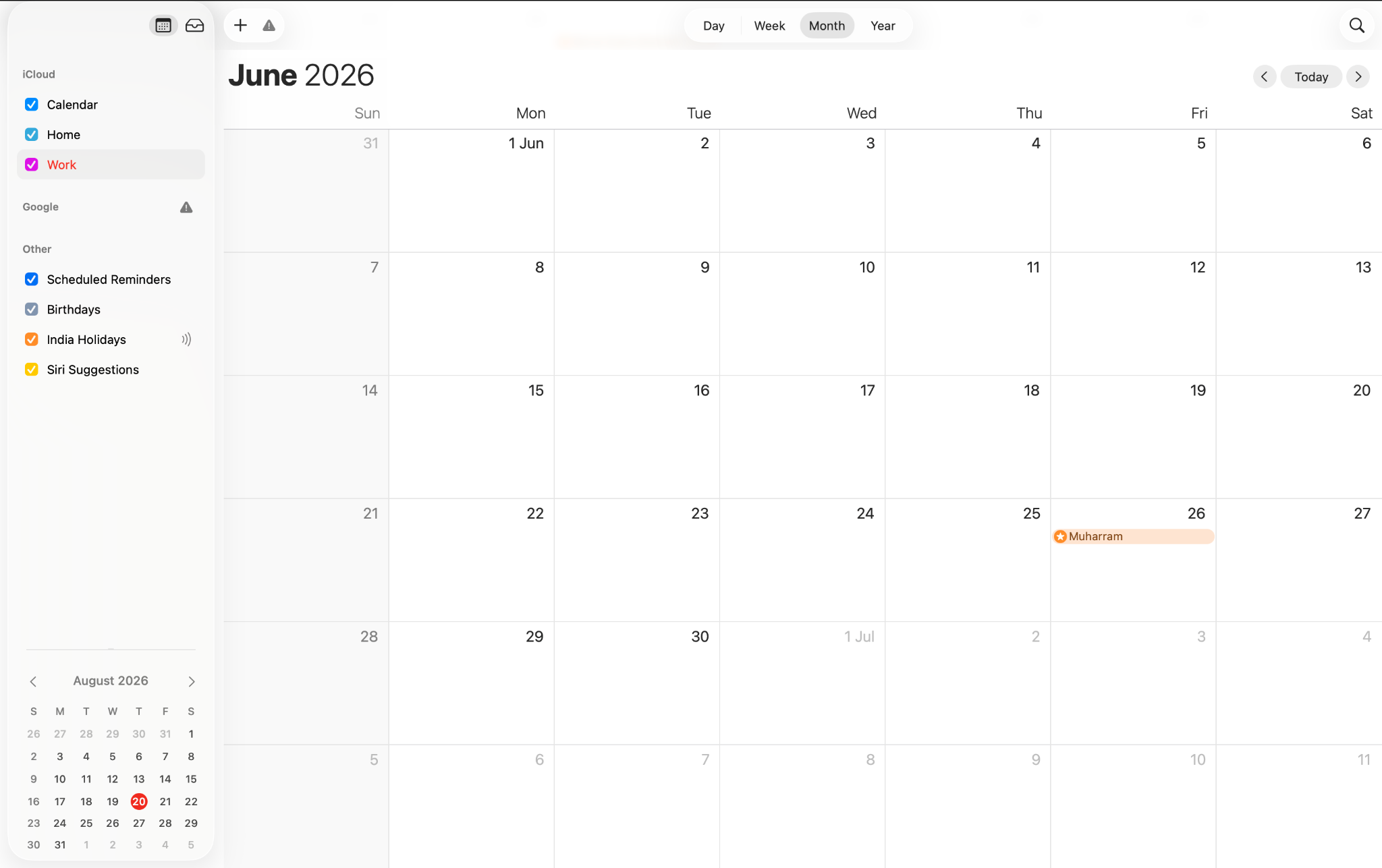
- Focus filters: Switching to Work Focus tells Apple Calendar to surface only work events, so personal and professional schedules stay separated. You set the filter up once per device.
Limitations
Step outside the Apple ecosystem and Apple Calendar loses almost everything. iCloud sync across non-Apple devices creates friction. Sharing calendar links with Windows or Android users requires extra steps that Google Calendar handles automatically. The web interface is too limited for anyone switching between platforms mid-day. Anyone who works with both Apple and non-Apple devices will repeatedly hit the edges of this.
Pricing
Free with an Apple ID. There are no paid tiers for the calendar itself. iCloud+ adds device storage from $0.99 per month but doesn't change what the calendar can do.
3. Microsoft Outlook Calendar: Best for Microsoft 365 teams
Outlook Calendar is the scheduling layer built into Microsoft 365 that manages meetings, room bookings, and team availability across an organization. It connects natively to Microsoft Teams, Exchange, and SharePoint and provides organization-wide visibility into who is free, which rooms are open, and when a meeting can actually happen for a large group.
Best for: Teams running on Microsoft 365 that need organization-wide scheduling and room coordination.
Why I picked it
I needed to schedule a planning session across seven people in four time zones. Without the scheduling assistant, that usually means a chain of availability emails and a polling tool. In Outlook, I opened the Scheduling Assistant, pulled in all seven attendees, and saw everyone's free and busy blocks in a single visual grid. The first open slot across all seven appeared in under a minute.
I created the meeting, attached the Teams link, and sent the invite without leaving the same screen. The group scheduling feature alone saves hours over the course of a typical week.
Key features
- Room booking: Conference room availability is built into the same scheduling interface, so you can book a space and invite attendees in a single flow without switching screens.
- Teams meeting links: Automatically attached when you create a meeting, so every invite includes the join link and no manual copy-paste is required.
- Copilot scheduling: Reads the context of an email thread and drafts a meeting invitation based on what was discussed, so you skip the manual transfer from email to calendar. It needs the Microsoft 365 Copilot add-on, from $21 per user per month on top of your plan.
- Viva Insights focus time: Opt in once and it books concentrated work blocks every day, up to four hours, so protected time gets reserved before meeting requests fill the slot.
Limitations
Outlook comes in three versions (Classic, New, and Outlook.com) with meaningfully different feature sets, and New Outlook still has gaps that remain unaddressed.
The Scheduling Assistant needs a Microsoft 365 or Exchange account, and it shows little for anyone outside your organisation. The Mac version also trails Windows on Forms, voting buttons, recipient tracking, and message recall.
Pricing
Free on all platforms with a personal Microsoft account. Microsoft 365 Business Basic, at $8.40/user/month, includes business email, Teams, SharePoint, and 1 TB of cloud storage per user.
4. Fantastical by Flexibits: Best calendar app for design
Fantastical is a third-party calendar app for Mac, iPhone, iPad, and Windows that pulls Google Calendar, Outlook, iCloud, Exchange, and CalDAV accounts into a single interface. It lets you create events in natural language, group accounts into focused Calendar Sets, and propose meeting times to attendees without leaving the app.
Best for: Apple power users who manage multiple calendars across work, personal, and client contexts and want the best-designed calendar available.
Why I picked it
I manage three calendar accounts: personal, one client on Google Workspace, and another on Exchange. Every other app I tested either showed them in separate views or merged them into a cluttered single list, with no way to distinguish between contexts.
Fantastical showed all three in a single view, color-coded cleanly. Every account had its own visual lane, and I could tell at a glance which event belonged where without cross-referencing anything. One click switched me into a client-only Calendar Sets view. The rest of my calendar stepped back, and I was looking at exactly what that account needed from me that week.
Key features
- Left sidebar: Shows a mini month view and a running summary of everything in your current view the moment you open the app, so you never navigate to see what's next.
- Natural language input: Type an event in plain language with the time, attendee, and location, and Fantastical parses and places it automatically without a single form field to fill.
- Meeting Proposals: Suggest multiple times to attendees, who vote on their preference via a generated link, so scheduling back-and-forth stays entirely out of your inbox.
- Weather in day and week views: Shows the forecast alongside your events based on where each event is, so you can check conditions before committing to anything outdoors.
Limitations
The price is the honest sticking point. $6.99 per month feels steep if you only need a single calendar to display your meetings. It earns that price if you run multiple accounts across work, personal, and client contexts and use natural language input as your primary way of creating events. The Windows version is also still catching up to the Mac and iOS experience on several features.
Pricing
Free tier available with basic event creation, natural language input, and one Calendar Set. The Individual plan at $6.99/month billed monthly, or $56.99/year, adds unlimited Calendar Sets, Meeting Proposals, Apple Watch support, and stretches the weather forecast from three days to ten. Family and Team plans are also available. A 14-day free trial applies to any paid plan.
5. Morgen: Best AI calendar for task-aware scheduling
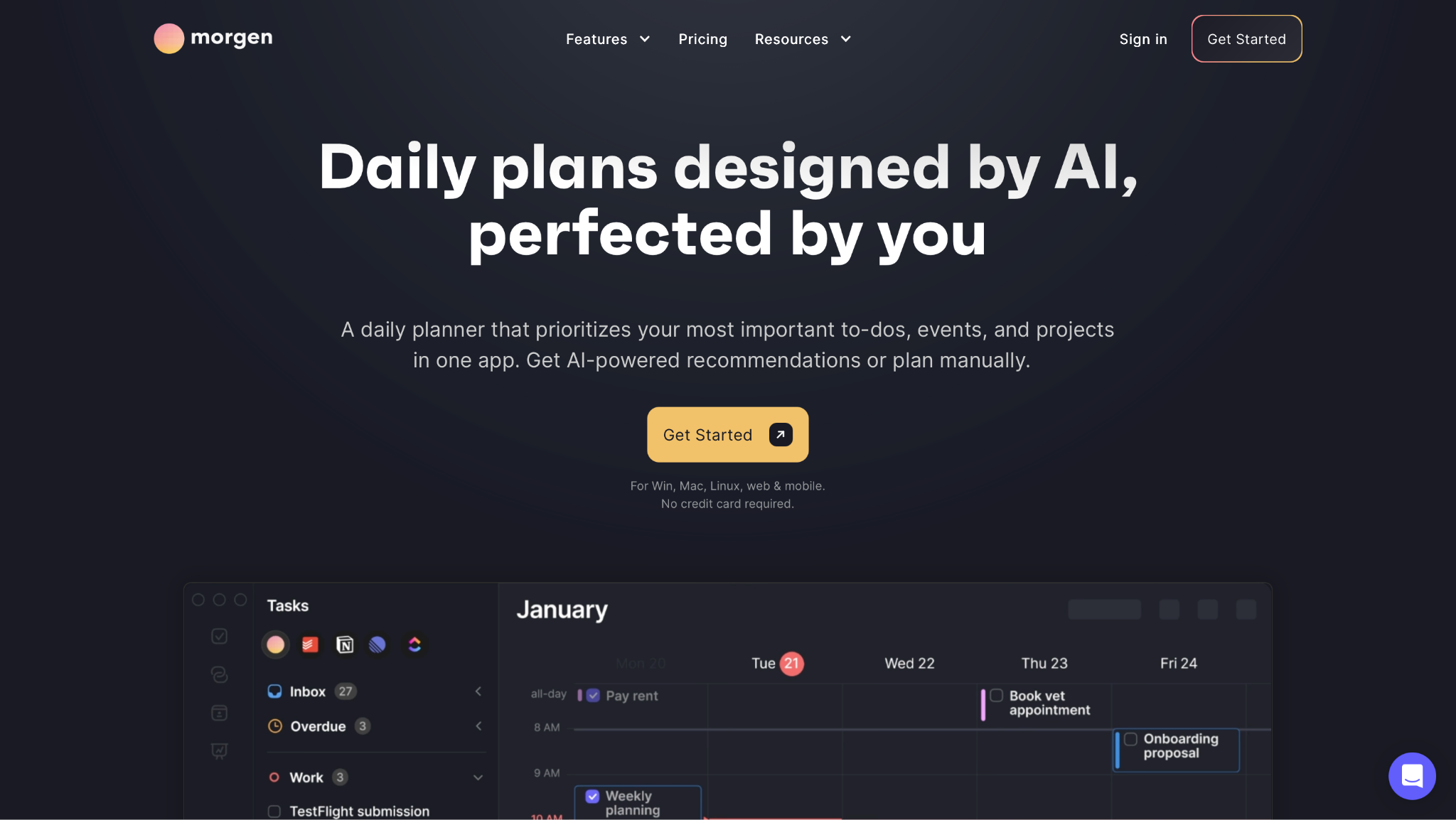
Morgen is a calendar and task planner that pulls your meetings from Google, Outlook, iCloud, and CalDAV alongside your tasks from Todoist, ClickUp, and Linear, then uses an AI Planner to build a time-blocked schedule from both. It places tasks around your fixed meetings automatically and adjusts the plan when you move things, so your day stays structured without manual rescheduling.
Best for: Task-heavy professionals who want their calendar and to-do list planned as a single plan.
Why I picked it
I wanted to know whether AI-planned time blocking would change how productive my days felt. Morgen told me to do deep work at 11 AM on a Tuesday. I had a client fire drill by 10:45. The scheduled block was gone, the rest of the day cascaded, and by noon I was working on something I hadn't planned to touch until Thursday.
The tool wasn't wrong. The schedule it built was logical. What that test showed me is that Morgen rewards people whose days are structured around meetings that don't move. If your day gets driven by what lands in your inbox, the AI plan becomes something you're constantly resetting.
Key features
- AI Planner timeline: Presents your full day as a color-coded visual before work starts, with every task and meeting placed automatically. Drag one block, and Morgen adjusts the rest around it.
- Frames: Define protected time for deep work and personal projects, and Morgen schedules tasks around those frames so high-priority work gets reserved before the rest of the day fills in.
- Scheduling links: Share your real availability as a booking link so people pick a slot without the back-and-forth, and the booking lands straight on the plan Morgen already built.
- CalDAV support: Connects to privacy-focused services like Fastmail and Nextcloud alongside Google and Outlook, so you are not locked into the major providers.
Limitations
Morgen's AI scheduling assumes you'll follow the plan it builds. If your day is reactive (client fires, shifting priorities, back-to-back context switches), the AI builds a schedule that reality dismantles before lunch. There's also no free plan. The 14-day trial is enough to find out whether the workflow fits, but after that it is $30/month with no free tier to fall back to.
Pricing
No free plan, but there is a 14-day trial with full access and no card required. The Individual plan at $30/month, or $15/month billed yearly, covers AI Planner, task manager sync, time blocking, and CalDAV support. The Team plan is $25/seat/month with a two-seat minimum, and overlays your team members' calendars on your own and flags who has capacity.
6. Lindy: Best for Slack teams who need scheduling handled end-to-end
Lindy is an AI teammate that lives in Slack and connects to your calendar, email, CRM, and meeting tools to handle scheduling end-to-end. It sends invites, preps you before calls with context pulled from your connected tools, transcribes and indexes every meeting, and drafts follow-ups for your approval, all triggered from a single @mention in Slack.
Best for: Slack teams who need scheduling, meeting prep, and follow-up handled in one place.
Why I picked it
I kept running into the same wall. The calendar invite was the easy part. The scheduling back-and-forth, the pre-call prep, the notes, the follow-up emails, the CRM update, all of that stayed with me.
In my weeks of testing, a forty-minute call reliably generated another half hour of work my calendar never saw. That's the gap Lindy fills. @mention it in Slack with the client's name and a rough time window. It checks your calendar, finds an open slot, and sends the invite. Twenty minutes before the call, a prep brief lands in Slack with context pulled from previous meetings and emails.
After the call, the follow-up draft is waiting for your approval. Most of that half hour comes down to reviewing a draft and clicking send.
Key features
- Meeting prep: Ask Lindy in Slack before a call, and it pulls relevant emails, open action items, and previous meeting summaries from your connected tools into a single message before the call starts.
- Meeting transcription and search: Every meeting Lindy attends is transcribed and indexed, so you can ask what was discussed with a specific client in a specific month and get an answer back.
- Routines: Set any recurring task in plain language and Lindy runs it on schedule without being prompted again. A morning brief, a Monday pipeline report, a Friday follow-up nudge. Describe it once, and it happens.
- iMessage and SMS: Lindy lives in Slack, and you can reach it by iMessage or SMS from your phone for quick scheduling requests, briefings, or follow-ups on the go.
Limitations
Lindy connects to your existing calendar and works on top of it. The calendar view still comes from Google Calendar or Outlook. There is also no free plan, only a 7-day trial, so you are paying before you have tested it against your own week. If all you need is a place to see your schedule, the tools above cover that.
Pricing
Lindy starts at $29.99 per user per month on the Plus plan. There is no free tier, and teammates who join through Slack get their first week free before the seat is billed. Pro ($99.99 per user per month) and Max ($199.99 per user per month) raise your monthly credit allowance by 5x and roughly 12x the Plus amount.
{{templates}}
Which calendar app should you use?
The right calendar app is the one that fits where your work already lives. A high feature count matters far less than that fit. Switching calendar apps costs about a week of friction. Picking the wrong one costs you that week every time you need to coordinate something.
Here's how the picks break down:
- You're on Google Workspace: Google Calendar is already in your account, syncs with every tool in your stack, and shares links without compatibility issues. Consider adding a third-party layer only if the default interface is causing you genuine friction.
- You're on Microsoft 365: Outlook Calendar is already there, and the Scheduling Assistant and room booking justify staying inside it once you're coordinating across teams rather than a handful of people. The cost of switching rarely pays back.
- You're Apple-only: Apple Calendar is free and handles the common case well. Upgrade to Fantastical if you want natural language input, Calendar Sets, and a better overall design.
- You want AI to plan your schedule around your meetings: Morgen is the pick from this list. It pulls task managers and calendars into one view and builds a time-blocked day from both, placing tasks around fixed meetings before you start moving things manually.
- When the calendar invite is just the start: Lindy handles the prep, the notes, and the follow-up that every other tool on this list leaves entirely to you. @mention it in Slack, and it takes care of the full chain from invite to approved follow-up draft.
{{cta}}
FAQs
What is the best free calendar app?
Google Calendar is the best free calendar app for most people. It's free with a Google account, runs on every major platform, and syncs with almost every scheduling tool available. Apple Calendar is the stronger free option if you stay entirely within the Apple ecosystem and want tighter integration with Siri, Reminders, and built-in Focus mode.
Is Google Calendar better than Apple Calendar?
Yes, Google Calendar is better than Apple Calendar for most people, specifically for cross-platform flexibility. It runs on Android and iOS, and in any browser on Windows or Mac, and syncs with most other tools in a productivity stack. Apple Calendar is the better pick for users who use only Apple devices, where Siri, Reminders, and Focus mode integration runs deeper.
What calendar app works best with Outlook?
Microsoft Outlook Calendar works best with Outlook if your organization runs on Microsoft 365. It natively handles room booking, cross-team availability, and scheduling coordination. Fantastical is the best third-party option if you use Outlook accounts but want a more polished interface on Mac or iPhone, with natural language input that builds a whole event from one typed line, which Outlook can't do.
What's the difference between a calendar app and an AI scheduling assistant?
A calendar app shows your schedule and lets you create events, whereas an AI scheduling assistant handles the coordination: finding times, sending invites, and prepping you before meetings. Tools like Morgen add AI planning to a calendar. Lindy handles scheduling as part of a broader set of tasks in Slack.
Which calendar app is best for remote teams?
Google Calendar is the best calendar app for remote teams. It syncs with every other tool in a distributed stack and shares calendar links without platform-specific compatibility issues. Teams that need scheduling, plus meeting prep and follow-up, handled in one place will find that Lindy, working alongside their existing calendar in Slack, covers the full chain.









