The 6 Best AI Planners in 2026: 6 Tools Worth Using
Jack reviewed AI planners including Motion, Reclaim AI, and Morgen, weighing auto-scheduling, focus-time protection, and AI calendar features to find the six worth using.


I spent most of last year managing my week with a mix of sticky notes, a calendar app, and a task list I rewrote every Monday morning. It looked organized. By Wednesday, everything had shifted, and I was back to deciding on the fly.
I was aware that AI planners existed, but I had doubts.
I wondered whether they would help or simply add one more system to manage.
So, I tested 18+ AI planning tools across real, messy weeks with overlapping deadlines, last-minute changes, and low-energy days to find out. Some tools made things worse, while others seemed smart, but drained me.
A handful lightened my day, so here’s a list of the top 6 AI tools to plan and organize your day.
What is an AI planner, and why does it matter?
An AI planner is a combined task manager and scheduling tool. It captures what you need to do, blocks time for it, and reorganizes itself when your day changes. If you prefer focusing strictly on to-do items, integrating a dedicated ai task manager can keep your workload organized.
If you're managing tasks manually, you understand the struggle. You might find yourself staring at a lengthy to-do list, a meeting just got rescheduled, a deadline is looming tomorrow, and your calendar isn't providing much assistance.
As a result, you end up trying to keep everything organized in your head, hoping that nothing gets overlooked.
Frankly, that’s not how you stay productive at work, and that's the gap AI planners are built to close. To offload even more administrative tasks, pairing a planner with specialized ai secretary software can further streamline your daily workflow. For teams juggling a lot of projects, the best AI task management tools can save even more time.
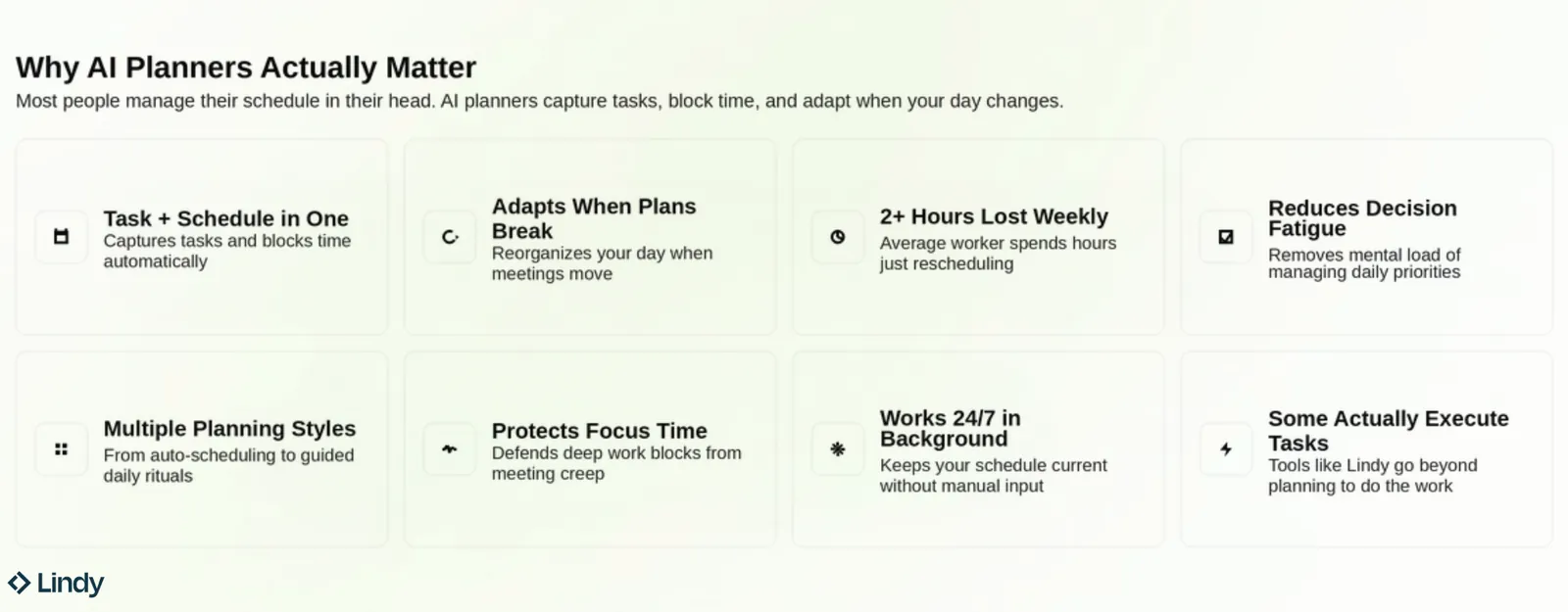
While an AI planner may not inherently boost your productivity, it takes the ongoing burden of scheduling off your plate. It also gives you an outside perspective on your week, which helps when you're too close to it to see what's slipping. To upgrade your scheduling workflow, consider pairing these tools with the best AI calendar assistant for your specific needs.
The tools on this list do this at different levels. Some auto-schedule everything, and a few guide you through a daily planning ritual. Finding the best daily planner depends heavily on whether you prefer full automation or a guided routine.
Best AI planners at a glance
| Tool | Best for | Starting price | Standout feature |
|---|---|---|---|
| Motion | Hands-off auto-scheduling | $29/seat/month (teams), $49/month (individuals) | Rebuilds your entire day automatically when plans change |
| Reclaim AI | Protecting focus time | $12/seat/month | Defends your calendar against meeting creep automatically |
| Morgen | Suggestions without losing control | $30/month | You decide before anything moves |
| Sunsama | Daily planning as a ritual | $22/month | Guided morning planning ritual with time tracking |
| Akiflow | Speed-first task capture | $34/month | Lock tasks on your calendar so nothing books over them |
| Notion Calendar | Building a custom planning system | $12/member/month | Your notes, tasks, and calendar in one connected workspace |
How I tested these tools
I spent several weeks using each tool as my primary planner, and not just signing up and clicking around. I ran real tasks through them, connected my actual calendar, and paid attention to what broke and what surprised me. This hands-on approach is just as essential when evaluating AI scheduling assistants.
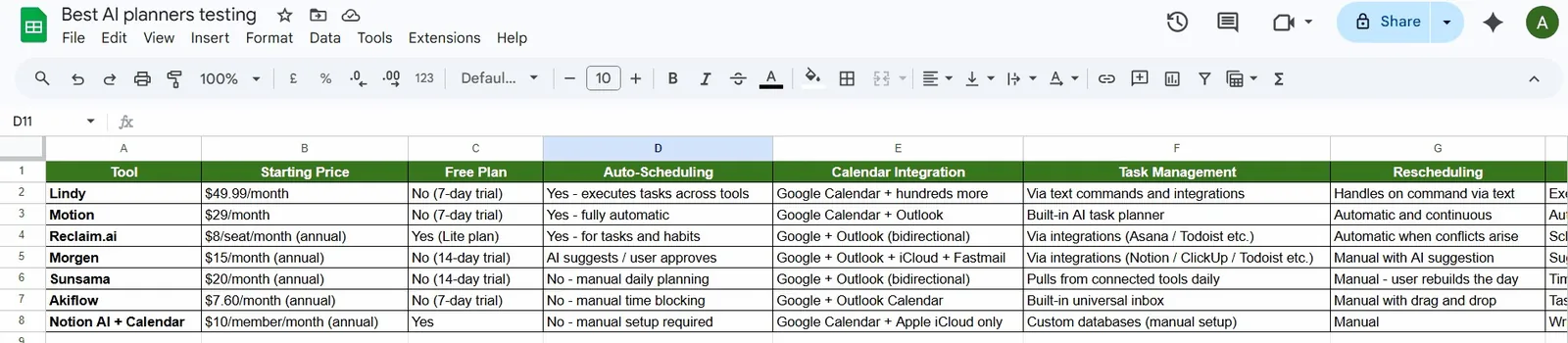
Across every tool, I held them to the same four standards: These evaluation standards are equally relevant when choosing effective AI organization tools for your team.
- How well did it hold up when my day went sideways mid-week?
- How quickly could I get real value from it (not just how quickly I could set it up)?
- Whether the AI did something useful beyond looking good in a demo?
- How honest was the pricing once I needed the features that mattered?
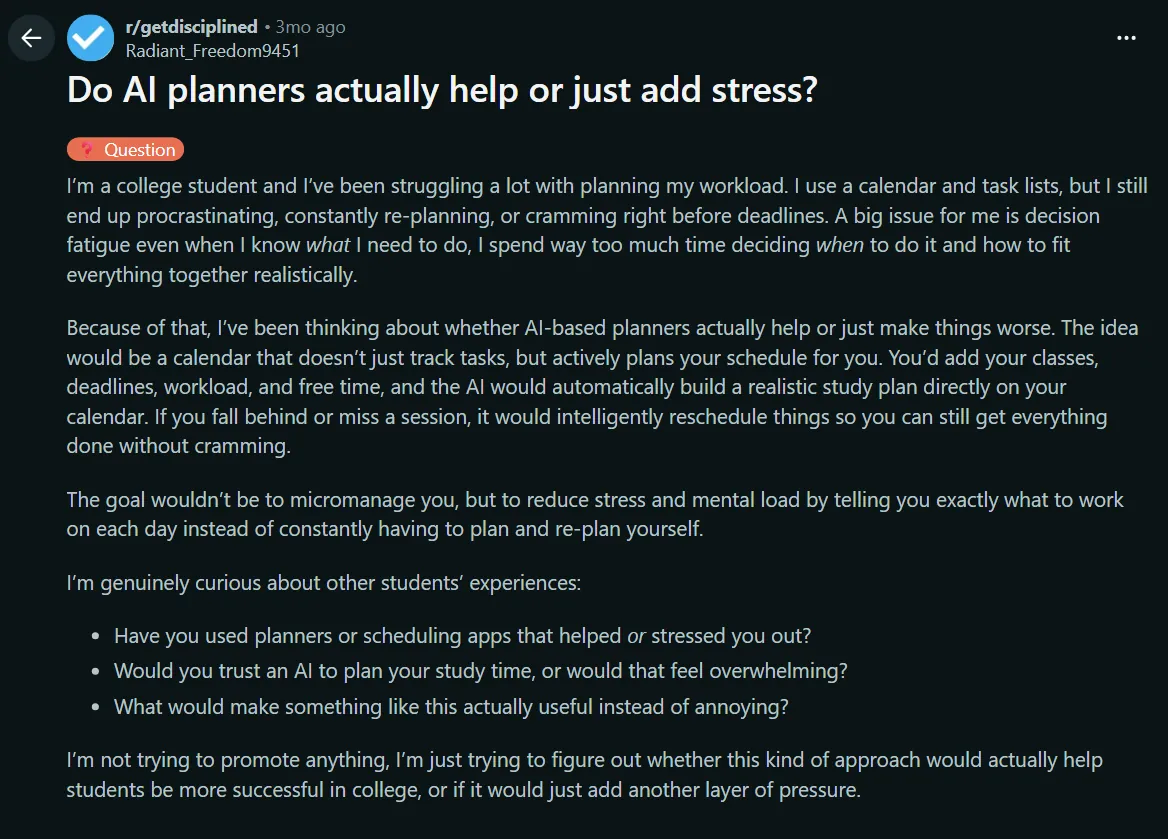
Along with my own testing, I also looked at what other users were saying across Reddit threads, G2 reviews, and similar communities. It helped me see if my experience was consistent. Whenever a certain issue kept coming up, I went back and tested it myself to see if it held up. This same thorough approach also helps when comparing planners, such as Motion vs Reclaim.
1. Best AI Planner for Hands-Off Auto-Scheduling
Motion: What is it?
Motion is an AI calendar and task manager that plans your day for you, automatically. It takes everything on your plate, factors in deadlines and priorities, and builds a schedule without you touching it.
Ratings:
| Ease of setup (/5) | AI capability (/5) | Value for money (/5) |
|---|---|---|
| 3.0 | 4.5 | 3.0 |
Who it’s for: People who end every week with a graveyard of unfinished tasks and cannot figure out where the day went. It's priced higher than most tools on this list, so it's best suited when the time savings justify the cost.
Key features
- AI Auto-Scheduling: Motion looks at your tasks, deadlines, and available time, then slots everything into your calendar automatically. No manual time-blocking required.
- Dynamic Rescheduling: When your day breaks (and it will), Motion rebuilds it. Missed a task? It moves to an open slot, not disappears.
- AI Task Planner: Asks you questions, understands your workload, and figures out what you should be working on right now.
- AI Project Manager: Break a project into tasks, set dependencies, and Motion handles the scheduling logic across the whole thing.
- Integrations: Zapier, Zoom, Google Meet, Gmail, Outlook, HubSpot, Salesforce, Slack, Teams, and more.
What I liked
Every tool I used before Motion had the same problem. Miss something, and it just sits there in an overdue list that you either ignore or keep pushing manually. But Motion just picks things up and finds a new slot, which takes a huge load off when your plate is already full.
I usually half-listen on calls because I’m busy trying to write everything down. With Motion handling the notes and summaries, I just stopped taking notes altogether after a week or two. I could focus on the conversation for once. Capturing the best ai action items from meeting discussions automatically ensures that no important next steps get missed.
A clean dashboard makes a big difference, and Motion gets that.
Normally, I’d be jumping between tabs, checking deadlines, and trying to figure out what’s urgent. Here, I can just open it and immediately see what’s due today, what’s overdue, and which project is slipping.
I didn’t expect to use Motion’s library much, but it helped. It has guides for task management, projects, and calendar setup, and they’re all based on real use cases.
So instead of figuring things out on your own, you’re following along, which makes the learning curve feel a lot lighter.
Honest limitation
Motion only knows what lives inside Motion. If you are running tasks in Jira, Asana, or anywhere else, it cannot account for that workload, and it will schedule right over the time you had mentally reserved for those things.
Pricing
Motion's Pro AI plan costs $49/month for individuals or $29 per seat/month for teams, and the Business AI plan costs $69/month for individuals or $49 per seat/month for teams, all billed monthly. Annual billing lowers Pro AI to $29/month for individuals or $19 per seat/month for teams, and Business AI to $39/month or $29 per seat/month. Both offer a free trial.
2. Best AI Planner for Protecting Focus Time
Reclaim AI: What is it?
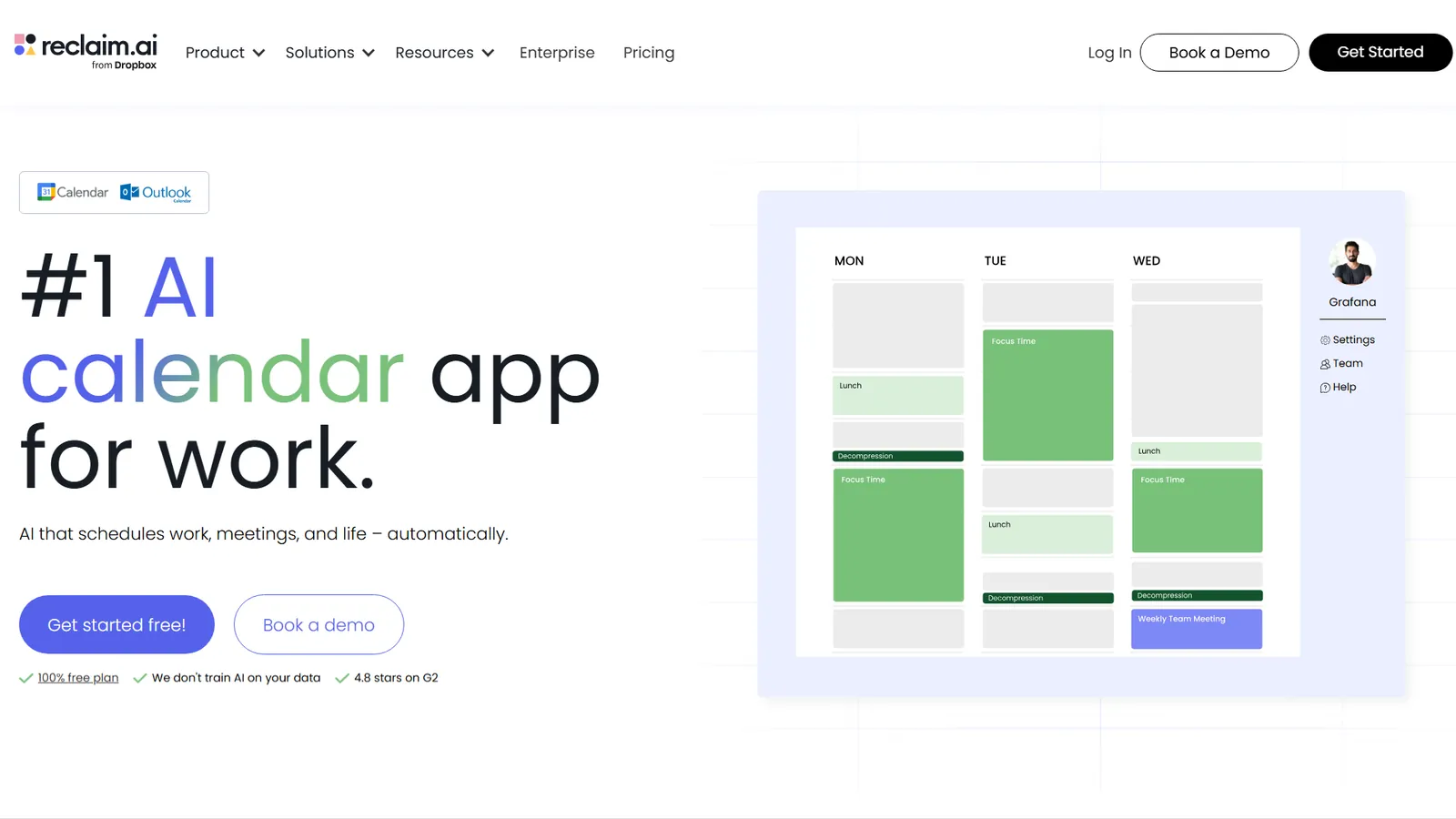
Reclaim.ai is an AI calendar tool that automatically schedules your tasks, habits, and focus blocks around your real availability. It also syncs across Google and Outlook calendars.
Ratings:
| Ease of setup (/5) | AI capability (/5) | Value for money (/5) |
|---|---|---|
| 4.0 | 4.0 | 4.5 |
Who it’s for: Schedulers, planners, and deep-work believers who have tried every calendar trick and still end the week wondering where Tuesday went.
Key features
- Focus Time: Sets a weekly focus goal and defends it. When meetings pile in, Reclaim moves your focus blocks rather than just deleting them.
- Smart Meetings: Finds the best time to meet based on real availability across time zones, with one-click rescheduling when conflicts come up.
- Scheduling Links: Sends availability links that only show times Reclaim considers genuinely free, so people can’t accidentally book over your focus blocks or habits.
- Calendar Sync: Syncs multiple calendars bidirectionally, so double-bookings stop being your problem to catch manually.
What I liked
Reclaim is the only tool on this list that treats your habits like a meeting you can't cancel. You add a habit, set it as flexible, and Reclaim defends it.
When a new meeting lands, it shifts the habit elsewhere in your week. Reclaim does not delete it or ask you to reschedule it manually. It just finds a new slot.
Finding time for hobbies is hard when your calendar is full of meetings and deadlines. So I gave the AI Habit feature a real shot. I added a daily language practice block, set it as flexible with a low priority, and watched what happened.
For three weeks, it never missed a day. It kept showing up somewhere in my calendar, even when the rest of my schedule fell apart. That is not a small thing for anyone who has tried and failed to protect personal time in a busy workweek.
The webinars are worth knowing about, too.
Reclaim runs a live intro session every week, four times a month at different times, plus a monthly founders’ call. If you sign up and feel lost, you won't have to dig through documentation. Just show up to a real session the following Monday.
Honest limitation
Reclaim lives entirely inside your calendar view. The moment you add an unplanned task mid-day, everything gets reshuffled, and the notifications start firing. There is no way to pause it or tell it you have stepped away for a bit, so if your day goes sideways, Reclaim treats it as a scheduling problem to solve rather than something to leave alone.
Pricing
Reclaim offers a free plan named Lite. The paid plans start at $12 per seat/month (Starter) and $18 per seat/month (Business), billed monthly ($10 and $15 per seat/month billed annually). Enterprise is not available on a monthly pricing plan. With annual billing, the Enterprise plan starts at $22 per seat/month.
3. Best AI Planner for Suggestions Without Losing Control
Morgen: What is it?
Morgen is a daily planner that pulls all your calendars, tasks, and projects into one view and lets AI generate a time-blocked plan from them.

Ratings:
| Ease of setup (/5) | AI capability (/5) | Value for money (/5) |
|---|---|---|
| 3.5 | 3.0 | 4.5 |
Who it’s for: People managing work, personal, and side project calendars across multiple apps who want everything in one place and visually appealing.
Key features
- Unified Calendar View: Google, Outlook, iCloud, Fastmail, all in one place. Calendar Sets let you assign shortcuts to jump between views or subsets without switching apps.
- Smart Calendar Automation: Calendar propagation propagates events from one calendar to another to prevent double bookings. Buffer time and travel time are calculated and added automatically.
- Scheduling Links: Booking links that check availability across all your connected calendars, not just one, before showing open slots.
- Integrations: Pulls tasks directly from Notion, ClickUp, Todoist, Linear, Obsidian, Google Tasks, Outlook Email, and Apple Reminders. Connects with Zoom, Google Meet, and Microsoft Teams for virtual conferencing, and automates with Zapier.
What I liked
For those who like to use AI to automate their work but don't want to give up control, Morgen is the right fit. Instead of automating everything, it makes suggestions and waits until you approve, adjust, or ignore. The final call is always yours.
It might sound like a small thing, but I've been in a situation where an AI planner reshuffled my entire afternoon just because one meeting moved by 30 minutes. Instead, Morgen shows you a proposed plan. You look at it and decide. For anyone who has been burned by aggressive auto-scheduling, that level of control is not a limitation. It is the whole point.
You give it your tasks, and it builds a time-blocked plan based on your capacity and priorities. You can easily override anything you don't like. Drag a block or shift the timing; you've got the option to make changes, and nothing locks you in.
Everything from work meetings and personal blocks to side project tasks sat in a single view.
With their routine builder, I can pick the time, set up the frequency, and choose the color, and it stays where I put it. So when dealing with tasks of different priorities, it's easy to spot everything without having a cluttered dashboard.
Honest limitation
Simple actions like marking a task as done can feel slow, and on certain platforms, the visual response has a slight lag. For a tool built around daily planning where you are constantly checking things off, that friction adds up faster than you would expect.
Pricing
Individual Pro plans cost $30 per month billed monthly, or $15/month billed yearly. Team plans cost $25 per seat/month billed monthly, or $10 per seat/month billed yearly (two-seat minimum). Both plans have a 14-day free trial and require no credit card.
4. Best AI Planner for Daily Planning as a Ritual
Sunsama: What is it?
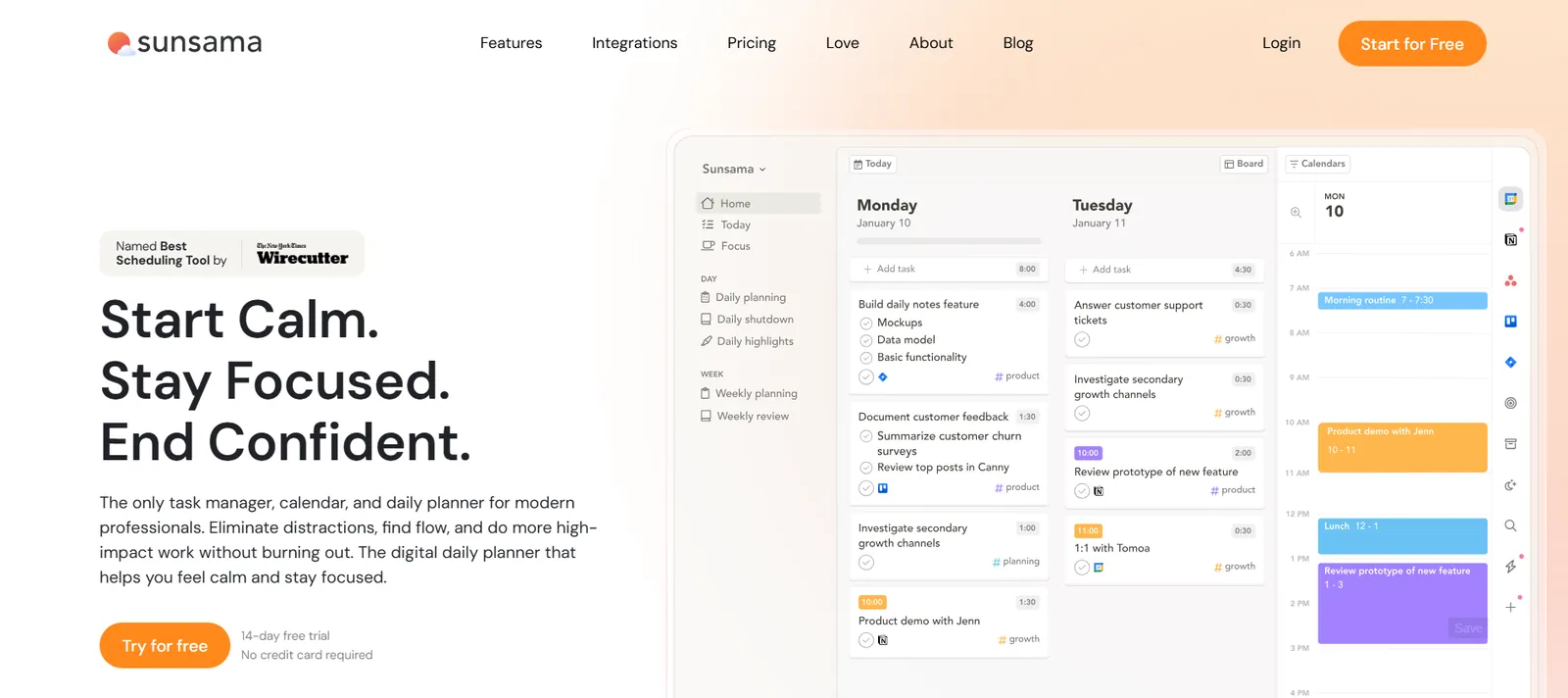
Sunsama is a daily planning tool that pulls tasks from your existing apps, helps you pick what matters today, and time-blocks your calendar around it.
Ratings:
| Ease of setup (/5) | AI capability (/5) | Value for money (/5) |
|---|---|---|
| 4.5 | 3.0 | 3.0 |
Who it’s for: CEOs, managers, freelancers, and busy professionals who want to do great work without burning out by the end of the week.
Key features
- Daily Planning Ritual: Each morning, Sunsama walks you through a guided session where you pull in tasks, estimate time, and set your intention for the day. You only plan what you can realistically do.
- AI Time Estimates and Channel Tags: When you add a task, Sunsama suggests how long it will take and which category it belongs to, based on your past work patterns. It gets more accurate the longer you use it.
- Bi-directional Calendar Sync: Drag tasks onto your calendar to block time. Changes sync back automatically, so your calendar always reflects reality.
- Separate Schedule Contexts: Set default calendars for work and personal time. Tasks route to the right place automatically, no thinking required mid-planning.
- Integrations: Connects with Asana, ClickUp, GitHub, Gmail, Jira, Linear, Microsoft To Do, Monday.com, Notion, Outlook, Slack, Todoist, Toggl, Trello, and Zapier.
What I liked
There are times when I am either binge-watching Netflix or working nonstop without a break. That is where Sunsama's reports changed something for me. After using it for a week, I could clearly see how my time was split across different categories.
I thought most of my time was going into productive work. Then I looked at the report, and that idea fell apart. Most of my week was spent on communication and admin. That one screen told me more about my work habits than anything else I had tried.
I had also been using Todoist for a while, so the integration mattered to me. My tasks were everywhere, projects were stacked, and I had stopped reading recurring reminders. The list was technically organized and practically useless.
When I connected it to Sunsama, I could pull in three tasks for the morning, put a 45-minute estimate on each, and drag them onto my calendar. I did not have to rebuild anything or learn a new system. My whole Todoist setup came with me.
In fact, if you are looking for a system that offers a range of productivity tools to improve focus, I think Sunsama does a pretty good job. There’s even a Pomodoro timer and a focus mode that blocks notifications from apps like Slack and Teams.
Honest limitation
Sunsama is more mindful than mechanical. It will auto-schedule a task when you press X and shift overlapping tasks out of each other's way, but it won't plan your whole day or rebuild it on its own the way something like Motion or Reclaim does. If your day breaks, you are the one rebuilding it. For people who want a tool that just handles rescheduling without being asked, that gap is real.
Pricing
Sunsama offers a 14-day free trial with unlimited access to all the features. The Pro Plan is at $22/month, billed monthly, or $17/month billed yearly. Enterprise pricing is custom-based and requires contacting sales for further details.
5. Best AI Planner for Speed-First Task Capture
Akiflow: What is it?
Akiflow is a time-blocking app that pulls tasks from your existing tools into a single daily view and lets you schedule them directly on your calendar.
Ratings:
| Ease of setup (/5) | AI capability (/5) | Value for money (/5) |
|---|---|---|
| 3.5 | 3.0 | 4.5 |
Who it’s for: Founders, C-level executives, developers, designers, marketers, and sales professionals who need a serious time blocking setup and want one place where tasks and calendar live together.
Key features
- Time Slots: Create dedicated calendar containers for specific types of work. Tasks are assigned to slots rather than floating on a list, so your day has a clear shape before it starts.
- Daily Planning Session: A five-minute morning ritual built into the app where you plan your day, assign tasks to time slots, and start with intention instead of inbox anxiety.
- Aki AI: Suggests times, helps create tasks, and supports your daily planning flow without overcomplicating it. Meeting recording, transcripts, and summaries need the separate AI Meeting Assistant, an optional $19/month add-on.
- Integrations: Connects with Slack, Gmail, Notion, Jira, GitHub, Microsoft Teams, Outlook Calendar, Outlook Email, Zapier, IFTTT, Linear, and Microsoft To Do, with two-way sync across all of them.
What I liked
Time blocking usually feels optional in most tools. You add a task to your calendar, and it looks productive until something else pushes it aside.
Akiflow feels different. Once you lock a block, that time is no longer visible to everyone else. It shows up as busy, exactly like a meeting would. Nobody can book over it or sneak in random calls. The slot just disappears from the available pool and stays yours.
For the first time in a while, my deep work hours stuck. Not because I became more disciplined overnight, but because the tool made it harder for anything else to get in the way.
The keyboard shortcuts are worth mentioning too, especially if you are the kind of person who finds mouse-heavy tools slow.
Once you learn the command bar, navigating Akiflow feels faster than anything else I tested. Faster than Google Calendar, faster than the tools with prettier interfaces.
The layout is clean without being sparse.
Proper spacing, minimal visual noise, nothing competing for your attention. You can drag blocks around, shift things when your day changes, and the whole thing just stays out of your way. Most planning tools feel like they want you to interact with them constantly. Akiflow just sits there with an organized workspace for you.
Honest limitation
The mobile app lags behind the desktop experience in speed and functionality. For a tool built around daily planning, that friction shows up exactly when you need it least, like when you are trying to reorganize your afternoon on the go.
Pricing
Akiflow offers a Pro plan starting at $34/month and a Pro Yearly plan starting at $19/month (billed annually). Both plans offer a 7-day free trial.
6. Best AI Planner for Building a Custom Planning System
Notion: What is it?
Notion is a connected workspace for notes, docs, tasks, projects, and a calendar. Full Notion AI comes with the Business and Enterprise plans (Free and Plus include a limited trial), so you can write, summarize, and build planning systems without leaving your workspace.
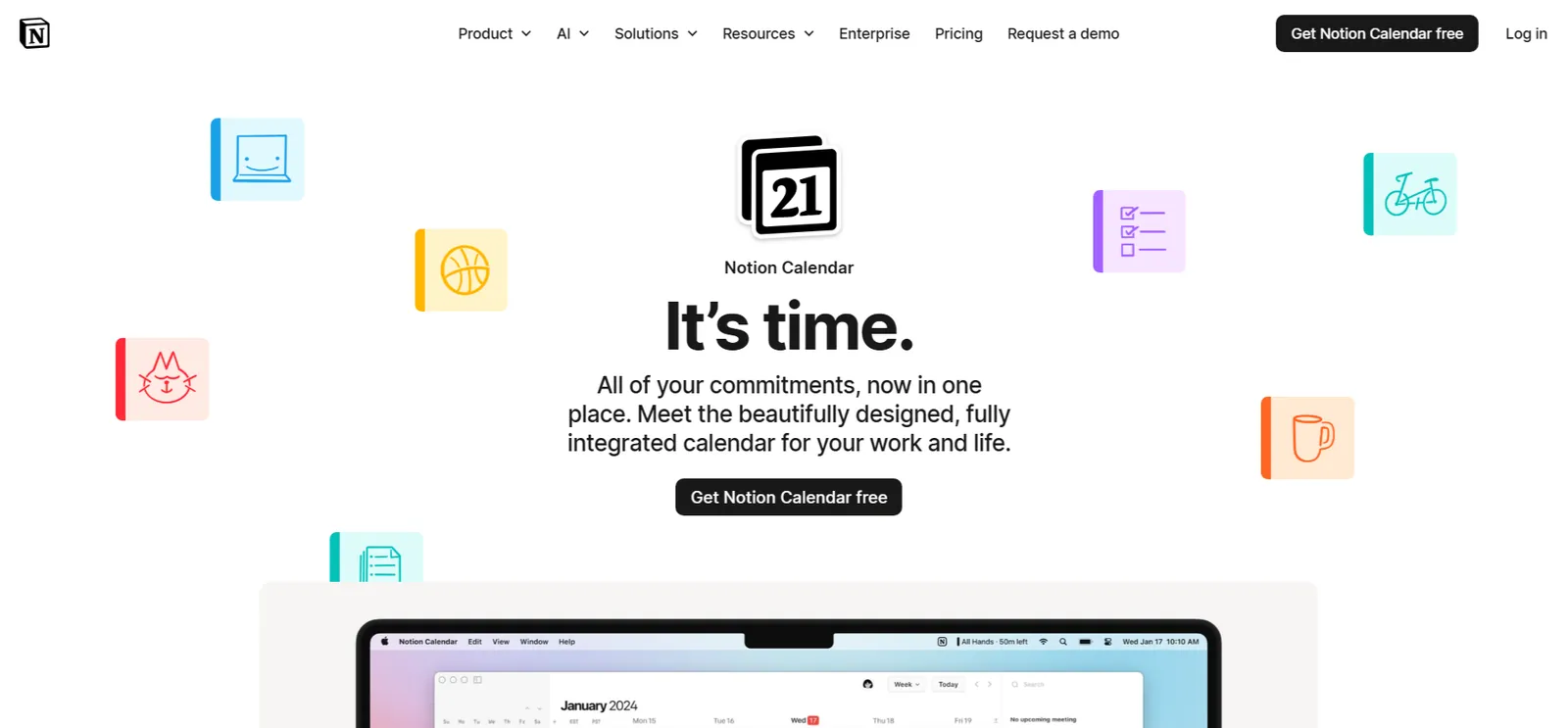
Notion Calendar pulls your Google Calendar into the same view alongside your Notion database items, so your meetings and tasks finally sit together.
Ratings:
| Ease of setup (/5) | AI capability (/5) | Value for money (/5) |
|---|---|---|
| 2.0 | 4.0 | 4.0 |
Who it’s for: People who already live in Notion for notes, projects, and docs, and want their calendar and planning to exist in the same place instead of a separate app they half-use.
Key features
- Easy-to-use Calendar: Syncs Google, Apple iCloud, and Microsoft Outlook calendars into one view alongside your Notion database items. Drag and drop to update project timelines without leaving your calendar. Available on desktop and mobile (Outlook calendars aren't supported on mobile yet).
- Connected Docs in Calendar: Every meeting on your calendar can pull in the relevant Notion page, so you walk into calls with full context already loaded.
- Custom Database Views: Build filtered views by date, priority, project, or assignee. Switch between board, list, calendar, and timeline views depending on what you need to see.
- Language Support: Available in more than 20 languages and regional variants, including English, Japanese, Korean, Chinese, French, German, Spanish, Portuguese, Italian, Dutch, Arabic, and Hebrew.
- Integrations: Connects with Jira, Slack, GitHub, Asana, Zapier, Make, Tray.io, and dozens more with two-way database sync across connected tools.
What I liked
Notion Calendar is the answer to the one problem Notion users have complained about for years. You had your notes, your tasks, and your docs all in one place. Your calendar lived somewhere else entirely. So the tool you used for everything was never the tool you planned your week in.
Notion Calendar closes that gap.
Your meetings and your Notion database items finally live in the same view. Open a calendar event, and the relevant doc is already there in the side panel. That context used to take five minutes of hunting before every call. Now it takes zero.
If you get stuck, the AI is useful here in a way that surprised me. I set up a task database from scratch by just describing what I needed. Notion built the database, added the right properties, and set up views in a few minutes. That would have taken me at least an hour to do manually. If you want another workspace you can shape yourself, these Taskade alternatives are worth a look.
And once your system is in place, you can ask it things like "what notes did I take during last week's client call?" and get a real answer. Not from the internet, but from your own workspace.
And getting to all of that is quick. The command menu keeps everything keyboard-first, so once you’re used to it, you can move around without slowing down.
Honest limitation
Notion rewards the people willing to build it. If you do not go in with a plan for how to set it up, it will not build one for you. Templates help a lot here, though, and there are hundreds available, so starting from scratch is rarely necessary.
Also worth knowing: the full AI features require the Business plan, since Free and Plus only include a limited AI trial. And while Outlook calendars now sync on desktop and web, Notion still lists mobile Outlook support as coming soon, which is a gap if your team or clients run on Microsoft.
Pricing
Notion offers a free plan. The Plus plan is at $12 per member/month, and the Business plan starts at $24 per member/month, both billed monthly ($10 and $20 per member/month billed yearly). Enterprise has custom pricing.
What I look for in an AI planner
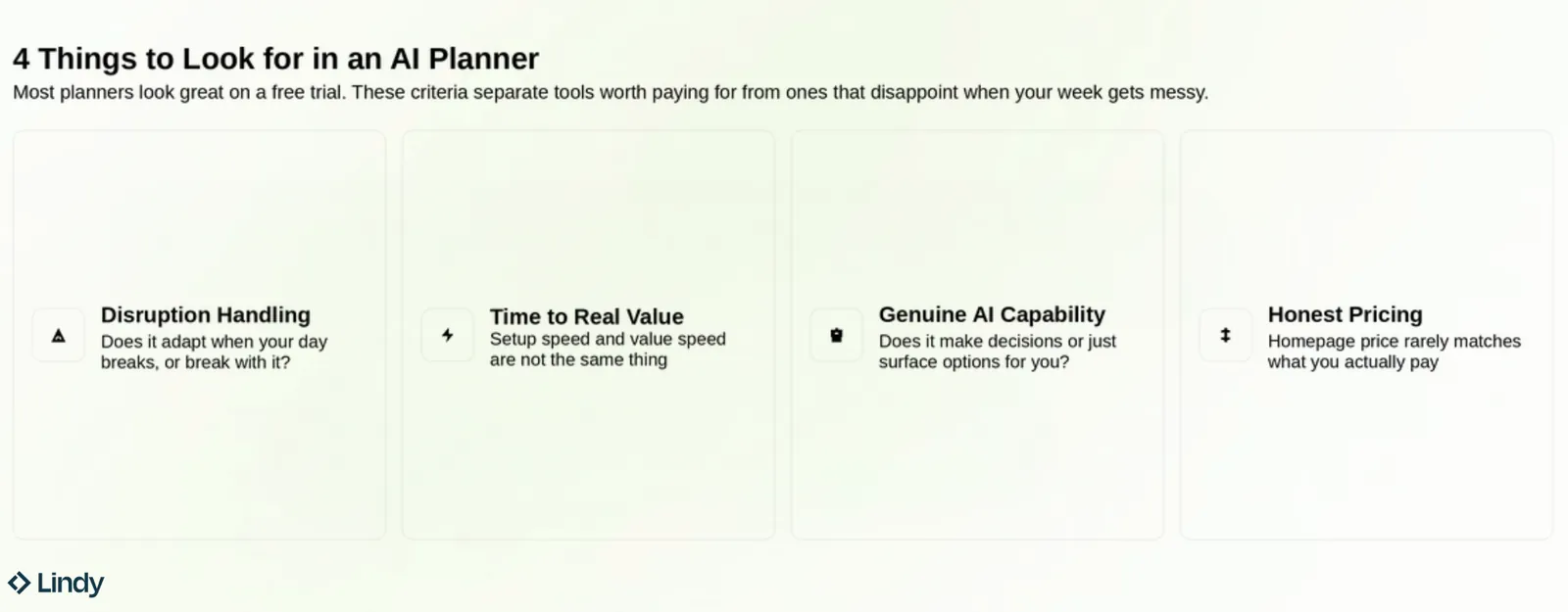
The main things I look for in an AI planner are how it handles disruption, how fast it delivers real value, whether the AI does something useful, and if the features justify the price.
That last one trips more people up than any other.
At times, I sign up for a tool, get a free trial, and everything seems perfect. It feels like this tool will fix my scheduling problems. And boom! That's when a paywall pops up, and all the features I started to get a hang of are locked behind a subscription.
That is why I never blindly pick the AI planner that is ranking #1 on 10 different listicles. I always evaluate them based on a few important criteria.
Here is what each of those criteria means in practice:
- Disruption handling: Your plan will break. The only question is whether the tool breaks with it or adapts. A good AI planner reschedules around the chaos. A bad one leaves you with a graveyard of overdue tasks and no suggestions for what to do next.
- Time to real value: Setup speed and value speed are not the same thing. Most tools take five minutes to sign up and two weeks to feel useful. The best ones get you doing real work on day one, not configuring preferences for a week before anything meaningful happens.
- Genuine AI capability: Many tools use "AI" as a marketing term for what is essentially a smart sorting function. Ask whether the AI makes decisions or just surfaces options for you to decide on. Those are fundamentally different products with very different outcomes for your day.
- Pricing evaluation: To ensure you can use all the features that made you sign up, check which tier suits you best. Remember, the starting price on the homepage might differ from your final cost, so explore your options.
Which AI planner is right for you? My verdict
The right AI planner depends on where your day breaks down. If you lose time because your schedule falls apart, you need a tool that reschedules automatically. If you lose time because the work around your schedule never gets done, you need an assistant who handles it for you.
Those are two different problems, and most people buy the wrong solution because they never stop to ask which one they have.
So here's who each tool is best for:
- Solopreneur or freelancer: Reclaim.ai protects your focus time and keeps your habits intact with minimal setup.
- Overwhelmed knowledge worker: Sunsama slows you down in the right way. The daily planning ritual forces you to decide what today is before it decides for you.
- Managers running projects and personal tasks: Motion auto-schedules across your entire workload and rebuilds your day when things shift. Akiflow gives you tighter manual control with time slots and calendar locking if you prefer to stay hands-on.
- Users who tried AI planners but got burned out: Morgen does not move anything without your input. You build the structure, you set the routines, and nothing reshuffles itself at 2 pm without warning.
- Notion power users: Notion AI plus Notion Calendar turns the workspace you already live in into a full planning system. No new tool to learn, just more of what you already have.
FAQs
- Is Motion worth the cost?
Is Motion worth the cost?
Motion is worth it if your days involve constant task switching and deadline management. The auto-scheduling alone saves most users significant manual planning time each week. If you only manage a light workload, the price is steep relative to simpler tools on this list.
- What's the best free AI planner?
What's the best free AI planner?
Reclaim.ai is a strong free option. The Lite plan is free, requires no credit card, and covers the basics, such as habit scheduling and focus time. You can connect your Google Calendar, set up recurring habits, and let it manage that time automatically. It may not be the most powerful tool here, but the free tier is useful.
- Can an AI planner replace a human assistant?
Can an AI planner replace a human assistant?
No. While an AI planner handles scheduling, reminders, and task prioritization well, it cannot read tone, navigate office politics, or make judgment calls the way a human assistant can. For operational planning, it gets close. Anything relationship-driven or context-heavy still needs a person behind it.
- What's the difference between an AI planner and an AI calendar?
What's the difference between an AI planner and an AI calendar?
An AI planner helps you decide what to work on and when, based on your deadlines and priorities. An AI calendar is for managing events and keeping your schedule from getting double-booked. If you need help deciding, use a planner. If you just need help organizing, a calendar is enough.
- Do AI planners work with Google Calendar?
Do AI planners work with Google Calendar?
Yes, most AI planners on this list work with Google Calendar. Reclaim.ai, Motion, Morgen, Akiflow, and Notion Calendar all sync directly with Google Calendar. Sunsama syncs with it too, as do AI assistants like Lindy.
- Will an AI planner work if my schedule changes constantly?
Will an AI planner work if my schedule changes constantly?
Yes, and that is exactly what most of them are built for. Motion and Reclaim.ai both reschedule automatically when plans shift. Morgen and Akiflow let you adjust manually with minimal friction. The tools that struggle with constant change are the ones that require you to rebuild your plan from scratch whenever something changes.









