How to Create a Template in Gmail: Setup, Filters, Fixes
Lindy walked through enabling Gmail Templates in Advanced settings, saving and overwriting drafts, auto-replying via filters, plus limits like no mobile access or team sharing.


Three months into managing my first client account, I had 47 unread emails and was typing the same project update reply for the fourth time that week. Same structure, same three bullet points, same sign-off. I'd hit send and immediately start composing the next one just like it.
A colleague mentioned Gmail has a built-in feature for exactly this. I'd been using Gmail for six years and had no idea it existed. It's called Templates and is buried in Advanced settings rather than the compose window, which is probably why most people never find it. Once enabled, it stays on until you turn it off.
I tested it for a week across client updates, scheduling replies, and recurring support questions.
It saved me around 20 minutes a day. If you're retyping the same emails on rotation, creating a Gmail template is the simplest fix you're probably overlooking.
Here's how to set it up.
How to turn on templates in Gmail
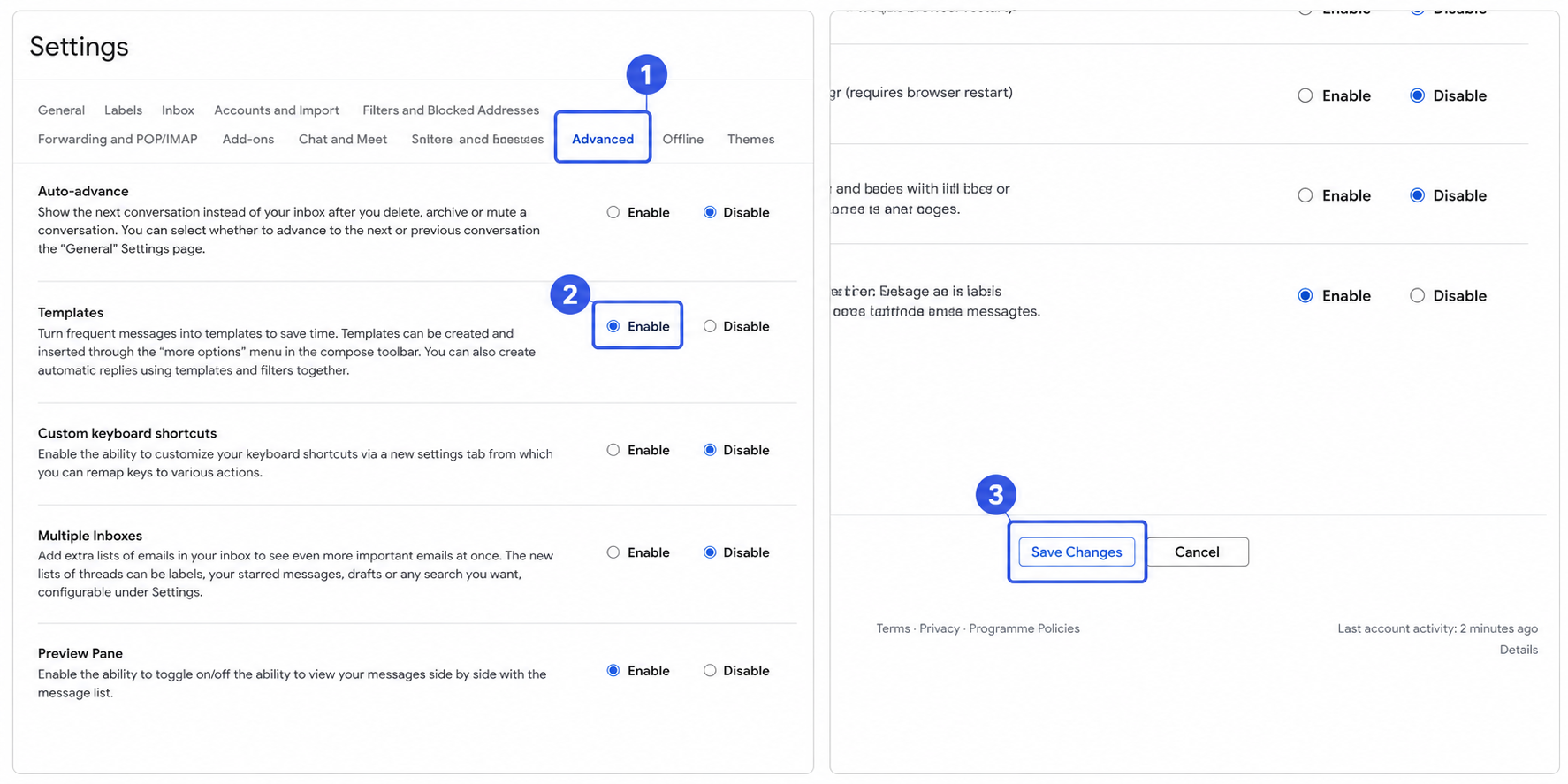
Gmail templates are turned off by default, so you have to enable them before you can use them. You do this once, from Gmail's Advanced settings, and it stays on until you turn it off.
Here's how to turn on templates in Gmail:
- Open Gmail on a computer: Templates only work in Gmail on the web, so open Gmail in a browser. You can't enable or use them in the Gmail mobile app.
- Click the gear icon, then click See all settings: The gear icon is in the top-right corner of your inbox. It opens the Quick Settings panel. Click See all settings to open the full settings page.
- Open the Advanced tab: Gmail's settings page has several tabs across the top. Templates is under Advanced, not General, so it's easy to overlook.
- Click Enable next to Templates: Scroll down until you see Templates, then click Enable. This turns the feature on for your Gmail account.
- Scroll down and click Save Changes: Gmail won't apply the change until you save it. After Gmail reloads, Templates appear as an option in the compose window.
This is a one-time setup. You won't need to do it again unless you switch Gmail accounts or disable the feature later.
How to create a template in Gmail
To create a template in Gmail, write the email once in the compose window and save it via the three-dot menu. If you haven't enabled Templates yet, start with the section above. Once it's on, the whole process takes about a minute.
Here's how to create a template in Gmail, step by step:
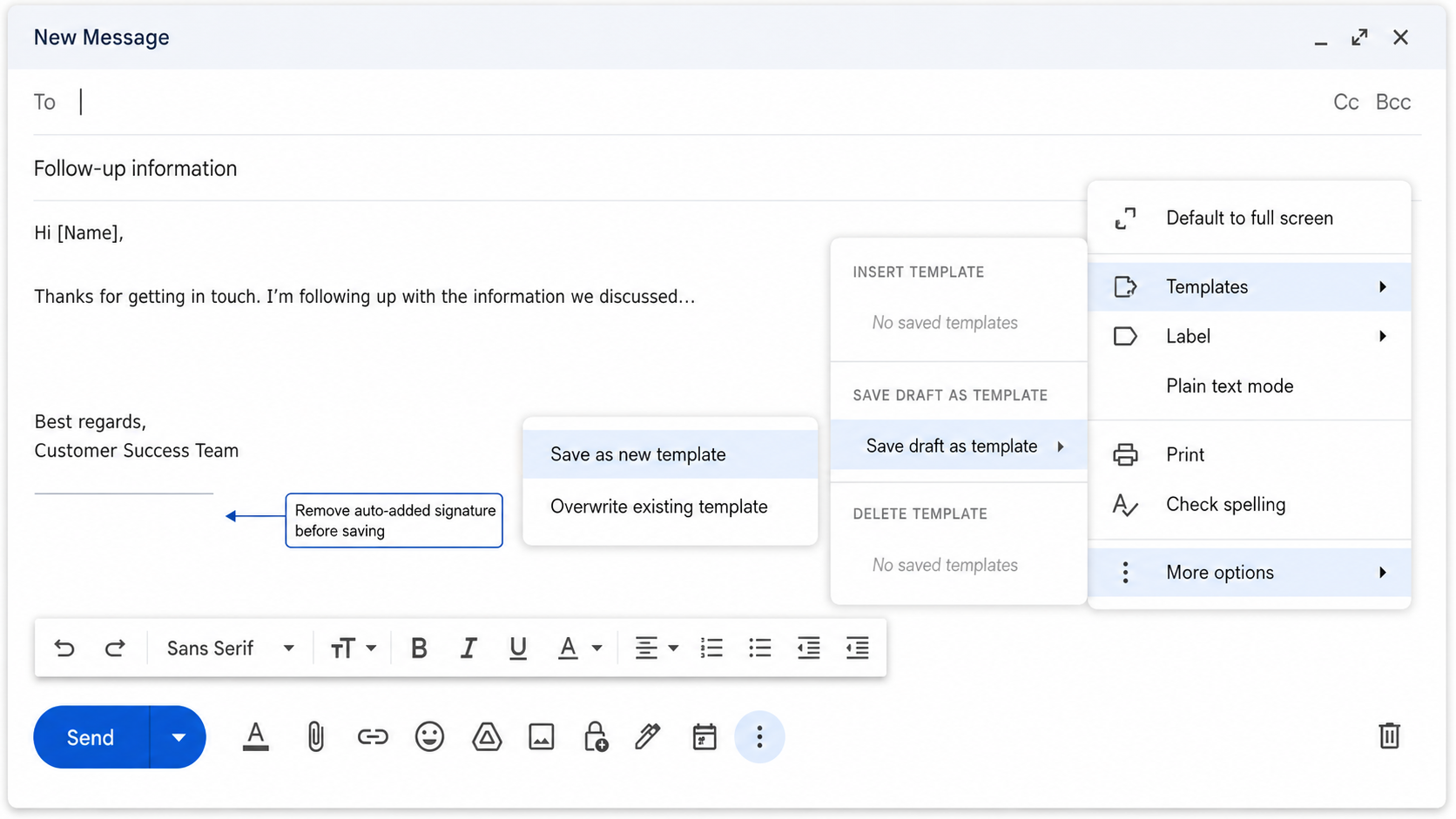
- Open a compose window and write your email: Type the message exactly as you want it to appear each time. Leave the To field empty. If your signature auto-populates, delete it before saving. Otherwise, it becomes part of the template, and you'll see a duplicate every time you insert it.
- Open More options and select Templates: Click the three-dot icon at the bottom of the compose window. Select Templates from the menu. This is where all your saved templates live once you start building a library.
- Save as a new template: Click Save draft as template, then Save as new template. Give it a name you'll recognize when you're scanning a list quickly. Something like "Follow-up after demo" works better than "Email 1."
Gmail template examples
Gmail templates work best when you build them around emails you already send on repeat. A follow-up, a status update, and a support acknowledgment cover most of what people actually reuse week to week.
Here are three Gmail template examples you can copy and save today:
1. Follow-up after a meeting
Subject: Follow-up: [Meeting topic]
Hi [Name],
Thanks for your time today. Here's a quick recap of what we covered and the next steps we agreed on.
[Add recap here]
Let me know if anything looks off. Happy to jump on a call if it's easier.
[Your name]
2. Project status update
Subject: [Project name] status update
Hi [Name],
Quick update on where things stand:
On track: [List items]
Needs attention: [List items]
Next milestone: [Date and deliverable]
Let me know if you have questions.
[Your name]
3. Support acknowledgment
Subject: We got your message
Hi [Name],
Thanks for reaching out. I've received your request and will get back to you within [X] business days.
In the meantime, feel free to reply to this email if anything changes.
[Your name]
How to insert and send a template
Once you've saved a template, using it takes just a few clicks. Open a compose or reply window, insert the template, and send it like any other email. Sending works the same way. The template simply fills in the message for you.
Here's how to insert and send a template in Gmail:
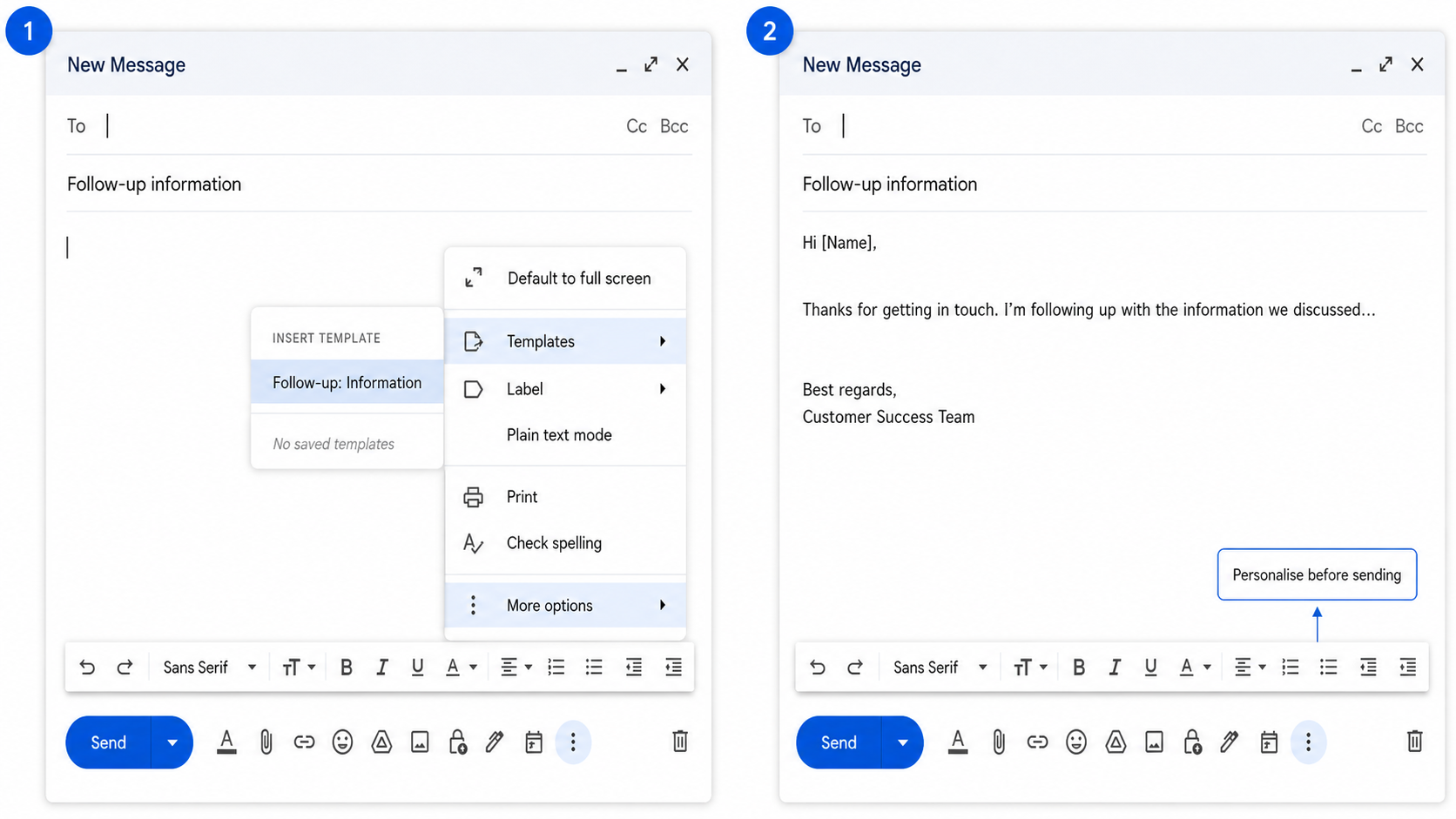
- Click Compose, or open a Reply: Templates work in both places. Use Compose for a new email, or Reply to respond in an existing thread.
- Click More options, then Templates: The three-dot icon at the bottom of the window opens a menu. Templates is listed there, where you saved your template.
- Choose your template under "Insert template": This shows every template you've saved. Click one, and Gmail inserts the full text into the message.
- Edit the rest of the message: Add a greeting, update a detail, or change a line to match the person you're emailing. Templates save time, but a personal touch makes the message feel more natural.
- Click Send: Once the message looks right, send it like any other email. There's no extra step. The template simply helped you write it faster.
How to edit or delete a template
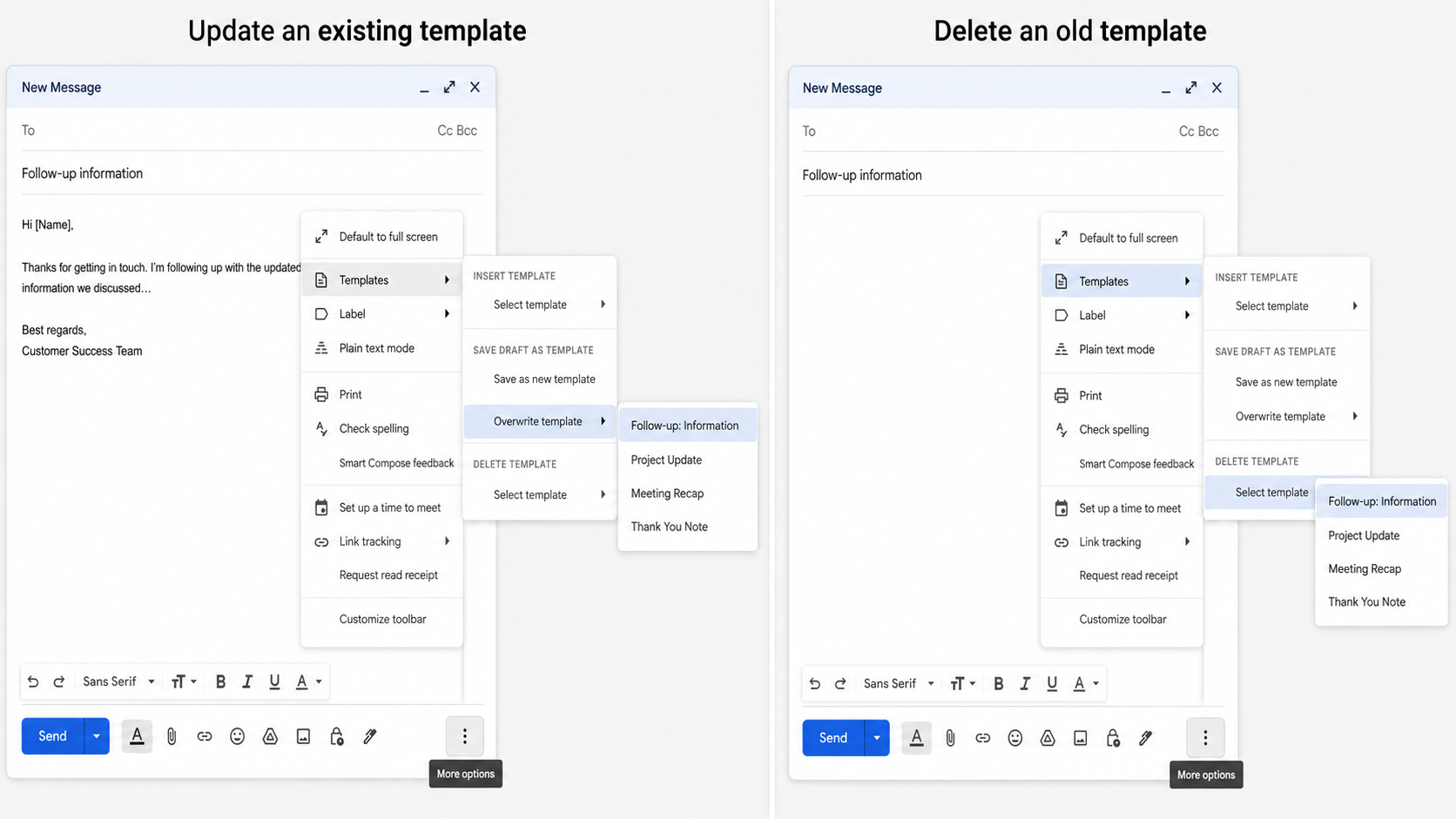
Templates aren't permanent. You can update one when the wording changes or remove one you no longer use. Both actions start in the Templates menu, but the steps differ.
How to edit an existing template in Gmail
To update a template, you overwrite it with a new draft.
Here's how to edit an existing template in Gmail:
- Compose a new draft with the revised text: Write it the same way you'd create a template from scratch.
- Click the three-dot icon, then Templates: The menu is at the bottom of the compose window.
- Select Save draft as template, then Overwrite template: Pick the version you want to replace.
- Click Save: Gmail immediately swaps in the updated version.
How to delete a template in Gmail
Click the three-dot icon in any compose window, go to Templates, and select Delete template. Pick the template you want to remove from the list and confirm. Gmail deletes it on the spot. Deleted templates can't be recovered, so double-check before you confirm.
{{templates}}
How to auto-reply with a template
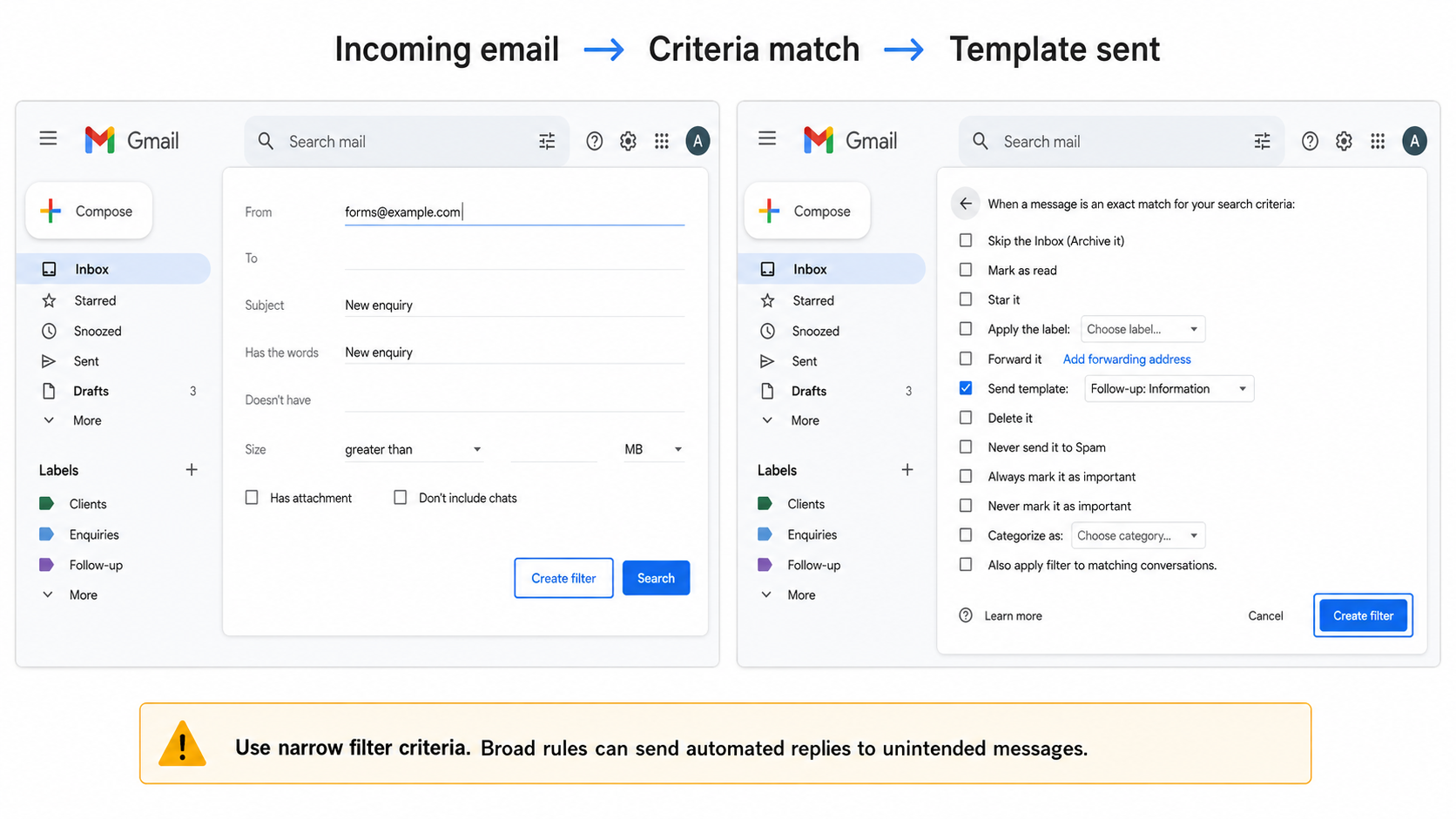
Templates don't have to be manual. Pair one with a Gmail filter and Gmail will reply with it automatically whenever an incoming email matches criteria you set, like a specific sender or a keyword in the subject line. Google calls this an automatic reply, and it answers whoever emailed you. It's useful for acknowledging support requests or confirming a form submission without touching your inbox.
Here's how to send a template automatically with a filter:
- Open the search options panel: In the search box at the top of your inbox, click Show search options (the sliders icon on the right). This opens the filter criteria panel instead of just running a search.
- Enter your filter criteria: Set the conditions you want Gmail to match, like a sender's email address or a keyword in the subject line. Keep this specific, since broad criteria can trigger the wrong replies.
- Click Create filter: This opens the list of actions Gmail can take whenever a message matches your criteria.
- Check the box next to Send template: This tells Gmail to reply automatically instead of just labeling or archiving the message.
- Choose the template you want to send: Pick from your saved templates. This is the exact message that goes out every time a matching email arrives.
- Click Create filter to save: Once you confirm, the filter goes live. Every new email that matches your criteria gets the template automatically.
What Gmail templates can't do
Gmail's native templates handle basic email reuse, but they have limits. Those limits become more noticeable if you use templates often or work with a team.
Here's what native Gmail templates can't do:
| Limitation | What it means |
|---|---|
| No mobile support | Templates only work in Gmail on a desktop browser. You can't create, edit, or insert them in the Gmail mobile app or a third-party mail client. |
| No attachment saving | Templates save the message text, so uploaded file attachments don't come along and you'll need to reattach the file each time. A Google Drive link pasted into the body saves like any other text, which is the usual workaround. |
| No team sharing | Templates are tied to your individual account. Gmail has no built-in sharing. Common workarounds include shared documents or a dedicated AI email assistant built for teams. |
| A ceiling on saved templates | Google doesn't publish an official limit, but users consistently report hitting a wall around 50 per account. If new saves stop sticking, delete ones you no longer use or move to a dedicated tool. |
| No dynamic variables | Templates save static text only. Recipient names and other personalized details have to be added manually after you insert the template. |
{{cta}}
Why aren't my templates showing up?
If your Gmail templates have disappeared or never appeared at all, it's almost always a settings issue rather than a bug. The feature is easy to accidentally disable, and a few other common account or browser states can hide it just as effectively. Most fixes take under a minute once you know where to look.
Here's why your Gmail templates might not be showing up:
- The Templates toggle got switched off: Go to Settings, See all settings, then Advanced. Make sure Enable is still selected next to Templates. This is the most common cause, especially if templates were working before and suddenly stopped. Re-enabling it and saving changes is usually enough to bring them back.
- A browser extension is conflicting with Gmail: Certain extensions that modify Gmail's interface or compose window can prevent the Templates option from rendering. Open Gmail in an incognito window with extensions disabled. If your templates appear there, an extension is the problem. Back in your normal window, turn your extensions off one at a time until Templates comes back.
- Your browser cache is outdated: A stale cache can stop Gmail from displaying features correctly even when everything is enabled. Clear your browser's cache and cookies, then reload Gmail and check the compose window again.
- You saved a draft instead of a template: Clicking Save draft stores the email in your Drafts folder, not your template library. To save it as a template, go through More options, then Templates, then Save draft as template. It's a common step to miss the first few times.
- A Workspace admin has turned the feature off: On work or school accounts, administrators can restrict which Gmail features are available. If you've confirmed the toggle is enabled on your end and templates still don't appear, ask your admin whether anything on the account is blocking it.
My verdict
Gmail's built-in template feature does exactly what it promises. If you send the same five or six emails on rotation, it cuts the repetition down to a few clicks. The setup takes under a minute, the steps are straightforward, and once it's running, it mostly stays out of your way.
Mobile access, team sharing, dynamic fields, and an undocumented ceiling on saved templates all sit outside what the native feature covers. It works best for solo users with a modest, stable set of repeating emails. Push beyond that, and the workarounds start adding up faster than the time you saved.
That team-sharing gap is where Lindy comes in. Lindy is a company-wide AI teammate that lives in Slack, so the whole team can @mention it in a channel or DM it as a personal assistant that reads your emails, drafts replies in your voice, and follows up automatically.
The emails that need your attention get your attention, and the rest are handled before you open your inbox.
FAQs
Can I use Gmail templates on my phone?
No. Native Gmail templates only work in Gmail on a desktop browser. You can't create or insert them from the Gmail mobile app. If you need a quick fix for short replies on the go, your phone's built-in text-replacement shortcuts work as a lightweight stand-in until you're back at a computer.
How many templates can I save in Gmail?
Google doesn't publish an official cap. In practice, people report topping out around 50 templates per account. If you hit that wall, delete one you no longer use, or overwrite an old one by picking its name when you save. For a bigger library, an AI email writer will give you more room.
Are Canned Responses the same as templates?
Yes. Canned Responses is the old name for the same feature. Google renamed it Templates, but nothing about how it works changed. If you're following an older guide or see "Canned Responses" in an outdated menu, it's pointing you to the exact same setting you'd find under Templates today.
Can I share my Gmail templates with my team?
No. Gmail templates are saved to your individual account with no built-in way to share them. Teammates can't see or use templates you've created. The usual workaround is to paste the text into a shared document or switch to a dedicated tool built specifically for shared team template libraries.
Can I attach a file to a Gmail template?
No, Gmail doesn't save attachments as templates, so you have to attach the file manually every time you use it. Some people work around this by uploading the file to Google Drive once and linking to it inside the template text instead.









