The 8 Best AI Email Assistants in 2026 (Every Inbox Tested)
Marvin tested 20+ AI email assistants, including Shortwave, Superhuman, and SaneBox, across outreach, follow-ups, scheduling, and inbox cleanup to name his eight favorites.


I use three different email accounts for three different parts of my work: one on Gmail, one on Outlook, and one that's technically still on Yahoo because I've never gotten around to migrating it. Between them, I get around 60 emails a day, and none of them care which inbox they land in.
That's the part nobody tells you about inbox overload: the provider barely matters. The sorting, the follow-ups, the context you lose when a thread goes quiet for a week, all of it happens the same way no matter which logo sits in the corner of your screen.
So when I set out to test AI email assistants, I didn't limit myself to one inbox. I ran these tools across all three of mine, plus a dozen more I ruled out along the way, spending several weeks on outreach, follow-ups, scheduling, drafting, cleanup, and sorting.
These are the 8 I'd recommend for 2026, regardless of how you check your mail:
- Shortwave: Finding anything in your Gmail, fast
- Microsoft Copilot: Teams already using Microsoft 365
- Lindy: Teams that need email, follow-ups, and CRM handled in one place
- Gemini for Gmail: Getting more out of Google Workspace
- Superhuman: People who treat inbox speed seriously
- SaneBox: Quieting a noisy inbox without switching apps
- Proton Scribe: Sensitive communications that can't be compromised
- Missive: Teams managing shared inboxes
What is an AI email assistant?
An AI email assistant helps you manage, write, and act on email. It reads context, learns your communication style, and, in the best cases, takes action without being asked. Done well, that lets you automate email routines while still approving anything important before it goes out.
Many AI email assistants do this without requiring you to set up rules or reconfigure how you work. They sort incoming mail by priority, draft replies based on context, follow up with people who haven't responded, and, in some cases, manage your calendar around your email activity.
Most of these features now travel with you, too, so the same help shows up whether you're at your desk or working through your inbox from an Android email app.
With most of them, you keep the email client you already have while the tool runs in the background and learns from how you handle your mail. If drafting is the only part you want help with, a dedicated AI email reply generator may be all you need.
Types of AI email assistants
Not every tool on this list is trying to do the same job. Splitting them into categories makes it easier to see what you're choosing between:
- Native assistants, built directly into the email client you already use, with no new app to open. Microsoft Copilot (Outlook) and Gemini (Gmail) are the two biggest examples.
- Workflow assistants, which treat email as one input among several and act across your calendar, CRM, and other apps. Lindy is the clearest example here: it lives in Slack and handles inbox tasks alongside the rest of your work.
- Email client replacements, which swap out your inbox interface entirely and build AI in from the ground up. Shortwave, Superhuman, and Missive all fall here, focused on search, speed, and team collaboration, respectively.
- Writing-only assistants, which stick to drafting and don't touch triage, scheduling, or automation. Proton Scribe is the privacy-first option; MailMaestro (covered in our Outlook and Gmail guides) is the lighter, writing-focused add-in.
- Inbox organizers, which sit on top of your existing client and sort mail without replacing anything. SaneBox is the main one here, and it's the option if switching email clients entirely feels like overkill.
Most people end up choosing by category first (do I want a new inbox, an add-in, or something that works beyond email?) and then picking the best tool within that category for their platform.
What makes an AI email assistant the best?
The best AI email assistant goes past writing help. It triages, follows up, and connects to the tools you already use. Here's what makes an AI email assistant good:
- Execution over suggestion: Drafting helps, but the time savings come from sending, logging, scheduling, and following up.
- Integration depth: The more deeply the assistant connects with your calendar, CRM, and other work tools, the more useful it becomes beyond writing emails.
- Voice and context awareness: Replies need to sound like you and reflect the surrounding conversation. The better tools learn from your edits and get closer to your style over time.
- Proactive intelligence: Useful assistants surface work before you have to look for it. They can flag urgent messages, prep you for meetings, and follow up when a thread goes quiet.
- Privacy and security: Email contains sensitive company and customer information. I looked for clear data policies, strong access controls, and standards such as SOC 2 Type II for work use.
- Setup time versus payoff: Some tools require more upfront configuration, while others become useful within minutes. I paid attention to how quickly each one started saving time and whether the value improved with continued use.
- Inbox support: It should connect directly to Gmail, Outlook, or whichever provider you use, without forcing a migration you don't want.
- Control: You should decide when drafts need approval, what can run automatically, and when you want to step in.
Best AI email assistants at a glance
| Tool | Best for | Key strength | Starting price |
|---|---|---|---|
| Shortwave | Finding anything in your Gmail, fast | Best-in-class Gmail search | Free (Pro $18/seat/month) |
| Microsoft Copilot | Teams already using Microsoft 365 | Native across all Microsoft 365 apps | $9.99/month Personal, $25.20/user/month business add-on |
| Lindy | Email, follow-ups, and CRM handled in one place | Lives in Slack, answers with sourced citations | Free (Team $29.99/user/month) |
| Gemini for Gmail | Getting more out of Google Workspace | Cross-app awareness across Google tools | Included in Workspace; $4.99/month (Google AI Plus) for personal Gmail |
| Superhuman | People who treat inbox speed seriously | Fastest keyboard-driven email triage | $30/user/month |
| SaneBox | Quieting a noisy inbox without switching apps | Works inside any existing email client | $9.49/month |
| Proton Scribe | Sensitive communications that can't be compromised | Private AI drafting with no prompt logging | Paid add-on on Mail Plus ($4.99/month) |
| Missive | Teams managing shared inboxes | Shared inbox and team collaboration | $18/user/month |
How I tested these AI email assistants
I spent several weeks testing each tool on whichever of my Gmail, Outlook, and Yahoo accounts it supported (plus a Proton Mail account for Scribe, which only runs there), using real threads, client emails, newsletters, and follow-ups.
Here's what I evaluated each tool on:
- Actual task completion vs. suggestion: Tools that draft a reply are useful. Tools that send it, log it, and follow up are in a different league. I wanted to know which side of that line each tool sits on.
- How well it learns your voice: A reply that sounds like a template is worse than no reply at all. I paid attention to whether the AI adapted to how I write or just produced polished generic output.
- Integration depth: An AI email tool that can't talk to your calendar, CRM, or other apps is just a writing assistant with extra steps. I looked at how far each tool's connections go in practice.
- Ease of setup and daily friction: Some tools ask a lot upfront and pay off later. Others never really pay off. I tracked how long it took to get useful output and how much babysitting each tool needed on an ongoing basis.
- Honest limitations: Every tool has a ceiling. I looked for where each one breaks down, whether that's on complex threads, multi-account setups, pricing walls, or ecosystem lock-in.
For things I couldn't fully test myself, I spent time going through Reddit threads and G2 reviews. That's where people are usually more candid: sharing what broke, what annoyed them, and what held up over time. Then I checked whether the same issues showed up in my own testing.
After testing and researching each tool, here's how they scored out of 5 across ease of use, automation depth, and integrations:
| Tool | Ease of use | Automation depth | Integrations | Overall |
|---|---|---|---|---|
| Shortwave | 5 | 4 | 4 | 4 |
| Microsoft Copilot | 5 | 4 | 3 | 4 |
| Lindy | 3 | 5 | 4 | 4 |
| Gemini for Gmail | 3 | 3 | 4 | 3 |
| Superhuman | 3 | 3 | 4 | 3 |
| SaneBox | 5 | 3 | 4 | 4 |
| Proton Scribe | 3 | 2 | 2 | 2 |
| Missive | 4 | 4 | 3 | 4 |
Best AI email assistant for fast email search
Shortwave
Shortwave is an AI email client built on Gmail that replaces your inbox interface entirely, with a strong focus on search, thread management, and AI-assisted replies.
Pricing: Free plan available. Individual Pro is $18/seat/month, with a 14-day free trial. Business starts at $30/seat/month, with Premier at $45 and Max at $120.
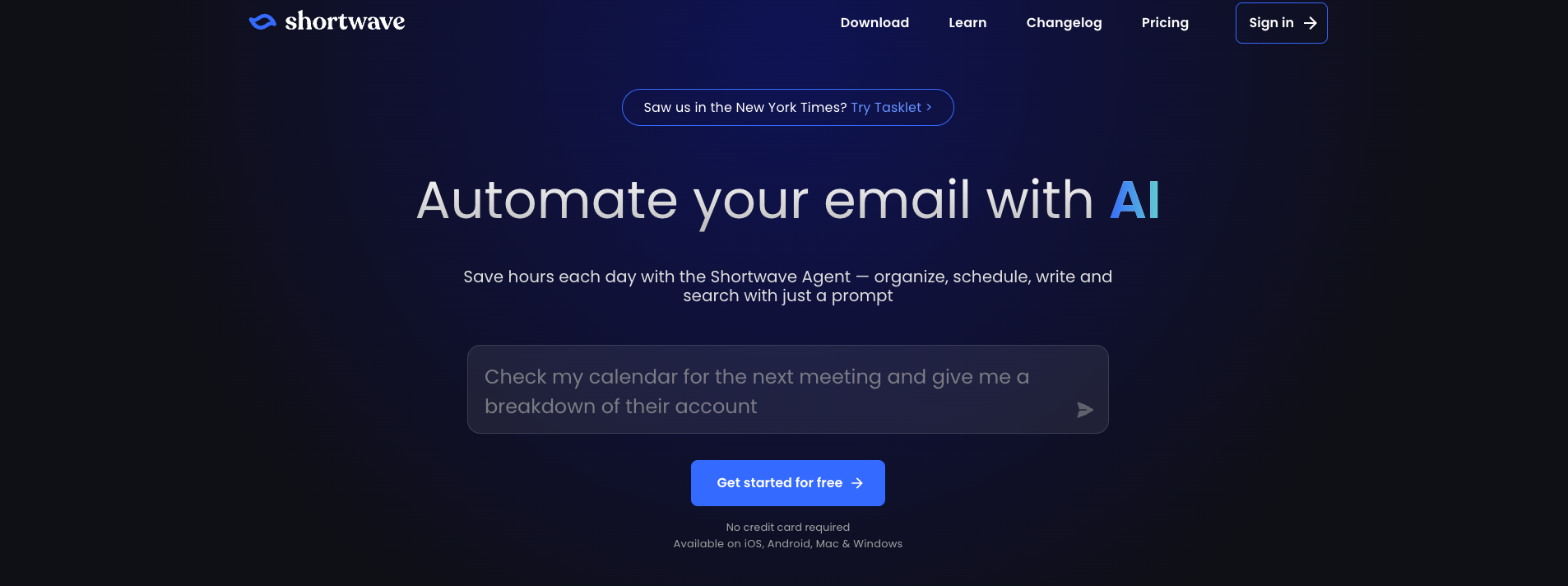
The feature that sold me on Shortwave was search. I typed things like “find the contract PDF from the Acme thread in October,” and it pulled up the right result in seconds.
That sounds small until you've spent ten minutes digging through years of Gmail history for one attachment. I started using Shortwave search for anything I vaguely remembered but couldn't place, and it saved me a surprising amount of time.
The rest of the app feels equally considered. Threads bundle neatly, the inbox stays clean, and the Claude-powered drafts usually need only a quick edit before I'm happy with them.
Pros
- Auto-applied labels on every plan, with AI filters on Business and up
- Thread bundling and snooze for inbox management
- Claude-powered drafts sound natural and human-like
- Team collaboration with shared comments on threads
Cons
- Only connects natively to Gmail, so Outlook and Yahoo accounts have to be routed through Gmail first
- The deeper AI features sit behind the pricier Business tier
Best AI email assistant for Microsoft 365 users
Microsoft Copilot
Microsoft Copilot is an AI assistant built directly into Outlook and the broader Microsoft 365 suite, drafting, summarizing, and managing email without leaving your existing workspace.
Pricing: Individuals get Copilot through Microsoft 365 Personal at $9.99/month. On monthly billing, businesses can add Copilot for $25.20/user/month, or get it built in with Business Standard at $28.20 or Business Premium at $38.40. Annual commitments bring those down to $21, $23.50, and $32.
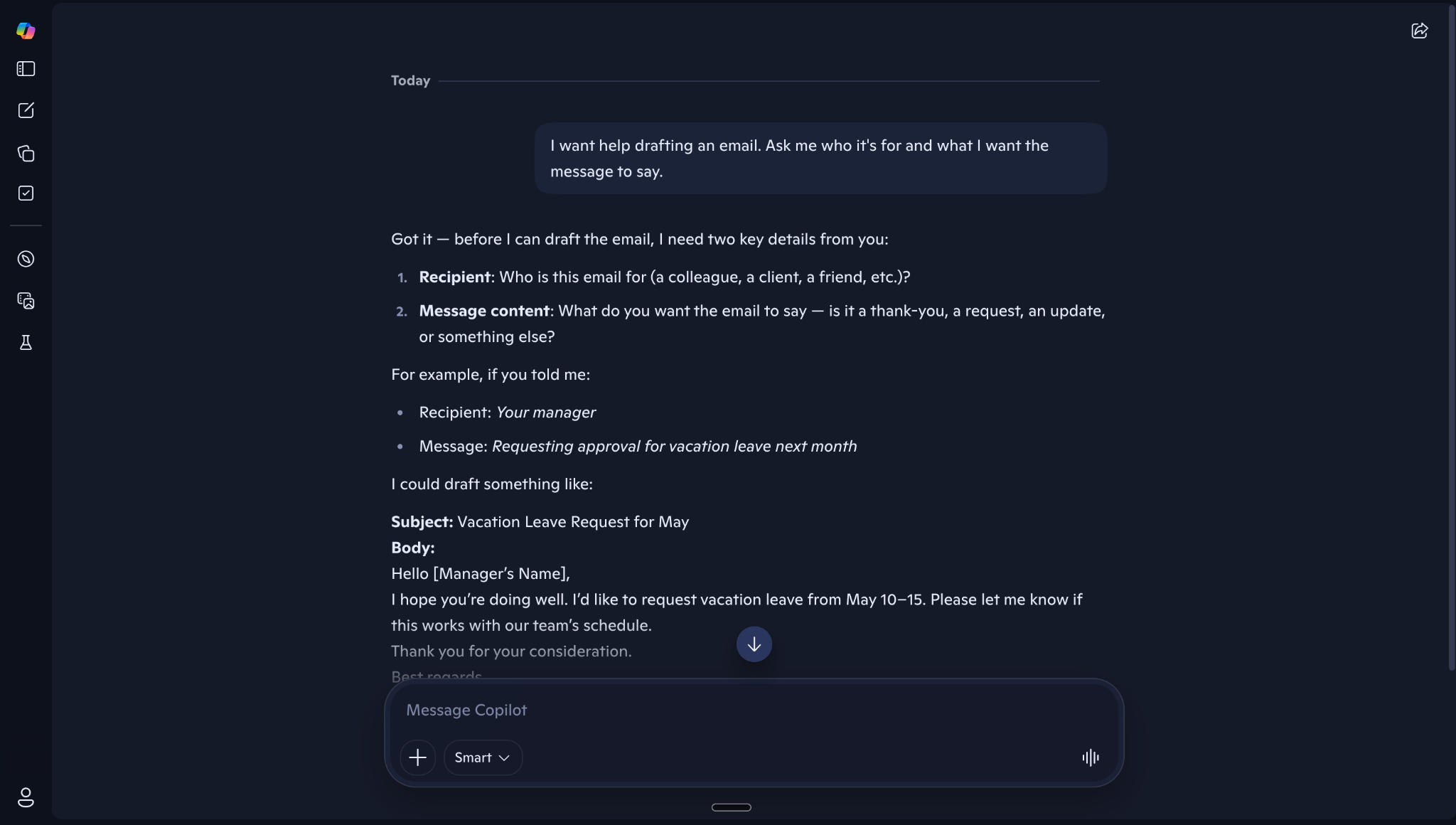
Copilot made the most sense inside the Microsoft apps I already had open all day. In Outlook, I could drop into a long thread, ask for a summary, and get enough context to reply without rereading every message. I also used it to draft responses, and the tone usually needed only a light edit.
The bigger advantage came from Work IQ. Copilot could pull in context from across Microsoft 365, including my work data, preferences, and relationships, which made the answers feel more relevant over time.
Microsoft has also folded the old Copilot Pro features into Microsoft 365 Premium for individuals.
Pros
- Advanced data analysis with built-in visualization
- Natural-language search across email, files, and meetings
- Pre-built Microsoft agents, including Researcher and Analyst
- Work IQ pulls context from across Microsoft 365, including your files, preferences, and working relationships
Cons
- Office app integrations are still inconsistent in day-to-day use
- Weak outside the Microsoft ecosystem
Best AI email assistant for handling email, follow-ups, and CRM in one place
Lindy
Lindy works from Slack and DMs to handle email, scheduling, CRM updates, and follow-ups. It can also search connected tools and meetings, then answer questions with sources attached.
Pricing: Lindy's Free plan comes with $50 in credits that last 7 days, no credit card required. The Team plan starts at $29.99/user/month for 3,000 credits, with larger credit tiers available and credits pooled across the team. Enterprise pricing is custom and adds HIPAA with a signed BAA, SSO/SCIM, and audit logs.
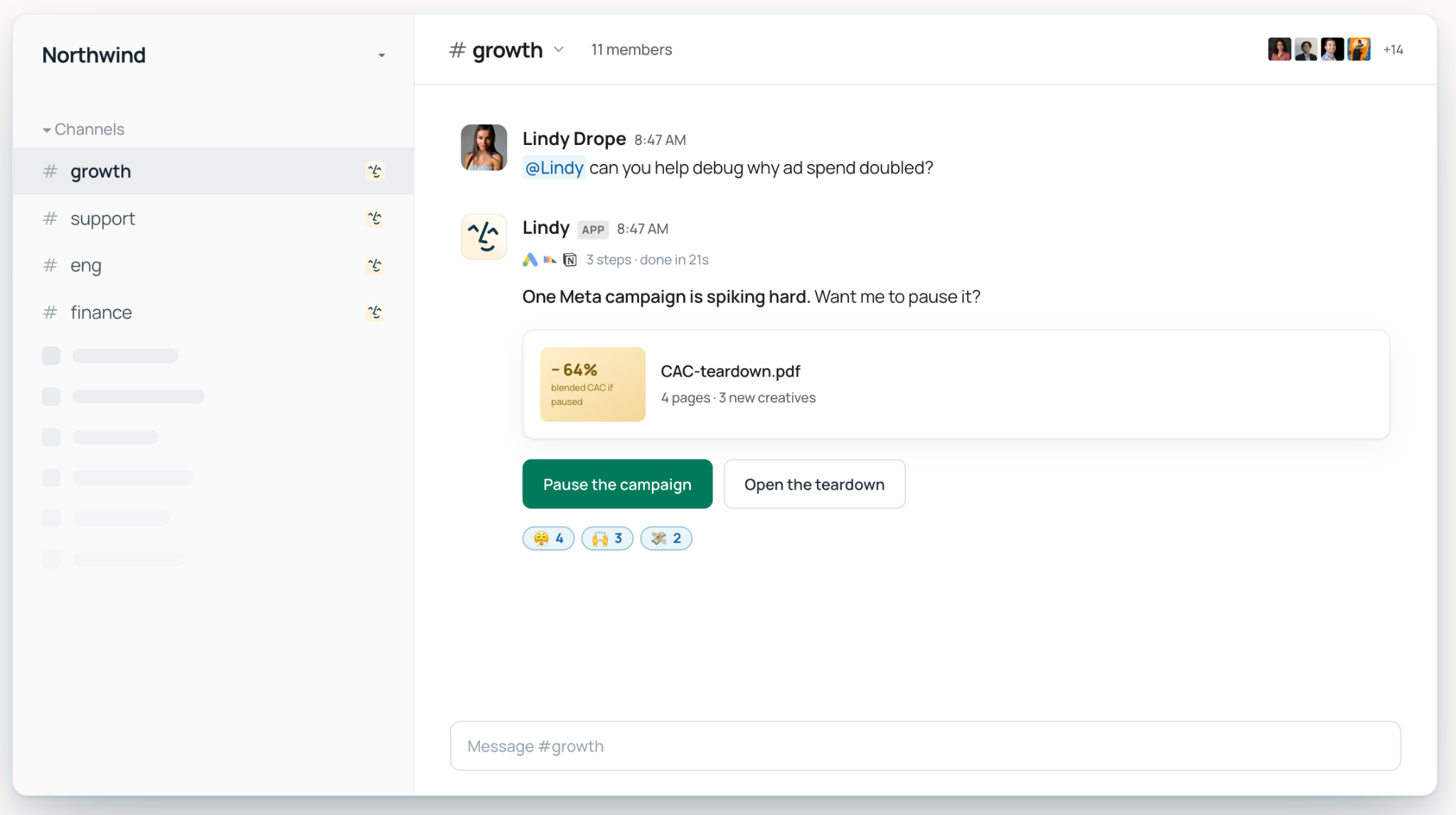
Lindy handles the work behind your emails too, from Slack, iMessage, or wherever else you ask it.
I tested this on a real Tuesday ritual at my own job: my team sends performance review requests, and by Thursday, half the recipients have gone quiet.
I told Lindy in Slack to follow up with everyone who hadn't responded. It read back through the original thread, drafted a personal follow-up for each person who'd stalled, and texted me the drafts for approval before sending anything.
By Friday afternoon, it had nudged three more stragglers on its own, without me having to remember any of it.
Pros
- Lives in Slack and answers with sourced citations pulled from email, meetings, and connected tools
- Works across your existing stack with 1,000+ integrations spanning Slack, Notion, Google Drive, Gmail, meetings, and files
- Takes work through to completion with recurring routines, meeting follow-ups, reports, dashboards, and other finished outputs
- Enterprise includes admin guardrails, audit logs, SSO/SCIM, and HIPAA support
Cons
- Needs upfront setup before it starts saving you time
- iMessage is iPhone-only, and approval rules have to be configured first
{{templates}}
Best AI email assistant for Google Workspace users
Gemini for Gmail
Gemini is Google's AI assistant built directly into Gmail and the broader Workspace suite, handling drafting, summarization, and smart replies without leaving your inbox.
Pricing: Included with eligible Google Workspace plans. For personal Gmail, Gemini in Gmail starts with Google AI Plus at $4.99/month, followed by Google AI Pro at $19.99/month and Google AI Ultra from $99.99/month. The free tier covers the Gemini app but not Gemini inside Gmail.
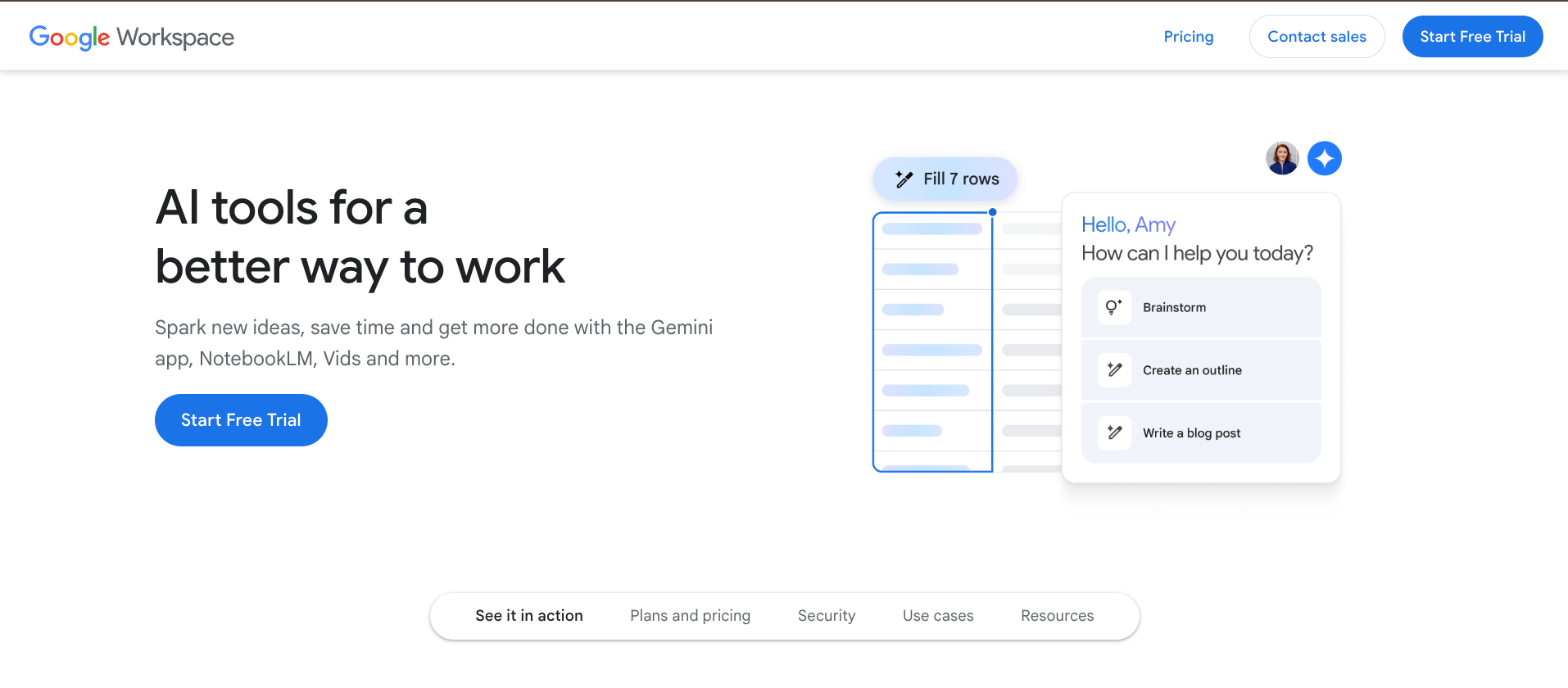
A colleague's name came up in an old thread, and Gemini surfaced the doc she'd mentioned right inside Gmail before I'd even finished typing my question. I didn't have to open Drive or hunt for the file myself.
That kind of context is where having Gemini built directly into Gmail pays off. If Gmail is your main inbox, our Gmail AI assistant guide compares more options built around it.
Later, on an eleven-reply thread with three people debating a launch date, the summary came back clean, confident, and completely wrong about where things stood. It read as if the team had agreed. They hadn't; two people were still pushing different dates when I checked the thread.
Pros
- Connects to Gmail, Photos, YouTube, and Google Search
- Deep Think mode for science, research, and engineering problems, on the Ultra plan only
- Strong enterprise-grade security and compliance certifications
- Gemini Notebook for research and knowledge work, with higher limits on the paid tiers
Cons
- Switched on by default for many users, whether they wanted it or not
- Reply quality is inconsistent on complex or nuanced threads
Best AI email assistant for keyboard-driven inbox speed
Superhuman
Superhuman is a speed-first email client for Gmail and Outlook that layers AI drafting, keyboard shortcuts, and smart triage on top of your existing inbox to cut the time you spend in email.
Pricing: Starter is $30/user/month and Business is $40/user/month on monthly billing, or $25 and $33 billed annually. Enterprise pricing is custom. If that's more than you want to spend, these Superhuman email alternatives cover similar ground for less.
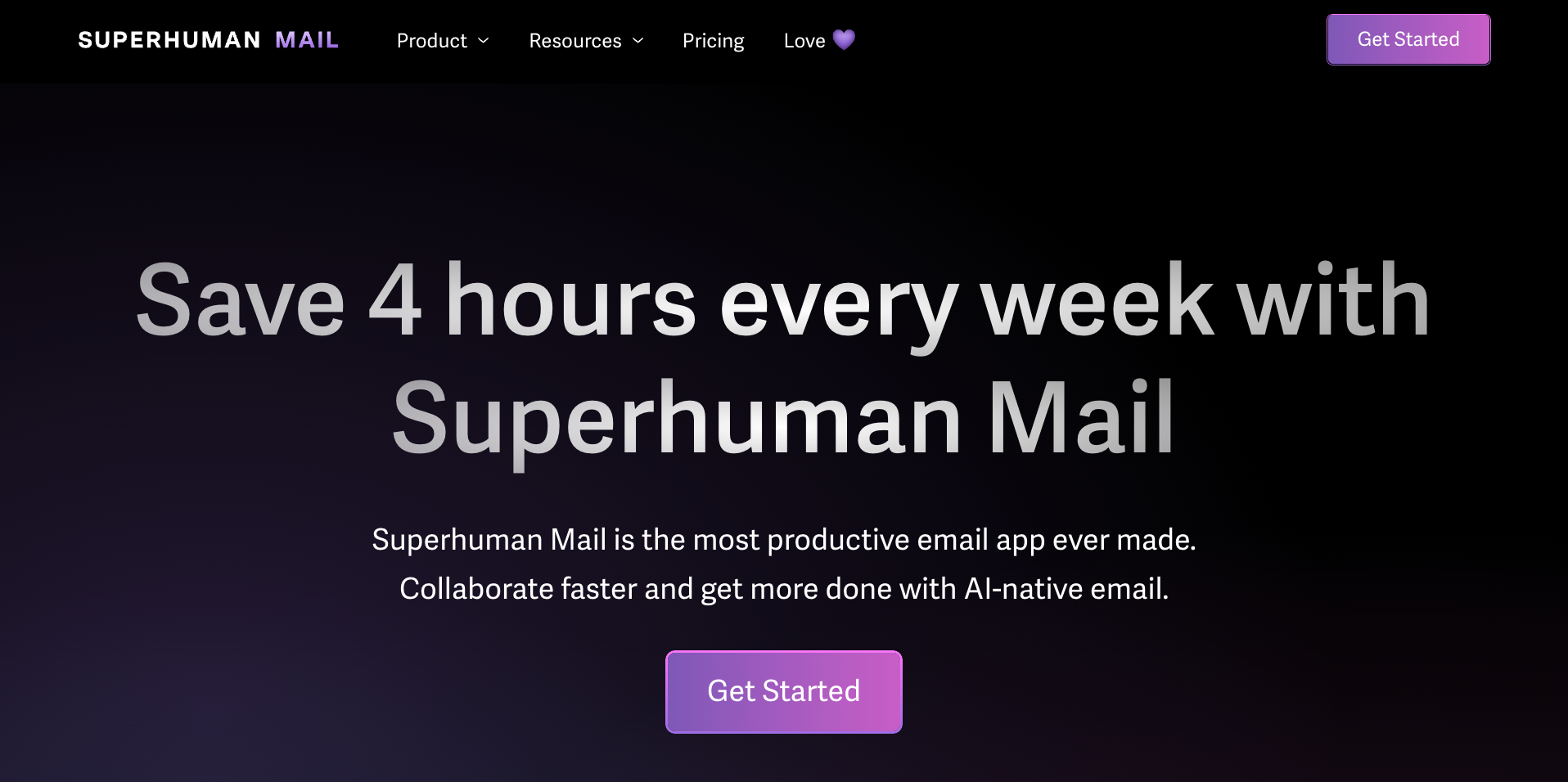
A few days in, the shortcuts were starting to stick, though the archive shortcut still tripped me up. By day five, muscle memory had taken over, and I cleared my inbox to zero using the keyboard alone.
Then Superhuman Go surprised me. I was replying to a client about a project timeline when a Jira ticket she'd mentioned appeared in the sidebar, showing exactly where the task stood. The context surfaced right when I needed it.
Pros
- AI auto labels for inbox sorting, with custom AI labels on Business and up
- Read receipts and open tracking are useful for outreach and follow-ups
- Go surfaces relevant file and ticket context automatically
- Connectors store with pre-built links to Gmail, Google Calendar, and Slack, plus a separate Agent Store of ready-made agents
Cons
- No free plan or trial for Superhuman Mail, though Superhuman Go is free to start
- Steep learning curve around the keyboard-shortcut workflow
Best AI email assistant for hands-off inbox organization
SaneBox
SaneBox is an AI email organizer that works on top of your existing email client, automatically sorting unimportant emails out of your inbox so only the stuff that matters stays in front of you.
Pricing: 7-day free trial. Monthly plans start at $9.49/month for Snack, $15.99/month for Lunch, and $42.99/month for Dinner. Annual and two-year billing offers lower rates.
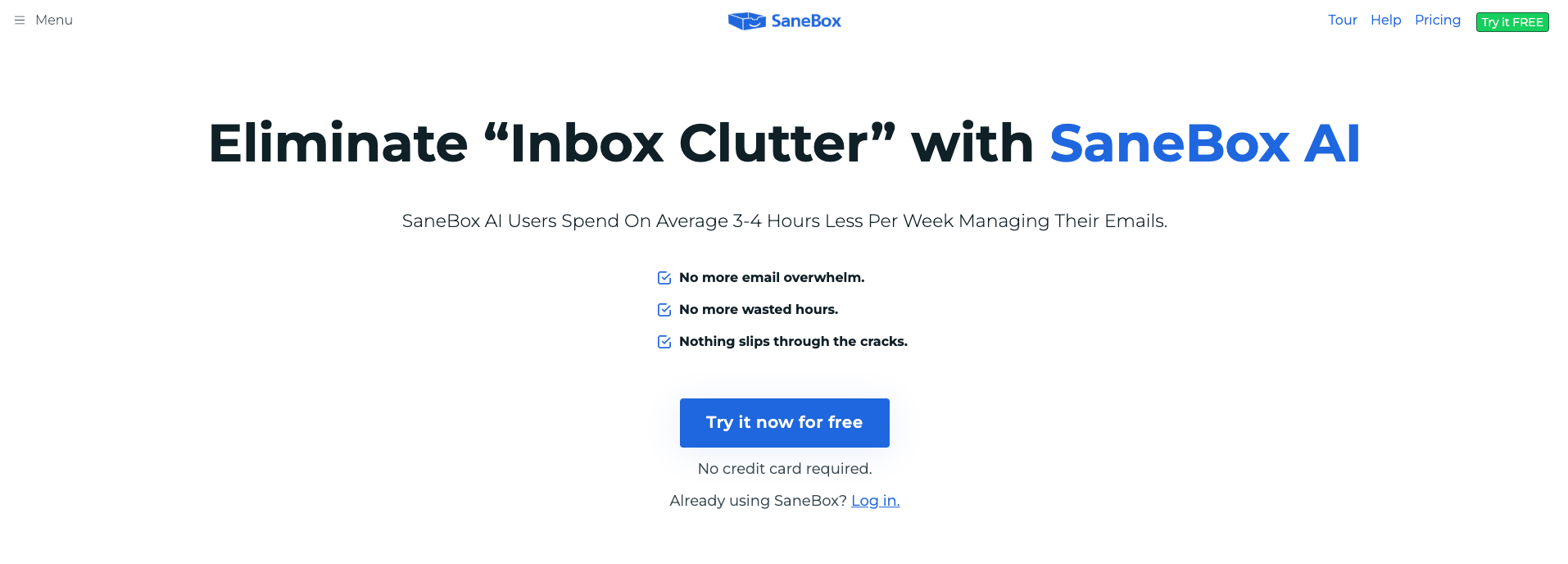
I pointed SaneBox at a Gmail account I'd basically given up on, the one collecting every newsletter, receipt, and account signup I'd ever made. I expected it to need weeks of training, but it started sorting the inbox within hours.
By the next morning, it had already caught a mailing list from a former coworker who CCs fifteen people on everything and moved it into SaneNews. I hadn't written a single rule. I'd just kept using my inbox normally, and it built the sorting logic around that.
Sorting is still where it earns its place. SaneBox now offers AI reply drafts (SaneDrafts) and summaries (SaneSummary) on the plans that include its AI features, but if drafting is your main problem, a writing-focused tool will go further.
Pros
- Connects through OAuth where your provider supports it, with encrypted credential storage otherwise
- Custom training folders for personalized sorting
- Salesforce integration, available if you're on Salesforce Enterprise
- Works with Gmail, Microsoft 365, iCloud, Yahoo, Exchange, and any IMAP account
Cons
- AI reply drafts (SaneDrafts) only come on the plans that include AI features
- The entry Snack plan covers 1 account and only 2 features at once, so heavy sorters need a higher tier
Best AI email assistant for privacy-first email writing
Proton Scribe
Proton Scribe is the built-in AI writing assistant inside Proton Mail that helps you draft and refine emails without logging your prompts or using your inbox to train AI models.
Pricing: Proton Mail has a free plan, Mail Plus at $4.99/month, and Proton Unlimited at $12.99/month. Scribe is a paid add-on on both paid plans, with a 14-day free trial first, and is bundled at no extra cost only on Duo, Family, Visionary, and Lifetime plans.
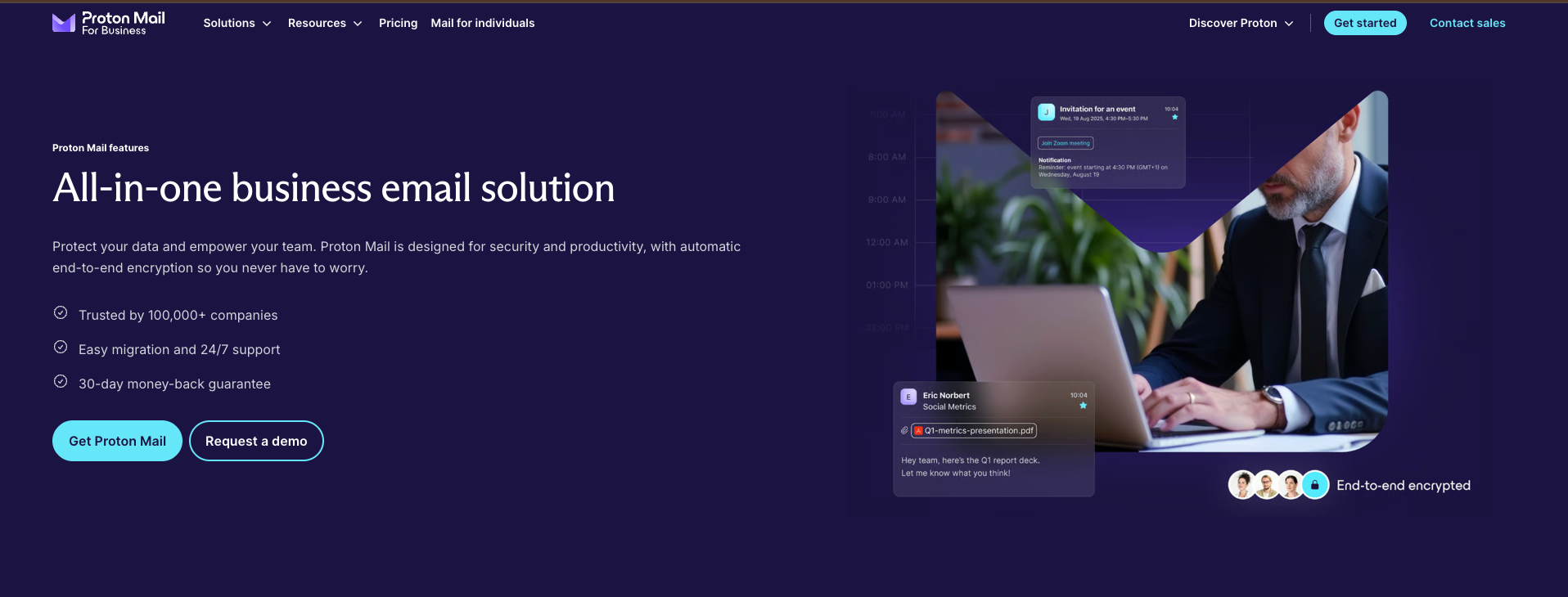
I sent an actual email through Proton Scribe to see what “never leaves Proton's system” really meant in practice. It was a draft to a source I wanted to keep off any AI company's servers.
I asked it to tighten a rambling paragraph and dial down the urgency in my tone. It rewrote both in a few seconds. Scribe runs on open-source models, either on Proton's servers or locally on your own device, and deletes the prompt straight after.
It sticks to one thing: writing help. No automation, no CRM sync, no scheduling. That's by design. It's what makes the privacy promise possible in the first place.
Pros
- Can run locally on your device (English only) or on Proton's servers
- Hide-my-email aliases to protect your real address
- End-to-end and zero-access encryption on all emails
- Password-protected emails for sending to non-Proton users
Cons
- Switching from Gmail requires a full migration
- AI features are limited to writing assistance only
Best AI email assistant for shared team inboxes
Missive
Missive is a shared inbox and email collaboration platform that lets teams handle email together, with AI drafting, rules-based automation, and real-time internal commenting built directly into the email thread.
Pricing: New teams get a 30-day free trial of the Productive plan, no card required. Monthly pricing starts at $18/user/month for Starter, $30/user/month for Productive, and $45/user/month for Business. Annual billing is 20% cheaper.
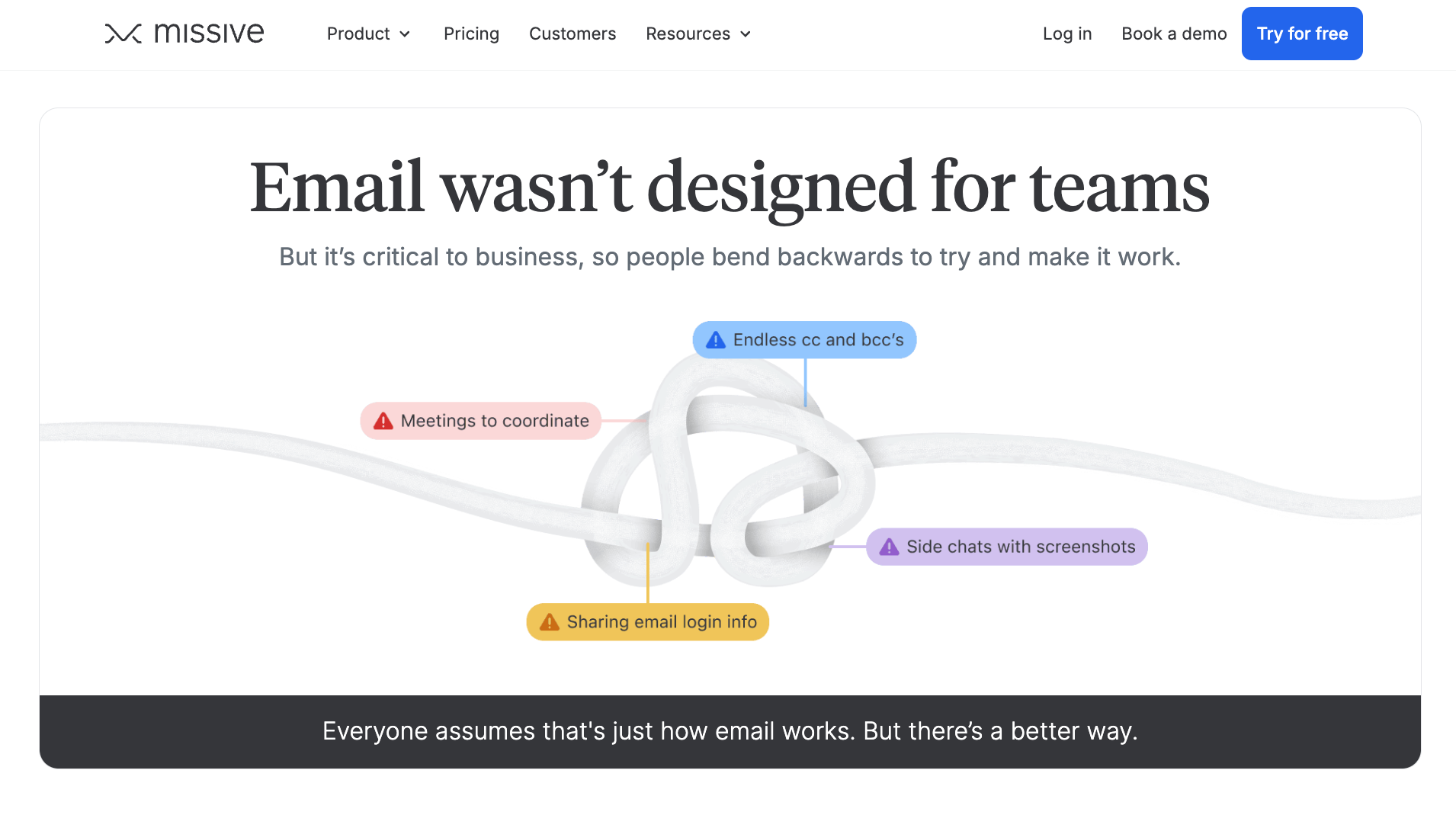
I tested this with a real support thread that had already gone sideways once, a customer email that two of us had replied to separately, out of sync, in the same afternoon.
In Missive, I assigned it to my teammate instead of forwarding it. She picked it up, saw my private comment flagging what I'd already told the customer, replied once, and closed it out.
No duplicate reply, no “wait, did you already answer this?” Slack message, no second person opening the same thread an hour later.
The comment stayed inside the email itself, visible to us, invisible to the customer, and the whole back-and-forth that used to spill into three different tools stayed in one place.
Pros
- SOC 2 Type II compliance, with SAML single sign-on on the Business plan
- Email assignment and task management across team members
- Rules and automations for routing, labeling, and responding to emails (Productive plan and up)
- Supports Gmail, Outlook, iCloud, IMAP, SMS, WhatsApp, and social inboxes in one place
Cons
- No real-time grammar, spelling, or tone suggestions while writing
- No native asset management integration, so tags get matched manually across systems
More AI email assistant options for Gmail and Outlook
The 8 above are the ones I'd recommend regardless of platform. A few others are worth knowing about, but they're narrower picks, so they get a quick summary here and fuller reviews in our platform guides.
If Outlook is where you spend most of your day, our roundup of AI tools for Outlook goes deeper on that side.
| Tool | Platform | Best for | Pricing |
|---|---|---|---|
| MailMaestro | Gmail & Outlook | Fast, professional drafts and thread summaries, writing only | Free plan available; paid from $15/month per seat |
| Spark | Gmail, Outlook, iCloud, Yahoo, Exchange | A cleaner, calmer inbox with a solid free plan | Free plan available; paid from $10/month per user |
| Fyxer | Gmail & Outlook | Inbox cleanup, draft replies, and meeting notes in one tool | Free plan available; Pro from $49/month per user billed monthly ($37 billed annually), with a 14-day trial |
| Gmelius | Gmail | Shared inbox and team collaboration, built for Gmail | 7-day free trial; paid from $21/month per user |
| Inbox Zero | Gmail & Outlook | Open-source AI triage, labeling, and drafts in your voice | 7-day free trial; paid from $20/month per user, billed monthly |
Best picks for Gmail users
Somewhere around tool number twelve, it hit me that half of what I was comparing didn't matter if someone only ever touched Gmail. That's why our dedicated Gmail AI assistant guide exists: the same testing process, just without anything you'd never actually use getting in the way.
Gemini's the one I kept opening out of habit, mostly because it was already sitting there with no new login or extra bill. Shortwave won me over on search after I got tired of scrolling through years of old threads myself, and Lindy stuck around too, mainly for the follow-up work.
Best picks for Outlook users
Testing Outlook tools was a different problem entirely; most of my inbox chaos already had a Microsoft label on it, so I wasn't starting from zero. If you're in the same boat, the setup steps, collaboration quirks, and where each tool falls apart live in our dedicated Outlook guide instead of here.
Copilot was the one I didn't have to think twice about, since it was already paid for the moment I looked at my Microsoft 365 bill. MailMaestro became the one I reached for when I just wanted a faster draft and nothing more complicated than that.
{{cta}}
Which AI email assistant should you choose?
Every tool on this list does something well, so fit matters more than the length of the feature list. Work out which part of email is taking up your time, then choose for that.
Choose Lindy if you:
- Send lots of outreach and want follow-ups handled automatically
- Want one assistant in Slack that already knows what's in your inbox, your meetings, and your other tools, with sourced answers instead of guesses
Choose Shortwave if you:
- Live in Gmail and spend too much time hunting through old threads
- Want the best AI-powered search available in any email client right now
Choose Microsoft Copilot if you:
- Already pay for Microsoft 365, and your team runs on Outlook and Teams
- Need AI that works across Word, Excel, and email without adding another subscription
Choose Gemini for Gmail if you:
- Need cross-app awareness across Gmail, Docs, Meet, and Drive
- Are on Google Workspace and want AI assistance included in what you already pay for
Choose Superhuman if you:
- Treat inbox speed as a competitive advantage and are willing to pay for it
- Send enough emails daily that shaving seconds per reply compounds into hours saved
Choose SaneBox if you:
- Have a messy inbox and just need the noise filtered out affordably
- Want inbox organization without changing your email client or learning anything new
Choose Proton Scribe if you:
- Want AI writing assistance without your email data touching a third-party model
- Handle sensitive communications and treat privacy as a non-negotiable baseline
Choose Missive if you:
- Run customer support, sales, or operations email as a team function rather than individually
- Manage a shared inbox with a team and need collaborative email without forwarding threads
Avoid AI email tools entirely if:
- Your email volume is low, and a few manual replies per day are all you need. The setup cost won't pay off.
- You're looking for a magic fix to disorganization. These tools work best when you already have a rough sense of how you want your inbox to run.
FAQs
What is the best AI email assistant?
It depends on what's slowing you down. Shortwave is strongest for Gmail search, Missive for shared team inboxes, and Proton Scribe for privacy. The best pick comes down to which email problem you need the tool to solve every day.
What's the best AI email assistant for Gmail specifically?
Gemini is the strongest pick if you want AI already bundled into Google Workspace, and Shortwave leads on search. The choice comes down to whether you want AI added to the Gmail you already use, or you're willing to replace the inbox interface entirely for better search and cleaner threading.
Which AI email assistants work with both Gmail and Outlook?
Superhuman, SaneBox, and Missive all work across Gmail and Outlook, which makes them the safest picks if you split your time between both. Shortwave only connects natively to Gmail, while Copilot and Gemini each stay strongest inside their own ecosystem.
How much do AI email assistants cost?
Most tools on this list start between about $5 and $30 per user per month. SaneBox starts at $9.49, Shortwave Pro at $18, Lindy Team at $29.99, and Superhuman at $30 on monthly billing.
Native options cost the least if you already pay for the suite: Gemini in Gmail starts at $4.99/month with Google AI Plus, and Copilot comes with Microsoft 365 Personal at $9.99/month.
Is there a free AI email assistant?
Yes, a few. Shortwave has a free plan with its core AI features for Gmail, and Spark and MailMaestro both have free plans too. Most others offer a trial instead, like SaneBox's 7 days, Missive's 30 days on its Productive plan, or Lindy's Free plan with $50 in credits that last 7 days.
Can AI email assistants write replies automatically?
Yes, but the degree varies. Superhuman and Shortwave draft replies for you to review before sending, and SaneBox can generate reply drafts on its AI plans. Tools that act on email can go further and send routine follow-ups on their own once you've set the rules.
Are AI email assistants safe for work email?
Generally yes, but it depends on the tool. Proton Scribe doesn't log your prompts or train on your inbox. Lindy and Superhuman are SOC 2 Type II certified, and Shortwave is CASA Tier 2 compliant, with SOC 2 Type II questions handled on request.
If you work in healthcare or law, check for HIPAA compliance before connecting your inbox.