How to Download Emails From Outlook (Web, Desktop, and Mobile)


Last month, I switched laptops and realized three years of client emails were sitting only in Outlook. No backup, no export, nothing. I'd always assumed the emails were somewhere in the cloud, but when I went looking for the export option, Outlook had three different menus across three different versions.
The browser version only downloaded one email at a time. Classic Outlook had the full export buried under File, then Open and Export. The rebuilt New Outlook had moved the whole menu, and it had no Import wizard to load the file back in.
No guide I found mentioned which version it was written for, so I spent an hour sorting out which steps applied to me before I even started.
Once I matched the version to the right method, the whole thing took five minutes.
Here's every method, broken down by platform and version, whether you're saving a single email or backing up your entire mailbox.
How to download emails from Outlook: TL;DR
The method depends on how much you want to save and which version you're on.
To save a single email, open it and click Download on the web, or use Save As in Classic Outlook to save an .msg or .txt file. On Mac, drag the email to your desktop for an .eml. For a full mailbox, Classic Outlook exports a .pst through File → Open and Export → Import/Export.
New Outlook uses Settings → Files → Export and now supports .pst files. It can open one and let you drag emails back in, but it has no Import wizard.
Outlook.com no longer has a built-in export tool in the browser. To back up an Outlook.com mailbox, open it in the desktop Outlook app and export from there.
The mobile app has no download option; printing to PDF is the only workaround.
| Platform | Version | Export path |
|---|---|---|
| Outlook.com (browser) | Web only | Three dots, then Download (single email only). Full mailbox export: open in desktop Outlook app, then use Classic or New Outlook export path. |
| Outlook desktop (Windows) | Classic | File, then Open and Export, then Import/Export |
| Outlook desktop (Windows) | New Outlook | Settings gear, then Files, then Export |
| Outlook desktop (Mac) | Legacy | Tools tab, then Export (.olm). Single email: drag to desktop or Finder (.eml) |
| Outlook mobile (iOS/Android) | App | Print to PDF workaround only |
What file format should you download your emails in?
The right format depends on what you're trying to do with the file. .pst covers everything in one file and is the right call for a full backup or a computer switch.
.pdf opens in any browser without extra software, so it works best for emails you need to share or keep as records.
If you're moving to Gmail, Apple Mail, or Thunderbird, .eml is the most compatible format across clients.
Here’s a short guide:
| Format | What opens it | Best for | Limitation |
|---|---|---|---|
| .pst | Outlook desktop (Classic) only | Full mailbox backup, migration to a new computer or account | No Import wizard in New Outlook, but New Outlook can open a .pst and move emails out by drag and drop. Calendar and contacts inside a .pst don't show up in New Outlook. |
| .msg | Outlook (any), some third-party clients | Saving individual emails with attachments intact | Single emails only, not supported on Mac Outlook |
| .eml | Apple Mail, Thunderbird, most email clients | Saving individual emails to use in a non-Outlook client | Attachment support varies on Mac; confirm the attachment came through before relying on the copy |
| Any PDF viewer | Legal records, sharing with people outside Outlook, archiving readable copies | One email at a time, attachments not included | |
| .txt | Any text editor | Plain text record-keeping only | No formatting, no attachments |
| .olm | Outlook desktop (Mac) only | Full mailbox backup on Mac | Only opens in Mac Outlook |
How to download a single email from Outlook
On the web it's two clicks; on desktop it's a few more, and the format depends on your platform. The web usually saves an .eml; Classic Outlook gives you a choice between .msg and .txt; Mac saves an .eml by drag and drop; and mobile has no native download option at all.
On Outlook.com (web)
Open the email, click the three-dot menu in the top right corner, and select Download. It saves as an .eml file (some versions let you choose between .eml and .msg). You can only grab one email at a time this way.

On Classic Outlook desktop (Windows)
Select the email, go to File → Save As, pick your format, and save. Use .msg to keep formatting and attachments intact, or .txt if you only need the plain text. One thing to know: if you select more than one email before hitting Save As, Outlook forces the .txt format. For attachments, save emails one at a time as .msg.

On Outlook desktop (Mac)
Select the email and drag it onto your desktop or into a Finder folder. Outlook saves it as an .eml file, which opens in Apple Mail, Thunderbird, and Windows Outlook. It handles one email at a time. File → Save As technically exists on some Mac Outlook builds, but it's inconsistent. The drag method is more reliable.

{{templates}}
On Outlook mobile (iOS and Android)
The mobile app has no built-in download option. The workaround: open the email, tap the three-dot icon below the subject line, tap Print, then in the print dialog select Save as PDF. Attachments won't come along, but the email body is preserved.

How to download multiple emails from Outlook
There are three ways to grab a batch of emails at once, and each treats attachments differently. If you need attachments kept intact, drag-and-drop or a full .pst export are your best options. If you just need the text, Save As works, but it strips attachments out.
Here's what each method does:
- Drag and drop to a folder: Select the emails you want in Classic Outlook on Windows (Shift-click for a range, Ctrl-click to pick specific ones), then drag them into a folder in Windows Explorer. Each email is saved as its own .msg file, including attachments. This is the fastest method for a specific batch without opening the export wizard.
- Save As on multiple emails: Select more than one email, then go to File, then Save As. The catch is that Outlook only lets you save multiple emails as .txt, not .msg, and it merges them into a single file rather than saving them separately, so attachments don't come along. Use this only when you need the text and nothing else.
- PST export for a folder or subset: In Classic Outlook, go to File, then Open and Export, then Import/Export, then Export to a file, then Outlook Data File (.pst). Pick the folder or folders you want, check Include subfolders, choose a save location, and click Finish. This is the right call when you want a whole folder, or several folders, exported with everything intact.
{{cta}}
How to export your entire Outlook mailbox
A full Outlook mailbox export captures your emails, attachments, and folder structure in a single file. The method depends on your platform and version. Classic Outlook on Windows exports a .pst file. New Outlook has its own export path, and an Outlook.com mailbox has to be exported from the desktop app. Mac Outlook exports an .olm file, which only opens back in Mac Outlook.
Here's how to do it on each platform:
- Classic Outlook (Windows): Go to File → Open and Export → Import/Export → Export to a file → Outlook Data File (.pst). Select the top-level account and check Include subfolders. Before exporting, go to Account Settings and set the sync slider to All. The default only caches the past 12 months.
- New Outlook (Windows and Mac): Click the Settings gear, go to Files → Export, and follow the wizard. New Outlook can export a .pst file. It can also open one and let you drag emails back into your mailbox, though there's no Import wizard, and calendar and contact items in the file won't appear. For a full wizard-driven import, use Classic Outlook.
- Outlook.com (browser): Microsoft no longer offers a built-in export tool on the web. To export an Outlook.com mailbox, open it in the desktop Outlook app, then export from Classic Outlook (File → Open and Export → Import/Export) or New Outlook (Settings → Files → Export). Work and school accounts may have export restricted by IT.
- Mac Outlook (legacy version): Go to the Tools tab → Export, select the top-level mailbox, and finish. Mac Outlook saves an .olm file, not a .pst. The .olm only opens back in Mac Outlook. It won't open in Windows Outlook or Apple Mail, so plan on converting it if you're switching clients. Note: this export applies only to the legacy Outlook for Mac. The newer Mac version does not offer .olm export.
Troubleshooting common download problems
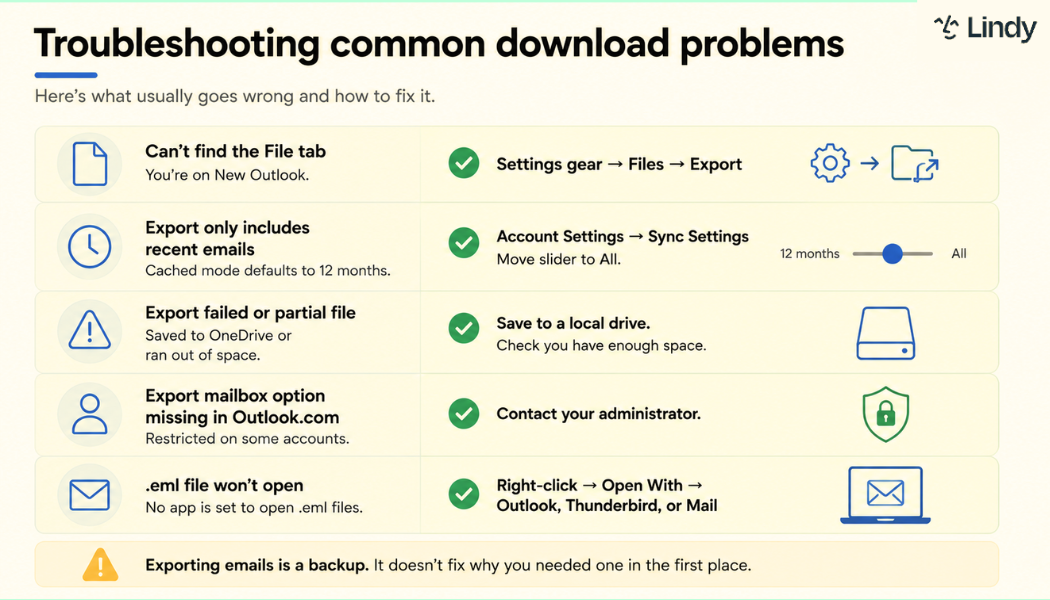
Most Outlook download failures trace back to the version you're on or a setting you didn't know existed. A missing File tab means you're on New Outlook. A partial export usually means the .pst was saved to OneDrive. Missing older emails means the sync slider was never set to All.
Here's what usually goes wrong and how to fix it:
- Can't find the File tab: You're on New Outlook, which has no File menu. Use the Settings gear → Files → Export instead. To get the File tab back, go to Help → Go to Classic Outlook.
- The export includes only recent emails: Outlook's cached mode defaults to 12 months. Go to File → Account Settings → Account Name and Sync Settings and move the slider to All before exporting.
- Export failed or produced a partial file: The .pst was likely saved to a OneDrive-synced folder, which can cause the export to fail. Save to a local drive instead. A full mailbox .pst can be several GB, so check available disk space first.
- Export mailbox option in Outlook.com: It's no longer available. The browser version can only download one email at a time. For a full mailbox, open the account in the desktop Outlook app and export from there. Work and school accounts can still be restricted by IT, so check with your administrator if the desktop export is blocked.
- The .eml file won't open: Windows has no default app tied to .eml files. Right-click the file, choose Open With, and pick Outlook, Thunderbird, or Windows Mail.
Exporting emails is a backup. It doesn't fix why you needed one in the first place.
Lindy is an AI teammate for your entire company, living in Slack. @mention it in a channel, and it responds using your company's shared knowledge, or DM it like your own assistant to manage your inbox, calendar, and daily tasks.
On email, it sorts your inbox by priority, flags the messages that need a reply, and drafts responses in your voice, so you're not starting from a blank screen every morning. It watches for anything urgent and pings you the moment it lands, and it works across Gmail and Outlook.
FAQs
Can I download all my Outlook emails at once?
Yes, you can download all your Outlook emails at once using two methods. In Classic Outlook desktop, go to File, then Open and Export, then Import/Export, then Export to a file, and choose Outlook Data File (.pst) for your entire mailbox. On Outlook.com, the browser export tool is no longer available. Open your Outlook.com account in the desktop app and export from there using Classic or New Outlook.
Does downloading emails from Outlook delete them from my inbox?
No, downloading or exporting emails only creates a copy on your device. Your original emails stay in Outlook untouched unless you delete them yourself afterward. This applies to every method: single-email downloads, .pst exports, and desktop exports from an Outlook.com account. Nothing leaves your account during the process.
How do I download Outlook emails with attachments included?
To download Outlook emails with attachments included, use a .pst export or the drag-and-drop method, which saves emails as .msg files with attachments intact. Saving multiple emails through File, then Save As only keeps the text, since Outlook limits multi-select saves to .txt format, and it merges them all into one file rather than saving separately. Attachments don't come along. For attachments, save emails one at a time as .msg.
How do I export Outlook emails to Gmail or another email client?
For Google Workspace, export a .pst file using Classic Outlook, then run the Google Workspace Migration for Microsoft Outlook tool on the same machine. For a personal Gmail account, set up Gmail with IMAP in Outlook and drag emails into the Gmail folder to sync them across. Thunderbird and Apple Mail import .eml files directly.
How long does it take to export a full Outlook mailbox?
Exporting a full Outlook mailbox depends on mailbox size. A few hundred MB exports in minutes through the desktop app. A large mailbox (5 to 20 GB) can take 30 minutes to several hours. An Outlook.com mailbox has to be exported from the desktop app, so the same size-based timings apply. Keep Outlook open and connected during the process.









