7 Best Note-Taking Apps for Windows in 2026


I was three cities from home when my laptop died the night before a client call. My friend lent me his PC, but it only had OneNote and Sticky Notes. The meeting ran for forty minutes while I typed into Notepad like it was 2003.
That afternoon, I went looking for the best Windows note-taking apps to install before you actually need them.
I tested 11 options using a standard keyboard and a Surface Pro stylus for handwriting. Four fell out along the way. These 7 stayed, and each one handles a different use case better than anything else on this list.
What are note-taking apps?
Note-taking apps are digital applications designed to capture, organize, and store information. They replace traditional paper notebooks by allowing users to record typed text, audio recordings, images, and handwritten sketches.
Note-taking apps sync automatically across multiple devices, such as phones and computers. Most add search, tags, and shared workspaces so you can find an old note and let other people work in it.
How I tested these note-taking apps for Windows
The question shows up on Reddit every few months, always in the same form. Someone posts in r/NoteTaking or r/productivity asking which note-taking app actually works on Windows, gets a dozen answers pointing in every direction, and leaves more confused than when they started.
OneNote for Surface users. Joplin for privacy. Notion for teams. Obsidian for researchers. No one agrees, and no one is testing the same thing.
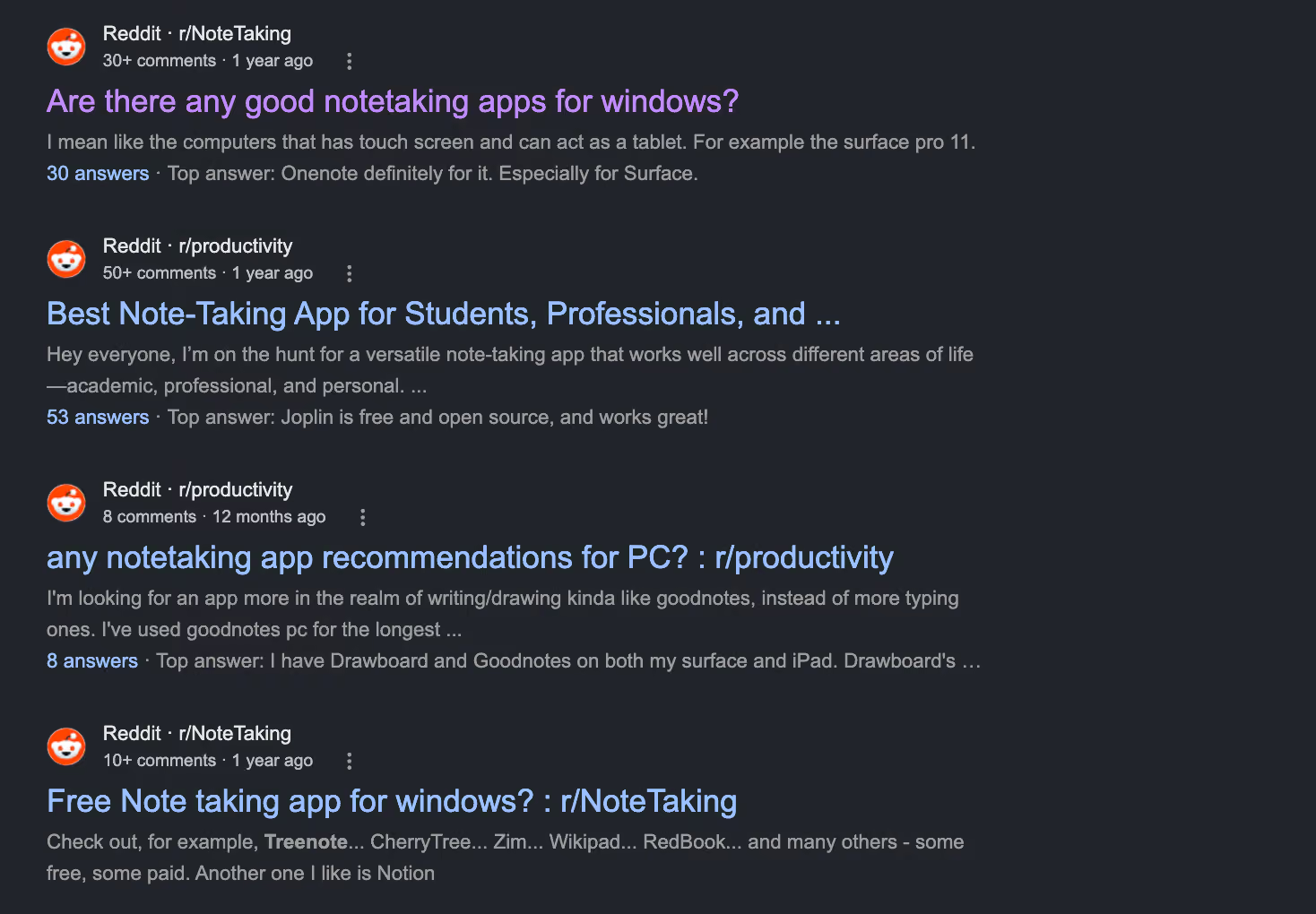
I ran each one against the same criteria: native performance, offline access, search quality, sync reliability, stylus feel where applicable, and whether the pricing matched what was actually free.
4 apps didn't make the list:
- Evernote used to be the default recommendation on these threads. Its free plan now caps at 50 notes and one device, which rules it out for anyone taking more than a handful of notes a week.
- GoodNotes for Windows lagged noticeably on anything short of premium hardware, which matters on a platform where native performance is one of the main things you're evaluating.
- Standard Notes locks its most useful editors behind a paid tier, so the free version undersells what the app can actually do. That mismatch made it hard to test fairly.
- Sticky Notes works for a phone number you'll delete in an hour. Past that, there's no folder structure and no tags, so a pile of notes stays a pile.
If you're looking beyond note-taking, we also tested the best work apps for broader productivity.
Quick comparison: Note-taking apps for Windows
1. Microsoft OneNote: Best for most Windows users
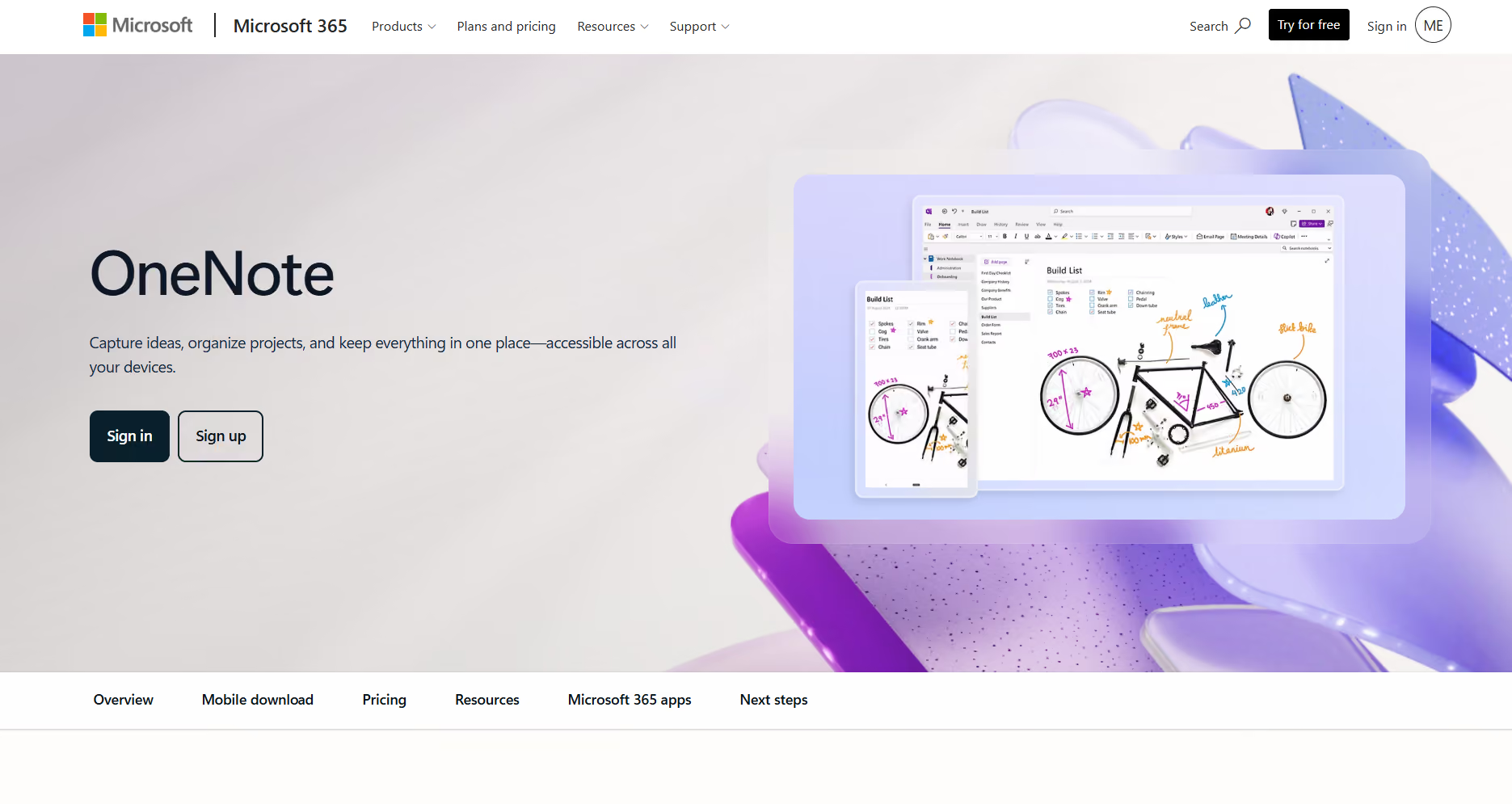
What is it? Microsoft OneNote is a free note-taking app built into Windows that stores notebooks, sections, and pages in your Microsoft account. It handles typed notes, handwriting, and stylus input with automatic OCR, and syncs across devices through OneDrive with no setup beyond the Microsoft account you already sign in with.
Why I picked it? Every Windows machine I tested already had OneNote open. It's installed, signed in, and ready before you've done anything. I kept waiting for a reason to move off it, and for most use cases, I didn't find one. If you type notes, sketch diagrams, or use a Surface Pen between meetings, it covers the job without setup.
Key features
- Notebooks, sections, and pages: The structure mirrors a physical binder and will already feel familiar if you've used Word or Excel, since it borrows the same visual language and ribbon-style navigation that Office has used for two decades.
- Handwriting that becomes searchable text: OneNote automatically runs OCR on ink. A note scrawled during a lecture or client call turns up later in a keyword search, right alongside typed content, without any extra step required.
- Ink-to-shape and math conversion: Draw a rough rectangle and OneNote straightens it on the spot. Handwritten equations get solved too, though that one needs a paid Microsoft 365 plan.
Limitations
The AI layer is where OneNote's free tier hits a wall. Copilot inside OneNote needs a paid Microsoft 365 subscription, or a Microsoft Copilot work license if you want it on Mac, iPad, or the web. Once you're several notebooks deep with dozens of sections, the interface gets cluttered. Apps like Nebo avoid this because they were built for the pen; OneNote was built for general capture, and it shows.
Pricing
Microsoft OneNote is free to use and draws on your OneDrive storage, which includes 5GB at no cost. Upgrading to Microsoft 365 Personal starts at $9.99/month and includes 1 TB of storage, the full Office suite, and Copilot access with monthly usage limits.
2. Nebo: Best for handwriting and stylus users
What is it? Nebo is a handwriting-first note-taking app for Windows, built by MyScript, that focuses on pen input rather than typing. It converts handwriting into text, straightens diagrams, and solves handwritten math equations through gesture-based editing. The Windows version still works, but MyScript is no longer adding features to it, so the AI tools on the phone app aren't coming here.
Why I picked it? I ran Nebo and OneNote back-to-back on the same Surface, doing the same handwriting tasks. Nebo had lower latency and tighter palm rejection, and its gestures let you edit the way you would on paper.
Key features
- Gesture-based editing: Strike through a word to delete it, underline to underline it, frame a section to highlight it, and lasso to select. You never switch tools or leave the page. It's the closest any app gets to how editing works on paper.
- Handwriting, diagram, and equation conversion: Nebo turns messy handwriting into clean digital text, straightens rough diagrams into shapes, and solves handwritten math equations. It's validated with the Surface Pro and Surface Pen, as well as other active styluses.
- PDF annotation: Import a textbook chapter or slide deck, mark it up freehand, and export a clean annotated version. For students working through readings, Nebo is useful in a way blank-page apps aren't.
Limitations
Nebo is built around structured pages and boards. If you dump ideas onto a single sprawling page and sort them later, Obsidian or a whiteboard app will suit you better. It's also a paid tool from the start with no free tier for daily use.
Pricing
Nebo for Windows is a $9.99 one-time purchase on the Microsoft Store, with no free tier. The phone version is sold separately on monthly and yearly plans or as a one-time lifetime purchase through the Apple App Store and Google Play Store.
3. Obsidian: Best for local-first knowledge management
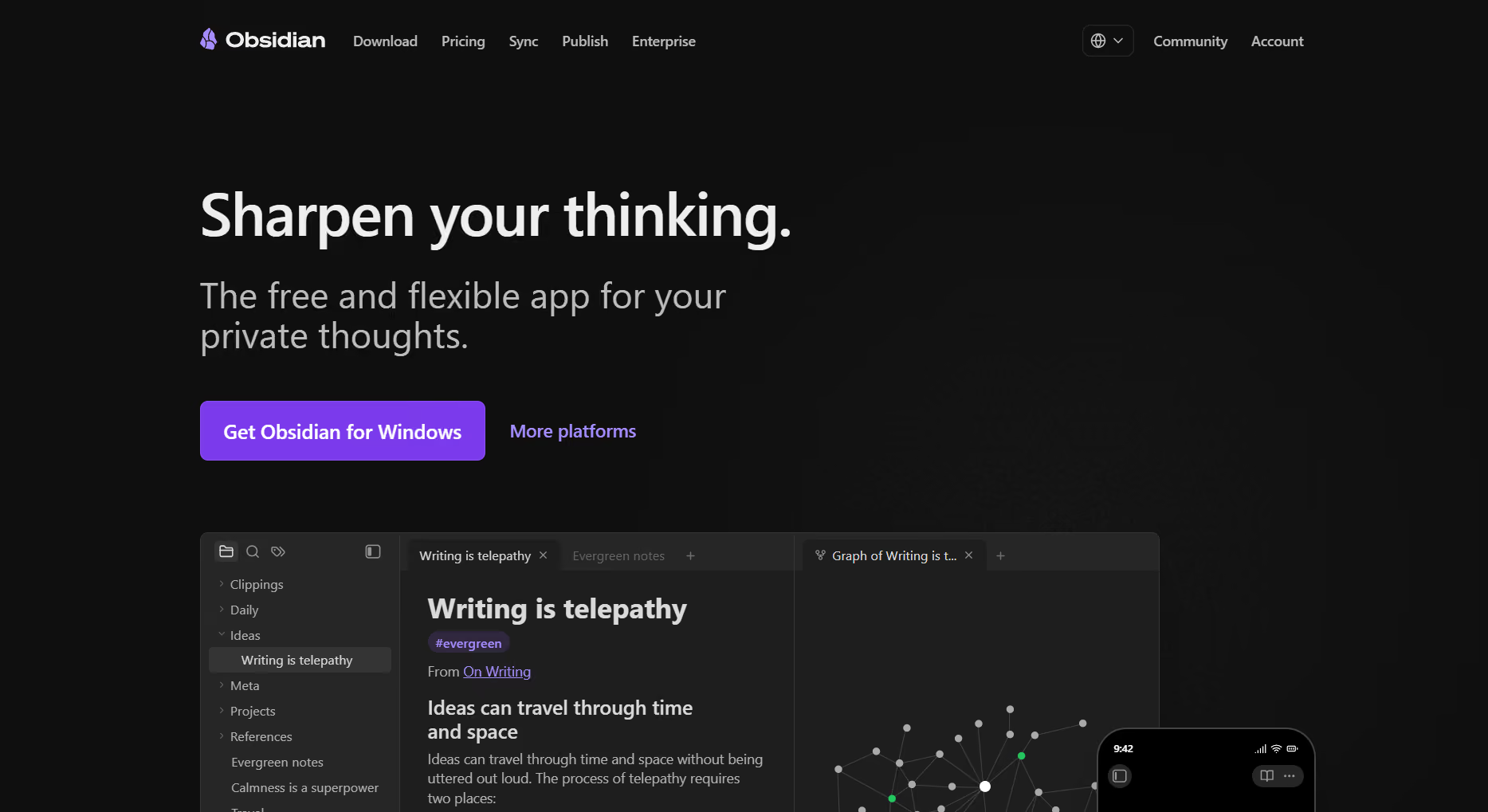
What is it? Obsidian is a free, local-first note-taking app that saves every note as a plain Markdown file directly on your device. It links notes together into a visual graph, runs as a native Windows app, and keeps you in control of your files even if you stop using it.
Why I picked it? I've lost notes before because apps shut down. With Obsidian, your notes are plain text files on your machine, openable in any editor, long after you've stopped using Obsidian itself. Start linking notes together, and the graph fills in fast, until the whole thing works like a searchable knowledge base. Pages load instantly even with a large vault.
Key features
- Local Markdown storage: Every note is a plain text file saved directly to your device, which means you can open, read, or edit them with any text editor, and you keep full ownership even if you stop using Obsidian entirely.
- Bidirectional linking and graph view: Link one note to another and Obsidian tracks that connection in both directions, then renders the whole web as a visual graph. Researchers, writers, and long-term note hoarders tend to build their entire knowledge base here.
- More than 7,000 community plugins: Kanban boards, daily note templates, and a Zotero integration for citation management are all available as drop-in plugins. The base app stays lightweight while covering nearly any workflow you need.
Limitations
Getting real value out of Obsidian takes familiarity with Markdown and a willingness to set up folder structure and links. If you just want to open an app and start typing, that's a real barrier.
We put together a list of Obsidian alternatives for anyone who wants the local-first approach without the setup. The core app also has no handwriting or stylus support. A community plugin called Ink adds pen input, but Obsidian doesn't include it out of the box.
Pricing
Obsidian's core app is free for both personal and commercial use. Cross-device sync runs through Obsidian Sync for $5/user/month and includes end-to-end encryption, version history, and shared vaults. If you want to publish notes to the web, Obsidian Publish adds that for $10/site/month. Both are optional.
4. Notion: Best for structured workspaces and teams
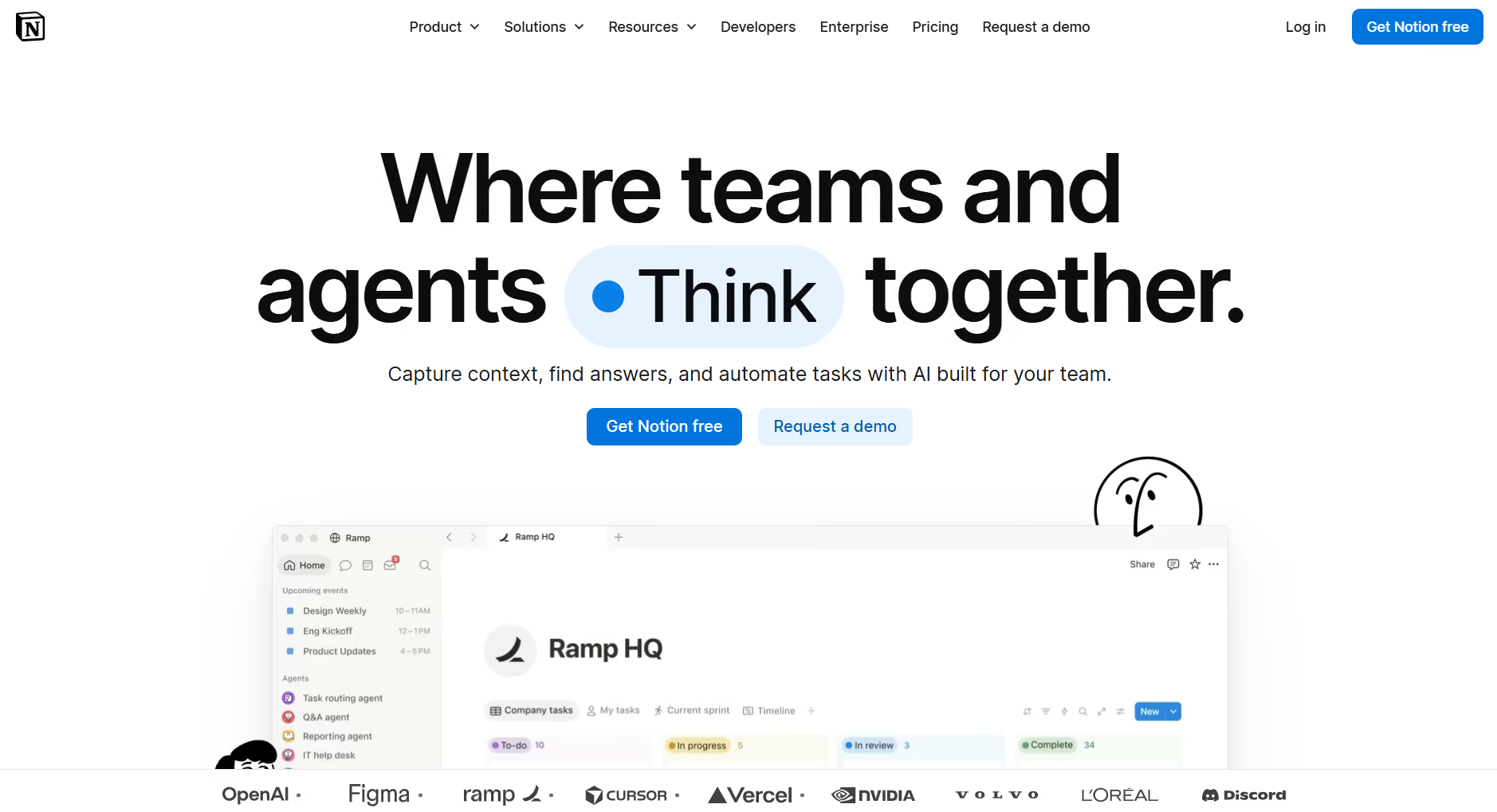
What is it? Notion is an all-in-one workspace app that combines notes, databases, task boards, and documents in a single connected system. Pages can hold simple text or structured data with filters and views, making it suited to teams documenting and collaborating on shared project work.
Why I picked it? I opened Notion to write a single note and ended up building a project tracker. Notion resists staying small. If your notes are project documentation that other people need to see and edit, that tendency works in your favor. Kanban boards and task tracking sit right alongside the writing, so the note and the plan live in one place.
Key features
- Pages and databases in one system: A Notion page can be a simple text note or a fully structured database with filters and views. Switching between the two doesn't require leaving the app or learning anything new.
- Real-time collaboration: Multiple people can edit the same page simultaneously, comment inline, and see changes as they happen, which is where Notion pulls ahead of Obsidian and Microsoft OneNote for anyone working with a team rather than alone.
- Notion AI: Notion includes AI meeting notes, an AI search across your workspace and connected apps, and an AI agent that handles multi-step tasks inside your pages. Full access requires the Business plan.
Limitations
The learning curve is real. Someone who just wants to jot a quick note will find Notion's blocks-and-databases model overkill, like using a spreadsheet to write a grocery list. Notion works offline, but you pre-download the pages you want rather than having everything local by default, so it isn't offline-first the way Obsidian or Joplin are. Full AI access now sits behind the Business tier.
Pricing
Notion's Free plan covers unlimited blocks for individual use. Unlimited team collaboration starts on the Plus plan at $12/user/month. Full Notion AI access, including AI Meeting Notes, Notion Agent, and Enterprise Search, requires the Business plan at $24/user/month, or $20 billed annually. Plus drops to $10 on the same annual terms. Enterprise pricing is custom.
5. Lindy: Best for AI-assisted work and meeting notes
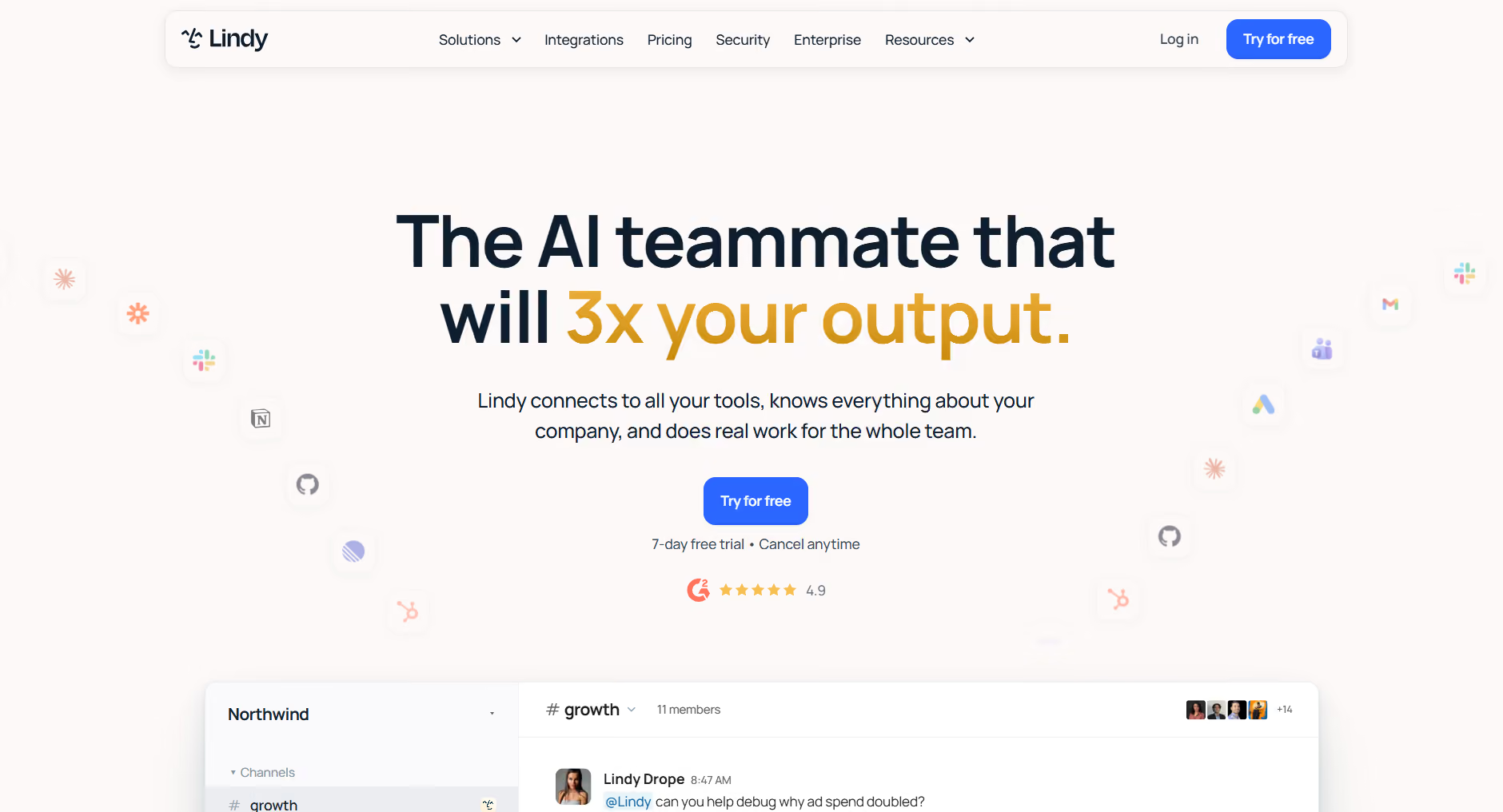
What is it? Lindy is an AI teammate that does real work for the whole team in Slack. It handles meeting notes, inbox management, and cross-tool search without requiring any workflow setup. Turn on meeting notes once, and Lindy joins the calls you choose, transcribes everything, and drops a summary into a shared folder anyone on your team can query.
Why I picked it? If you've ever finished a call and immediately forgotten half of what was decided, Lindy fixes that. Every summary is ready before you've closed the call. @mention it in Slack afterward, and it pulls sourced answers from that meeting and everything else your team has going on. The other six apps on this list ask you to write something down. Lindy just does it for you.
Key features
- Meeting notes and transcription: Lindy records, transcribes, and summarizes across Zoom, Google Meet, and Teams. Notes go to shared folders the whole team can query.
- Inbox management: Lindy drafts replies in your voice and manages labels via the Gmail Chrome Extension.
- Integrations: Lindy has 1,000+ integrations, including Gmail, Slack, HubSpot, Salesforce, and Notion, so the notes and answers it generates can pull context from wherever your team already works.
Limitations
Lindy has no offline mode and no handwriting support, so it won't cover you on a plane or with a Surface Pen, and the table above says so. There's no free plan either, only a 7-day trial. It works best for teams already on Slack who want meeting capture and inbox management handled for them.
Pricing
Lindy starts at $29.99/user/month on the Plus plan, with Pro at $99.99/user/month and Max at $199.99/user/month as usage scales up. Enterprise pricing is custom. New teammates who join through Slack get a 7-day free trial.
{{templates}}
6. Joplin: Best open-source option
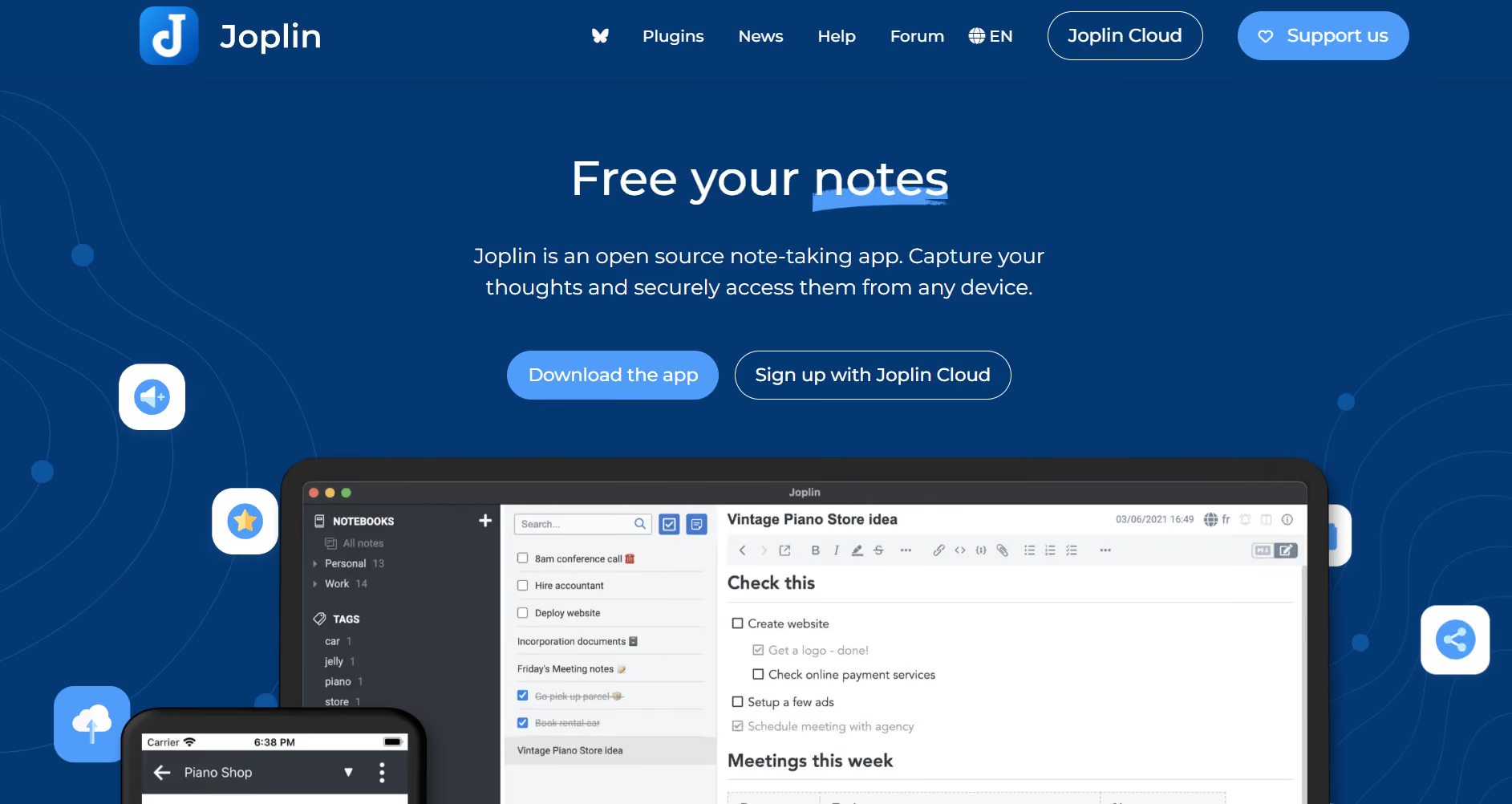
What is it? Joplin is a free, open-source note-taking app built around local-first storage and Markdown files, without an account or onboarding required to start. Notes sync through your choice of service, including Dropbox, OneDrive, or Joplin's own paid cloud, with end-to-end encryption available.
Why I picked it? Joplin skipped the account setup, onboarding, and trial countdown entirely. After testing apps that want your email before you've seen a single feature, that felt like a statement. This no-strings setup is the whole point of Joplin, and it's why privacy-focused users keep recommending it over commercial alternatives.
Key features
- Local-first storage with flexible sync: Notes live on your device by default. You choose how they sync: Dropbox, OneDrive, Nextcloud, WebDAV, or Joplin's own cloud. No lock-in to one company's servers.
- End-to-end encryption: Turn it on and your synced notes stay unreadable to anyone but you, including whichever cloud service you're routing them through.
- Markdown editor with an Evernote import path: Write in Markdown or switch to rich text, clip articles straight from your browser, and bring old Evernote notebooks over as ENEX files.
Limitations
Joplin's interface feels like it was built by developers, for developers. Menus are dated, some workflows take more clicks than they should, and there's no real-time collaboration. Joplin does have an AI chat panel now, but it's a paid Joplin Cloud feature rather than something the free app does.
If you're coming from Notion or OneNote, the drop in polish is noticeable. But if you just want your notes private, local, and yours, none of that matters.
Pricing
Joplin's core app is completely free to download and use locally. Joplin Cloud, the company's own sync and sharing service, starts at 2.99€ per month on the Basic plan, or 2.40€ per month billed annually. Joplin publishes prices in euros only, so what you pay depends on the exchange rate that day.
7. Simplenote: Best free option with minimal setup
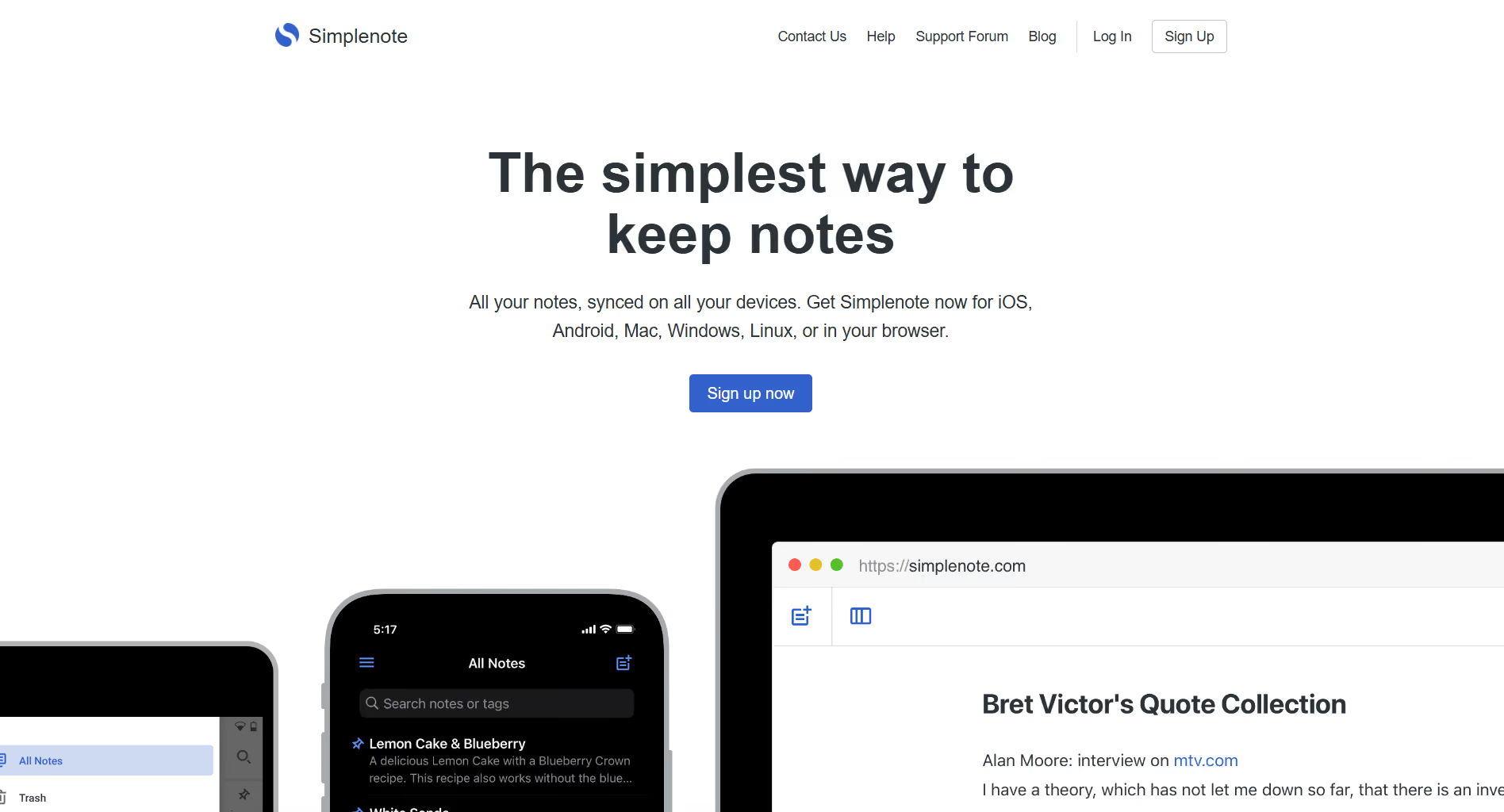
What is it? Simplenote is a free, minimalist note-taking app built by Automattic, the company behind WordPress and Tumblr, stripped down to text and tags. It syncs across devices at no cost, includes version history, and opens instantly since nothing extra loads in the background.
Why I picked it? I opened Simplenote expecting to find something missing. Instead, I could start typing immediately, with nothing to set up and no database schema to design first. After a week of testing tools that make you configure before you write, that was the most useful thing I tested. It does exactly one thing, and it does it without asking anything of you first.
Key features
- Deliberate minimalism: Plain text and tags, nothing else. That sounds like a limitation until you see how fast a blank note opens when the app isn't loading anything extra.
- Cross-device sync: It is included for free, with Markdown support and version history baked in, unlike apps that gate sync or history behind a paid tier.
- Fast capture, easy export: Start a note with a keyboard shortcut, and export to JSON, plain text, or Markdown so your notes are never stuck in a format only Simplenote can read.
Limitations
If you need rich formatting, embedded images, handwriting support, or anything resembling a database, Simplenote will feel thin fast. It's built for short, fast, text-only notes. Simplenote isn't built for structured project work. If you need that, Notion or Obsidian will serve you better.
Pricing
Simplenote is completely free, with no paid tiers, premium features, or upsells.
{{cta}}
How to choose the right note-taking app for Windows
The right note-taking app for Windows comes down to one question: where does your work actually happen? A student marking up PDFs with a stylus needs something different from a team that wants every meeting summarized automatically. Match the app to that use case and the rest of the decision gets easier.
Here's what matters when you're comparing options:
- Input method: If you write by hand or use a Surface Pen, you need an app built for ink. Nebo and OneNote both handle stylus input, but Nebo was designed around it. For keyboard-only work, the input method stops mattering, and everything else moves up the list.
- Offline access: If you work on planes, in basements, or anywhere with a patchy connection, check whether the app saves locally or relies on a live sync. Obsidian and Joplin store everything on your device. Notion needs a connection to stay current.
- Team vs. solo use: Apps like Notion and Lindy are built for shared workspaces where multiple people need to find things. If you're the only one who ever reads your notes, that overhead isn't worth it. Simplenote and Obsidian are faster for solo work.
- AI features: Decide whether you want AI in your notebook or handling work before it reaches it. OneNote with Copilot does the former. Lindy joins your meetings and files the summary before you've even opened a notes app, then answers questions about it when you @mention it in Slack.
- Pricing: Free options exist at every level. OneNote and Simplenote cost nothing. Obsidian's core app is free, with optional paid sync. If budget matters, start there before looking at paid tiers.
FAQs
What is the best note-taking app for Windows?
Microsoft OneNote is the best all-around pick for most Windows users. It's free, comes pre-loaded on the system, and covers typed notes, handwriting, and stylus input across Surface devices and standard laptops alike. For most people who already have a Microsoft account, there's nothing to install and nothing to pay.
Is there a free note-taking app for Windows?
Yes, Windows users have several solid free options. OneNote gives you 5GB of storage at zero charge with just a Microsoft account. Simplenote has no price tag and no storage limits. Joplin is open-source and free, with paid cloud sync as an optional extra. Obsidian's core app is free for personal and commercial use, though its paid Sync add-on isn't included.
What is the difference between OneNote and Obsidian?
OneNote keeps everything synced through Microsoft's cloud via OneDrive, supports handwriting and stylus input, and runs free on any device you own. Obsidian saves notes as plain Markdown files on your local machine. Pick OneNote for mixed-media capture; pick Obsidian to build something permanent.
Can you take notes offline on Windows?
Yes, you can take notes offline on Windows. Obsidian and Joplin save everything locally, so there's nothing to lose signal on. OneNote and Simplenote take a hybrid approach, caching your notes and syncing them back up once you're online again. Notion works offline too, though it is the only one here where you pre-download the pages you want rather than having everything local by default.
What is the best note-taking app for students on Windows?
Microsoft OneNote is the safest starting point for most students. It's free, handles both typed notes and handwriting, and syncs across all devices linked to a Microsoft account that most students already have. Nebo is the better pick if you work primarily with a stylus, offering stronger PDF annotation and handwriting conversion than OneNote.
What is an AI note-taking app?
AI note-taking apps capture and summarize information automatically, without you having to write anything down. Some work inside a traditional notebook, using AI to help you draft, search, and format. Others skip the notebook entirely and handle the capture before it reaches you, such as by transcribing a meeting and automatically filing the summary.









