15 Best Personal AI Assistants for 2026 (Tested on Everyday Tasks)
Michelle tested 20+ AI assistants, including Claude, Perplexity, and Motion, across real everyday task real, weighing pricing clarity, team usability, cross-platform reach, and versatility


Personal AI assistants for work have been around for a long time but most of them felt like chatbots with a new label. I could ask for a summary or an email draft, but the work always came back to me for the final few steps.
Then I found a few that could schedule meetings, protect time on my calendar, research a topic, or connect the apps I already used so I wasn't doing the same manual step twice.
A handful turned out to be just as useful off the clock, too, catching me up on a call I missed, keeping my notes from turning into chaos, or handling something small from my phone. They were useful because they left me with less to do afterward, both at work and outside of it.
I spent about two months testing more than 20 AI assistants and AI personal assistants during normal workdays and everyday life. I used them for research, emails, reports, scheduling, meetings, follow-ups, and the occasional personal task, then removed anything that created more work than it saved.
These are the 15 best AI assistants for work and play:
- Claude: Best AI assistant for work
- Perplexity: Best for research
- Motion: Best for task scheduling and planning
- Reclaim: Best for protecting focus time and habits
- Zapier: Best for automating cross-app workflows
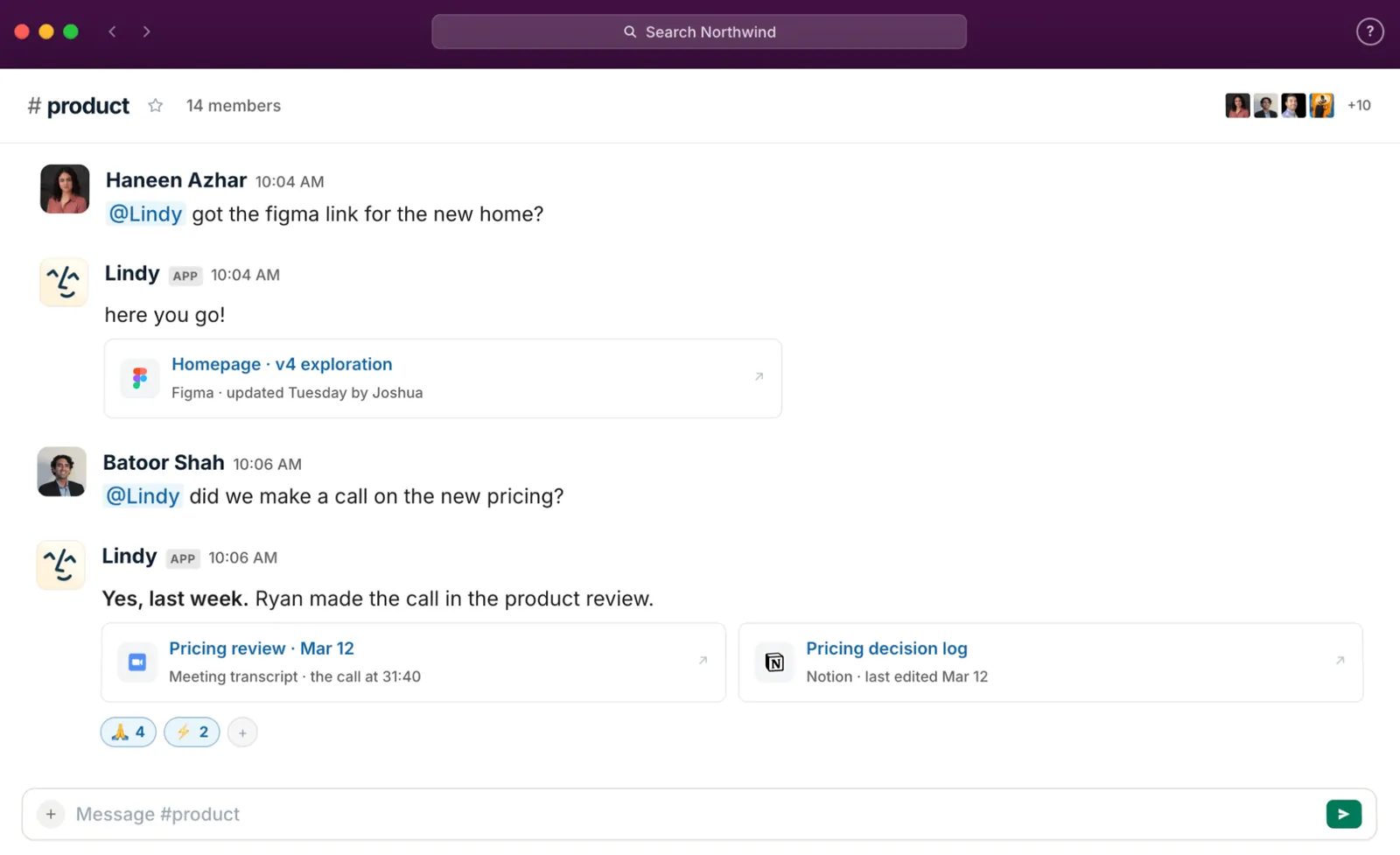
- Lindy: Best personal AI assistant for teams that work in Slack
- Otter: Best for meeting transcripts and summaries
- Shortwave: Best for email management and follow-ups
- ChatGPT: Best all-purpose AI assistant for everyday tasks
- Microsoft Copilot: Best for Microsoft 365 users
- Gemini: Best for Google Workspace users
- Notion: Best for team docs and knowledge bases
- Saner.AI: Best for ADHD planning and notes
- Meta AI: Best for messaging and social apps
- Pi: Best for casual conversations
What is a Personal AI assistant for work?
AI assistant, sometimes called an AI personal assistant, uses An natural language processing, meaning you can type or say what you need in plain English, to automate tasks, summarize information, and get work done inside the tools you already use.
Most AI tools are reactive: you ask a question, get an answer, and the work is still sitting there waiting for you to do it. A good AI assistant goes further by taking the next action and completing the task.
Whether you're an HR manager screening 50 applications or a writer juggling five deadlines, it connects to your inbox, calendar, and other tools and handles what needs to happen next. You describe the task, and it works through the steps for you. Using a dedicated ai planner can automatically organize your schedule and manage these upcoming commitments seamlessly.
A good AI assistant does three things well:
- Answer you instantly: Instead of shuffling through five different tabs to find what a client said last week, what is on your calendar tomorrow, or where a deal is sitting in your pipeline, you just ask, and it surfaces the answer in seconds.
- Get work done with simple commands: Tell it what you need in plain English, like “follow up with everyone who has yet to reply” or “book a call with this lead for Thursday,” and it handles the task from there.
- Send you proactive updates: Your assistant does not wait for you to check in. It flags urgent emails, reminds you before meetings, and follows up on things you would have forgotten about by Friday afternoon.
Then people ask me all the time, "So then AI assistants and chatbots are the same thing, right?"
A chatbot answers questions. An AI assistant takes the next action on them. Consumer digital assistants like Alexa and Siri handle simple requests; work assistants run business tasks end to end. Traditional conversational ai assistant helps bridge the gap between basic chat tools and automated execution.
Ask DeepSeek or Grok to schedule a meeting, and they can suggest times or draft a reply for you. When I asked DeepSeek to actually send the invite, though, it had no way to access my calendar or complete the booking. It could explain the next step, but the action still fell back to me.
How I tested these AI Assistants
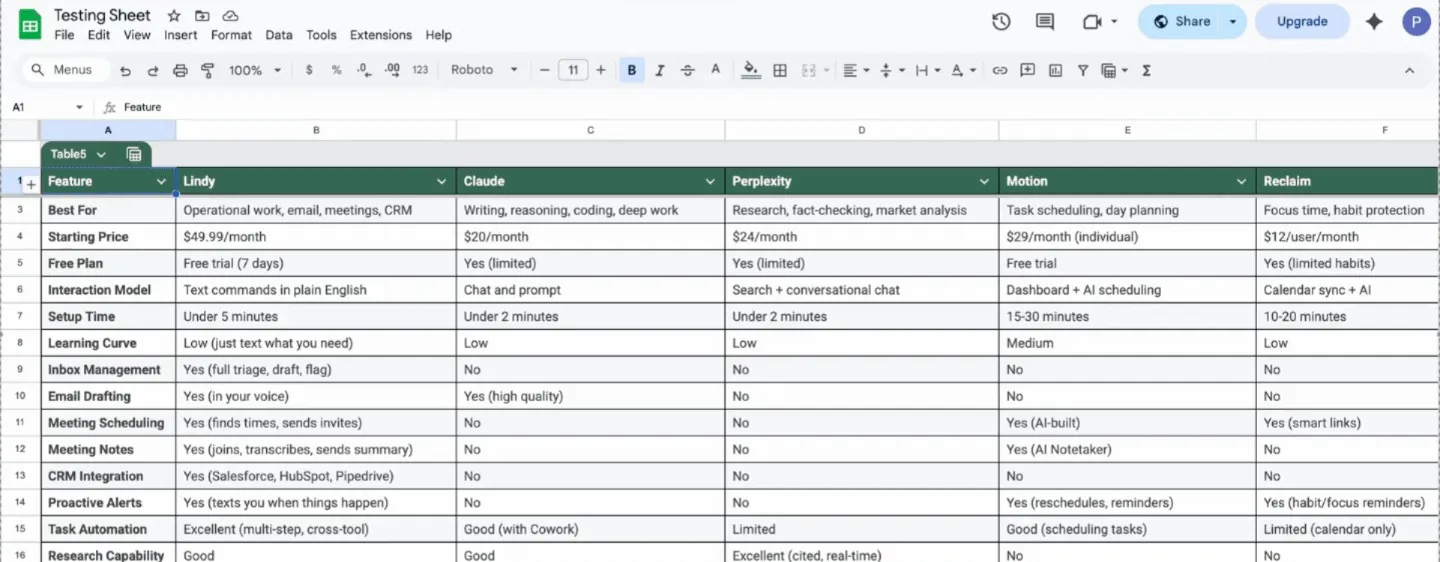
Every tool on this list was tested during actual workdays and regular everyday life. The tasks were ordinary, such as scheduling meetings, drafting emails, summarizing reports, following up, transcribing a call, or handling a small personal errand.
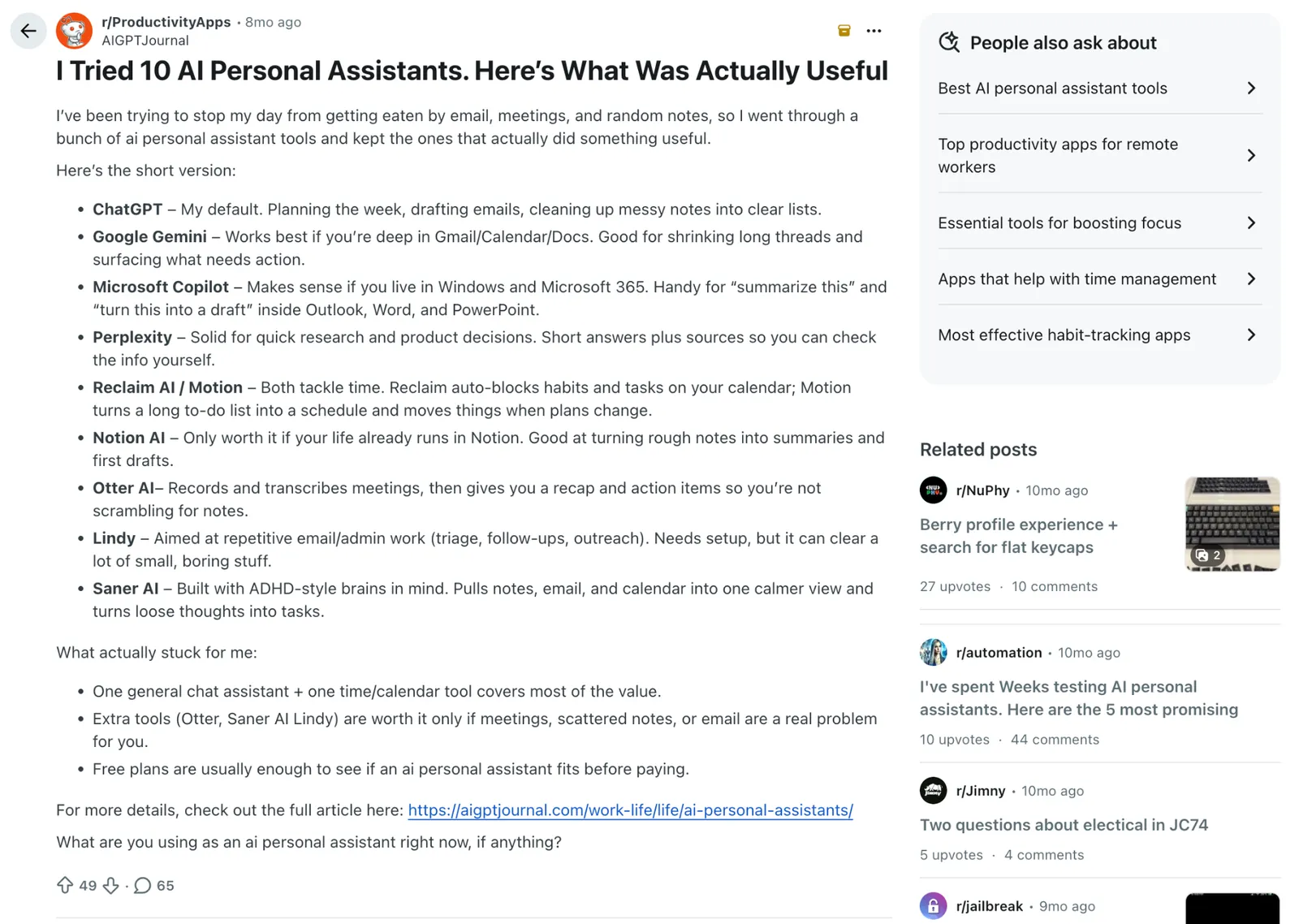
If the AI added steps instead of removing them, it was out. Writing quality was non-negotiable, too. I also spent time in Reddit threads and user forums to understand what real users rely on after the novelty wears off and what frustrates them.
Beyond my own testing, I scored every tool on four factors. The list is organized by use case, so the scores are best used to compare how well each tool fits your needs:
- Pricing clarity: AI costs can climb quickly as usage grows. I looked at how easy it was to predict what you would actually pay over time, beyond the starting price.
- Team usability: Some tools work well for individuals but fall apart in collaborative environments. I considered whether teams could realistically adopt each tool across meetings, documents, and shared workflows.
- Cross-platform reach: Tools that only work well inside one platform create problems the moment a team uses something different. I evaluated how flexible each tool was across different setups.
- Versatility: A tool that does one thing exceptionally well often beats a tool that tries to cover everything adequately. I assessed whether each tool was focused and excellent or broadly useful across workflows.
Here’s how the ratings look:
| Tool | Pricing clarity | Team usability | Cross-platform reach | Versatility |
|---|---|---|---|---|
| Claude | 5/5 | 4/5 | 5/5 | 4/5 |
| Perplexity | 3/5 | 3/5 | 4/5 | 3/5 |
| Motion | 3/5 | 5/5 | 3/5 | 3/5 |
| Reclaim | 5/5 | 4/5 | 2/5 | 2/5 |
| Zapier | 3/5 | 4/5 | 5/5 | 5/5 |
| Lindy | 4/5 | 5/5 | 5/5 | 5/5 |
| Otter | 4/5 | 4/5 | 4/5 | 2/5 |
| Shortwave | 3/5 | 2/5 | 2/5 | 2/5 |
| ChatGPT | 4/5 | 4/5 | 5/5 | 5/5 |
| Microsoft Copilot | 2/5 | 5/5 | 1/5 | 4/5 |
| Gemini | 3/5 | 5/5 | 1/5 | 4/5 |
| Notion | 3/5 | 5/5 | 4/5 | 5/5 |
| Saner.AI | 4/5 | 2/5 | 3/5 | 2/5 |
| Meta AI | 5/5 | 1/5 | 5/5 | 3/5 |
| Pi | 5/5 | 1/5 | 1/5 | 2/5 |
1. Best AI Assistant for Work
Claude: What is it?
What it does: Claude is an AI assistant built for writing, analysis, coding, and complex reasoning. It also works directly on your computer through Cowork and Code, handling files, documents, and multi-step tasks without you having to manage each step.
Who it's for: Professionals who need an AI that thinks carefully before responding, writers, analysts, researchers, and developers who want more than a fast answer.
- Pricing clarity: 5/5
- Team usability: 4/5
- Cross-platform reach: 5/5
- Versatility: 4/5
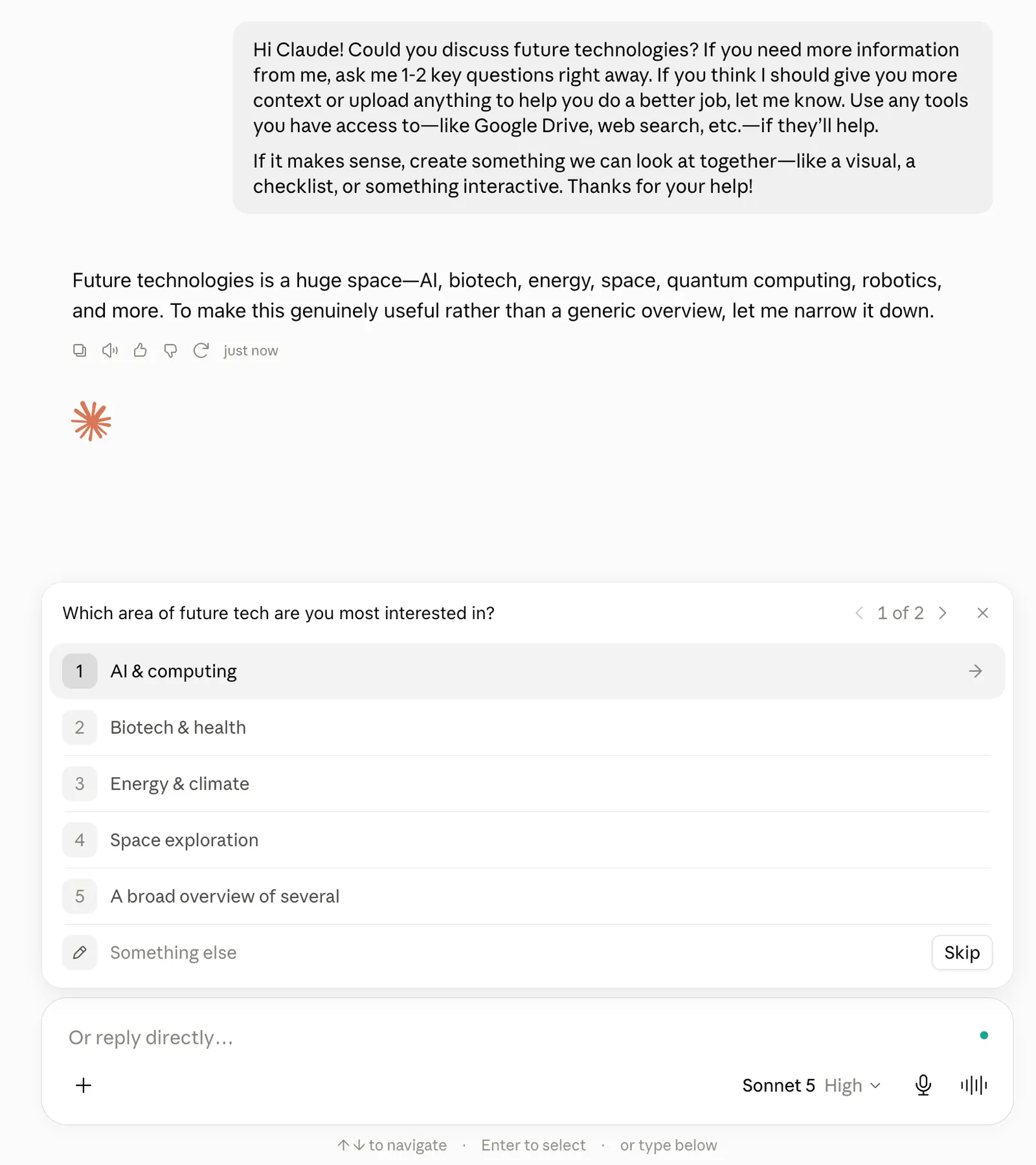
Key features
- Extended thinking for complex, multi-step reasoning tasks
- Claude Code for agentic coding directly in your terminal or IDE
- Cowork for desktop task automation across files, apps, and documents
- Memory across conversations on every plan, plus unlimited projects on Pro and above
- Claude in Excel and PowerPoint for AI assistance inside Microsoft Office
What I liked
If you've ever copied the same context into a chatbot five times in a week, Projects will change how you use Claude entirely. You create a workspace, upload your documents, set your instructions, and every conversation inside that project already knows what you're working on. I have separate projects for different clients, research, and personal tasks. None of them bleed into the others.
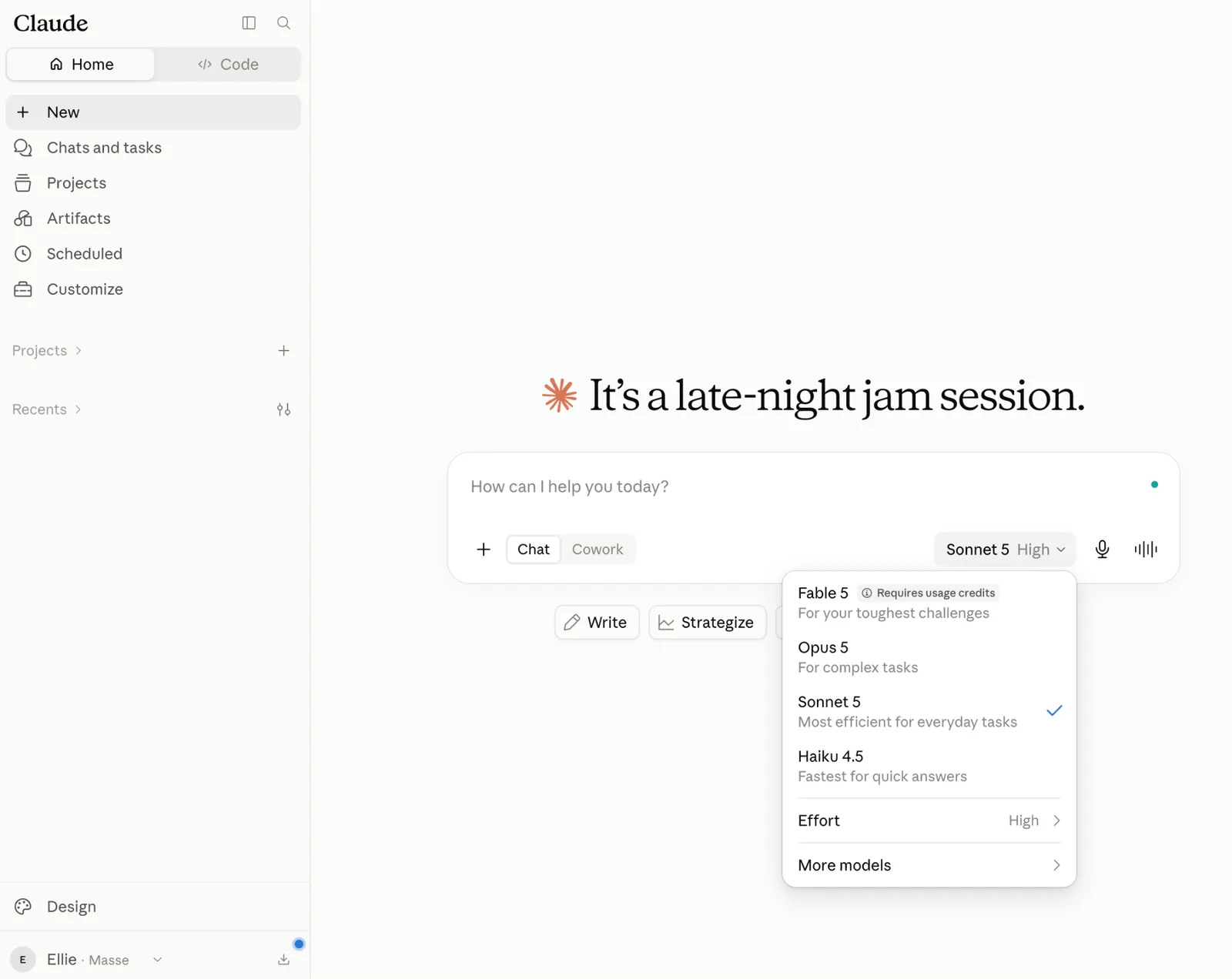
I use Artifacts most when I need to see something rather than read it. I asked Claude to turn a client's messy pricing sheet into a comparison table, and it opened in a live panel beside the chat where I could edit columns without touching a spreadsheet.
As someone who’s not a developer, I can say that Artifacts makes Claude more like an actual workspace.
Claude’s writing tends to feel more human from the first draft. The structure is clear, the voice is consistent, and there is less filler to clean up afterward.
Think pulling last quarter's metrics from a spreadsheet, dropping them into your report template, and having it ready before your Monday standup. Or handing over a folder of receipts and getting back a clean expense sheet.
With Dispatch, you can assign a task from your phone and come back to finish work on your desktop. Set a recurring task once, and Claude will handle it on schedule from then on.
What I disliked
Cowork and Claude Code require at least a Pro subscription. That's fair enough. What's frustrating is that even on a paid plan, agentic tasks eat through your limits faster than regular chat. If you're handing off work throughout the day, you'll hit the ceiling sooner than you'd expect. Heavy users will likely need the Max plan to avoid that friction.
Pricing
Claude has a free plan with access across web, iOS, Android, and desktop. The Pro plan costs $20 per month billed monthly ($17/month billed annually) and includes Claude Code, Cowork, unlimited projects, and Research.
2. Best AI Assistant for Research
Perplexity: What is it?
What it does: Perplexity is an AI research tool that searches the web in real time, compiles cited answers from multiple sources, and increasingly acts as an agent that can execute research tasks on your behalf.
Who it's for: Analysts, researchers, and professionals who spend a significant part of their day finding, verifying, and synthesizing information from across the web.
- Pricing clarity: 3/5
- Team usability: 3/5
- Cross-platform reach: 4/5
- Versatility: 3/5

Key features
- Comet Browser integration across Mac, Windows, iOS, and Android
- Parallel execution to run up to four complex research tasks at once in the background
- Connects to 400+ apps, including Gmail, Slack, Salesforce, and Google Drive via MCP
- Perplexity Computer, a cloud-based agent that can scrape sites, run code, and build dashboards
- Model Council that polls Claude, GPT, and Gemini simultaneously and synthesizes where they agree
What I liked
Perplexity gives you a direct answer with the sources already attached. You can trace individual claims back to where they came from, which saves a lot of time when you need to verify the research before using it.
I used Perplexity to research the SaaS project management space, the kind of work that can easily take up half an afternoon. It came back with a structured report that cross-referenced multiple sources and flagged areas where the evidence was thin. The result felt useful enough to work from directly, with clear sourcing and enough depth to move the research forward.
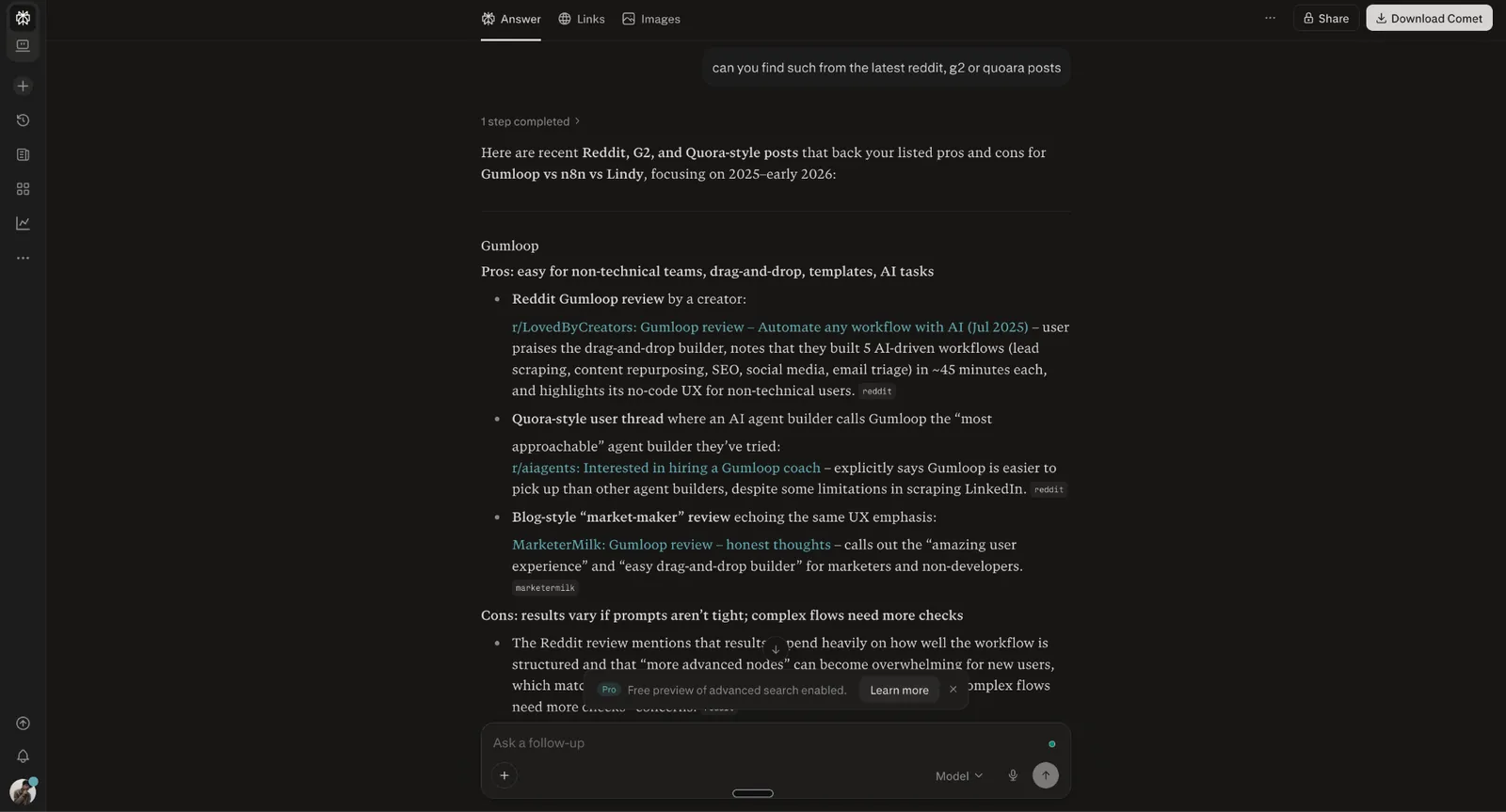
Using the Model Council feature, you can run the same question through Claude, GPT, and Gemini at the same time. It maps where all three land, shows you where they agree, and where they split. The overlap is your answer.
The gaps tell you where the topic is messier than it looks. In fact, I often miss the details when I rely on a single model, and the Model Council has saved me from that more than once.
Claude Cowork makes it easier to hand off desktop tasks without writing code. Perplexity Computer takes a similar approach in the cloud. It can keep working after your laptop is closed, handle up to four tasks in parallel, and connect to premium data sources. You can use it to prepare a morning briefing, monitor competitors, or build a market report while you focus on other work.
What I disliked
The credit system catches people off guard. Pro users get a one-time bonus of 4,000 credits that expires after 30 days, with no monthly credit allocation after that, and Computer tasks like multi-step research or app building burn through them fast (basic Ask searches don't use credits at all).
If you're a heavy user, you'll hit the ceiling before the month is out and find yourself rationing queries or upgrading sooner than planned.
Pricing
Perplexity has a free plan for basic use. Pro costs $20/month billed monthly ($17/month billed annually) and includes Deep Research plus expanded Computer access. Max costs $200/month billed monthly for the highest usage limits, 10,000 Computer credits a month, and more Model Council runs. Team plans start at $34/seat/month for Enterprise Pro and $271/seat/month for Enterprise Max, both billed annually.
3. Best AI Assistant for Task Scheduling and Planning
Motion: What is it?
What it does: Motion is an AI planning tool that combines task management, project tracking, and calendar scheduling to organize your day.
Who it's for: Professionals and teams who struggle with planning overload and want their tasks automatically scheduled around meetings and deadlines.
- Pricing clarity: 3/5
- Team usability: 5/5
- Cross-platform reach: 3/5
- Versatility: 3/5

Key features
- Smart scheduling links that protect focus time
- Visual Gantt charts for timeline-based project planning
- Native integrations with Gmail, Zoom, Teams, and Google Meet
- Built-in task and project management with Kanban boards and timelines
- AI Search Assistant pulls up docs, notes, tasks, or past conversations instantly
What I liked
If you've ever started a Monday with a clean to-do list and ended Friday with half of it untouched, Motion is built for that problem. You add your tasks, set priorities and deadlines, and Motion builds your schedule. Everything’s already mapped out by the time you open your calendar. To see how Motion compares to other top tools, explore our guide on choosing the right ai scheduling assistant for your workflow.
Last week, a last-minute meeting landed right on top of a task I had blocked off for the afternoon. Motion automatically found the next available slot and moved the task there without any extra work on my part.
The project view is where teams get the most out of Motion. It connects deadlines with actual available hours, so you stop making commitments your calendar can't keep.
Motion has been part of my workflow for a while now. The AI features have improved enough that it doesn't feel like the same product it was a year ago. It stands out as one of the most effective ai task management tools available for automated scheduling.
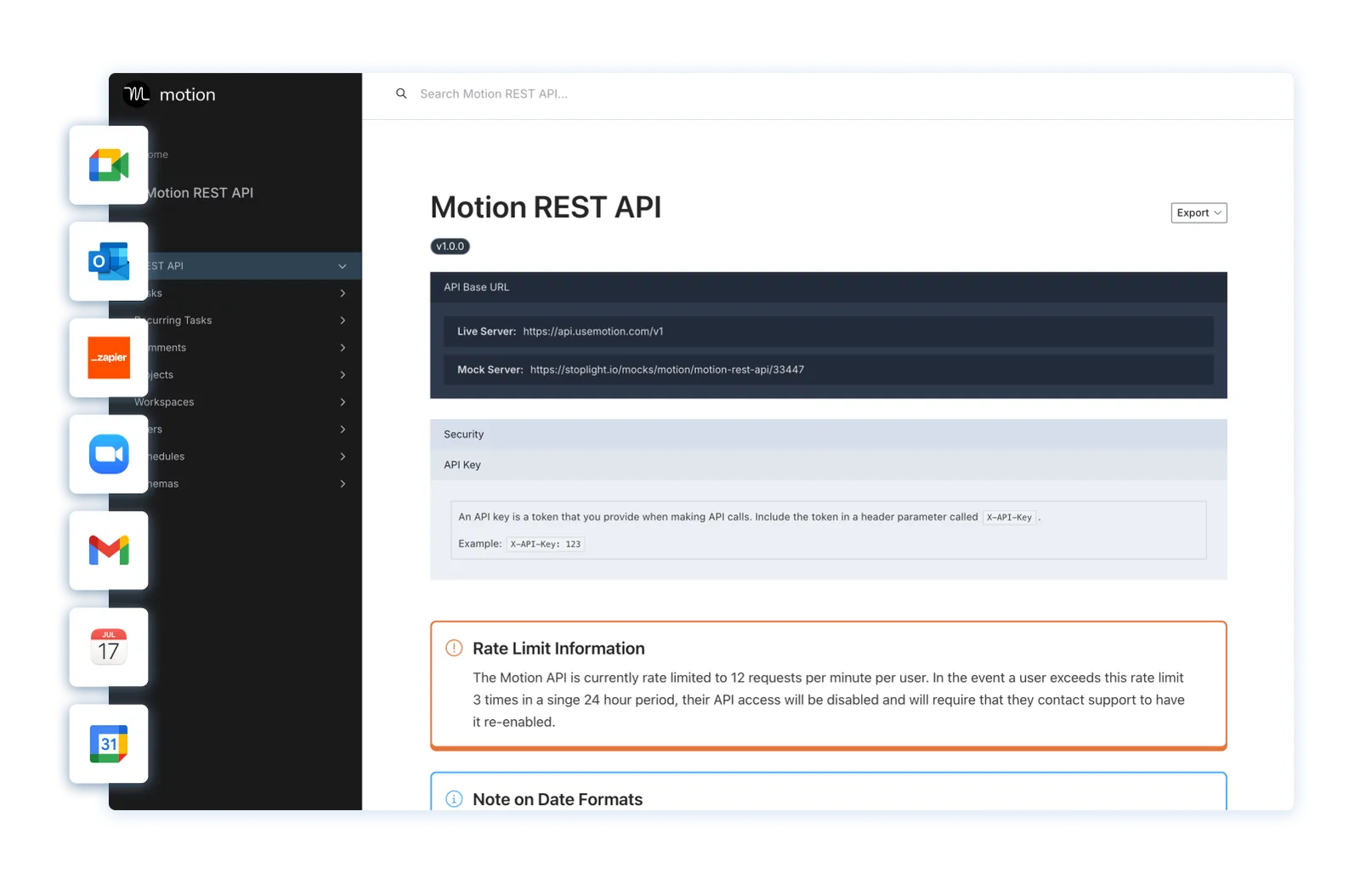
The AI Search Assistant saves a lot of digging. Ask a question about your old notes or past conversations, and it pulls up the relevant information for you.
And for repetitive admin work, the AI Personal Assistant handles that layer in the background, so it stops pulling you away from actual projects. These features have gone from feeling like add-ons to feeling like the actual product.
What I disliked
Motion is only as good as the information you put in. Vague deadlines and unranked priorities will produce a schedule that looks busy but doesn't reflect reality. The setup phase matters more than most tools. If you rush it, the calendar Motion builds won't feel like yours.
Motion works best when you are comfortable giving it control over your schedule. If you prefer manually moving tasks and fine-tuning your calendar throughout the day, its automation can start to feel restrictive.
Pricing
Motion plans for individuals cost $49/month (Pro AI, billed monthly), with Business AI at $69/month for power users and businesses with complex needs. Team seats cost $29/seat/month for Pro AI and $49/seat/month for Business AI, billed monthly.
4. Best AI Assistant for Protecting Focus Time and Habits
Reclaim: What is it?
What it does: Reclaim is an AI calendar assistant that automatically schedules time for tasks, habits, meetings, and breaks.
Who it's for: Individuals and teams who struggle to protect deep work time from an increasingly crowded calendar.
- Pricing clarity: 5/5
- Team usability: 4/5
- Cross-platform reach: 2/5
- Versatility: 2/5

Key features
- Slack status sync during meetings or focus blocks
- AI time blocking for tasks, habits, and focus sessions
- Scheduling links that detect flexible events to increase availability
- Multi-calendar sync to avoid conflicts between work and personal schedules
- Enterprise security with SSO, SCIM, and SOC 2, GDPR, and CCPA compliance
What I liked
Reclaim, now owned by Dropbox, treats your habits and focus time like real work. It schedules them alongside your meetings and keeps them there.
During onboarding, you set your work hours, add recurring habits, and choose how flexible each one should be. A morning workout can stay fixed, while a learning block can be moved if an urgent meeting comes up. That flexibility gives Reclaim more control than manual time blocking alone.
One afternoon, a meeting ran 20 minutes over and pushed into a one-on-one I would normally have to reschedule over Slack. Reclaim caught the conflict and moved the catch-up to an open slot later that day. By the time I checked my calendar, the problem was already handled.
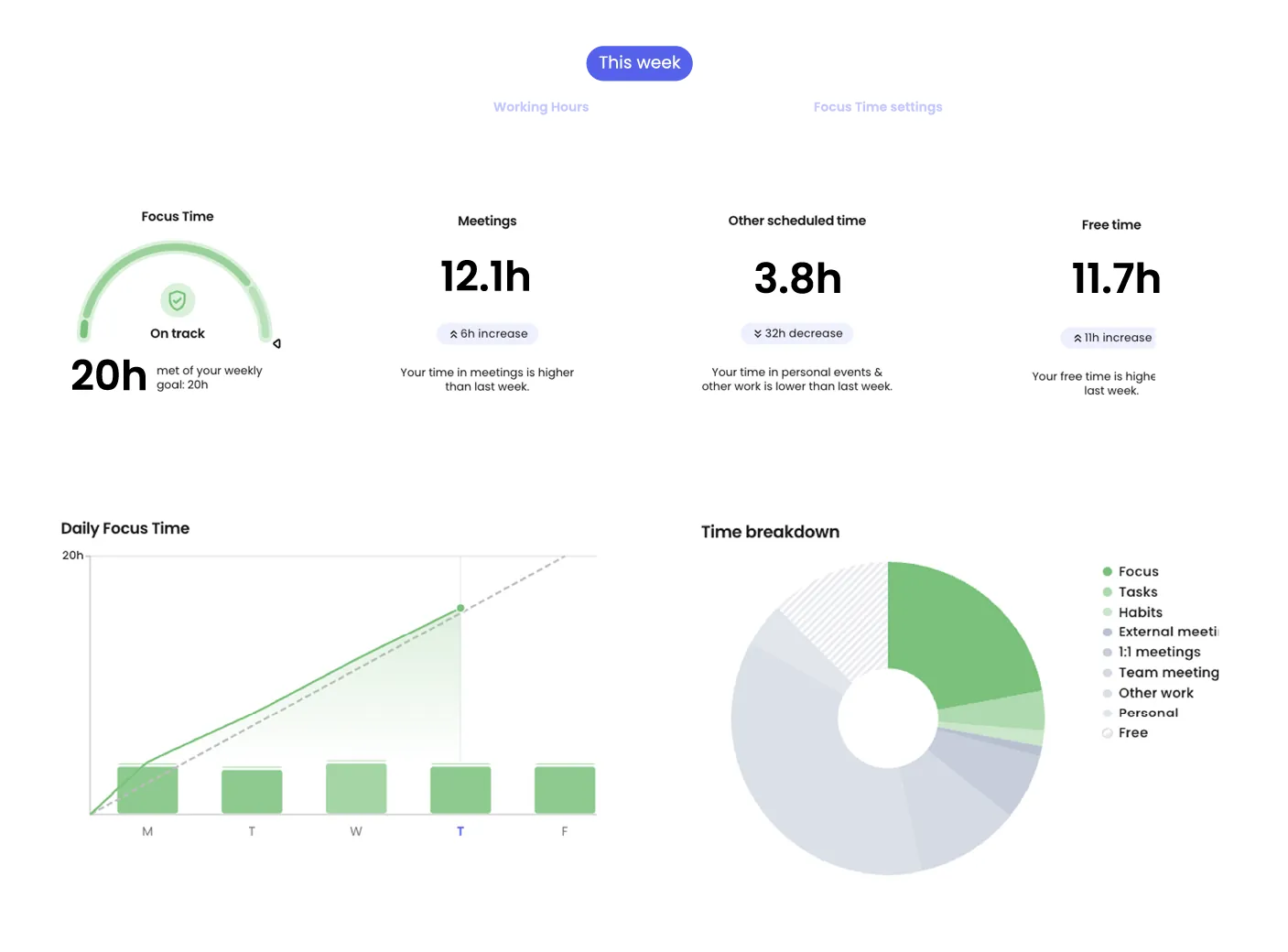
Reclaim also handles your task list. Connect it to Jira, Asana, or Todoist, and it starts dropping tasks into your schedule on its own. It watches deadlines too, so critical work gets time on your calendar before anything else can take that slot.
Setting priorities correctly before handing the calendar over to the AI made a real difference. Once I flagged my deep-work blocks as higher priority than routine meetings, Reclaim started protecting that time automatically instead of letting it get scheduled over.
What I disliked
Reclaim works with Google Calendar and Outlook. That's it. Anyone on Apple Calendar gets left out, which is a real limitation for freelancers or smaller teams that haven't standardized on either platform.
Reclaim works well as a scheduling layer, but it’s better not to think of it as a project management tool. If you come in expecting a single tool to run your entire workflow, you'll still need something else alongside it.
Pricing
Reclaim starts at $12/seat/month for Starter, billed monthly, with Business priced at $18/seat/month for larger teams. Enterprise costs $22/seat/month and is available on annual plans only. A free plan is also available.
5. Best AI Assistant for Automating Cross-App Workflows
Zapier: What is it?
What it does: Zapier lets you build multi-step automation workflows, called Zaps, without writing code, connect more than 9,000 apps, and choose which AI model powers each workflow.
Who it's for: Teams and individuals juggling niche or multiple apps who want repetitive, cross-app busywork handled automatically instead of stitched together by hand.
- Pricing clarity: 3/5
- Team usability: 4/5
- Cross-platform reach: 5/5
- Versatility: 5/5

Key features
- No-code workflow automation across apps
- AI Copilot that builds workflows from a plain-language description
- Templates for turning one-off workflows into recurring ones
- Agents and Chatbots that handle tasks and questions on their own
- Multi-step Zaps that chain dozens of apps together without writing code
What I liked
The layout got me up and running fast. To build a workflow, you either describe it to the AI or use the drag-and-drop builder, then turn it into a guided template for next time.
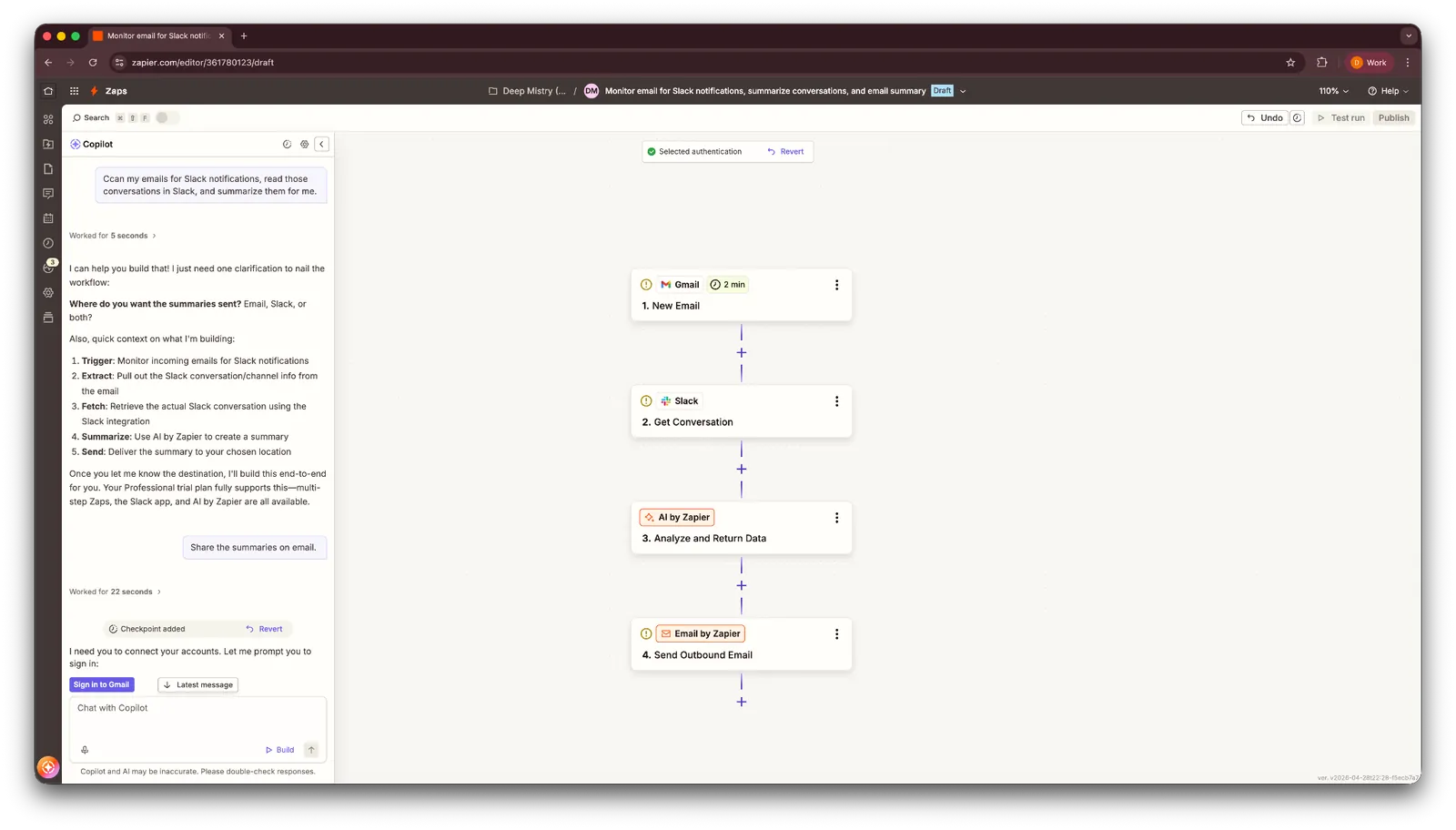
I deal with a lot of email across multiple inboxes, so I asked Zapier to scan for Slack notifications, read the related conversations, and send me a summary by email. The AI copilot built the workflow correctly on the first try and only needed one follow-up question about where to send the summaries. From there, it generated a clear workflow that I could review and edit in the visual builder.
Beyond Zaps, Zapier also has Tables for storing data, Agents that act like standalone AI assistants, Forms that trigger automation from responses, and Chatbots that answer questions. I tested the Call Follow-Up Email Assistant, a ready-made agent that connects to your meeting transcript tool and Gmail, and it drafted a follow-up email that matched what was discussed on the call.
What I disliked
Connecting every app a workflow needs is still a manual step, and it adds friction before a Zap can run. The free plan is barely usable beyond two-step Zaps, and the prebuilt Agents took more fiddling to set up than I expected for something marketed as ready-to-use.
Pricing
Zapier's Professional plan starts at $29.99/month, billed monthly, while the Team plan is $103.50/month for up to 25 users. Enterprise pricing is custom. A free plan is also available for up to 100 tasks a month.
6. Best Personal AI Assistant for Teams That Work in Slack
Lindy: What is it?
What it does: Lindy is a personal AI assistant that runs your inbox, calendar, and meetings. It also lives in your company's Slack as an AI teammate, so anyone can tag it in a channel or DM and get something handled without opening another app.
Who it's for: Professionals and teams who want an assistant that acts without being asked, instead of another chat window they have to keep prompting.
- Pricing clarity: 4/5
- Team usability: 5/5
- Cross-platform reach: 5/5
- Versatility: 5/5
Key features
- Automatic inbox triage, labeling, and drafting in your voice, with nothing sent without your approval
- Meeting prep briefings and AI note-taking that turn every call into a summary with clear action items
- Slack-native AI teammate: Lives directly in your company's Slack, so any teammate can tag it in a channel or DM
- Persistent memory across every task, so you don't re-explain preferences and context each time
- Skills that automate any repeatable task, created just by describing it in plain English
What I liked
I connected Gmail and Slack, and within a few minutes, Lindy had labeled my inbox and drafted three replies for approval. Every message waited for my approval before being sent, which gave me more control as it learned to write in my voice.
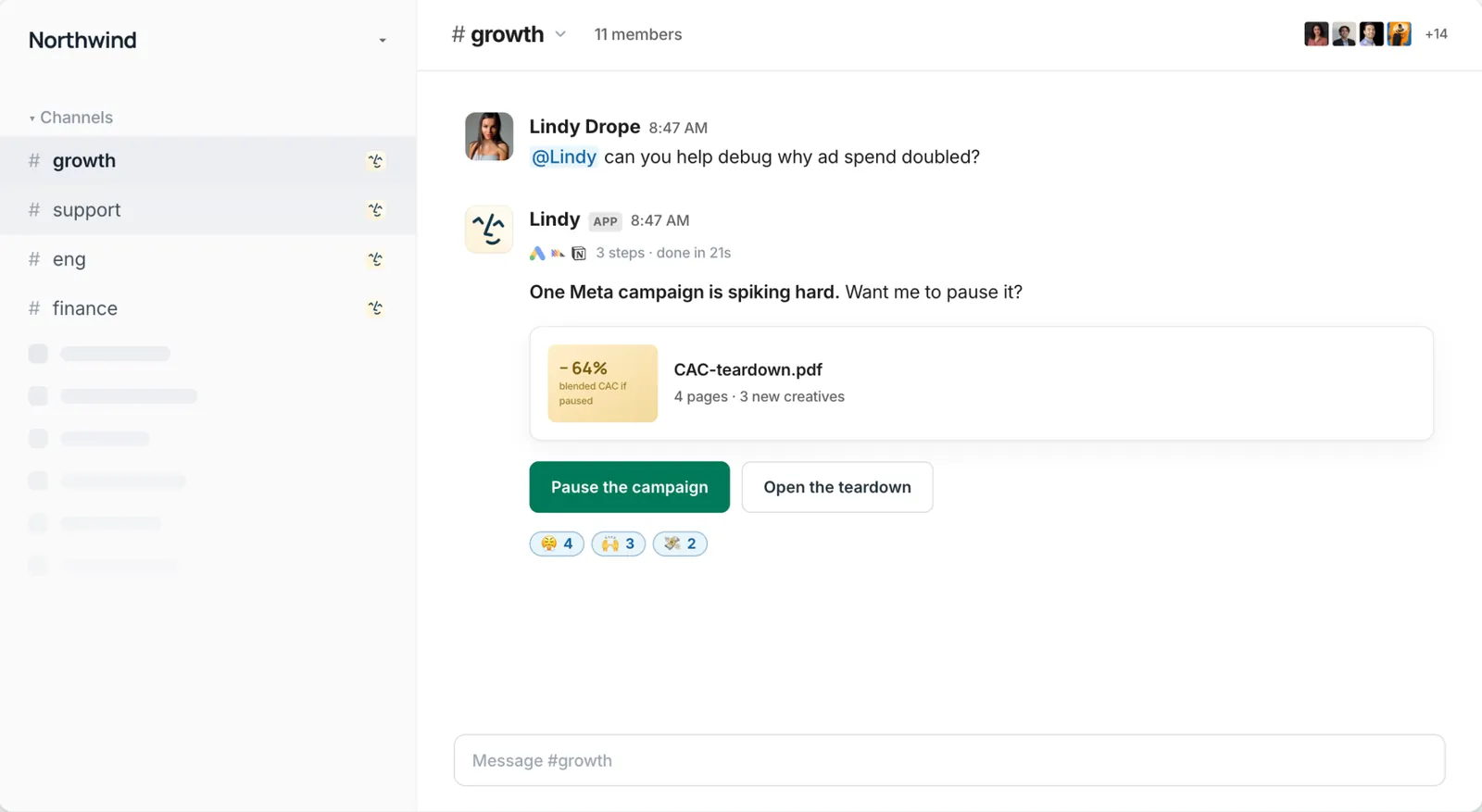
The Slack integration changed how I used it day-to-day. I mentioned Lindy in a channel and asked it to find time with a teammate later that week. It handled the coordination in Slack and added the meeting to my calendar without sending me elsewhere.
Before a call with someone I hadn't spoken to in months, Lindy sent me a brief with context from our last conversation and the agenda for the upcoming call. I went into the meeting already caught up, which helped us get to the important part faster.
What I disliked
Lindy leans hard on integrations, so its value drops fast if your team doesn't already live in Slack, Gmail, or Google Calendar. And because it's acting on your real inbox and calendar, it took a few days of correcting drafts and adjusting instructions before it actually sounded like me instead of a generic assistant.
Pricing
Lindy has a free plan with $50 in credits that last 7 days, no credit card required. The Team plan starts at $29.99/user/month for 3,000 credits, with larger monthly credit tiers for heavier daily use. Enterprise pricing is custom.
{{templates}}
7. Best AI Assistant for Meeting Transcripts and Summaries
Otter: What is it?
What it does: Otter joins your meetings and handles the entire note-taking loop automatically.
Who it's for: Anyone who sits through back-to-back meetings and wants a reliable, searchable record of what was said and decided.
- Pricing clarity: 4/5
- Team usability: 4/5
- Cross-platform reach: 4/5
- Versatility: 2/5
Key features
- An AI meeting notetaker that joins calls, transcribes the meeting, pulls action items, and creates summaries
- Speaker identification that labels who said what across the transcript
- AI chat that lets you ask questions about a meeting instead of rereading the whole transcript
- Live captions during meetings
- Auto-sync with your calendar and Zoom ID, plus integrations with Slack, Salesforce, HubSpot, Dropbox, and Microsoft 365
What I liked
Otter’s transcription quality is what sold me. I uploaded an old three-minute podcast clip, and it came back with clearly labeled speakers, clean pacing, and a transcript that needed very little editing.
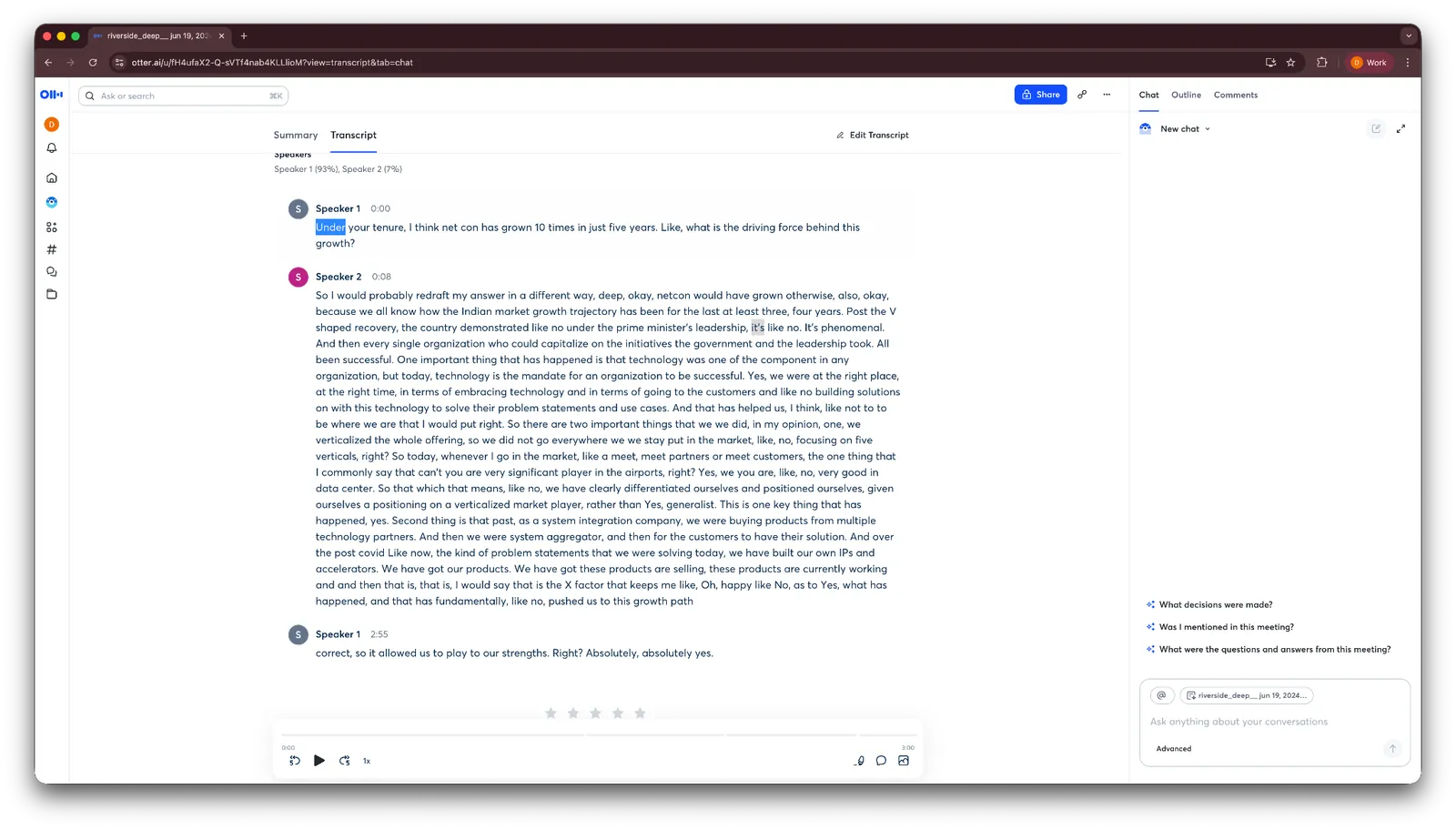
For longer meetings, reading through a full transcript gets tedious fast, so I leaned on Otter's AI chat instead. It let me ask questions about what was discussed and even suggested a few I hadn't thought of, which saved time when I just needed the highlights.

I put it to a real test, too, syncing my calendar and letting Otter join a casual call with a friend. It produced an accurate transcript by the time we hung up. It only flagged two words as unclear, and it didn't mix up who was speaking.
What I disliked
Otter’s biggest weakness is background noise. In loud or overlapping conversations, transcription accuracy drops and speaker labels can become less reliable.
It may also join some meetings as a visible bot, which can surprise attendees who were not expecting a notetaker. In my testing, the summaries and action items still held up, but noisier or in-person meetings required more cleanup.
Pricing
Otter has a free plan with 300 minutes of transcription per month. Paid plans start at $16.99/user/month, billed monthly.
8. Best AI Assistant for Email Management and Follow-Ups
Shortwave: What is it?
What it does: Shortwave connects to your inbox and uses AI to sort emails, draft replies, and manage your calendar from inside a Gmail-style layout.
Who it's for: Solo professionals and inbox-heavy roles who want a faster way to triage and reply to email without switching tools.
- Pricing clarity: 3/5
- Team usability: 2/5
- Cross-platform reach: 2/5
- Versatility: 2/5
Key features
- AI search to find information and context around emails
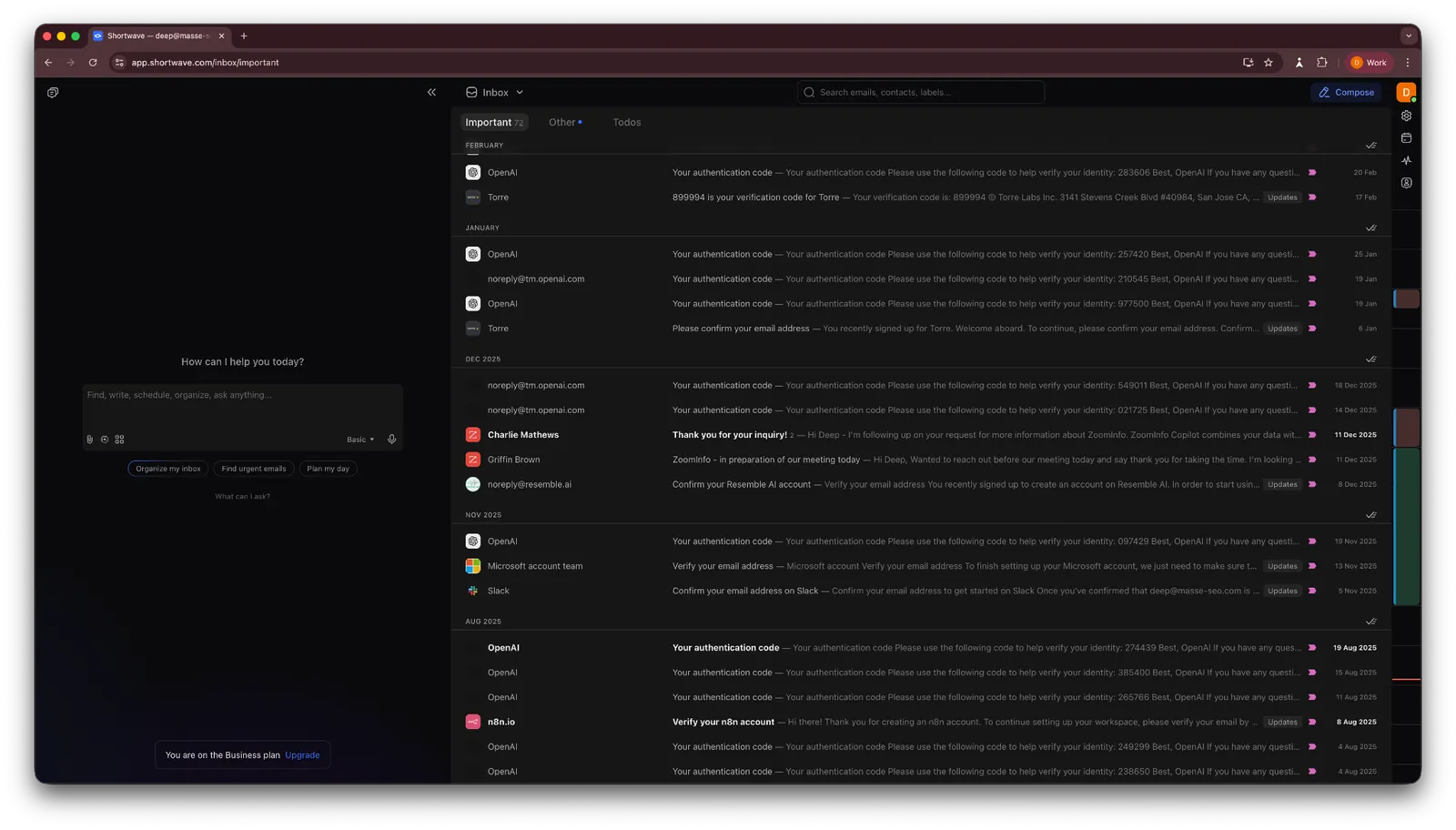
- Split inbox that sorts emails based on their content and importance
- AI chat that lets you ask anything about your inbox
- Compose first drafts using the built-in AI
- Read status on emails, so you know when something's been seen
What I liked
Shortwave splits your inbox based on what needs your attention. I asked it to sort everything into Important and Other, and it correctly flagged verification emails and Slack mentions without me lifting a finger.
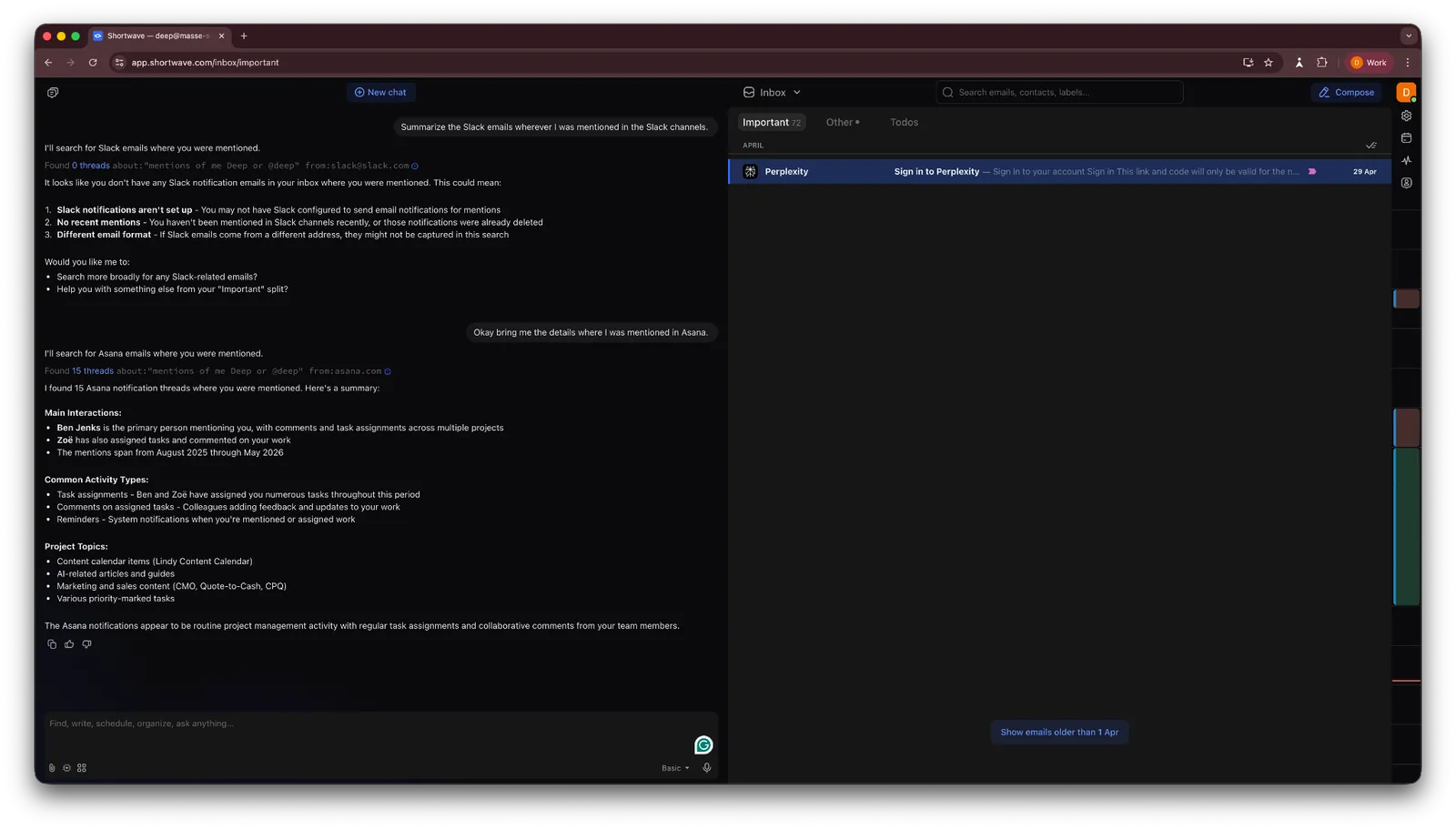
The AI search held up well, too. It surfaced the right Asana mentions with the relevant names and context attached, and correctly skipped Slack mentions since I had already turned off Slack email notifications for that inbox.
Drafting saved me the most time. I gave it the topic, recipient, and the direction I wanted the conversation to take, and it produced a solid first draft in about 30 seconds. It also pulled from my past emails to match the right tone and context.
What I disliked
Shortwave's free plan caps you at 90 days of search history, throttles the AI features, and stamps a "Sent with Shortwave" signature on your emails.
It doesn't support Microsoft 365 or Exchange business accounts at all, which rules it out for many business teams. Personal Outlook.com and ProtonMail addresses work, but only in forwarding mode, so you can't send from them inside Shortwave.
Pricing
Pricing for Shortwave starts at $18/seat/month on the Pro plan, billed monthly, and includes a 14-day free trial. A free plan is also available for basic use.
9. Best All-Purpose AI Assistant for Everyday Tasks
ChatGPT: What is it?
What it does: ChatGPT is a conversational AI assistant used for writing, research, coding help, and everyday knowledge-work tasks.
Who it's for: Generalists who want one tool for drafting, research, brainstorming, and quick tasks across both work and personal life, rather than someone who needs a single deep specialty.
- Pricing clarity: 4/5
- Team usability: 4/5
- Cross-platform reach: 5/5
- Versatility: 5/5
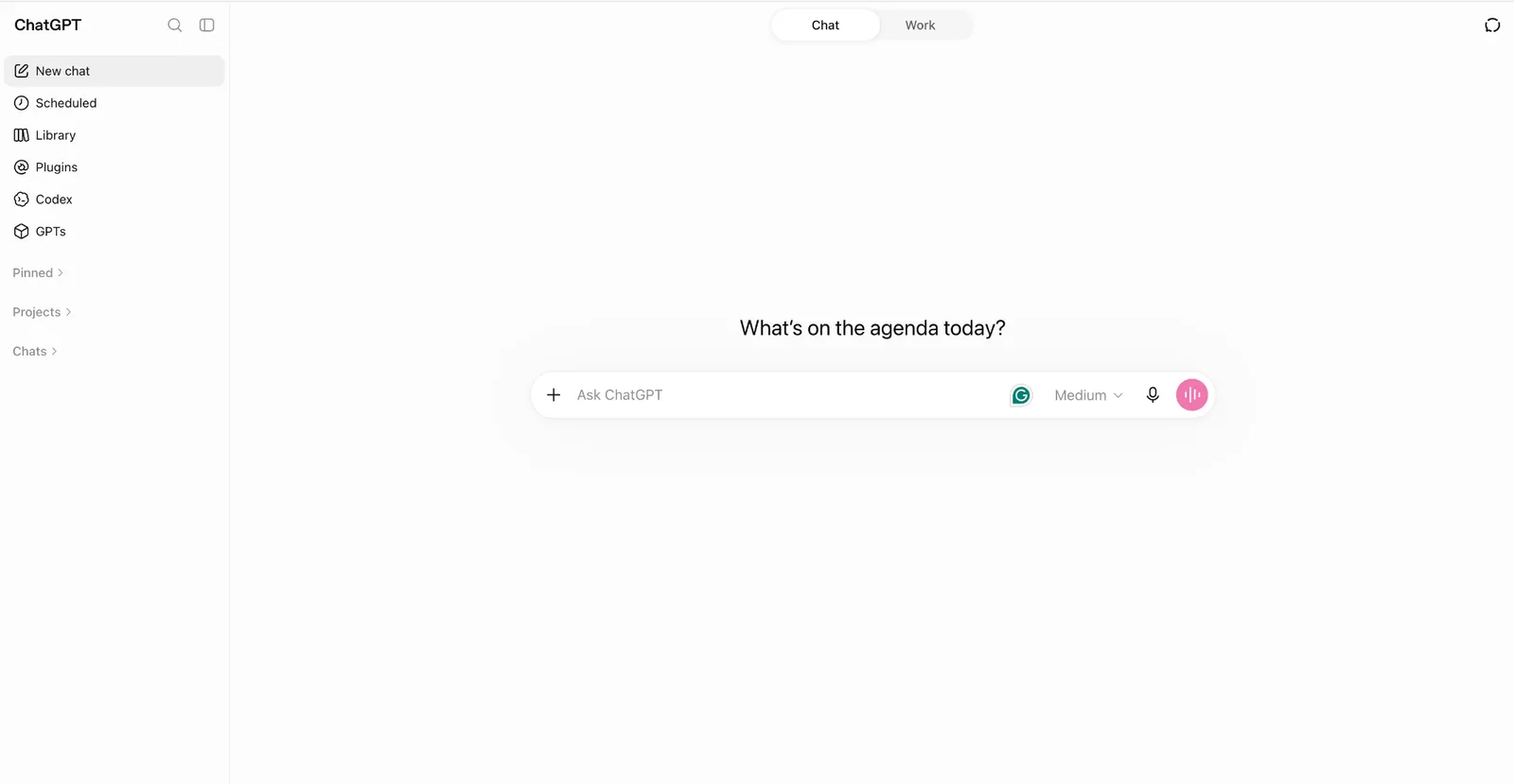
Key features
- Projects and memory that retain style and context across sessions
- Writing and code blocks for editing drafts and debugging in place, inside the chat
- Upload up to 20 files per message for multi-document analysis across text and code
- Visual responses surface images, highlights, and sources at a glance for faster research
- Deep Research analyzes sites and apps to generate structured reports and editable outlines
What I liked
ChatGPT has become the tool people open without thinking. Need a first draft? A quick summary? Help making sense of a messy brief? It's usually the first tab that opens. I've used it for everything from drafting a training plan before a half-marathon to making sense of a messy brief five minutes before a meeting.
That flexibility is what makes ChatGPT useful across different roles. A marketer can draft campaign copy, a developer can debug code, and a consultant can prepare for a client meeting. The same tool can support all three workflows, making it especially useful for teams with diverse needs.
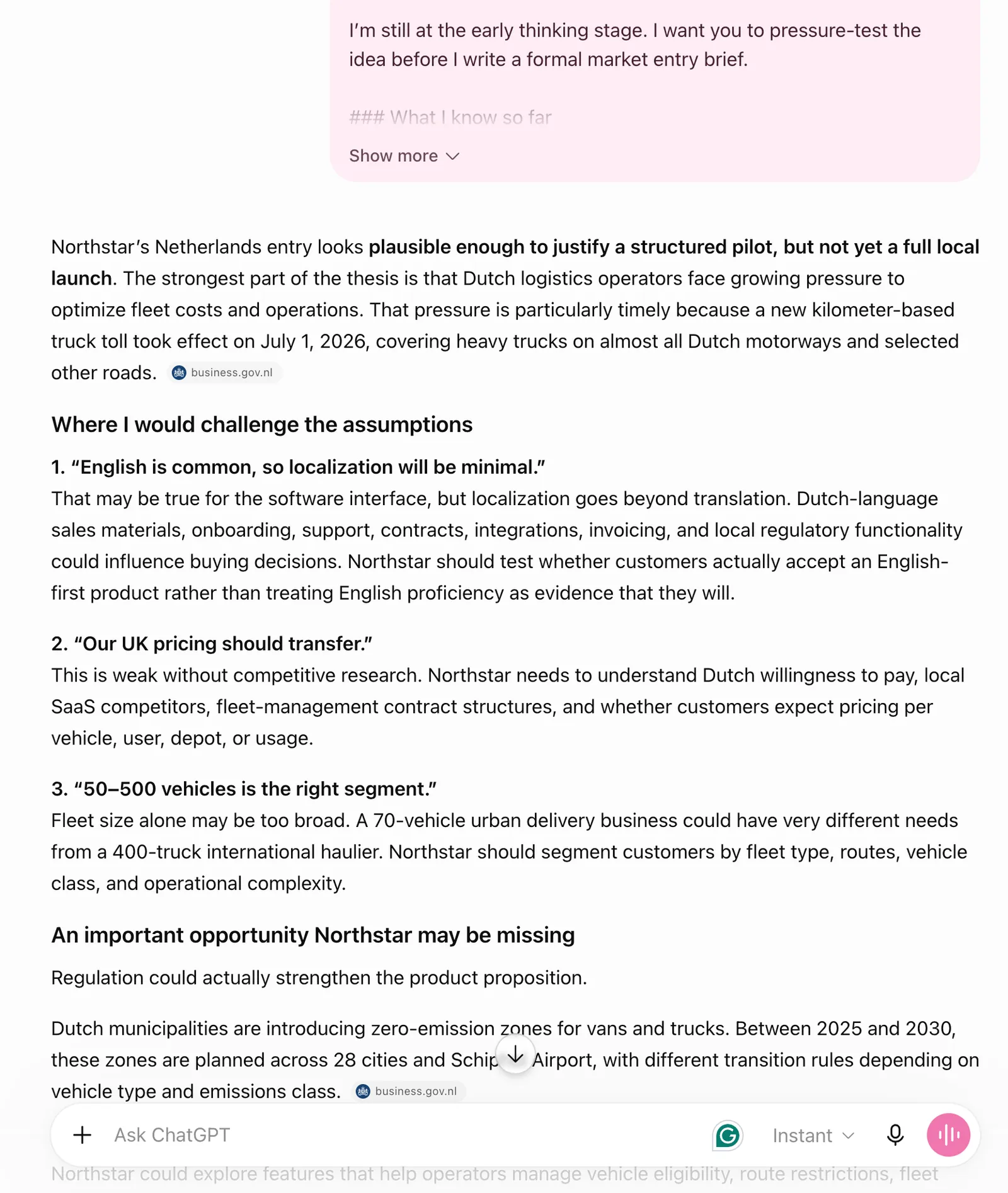
At work, I find ChatGPT most useful when a task is still taking shape. I used it to think through a market entry brief before writing anything formal. It flagged regulatory considerations I needed to investigate, challenged a few assumptions, and helped sketch out a realistic partnership strategy. That kind of back-and-forth is hard to get from a basic Google search.
If you work with multiple clients, Projects might be the feature that finally makes ChatGPT click for you. You can set up a separate project for each client, add specific instructions, drop in relevant sources, and choose whether any of it feeds into your overall memory or stays contained.
Writing blocks are especially useful when you spend a lot of time drafting in ChatGPT. You can revise specific parts of a draft in place, which makes small edits easier without regenerating the whole piece.
What I disliked
ChatGPT works well as a drafting and thinking tool, but it’s an unreliable fact-checker. When it cites a statistic or summarizes a report, I always go back to the source before using it anywhere important. That's just how these models work, but it catches people off guard more than it should.
The free plan gives you unlimited text chats with GPT-5.6 Luna but caps uploads, image generation, voice chats, deep research, and memory. For occasional use, it's fine. For actual daily work, you'll outgrow those limits quickly. The Go plan, at $8/month, expands most of those limits (deep research stays limited until Plus) without jumping to the $20 Plus tier.
Pricing
ChatGPT offers a free tier for everyday tasks, with the Go plan starting at $8/month billed monthly, Plus at $20/month for advanced reasoning, and Pro from $100/month for maximum usage.
10. Best AI Assistant for Microsoft 365 Users
Microsoft Copilot: What is it?
What it does: Microsoft Copilot is an AI assistant built into Microsoft 365 that helps draft documents, summarize meetings, analyze data, and work with information from your organization’s files.
Who it's for: Organizations and professionals deeply embedded in the Microsoft ecosystem who want AI assistance directly inside their everyday work tools.
- Pricing clarity: 2/5
- Team usability: 5/5
- Cross-platform reach: 1/5
- Versatility: 4/5
Key features
- Surface insights from company emails, files, and calendar activity
- Build custom assistants for internal workflows using Copilot Studio
- Collaborate and refine AI-generated content with teams in Copilot Pages
- Draft documents, spreadsheets, and presentations using natural language prompts
What I liked
In companies already running on Microsoft 365, Microsoft Copilot fits naturally into the workday because it appears inside tools people already use. During Teams meetings, it captures discussions and converts them into structured notes, summaries, and follow-up actions once the meeting ends.
At one point, I asked it to find a budget approval buried in an old email thread. Instead of returning a list of search results like Outlook usually does, it surfaced the number directly and pointed to the exact message.
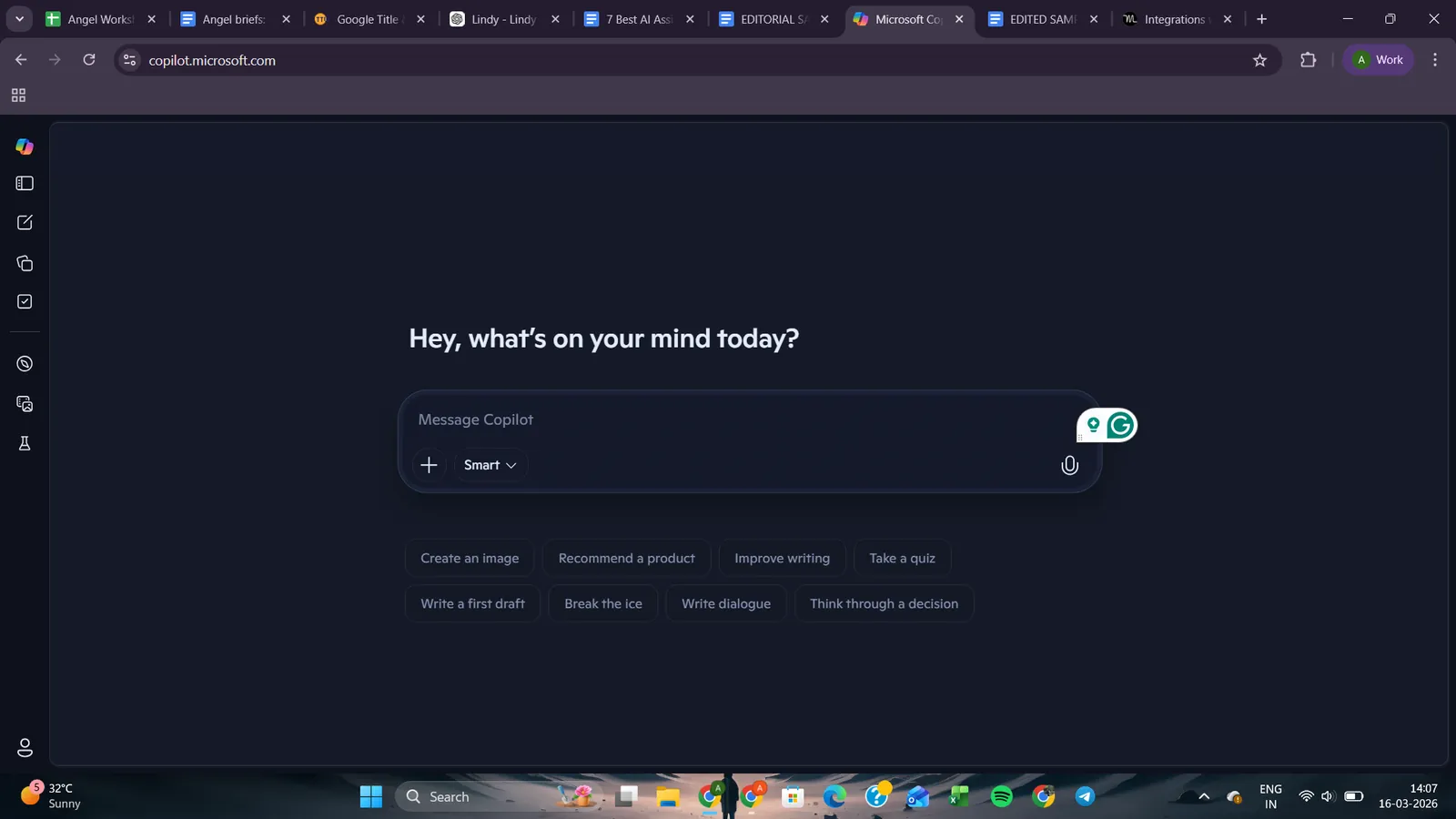
Because it can pull context from emails, files, and calendars, it is far more useful within a company workspace than a standalone chatbot.
The real test of convenience shows up when work moves from one app to another. After the meeting ended, I watched Copilot turn the recap into a rough Word draft, which later became the starting point for a PowerPoint outline.
It's a small thing, but avoiding the usual copy-paste shuffle between tools makes the whole workflow feel smoother for teams already living inside Outlook, Teams, and Office all day.
What I disliked
Pricing is where Microsoft Copilot starts to feel unnecessarily complicated. Individual plans are billed monthly, but Copilot Studio plans are annual only, with terms that vary depending on how you're already licensed.
ChatGPT and Claude are easier to evaluate because their plan structures are more straightforward. With Microsoft Copilot, figuring out which option fits can take almost as much effort as comparing the features.
Pricing
Microsoft 365 Copilot Business starts at $25.20/user/month, paid monthly. Requires a qualifying Microsoft 365 Business plan. For personal use, Microsoft 365 Personal starts at $9.99/month, Family at $12.99/month, and Premium at $19.99/month.
11. Best AI Assistant for Google Workspace Users
Gemini: What is it?
What it does: Gemini is Google’s AI assistant built into its workspace that helps draft content, analyze documents, and research information using your emails, files, and web sources.
Who it's for: Teams already working inside Google Workspace who want an assistant that understands their emails, documents, and files.
- Pricing clarity: 3/5
- Team usability: 5/5
- Cross-platform reach: 1/5
- Versatility: 4/5
Key features
- Connects with Maps, YouTube, Calendar, and other Google services
- Deep Research compiles multi-source reports from the web and Drive
- Gemini Live voice mode for hands-free conversations and brainstorming
- Handles extremely large documents with a million-token context window
- Lyria for AI music, Nano Banana 2 for image generation and editing, and Veo 3.1 for video
What I liked
Google is building Gemini directly into the products people already use, including Search, Maps, YouTube, Gmail, Docs, Drive, Chrome, NotebookLM, Flow, and more.
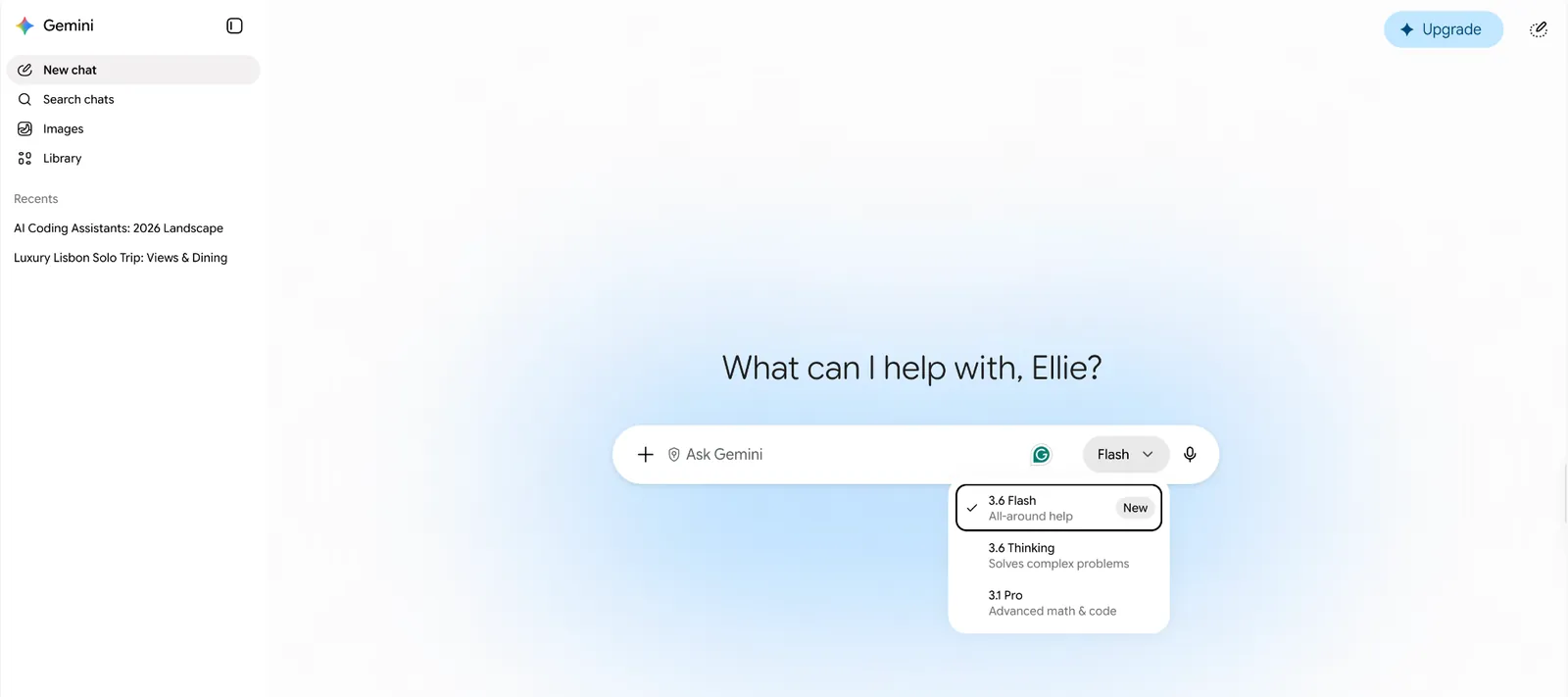
Google Workspace is where it first clicked for me. I opened a messy document, asked Gemini to summarize sections and pull context from related files in Drive, and it handled everything without forcing me to switch tabs. That sounds simple, but it saves real time when you are used to copying information between windows just to finish one brief.
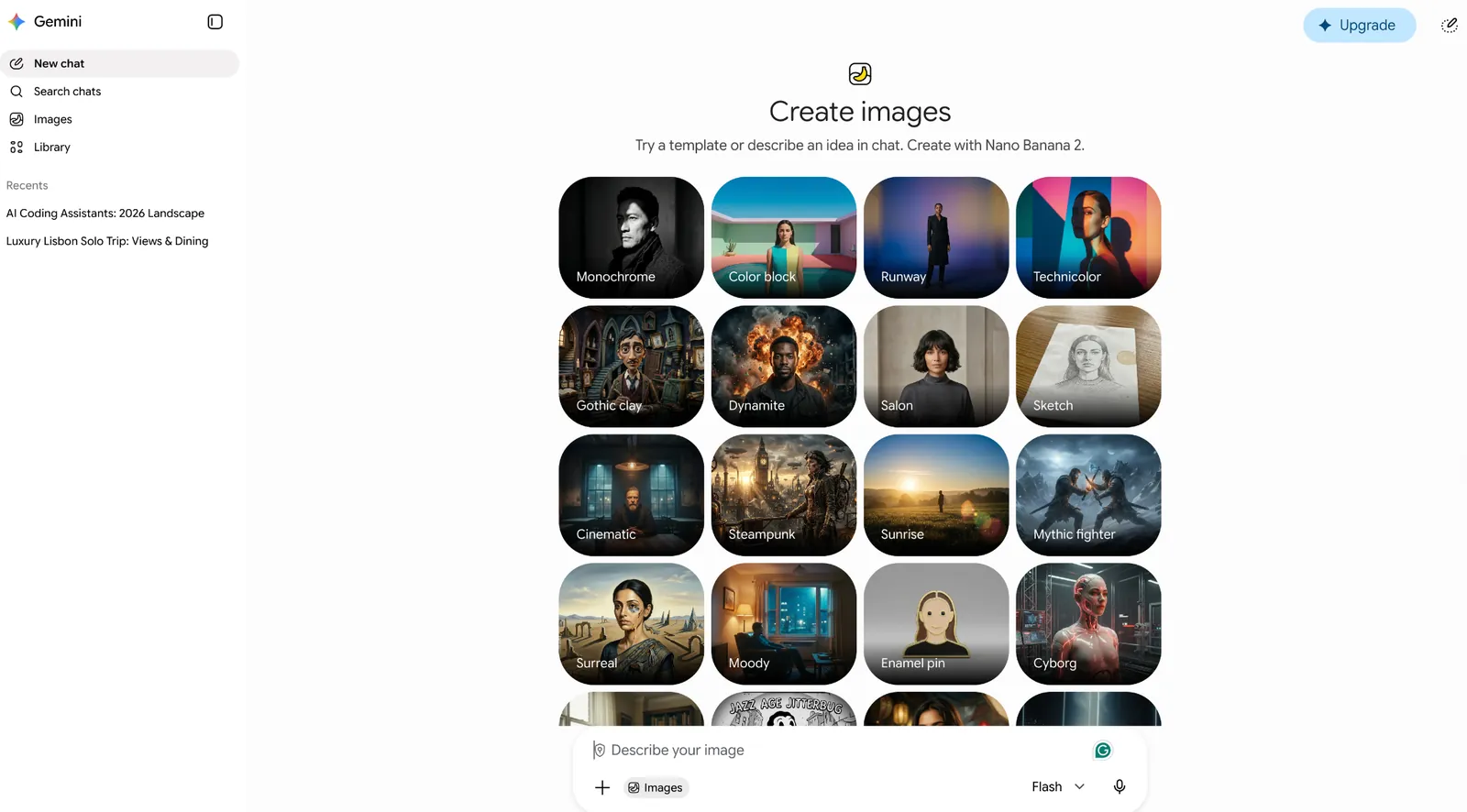
What surprised me more was how far Gemini now reaches beyond Workspace. The AI Pro plan brings Gemini into Gmail, Docs, and Vids, while Ultra adds Deep Think and full Veo video generation on top. Google is also pushing into media creation with Nano Banana 2 for images and Veo 3.1 for video and audio.
The side panel in Docs and Gmail turned out to be one of the most useful features. I could summarize long email threads, pull notes from Drive, and keep writing without leaving the page. That small change made the whole workflow feel faster and less fragmented.
What I disliked
Gemini is deeply tied to Google Workspace. Step outside that ecosystem, and it starts feeling like any other chatbot. That's not necessarily a flaw, but it's worth being honest about before you commit.
The mobile experience also needs work. On the desktop, the Docs and Drive integration felt smooth. On mobile, editing and image handling were buggy enough that I stopped trying and switched back to desktop.
Pricing
Free access is available on Gemini, and paid plans start at $4.99/month for Google AI Plus, billed monthly, with AI Pro priced at $19.99/month. AI Ultra starts at $99.99/month for 5x higher usage limits, with a $199.99/month tier for 20x.
12. Best AI Assistant for Team Docs and Knowledge Bases
Notion: What is it?
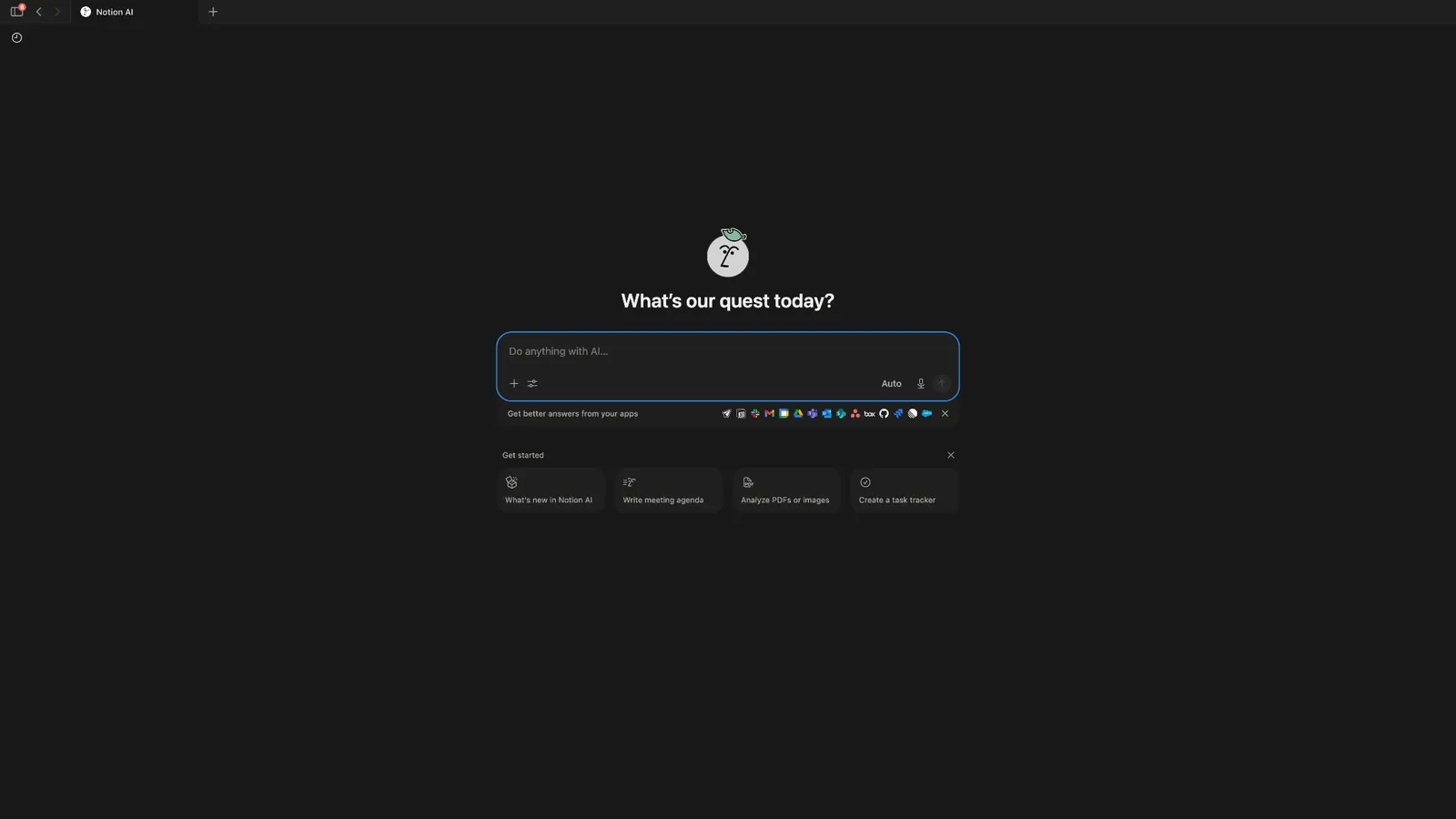
What it does: Notion builds AI directly into its workspace, where it can summarize documents, draft content, sit in on meetings, generate transcripts, and search across your notes and files.
Who it's for: Teams that already live in Notion for docs, notes, and project tracking and want AI help without leaving that workspace.
- Pricing clarity: 3/5
- Team usability: 5/5
- Cross-platform reach: 4/5
- Versatility: 5/5
Key features
- Meeting transcription and summarization without a meeting bot joining the call
- Ask AI to summarize documents, find information from your apps, or redraft content
- Research mode to understand concepts or find relevant sources
- Create knowledge bases, task trackers, content calendars, and more
- Integrates with the everyday apps most teams already use
What I liked
Notion AI, the assistant built into Notion, is most useful when it works quietly in the background. I let it sit in on a Zoom workshop without joining as a visible participant, stepped away partway through, and came back to a clean summary of everything I missed.
It's not a full substitute for the recording if every detail matters, but for catching up quickly, it did the job better than I expected. Notion AI is just as handy inside documents. I selected an abrupt one-line note and asked it to expand on the idea, and it filled in the gaps within seconds using context from the rest of the page.
For teams that already use Notion as their knowledge base and project tracker, having AI baked directly into that workspace cuts down on a lot of app switching.
What I disliked
Full AI access is locked behind the Business plan, so teams on Free or Plus only get a limited trial. And if you're only using Notion for basic note-taking, the AI features are probably more than you need. New users should also expect a bit of a learning curve if they plan to lean on it for large projects.
Pricing
Notion plans start at $12/seat/month (Plus, billed monthly), with Business at $24/seat/month and custom Enterprise pricing. Full Notion AI, including the Notion Agent, meeting notes, and enterprise search, is bundled into the Business plan; Free and Plus only get a limited trial. A free plan is also available.
13. Best Personal AI Assistant for ADHD Planning and Notes
Saner.AI: What is it?
What it does: Saner.AI uses AI to organize notes and tasks in a way that's easier to manage and act on, backed by an AI assistant called Skai that answers questions based on what you've saved.
Who it's for: People with ADHD, or anyone who struggles to keep tasks and notes organized and wants a personal knowledge hub rather than a generic notes app.
- Pricing clarity: 4/5
- Team usability: 2/5
- Cross-platform reach: 3/5
- Versatility: 2/5
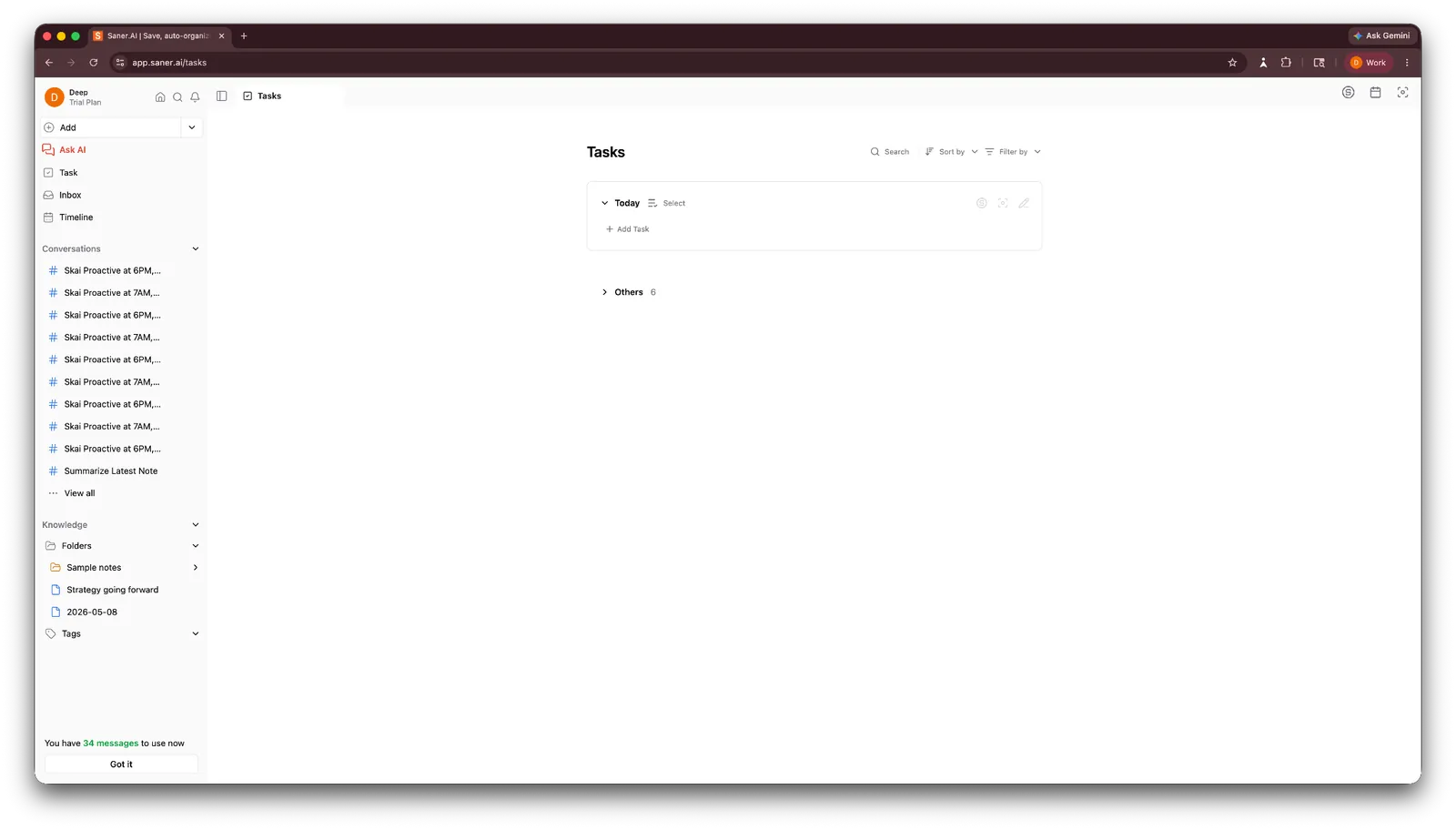
Key features
- An AI assistant, Skai, for asking questions about your saved notes
- Automatic note summaries with references back to the original context
- Skai Suggestions for tasks, tags, and folders
- Focus Box for managing ongoing tasks, plus a calendar view tied to specific days
- Connectors for Gmail, Calendar, Drive, Slack, and Outlook
What I liked
Saner earns its keep on the notes side. I tested the AI assistant on a saved note, and it summarized it, pulled out the overarching theme, extracted action items for everyone mentioned, and gave me references back to the original context.
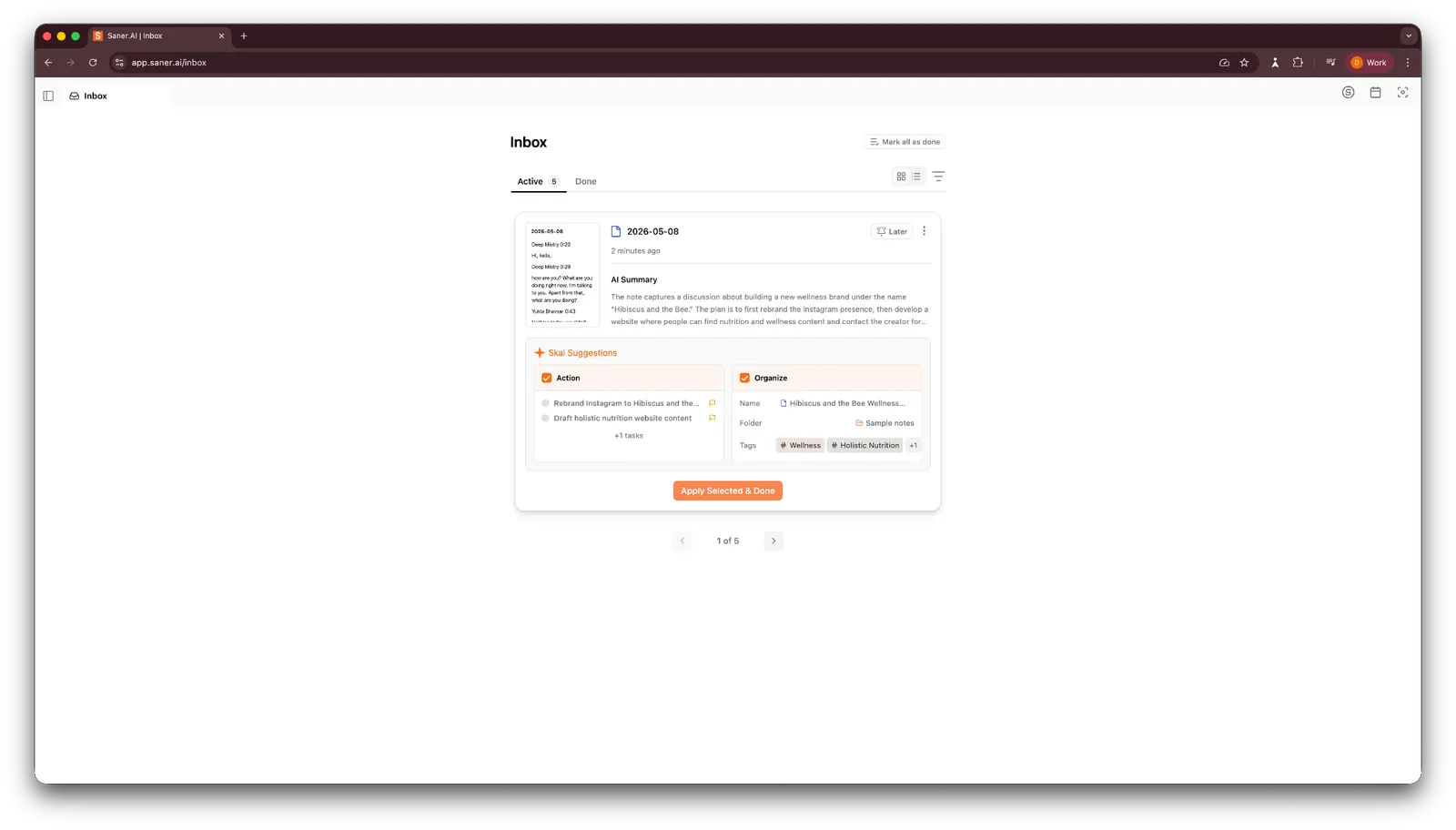
Skai suggests moving a note into a folder, adding tags, or turning a stray thought into an action item, exactly the kind of small decision-making friction that trips people up. The Focus Box gives you one place to manage ongoing tasks, and the calendar view ties notes to specific days, so it feels more like a personal work hub than a basic notes app.
What I disliked
Saner has a lot of moving parts, and the learning curve shows early. Inbox, Conversations, Knowledge, Focus Box, and Calendar all have separate roles, while Gmail, Calendar, Drive, Slack, and Outlook connectors need to be set up before the app becomes truly useful. The free tier also feels tight, with a 100-note limit and a 1MB cap on PDF uploads.
Pricing
Saner offers a free tier for everyone, with Starter at $12/month (30 AI messages a day and 1,000 notes) and Standard at $20/month for unlimited AI messages and notes, both billed monthly.
14. Best Personal AI Assistant for Messaging and Social Apps
Meta AI: What is it?
What it does: Meta AI is built directly into WhatsApp, Instagram, Messenger, and Facebook, plus a standalone app and website, handling chat, web search, and image generation without you leaving the app you're already in.
Who it's for: Anyone who wants quick AI help, image generation, or answers inside apps they already use daily, without downloading or subscribing to anything separate.
- Pricing clarity: 5/5
- Team usability: 1/5
- Cross-platform reach: 5/5
- Versatility: 3/5
Key features
- Works directly inside WhatsApp, Instagram, Messenger, and Facebook, no extra app required
- @Meta AI mentions in WhatsApp and Instagram group chats and DMs bring it into a conversation on demand
- Muse Image generates images from a text prompt right inside a chat
- Web search for real-time answers and fact lookups
- A standalone app and meta.ai website for a more focused chat experience
What I liked
My sister and I had been going back and forth on WhatsApp for a week about a weekend trip without landing on anything, so I opened Meta AI and asked it to put together a short itinerary based on what we'd talked about: two cities, a rough budget, and only a Friday-to-Sunday window.
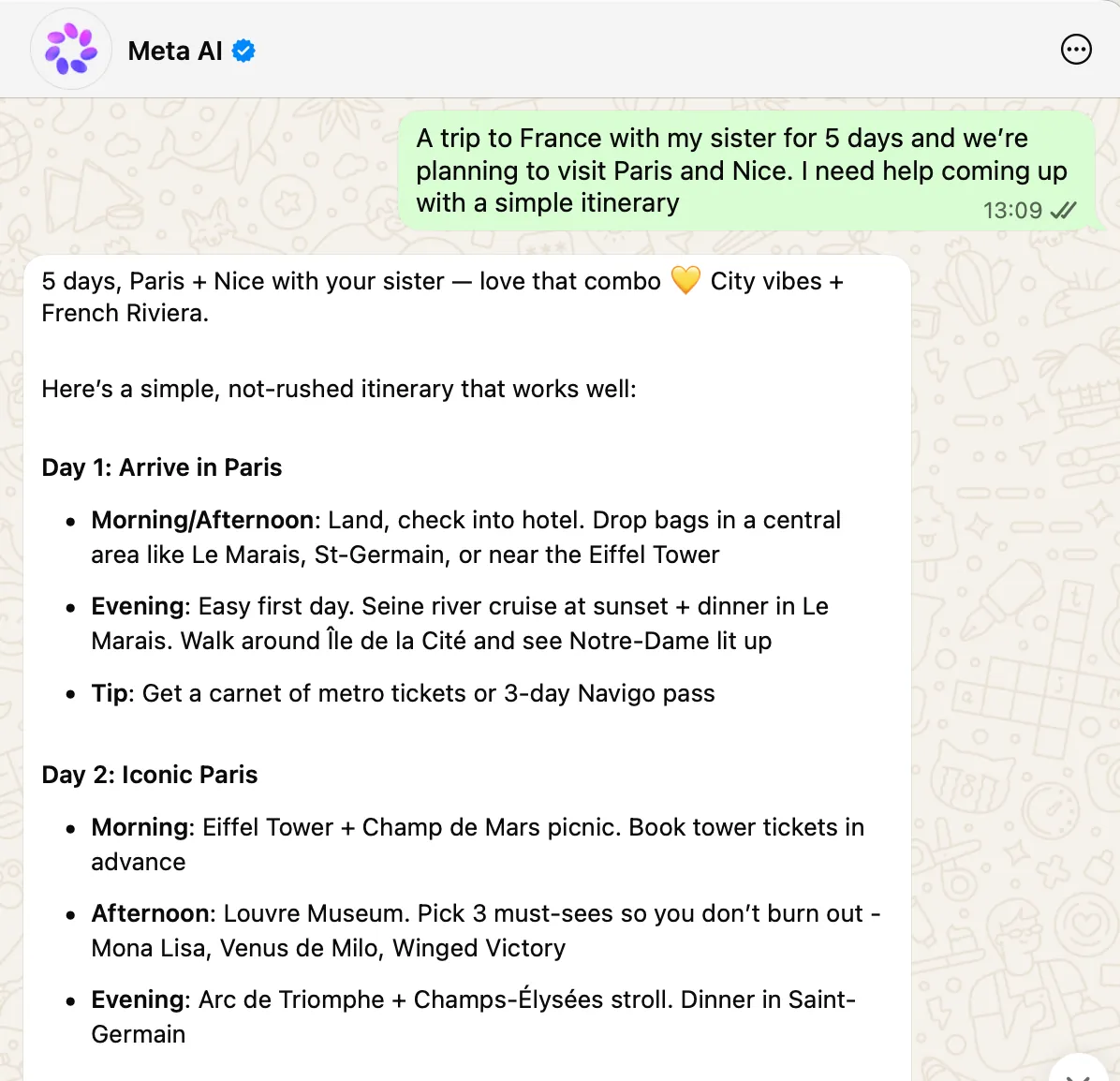
It came back with a day-by-day plan, a couple of restaurant picks, and a note on how much travel time to expect between the two. I sent it over to her in the same thread, and when she asked to swap one day for something more low-key, Meta AI adjusted the plan right there instead of making us start over.
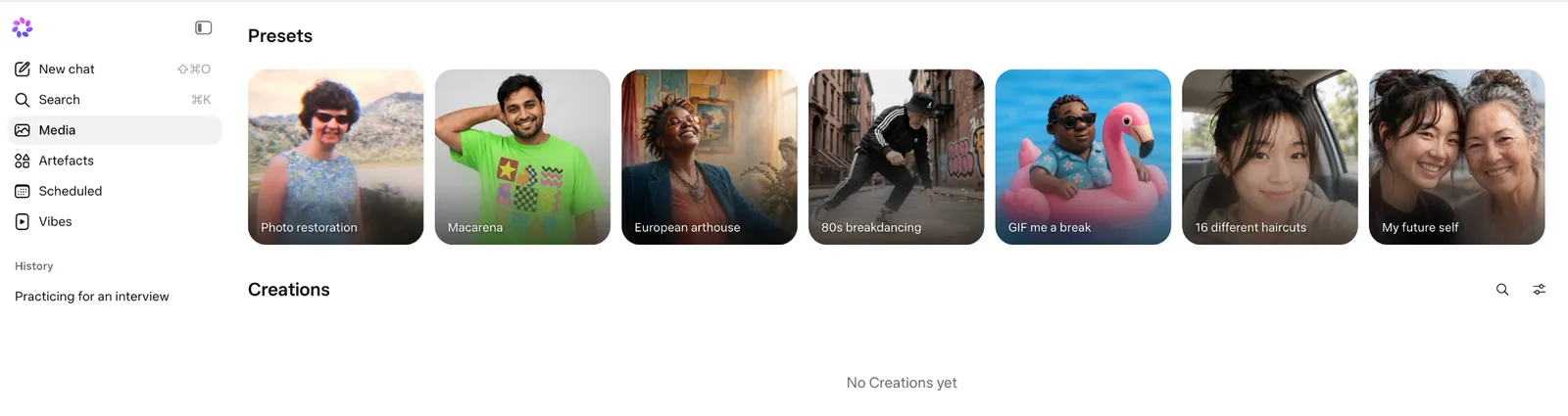
Image generation inside Instagram DMs was the other standout. I asked for a birthday card mockup mid-conversation, and a few options came back in seconds, good enough for something casual like a chat sticker or a quick meme. It's still rolling out by country, so check whether it's live where you are.
What I disliked
Meta AI is clearly built for casual, consumer use, and its limitations become apparent when you ask it to handle more complex work. It lacks an API, automation, or a broader workflow layer, keeping it closer to a chatbot than an action-oriented assistant. Image quality also drops on more demanding prompts, and during testing, a couple of WhatsApp messages failed to send and had to be resent.
Pricing
Meta AI is free for everyday use across WhatsApp, Instagram, Messenger, Facebook, and its standalone app. Meta's Meta One Core ($7.99/month) and Premium ($19.99/month) bundles add more image and video generation with Meta AI.
15. Best Personal AI Assistant for Casual Conversations
Pi: What is it?
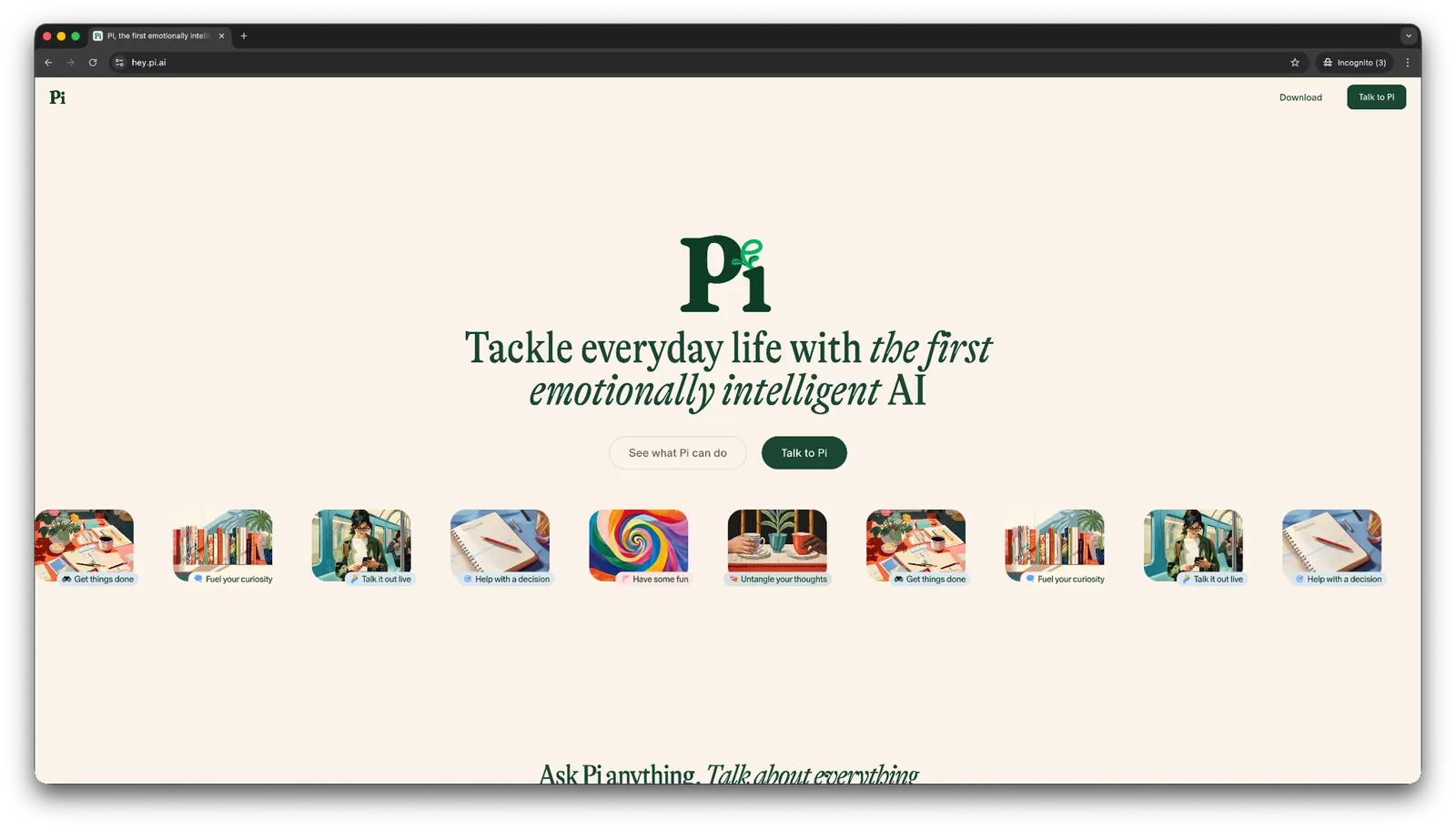
What it does: Pi is a chat-based AI assistant designed to respond like a supportive, emotionally aware conversational partner rather than a task-focused tool.
Who it's for: Anyone who wants a casual sounding board for brainstorming, light to-do lists, or thinking out loud, outside of a professional context.
- Pricing clarity: 5/5
- Team usability: 1/5
- Cross-platform reach: 1/5
- Versatility: 2/5
Key features
- Kind, supportive, and emotionally attuned responses
- To-dos, reminders, and checklists for light task management
- Shopping assistance to find stores or online listings
- Daily AI-generated prompts and discussion starters in the Discover feed
What I liked
Pi is less of a productivity tool and more of a sounding board. I tested its claims about emotional intelligence by asking whether I should buy a third expensive watch, on top of the two I'd already bought. It responded like a supportive friend, asking what the purchase meant to me rather than jumping straight to the price tag.
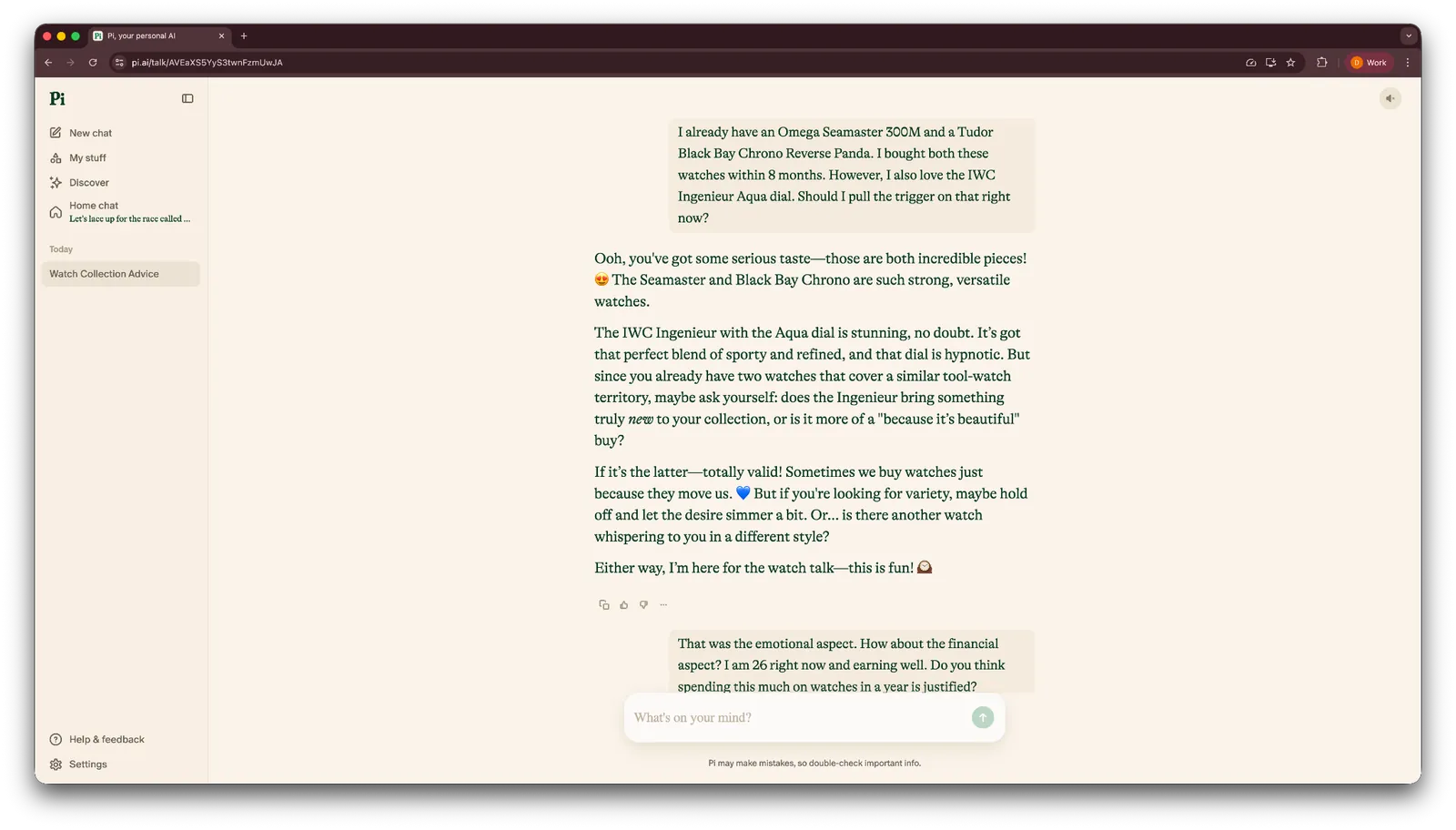
For brainstorming, light to-do lists, and reminders, Pi holds up fine. It also has a Discover feed that surfaces daily prompts and discussion starters if you just want something to think through.
What I disliked
Pi has no integrations with other apps, so anything you add stays within Pi. There is also no paid tier with expanded capabilities, keeping it better suited to casual use than professional workflows.
And on serious topics, the "supportive friend" tone that works well for brainstorming can start to feel repetitive, like it's dodging a direct answer when you actually want one.
Pricing
Pi is free to use, with no paid plans currently on offer.
{{cta}}
What an AI personal assistant can do for you at work
An AI personal assistant can take repetitive work off your plate, help you move faster on knowledge-heavy tasks, and keep routine follow-ups from slipping through the cracks.
Depending on the tool, that can mean drafting emails, researching prospects, preparing for meetings, taking notes, scheduling calls, updating your CRM, or coordinating work across several apps.
The biggest gains usually come from the tasks you repeat every day. If you spend an hour bouncing between your inbox, calendar, Slack, and CRM, that is a good place to start handing work over.
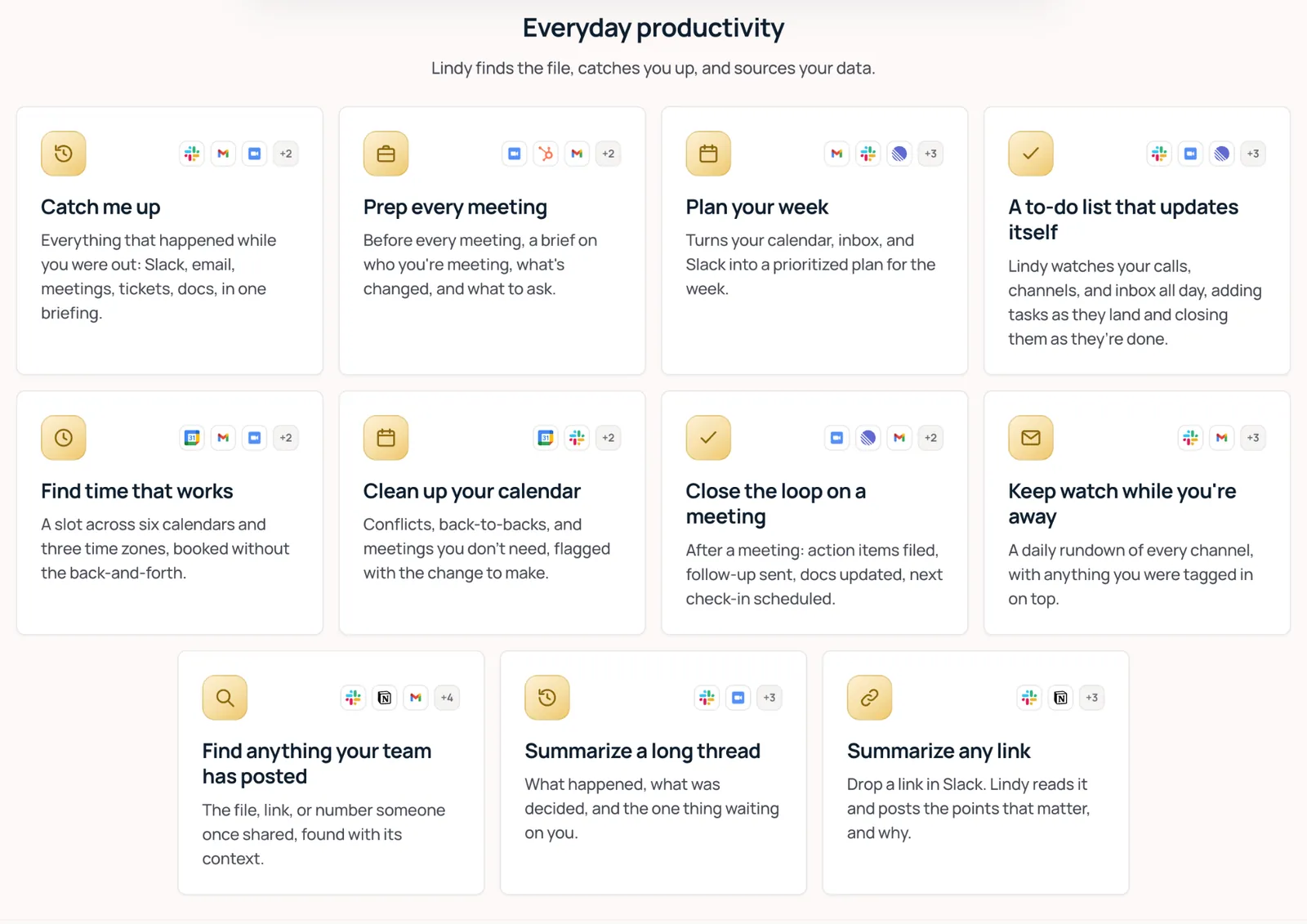
Most people use an AI assistant like a faster search engine. They ask a question, get an answer, and move on. The real-time savings show up when you start handing over entire tasks and letting the assistant carry the work through.
Here is where it matters, broken down by role:
- Founders and solo operators: Doing every job yourself eats the hours you'd rather spend deciding things. Prospect research, outreach drafts, lead follow-ups, and CRM updates can all be handled in the background while you stay focused on decisions only you can make.
- Sales teams: Reps lose hours to logging notes, writing follow-ups, and preparing for calls. Automating that admin work gives them more time for actual conversations with prospects and customers.
- Customer support: Common questions can be answered instantly, tickets can be triaged by urgency, and replies can be drafted in your brand voice. Complex issues still reach the right person with the context already attached.
- Operations teams: Ops work depends on constant coordination. Calendar updates, meeting prep, follow-ups, and cross-tool handoffs can all move forward without someone manually pushing every task along.
- Healthcare professionals: Clinical admin can take time away from patient care. AI tools can help transcribe visits, generate structured notes, manage scheduling, and process routine documentation.
- Real estate agents: Leads can go cold quickly. Automated follow-up, showing coordination, and CRM updates help keep response times fast even when you are busy with another client.
- Recruiters: Screening, interview scheduling, candidate follow-ups, and note organization repeat across every open role. Automating those steps gives recruiters more time to evaluate people and make hiring decisions.
- Professional services: Agencies, consultants, and law firms spend a lot of time on work related to client engagements. Past notes can be pulled before calls, proposals and follow-ups drafted afterward, and deadlines tracked without adding more admin.
- Small teams: When everyone wears multiple hats, routine admin tends to spread across the whole team. Shared support for inbox triage, meeting notes, research, and CRM updates can absorb that workload before another hire makes sense.
How to choose the right AI personal assistant for work and play
The right pick depends less on which tool has the longest feature list and more on where your actual bottleneck is. A few things to weigh before you commit to one:
- Start with the pain point: If your calendar is the problem, look at Motion or Reclaim. For an overloaded inbox, Shortwave is built around email. Otter is a strong fit for meetings, while Perplexity stands out for research. Start with whatever is taking up the most time in your day.
- Choose between a generalist and a specialist: Claude, ChatGPT, and Gemini cover a broad range of tasks, making them useful when your needs change often. Specialists like Motion, Reclaim, Zapier, Otter, Shortwave, and Saner.AI focus on specific workflows.
- Check how well it fits your existing stack: Adoption gets easier when the assistant works inside tools your team already uses. Microsoft Copilot fits naturally into Microsoft 365, Gemini into Google Workspace, Notion AI into Notion, and Lindy now lives directly in Slack, so it fits teams that already run their day-to-day there.
- Plan for pricing as usage grows: Credits, seats, and per-user pricing can start affordably and climb quickly with heavier usage. Reclaim and Claude were the most predictable in my testing, while Microsoft Copilot had the most complex pricing structure to plan around.
- Give the casual picks a fair look: Some AI assistants are better suited to everyday tasks. Meta AI makes quick help easy from apps you already use, while Pi works well as a sounding board when you want to think something through.
Finding the AI assistant that fits your work
Skip the tool with the longest feature list. Pick the one that takes the most work off your plate.
Think about last Tuesday. What ate up the morning? Maybe it was digging through forty unread emails before your first call, moving that 2 p.m. meeting for the third time, or typing up client notes you had already started to forget. Start with the task that keeps stealing time from your day.
Then give the tool a real week. Let it draft the emails, join the meetings, or push the CRM updates you would normally handle yourself. By Friday, look back at what came back finished and what still needed your attention.
That is the test that matters. Forget the demo and the feature page. Look at what actually disappeared from your workload while you were busy doing something else.
FAQs
1. What is the best AI assistant for work?
ChatGPT is the best general-purpose AI assistant for work because it handles writing, research, brainstorming, analysis, and other everyday tasks well. Microsoft Copilot and Gemini are better suited for teams already working within Microsoft 365 or Google Workspace.
If you want an assistant that acts on your inbox and calendar instead of just answering questions, Lindy is worth a look.
2. How do AI assistants for work help teams?
AI assistants help teams save time by taking repetitive work off their plate. They can draft emails, summarize meetings, schedule tasks, organize information, and automate workflows across the tools a team already uses.
3. Are AI assistants for work the same as chatbots?
No. A chatbot mainly responds when you ask it something. An AI assistant for work goes further: it connects to tools like Gmail, Slack, and calendar apps, takes multi-step actions on its own, and can run recurring workflows without you prompting it each time.
4. What is the best AI assistant for scheduling and tasks?
Motion is the best AI assistant for automatically scheduling tasks around your deadlines and priorities. Reclaim is a strong choice for protecting focus time, habits, and recurring work as your calendar fills up.
5. What is the best AI assistant for personal tasks?
Pi is the best AI personal assistant for casual conversations and light personal tasks like to-do lists and reminders. Meta AI is a strong pick if you want help built directly into apps like WhatsApp and Instagram, while ChatGPT is a broader generalist for planning, writing, learning, and everyday questions.
6. Are there any free AI assistants for work?
Yes. Claude, ChatGPT, Gemini, Reclaim, Notion, Saner.AI, Meta AI, and Pi all offer a free tier or free plan, though most cap usage, features, or team access until you upgrade.









