How to See if Someone Read Your Email (4 Methods That Work)
Lindy broke down four ways to see if someone read your email, from Gmail and Outlook read receipts to tracking extensions, plus why open data is not always accurate.


I sent a project proposal to a client last month and heard nothing for four days. No reply, no "got it," nothing. Was it sitting in their spam folder? Were they busy? Or had they read it, decided they weren't interested, and just moved on?
That uncertainty is uncomfortable. And if you've been there, you know the question isn't really "did they get it." It's "do I follow up or do I look desperate?" Knowing how to see if someone read your email helps you make that call.
Unfortunately, there’s no method that tells you with 100% certainty. But there are four that give you a decent signal. I tested all of them.
Some are built into Gmail and Outlook, some are free Chrome extensions, and some are proper email tools for when you're sending to multiple people at once. Which one works for you depends on which email client you're using.
Let's go through them.
How to see if someone read your email: TL;DR
| Method | Works on | Recipient notified? |
|---|---|---|
| Gmail read receipts (Google Workspace) | Google Workspace only | Yes (pop-up) |
| Outlook read receipts (Microsoft 365) | Outlook desktop, work/school account | Yes (pop-up) |
| Tracking extensions (Mailtrack,hunter.ioBoomerang) | Any Gmail, including personal | No |
| Email automation tools (Saleshandy,HubSpot,Lindy) | Gmail + Outlook | No |
1. Gmail read receipts (Google Workspace accounts only)
If you use Gmail through your job or school, Gmail has a built-in read receipt feature. When the recipient opens your email, Gmail sends you a notification with a timestamp.
The catch most guides skip: this does not work on personal @gmail.com accounts. If your email ends in @gmail.com and you didn't pay for it, this isn't available to you. Skip to method 3.
For Google Workspace users, here's how to set it up:
- Admin setup (someone at your org needs to do this once): Sign in to the Google Admin console. Then go to Apps > Google Workspace > Gmail > User settings. Find Email Read Receipts and select "Allow email read receipts to be sent to any email address". Click on “Save.”
- Requesting a read receipt when you send: Open Gmail, click Compose and write your email. Click the three-dot icon (More options) in the bottom-right corner of the compose window. Then select "Request read receipt" and send as normal.
When your recipient opens the email, you'll get a notification in your inbox confirming they opened it, along with the time.
The limitation: The recipient can decline to send the receipt. Some email clients send it automatically; others prompt the person to approve it first. If they say no, or their system blocks it, you get no receipt at all. A missing receipt doesn't tell you whether they read it.
2. Outlook read receipts
Outlook has read receipts built in, and they work well for work and school accounts on the desktop app. Same story though. Outlook.com personal accounts on the web do not support read receipts. If you're on Outlook.com with a personal address, this won't work for you. Skip to method 3.
If you're using the Outlook desktop app with a work or school account, follow these steps.
How to request a read receipt in Outlook:
- Compose a new email
- Click the Options tab in the ribbon at the top
- Check "Request a Read Receipt" (you can also check "Request a Delivery Receipt," but that's different. It only confirms the email reached the mailbox, not that it was opened)
- Send your email
When the recipient opens it and their client supports receipts, you'll get a notification.
The limitation: Some corporate email systems are set to auto-decline all read receipt requests. You can send the request and get nothing back, which, again, tells you nothing either way. If you also want to clean up your inbox after managing read receipts, learn how to mass delete emails on outlook.
{{templates}}
3. Email tracking extensions (works on personal Gmail too)
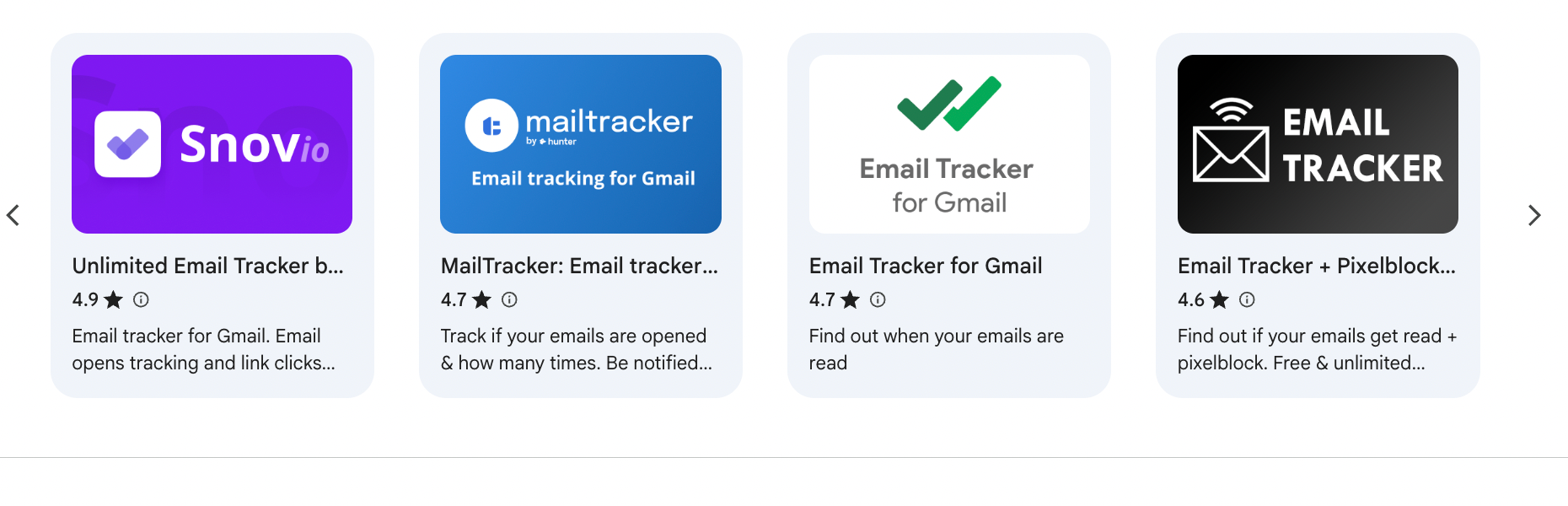
If you're on a personal @gmail.com account and you want to know if someone read your email, this is your main option.
Tracking extensions work by embedding a small invisible image (a tracking pixel) in your outgoing email. When the recipient opens the email and the images load, that pixel sends a signal back, and you get a notification. The recipient doesn't see a pop-up asking them to confirm anything. It happens in the background. If you accidentally hide an important message while organizing your inbox, learn how to unarchive gmail.
I tested a few of the most popular ones.
Here's how they compare:
| Tool | Free plan | What it tracks | Works on |
|---|---|---|---|
| Mailtrack (now Mailsuite) | Yes (adds a signature on free plan) | Opens, number of opens | Gmail |
| Boomerang | Yes (limited) | Opens, link clicks | Gmail (Outlook via a separate app) |
| HubSpot Sales | Yes | Opens, link clicks | Gmail + Outlook |
All of them install as Chrome extensions and take about two minutes to set up. Once they're running, every email you send gets tracked automatically. You get a notification when it's opened. The free plans on most of these are good enough for personal use. If you also want to keep offline copies of important messages, learn how to save email as pdf gmail.
Mailtrack's free plan adds a small "Tracked by Mailtrack" note to your email signature, which is worth knowing upfront if that bothers you. If you are trying to clean up your inbox, learn how to find unread emails in gmail.
The limitation: Pixel tracking isn't perfectly reliable. If your recipient uses Apple Mail with Mail Privacy Protection turned on, the pixel may fire automatically even if they never opened the email. More on that below.
4. Email automation tools (for multiple emails at once)
If you're regularly sending proposals, sales outreach, or follow-up campaigns to multiple people, a dedicated email tool makes more sense than a browser extension.
Tools like Saleshandy, Lemlist, HubSpot, and Lindy show you open rates, click-through rates, reply rates, and bounce rates across all your emails in one dashboard. That gives you a much better picture of what's working, not just whether one specific email was opened.
Mailchimp and MailerLite do the same thing on the marketing side if you're sending newsletters or bulk campaigns.
What tracking tells you, and what to do with it
If you see that someone opened your email without replying, that's your cue to follow up. The usual advice is to wait 2-3 days before sending a follow-up.
If they opened it multiple times, that's often a sign they were considering it or sharing it internally, so a follow-up focused on answering likely questions tends to work better than a simple "checking in." The part most people find tedious is keeping track of who needs a follow-up and when.
{{cta}}
Why open tracking isn't always accurate (and what to trust instead)
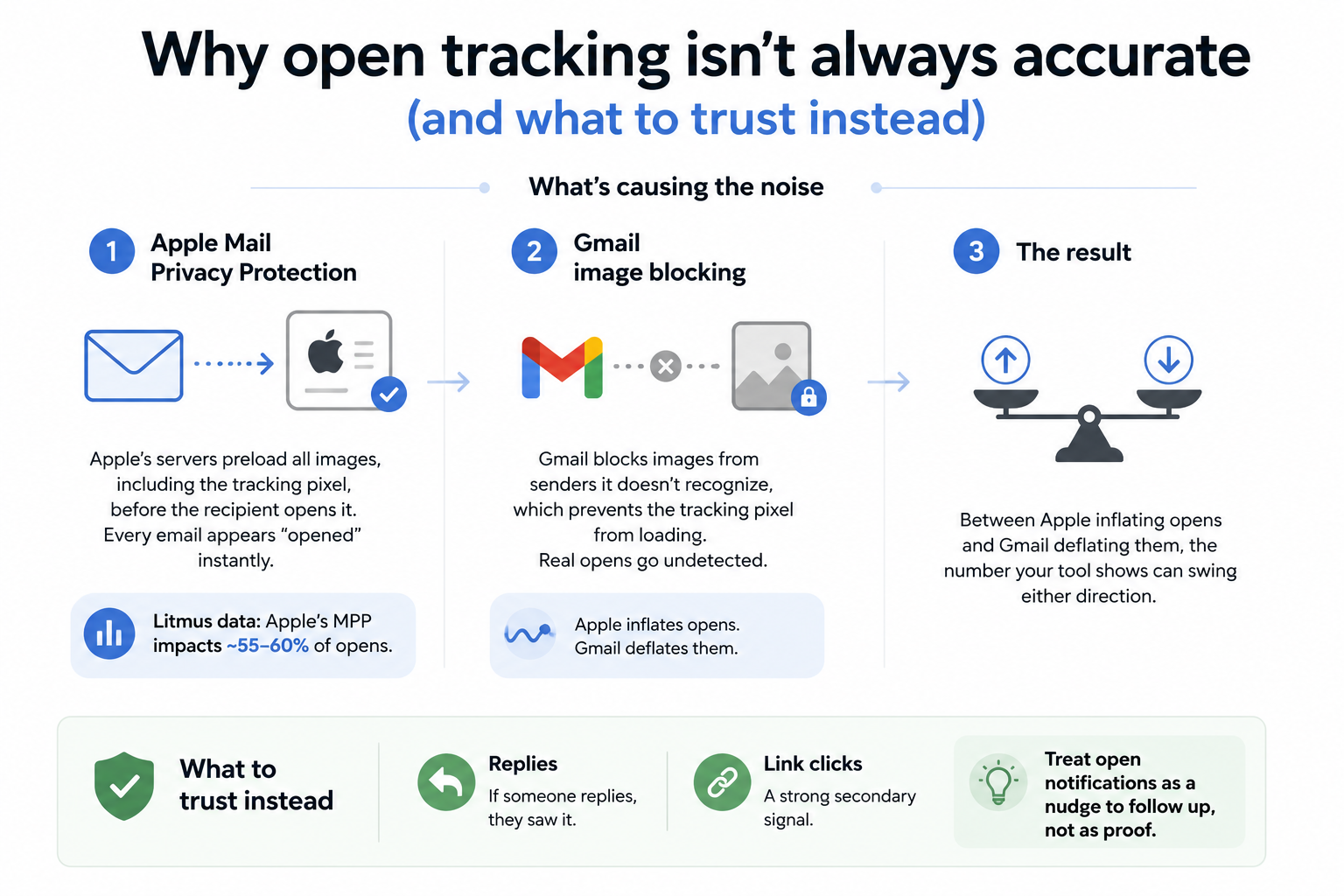
Open tracking isn't fully accurate because of two privacy changes that happened at the inbox level. Apple and Google both changed how they handle images in emails, and those changes broke the signal that tracking pixels rely on. Before you act on an open notification, it's worth knowing what it might mean.
Here's what's causing the noise:
- Apple Mail Privacy Protection: Apple's servers preload all images in your email, including the tracking pixel, before the recipient opens it. Every email sent to a user with this enabled appears "opened" instantly. Litmus data shows Apple's MPP now impacts roughly 55-60% of all email opens, so a good portion of your open notifications may be phantom fires from Apple's servers.
- Gmail image blocking: Gmail blocks images from senders it doesn't recognize, which prevents the tracking pixel from loading at all. Real opens go undetected. Between Apple inflating opens and Gmail deflating them, the number your tracking tool shows can swing in either direction without your actual engagement changing.
- The one signal that holds: A reply. If someone replies, they saw it. Link clicks are a strong secondary signal. Treat open notifications as a nudge to follow up, not as proof the person read your email.
My verdict
Seeing if someone read your email comes down to four options, and the right one depends on your email client. Gmail and Outlook have built-in read receipts, but both require a work or school account.
For personal Gmail, a free tracking extension like Mailtrack or Boomerang is your best bet. And if you're sending outreach to multiple people, an automation tool gives you open rates, click rates, and reply rates in one place. Just don't put too much weight on any open notification.
Before using any of these on an important email, test it first. Send a tracked email to your own second account, or sit down with a friend or family member and have them open it on their phone while you watch. Check that the notification fires, see how quickly it lands, and make sure you know what an "open" looks like in your tool before it matters.
FAQs
Can I see if someone read my email on personal Gmail for free?
Yes, you can see if someone read your email on personal Gmail. Native Gmail read receipts only work on paid Google Workspace accounts, but free Chrome extensions like Mailtrack add open tracking to any personal @gmail.com account at no cost.
Can someone tell if I'm tracking their email?
Yes, but it depends on how you're tracking. Read receipts show the recipient a pop-up asking them to confirm. That's fully transparent. Tracking extensions work silently in the background and don't notify the recipient at all. That said, some email clients, including Apple Mail, block the tracking pixel entirely, so the recipient may never know you tried.
Why did my tracking tool say my email was opened instantly after I sent it?
When your email shows as opened instantly after sending, two things are usually behind it. Corporate email servers pre-scan incoming messages for threats, which triggers the tracking pixel before anyone opens it. Apple Mail Privacy Protection does the same thing on the recipient side.
Apple's servers preload all images, including the tracking pixel, the moment the email arrives. If the notification fired within seconds of sending, wait to see if a second open appears later.
Does Gmail show read receipts automatically?
No. Gmail doesn't show read receipts automatically. Google Workspace users have to enable the feature in admin settings, then manually request a receipt for each email they send. Personal @gmail.com accounts don't have this feature at all.
What's the difference between a read receipt and a delivery receipt?
A delivery receipt confirms your email reached the recipient's mailbox, whereas a read receipt confirms they opened it. Neither one confirms the person read the content.
Is email tracking legal?
Whether email tracking is legal depends on your region. In the US, pixel-based tracking is generally legal under CAN-SPAM when used for your own follow-up. In the EU, GDPR requires a lawful basis for processing data collected through tracking pixels. B2B senders typically document this under "legitimate interest." If you're tracking email at scale, check the rules in your region before you start.









