How to Mass Delete Emails on Outlook: 5 Fast Methods
Jack cleared a backlog of more than 15,000 emails to test five ways to mass delete in Outlook, from select all and Sweep to rules that stop the pile from coming back.


I switched jobs last year and inherited a shared mailbox with about 15,000 emails in it, most of them years-old automated alerts nobody had ever bothered clearing out. I tried deleting them the way I delete everything: click, Delete, click, Delete. An hour in, I'd cleared maybe 300.
That's when I stopped and actually looked for a faster way to mass delete emails in Outlook, instead of doing it one message at a time.
I tested every method across classic Outlook, the new Outlook, Outlook on the web, and mobile, plus a couple of tools most people never notice sitting in the ribbon.
How to mass delete emails on Outlook: TL;DR
| Method | Best for | Works in | Speed |
|---|---|---|---|
| Select all and delete | Clearing an entire folder at once | Classic Outlook, new Outlook, web | Fast for one folder |
| Filter with search first, then delete | Deleting a specific slice (sender, date, size) | All versions | Fast once the query is right |
| Sweep | Wiping out one sender for good | Outlook.com, new Outlook, web only | Fastest for a single sender |
| Rules | Stopping the buildup before it starts | Path varies by version | Instant going forward |
| Clean Up | Trimming redundant messages from long threads | Classic Outlook, new Outlook | Fast, narrow use case |
Why "select all" doesn't always select everything
The first mistake people make is assuming a checkbox at the top of the message list or a Ctrl+A (Cmd+A on Mac) actually grabs every email in the folder. It usually doesn't; it grabs what's currently loaded on screen.
In the new Outlook and on the web, deleting a folder with thousands of messages means clicking the checkbox, then watching for a banner that says something like "Select all messages in this folder" and clicking that too.
Skip that step, and you'll delete a screen's worth, then have to repeat the whole process for the next batch.
There's a second thing worth knowing before you start: pressing Delete moves messages to Deleted Items; it doesn't remove them permanently. They still count against your mailbox storage until you empty that folder separately.
Method 1: Select all and delete (classic Outlook desktop)
- Open the folder you want to clear.
- Click anywhere in the message list, then press Ctrl+A (Windows) or Cmd+A (Mac) to select every message currently loaded.
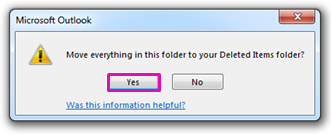
- Press Delete. Everything selected moves to Deleted Items.
- On Windows, to skip Deleted Items and remove messages permanently in one step, press Shift+Delete instead.
- To reclaim the storage space, right-click Deleted Items in the folder list and choose Empty Folder (Windows) or Purge Deleted Items (Mac).
If you want to keep a handful of messages while deleting the rest, hold Ctrl (Windows) or Cmd (Mac) and click the ones you want to keep after selecting all, to deselect them before pressing Delete.
A note for Mac users: Outlook's permanent-delete shortcuts have behaved inconsistently across versions; some skip the confirmation prompt entirely. Use the on-screen menu instead; it always confirms before anything is deleted for good.
The safer route on Mac is the two-step version: Delete to move messages to Deleted Items, then Purge Deleted Items separately once you've confirmed nothing important is in there.
Method 2: Select all and delete (new Outlook and Outlook on the web)
- Open the folder you want to clear.
- Click the checkbox at the top of the message list. This selects everything currently visible.
- Look for a banner above the list that says something like "Select all messages in this folder" and click it. This extends the selection to the entire folder, past whatever loaded on screen.
- Click Delete in the toolbar.
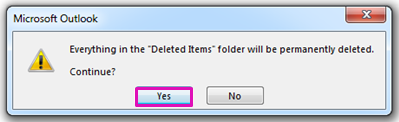
- Empty Deleted Items afterward the same way: right-click it in the folder list and choose Empty Folder.
People miss this step most often. Without step 3, a folder with 5,000 messages only has the first 50 or so deleted, and it looks like nothing happened when you scroll back up.
Method 3: Filter with search first, then delete
For anything short of "delete the entire folder," narrowing the list with a search before you select all saves you from scrolling through mail you actually want to keep.
Outlook's search bar takes operators across all versions:
- from:sender@domain.com finds everything from one address
- subject:"weekly digest" matches a specific subject line
- received:<2025-01-01 finds anything older than a given date
- hasattachments:yes isolates messages with files attached
- size:>5MB finds large messages taking up space
Combine them for something narrow, like from:newsletters@ received:<2026-01-01, which finds every newsletter from a specific sender received before a set date. Run the search, select all (extending the selection if the version you're using requires it), then delete. If you need to verify unknown senders before cleaning out your inbox, you can ethically search linkedin from email to confirm their identity.
Method 4: Use Sweep to wipe out one sender for good
Sweep is built for exactly one situation: you never want to see anything from a specific sender again, past or future. It only exists in Outlook.com, the web version, and the new Outlook, not in classic desktop Outlook or Outlook for Mac.
- Open a message from the sender you want to clear out.
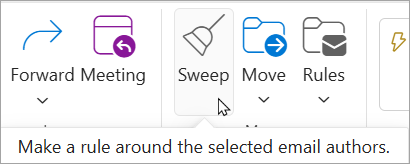
- Click Sweep in the toolbar (or right-click the message and choose Sweep).
- Choose an option: delete all messages from this sender now, delete all existing and future messages, keep only the latest message and delete the rest, or delete anything older than 10 days.
- Confirm the destination is set to Deleted Items, then click OK.
Sweep runs instantly on existing mail and keeps working on anything that arrives afterward, so a repeat sender stops piling up without you doing anything else. It doesn't work inside Junk, Drafts, Sent Items, or Deleted Items, only in Inbox and custom folders.
Method 5: Set a Rule so new mail deletes itself
Sweep and manual deletion both clear what's already there. A Rule stops new mail from ever needing to be deleted in the first place.
- Go to File > Manage Rules & Alerts, then click New Rule. (New Outlook, the web, and Mac don't have a File menu; use Settings > Mail > Rules instead.)
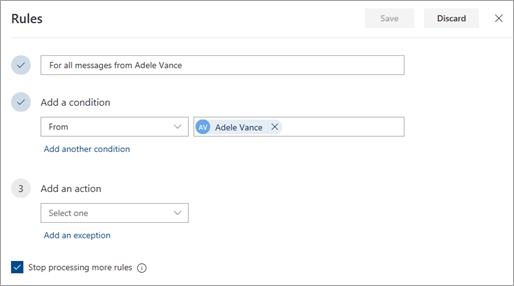
- Choose the Apply rule on messages I receive and click Next.
- Set a condition, such as from a specific sender or with certain words in the subject.
- Set the action to move the message to Deleted Items (or delete it outright, if your version offers that option).
- Save the rule.
The Rule only catches mail that arrives after it's turned on. Pair it with one of the methods above to clear the existing backlog, then let the Rule keep the same mail from building up again.
{{templates}}
Faster alternatives worth knowing about
Two tools that aren't technically "delete" methods but solve the same underlying problem: an inbox that's gotten out of hand.
Clean Up scans a conversation, a folder, or your whole mailbox for messages whose full content is already quoted later in a reply, and moves the redundant ones to Deleted Items automatically.
It's on the Home tab, in the Delete group, with options to clean up just the current conversation, the whole folder, or the folder and its subfolders. It's the fastest way to trim a long email thread without reading through it first.
Search Folders work like a saved search: set a rule once, such as "everything older than 90 days," and it stays updated without moving anything out of its real folder. Fully custom ones are classic Outlook for Windows only; New Outlook and Outlook.com only offer presets.
Right-click Search Folders in the folder list, choose New Search Folder, and set it up for something like "Old Mail" older than 90 days. Every time you open it, it's already filtered; no need to retype the search or remember the exact operators each time you want to clean up the same slice of mail.
A few things to check before you mass delete
- Confirm your selection before deleting. Scroll through a search result once, especially with a date or size filter, to make sure nothing important slipped into the match. If you are hesitant to remove sent messages, review how to check if email was read before deleting them.
- Empty Deleted Items in a separate step. Deleting a message and permanently removing it from your mailbox are two different actions, and the storage isn't freed until you do both.
- Don't attempt a large delete on mobile. The Outlook mobile app loads messages in smaller batches and has no reliable "select all in folder" option, so anything beyond a couple hundred emails is faster from desktop or web.
{{cta}}
Common mass-delete mistakes in Outlook
Most of these aren't about doing something wrong so much as assuming a step finished when it wasn't, usually in one of these spots.
| Mistake | What happens | How to avoid it |
|---|---|---|
| Assuming Ctrl+A (or Cmd+A) selects the whole folder | Only the loaded messages get deleted | Click the "select all in this folder" banner first |
| Deleting instead of emptying Deleted Items | Storage doesn't shrink; deleted mail still counts | Empty Deleted Items as a separate step |
| Using Sweep in Junk or Sent | Sweep doesn't run there; nothing happens | Only use Sweep in Inbox or custom folders |
| Assuming a Rule clears old mail | Rules only apply to future messages | Clear the backlog first, then let the Rule take over |
| Mass deleting from mobile | Selection and large deletes often stall | Use desktop or web for anything over a few hundred |
One extra check, usually right before you hit delete, catches nearly all of these.
What stops the backlog from coming back
That mailbox didn't happen overnight; it was years of newsletters and automated alerts piling up unnoticed. Deleting it once fixes today's mailbox, but doesn't stop the same pile from forming again in six months. That comes down to what happens to mail the moment it lands.
An inbox assistant like Lindy handles this differently. Instead of a Rule that only knows one condition, it scans every incoming email and sorts it using the rules you give it, so the stuff that would otherwise pile up gets handled before it ever becomes a backlog.
- Lets you delegate straight from your phone: Text Lindy over iMessage or SMS to check what's piling up or ask it to clean out a specific sender, without opening Outlook at all.
- Triages your inbox automatically: Lindy labels incoming email (To Respond, FYI, Newsletters, and more) and archives the noise, so the pile that leads to a mass delete never really forms.
- Runs recurring cleanup on a schedule: Tell Lindy "every Monday, archive anything from these newsletter senders," and it just happens, no Rules Wizard, no remembering to check.
- Follows your plain-English instructions: Say "archive anything from this sender automatically" once, and it applies from that point on without you touching a setting.
FAQs
1. How do I retrieve deleted emails in Outlook?
Open the Deleted Items folder and look for "Recover Items Recently Removed From This Folder" at the top of the list, or click Recover Deleted Items from Server on the Folder tab. For the full process, see recovering deleted emails.
This works for messages permanently deleted or emptied from Deleted Items, as long as you're still within the retention window, which is recoverable for up to about 30 days (14 by default, unless an admin has extended it).
2. Does deleting emails in Outlook free up storage space immediately?
No, deleting a message in Outlook moves it to Deleted Items, where it still counts against your mailbox storage. You need to empty Deleted Items separately, by right-clicking the folder and choosing Empty Folder, to actually reclaim the space.
3. What's the fastest way to delete everything from one sender in Outlook?
Sweep is the fastest way to delete everything from one sender in Outlook, available in Outlook.com, the web version, and the new Outlook. Select a message from the sender, click Sweep, and choose to delete all existing messages and any future ones in a few clicks.
4. Can I set Outlook to delete emails automatically?
Yes, you can use Rules. In classic Outlook, go to File > Manage Rules & Alerts. In the new Outlook, on the web or on Mac, there's no File menu, so go to Settings > Mail > Rules instead. Create a rule for incoming messages matching a condition and set the action to move them to Deleted Items. This only affects mail that arrives after the rule is turned on.
5. Is it safe to mass delete emails in Outlook?
Yes, mass deleting emails in Outlook is generally safe as long as you check the filtered results before deleting and know your recovery window. Most accounts keep deleted mail recoverable for about 30 days through Deleted Items or Recoverable Items.









