How to Unarchive Gmail Emails Easily: A Quick Guide for 2026
Lindy walked through unarchiving Gmail messages via the All Mail folder and Move to Inbox button, covering desktop, mobile, and the in:archive search operator.


Many people archive emails to keep their inbox clean and then struggle to find them later. However, Gmail makes it easy to locate archived messages once you know where they’re stored. Here’s a definitive guide on how to unarchive Gmail messages quickly.
How to unarchive Gmail emails: TL;DR
You can unarchive Gmail emails by moving them from the All Mail folder back to your Inbox. After restoring an important message, you might also want to know how to check if email was read.
Here are the steps to follow:
- Open Gmail.
- Click More in the left sidebar.
- Select All Mail.
- Find the archived email.
- Check the box next to the email.
- Click Move to Inbox at the top of Gmail.
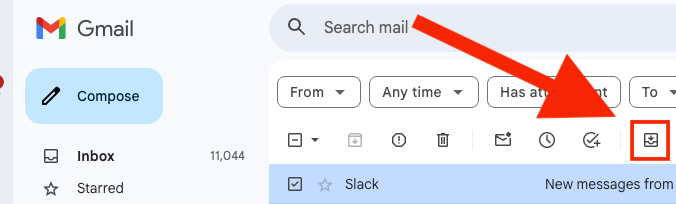
The email will return to your inbox immediately. For even faster email management, a gmail ai assistant can automatically help organize and locate your messages.
Tip: If you don’t spot your archived email right away, simply use Gmail’s search bar. Archived messages always show up in search results, so just enter a relevant keyword, sender, or subject. This is especially helpful if you are looking for an archived meeting request email to verify scheduling details.
What happens when you archive an email in Gmail
Archiving an email in Gmail simply removes it from your inbox by taking away the 'Inbox' label. The email still lives in your 'All Mail' folder, which is a collection of every mail item in your account, except Trash and Spam. To manage large volumes of incoming messages, using ai email processing software can automatically categorize and handle emails as they arrive.
Here is what changes when you archive an email:
- The email disappears from your Inbox.
- Gmail stores the message in All Mail.
- Gmail still shows the email in search results.
- You can move the email back to the inbox with Move to Inbox.
If someone replies to an archived email, Gmail automatically places the conversation back in your inbox. Many people use archiving to keep their inbox clean without deleting messages. It helps remove clutter while keeping important emails available when you need them. For even smarter organization, exploring the best ai inbox management solutions can help streamline your daily email workflow.
How to unarchive Gmail emails on desktop
You can unarchive Gmail emails on desktop by moving them from the All Mail folder back to your inbox. Follow these steps:
Step 1: Open Gmail
Go to Gmail and sign in to your account. You will land in your Inbox.
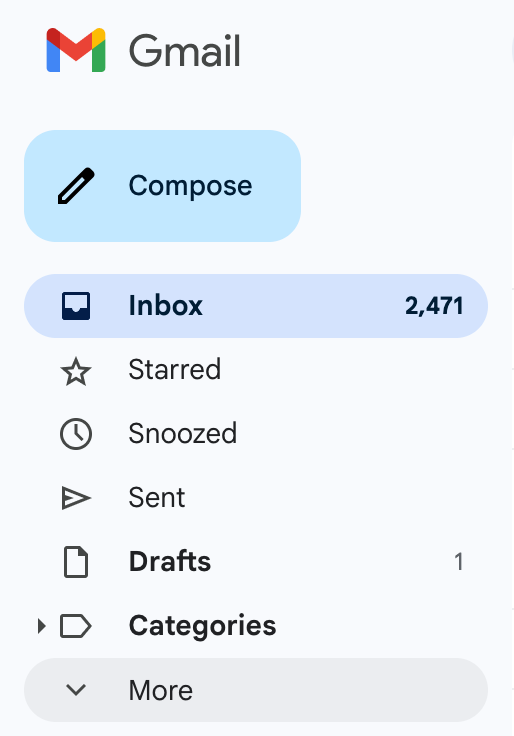
Step 2: Open the All Mail folder
Look at the left sidebar. Scroll down and click More if you do not see All Mail. Then click All Mail. The All Mail folder shows every email in your account, including archived messages.
Step 3: Find the archived email
Scroll through the list or use the Gmail search bar at the top. Archived emails will not have the Inbox label next to them. If you remember the sender, subject, or keyword, type it in the search bar to locate the message faster.
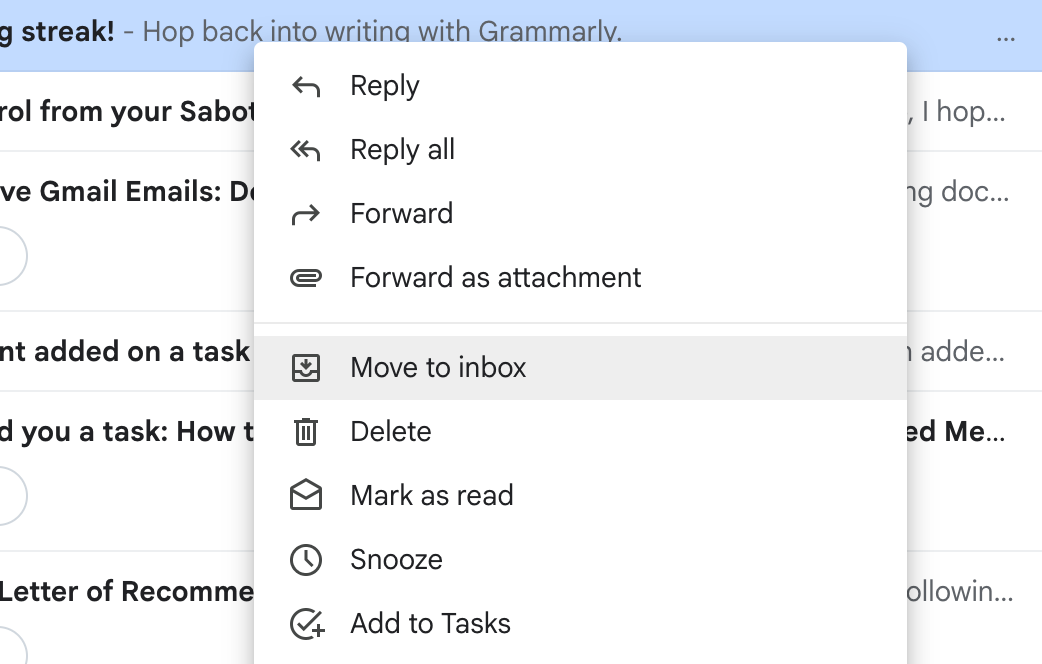
Step 4: Move the email back to your inbox
Check the box next to the email. Then click Move to Inbox at the top of Gmail. The email will appear in your inbox again.
How to unarchive Gmail on phone (Android and iPhone)
On both desktop and mobile, just go to the All Mail folder, find your email, and click Move to Inbox. It’s the same process as unarchiving Gmail on the desktop!
Here’s a tip: Search is often faster on mobile. If you cannot find the email in All Mail, use the search bar at the top of the Gmail app. Gmail includes archived messages in search results automatically. Once you find the message, you can check how to save email as pdf gmail to keep an offline copy.
How to unarchive multiple Gmail emails at once
You can restore several archived emails at the same time by selecting them and moving them back to your inbox. Follow these steps:
- Open the All Mail folder: Go to Gmail and open the All Mail folder from the left sidebar. That folder shows every message in your account, including archived emails.
- Select the emails you want to restore: Check the box next to each email you want to unarchive. You can select as many emails as you need.
- Move the emails back to your inbox: Gmail will return all selected emails to your inbox at once on desktop. On mobile, you'll need to unarchive emails one at a time.
How to find archived emails faster in Gmail
The search bar is often the fastest way to find archived emails in Gmail, as it includes archived emails in search results. Here’s how to search the right way:
Search by sender, subject, or keywords
Use the Gmail search bar at the top of your inbox. Type details you remember from the email, such as:
- The sender’s name
- Part of the subject line
- Keywords from the message
Gmail will show matching results from your entire mailbox, including archived emails.
{{templates}}
Use Gmail’s archive search operator
You can also search only archived emails. Type this into the Gmail search bar: in:archive
Gmail will show all archived messages in your account. You can also combine it with other filters. Mastering these search filters is also helpful if you need to know how to find unread emails in gmail.
Here’s an example: from:john in:archive
Searching this will show archived emails from John. Once you find a contact, you can ethically search linkedin from email information to confirm their current role and background.
Look for emails without the Inbox label
When you browse All Mail, Gmail marks inbox messages with the Inbox label. Archived emails will not show this label. That makes them easier to identify when you scroll through the folder.
Using search saves time, especially if you archive many emails each day. To stay even more organized, learning how to schedule an email in gmail can help you manage when your messages are sent.
Why does Gmail keep archiving your emails?
If your emails keep disappearing from your inbox, a few common reasons could be causing it. Let’s look at those:
A Gmail filter skips the inbox
Gmail filters can automatically move emails out of the inbox. If a filter uses Skip the Inbox, Gmail archives those messages as soon as they arrive. To automate your sorting without manual setup, trying the best ai email organizer can streamline your inbox management.
You can check this in your Gmail settings:
- Open Gmail.
- Click the Settings icon.
- Select See all settings.
- Open the Filters and Blocked Addresses tab.
Look for filters that include Skip the Inbox (Archive it). Edit or remove the filter if you want those emails to appear in your inbox.
Swipe settings on the Gmail mobile app
The Gmail app allows swipe actions to archive messages quickly. If you swipe left or right on an email, Gmail may archive it depending on your settings. You can check this here:
- Open the Gmail app.
- Tap the menu icon.
- Go to Settings.
- Tap Swipe actions.
Change the swipe action if you archive emails by accident.
You clicked Archive by mistake
Gmail places the Archive button next to other common email actions. It is easy to click it while cleaning up your inbox. If that happens, you can always find the message again in All Mail and move it back to your inbox. If you want to keep important messages stored safely outside your inbox, you can learn how to save an email as a pdf.
Common mistakes when unarchiving Gmail
Many users cannot find archived emails because they search in the wrong place or misunderstand how Gmail organizes messages. Here are the most common mistakes:
- Checking the Trash folder: Archived emails do not move to Trash. Gmail stores them in the All Mail folder.
- Searching only in the inbox: Archived emails disappear from the inbox view. Use the Gmail search bar or open All Mail to find them.
- Forgetting about the All Mail folder: The All Mail folder contains every email in your account, including archived messages.
- Confusing archive with delete: Archiving removes emails from the inbox but keeps them in your account. Deleting moves emails to Trash, and Gmail removes them after 30 days.
{{cta}}
How you can use Lindy to archive and unarchive emails automatically
Archiving emails often starts as a way to keep your inbox clean. Over time, it can create a new problem. Important emails get buried, you forget follow-ups, and spend time digging through threads.
Here’s where an AI assistant like Lindy can help.
Lindy comes with a ready-to-use skill that reads your Slack messages and can archive and unarchive emails. It can even archive all your emails. You can simply ask Lindy to archive the email with, for example, budget notes. It’ll scan Slack messages, find the relevant email in your inbox, and archive it for you.
It’s also an AI email assistant you can text when you need help with your other inbox tasks. Instead of manually sorting emails all day, you can ask Lindy to highlight priority emails, move unnecessary emails to trash, and draft replies on your behalf.
For example, you can text Lindy to:
- Scan your inbox and highlight priority emails
- Filter newsletters or low-priority messages
- Remind you to reply to important conversations
- Draft email responses using the context of the thread
- Send replies on your behalf when appropriate
- Help run email outreach or follow-up sequences
Try Lindy’s free trial to save time on your inbox management without a complex setup.
Frequently asked questions
How do I find archived emails in Gmail?
You can find archived emails in Gmail in the All Mail folder. Open Gmail, click More in the left sidebar, and select All Mail. This folder contains every message in your account, including archived emails. You can also use the Gmail search bar since Gmail includes archived emails in search results.
How do I move an archived email back to my inbox?
To move an archived email back to your inbox, open the email and click Move to Inbox. You can also select the message from the All Mail folder and click Move to Inbox at the top of Gmail. Gmail will restore the email to your inbox immediately.
Why can’t I find my archived Gmail emails?
Archived emails are simply removed from the inbox view but always remain searchable and accessible in All Mail. Be sure to check 'All Mail' or use the Gmail search bar with specific keywords to find archived messages quickly.
Does replying to an archived email unarchive it?
When someone else replies to an email thread you've archived, Gmail returns the conversation to your inbox. If you reply to your own archived message, it generally stays archived unless a new message is received.
What’s the difference between archiving and deleting emails in Gmail?
Archiving removes an email from the inbox but keeps it in your Gmail account. Deleting moves the email to the Trash folder, where Gmail permanently removes it after 30 days. Archived emails remain in All Mail until you delete them.
Can you organize Gmail emails automatically?
Yes, you can organize Gmail emails automatically using filters that sort messages by sender, keywords, or labels. You can also text Lindy, an AI assistant, to scan your inbox, highlight priority emails, draft replies, and remind you to respond to important messages.









