7 Best Outlook AI Email Agents for 2026 (14 Tools Tested)
Marvin tested 14 Outlook AI email agents including Microsoft Copilot, MailMaestro, and Superhuman Mail, comparing drafting, triage, and thread summary features.


My Outlook gets around 50 new emails a day, so if I miss a day, Monday can start with way too many emails waiting for me. Last quarter, I replied to a one-line “quick question” from my VP a full day late because it had already slipped onto page two.
The unread count wasn’t the hard part. Finding the handful of messages that deserved my attention was. Outlook can sort by folders, senders, and rules, but that still leaves you deciding what needs a response first.
I spent a few weeks testing 14 Outlook AI agents inside a busy inbox. Some helped me read and write faster. Others could triage incoming mail, catch follow-ups, and take more of the inbox admin off my plate.
I found these 7 tools to be the most useful.
7 best Outlook AI email agents: TL;DR
- Microsoft Copilot: Best native AI email agent for Microsoft 365 users
- MailMaestro: Best Outlook add-in for writing and summarizing emails
- Lindy: Best AI agent for email and follow-up work across apps
- Shortwave: Best for a clean, focused AI inbox
- Superhuman Mail: Best for speed and inbox control
- Spark: Best for a clean inbox with AI writing features
- Fyxer: Best for inbox cleanup, draft replies, and meeting notes
What is an Outlook AI email agent?
An Outlook AI email agent is an AI tool that connects with your Outlook email account and helps you manage your emails, draft replies, summarize threads, send reminders, and more.
You grant the AI email agent permissions to access your emails, read your calendar, draft replies on your behalf, and so on. It then uses AI to understand your inbox content, incoming mail, and calendar to help you stay organized and save time. If you also manage a Google inbox, learning how to find unread emails in gmail can help clear out your backlog.
Different Outlook AI email agents specialize in different tasks. Here are a few types:
- Native email agent: These types of email agents work inside your Outlook inbox without switching apps or tabs. Microsoft Copilot and ChatGPT Add-in are AI email agents that work natively within the Outlook inbox. If you also manage a Google account, using a specialized gmail ai agent can bring similar native productivity features to your inbox. For users managing multiple platforms, learning how to save email as pdf gmail makes offline recordkeeping simple.
- Writing agent: If you lose the most time composing multiple emails throughout the day, AI email writing agents ease that task for you. Examples include MailMaestro and TryEllie. Before drafting outreach messages, you can learn how to ethically search linkedin from email addresses to verify prospective contacts.
- Workflow agent: These AI agents can help you manage email tasks and handle other surrounding tasks like updating the calendar, sending reminders, taking notes, and more. They let you automate a complex chain of tasks, saving you time and effort. Lindy and Zapier are great examples of such agents. If an automated workflow accidentally hides important messages, knowing how to unarchive gmail helps you quickly recover them.
- Email client: These tools replace your default email app and bring your inbox into their app with tons of AI features that make email easy. Think of tools like SaneBox, Superhuman, and Shortwave. If you prefer keeping your standard inbox, learning how to mass delete emails on outlook can also help declutter your mailbox.
What can an Outlook AI email agent do?
An Outlook AI email agent can save you hours every week by drafting replies on your behalf, sorting your inbox, prioritizing high-value emails, and more. Here’s the full spectrum of its capabilities: Implementing modern ai inbox management strategies can help you streamline routine communication and maintain order.
Summarize email threads
Imagine reading through 30+ emails on the same topic almost every week. The sheer time and attention it’d require will easily take up 30-40 minutes of your time, time that you can otherwise spend on more valuable tasks.
You can use an AI email agent to get a quick summary of the entire email thread within seconds.
AI can also extract action items, important discussions, and unanswered questions, or help you prepare for a meeting on that topic later that week. It eliminates the need to read all the messages, preventing fatigue.
Draft emails on your behalf
Because AI agents can access your inbox, your sent emails, contacts, and calendar, they can use the context to draft email replies to incoming emails. They can replicate your writing style, refer to previous conversations, and seek your approval for the final draft before sending.
You can also use the AI email agent to draft follow-up emails for different scenarios. Say a prospect hasn’t replied, or there’s a meeting invite your team hasn’t responded to yet. AI can handle the follow-up work on your behalf.
Prioritize important emails
You miss important emails that need your immediate attention among a pile of unnecessary and usually promotional emails or newsletters. AI email agents can help you with that.
AI agents can scan your inbox repeatedly throughout the day, understand the contents of the emails, and highlight the ones that you need to check or reply to. That way, you’re always on top of the high-priority emails. Deploying a dedicated ai email organizer ensures these essential messages are highlighted before clutter takes over.
Quick inbox search
You know the times when you can recall a few details of a conversation, but don’t remember who said what and what the context was. And to know that, Outlook’s default search doesn’t work as well as it should.
Using an AI email agent, you can simply ask in natural language about the details you recall from that conversation. AI will conduct a quick search and find the entire thread for you.
Here are a few sample queries you can ask:
- “What did Ben say about the previous positioning?”
- “What did we conclude about the GTM strategy for our product?”
- “Find emails where the lead asked for discounts or the best possible price.”
- “What do I need to do before the upcoming weekly stand-up call?”
Create and automate tasks
Outlook AI agents like Lindy can extract tasks and to-dos from your emails and add them to your task management tools like Asana or Todoist. They can also handle email tasks like triaging the inbox, drafting replies, sending reminders and follow-ups, and managing calendars. In addition to handling written messages, AI workflow tools can also make and manage phone calls for complete communication automation.
Here are some use cases:
- When a team member sends you an email, you can ask the AI agent to create a task
- Send the thread summary to the Slack channel
- Forward support request emails to the right representative
Organize your inbox to reduce clutter
You get basic sorting ability with the default Outlook inbox, but it still isn’t as effective as it should be. I’ve missed a lot of emails because Outlook didn’t sort them properly and pushed them into the wrong folder. I’ve seen business inquiries land in my spam folder.
Outlook AI email agents like Superhuman, Hey, and Shortwave do a much better job at sorting emails. AI understands the intent and the content of the email, even when the email is from an unknown sender or someone outside the organization.
This way, you get a cleaner, more focused inbox where unnecessary emails don’t fight for your attention.
1. Microsoft Copilot: Best native AI email agent for Microsoft 365 users
Copilot is Microsoft’s AI agent that works natively inside all the Microsoft 365 apps. Inside Outlook, it can access all your emails and data across other apps to help you reply quickly and with the right context.
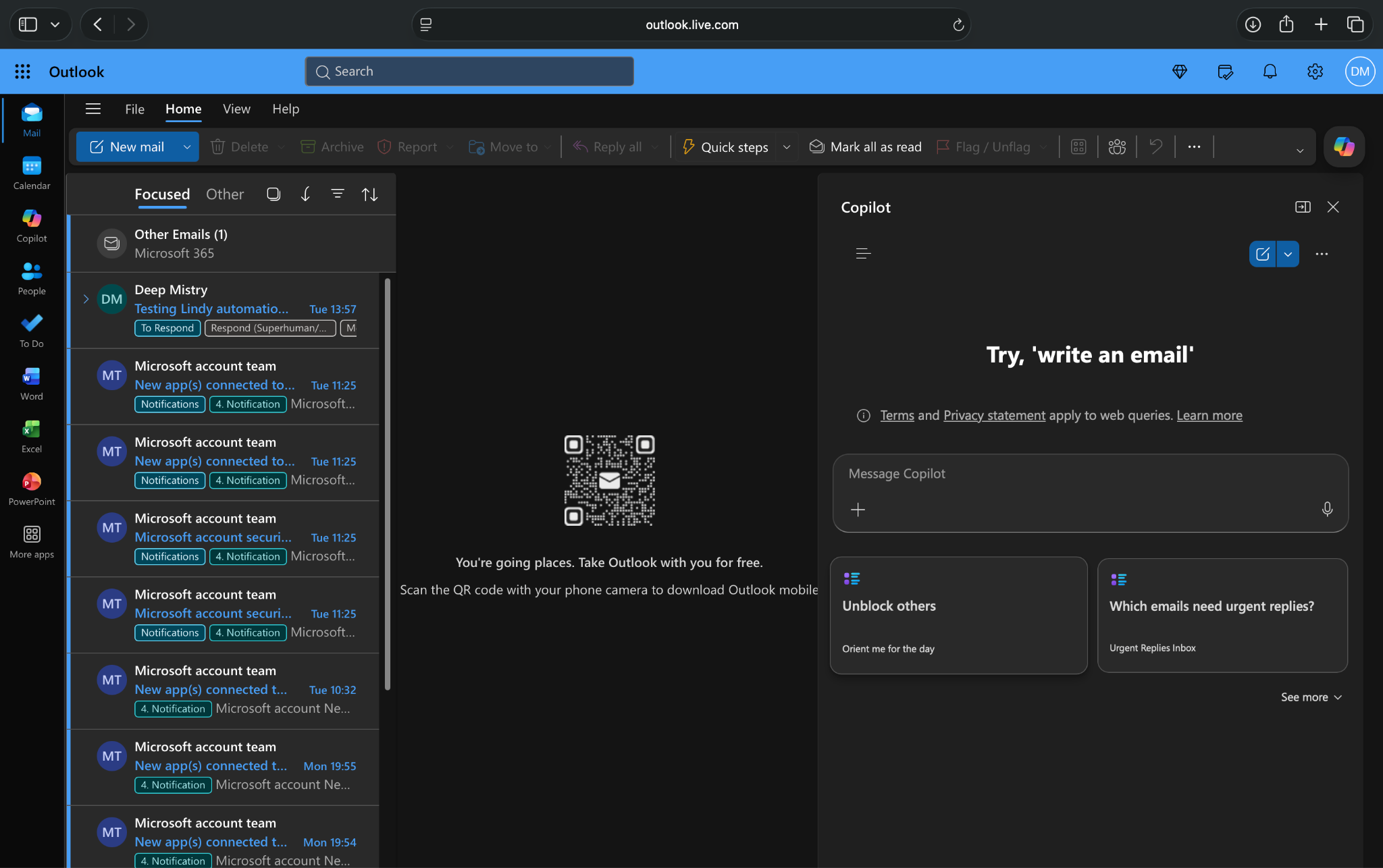
When I first had access to my Microsoft 365 account, I was on the free plan. I was disappointed to know that you don’t get Copilot with your free plan, not even with basic features or daily usage limits. Almost every other Copilot-like AI agent offers a free tier.
Later, I upgraded to the paid tier for AI help within Outlook.
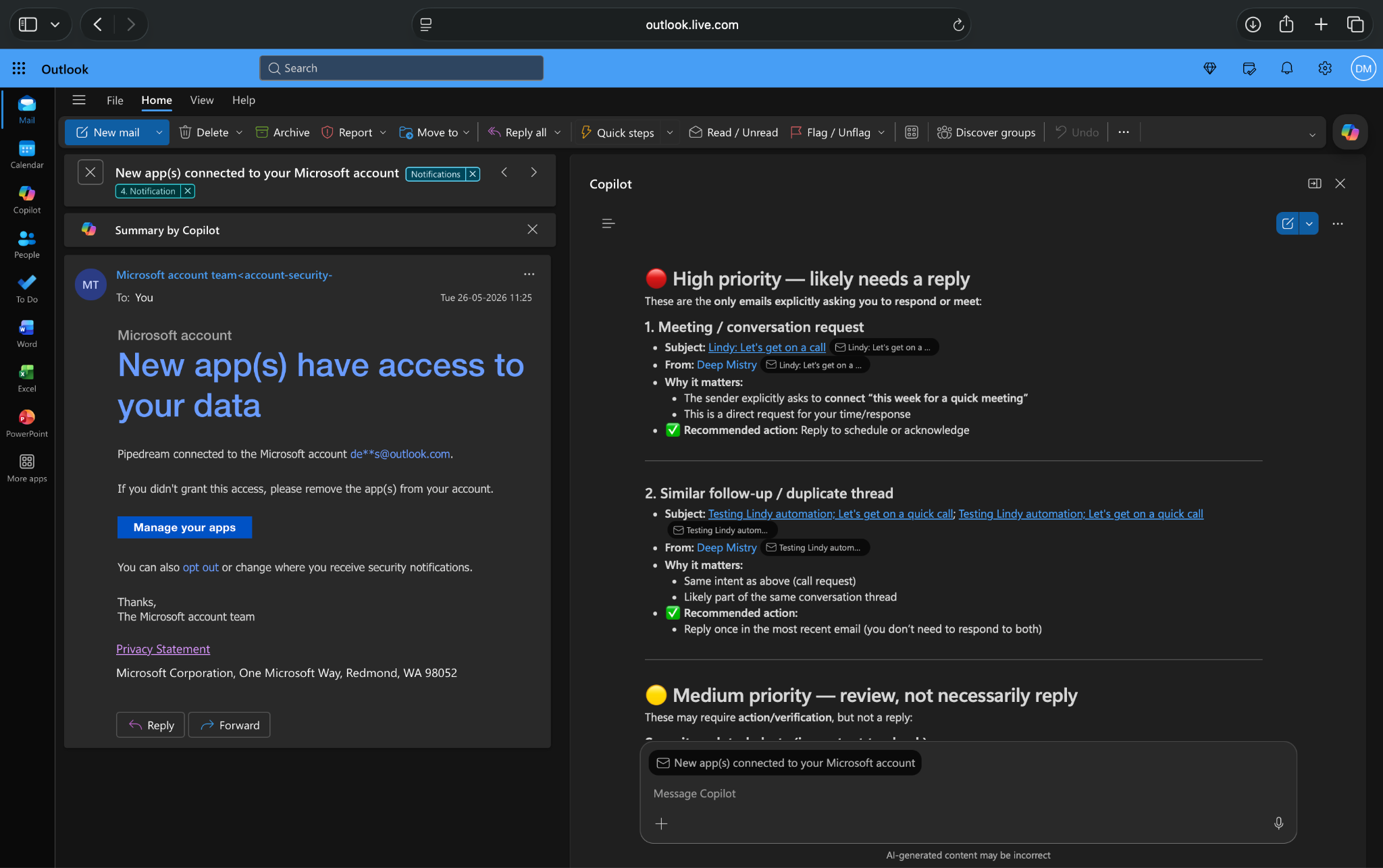
I use Copilot frequently to stay on top of my inbox. I don’t go through each email one by one. Instead, I ask Copilot to list down the most important emails that need immediate attention. It creates an accurate list sorted by priority.
Copilot presents them in three piles: high priority, medium priority, and low priority. It also creates a quick summary of the new emails, where I should focus my attention, and which ones I can ignore.
Drafting works brilliantly with Copilot. You can ask it about the email you want to write. Whenever I want to ask my colleagues for a meeting, I just give Copilot the context of the meeting and ask it to write an email for me.
Sometimes, I also instruct it to find free slots from my calendar, add it to my email draft, and let the recipients pick a time that’s convenient for them.
Copilot does all of these tasks in seconds, saving me a lot of time and effort. Without Copilot, I’d have to switch tabs to use another AI tool for drafting, check my calendar for the available time slots, and paste the final output in the Outlook mail.
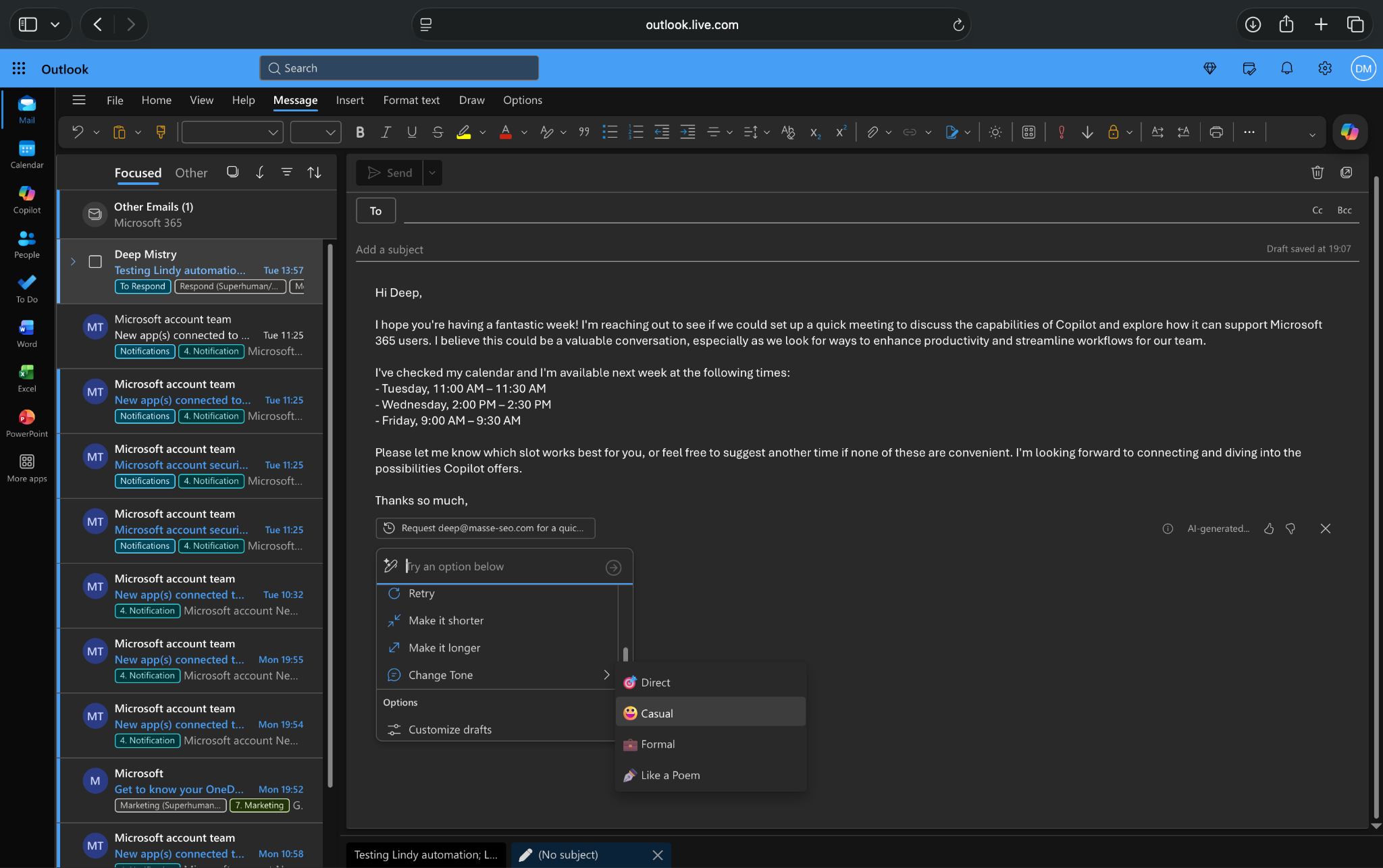
Once your draft is ready, you edit it, adjust the tone, or type in a custom instruction, asking Copilot to modify accordingly. For long threads with too many attachments and recipients, I use Copilot to get detailed summaries and key discussions with links to the source email.
However, Copilot isn’t perfect. If you need functionality outside Microsoft 365 apps, you’ll need another AI agent like Lindy. Also, Copilot isn’t free for Microsoft 365 users.
My biggest gripe after using Outlook for over a year is its busy interface with too many buttons, sidebars, tabs, and add-ins buried inside the menus. Copilot is super capable, but you’ll have to choose to use the Outlook app. And that, according to me, is a big ask, especially with clean email clients like Superhuman and Spark.
Key features
- Native AI agent inside Outlook and Microsoft 365 apps
- Natural language instructions for tasks like drafting, finding information, or retrieving calendar slots
- AI email summaries with source email links
- Lets you edit drafts by tone, length, or custom instructions
Pros
- Works well for email prioritization, summaries, and drafting
- Saves tab-switching between Outlook, calendar, and AI tools
- Uses Microsoft 365 context across email, calendar, and files
Cons
- Not available on the free Microsoft 365 plan, even for solo users
- Outlook’s busy interface can still feel cluttered
Pricing
- No free plan or trial
- Paid plans from $9.99/month, billed monthly, for individuals
2. MailMaestro: Best Outlook add-in for writing and summarizing emails
MailMaestro is an add-in for Outlook mail that uses ChatGPT and acts as an AI email agent inside your Outlook inbox. You can add it from the Microsoft Marketplace or from MailMaestro’s website.
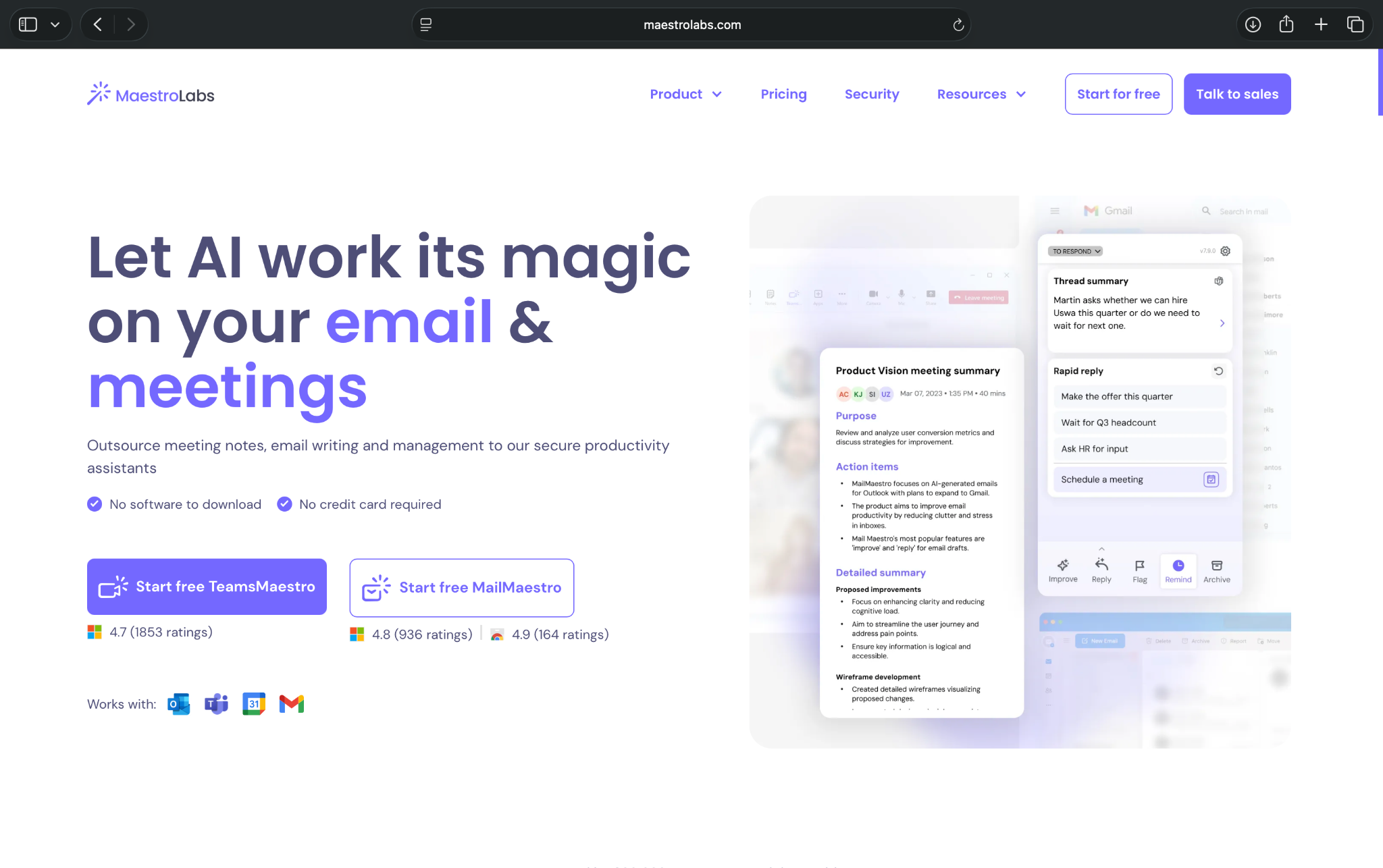
MailMaestro is easy to navigate and use. However, because of the poor user interface of Outlook’s web app, installing it and finding it when you need it the most is challenging.
It took me around 10 minutes to figure out where to find the add-in while composing or replying to an email. MailMaestro tries to guide you, but in my experience, Outlook’s layout after installing the add-in was nothing like MailMaestro’s guide.
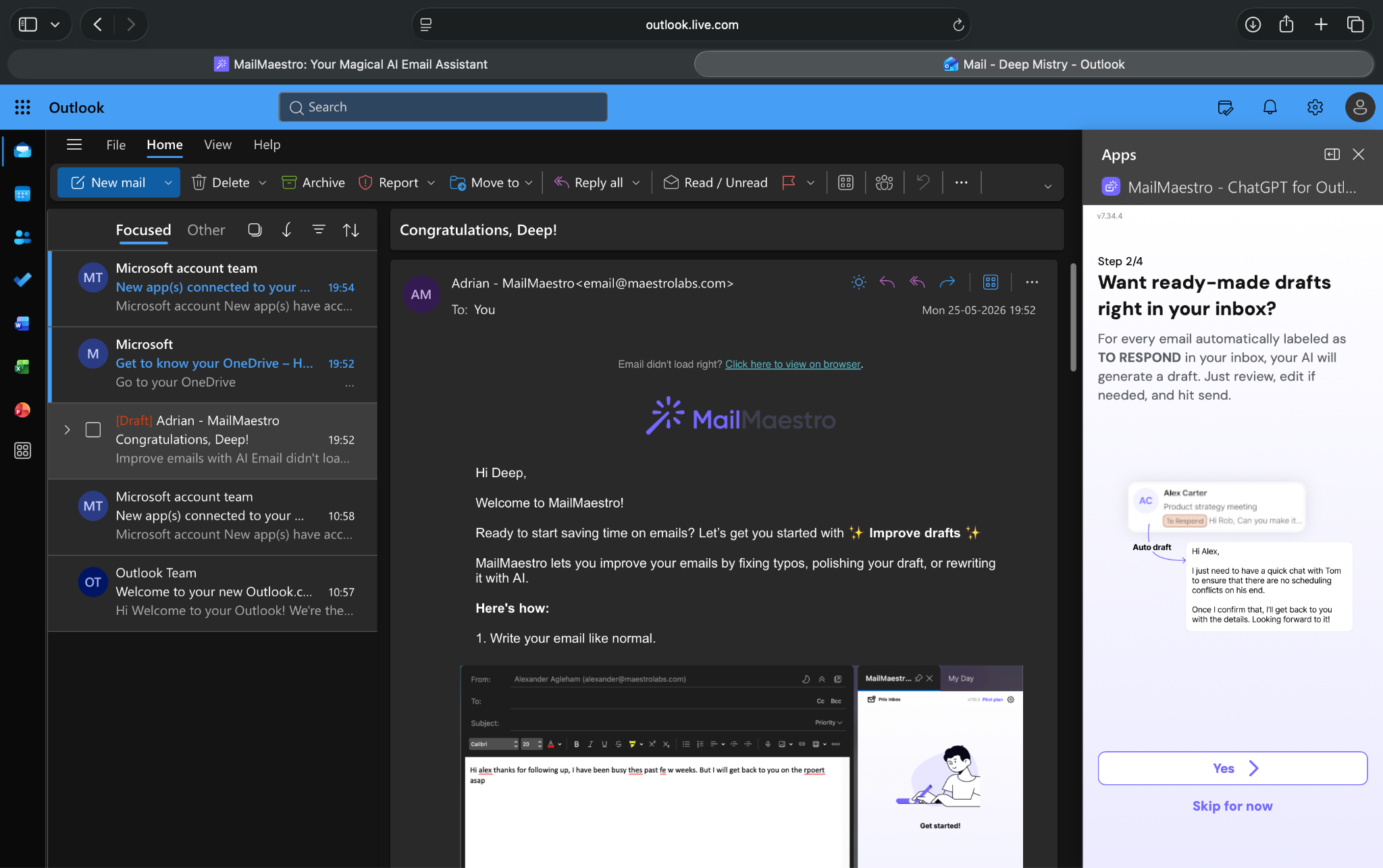
When I finally figured it out, I tried the AI to write an email about my struggles with Outlook to my teammate. You can prompt it in natural language, and it’ll understand the task. I typed a 2-line instruction, and it wrote a pretty convincing email for me.
I found it bizarre that MailMaestro cannot write the email directly inside the new mail window. It can, however, quickly paste the content to the Outlook window with a click of a button.
The first draft had obvious AI writing cues. I discarded it and asked it to make it sound more like me. It did that, and the result was usable. I quickly made a few edits and sent the email within 5 minutes.
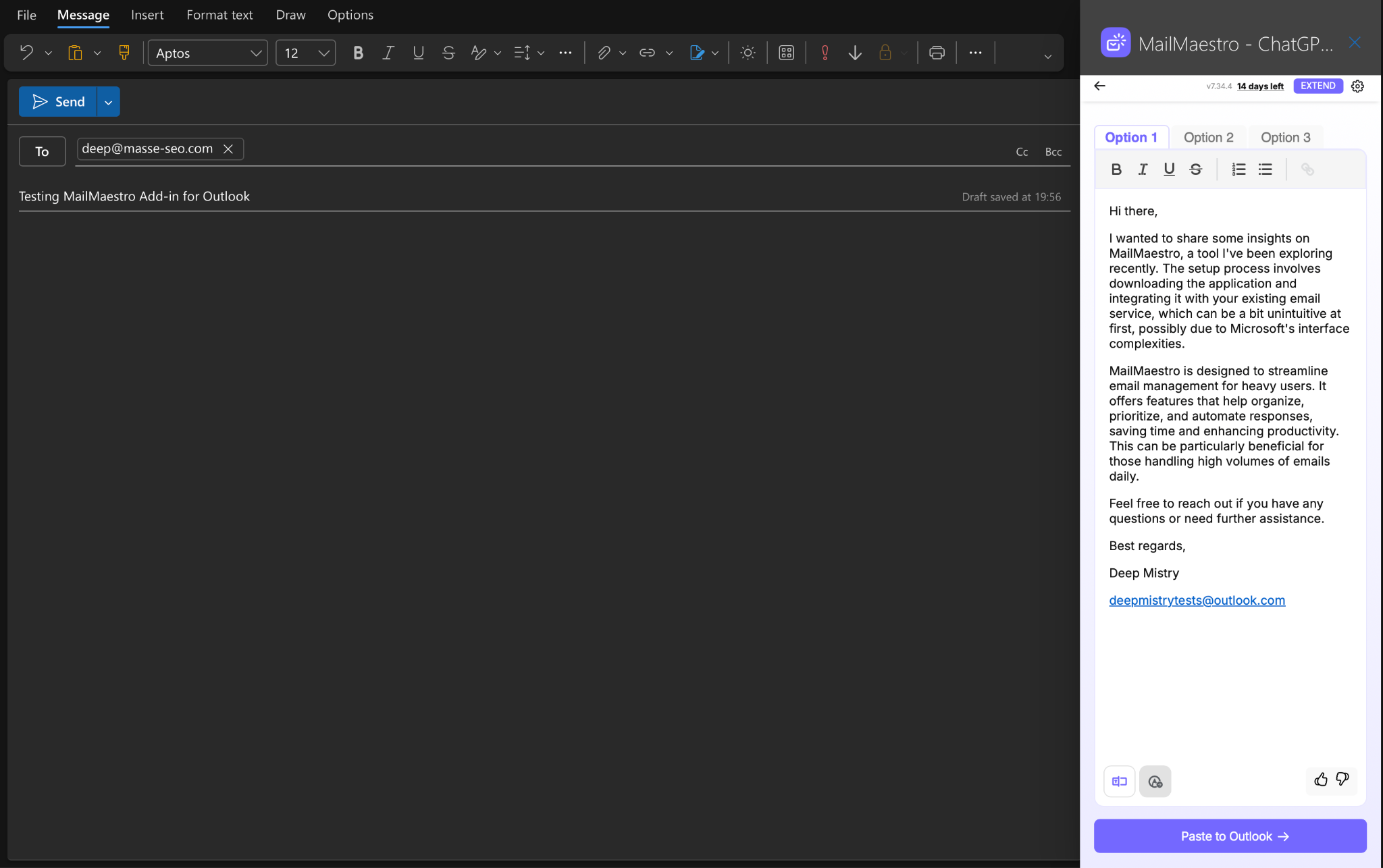
As I completed composing the email and closed the MailMaestro sidebar, I lost it again. I couldn’t figure out how to open that sidebar again.
Finally, I clicked an email from my inbox, searched the action icons at the top, and found an Apps icon. I clicked it. That’s where I found the MailMaestro add-in icon. And when I clicked it, it opened a couple of extra tabs to help me log in with my Outlook mail, again. Phew!
The entire experience of adding AI assistance inside Outlook is tiring and unintuitive.
I don’t blame it on MailMaestro, as I’ve used it for Gmail. There, it works flawlessly. Outlook is the culprit here, making easy steps unnecessarily complicated.
MailMaestro works well for simple email writing and improving tasks. It won’t magically sort your inbox, prioritize important emails, or automate replies. It offers light AI assistance inside Outlook for casual and light email users.
Key features
- Compose emails with natural language instructions
- Improve emails using AI for different writing styles and tones
- Customizable and easy-to-create templates for frequent emails
- Ask AI, where you can chat about your emails
- Automatically detects meeting requests and cross-checks with your calendar
Pros
- Quick-to-install add-in inside Outlook and not a separate app
- Easy to use, with a clean interface
- Good at summarizing long email threads
Cons
- Too basic for power users who deal with hundreds of emails
- No automation, you need to prompt it every time you need assistance
Pricing
- Free plan with limited, basic capabilities
- Paid plans from $15/seat/month, billed monthly
3. Lindy: Best AI email agent for email and follow-up tasks across apps
Lindy is an AI email agent you can text in plain English to handle your everyday email tasks. It suits non-technical, busy professionals who need help sorting, replying, and prioritizing their emails.
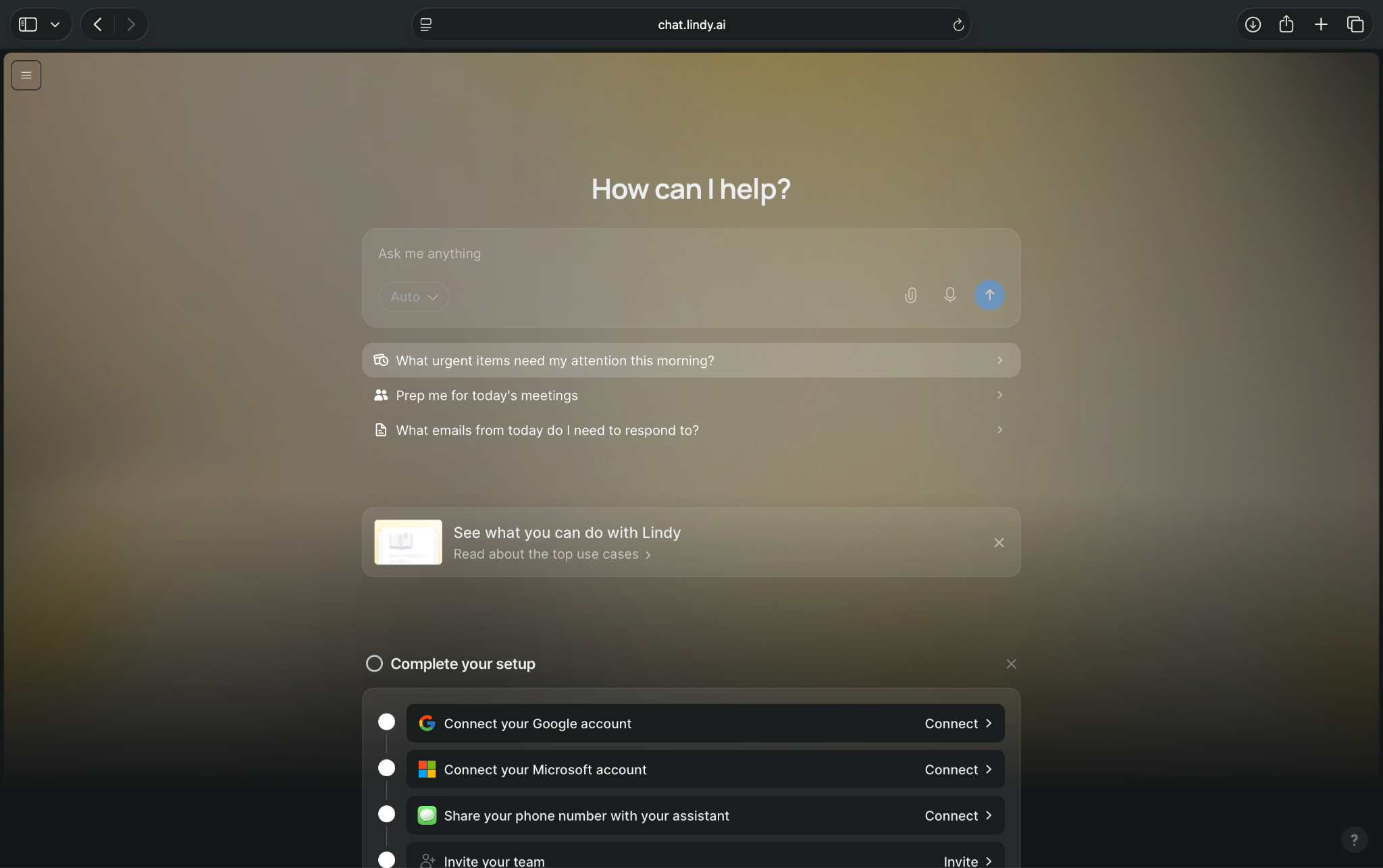
Getting started with Lindy is straightforward. You log in with your email, enter the card details for a 7-day free trial, and that’s it. You can use all the features of the Plus plan for 7 days to get a good idea of the capabilities.
Lindy prompts you on the home page to connect different email accounts, Gmail and Microsoft, as it connects with them easily.
Once you do that, you can simply ask Lindy what you want it to do in the chat window on the home page. Or you can pick ready-to-use skills by selecting “New workflow” under the “New chat” button.
Lindy has plenty of ready-to-use skills for email tasks, so I went down that path. It’s easier and quicker for common tasks like inbox triage, reminders, and more.
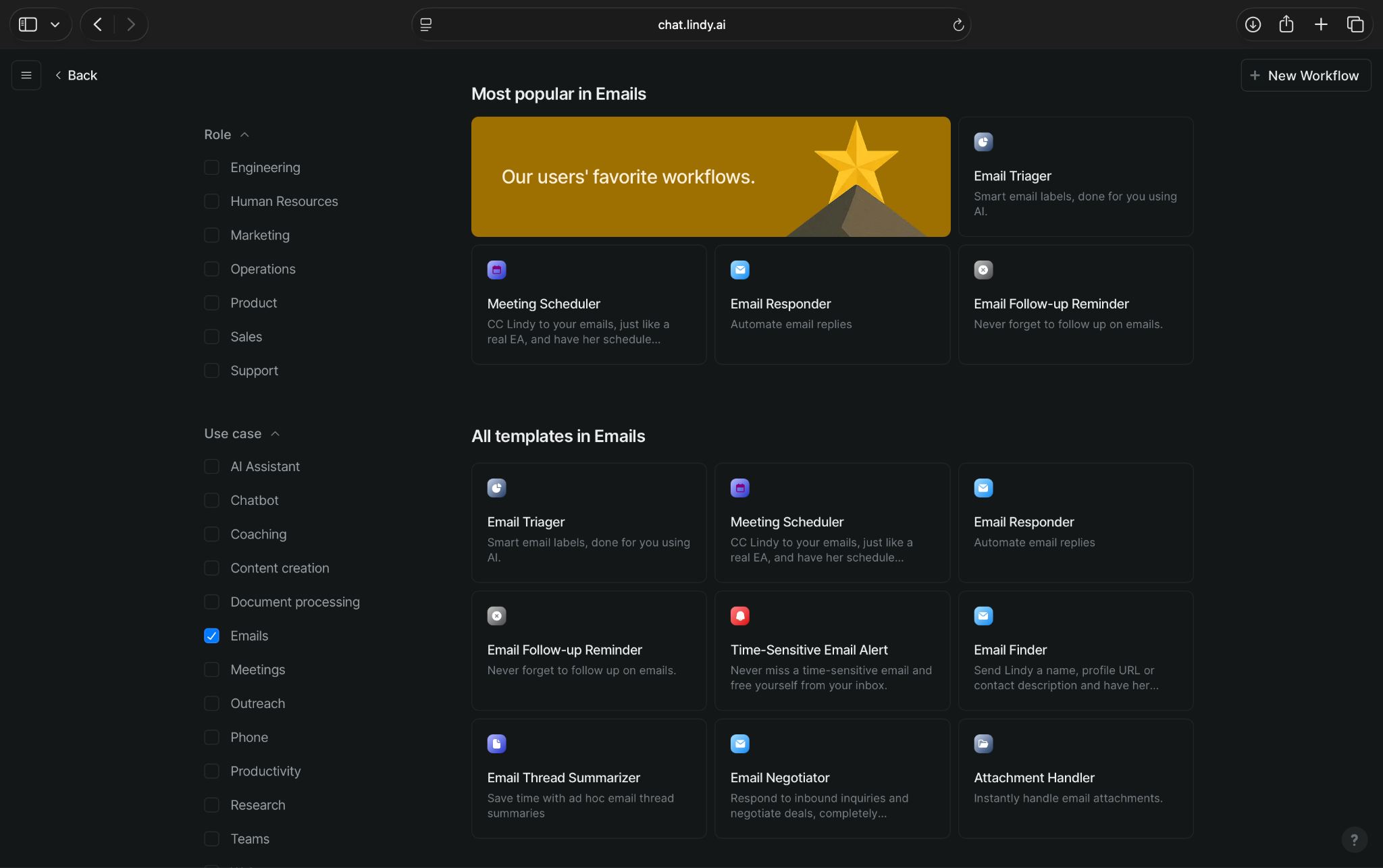
I selected the Email Responder skill and launched it. However, I realized it comes with Gmail connection and not Outlook. So, I asked Lindy to modify the workflow for Outlook instead of Gmail.
It did it in seconds, removed all instances where it needed Gmail integration, and replaced them with Outlook. After it completed the modifications, it asked me to connect my Outlook account.
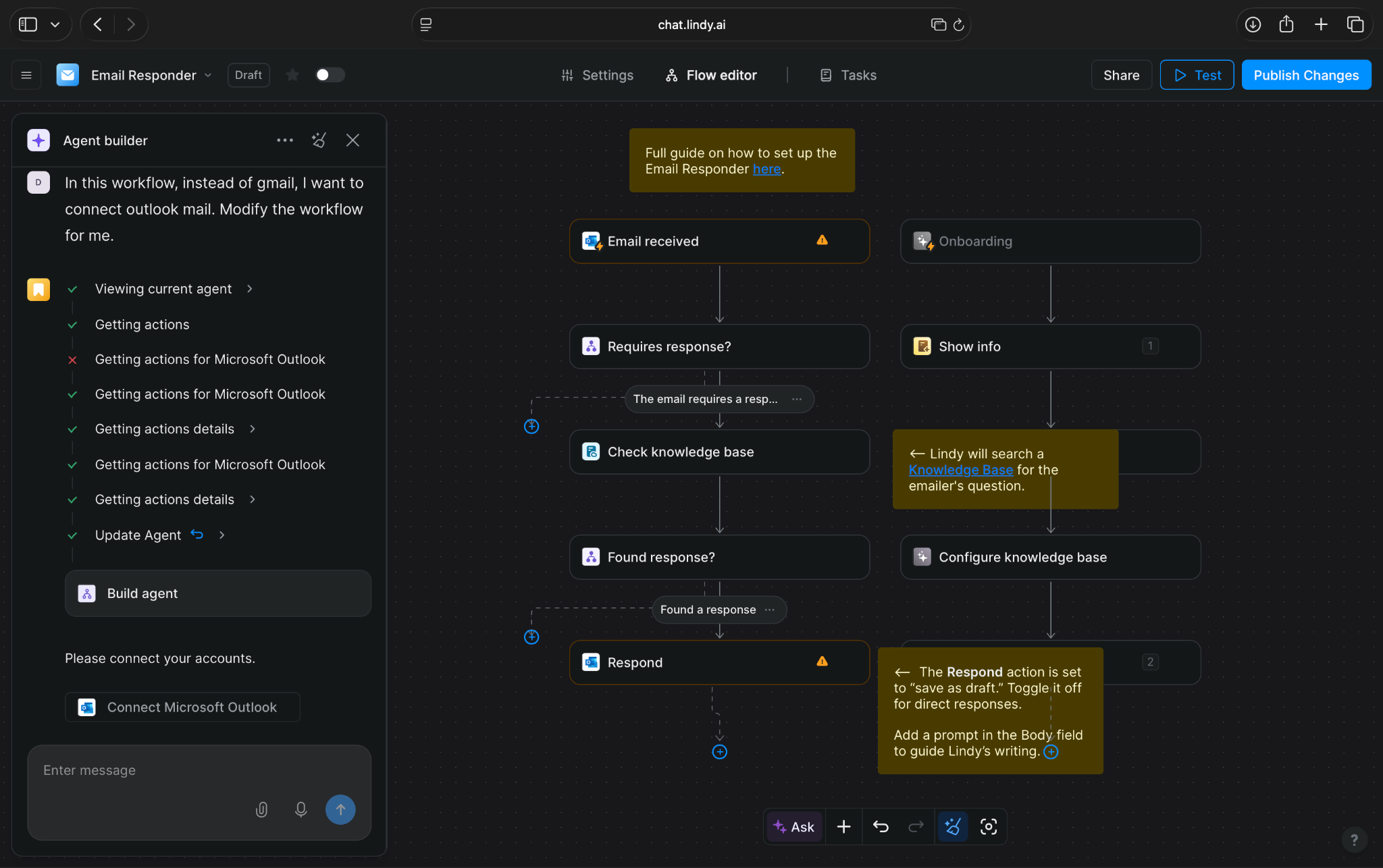
After the setup and connections were complete, I sent an email from my other email account to my Outlook mail, requesting a meeting to discuss Lindy’s automation capabilities. I then went back to Lindy to test how it reacted to this incoming email.
After tinkering with the skill to make it respond well to meeting proposals, I finally tested it for the email I sent proposing a quick call. As soon as my email hit the inbox, it triggered Lindy’s Email Responder.
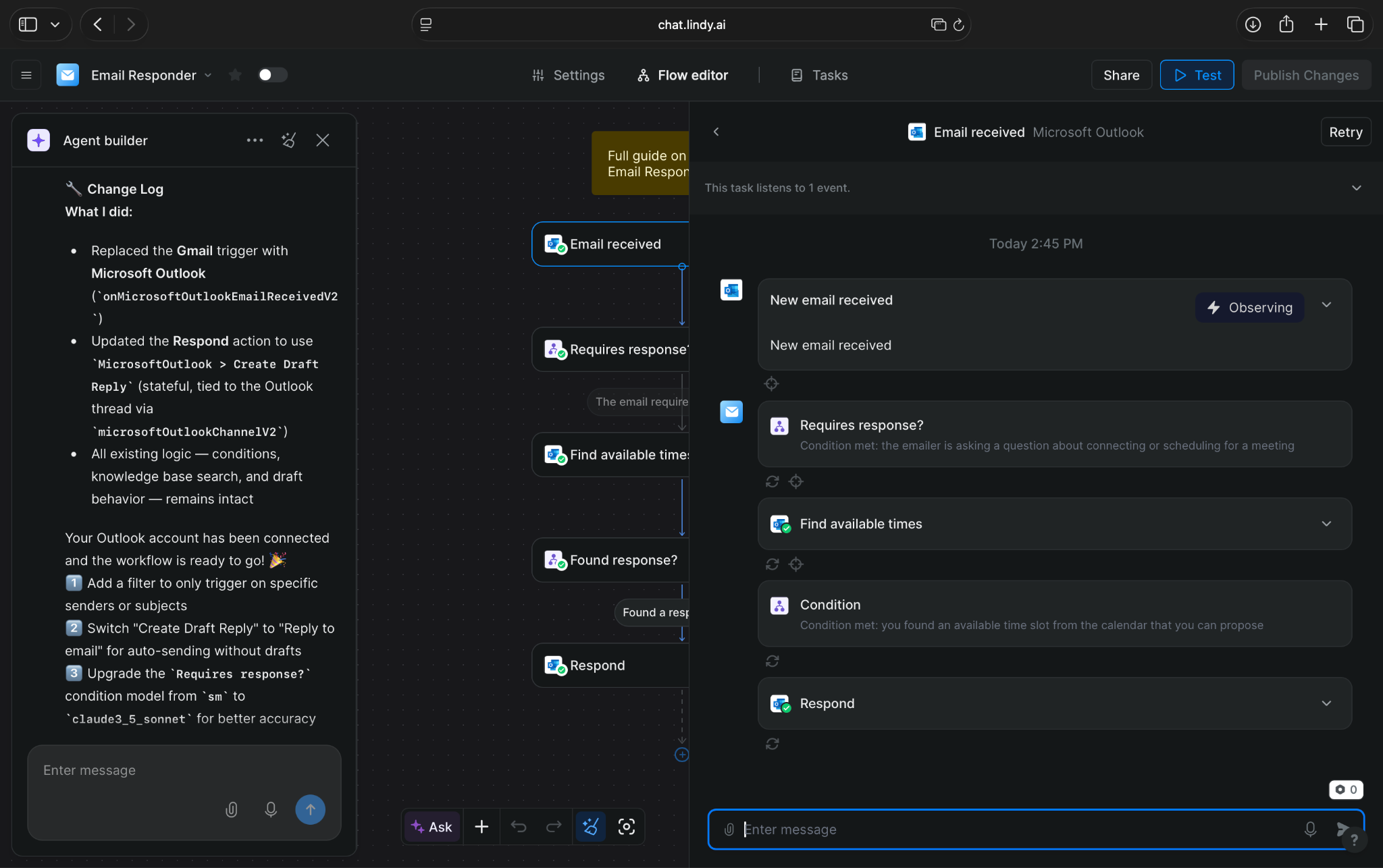
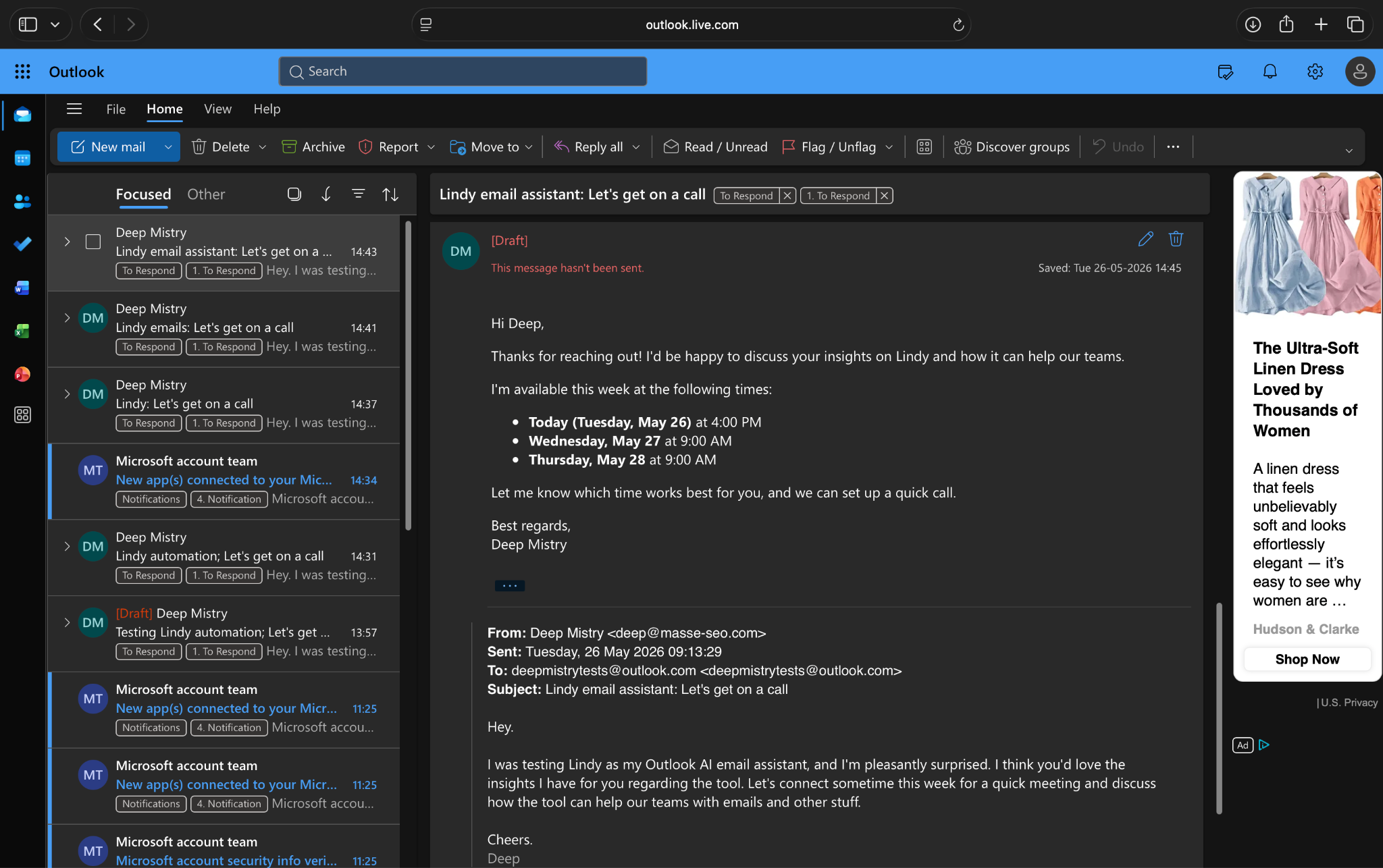
Lindy completed its workflow. I then went to my Outlook inbox and found a ready-to-send draft that I could edit before sending. Lindy replicated my writing style quite well, suggested the right calendar slots, and saved me a lot of back-and-forth.
You can also set up Lindy to automatically send replies to incoming emails without your approval. For meeting requests or reminder emails, automated replies can save a lot of time and headspace.
For emails containing large documentation, feedback loops, product discussions, and other important attachments, you can ask Lindy to seek approval for the draft before sending.
If you’re using Lindy for the first time, you’ll have to adopt the trial-and-error approach to figure out the right setup for your tasks. It took me around 15 minutes and ~400 credits to nail the Email Responder skill for Outlook, well within the trial limits but worth it for experimentation.
Also, your asks must be clear for Lindy. If you vaguely ask Lindy to respond to every incoming email in the best way possible, it’ll do a poor job. Sometimes, it won’t even respond because you haven’t defined the actions clearly.
Key features
- Ask Lindy to handle tasks in plain English via text
- Works across email, text, and voice channels
- Hundreds of integrations with everyday apps
- SOC 2, HIPAA, GDPR, and PIPEDA compliance for regulated industries
- Easily add human approval before sending any sensitive emails
Pros
- Easy to use with a clean interface
- No technical skills or complex setup needed
- Quick onboarding with ready-to-use skills
- Can take action across your apps and reduce tedious tasks
Cons
- Complex tasks burn credits quickly
- Needs a few trial-and-error attempts to nail the perfect workflow
Pricing
- A 7-day free trial with all the capabilities of the Plus plan
- Paid plans from $49.99/month, billed monthly
{{templates}}
4. Shortwave: Best AI inbox for a simple, clean, and focused setup
Shortwave uses AI to sort emails, draft replies, and manage your calendar. Based on your preference, it’ll split your inbox into different layouts.
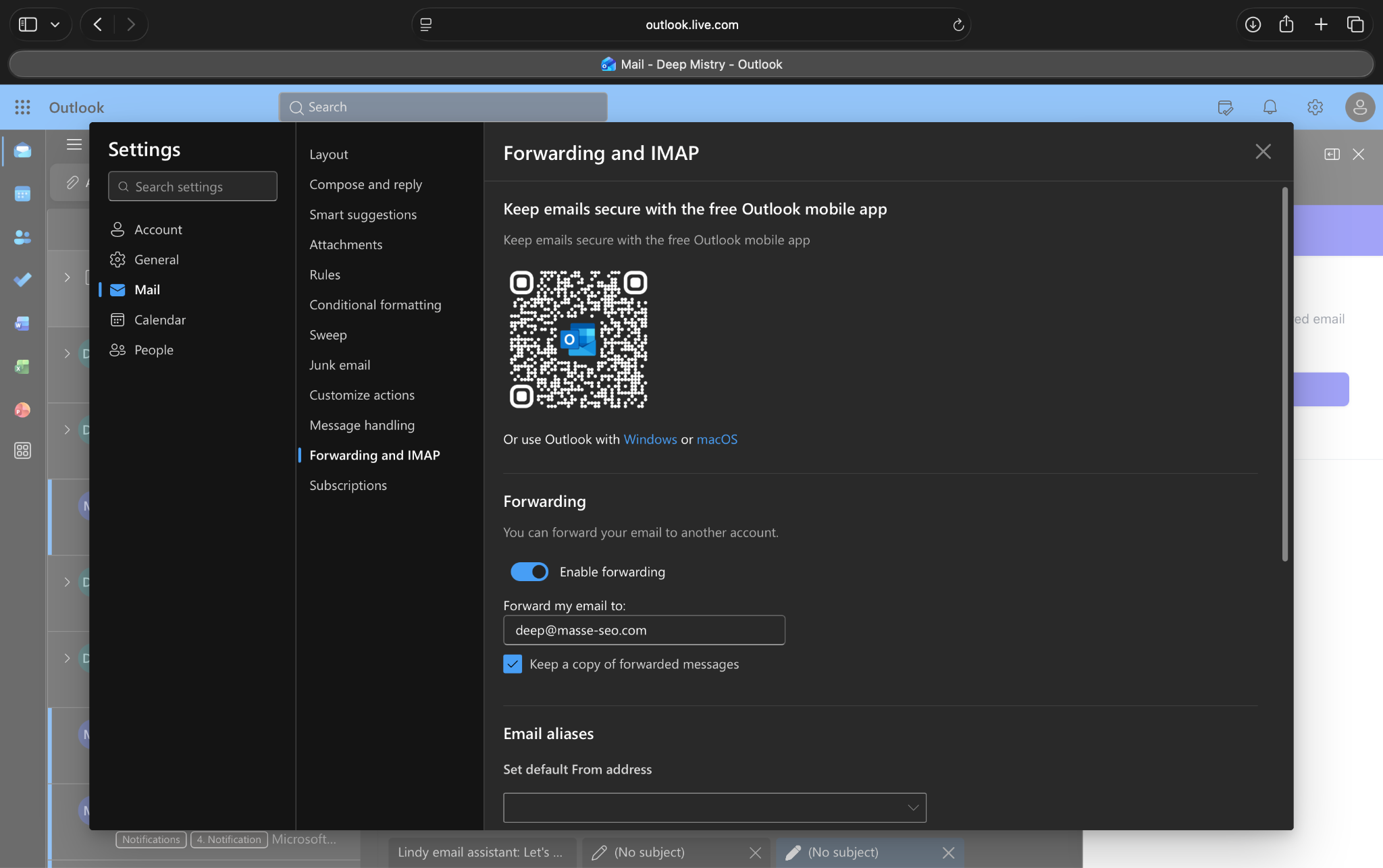
For Outlook users, native compatibility is still under work. However, I figured out a workaround for this. I set up email forwarding on my Outlook to forward all my emails to the Gmail connected with Shortwave.
I then configured my Gmail to send emails from my Outlook account. It takes a bit of time and effort, but you can send and receive Outlook emails in your Shortwave inbox.
I asked Shortwave to divide all my emails into two categories: Important and Other. It neatly sorted the important emails, like verification emails, Slack mentions, and other emails that needed my attention.
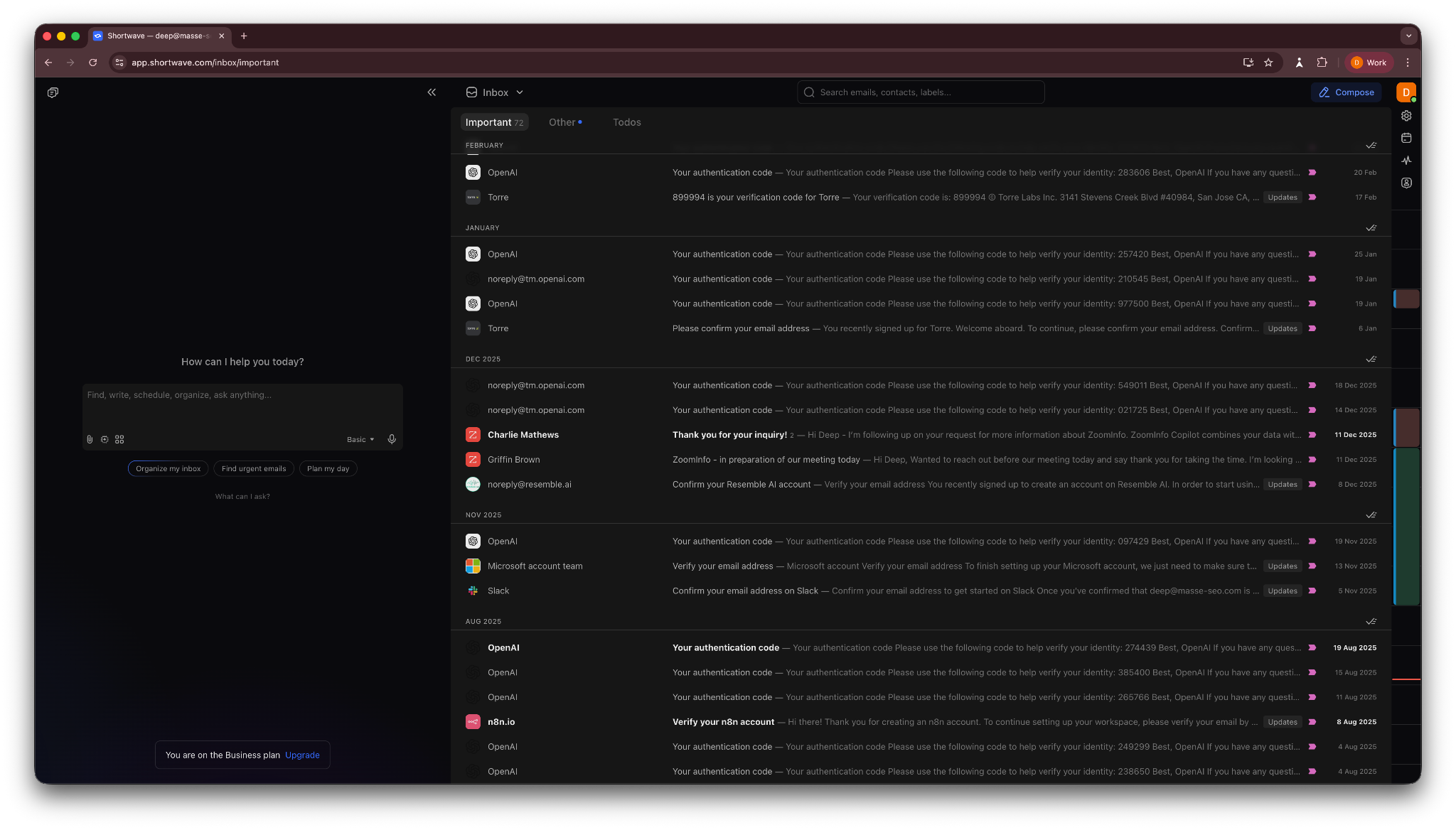
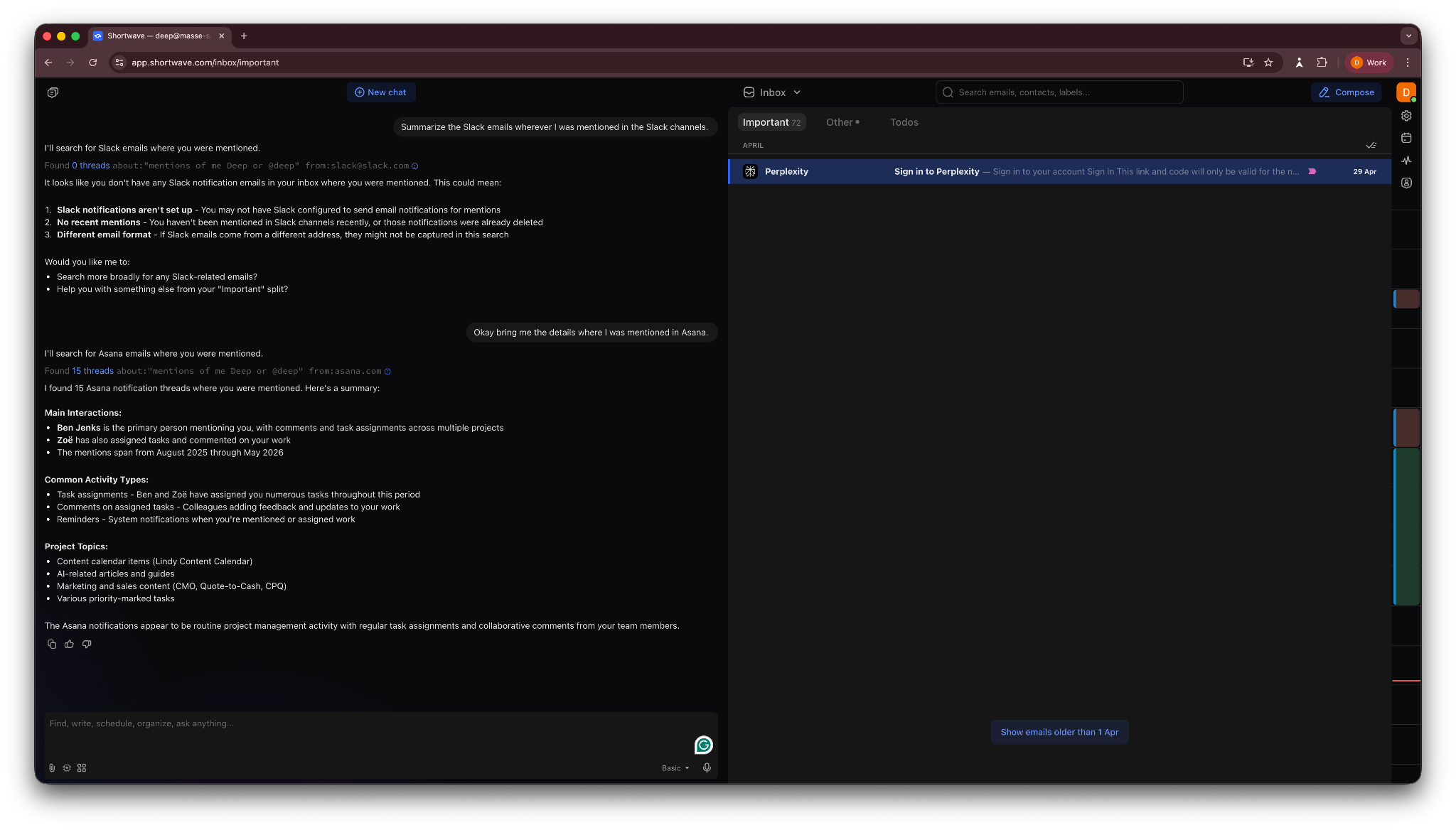
I then asked the AI inside Shortwave to find Slack email notifications about my mentions. Because I’ve disabled Slack notifications via email, it didn’t find any. I wanted to check if it confused other Slack emails with mentions. And it didn’t.
So, I added another follow-up question. I wanted the details of my recent Asana mentions. Shortwave found those with ease, giving me context and names of teammates who mentioned me.
I also tried the AI draft feature to write an email quickly. I provided Shortwave AI with the topic of discussion for the email and the recipient, and hinted where I wanted the conversation to head. It wrote the email for me in 30 seconds.
The first draft was surprisingly good. Shortwave analyzed the previous emails, pulled context from my connected apps, and studied my writing style to draft an email in my writing style.
Shortwave does offer a free tier. Also, the app feels like a normal inbox with AI as an afterthought. It’s just like a Gmail window, which is a good thing, but the AI part feels slightly lacking.
If it had some automation capabilities and native Outlook integration, it could have been the best Outlook AI email agent for solo users.
Key features
- AI search to find information and context around emails
- Gives you the read status of emails
- Split inbox that sorts emails based on their content and importance
- AI chat that lets you ask anything about your inbox
- Compose first drafts using the built-in AI
Pros
- Clean and looks just like a normal email inbox
- AI features work well and are quick
- Almost no learning curve for solo professionals
- Helps you find and reply to priority emails quickly
Cons
- Limited AI capabilities that feel like an afterthought
- No direct Outlook mail integration as of now
Pricing
- A free plan for individuals with basic AI features
- Paid plans from $18/seat/month, billed monthly
5. Superhuman Mail: Best Outlook email client for speed and inbox control
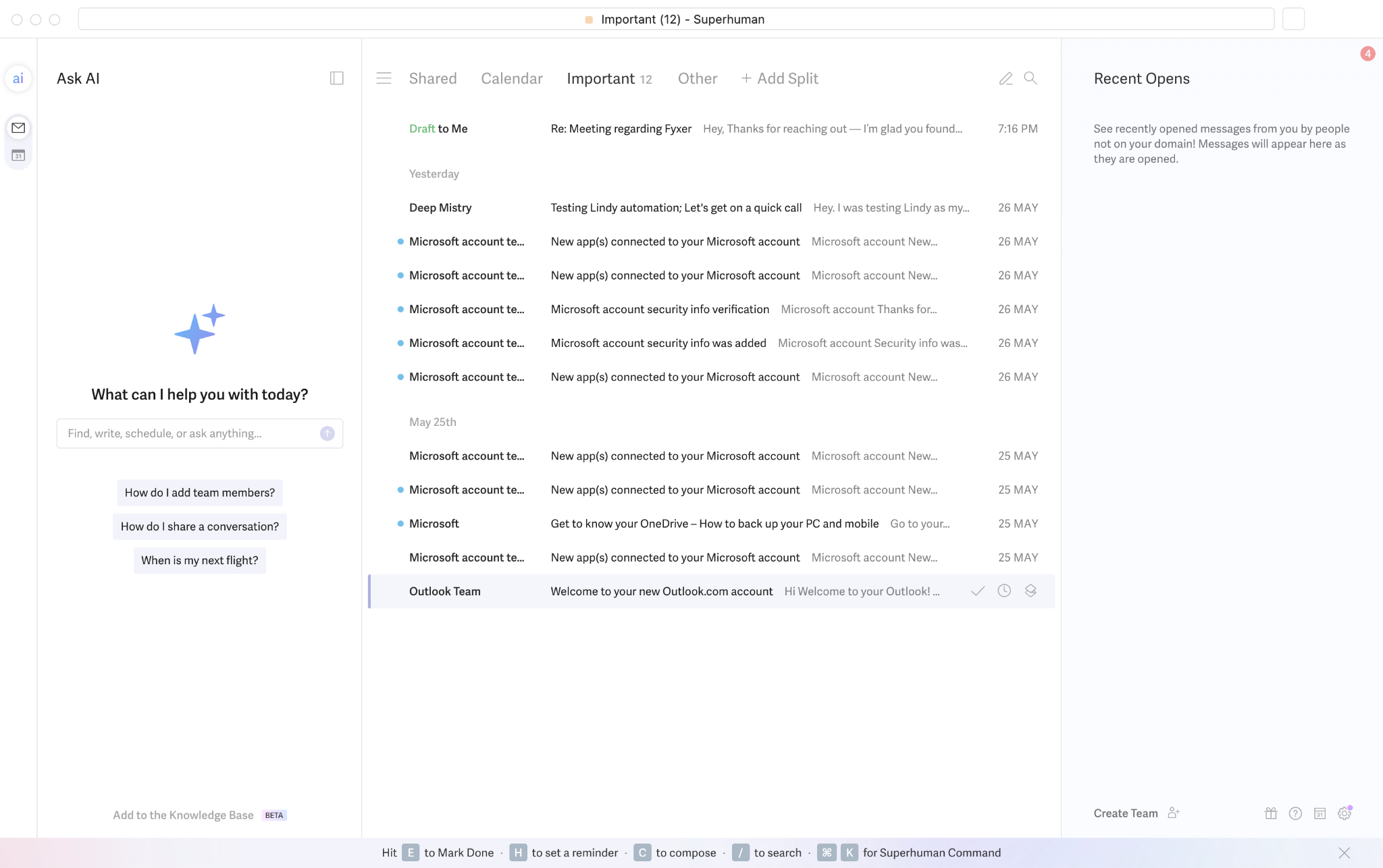
Superhuman Mail is an email client that has AI capabilities built in for a quick, easy, and clutter-free inbox experience. It natively connects with Outlook and brings all your emails into its app, so you no longer need to use the (messy) Outlook web or desktop app.
You won’t find a free tier or trial listed on their website or pricing page. But if you search for its free trial on Google, you may find a one-month free offer. That’s how I got to try Superhuman mail. However, it’ll still ask you for your card details.
Anyway, once you sign up and download the app, it’ll ask for the permissions to access your inbox, emails, calendars, and other aspects of your profile. Then, you go through a detailed guide on how to use the app, all the keyboard shortcuts, and AI capabilities.
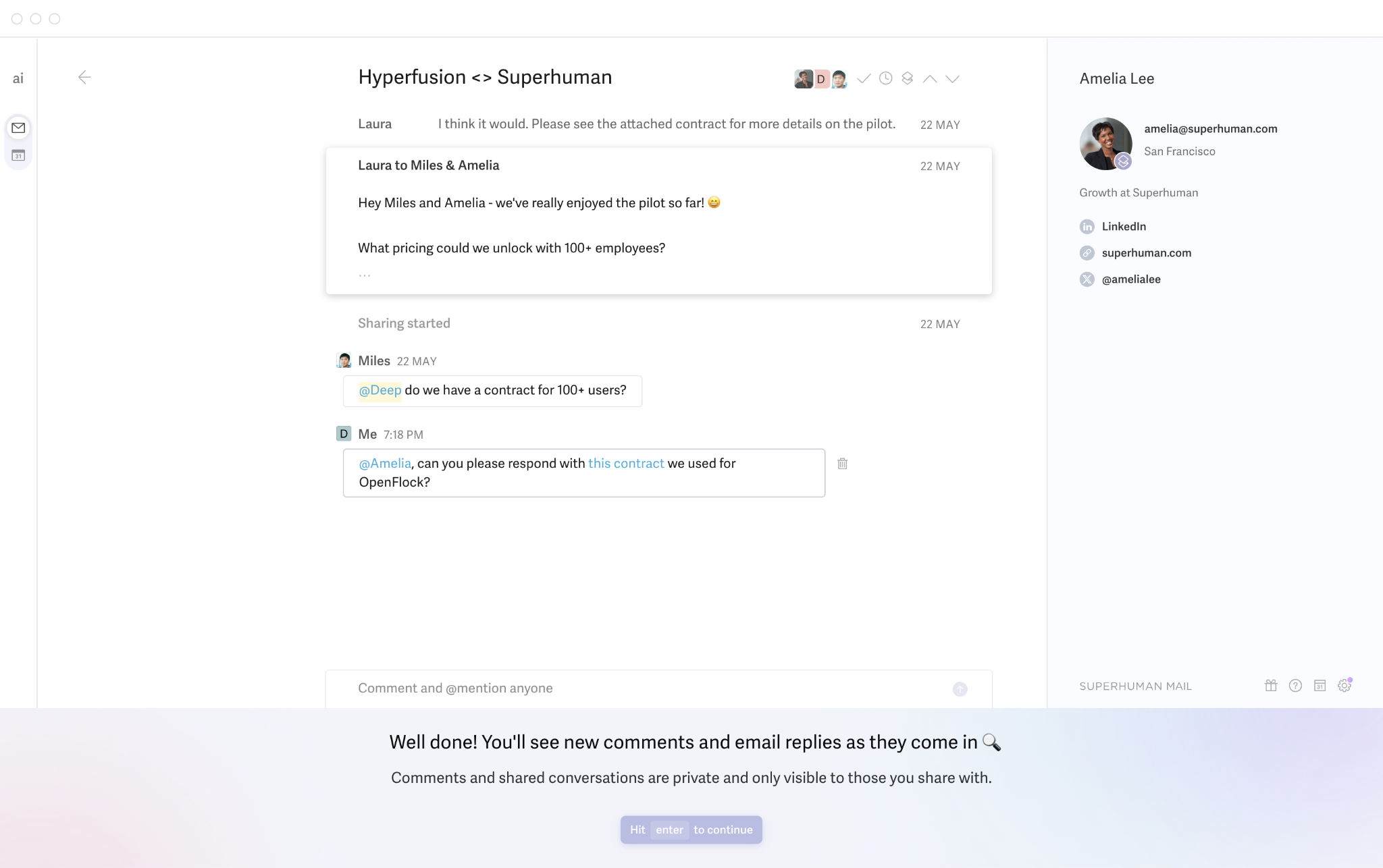
The keyboard shortcuts are quick and intuitive, and genuinely save time. Once you get used to them, it’s hard to go back to old ways of using email.
Superhuman splits the inbox into three sections by default: Shared, Calendar, and Important. You can add more splits if you like. These three worked for me. Shared has all the emails where you are collaborating with your teammates, while Calendar has the invites.
I had plenty of emails that I’d read and responded to. They were no longer needed in my inbox as they’d become unnecessary clutter. Superhuman lets you move them to “Done”. You just press “E”, and the email is moved to “Done”. You can then revisit “Done” by pressing “G”, quickly followed by “E”.
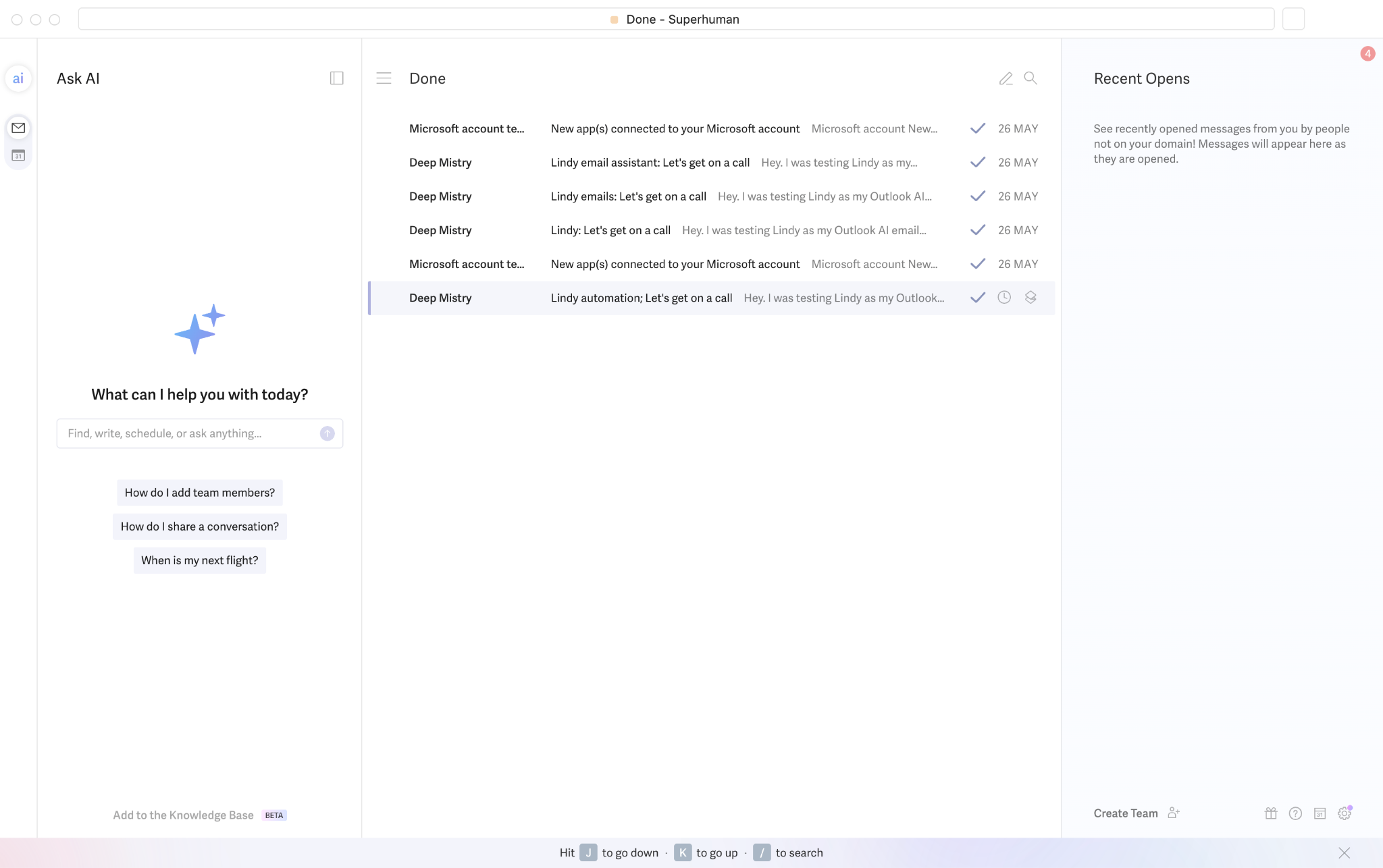
There are plenty of such shortcuts to snooze email, reply later, set reminders, and more. Even for searching emails or accessing different split categories, you use shortcuts for quick navigation.
After a few days of use, I realized Superhuman genuinely reduces the mental clutter that comes with email inboxes.
The AI search is super helpful, too. I asked it to find emails asking for meetings or inviting to events, and it clearly highlighted the ones that did that. It then asked me whether it should draft a reply to the meeting request that seemed urgent. If you want to streamline automated responses even further, using a dedicated ai email assistant can save you additional time.
However, Superhuman is not for everyone. If you do not receive many emails each day, or you are already comfortable managing your Outlook inbox manually, paying $30/month is hard to justify. And for the price, it doesn’t connect with your other apps or perform actions. If you are evaluating executive assistant options alongside email clients, comparing superhuman email vs fyxer can help you choose the right solution.
It is a premium tool, and its value depends on how much of your time email tasks take up and how important email is to your work.
Key features
- Split Inbox to separate important emails, newsletters, team updates, and other message types
- AI writing features like Write with AI, Instant Reply, and Auto Summarize
- Auto Drafts that can prepare replies before you open the email
- Ask AI to search and answer questions from your inbox
- Keyboard shortcuts for moving through email quickly
- Read statuses, scheduled send, snippets, reminders, and snooze
Pros
- Fast and polished email experience for people who spend hours in their inbox
- Keyboard-first workflow saves time once you learn it
- Good scheduling and follow-up features built into the inbox
Cons
- Expensive compared to most Outlook AI email agents
- May feel like overkill if you only need basic AI email drafting
Pricing
- No free plan or trial listed on their website
- May get a one-month free offer that needs card details
- Paid plans from $30/user/month, billed monthly
6. Spark: Best clean inbox with AI features
Spark is an email client that brings all your Outlook emails into its inbox and lets you manage them easily and quickly. It’s not a web app, so you need to download a desktop app. Outlook connects natively with Spark, but you must enable POP and IMAP.
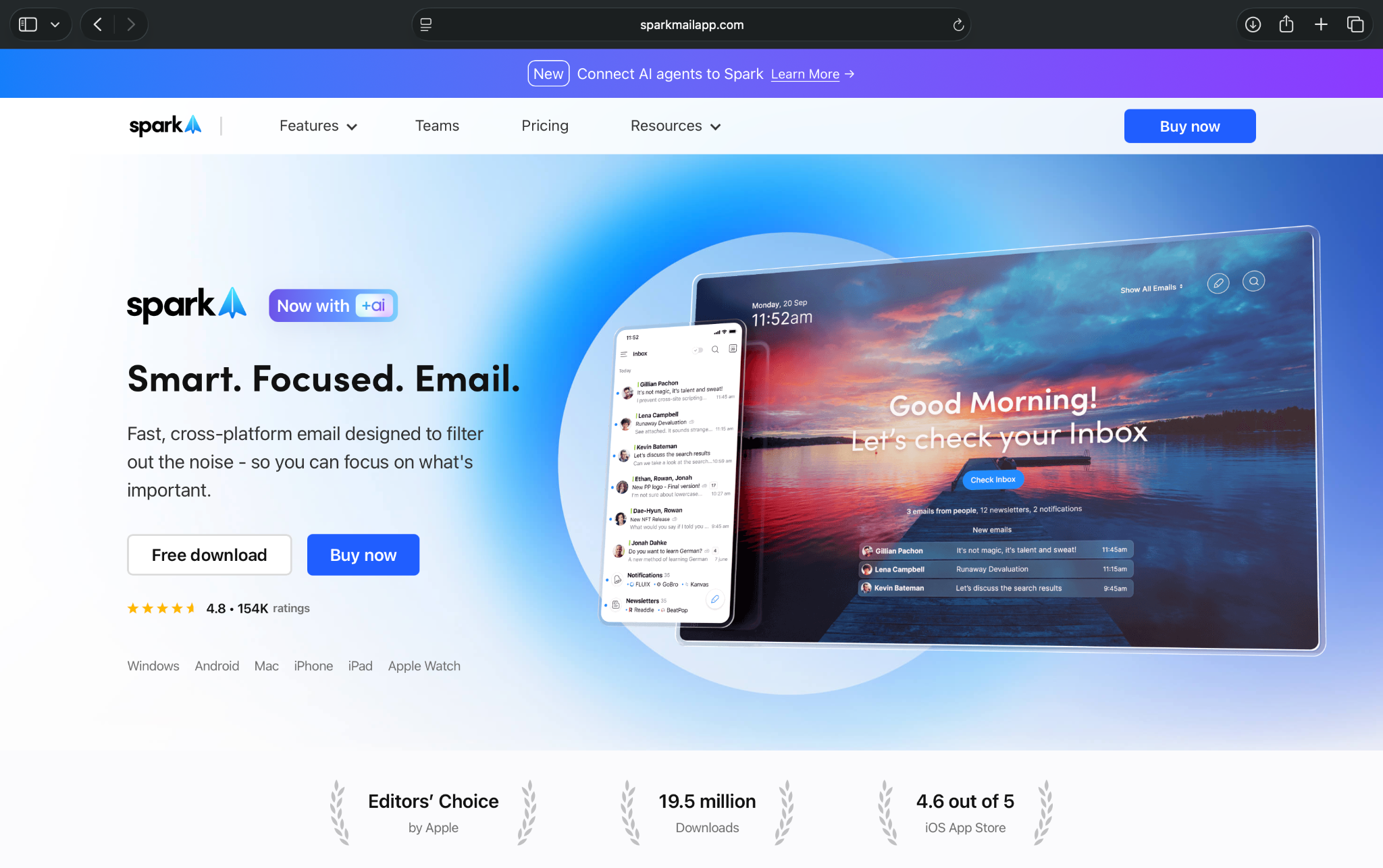
As soon as you download the app and connect your Outlook mail with Spark, it lets you customize your inbox based on your preferences. You choose the layout of your inbox, what kind of filtering you prefer, and many other things that make your email time feel less like pain.
You can also enable a home screen that keeps you from getting distracted. I set my home screen to summarize my inbox at 9:00 AM and 6:00 PM every day. When I open my inbox in the morning and log off in the evening, I get a summary of all the important emails.

I had received a few emails from my colleagues asking me for my time to discuss email tools. I hadn’t responded to them as I was testing different AI Outlook email agents. When I opened that email in Spark, it let me select that email as “Interested”, “Not interested”, or “Thanks”.
I was interested in that email, so I clicked “Interested”. Spark’s AI asked me if I wanted to add some extra details. I texted what I wanted to add, and it drafted a complete email reply to that email, ready to be sent within seconds.
Once Spark generates a draft, you can edit it using AI. It gives you quick options like rephrase, shorten, expand, and proofread. I found the draft okay, so I didn’t try those.
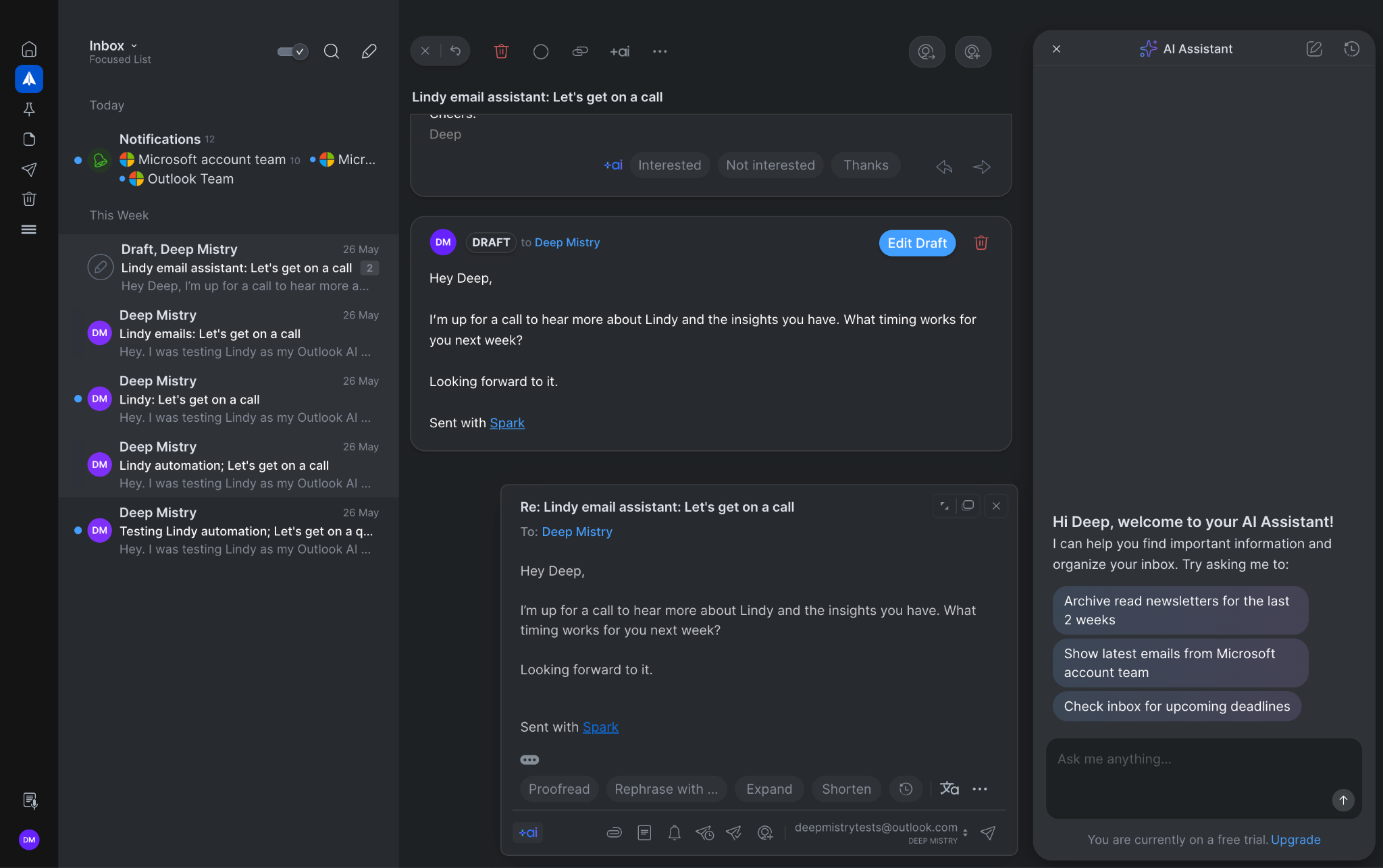
There’s also an AI agent, neatly tucked away in the bottom right corner of the screen. It’s not intrusive and doesn’t scream that it’s an AI tool. I liked that.
The free plan is also a positive. For solo users, it works just fine and helps you move away from the Outlook inbox to a much cleaner and user-friendly interface. My only gripe is the lack of AI features on the free plan. You only get an AI agent and nothing else.
Also, it’s not as quick as Superhuman. But it’s a great alternative if you find Superhuman too expensive and want a similar tool for your email bottlenecks.
Key features
- Smart Inbox to group emails by priority, newsletters, notifications, and sender type
- Home Screen that summarizes your inbox at set times during the day
- AI reply options like “Interested,” “Not interested,” and “Thanks” for faster responses
- AI writing tools to draft, rephrase, shorten, expand, and proofread emails
- Meeting notes and scheduling for meeting-heavy users
Pros
- Cleaner and calmer than the default Outlook inbox
- Good alternative if Superhuman feels too expensive
- Easy to personalize the inbox layout, filtering, and Home Screen
- Free plan works well for solo users who mainly want a better inbox interface
Cons
- Not as fast or polished as Superhuman for high-volume email users
- Limited AI features on the free plan
Pricing
- Free plan with limited AI features
- Paid plans from $10/user/month, billed monthly
7. Fyxer: Best for inbox cleanup, email drafts, and meeting notes
Fyxer is an AI email sorting agent that categorizes emails based on the preferences you set. It gives you complete control over the kind of emails that stay in your inbox and the ones that get pushed out of it to keep it clutter-free.
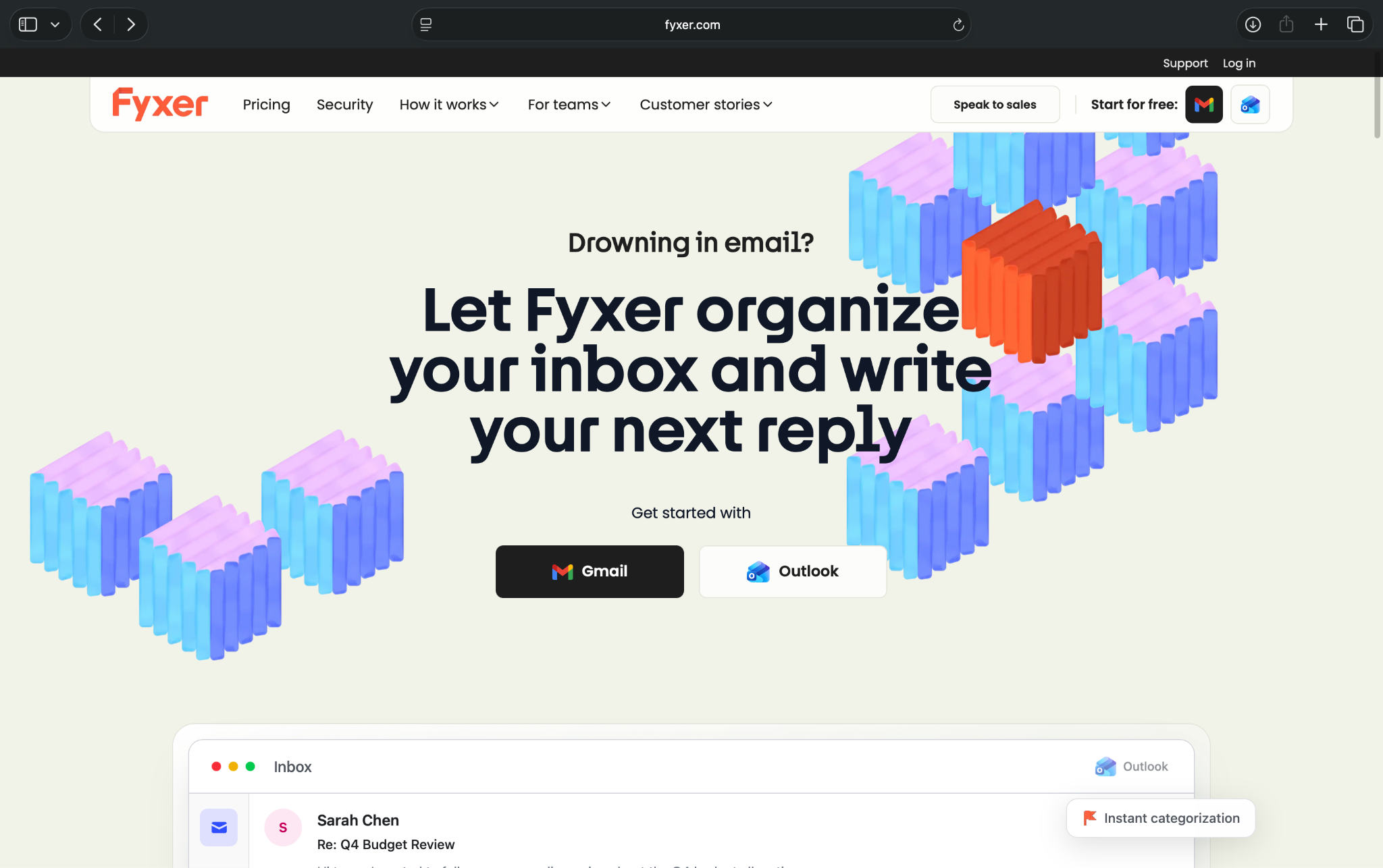
As soon as you sign up, you get a 7-day free trial without giving away your card details. Use Gmail or Outlook to sign in, connect your inbox and calendar, and you’re good to go.
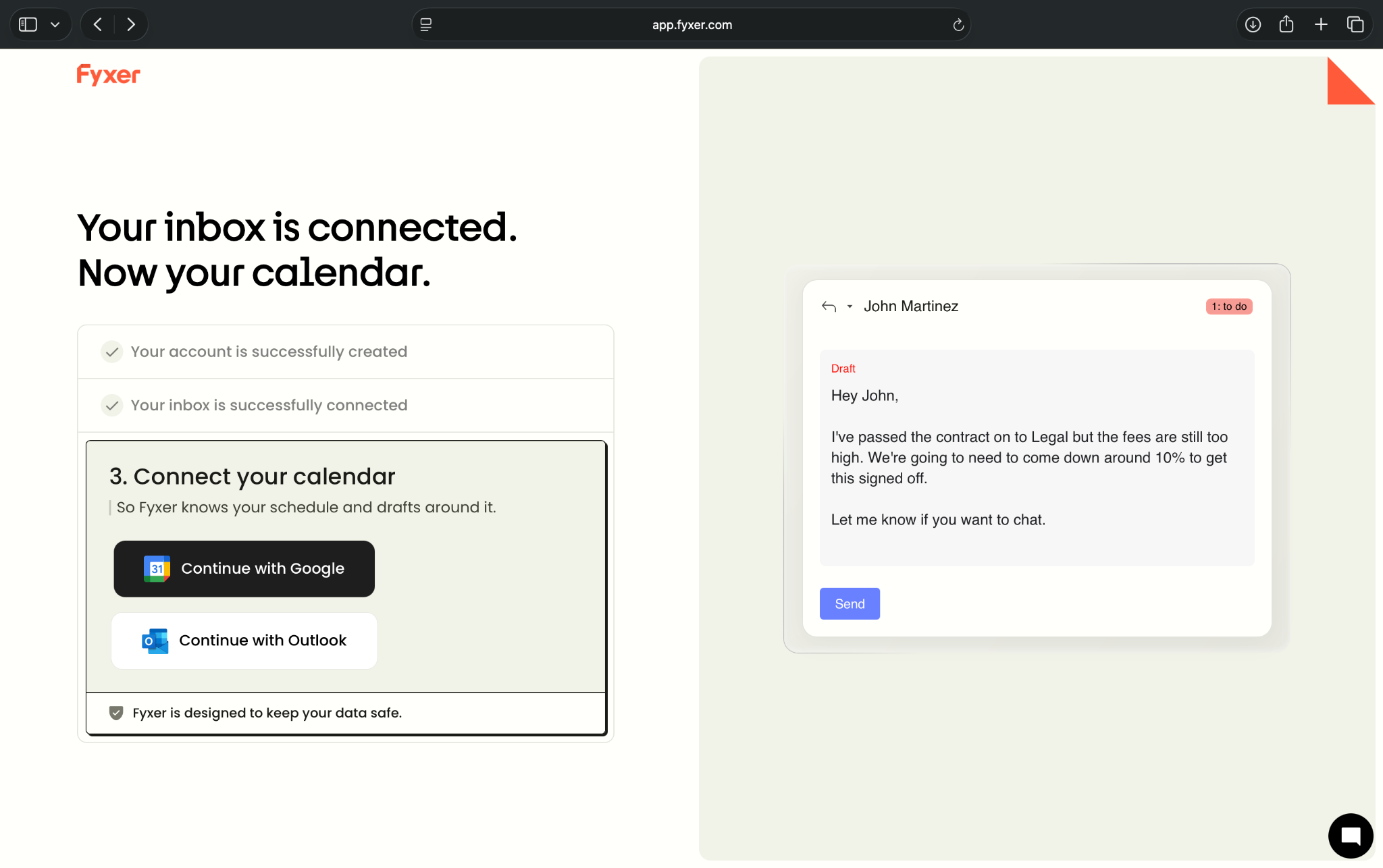
After signing in, I picked the kind of email sorting I wanted. I only kept emails that need my response and the ones that have important information I should know in my inbox. For the remaining emails, I asked Fyxer to move them out of my inbox into dedicated folders.
Once I set this up, I opened my Outlook and found clearly labeled folders with relevant emails inside them.
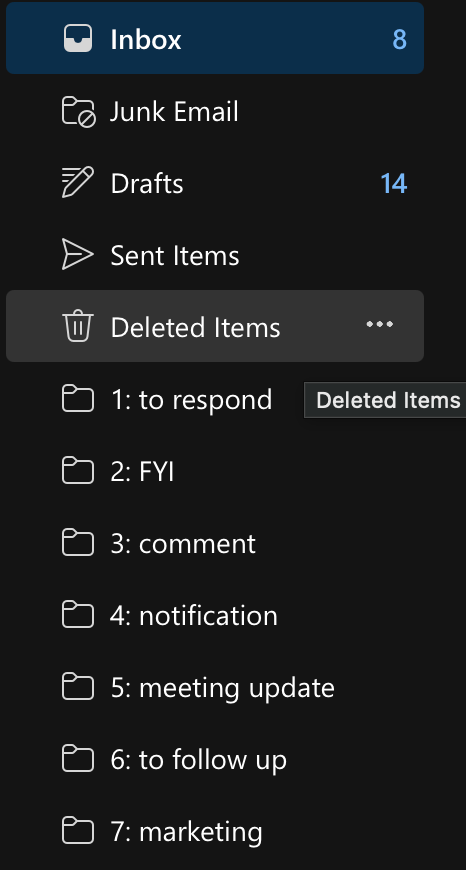
I then received an email from my colleague asking me for a meeting. That email should’ve been added to the “to respond” folder. Instead, it moved it to the “marketing” folder. I moved it back to “to respond” and checked whether it created a reply draft or not.
Fyxer is sometimes inconsistent and inaccurate with labels and email sorting, the very thing it should excel at. Because of that, you’ll have to manually look out for important emails, constantly checking the folders Fyxer creates.
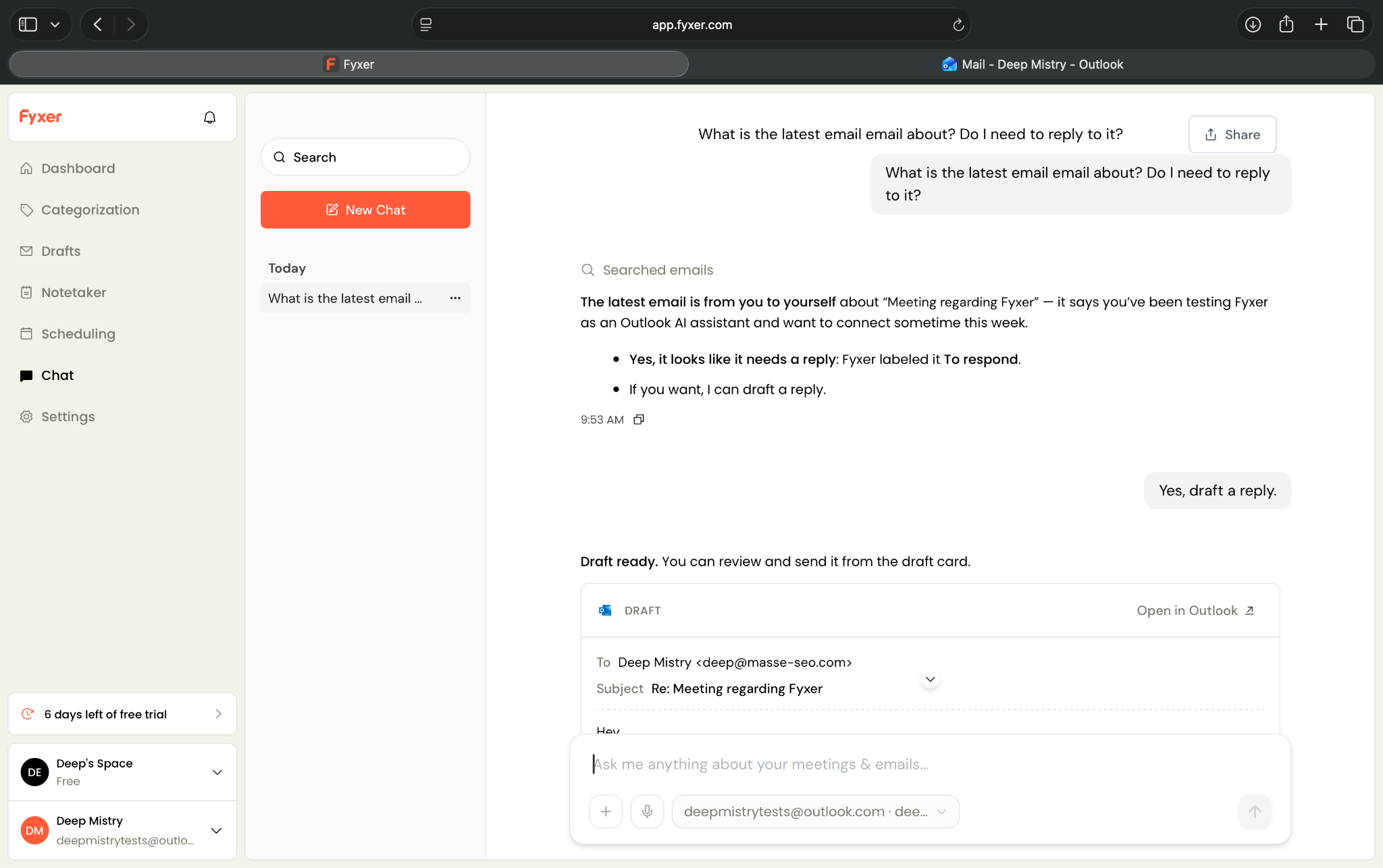
However, I liked the Chat feature. By chatting with Fyxer, you can avoid scouring your Outlook inbox for the latest emails, context within long threads, and what needs a reply.
Fyxer had already sent an important email to the “marketing” folder. So, I asked in the chat to find the latest emails in my inbox and check if any of them need a reply. That’s when Fyxer highlighted the email requesting a meeting and told me that it may need a response.
It also asked me if I’d like a ready-to-send draft to reply to that email. So, I asked it to draft a reply. I also liked that I could directly open the draft in Outlook with a single click. I found Chat more useful and intuitive than other features on the Dashboard.
Fyxer promises to do a lot of things, but struggles with its core work. It should’ve drafted a reply to the meeting request email without my intervention, but it didn’t. And if Outlook inbox is your pain, Fyxer isn’t the ideal solution.
If you need other functionalities like notes, scheduling, and calendar integration, Fyxer may work for you.
Key features
- Email categorization into different folders according to your preferences
- Chat with AI to find threads, check for upcoming meetings, and more
- Scheduling where you can customize availability and send a link for easy scheduling
- Meeting notes for in-person and online meetings
- Writes drafts automatically for the incoming emails that need a reply
Pros
- Easy to sign up and navigate the app
- Helpful AI chat, especially for finding and replying to emails
- Works for emails and other tasks like notes, scheduling, and drafts
Cons
- Can wrongly categorize incoming emails, forcing you to manually review them
- Not as capable as other Outlook AI email agents
Pricing
- No free plan, only a 7-day free trial
- Paid plans from $30/user/month, billed monthly
Features these Outlook AI email agents offer: Quick-glance table
After continued use of these Outlook AI email agents, I realized a few features are more valuable than others. I shortlisted them and created a table comparing where each tool stands on those features. Here’s how they stack up:
| Tool | Outlook support | AI drafting | Email summaries | Inbox cleanup | Follow-ups | Calendar help | Workflow automation |
|---|---|---|---|---|---|---|---|
| Microsoft Copilot | Native inside Outlook | Yes | Yes | Basic triage | Yes | Yes | Microsoft 365 only |
| MailMaestro | Outlook add-in | Yes | Yes | Priority tagging | Yes | Yes | Limited |
| Lindy | Outlook integration | Yes | Yes | Customizable email triage via text | Yes, highly customizable | Yes | Strong across apps |
| Shortwave | Needs workaround | Yes | Yes | Strong AI inbox | Yes | Yes | Limited |
| Superhuman Mail | Works with Outlook | Yes | Yes | Auto labels/archive with keyboard shortcuts | Auto reminders | Yes | Limited |
| Spark | Works with Outlook | Yes | Yes | Smart Inbox | Reminders | Yes | Limited |
| Fyxer | Works with Outlook | Yes | Yes | Inbox organization | Follow-up drafts | Meeting notes | Limited |
How I tested these Outlook AI email agents
Outlook email, at least according to me, offers a busy and cluttered inbox experience. So, while testing these Outlook AI email agents, my primary goal was to eliminate that clutter. Here are the most important factors I considered while testing:
Outlook integration
A lot of AI email agents can work with Outlook if you try some of the workarounds mentioned on the internet. But if you’re someone like me who wants a clean, hassle-free experience, you’ll need a direct Outlook integration with your Outlook AI email agent.
By hassle-free, I mean direct integrations, the ability to sign in using Outlook, or a native Outlook add-in. I made an exception for Shortwave as its capabilities and friendly interface were hard to ignore.
I also reviewed Hey and Ellie for this guide. Hey needs emails forwarding, while Ellie ran into constant errors while signing in with Outlook. Hence, they didn’t make it to the final list.
Ease of use
I’ve used Outlook’s web and desktop apps. To put it gently, they are challenging to use every day. It’s one of the primary reasons why so many professionals look for Outlook AI email agents or third-party email clients.
So, I picked the tools that minimize your interactions with the core Outlook app while being easy enough to use for most professionals. I prioritized quick setup, smooth integration, and clutter-free layout.
Collaboration features
Outlook is popular among professional teams. They often collaborate, are cc’d or bcc’d on long threads, and need context from previous conversations. So, collaboration features are a must.
Tools like Shortwave and Superhuman make it easy for professionals to comment on emails, tag teammates, and communicate without starting a new email thread. It reduces back-and-forth, keeps your inbox clean, and saves a lot of time.
I rejected Clean Email AI, SaneBox, and similar tools because they don’t offer enough collaboration or other AI features to be valuable for teams that use Outlook.
AI capabilities
I think this one’s self-explanatory. I checked how well the AI features work and how unintrusive they feel for the user. If you need a lot of configuration or setup to use the AI features, the tool isn’t worth it.
I also evaluated their usefulness. Fyxer has this Drafts feature, where it automatically drafts replies to the incoming emails that need a response. While using the tool, it wasn’t as reliable or effective as it sounds.
Value
Finally, I also considered whether these tools are worth the cost. For solo users, a free tier with basic AI capabilities might work. Busy professionals, on the other hand, need a more capable agent that can help them with their inbox chaos.
For large teams, a higher per-seat cost can add up and result in a significantly higher monthly bill. My goal while assessing these tools was to get maximum value and capabilities for every dollar you spend.
For example, some may find Lindy or Superhuman Mail to be expensive. But during my testing, I realized that they offer enough value for the user to justify the price.
What to look for while selecting an Outlook AI email agent
While using and reviewing these Outlook AI agents, I realized a few factors that were present among the 7 tools I finalized. Here’s what you should look for while selecting the right Outlook AI email agent:
Check whether it truly supports Outlook
AI email agent tools work with Outlook in different ways. Some tools work natively inside Outlook. Some connect through Microsoft 365. Others are Gmail-first and only support Outlook through forwarding or workarounds.
Look for these factors while selecting one:
- Does it work with Outlook desktop?
- Does it work with Outlook web?
- Does it support Microsoft 365 business accounts?
- Does it need an add-in, extension, or separate email client?
- Can admins deploy it across a team?
This way, you can correctly analyze whether the tool will work with your way of working.
Decide the kind of help you need inside Outlook
Light or solo users may only need help with writing replies. Busy professionals who deal with multiple teams may need an AI agent to sort emails, update systems, book meetings, or trigger follow-ups.
Here’s how to select the right tool for your use case:
- Choose MailMaestro if you mainly need writing support
- Choose Copilot if you want native Microsoft 365 AI
- Choose Lindy if emails need to trigger downstream tasks across tools
- Choose Superhuman or Spark if speed and inbox management matter most
- Choose Fyxer if you want a dashboard-style experience
- Choose Shortwave if you prefer a clean inbox and are open to workarounds
Assess the summarization quality
A good agent should summarize long threads without missing decisions, deadlines, objections, or next steps. Before committing, use the free trial to test summarization for long client threads, internal approval chains, emails with attachments, and emails with complex, conflicting opinions.
Check how well the AI agent handles changes in context and writing tone. If a tool doesn’t excel at this, it’ll waste time instead of saving it.
Test how well it handles your writing style
For users who need to write a lot of replies daily, AI drafting can save them hours. For them, the quality of the first draft is the most important factor. The agent should sound like you, not obvious AI-generated text.
Check whether it can match your tone, convey the same kind of warmth that you do, understand formal and casual replies, and use context from the email thread.
Review privacy and data controls
Most organizations today have strict data security and privacy policies to protect their sensitive data, including emails. Before using any agent, check what data it can access, where it stores data, and whether the tool supports your company’s security needs.
Look for:
- Microsoft OAuth support
- Admin controls
- Data retention settings
- SOC 2 or similar security standards
- Permission scopes
- Human approval before sending emails
See whether it works across your other tools
I don’t use email just to send and receive messages. My email needs to connect with calendar, Slack, Asana, notes, and other apps I use every day for work.
You must ask whether the AI email agent can create calendar events, notify me on Slack, and create tasks on my project management and to-do app. It’s a bonus if it can use internal docs or other files as a knowledge base and process email attachments.
Check how much control you get
If you’re too busy to deal with your emails, you’ll prefer complete automation capabilities from your Outlook AI email agent. On the other hand, there are users who take email seriously and don’t mind spending some time in their inbox.
These features and customization options will give you complete control of your inbox:
- Draft-only mode
- Approval steps
- Custom instructions
- Sender-specific rules
- VIP lists
- Escalation rules
- Manual override
Most users prefer quick AI drafts they can review and edit before sending.
{{cta}}
Why I’d try Lindy as my Outlook AI email agent
After weeks of testing 14 Outlook AI agents, I’d pick Lindy if I wanted a single AI email agent to help me with my Outlook mail. Not just Outlook email, Lindy can help you with a range of tasks, like content generation, support, sales, and voice.
It’s a versatile AI agent that can handle tasks across different domains and use cases. You ask Lindy in natural language to handle your emails and other downstream tasks you want it to do across your apps, eliminating the need to manage multiple tools.
Here's why Lindy works well for teams and individuals alike:
- Just tell it what you need: You don’t need technical skills or a complicated setup. Just text Lindy, and it handles the task, whether that’s sending a follow-up, updating your CRM, or organizing notes from a meeting.
- Easily set up a chain of tasks: Describe the task you want to automate in everyday language. For instance, ask Lindy to find leads from websites and sources like People Data Labs, send emails to each lead, and schedule meetings with members of your sales team.
- Voice capabilities: Lindy can also handle phone calls and voice inputs, providing information and performing actions through voice commands.
- Hundreds of integrations: You can connect Lindy with tools like Gmail, Slack, Notion, and HubSpot, ensuring it fits your existing tech stack.
- Handles tasks across domains: Lindy can handle meeting notes, website chat, lead generation, and content creation. You can also use Lindy to reduce manual work in training, content, and CRM updates.
- Cost-effective: You can try Lindy’s 7-day free trial to see how it fits your workflows. The paid version starts from $49.99/month and offers a ton of functionality.
Lindy also provides ready-to-use skills to help you get started quickly. Whether you need to process email attachments, triage your inbox, summarize a long thread, or set up a customer support email automation, you can use these skills and customize them for your tasks.
For those new to AI or lookig to expand their knowledge, Lindy Docs offers comprehensive guides and tutorials. It helps you learn how to use Lindy for your everyday tasks.
So, if you’re an individual or a business team needing an Outlook AI email agent tool to hand off different email tasks and want better inbox management, Lindy is worth considering.
Start Lindy’s free trial today and offload repeat email tasks with ease.
Frequently asked questions
Does Outlook have an AI email agent?
Yes, Outlook has an AI email agent called Microsoft Copilot. It is Microsoft’s native AI agent for Outlook and Microsoft 365. Copilot can help summarize email threads, draft replies, coach tone, and support scheduling inside Outlook.
What is the best AI email agent for Outlook?
The best AI email agent for Outlook in 2026 will depend on the user and the pains they want to eliminate from their workflow. Lindy, however, leads the list as it combines email with multiple capabilities across different apps you use. And you can just text it to offload tasks.
If you want a native AI email agent, Copilot is ideal for Microsoft 365 users. MailMaestro is a great add-in for email writing. Superhuman and Spark are ideal for speed-focused inbox management. Fyxer is best for users who want an agent-style inbox and meeting workflow.
Are there any free AI email agents for Outlook?
Yes, Spark and MailMaestro AI email agents for Outlook that offer a true free tier for small volume or solo users. Tools like Lindy, Superhuman, Fyxer, and Shortwave offer a limited-time free trial to test their capabilities.
Can AI email agents summarize Outlook emails?
Yes, AI email agents can summarize Outlook emails and long email threads. They can help users understand the important discussions, decisions, and next steps without reading every message in the thread.
How do you use AI to write emails in Outlook?
To use AI to write emails in Outlook, you first need to install an AI email agent tool or use the built-in Copilot. Most tools let you ask them in natural language to write the emails you want. You can choose the tone, ask it to modify, and add relevant details to the draft in seconds.
Some tools, like Lindy, even let you automate the replying process, seeking your approval for the written draft before sending.
Can an Outlook AI email agent help with follow-ups?
Yes, Outlook AI email agents help you with follow-ups. They can remind users to follow up, draft follow-up emails, or trigger follow-up workflows. It helps sales, recruiting, customer success, and support teams stay on top of their inbox and never miss replying to an email.
Are Outlook AI email agents safe?
Most Outlook AI email agents are safe, as they only access the data you permit them to access. Most tools in 2026 use secure authentication, clear permission scopes, admin controls, and human approval before sending messages. Lindy, for example, is SOC 2, HIPAA, GDPR, and PIPEDA compliant, and comes with AES-256 encryption.
Before letting a tool access your email account and other connected apps, you must review data access, retention policies, and compliance standards to check whether the tool meets your security requirements.
Can AI replace Outlook rules?
No, AI cannot fully replace the need for manual Outlook rules. But it can reduce the need to set up those rules for most busy professionals. Outlook rules work well for simple conditions, but struggle with complex tasks. AI is better for context-based tasks like identifying urgent messages, sorting by intent, or drafting replies based on thread history.