Lindy Apps Explained: 4 Examples and How to Build One


Your sales team needs a deal room. Finance wants a spend tracker. Operations is still chasing approvals through a dozen Slack threads. Every little request becomes another IT ticket, another spreadsheet, or someone's Friday afternoon.
That backlog doesn't have to run your week.
Tell Lindy what you need, and it builds an app you can test, tweak through chat, and share with your team. I’ll show you four examples of Lindy Apps and walk you through building your first one.
What are Lindy Apps?
Lindy Apps are internal tools you ask Lindy to build, connected to the software your team already uses. Everyone signs in with Lindy, and you control who sees what. Each Lindy App has its own link, saves data, and appears under Apps in Lindy.
A Lindy App can also work with connected systems. For example, when a sales rep changes a deal stage in a Salesforce deal room, Lindy can update the CRM.
You can request Lindy to add new fields, views, or features through chat later, like it’s your AI teammate.
4 examples of Lindy Apps you can build
There's probably a spreadsheet your team keeps updating, a report someone prepares every Monday, or an approval request buried in Slack. These are good starting points for Lindy Apps.
Here are four examples and the prompts you can use to build them:
1. Sales deal room
Your sales reps shouldn't have to dig through Salesforce every time they need to check a deal or update its status.
Prompt: "Build our reps a deal room on top of Salesforce."
Lindy can create a shared deal room where reps view their assigned opportunities, check deal values, and update pipeline stages. Changes made in the app sync back to Salesforce.
2. Company spend tracker
Finance teams often spend hours pulling expenses from different accounts to understand where money is going.
Prompt: "Create a spend tracker using QuickBooks. Show monthly expenses by category, and restrict access to admins."
The app could display spending trends and category-wise expenses. Admins can review spending in one place, while access controls keep sensitive financial information private.
3. Content approval board
When feedback lives across emails, documents, and Slack threads, keeping track of content approvals becomes a job of its own.
Prompt: "Build a content approval board where writers submit drafts, assign reviewers, and track approval status."
The app could give your team a shared view of pending drafts, assigned reviewers, and deadlines. Everyone knows what's awaiting feedback and who needs to act next.
4. Marketing performance dashboard
Checking campaign performance shouldn't require opening five different dashboards and copying numbers into a spreadsheet.
Prompt: "Build a marketing dashboard showing campaign spend, leads, and conversions from our connected marketing tools."
Lindy can create a dashboard using the data sources you've authorized. Your team can track selected metrics and compare campaign performance from one place.
{{templates}}
How to build your first Lindy App in 5 steps
You need to explain what the tool should do, what information it needs, and who'll use it. There’s no need for coding skills to build internal tools with AI using Lindy Apps.
Here's how to build a simple project tracker:
Step 1: Define what your app should do
Start with one specific task. Our project tracker is like an AI coworker. We want to assign tasks, set deadlines, and monitor progress. Give Lindy a prompt like this:
"Build me a project tracker with a name, owner, due date, and status for each task. Let me add and update tasks, filter by owner, and see what's overdue. Keep it private for now."
Step 2: Ask Lindy to build it
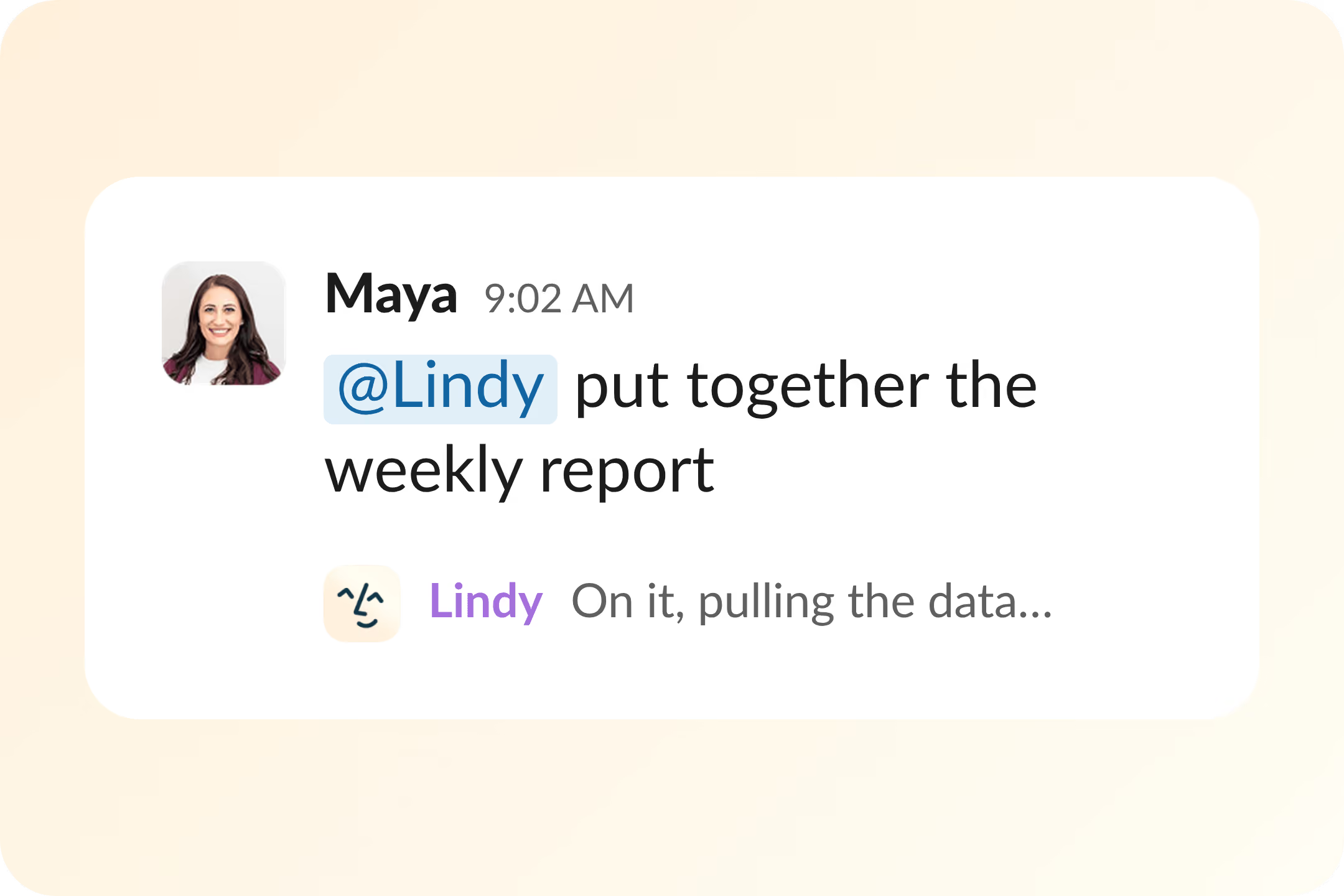
Open Lindy chat or mention @Lindy in Slack and send your prompt. Lindy builds the app and shares a link you can open in your browser. You'll also find it under Apps in Lindy.
If your app needs information from Salesforce, QuickBooks, or another service, specify which system it should use.
Step 3: Test your app
Open the app and create a few sample tasks. Assign owners, change their statuses, and set different deadlines.
Check whether the filters work and your changes are saved. If you've connected an external service, verify that the app reads or updates the correct records.
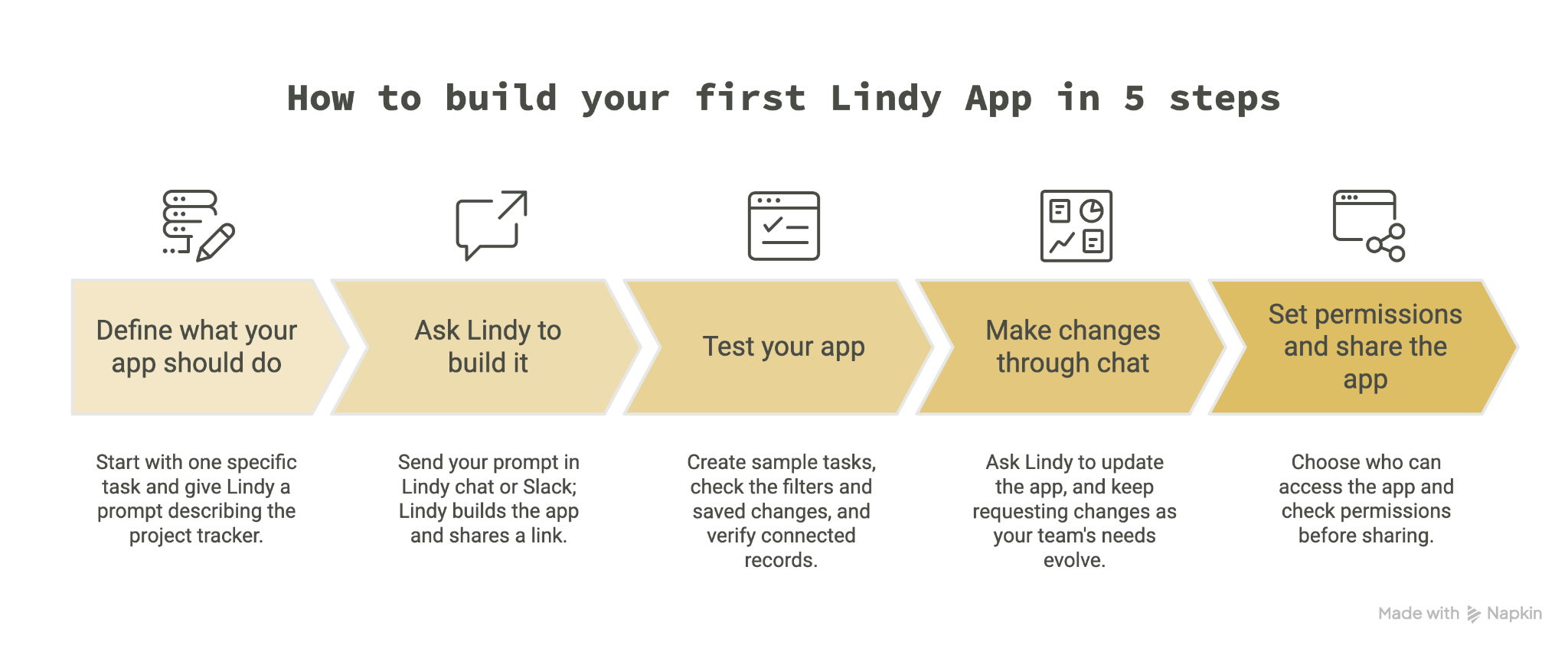
Step 4: Make changes through chat
Your first version doesn't need every feature. For example, you can ask Lindy:
"Add a priority field to each task and show overdue tasks at the top of the dashboard."
Lindy can update the app based on your instructions. You can keep requesting changes as your team's needs evolve.
Step 5: Set permissions and share the app
Once everything works, decide who should access it. You can keep the app private, share it with your Lindy workspace, or make it accessible through a public link.
For internal project trackers, workspace access is usually the sensible choice. Check the permissions before sharing, particularly if the app connects to sensitive business information.
How do Lindy Apps permissions work?
Before sharing your app, you need to decide who can open it and what information it can access. Lindy Apps offers three visibility settings:
- Only you: Keeps the app private to your account
- Workspace: Lets members of your Lindy workspace access the app
- Public: Anyone with the link can open the app, even without a Lindy account
App creators, workspace owners, and admins can manage app settings. Sharing an app doesn't automatically give everyone permission to edit its design.
Connected integrations have separate permissions. Each app needs authorization to access services like Salesforce or QuickBooks.
For example, if you're building a company spend tracker, check which financial records it can access before sharing it with your team.
You must test who can view and change information, especially when working with sensitive business data.
{{cta}}
Lindy Apps vs traditional no-code app builders
Lindy Apps and no-code builders like Glide and Softr let you create internal tools without writing code. The main difference is how you build and customize them. Here's a quick comparison:
Lindy Apps makes sense if you already use Lindy and want a dashboard, tracker, or approval tool that acts like your AI employee and is connected to your existing software.
Traditional no-code tools like Glide and Softr are worth considering when you need more hands-on control over app layouts and data structures. You can also consider AI agent builders if you want an AI agent working on your tasks.
Build your first internal tool with Lindy Apps
Start with a tool your team keeps asking for. Maybe it's a deal tracker, an approval board, or a dashboard that's been sitting on your to-do list for months. Describe what you need, test the result, and improve it as you go.
Try Lindy and build your first internal tool.
Frequently asked questions
Which Lindy plans include Lindy Apps?
You can start on the Free plan, which gives you $50 in credits that last 7 days with no credit card. When you need more, move to the Team or Enterprise plan.
Who can use a Lindy App?
It depends on the setting you pick. You can keep it private, share it with your Lindy workspace, or make it publicly accessible through a link. Public apps can be opened without a Lindy account.
What integrations can Lindy Apps use?
Lindy Apps can work with 1,500+ native app integrations and MCP connections. You can easily integrate business tools like Salesforce and QuickBooks, although each app needs permission to access the services it uses.
How are Lindy Apps related to Lindy Build?
Lindy Apps focuses on creating internal tools connected to your business software, with team sharing and access controls, while Lindy Build offers broader app and website creation capabilities.