9 Best AI Note-Taking Apps: I Tested and Ranked Them for 2026
Marvin tested nine AI note-taking apps, including Granola, Otter, and Fireflies, across real standups and client calls, weighing transcription accuracy, follow-up automation, and pricing.


I never had trouble getting a meeting transcript. I had trouble doing anything productive with it. The notes would arrive neatly organized, then sit untouched while the one follow-up I promised quietly disappeared into the rest of my day.
That became my test for every AI note-taking app. It had to do more than capture the conversation. It needed to pull out decisions, surface action items, and make the next step harder to forget.
I spent a few weeks testing 15 apps across standups, client calls, and longer team meetings on Zoom, Google Meet, and Microsoft Teams. Some were great at clean, bot-free capture. Others could send notes to Slack, update a CRM, or handle the follow-up after the call.
9 tools earned a place on my list. These are the best AI note-taking apps I’d actually recommend to a friend (and you!)
9 best AI note-taking apps: TL;DR
- Lindy: Best AI note-taking assistant to handle meeting prep, notes, and follow-up
- Granola: Best for client calls that prefer bot-free meetings
- Otter: Best for recording in-person meetings or calls without a meeting link
- Fireflies.ai: Best for searchable meeting history and CRM sync
- Jamie: Best for bot-free notes across different meeting platforms
- tl;dv: Best for sales managers who review and coach rep calls
- Fathom: Best for solo users who want unlimited free recording
- Notion: Best for teams that already keep their projects and documentation in Notion
- NotebookLM: Best for research and post-meeting synthesis across multiple sources
What is an AI note-taking app for meetings?
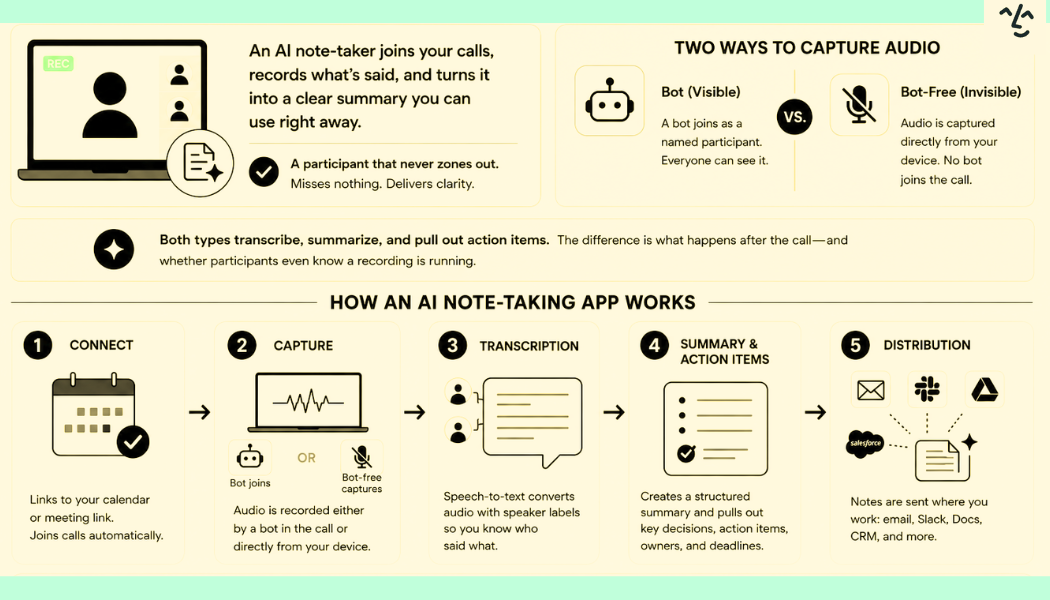
An AI note-taking app joins your calls, records what's said, and turns it into a structured summary you can use after the meeting ends. Think of it as a participant who never zones out, misses nothing, and sends you a clean write-up the moment the call wraps up.
Some of these note-takers send a visible bot into your meeting as a named participant, and everyone in the room can see it joined. Others capture audio directly from your device without adding anyone to the call. That second type, usually called bot-free, is worth understanding before you pick anything. Many of these note-taking tools also offer dedicated ai apps for android to capture meeting audio on mobile devices.
Both types transcribe, summarize, and pull out action items. The difference comes in what happens after the call and whether participants even know a recording is running. Choosing the best ai summarizer ensures that these generated summaries remain clear, concise, and easy to review.
Here’s how an AI note-taking app works:
- Connection: The tool links to your calendar or meeting URL. Most ask for calendar access during setup so they can join calls automatically, with no manual step before each one.
- Capture: Audio gets recorded one of two ways. Either a bot joins as a visible meeting participant, or the tool captures audio locally from your device without entering the room. That is the bot-vs.-bot-free split.
- Transcription: After the call (or in real time, depending on the tool), speech-to-text converts the audio with speaker labels attached, so you can see who said what.
- Summary and action items: The transcript gets processed into a structured summary. Key decisions get flagged, and action items are pulled out with owners and deadlines where the conversation made them clear.
- Distribution: Notes get sent wherever you need them. The better tools route summaries to email, Slack, Google Docs, or your CRM automatically after the first call. If standard integrations fall short, you can use an ai app builder to create custom tools that automate note distribution.
Most tools follow the same sequence, from the moment they connect to your calendar to the moment your notes land in Slack or your CRM.
How I tested theseAI note taker apps for meetings
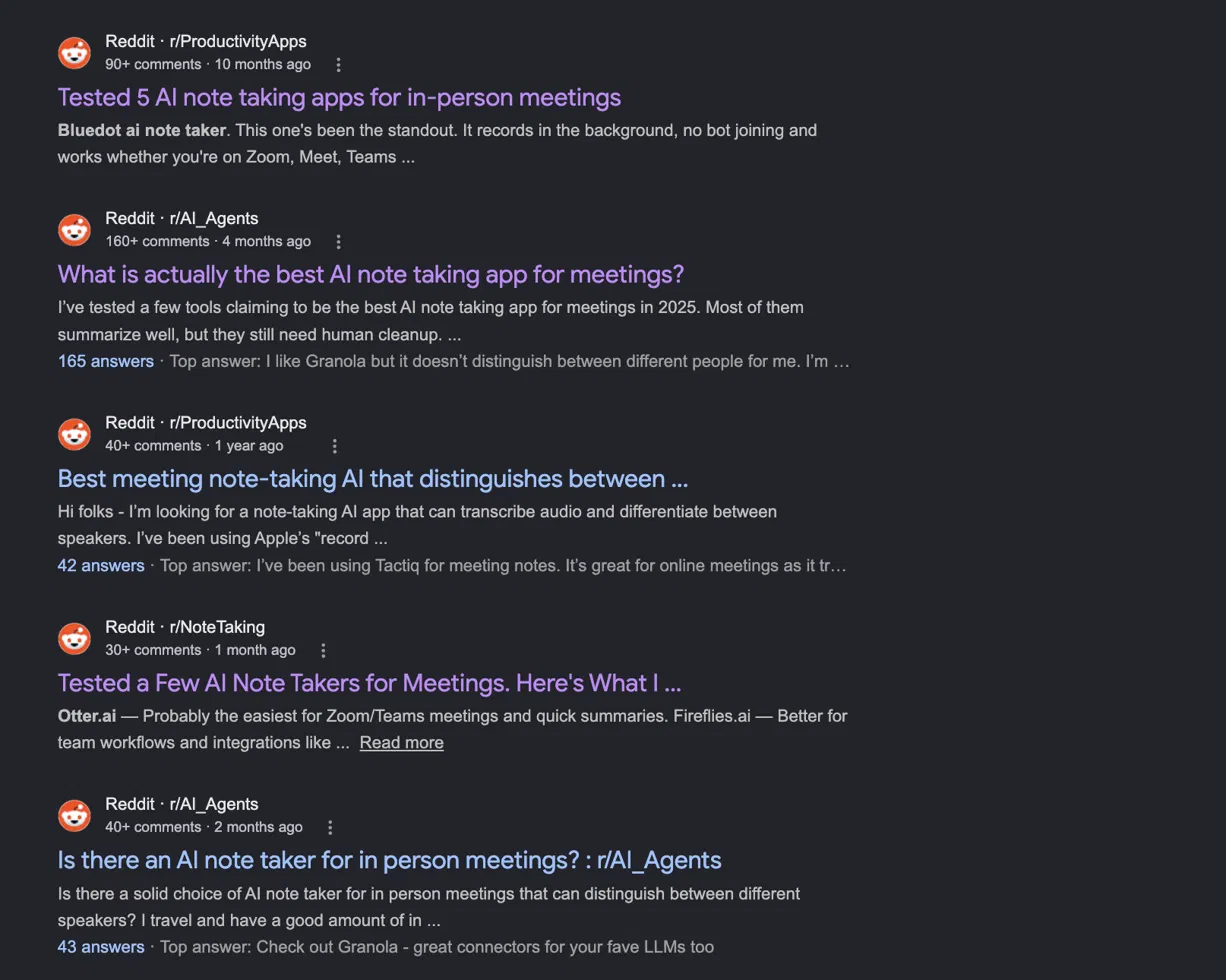
Before I ran a single test, I spent an afternoon on Reddit. The same question keeps coming up across r/AI_Agents, r/ProductivityApps, and r/NoteTaking, and it's been coming up for a while. Many of these discussions also explore the best productivity apps for managing workflows beyond meeting management.
Someone asks which AI note-taker is worth using. The thread fills up fast. Then someone in the replies drops a comment like "The transcription was fine, but I still had to write the follow-up myself." Another chimes in with "Tried three of these, all of them still need cleanup."
The frustration is consistent enough that it gave me my testing criteria before I even opened a single app.
I started with 15 tools and ran each one across the same types of calls. I tested them on internal standups, one-on-one client sessions, and multi-person calls with participants joining from different platforms. But I kept wondering how much work I still have to do once this is finished.
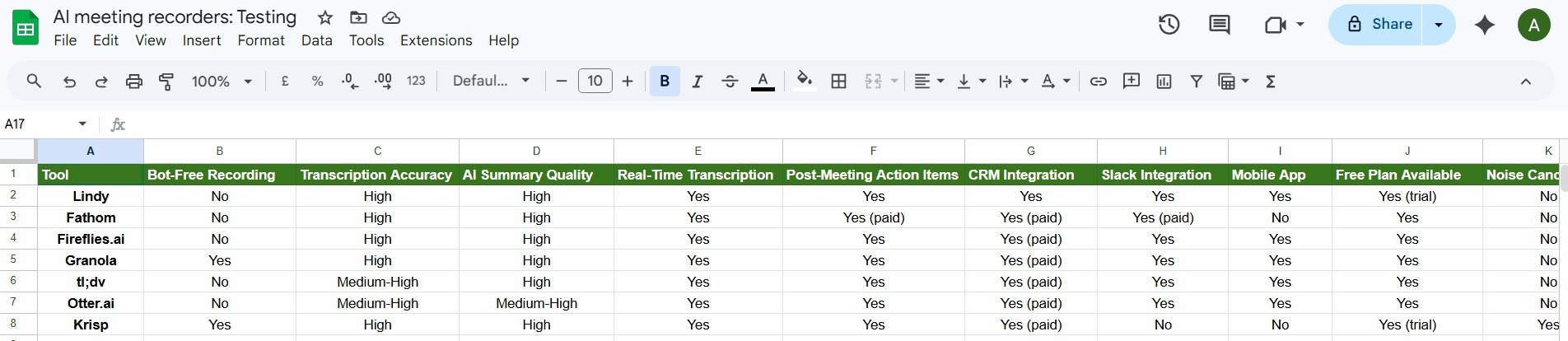
Six made it to this list. Avoma, MeetGeek, Notta, Read.ai, Krisp, and Sembly didn't. Some transcribed cleanly but stopped there. Others had solid integrations but fell apart on calls with overlapping speakers. A few were too slow, with summaries arriving ten or fifteen minutes after the call ended, by which point I was already in the next one. If you want to explore software beyond meeting management, check out our list of the best ai apps for general productivity.
The nine that stayed earned their spot by doing something specific well enough to justify the trade-offs. For a closer look at tools designed specifically for documenting meeting summaries, check out our guide to the best meeting minutes app.
1. Lindy: Overall Best AI Note Taking App
What it does: Lindy is an AI assistant you can text to summarize meetings, pull out key decisions, and handle the follow-up work that usually sits in your notes. For broader task automation beyond meeting summaries, using a dedicated ai work assistant app can streamline your entire daily workflow.
Best for: Individuals and teams that attend too many meetings and want automatic meeting notes capture that leads to tasks, updates, reminders, and next steps.
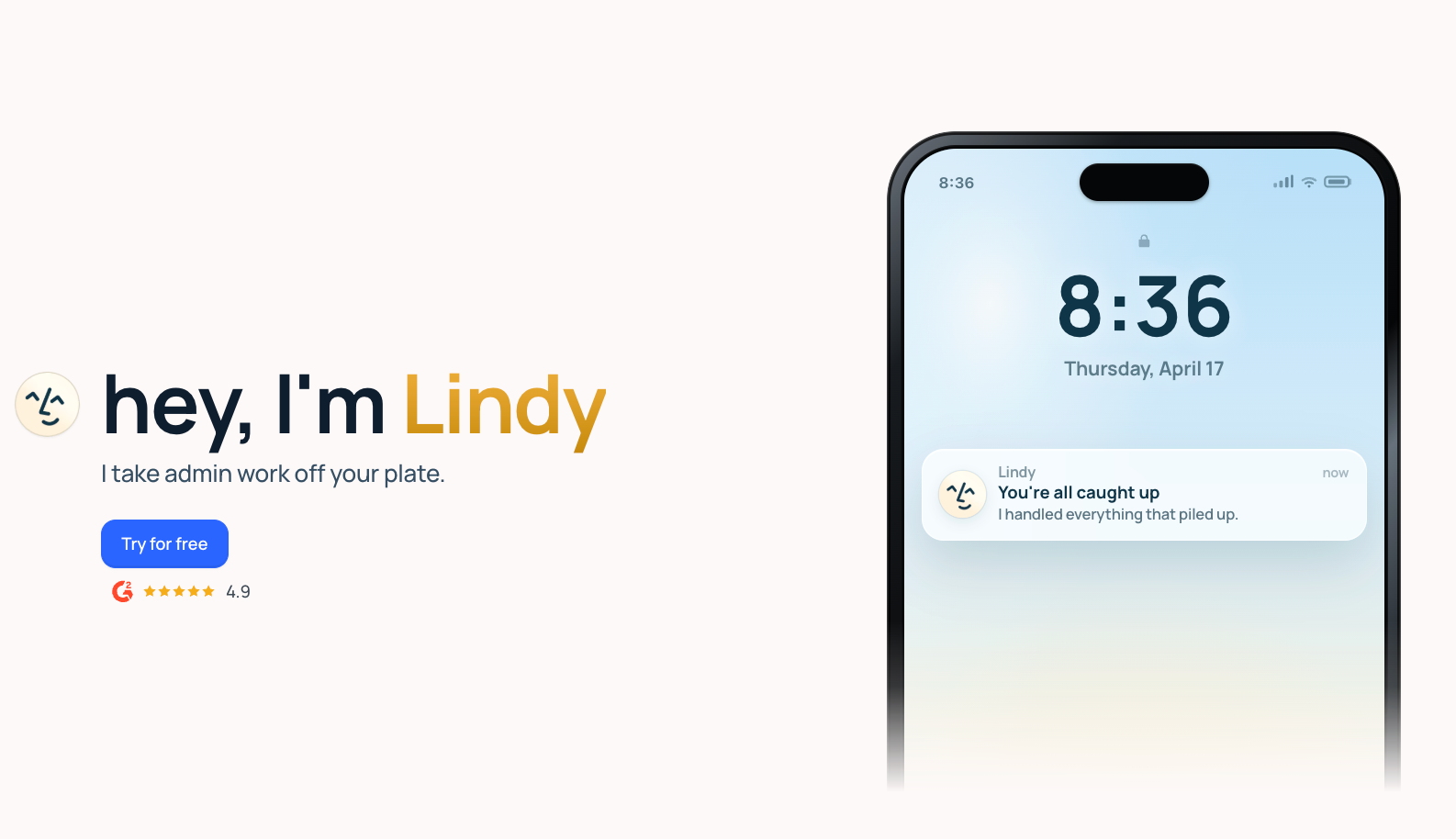
Unlike traditional meeting tools, Lindy works as an AI assistant you can text to take meeting notes, summarize them, and then execute post-meeting tasks.
I asked Lindy in plain English to join a mock meeting, summarize the conversation, and list the action items for each speaker. Lindy integrates with your apps, so it did that with ease. I also asked it to email the action items to the other participant and follow up after 2 days.
It’s a complex chain of tasks, and Lindy executed it with ease. That makes it a better fit for teams that treat meeting notes as the start of work, not the final output.
That said, Lindy doesn’t feel as transcription-led as tools like Otter. If you want live captions or a transcript-first workflow, another tool may be a better fit. But if you want notes to turn into action, Lindy makes a stronger case.
Key features
- Meeting summaries: Turn long conversations into clear recaps you can scan fast
- Meeting Q&A: Ask about past meetings in plain English instead of searching manually
- Action item extraction: Pull next steps from calls so follow-up work doesn’t get buried
- Human approval: You can quickly approve sensitive steps, like sending follow-ups or action items, all by texting your assistant
- Easy onboarding: You can just text Lindy what you want to do without the need to build templates or workflows
- Hundreds of app integrations: Ask Lindy to handle follow-up tasks across your day-to-day apps
- SOC 2 Type II, HIPAA, and GDPR compliant: Security and compliance for regulated industries like healthcare and finance
Pros
- Simple and fast, feels like texting rather than configuring
- One assistant for the full meeting cycle, from prep to notes to follow-up
- Built for what comes after the call, stronger on follow-up and post-meeting tasks than most note-takers
Cons
- Not the strongest fit for transcript-first users
- More valuable for action-heavy teams than for simple note storage
Pricing
- 7-day free trial available
- Paid plans from $49.99/month, billed monthly
Bottom line
Lindy is a great choice if you want an AI assistant you simply text to turn your meeting notes into concrete follow-ups, reminders, and next steps, not just a transcript repository. It makes the most sense for teams that want meeting notes to move work forward.
{{templates}}
2. Granola: Best for private, bot-free meeting notes
What it does: Granola takes meeting notes quietly from your device and turns them into clean summaries without sending a bot into the call.
Best for: Freelancers and teams who want private, low-friction meeting notes without a bot joining every meeting.
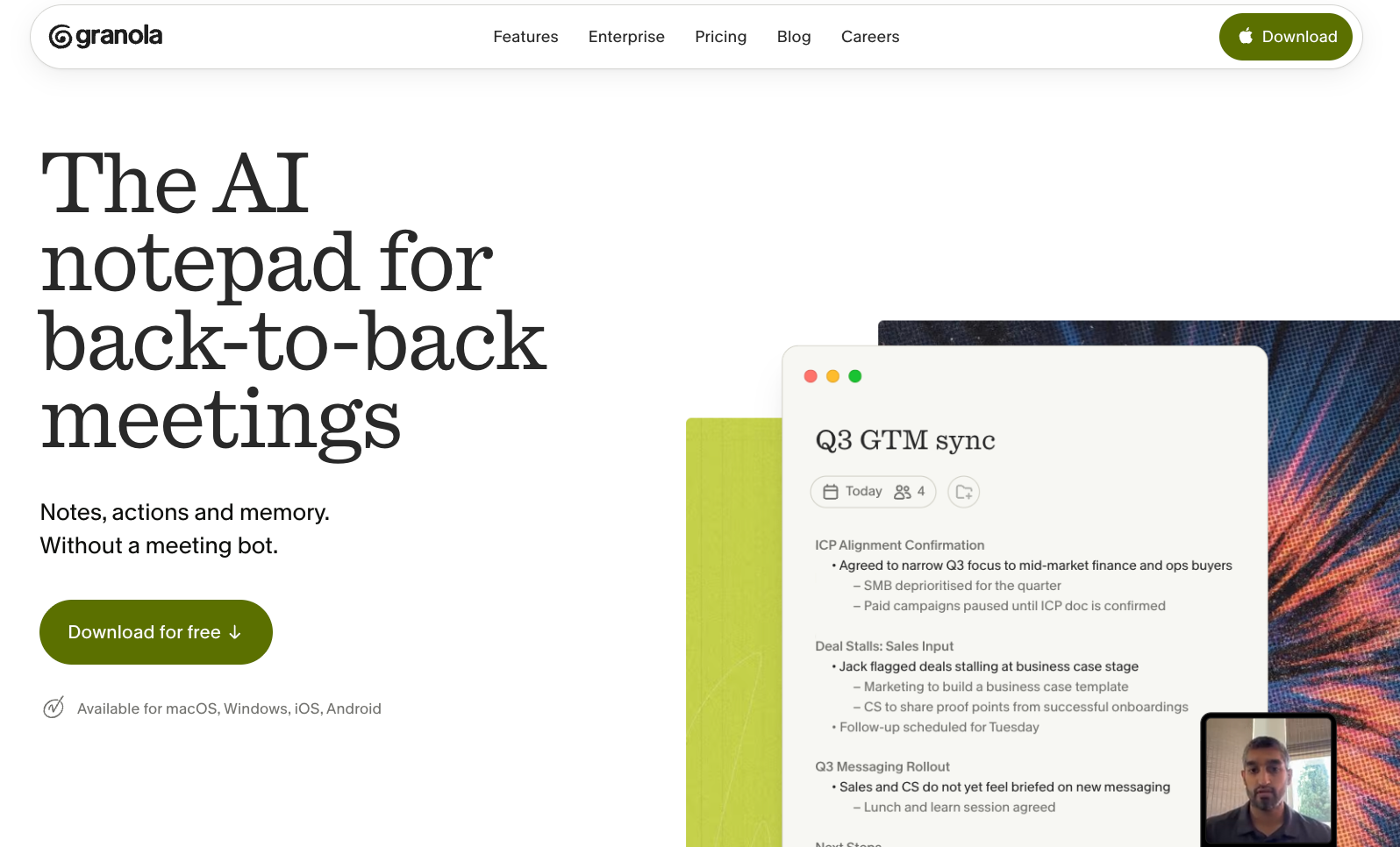
Granola was unobtrusive while testing. It did a good job cleaning up conversations into something readable without making the output feel bloated. If you have meetings where participants don’t want a bot on the screen, Granola is easier to trust. This makes it an ideal option when generating ai meeting notes for customer calls where privacy is paramount.
That said, Granola feels more focused on capture and clarity than on what comes next. It’s strong if you want private notes and clean recaps. It’s less compelling if you want the app to help manage follow-up work after the meeting.
Key features
- Desktop experience: Keep note-taking simple and lightweight during meetings
- Private workflow: Fits better in meetings where visible recording bots create friction
- AI summaries: Turn messy conversations into cleaner notes you can review faster
- Bot-free note capture: Record meetings more discreetly without adding a visible bot to the call
Pros
- Summaries are easy to scan and use
- Strong fit for privacy-conscious teams
- A bot-free approach feels cleaner and less intrusive
Cons
- Less useful for follow-up workflows
- Better for note capture than downstream action-taking
Pricing
- Free plan with limited meeting history
- Paid plans from $14/user/month, billed monthly
Bottom line
Granola is a strong pick if you want private, bot-free meeting notes and don’t need much help after the summary is done. Choose it for low-friction capture, not for action-heavy follow-up.
3. Otter: Best for in-person and mobile recording
What it does: Otter records meetings, transcribes them live, and gives teams a shared place to review what got said.
Best for: Sales teams, customer success managers, recruiters, and internal teams that want live call transcripts.
Otter covers two types of meetings most tools on this list don't: the ones with no meeting link and the ones you attend in person. Open it on your phone and it starts recording, with no meeting platform or calendar invite needed. That makes it the only tool here that works for a client site visit or walking debrief as well as a scheduled Zoom.
OtterPilot handles video calls from your calendar. The mobile app handles in-person, with real-time captions and speaker labels throughout.
The tradeoff is that transcript quality drops in noisy rooms and summaries often need editing before they're ready to share.
Key features
- Live transcription: Follow meetings in real time without waiting for a recap afterward
- Search across meetings: Find past discussions faster without replaying old recordings
- Speaker identification: Make transcripts easier to follow when multiple people join the call
- Shared meeting notes: Give teams one place to review what happened and what got discussed
Pros
- Strong fit for live transcript workflows
- Easy to use in collaborative team settings
- Good for capturing exact wording during meetings
Cons
- Notes may still need cleanup after the call
- Less useful if you want stronger post-meeting action handling
Pricing
- Free plan with 300 transcription minutes/user/month
- Paid plans from $16.99/user/month, billed monthly
Bottom line
Otter is a good pick for teams that prioritize live transcripts and shared meeting records. Choose it if real-time capture matters more than what happens after the meeting.
4. Fireflies.ai: Best for searchable meeting history
What it does: Fireflies records, transcribes, and stores meetings so teams can search past calls and pull up decisions later.
Best for: Sales reps, account managers, founders, and ops teams who often revisit old calls.
I found Fireflies to be the best as a meeting memory system. It works well for teams that need to go back and check what a client said, what was promised, or how a decision came together across several calls.
That makes it well-suited for teams with many recurring conversations. The downside is that it can feel more archive-heavy than action-focused, so it fits best when search and retrieval matter more than hands-on follow-up.
Key features
- Integrations: Send meeting data into the rest of your business apps
- Meeting archive: Keep a shared history of calls your team can refer back to
- Conversation tracking: Review customer or team discussions over time more easily
- Searchable transcripts: Find key moments from old meetings without skimming through recordings
Pros
- Good fit for client-facing work
- Strong at storing and searching meeting history
- Useful for teams that revisit past conversations
Cons
- Feels more archive-led than action-led
- Can be an overkill for users who need simple note-taking
Pricing
- Free plan with 800 minutes/seat of storage
- Paid plans from $18/seat/month, billed monthly
Bottom line
Fireflies.ai makes the most sense for teams that treat past meetings as working knowledge. Pick it if your biggest problem is finding old decisions rather than acting on them.
5. Jamie: Best for bot-free notes across meeting platforms
What it does: Jamie captures meeting notes without sending a bot into the call and works across major meeting platforms.
Best for: Consultants, agency teams, recruiters, and client-facing professionals who want bot-free notes across different meeting tools.
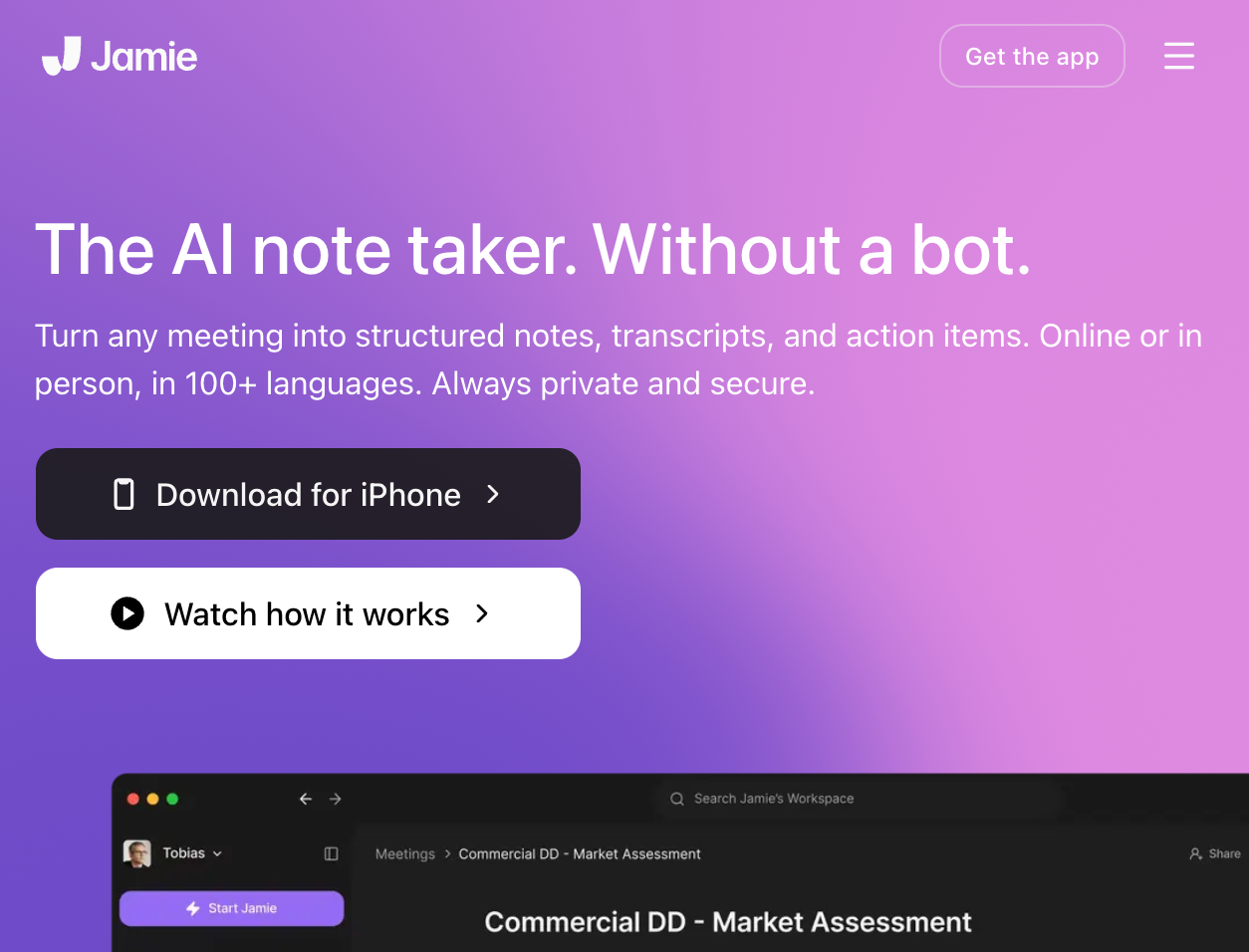
Jamie feels like a practical middle ground for people who want AI meeting notes without the awkwardness of a bot joining every call. That alone gives it an edge for client meetings, interviews, and other conversations where a visible meeting assistant can feel distracting.
It also covers a wider range of meeting setups than some competitors do. The main trade-off is that while it helps with summaries and action points, you may still need to review the output before treating it as final.
Key features
- AI summaries: Turn conversations into usable recaps faster
- Bot-free meeting capture: Keep calls cleaner by avoiding visible recording bots
- Action point detection: Surface next steps so they do not get lost in the conversation
- Cross-platform support: Use the same note-taking setup across different meeting tools
Pros
- Cleaner experience than bot-led tools
- Works across multiple meeting platforms
- Bot-free setup suits client-facing meetings well
Cons
- Summaries may still need review
- Less compelling if you want deep post-meeting execution
Pricing
- Free plan with 10 meetings/month
- Paid plans from €47/month, billed monthly
Bottom line
Jamie is ideal for people who want bot-free meeting notes without locking into one meeting platform. Choose it for flexibility and cleaner meeting etiquette.
6. tl;dv: Best for sales coaching and rep call review
What it does: tl;dv records, transcribes, and analyzes sales calls across Zoom, Google Meet, and Teams, then gives managers a coaching layer on top, with AI playbook monitoring, objection tracking, and scheduled cross-call reports.
Best for: Sales managers and revenue teams who need to understand what's happening across every rep's calls, not just store what was said.
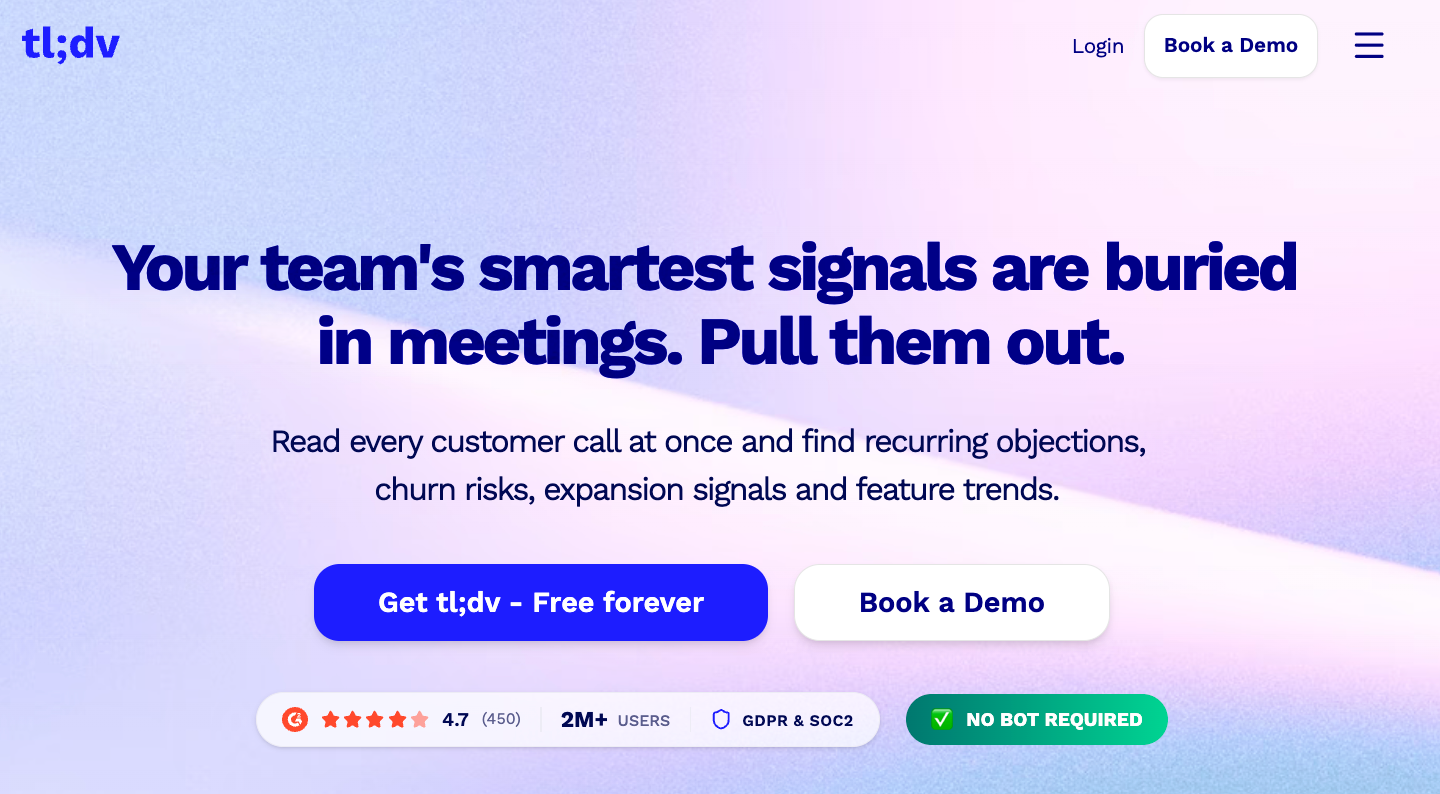
Most tools tell you what happened in a meeting. tl;dv tells you what's happening across all of them. I ran the AI playbook monitoring feature across a batch of recorded sales calls and it flagged a recurring pattern: budget qualification was being skipped before demo. That's not something you catch by reviewing individual transcripts.
The coaching layer is where the Business plan earns its place. Scheduled AI reports land in your inbox or Slack on whatever cadence you set: weekly rep digests, objection breakdowns, playbook adherence scores. No one has to pull recordings manually.
Key features
- Multi-meeting AI insights: Query your entire call archive
- Transcription: Zoom, Meet, and Teams in 30+ languages, bot and bot-free
- AI playbook monitoring: Flags what went unasked or off-script on every call
- Scheduled AI reports: Playbook scores and rep digests delivered to Slack or email automatically
Pros
- Multi-language support covers international teams
- Scheduled reports to avoid manual recording review
- Unique coaching layer that connects behavior across calls to outcomes
Cons
- Free plan caps AI notes at 10 meetings lifetime
- Transcription quality drops on calls with heavy background noise
Pricing
- Free plan with unlimited recordings; AI-generated notes capped at 10 lifetime
- Paid plans start at $29/seat/month
Bottom line
tl;dv is the right pick if you manage a sales team and need more than a meeting record. The coaching layer and cross-call analysis make it a different category of tool from what else is on this list. Solo users or teams that just want clean summaries will find the free plan too restrictive.
7. Fathom: Best free option for solo users
What it does: Fathom records, transcribes, and summarizes Zoom, Google Meet, and Teams calls, with a genuinely functional free plan that covers unlimited recordings, transcription, and integrations with Claude and ChatGPT.
Best for: Independent contributors, freelancers, and solo professionals whose main frustration is hitting a free-plan cap mid-week.
I started using Fathom after hitting Otter's monthly transcription cap mid-week for the third consecutive time. I was running five or six client calls a week and the free tier math wasn't working. What surprised me about Fathom was that the free plan's recording ceiling is essentially nonexistent. Recordings and transcriptions don't stop at 300 minutes.
The practical catch, and it's worth stating clearly, is that advanced AI summaries on the free plan are capped at five calls per month. After that, you get a basic transcript but no AI-generated summary, action items, or Ask Fathom access until the following month.
For light users or people testing the product, that's still genuinely useful. For anyone running daily meetings, the $20/month Premium plan is the real starting point.
Key features
- AI summaries: Summaries are typically ready within 30 seconds of a call ending
- Scratchpad: Capture personal reactions alongside the AI summary in the same workspace
- Integration on the free plan: Your meeting library is queryable from inside Claude and ChatGPT
- Bot-free capture (Mac, beta): Records audio from your device without adding a participant to the call
Pros
- Bot-free recording for Slack Huddles
- Unlimited recordings and transcription
- Automatic notes, summaries, and updates
Cons
- 5 AI summary cap on free plan
- Windows and iOS in development but not yet available
Pricing
- Free plan: Unlimited recordings and transcription; advanced AI summaries capped at 5 calls per month
- Paid plans for individuals start with the Premium plan at $20/user/month
Bottom line
Fathom is the strongest free option on this list if unlimited recording matters more than unlimited AI summaries. The $20/month Premium plan is what most regular users will actually need, but even the free tier delivers more working value than the capped plans at most competitors.
8. Notion: Best for teams that already work in Notion
What it does: Notion helps teams clean up rough notes, organize information, and turn meeting takeaways into clearer docs inside Notion.
Best for: Product teams, startup teams, marketers, and operators who already run docs and projects in Notion.
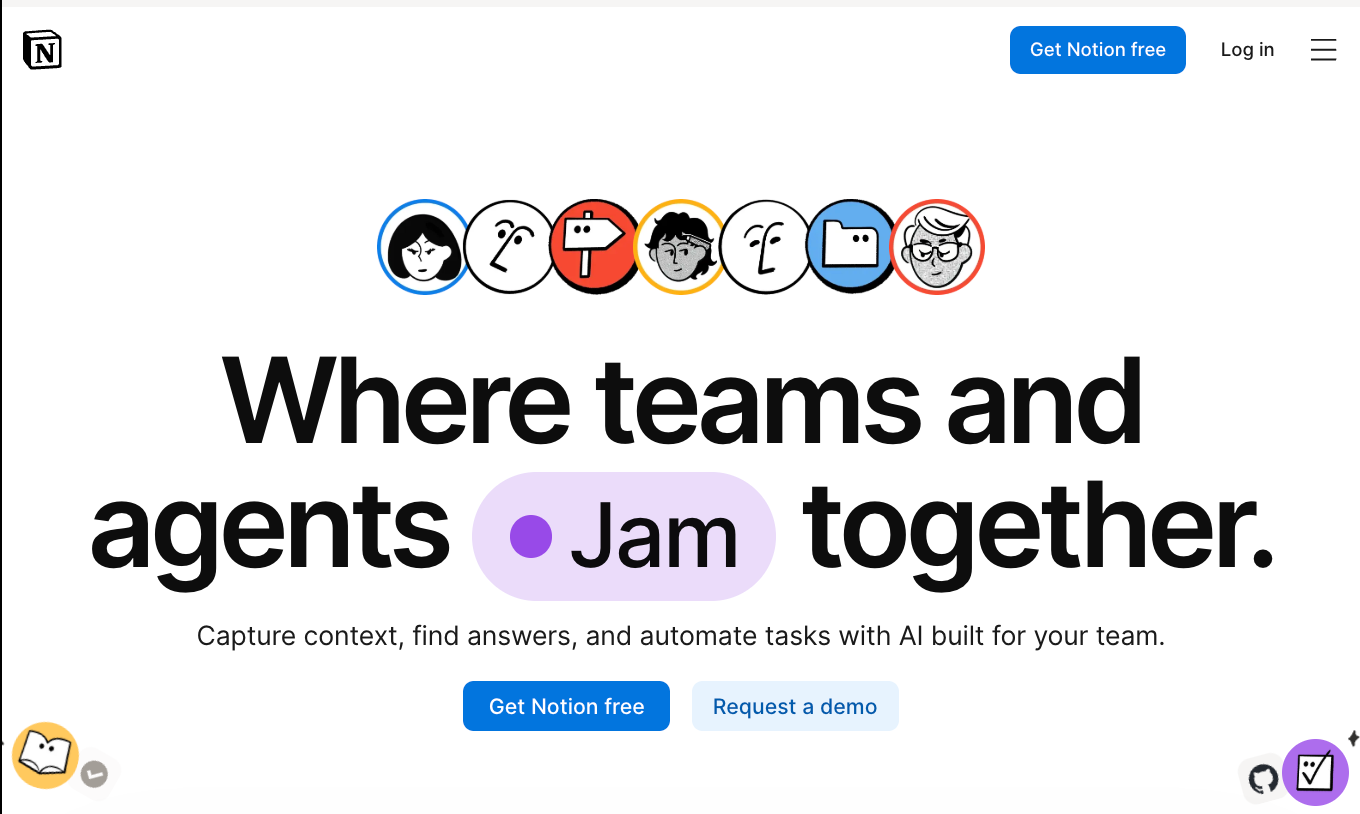
Notion works best when your meeting notes already live inside your team workspace. It offers AI that can capture notes live and turn them into a structured transcript and summary. That makes it useful for teams that document decisions, plans, and follow-ups in Notion anyway.
However, the AI transcription feature is in beta, so it’s not the ideal tool if you want a dedicated meeting-first tool. It’s better for cleanup and organization after the meeting than for capturing the meeting itself.
Key features
- Note cleanup: Turn rough notes into clearer write-ups faster
- AI writing help: Refine raw meeting notes without rewriting everything by hand
- Content organization: Structure decisions and takeaways more cleanly inside Notion
- Workspace integration: Keep meeting notes in the same place as your docs and projects
Pros
- Useful for cleaning up messy notes
- Great fit for teams already working in Notion
- Keeps meeting knowledge inside a familiar workspace
Cons
- Not a dedicated meeting-first note taker
- Less useful if your team does not already use Notion heavily
Pricing
- Trial of AI capabilities on the Free and Plus plan that costs $12/member/month
Bottom line
Notion is the right pick for teams that already live in Notion and want better notes inside that workflow. Skip it if you want a dedicated AI note taker for live meetings.
9. NotebookLM: Best for research and post-meeting synthesis
What it does: NotebookLM helps you work across transcripts, notes, and other source material so you can ask questions and synthesize information faster.
Best for: Researchers, students, strategists, founders, and knowledge workers who need to connect meeting notes with documents.
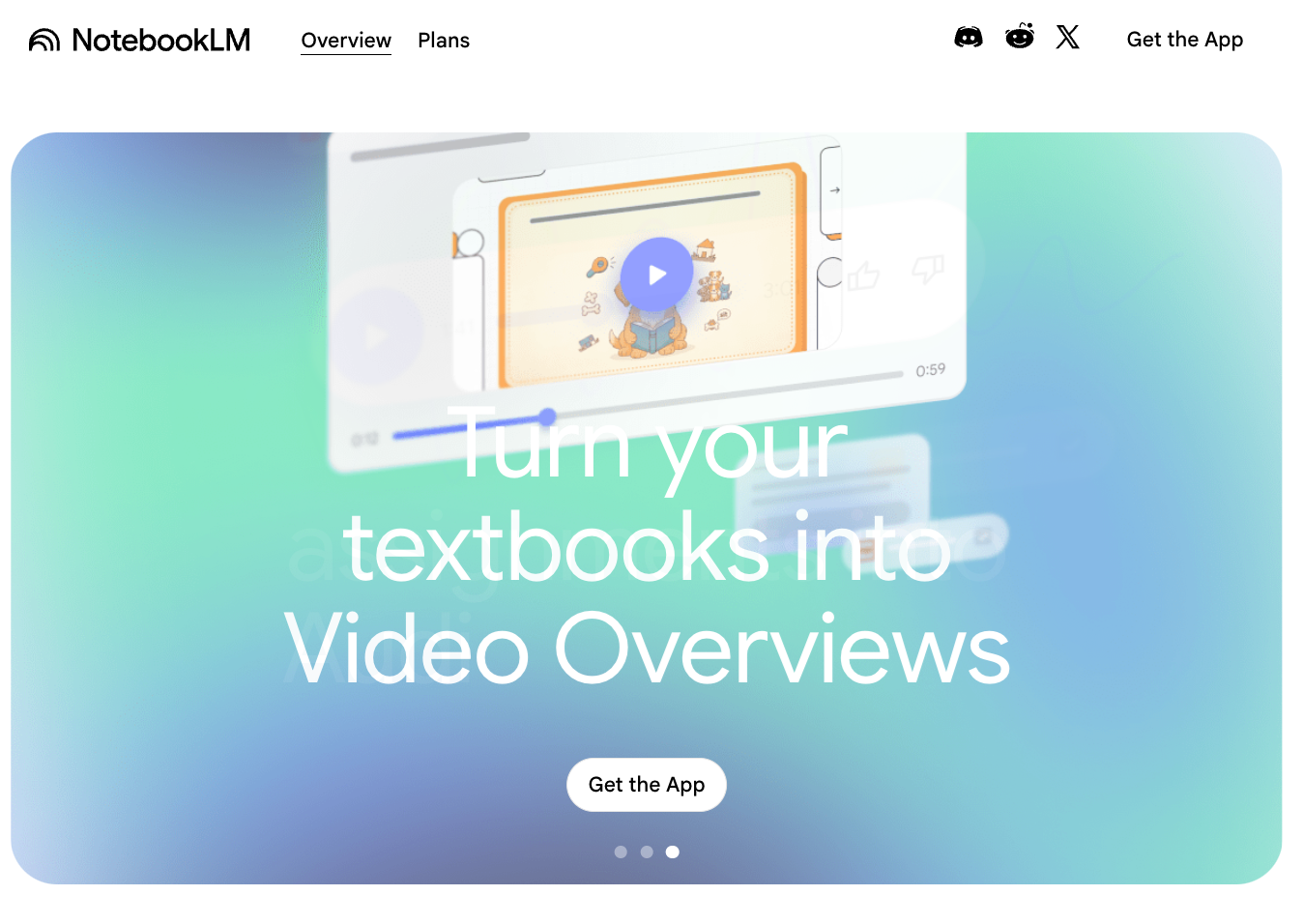
NotebookLM stood out during testing because it’s less about capturing a live conversation and more about helping you make sense of notes, transcripts, and background material. That makes it useful for planning, research, and analysis-heavy work.
It serves a different use case than Otter or Fireflies.ai. If you want live meeting capture, it won’t feel like the best fit. But if you want to compare notes, pull themes from several sources, or ask grounded questions across your material, it’s one of the more useful tools here.
Key features
- Multi-source synthesis: Compare transcripts, notes, and docs in one place
- Summary generation: Pull patterns and key points from larger sets of information
- Source-based Q&A: Ask questions and get answers grounded in your uploaded source
- Research workflow support: Make post-meeting analysis faster when meetings connect to broader projects
Pros
- Strong for synthesis and analysis
- Useful across notes, transcripts, and documents
- Better than most tools for research-heavy workflows
Cons
- Not for live meeting capture first
- Less useful for teams that only want simple meeting notes
Pricing
- Free plan with limited AI capabilities
- Paid plans from $4.99/month, billed monthly, under a Google One subscription
Bottom line
NotebookLM is best for people who need to work across meetings and source material, not just record calls. Choose it when synthesis matters more than live transcription.
{{cta}}
How to choose an AI note-taking app for meetings
The right tool depends less on the feature list and more on how your meetings are structured and what needs to happen after them. A solo consultant running sensitive client calls has different requirements from a sales manager who wants every rep's conversation logged in HubSpot. Most people pick based on a recommendation or a free trial, then realize three weeks in that the tool fits the demo but not the workflow.
Before you try anything, run through these four questions:
- Do you need a bot-free option? Some tools join your call as a named participant visible to everyone. Others capture audio directly from your device with no visible presence in the room. If you run external client calls, early-stage pitches, or any meeting where a third-party bot would raise eyebrows, that distinction matters more than any other feature on the list.
- Which platforms do your meetings run on? Zoom, Google Meet, and Teams are table stakes, but not every tool handles all three with equal reliability. Some have workarounds on specific platforms that create friction right when you need the tool to stay out of the way. Check this against what your team uses before you commit to a trial.
- What needs to happen after the call ends? Transcription is the baseline. The question is what comes next: does the summary go to Slack automatically, does it update your CRM, and can action items be assigned with owners attached? For solo users, a clean summary is usually enough. For teams, the post-meeting routing matters as much as the notes themselves.
- Who is in your meetings, and are you covered legally? Recording laws vary by country and state, and the tool you choose should make consent straightforward, either through a visible bot that signals recording is happening or through a clear announcement at the start of the call. For anyone in healthcare, legal, or finance, check for SOC 2 and HIPAA compliance first on the spec sheet.
Is it legal to record meetings with an AI note-taker?
Yes, but the rules vary depending on where your meeting participants are located. In the United States, federal law requires only one party to consent to a recording, meaning you can record a call you're part of without telling the other person.
However, that federal baseline doesn't apply everywhere. California, Florida, Pennsylvania, and several other states require all parties to consent before a recording begins. If even one participant is in a two-party consent state, that state's law applies to the call.
Outside the US, requirements are stricter. The EU's GDPR treats meeting recordings as personal data, which means you generally need explicit consent from participants before capturing audio or video. Requirements vary by country.
The safest practice, regardless of jurisdiction, is to disclose that a recording is running before the conversation starts. Most of the tools on this list make this straightforward; a visible bot joining as a named participant effectively signals that recording is active. For bot-free tools like Granola and Jamie, a quick verbal or written heads-up at the start of the call is all you need.
For anyone in healthcare, legal, or financial services: check for SOC 2 Type II, HIPAA, and GDPR compliance before committing to a tool. Lindy is SOC 2 Type II, HIPAA, and GDPR compliant. Verify compliance status for any other tool against your industry's requirements.
Which AI note-taking app should you choose?
The right AI note-taking app for you depends on your use case and workflows around notes. Some tools focus on capturing everything, while others help you make decisions, organize takeaways, or move into the next step.
Here’s a quick way to decide:
Choose Lindy if you:
- Want meeting notes to lead directly to specific follow-up actions
- Prefer texting an AI assistant for summaries, decisions, or next steps from past meetings
- Need easy help moving meeting takeaways into your workflow
Choose Granola if you:
- Want private, bot-free meeting notes
- Care more about quiet note capture than downstream actions
- Prefer a simpler desktop-first experience
Choose Otter if you:
- Want live transcripts during meetings
- Need shared notes for team visibility
- Care most about real-time capture
Choose Fireflies.ai if you:
- Need a searchable archive of past calls
- Revisit customer or team conversations often
- Want meeting history your whole team can access
Choose Jamie if you:
- Want bot-free notes across different meeting platforms
- Work in client-facing settings where bots feel awkward
- Care more about flexibility than deep workflow handling
Choose tl;dv if you:
- Manage reps and need pattern analysis across calls, not just individual transcripts
- Want playbook adherence scores and coaching reports without manual review
- Need to spot where deals break down before it costs you a close
Choose Fathom if you:
- Want unlimited free recordings with no weekly or monthly cap
- Work solo or freelance and need a genuinely useful free plan
- Want your meeting library queryable from inside Claude or ChatGPT
Choose Notion if you:
- Already use Notion for docs and planning
- Want help cleaning up rough notes
- Need better organization more than dedicated meeting capture
Choose NotebookLM if you:
- Work across meetings, docs, and research material
- Want to ask questions across notes and source files
- Need synthesis more than live transcription
Try Lindy for your meeting notes and everything after
Every tool on this list handles transcription. What separates them is where they stop, and most stop there. Lindy covers the full meeting cycle, from the prep brief that arrives before your call to the follow-up emails and CRM updates that go out after it ends.
Here is what that looks like in practice:
- Follow-up emails go out to attendees without you writing them
- After the call, structured notes with action items go straight to your inbox
- Before each meeting, it sends a briefing with attendee research and past context
- CRM updates, Notion pages, and Slack summaries run based on what you tell it to do
- Lindy joins your Google Meet, Zoom, and Teams calls automatically from your calendar
- Text Lindy via iMessage to pull a recap, reschedule a meeting, or ask what was decided on any past call
Frequently asked questions
What is the best AI note-taking app for meetings?
The best AI note-taking app for meetings depends on your use cases and team size. Lindy is the best fit when you want notes to turn into follow-up work, while Otter is stronger for live transcription. If you want quieter, bot-free notes, Granola or Jamie make more sense.
Do AI note-takers work without a video call?
Yes, AI note-takers can work without a video call. Otter records in-person conversations directly from your phone, making it the strongest option for client site visits, interviews, and unscheduled conversations. Granola also works without a meeting link, capturing audio from your device. Most other tools on this list require a scheduled Zoom, Google Meet, or Teams session.
Is it legal to record meetings with an AI note-taker?
Yes, but the rules vary depending on where your participants are located. In the US, federal law requires only one party to consent, though states like California, Florida, and Pennsylvania require all parties to agree. In the EU, consent requirements are stricter. The safest approach is to disclose that a recording is running before the conversation begins.
What is the difference between a bot and a bot-free AI note-taker?
A bot-based AI note-taker joins your call as a visible participant that everyone in the meeting can see. A bot-free tool records audio directly from your device without adding anyone to the room. The practical difference is presence and perception. On external client calls or sensitive conversations, a visible bot can change how openly people speak.
Which AI note-taking app is best without a bot joining the call?
Granola, for private note capture, and Jamie, for flexibility across meeting platforms, are two of the best AI note-taking apps without a bot joining the call. That makes them a better fit for client calls, interviews, and more sensitive conversations.
Which AI note-taking app is best for turning notes into tasks?
Lindy is the best AI note-taking app for turning notes into tasks. It helps you pull action items, find decisions from past meetings, and handle the next steps. That makes it more useful than tools that stop at a summary.
Are AI note-taking apps good for in-person meetings?
AI note-taking apps can work for in-person meetings, but not all of them handle that setup well. Tools built around meeting bots are better suited to virtual calls. If you need in-person capture, look closely at device-based or recorder-style tools before you choose.
Do AI note-taking apps still need manual review?
Yes, AI note-taking apps still need manual review in many cases. Most tools save time, but summaries, speaker labels, and action items may need a quick check. Cleanup usually depends on the app and how messy the meeting was.
Which AI note-taking app is best for students and researchers?
Notion AI and NotebookLM are the best AI note-taking apps for students and researchers. NotebookLM works well when you need to work across notes, transcripts, PDFs, and other source material. Notion AI suits users who already organize their work inside Notion.
What is the best AI note-taking app for business meetings?
Lindy is the best AI note-taking app for business meetings if you want help after the meeting, not just during it. It works well for pulling decisions, surfacing action items, and helping with follow-up work.
Which AI note-taking app offers the strongest privacy features?
Lindy, Granola, and Jamie are the strongest privacy-focused AI note-taking apps. Both Jamie and Granola offer bot-free capture and a more private workflow. Lindy is SOC 2 Type II and HIPAA compliant, making it ideal for regulated industries.
What is the most affordable AI note-taking app for everyday use?
Granola, Otter, and Fireflies.ai are the most affordable AI note-taking apps. Their entry-level pricing ranges from $14/user/month to $18/user/month, with Granola being the cheapest at $14/user/month. Lindy also offers great value at $49.99/month, especially given its capabilities.