


How to Attach an Email to an Email (Tested in 2026)
Lindy walked through attaching an email in Gmail, Outlook, and Apple Mail, covering forward-as-attachment, drag-and-drop, and mobile PDF workarounds for desktop and mobile.
.avif)

Last year, a friend of mine was in the middle of a vendor dispute. His supplier was claiming they never received a specific email, and he needed to prove otherwise. He forwarded the original thread to me and asked if something looked wrong. It did.
The timestamps showed his forward date, not when the original email was sent. The "From" header was his. The trail that would have proven his point had been quietly overwritten the moment he hit forward.
That's when I went looking for how to properly attach an email to an email.
I tested the method across Gmail, Outlook, and Apple Mail, on both desktop and mobile. My goal was to find which approaches preserve the original message and which ones just copy the text with the metadata stripped out.
Some clients make this easy, while others (iPhone Mail, I'm looking at you) make you take a detour through the print menu. Here's what works.
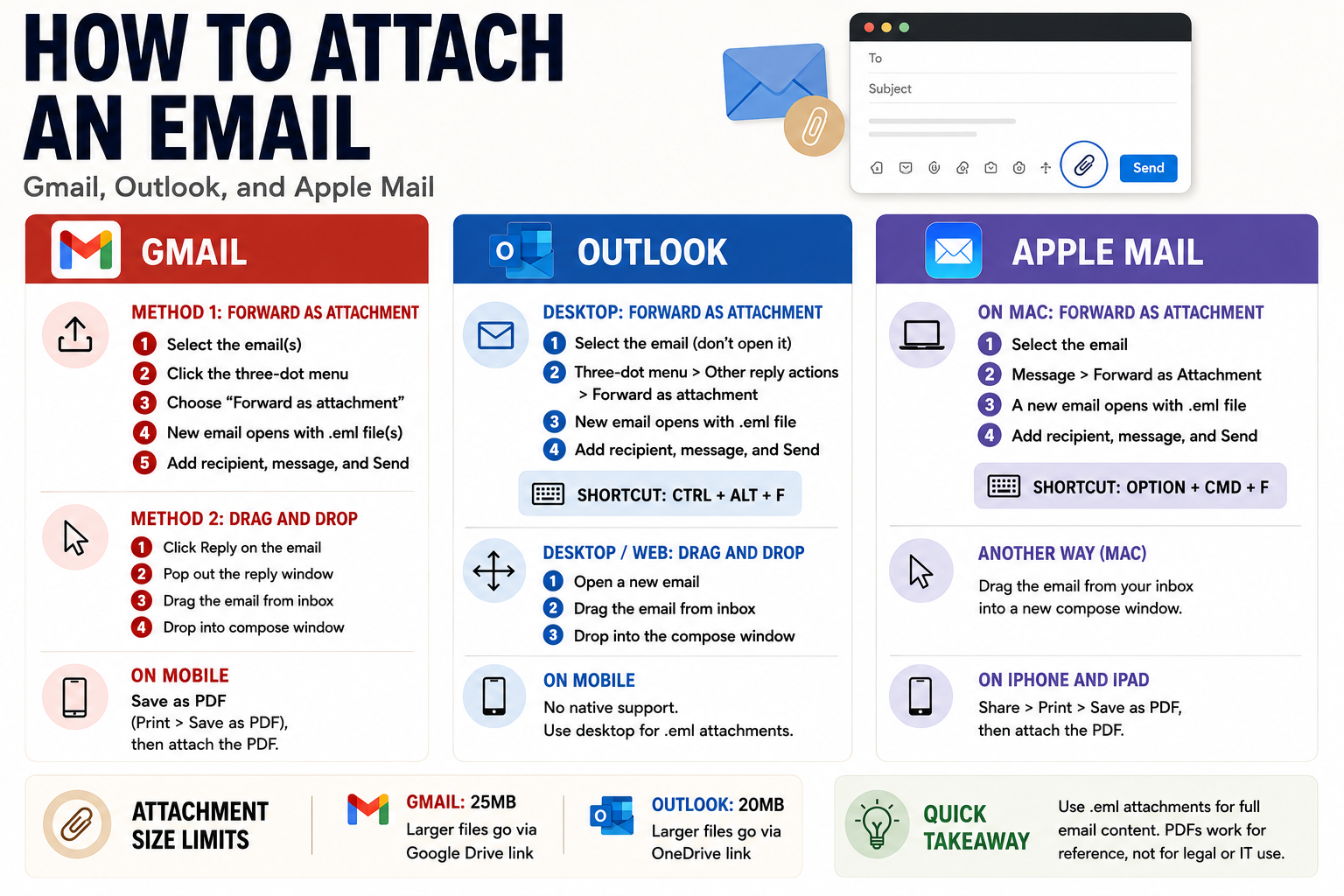
How to Attach an Email to an Email: TL;DR
What does it mean to attach an email to an email?
When you forward an email, your client creates a brand new message and copies the original content into the body. The words, the subject line, and the reply chain all come through. The original headers do not. Your timestamps, routing data, and sender authentication are stripped out in the process.
Attaching is different. Your client wraps the original message in a file, usually .eml, and sends it as a standalone attachment. When the recipient opens it, they see the email exactly as it arrived: original subject line, original timestamps, every header intact.
Think of forwarding as photocopying a letter. Attaching is sending the sealed envelope. The photocopy looks the same, but the postmark is gone.
The .eml format is a standard text file containing the full raw email, metadata included. Any major email client can open it, including Gmail, Outlook, Apple Mail, and Thunderbird. Your recipient doesn't need anything special installed.
When attaching beats forwarding (and when it doesn't)
Most of the time, forwarding is fine. You're looping a colleague in, sharing a newsletter, passing along a client update. Forwarding does the job. Nobody needs to verify the original timestamps on a meeting confirmation.
But there are situations where forwarding actively creates problems:
- Vendor or contract disputes: A forwarded version won't prove when an email was originally sent. The timestamps reflect your forward date. If someone is disputing receipt, that detail matters.
- IT security and phishing reports: Your security team needs the raw message headers to trace where a phishing email came from. A forwarded copy strips all of that. Most IT teams will specifically ask you to attach the original as an .eml for exactly this reason.
- Legal and compliance situations: Lawyers and auditors want original correspondence, not copies. A forwarded email can be altered before sending with no trace; an attached .eml keeps the original headers and authentication data, so any tampering can be detected. That's why it's generally treated as more reliable.
- HR documentation: If you're flagging a policy violation or building a paper trail, attachments preserve the original chain of custody in a way that inline forwards do not.
Outside of those situations? Forward away. It's faster, more readable, and fine for the vast majority of what you send.
How to attach an email in Gmail
Gmail was the most straightforward of the three when I tested it. Both desktop methods produced clean .eml files. On mobile, the native option doesn't exist, but there's a workable PDF path.
Method 1: Forward as attachment
- Open Gmail and check the box next to the email you want to attach. You can select more than one.
- Click the three-dot menu in the toolbar at the top of your inbox.
- Select Forward as an attachment.
- Gmail opens a new compose window with the selected emails attached as .eml files.
- Add your recipient, write your message, and hit Send.
This is the better option when you're attaching multiple emails at once.
Method 2: Drag and drop
- Open the email you want to reply to and click Reply.
- Click the pop-out icon in the top-right corner of the reply window. This moves the compose box into a floating window so your inbox stays visible behind it.
- Find the email you want to attach in your inbox.
- Drag it directly into the floating compose window.
- It attaches as an .eml file. Add anything else you need and hit Send.
The pop-out step is the one most people miss. Without it, dragging an email just navigates you away from your compose window. Drag and drop is faster for single emails, especially when you're already writing a reply.
On mobile
Gmail's mobile app has no native way to attach one email to another. The workaround is saving it as a PDF first.
Here’s how you do it:
- Open the email you want to attach.
- Tap the three-dot menu in the top-right corner.
- Select Print, then choose Save as PDF.
- Save the file to your device.
- Compose a new email, tap the paperclip icon, and attach the PDF you just saved.
You lose the .eml format this way, so the recipient gets a PDF rather than an openable email file. Fine for visual reference, not suitable for IT or legal use.
Size limit: Gmail caps attachments at 25MB. Anything larger gets sent as a Google Drive link automatically.
How to attach an email in Outlook
Outlook has the most options of the three, across its desktop app, web version, and a keyboard shortcut that comes in handy.
Desktop: Forward as attachment
- Select the email you want to attach in your inbox. Click it once; don't open it.
- Click the three-dot menu near the reply buttons and choose Other reply actions > Forward as attachment.
- A new compose window opens with the email attached as an .eml file.
- Add your recipient and message, then hit Send.
In classic Outlook for Windows, the keyboard shortcut Ctrl+Alt+F does the same thing in one step. Worth learning if you do this regularly.
Desktop: Drag and drop
- Open a new email window.
- Find the email you want to attach in your inbox.
- Drag it into the body of the new message.
- It attaches as an .eml file.
You can also right-click the email in your inbox, select Copy, then paste it into a new compose window. Less intuitive, but it works.
Outlook web
Drag and drop works here too. Open a new message, then drag any email from your message list into the compose window. You'll see a "Drop messages here" prompt appear when you hover over it.
The three-dot menu on any email also gives you Other reply actions > Forward as attachment for the same result.
On mobile
The Outlook mobile app has no native support for attaching emails. Use the desktop version for anything that needs an .eml attachment.
Size limit: Outlook caps attachments at around 20MB for most personal accounts, though work accounts can differ. For larger files, Outlook prompts you to upload to OneDrive and share a link instead.
{{templates}}
How to attach an email in Apple Mail
Apple Mail handles this cleanly on Mac. On iPhone and iPad, you hit a wall, but there's a way through.
Mac: Forward as attachment
- Open Mail and select the email you want to attach.
- Go to Message > Forward as Attachment in the menu bar.
- A new compose window opens with the email attached as an .eml file.
- Add your recipient, write your message, and click Send.
There's no built-in keyboard shortcut for this one, so the menu bar is the fastest route.
Another way: Open a new Compose window and drag the email you want to attach directly into it from your inbox list. It attaches instantly. Slightly faster than the menu bar method if you're already composing.
On iPhone and iPad
- The iOS and iPadOS Mail app has no native attach option, so the workaround is saving the email as a PDF first.
- Tap the Share button, then select Print.
- On the print preview, pinch outward on the page thumbnail. This converts it to a PDF.
- Tap Share again and save the PDF to Files.
- Compose a new email, tap the body area, and choose Add Document to attach the saved PDF.
There are more steps than there should be, and Apple hasn't added a shortcut around it.
A few things to check before you send
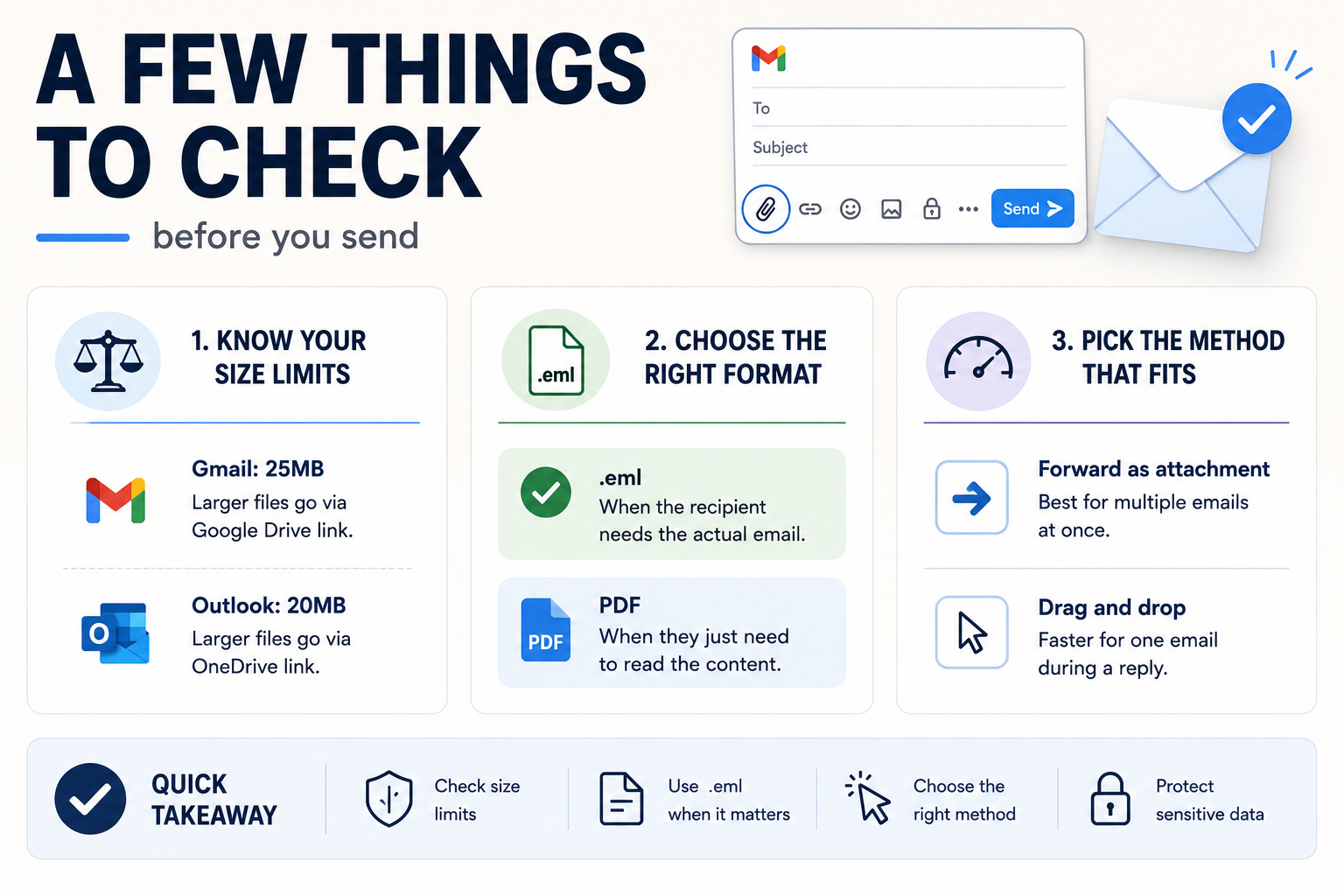
Attaching an email to an email is mostly mechanical. The judgment calls come right before you hit send, and they trip people up in the same three spots.
Three things worth running through:
- Know your size limits: Gmail cuts off at 25MB, Outlook at 20MB. If the email you're attaching already contains large files, you can hit this faster than expected. Gmail swaps oversized attachments for a Google Drive link on its own; Outlook prompts you to upload to OneDrive instead. Either way, it's worth checking before you send anything sensitive.
- Choose .eml when it matters, PDF when it doesn't: If the recipient needs to open the email as an actual email, especially for legal, IT, or compliance purposes, .eml is the right format. If they just need to read the content and don't need to verify headers, a PDF attachment is fine.
- Pick the method that fits your workflow: Forward as attachment is cleaner when you're sending multiple emails at once. Drag and drop is faster when you're already mid-reply and want to include one supporting message. Both produce the same output.
{{cta}}
Tired of managing your inbox manually? Try Lindy.
If email is taking up more of your day than it should, Lindy can help. Lindy is an AI assistant you text to handle the parts of your inbox that don't need you personally.
Here's what it takes off your plate:
- Sorts your inbox automatically: Lindy reads every incoming email, labels it (To Respond, FYI, Invoices, and more), and archives the noise so the important stuff stays visible.
- Drafts replies for you to review: Suggested replies land in your drafts folder before anything sends. It also tracks unanswered emails and drafts follow-ups after two days.
- Texts you when something urgent arrives: Set Lindy to alert you when a specific person emails, a time-sensitive message lands, or a thread you're tracking gets a reply.
- Lets you delegate straight from your phone: Text Lindy over iMessage or SMS to schedule meetings, search your inbox, prep for calls, or get a morning briefing. No app required.
Frequently asked questions
What's the difference between attaching and forwarding an email?
Forwarding copies the content of the original email into the body of a new message. The words arrive intact, but the original headers, timestamps, and routing data do not. Attaching sends the original message as a file. The recipient opens a .eml that contains everything exactly as it was when it first arrived.
Why can't I attach emails directly from my phone?
You can’t attach emails directly from your phone because Gmail on iOS and Android, Outlook mobile, and Apple Mail on iPhone all lack native support for this. It's not a setting you've missed. The PDF workaround is the standard fix for now. If you need to send a proper .eml attachment, the fastest route is to do it from a desktop.
Does my recipient need anything special to open a .eml file?
No. Any major email client can open a .eml file, including Gmail, Outlook, Apple Mail, and Thunderbird. If they double-click it and nothing opens, they can rename the extension to .txt and read the raw content, or drag it into any email client window.
Can I attach more than one email at a time?
In Gmail, yes. Check the boxes next to multiple emails in your inbox, then use the three-dot menu to select Forward as attachment. All selected emails are attached as separate .eml files in one Compose window. Outlook Desktop supports the same thing. Apple Mail lets you select multiple emails before using Forward as Attachment from the menu bar.
Is a PDF attachment as reliable as an .eml for legal or compliance purposes?
No, a PDF captures the visual content of the email but not the headers, routing data, or authentication records. For anything that needs to be verified as an original, unaltered message, an .eml file is the right format. If you're unsure what's required for a specific legal or compliance situation, check with whoever is asking for the documentation before you send.










Blog
Related Articles
.png)
%20(1).png)

%20(1).png)

%20(1).png)
.png)
.png)
The AI assistant that runs your work life
Lindy saves you two hours a day by proactively managing your inbox, meetings, and calendar, so you can focus on what actually matters.
