


Best Email Clients: 14 Picks From 20 Tested in 2026


The best email client depends on what's actually slowing you down.
Maybe it's the interface itself: too many clicks to find one email, or a mobile app that's slow to search.
Maybe it's not the client at all; it's everything email creates: the follow-ups you forget, the meetings you have to manually schedule from a thread.
I tested 20 clients over two weeks, from the free, native options most people already have installed to the AI-heavy tools that promise to run your inbox for you, and cut the list to the 14 that earned a spot.
Here are the 14 best email clients in 2026, covering free native options, purpose-built replacements, and AI-powered tools:
- Thunderbird: Best free, open-source client if you want full control
- Gmail: Best if you want zero setup and native Google integration
- Apple Mail: Best native option for Mac and iPhone users
- Outlook: Best native option for Microsoft-first teams
- Superhuman: Best for high-volume inbox speed
- Shortwave: Best for Gmail users wanting AI search and thread intelligence
- Missive: Best for teams managing shared inboxes
- Spark: Best AI email client for individuals and small teams
- Spike: Best for async-first teams wanting email and chat in one place
- Gemini in Gmail: Best native AI for Google Workspace users
- Microsoft Copilot: Best native AI for Microsoft 365 users
- SaneBox: Best for passive inbox filtering without switching apps
- Fyxer: Best for AI drafting inside your existing inbox
- Lindy: Best for full email handling beyond the inbox
What is an email client?
An email client is any application you use to read, write, and organize your email. That covers a wide spectrum: at one end are free, native apps like Gmail's web interface, Apple Mail, and Outlook, which come installed or bundled with an account you already have.
At the other end are purpose-built replacements and AI-powered tools that add speed, automation, or full task-handling on top of the basics.
Native and free clients are what most people start with. Gmail, Apple Mail, Outlook, and Thunderbird all fall here. No extra cost, no new interface to learn, and for a lot of people, they're enough.
Client replacements swap your existing interface for a purpose-built one designed around speed or team collaboration, like Superhuman, Shortwave, Missive, Spark, and Spike. You get real improvements, but there's a learning curve and usually a monthly cost.
AI layers and AI assistants work inside or alongside your existing inbox. AI layers like Gemini in Gmail, Microsoft Copilot, SaneBox, and Fyxer add drafting, filtering, or summarization without changing your interface.
AI assistants like Lindy go further, connecting your inbox to your calendar, CRM, and other tools to handle the work email creates across your workflow.
Picking the right one starts with knowing which of these problems you actually have: the interface, the missing features, or the work that email generates beyond the inbox.
How I researched and tested these email clients
I tested these over two weeks in June 2026, against a real inbox running 15 to 20 emails a day: a normal mix of client emails, subscriptions, newsletters, reminders, and roughly a dozen each day that actually needed a real response.
For the native and purpose-built clients, I measured how quickly I could process a full day's inbox and how much the interface got in the way. For the AI-powered tools, the biggest thing I was measuring was the blank-page problem: those few minutes of staring at an email trying to figure out how to approach it before typing a word.
When a tool's draft was good enough to send with minor edits or none, that alone saved roughly 5 minutes per email, which adds up fast over a day with a dozen replies to write.
Fyxer's drafts came closest to consistently clearing that bar. Most needed just one line changed before I hit send. Others in the same AI-layer category needed a full rewrite more often than not.
Tools that looked impressive in the first few days but broke down over sustained daily use, or whose drafts never got close enough to usable to save that time, got cut from the final 14.
Here is what I evaluated each tool on:
- Setup and cost: Whether it's free out of the box or requires a paid plan, and what you get at each tier.
- Triage accuracy: How well it sorts, prioritizes, and surfaces what actually needs attention.
- Draft quality: Whether AI-written replies, where offered, are usable without significant editing.
- Integration depth: How smoothly it connects to the calendar, CRM, and task tools already in the workflow.
- Use case fit: How each tool performs for different kinds of users, from someone who just wants a clean inbox to a team managing shared addresses to solo operators buried in follow-ups.
This hands-on approach helped me separate the tools that genuinely change how much time or mental energy email consumes from the ones that just move the same problems around in a cleaner interface.
14 best email clients: TL;DR
Native and free clients
1. Thunderbird
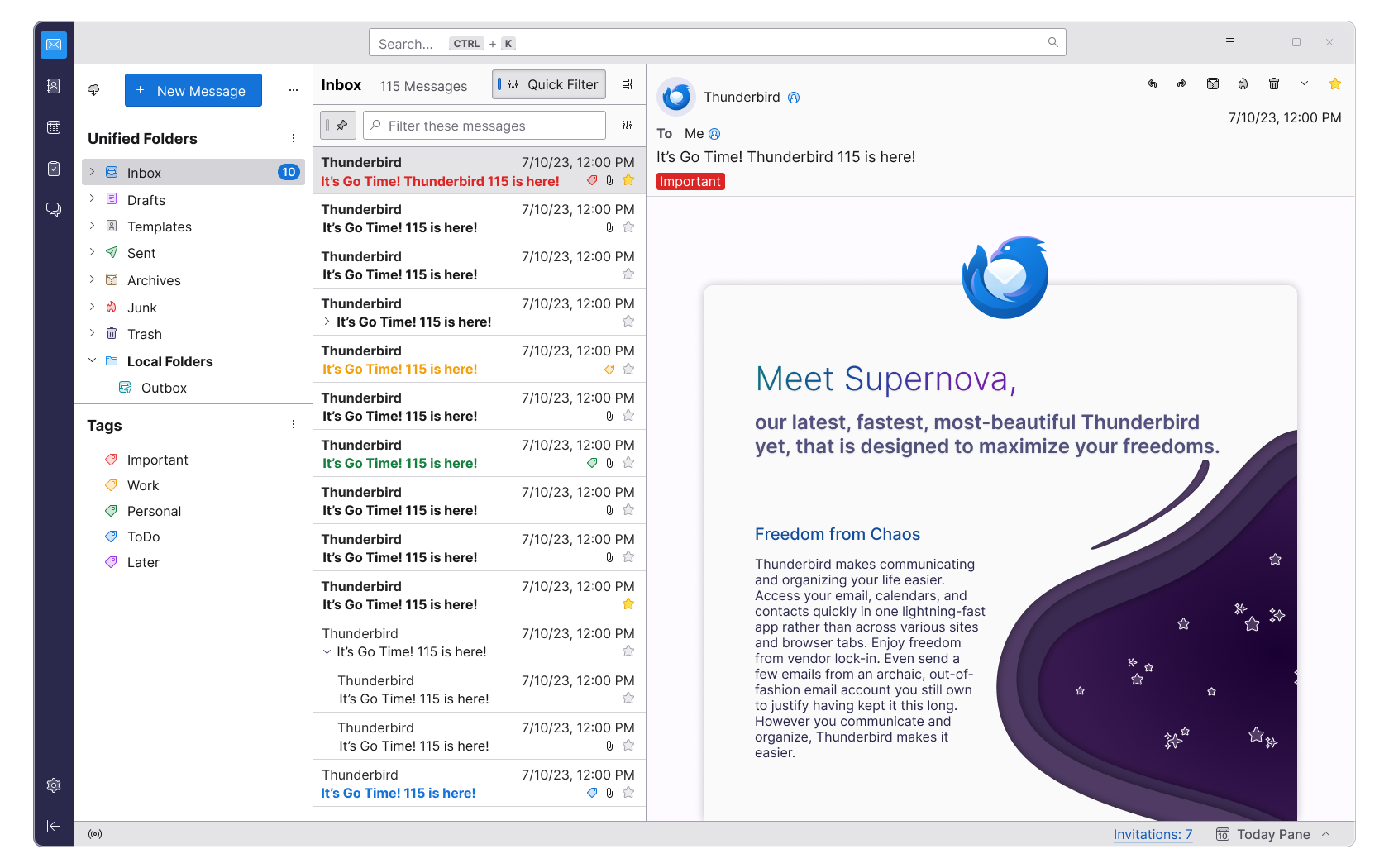
What it does: Thunderbird is Mozilla's free, open-source email client, built to connect to any IMAP or POP account without locking you into a single provider or business model.
Who it's best for: Anyone who wants a capable, fully-featured client without paying for one, or who prefers open-source software they can inspect and customize over a subscription product.
Key features
- Free and open-source, with no paid tiers or account requirements beyond your own email
- Connects to virtually any provider via IMAP, POP, or Exchange
- Extensive add-on ecosystem for calendaring, encryption, and custom themes
- Built-in end-to-end encryption support via OpenPGP
- Tabbed interface for managing multiple accounts and messages at once
- Available on Windows, Mac, and Linux
Pros and cons
Pricing
Thunderbird is free, funded through optional donations and a nonprofit foundation rather than subscriptions.
2. Gmail
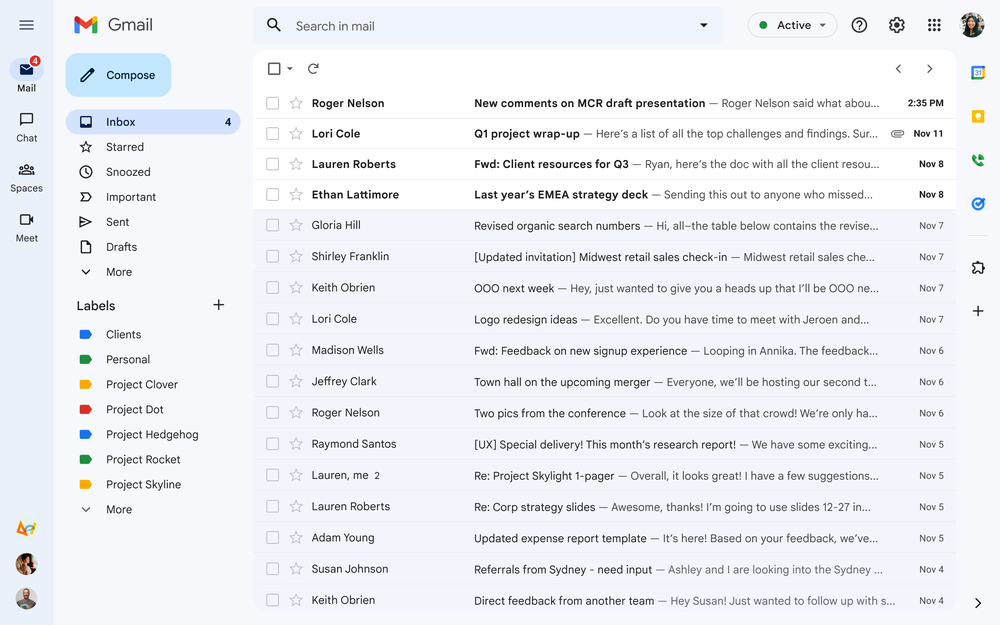
What it does: Gmail is Google's free email service and native web/mobile client, used by billions of people as either a personal inbox or the front end for a Google Workspace account.
Who it's best for: Anyone who wants a reliable, zero-setup inbox without installing anything or paying for a separate tool, especially if the rest of their work already lives in Google's ecosystem.
Key features
- Native search across your full mail history
- Automatic categorization into Primary, Social, and Promotions tabs
- Built-in spam and phishing filtering
- Google Workspace integration with Calendar, Meet, and Docs
- Cross-device sync across web, iOS, and Android with no extra setup
- Free tier includes 15GB of shared storage across Gmail, Drive, and Photos
Pros and cons
Pricing
Gmail is free for personal use. Business use through Google Workspace starts at $7/user/month (Business Starter), or about $6/user/month with an annual plan.
3. Apple Mail
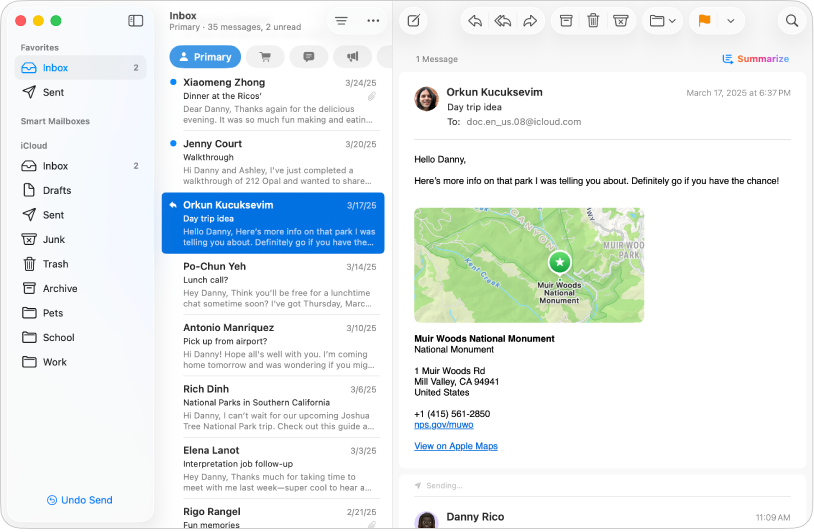
What it does: Apple Mail is the native email client built into macOS and iOS, designed to work with any IMAP or Exchange account without a separate download.
Who it's best for: Mac and iPhone users who want their email tightly integrated with the rest of Apple's ecosystem, without installing a third-party app.
Key features
- Pre-installed on every Mac and iPhone, with no separate download required
- Unified inbox across multiple accounts, including Gmail, Outlook, and iCloud
- Apple Intelligence Smart Reply drafts quick responses, free on supported devices
- Apple Intelligence Writing Tools for proofreading, rewriting, and summarizing emails
- Priority Messages surfaces time-sensitive emails automatically
- Handoff support to start an email on one Apple device and finish it on another
- Built-in Mail Privacy Protection to limit sender tracking
Pros and cons
Pricing
Apple Mail is free and included with macOS and iOS.
4. Outlook
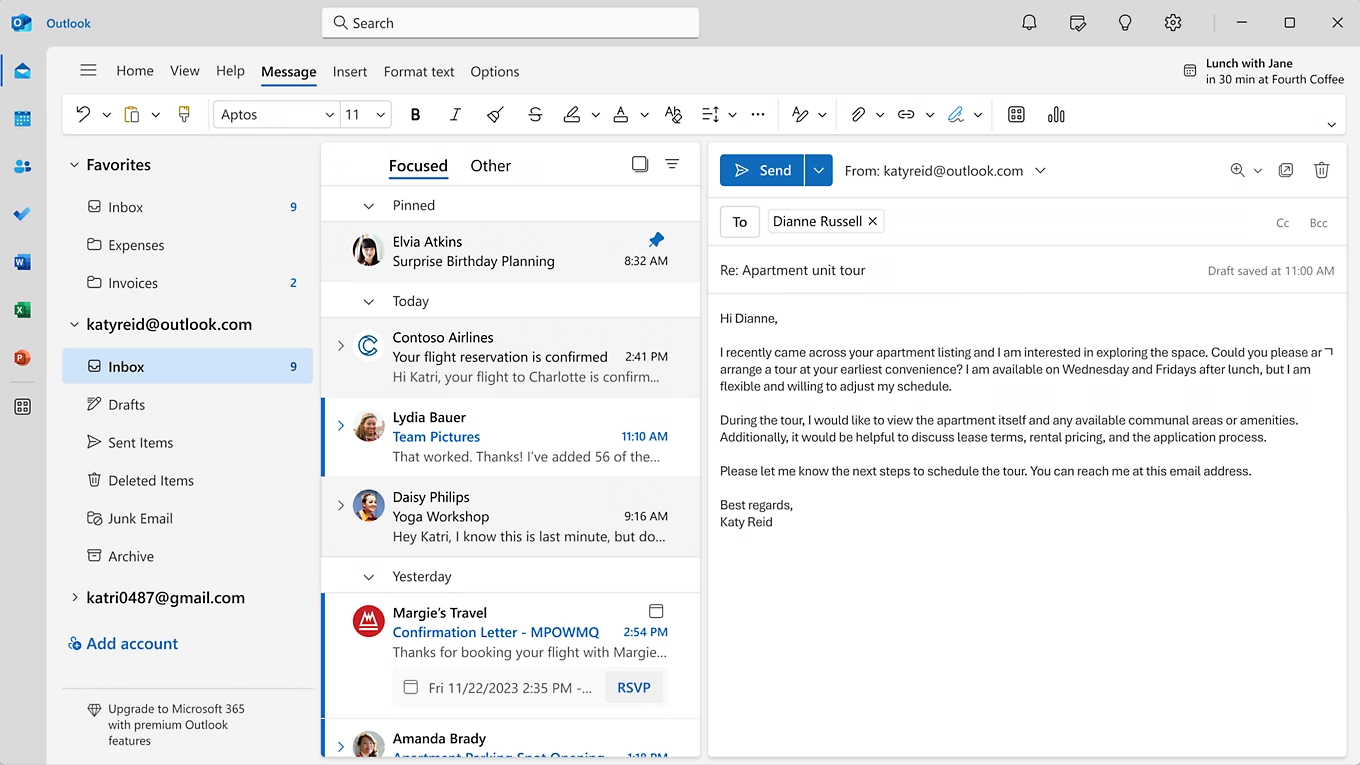
What it does: Outlook is Microsoft's email client and calendar app, available as a free personal client and as the default inbox for Microsoft 365 subscribers.
Who it's best for: Individuals and teams already working inside the Microsoft ecosystem, especially anyone who needs tight calendar integration alongside email.
Key features
- Free personal tier with a Microsoft or Outlook.com account
- Deep calendar integration for scheduling directly from an email thread
- Focused Inbox that separates priority mail from the rest automatically
- Rules and categories for manual inbox organization
- Works across web, desktop, and mobile with full sync
- Connects to Exchange, Gmail, and other IMAP accounts, not just Microsoft addresses
Pros and cons
Pricing
Outlook is free for personal use. Paid Microsoft 365 plans that add the full desktop apps start at $9.99/month (Personal, billed monthly).
Email client replacements
5. Superhuman
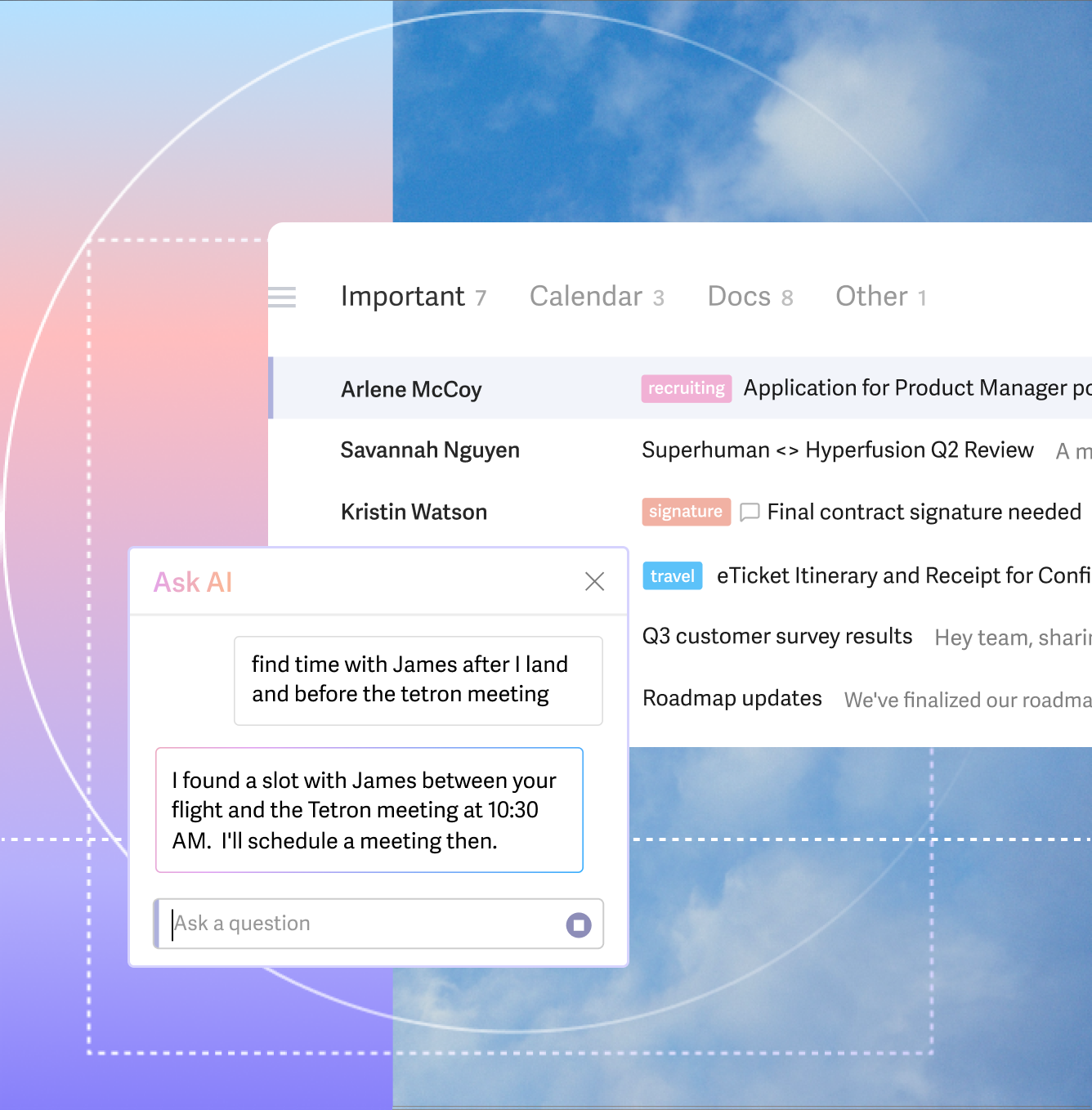
What it does: Superhuman replaces your Gmail or Outlook interface with a keyboard-first client designed to move through a packed inbox faster than any standard email app.
Who it's best for: Founders managing investor relationships, sales executives with dozens of active client threads, and anyone who processes 100 or more emails a day and measures their output partly by inbox state.
Key features
- AI-prioritized inbox that surfaces important emails and filters out noise automatically
- AI reply drafting that pre-writes full responses in your voice (Auto Drafts, Business plan only)
- Split Inbox that separates VIP contacts, newsletters, and notifications into dedicated views
- Thread summarization that condenses long email chains into a few sentences
- 100-plus keyboard shortcuts for processing email without touching the mouse
- Read receipts and follow-up reminders to track who has opened your emails
Pros and cons
Pricing
Superhuman plans start at $15/month (Pro, billed monthly), with Business at $40/month (billed monthly), plus custom Enterprise pricing. A free plan is also available.
6. Shortwave
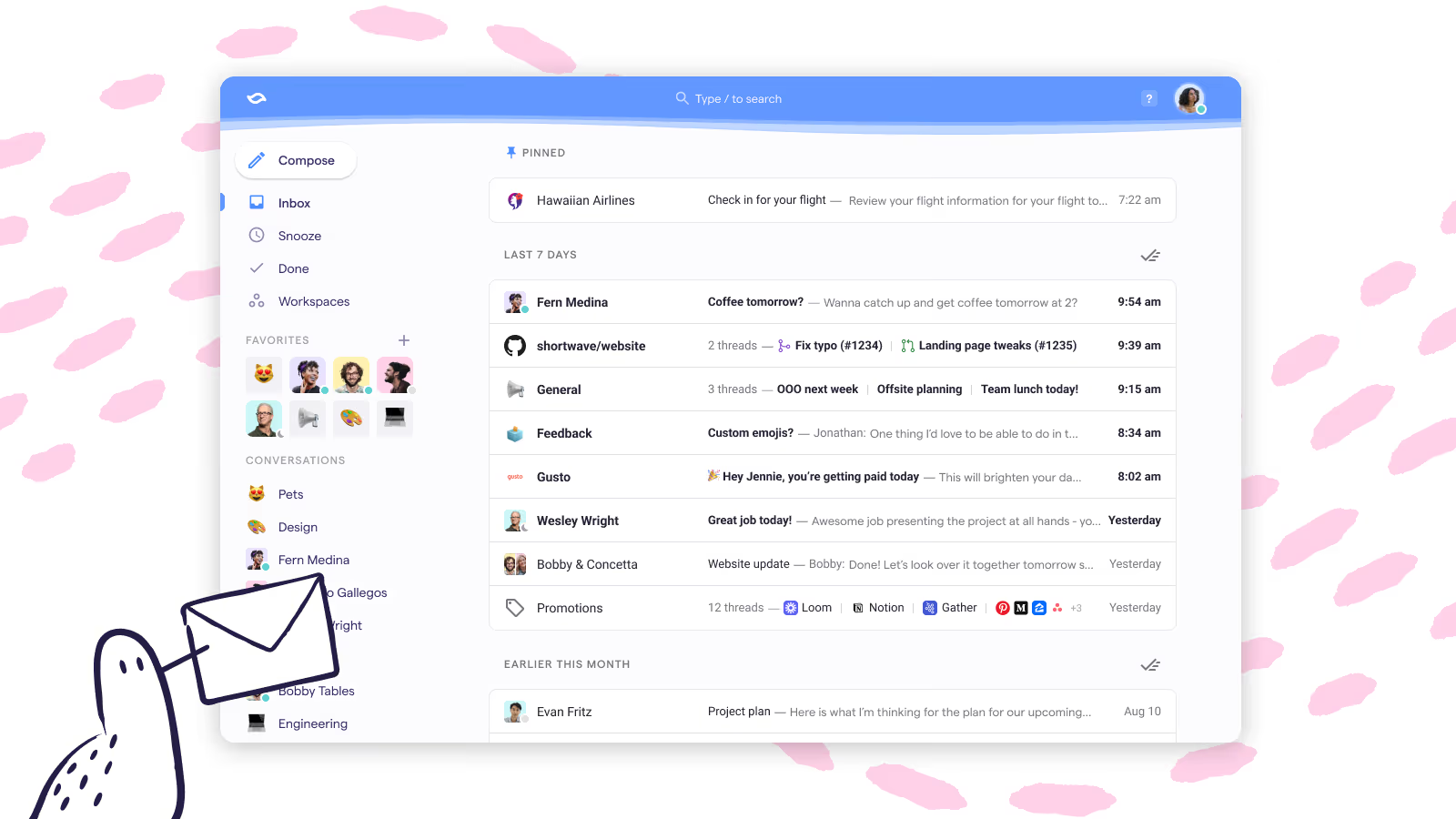
What it does: Shortwave is an AI-native email client built by former Google engineers, bringing deep AI search, smart thread bundling, and context-aware drafting to Gmail.
Who it's best for: Gmail users who spend significant time hunting through archived email, manage high thread volumes, or want an inbox that feels organized. Teams in Gmail-first environments who want a modern client without Superhuman's price.
Key features
- AI summaries on every email thread as a two-to-four sentence preview
- Natural language search across full email history
- Smart Labels that auto-categorize emails by sender, so recurring senders like newsletters or receipts get filed the same way every time
- AI scheduling that checks your calendar and drafts availability emails
- Tasklets for turning emails into actionable items
- Available on Mac, Windows, iOS, and Android
- Share threads, assign owners, and comment privately inside the inbox
Pros and cons
Pricing
Shortwave plans start at $18/seat/month (Pro, billed monthly). A free plan is also available.
7. Missive
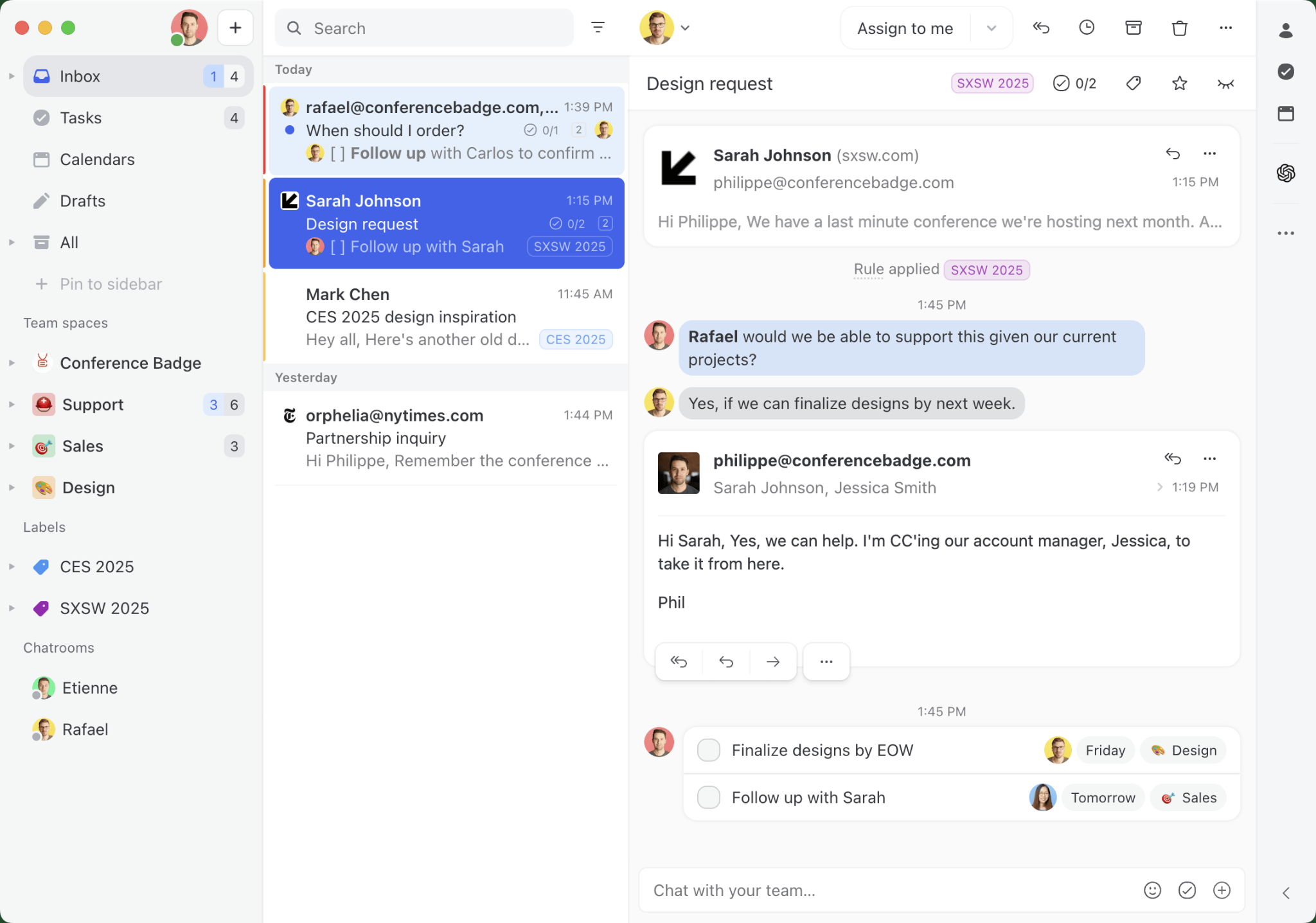
What it does: Missive is a team email and collaboration client that layers internal chat directly inside email threads, letting teams discuss, assign, and resolve messages without sending additional emails to each other.
Who it's best for: Support, sales ops, and operations teams managing shared inboxes like support@, sales@, or billing@ who need to coordinate across those threads without forwarding chains and CC storms.
Key features
- Shared inbox with assignment, internal chat, and collaborative drafting built in
- Internal comment threads on every email, visible only to the team
- Rules and automations for routing, assigning, and labeling incoming mail
- AI drafting via bring-your-own API key using Claude, OpenAI, or Gemini
- Connects Gmail, Outlook, Microsoft Exchange, iCloud, and IMAP with full two-way sync
- Personal and shared account modes so teams control exactly who sees what
Pros and cons
Pricing
Missive plans start at $18/user/month (Starter, billed monthly), with Productive at $30/user/month and Business at $45/user/month.
8. Spark
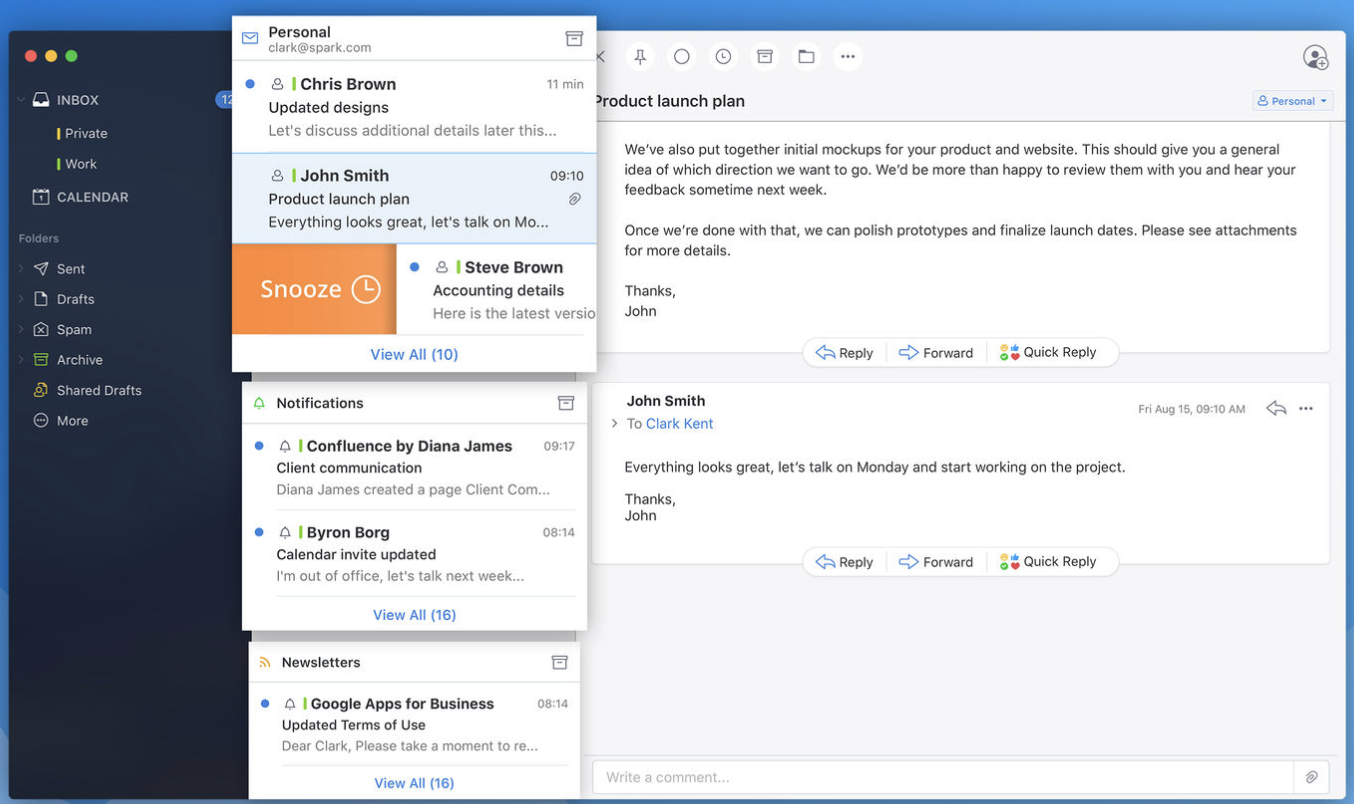
What it does: Spark is an email client built around reducing inbox noise, with AI drafting, natural language search, and scheduling handled without leaving the app.
Who it's best for: Individuals and small teams who want a cleaner, faster inbox experience without paying Superhuman prices, with a free plan that covers most individual needs.
Key features
- Smart Inbox that automatically separates priority email from newsletters and notifications
- Gatekeeper to accept or block incoming senders before they reach your inbox
- AI drafting, reply suggestions, and thread summaries built into the compose window
- Send Later, Snooze, and Reminders for managing email on your own schedule
- Shared inbox, shared drafts, team comments, and task assignments for teams
- Works across Gmail, Outlook, Exchange, iCloud, and IMAP on Mac, Windows, iOS, Android, and Apple Watch
- Priority Sender and Pin features to surface the contacts that matter most
Pros and cons
Pricing
Spark plans start at $10/user/month (Plus, billed monthly), with Pro at $20/user/month, plus custom Enterprise pricing. A free plan is also available.
9. Spike
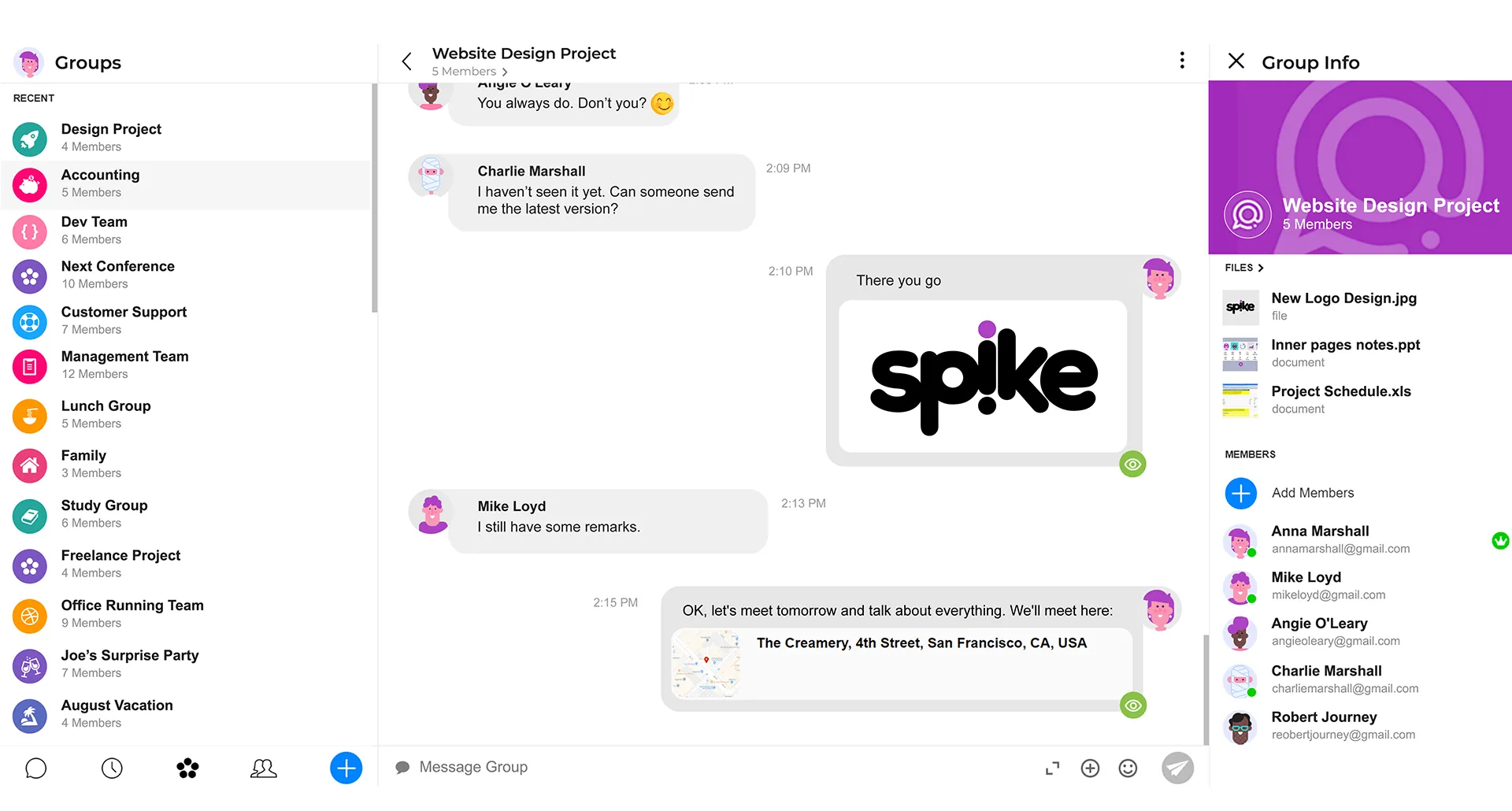
What it does: Spike transforms traditional email threads into chat-style conversations grouped by person rather than subject line, and adds team chat, notes, tasks, video calls, and AI summaries to the same workspace.
Who it's best for: Freelancers, remote teams, and small businesses that communicate heavily by email but find traditional inbox interfaces slow and cluttered. Teams that want to reduce the number of apps they use for communication without migrating to a new email provider.
Key features
- Conversational email that groups messages by person in a chat-like interface
- Priority Inbox that automatically sorts important conversations from noise
- AI thread summaries, reply suggestions, and inbox organization
- Unified inbox across multiple email accounts and devices
- Built-in voice and video calls without a separate conferencing link
- Shared notes, tasks, and collaborative documents inside the inbox
- Supports Gmail, Outlook, iCloud, Yahoo, and IMAP
- Free Teamspace plan with a @spike.team address included
Pros and cons
Pricing
Spike plans start at $8/user/month (Pro, billed monthly), with Ultimate at $16/user/month.
AI layers
10. Gemini in Gmail
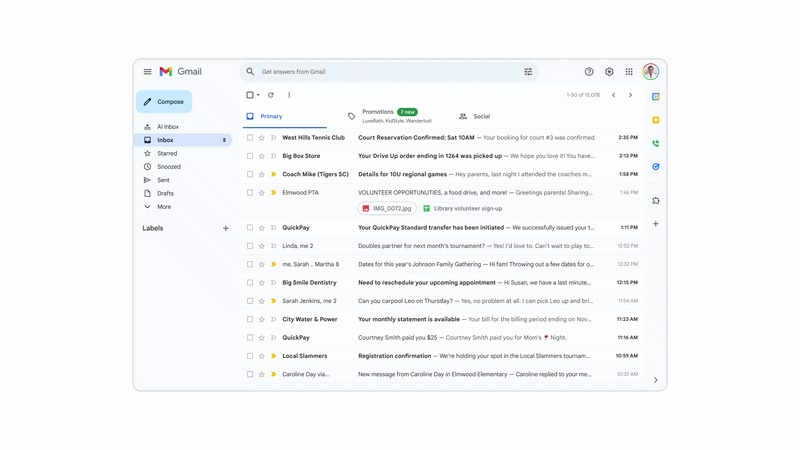
What it does: Gemini is Google's native AI layer built directly into Gmail, available to Google Workspace subscribers and Google AI plan holders.
Who it's best for: Google Workspace users who want AI inbox features without adding a third-party tool or granting outside access to their inbox. Also a solid starting point for anyone evaluating whether a more capable tool is worth the additional cost.
Key features
- AI Overviews that summarize long threads at the top of each conversation
- AI Inbox view that groups unread emails by topic cluster
- Suggested to-dos extracted from email content
- Help Me Write for drafting emails from scratch
- Suggested Replies with contextually relevant one-click responses
- Proofread and rewrite tools for improving tone and clarity
- Daily briefing panel showing priority unread messages
Pros and cons
Pricing
Google AI plans start at $4.99/month (Google AI Plus, billed monthly), with Pro at $19.99/month and Ultra starting from $99.99/month.
11. Microsoft Copilot
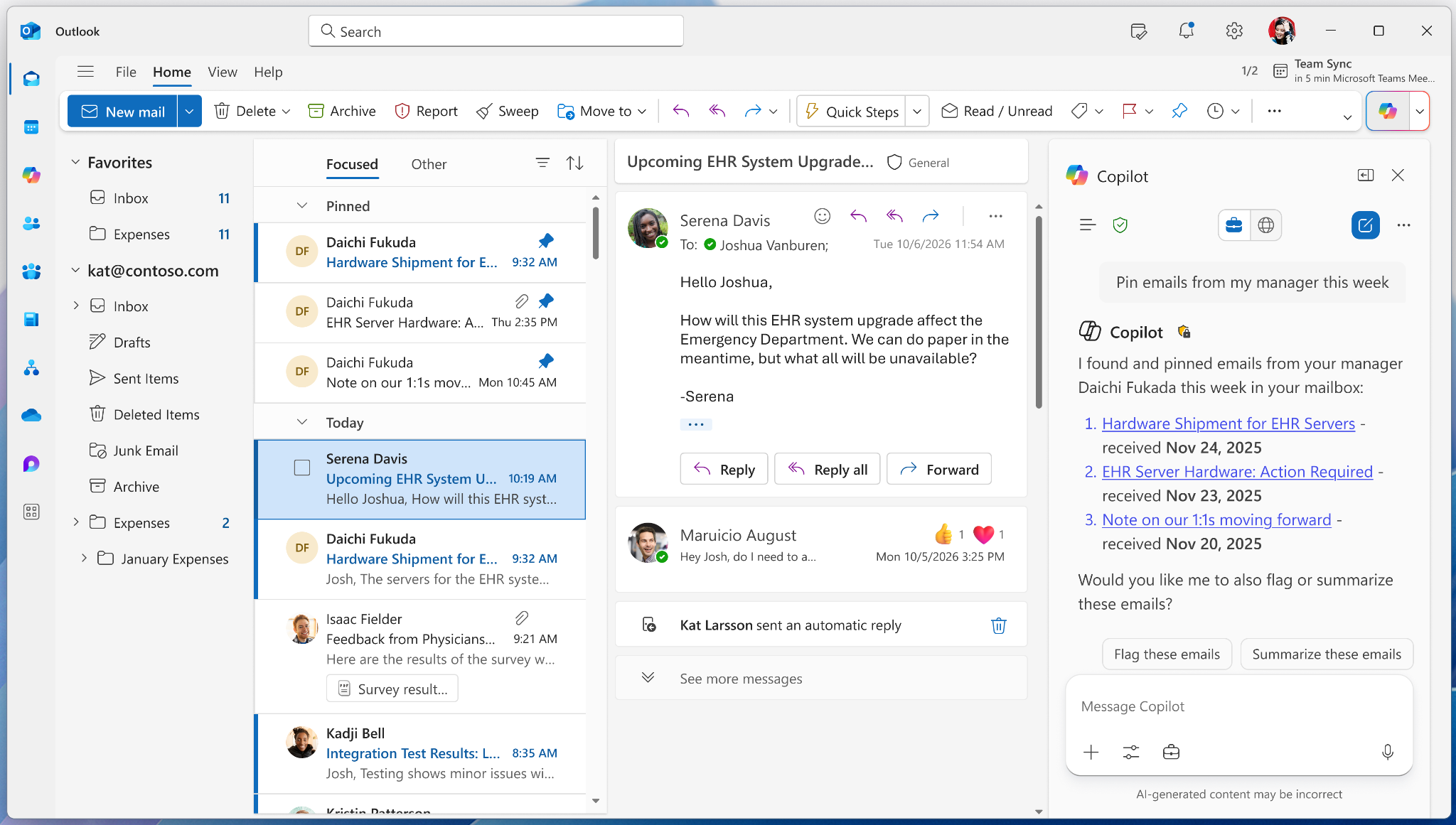
What it does: Microsoft Copilot is the native AI assistant built into Outlook and the broader Microsoft 365 suite, grounded in your organization's data through Microsoft Graph so it can see your emails, files, Teams conversations, and calendar simultaneously.
Who it's best for: Teams already on Microsoft 365 willing to pay for Copilot as an add-on rather than expecting it bundled in. If Outlook, Teams, Word, and Excel run your workday, Copilot is a natural fit once the extra per-user cost is budgeted.
Key features
- Thread summarization for catching up on long email chains
- Email drafting from natural-language prompts grounded in M365 data
- Meeting scheduling detected from email context
- Meeting prep summaries pulled from recent emails, files, and calendar events
- Copilot Chat for searching across your entire M365 environment
- References Word docs, Excel files, and Teams conversations in email drafts
- Works across web, desktop, and mobile Outlook
- Enterprise-grade security within Microsoft's existing compliance framework
Pros and cons
Pricing
Microsoft 365 (with Copilot) plans start at $9.99/month (Personal, billed monthly), with Family at $12.99/month and Premium at $19.99/month.
12. SaneBox
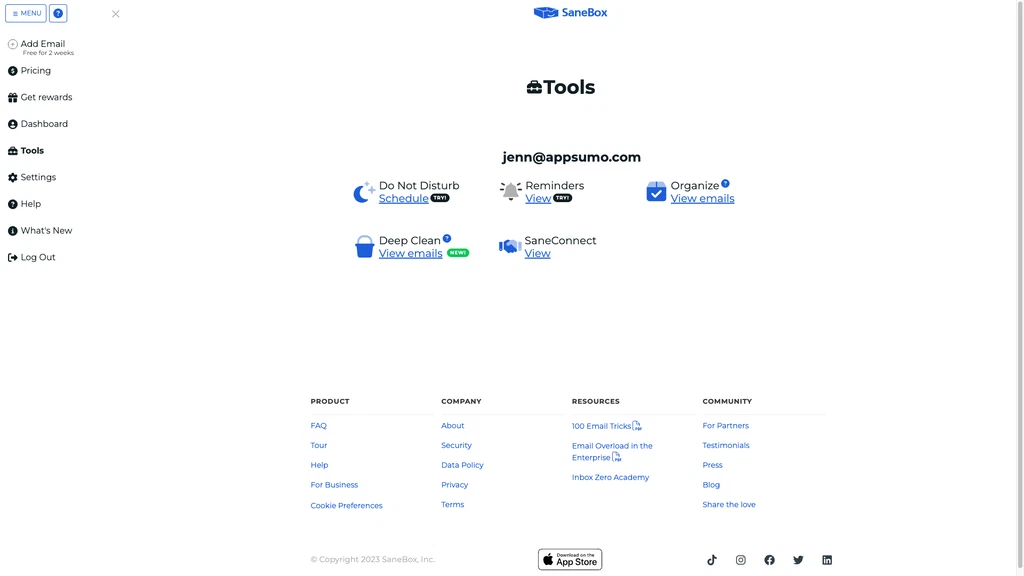
What it does: SaneBox works in the background with any email client, learning which senders and email types you engage with and automatically routing lower-priority mail out of your main inbox into smart folders.
Who it's best for: Anyone drowning in inbox noise who doesn't want to switch email clients, learn new shortcuts, or set up automation rules. SaneBox works the same way whether you use Gmail, Outlook, Apple Mail, iCloud, or any IMAP client.
Key features
- SaneLater automatically moves unimportant emails to a separate folder so your main inbox stays focused
- SaneBlackHole permanently removes unwanted senders with one click
- SaneReminders follows up on emails that never got a reply so nothing falls through
- SaneDigest delivers a daily summary of unopened low-priority emails with bulk action tools
- SaneNews rounds up newsletters into a single folder so you can read them when you choose
- SaneSnooze sends emails away until you’re ready for them
- Compatible with any email provider that supports IMAP, EWS-OWA, or ActiveSync
- No app to download and no manual setup required
Pros and cons
Pricing
SaneBox plans start at $9.49/month (Snack, billed monthly), with Lunch at $15.99/month and Dinner at $42.99/month. Switching to annual or two-year billing brings the cost down by up to 42%.
13. Fyxer
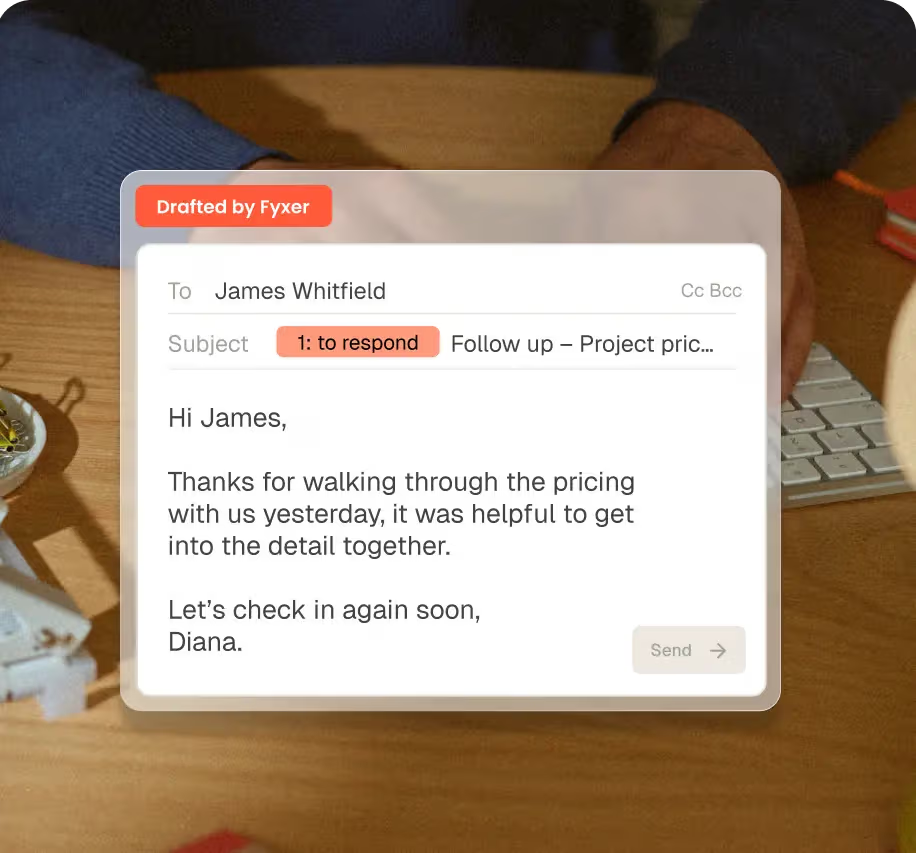
What it does: Fyxer is an AI inbox and meeting assistant that sits on top of Gmail or Outlook, organizing your email, writing replies in your tone, and taking meeting notes without asking you to change your existing email client.
Who it's best for: Professionals who want the feel of having an executive assistant handling their inbox without switching to a new email interface or setting up automation rules.
Key features
- AI inbox categorization into needs-a-reply, FYI, and marketing buckets
- Pre-written reply drafts in your tone, ready before you open the email
- Meeting note-taking across Zoom, Google Meet, and Microsoft Teams
- Follow-up email drafted and ready after every meeting
- Smart scheduling link to remove back-and-forth calendar coordination
- Meeting prep context surfaced before scheduled calls
- Works natively inside Gmail and Outlook with no interface switch
Pros and cons
Pricing
Fyxer plans start at $30/user/month (Starter, billed monthly), with Professional at $50/user/month, plus custom Enterprise pricing. A 7-day free trial is available.
AI assistant
14. Lindy
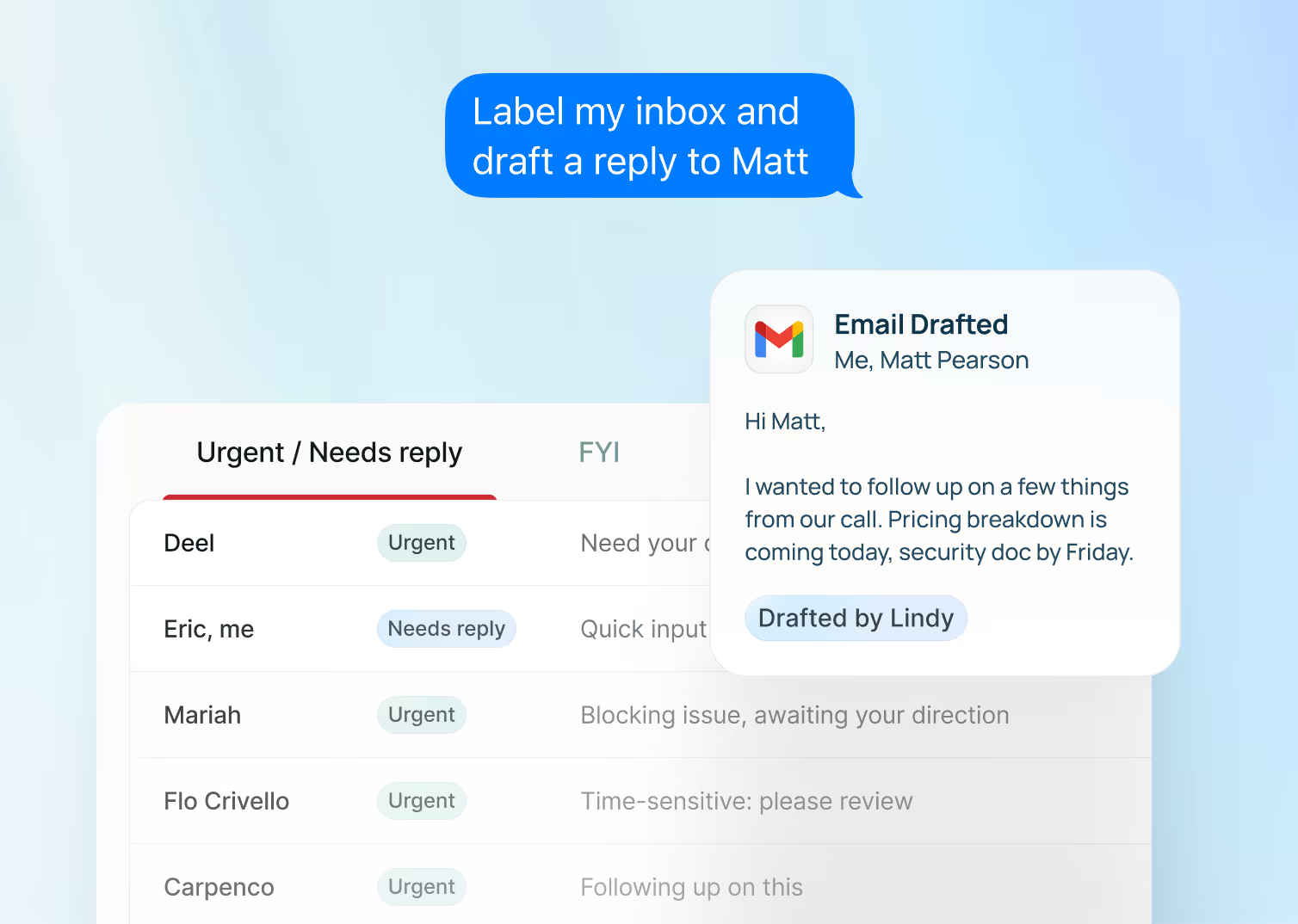
What it does: Lindy is an AI assistant you can text to manage the work that starts in your inbox. Say a client asks to reschedule. Lindy drafts a reply with open times from your calendar and texts it for approval. Say yes, and it sends the reply, books the meeting, and updates the CRM.
Who it's best for: Lindy is best for busy professionals who want more than email sorting or reply drafting. It fits founders, sales teams, and operators who need an AI assistant that can turn inbox requests into scheduled meetings, follow-ups, CRM updates, and team updates.
Key features
- Inbox triage that organizes incoming emails by priority, label, and category so urgent messages are easier to find.
- Reply drafts written in your voice and saved for review before anything sends.
- Meeting prep briefs with attendee details, past context, and key notes before each call.
- Meeting notes and action items captured from Zoom, Google Meet, and Teams.
- Follow-up drafts for sent emails that still need a response.
- Scheduling through iMessage, SMS, or email without opening your calendar.
- Hundreds of integrations, including Gmail, Salesforce, HubSpot, Slack, and Google Calendar.
- SOC 2 Type II and GDPR compliant (HIPAA compliance with a signed BAA available on Enterprise plans).
Pros and cons
Pricing
Lindy plans start at $49.99/month per user (Plus, 2 connected inboxes), with Pro at $99.99/month and Max at $199.99/month per user for heavier use, plus custom Enterprise pricing for larger organizations. A 7-day free trial is available on all plans.
{{templates}}
Which email client is right for you?
Choose Thunderbird if you want a free, open-source client and don't mind a plainer interface in exchange for full control and no lock-in.
Choose Gmail if you want a zero-setup, free inbox that's already tied to the rest of your Google account.
Choose Apple Mail if you're on a Mac or iPhone and want an inbox that's already installed and works well with the rest of Apple's apps.
Choose Outlook if your calendar and email need to live in one place and your team already runs on Microsoft 365.
Choose Superhuman if your problem is speed and you process over 100 emails a day. You know roughly what each email requires, and you want to move through them faster than Gmail allows.
Choose Shortwave if you live in Gmail and want a more organized, searchable inbox without paying Superhuman prices. The AI tools are genuinely useful, and the interface is cleaner than anything Google has built natively.
Choose Missive if your team manages shared inboxes and needs to coordinate on email threads without the usual mess of reply-all chains and lost context.
Choose Spark if you want a meaningfully better inbox experience than Gmail or Outlook and want to start for free. The Smart Inbox alone is worth the switch for most people.
Choose Gemini in Gmail if you’re already on Google Workspace and want to try AI inbox features before committing to a third-party tool. It’s the lowest-friction starting point.
Choose Microsoft Copilot if your team runs on Microsoft 365 and you want AI that understands your full Microsoft 365 environment, including email, documents, meetings, and chats.
Choose SaneBox if you want to reduce inbox noise without touching your existing setup. It works across every email client and starts filtering from day one.
Choose Fyxer if you want an assistant-style experience without changing your email client or setting up automation rules.
Choose Spike if you want email to feel like messaging and you want team collaboration built into the same interface.
Choose Lindy if email creates work beyond the reply, like CRM updates, meeting follow-ups, and scheduling, and you want one tool to handle that work end-to-end rather than just draft a response.
If none of these feel like an exact fit, start with the free tier or trial of whichever tool matches your email client and current pain point, and expand from there.
How to choose the right email client
Start by identifying where email actually costs you time. Here’s what helped me narrow it down:
- Do you actually need to switch at all? If your only complaint is minor annoyances, a free native client like Gmail, Apple Mail, or Outlook, paired with better habits, may solve it without adding a new tool or cost.
- Is your problem the interface or the workload? If you find Gmail or Outlook slow, disorganized, or frustrating to navigate, a client replacement like Superhuman or Shortwave addresses the root issue. If the interface is fine but the volume of decisions and tasks that email creates is what costs you time, an AI assistant is the better fit.
- Do you want AI to assist or act? Most AI-powered tools in this category produce output you still have to do something with: a draft to review, a summary to read, a suggestion to confirm. A smaller category, AI assistants, takes the next step and acts on your behalf, sending the follow-up, booking the meeting, or updating the CRM directly. Knowing which mode you want before a trial saves a lot of recalibration.
- What does it need to connect to? A powerful email tool that can't integrate with your CRM, calendar, or task manager still leaves you as the connector among them. Check integration depth before evaluating any other feature.
- Are you managing email alone or with a team? Missive and Spike are built for shared inboxes and team coordination. Most of the other tools on this list are optimized for individual professionals.
{{cta}}
FAQs
1. What is the best email client in 2026?
The best email client depends on what you need it to do. If you want a free, no-frills option, Gmail, Apple Mail, and Thunderbird are all solid starting points that most people already have access to.
If you're looking to upgrade past the basics, Superhuman is the fastest option for high-volume inbox processing, Shortwave is the strongest Gmail-native pick with deep AI search, and Spark is the best free-to-start option for individuals and small teams across every device.
2. What is the difference between an AI email client and a regular email client?
A regular email client, like Gmail, Apple Mail, or Outlook, displays your email and lets you manage it manually. An AI email client layers artificial intelligence on top, to automatically categorize emails, draft replies, summarize threads, and in some cases take action across connected tools.
The practical difference is how much of the sorting, writing, and decision-making the tool handles for you versus how much you do by hand.
3. Do email clients work with both Gmail and Outlook?
Most third-party tools on this list support both, but the depth of support varies. Lindy, Superhuman, Missive, SaneBox, Fyxer, and Spike all integrate with both Gmail and Outlook. Shortwave is primarily Gmail. Native clients like Thunderbird and Apple Mail also connect to both via IMAP.
Always verify provider support on the vendor's current documentation before committing to a paid plan.
4. Are AI-powered email tools safe for sensitive work?
It depends on the tool, so check before committing. For work involving healthcare, legal, or financial information, look for SOC 2 Type II certification and HIPAA compliance.
Among the tools on this list, Lindy holds both, with Enterprise plans including a signed HIPAA Business Associate Agreement. Consumer-grade tools often don't publish compliance certifications, so it's worth checking a vendor's security page directly rather than assuming coverage.
5. Does email management work well for shared team inboxes?
Yes, several tools on this list handle shared inboxes well. Missive is the strongest option for teams managing shared addresses like support@ or sales@, with built-in assignment features, internal chat threads, and collision detection.
Fyxer and Lindy also handle shared-inbox workflows, while Spike supports shared inboxes in its Teamspace plans.











Blog
Related Articles
%20(1).png)

%20(1).png)

%20(1).png)
%20(1).png)
%20(1).png)
%20(1).png)
The AI assistant that runs your work life
Lindy saves you two hours a day by proactively managing your inbox, meetings, and calendar, so you can focus on what actually matters.
