7 Best Superhuman Email Alternatives (Tested in 2026)
Jack spent six weeks testing seven Superhuman alternatives, including Shortwave, Spark, and Missive, across real inboxes, weighing price, Outlook support, and shared-inbox collaboration.


- Superhuman is only worth $30/month if you process 50+ emails a day on desktop.
- Shortwave is the closest replacement for Gmail users; Spark if you also need Outlook or mobile.
- Missive (small teams) and Front (SLA tracking) cover shared inboxes; SaneBox cleans your inbox without switching apps.
- Lindy handles the work email creates, like follow-ups, meeting prep, scheduling, and CRM updates, instead of just speeding up reading.
I spent six weeks putting the top Superhuman alternatives through real workflows: client threads, newsletter overflow, and shared team inboxes. Seven earned a spot here, and none carry the $30/member/month price tag.
7 Best Superhuman email alternatives: At a glance
Superhuman works well if processing email as fast as possible is your main goal. These 7 alternatives cover lower price, Outlook support, shared team inboxes, email filtering, and an AI assistant that handles tasks for you. Many of these options also function as a dedicated android email app for managing messages on mobile devices. If you are comparing AI assistant features, our detailed guide on superhuman email vs fyxer covers their key differences.
Here is how they compare at a glance:
| 🏆 Platform | 🎯 Best for | 💰 Starting Price |
|---|---|---|
| Shortwave | AI triage in Gmail | $18/user/month |
| Spark Mail | Multiple accounts across devices | $10/user/month |
| Missive | Small teams sharing an inbox | $18/user/month |
| SaneBox | A cleaner inbox without switching clients | $9.49/month |
| Front | Customer-facing teams that track SLAs | $35/seat/month |
| Lindy | Delegating the work email creates | $29.99/user/month |
| HEY | Starting fresh with a new inbox model | $99/year |
Pricing correct as of October 2026, billed monthly unless noted. "/seat" and "/user" prices are per person and scale with team size. If you prefer dedicated assistant services for inbox delegation, reviewing top fyxer alternatives can reveal better options for hands-off management.
Why look for Superhuman email alternatives?
Speed is Superhuman's whole pitch, and it delivers. I ran it for six weeks across a high-volume sales inbox and a smaller editorial one, and the keyboard-first model holds up once the shortcuts are in muscle memory.
At $30 per month for the Starter plan, the math only works for users processing 50 or more emails daily. For anyone below that threshold, Spark handles cross-device email and SaneBox handles filtering for a fraction of Superhuman's annual cost. For executive assistance alongside inbox speed, evaluating fyxer vs superhuman software can clarify which model fits your workflow.
A personalized 30-minute onboarding call is offered to every new user, and Superhuman has historically treated it as the default way in.
You can skip the call and explore on your own now, but the whole experience is still built around that session, and most of what makes the keyboard shortcuts click happens there.
On touch screens, the keyboard shortcut advantage mostly disappears. Anyone who splits their day between a laptop and a phone will feel that gap. The mobile app exists and works for basic email, but the speed advantage is desktop-only.
Support is limited to Gmail and Outlook. Teams running on any other provider are excluded entirely, and even on those two, the Auto Drafts I tried needed several passes before they sounded like me. If drafting emails takes too much manual editing, exploring the best ai email generator can help you produce polished messages faster.
The 7 best Superhuman email alternatives
No two of these solve the same problem, so skip ahead to whichever one matches what's actually slowing you down.
Best Superhuman alternative for AI triage in Gmail
Shortwave
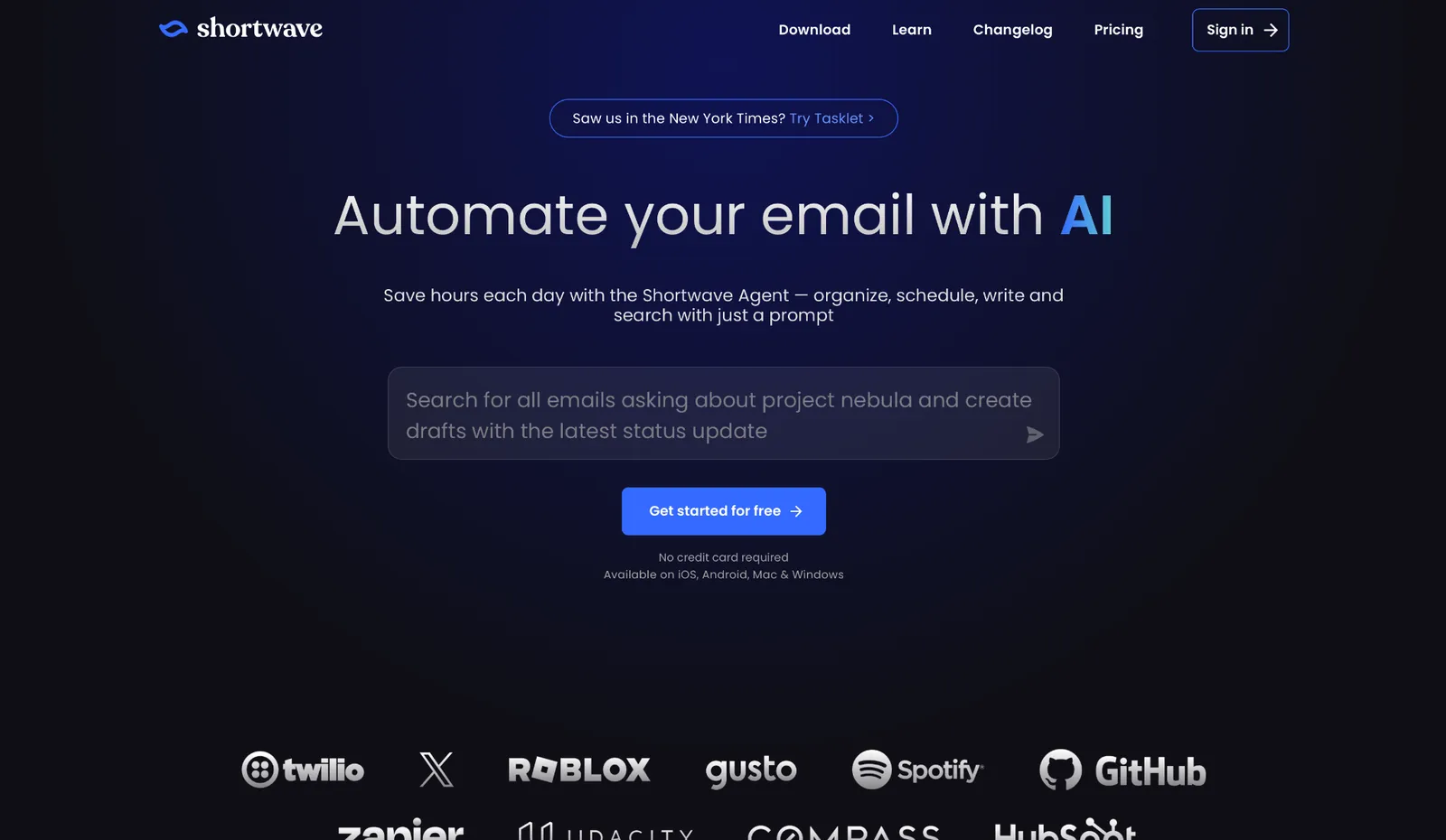
Shortwave is the closest daily-use alternative to Superhuman for Gmail users who want AI-assisted triage and keyboard shortcuts without scheduling a call to get started.
I tested it for three weeks as my primary inbox across a mix of newsletters, client threads, and internal follow-ups. The AI bundling groups related emails automatically, and the "Organize inbox with AI" button cleared a 200-message backlog down to 40 actionable threads in one pass. Learning how to automate email workflows can help you handle high-volume message streams without manual triage.
That kind of triage makes sense once you know the tool was built by ex-Googlers who sit natively on top of Gmail, so your inbox looks and works the way it always has from day one. No migration, no relearning where things live. For users comparing intelligent tools for Google's ecosystem, finding the best gmail ai assistant can significantly streamline daily email management.
Key features
- Organize inbox with AI: One-click triage identifies action items and stars priority threads. Low-priority mail gets archived in the same pass
- Bundles: Groups newsletters, notifications, and transactional mail so you process them in batches. Batch them once a day instead of reacting to each one all morning
- AI Assistant: Ask it to check your calendar, draft a reply, or pull a thread from Asana. On Business plans and up, it connects to Slack, Notion, and HubSpot without leaving the inbox
- Keyboard shortcuts: Full coverage for archive, snooze, reply, and label without touching the mouse
- Tasklet: Shortwave's sister product for background automation. It drafts replies and adds team comments, with connections to 3,000+ apps running around the clock
Pros
✅ Nothing to schedule before you start. Sign in with Gmail and you're triage-ready in under five minutes
✅ The inbox pass speeds up quickly. Three weeks in, my morning session dropped from around 25 minutes to closer to 10
✅ Paid features cover all your Gmail accounts under one flat rate, so if you manage a personal and a work account, you don't pay twice
Cons
❌ Gmail and Google Workspace only. Outlook, Microsoft 365, and Exchange are not supported natively. Forwarding workarounds exist, but replies go out from your Gmail address instead of your original one
❌ On touch screens the shortcut speed drops off sharply. The AI features and bundling work on iOS and Android, and the keyboard model that makes Shortwave fast on desktop doesn't carry over to touch
Pricing
- Plans start with a free tier (outgoing emails include "Sent with Shortwave" signature)
- Paid plans from $18/user/month, billed monthly
Best Superhuman alternative for multiple accounts across devices
Spark Mail

Spark Mail is the strongest option on this list for users who switch between Mac, Windows, iPhone, and Android daily and want the same inbox on all of them, without paying for features that only matter to teams.
I ran it across three devices simultaneously for two weeks, switching between a MacBook, an iPhone, and a Windows machine, and it was the only tool where the transition between platforms didn't feel like using two different apps.
It works with Gmail, Outlook, iCloud, Yahoo, and any IMAP account, so it picks up the providers Shortwave simply doesn't support.
Key features
- Gatekeeper: Holds emails from new senders in a separate queue. You decide who reaches your inbox before they land. Cold email and unknown senders don't get through until you approve them
- Smart Inbox: Categorizes incoming mail into Personal, Notifications, and Newsletters automatically. You see what matters first without setting up filters manually
- AI Assistant: Searches across emails, attachments, calendar, and meeting notes in natural language. The index is stored locally on your device, and only the emails relevant to your query are sent to the AI provider
- Cross-platform subscription: One subscription covers paid features across every device and platform simultaneously, so you don't pay per seat for your own accounts
Pros
✅ Mobile and desktop feel like the same app, not one being a stripped version of the other. Cross-device consistency is where Spark beats the rest of this list
✅ Gmail, Outlook, iCloud, Yahoo, and IMAP all connect natively. No forwarding workarounds, no stripped functionality depending on which account you use
✅ The free tier covers core inbox management for solo users who don't need AI writing or shared team access
Cons
❌ AI features are opt-in and quota-based. Heavy users will hit the monthly limit and need to purchase add-ons or wait for the quota to reset
❌ Shared inbox collaboration doesn't scale past small teams. The free plan caps shared drafts at two active collaborators and assignments at 10 per team, so unlimited use needs a paid plan, and the architecture is personal-use first. Team inbox tools like Missive are a different product category
Pricing
- Plans start with a free tier covering core inbox features
- Paid plans from $10/user/month, billed monthly
Best Superhuman alternative for small teams sharing an inbox
Missive
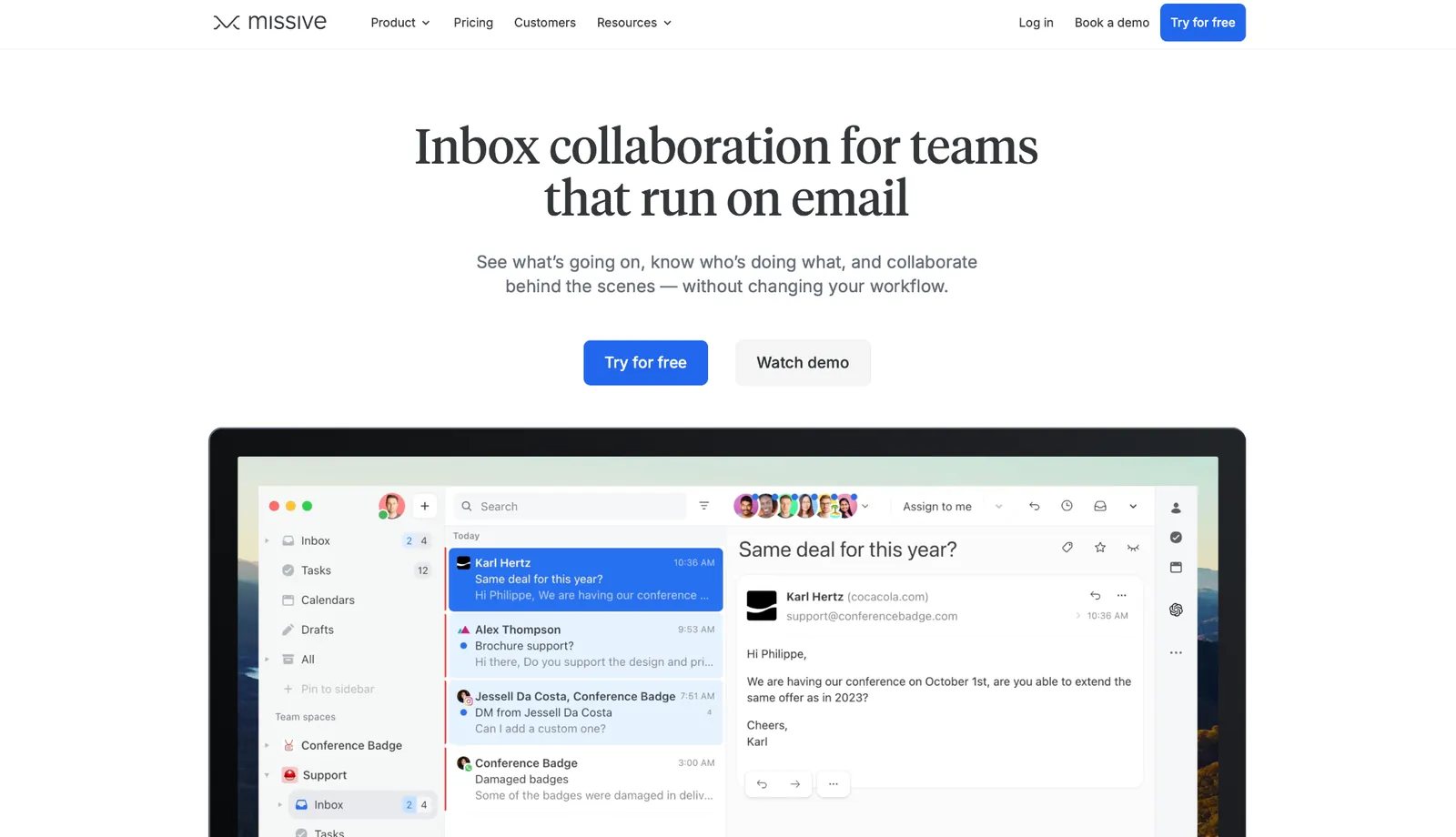
Two people handling the same inbox without Missive looks like one replies while the other's drafting, neither knows who touched what, and internal coordination spills into Slack threads nobody can find later.
I set up a simulated client services workflow with three people sharing one address, and the results were visible within an hour. Assignments landed in each person's queue, internal comments stayed threaded inside the email conversation itself, and not one duplicate reply went out.
None of that required switching email addresses. Missive works on top of Gmail, Outlook, and any IMAP provider, and it also pulls in SMS, WhatsApp, Instagram, and Messenger if your team handles those channels alongside email.
Key features
- Comments: Leave notes visible only to your team inside any email conversation, without forwarding or jumping to Slack, so context stays in one place
- AI Rules: Read the actual content of incoming emails and trigger actions based on what the message says. They can flag upset customers, route sales leads, or auto-draft replies for common inquiries. The difference is intent, not just keywords
- MCP integrations: Connect Stripe, Notion, Linear, and other tools so the AI assistant can pull billing data or CRM context before it writes a draft, without leaving the inbox
- Multi-channel inbox: Pulls in SMS, WhatsApp, Instagram, and Messenger alongside email so teams running multiple contact channels work from one workspace
Pros
✅ Comments live inside the email conversation itself, keeping context attached to the thread. No forwarding, no Slack sidebar, no context split across tools
✅ AI Rules handle judgment calls that keyword-based automation can't. A rule that asks "is this customer upset?" and fires based on the answer catches the messages that standard filters miss
✅ The 30-day free trial unlocks the Productive plan for up to 25 users with no credit card, which is enough to run it through a live workflow before committing
Cons
❌ The pricing and feature set assume shared inboxes and at least two people coordinating. A solo operator ends up paying for structure they have no use for
❌ Missive drafts don't sync back to Gmail's own Drafts folder. If teammates check Gmail directly alongside Missive, they won't see collaborative drafts unless they are in Missive
❌ The setup takes time. Rules, AI Rules, team spaces, and multi-channel configuration all need to be dialed in before the workflow starts paying off, and that can take a week or two with a full team
Pricing
- No free plan, only a 30-day free trial of the Productive plan (no credit card required)
- Paid plans from $18/user/month, billed monthly ($14/user/month billed annually)
- AI Rules, integrations, and API and MCP access start on the Productive plan at $30/user/month, billed monthly
Best Superhuman alternative for a cleaner inbox without switching clients
SaneBox
SaneBox connects to your existing account via IMAP, creates a set of smart folders inside whatever email client you already use, and starts sorting within minutes. This setup makes it an easy way to try an ai email assistant without changing your existing workflow.
I tested it on top of a Gmail account receiving around 200 messages per day, and by day four the algorithm had correctly moved roughly 80 percent of low-priority email out of the main inbox without any manual configuration beyond the initial setup.
That sorting runs on metadata and behavioral patterns rather than reading the actual content of your messages, which is worth knowing if your clients' data comes with NDAs or compliance requirements.
Key features
- SaneLater: Automatically moves emails the algorithm identifies as non-urgent into a separate folder, leaving the main inbox for messages that need attention
- SaneBlackHole: Drag one email from a sender into this folder and every future message from that address goes directly to trash after a 7-day review window. One action, permanent result
- SaneNoReplies: Surfaces emails you sent but never received a response to. You catch the ones that need a nudge without setting manual reminders
- SaneBox Digest: A summary email of everything sitting in your Sane folders, sent daily by default so you can review low-priority mail in one batch instead of throughout the day
Pros
✅ Zero client migration. It works inside Gmail, Outlook, Apple Mail, Fastmail, and any IMAP-compatible provider, so there's no interface to learn and no history to import
✅ SaneBlackHole is the lowest-friction unsubscribe mechanism tested. One drag, one block, permanent. There's a 7-day window to undo if needed
✅ The sorting improves as you correct it. Each time you move a misclassified email back to your inbox, SaneBox adjusts future sorting for that sender
Cons
❌ SaneBox has no inbox of its own. All management happens inside your existing client or through the SaneBox dashboard, so it has no effect on how fast you write or reply
❌ The algorithm occasionally misclassifies email from new or infrequent senders. Correcting it takes a drag-and-drop action, and the first few days require active attention to get the training right
Pricing
- No free plan, only a 7-day free trial
- Paid plans from $9.49/month, billed monthly
Best Superhuman alternative for customer-facing teams that track SLAs
Front
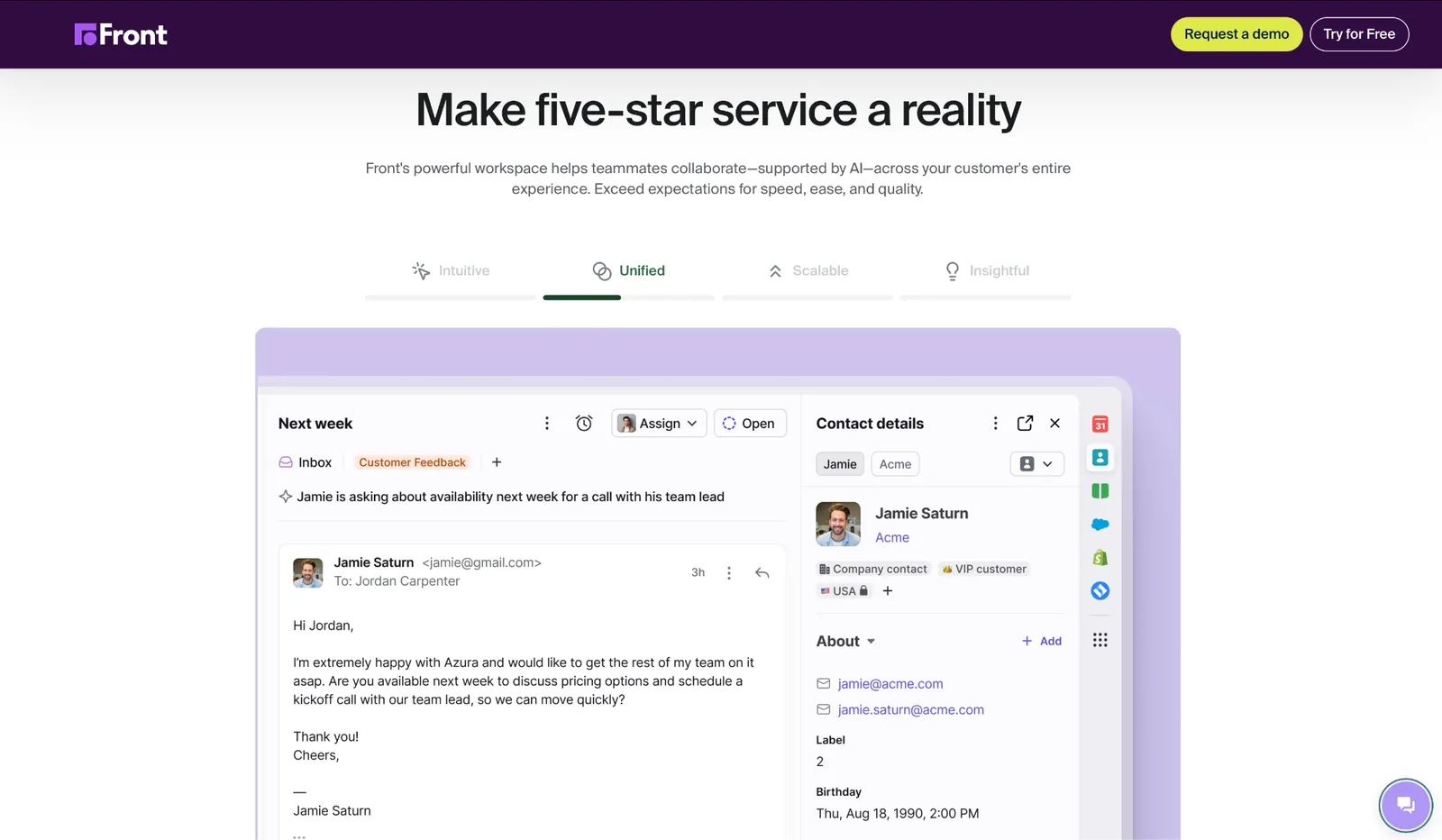
Front is a customer operations platform that starts with shared inboxes. I ran a simulated support queue with multiple agents handling the same inbound address for ten days.
Metrics that normally need manual tracking just showed up automatically, all in one dashboard. Missive and a standard shared Gmail setup don't give you that analytics layer.
The tradeoff shows up in the interface itself. It looks closer to a helpdesk than an email client, so go in expecting that learning curve.
Key features
- SLA rules and reporting: Set response time requirements per conversation type, with alerts that fire when threads approach a breach. A dedicated report tracks compliance rates across the team
- Omnichannel inbox: Handles email, SMS, WhatsApp, live chat, Facebook, Instagram, and Slack from one workspace, with routing and assignment working consistently across all channels
- AI Topics and routing: Automatically categorizes inbound conversations by topic so they land with the correct team or agent without manual triage, available on all paid plans
- 160+ integrations: Connects to Salesforce, HubSpot, Jira, Dialpad, and more with no-code workflows, so agents can pull CRM data or log calls without switching apps
Pros
✅ SLA tracking is the deepest of any tool on this list. Response time targets and breach alerts come standard. Compliance tracking is built in, no third-party tool required
✅ Outgoing messages look like normal email to customers even when sent from a shared queue. That matters when you're running account management or client services and ticket-style formatting would feel cold
✅ AI Copilot on the Enterprise plan gives agents suggested responses as they work, pulling in relevant CRM and conversation history before a reply is written
Cons
❌ Starter plan caps at 10 seats and only supports a single channel type. Teams that need omnichannel from day one start on Professional at $85/seat/month billed monthly ($65 billed annually), more than double the entry price
❌ The majority of AI features are add-ons. Copilot, Smart QA, and Smart CSAT each cost $10 to $20 per seat per month on top of the base plan unless you're on Enterprise
❌ Front is priced and built for teams with defined queues, SLAs, and routing. A solo operator would pay helpdesk rates for a personal inbox and use a fraction of it
Pricing
- No free plan, only a 14-day free trial (no credit card required)
- Paid plans from $35/seat/month, billed monthly ($25/seat/month billed annually)
Best Superhuman alternative for delegating the work email creates
Lindy
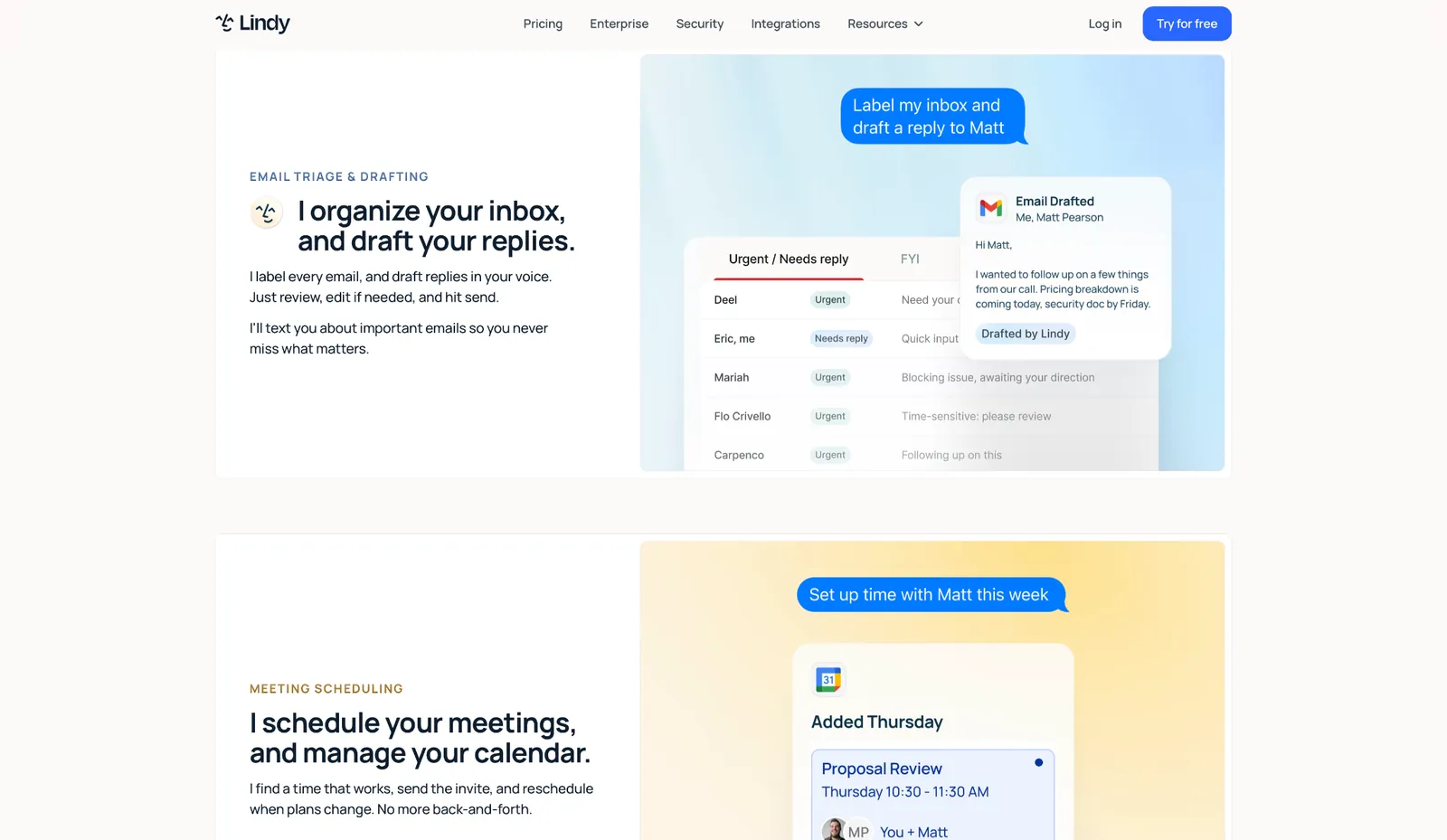
Lindy targets users whose bottleneck sits outside the inbox entirely. For many people, reading email is the fast part. It's the work that piles up around email that eats the hours: triaging by priority, prepping for meetings, scheduling follow-ups, and updating the CRM.
Lindy handles those steps by letting you text an AI assistant in plain English. It runs inbox triage, meeting prep, calendar scheduling, and follow-ups, plus CRM updates. If you rely heavily on Microsoft, using an outlook ai email assistant can automate these daily inbox tasks seamlessly.
I texted Lindy to prep for three back-to-back meetings one morning: pull the last thread with each attendee, draft an agenda, and block the follow-up time. It handled all three before I finished my coffee, though the follow-up draft needed one tone edit. Running it felt closer to handing work to an assistant than opening an email client.
It's built for people who'd rather describe what they want done than learn another interface.
Key features
- Text-based task delegation: Ask Lindy to block calendar slots from incoming invites or draft follow-ups after meetings. It can also triage your inbox by priority, all in plain English. No setup required.
- Ready-to-use skills: Prebuilt workflows for common tasks like meeting scheduling, lead follow-up, and email summarization that you can activate without setup time
- 1,000+ app integrations: Connects to Gmail, Outlook, Salesforce, HubSpot, Notion, Slack, and more so Lindy can pull context from the tools your team already uses
- Active notifications: Alerts you via email or Slack when something in your inbox needs attention, without requiring you to check in manually
Pros
✅ You text Lindy what to do with a meeting invite and it handles the scheduling, the calendar block, and the confirmation reply. No workflow to configure first
✅ Inboxes, calendars, follow-ups, meeting prep, and admin tasks are where Lindy does its best work. Agent experimentation sits outside its scope
✅ SOC 2 Type II, HIPAA, GDPR, and PIPEDA compliant. Matters for teams in regulated industries handling sensitive communications
✅ Non-technical users run it without engineering help. No code, no workflow builder. Describe what you need and Lindy takes it from there
Cons
❌ Getting Lindy dialed in takes a few passes. Your first instructions rarely cover every edge case, so expect to refine them over a couple of rounds until Lindy matches how your team works
❌ Users who want faster reading and triaging will get more from Shortwave or Superhuman. Lindy is designed for task delegation, and keyboard navigation is outside what it offers
Pricing
- Free to start with $50 in credits that last 7 days, no credit card required
- Paid plans from $29.99/user/month, billed monthly, for 3,000 credits per user, with larger credit tiers and a custom Enterprise plan
{{templates}}
Best Superhuman alternative for starting fresh with a new inbox model
HEY
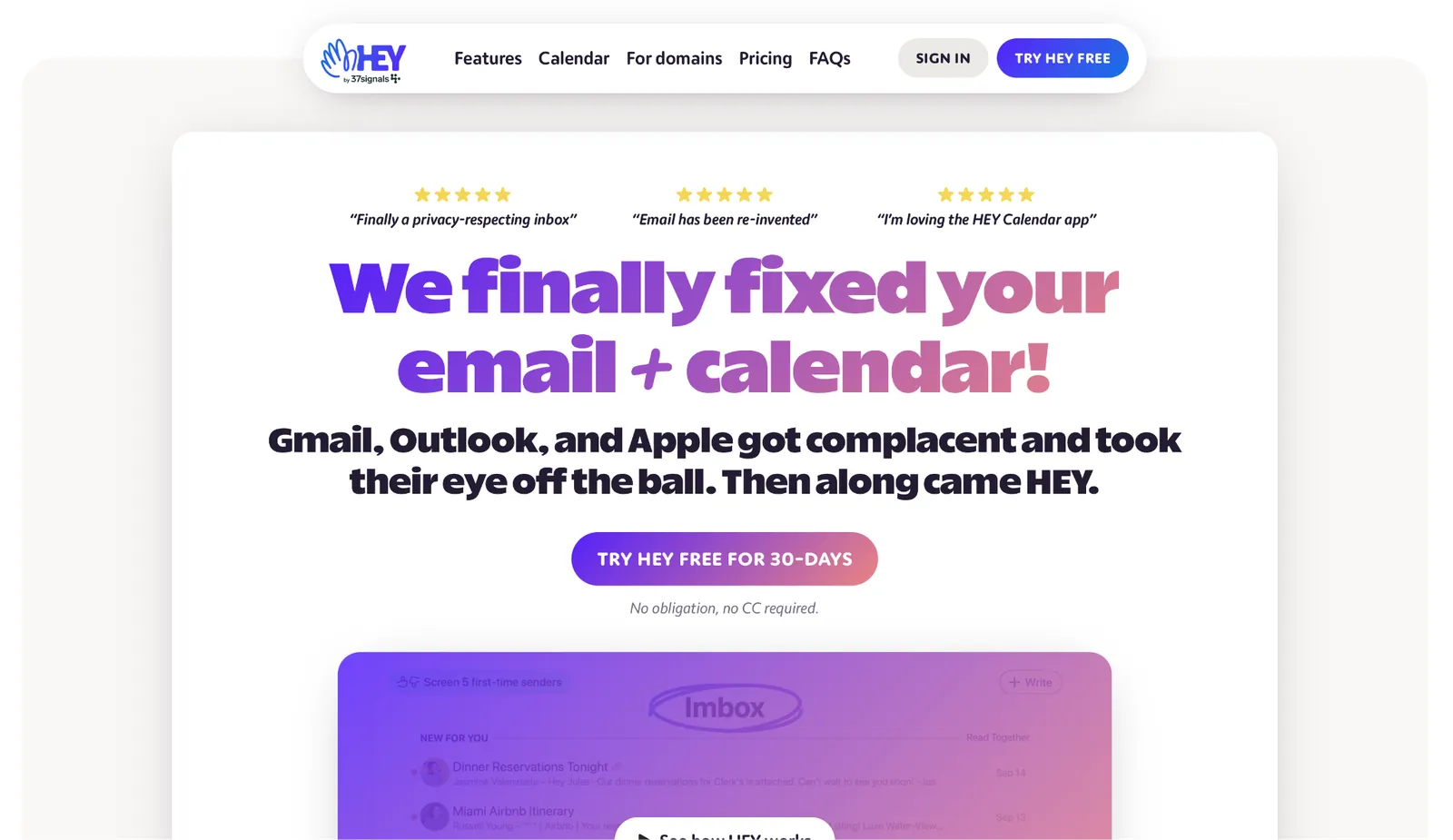
HEY is built on a different premise than the other tools on this list. Email problems exist because anyone can send you anything, and it lands in the same place as messages from the people you want to hear from.
HEY addresses that at the routing level, with separate surfaces for each type of email, decided upfront by the user.
I spent two weeks adapting my habits to its model. By the end, I was processing email faster than I had in months. The first three days took deliberate effort to get through.
Getting started means committing to a @hey.com address. HEY hosts your email independently, so the address comes with the product.
Key features
- The Screener: Every new sender lands here first. You approve them or block them once, and Hey routes every future email from that person accordingly. Cold email and spam get blocked at the door before they reach the inbox
- The Imbox: Only email from senders you've approved ends up here, which means the inbox functions the way it was supposed to before volume made it unworkable
- The Feed: Newsletters and subscriptions route here automatically. They become a scrollable reading surface you visit when you have time, not competing noise in your main Imbox
- Paper Trail: Receipts and transactional confirmations go here automatically, findable when you need them and out of the way the rest of the time
- Bubble Up: Hey's version of snooze. Schedule any email to float back to the top of the Inbox at a time you set, without creating a separate reminder or task
Pros
✅ The Screener handles unknown senders once and remembers your decision. You're not re-filtering the same newsletter or outreach sequence on a second or third email
✅ The three-section model (Imbox, Feed, Paper Trail) sorts email by type, not timestamp. Once the routing is trained, triage takes minutes
✅ Flat annual pricing covers every device and platform. Mac, Windows, iOS, and Android apps are all included at the same $99/year, with no per-seat charge for your own account
Cons
❌ Requires a Hey address, so you're locked into a new email identity before you know whether the model fits how you work
❌ The first week feels slower than whatever you replaced. The Screener, Imbox, Feed, and Paper Trail each need new habits, and none of it clicks until you've put in the time
❌ No team collaboration features on the personal plan. Shared inboxes, assignments, and internal comments are only available on Hey for Domains, the business version
Pricing
- No free plan, only a free trial (no credit card required)
- Paid plans from $99/year, billed annually
{{cta}}
How to evaluate Superhuman email alternatives
Check your email provider before anything else. Shortwave is Gmail only. Hey requires its own address. Spark and Missive support Gmail, Outlook, and IMAP. If you're on Outlook, that alone rules out Shortwave and Hey before you even look at features.
Price per seat compounds on team plans. A solo user at $30/month is a different calculation than a 10-person team at $30/member/month. Map your team size against each tool's pricing tier before comparing features, because add-ons often flip which option is cheaper.
AI triage and AI automation are different problems. Shortwave and Superhuman use AI to make reading and processing email faster: smarter sorting, quicker triage, less time in your inbox.
Lindy uses AI to handle the tasks that email generates, taking them off your plate so you spend less time on follow-through. Know which bottleneck you're solving before you open a single pricing page.
Solo use or team coordination. Figure out which one you are first. Missive and Front charge for shared inbox infrastructure that a solo user has no reason to pay for.
Shortwave and Hey lack the assignment and routing features that make team coordination workable. Get this right before looking at anything else.
My final verdict
Superhuman is fast and built for volume. It gives power users a keyboard-first model for processing email at speed.
But most people searching for Superhuman alternatives want a lower price, Outlook support, shared inboxes, or an AI that handles the work email generates, not just the reading.
If I were picking one, I'd pick Lindy, as it handles the work email creates rather than the reading itself. You text Lindy what you need, and it handles follow-ups, meeting prep, scheduling, CRM updates, and the daily admin that eats time without requiring much judgment. I'd suggest you start the Lindy free trial today and see how that changes your first week.
For faster triage on Gmail, Shortwave makes more sense. If two or more people share an inbox, Missive fits better. If you want a cleaner inbox without switching apps, SaneBox is the move. And if your team needs SLA tracking and omnichannel queuing, Front is built for that.
Frequently asked questions
What is the best free Superhuman alternative?
Spark Mail is the strongest free option. It connects multiple email accounts, includes Smart Inbox, and gives you basic AI features across all platforms with no time limit. Shortwave also has a free Gmail tier, and Missive offers a 30-day free trial with no credit card.
Is Superhuman worth $30 per month?
Yes, if you process 50 or more emails per day and you're almost entirely on desktop. Below that volume, Shortwave or Spark get you most of the way there at a fraction of the annual cost.
What is the best Superhuman alternative for teams?
Missive for small teams that coordinate on shared inboxes and need Comments threaded inside email conversations. Front for larger teams running customer-facing operations that require SLA tracking and omnichannel support.
Can I use a Superhuman alternative without switching my email address?
Yes. Shortwave, Spark, Missive, SaneBox, Front, and Lindy all connect to your existing Gmail, Outlook, or IMAP account. HEY is the only exception. It requires a @hey.com address or a custom domain through HEY for Domains.
Which Superhuman alternative has the best AI features?
Shortwave has the strongest AI triage for Gmail users. Missive has the deepest background automation through AI Rules. Lindy goes furthest for users who want AI to handle tasks that originate in email, going beyond sorting and drafting into execution.









