9 Best Personal Assistant Apps I Tested for a Week (2026)
Marvin tested nine personal assistant apps including Claude, ChatGPT, and Notion AI over a full workweek, evaluating task handling, integrations, and daily reliability.
.avif)

I spent three weeks testing personal assistant apps through the tasks that eat a workday, from inbox triage and meeting prep to scheduling, research, and status updates. These nine are the ones that kept working after the first demo wore off.
9 Best Personal Assistant Apps: Quick Comparison
A fast side-by-side before the full breakdown below, with a direct link to each tool and its current pricing page.
| 💻 Tool | ⚡ Strengths | 🎯 Best For | 💰 Starting Price |
|---|---|---|---|
| Claude | Long-context writing, document analysis, coherence | Writing and research-heavy work | $20/mo (monthly) |
| ChatGPT | Deep Research, broad daily utility, voice | General-purpose daily work | $20/month (monthly) |
| Lindy | Text-based delegation, inbox and meeting prep | Founders and lean operators | $49.99/month (monthly) |
| Notion AI | Workspace Q&A, AI agents, meeting notes | Teams already living in Notion | $10/user/month ($20 for AI) |
| ClickUp | Live task data, AI standups, Super Agents | Teams already running ClickUp | $7/user/month (+$9 AI) |
| Fathom | Fast, accurate meeting summaries | Anyone living in video calls | $16/month |
| Motion | Auto-scheduling, task dependencies | Deadline-heavy calendars | $29/seat/month |
| Reclaim.ai | Focus time defense, habit scheduling | Meeting-heavy calendars | $12/seat/month |
| Zapier | No-code app-to-app automation | Teams running multiple SaaS tools | $29.99/month |
Starting price shows the lowest paid tier. Check each tool's pricing section below for that detail.
How I Researched & Tested These Personal Assistant Apps
I used each tool inside the workflows that fill a workday, drafting and replying to email, planning a schedule, summarizing a meeting, researching a question fast, and following up afterward. Finding the best ai work assistant app depends on how well a platform handles these recurring daily responsibilities.
I paid the closest attention to what happened after the first session. Plenty of tools look sharp in a demo and get shakier once the work repeats. What I measured across all nine:
- Core tasks: Could the app help with email, scheduling, research, reminders, or task follow-through in a way that saves time?
- Usability: Could it understand normal requests without repeated prompt cleanup?
- Workflow fit: Did it work inside the tools where the work already lived, or did it force extra steps?
- Reliability: Did it stay useful after several sessions, or did the quality drift?
- Value: Did the entry-level plan give enough to judge the product on its own merits?
That process is what separated flexible assistants from glorified chat boxes, and it's what decided the order below. Learning how to configure an ai personal assistant can help you streamline daily workflows and delegate complex tasks more effectively.
1. Claude: Best for Writing, Analysis, and Long Documents
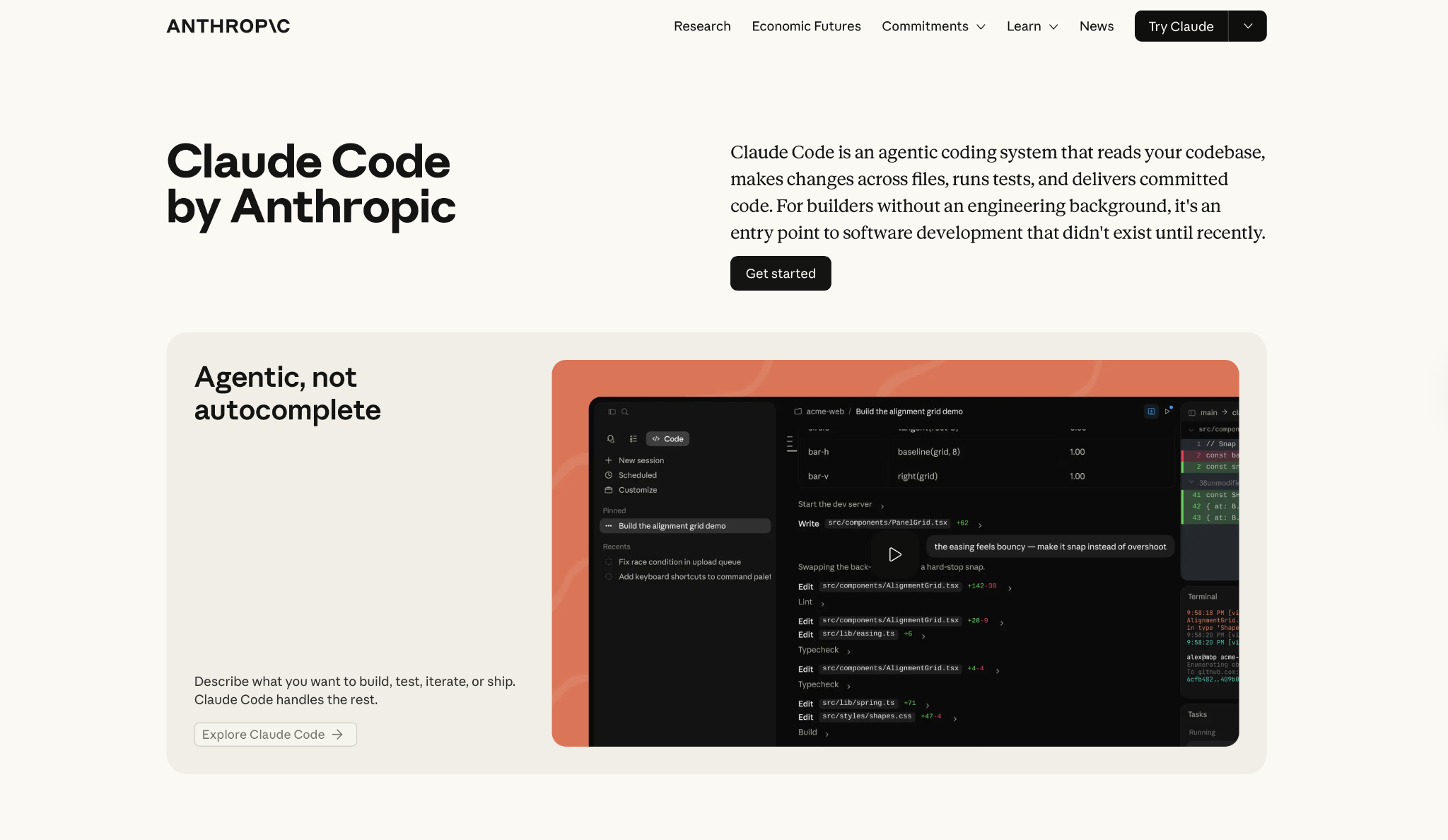
What it does: Claude writes, edits, analyzes long documents, and runs code, all inside one workspace on the web, desktop, and mobile.
Best for: Writers, analysts, and researchers who spend the bulk of their day in long-form content and need an assistant that stays coherent across big, multi-file projects.
The moment that convinced me was buried in a 400-page research file. I asked Claude to track down the contradictions in the methodology section, expecting a vague summary. Instead, I got a section-by-section list, each flagged inconsistency tied to a page reference, ready to act on in under a minute.
What stayed steady over the following days came down to endurance more than any single answer. Many of the tools I've tested start drifting after four or five exchanges. Claude carried draft, revision, and a round of code cleanup through one uninterrupted afternoon without losing the thread.
The difference grew once files and chat history lived in a single Project. I stopped re-explaining the background at the start of every new conversation, and after a few days, it stopped feeling like a chat window and started acting like a workspace that remembers what I was doing.
Key Features
- Projects: Groups files, instructions, and chat history into persistent workspaces, so what you've set up carries forward automatically.
- Artifacts: Code, reports, and diagrams open in a side panel where you iterate and export without leaving the conversation.
- Claude Code: Reads your entire codebase, writes across multiple files, runs terminal commands, and commits to Git, available on Pro and Max plans.
- Extended thinking: Claude scales reasoning depth based on the size of the task, so harder problems get more time and lighter tasks move faster.
- Long documents and extended conversations stay in context without losing track of earlier instructions, even past the point where many chat tools start forgetting.
Pros and Cons
Pros:
✅ Holds the thread across long sessions better than other tools in this list, cutting down on re-explaining so you can stay on the actual work.
✅ What it writes needs fewer editing passes than other models, especially on longer, structured pieces.
✅ Projects keeps everything you've set up in one place and carries it forward automatically across sessions.
Cons:
❌ Heavy users can hit usage limits mid-task on large document work or extended coding sessions.
❌ Image generation requires a separate tool. Claude analyzes and describes images and PDFs but doesn't create visuals.
What Users Say
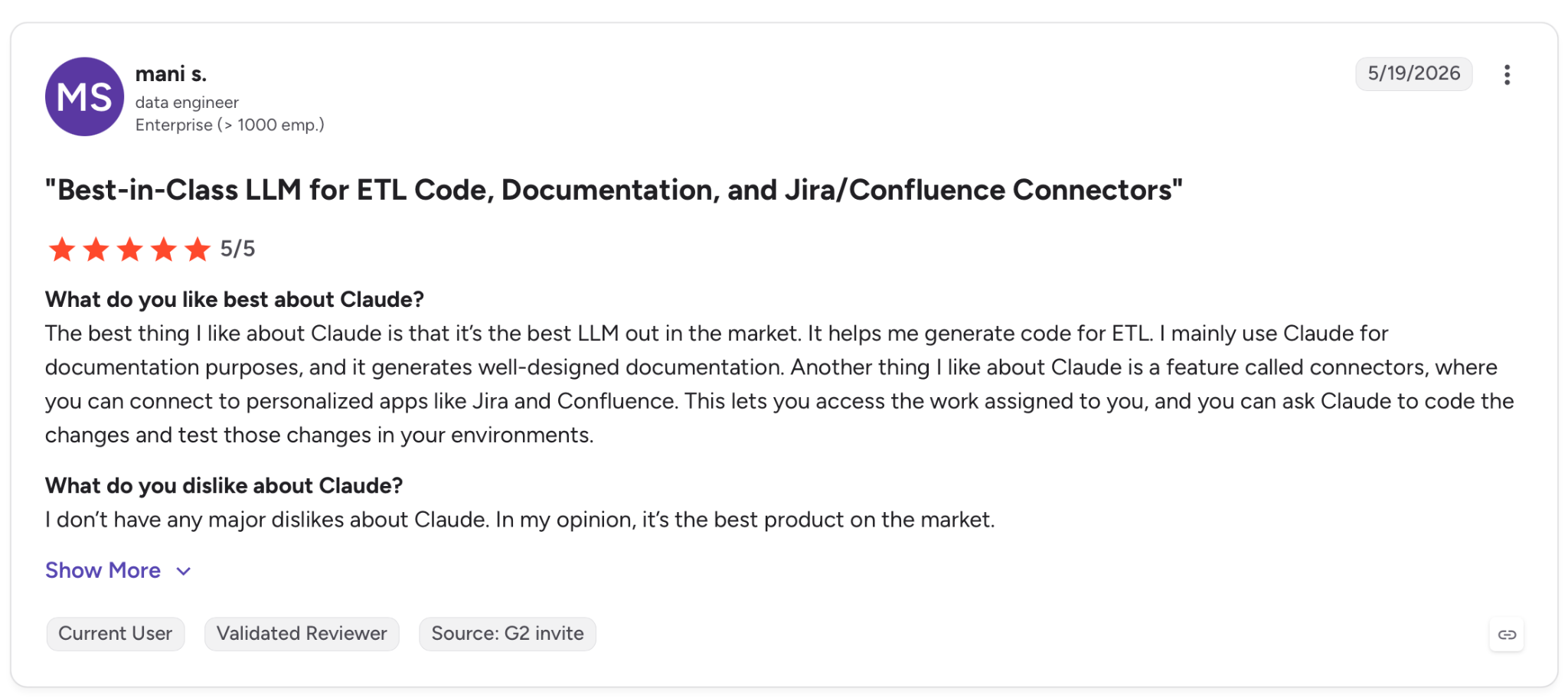
"The best thing I like about Claude is that it’s the best LLM out in the market. It helps me generate code for ETL." — Mani S., G2
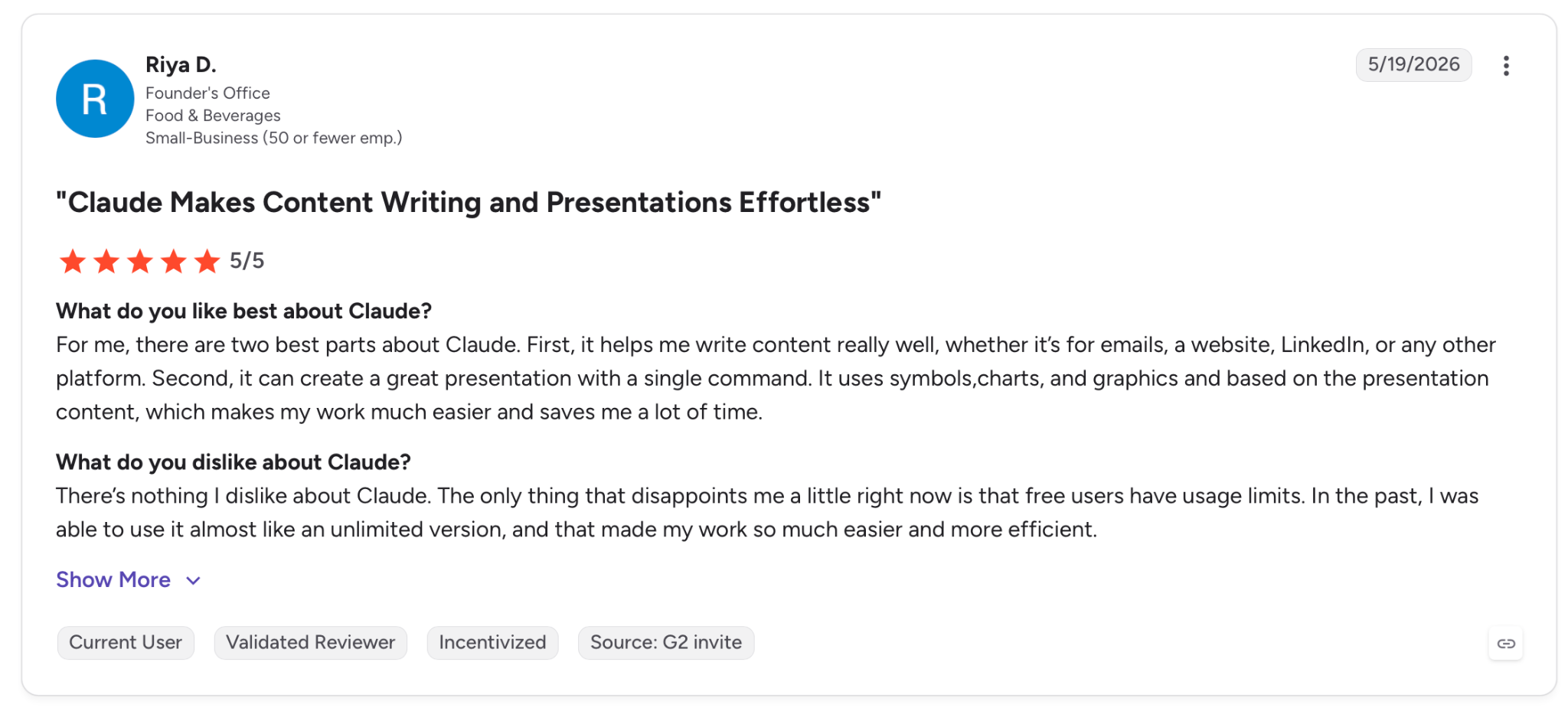
"The only thing that disappoints me a little right now is that free users have usage limits. In the past, I was able to use it almost like an unlimited version, and that made my work so much easier and more efficient." — Riya D., G2
Pricing
Pro runs $20/month, billed monthly, or $17/month when billed annually, with higher usage limits and access to every available model.
Bottom Line
For knowledge workers whose output is mostly written, the combination of context depth and writing quality is what justifies the subscription. If your day runs on meetings, scheduling, or app-to-app automation instead, look further down this list before deciding.
2. ChatGPT: Best for Broad, All-in-One Daily Work
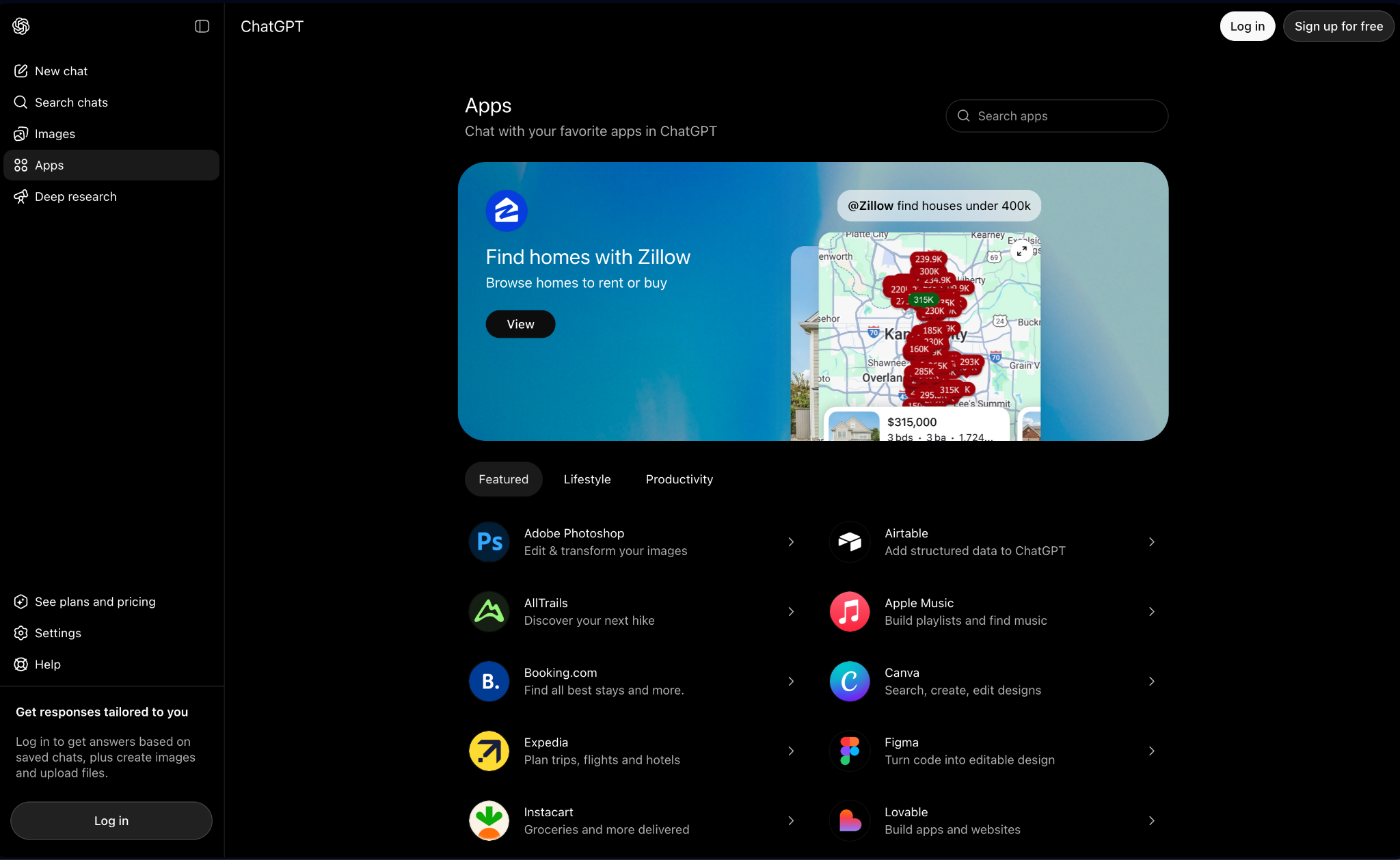
What it does: ChatGPT handles writing, research, coding, image generation, and voice conversations in one place, running on OpenAI's GPT-5.5 models with access to the web, your files, and connected apps.
Best for: Professionals who want one tool that covers the widest range of daily tasks without switching between platforms, from drafting emails to running multi-source research reports.
Three weeks of daily use across different kinds of work made one thing clear. Breadth is both the strongest argument for ChatGPT and the place it occasionally stumbles.
That strength shows up clearest in Deep Research, which is what changed my read on it. I handed it a competitive analysis brief with five specific questions, pointed it at public sources, and stepped away.
The report that came back was structured and well-sourced, with angles I hadn't thought to ask about already worked in. That's the kind of output that's hard to replicate by hand.
Longer writing sessions told a different story. Drafts were competent on the first pass but needed more editing than a tool like Claude required.
After several back-and-forth exchanges, the output sometimes drifted from the original brief, and I'd have to stop and redirect it mid-session instead of just letting it build.
Key Features
- Deep Research: Runs multi-step research across the web, uploaded files, and connected apps, then produces a structured, cited report.
- GPT-5.5 models: Subscribers get expanded access to OpenAI's top advanced model alongside faster, lighter options for everyday tasks.
- Scheduled Tasks: Set recurring or one-time tasks, and ChatGPT runs them at the time you specify, from daily briefings to recurring research checks.
- Preferences, projects, and context carry over across sessions through Memory, so you spend less time re-explaining the background each time you open a new chat.
Pros and Cons
Pros:
✅ Deep Research delivers structured, cited reports on multi-part briefs, a level of unattended research that few tools in this category match.
✅ The breadth of tools in one interface is genuine. Plenty of what you'd open a separate app for works right here without switching.
✅ Scheduled Tasks and Memory cut down the overhead of repeated or ongoing work across sessions.
Cons:
❌ Writing quality can drift in longer sessions, requiring more correction to stay on brief than shorter, fresher prompts.
❌ Heavy users in long research or coding sessions can run into plan caps before they're finished.
What Users Say
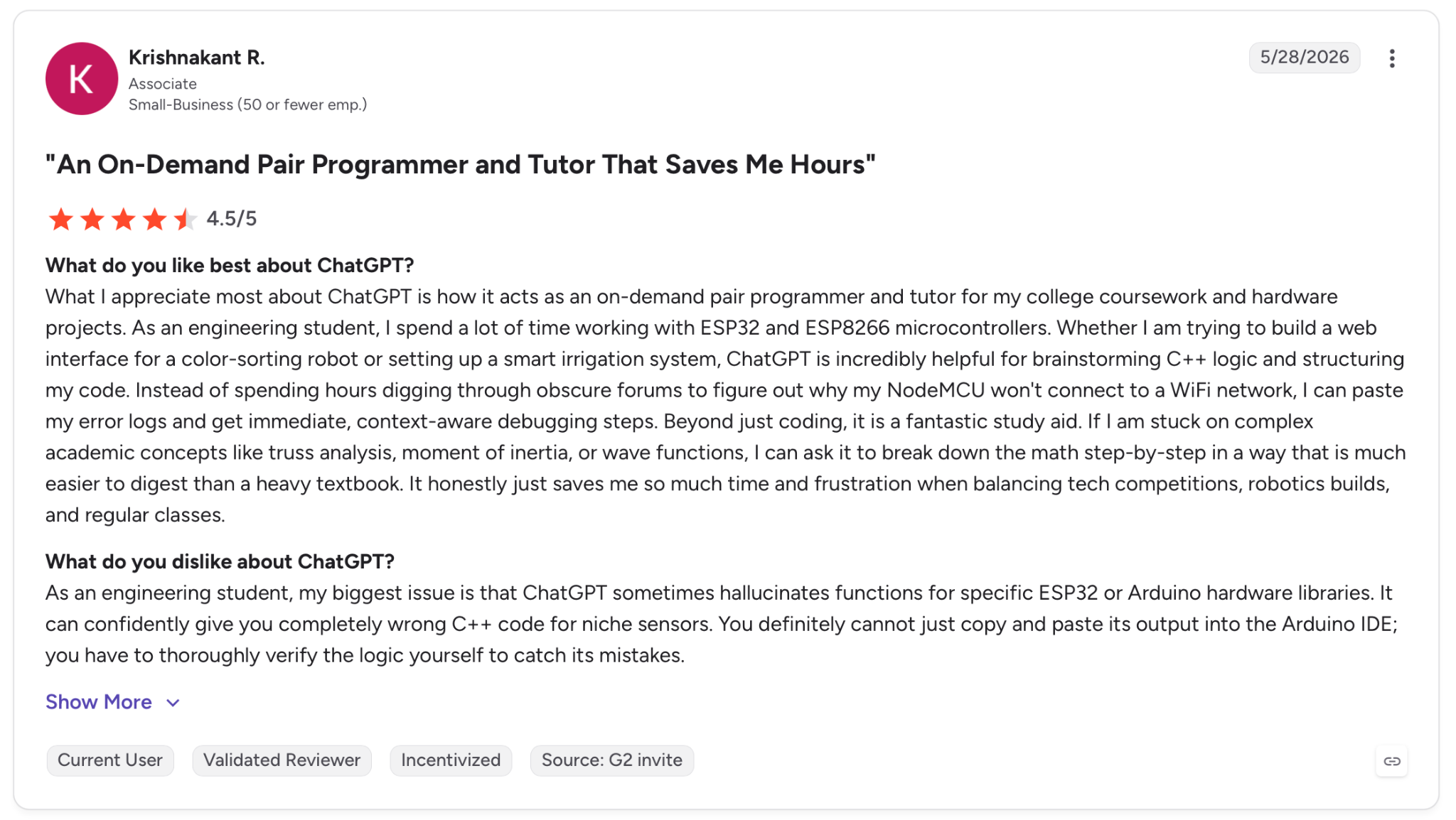
"What I appreciate most about ChatGPT is how it acts as an on-demand pair programmer and tutor for my college coursework and hardware projects." — Krishnakant R., G2
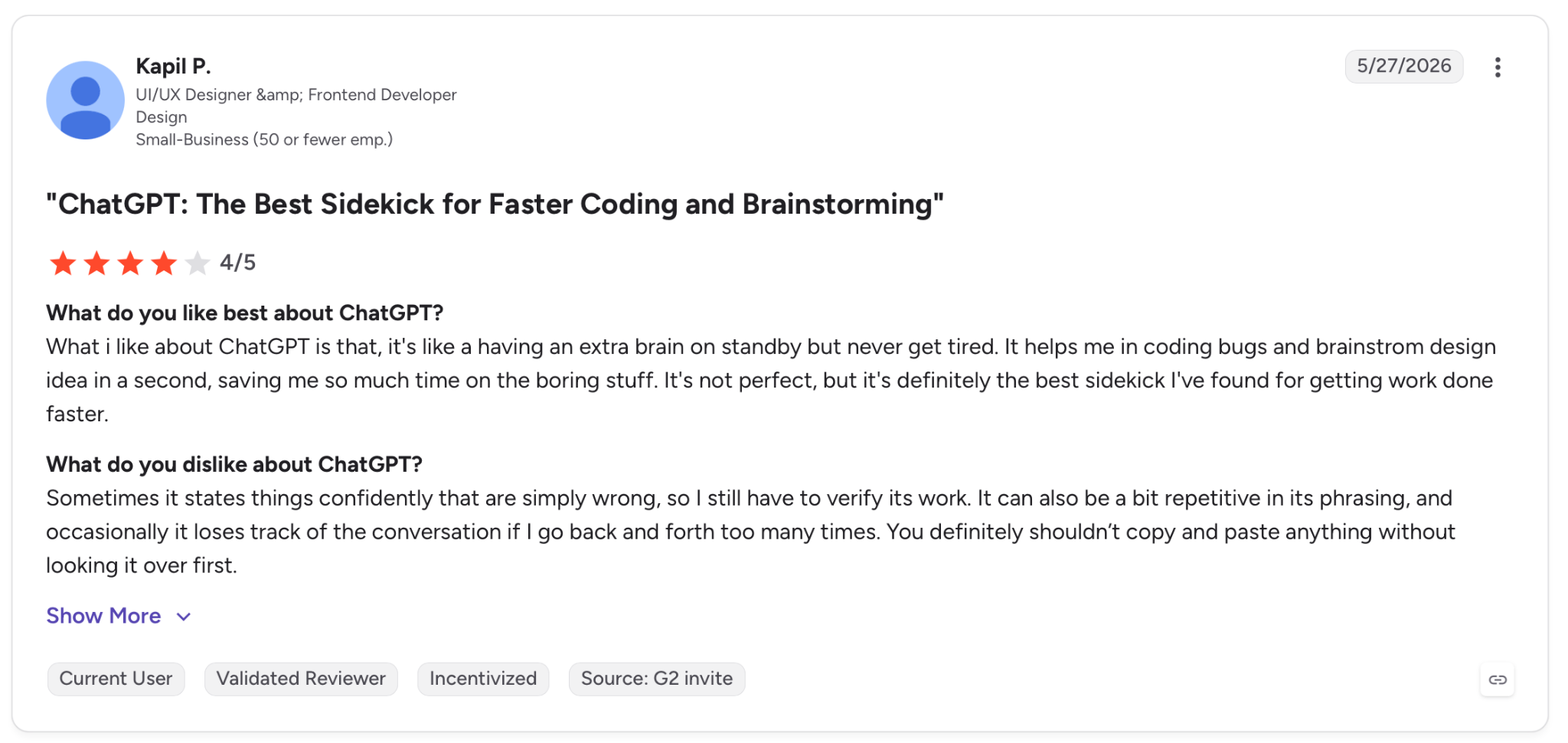
"Sometimes it states things confidently that are simply wrong, so I still have to verify its work." — Kapil P., G2
Pricing
ChatGPT Plus is $20/month, billed monthly. It adds GPT-5.5 access and Deep Research over the free tier, along with Memory, Scheduled Tasks, and voice conversations.
Bottom Line
ChatGPT is worth the subscription when your day spans enough different tasks that no single specialized tool would cover them all. Deep Research alone can justify the cost for anyone doing regular competitive or market analysis.
3. Lindy: Best for Automating Repetitive Daily Tasks
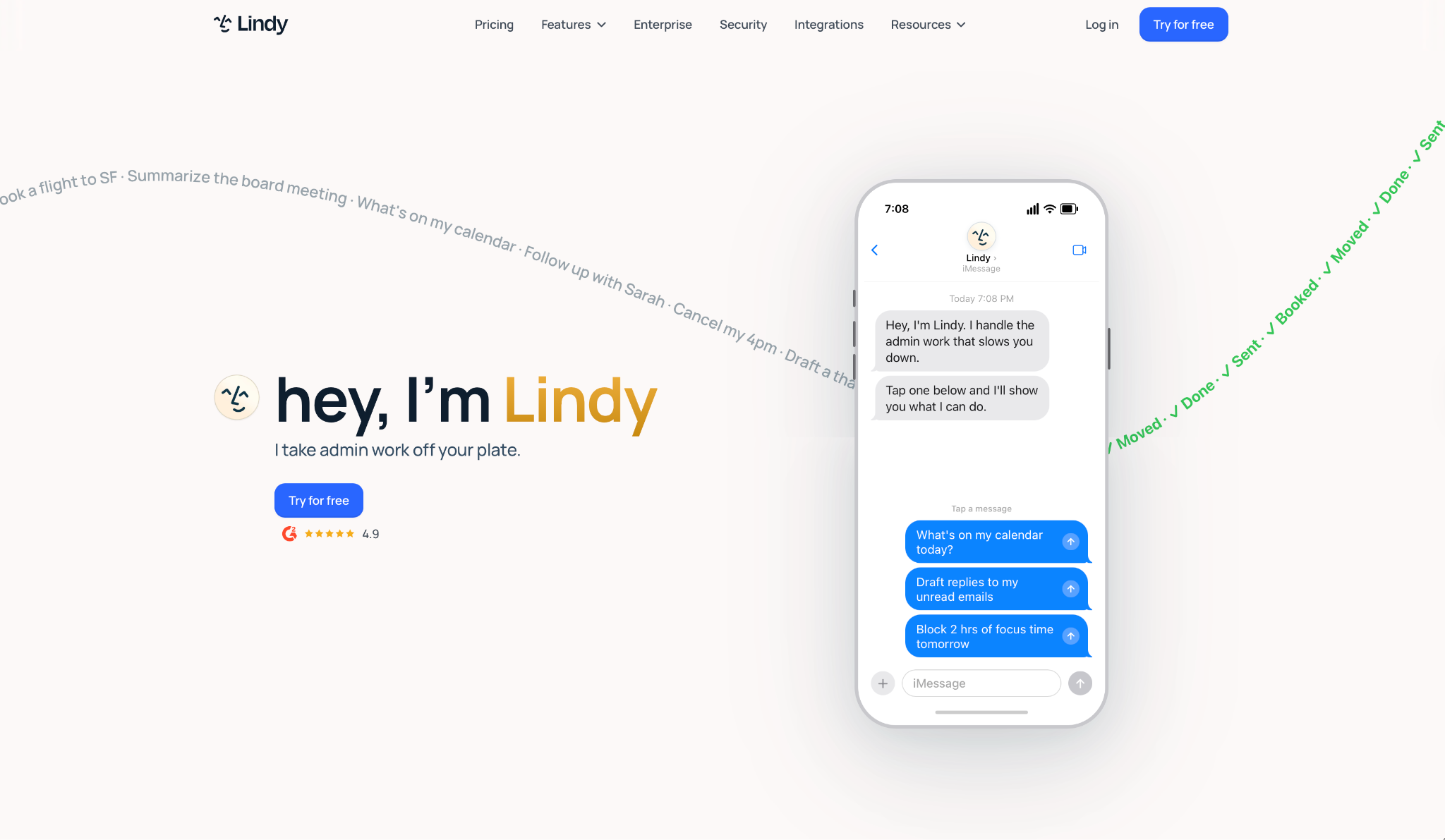
What it does: You text Lindy, and it manages your inbox, schedules meetings, preps calls, and handles follow-ups across your connected apps.
Best for: Founders and operators on lean teams who want one assistant handling recurring admin without juggling email, scheduling, and follow-ups separately.
The morning after setup, Lindy was already working. Before my first call, five email drafts were sitting in my inbox, each pulling context from past threads and the attendee's recent activity.
After that call ended, the follow-up draft appeared on its own, along with a flag on two older threads that needed a reply, one a vendor question from three days earlier, the other a client asking about a deadline I'd forgotten was approaching.
By day four, the drafts had stopped reading like a template and started sounding like me. I was sending nearly all of them after a single read-through rather than a rewrite.
Nothing goes out without sign-off, though after a couple of weeks, you can hand off certain low-risk emails to send on their own.
Key Features
- iMessage & SMS delegation: Text Lindy to reschedule a meeting, find a thread, or push a task forward, from iMessage or standard SMS.
- Meeting prep and follow-up: Prepares a brief before calls using calendar and email context, joins to take notes, extracts action items, then drafts the follow-up.
- Daily Digest: Sends a summary of your top calendar events and priority emails before you open your inbox.
- Lindy reads your inbox on its own: flags what needs a reply, and drafts responses using context pulled from your existing threads.
Pros and Cons
Pros:
✅ Meeting prep and follow-up closes the loop from brief to notes to drafted email, so less tends to slip after a call ends.
✅ It's human-in-the-loop by design, drafting and proposing without ever sending anything on its own.
✅ Works across hundreds of integrations, covering many of the everyday tools a typical team already runs on.
Cons:
❌ It takes a few days before drafts start sounding like you. One-off requests rarely show what the assistant can do once it has context.
❌ In my first few runs, multi-step tasks needed extra tuning, and misfires were common until Lindy had enough context to work with.
What Users Say
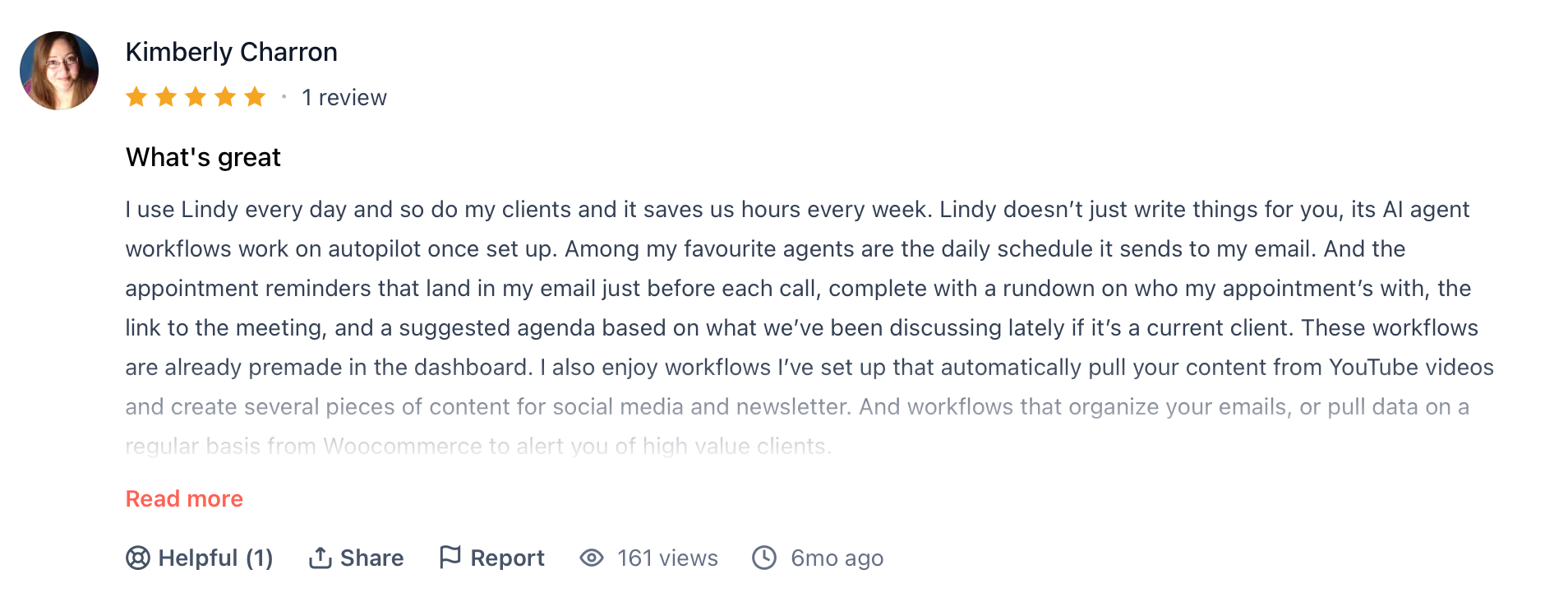
"I use Lindy every day and so do my clients and it saves us hours every week. Lindy doesn’t just write things for you, its AI agent workflows work on autopilot once set up." — Kimberly Charron, Product Hunt
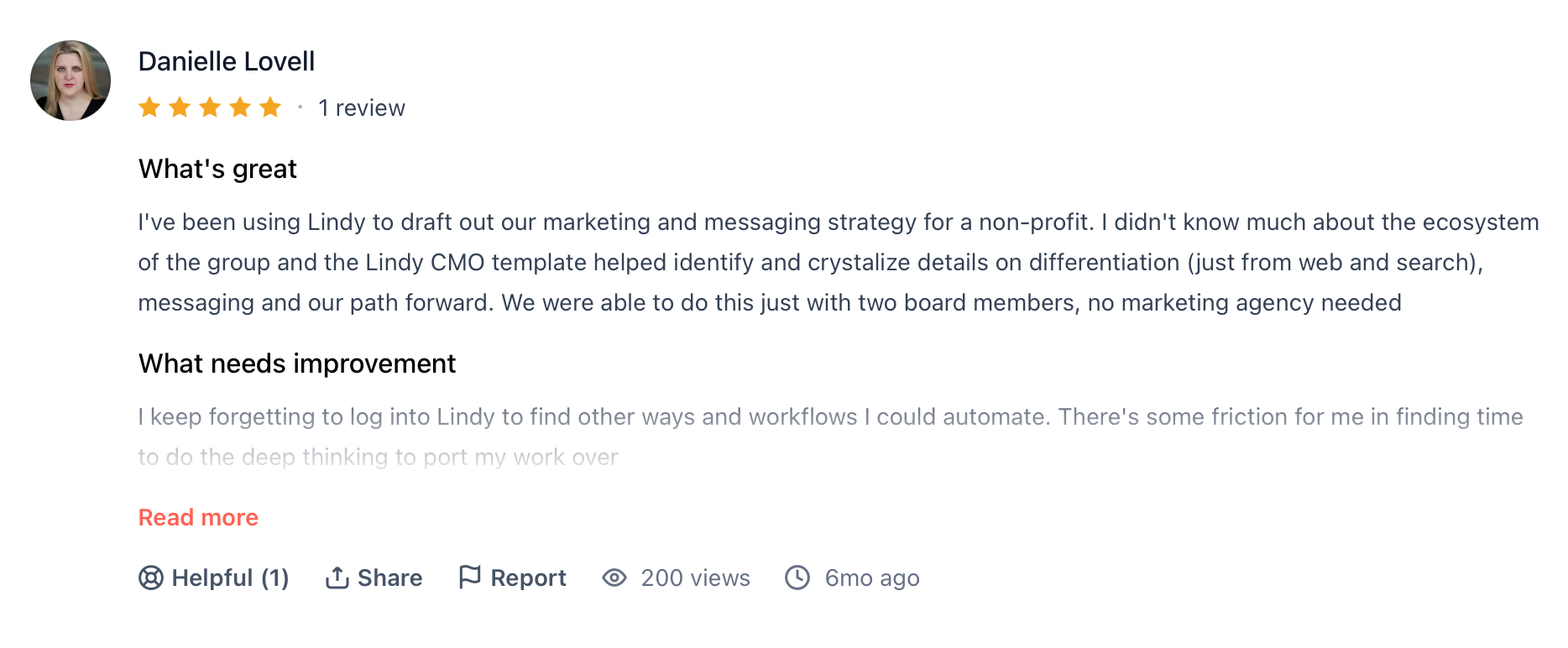
"I keep forgetting to log into Lindy to find other ways and workflows I could automate. There's some friction for me in finding time to do the deep thinking to port my work over." — Danielle Lovell, Product Hunt
Pricing
Lindy offers a 7-day free trial with no credit card required, per Lindy's pricing page. The Plus plan starts at $49.99/month and includes inbox management, meeting scheduling and follow-ups, and iMessage and SMS access.
Bottom Line
Lindy pays off when prep, follow-up, and inbox triage are each eating time you don't have. If you only need a notetaker or a calendar tool, a narrower option further down this list will cost you less and ask less patience of you upfront.
4. Notion AI: Best for Knowledge Management and Team Wikis
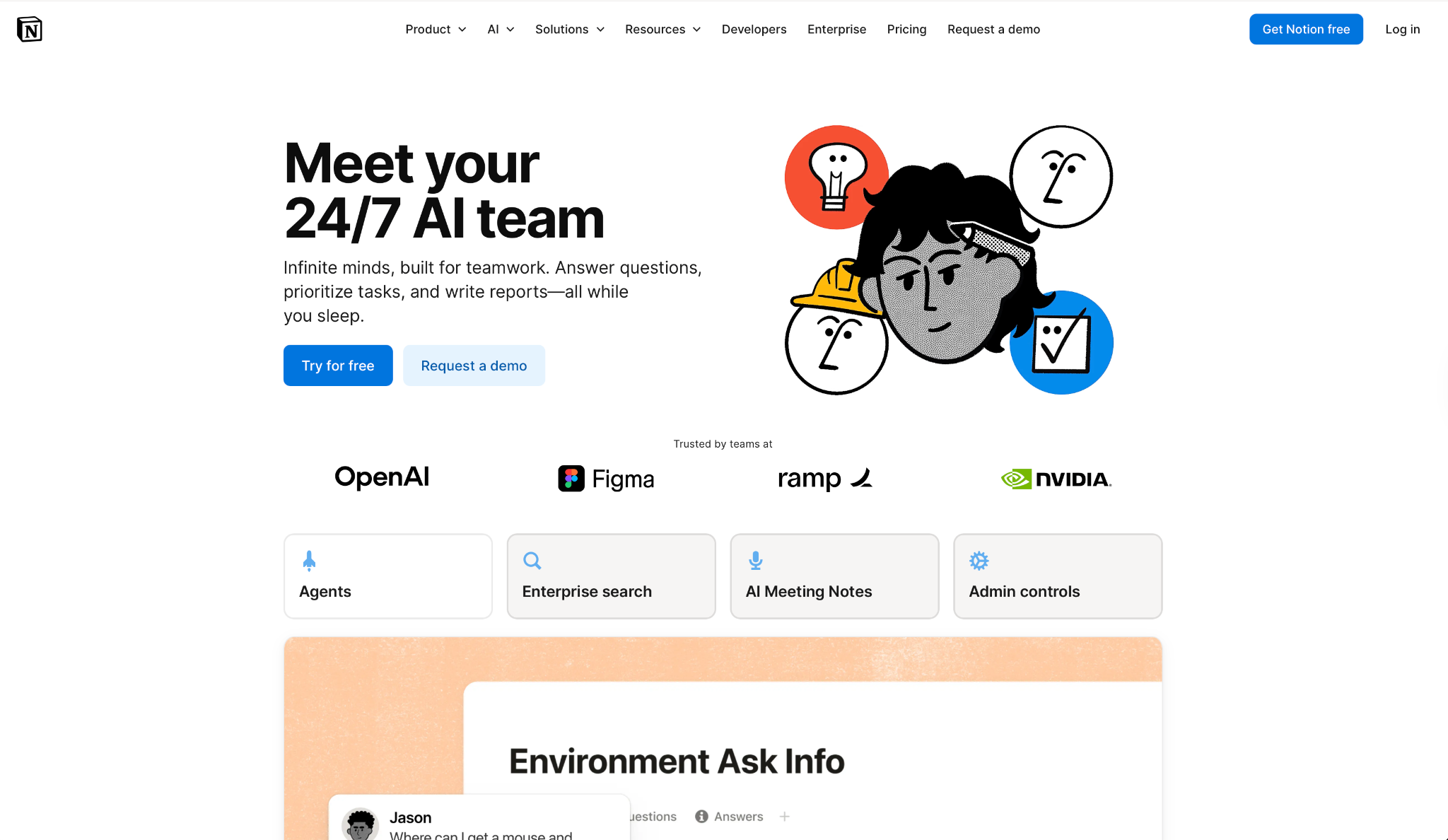
What it does: Notion AI writes, summarizes, and searches across the pages, databases, and connected tools where your team's knowledge already lives.
Best for: Teams already using Notion as their central wiki or project hub who want AI to pull answers from existing documentation without opening a separate tool.
I typed one question, "what did we decide about the onboarding flow in Q3?", and Notion AI pulled the answer from a meeting note I'd buried weeks earlier, complete with a clickable source link. A decision I would have spent ten minutes hunting for came back in seconds.
That accuracy depends on how clean the workspace is. When I pointed the same question at a messier project folder, inconsistent page names and loose structure produced hedging, noncommittal answers instead of a confident pull.
After a few more tests, the pattern was clear. Notion AI is a retrieval engine with a friendly interface. It looks brilliant in an organized workspace and shrugs in a disorganized one, which says more about the team's habits than the tool itself.
Key Features
- Notion Agent: Answers questions, creates pages, and updates databases inside your workspace, with no manual navigation needed.
- Enterprise Search: Searches your entire workspace and connected apps, returning cited answers with source links.
- AI Meeting Notes: Joins meetings, transcribes live, and drops key decisions and action items as a Notion block on any page.
- Custom Agents: Run on a schedule or trigger without anyone online, handling recurring work like ticket routing or status reports, per Notion's product page.
Pros and Cons
Pros:
✅ AI answers come with clickable source citations that point back to the exact page they came from, so you can verify what it found.
✅ Custom Agents run on schedules with no one online, handling recurring teamwork automatically.
✅ The AI sits directly inside the workspace your team already updates, so there's no separate tool to maintain.
Cons:
❌ Full AI access, including the Notion Agent, is bundled into the Business plan. Custom Agents sit on top of that and draw from a separate, usage-based credits pool.
❌ In my testing, page loads started dragging as a database grew into the thousands of records, which slowed down how fast the AI could surface relevant content.
What Users Say
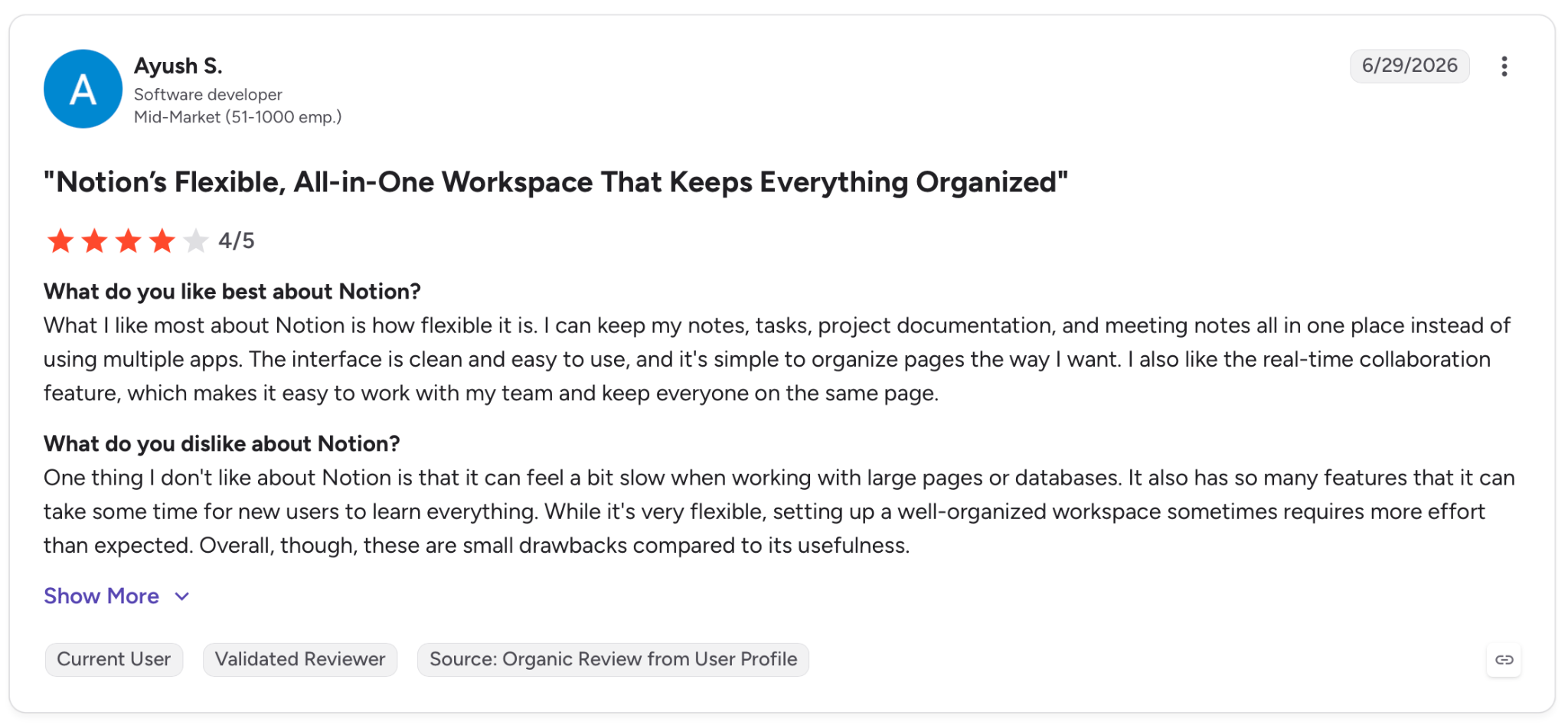
"What I like most about Notion is how flexible it is. I can keep my notes, tasks, project documentation, and meeting notes all in one place instead of using multiple apps." — Ayush S., G2
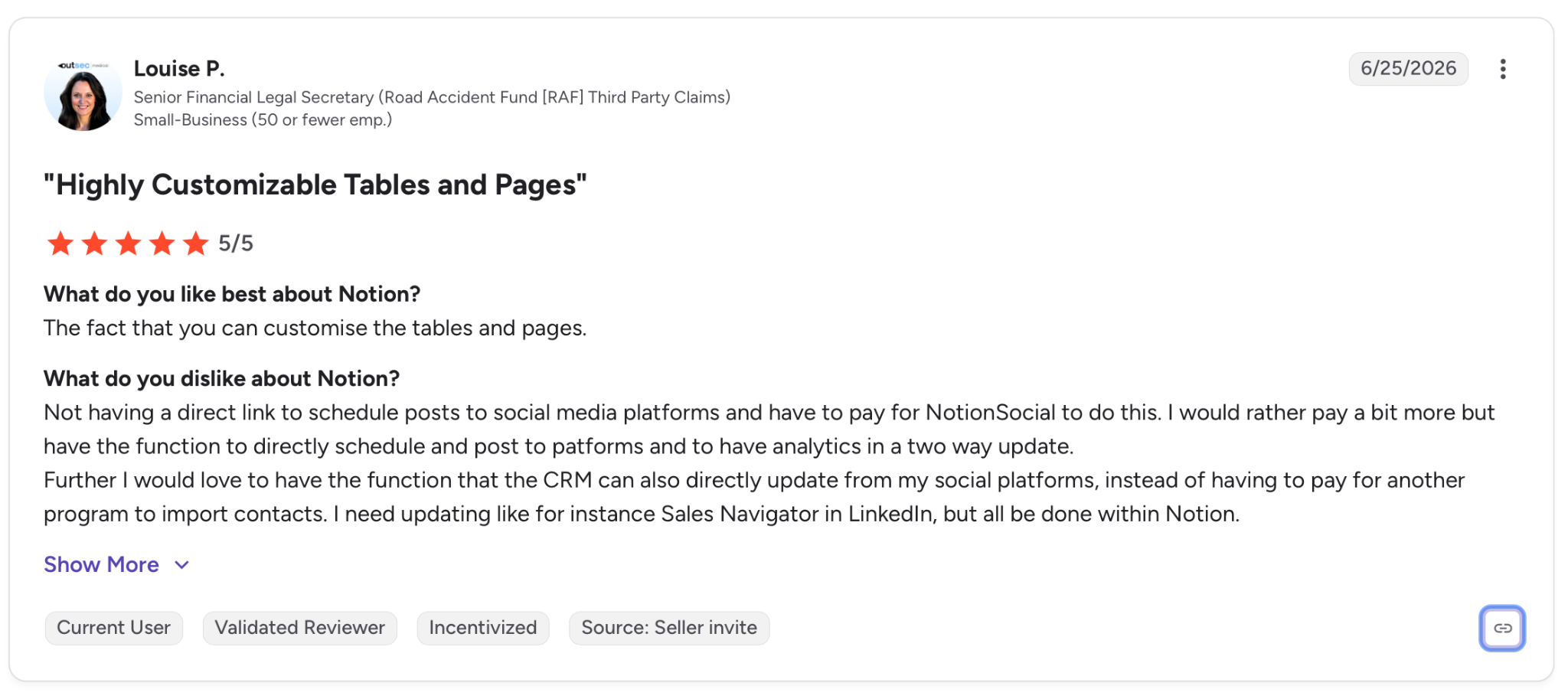
"Not having a direct link to schedule posts to social media platforms and have to pay for NotionSocial to do this." — Louise P., G2
Pricing
Plus starts at $10/user/month, billed annually. Full Notion AI access, including the Notion Agent, AI Meeting Notes, and Enterprise Search, is bundled into the Business plan, which starts at $20/user/month billed annually.
Bottom Line
The value here depends entirely on whether your team's knowledge sits in Notion to begin with, since the problem it solves is finding information rather than producing it.
For standalone writing or document analysis without that setup, Claude does the job without asking you to reorganize anything first.
5. ClickUp: Best for Project Management and Task Tracking
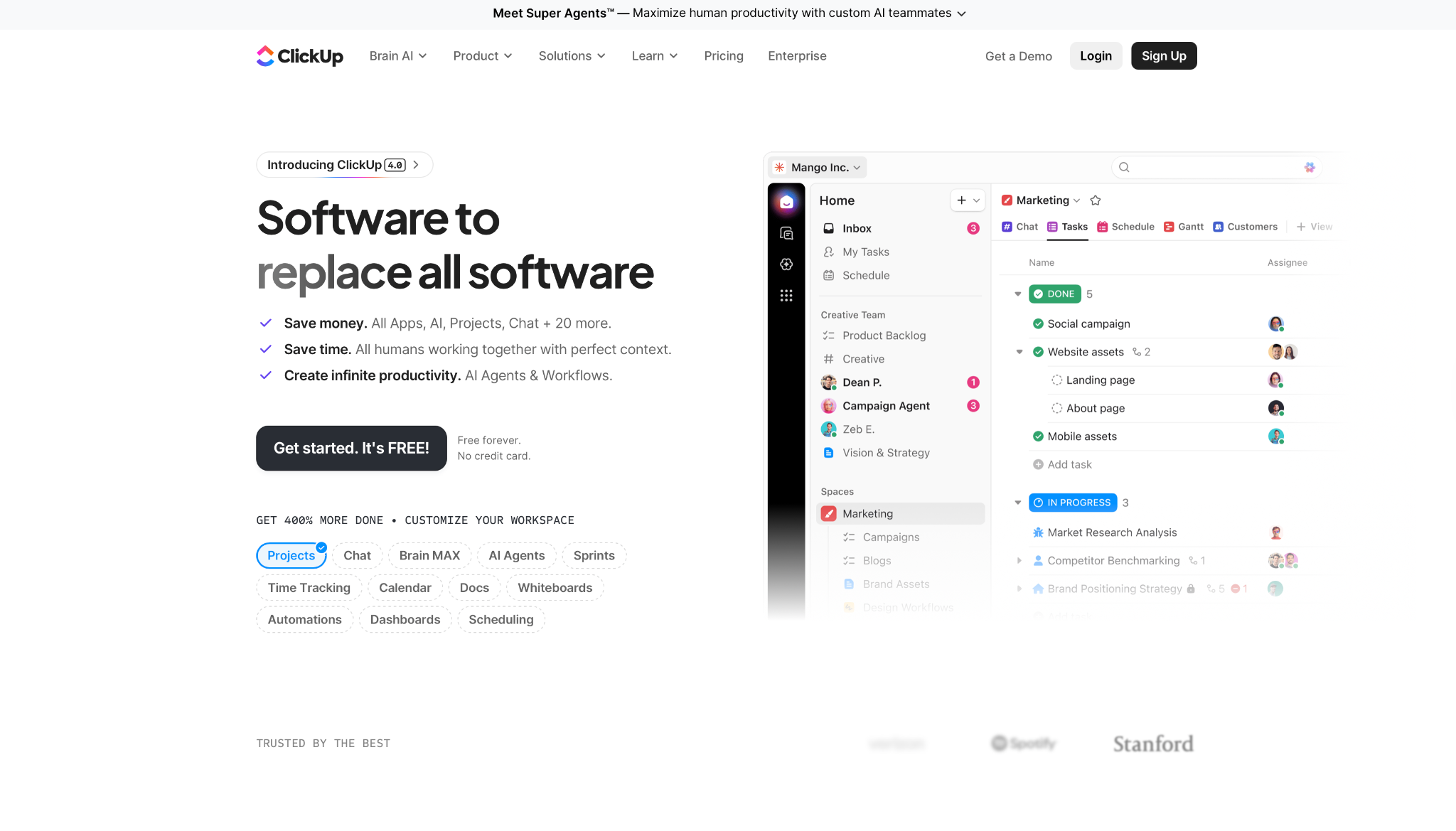
What it does: ClickUp combines tasks, docs, and dashboards in one workspace, and ClickUp Brain sits on top of that to answer questions, write summaries, and generate updates across everything your team is working on.
Best for: Teams already running multiple projects in ClickUp who want AI to speed up status updates, task documentation, and visibility without leaving the platform.
I handed Brain AI a board with 40 active tasks and asked for a standup summary. Ten seconds later, it laid out blocked items, overdue work, and next priorities, all pulled from live task data rather than anything I'd typed in myself.
That's the core of what makes it useful. It reads what's happening in the workspace and surfaces it without being asked twice. The catch surfaced when I pointed it at a second, loosely organized board, where the summary came back vague enough that it was hard to act on.
ClickUp Brain AI works the same way here, pulling from whatever structure is already in place instead of reasoning through the gaps in it. Clean boards make it look sharp; messy ones make it look unsure of itself.
Key Features
- ClickUp Brain AI: Ask questions about any task, doc, or project from a single prompt bar accessible anywhere in ClickUp.
- AI Standup and Project Summaries: Generates progress updates on demand, pulled from live task data in the workspace.
- Super Agents: AI teammates that monitor workflows, route tasks, and answer recurring questions in Chat without manual prompting.
- Multiple Views: List, Board, Gantt, and Dashboard views all feed into Brain's read on what's happening across the workspace, so the summaries reflect more than just one view.
Pros and Cons
Pros:
✅ Answers come straight from live workspace data, whatever your team has already entered into its tasks.
✅ AI Standup and Project Summaries save hours of work for project managers who previously compiled updates by hand.
✅ The base platform ships with task management, docs, and reporting tools before any AI add-on enters the picture.
Cons:
❌ The learning curve is steep. Teams that skip naming conventions and clean field structure early end up with inconsistent AI output.
❌ In my testing, Brain AI couldn't pull in outside files for context and didn't surface AI on custom dashboards, which limited how far it could reach for deeper reporting.
What Users Say
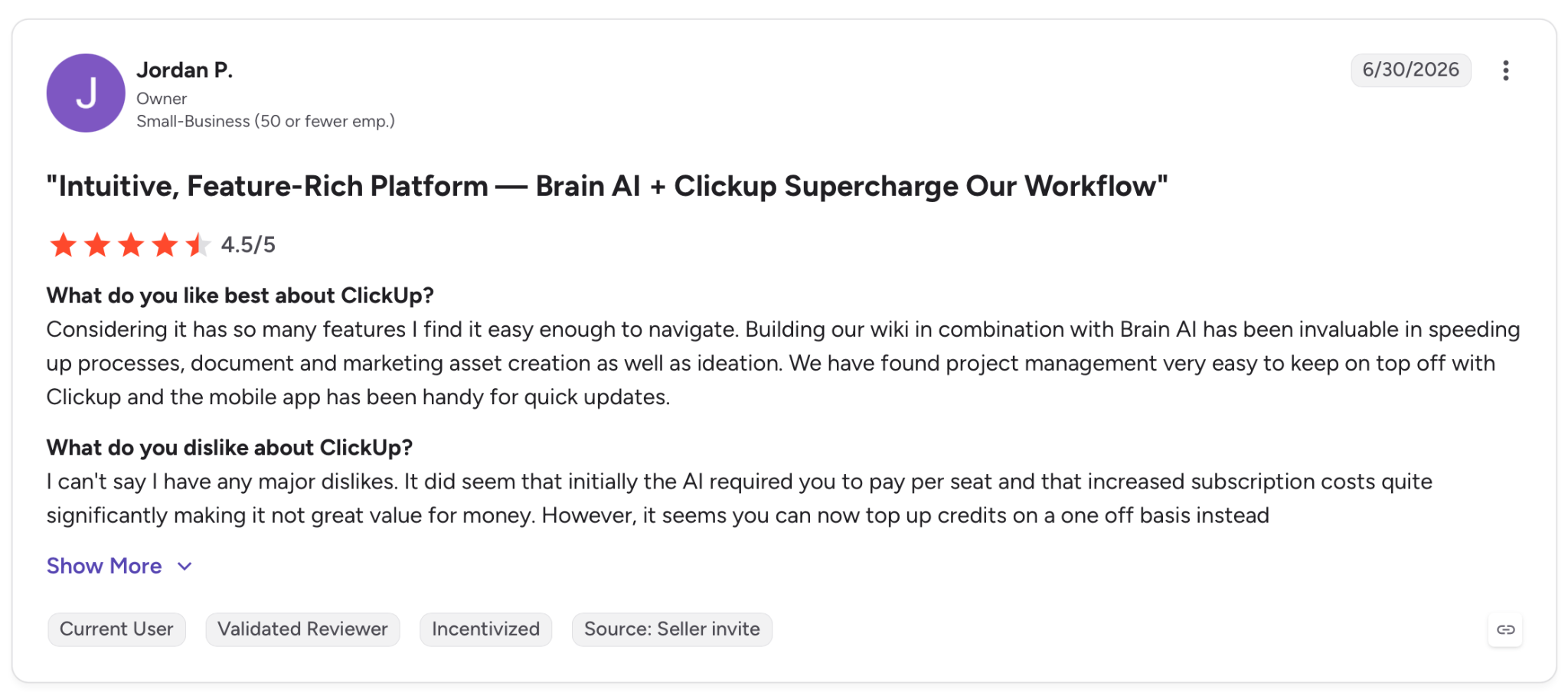
"Considering it has so many features, I find it easy enough to navigate." — Jordan P., G2
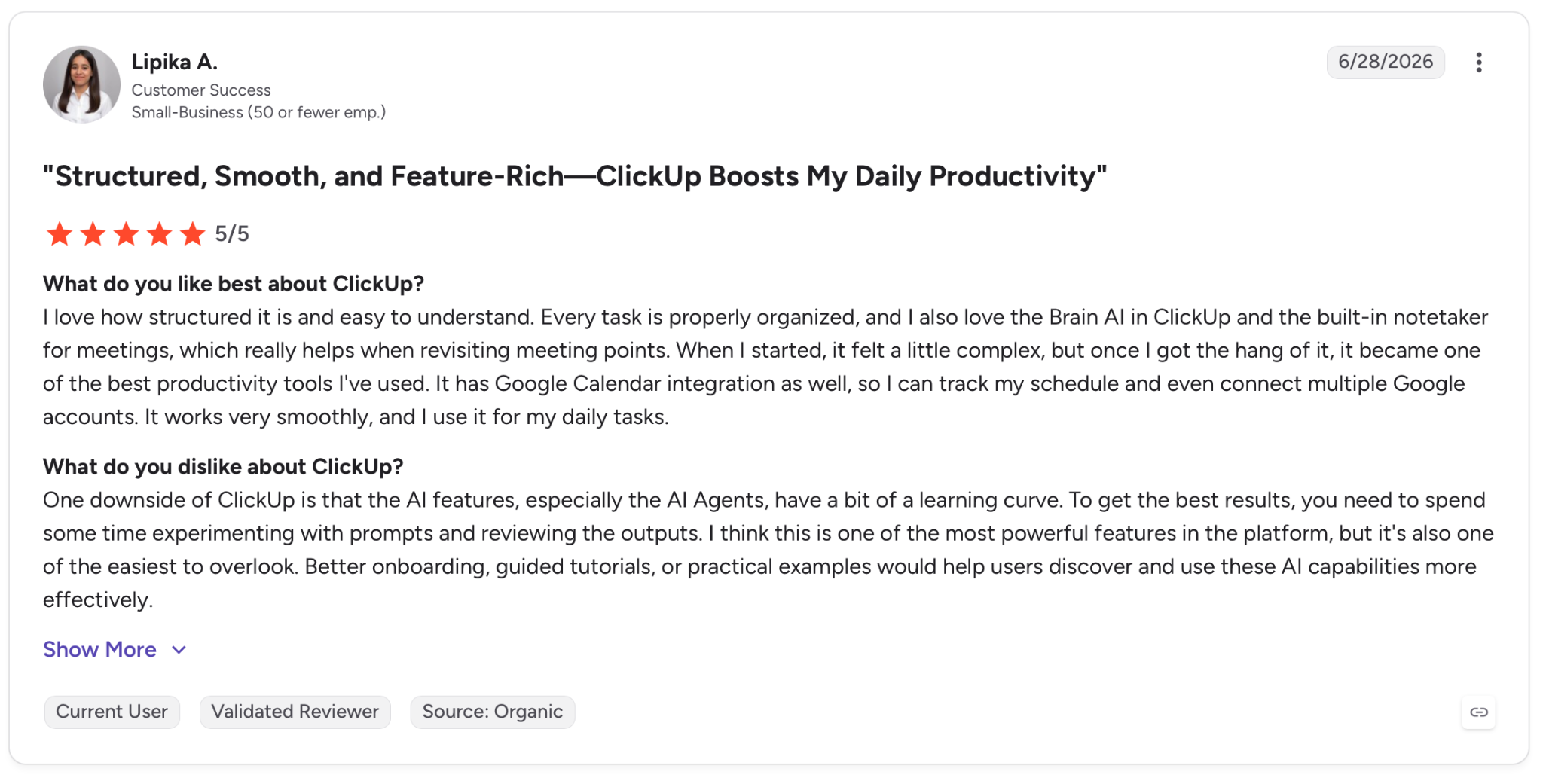
"One downside of ClickUp is that the AI features, especially the AI Agents, have a bit of a learning curve." — Lipika A., G2
Pricing
The Unlimited plan starts at $7/user/month, billed annually. Brain AI adds $9/user/month and includes unlimited Brain Assistant and @Brain Agent use, plus a monthly pool of AI Super Credits for automations and AI fields.
Bottom Line
Project-heavy teams already living inside ClickUp see the clearest gains from this add-on, since it extends a workflow that's already running rather than building one from scratch. Skip the setup work upfront, and the AI output will reflect that mismatch before it reflects anything else.
6. Fathom: Best for Fast, Accurate Meeting Summaries
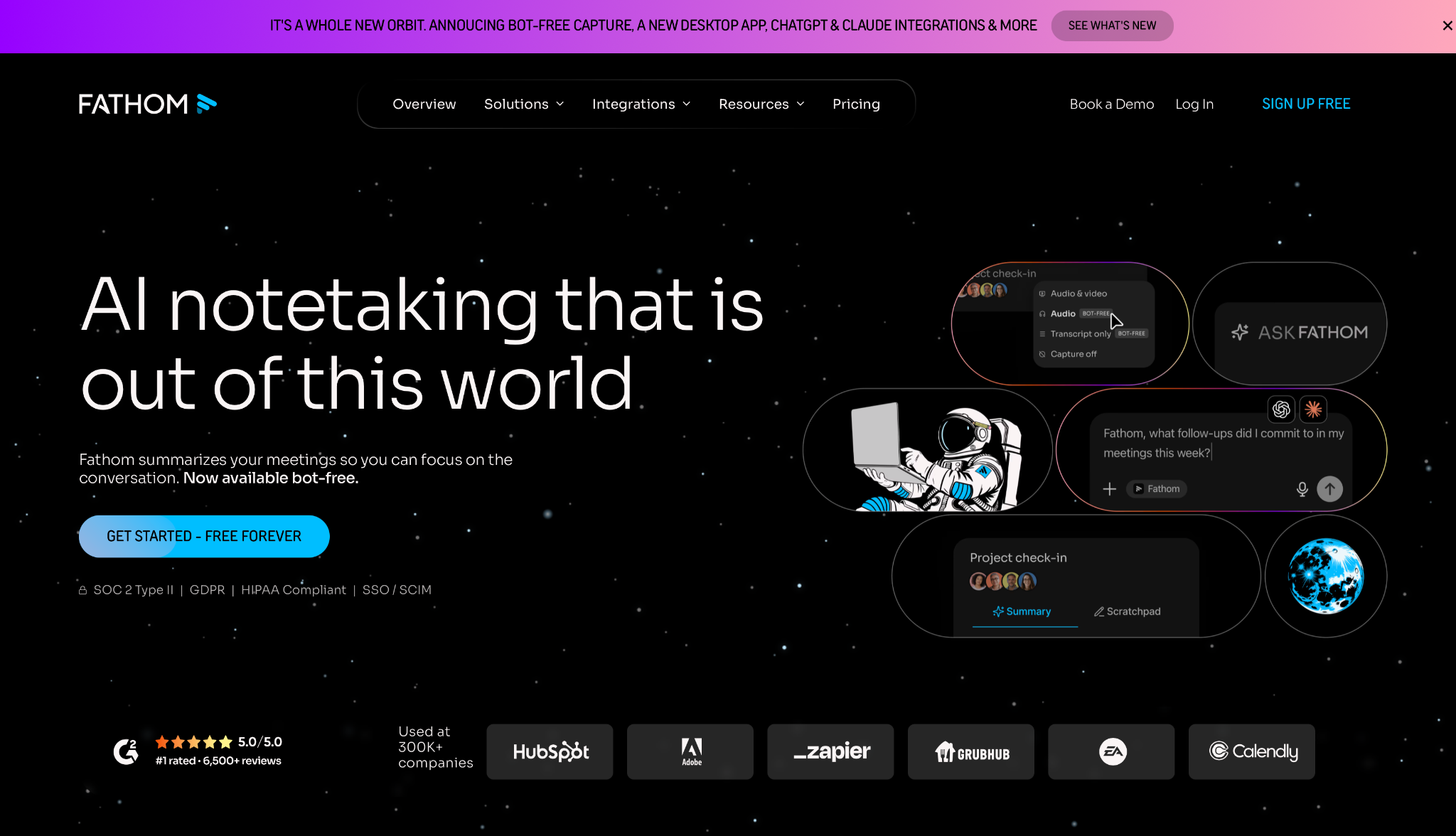
What it does: Fathom records, transcribes, and summarizes meetings on Zoom, Google Meet, and Microsoft Teams, with structured summaries and action items landing shortly after the call ends.
Best for: Anyone whose week runs on video calls and needs accurate, searchable meeting summaries without manual note-taking.
A 45-minute discovery call wrapped, and within roughly half a minute, the summary was already in my inbox. Speaker attribution was correct across four participants, the action items had the right names attached, and a follow-up draft was ready to send with only minor edits.
What stood out over the next several calls was that the quality held steady. The tenth call read as cleanly as the first, including one with noticeable background noise and overlapping speakers that I expected to trip it up.
Beyond the summaries themselves, the bot-free desktop capture mode, still in beta, turned out to be the part I didn't expect to matter as much as it did.
It records audio locally without a named participant showing up in the meeting, which removed the friction I'd previously hit with clients who push back on recording bots.
Key Features
- AI Meeting Summary: Structured recaps land in your inbox shortly after the call ends, with decisions, action items, and speaker attribution included.
- Ask Fathom: A conversational interface to query your meeting library, with answers tied to exact timestamps from specific calls.
- CRM Auto-Sync: Pushes meeting summaries and action items into CRM fields without manual data entry, available on the Team plan.
- AI Scorecards score calls against predefined criteria and turn that into coaching metrics for managers, covering common sales methodologies.
Pros and Cons
Pros:
✅ Unlimited transcription in 38 languages is included on every plan, including Free, with accurate speaker attribution even on calls with accents or overlapping speech.
✅ The Free plan includes unlimited recordings and storage, with no credit card required to start.
✅ Bot-free desktop capture records locally without a visible meeting participant, useful for sensitive calls or clients who object to bots.
Cons:
❌ Fathom only records live meetings on Zoom, Google Meet, and Teams, and doesn't support uploading outside recordings for analysis.
❌ Summary customization is tied to plan and platform. It's available on the web app for Premium and Team users, but not yet on the newer desktop app.
What Users Say
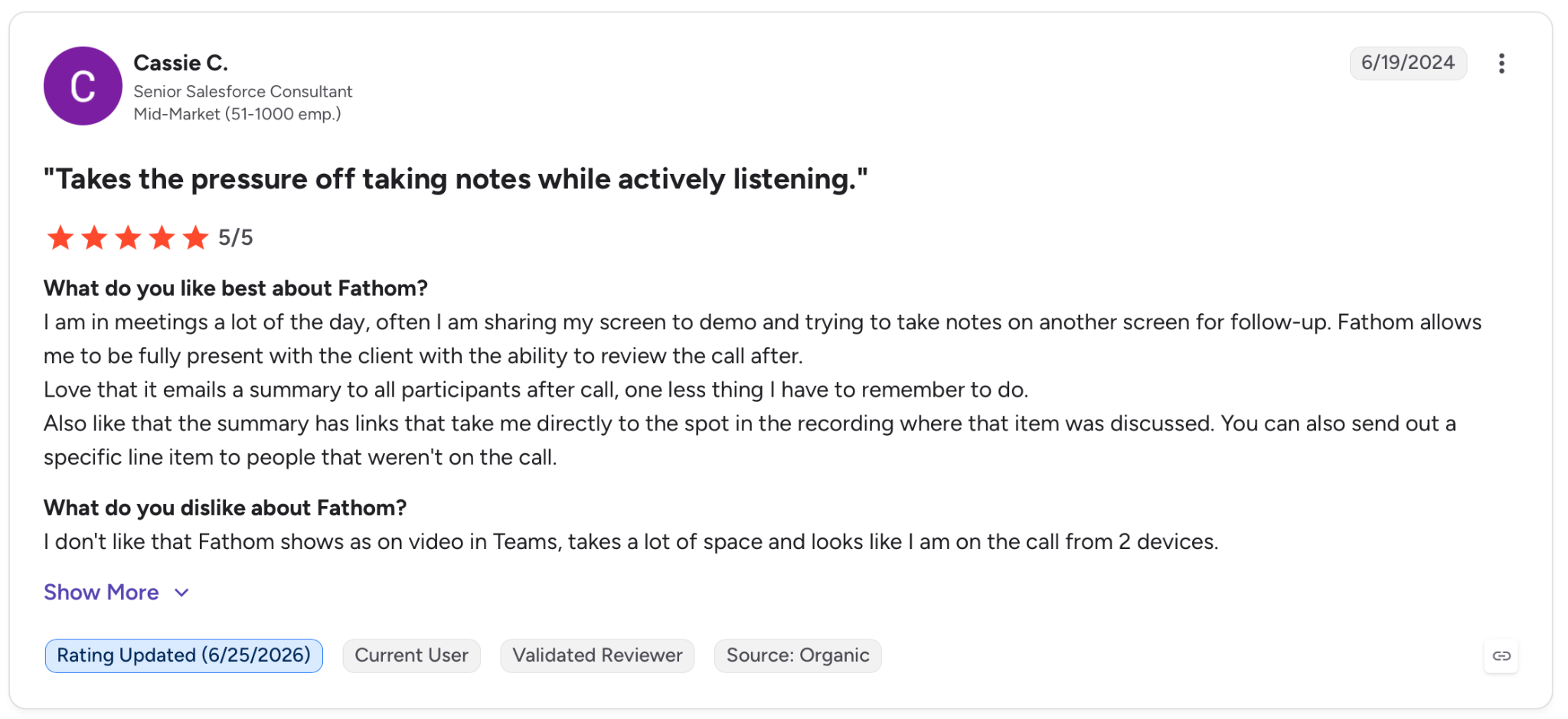
"Fathom allows me to be fully present with the client with the ability to review the call after." — Cassie C., G2
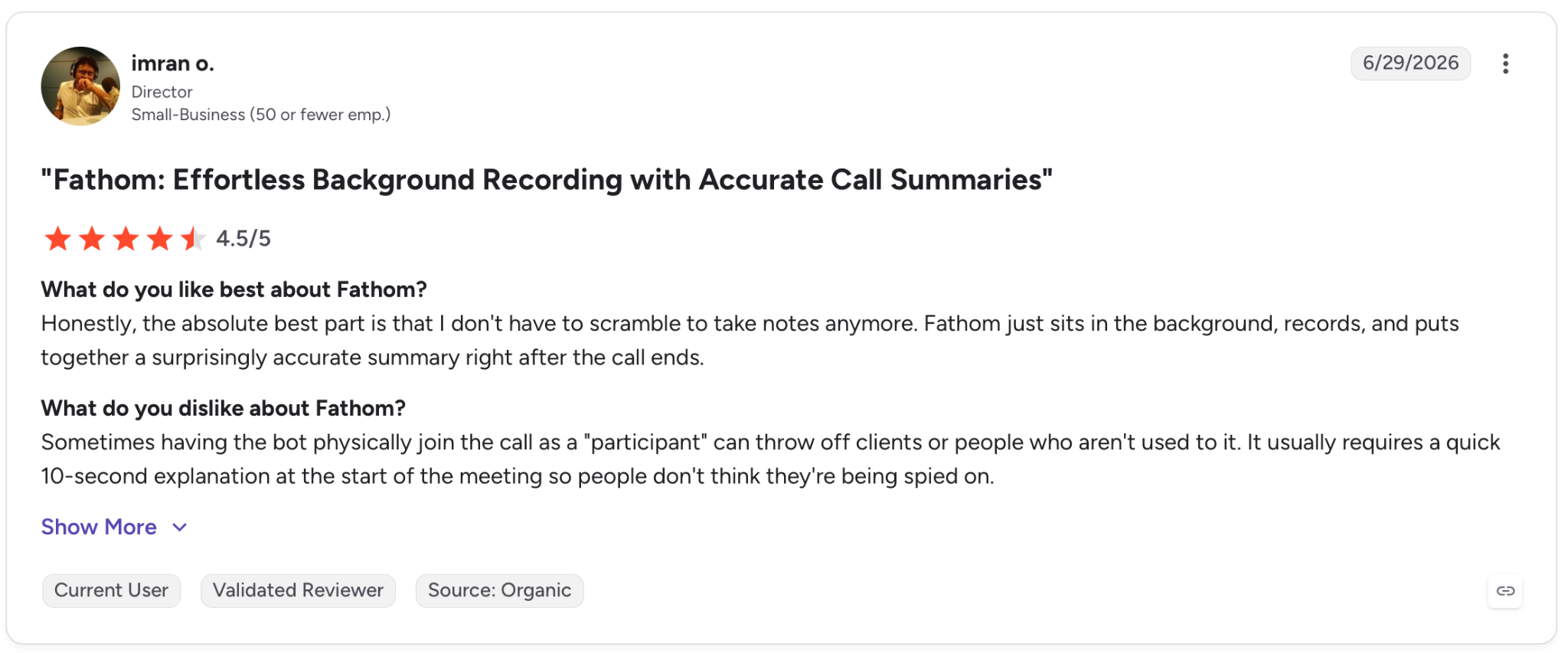
"Sometimes having the bot physically join the call as a "participant" can throw off clients or people who aren't used to it." — Imran O., G2
Pricing
Premium removes the cap entirely, giving unlimited advanced summaries and full access to Ask Fathom for $20/month billed monthly, or $16/month billed annually.
Bottom Line
Fathom works best when the bottleneck is the cleanup after a call ends, the kind of follow-up work that usually falls on whoever took notes. If your day runs on written work or project management instead, the impact here will be narrower than the tools designed for that.
7. Motion: Best for Letting AI Plan Your Day
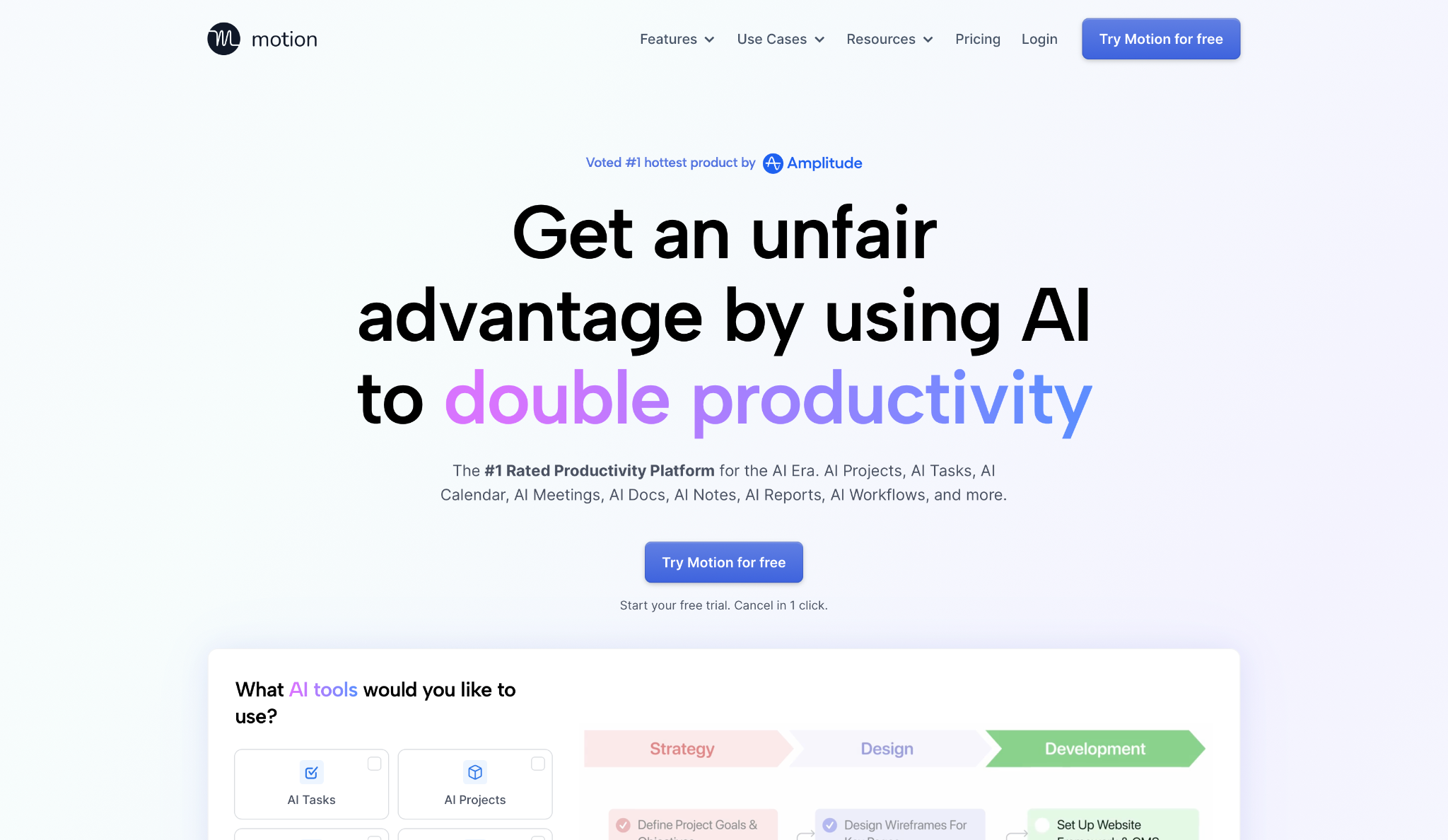
What it does: Motion builds your daily schedule automatically from your tasks, deadlines, and priorities, and reshuffles everything when meetings move or new work comes in.
Best for: Professionals with packed calendars and multiple competing deadlines who want AI to handle the scheduling logic instead of moving blocks around manually.
The first week felt uncomfortable by design. You hand over the task name, duration, and deadline, and the AI decides when things happen, which means giving up a habit I didn't realize I was attached to.
By the second week, a new meeting landed at 2 pm and Motion reshuffled six tasks across the rest of the day without me touching the calendar once.
When a task depended on something else finishing first, it waited to schedule that task until the first one was done, which kept a multi-step project intact without me babysitting the sequence.
That adjustment period is the cost here. Motion needs two to four weeks to learn your preferences. The accounts that go badly are almost always ones where the AI never got accurate time estimates to begin with.
Key Features
- AI Scheduling: Continuously replans your day based on deadlines, priorities, task dependencies, and live calendar availability.
- Task Dependencies: Respects task sequences so downstream work only gets scheduled once upstream items are complete.
- AI Notetaker: Joins Zoom, Google Meet, and Teams calls, generates summaries, and converts action items directly into scheduled tasks.
- AI Chat lets you create or update tasks using plain language inside the same workspace where scheduling happens.
Pros and Cons
Pros:
✅ Auto-rescheduling is where Motion earns its keep. When your day gets disrupted, it rebuilds the plan in seconds.
✅ Task Dependencies keeps downstream work from getting scheduled until blockers clear, so multi-step projects don't collapse when one task slips.
Cons:
❌ Requires two to four weeks of setup before the AI has enough context to schedule well. Inaccurate early time estimates produce overpacked, unrealistic plans.
❌ Focus time blocks exist but require manual setup. In my testing, Motion didn't defend them automatically the way a calendar-only tool like Reclaim does.
What Users Say
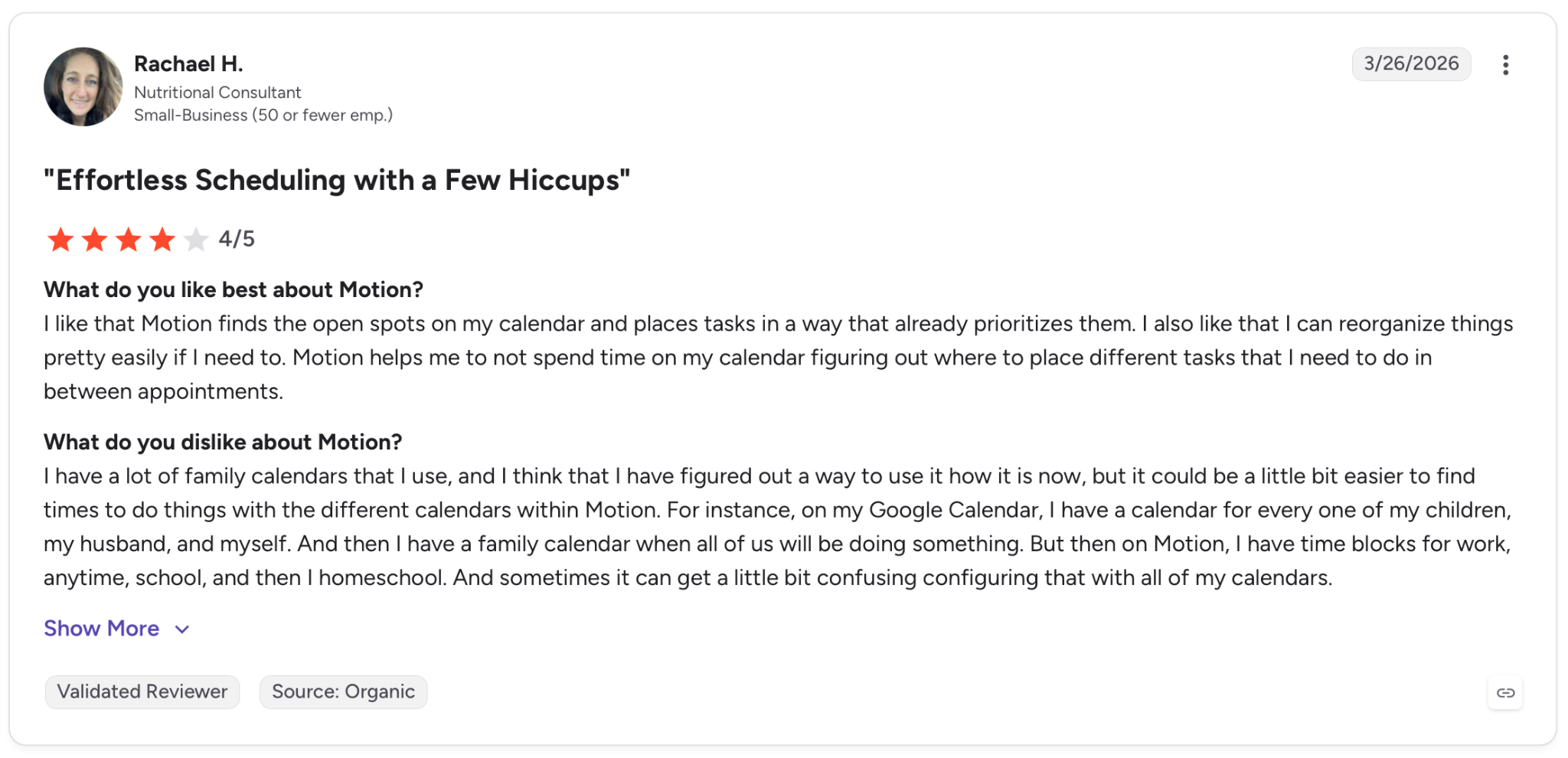
"I like that Motion finds the open spots on my calendar and places tasks in a way that already prioritizes them." — Rachael H., G2
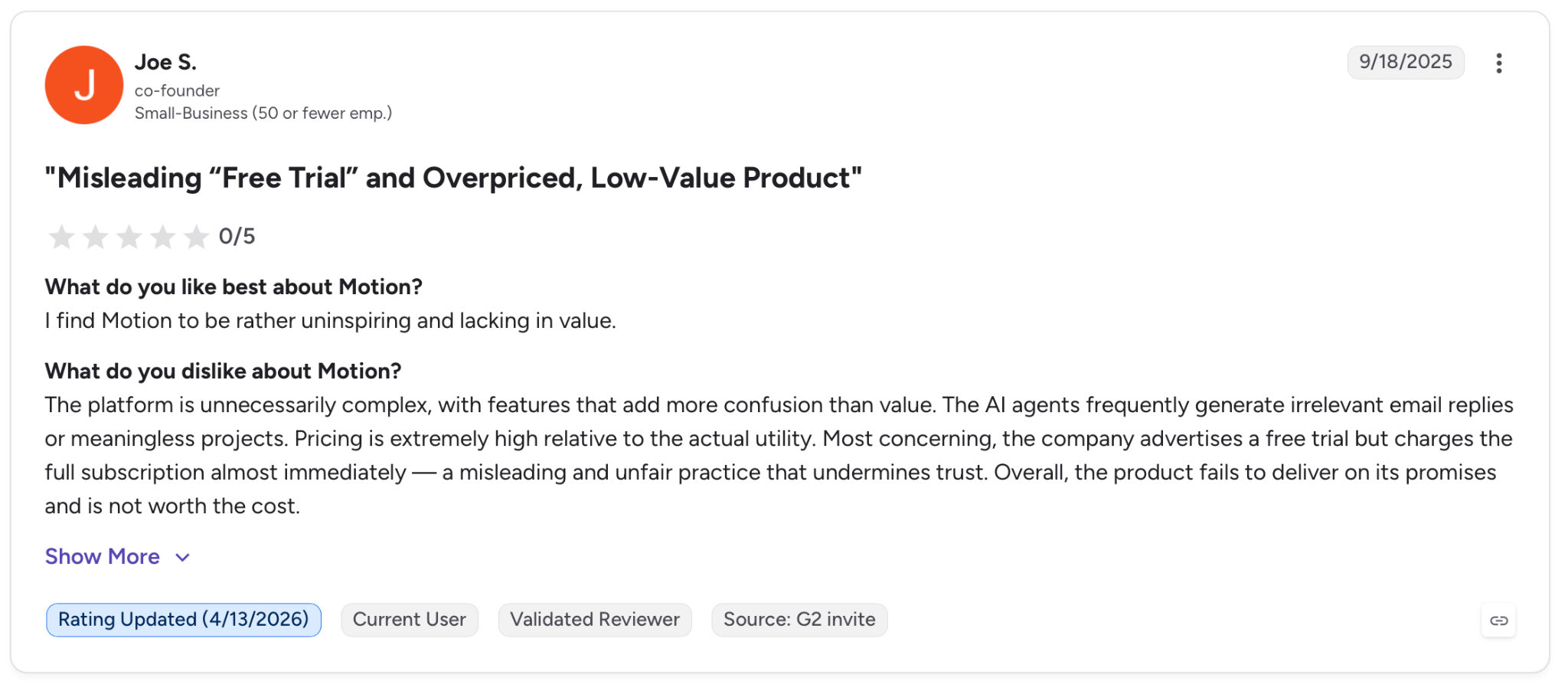
"I find Motion to be rather uninspiring and lacking in value." — Joe S., G2
Pricing
Pro AI starts at $29/seat/month, billed annually, and includes AI scheduling, the AI Notetaker, AI Chat, and 7,500 AI credits per month.
Bottom Line
Professionals whose daily frustration is figuring out what to work on next will feel it first, often within two weeks. If you need manual control over your calendar or work mostly from mobile, the early setup period will frustrate more than it helps.
{{templates}}
8. Reclaim.ai: Best for Protecting Deep Work on a Busy Calendar
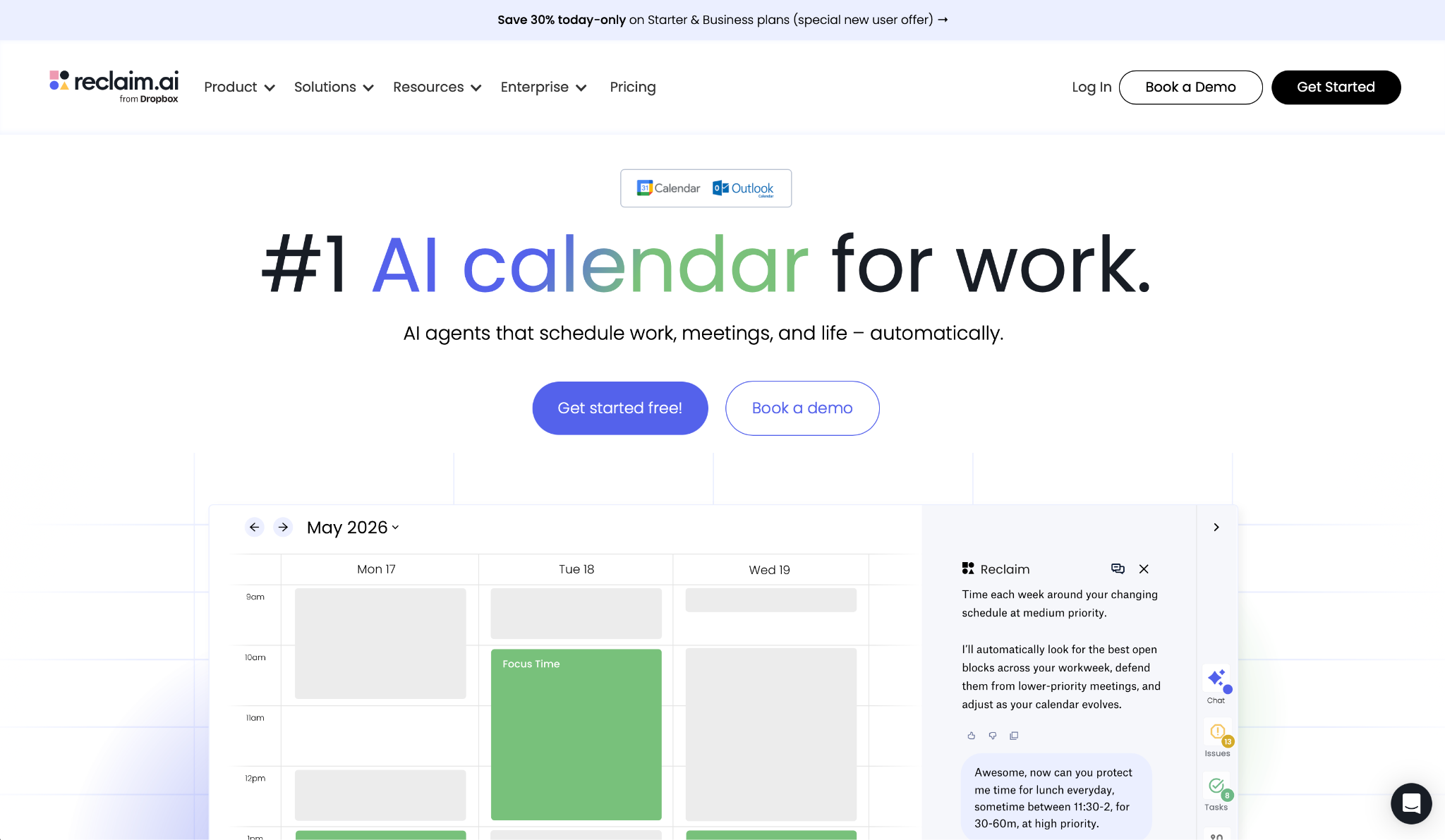
What it does: Reclaim.ai runs on top of Google Calendar or Outlook, defending focus time, scheduling habits, and fitting tasks and meetings around your existing commitments.
Best for: Professionals with meeting-heavy calendars who keep losing deep work hours and want AI to protect that time without changing how they plan everything else.
The setup involved less friction than I expected from a calendar tool. I connected Google Calendar, set a weekly focus time goal, added three recurring habits, and synced my task list from a project management app. Within the hour, blocks were already appearing on my calendar.
Over the next two weeks, I watched how those blocks behaved under pressure. They moved around new conflicts automatically and stayed put when nothing changed, which is the opposite of what many calendar tools do when a meeting gets dropped in.
When I checked the analytics, they turned out to be the unexpected payoff. A sizable share of my week was going to meetings I hadn't consciously noticed adding up, a pattern I never would have measured on my own without the tool tracking it for me.
Key Features
- AI Focus Time: Set a weekly deep work goal, and Reclaim blocks and defends those hours automatically, moving them when conflicts appear.
- AI Habits: Recurring routines like lunch or weekly reviews get flexible calendar time that adjusts around meetings and stays on the calendar week after week.
- AI Tasks: Syncs tasks from project management tools into your calendar with time blocks scheduled by priority and deadline.
- AI Time: Tracking splits your hours across focus work, meetings, habits, and personal time, with weekly digests flagging burnout risk.
Pros and Cons
Pros:
✅ AI Focus Time blocks move automatically when conflicts appear. Many calendar tools leave that rescheduling entirely to you.
✅ AI Habits finds the next valid window when conflicts arise, so routines stay on the calendar week after week instead of disappearing without notice.
✅ Runs on top of your existing Google Calendar or Outlook without migrating tasks or changing how you plan.
Cons:
❌ Reclaim has no native mobile app. A pinned web app handles the basics, but Reclaim-created events are best viewed and edited through Google Calendar or Outlook on mobile.
❌ The free Lite plan caps you at a single habit and a one-week scheduling range, which makes it hard to test the product properly before upgrading.
What Users Say
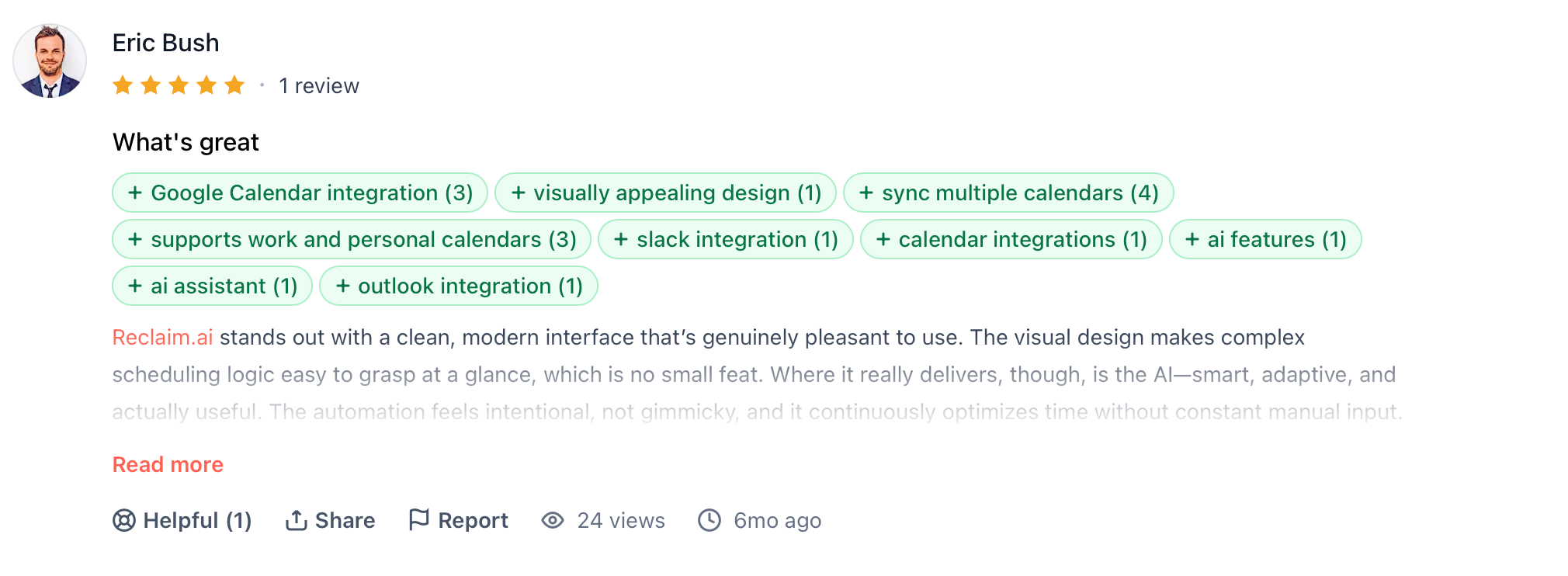
"Reclaim.ai stands out with a clean, modern interface that’s genuinely pleasant to use. The visual design makes complex scheduling logic easy to grasp at a glance." — Eric Bush, Product Hunt
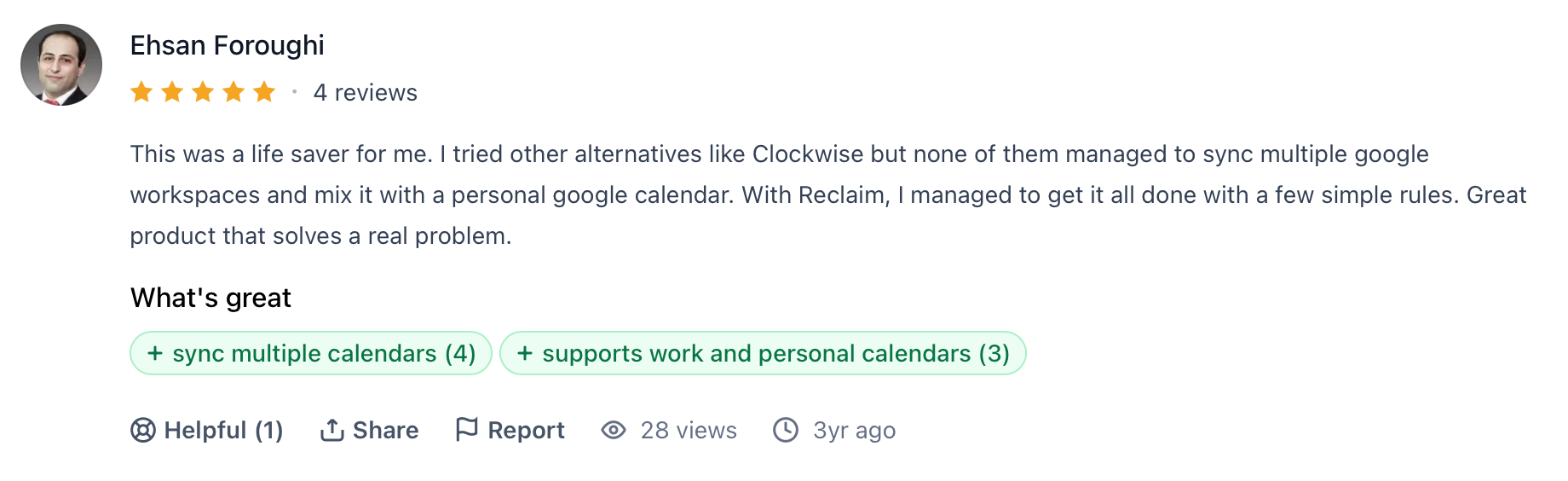
"With Reclaim, I managed to get it all done with a few simple rules. Great product that solves a real problem." — Ehsan Foroughi, Product Hunt
Pricing
Reclaim has a free Lite plan with basic scheduling and a single habit. Paid plans start at $12/seat/month, billed annually, adding unlimited habits, team analytics, and priority support.
Bottom Line
Reclaim makes sense when your calendar is already full and the bottleneck is finding time to do the work itself. It does one thing well: protecting the time you need to focus. If you also need task management or project tracking bundled in, Motion covers more ground.
9. Zapier: Best for Connecting Apps Without Code
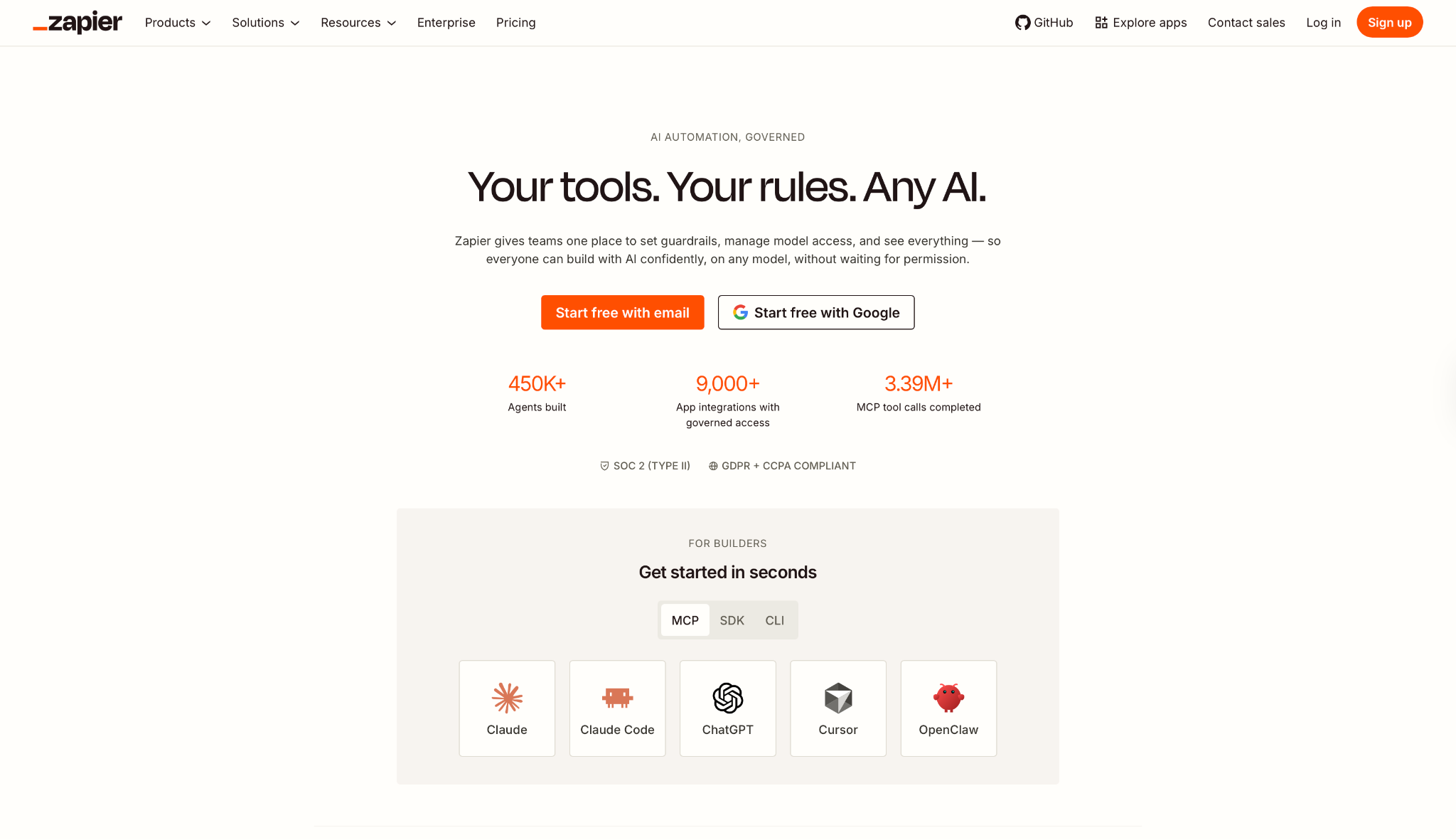
What it does: Zapier connects thousands of apps and lets you build multi-step workflows and agents so routine work runs in the background without needing a developer.
Best for: Teams using several SaaS tools that need to move data between them automatically, with AI steps embedded directly inside those workflows.
Three minutes after I started building, the workflow was live. A form submission hits a CRM, an AI step scores the lead, and a Slack notification routes to the right rep based on that score.
That's the core use case, routing work between tools that don't talk to each other natively. The harder lesson arrived later, when I tried to debug a Zap that had broken without warning, three branches deep into a workflow with a lot of moving parts.
The error log was technical enough that finding the failed step took patience, and it became clear that non-technical users will eventually hit that same wall with no obvious way around it.
Key Features
- Zaps: Build multi-step sequences of triggers, actions, and conditional paths across thousands of apps with no code. Filters and Formatter steps don't count toward task usage.
- Zapier Copilot: Describe what you want done in plain language, and Copilot builds the workflow skeleton, available on every plan including Free.
- AI by Zapier: Add AI processing steps to any Zap to score leads, summarize text, classify support tickets, or generate follow-up content.
- Zapier MCP connects Claude, ChatGPT, and other AI assistants directly to Zapier's app ecosystem through a single authenticated endpoint.
Pros and Cons
Pros:
✅ With more than 9,000 app connections, the list covers what a typical workflow needs, with connections maintained as apps evolve.
✅ Zapier Copilot and ready-made templates let non-technical users go from idea to running workflow in minutes, without understanding APIs or data mapping.
Cons:
❌ Task-based pricing compounds fast, since a multi-action Zap uses multiple tasks per run, so high-volume teams can hit ceiling costs well above the listed plan price.
❌ Multi-branch workflows are difficult to debug. Error logs are technical, and tracking down a failed step in a branching sequence takes patience that many non-technical users don't have.
What Users Say
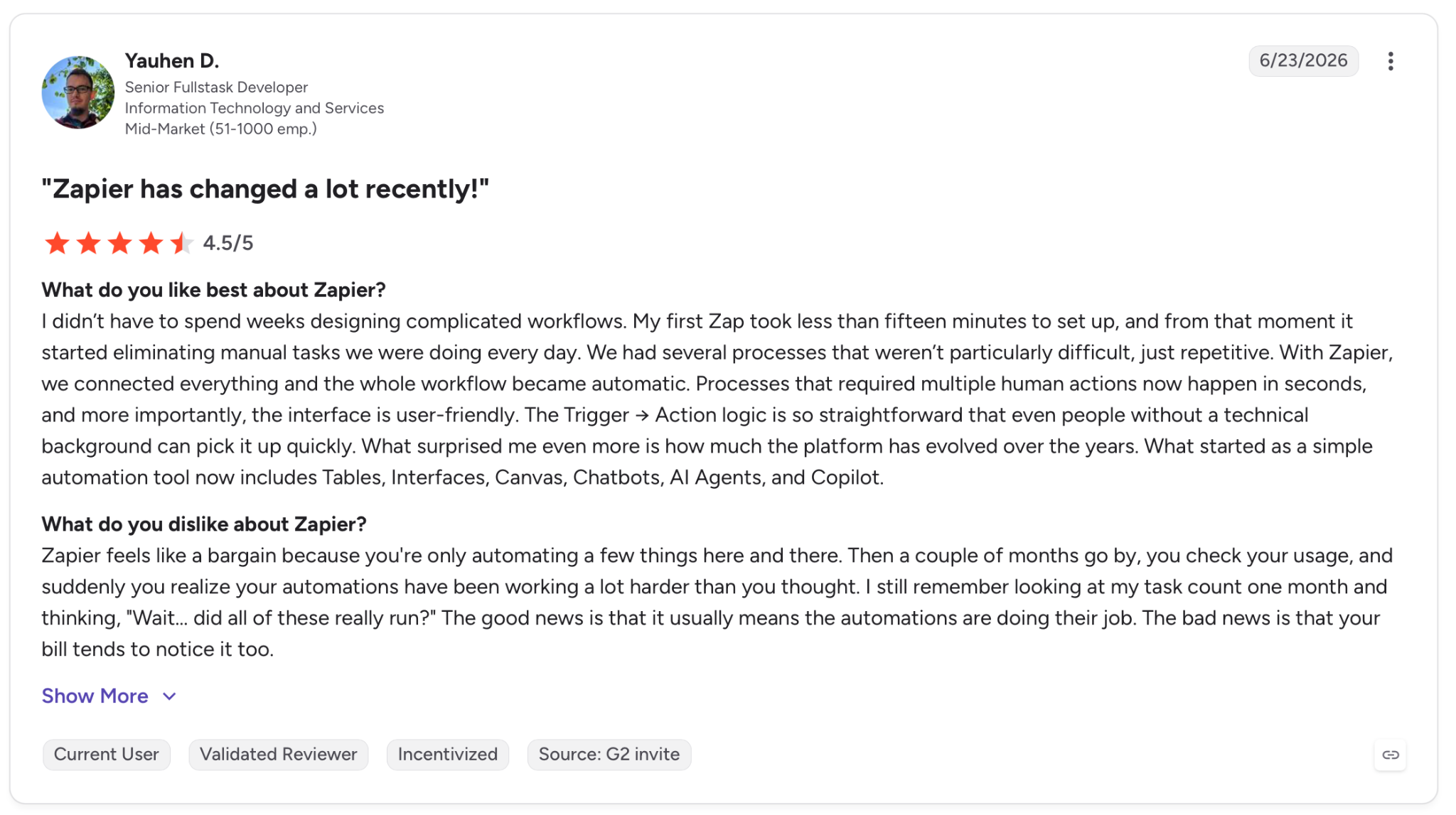
"I didn’t have to spend weeks designing complicated workflows. My first Zap took less than fifteen minutes to set up, and from that moment it started eliminating manual tasks we were doing every day." — Yauhen D., G2
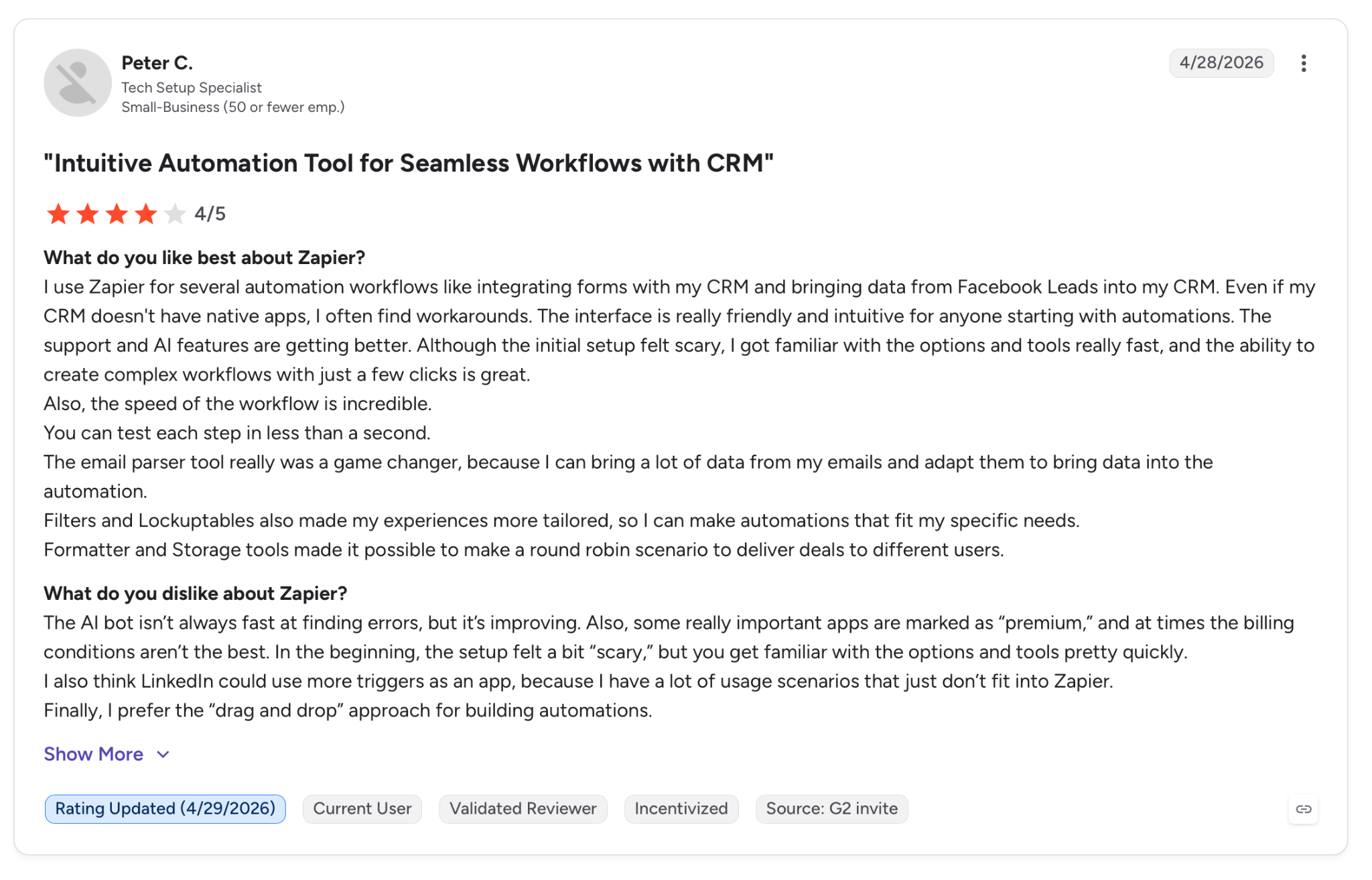
"The AI bot isn't always fast at finding errors, but it's improving. Also, some really important apps are marked as 'premium,' and at times the billing conditions aren't the best." — Peter C., G2
Pricing
Professional starts at $29.99/month, billed monthly, and opens up multi-step workflows, premium apps, and AI steps. Team starts at $69/month billed annually, and adds shared workspaces for collaboration.
Bottom Line
Zapier is where to start when the problem is too many tools that don't talk to each other. If your work lives inside one platform, or you mainly need writing and scheduling help, other tools earlier on this list will serve you better.
Which Personal Assistant App Should You Choose?
Choose Claude if you:
- Spend the bulk of your time in long documents, research, or structured writing.
- Need a tool that stays coherent across extended sessions.
Choose ChatGPT if you:
- Want one assistant for writing, brainstorming, and everyday work.
- Prefer broad usefulness over deep specialization.
Choose Lindy if you:
- Want to text an assistant to handle inbox, scheduling, and follow-up work.
- Run a lean team and need recurring admin work off your plate.
Choose Notion AI if you:
- Already rely on Notion as the team's knowledge hub.
- Need help finding, summarizing, and cleaning up internal information.
Choose ClickUp Brain if you:
- Already run projects inside ClickUp and want AI woven into task tracking.
- Need standup and project summaries pulled from live task data.
Choose Fathom if you:
- Spend your week in video calls and lose time to manual note-taking.
- Want a free tier generous enough to test before paying for anything.
Choose Motion if you:
- Need help deciding when work should happen, beyond a list of what the tasks are.
- Want an assistant to keep replanning your day as things change.
Choose Reclaim if you:
- Keep losing deep work hours to meetings.
- Want your calendar to defend focus time automatically.
Choose Zapier if you:
- Run several SaaS tools that need to stay in sync.
- Want AI steps embedded directly inside no-code workflows.
Skip this category entirely if:
- You don't have repeated assistant-style tasks to offload yet.
- You are looking for a fully autonomous system without review or oversight.
- Your current workflow is still too inconsistent to benefit from delegation.
{{cta}}
Final Verdict
People searching for a personal assistant app often frame it as a "which AI is the best at everything" question. In many cases, they're solving something more specific, like long documents, daily scheduling chaos, meeting follow-up, or what happens to a task after you hand it off.
Claude handles long-form writing and research for people who live in documents. Motion and Reclaim fight for your calendar in different ways. Fathom and ClickUp Brain clean up what happens after a meeting or inside a project board. Zapier wires the rest together.
Two names that didn't make this round are Google Gemini and Microsoft Copilot. Both are capable, but they work as extensions of a suite you're already paying for rather than standalone assistants you can point at any workflow. If your day already runs on Google Workspace or Microsoft 365, they're worth testing alongside the picks above.
If I were choosing one assistant to delegate to, I'd pick Lindy for anyone who wants assistant-style help without the cost or ramp-up of a full-time EA.
You describe what needs doing, and it runs in the background, handling email follow-ups, meeting prep, and CRM updates, the kind of daily admin that eats a morning without requiring much judgment from you.
Pick the tool that removes the specific friction you're tired of. If that friction is repetitive admin, try the Lindy free trial and see how the first week changes your day.
Frequently Asked Questions
What is the best personal assistant app for busy professionals?
ChatGPT and Claude work best for broad, varied daily work, while Lindy and Reclaim do more for concentrated pain points like inbox and meeting overload. The tool that wins for you depends on where your specific time leaks out during the week.
Are personal assistant apps worth paying for?
They're worth paying for once they cut into repeated manual work that shows up every week, not just occasional novelty tasks the free tier already covers. If a tool is saving you a meaningful chunk of hours every week, the subscription pays for itself fast.
Can a personal assistant app manage email and calendar for me?
Some can. Lindy, Reclaim, and Motion are designed for that operational role, while ChatGPT and Claude lean more toward thinking and drafting unless paired with other systems.
Which personal assistant app is best for research?
ChatGPT's Deep Research is usually the better fit when the priority is a structured, multi-source report assembled quickly. Claude tends to pull ahead once the work turns into synthesis or sustained writing across a project.
What about Google Gemini and Microsoft Copilot?
If your work already lives in Google Workspace or Microsoft 365, start there before adding another subscription. Gemini handles drafts, summaries, and data pulls inside Gmail, Docs, and Sheets. Copilot does the same across Outlook, Word, Excel, and Teams.