The 13 Best Shareable Calendar Apps for Teams (2026)
Marvin ran Google Calendar, Outlook, and Teamup among 13 shareable calendar apps through the same team setup, ranking them on sharing controls, booking, and scheduling automation.


Getting a team to agree on when things happen is harder than the work itself. Someone books over a client call; a shared doc says one time and the invite says another, and half the group never sees the update because they live in a different calendar app than the rest.
A shareable calendar app fixes that by putting one schedule where everyone can see it, edit it, or subscribe to it. I spent two weeks comparing 13 of them against the same setup, running a mixed team on Google and Outlook through a packed week of meetings and a recurring schedule that kept changing on me.
Some share a calendar in two clicks. Others go further and let AI move things around when the week falls apart. Below is where each one belongs, what it costs once you're past the free tier, and who should skip it.
13 Shareable calendar apps: TL;DR
- Google Calendar: Best for teams already working in Google Workspace
- Microsoft Outlook Calendar: Best for enterprise teams running on Microsoft 365
- Teamup: Best for clubs, shifts, and public schedules where viewers have no account
- Calendly: Best for booking meetings with people outside your team
- Lindy: Best for an AI teammate that runs calendar and inbox work from Slack
- Motion: Best for letting AI plan and defend a team's schedule
- Reclaim.ai: Best for protecting focus time on a meeting-heavy calendar
- Superhuman: Best for teams that want AI acting across mail, chat, and docs
- Notion Calendar: Best for teams whose work and schedule already live in Notion
- Doodle: Best for group polls that find a time across busy schedules
- ClickUp: Best for teams running their schedule inside project management To explore broader tools beyond scheduling, review our roundup of the best productivity apps 2026 for team collaboration.
- TimeTree: Best for couples and small groups who coordinate plans by chat
- Cozi: Best for families running a household on one shared calendar
How I researched and tested these shareable calendar apps
I set up the same shared schedule in all 13 apps. That meant a five-person team split across Google and Outlook, a week with 20-plus meetings, and a recurring standup that I kept moving to see what broke. I invited the same two teammates to each one and watched how fast an edit showed up on their end. Here's what I scored:
- Sharing model: Whether you share a whole calendar, a single event, or a link, and how much control you get over who sees what.
- Permissions: How granular the access levels are, from read-only to full edit, and whether a viewer needs an account.
- Cross-provider reach: Whether the app works when half the team is on Google and the other half is on Outlook or iCloud.
- Usability: How many steps it took to share, and whether a non-technical teammate could join without help.
- Pricing: What the first paid tier gives a team, since most of these keep the useful sharing controls on a paid plan.
Two jobs kept pulling apart as I tested: sharing a calendar and running a team's whole schedule. Most apps here do one or the other, so each section below says which job it's for.
13 Shareable calendar apps side by side
| 💻 Tool | ⚡ Strengths | 🎯 Best For | 💰 Starting Price |
|---|---|---|---|
| Google Calendar | Four permission levels, public share links | Teams already in Google Workspace | $8.40/user/month |
| Outlook Calendar | Org-wide free/busy, Teams integration | Enterprise teams on Microsoft 365 | $7/user/month |
| Teamup | 9 permission levels, no account needed to view | Clubs, shifts, and public schedules | $15/month |
| Calendly | Booking links off live availability | Booking with people outside your team | $20/seat/month |
| Lindy | AI schedules and reschedules from a text | An AI teammate that runs your calendar | $49.99/month |
| Motion | AI rebuilds the schedule when plans change | Letting AI plan a team's day | $69/seat/month |
| Reclaim.ai | Auto-defends focus time on shared calendars | Protecting deep work on busy teams | $12/seat/month |
| Superhuman | AI acts across mail, chat, and docs | Teams that want AI acting before you ask | $40/member/month |
| Notion Calendar | Calendar tied to docs and databases | Teams whose work lives in Notion | $12/member/month |
| Doodle | Group polls to find a shared time | Finding a time across busy schedules | $20/month (2 seats) |
| ClickUp | Calendar synced to live project tasks | Scheduling inside project management | $10/user/month |
| TimeTree | Per-event chat, no account to join | Couples and small groups | $4.49/month |
| Cozi | Calendar, lists, and meal planner in one | Families running a household | $39/year |
Prices reflect each vendor's listed starting paid tier and its own billing cadence. See each section for monthly-versus-yearly detail.
1. Google Calendar: Best for teams already working in Google Workspace
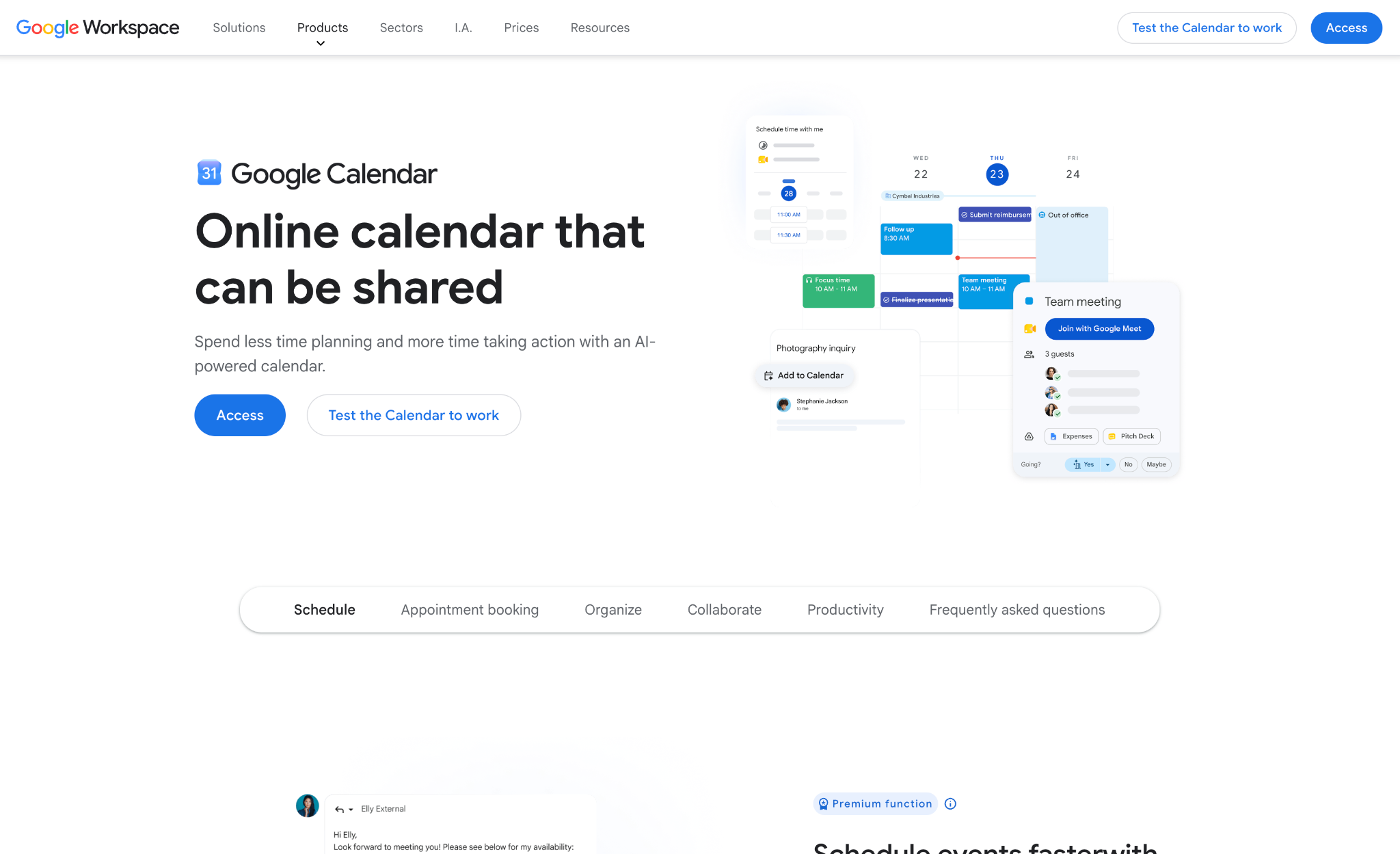
What it does: Google Calendar shares a full calendar, a single secondary calendar, or a public link, and lets you set a different permission level for each person you invite.
Best for: Teams where everyone already has a Google account and wants sharing that works the second the invite goes out.
Sharing took two clicks. I opened a secondary calendar named "Team Ops," added a teammate's Gmail, and picked their access level from four options. The event I created synced to their side in seconds, and the edit I made an hour later showed up before I'd switched tabs.
The control settings are the strong part. You can hand one person "see only free/busy," give another full edit rights, and publish a read-only link for everyone else, all from one settings panel. For a team that lives in Gmail, that covers the job without a second app.
Key features
- Four sharing permission levels: Set each person to see free/busy only, see all details, make changes, or manage sharing, per calendar.
- Multiple secondary calendars: Spin up separate calendars like "Team Ops" or "Client Calls" and share each one on its own.
- Public calendar links: Publish a read-only calendar through a public URL for people outside your organization.
- Workspace integration: Events tie into Gmail, Meet, and Drive, so meeting links and files travel with the invite.
Pros and cons
Pros:
✅ Sharing a calendar with another Google user takes two clicks and syncs in seconds.
✅ Four permission levels control who sees details versus who can edit.
✅ Secondary calendars let you separate "Team Ops" from "Client Calls" and share each with a different group.
Cons:
❌ Sharing with Outlook or iCloud users is clunky and usually read-only through an .ics link.
❌ No task prioritization or AI planning. It shows the shared calendar and stops there.
❌ Family and household features are thin, so it suits work teams better than mixed personal groups.
What users say
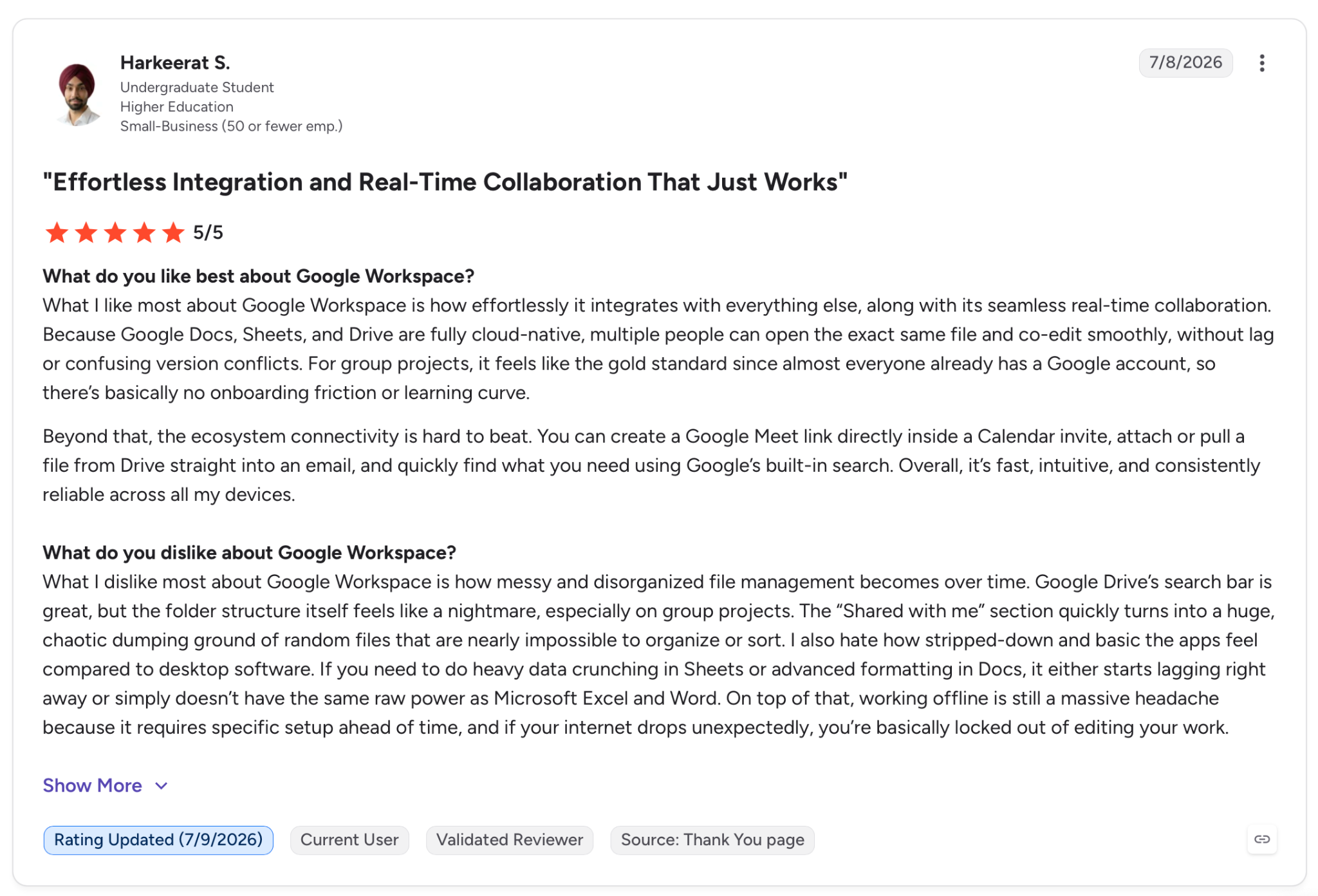
"You can create a Google Meet link directly inside a Calendar invite, attach or pull a file from Drive straight into an email, and quickly find what you need using Google’s built-in search." — Harkeerat S., G2
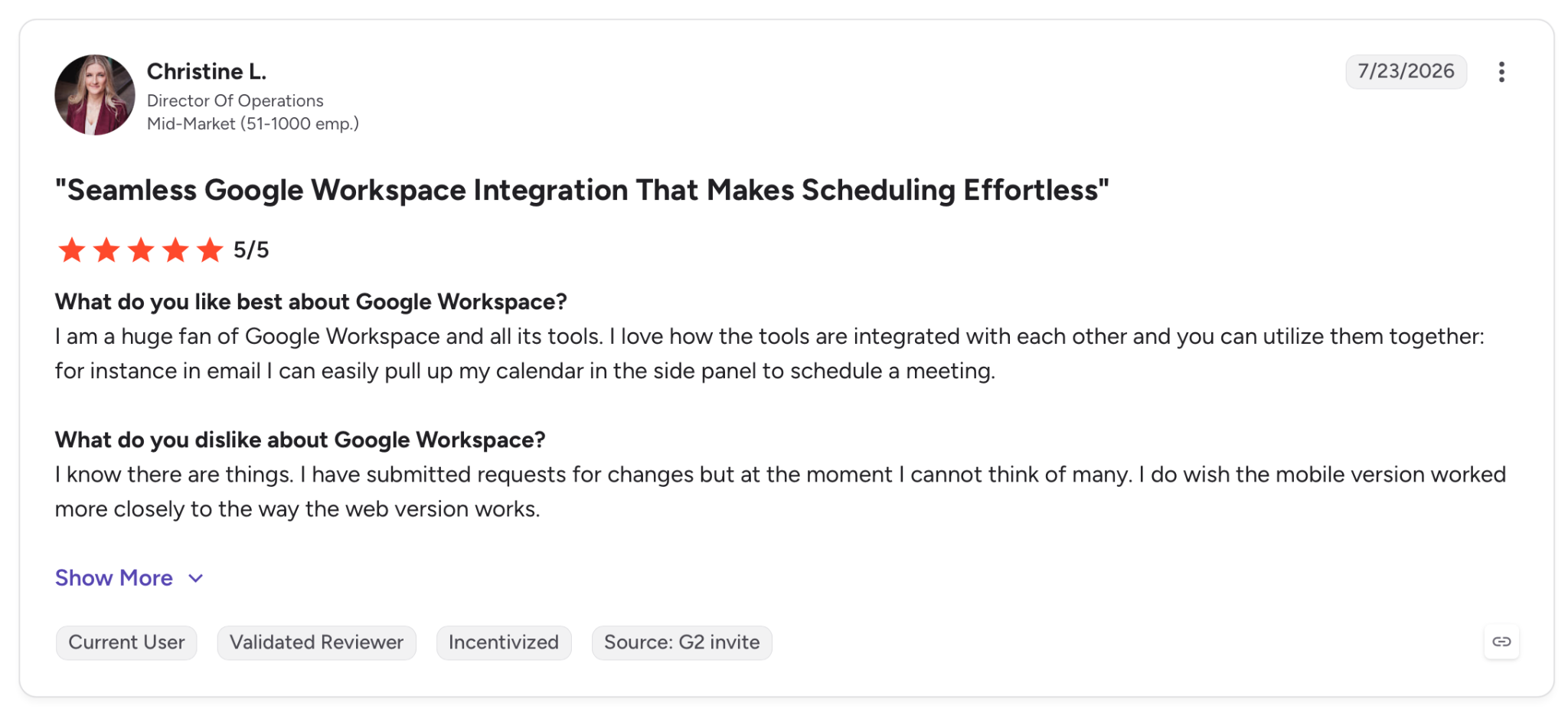
"I know there are things. I have submitted requests for changes but at the moment I cannot think of many. I do wish the mobile version worked more closely to the way the web version works." — Christine L., G2
Pricing
The first paid team tier is Business Starter at $8.40/user/month, which adds 30 GB pooled storage per user and 100-participant video meetings on top of the calendar. Business Standard runs $16.80/user/month.
Bottom line
For a team already on Gmail, this calendar stays out of the way and just works. For a team that lives in Gmail, nothing here shares a schedule with less friction.
2. Microsoft Outlook Calendar: Best for enterprise teams running on Microsoft 365
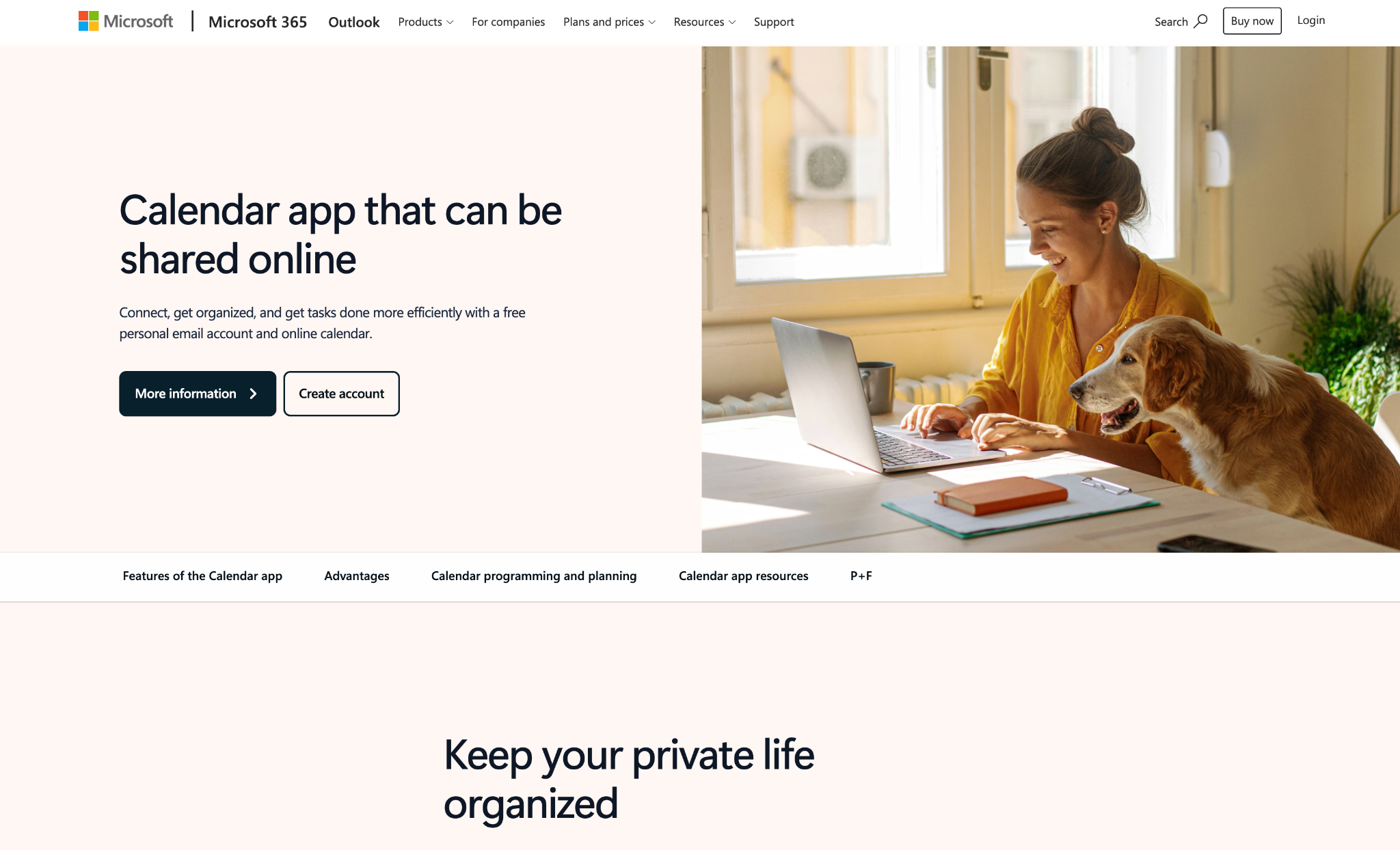
What it does: Outlook Calendar shares calendars across a Microsoft 365 organization by default, with directory-wide free/busy visibility and delegation set at the admin level.
Best for: Companies already standardized on Microsoft 365, where scheduling happens inside the org, and IT controls access.
Inside a Microsoft 365 tenant, sharing barely needs setup. I saw colleagues' free/busy without asking, and the Scheduling Assistant found a slot for a group of five without the usual email thread. Delegation let me hand calendar control to an assistant account in a couple of clicks.
That depth cuts both ways. An enterprise gets everything it needs here, from permissions to resource booking to room calendars, but a five-person startup gets more software than the job calls for.
Key features
- Org-level directory sharing: See any colleague's free/busy across the organization without requesting access first.
- Scheduling Assistant: Find a meeting time that works for everyone invited, based on when each person is free.
- Delegation: Assign an assistant or teammate to manage your calendar on your behalf.
- Microsoft Teams integration: Invites, availability, and join links stay in sync between Outlook and Teams.
Pros and cons
Pros:
✅ Org-wide free/busy visibility means no back-and-forth to see when a colleague is open.
✅ Scheduling Assistant handles the "find a time for seven people" problem cleanly.
✅ Resource booking covers rooms and equipment alongside people, at the org level.
Cons:
❌ Sharing with Gmail or iCloud users needs workarounds and usually loses write access.
❌ The interface is heavier than a small team needs for simple calendar sharing.
What users say
"The search feature is fast, folders and categories help keep my inbox organized, and the calendar integration makes it easy to manage meetings and appointments." — Abhishek S., G2
"There are occasional sync delays and performance issues, particularly after updates or when network connectivity is unstable." — Ameer A., G2
Pricing
The entry business tier is Microsoft 365 Business Basic at $7/user/month (paid yearly), which covers the web and mobile Outlook calendar plus custom business email. Business Standard with Copilot runs $23.50 per user/month (paid yearly).
Bottom line
The calendar is installed and working the day your company adopts Microsoft 365, and that head start is the argument for it. A team not tied to Microsoft will carry more interfaces than it ever uses.
3. Teamup: Best for clubs, shifts, and public schedules where viewers have no account
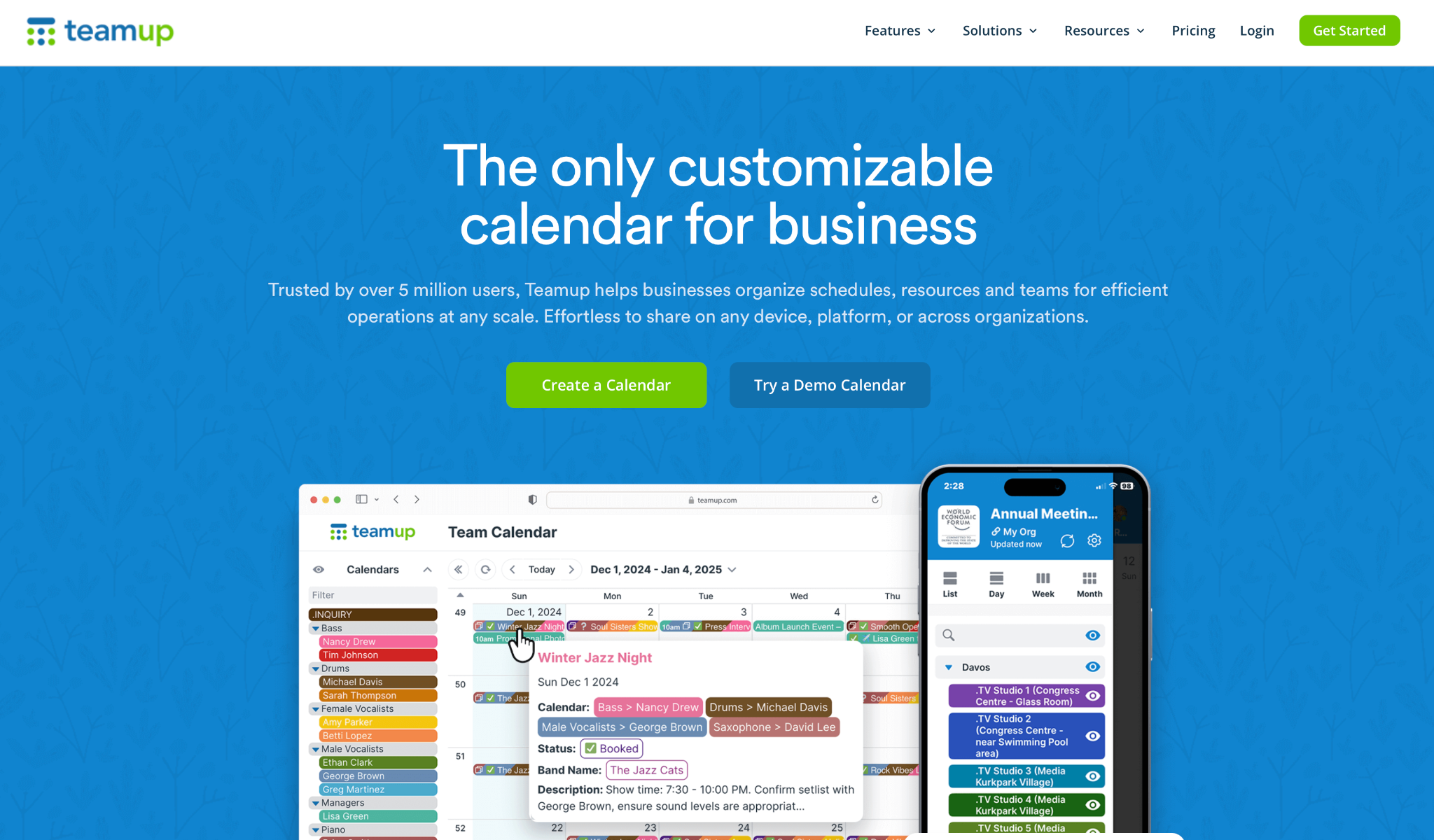
What it does: Teamup builds a shared calendar around access links, so contributors and viewers can see or edit a schedule without creating an account or logging in.
Best for: Clubs, sports teams, schools, and shift-based workplaces where the people checking the schedule don't all have Google or Microsoft accounts.
Teamup handles a case the mainstream apps ignore. I generated one link with edit rights and another read-only, sent them out, and both recipients opened the calendar without an account. For a volunteer roster or a sports club, that erases the biggest barrier to getting everyone on the same schedule.
The permissions go deeper than I expected. Nine access levels let me give one group add-events rights, another read-only, and a third free/busy alone, each through its own link to the same master calendar. That's the kind of control a shift manager needs.
Key features
- Nine access permission levels: Assign read-only, modify, add-only, or free/busy access per shareable link.
- No-account sharing: Viewers and contributors open the calendar through a link without signing up.
- Color-coded sub-calendars: Split a master calendar into folders and color-coded sub-calendars for each team or resource.
- Shareable event pages: Publish a single event as a standalone web page anyone can open.
Pros and cons
Pros:
✅ Nobody needs an account to view or edit, which is rare and hugely useful for community groups.
✅ Nine permission levels give tight, per-link control over who does what.
✅ Works for shift rosters, clubs, and public schedules that don't fit a standard work calendar.
✅ Twelve calendar views, including a scheduler and timeline, cover almost any way a group wants to read the schedule.
Cons:
❌ It doesn't sync two-way with personal Google or Outlook calendars the way a native app does.
❌ The interface is built for function over polish and looks dated next to Google or Notion.
❌ Setup takes longer than a consumer app, since the flexibility comes with more to configure.
What users say
"We really enjoy using Teamup in our company. Everyone on the team is pleased with how it helps us manage appointments. In addition to work-related scheduling." — Tina W., G2
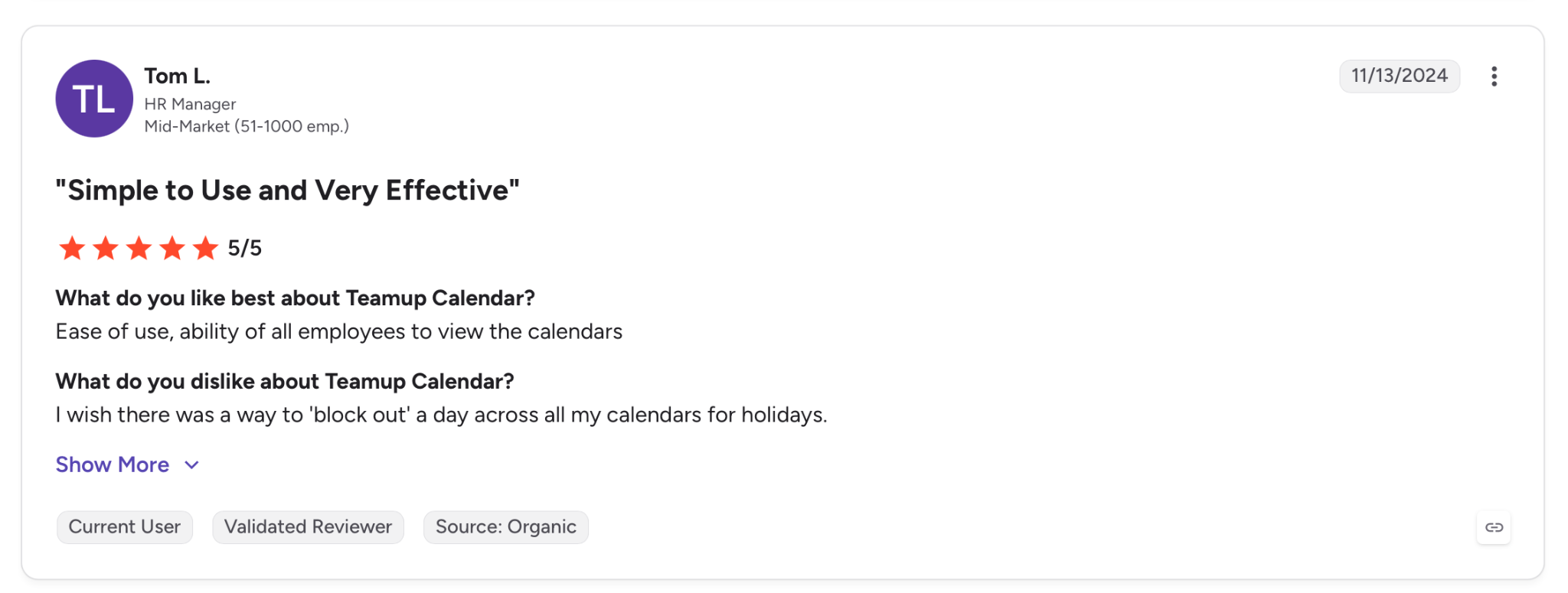
"I wish there was a way to 'block out' a day across all my calendars for holidays." —Tom L., G2
Pricing
The first paid tier is Plus at $15/month (billed monthly, or $12/month billed yearly), which raises the limit to 12 sub-calendars and 12 users and adds the Daily Agenda email. Teamup prices per master calendar, not per seat. The Pro tier runs at $35/month, billed monthly.
Bottom line
When half your group would never bother creating an account, Teamup still gets them onto the schedule when no native calendar would.
4. Calendly: Best for booking meetings with people outside your team
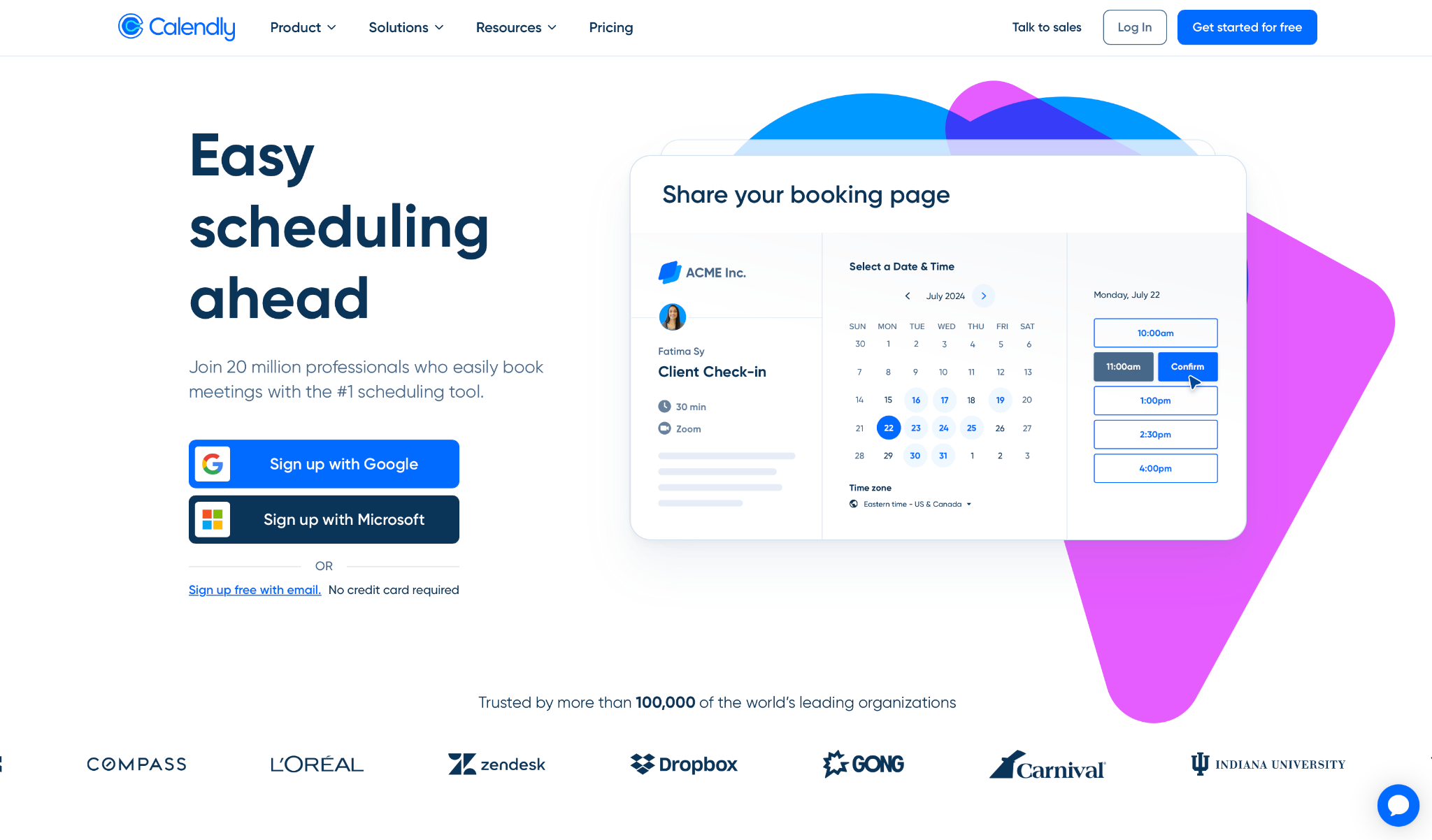
What it does: Calendly shares your live availability as a booking link, so people outside your team pick an open slot and the meeting lands on both calendars automatically.
Best for: Teams that book a lot of meetings with clients, candidates, or partners and want to drop the back-and-forth of finding a time.
Calendly shares availability rather than a calendar, a different job from the others here. I connected my Google Calendar, set working hours, and sent a link. The other person booked a slot without seeing my full schedule, and the event showed up on both sides with a video link already attached.
The team routing lifts it past a personal tool. A booking request can rotate round-robin across a group or go to whoever's free first, which is exactly how sales and recruiting teams hand out meetings.
Key features
- Availability booking links: Share a link to read your live calendar so invitees book only open slots.
- Round-robin routing: Spread bookings across a team by availability or rotation.
- Multiple calendar connections: Connect several calendars so a booking checks every one for conflicts.
- Reminders: Send reminder and follow-up emails to cut down on no-shows without manual chasing.
Pros and cons
Pros:
✅ Lets anyone outside your team self-book an open slot with no email thread.
✅ Round-robin routing matches how sales and recruiting teams assign meetings in practice.
✅ Checks every connected calendar at once, so it avoids double-booking you.
Cons:
❌ It shares availability, not a team calendar, so it complements one rather than replacing it.
❌ The routing and integrations have a learning curve before a team runs them smoothly.
What users say
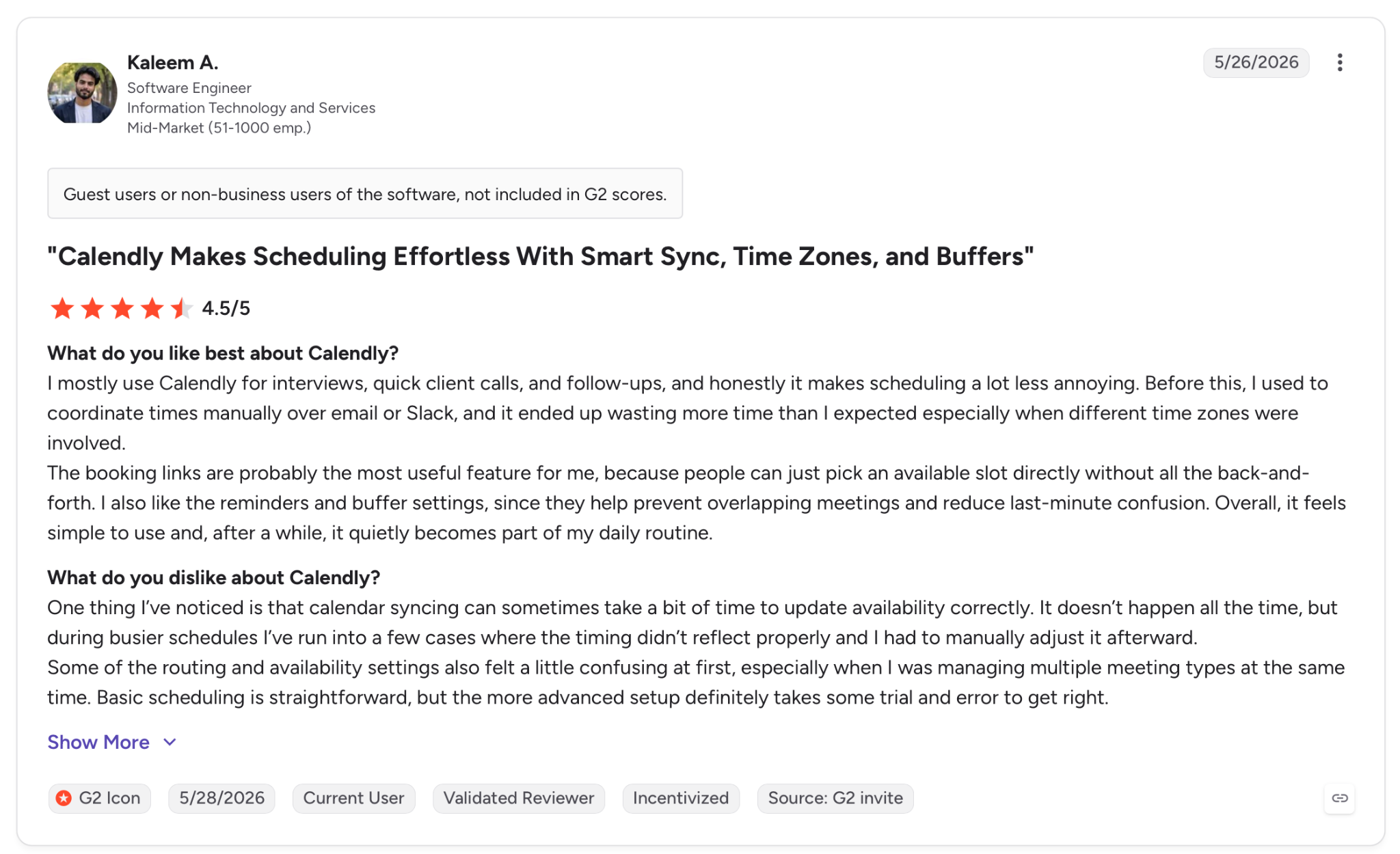
"I mostly use Calendly for interviews, quick client calls, and follow-ups, and honestly it makes scheduling a lot less annoying." — Kaleem A., G2
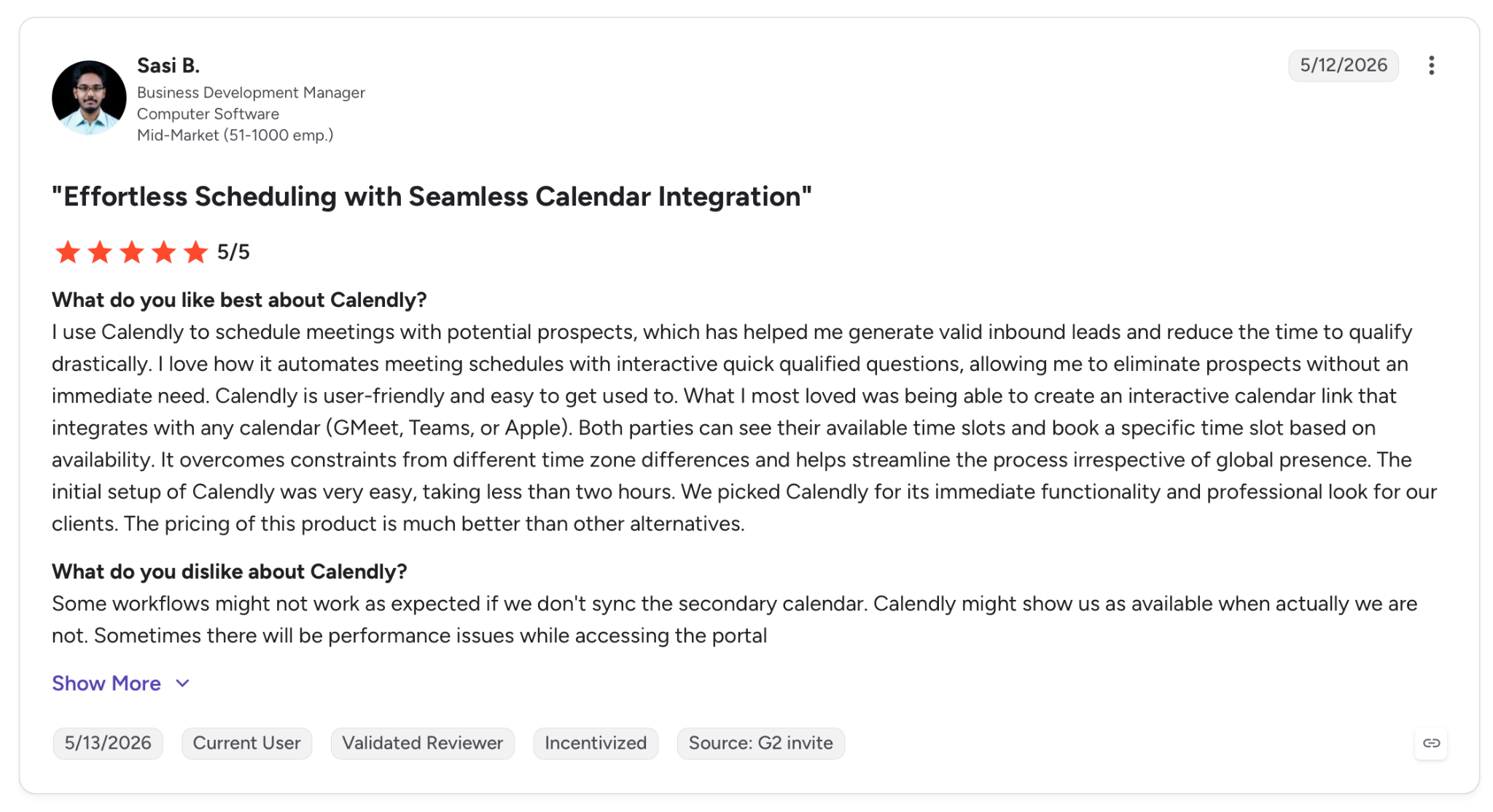
"Some workflows might not work as expected if we don't sync the secondary calendar. Calendly might show us as available when actually we are not." — Sasi B., G2
Pricing
$20/seat/month on Teams, billed monthly, is the tier that adds round-robin meetings, lead routing, and Salesforce integration. Standard sits below it at $12/seat/month.
Bottom line
If the scheduling that hurts is booking with outsiders instead of coordinating internally, Calendly targets exactly that problem. Treat it as the layer that sits next to your shared calendar, not the one that replaces it.
5. Lindy: Best for an AI teammate that runs calendar and inbox work from Slack
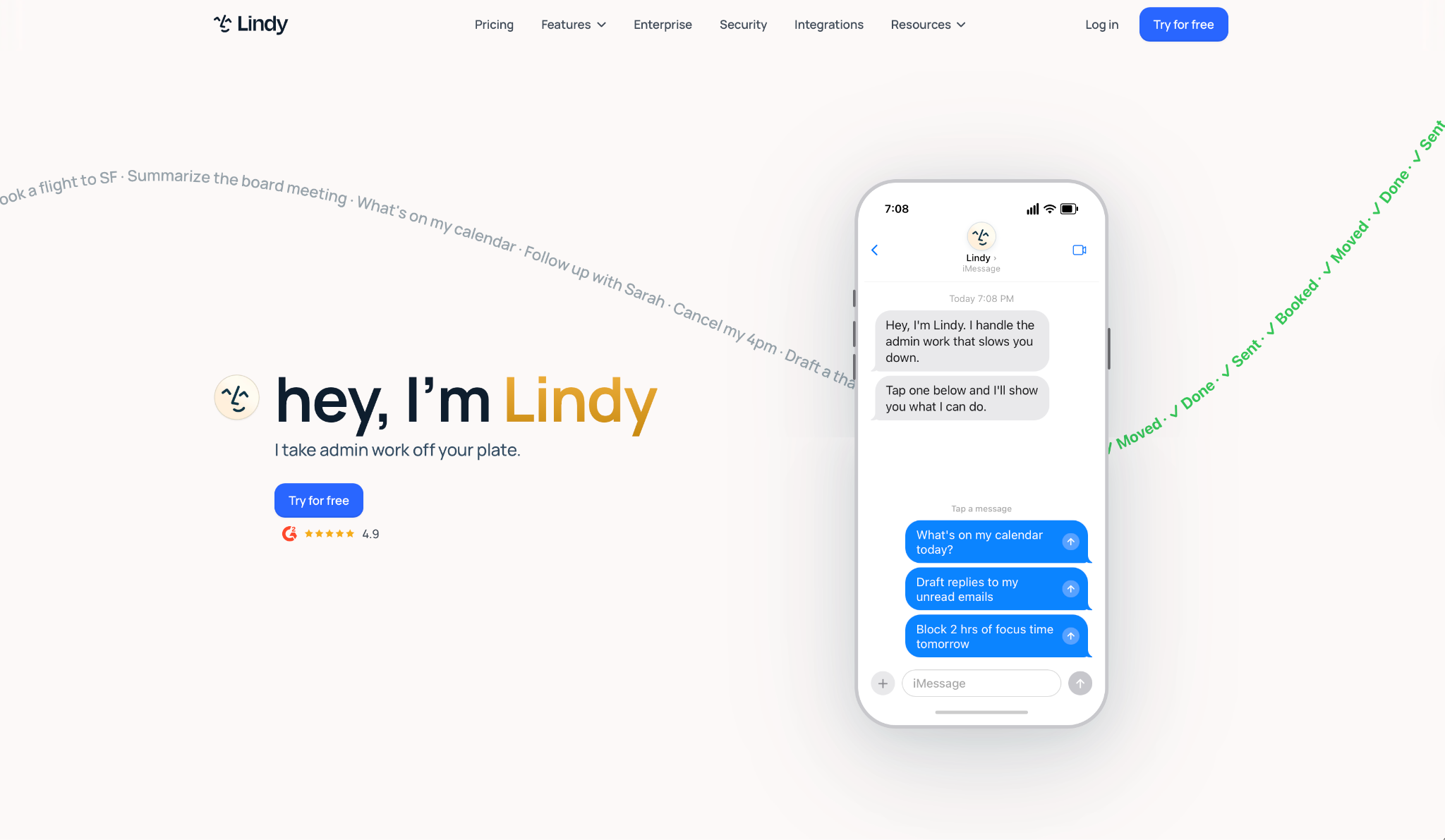
What it does: You text Lindy and it works the calendar for you, finding a time, sending the invite, and rescheduling when plans move, then handles the inbox and follow-ups around it.
Best for: Teams and busy operators who'd rather hand calendar and admin work to an AI assistant than juggle it across separate apps. It easily ranks among the best work apps for streamlining daily administrative tasks and reducing software clutter.
With Lindy, you don't open a calendar at all. You message it in plain language and it acts. I asked it to find a time for a call and send the invite, and it did both without me touching my calendar. When I moved that meeting, it handled the reschedule and the heads-up to the other person on its own. This hands-off workflow makes it a strong contender if you are looking for a reliable ai scheduling assistant to manage your day.
It connects to Gmail or Outlook, and you tell it how you want replies and scheduling to sound, so it matches your style instead of reading like a generic bot. Nothing goes out without your say-so, since it proposes and waits for approval before it sends.
Key features
- Meeting scheduling by text: Message Lindy to find a time, send the invite, and reschedule when plans change, with no calendar app in front of you.
- Meeting prep and follow-up: It briefs you before a call from calendar and email history, takes notes during, and drafts the recap after.
- Inbox triage and drafting: Lindy sorts email, drafts replies in your voice, and pings you about the ones that matter.
- Hundreds of integrations: It reads Slack, cross-references your calendar, and drafts in Gmail across connected apps.
Pros and cons
Pros:
✅ You run scheduling from a text instead of clicking through a calendar interface.
✅ Meeting prep, notes, and follow-up run as one chain, so you never pick up the second half by hand.
✅ Approvals are built in, so Lindy proposes and drafts but won't send until you confirm.
Cons:
❌ It manages a schedule rather than displaying one for a group, so it's an assistant, not a shared calendar view.
❌ Early drafts read generic until you tell it how you want replies to sound.
❌ Multi-step requests take a couple of tries to phrase before they run cleanly.
What users say
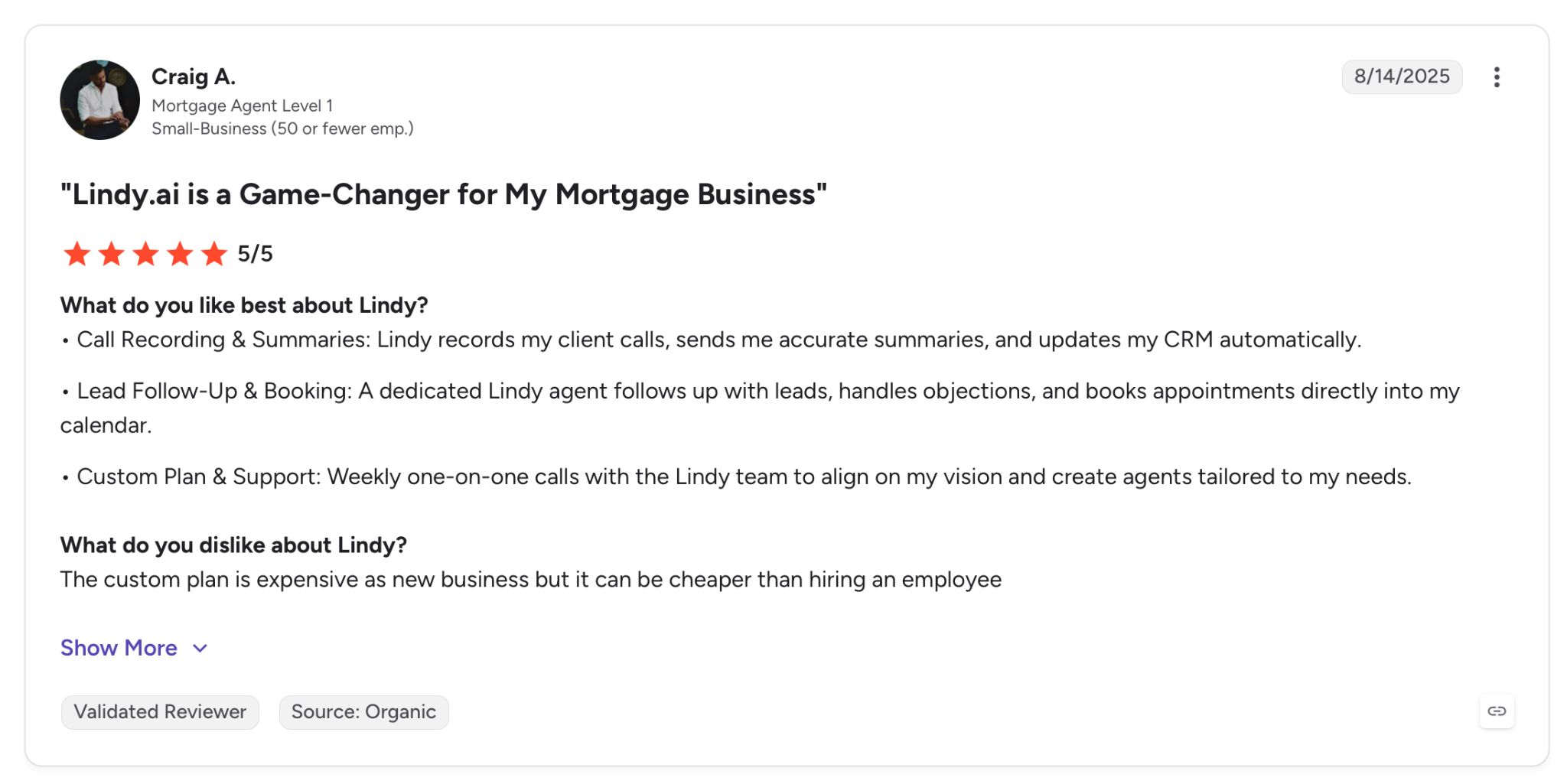
"Lead Follow-Up & Booking: A dedicated Lindy agent follows up with leads, handles objections, and books appointments directly into my calendar." — Craig A., G2
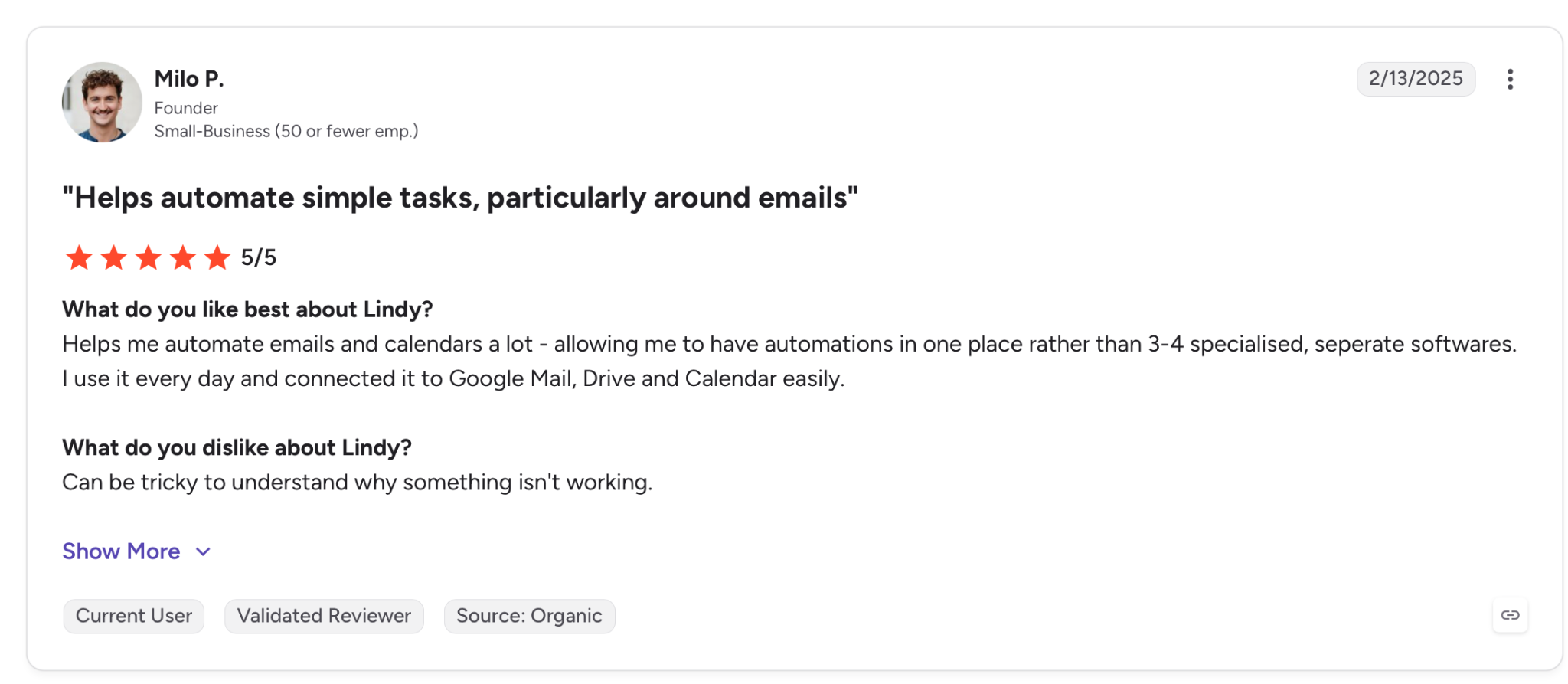
"It can be tricky to understand why something isn't working." — Milo P., G2
Pricing
Lindy's first paid tier is Plus at $49.99 per account/month, which includes standard usage, up to 2 connected inboxes, iMessage/SMS access, meeting scheduling, and 100-plus integrations. Pro runs $99.99 per account/month and Max $199.99 per account/month for heavier workloads. Pricing is per account rather than per seat.
Bottom line
When the drain is managing itself, when the calendar, the inbox, and the follow-ups eat your whole morning, Lindy lifts that off you from a text thread. It runs a schedule instead of showing one, so a group that just needs a shared view won't use half of it.
{{templates}}
6. Motion: Best for letting AI plan and defend a team's schedule
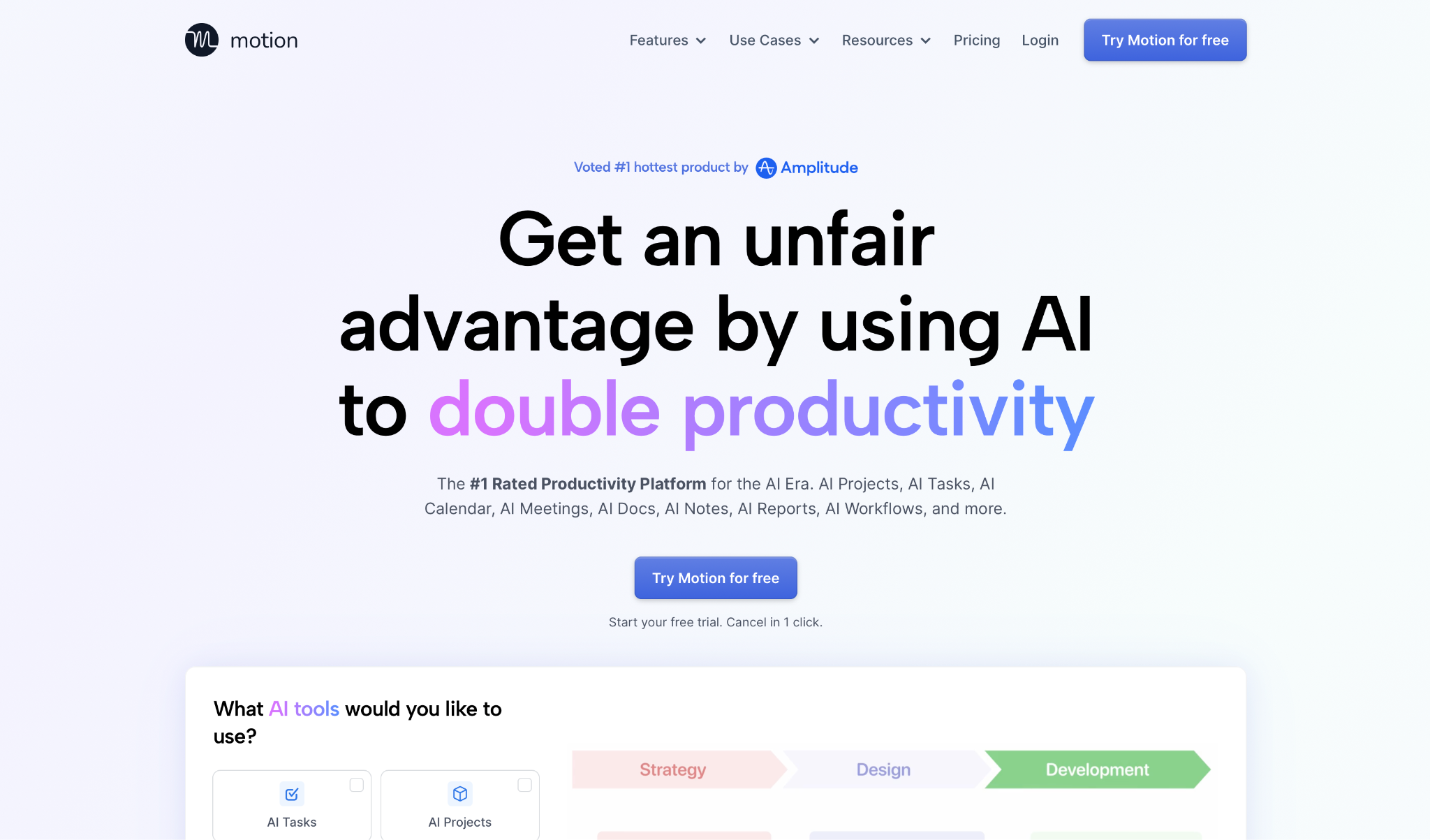
What it does: Motion builds each person's day from their tasks, deadlines, and meetings, then reshuffles the whole schedule the moment something on a shared calendar changes.
Best for: Teams that would rather let AI decide when work happens than drag blocks around a calendar by hand.
Motion decides when each task lands. I gave it names, durations, and deadlines, and it placed them on the calendar for me. A meeting dropped into my afternoon mid-test, and the rest of the day was rebuilt around it before I could react. Six tasks moved, and I hadn't touched a thing.
For a team, dependency handling is the part worth paying for. When one person's step needed another's to finish first, Motion held off scheduling it until the blocker cleared, so a multi-stage project stayed in order without anyone sequencing it manually.
Key features
- AI task planner: Turns a task list into scheduled blocks by priority and deadline across the team.
- AI calendar assistant: Fills the day around fixed meetings and reshuffles automatically when one moves.
- Project timelines: Builds a project schedule from a prompt and tracks task dependencies across people.
- Meeting notetaker: Joins calls, captures notes, and turns action items into scheduled tasks.
Pros and cons
Pros:
✅ Rebuilds the whole day within seconds of a disruption, the fastest reaction I saw across the thirteen.
✅ Respects task dependencies, so downstream work waits until the blocking step is done.
✅ Turns a prompt into a full project timeline without manual sequencing.
Cons:
❌ Needs two to four weeks of daily use before the AI plans your time accurately.
❌ It's a planner first, so plain calendar sharing takes a back seat to scheduling automation.
What users say
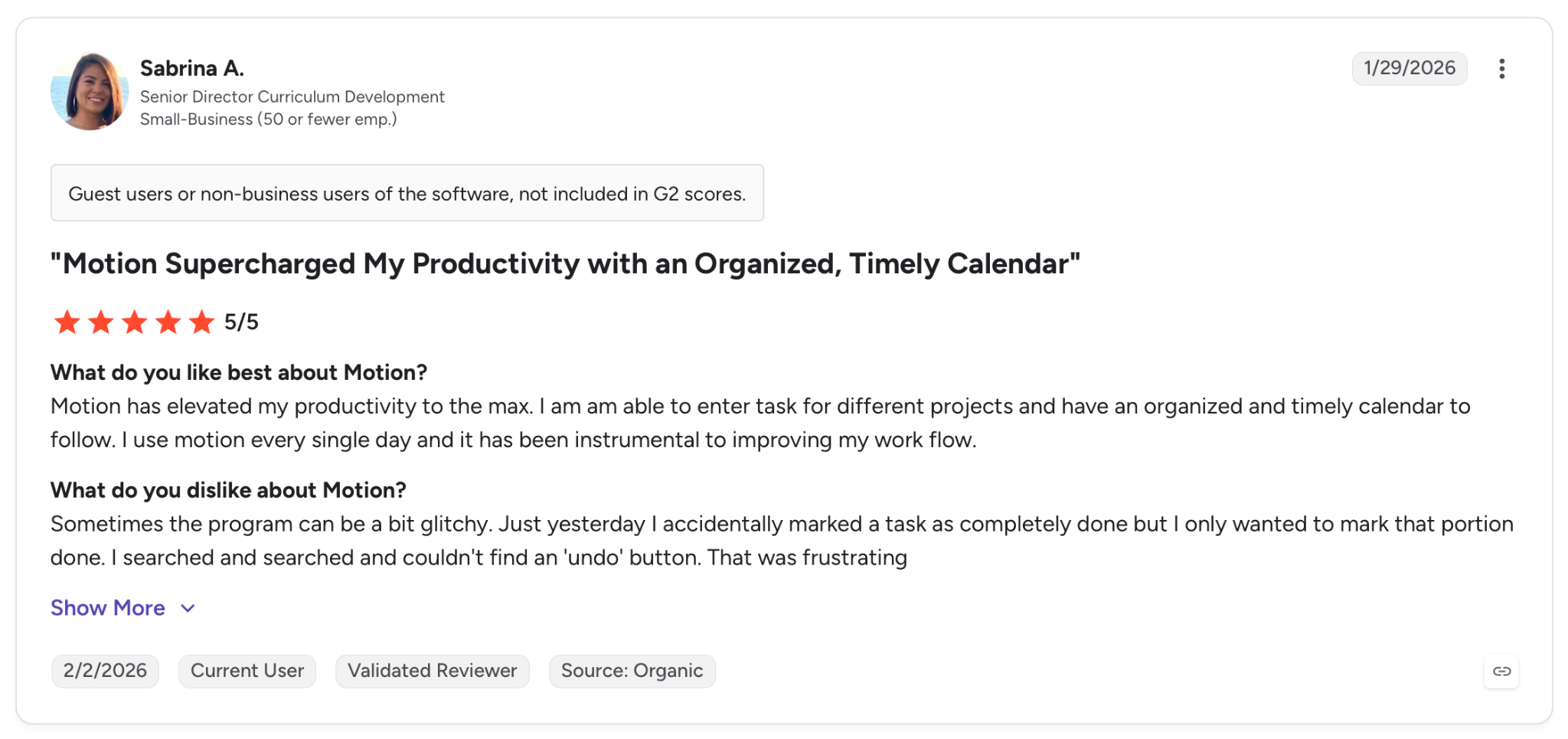
"Motion has elevated my productivity to the max. I am able to enter tasks for different projects and have an organized and timely calendar to follow." — Sabrina A., G2
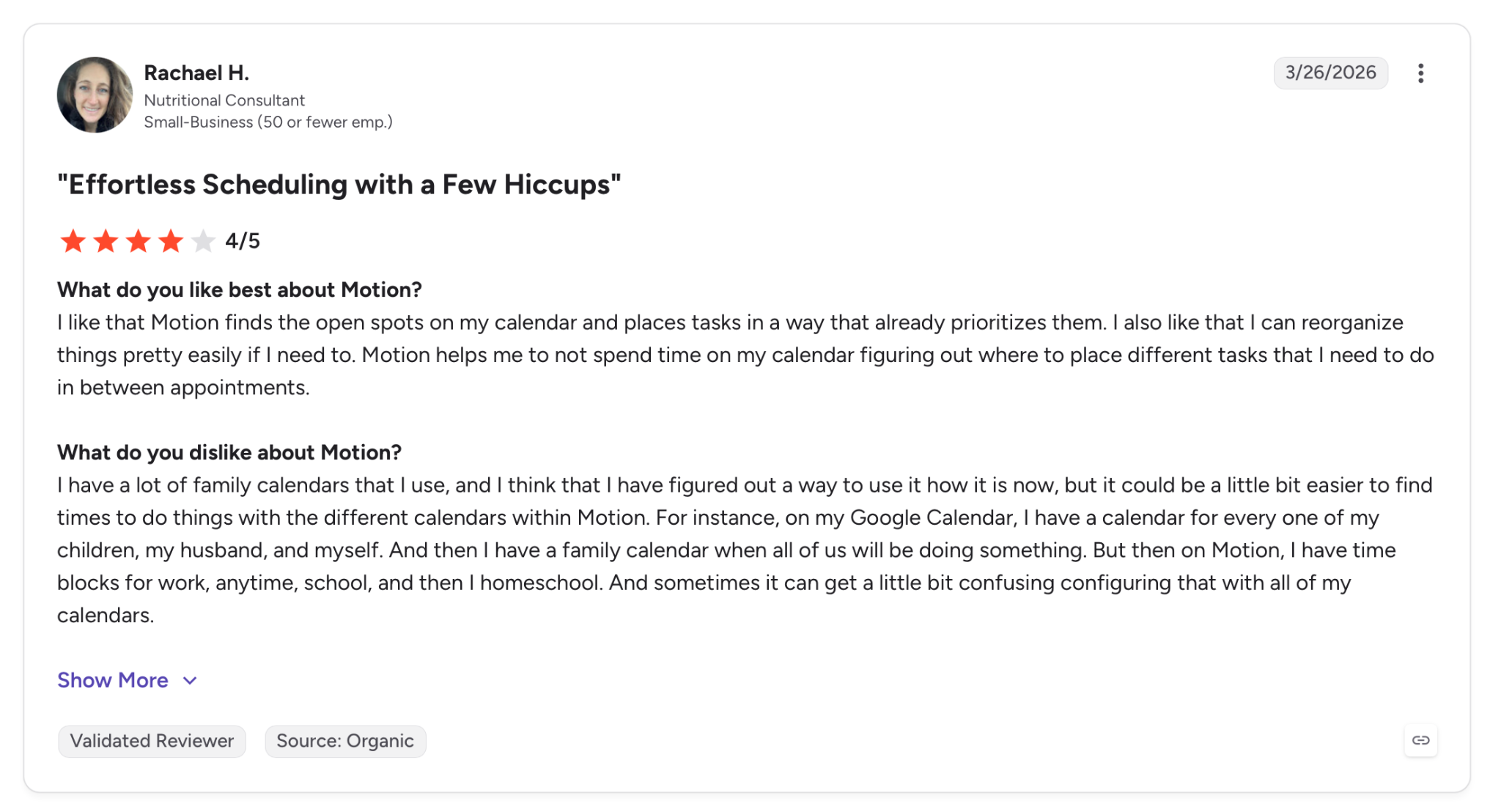
"I have a lot of family calendars that I use, and I think that I have figured out a way to use it how it is now, but it could be a little bit easier to find times to do things with the different calendars within Motion." — Rachael H., G2
Pricing
The team tier is Business AI at $69/seat/month (billed monthly), which adds team capacity planning, dashboards, and access control on top of the AI planner.
Bottom line
Motion was built for the team whose hard part is deciding when work should happen, not remembering what's due. If you want manual control over your own calendar, you'll fight the adjustment period more than it helps you.
7. Reclaim.ai: Best for protecting focus time on a meeting-heavy calendar
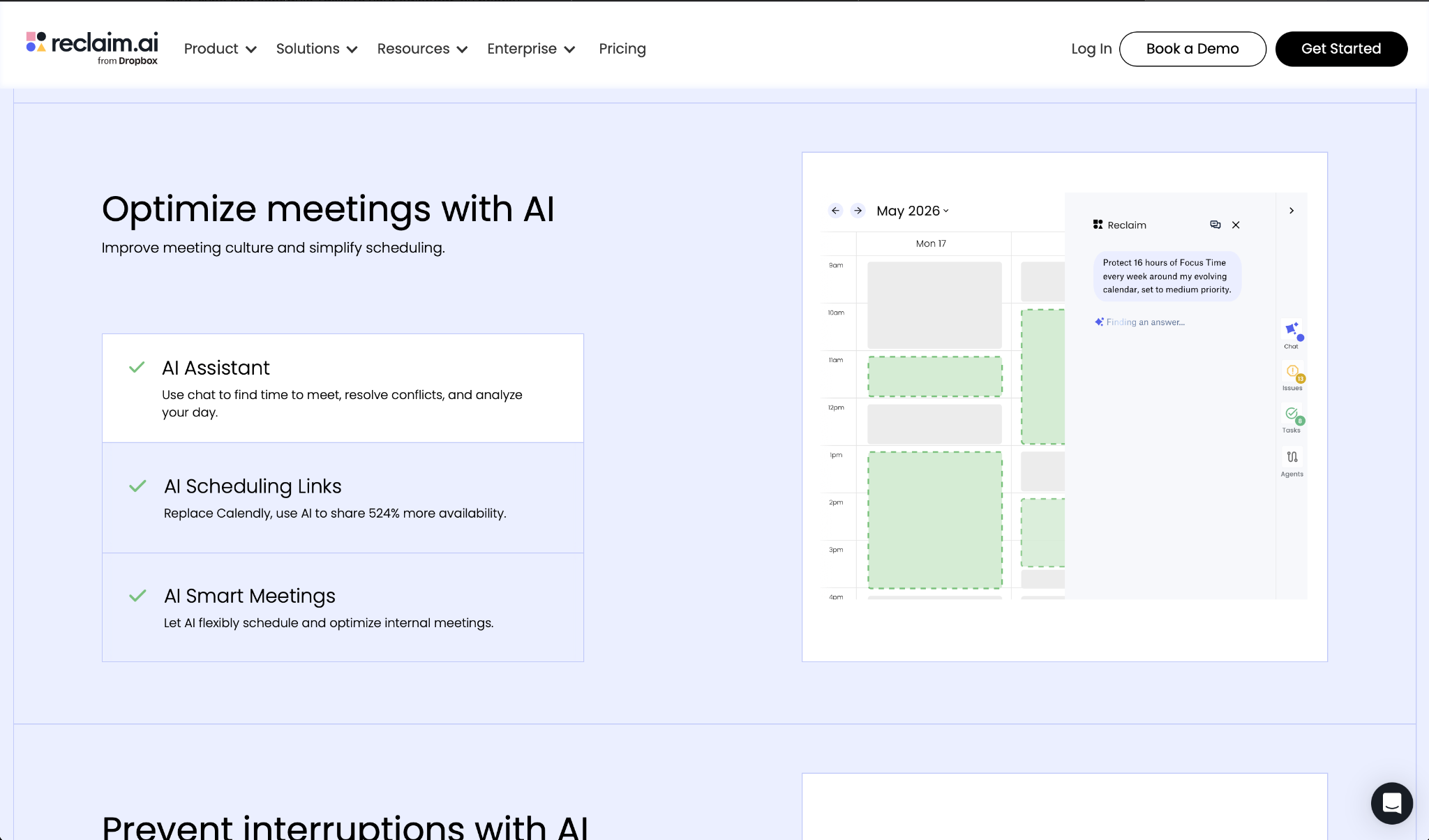
What it does: Reclaim.ai runs on top of Google Calendar or Outlook, defending focus time, scheduling recurring habits, and fitting tasks around the meetings already on a team's week.
Best for: Teams with packed calendars that keep losing deep work hours and want that time protected without anyone blocking it by hand.
Setup asked less of me than I expected. I connected Google Calendar, set a weekly focus goal, added two recurring habits, and within the hour those blocks were sitting on my week. Over the next few days, they rescheduled themselves whenever a meeting landed on top of them, instead of getting wiped out.
The analytics showed a big share of my week going to meetings I'd never counted, the sort of pattern a team lead can act on once a tool surfaces it. And because Reclaim layers onto the calendar the team already uses, none of that visibility asks anyone to change how they work.
Key features
- AI focus time: Set a weekly deep-work goal and Reclaim defends those blocks, moving them when conflicts arise.
- Habits: Recurring routines like lunch or weekly reviews get flexible time that adjusts around meetings.
- Task scheduling: Syncs tasks from project tools into the calendar with blocks set by priority and deadline.
- Time tracking: Splits your hours across focus work, meetings, and habits, with weekly balance reports.
Pros and cons
Pros:
✅ Focus blocks reschedule themselves the moment a conflict lands, with no manual defending.
✅ Runs on top of your existing Google Calendar or Outlook, so there's no migration or workflow change.
✅ Habits find the next open slot when conflicts hit, keeping routines from dropping off.
Cons:
❌ No native mobile app, so Reclaim events are best edited through Google Calendar or Outlook on a phone.
❌ It layers on a calendar rather than being one, so it needs a Google or Outlook base underneath.
❌ The reporting shows where time goes but stops short of telling you what to change.
What users say
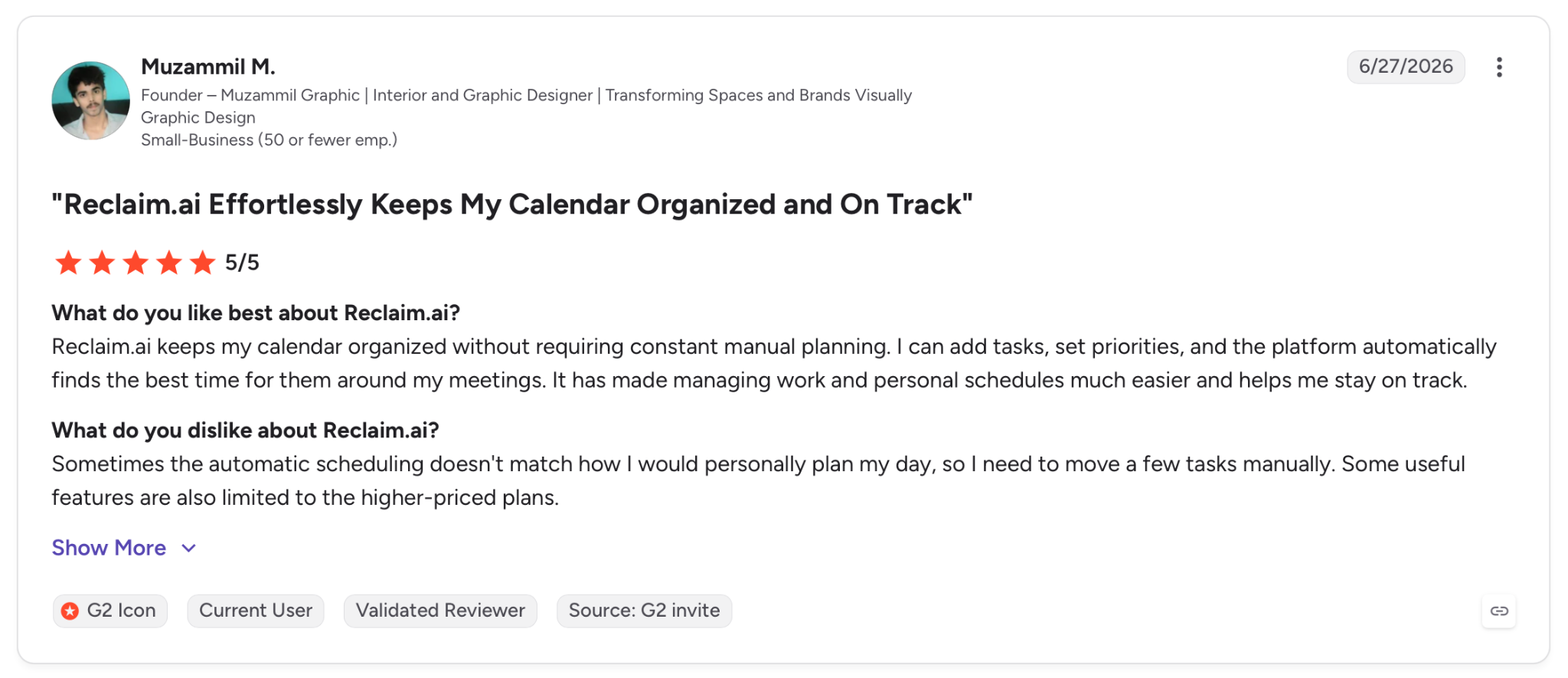
"Reclaim.ai keeps my calendar organized without requiring constant manual planning. I can add tasks, set priorities, and the platform automatically finds the best time for them around my meetings." — Muzammil M., G2
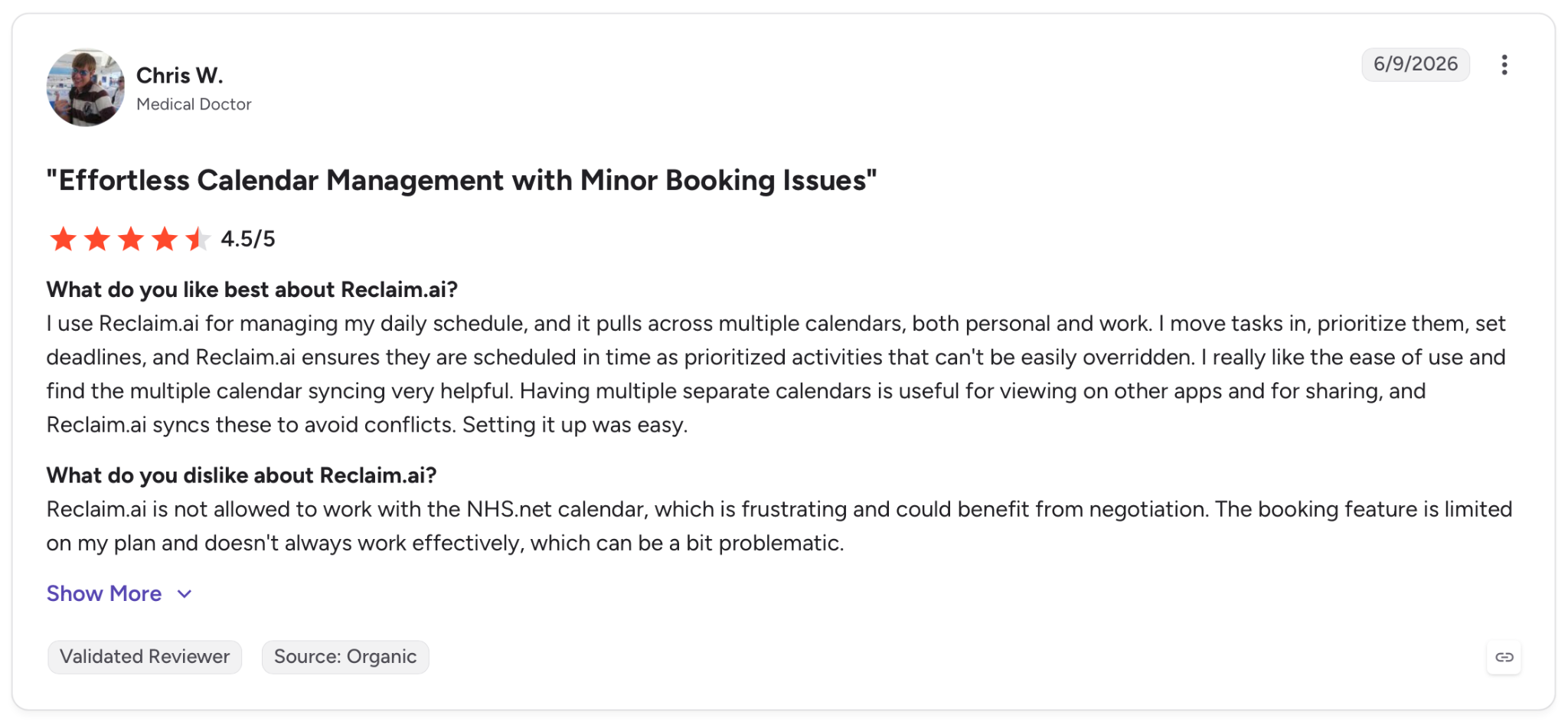
"Reclaim.ai is not allowed to work with the NHS.net calendar, which is frustrating and could benefit from negotiation." — Chris W., G2
Pricing
The first paid tier is Starter at $12/seat/month (billed monthly), aimed at small teams and adding unlimited habits and up to 10 seats.
Bottom line
For a calendar that's already full, where the fight is finding time to do the work, Reclaim guards that time for you automatically. A team that needs task or project management bundled in will get more ground covered from Motion at a similar price. For a detailed feature breakdown between the two platforms, read our complete motion vs reclaim ai analysis.
8. Superhuman: Best for teams that want AI acting across mail, chat, and docs
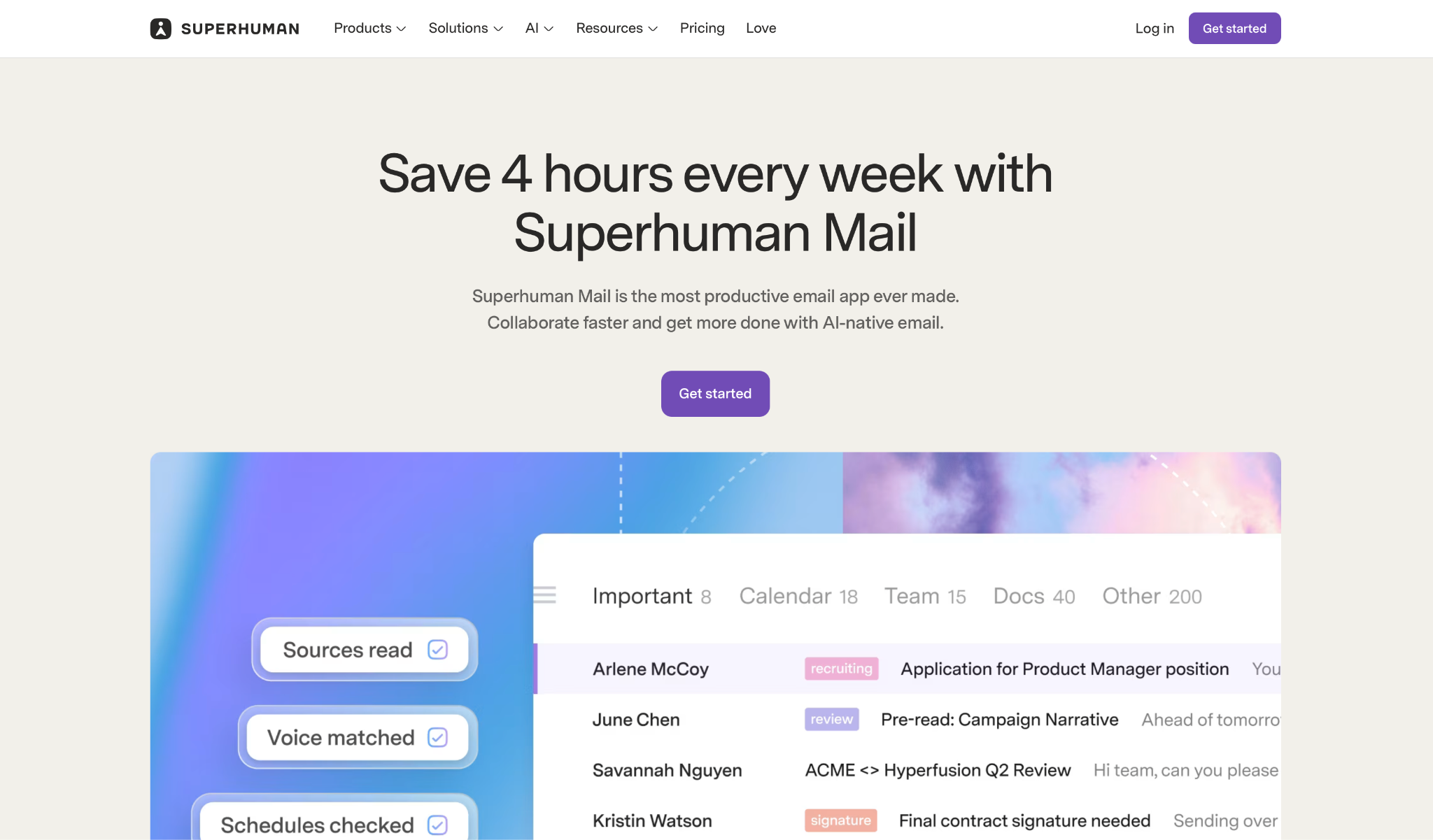
What it does: Superhuman bundles mail, an AI layer called Go, a docs tool, and writing help into one suite, surfacing the right action across your apps before you ask for it.
Best for: Teams that bounce between several tools daily and want scheduling and follow-ups handled without switching windows first.
Go earned its keep in the inbox. It caught a scheduling request buried in a Slack thread before I'd opened my calendar, offered three open times, and booked the meeting the second I confirmed one. It acted on its own instead of waiting for a prompt, the way a chat window would. After booking meetings, teams often rely on the best ai transcription software to automatically log discussions and shared action items.
That same speed showed up in the everyday replies. Drafts in my tone landed fast enough that most needed only a glance before sending, and follow-ups I'd normally forget got flagged once a thread stalled. For a team spread across apps, the value is that context follows you between them.
Key features
- Mail: AI triage, one-click scheduling, and reply drafts that match your writing style in a keyboard-driven inbox.
- Go: Connects your apps and surfaces the right action inside whatever window you're already working in.
- Superhuman Docs: Links hundreds of tools into a shared knowledge base a team can query from one place.
- Grammarly: Writes and edits across every app, adapting to your tone.
Pros and cons
Pros:
✅ Go surfaces the right action inside whatever app you're in, with no tab switching.
✅ Mail drafts land close enough to your tone that they need only a quick read.
✅ Superhuman Docs links your stack into one queryable knowledge base for the team.
Cons:
❌ The payoff depends on using several tools in the suite together, so an email-only user sees a fraction of it.
❌ Scheduling through Go needs a live connection to your calendar and inbox, so setup takes more upfront work.
What users say
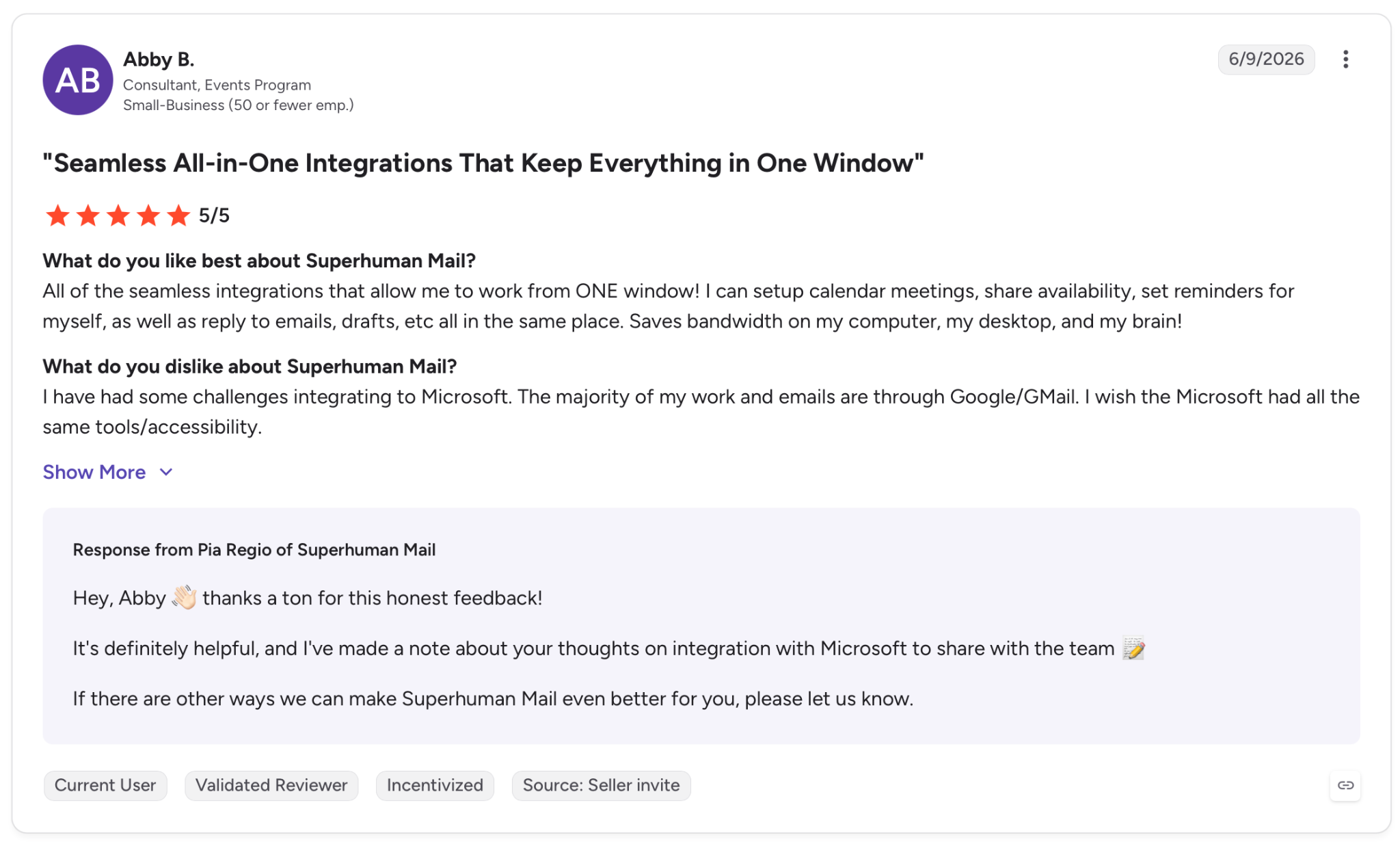
"All of the seamless integrations that allow me to work from ONE window! I can setup calendar meetings, share availability, set reminders for myself, as well as reply to emails, drafts, etc all in the same place." — Abby B., G2
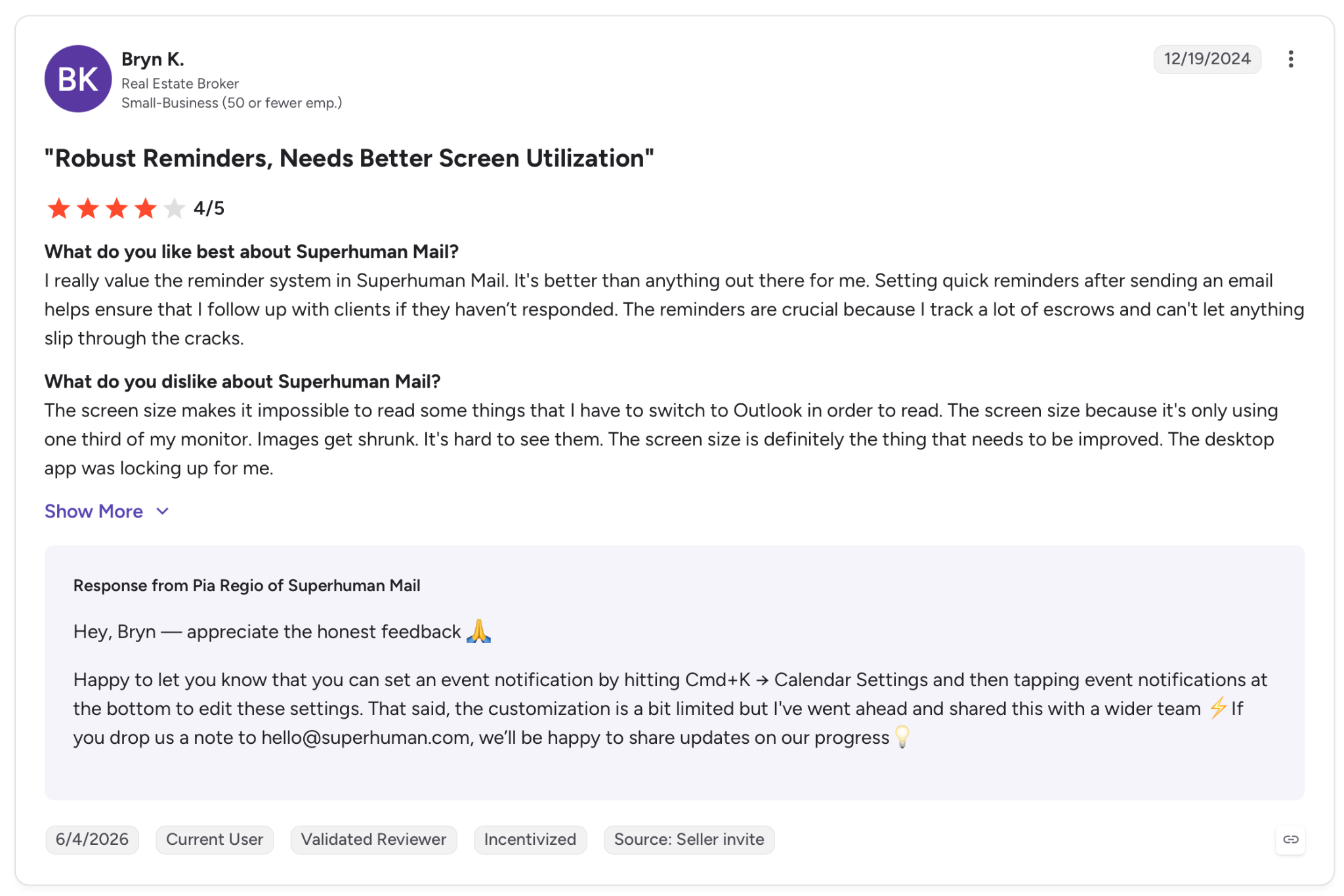
"The screen size makes it impossible to read some things that I have to switch to Outlook in order to read." — Bring K., G2
Pricing
The team tier is Business at $40/member/month (billed monthly), which covers Mail, AI triage, and the full Go, Superhuman Docs, and Grammarly suite.
Bottom line
Superhuman paid off most when I worked across a stack of connected apps, which is exactly the team it suits. Anyone who only needs faster email won't get enough from the inbox alone to justify the full suite.
9. Notion Calendar: Best for teams whose work and schedule already live in Notion
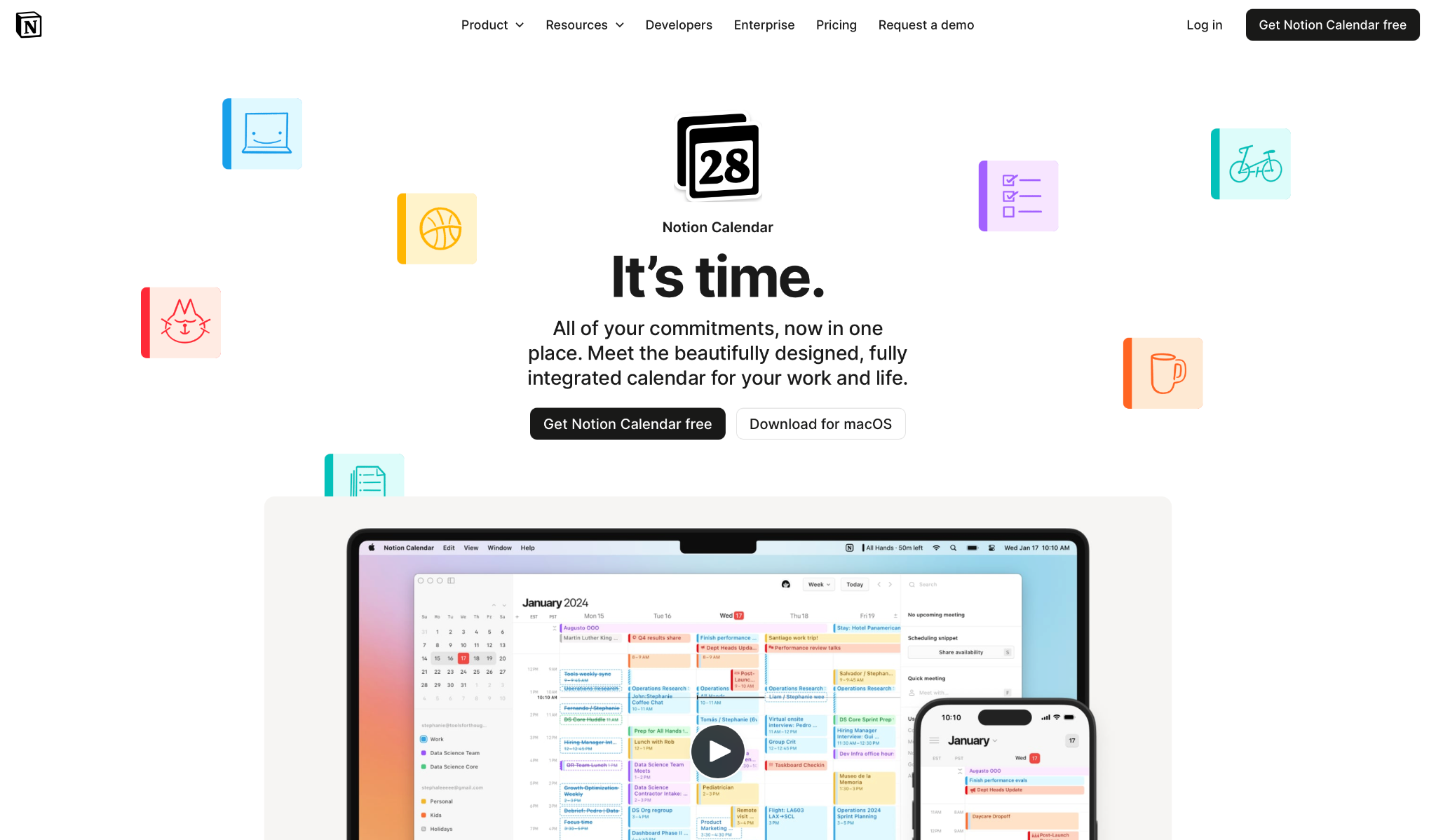
What it does: Notion Calendar ties your schedule to the pages and databases your team already works in, so events, tasks, and docs sit in one connected workspace.
Best for: Teams that already run their projects, notes, and tasks inside Notion and want the calendar in the same place.
The calendar links straight to the work behind it. I linked a project database to a calendar view, and every task with a due date showed up on the schedule. Change the date on the calendar and the database updates, so the team sees one source of truth instead of a calendar and a task list drifting apart.
The Notion Agent went a step further. I asked it to build a project tracker from a rough outline, and it created the database, filled the properties, and linked related pages without me starting from a template. For a team already living in Notion, the schedule becomes one more view of work that's there.
Key features
- Calendar tied to databases: Any database with a date property shows up as a calendar view that stays in sync.
- Notion Agent: Chat with it to create and edit pages and databases from your workspace context.
- AI meeting notes: Transcribe calls, summarize the key points, and surface action items after every meeting.
- Enterprise Search: Pull answers across Notion plus connected apps like Slack and Google Drive.
Pros and cons
Pros:
✅ The calendar and the underlying work stay in sync, so a date change updates both at once.
✅ The Notion Agent builds and edits trackers on its own, going past answering questions about them.
✅ For a team already in Notion, the schedule adds no new app to learn.
Cons:
❌ The value scales with how much of your work already lives in Notion. A team outside it gets little.
❌ The full AI, including the Agent, sits on the Business tier, so smaller teams only get a limited trial.
❌ It leans toward internal workspace scheduling over sharing a calendar with outside people.
What users say
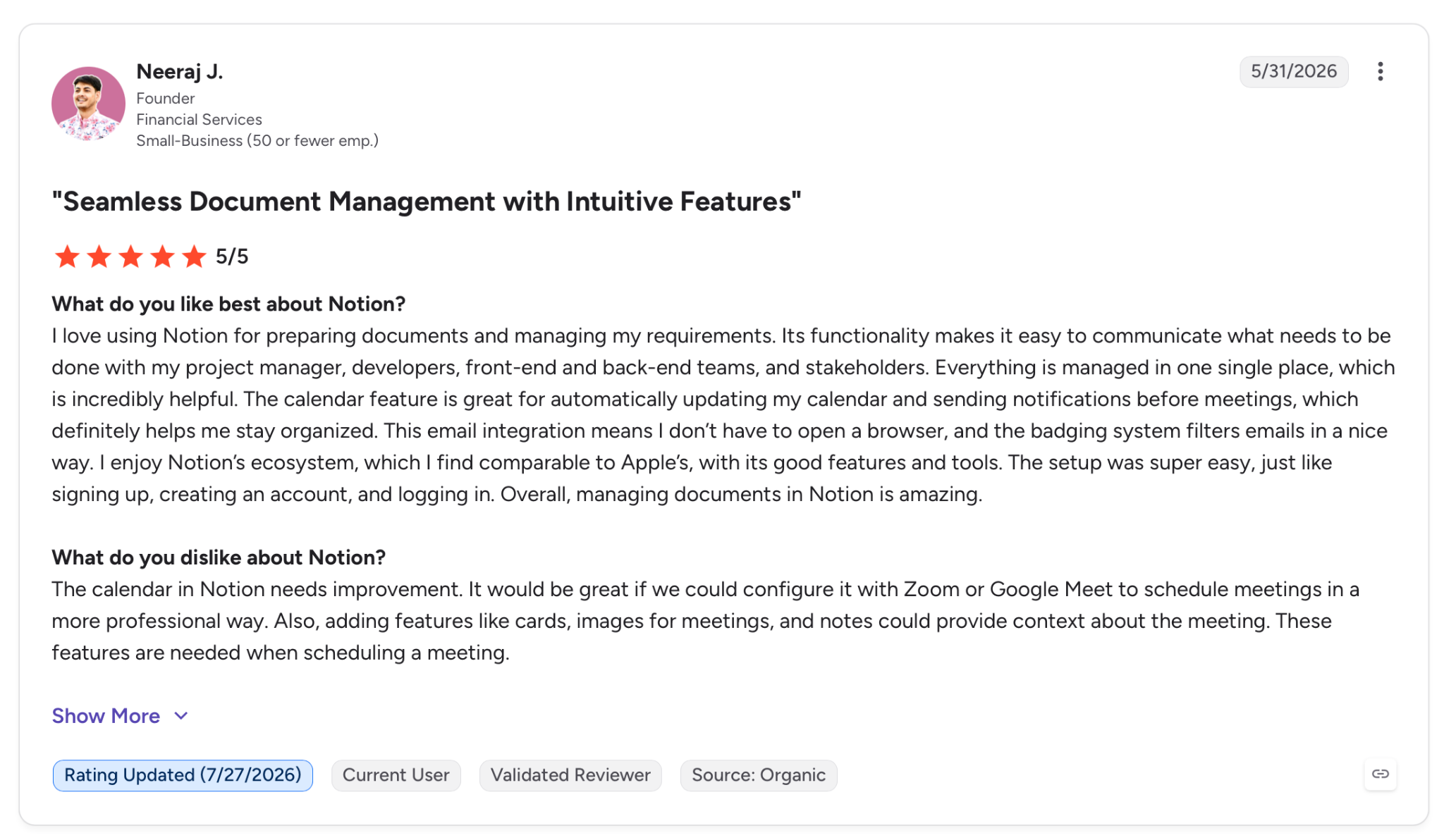
"The calendar feature is great for automatically updating my calendar and sending notifications before meetings, which definitely helps me stay organized." — Neeraj J., G2
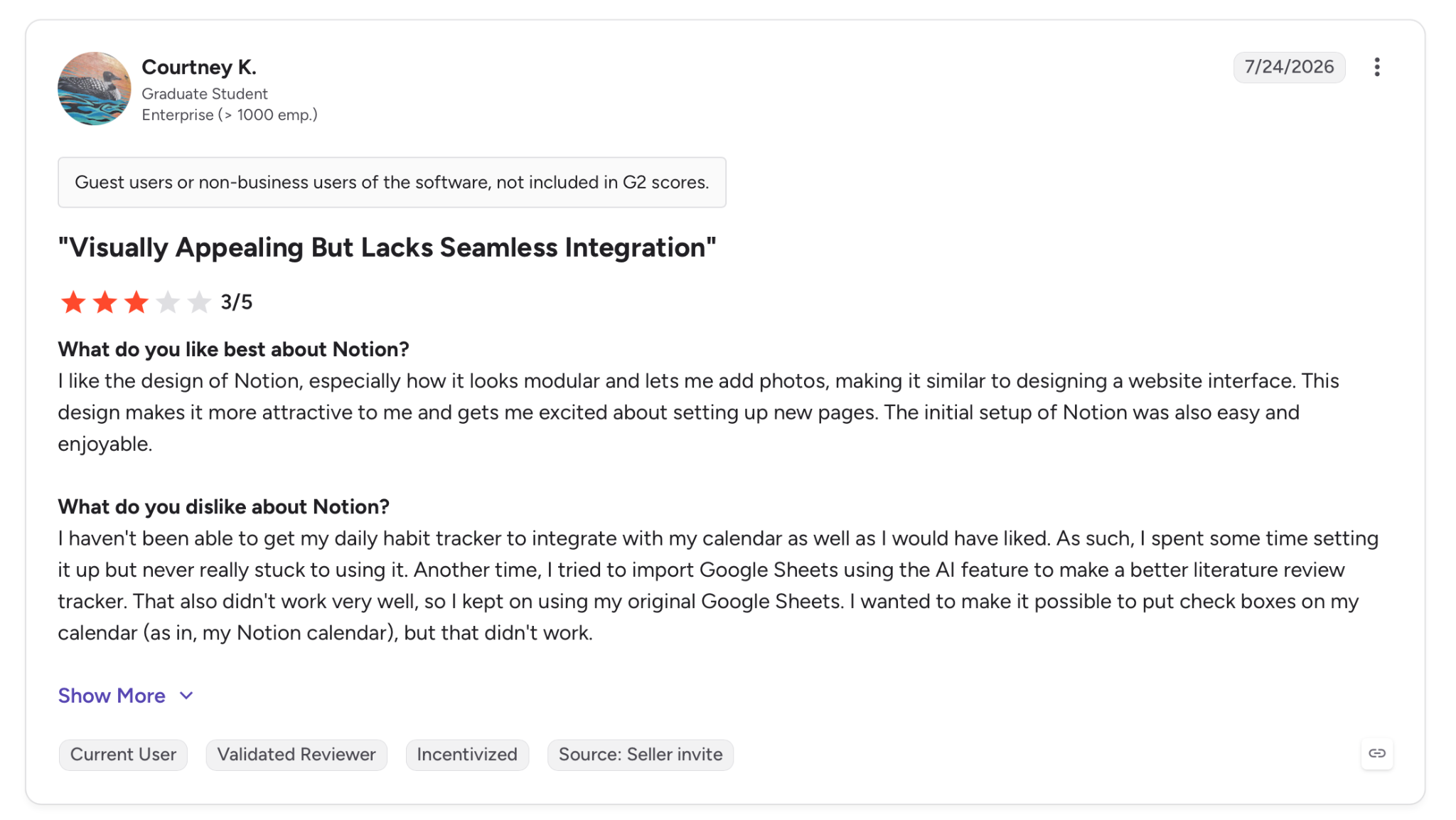
"I haven't been able to get my daily habit tracker to integrate with my calendar as well as I would have liked. As such, I spent some time setting it up but never really stuck to using it." — Courtney K., G2
Pricing
The Plus plan runs at $12/member/month, billed monthly. Full AI, including the Notion Agent, sits on the Business tier, so Plus gets only a limited AI trial.
Bottom line
The more of your team's work already sits in Notion, the more the calendar pays off as one connected view. Run your work outside Notion and the setup cost outweighs what the calendar gives back.
10. Doodle: Best for finding a time across busy schedules
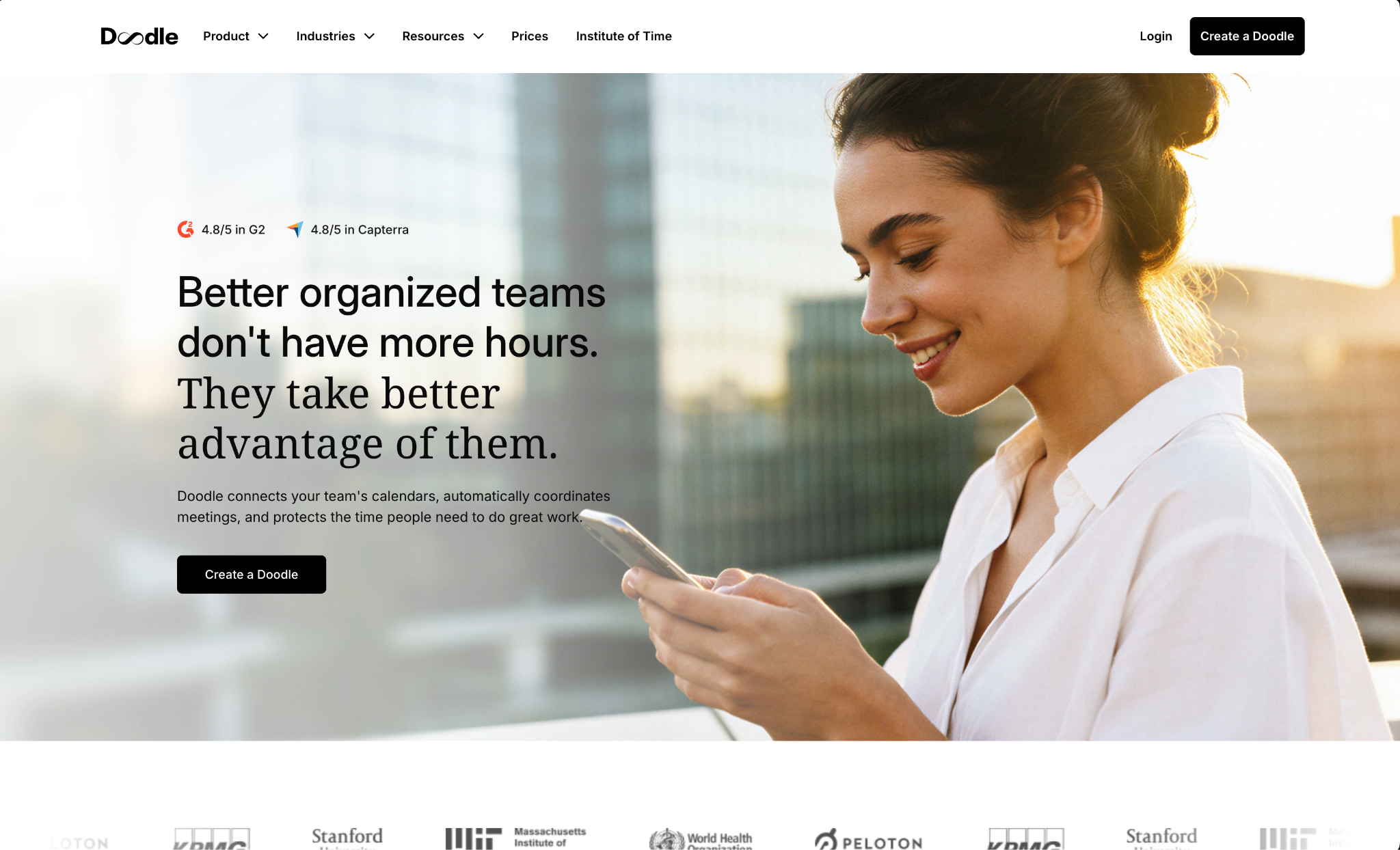
What it does: Doodle runs group polls that collect everyone's availability, then lands on the time that works for the widest group without a single reply-all thread.
Best for: Teams and groups trying to pin down one meeting time across a lot of busy, scattered calendars.
Doodle strips group scheduling down to a single poll. I proposed five time options, sent the poll link, and watched the group mark what worked. The slot with the most overlap rose to the top, and the meeting went out to everyone without anyone comparing calendars one by one.
Beyond polls, the booking pages cover recurring 1:1s, and the paid tiers connect to Zoom, Microsoft Teams, and Webex so the video link attaches itself. For a team that mostly struggles with the "when can everyone meet" question, that's the one problem it clears.
Key features
- Group polls: Propose several times and let a group vote so the best-fit slot surfaces on its own.
- Booking pages: Share a page off your availability for recurring 1:1s and sign-ups.
- Video integrations: Connect Zoom, Microsoft Teams, and Webex so a meeting link attaches automatically.
- Book on behalf: Schedule for someone else across the team on the paid tiers.
Pros and cons
Pros:
✅ Solves group scheduling faster than any thread of reply-all emails.
✅ Booking pages and polls cover both one-off meetings and recurring 1:1s.
✅ Video links attach on their own once Zoom, Teams, or Webex is connected.
Cons:
❌ It finds a time rather than holding a shared calendar, so it won't display an ongoing team schedule.
❌ The most useful integrations and booking features sit behind the paid tiers.
What users say
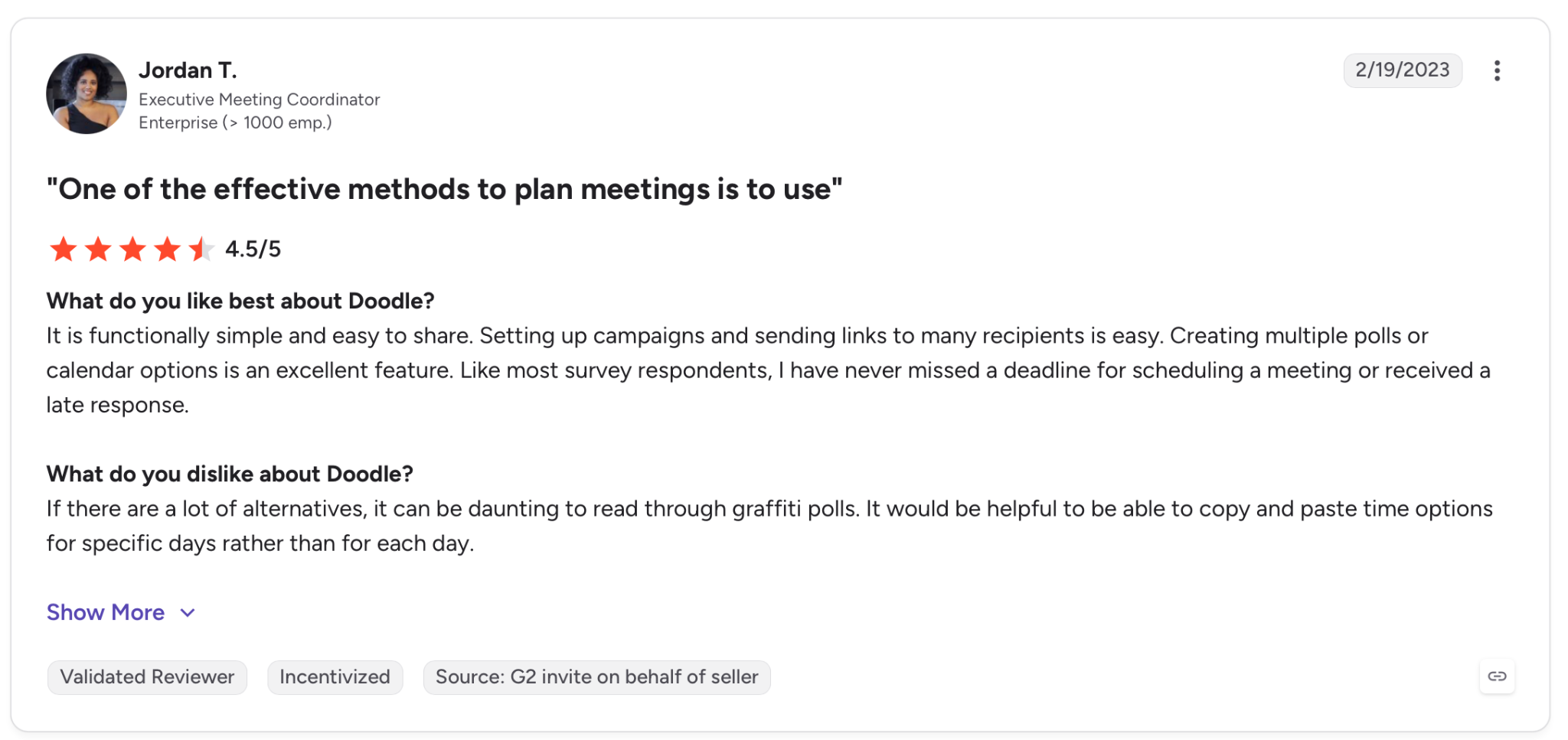
"Like most survey respondents, I have never missed a deadline for scheduling a meeting or received a late response." — Jordan T., G2
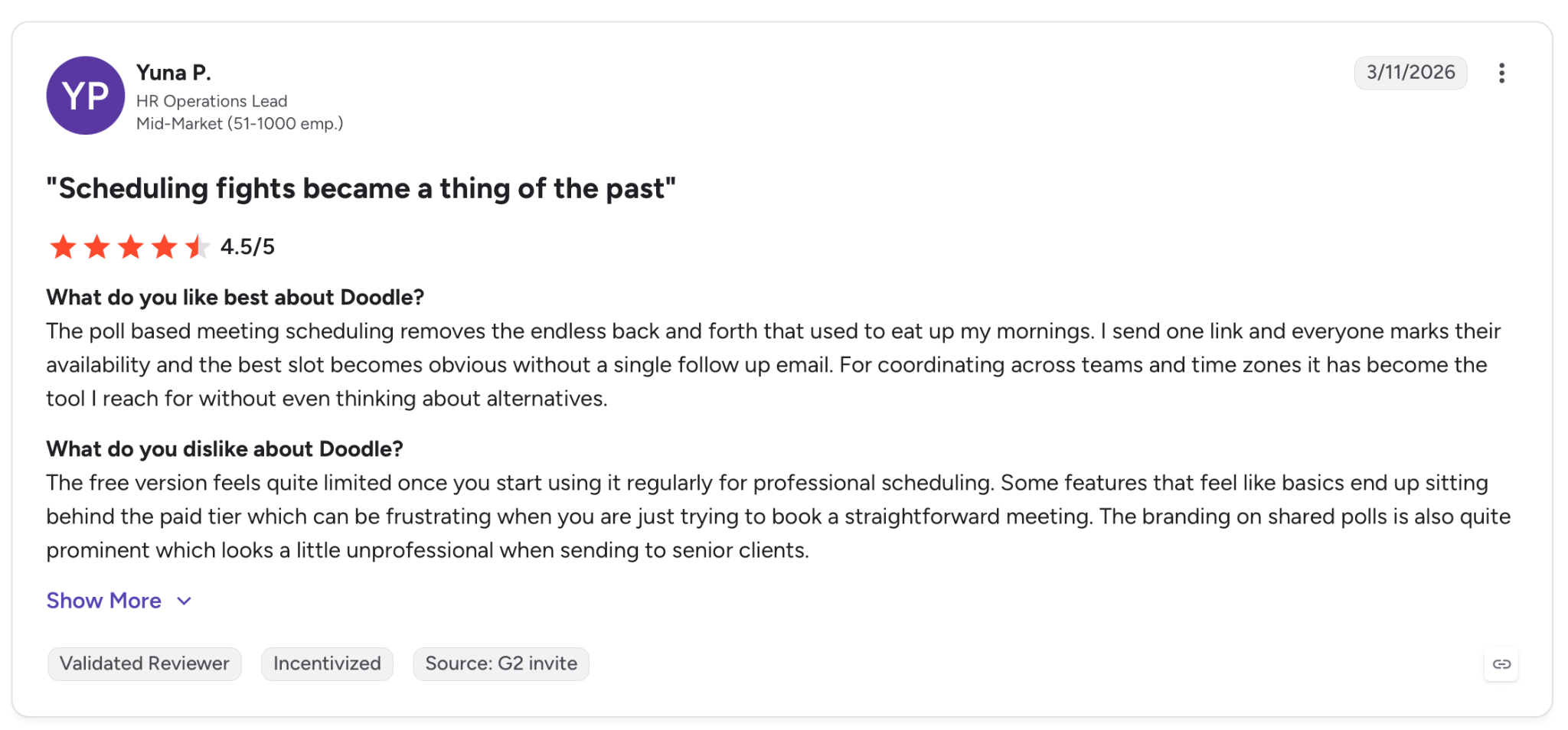
"The free version feels quite limited once you start using it regularly for professional scheduling." — Yuna P., G2
Pricing
$20/month for 2 seats on the Team plan is the tier that adds an admin console, roles and permissions, and book-on-behalf. Doodle prices Team plan by seat count, not per individual seat.
Bottom line
When the only headache is agreeing on a time across a crowd of busy calendars, Doodle removes it with a poll and moves on. It finds a time and stops there, so it won't hold the schedule once the meeting's set.
11. ClickUp: Best for teams running their schedule inside project management
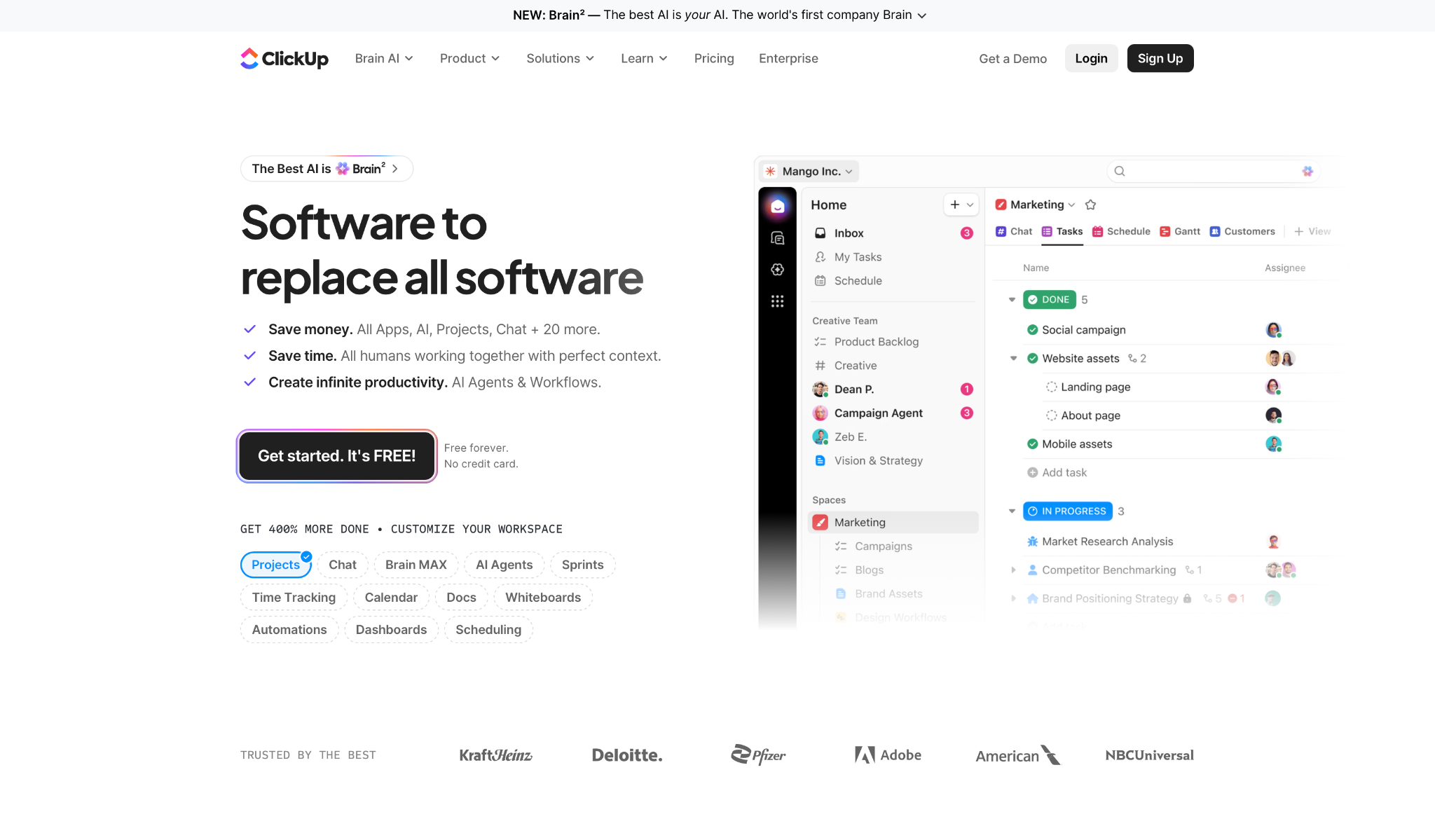
What it does: ClickUp puts tasks, docs, and a calendar in one workspace, so scheduled work syncs to a calendar view and its AI reads the whole board as it changes.
Best for: Teams already running projects in ClickUp that want the schedule woven into task tracking rather than kept in a separate app.
ClickUp's calendar sits on top of the work. I set due dates on a board of active tasks, and they populated a shared calendar the whole team could see, each one still linked to its task. Move a task on the calendar and its deadline updates everywhere, so the schedule and the project stay in step.
The AI, Brain, reads that live data. I asked for a standup summary and it pulled the blockers and overdue items straight from the board rather than anything I typed. On a messy board, the summary got vague, which said more about the workspace than the assistant, but on a clean one, it was sharp.
Key features
- Calendar view of tasks: Any task with a due date shows on a shared calendar that stays tied to the work.
- Brain AI with workspace context: The AI reads your tasks, docs, and conversations to answer without a brief.
- Multiple AI models: Switch between GPT, Claude, and Gemini on one subscription, each with full workspace context.
- Persistent memory: Brain remembers how your team works, and you can review or delete those preferences.
Pros and cons
Pros:
✅ The calendar stays tied to live tasks, so a date change updates the schedule and the project at once.
✅ Brain pulls standup summaries straight from workspace data instead of a generic guess.
✅ One subscription covers GPT, Claude, and Gemini, so there's no separate AI account to manage.
✅ Persistent memory carries your team's working style forward across projects.
Cons:
❌ Messy or loosely structured boards produce vague AI summaries, so output rides on workspace hygiene.
❌ The calendar is one feature inside a big platform, so a team wanting a simple shared calendar gets far more than that.
❌ Starting from zero, the setup overhead outweighs the payoff until the workspace fills in.
What users say
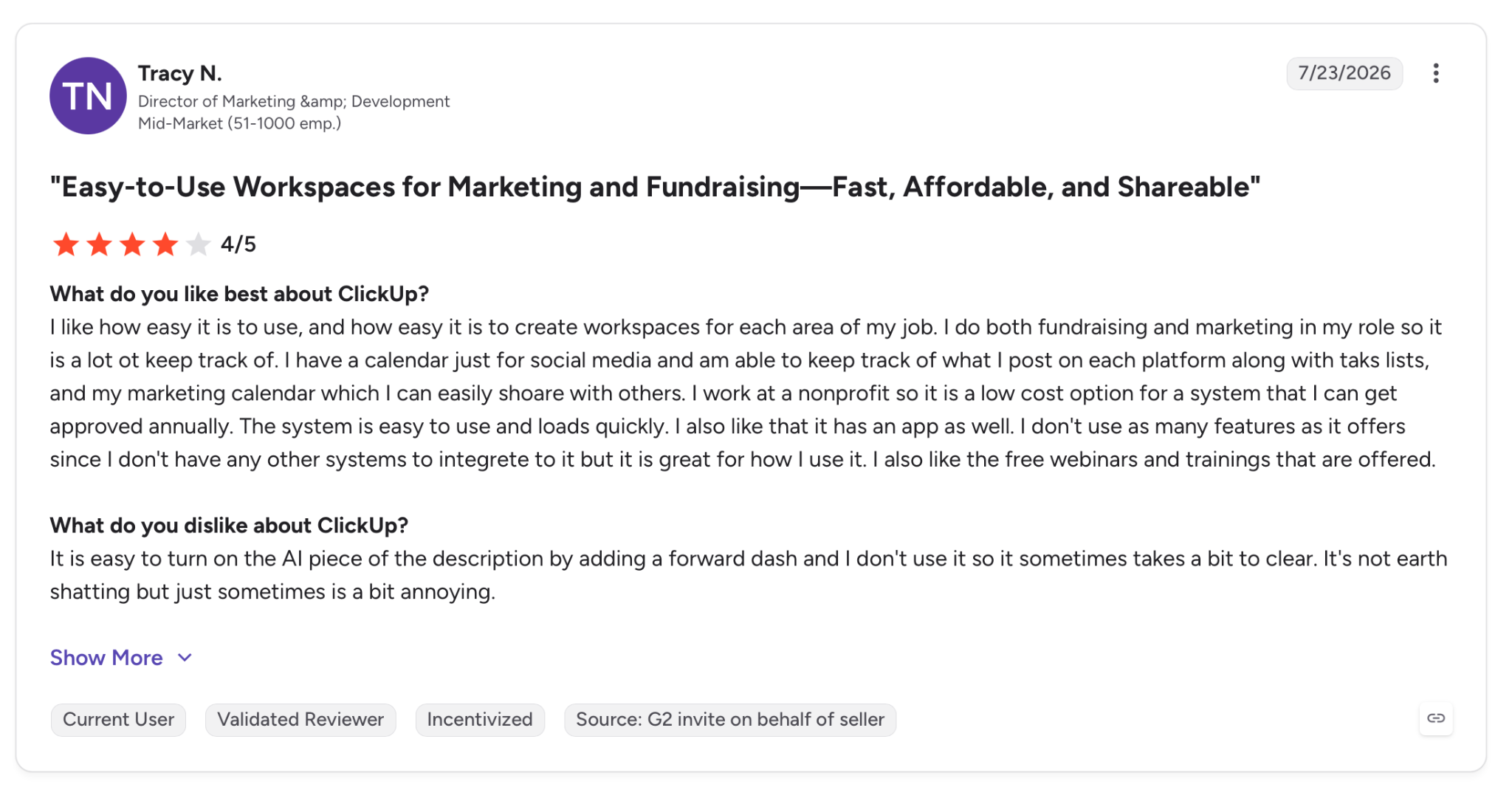
"I have a calendar just for social media and am able to keep track of what I post on each platform along with task lists, and my marketing calendar which I can easily share with others." — Tracy N., G2
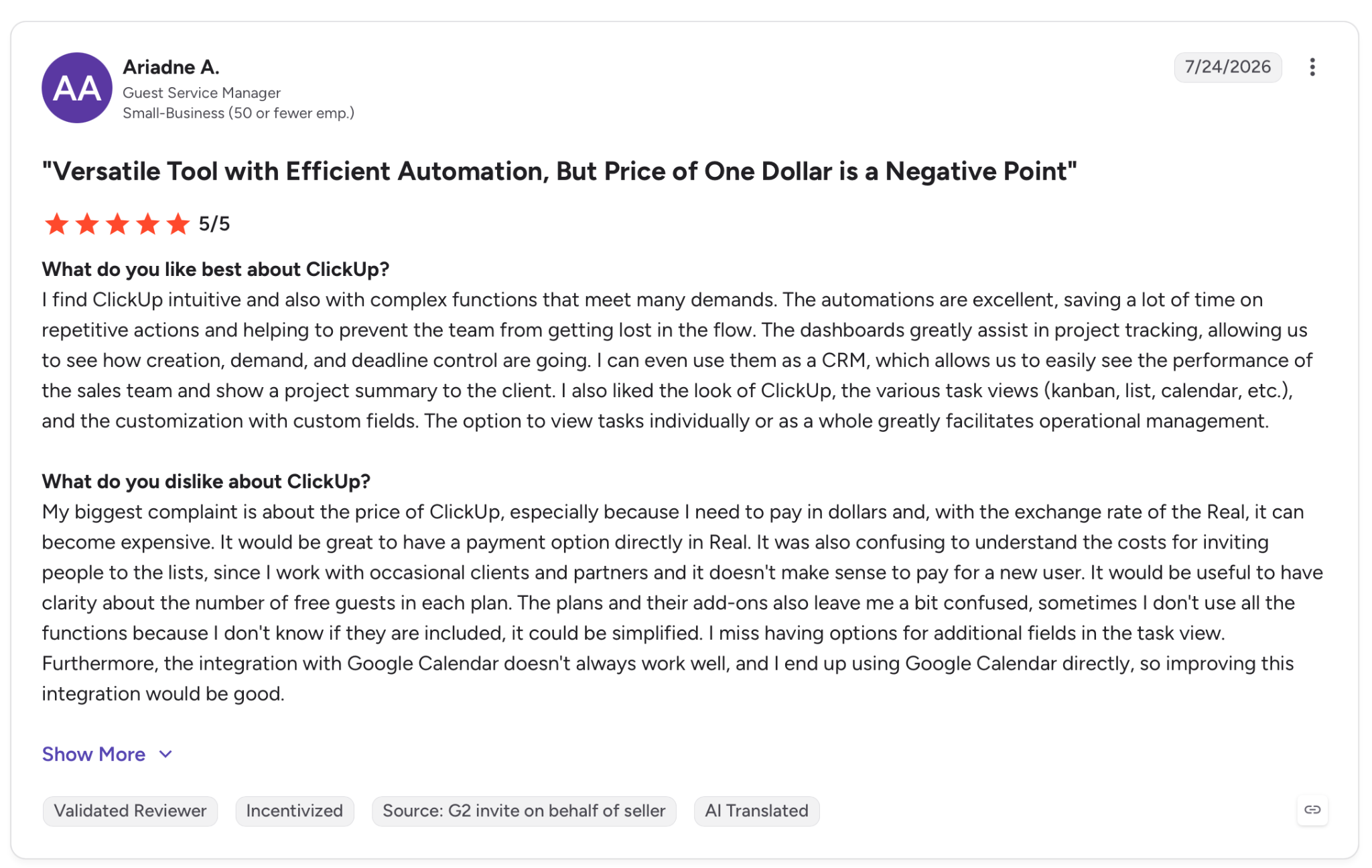
"The integration with Google Calendar doesn't always work well, and I end up using Google Calendar directly, so improving this integration would be good." — Ariadne A., G2
Pricing
The first paid tier is Unlimited at $10/user/month (billed monthly, or $7 per user/month billed yearly), which adds unlimited integrations, dashboards, and storage.
Bottom line
Teams already living inside ClickUp get the fastest return here, since the calendar plugs into work that's already underway. Want nothing but a shared calendar? The rest of ClickUp will feel like overkill.
12. TimeTree: Best for couples and small groups who share plans by chat
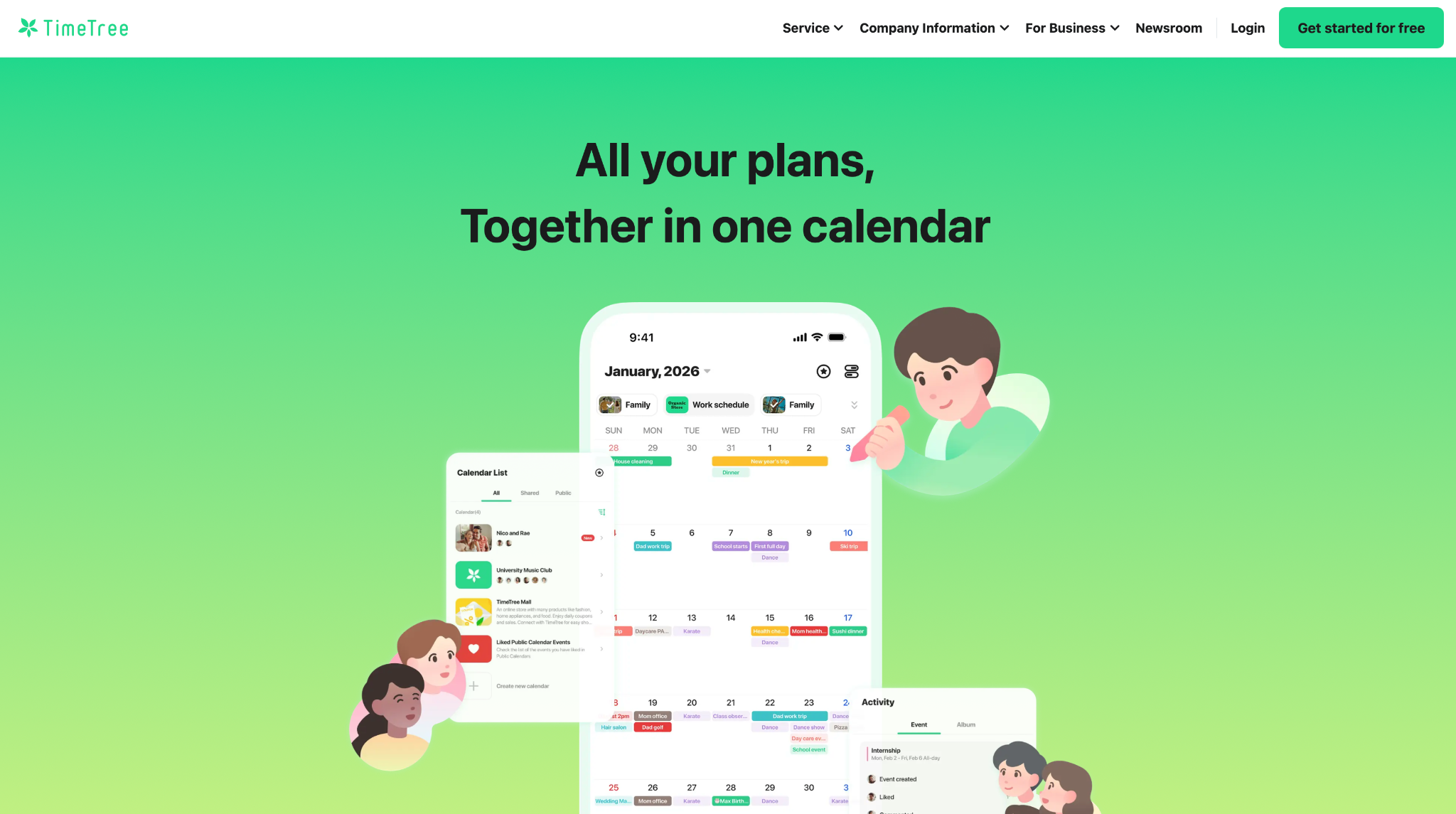
What it does: TimeTree gives each group its own shared calendar, and every event carries a comment thread so a couple, family, or small group coordinates plans inside the calendar itself.
Best for: Couples and small groups who want a clean shared calendar with a conversation attached to every event.
TimeTree treats the calendar as a group chat with dates. I created a shared calendar, sent an invite, and the other person joined from the link with no account to set up. Each event opened its own comment thread, so the back-and-forth about a dinner plan stayed on the event where everyone could see it.
It works as its own app rather than a layer on top of Google or Outlook. That keeps it simple for a couple, since there's nothing to connect and no settings to learn, but it also means a work calendar can't flow in, so TimeTree stays a place for personal plans.
Key features
- Group-based sharing: Create as many shared calendars as you need, one per family, hobby, or group, and invite people with a link.
- Per-event chat: Every event carries its own comment thread where people drop notes and photos.
- Calendar filters: Toggle between your own plans and each shared calendar, or see them all at once.
- Cross-platform: Works the same on iOS and Android without either side needing a Google or Microsoft account.
Pros and cons
Pros:
✅ Per-event chat keeps plan coordination on the event instead of in a separate text thread.
✅ Anyone can join with a link, with no Google or Microsoft account required.
✅ Runs the same on iOS and Android, so a mixed-phone couple stays in sync.
Cons:
❌ It's a standalone app with no two-way sync to a work Google or Outlook calendar.
❌ Made for couples and small groups, so it doesn't scale to team scheduling or permissions.
What users say
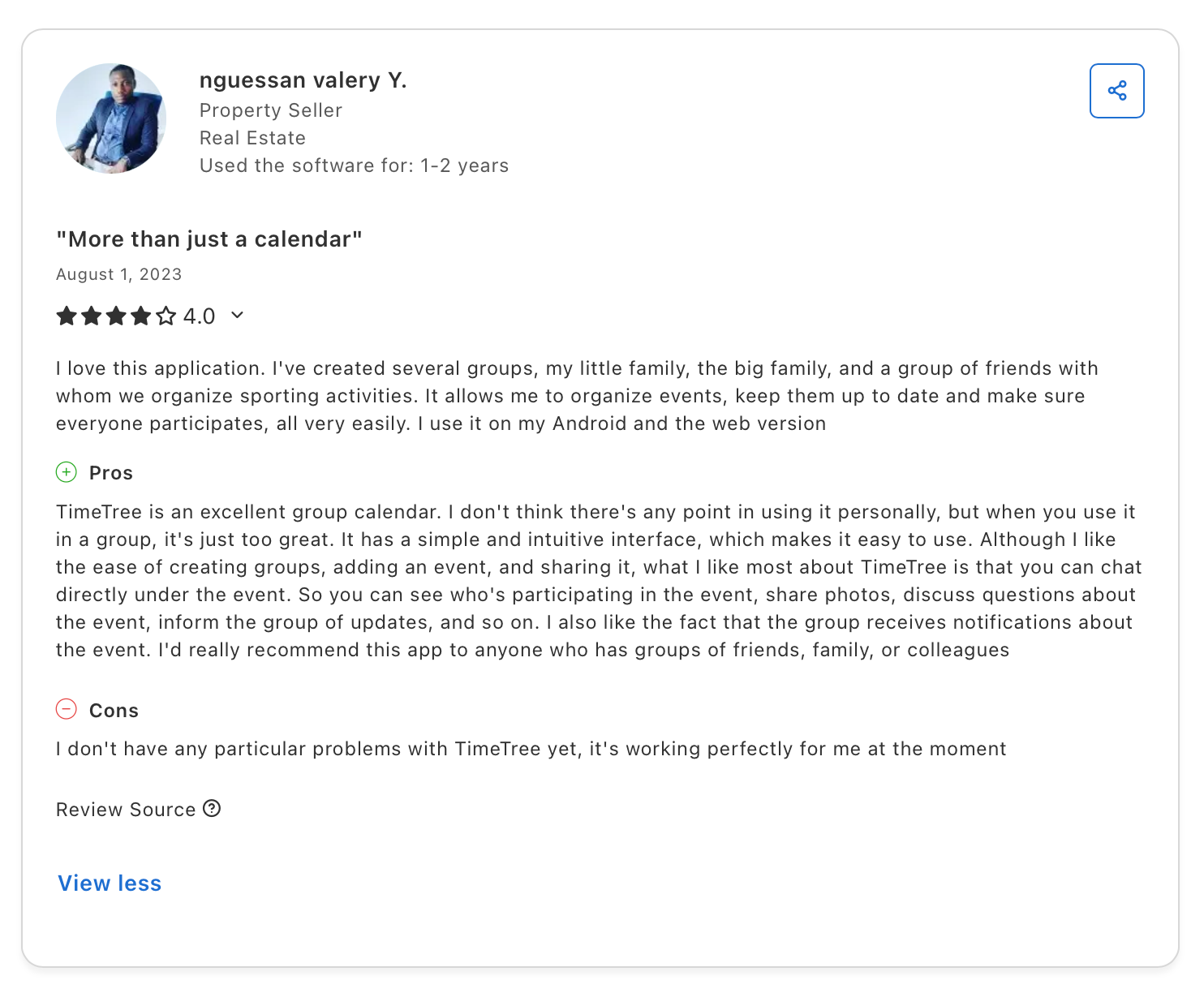
"I love this application. I've created several groups: my little family, the big family, and a group of friends with whom we organize sporting activities." — Nguessan Valery Y., Capterra
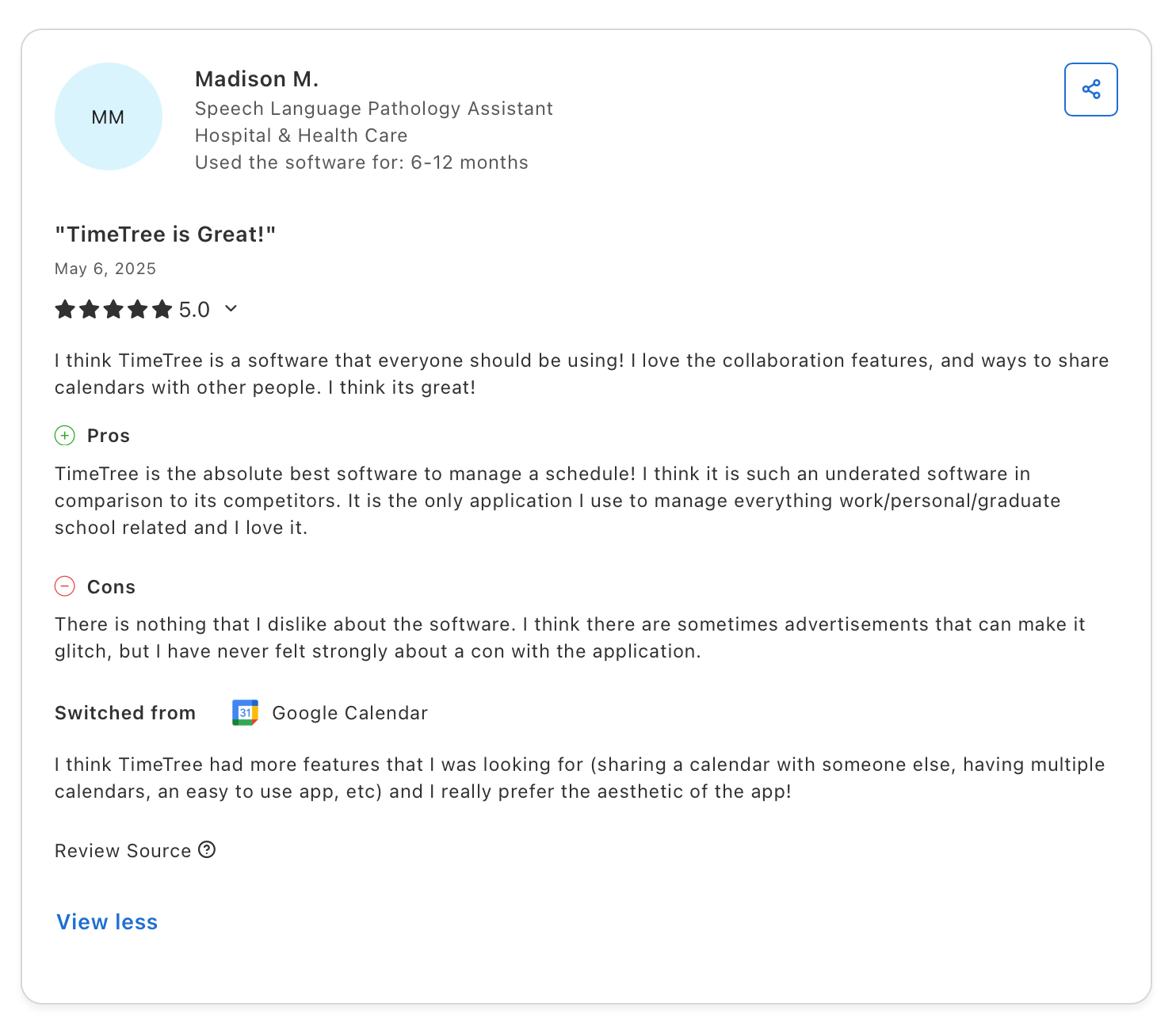
"I think there are sometimes advertisements that can make it glitch, but I have never felt strongly about a con with the application." — Madison M., Capterra
Pricing
TimeTree is free to use with a shared calendar and per-event chat. Premium runs $4.49/month (or $44.99 for 12 months) and adds an ad-free experience, file attachments, a vertical multi-day view, and the option to pin key events.
Bottom line
For two people or a small group who mostly need to see and talk about the same plans, TimeTree covers it with a shared calendar and a chat on every event, and nothing heavier gets in the way.
13. Cozi: Best for families running a household on one shared calendar
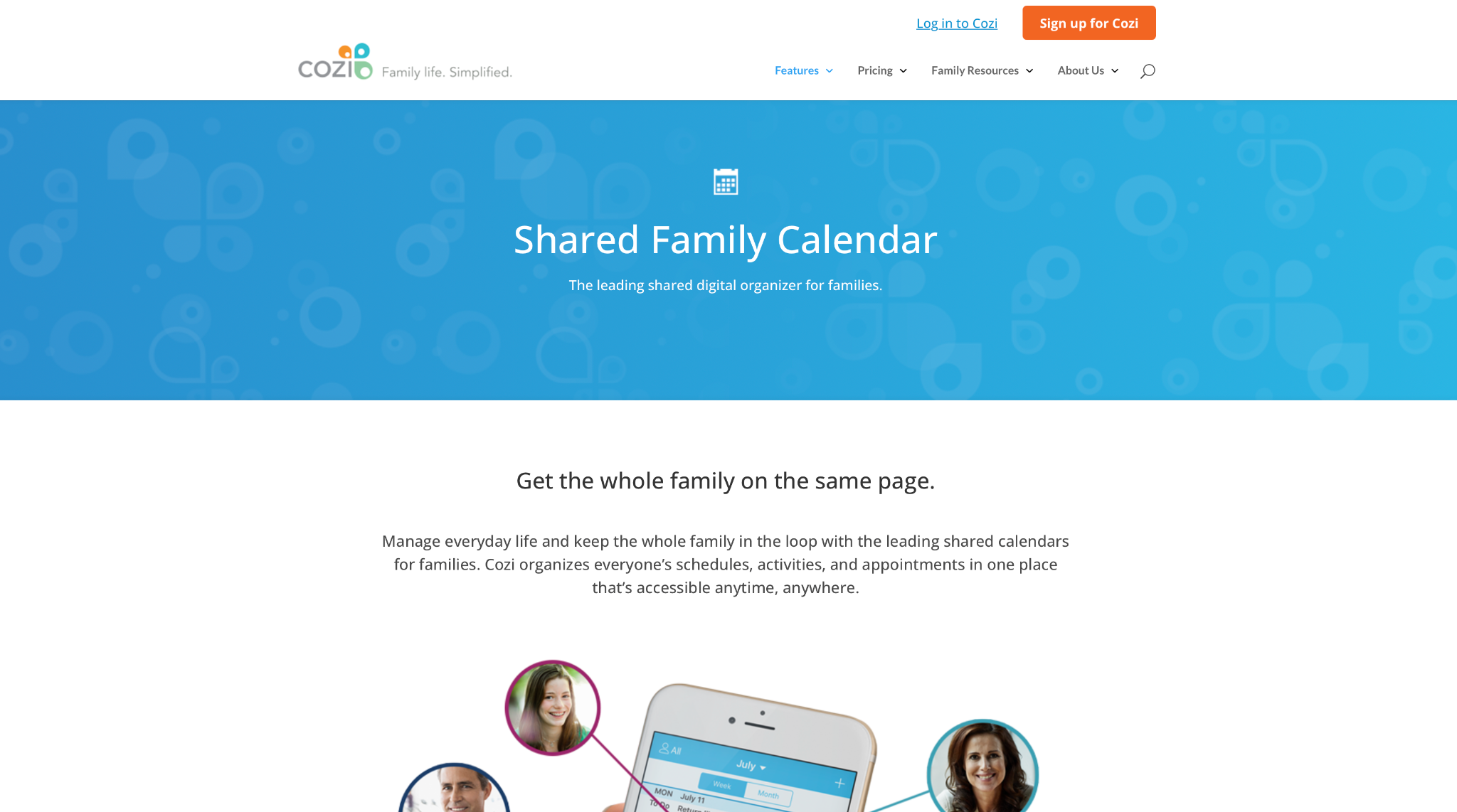
What it does: Cozi is a family organizer centered on a color-coded shared calendar, with shared shopping lists, to-dos, and a meal planner sitting alongside it under one family account.
Best for: Families coordinating kids' activities and appointments who want the calendar and the grocery list in the same place.
Cozi keeps a family's calendar and shared lists in one app. Every family member gets a color, so one glance shows who's where. I added an appointment and it notified the whole family right away, and the shared shopping list updated live as anyone checked things off from their own phone.
The calendar sits next to a meal planner and to-do lists, and that pairing is the point, since the grocery list and the week's dinners live in the same app as the schedule. It doesn't connect to Google Workspace or Outlook, so work meetings stay elsewhere.
Key features
- Color-coded family calendar: Every family member gets a color, so you can filter the calendar by person at a glance.
- Shared shopping and to-do lists: Add to a list from any device, and everyone sees it update live.
- Meal planner and recipe box: Plan the week's dinners with saved recipes in the same app.
- Change notifications: Cozi alerts the whole family the moment a plan moves.
Pros and cons
Pros:
✅ Every feature centers on household logistics, from groceries to kids' activities.
✅ Works on iOS, Android, and web, so an iPhone-and-Android household stays in sync.
✅ The free version includes the shared calendar, lists, and recipes with no paywall.
Cons:
❌ It doesn't integrate with Google Workspace or Outlook, so work calendars stay separate.
❌ No time-blocking, permissions, or professional scheduling. It covers home logistics and stops there.
❌ The month view and ad-free experience sit behind the paid tier.
What users say
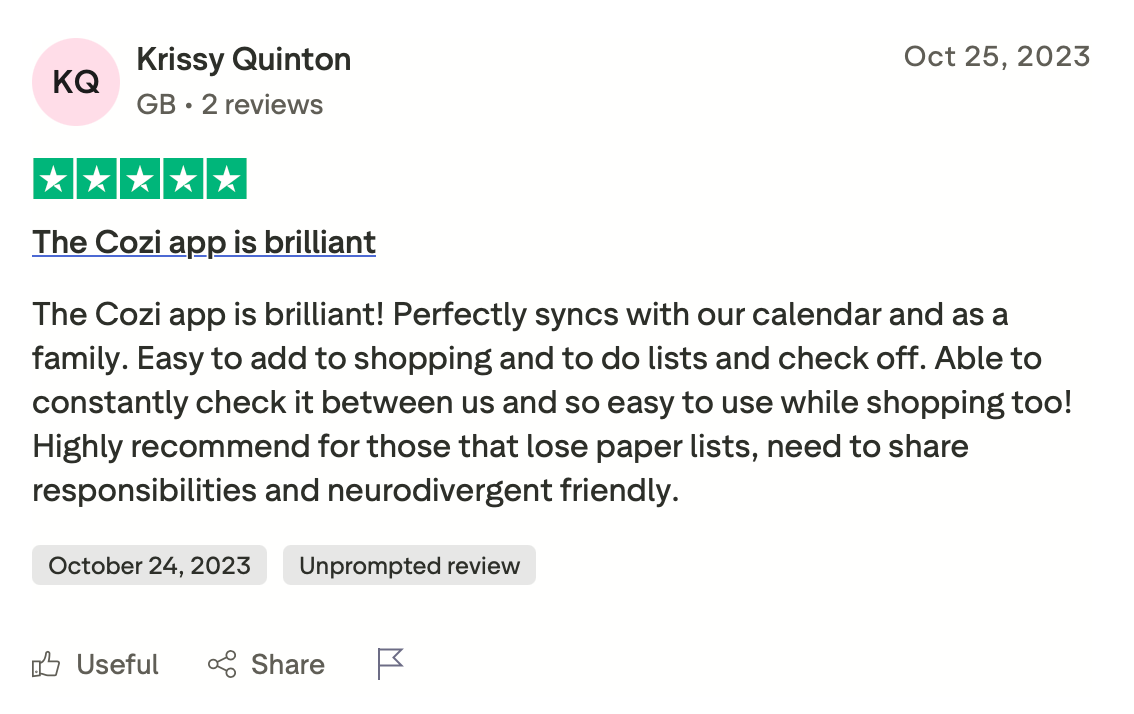
"The Cozi app is brilliant! Perfectly syncs with our calendar and as a family. Easy to add to shopping and to-do lists and check off." — Krissy Quinton, Trustpilot
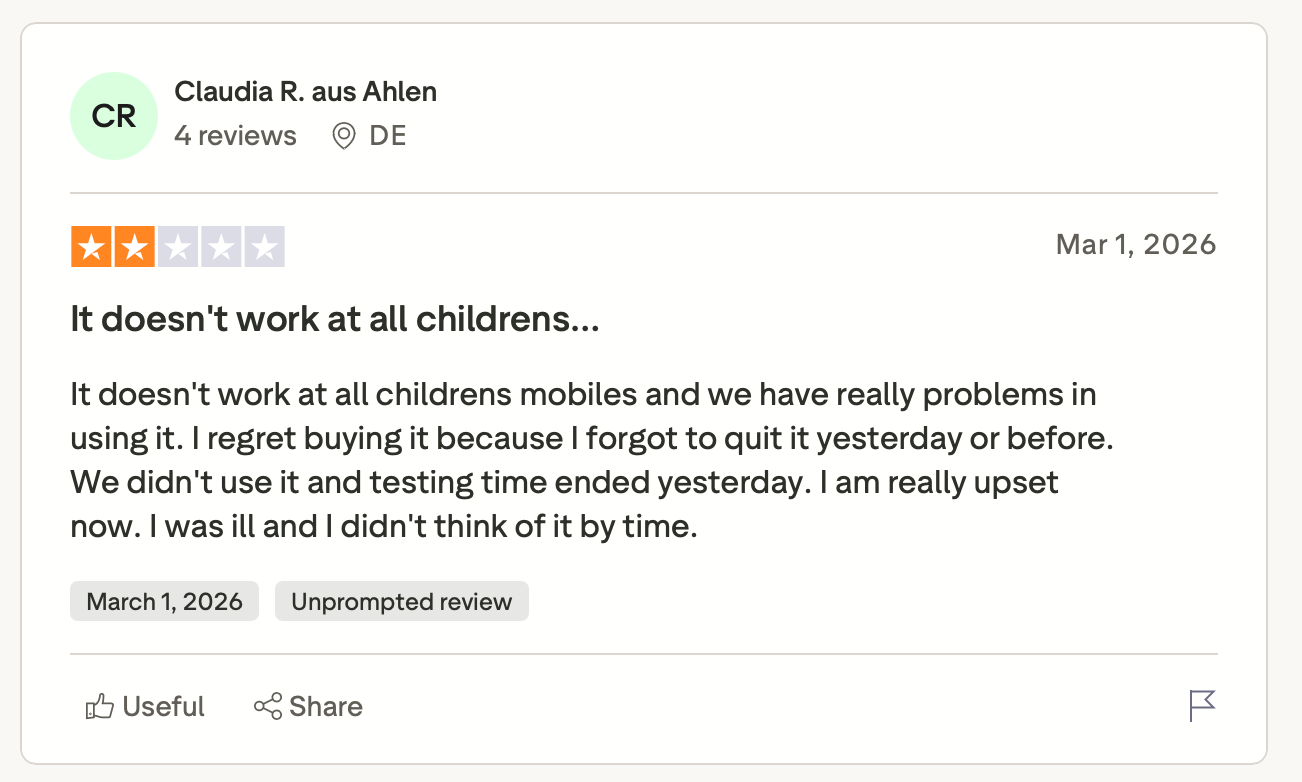
"It doesn't work at all on children's mobiles, and we have real problems using it. I regret buying it because I forgot to quit it yesterday or before." —Claudia R., Trustpilot
Pricing
Cozi is free with a shared calendar, lists, and recipes. Cozi Gold runs $39/year and adds an ad-free experience, a month view, more reminders, and a birthday tracker. Cozi Max runs $79/year and adds AI tools that turn emails into calendar events and generate meal plans.
Bottom line
When a busy household's week is packed with school pickups and appointments, Cozi keeps the whole thing on one shared calendar.
Which shareable calendar app should you choose?
The right shareable calendar app comes down to who you're sharing with and what you're coordinating day to day. A group that just needs to see one schedule wants a different tool than a team trying to offload it to AI.
Choose Google Calendar if you:
- Already run on Google Workspace and want sharing that works the second you send the invite
- Need four clear permission levels without adding another app
Choose Outlook Calendar if you:
- Run your company inside Microsoft 365 and want org-wide free/busy built in
- Rely on the Scheduling Assistant to line up meetings across a big team
Choose Teamup if you:
- Coordinate a club, class, or shift roster where viewers don't all have accounts
- Want per-link permission control over who sees and edits what
Choose Calendly if you:
- Book regularly with clients, candidates, or partners outside the team
- Want round-robin routing that hands meetings to whoever's free
Choose Doodle if you:
- Spend more time agreeing on a time than tracking an ongoing schedule
- Need a quick poll to pin down one slot across a crowd
Choose Lindy if you:
- Want to hand the calendar, inbox, and follow-ups to an AI you can text
- Run lean and need recurring admin off your plate without hiring
Choose Motion if you:
- Want AI to plan the day and rebuild it when a meeting moves
- Manage projects where task dependencies decide the schedule
Choose Reclaim.ai if you:
- Keep losing deep-work hours to back-to-back meetings
- Want focus time protected on top of the calendar you already share
Choose Superhuman if you:
- Live across Gmail, Slack, and several connected apps every day
- Want AI to surface the right scheduling action before you ask
Choose Notion Calendar if you:
- Already keep your team's work and docs inside Notion
- Want the schedule tied to live databases instead of standing alone
Choose ClickUp if you:
- Already run projects in ClickUp and want the calendar woven into task tracking
- Need standup summaries pulled from live task data
Choose TimeTree if you:
- Coordinate plans with a partner or small group who don't all use Google or Outlook
- Want a comment thread on each event instead of a separate text chain
Choose Cozi if you:
- Run a household and want the calendar next to shopping lists and meal plans
- Need every family member on one color-coded calendar across iPhone and Android
Skip this category entirely if you:
- Only need a personal calendar and never share it with anyone
- Coordinate a household rather than a team, where a family app fits better
- Want a single tool to run every part of the business, since none of these reach that far
{{cta}}
Final verdict
There's no single best pick, because what you need depends on whether you're just showing a team one schedule or handing the whole thing off to run itself. If everyone's on the same provider and you just need one visible schedule, Google Calendar or Outlook already does it, and Teamup steps in when the group doesn't have accounts.
If the schedule keeps falling apart faster than a person can fix it, the AI tools start to pay for themselves. Lindy is the pick for teams that want to hand off the calendar, inbox, and follow-ups from one text thread. Worth a look if that daily admin is the real drain. Try it on the free trial before you commit to the ramp-up of a heavier system.
Frequently asked questions
What is the best shareable calendar app for teams?
For teams that just want sharing to work, the best shareable calendar app is Google Calendar, because it shares a calendar in two clicks with four permission levels. Teams on Microsoft 365 get the same ease from Outlook Calendar, and groups without shared accounts are better served by Teamup.
What is the best free shareable calendar app?
Google Calendar is the best free shareable calendar app for anyone with a Google account, since it shares a personal calendar at no cost across devices. Teamup also offers a usable free plan that covers up to 5 sub-calendars and 5 users with no account required.
How do I share a calendar with people who use different apps?
Sharing across Google, Outlook, and iCloud usually means publishing a public link that most calendars support in read-only form. For two-way editing across providers, a link-based tool like Teamup or a scheduling layer like Calendly avoids the sync problems native calendars hit.
Can a shareable calendar app connect to Google Calendar and Outlook at once?
Yes, several apps read both at once. Reclaim.ai and Calendly check availability across Google Calendar and Outlook together, and Lindy works with either to schedule and reschedule on your behalf.
Do shareable calendar apps work for family or personal use too?
Yes, though most tools here lean toward work teams. Google Calendar and Outlook handle personal sharing well, while a group that wants household features like shared lists is better served by an app built for families.