10 Best Productivity Apps in 2026, Tested for Six Weeks
Lindy tested 14 productivity apps including Notion, Todoist, Motion, and Sunsama, comparing task management, calendar automation, and AI scheduling features.


By the third week of running four different productivity tools at once, I had spent more time managing my system than doing actual work. I had a task manager, a calendar app, a daily planner, and an AI assistant open in separate tabs, and none of them talked to each other. That is what sent me looking for something better.
I spent six weeks testing many productivity apps across work, like content projects, client deadlines, meeting-heavy weeks, and stretches of deep, focused writing.
I looked at how each tool handled the specific job it was built for, how much setup it required before it became useful, and whether it held up when the week got chaotic. Some tools I had used before and went back to with fresh eyes. Others I was testing for the first time.
Here is what I found.
What is the No. 1 productivity app?
Notion is the No. 1 productivity app for most people. It handles the widest range of work in one place, from task management and project tracking to notes and team wikis, without requiring a separate tool for each job.
That said, if your biggest problem is a calendar that runs your day rather than an overflowing workspace, Motion or Reclaim will do more for you. The list below covers the best option for each specific job.
10 best productivity apps at a glance
| Tool | Best for | Starting price | Free plan |
|---|---|---|---|
| Notion | Organizing everything in one place | $12/member/month | Yes |
| Todoist | Managing to-do lists | $7/user/month | Yes |
| Google Calendar | Scheduling and calendar management | $8.40/user/month (Workspace) | Yes |
| Sunsama | Daily planning | $22/month | No (14-day trial) |
| Reclaim AI | Protecting focus time | $12/seat/month | Yes |
| Motion | AI task scheduling | $49/month | No (trial only) |
| Toggl Track | Time tracking | $12/user/month | Yes |
| Slack | Team communication | $8.75/user/month | Yes |
| ChatGPT | AI research and writing | $8/month | Yes |
| Lindy | AI teammate across Slack, email, and meetings | $29.99/user/month | Yes ($50 in credits, 7 days) |
How I tested these productivity apps
I tested each app against the kind of work it was built for rather than running every tool through the same set of tasks. Notion was tested as a content and project workspace.
Todoist and Sunsama were tested during weeks with heavy task loads and competing deadlines. Motion and Reclaim AI were tested across meeting-dense weeks where focus time was scarce. Toggl Track ran in the background across one week of billable work.
Slack and ChatGPT were already part of my daily workflow, so I paid closer attention to how they compared against newer alternatives. Lindy was tested inside a live Slack workspace across scheduling, meeting prep, and inbox triage.
For each tool, I looked at setup time, how it performed under real conditions rather than ideal ones, and where it fell short. I also read through recent user feedback on G2 and Reddit to check whether my experience matched what others were finding in practice.
1. Best Productivity App for an All-in-One Workspace
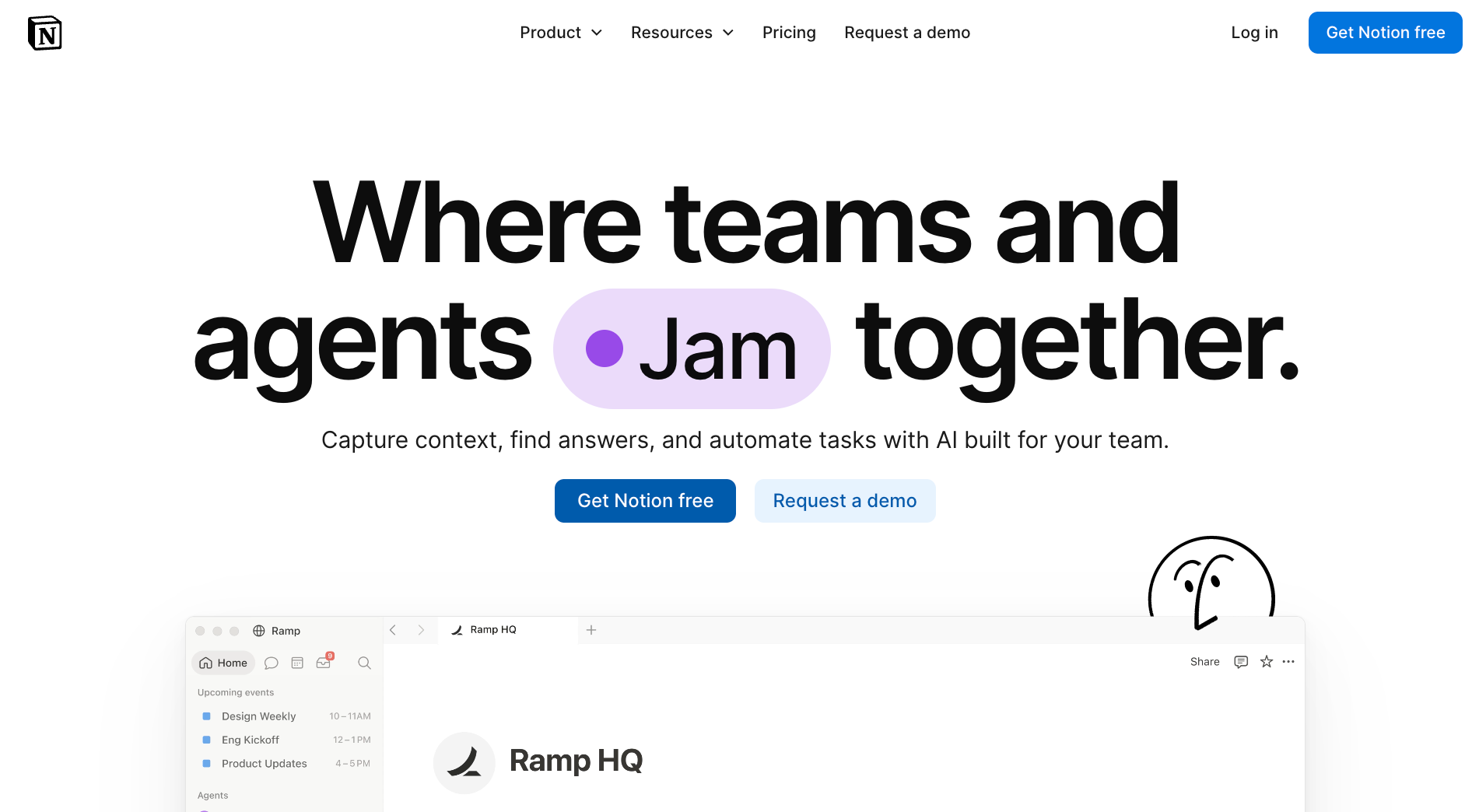
Notion: What is it?
Notion is an all-in-one workspace tool for capturing and organizing work across notes, documents, databases, and tasks. Teams use it to run project pipelines, build internal wikis, and collaborate on documents in the same space. On the Business plan, a growing AI layer handles drafts, summaries, and meeting notes across the workspace.
I set up a content calendar in Notion on day one. By the end of the week, I had not touched a separate spreadsheet. The database views were what kept me. The same project flipped between a table, board, and calendar without rebuilding anything. No other tool I tested handled that switch as cleanly.
What Notion covers
- Linked databases: Tables in Notion can reference each other through relation properties. A project database can pull in tasks, contacts, and meeting notes from separate tables, so everything connected to a project surfaces in one view without duplicating data across pages.
- Custom properties and rollups: Each database row can carry date, select, checkbox, formula, and rollup fields. A rollup can automatically count completed tasks inside a linked table, calculate total time estimates, or flag overdue items, with no manual updating required.
- Permission layers: Pages and databases can be shared with specific people at view, comment, or edit level, and on Business, access to database rows can be limited to the people assigned to them. Team wikis stay readable by everyone while only owners can make structural changes.
- Notion AI meeting notes on Business: Notion records the meeting from your own computer, with no bot joining the call. It transcribes the conversation, pulls out key points and action items, and files the notes into a database you pick.
Limitations
Notion starts blank, and building a system that actually works takes real configuration time. Large workspaces also tend to accumulate pages quickly, and without a deliberate structure from the start, finding things later becomes its own task.
Pricing
The free plan covers individual use with basic features and a Notion AI trial. Plus runs $12 per member per month, Business runs $24 per member per month, and Enterprise is custom. Annual billing saves 20% on paid plans.
2. Best Productivity App for Managing To-Do Lists
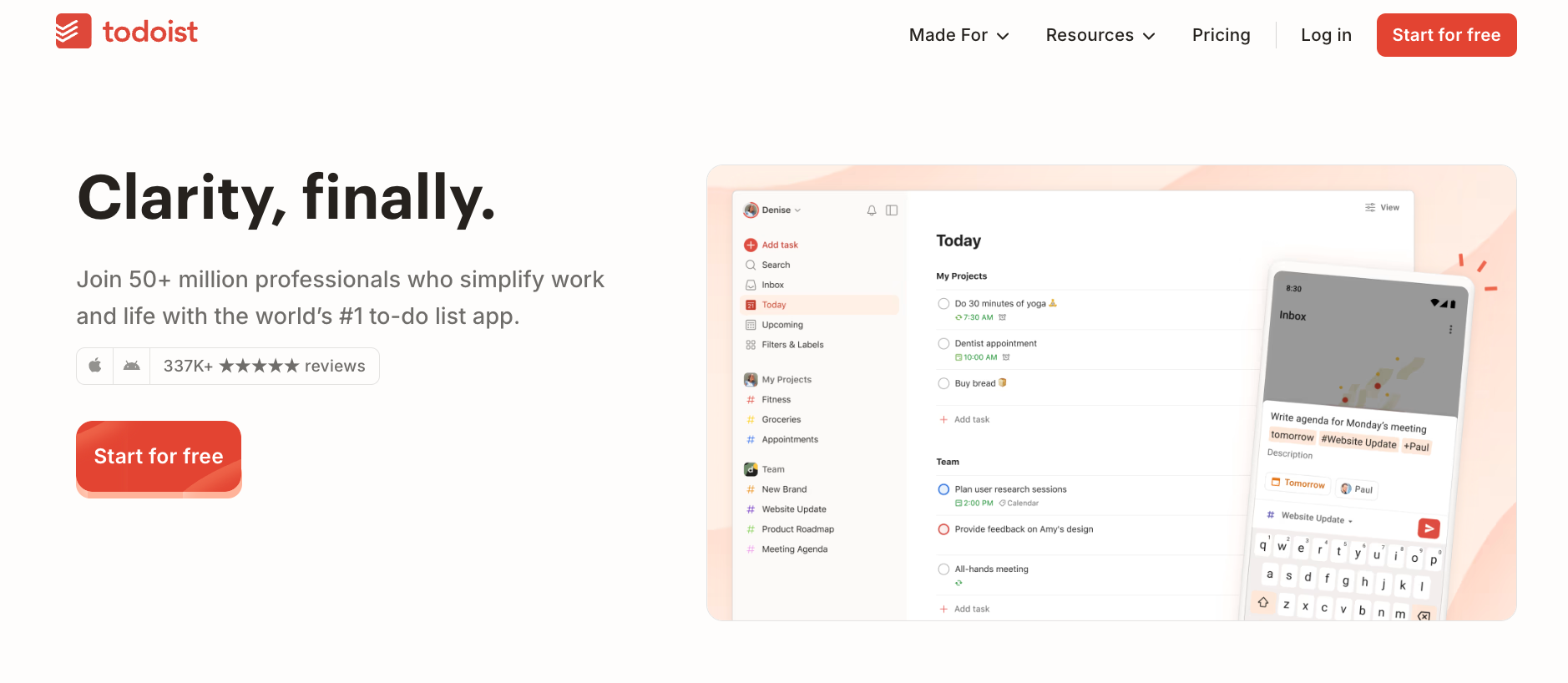
Todoist: What is it?
Todoist is a task management app for individuals and small teams. It captures tasks using natural language, parses deadlines and recurrence automatically, and syncs across devices. Priority flags and filter views help surface urgent work across projects. The Pro plan adds AI-assisted breakdowns, custom reminders, and a full activity history.
I typed "submit draft every Friday at 9am," and Todoist parsed the deadline and recurrence correctly. After testing it alongside ClickUp and Asana for a week, I kept returning to Todoist. It never asks for more information than the task needs. The interface stays out of the way in a way that the more powerful tools cannot.
What Todoist covers
- Custom filters with Boolean logic: Filters in Todoist are built with AND, OR, and NOT operators across any combination of labels, priority, due date, project, and assignee. A filter like "overdue and priority 1 and not work" surfaces exactly the right tasks without scrolling through every project manually.
- Karma and productivity visualizations: Todoist tracks a running Karma score that grows as you add and finish tasks, and drops when tasks sit overdue for five days or more, with daily and weekly trend charts. The visualizations show which days you consistently underdeliver against your own plans, which is more useful than a simple streak counter.
- Location and custom reminders on Pro: Custom reminders can trigger at a specific time or when you arrive at or leave a location. For recurring tasks tied to physical places, like a grocery list that fires when you reach the supermarket, this removes the need to check the list at all.
- Two-way calendar sync: Todoist tasks with due dates and times show up as calendar events in Google Calendar or Outlook, and changes made in either direction sync back. The calendar view stays accurate without manually blocking time for each task.
Limitations
Todoist is built for task management and stops there. It has no timeline views or resource planning, so teams running complex projects with dependencies will need a separate tool sitting alongside it.
Pricing
The free Beginner plan covers individual task management with up to five personal projects. Pro runs $7 per user per month (billed monthly), and Business runs $10 per user per month for teams. Annual billing saves 20% on both plans.
3. Best Productivity App for Scheduling and Calendar Management
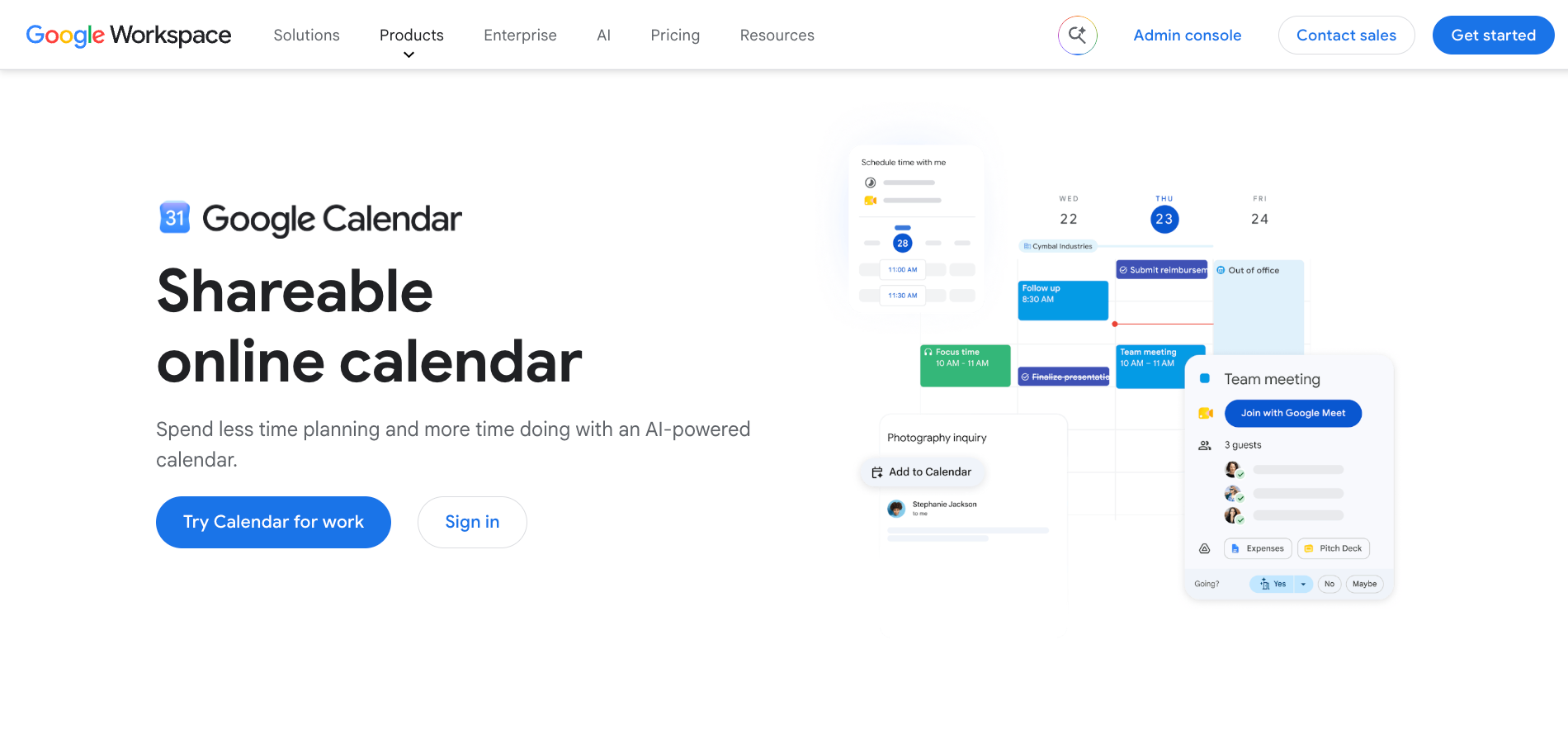
Google Calendar: What is it?
Google Calendar is a scheduling and calendar management tool built into every Google account. It handles personal and team scheduling through shared calendars, meeting invites, and RSVP tracking. Business users get it as part of Google Workspace alongside Gmail, Drive, and Meet. Higher Workspace plans add Gemini across the suite.
I blocked my entire week in Google Calendar on a Monday morning and checked it once a day from there. Every meeting link, every invite response, every reschedule came through in one place without me touching a second app. What stood out was how little configuration it needed to be useful from the first day.
What Google Calendar covers
- Working location and focus time blocks: On a work or school account, Google Calendar lets you set a working location for each day (office, home, or elsewhere), which surfaces on your colleagues' scheduling views when they try to book you. On Business Standard and up, focus time blocks mute Google Chat notifications automatically during the block without any manual status change.
- Smart scheduling suggestions: When you create a meeting and add guests, Calendar suggests times based on everyone's availability and working hours, so you can pick a slot without checking each calendar.
- Appointment scheduling pages: Rather than a simple invite link, on paid Workspace plans, appointment pages let you set up several meeting types, each with its own duration, buffer time, and questions for the booker to answer upfront. The booked slot appears directly in your calendar with the responses already attached.
- Meeting notes and smart chips: You can drop a calendar event into a Google Doc as a smart chip, or start meeting notes from the event. The notes attach to the event and are shared with every guest.
Limitations
Google Calendar works best inside the Google ecosystem. Teams on Microsoft 365 will find the integration points limited, and syncing it reliably with Outlook or Apple Calendar adds friction that the native options avoid.
Pricing
Google Calendar is free with any Google account. For businesses, Google Workspace Business Starter starts at $8.40 per user per month.
4. Best Productivity App for Daily Planning
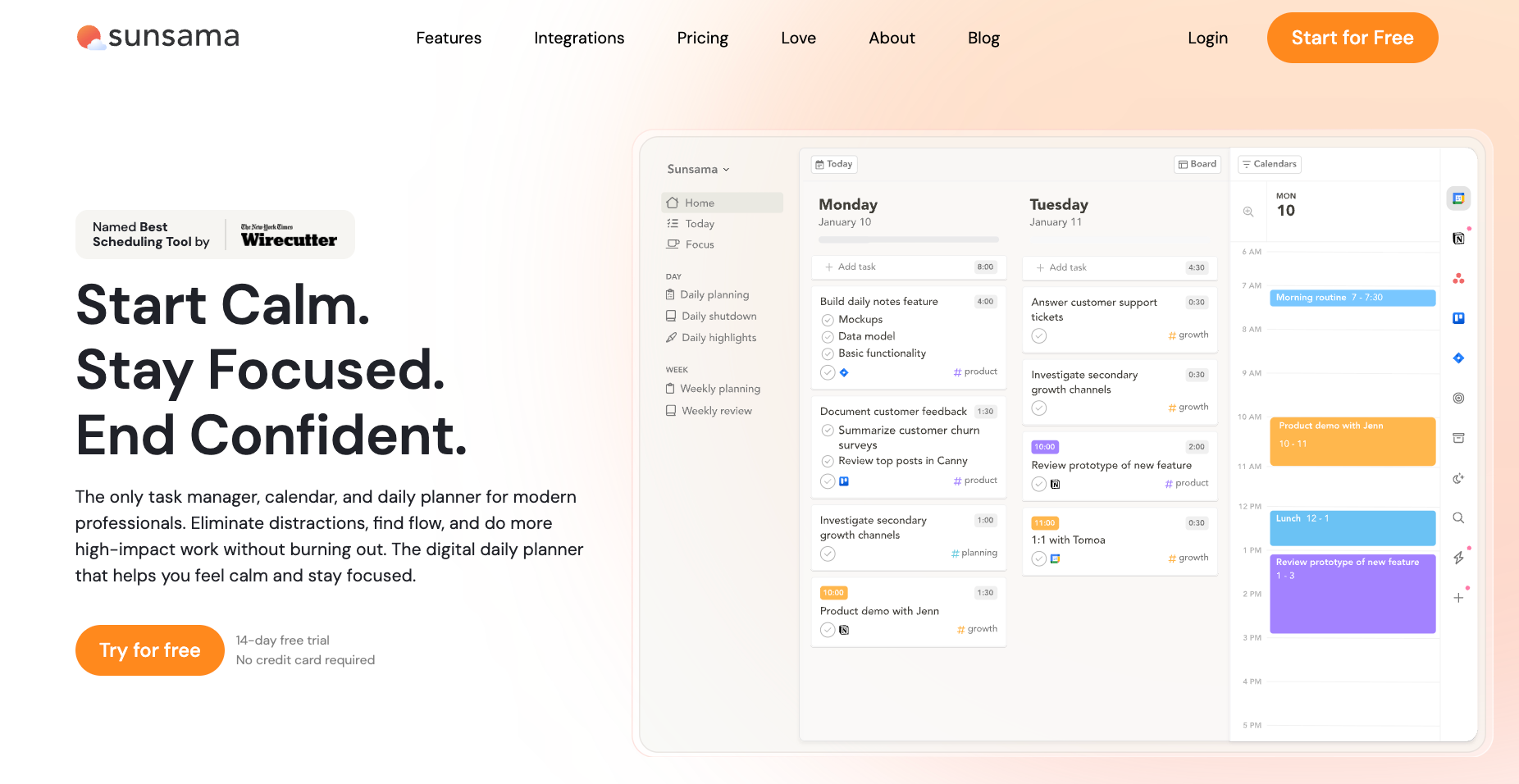
Sunsama: What is it?
Sunsama is a daily planning app for professionals. Each morning it walks you through a short routine: pull tasks from connected tools, estimate how long each one takes, and build a realistic plan for the day. It connects to Notion, Todoist, Asana, Jira, Linear, and most major calendars, so tasks flow into the daily view rather than requiring manual entry.
I tested Sunsama on a week where I had three competing deadlines. The planning routine took about ten minutes each morning, and by mid-week I had stopped overloading my days.
The time estimate feature was what actually changed my behaviour. I had stacked a research pass, two calls, and a draft review into one day, and watching the total hit eleven hours made dropping two of them feel less like a choice and more like arithmetic.
What Sunsama covers
- Shutdown ritual: At the end of each day, Sunsama prompts a short review: tasks completed, tasks to carry forward, and a single reflection note. Unfinished tasks roll over to the next day on their own, and the review is your chance to spot what keeps getting pushed.
- Two-way integration behaviour: When you complete a task in Sunsama that was pulled from Asana, Todoist, or Linear, the completion writes back to the source tool automatically. You work inside Sunsama's daily view without creating a gap between your plan and your project management system.
- Channel-based task capture: Tasks can be created directly from Slack messages or email subjects without switching apps. The browser extension captures a URL or message as a task and drops it into Sunsama's inbox for planning, keeping the capture step inside the tool where the work actually arrived.
- Weekly time analytics: Sunsama shows your daily and weekly time use, including planned versus actual time. Over time, this shows which types of work you consistently under- or over-estimate, which makes the morning planning routine more accurate as the weeks accumulate.
Limitations
Sunsama has no free plan, and at $22 per month it costs more than most task managers. For someone who only needs a to-do list, the daily planning layer adds overhead rather than removing it.
Pricing
Sunsama runs $22 per month on monthly billing, or $17 per month billed annually. There is no free plan. A 14-day trial gives full access with no credit card required.
5. Best Productivity App for Protecting Focus Time
Reclaim: What is it?
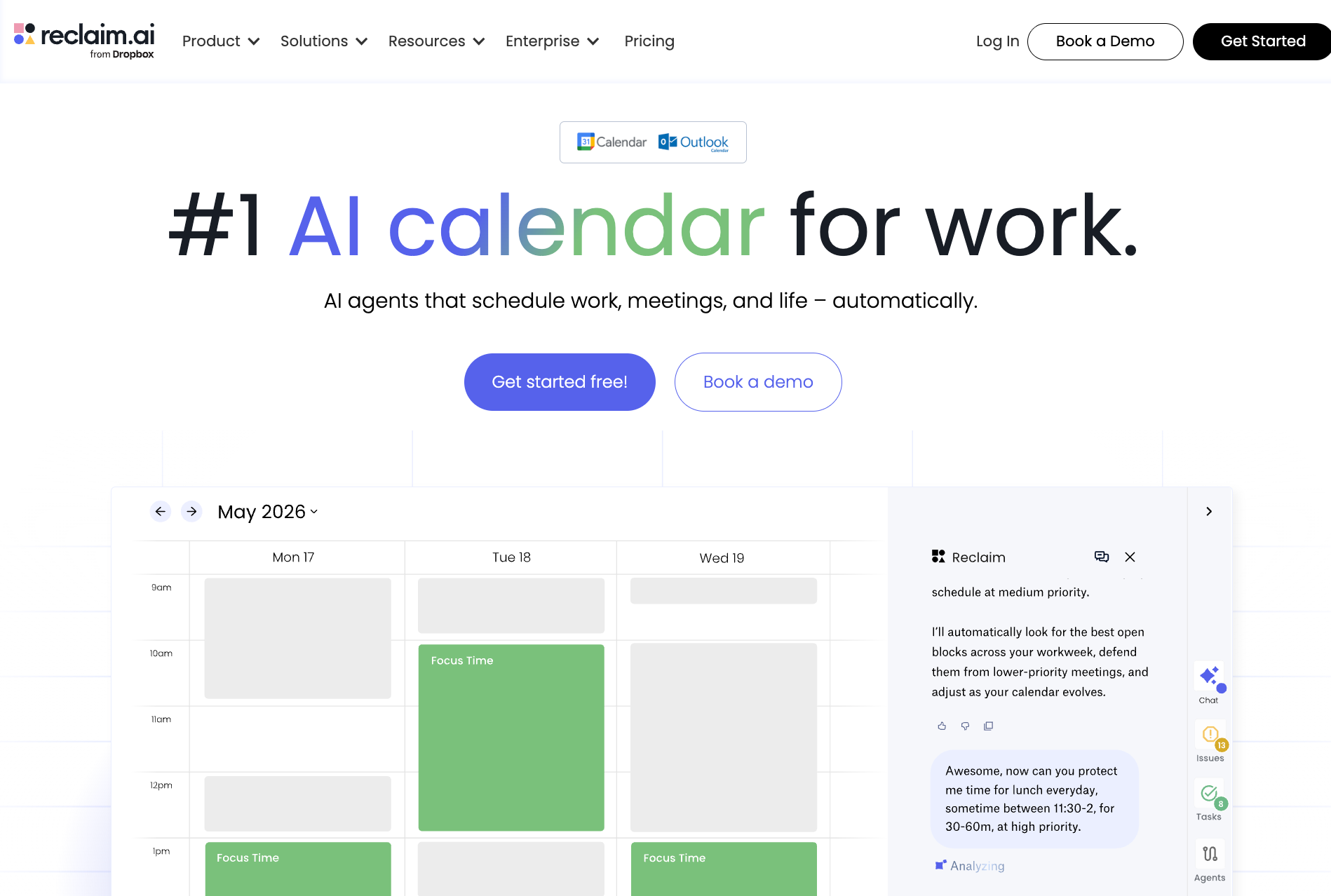
Reclaim is a calendar scheduling tool that automatically blocks time for tasks, habits, and focus work around your existing meetings. It connects to Google Calendar or Outlook and reads your commitments to find the best open slots for the work that would otherwise get squeezed out.
Paid plans add more scheduling links, and the Business plan adds a team OOO calendar and delegated access for assistants and admins.
I connected Reclaim to a week where I had eleven meetings already locked in. Within the first hour, it had placed focus blocks and a habit slot into the gaps I would never have bothered to protect manually. What I noticed by Thursday was that I had not once opened my calendar to figure out when to work. Reclaim had already answered that question.
What Reclaim covers
- Focus time protection: Reclaim scans your calendar for open slots and places focus blocks automatically based on your preferred working hours and the tasks you have added. If a meeting is booked into a focus block, Reclaim moves the block to the next available slot rather than deleting it.
- Habit scheduling: Recurring habits like a daily review, a lunch break, or a workout can be added with a target time window and a minimum duration. Reclaim finds the best slot each day within that window and adjusts around new meetings without you having to reschedule anything manually.
- Smart meeting links: Rather than a standard booking page, Reclaim's scheduling links factor in your existing habits, focus blocks, and buffer times when showing availability to guests.
- Team OOO calendar: On Business plans, Reclaim aggregates out-of-office events across the team into a shared calendar layer, so managers and teammates can see coverage gaps before they schedule something that half the team will miss.
Limitations
Reclaim has a learning curve that catches people out. Configuring priorities, habit buffers, and task weights takes real experimentation before the AI schedules reliably, and can pack calendars too tightly if those settings aren't dialled in carefully.
Pricing
Reclaim's Lite plan is free forever and covers the core focus time and habit features for one user. Starter runs $12 per seat per month, and Business runs $18 per seat per month, both on monthly billing. Annual billing saves 20% across paid plans. Enterprise is available on annual plans only.
6. Best Productivity App for AI Task Scheduling
Motion: What is it?
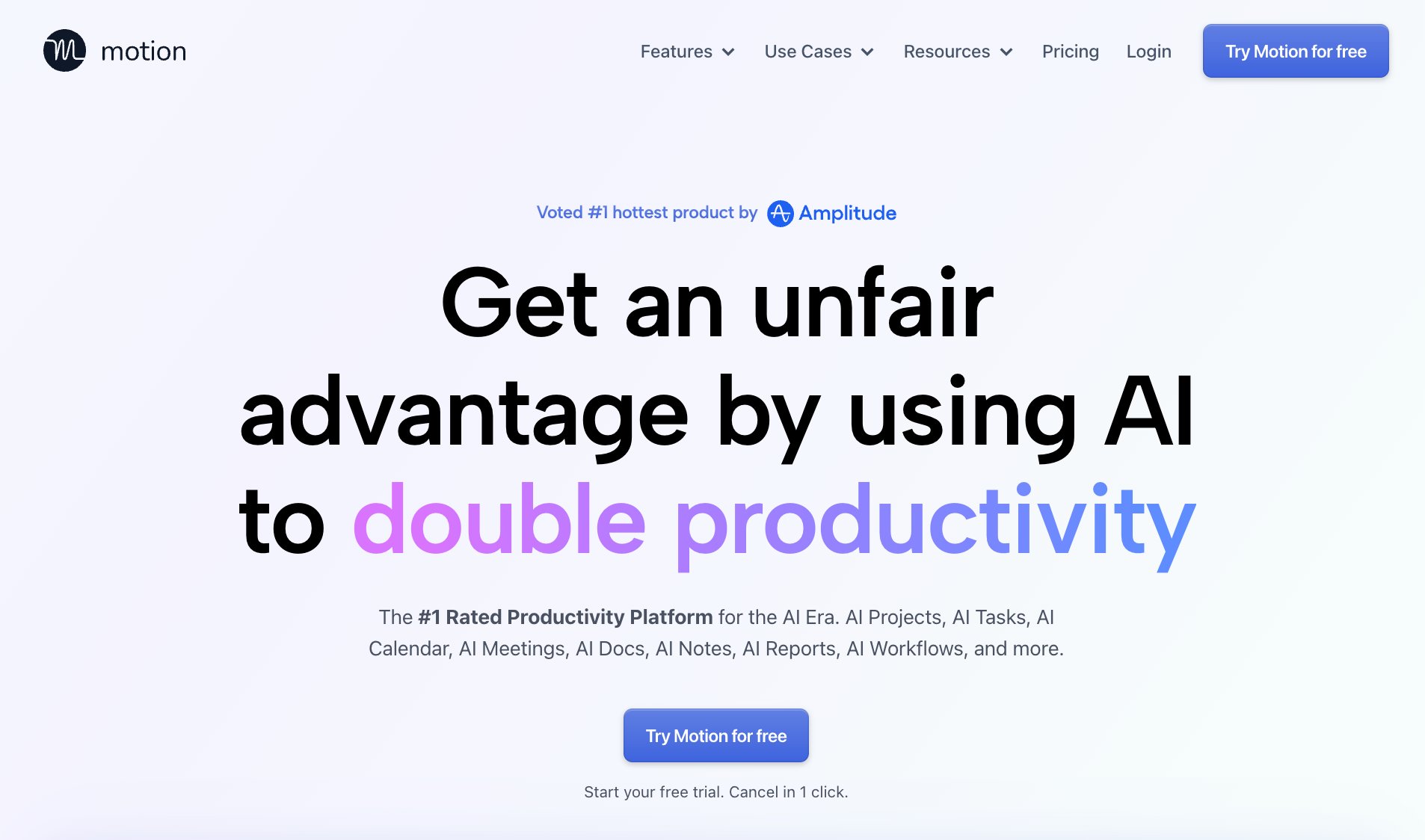
Motion is an AI scheduling tool that automatically places tasks and meetings into your calendar based on deadlines, priorities, and available time. It replaces the manual work of deciding what to do next by building and rebuilding your schedule throughout the day as things change.
The Pro AI plan covers individuals and small teams, while Business AI adds capacity planning, Gantt charts, and time tracking for larger operations.
I imported a backlog of about thirty tasks with varying deadlines and let Motion schedule the week. By Tuesday, I had stopped checking a separate task list entirely. What surprised me was how it handled a cancelled meeting. It pulled forward a task that had been sitting two days out and placed it in the gap without me touching anything.
What Motion covers
- AI task planner: Motion reads every task's deadline and priority, estimates how long each one will realistically take, and slots them into open calendar time automatically. When a meeting runs long, or a new urgent task arrives, it recalculates the rest of the day rather than leaving the conflict for you to resolve.
- Dynamic rescheduling: Any change to your calendar triggers a full reschedule across all pending tasks. A new meeting booked for tomorrow afternoon moves whatever was planned there to the next open window that still meets its deadline.
- AI meeting assistant: Motion handles scheduling links, finds mutually available times across participants, and books meetings without back-and-forth email. It also joins calls to take notes and surfaces action items alongside the tasks already in your planner.
- Project and team views on Business AI: Teams can see workload across members, set project-level deadlines that cascade into individual task schedules, and track progress through timeline and Gantt views, all without a separate project management tool.
Limitations
Motion works best when it owns your entire schedule. Running it alongside a separate task manager creates conflicts between what Motion has planned and what you have listed elsewhere, and resolving those gaps manually defeats the point of the automation.
Pricing
For individuals, Motion's Pro AI plan runs $49 per month on monthly billing, and Business AI runs $69 per month. Teams pay $29 per seat per month on Pro AI and $49 per seat per month on Business AI. Annual billing saves 33% across all plans. There is no free plan, though a free trial is available.
7. Best Productivity App for Team Communication
Slack: What is it?
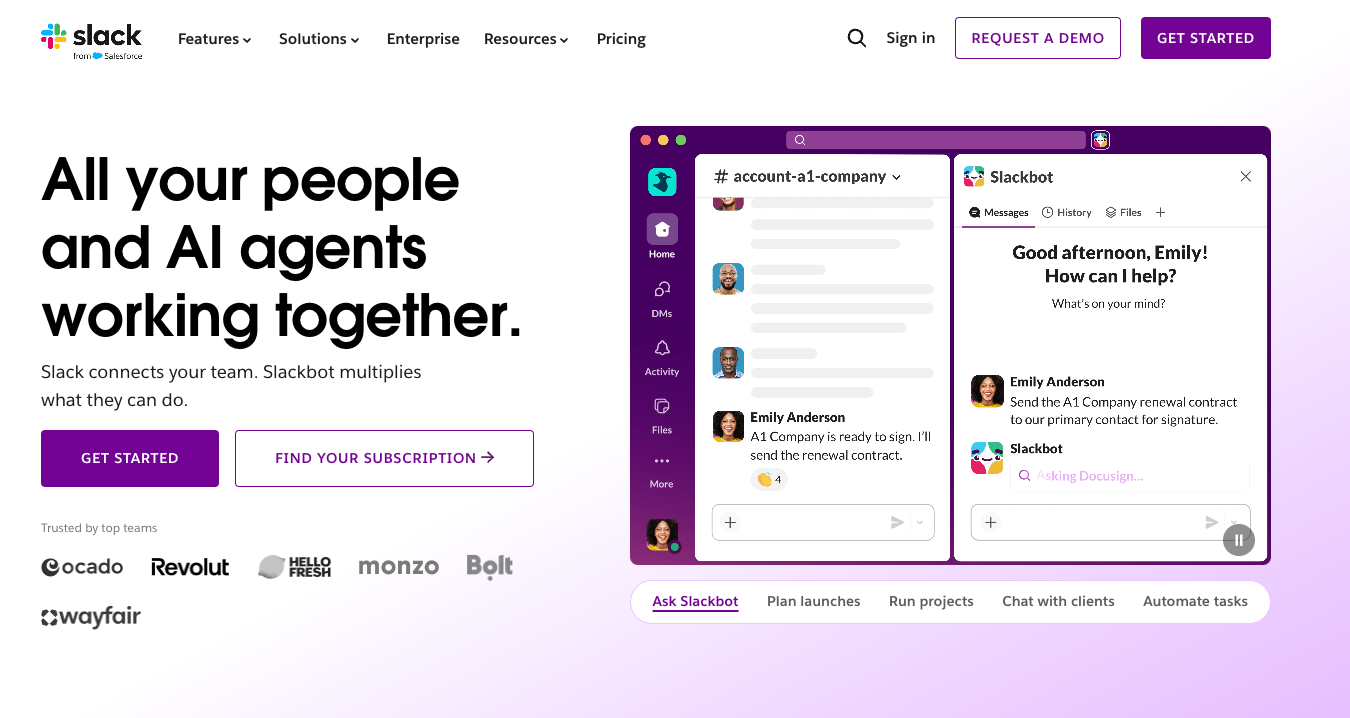
Slack is a team communication platform built around channels, direct messages, and threaded conversations. It connects to most tools a team already uses and surfaces work from those tools inside the same interface where the conversation is happening. The Business+ plan adds advanced AI features including AI search, daily recaps, and file summaries across the workspace.
I ran a two-week project entirely through Slack channels rather than email. Every decision landed in a searchable thread, every file stayed attached to the conversation that created it, and onboarding a new person meant adding them to the channel rather than forwarding a chain of emails. The thing I noticed most was how rarely I had to repeat context.
What Slack covers
- Channel-based organisation: Conversations in Slack live in channels organised by project, team, or topic, and every message, file, and decision posted there is searchable by anyone in the channel. Unlike email threads, channels don't fragment when someone is added late or replies out of sequence.
- Threaded replies and huddles: Any message can open a thread, keeping side conversations from cluttering the main channel view. Huddles let teammates start a live audio or video call directly from any channel or DM without scheduling anything in advance.
- Workflow automation: Slack's built-in workflow builder triggers actions from channel events, such as sending a form when someone joins a channel, posting a standup prompt at a set time, or routing an approval request to a manager when a specific emoji is used.
- App integrations and Slackbot: Slack connects to Google Drive, Notion, Jira, GitHub, and hundreds of other tools, surfacing notifications and updates inside the channel where they're relevant. Pro includes AI summaries of threads and channels, and Business+ adds Slackbot for catching up on missed messages after time away.
Limitations
Slack's open channel structure means conversations accumulate fast, and without a deliberate naming and archiving convention from the start, channels multiply to the point where finding the right one takes longer than finding the information inside it.
Pricing
Slack's free plan covers basic messaging with 90 days of history and up to ten app integrations. Pro runs $8.75 per user per month on monthly billing, and Business+ runs $18 per user per month. Enterprise+ pricing is available from sales. Annual billing drops Pro to $7.25 and Business+ to $15 per user per month.
8. Best Productivity App for Time Tracking
Toggl Track: What is it?
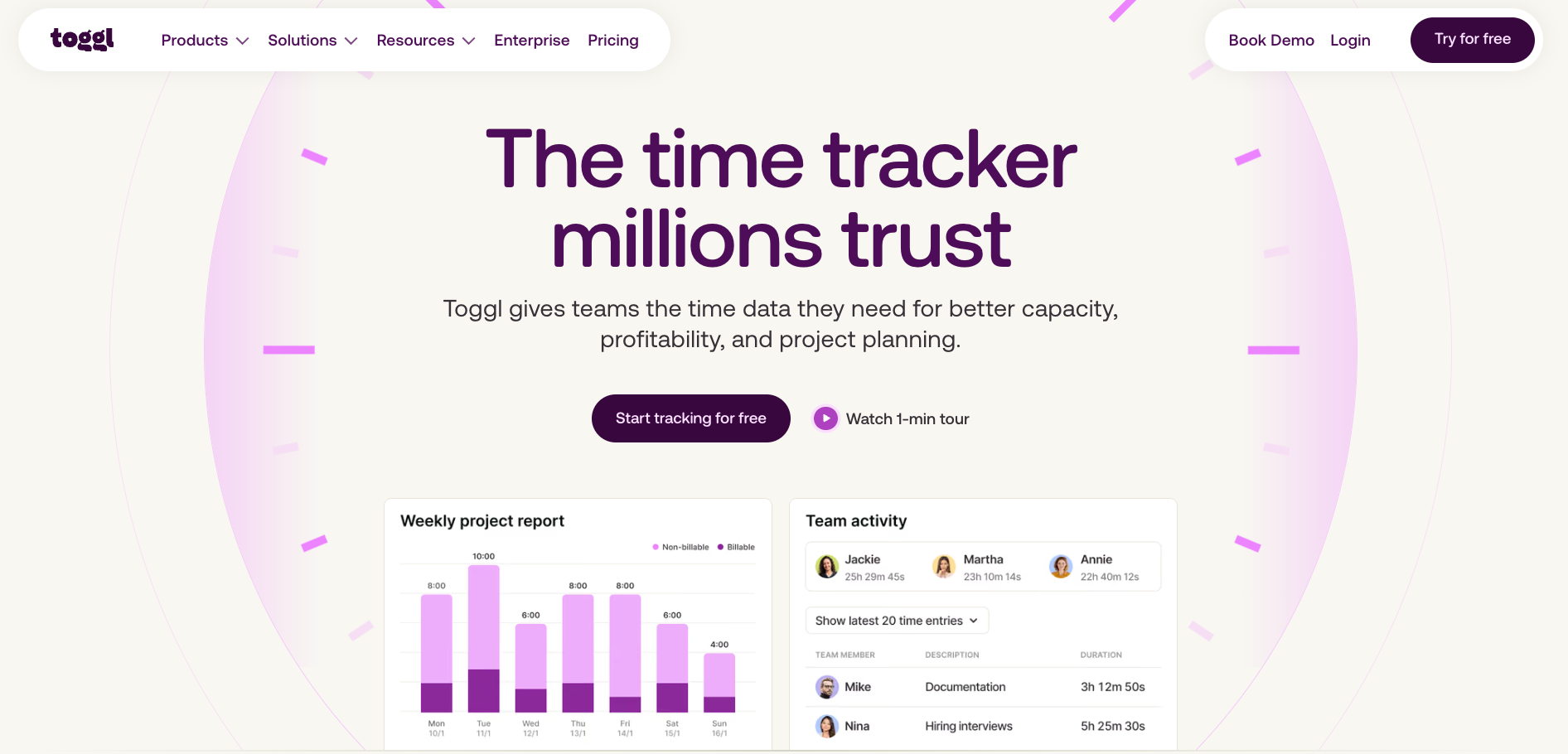
Toggl Track is a time tracking tool for individuals, freelancers, and teams. It records time against projects and clients, generates reports on where hours are going, and integrates with project management tools to track work without switching context. Starter adds billable rates, project estimates, and revenue analysis, and Premium adds timesheet approvals for billing-focused teams.
I ran Toggl Track across a week of writing and research work, starting and stopping the timer each time I switched tasks. By Friday, the report had broken down exactly how long each content type had taken, and the gap between what I had estimated at the start of the week and what the tracking showed was wide enough to change how I scoped the following week's work.
What Toggl Track covers
- One-click timer with browser extension: The browser extension places a track button inside tools like Asana, Jira, Trello, and ClickUp, so time entries start from inside the tool where the work is happening rather than requiring a switch to a separate app. Entries can also be added manually after the fact if the timer was forgotten.
- Billable rates and project budgets on Starter: Each project or client can carry a billable rate, and Toggl calculates earned revenue automatically as time is logged. Budget alerts fire when a project is approaching its hour or cost ceiling, before the overrun happens.
- Detailed productivity reports: Reports break down tracked time by project, client, team member, and date range, with visual charts that make it easy to see where the majority of hours are going across a week or month. The free plan includes basic reports; Starter and above add revenue and team-level analysis.
- Timesheet approvals on Premium: Managers can review and approve submitted timesheets before they feed into invoicing or payroll exports. The approval flow runs inside Toggl without requiring a separate HR or billing tool to close the loop.
Limitations
Toggl Track is built around the timer, and that focus cuts both ways. Profitability and labor-cost reports are locked behind the Premium tier, and the browser extension can break when third-party tools update their UI, a minor but recurring friction point that G2 reviewers flag.
Pricing
Toggl Track's free plan covers time tracking for a limited number of users with basic productivity reports. Starter runs $12 per user per month, and Premium runs $24 per user per month, both on monthly billing. Annual billing saves up to 33%, with Starter at $9 and Premium at $16 per user per month. Enterprise pricing is available on request.
9. Best Productivity App for AI Research and Writing
ChatGPT: What is it?
ChatGPT is an AI assistant for research, writing, and analysis. You give it a prompt, and it returns a draft, a summary, a breakdown, or an answer in seconds. The Plus plan adds expanded deep research, more scheduled tasks, and GPT-6 models inside Work and Codex. Pro adds the highest usage limits for people doing heavy AI work throughout the day.
I used ChatGPT to compress three hours of competitor research into thirty minutes. I fed it a brief, asked for a structured breakdown by category, and got something I could actually edit rather than start from scratch. The part that changed my process was using it before writing rather than after. It surfaces the shape of an argument faster than I can find it myself from a blank page.
What ChatGPT covers
- Expanded deep research mode on Plus and above: ChatGPT can run a multi-step research task across the web, synthesising sources into a structured report with citations rather than returning a single summarised answer. For competitive analysis or background research, this compresses work that would take two to three hours into a single prompt.
- Scheduled tasks: ChatGPT on Plus can run recurring tasks on a set schedule, such as pulling a daily summary of a topic, sending a digest, or checking a data source and flagging changes. The task runs without you initiating it each time.
- Projects and memory: Conversations can be organised into projects that retain context across sessions. ChatGPT remembers preferences, ongoing work, and prior decisions within a project so you are not re-explaining the same background every time you open a new chat.
- Image generation: Plus subscribers get access to ChatGPT's image generation directly in chat. You can describe what you need, iterate on the result in the same conversation, and drop the image straight into a doc or deck without switching to a separate tool.
Limitations
ChatGPT generates plausible output rather than verified output. Every factual claim it produces needs checking against a primary source before it goes anywhere public, and the more specific the claim (a price, a date, a quote), the more likely it is to be wrong or outdated.
Pricing
ChatGPT's free plan covers everyday use with GPT-5.6 Luna and limited access to tools. Go runs $8 per month and adds higher limits on uploads and images, plus longer memory. Plus runs $20 per month and adds expanded deep research, more scheduled tasks, and GPT-6 models in Work and Codex. Pro starts at $100 per month for maximum usage across all features.
10. Best AI teammate for handling work across Slack, email, and meetings
Lindy: What is it?
Lindy is an AI teammate that lives in your Slack, connects to all your tools, and handles the coordination work that fills the gaps between your other apps. You @mention it in any channel to get a sourced answer, ask it to handle a follow-up, or let it run recurring work on a schedule. It also works through iMessage, Gmail, and your browser, so the interface is wherever you already are.
I asked Lindy in Slack to pull everything discussed about a client account across the last month's meetings and give me a summary before a call. It came back in under a minute with sourced answers and the meeting timestamps they came from. I did not touch a transcript, open a recording, or search a single doc. That one interaction covered what would normally have been twenty minutes of prep.
What Lindy handles
- Meeting intelligence across your whole workspace: Lindy joins Google Meet, Zoom, and Microsoft Teams as a named participant, records and transcribes each call, and files the summary into shared folders the whole team can query. Ask it in Slack what was decided in any meeting and it returns a short, sourced answer with the timestamp.
- Inbox triage and reply drafting: Lindy reads your inbox, triages it, labels what matters, and routes what needs a person. On Gmail, it drafts replies in your voice through the Chrome Extension before you open the thread. You review and send; Lindy has already done the reading and the first pass.
- Scheduled routines without setup: Tell Lindy once how you want something handled, a weekly pipeline brief every Monday at 9, a daily catch-up on flagged messages, a follow-up email after every meeting, and it runs on schedule from that point forward. You describe it in a sentence, and Lindy saves it as a routine.
- Cross-tool actions with approvals built in: Lindy handles multi-step work across your tools from start to finish, updating a CRM record, writing a Notion doc, posting to a Slack channel, booking a meeting. Anything with outside impact waits for your approval before it sends. Read-only lookups happen without approval.
Limitations
Lindy is not a full workspace like Notion. It keeps its own files and can build simple pages, but it works alongside the tools you already use rather than replacing them.
Pricing
Lindy starts at $29.99 per month per active user on the Team plan, which covers 3,000 credits per user per month for everyday work. Enterprise is custom with shared credit pools, HIPAA compliance with a signed BAA, and dedicated support. New users start with $50 in free credits, no credit card required. Credits last 7 days.
{{templates}}
Free productivity apps in 2026
The strongest free productivity apps in this list are Notion, Todoist, Google Calendar, and ChatGPT. Notion's free plan covers databases and documents with no time limit. Todoist's Beginner plan handles up to five projects with natural language entry. Google Calendar is free with any Google account. ChatGPT's free plan covers everyday writing and research with GPT-5.6 Luna.
Two tools outside the main list are worth adding here specifically for free use:
- Obsidian: Free for local note-taking and knowledge management with no subscription required. The only reason to pay is the Sync add-on at $5 per month on monthly billing or $4 per month annually, and only if you need notes synced across multiple devices.
- Habitica: Turns habit tracking into a role-playing game where completing tasks earns in-game rewards. The core app is free; a subscriber plan at $5 per month unlocks cosmetic extras, but the free version covers everything that makes it useful.
What are the best paid productivity apps worth the cost?
Sunsama, Motion, and Lindy are the best paid productivity apps worth the cost. Sunsama and Motion have no free plan, and Lindy’s free credits only last 7 days, because each one only pays off when you commit to it. Sunsama runs $22 per month, Motion starts at $49 per month, and Lindy starts at $29.99 per active user per month on the Team plan.
What are the best productivity apps for iPhone and Android?
Todoist, Google Calendar, Slack, ChatGPT, and Habitica are the best productivity apps for iPhone and Android. Todoist has a home screen widget and full offline support. Google Calendar loses nothing on mobile. Slack and ChatGPT are both designed for mobile-first use. Habitica is one of the better mobile-native habit trackers available, with a full iOS and Android experience.
Which productivity app should you choose?
The right productivity app depends on what kind of work is slipping through the cracks. A task manager solves a different problem than a calendar tool, and an AI teammate solves a different problem than either.
Here is how to match the tool to the gap:
- If you need one place to organise everything, notes, projects, and docs: Notion gives you a flexible workspace where databases, documents, and team wikis live together without needing three separate tools.
- If your to-do list keeps growing and nothing gets done: Todoist gives you a clean system for capturing and prioritising tasks without burying you in features you will never use.
- If scheduling and meeting coordination is eating your time: Google Calendar handles personal and team scheduling in one place, with booking pages that remove the back-and-forth entirely.
- If you plan your day but always overcommit: Sunsama's morning routine forces a realistic schedule by making you time-estimate every task before the day starts.
- If your schedule is so full that deciding what to do next is the problem: Motion reschedules your entire task list around your calendar automatically, so the next right thing is always obvious.
- If meetings and notifications keep pushing deep work out of your day: Reclaim AI protects focus time automatically, placing blocks in the gaps before everything else fills them.
- If you bill by the hour or need to understand where your time actually goes: Toggl Track records time against projects and clients and surfaces the gap between what you planned and what you actually did.
- If your team is scattered across tools and communication is fragmented: Slack brings conversations, files, and app notifications into one place, with channels that keep context searchable long after the conversation ends.
- If you need to research, write, or think through problems faster: ChatGPT compresses the front end of knowledge work, from background research to first drafts, into a fraction of the time.
- If coordination work across email, meetings, and Slack is taking hours your team does not have: Lindy handles the follow-ups, meeting notes, inbox triage, and recurring admin across your tools, so your team gets that time back without changing how they work.
How to build your productivity stack (do you need more than one app)?
A good stack covers three jobs with as few tools as possible.
Here is how to think about it:
- One tool for capturing and organising work: This is your task manager or workspace. Notion and Todoist both work here depending on how much structure you need around your tasks.
- One tool for managing your time: This is your calendar layer. Google Calendar works for most people. If your days are meeting-heavy, Reclaim or Motion adds the automation that a basic calendar cannot.
- One tool for communication and coordination: This is where your team runs. Slack covers the communication side. If coordination work is eating into the actual work, Lindy sits inside Slack and handles the admin layer without adding another app to manage.
Three tools covering those three jobs is enough for most people. The fourth and fifth app rarely solve a new problem. They usually just give you somewhere else to check.
{{cta}}
Frequently asked questions
What is the best productivity app?
Notion is the strongest all-in-one option for organising notes, projects, and docs in one place. Todoist leads for individual task management, while Motion handles scheduling automatically for people whose calendars drive their day. For teams that want an AI handling coordination across Slack, email, and meetings, Lindy is the most capable option in the list.
What are the top 10 productivity apps?
The top 10 productivity apps in 2026 are Notion, Todoist, Google Calendar, Sunsama, Motion, Reclaim AI, Toggl Track, Slack, ChatGPT, and Lindy. Each covers a distinct job, from workspace organisation and task management to AI scheduling, time tracking, team communication, and coordination across tools.
What productivity apps do successful people use?
The productivity apps successful people use tend to cover three things: a system for capturing tasks, a calendar they actually trust, and a way to protect focused work time. Todoist, Google Calendar, and Reclaim AI cover those three jobs between them. Many also use Notion for longer-term project work and ChatGPT to move faster on research and writing.
Are productivity apps worth using?
Yes, productivity apps are worth using if you choose them based on a specific gap rather than collecting tools for their own sake. A task manager is worth it if work is falling through the cracks. A calendar tool is worth it if your time is not going where you intend. The risk is adding apps that create overhead rather than reduce it.
What productivity apps work best for ADHD?
Motion and Reclaim AI both schedule work automatically, removing the daily negotiation of what to do next. Todoist works well for capture because it is fast and frictionless. Habitica adds a reward loop that makes follow-through feel like progress.









