Slack Review 2026: Is It Worth It for Your Team?


Last quarter, I spent three hours looking for a budget approval I knew had happened in Slack. I remembered the channel, roughly when it happened, maybe who was on the thread. I searched. I scrolled. I eventually had to ask the person directly, who found it in 10 seconds on her laptop because she still had it open.
That was the moment I started paying closer attention to how Slack handles information over time.
For this Slack review, I went through Slack’s documentation and pricing across all four plans, checked how search, channels, Huddles, and Workflow Builder are set up on each plan, and looked at where the free plan quietly stops working. I also looked at where the AI features save time and where they don’t justify the jump to Business+.
Here’s what I found.
Slack review at a glance
How I evaluated Slack
I reviewed Slack’s official pricing and help documentation to see which features each plan includes and where restrictions affect everyday work. I focused on whether teams could use it to coordinate projects, find information, and manage routine tasks at a reasonable cost. I used five questions to assess Slack's documented features and plan restrictions.
Each addresses something that could change whether I'd recommend buying it:
- Conversation structure: Can people follow a project without being copied into every exchange?
- Knowledge retrieval: Can someone recover an earlier decision using a person, channel, phrase, or date?
- Collaboration: Can a discussion move into a shared file or live call without losing its context?
- Connected work: Do integrations help people act on information, and what setup does that require?
- Cost and control: Which subscription includes the needed capability, and what does it cost across the team?
I treated feature availability separately from performance. Documentation can establish a Huddle participant limit. It can't establish audio quality on your connection, how quickly a new hire learns threads, or whether an AI summary captures a complicated decision correctly.
What is Slack?
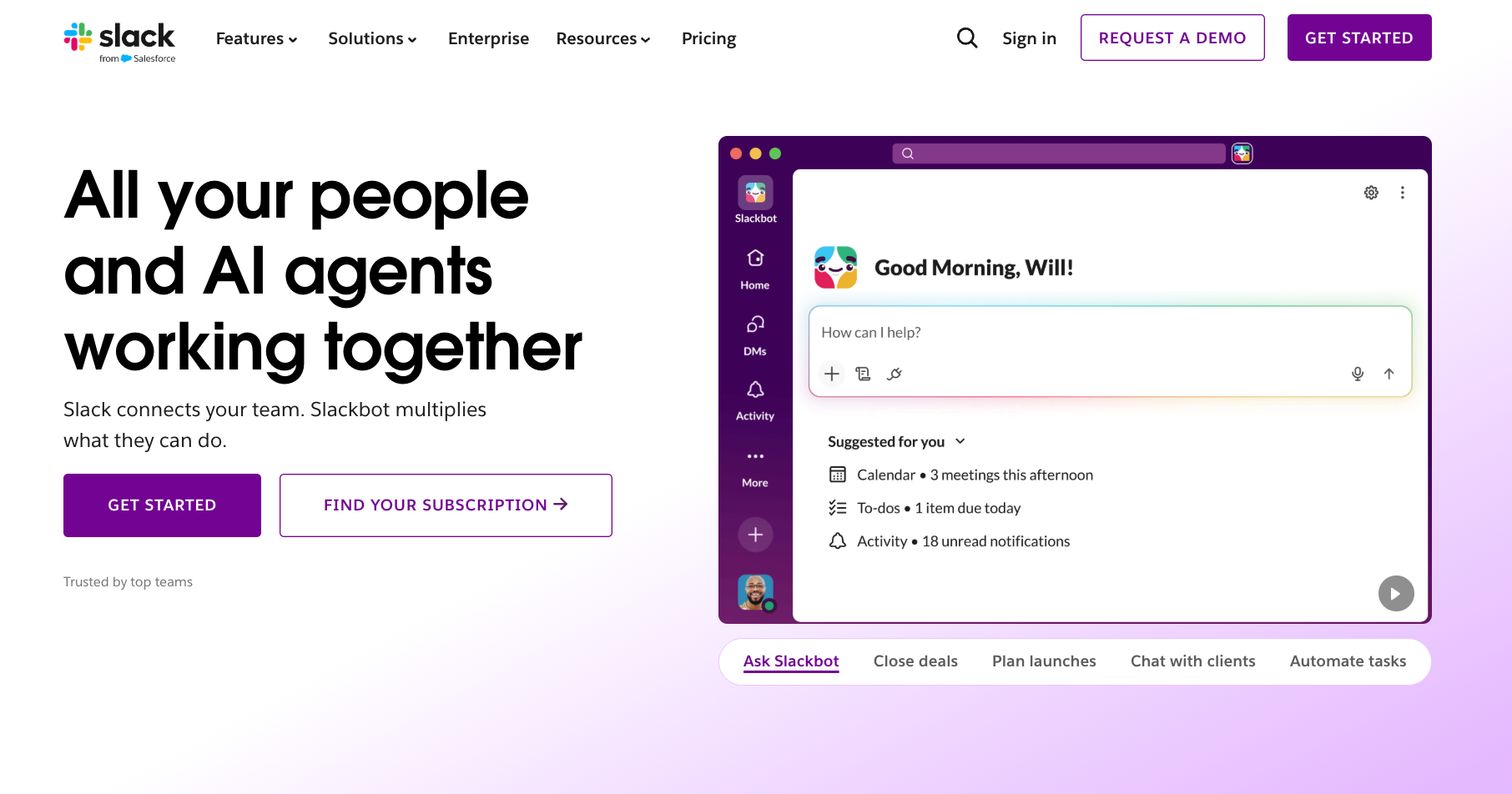
Slack gives teams a shared place to discuss work in channels, send direct messages, share files, and start audio or video conversations. A channel groups discussion around a project, department, or topic. That lets people follow the work without relying on separate email chains or asking someone to forward the missing context.
For example, a marketing team could keep a launch discussion in one channel. The brief, feedback, and launch-day questions would sit alongside each other instead of being split across individual inboxes.
Slack supports public and private channels. Public channels make information available to workspace members, while private channels restrict ordinary access to invited participants. Choosing between them affects who can discover the work later.
How much does Slack cost?
Slack offers Free, Pro, Business+, and Enterprise+ plans. Pro costs $8.75 per user per month, or $7.25 per user per month billed annually ($87/year). Business+ costs $18 per user per month, or $15 per user per month billed annually ($180/year). Enterprise+ has custom pricing. These are standard US dollar rates checked on October 21, 2026.
The pricing page also advertises a limited introductory discount. I would budget using the standard rate, then treat any eligible promotion as a temporary saving.
For a hypothetical team of 25 paid users, standard annual-billing rates put Pro at $2,175 per year ($87 per user) and Business+ at $4,500 per year ($180 per user), before tax. That's a $2,325 difference.
These calculations assume all 25 users are active throughout the year and exclude discounts or contract terms. Slack bills per active user on a 28-day activity window, so actual costs may be lower if some seats go inactive.
The useful question is what that difference buys your team. If you need a durable conversation history and group calls, consider Pro. If you want AI search answers or daily recaps, evaluate Business+ against those tasks. Paying for a tier because it has more features leaves the value question unanswered.
What are Slack’s free plan’s limitations?
The Free plan limits access to the latest 90 days of message and file history. Slack's help page also says workspace data older than one year is deleted. Older content can become inaccessible before it reaches the deletion threshold.
A decision from four months ago illustrates the problem. You might remember the channel and the person who posted it, yet still be unable to retrieve it on Free. Upgrading can restore access to retained history, but it cannot restore material already deleted.
Paid history is also subject to retention settings. I'd check those settings before promising the team that everything will remain available indefinitely.
Do Slack’s notifications need setup?
Slack provides controls for notification preferences, schedules, and channel-specific behavior. You can choose which activity deserves an interruption instead of treating every channel as equally urgent.
I'd set response expectations before inviting the whole company. Routine questions can wait for a scheduled check. An urgent customer issue needs a defined escalation route. Without that distinction, people may treat the notification badge as a queue they must empty all day.
What AI features does Slack have?
Slack includes different AI capabilities across its paid plans. Pro includes AI conversation summaries, Huddle notes, and support for third-party AI assistant apps. Business+ adds Slackbot (Slack's personal AI agent), AI search, daily recaps, file summaries, AI workflow generation, and AI language translations. Enterprise+ adds enterprise search across connected sources.
Slackbot is available to Business+ and Enterprise+ customers on an ongoing basis. Slack is opening a limited trial of Slackbot to Free and Pro users, but ongoing access requires Business+ or higher.
I'd evaluate AI through three specific jobs:
- Catch up on a discussion: A summary should help you identify the decision and what still needs attention. I'd inspect its linked sources before relying on it for a deadline or commitment.
- Find an answer: Business+ search answers can reduce the work of assembling context. The useful check is whether the answer reflects the latest decision rather than a superseded proposal.
- Follow quieter channels: Business+ recaps can help someone keep track of conversations they don't participate in daily. I'd choose channels where awareness matters but constant interruption doesn't.
The value depends on frequency. I'd have a stronger reason to evaluate Business+ for someone following several active projects than for someone who reads one small channel each morning. The upgrade needs to solve a repeated task.
Third-party assistants require a separate assessment of access, billing, and scope. Our guides to Claude Tag, Grok Bot, and ChatGPT Dots cover those products individually. Their capabilities shouldn't be treated as features included in a Slack subscription.
Slack search
Search matters most when you remember part of a conversation, but not enough to navigate straight to it. Slack supports filters for the sender, channel, date, and other properties. You can combine them instead of scrolling through an entire project history.
For example, suppose you need the approved launch budget. A search for "launch budget" in:#project-launch after:2026-06-01 before:2026-07-01 narrows the question to a phrase, place, and period. If you remember who posted it, adding a sender filter can narrow it further.
File sharing
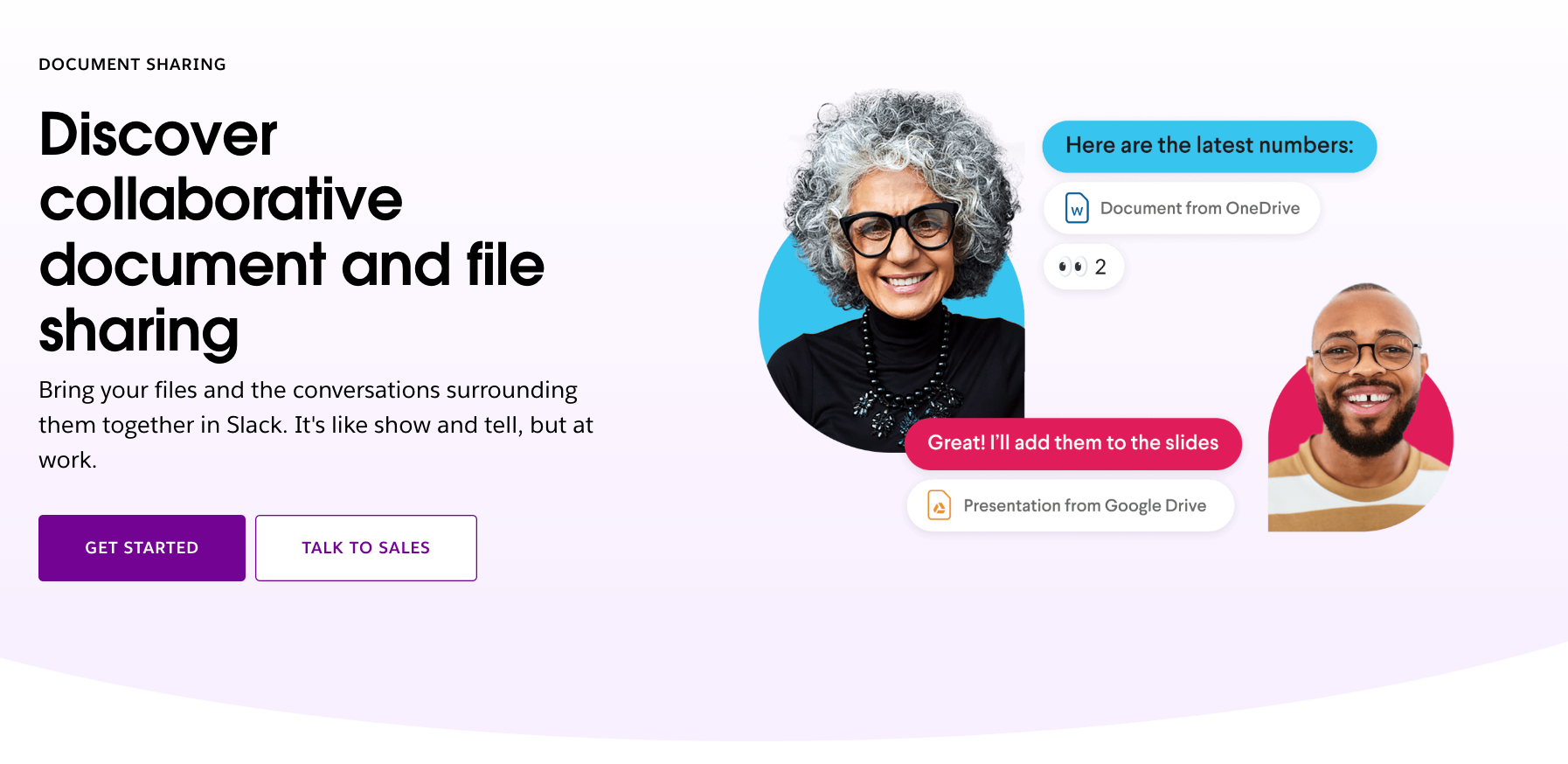
Slack lets people upload files into conversations or share material from connected storage apps. Its file-sharing page describes support for most file types, with uploads up to 1 GB.
For a review process, the benefit is context. A proposed design can sit beside the questions it raised. A spreadsheet can appear in the discussion about its assumptions. That makes the file easier to interpret than an attachment received without explanation.
I would still choose one home for the final version. If someone uploads a file to Slack, emails another copy, and updates a third in Drive, colleagues need a rule for identifying the approved document. Slack can carry the discussion without becoming the permanent storage location for every file.
The Google Drive integration helps preserve that distinction. Slack says files shared through its Drive app remain stored in Google Drive, even though they can be searched from Slack.
Canvas
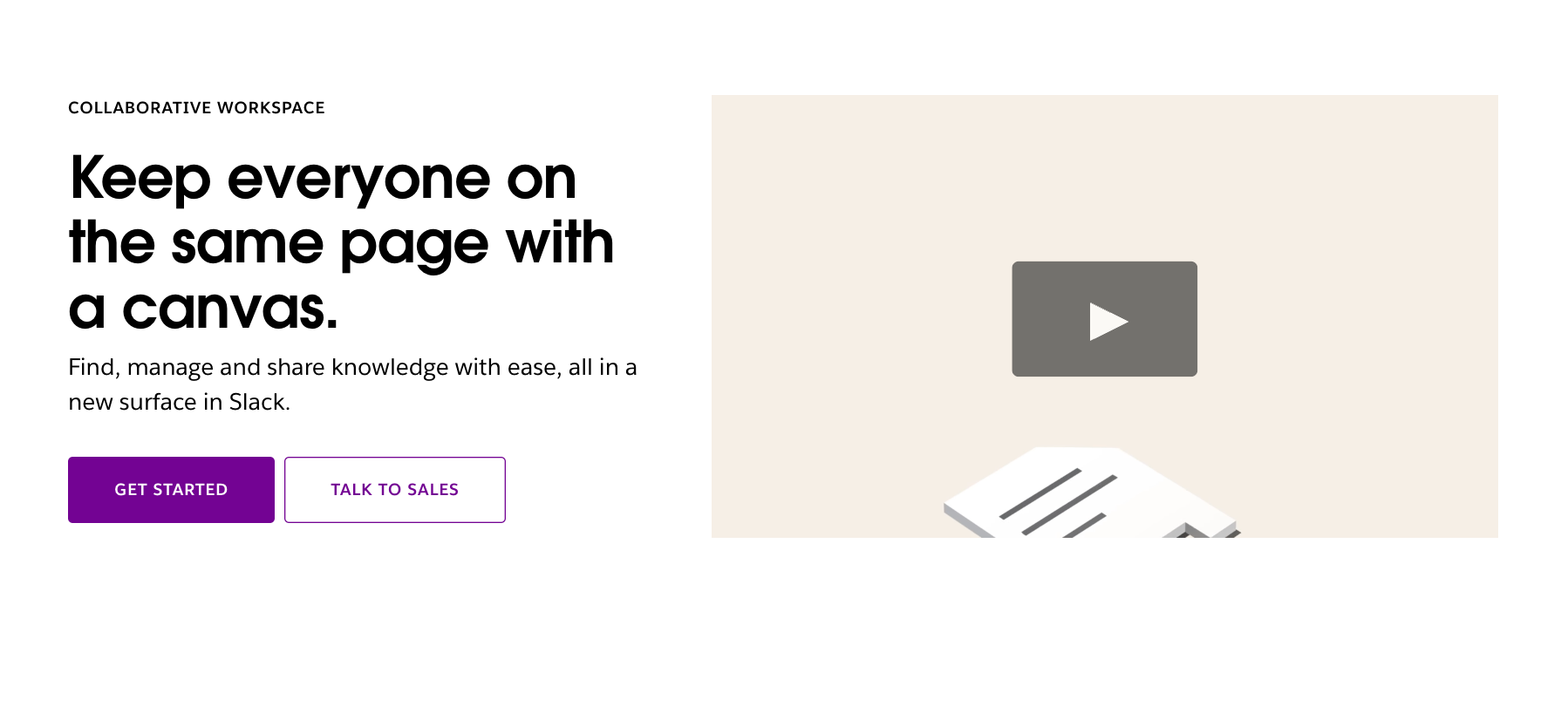
Canvas gives teams a place to create, organize, and share information inside Slack. It supports text, files, rich media, and link previews. You can also embed workflows in a canvas, making them easier to find alongside instructions on when and how to use them.
A Canvas is useful for information that should remain near a conversation: a project overview, a working checklist, or a set of reference links. I'd use it to give someone a starting point before they read a long channel history.
For a launch overview, I'd be comfortable keeping the key links and responsibilities in Canvas. For a document with a formal publishing or approval process, I'd assess those requirements separately. Keep the short reference page in Canvas and the full brief in one place, so nobody has to update two versions.
Integrations
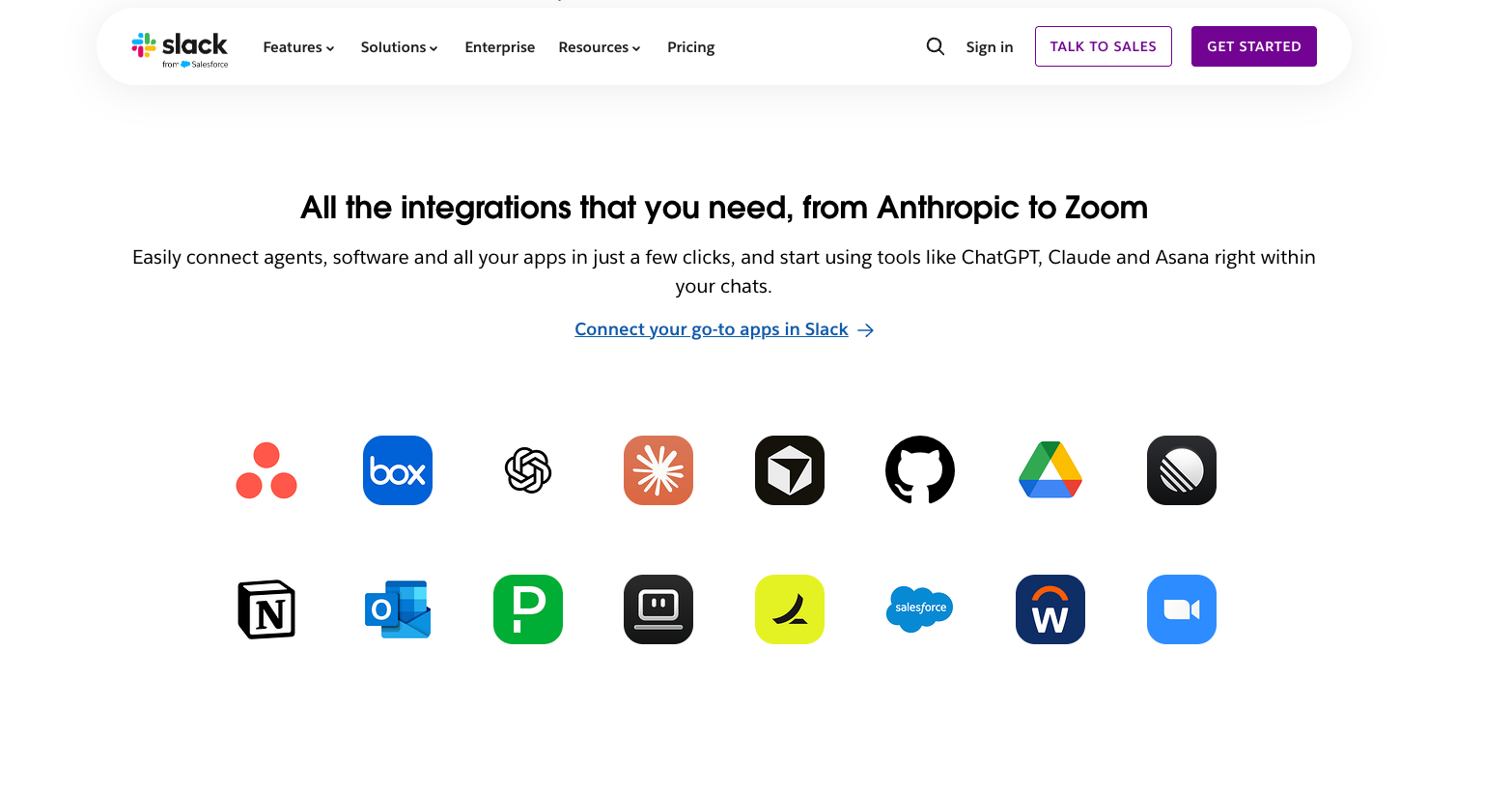
Slack connects with over 2,600 apps, including Google Drive, Asana, Salesforce, GitHub, and Zoom. These integrations bring files, project updates, customer information, and development activity into conversations. Depending on the app, teammates can review pull requests, update tasks, or approve requests without switching tools. Some connected services require a separate subscription.
How do Slack Huddles work?
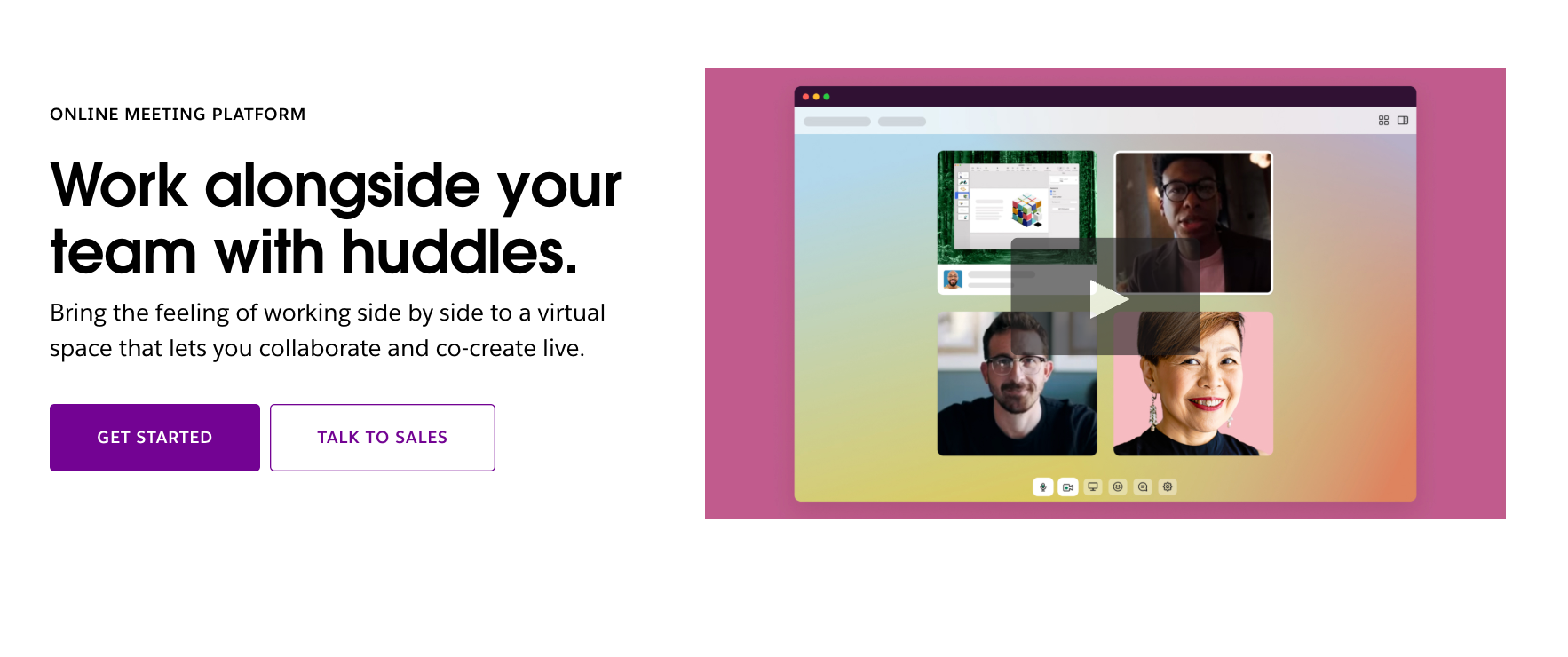
Slack Huddles turn channel or DM conversations into live audio or video calls, with screen sharing and a dedicated discussion thread. Free supports two participants, for up to 30 minutes. Paid plans support up to 50, with up to 25 using video at once.
Huddles suit quick reviews and troubleshooting without a separate calendar invite. Teams needing group calls must use a paid plan or another meeting tool. Check audio and screen-sharing quality on your team’s devices before relying on Huddles for regular meetings.
What can Workflow Builder handle?
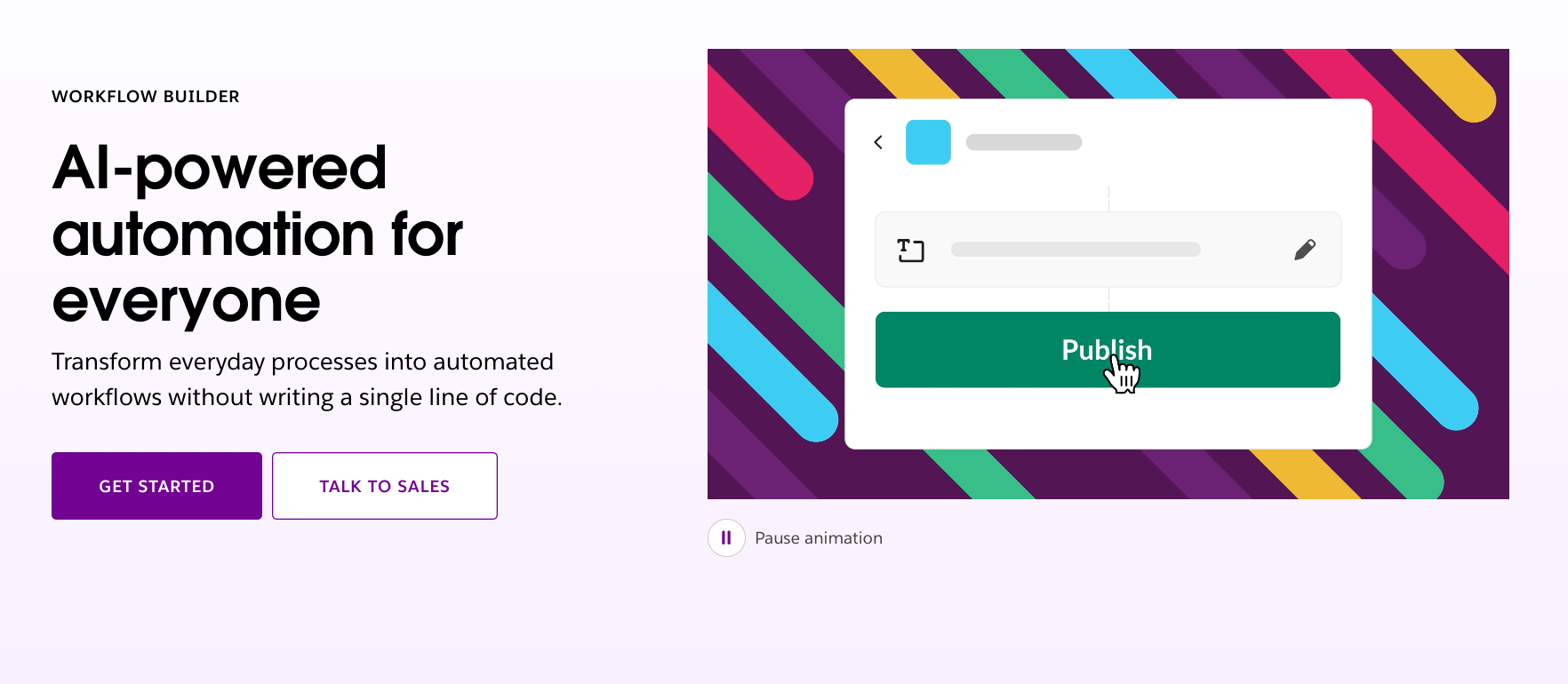
Workflow Builder provides a way to set up repeatable tasks in Slack, including workflows connected to other apps. It is available on paid plans.
An example would be an internal request form. Someone submits the required details, and the workflow posts them to the team responsible for responding. I'd define what happens after that post before building anything: who reviews it, how the requester receives an answer, and how exceptions are handled.
Business+ and Enterprise+ support conditional workflow branches, letting you build multi-route approval processes within a single workflow. That means an approval process with different routes doesn't automatically require another product. Check whether the needed conditions, app connections, and actions are supported in the plan you're considering.
If the requirement calls for a custom app, our guide to how to create a Slack bot explains the available approaches. Keep the business task clear before choosing how to build it.
{{templates}}
Slack pros and cons
Slack's main advantages are topic-based conversations, searchable context, Huddles, and connected apps. Its main trade-offs are the Free history restrictions, per-user subscription costs, and the effort needed to keep channels and notifications useful. I'd judge the balance by how often your team needs to recover earlier work and act on shared information.
Who is Slack for?
Slack fits teams that coordinate ongoing projects through shared discussion and need to recover that context later. The best plan depends on the work, rather than a fixed headcount.
I'd separate the decision into three groups:
- Small teams trying Free: Start here if recent conversation is enough and important decisions live in a separate, maintained record. Check the history restrictions before treating Slack as your archive. A small team can still need information from last quarter.
- Growing teams considering Pro: Evaluate Pro when colleagues repeatedly need older conversations, group Huddles, or paid workflow capabilities.
- Larger organizations considering higher tiers: Start with the controls IT needs to manage identity, data, and access. Ask the buying team to connect each requirement to a documented Enterprise+ capability and contract.
For a team whose existing chat tool already covers its needs, I'd check the alternatives at the end of this article first. That includes small teams watching every subscription and organizations that would otherwise maintain two parallel chat systems.
Async-first teams can work well in Slack. The question is whether people post complete updates, wait for replies, and keep decisions discoverable.
If every message creates an expectation of an immediate answer, changing the tool alone won't fix the working pattern.
Is Slack worth it?
Slack is worth paying for when your team uses shared conversation as part of its working record and regularly needs to recover that context. I'd choose Pro for those core collaboration needs, then evaluate Business+ when its additional AI or administration capabilities solve a specific recurring problem.
I wouldn't pay for Slack because clients or peers use it. I'd ask a colleague to find an earlier decision, follow a project they haven't worked on, and complete one handoff through an integration before committing.
Those checks reveal whether the team is getting searchable context and completing real work through the subscription.
I recommend choosing a plan around the information you need to retain and the collaboration you do every week. That gives you a clearer buying decision than comparing feature counts.
What are the best Slack alternatives?
Microsoft Teams, Google Chat, and Discord are the best Slack alternatives. None is an automatic replacement for every Slack workspace. Start with the tools your team already uses, then check what a switch would change about everyday communication and access to earlier work.
- Microsoft Teams is a workplace communication app that combines chat, channels, video meetings, and calling. It connects with Microsoft 365 tools, making it an option for organizations already using that suite. Teams supports ongoing project conversations and scheduled meetings, though availability depends on the organization’s specific Microsoft subscription and licensing.
- Google Chat is a messaging app for direct conversations, group chats, and shared spaces. It works alongside Gmail and other Google Workspace tools, letting teams discuss projects and share documents within their existing setup. Spaces organize conversations around a team or topic, while direct messages handle individual questions and smaller exchanges.
- Discord is a communication app that organizes communities into servers with text and voice channels. It supports group discussions, video calls, and screen sharing. Forum channels give individual topics their own discussion space. Its community-focused structure suits informal collaboration, though businesses should assess their administration and data requirements before adopting it.
For any switch, I'd account for the transition too. Moving the active conversation while leaving old decisions behind can create two places to search. Decide what needs preserving, who needs access, and where new decisions will live before making the change.
How does Lindy work in Slack?
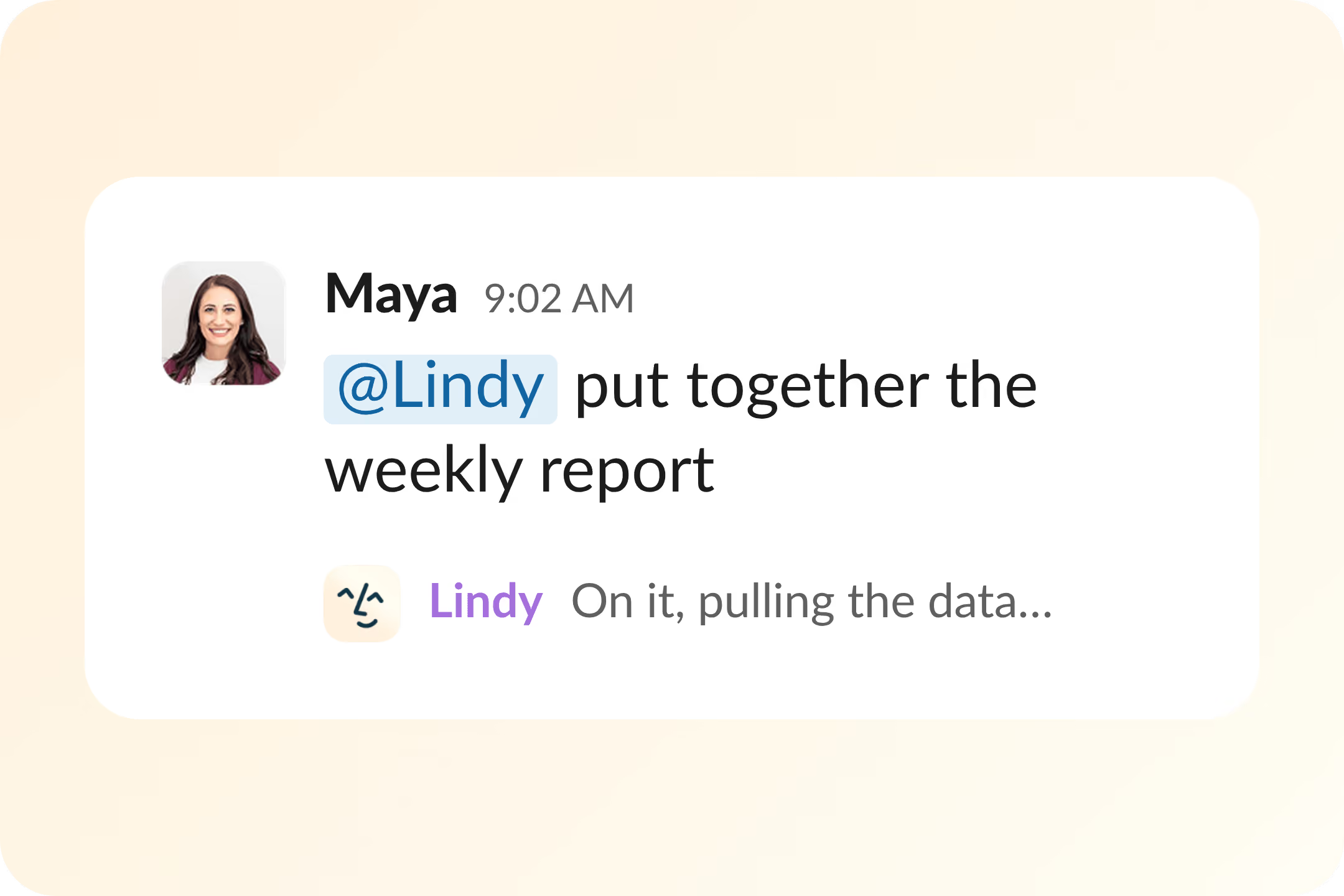
Lindy is an AI assistant that works inside Slack. Mention it in a channel for a shared task, or send a DM for work involving your connected accounts. It replies in the same conversation, so you can ask follow-up questions without starting over.
Here’s how to get started:
- Install and connect: An owner or admin installs Lindy from the Integrations page, selects the Slack workspace, and approves access. New installations require a paid Slack plan. Each teammate then links their account through the Connect Slack to Lindy button sent after their first message.
- Ask in a channel or DM: Mention Lindy in a channel or thread to get a reply within that thread. Once it responds, you can continue with clear follow-up messages without mentioning it again. Send personal requests through a DM rather than posting them in a shared channel.
- Give it a specific task: Ask Lindy to research a topic in a shared channel or prepare a meeting brief in a DM. Shared channels support research and shared tasks; DMs support personal work like email, scheduling, and reminders through connected accounts.
- Manage access and usage: Use /lindy usage to check your last seven days of Slack diagnostics or /lindy unlink to disconnect your account. Admins can check the workspace connection and adjust how far back Lindy reads the preceding conversation for context. Slash-command responses are visible only to the person running them.
- Understand the trial: New teammates joining through Slack receive a one-time seven-day free trial before their seat is billed. Admins receive an email identifying who joined and a link to remove them. Returning teammates don’t receive another trial, and paid seats remain billed until an admin removes them.
Try Lindy free and see how it handles your first week.
{{cta}}
FAQ
Is Slack a legit app?
Yes, Slack is a legitimate workplace communication app with official paid plans, product documentation, and published administration controls. That establishes what the service is, but doesn't make it the right purchase for every team. Download it through Slack's official channels, confirm workspace invitations, and judge its suitability against your team's communication needs.
Can my employer see what I do if I have Slack on my phone?
Your employer's access to Slack activity on your phone depends on workspace export permissions and policies. Public-channel exports are available across plans, while broader access has conditions and exceptions. Slack's export documentation doesn't describe general phone monitoring. A managed device may have separate controls, so check your employer's device and workplace policies.
What are the limitations of the free version of Slack?
The free version of Slack limits message and file access to 90 days. It supports up to 10 app integrations and restricts Huddles to two participants and 30 minutes. Data older than one year is deleted. These limits matter when the team depends on earlier decisions, needs several connected apps, or wants to discuss work in group calls.
Is Slack free to use?
Slack is free to use on its Free plan, which has no subscription charge and includes basic team communication. You need a paid plan for capabilities such as longer-term searchable history and group Huddles. I'd decide whether Free fits by checking the information your team needs to retain and the calls it needs to hold.
Can you automate tasks with Slack integrations?
Yes, Slack integrations can automate tasks through Workflow Builder connectors. For example, a workflow can add a row to Google Sheets or create a Salesforce record without code. Teams with custom requirements can also build apps using Slack’s APIs. Check that the integration supports the specific action you need before setting up the workflow.