How to Create a Slack Bot 3 Ways, With or Without Code
Lindy walked through building a no-code Slackbot, covering prerequisites, step-by-step setup, real-world examples, advanced features, and troubleshooting for automating everyday Slack tasks.


I've walked through all three setups. Two need no code (Lindy and Slack's own Workflow Builder), and one starts from a blank Slack app with scopes and a bot token.
Below are the steps to create a Slack bot on each route and what each one costs once the bot is live.
3 ways to create a Slack bot, at a glance
Each route below ends with a working Slack bot, and they differ in who builds it and where it gets its answers. Pick the one that fits your bot's job:
- Choose Lindy if the bot has to answer from tools outside Slack, like Notion, Drive, or your CRM. Lindy is an AI assistant you add to Slack, and it replies to plain-English requests once you connect those tools.
- Choose Slack's Workflow Builder if the bot follows set steps on a trigger and only draws on Slack content. Workflow Builder is the no-code automation tool that comes with paid Slack plans.
- Choose a custom Slack app if the bot needs logic no builder offers. You create the app in Slack's developer settings and write what the bot does in code.
The table below compares the three routes by how long setup takes, what you pay, and what the finished bot can do.
Setup, cost, and features by route
Lindy and Slack both bill per seat, so multiply by your team size.
If the price doesn't settle it, create a Slack bot on the route that matches the first job you'd hand it. You can add another later without touching the one you set up.
What you need before you create a Slack bot
Whichever route you pick, check these four items first, since most of them depend on your Slack admin. Have them ready before you begin:
- A paid Slack plan for the no-code routes. Slack's Workflow Builder only runs on paid plans. Lindy works on any Slack plan, including free. The developer route still works on a free workspace, which allows up to 10 third-party or custom apps.
- Permission to install apps. By default, any member can install apps without a Workspace Owner's approval. But an owner can turn on app approval, and then every new app waits for their OK. With Lindy, a team admin adds it before anyone else can use it.
- One job the bot can own end to end. A PTO question or a Friday timesheet reminder is a good example. Decide on it first, because the job tells you which route to take.
- Access to wherever your team's knowledge lives. Whether that's a Notion page, a Drive folder, or your CRM, you'll connect it when the setup prompts you.
With those ready, the no-code routes are the short ones. Slack's Workflow Builder guide has four steps, and Lindy's install is one Install Slack app click plus Slack's permission screen.
The coded route takes longer, with five setup steps in Slack (scopes, events, and channel membership among them) and a sixth where you write the code that makes your bot reply.
How to create a Slack bot with Lindy
Difficulty: Easy
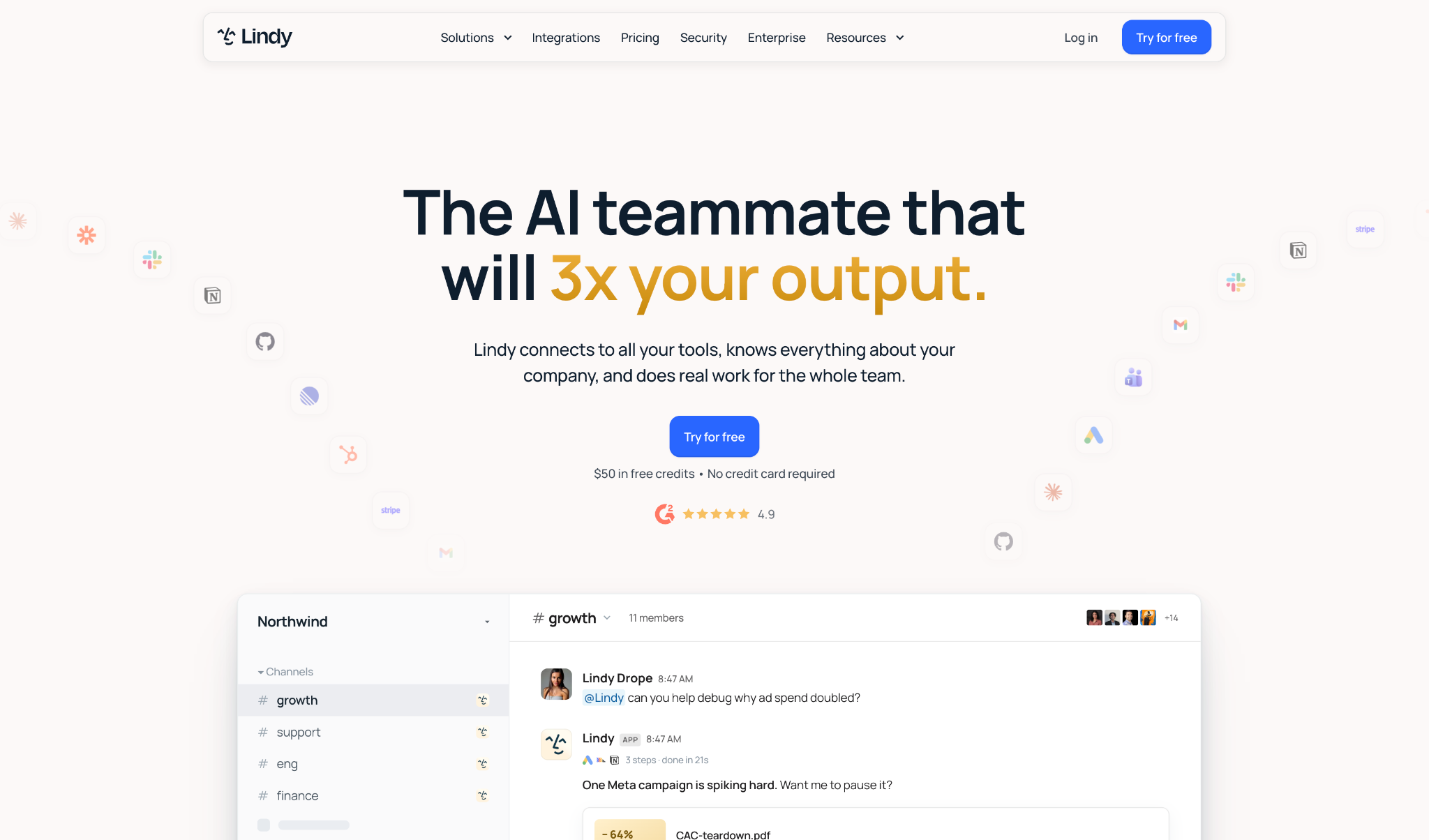
On this route, the Slack bot is Lindy itself, an AI teammate that lives in your Slack, so there's no bot to design. You install it and start asking in everyday language.
Start the install from Lindy's website, because the Slack Marketplace lists an unrelated app with the same name that delivers microlearning courses.
1. Install the Slack app from Lindy
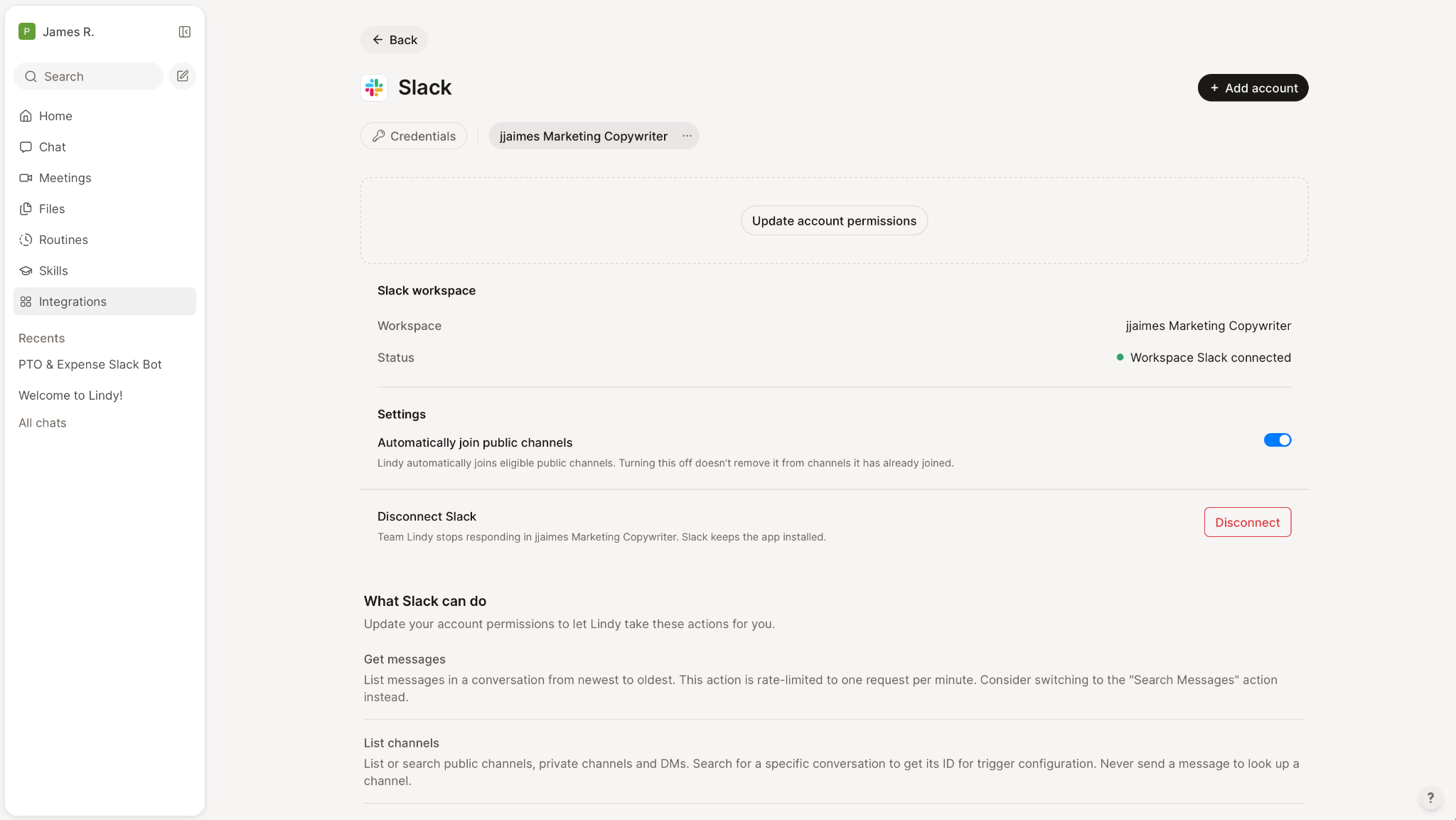
Your team already uses Slack, so this step only connects Lindy to it. An admin opens the Integrations page in Lindy's sidebar and clicks Install Slack app under Set up Lindy Teammate in Slack. Pick your workspace and select Allow on Slack's permission screen.
Your Teammate settings then show Slack as Installed, and that admin is linked with no extra step.
2. Link each teammate
Everyone else links their own account. When a coworker messages or @mentions Lindy before linking, they get one DM back with a Connect Slack to Lindy button. They tap it and finish linking, and Lindy then replays their original message.
Warn the team before you install. A coworker who skips the Connect DM won't get an answer until they link.
3. Connect the tools you use
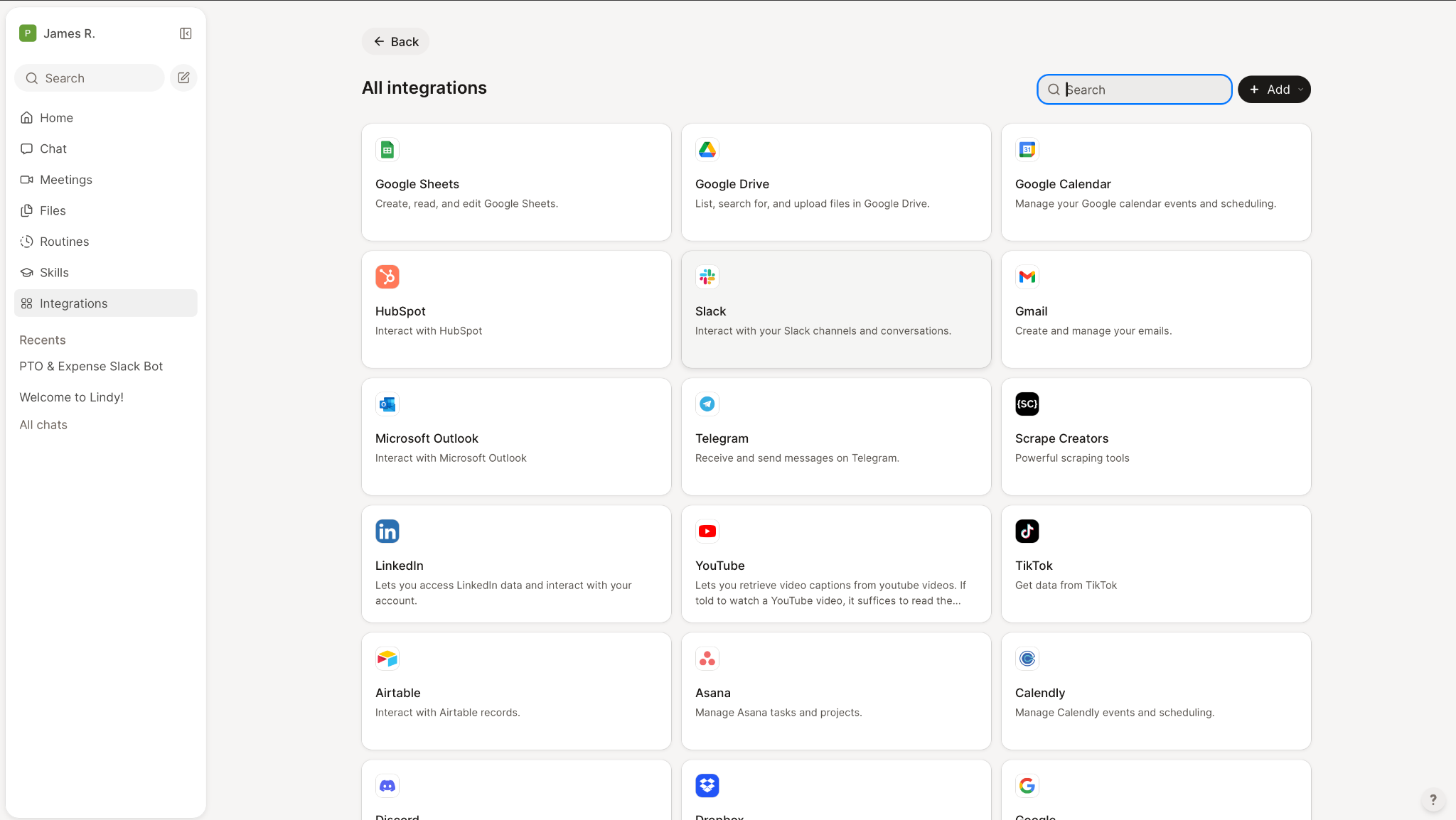
Link a Google or Microsoft account for email and calendar, and add a phone number or Apple Messages if you want to reach it by text. Everything else comes from Lindy's library of 1,000+ integrations, and it works with the ones you authorize.
For apps outside the library, Lindy supports MCP. On the paid Team plan, which includes computer use, Lindy says it can "drive the browser the way a person would, or write its own integration against the tool's API."
Lindy answers from the sources you've connected, so I set up the one a question depends on before anyone asks it.
4. Tell your Slack bot what to do
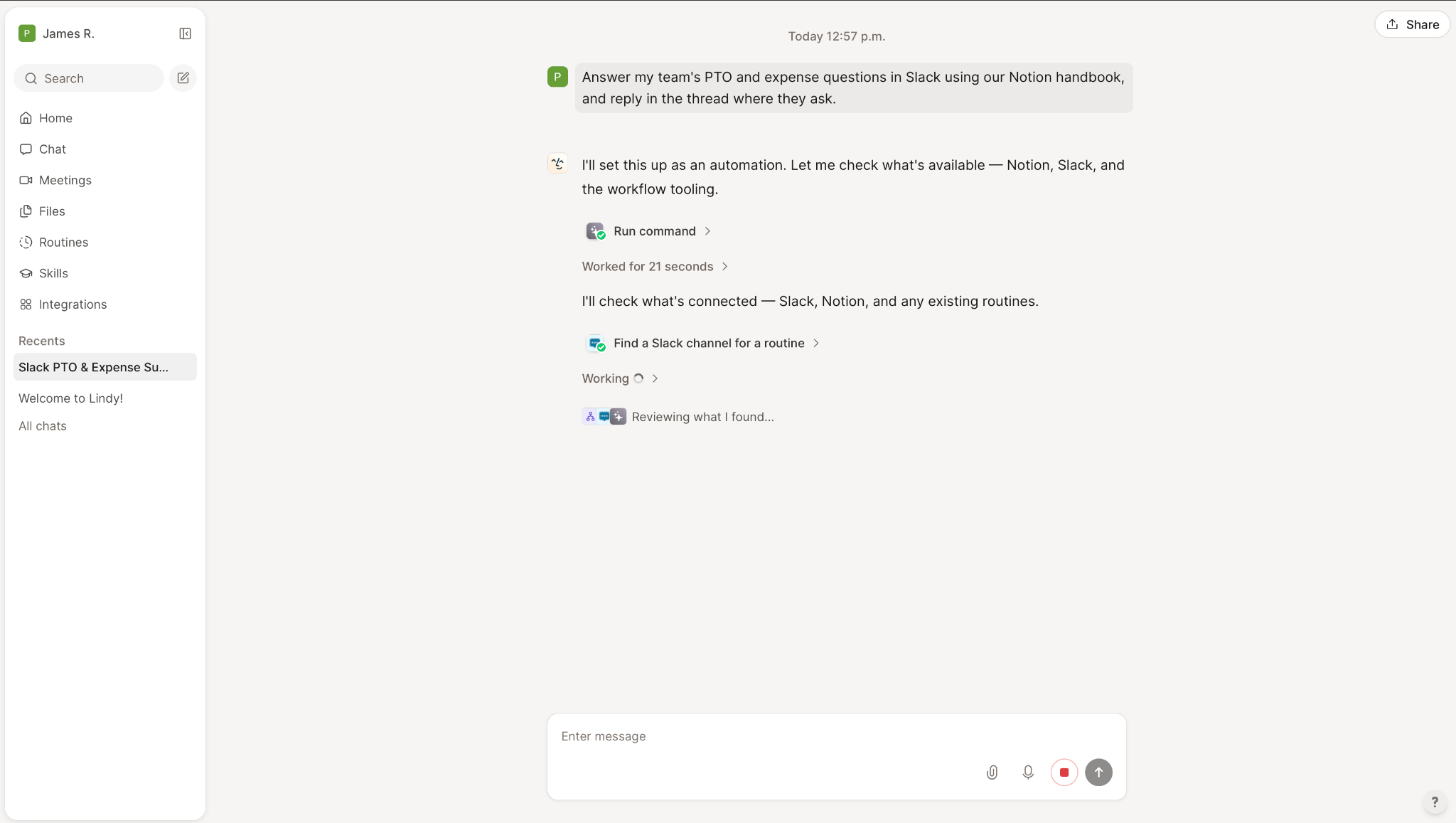
Once the connections are in place, you can give Lindy a job in three ways.
Ask it in a thread
Mention it in any channel it's been added to, or inside a thread, and phrase the request the way you'd message a coworker. The whole channel can read the reply, so Lindy keeps what it posts there public-safe ("Taking your Slack bot further with Lindy" has more on that mode). Here's an example question:
@Lindy what did customers push back on this month?
Put it on a schedule
A routine runs a plain-English prompt on a trigger you choose, and you can create one just by asking:
Every Monday at 9, check my inbox for emails from investors and alert me.
New routines run daily at 9 AM by default, so name the timing you want in the request itself.
Teach it a procedure
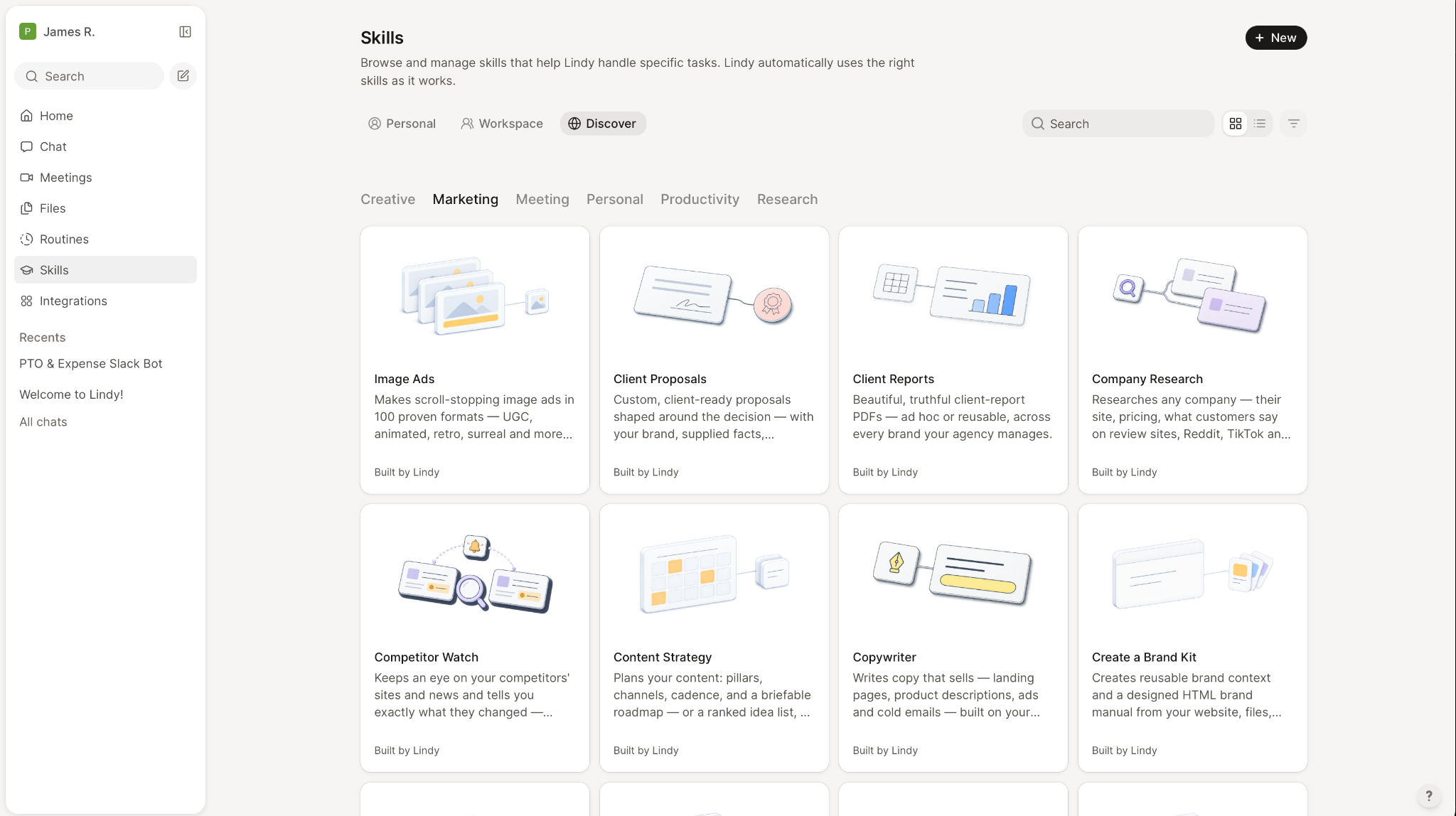
A skill saves instructions you'd otherwise retype every week. Here's the docs example:
When I ask for my weekly report, pull the numbers from the dashboard, lead with the top three changes, and keep it under a page.
The Skills feature is still rolling out behind feature flags and "isn't available to everyone yet," so check your sidebar before you plan around it.
5. Set the guardrails
Each guardrail covers a whole integration, and you pick Always allow, Require approval, or Don't offer. Read-only actions don't need approval, and "every action for that tool turns on at once, so there's no action-picking step."
I'd put anything that sends or posts on Require approval for the first week. Once a week of requests goes by without a denial, switch that integration to Always allow.
6. Test it before the team does
Try it in a private DM first. Ask the same question three or four different ways there, and keep the wording that gets the right answer.
Then mention it in one low-traffic channel. Check whether the reply lands in the thread or the channel, and have it post something so you can watch the approval request arrive.
{{templates}}
How to create a Slack bot with Workflow Builder
Difficulty: Medium
Workflow Builder is Slack's no-code tool, included on all paid plans. The steps below build the same welcome bot as Slack's developer tutorial, without the TypeScript that tutorial has you write.
1. Open Workflow Builder
Click Agents & tools in the sidebar. From Workflows, click New in the top right, then select Build Workflow, as Slack's walkthrough lays out.
2. Choose what starts the workflow
Click Choose an event. Slack offers seven starting points:
- From a link
- From a webhook
- On a schedule
- When a list item is updated
- When a message is posted
- When a person joins a channel
- When an emoji reaction is used
For a welcome bot, pick When a person joins a channel and choose the channel. Then click Continue.
3. Add the message
Search for a Slack message step, write the greeting, and click Save. Add a connector step if you also want to log each new member in another app.
4. Publish it
Give the workflow a title and a description, then click Finish Up in the top-right corner. Review the details and select Publish.
Then test it by asking a teammate to join the channel, since the trigger fires on joins and nothing else.
Workflow Builder runs your steps in the order you set them, which covers fixed jobs like greetings and reminders. On the new Business+, the version that bundles Slack's AI features, it adds branches that follow button or form choices and an AI answer step that draws on Slack files and channels.
Connector steps can pull data in from other apps, but the AI answer step only reads Slack files and channels. For a bot that answers questions from your other tools, you'll need Lindy or a custom Slack app.
How to create a Slack app in Slack
Difficulty: Hard
Slack's developer docs walk you through the coded route. Take it when you want to create a Slack bot with logic you write yourself.
Steps 1 to 5 happen in your browser with no code, and step 6 is the code that makes your bot reply.
1. Create your Slack app
Go to api.slack.com/apps. You'll land on a page headed Your Apps, and Slack will tell you that "you'll need to sign in to your Slack account to create an application."
Sign in and click Create an app. Slack's app quickstart has you select Blank app, click Continue, enter a name, choose the workspace it belongs to, then select Create.
The name is what your team sees in the member list, so pick one they'll recognize, like "PTO Helper."
2. Add the bot token scopes
Open the OAuth & Permissions page. Under Scopes, find Bot Token Scopes and request only what the bot needs, because every scope you add stays on the token. A starter bot needs four scopes:
- chat:write lets it "send messages as your Slack app."
- app_mentions:read lets it "view messages that directly mention your Slack app in conversations that the app is in."
- channels:history lets it "view messages and other content in public channels that your Slack app has been added to."
- Include commands if you want slash commands. Slack describes it as letting you "add shortcuts and slash commands that people can use."
Keep the list short. Scopes accumulate across installs, and one can't be removed from an existing token without revoking that token entirely.
3. Install the app and copy your Slack bot token
Click Install to Workspace and approve the permission screen. Slack returns an access token, and the prefix tells you which kind you're holding. Check it before your first call, because a call made with the wrong kind fails. Slack uses four prefixes:
- xoxb- is a bot token, which represents a bot tied to an app installed in one workspace.
- xoxp- is a user token, which acts on behalf of a person.
- xapp- is an app-level token, which covers your app across organizations.
- xwfp- tokens belong to workflows and expire 15 minutes after they're issued, or when the function step completes or returns an error, whichever comes first.
Your Slack bot token is the xoxb- one. Slack's docs tell you to keep tokens secret and, "at a minimum, avoid checking them into public version control." Anyone who has it can use whatever permissions it carries.
4. Turn on events so it receives mentions
Your bot can post now. But it can't receive events yet. Open Event Subscriptions in your app settings, switch it on, and choose whether Slack delivers events to an HTTP request URL or through Socket Mode.
Socket Mode lets your app use the Events API "without exposing a public HTTP Request URL," so you don't host an endpoint. You turn it on with the Enable Socket Mode toggle, and it uses an app-level token that starts with xapp-.
Then subscribe to the app_mention event. It fires only on messages that mention your bot, and it relies on the app_mentions:read scope from step 2.
5. Add the bot to a channel
Skip this step, and Slack won't send your bot the mentions from that channel. Slack's app_mention docs say that "if your app is mentioned but not part of a conversation (and not invited to join), you won't receive an event."
To invite it, click the channel name in the channel header and open the Agents & apps tab, or mention the app in a message in that channel, as Slack's apps guide describes.
6. Write the code that replies to mentions
From here, Slack sends your app an event whenever someone mentions it. What the bot says back is code you write. Slack's quickstart starts you on Bolt with the Slack CLI, and the welcome bot tutorial uses the Deno Slack SDK instead.
Here's a minimal Bolt app in JavaScript that replies in the thread whenever someone mentions your bot. Install Bolt with npm install @slack/bolt, then save this as app.js:
const { App } = require('@slack/bolt');
const app = new App({
token: process.env.SLACK_BOT_TOKEN, // your xoxb- token from step 3
appToken: process.env.SLACK_APP_TOKEN, // your xapp- token from step 4
socketMode: true,
});
app.event('app_mention', async ({ event, say }) => {
await say({
text: `Hi <@${event.user}>, I'm up and running.`,
thread_ts: event.ts,
});
});
(async () => {
await app.start();
console.log('Your Slack bot is running');
})();
Set both tokens as environment variables and run node app.js. Your app-level token needs the connections:write scope for Socket Mode to connect. Mention the bot in the channel from step 5, and it should reply in the thread within a few seconds.
What's the difference between a Slack app, a bot, and Slackbot?
A Slack app is what you create in Slack's settings to hold your bot's permissions, and the bot is the member of your workspace that posts and replies on the app's behalf. The bot is what this guide shows you how to build. Slackbot, with a capital S, is Slack's own built-in AI assistant, and you can't build or change it. How much you can use it depends on your Slack plan.
People often say "slackbot" for any bot in Slack, but Slack's token docs keep the terms apart. A bot token always belongs to a bot tied to an app installed in one workspace.
Slackbot's usage rules cap each Business+ member at 15 messages to Slackbot per week, on a Monday-to-Sunday cycle. Enterprise+ organizations aren't subject to weekly or lifetime message limits, and Free or Pro workspaces get a limited preview.
Choosing between Slackbot and your own bot comes down to who owns it. Slack sets Slackbot's limits and roadmap. With a custom bot, you own the code and every fix.
Which route suits your bot
I put the three routes next to four no-code builders that also plug into Slack. Each price is the vendor's first paid tier, billed monthly unless noted, and links to its pricing page.
Lindy and Slack charge per seat. Zapier and n8n list one price for the account. Botpress and Workato do too, and that price covers up to three seats.
On its Slack page, Zapier says Slack "integrates with 9,000 other apps," and Workato handles Slack through Workbot. Zapier, Botpress, and Workato each have a free tier below the price shown, and n8n's Community Edition is free if you host it yourself.
Go with code when your bot requires custom logic, or it touches an internal system with no public API.
Go with no-code when the bot answers questions or posts on a schedule. Every bot in the next section falls in that group, and our list of 7 workflow tools covers more no-code options for jobs that reach past Slack.
n8n's Python vs low-code comparison reaches the same conclusion, recommending Python for "full control over the Slack bot's logic and functionality" and low-code for "rapid Slack bot development."
If the bot has to answer customers on your website, a tool like Social Intents covers that job. By its own guide, it hands website chats to your team inside Slack. Customer support is a different job from an internal bot, so I left it off the table.
5 Bots worth building first in Slack
The first time you create a Slack bot, pick one you can test in under a minute. Each heading names the tool you build it with:
1. Welcome bot (Workflow Builder)
A new member joins a channel and gets the links they'll want on day one. Build it in Workflow Builder with the When a person joins a channel trigger.
Keep it to three links and one sentence, short enough to read without scrolling.
2. Stand-up bot (Lindy)
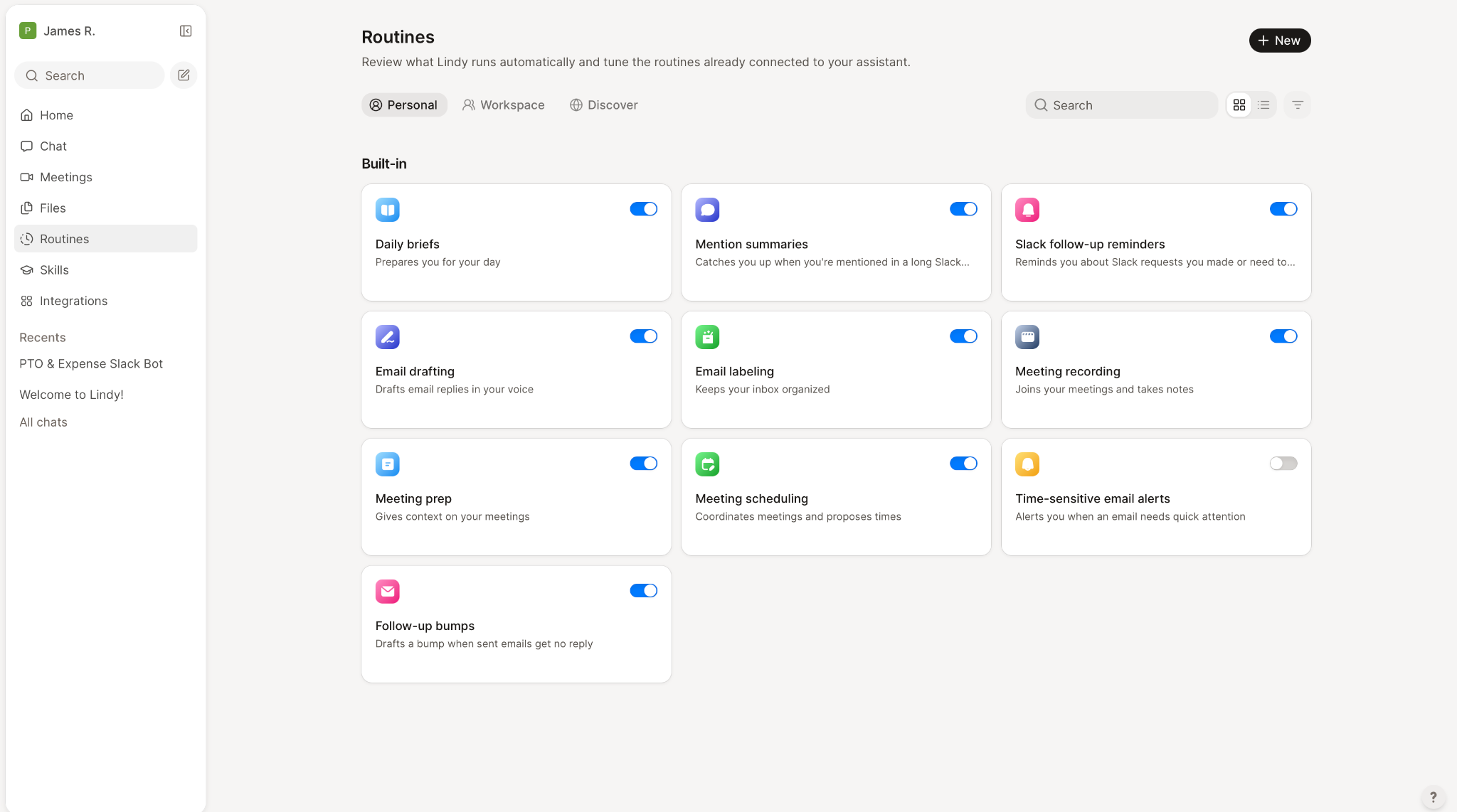
A stand-up bot replaces the daily stand-up meeting with written check-ins in Slack, and in Lindy it runs as two routines. One posts in the team channel every weekday at 9 AM, asking what people did, what's next, and what's blocking them. The other reads the replies in that thread at noon and posts a summary.
Lindy's Slack integration includes the actions a stand-up bot depends on, such as List Replies and Send Channel Message. The reading routine only picks up replies posted before it runs, so replies posted after noon miss that day's digest.
3. Timesheet reminder bot (custom Slack app)
Workflow Builder's On a schedule trigger can post a recurring reminder, like timesheets every Friday at 4 PM, but it sends the same message to everyone you select. A custom Slack app can check your time-tracking tool first, if that tool has an API, and send a DM only to the people who haven't logged their hours.
The bot posts with the chat:write scope from step 2 of the custom Slack app route, and the check against your time-tracking tool is the code you write.
4. FAQ and HR bot (Lindy)
If people keep asking the same questions about PTO, expenses, or where the deploy doc lives, connect the Notion page or Drive folder that answers them. Lindy replies from those sources when someone asks in a thread.
Lindy's answers can be wrong, like any AI tool's. For anything with payroll or legal weight, have the bot link the policy so people read the exact wording themselves.
The same setup works for building an AI chatbot outside Slack. For bots that talk to customers, our roundup of AI chatbots for business compares the options.
5. Ask-your-data bot (Lindy)
An ask-your-data bot answers questions about your numbers in Slack, so nobody has to open a dashboard to find out what changed. Connect your analytics, CRM, and product tools, then ask something like Why are signups down this week? Lindy checks each connected tool and replies in the thread with the likely cause, such as a site change that hid the mobile signup button.
It can only check the tools you've connected. The answer also arrives as a summary, so check it against the source it names before you act on it.
Is a Slack bot free?
A Slack bot is free only if you code it yourself and run it on a server you already pay for. Workflow Builder needs a paid Slack plan, and most builders charge on top of whatever Slack plan you're on.
The cost comes from three places:
- Your Slack plan. Workflow Builder and Lindy both need a paid plan, and the entry one, Pro, is $8.75 per person a month, or $7.25 billed annually. Slackbot comes included with Business+, at $18 per person a month, or $15 billed annually, while Free and Pro get a limited preview.
- The builder you use. Lindy's Team plan starts at $29.99 per user a month for 3,000 credits, and each seat can step up to more, like 15,000 credits for $99.99 or 35,000 for $199.99. Plan credits refresh each billing cycle and don't roll over, though purchased top-up credits carry over and don't expire.
Enterprise is custom, and it's the only tier with a signed BAA for HIPAA. Past their free plans, Zapier's Professional tier starts at $29.99 a month and Botpress's Plus at $189 a month.
- Hosting, if you code the bot. A bot built with Bolt needs a server or a Socket Mode process running somewhere, and that bill is yours. Apps made with the Deno Slack SDK run on Slack's own infrastructure instead.
For tools outside Slack, our rundown of free AI assistants compares what each one includes at no cost.
Taking your Slack bot further with Lindy
Once the basic setup works, Lindy adds two features that matter as more of your team starts using it. Each one covers a different job:
- Keeps answers public-safe: In shared channels, it summarizes whenever the full reply holds private data. The docs don't spell out how it judges what's private, so a channel with outside guests should get a stricter guardrail setting.
- Lets admins approve actions: You set one guardrail per tool, and any workspace owner or admin can approve a waiting request. The security page says "every action Lindy takes is logged," and the company is SOC 2 Type II, GDPR, HIPAA, and PIPEDA compliant, though the signed BAA sits on Enterprise.
Before you plan around any of it, check the requirements. An admin has to install it before anyone else can use it.
To create a Slack bot your whole team can ask questions, add Lindy to your Slack workspace. Lindy has a Free plan, but its $50 in credits lasts only 7 days.
Once you create a Slack bot that works, our guide to 10 AI agent builders covers workflows beyond Slack.
Frequently asked questions
How long does it take to create a Slack bot?
Creating a Slack bot without code takes two minutes on Lindy, per its homepage, and a few minutes in Slack's Workflow Builder, whose guide runs to four steps. A custom app takes longer: five setup steps in Slack, then a sixth where you write the code. A bot that only replies to mentions needs about 20 lines, and anything more complex adds to the timeline.
Do I need admin rights to create a Slack bot?
No, you don't need admin rights to create a Slack bot by default. Slack says members can install apps without approval from a Workspace Owner, unless an owner requires pre-approved apps. Lindy works differently because a team admin installs it once, and everyone else links their account afterward.
Is there an AI bot available for Slack?
Yes. Slackbot gives Business+ members 15 messages to Slackbot per week and Enterprise+ no weekly cap, while Free and Pro only get a limited preview. AI assistants like Lindy join your workspace and answer when mentioned, and the FAQ bot above shows one way to set that up.
Where do I find my Slack bot token?
Your Slack bot token appears on the OAuth & Permissions page in your app settings, once you've installed the app to a workspace. It starts with xoxb-. The user token is a separate one and starts with xoxp-.
Can I create a Slack bot for free?
Yes, creating the Slack app costs nothing, and n8n's Community Edition is free if you host it yourself. Running a bot inside Slack is where the cost appears. A free workspace allows up to 10 third-party or custom apps, and both Workflow Builder needs a paid Slack plan, which starts on Pro at $8.75 per person per month, or $7.25 billed annually.









