9 Best AI Scheduling Assistants in 2026 (20+ Tested)
Marvin tested more than twenty AI scheduling assistants across weeks of usage - including Reclaim, Motion, and Calendly - before settling on the handful that didn't make him want to pull his hair out.


I tested more than 20 AI scheduling assistants against the situations that derail your day. Last-minute conflicts, overbooked calendars, missed follow-ups, meetings that run straight into each other. Here are the 8 that held up.
Exploring top AI assistants? Check out these tested roundups of conversational ai assistant, best ai assistant and digital assistant to find the right tools for your work and personal workflow.
List of 9 Best AI Scheduling Assistants After Testing 20+
Here’s a quick view of how each tool works: If you want to avoid subscription costs, you can also learn how to build a custom ai assistant for free. Choosing a suitable ai planner depends on whether you need automated task management or simple meeting coordination.
| Tool | Best for | Starting price | Key strength |
|---|---|---|---|
| Reclaim.ai | Automatic time blocking and scheduling | $12/seat/month | Automatically blocks time for tasks, habits, and breaks so meetings don't take over your day |
| Motion | AI-run full workday planning | $19/seat/month | Builds a daily schedule automatically by turning tasks and deadlines into calendar blocks |
| Calendly | Simple meeting scheduling | $12/seat/month | Lets people book time with you using scheduling links and routing rules |
| Scheduler | Outbound AI scheduling copilot | $50/month | Coordinates meetings inside email threads using conversational prompts |
| TimeHero | Deadline-driven project scheduling | $5/user/month | Plans and schedules team tasks around deadlines automatically |
| Trevor AI | Task-to-calendar syncing | $6/month | Converts task lists into calendar blocks so work gets scheduled |
| BeforeSunset | Focus-driven daily planning | $8/month | Helps plan your day around priorities with guided daily scheduling |
| Morgen | Cross-platform calendar consolidation | $25/user/month | Brings multiple calendars and task systems into one planning workspace |
Reclaim.ai: Best AI Scheduling Assistant
What it does: Reclaim automatically blocks time for your tasks and focus work so meetings can't take over your calendar.
Who it's for: Built for team leads and ICs in product, sales, and engineering who spend most of their day in meetings and hardly get time to get the important tasks done.
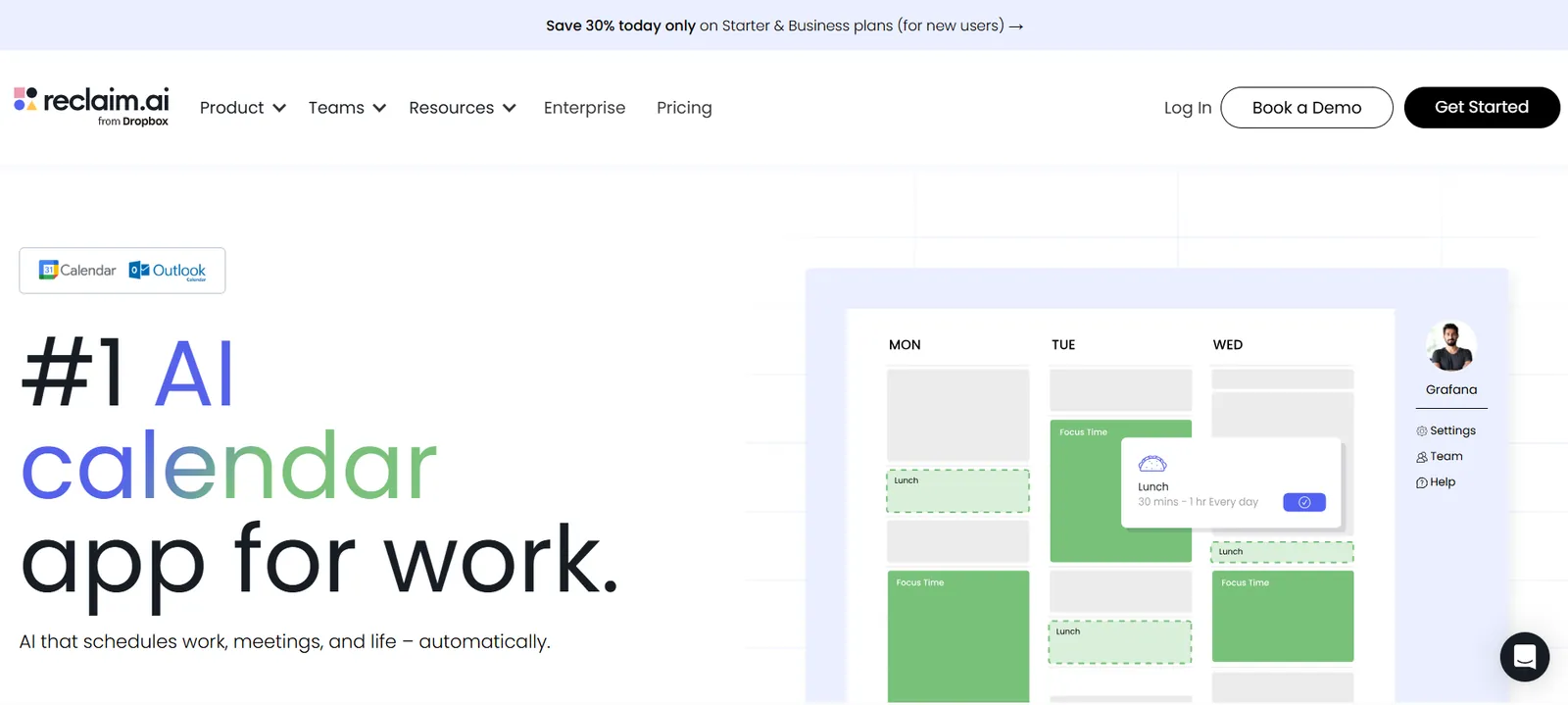
Most calendars are passive. Anyone in your team can book a meeting slot, and the calendar accepts it without question. And that’s what Reclaim fixes. It lets you assign priority levels according to your important tasks, and automatically blocks the required hours for each before anyone else can schedule over them. Using a dedicated ai calendar assistant helps eliminate these scheduling conflicts by proactively managing your availability.
Let's say you’re an HR manager who needs two hours every morning to review applications and prepare interview feedback. Reclaim blocks those two hours on the calendar automatically, so teammates can only schedule meetings before or after that time.
Reclaim also syncs with your Slack. So, when a focus block starts, Slack switches your status to “Do Not Disturb” automatically. There’s no need to update your status or inform anyone manually. Your team sees it, and interruptions stop.
Once that’s done, you can use Reclaim’s AI Tasks feature. If a task is due Friday and your calendar fills up by Wednesday, Reclaim flags it before you're already behind. It doesn't wait until Thursday night to tell you there's no time left.
On the other hand, there are a couple of real drawbacks that you can't ignore. There’s no mobile app, so any mid-day changes have to wait until you’re back at your desk. Plus, if your team uses Apple Calendar, Reclaim won’t integrate at all.
Pros
- Custom onboarding and training workshop for your team
- Claims a 99.9% uptime with built-in disaster recovery tool
- Live chat and email support with under 20-minute response
- AI Buffer Time schedules breaks and prep between meetings
- AI Calendar Sync blocks availability across calendars automatically
Cons
- Missed deadlines don't always trigger strong enough alerts
- Advanced features like team workflows are locked behind higher tiers
Pricing
Reclaim has a free Lite plan for calendar basics. The Starter plan costs $12/seat/month for small teams, and the Business plan is $18/seat/month for larger ones.
Motion: Best AI Scheduling Assistant to run your entire workday
What it does: Motion is an AI planner that builds your daily schedule automatically. It fits tasks, deadlines, and meetings together so you always know what to work on next. When something changes, it replans without you asking. To see how this compares to other options, explore our guide on the best daily planner software.
Many tools on this list solve one scheduling problem. Motion solves a different question entirely: “What if AI just ran your workday?”
Motion has been consistently integrating AI with its different tools. There's an AI planner for your tasks, a project manager that generates and tracks projects automatically, a meeting notetaker, and a docs assistant that drafts and proofreads. If you want to explore more options, reviewing dedicated ai planner software can help you find the right fit.
Then there’s a workflow builder that works from your SOPs and a search assistant that finds anything across your entire workspace instantly. Your calendar is just where it all lands.
The scheduling piece works like this. You add your tasks, set your deadlines, and Motion fits everything into your day around your existing meetings.
When a new meeting drops in, it doesn't ask what to move. It figures it out and reshuffles your tasks into the next available slots automatically. You open your calendar in the morning, and the plan is already there.
But the drawbacks are real. Handing your schedule to an algorithm takes some getting used to. If you're someone who plans by instinct, buffers time by feel, or likes to decide in the moment what to work on, Motion will feel like it's fighting you for the first week.
On the other hand, if your priorities shift three times before noon, Motion's clean daily plan becomes a constraint. You'll spend more time overriding its decisions than following them, and that friction doesn't go away after the first week.
Pros
- Works across iOS, Android, and desktop apps
- Unlimited storage across all your work, no caps
- Dedicated templates for agencies, law firms, and consultants
- Built-in AI Writer handles documentation and project updates
Cons
- Costs more than most tools on this list
- Not ideal if you prefer planning your own day
Pricing
Motion starts at $19/seat/month for the Pro AI plan and $29/seat/month for the Business AI plan. There's no free plan, but a free trial is available.
Calendly: Best AI Meeting Scheduler
What it does: Calendly lets people book meetings with you using a simple link. It shows your available time and automatically schedules the meeting once a slot is selected. For messages sent without a link, reviewing the best how to ask for availability for a meeting example can help structure your outreach.
Who it's for: Recruiters dealing with back-to-back candidate calls, consultants who want booking to feel effortless for clients, and sales teams who need prospects to show up instead of ghosting a meeting request email.
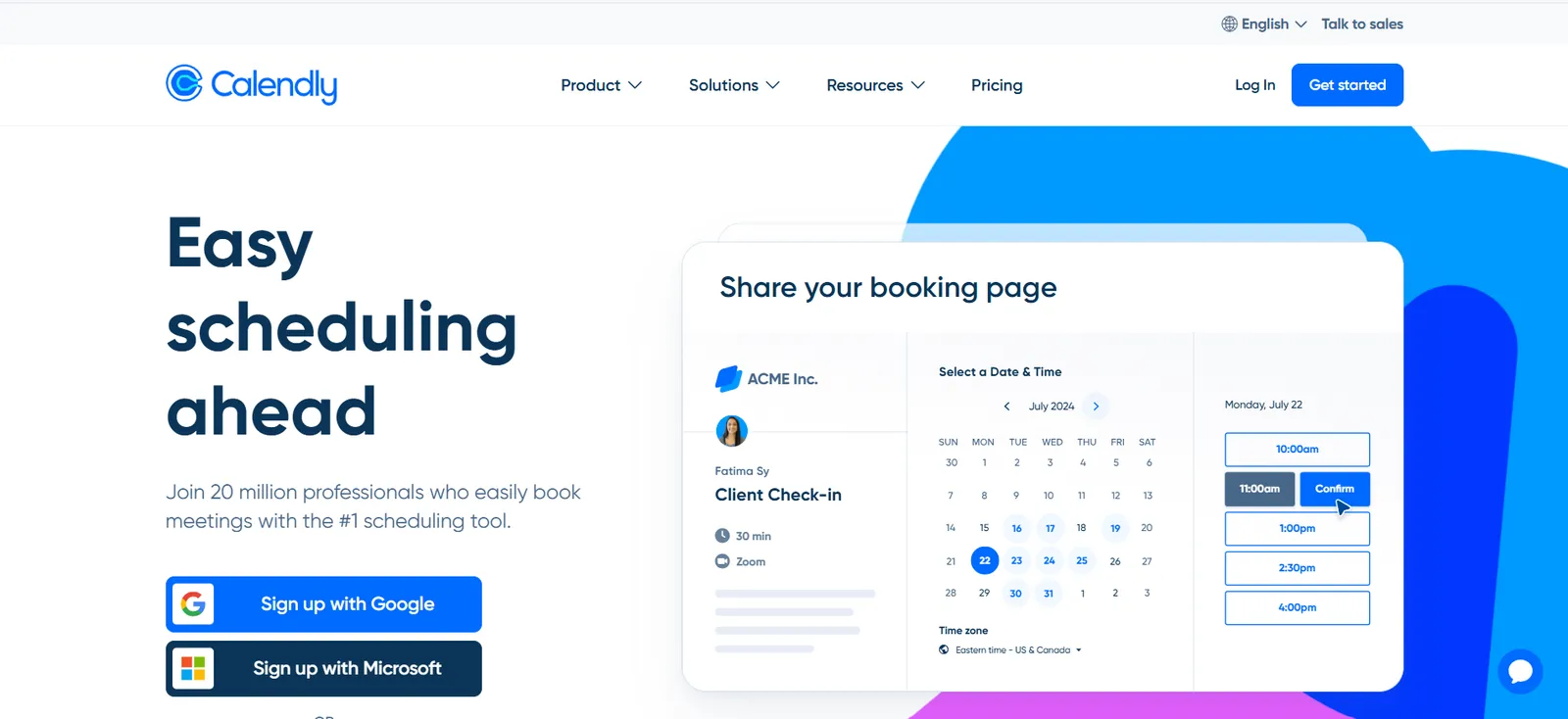
Coordinating a meeting shouldn't take five emails, so Calendly cuts that down to one link. You set your availability, share a link, and Calendly handles the rest.
It syncs with Google, Outlook, and Office 365, detects time zones automatically, and sends confirmation emails and reminders once a slot is booked.
For international clients, that time zone detection alone saves a surprising amount of back-and-forth.
But I think small teams can benefit a lot from Calendly. For example, you can collect payments upfront through Stripe or PayPal before a meeting is confirmed. You can add intake forms so prospects answer qualifying questions before they land on your calendar.
And once a slot is chosen, Calendly generates the video conferencing link automatically, so you don’t have to send it manually.
For sales teams, the Round Robin feature distributes incoming meeting requests evenly across reps so no lead waits longer than necessary. Embed the booking page directly on your website, and a prospect can go from interested to scheduled without ever sending you an email.
Calendly is reactive by design. It waits for someone to use your link, and if a prospect visits your booking page and leaves without scheduling, nothing happens. If they stop responding after the first meeting, following up is still on you.
So, while Calendly handles the booking well, everything around it still requires manual effort.
Pros
- 24/7 chat support included
- Customizable booking page with mobile app and browser extension
- Automates meeting reminders and scheduling outreach out of the box
- Connects with 100+ tools, including Salesforce, HubSpot, Zoom, and Slack
Cons
- If a prospect stops responding, Calendly will not follow up
- A misconfigured routing rule sends new leads to the wrong rep
Pricing
Calendly has a free plan for personal use with one event type. Paid plans start at $12/seat/month for professionals and small teams, going up to $20/seat/month for growing businesses.
Scheduler: Best AI Appointment Scheduling Assistant
What it does: Scheduler helps you set up meetings through simple conversations. It suggests times, checks availability, and handles scheduling for everyone involved.
Who it's for: For professionals who prefer scheduling through conversations instead of booking links. It’s ideal if you want it to feel like talking to an assistant, not using a tool.
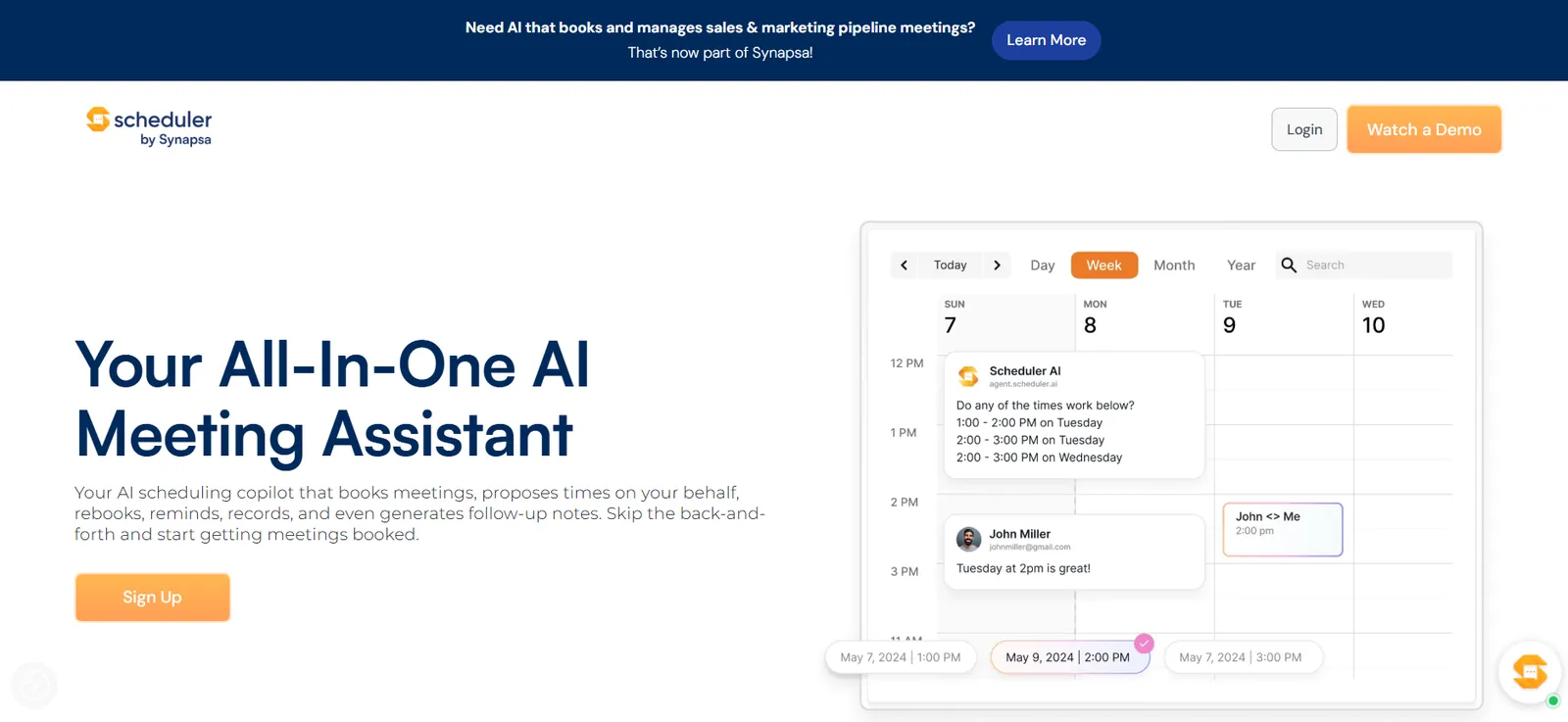
The best line on Scheduler's own website is also the most accurate description of how it works: just CC Scheduler and give a command. That's it. You're in an email thread with a prospect.
You CC Scheduler and type something like "find us 30 minutes next week after 10 am." It reads the thread, checks your calendar, proposes times directly to the prospect, and books the meeting once they confirm. You don't follow up or even check back.
If I had to pick Scheduler over Calendly, it comes down to its outbound. Calendly waits for someone to use a link. Scheduler goes into the conversation and closes the booking there. For sales teams where speed to lead is everything, that distinction is worth more than any other feature on this list.
When a new lead comes in, Scheduler qualifies them automatically and assigns them to the right rep based on your rules. Then it books the meeting with you, tweaking anything.
The rescheduling works equally well. When a prospect emails asking to move a meeting, Scheduler reads the message, finds a new time, and updates the invite. You never open that email.
But I was quite disappointed by Scheduler’s single-page site. There's no dedicated blog, knowledge base, or documentation hub. For a tool at this price point, that's noticeable. If you run into a problem or want to know more about a feature, you're largely on your own compared to the support that tools like Motion or Reclaim have built.
It's a focused tool that does its specific job well. But the product experience outside the core feature set still has some catching up to do.
Pros
- Coordinates time zones automatically
- Sends intelligent reminders to reduce no-shows
- Adds videoconferencing links without manual setup
- Captures action items and generates meeting summaries
- Schedules follow-up meetings before the current one even ends
Cons
- Limited value outside sales and revenue teams
- Routing rules require careful initial configuration
Pricing
Scheduler starts at $50/month for individuals and comes with a 7-day free trial.
Timehero: Best AI Staff Scheduling
What it does: TimeHero automatically schedules your tasks and projects around your calendar so everything gets done before the deadline without you planning it manually.
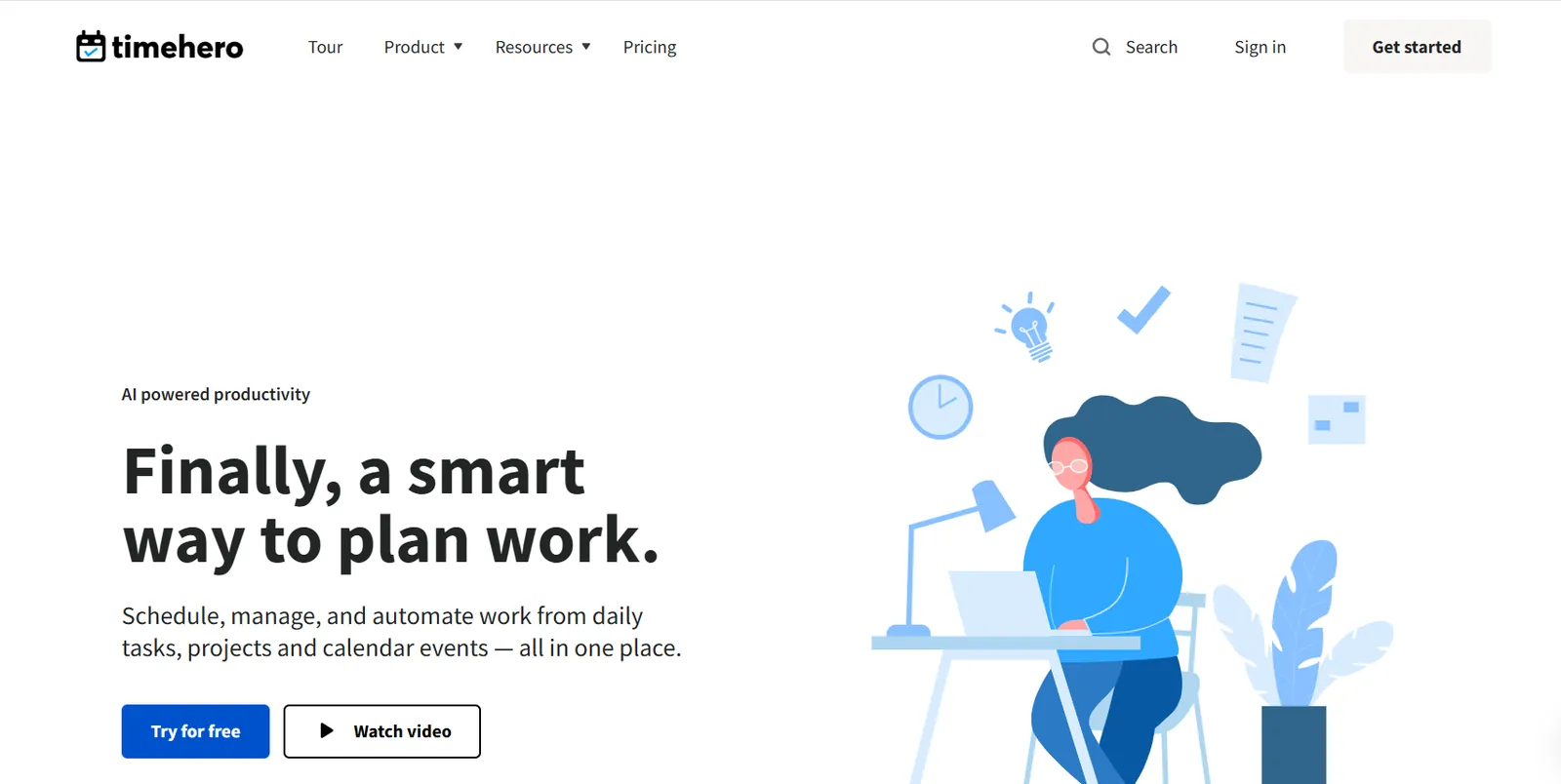
You add a project, set a deadline, and list what needs to get done. TimeHero takes it from there, scanning your calendar for open slots and assigning each task a start time before you even close the tab.
Say you're an agency lead starting the week with three active client projects, each at a different stage. You open your calendar on Monday morning, and every task across all three is already placed in your day in order of priority. You don't have to figure out what to tackle first or manually slot anything in. Pairing automated scheduling with a shareable calendar app helps keep client projects synchronized across your entire team.
TimeHero also tracks your deadlines in the background.
If a task is due in three days but your calendar does not have enough free time to complete it, TimeHero alerts you early, which helps you readjust your priorities before the deadline. It doesn’t warn you the night before. It gives you time to adjust your schedule.
For managers who bill by the hour, the time tracking is useful. You start a timer when you begin a task, and TimeHero records the time when you finish. By the end of the week, your timesheet will be complete. You don’t need to reconstruct your work.
A store owner I spoke to described how they use TimeHero to manage every recurring task across their business. Inventory checks, supplier follow-ups, and weekly reporting, without any of it getting manually scheduled. You just tell TimeHero how often something needs to happen, and it finds the best available slot within that window automatically.
A weekly blog post gets scheduled between Monday and Friday, wherever your calendar has room. A monthly reconciliation gets placed before the 15th without you touching it. The task repeats, and the scheduling repeats with it, every cycle, without any manual input.
Pros
- Workflow templates launch entire projects on schedule in seconds
- Tracks task progress with real-time status updates across the whole team
- Asana sync keeps assigned tasks and due dates in TimeHero automatically
- Guest accounts let clients see task status without accessing your full workspace
Cons
- No free plan, unlike most alternatives
- Recent user reviews on G2 and Software Advice are scarce
Pricing
TimeHero's Basic plan starts at $5/user/month for daily task planning. The Professional plan costs $12/user/month and adds recurring tasks and integrations.
Trevor AI: Best Scheduling Software for task-to-calendar syncing
What it does: Trevor AI connects your tasks to your calendar so they turn into scheduled work time instead of just sitting in a list.
Who it's for: Best for freelancers, solopreneurs, and individual contributors who want tasks and a calendar in one place instead of managing them separately.
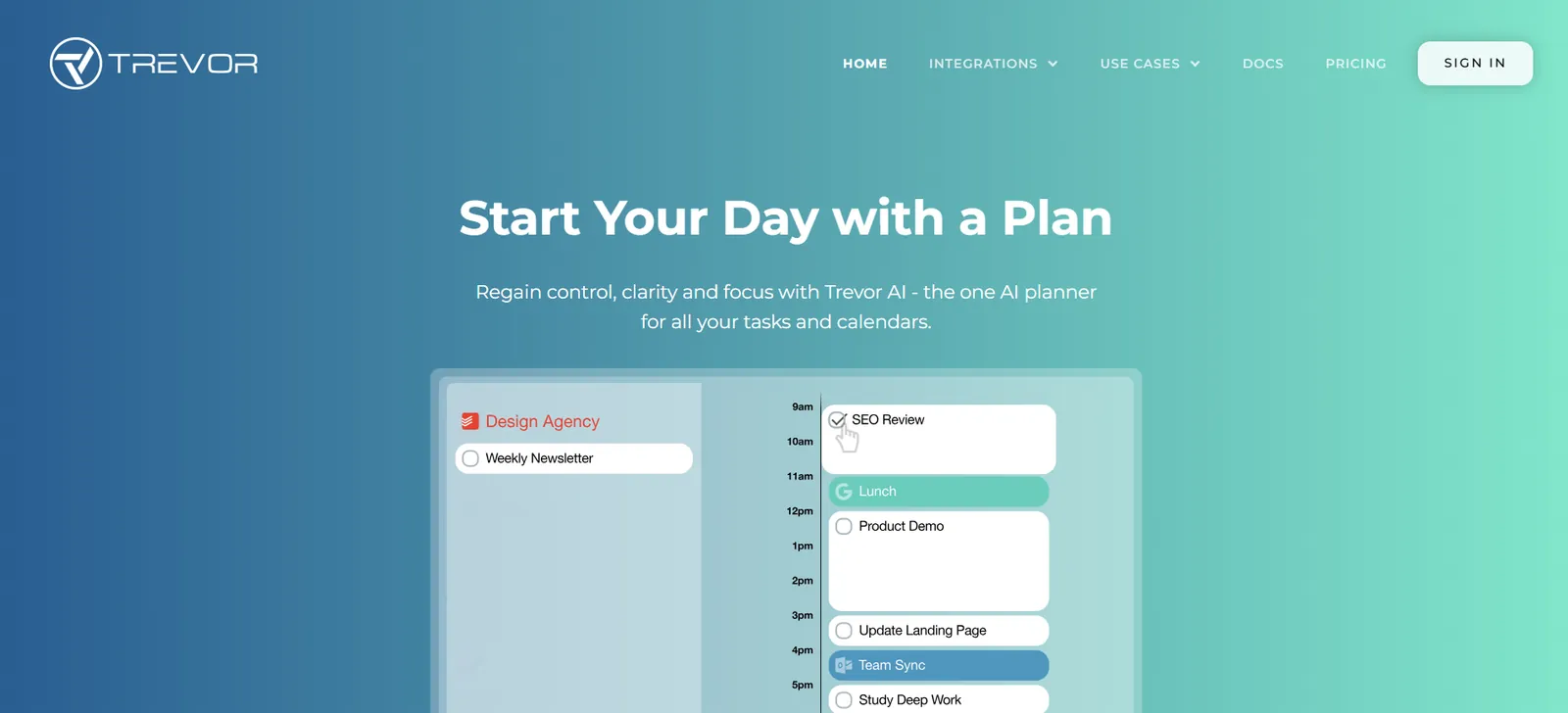
Aside from being one of the more affordable tools on this list, Trevor connects your task manager and calendar into a single planning view.
I connected my Outlook and Google Calendar accounts, imported tasks from Todoist, and had a working schedule in under five minutes. Trevor assigned each task a time slot without me touching anything.
Trevor's AI learns how you plan. Every session you spend moving tasks, adjusting durations, and rescheduling work trains the model to get better at predicting where things should land. After a few weeks, Trevor stops guessing and starts scheduling around your real patterns.
The AI predictions weren't perfect in my case, but they were accurate enough to save a meaningful amount of time each day. Trevor also predicts how long each task will take before you estimate it yourself.
If you consistently spend 45 minutes on client emails but always block 20, Trevor catches that gap and adjusts. You stop running over time on tasks you thought you had handled.
The Focus Mode takes that same logic into the actual work. You open a task, start a timer, and see the checklist and notes on the same screen. You do not switch apps or lose track of your work.
Every morning, Trevor gives you a summary of what you finished, what's still pending, and what needs attention first. After a few days, it becomes the first thing you open instead of piecing your day together from scratch.
Trevor manages your tasks and calendar. It doesn't coordinate meetings with other people, so if scheduling across a team is the problem, it won't help with that. Fortunately, other ai task management tools offer robust team collaboration features.
Pros
- Fits everyone from students to C-level executives
- Works across web, iOS, Android, Google Calendar, and Outlook
- Predicts task duration automatically based on your planning patterns
- Daily morning summary shows progress, pending work, and priorities
Cons
- Only five app integrations limit your tool choices
- No team workspace means every user plans individually
Pricing
Trevor AI has a free plan for personal use. The Pro plan costs $6/month with extra features like multiple calendars and analytics.
BeforeSunset: Best AI Scheduling for focus-driven planning
What it does: BeforeSunset helps you plan your day by organizing tasks and priorities. It turns them into a simple schedule so your day feels more structured.
Who it's for: Freelancers, solopreneurs, and knowledge workers who want a structured day without spending the first hour of it figuring out what to work on.
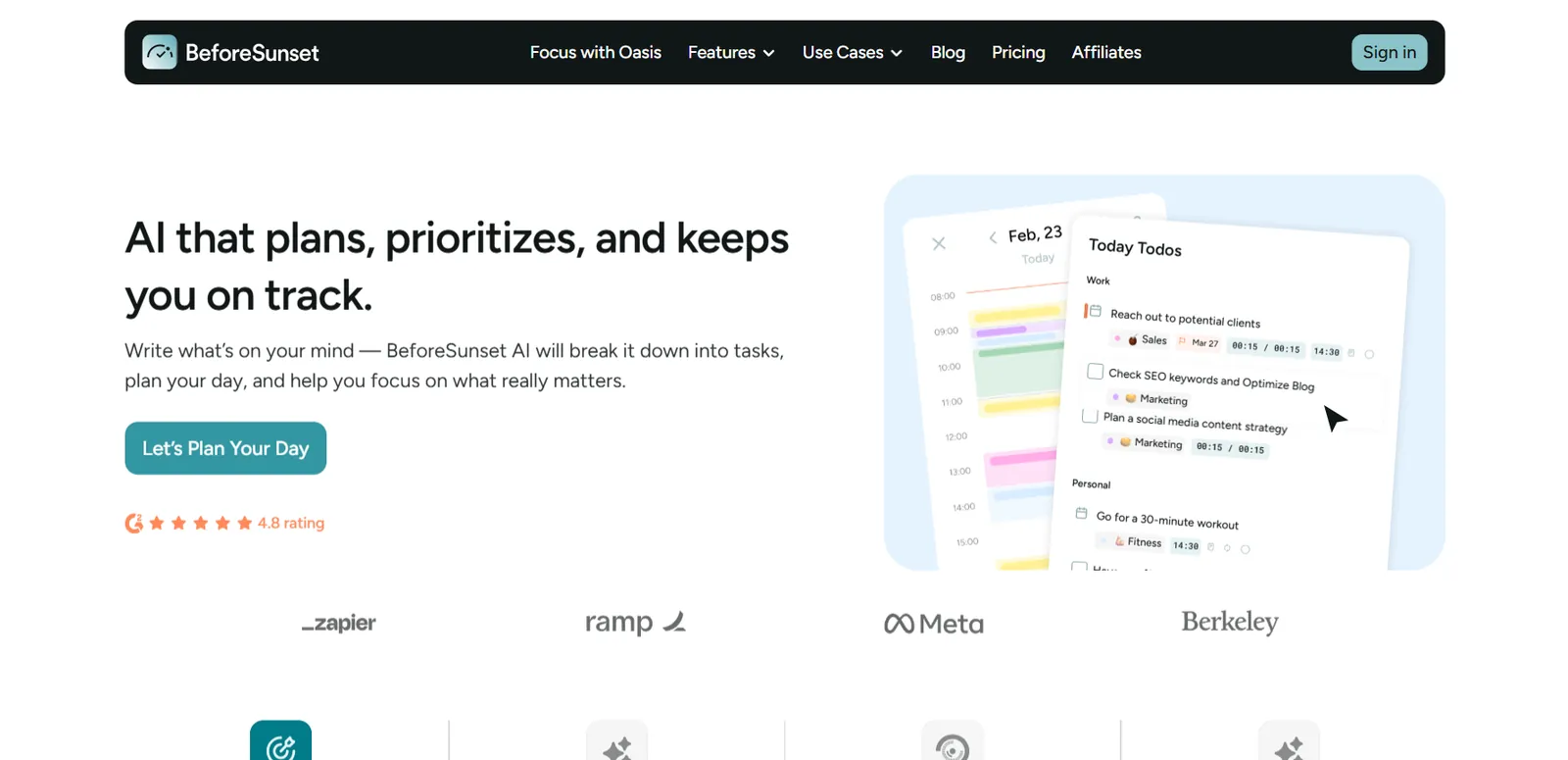
BeforeSunset lets you type your goals for the day in plain language, and the Todo Assistant turns them into a structured task list automatically, with subtasks, categories, and time estimates already assigned.
Before it builds your schedule, BeforeSunset asks how you want your day to run. There’s even a creative twist to it. There are several tools you can use to plan your day.
Eat the Frog puts your hardest task first so the rest of the day feels lighter. Quick Wins starts you with smaller tasks to build momentum before tackling heavier work. You pick the style, and BeforeSunset builds the calendar around it.
If you get distracted easily, Oasis is worth trying on its own.
You pick a task, choose a background, set your Pomodoro intervals, and add ambient sound or music. Everything you need for that session is on one screen. No other tool on this list treats the work session itself as something worth designing.
The analytics round it out. BeforeSunset tracks how your time gets used across categories, flags overdue tasks, and shows you how many days each one has been delayed. If you're working with multiple clients or projects, it tells you where your time went without you having to reconstruct it.
But the limitation is the same as Trevor's. BeforeSunset plans your personal day. It doesn't coordinate meetings with other people or handle scheduling across a team.
Pros
- Integrates with Slack and Spotify alongside your calendar
- History view lets you revisit past work and track progress over time
- Available for coaches, developers, marketers, students, and solopreneurs
- Categorizes, sorts, and visualizes tasks across weekly and monthly views
- Supports ADHD organization, Eisenhower Matrix, and deep focus workflows
Cons
- Fewer integrations than most tools on this list
- No meeting scheduling or coordination with other people
Pricing
BeforeSunset's Pro plan costs $8/month with unlimited AI credits, Oasis, and weekly analytics. The Team Pro plan is $12/member/month and adds a shared workspace and team analytics.
Morgen: Best AI Booking Assistant
What it does: Morgen brings all your calendars and task managers into one workspace so you can plan your day without switching between apps.

Frames is the feature that changes how you think about weekly planning.
Here's how it works. You create reusable time blocks for different types of work, let’s say a deep work block from 9 to 11 am, a meeting window from 11 am to 1 pm, and an admin block in the afternoon. You set those once, and Morgen treats them as your weekly template going forward.
Every morning, the AI Planner looks at your task list and fills each frame with the right tasks based on priority and how long they take. A large client deliverable goes into the deep work block. Quick emails and follow-ups land in the admin block. You don't assign any of it manually, which is where you save your time.
When testing Morgen with my team, conflict handling worked better than I expected.
A colleague accidentally booked a meeting over a task I had already scheduled for that slot. Morgen flagged it immediately, offered three options to reschedule, push to the next day, or remove it, and moved the task to the next free slot the moment I confirmed.
Morgen also comes with a bunch of free tools you can try without signing up for anything. There's a deep work timer, a time zone meeting planner, a scheduling poll, a schedule builder, and a calendar link generator. Good way to get a feel for the product before spending a dime.
But there's no starter tier for individuals just getting started, and the pricing doesn't give you much flexibility either. One individual plan, one team plan, and that's it.
Pros
- 14-day free trial with full access and no credit card required
- Packs a wide range of features without feeling overwhelming
- Built-in booking page removes the need for a separate scheduling tool
- Swiss-hosted and GDPR compliant with a 30-day money-back guarantee
Cons
- Linux app feels slow even for simple actions
- iOS recurring task prompts get repetitive fast
Pricing
Morgen starts at $30/month for individuals and $25/seat/month for teams. Both plans come with a 14-day free trial, and no credit card is required.
How I evaluated each AI scheduling assistants
Here are the main features I looked at:
- Scheduling intelligence: Some tools follow fixed rules. The better ones read your priorities and adjust when things change. If a meeting runs long, a smart assistant moves lower-priority work and protects the rest of your day without you touching anything.
- Automation depth: A scheduling assistant should reduce manual work, not add to it. I looked at how each tool handled rescheduling, conflict resolution, and daily planning on its own. The best ones rebuild your schedule automatically when something shifts.
- Integration quality: Scheduling doesn't happen in isolation. Most meetings start in email, Slack, or a project tool. I scored each assistant on how well it connected to the apps already in use. Tools that worked inside those platforms scored higher. Anything that required switching between apps lost points.
- Usability: A scheduling tool should be faster to use than whatever it replaces. I tracked how long it took to connect calendars, add tasks, and get a working schedule. If it took more than ten minutes, that counted against it.
I connected a real work calendar, loaded it with tasks and meetings, then deliberately created conflicts to see how each tool responded. Every score reflects three to four weeks of daily use across the same conditions.
Which AI scheduling assistant should you choose? My advice
If meetings keep eating into your actual work, Reclaim is the strongest starting point. It protects that time before anyone can book over it.
Then a tool like Motion suits people who want AI running the entire day, and not just the calendar. Calendly is the fastest fix for inbound booking, while Scheduler is built for sales teams who need scheduling to happen inside the email thread.
For personal planning, I’d recommend Trevor and BeforeSunset. Both tools are solid, depending on whether you want AI that learns your patterns or one that builds your day from scratch each morning.
Morgen is the one to pick if you work with multiple calendars and want everything in one place.
FAQs
1. What is the best AI scheduling assistant?
Reclaim is one of the best AI scheduling assistants for focus time protection, blocking time for tasks and habits before meetings can take over. Motion is the pick if you want AI managing your whole day. For personal planning, Trevor and BeforeSunset both deliver.
2. How do AI scheduling assistants work?
AI scheduling assistants connect to your calendar, tasks, and work tools to make scheduling decisions automatically. Instead of following fixed rules, most use AI to understand priorities, suggest time slots, and adjust their schedule when meetings change or conflicts appear.
3. Can AI schedule meetings automatically?
Yes. Tools like Lindy check availability, propose times, and confirm meetings through email or text without any back-and-forth. Scheduler does the same thing directly inside an email thread, so the meeting gets booked without either side leaving the conversation.
4. What is the best AI scheduling tool for teams?
Reclaim is the best AI scheduling tool for teams that want shared scheduling and focus time protection. Motion suits teams that want AI to manage projects and tasks alongside their daily schedule.
5. Are AI scheduling tools better than Calendly?
AI scheduling tools can be better than Calendly, but it depends on what you need. Calendly is still the go-to for simple booking links. Tools like Motion go further. They resolve conflicts, reschedule around priorities, and handle tasks before and after the meeting. More powerful, but more setup required.