


I Tested 16 AI Work Assistant Apps in 2026: These Are The Best
Marvin tested 16 AI work assistant apps over two months, evaluating email management, meeting scheduling, and follow-up automation to find 10 that save time.


A while back, I had multiple AI tools open at once and was still more behind than I'd been in months. That's when I started paying attention to the gap between what these tools were doing and what I still had to do after them.
Over about two months, I tested 16 tools across inbox management, scheduling, CRM work, and follow-up sequences. I was looking for AI work assistant apps that finish the job.
This guide covers 10 apps that made the cut, what each one does best, and where Lindy fits when you want a single assistant covering all of it.
Here's what I found.
10 best AI work assistant apps at a glance
| Tool | Strength | Standout feature |
|---|---|---|
| Lindy | Covers email, meetings, calendar, and follow-ups in one place | iMessage interface with multi-model AI support |
| Claude | Reasoning and deep work across long, complex tasks | Projects with persistent context and adjustable effort levels |
| ChatGPT | Versatile across writing, research, code, and thinking | No fixed category. Handles almost anything without reconfiguring |
| Notion AI | Turns your knowledge base into something you can query | Q&A that searches your entire workspace and returns cited answers |
| Motion | Automated day planning around hard deadlines | Rebuilds your schedule automatically when something shifts |
| Reclaim | Protects focus time without micromanaging your calendar | Habit scheduling that treats routines as real commitments |
| Superhuman | Speed-first email built for high-volume users | Superhuman Go surfaces relevant files mid-draft before you look for them |
| SaneBox | Hands-off inbox organization on top of your existing setup | SaneBlackHole removes unwanted senders permanently with one drag |
| Otter | Simple, reliable transcription with minimal setup | Records in-person meetings from your phone with no video link needed |
| Fireflies | Deeper meeting insights across your full call history | Action items are assigned individually, not dropped into a flat list |
What is an AI assistant for work?
An AI assistant uses artificial intelligence to help you complete tasks, answer questions, and take action through natural conversation. You can interact through text, voice, or both. Describe what needs to happen, and your AI assistant connects to your tools and gets it done rather than handing the work back with instructions attached.
Here's what you should look for in a good AI assistant:
- Answer you instantly: Ask what a client said last week, what's on your calendar tomorrow, or where a deal sits in your pipeline, and it surfaces the answer without you digging through five tabs.
- Gets work done: You say, "follow up with everyone who hasn't replied," and it goes and does it. No extra steps, no prompt engineering.
- Sends you proactive updates: It flags urgent emails, reminds you before meetings, and follows up on things you'd have forgotten about by Friday.
- Connects to the tools you already use: An assistant that only works inside one app is just a smarter search bar. Look for something that reaches across your inbox, calendar, CRM, and beyond.
- Handles multi-step tasks on its own: Scheduling a meeting involves more than finding a time. A good assistant finds the slot, sends the invite, and follows up without you managing each step.
- Asks before acting on anything important: Autonomy without guardrails isn't useful. The best tools surface a draft or proposed action and let you approve it before anything goes out.
Unlike a chatbot, an AI assistant takes action. Ask DeepSeek to schedule a meeting, and it’ll write you a perfectly formatted reply with suggested times for you to act on yourself. I used DeepSeek for a stretch, and past writing and basic organizing, there was no real follow-through. I was still managing most of the work on my own.
An AI assistant closes the loop. It checks your calendar, finds the open slot, sends the invite, and reminds you ten minutes before the call.
How I tested these AI assistants for work
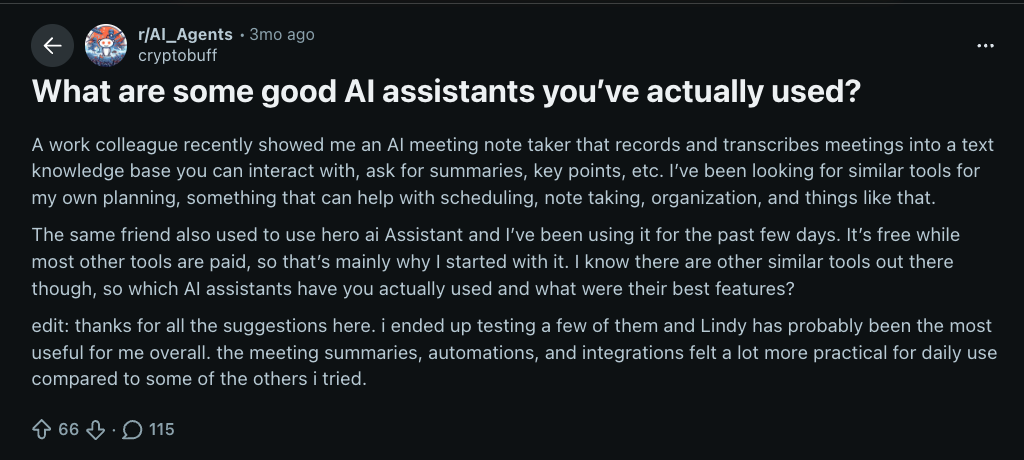
Spend time in AI subreddits and you'll notice people aren't skeptical about AI assistants anymore. They want one that works. They just don't know which one to commit to. Finding the best ai assistant often comes down to balancing daily work needs with personal tasks.
A thread in r/AI_Agents asking what AI assistants people had used pulled 115 comments from people in exactly that position. The person who posted tried a few, landed on Lindy, and said the meeting summaries and integrations felt more practical than anything else they tested.
That's what pushed me to test these properly and put this list together.
Every tool on this list was put through an actual workday. The tasks were routine work like scheduling meetings, drafting emails, summarizing reports, and chasing follow-ups. If a tool added steps instead of removing them, it was out. Writing quality was non-negotiable across the board.
Four additional factors shaped the final rankings:
- Pricing clarity: Many AI tools look affordable until usage grows and the costs start compounding. I looked for predictable pricing over time, not just a low entry point.
- Team usability: Some tools work well for individuals but fall apart in collaborative environments. I looked at whether each tool could realistically be adopted across meetings, documents, and shared workflows.
- Cross-platform reach: A tool that only works well inside one platform creates problems the moment a team uses something different. I tested how flexible each option was across different setups.
- Versatility: A focused tool that does one thing well often beats a broad tool that covers everything adequately. I looked at whether each tool was sharp and excellent, or just broadly functional.
A few tools came close but didn't make the final list. Microsoft Copilot is worth considering if your team runs on Microsoft 365 and you want AI built directly into Outlook, Teams, and Word without adding another subscription. Fathom and tl;dv both competed closely with Otter and Fireflies on meeting notes and are worth testing if those don't land for you.
Shortwave is a solid AI email client if Superhuman's price is the sticking point. ClickUp AI and Asana Intelligence both showed promise on the project management side but felt like AI added on top of an existing product rather than built into it from the start.
Best AI assistants for tasks, projects, and admin work
An AI task and project assistant does the thinking work alongside you. It drafts, researches, reasons through problems, and keeps context across sessions so you're not re-explaining everything every time you open a new chat.
1. Claude: Best AI assistant for reasoning and deep work
Who it's for: Professionals who need an AI that thinks carefully before responding, writers, analysts, researchers, and developers who want more than a fast answer.
Pick this if: You do writing, analysis, or research-heavy work and want an AI that holds context across sessions without re-explaining everything each time.
Key features
- Extended thinking: Breaks down complex, multi-step reasoning tasks before responding, so answers hold up under scrutiny.
- Claude Code: Lets you run coding tasks directly from your terminal or IDE, handling work across your codebase without you stepping in at every point.
- Cowork: Desktop task automation across files, apps, and documents for non-developers who want Claude working on their computer, not just in a chat window.
- Projects and memory: Retains context and instructions across conversations on Pro and above, with unlimited projects to keep different workstreams separate.
- Claude for Microsoft 365: AI assistance built into your Microsoft apps so you're not switching between tools to get help with a document you're already in.
Why I picked it
I work across a few research projects at the same time, and context management used to be a real problem. I'd start a conversation, explain the background, get somewhere useful, and come back the next day to find none of it there. Claude’s Projects fixed that.
Each workspace has its own instructions, uploaded documents, and running context. Now I have a separate project for tracking my fitness goals. Then there are projects for my different clients as well as professional work.
Claude gives you the flexibility to choose how much effort it puts into a particular task. You pick the model, set the effort level, and work accordingly without burning through your daily limits on every single prompt.
I was working through a positioning problem for a client, weighing three different angles with trade-offs in each, and ran it on low effort through Sonnet. Claude still walked through each option methodically, flagged the tension between two of them, and came back with a recommendation with the reasoning attached.
What could improve
The heavier the task, the faster you burn through your daily usage. Asking Claude a question barely touches your limits. Running it through a multi-step task on Cowork is a different story. If you're doing that kind of work regularly, the Pro plan will feel limiting sooner than you'd expect, and the Max plan starts to look less optional.
Pricing
Claude has a free plan covering web, iOS, Android, and desktop access. The Pro plan costs $20/month and includes Claude Code, Cowork, unlimited projects, and access to Research.
2. ChatGPT: Best for everyday work assistance
Who it's for: ChatGPT works well for both professional and personal use. It suits anyone who needs a capable AI assistant across a wide range of tasks.
Pick this if: You need one tool that handles writing, research, code help, and thinking without switching between different apps for each task.
Key features
- Projects and memory: Retains your style and context across sessions so you're not resetting preferences every time you start a new conversation.
- Canvas: An interactive workspace for editing documents and debugging code side by side, so you're working on something together rather than prompting back and forth.
- Multi-file uploads: Upload up to 20 files per message for analysis across documents, spreadsheets, and codebases in a single conversation.
- Visual responses: Surface images, highlights, and sources at a glance to speed up research without extra digging.
- Deep Research: Analyzes sites and sources to generate structured reports and editable outlines for tasks that need more than a quick answer.
Why I picked it
ChatGPT is the general-purpose AI assistant most people open without thinking. I've used it to prepare for a difficult client conversation, talked through a hiring decision, and cleaned up a data export before dropping it into a report. None of those are the same kind of task, and it handled all three without me having to configure anything differently.
The Canvas feature has also improved. I was editing a long strategy document and kept going back and forth on the structure. Instead of prompting for changes and copying output somewhere else, I worked on the document directly inside Canvas. Small shift in workflow, but a noticeable one.
If you work with multiple clients, you can create projects on ChatGPT the same way you can on Claude. Set up a separate project for each client, add specific instructions, drop in relevant sources, and choose whether any of it feeds into your overall memory or stays contained.
GPT Images has come a long way too. Tell it you want something minimal with no text overlays, and that's exactly what comes back in seconds. Compared to earlier models where outputs were cluttered with random fonts and generic graphics, Images 2.0 is a different tool entirely.
What could improve
ChatGPT is great for brainstorming and writing first drafts, but don't rely on it to fact-check. If it gives you a statistic or summarizes a report, check the original source before you publish it. The free plan is fine for occasional use, but it comes with message limits, limited GPT-5.5 access, and basic memory. If you use ChatGPT every day, you'll probably outgrow it pretty quickly.
Pricing
ChatGPT has a free plan with capped messages and restricted memory. Paid plans start at $8/month, with higher tiers adding more usage, longer memory, and deeper capabilities for teams and enterprises.
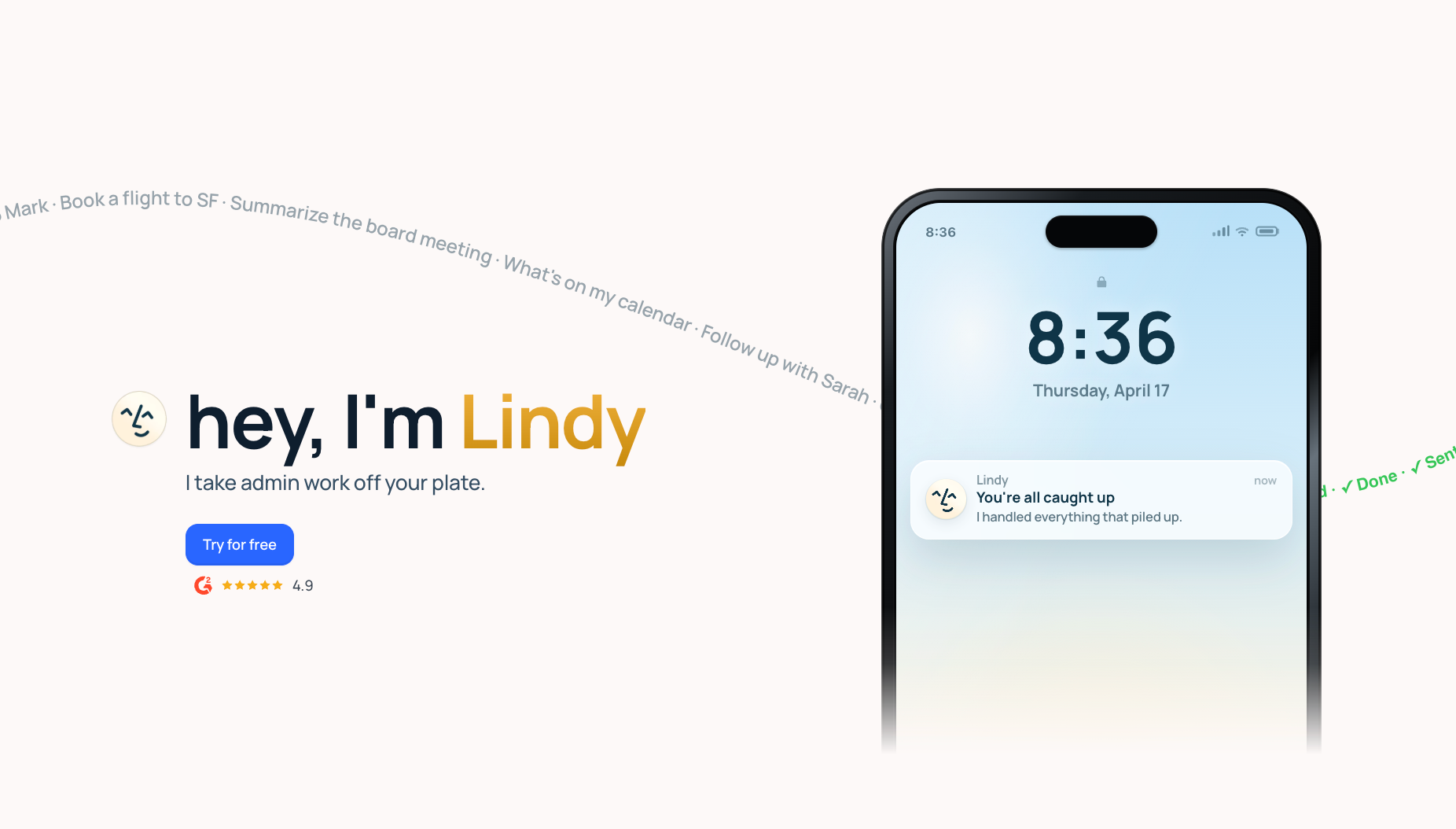
3. Lindy: Best all-in-one AI work assistant
Who it's for: Founders, operators, chiefs of staff, and small teams who want one assistant handling their full admin layer rather than four specialist tools each doing one thing.
Pick this if: Your mornings start in your inbox, your afternoons disappear into meetings, and you want one assistant versatile enough to schedule calls, take notes, brief you before meetings, and send follow-ups, all from a text.
Key features
- Email triage: Text Lindy to sort your inbox. Lindy labels and prioritizes incoming messages, surfaces what needs a reply, and files everything else so your attention stays where it matters.
- Meeting prep: Ask Lindy to brief you before a call. It pulls context from past emails, previous meeting notes, and your calendar, then delivers a summary of who you're meeting and what was last discussed.
- Autonomous drafting: Lindy writes replies in your voice based on past interactions. You review and send rather than write every response from scratch.
- Meeting notes and follow-ups: After a call, Lindy captures action items and drafts follow-up emails for your review. It can update your CRM or push notes to Slack once you approve.
- Multi-model AI support: Switch between Claude, Gemini, and GPT depending on the task, or leave it on Auto and Lindy picks the right model for the work.
- Hundreds of integrations: Connects with Gmail, Slack, Salesforce, HubSpot, Google Calendar, Notion, and hundreds more out of the box.
- Enterprise-grade security: Lindy is SOC 2 Type II, HIPAA, and GDPR compliant, so your data stays protected across every integration.
What sets it apart
Before a meeting, a briefing lands in your inbox or on your phone. Who you're meeting, their role, company, and a summary of what was discussed last time. You don't pull any of this manually.
Lindy joins the call automatically on Zoom, Google Meet, or Teams from your calendar. During the call, it records everything, tracks speakers, and structures notes in real time. After the call, the summary is ready before you close the tab: a high-level overview, a detailed breakdown, and action items with clear ownership.
Nothing goes out until you approve it. From there, you tell Lindy what to do next. Share action items in Slack, update the CRM, create a Notion page with the summary, or send the recap to someone who wasn't on the call.
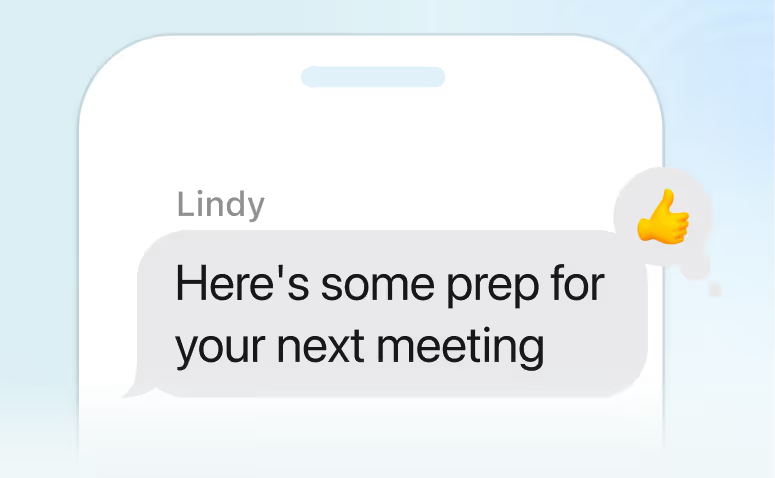
The iMessage integration is what makes the day-to-day feel different. You text Lindy the way you'd text a colleague. "Prep me for my 2 pm." "Reschedule my 3 pm." "What did Sarah say about the contract?" Lindy has full context from your email and calendar, so the answers are useful.
What could improve
The setup phase takes a few days. Lindy works best when you're clear about what you want to delegate, and figuring that out upfront takes some back-and-forth. Once the right tasks are in place and Lindy has enough context, it runs on its own. The Plus plan also limits you to two inboxes, so heavier users will need Pro to get full coverage.
Pricing
Lindy starts at $49.99/month on the Plus plan, which covers inbox management, meeting scheduling, note-taking, and meeting prep. Pro is $99.99/month for 3x the usage, and Max is $199.99/month for the heaviest workloads.
{{templates}}
4. Notion: Best for executives who want a solid knowledge base
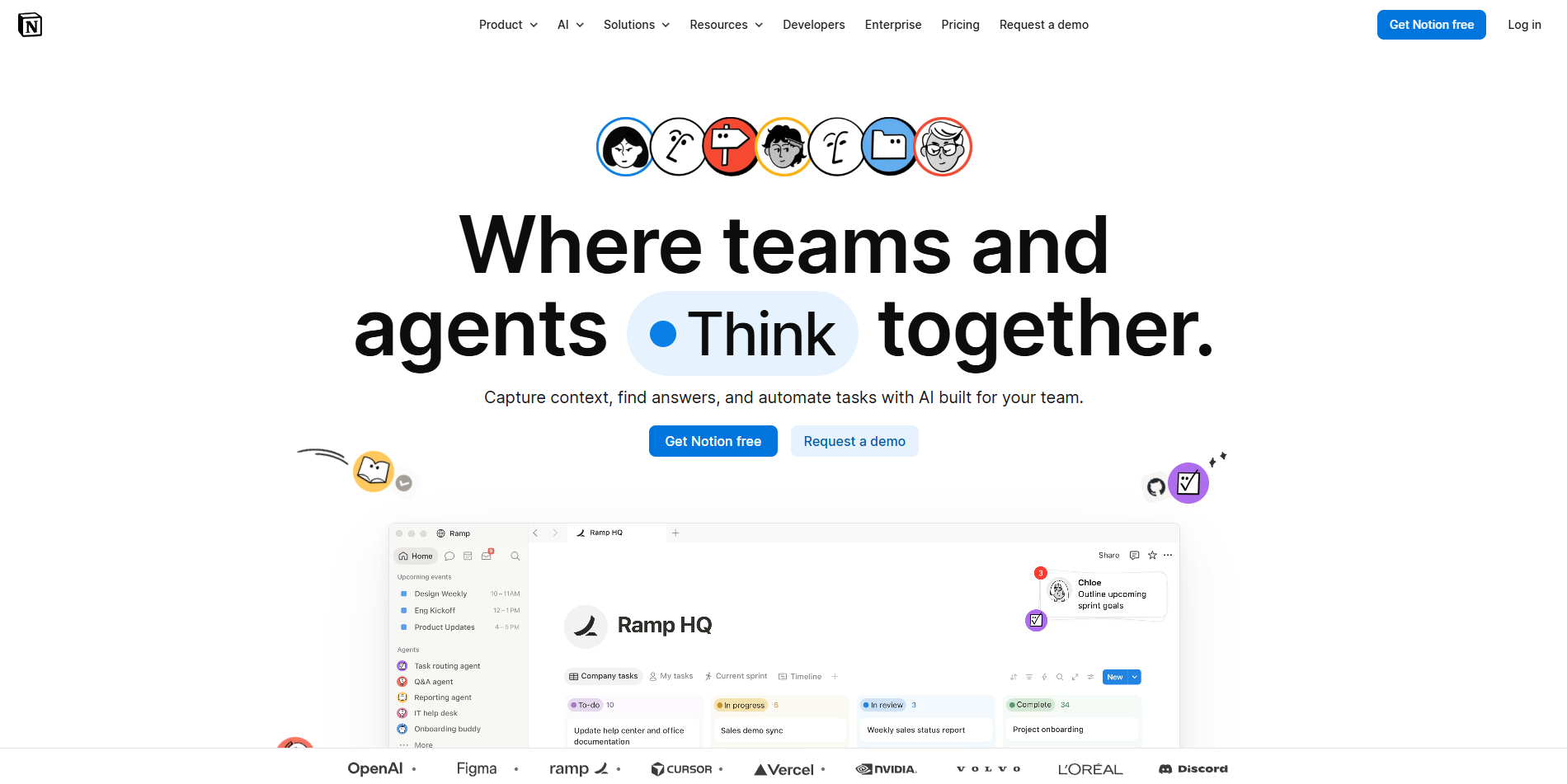
Who it's for: Leaders and chiefs of staff managing large internal wikis and project trackers who spend more time hunting for information than using it.
Pick this if: Your team documents everything, but the knowledge is locked inside pages nobody has time to read. You want to ask a question and get a direct answer instead of opening five documents to piece it together yourself.
Key features
- Q&A: A chat interface that searches your entire workspace and delivers synthesized answers with citations, so you get a direct answer instead of a list of documents to open.
- AI Research Mode: Conducts deep research across your workspace, connected external apps, and the web at the same time, built for decisions that need context from multiple sources in one place.
- AI Autofill: Automatically populates database properties by summarizing linked pages or pulling out key details like action items and deadlines, removing the manual data entry that slows down project tracking.
- AI Meeting Notes: Joins your calls, captures the transcript, and generates structured summaries with decisions and next steps delivered directly into your workspace.
Why I picked it
I had just taken on a new client and needed to get up to speed on a project that had been running for six months before I joined. Meeting notes, strategy docs, a product roadmap, all scattered across the workspace. I asked Notion what the current priorities were and got a sourced summary back in under a minute. Fifteen minutes later, I felt oriented.
For tracking content, I used AI Autofill to populate status, summaries, and deadlines across each row from a linked brief. Notion handled all three automatically whenever I added a new entry.
The @ mention feature was where it got most useful in the moment. I typed @ inside a meeting notes page and Notion pulled in the project roadmap, the relevant team members, and the deadline, saving me from going through old docs and Slack threads trying to piece things together later.
What could improve
Notion synthesizes and creates well, but it cannot execute outside the workspace. It will not update a CRM record, push a task to Jira, or trigger anything in an external tool. For executives who want answers and action in one step, that gap is real.
Pricing
Notion has a free plan that includes a trial of Notion AI. The Plus plan starts at $12/member per month. The Business plan at $24/member per month is where the full AI suite unlocks, including Notion Agent, AI Meeting Notes, and Enterprise Search.
Best AI calendar assistants
An AI calendar assistant reschedules things when your day shifts, protects the time you've blocked off, and makes sure your tasks land somewhere in your week. Some rebuild your entire day around new priorities. Others just defend the blocks you've already set.
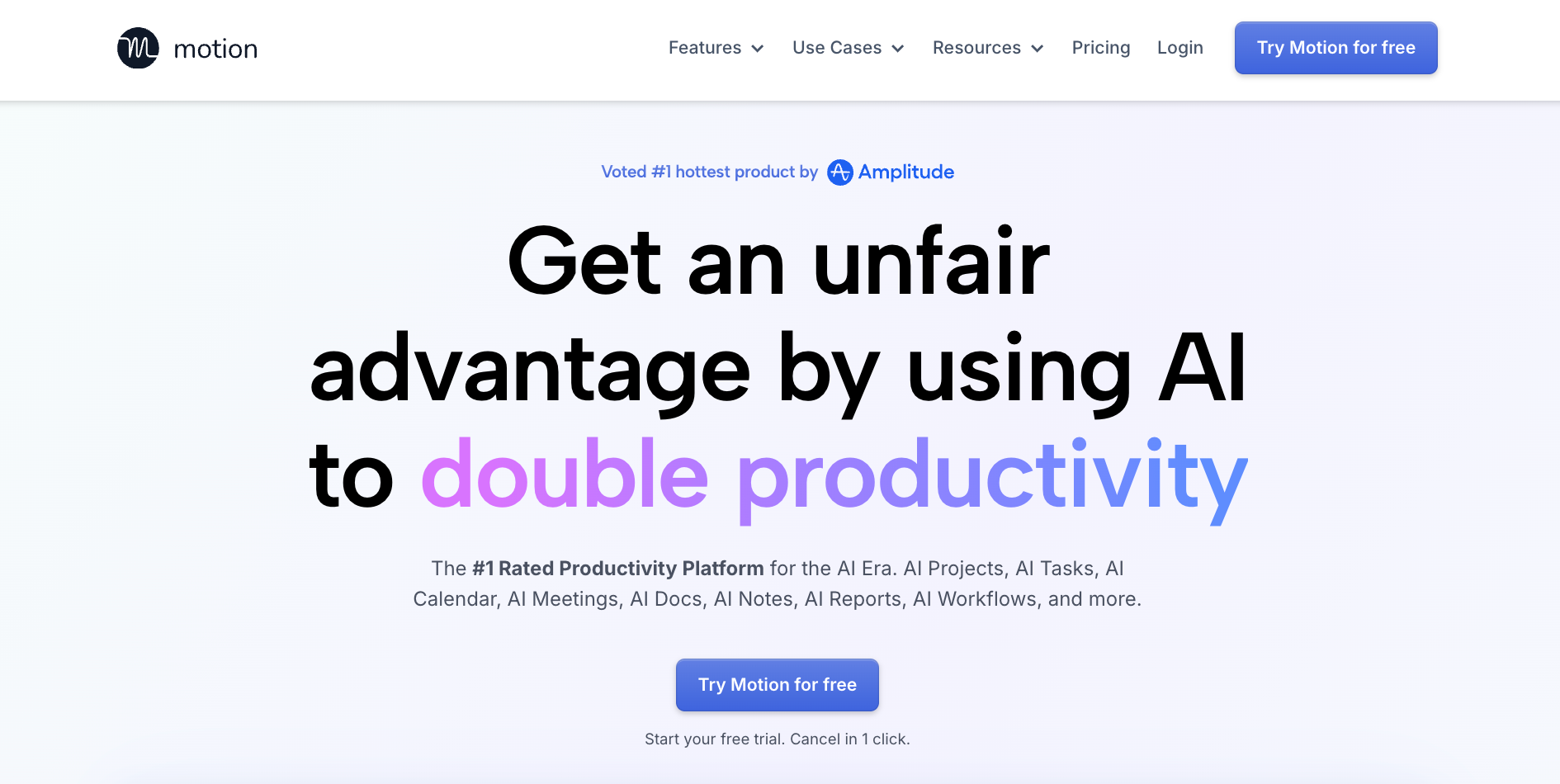
5. Motion: Best for automated day planning
Who it's for: Professionals and teams who want AI to own their daily schedule entirely.
Pick this if: You have hard deadlines, back-to-back meetings, and no mental bandwidth left to figure out when the actual work is supposed to happen.
Key features
- AI meeting notetaker: Takes notes during calls and follows up with action items so you can stay present in the conversation.
- AI search assistant: Finds anything across your docs, notes, projects, tasks, and communications instantly.
- AI workflow builder: Builds workflows from your SOPs automatically so recurring processes run without you rebuilding them each time.
- AI personal assistant: Handles the repetitive work in the background so you can stay focused on the things that need your attention.
- Capacity planning: Shows when your team is overloaded across projects before deadlines start slipping, so you can reallocate work while it's still manageable.
Why I picked it
Last month I was packed with all sorts of work. There were deadlines, and I had to write articles, test the product, and all of that. That's when a colleague suggested that I try Motion. Initially, I ignored it, but then I thought maybe I'd give it a shot.
I considered Motion because a single plan covers a lot. Task management, project management, and scheduling all in the same place, with integrations that connect it to the rest of your stack. I'd had three different tools doing three parts of that job before.
There's also a handy capacity scheduling feature. I'd add a task with a deadline, and instead of stacking it on an already packed day, Motion looked at what I had, found the gaps, and placed it where it made sense.
The AI calendar view shows the full picture too: tasks, meetings, deadlines, and any project bottlenecks forming before they catch you off guard later in the week. The project manager also kept statuses updated in the background, so I wasn't chasing progress across multiple projects or updating fields by hand.
What could improve
Motion is built around the idea that the AI knows your day better than you do, and if that bothers you, the tool will bother you. If you're someone who wants every block placed your way, you'll spend more time fighting it than using it. The reporting is also a weak spot, and for larger teams where managers need visibility into how work is moving across departments, it falls short. There's just not much there.
Pricing
Motion's individual plans start at $49/month for Pro AI and $69/month for Business AI, both on monthly billing. Teams pricing drops to $29/seat per month for Pro AI and $49/seat per month for Business AI.
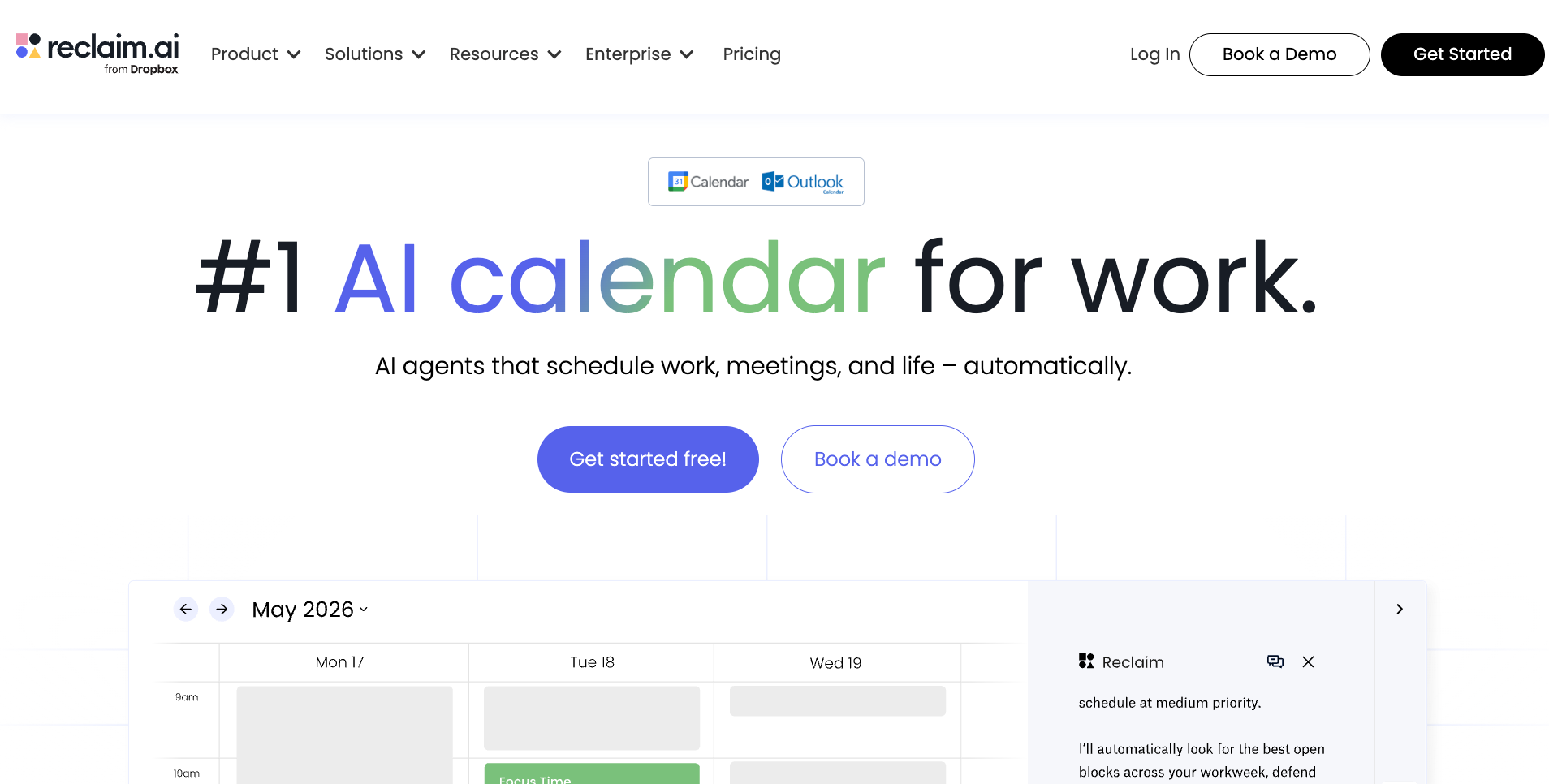
6. Reclaim: Best for smart time blocking
Who it's for: Professionals who need to protect deep work time without micromanaging their own calendar.
Pick this if: You have recurring focus blocks that keep disappearing whenever a new meeting lands.
Key features
- Sandbox preview mode: Schedule changes are drafted first and shown to you before anything moves. You review, adjust, and apply rather than opening your calendar to something you don't recognize.
- Out-of-office calendar: Automatically blocks time and updates your calendar when you're away, so meetings don't land on days you've already marked as unavailable.
- Time tracking: Tracks time spent across tasks, meetings, and habits without you logging anything manually, so you can see where your week went.
- Smart scheduling links: The availability you share accounts for your focus blocks and existing tasks, not just empty slots. External guests can't accidentally book over deep work time.
- Task sync from PM tools: Reclaim pulls tasks directly from Asana, ClickUp, Jira, Linear, and Todoist and schedules them onto your calendar around your existing commitments.
- Buffer time: Automatically adds breathing room before and after meetings so back-to-back calls don't bleed into each other.
Why I picked it
I have a friend who treats her calendar like a second brain. Everything goes in: morning runs, lunch breaks, deep work, client calls, even the 20-minute window she keeps for reading. The problem was that meetings kept eating into those personal blocks, and she'd end up skipping lunch or pushing the run to tomorrow, which never happened.
Reclaim fixed that for her. The habit scheduling feature treats recurring routines as real commitments. When a meeting lands on her lunch block, Reclaim moves it to the next available gap instead of quietly giving it up.
That same logic carries over to work tasks. Reclaim pulls directly from tools like Asana, ClickUp, and Todoist and places tasks on your calendar around what's already there, so nothing sits in a list waiting for you to manually find it a home.
I also like that Reclaim offers discounts for startups, nonprofits, and students, which is not something you see often with scheduling tools. Plus, if you are a team, there are add-ons worth looking at, like analytics-only seats and an enterprise pilot if you want to test it before going all in.
What could improve
Some of the more useful features sit behind higher-tier plans, and if you want to use Reclaim across a team, you will hit that wall faster than you'd expect. The other thing that bothered me is that missed tasks don't always surface with a strong enough nudge. You can let something slip without Reclaim creating much friction around it, so you still need to stay on top of things yourself.
Pricing
Reclaim has a free Lite plan covering the basics. Paid plans start at $12/seat per month for Starter, covering up to 10 seats with unlimited habits and focus time. Business runs $18/seat per month for teams up to 100, adding team analytics, webhooks, and unlimited scheduling links.
Best AI email assistants
An AI email assistant handles the sorting, drafting, and triage that eats up your day. Some replace your email client entirely. Others plug into Gmail or Outlook and work in the background without changing your setup.
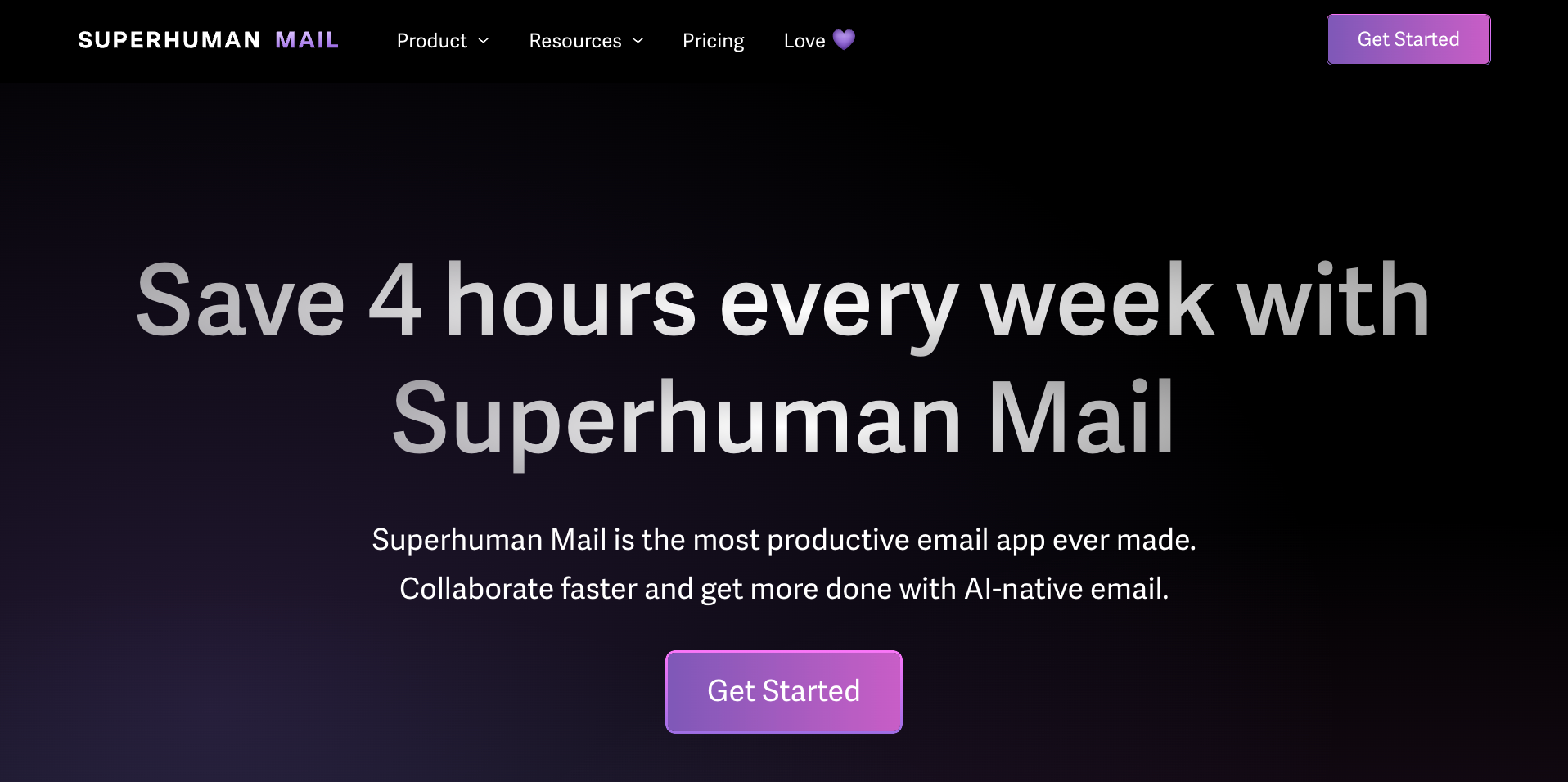
7. Superhuman
Who it's for: High-volume email users, sales teams, and executives who treat inbox speed as a competitive advantage and are willing to pay for it.
Pick this if: You're spending more than an hour a day in email and want an opinionated tool that speeds the whole workflow rather than adding one AI button to an existing interface.
Key features
- Read status and recent opens tracking: See when someone has opened your email and how many times, so you know exactly when to follow up.
- Custom AI-powered labels: Automatically sorts your inbox based on labels you define, so the right emails surface without manual filtering.
- Keyboard-first interface: Every action has a shortcut, so triage, archiving, and replying all happen without touching the mouse.
- Superhuman Go: Watches what you're composing and pulls in relevant context from connected apps like Jira, Google Drive, or your calendar before you think to look for it.
- Agent Store: Pre-built connections to Gmail, Jira, Google Calendar, and more that work alongside your inbox without extra setup.
Why I picked it
The keyboard shortcuts are what people talk about first, but they're just the entry point. After a few days of using Superhuman, you move through email differently. Triage, archive, reply, without breaking your flow or reaching for the mouse.
The AI drafting handles routine replies well, and Ask AI is useful when you want a second read on tone before something goes out. Nothing groundbreaking there, but reliable when your inbox volume is high.
I was mid-draft on a client update about a content campaign we were running. Before I went looking for the brief, it was already there. A strategy doc from two weeks ago with the exact numbers I needed. That might not sound like much, but every time you break a draft to hunt for a file, you lose your thread. Superhuman fixes that.
When I'm in a rush, I type without really looking at the screen. By the time I get to the end of a sentence, there are missing letters, wrong punctuation, the works. Superhuman's autocorrect catches most of it on the fly, so I'm not going back to clean things up before I hit send.
What could improve
There's no free plan and no easy way to try it before committing, which is a real friction point at $30 per user a month. The shortcut-heavy interface is also a genuine learning curve, and if you're not willing to spend the first week retraining your muscle memory, you won't get the value out of it.
Pricing
Superhuman starts at $30/user per month for Starter, with Business at $40 per user per month. Enterprise pricing is custom for teams that need advanced security, admin controls, and dedicated coaching.
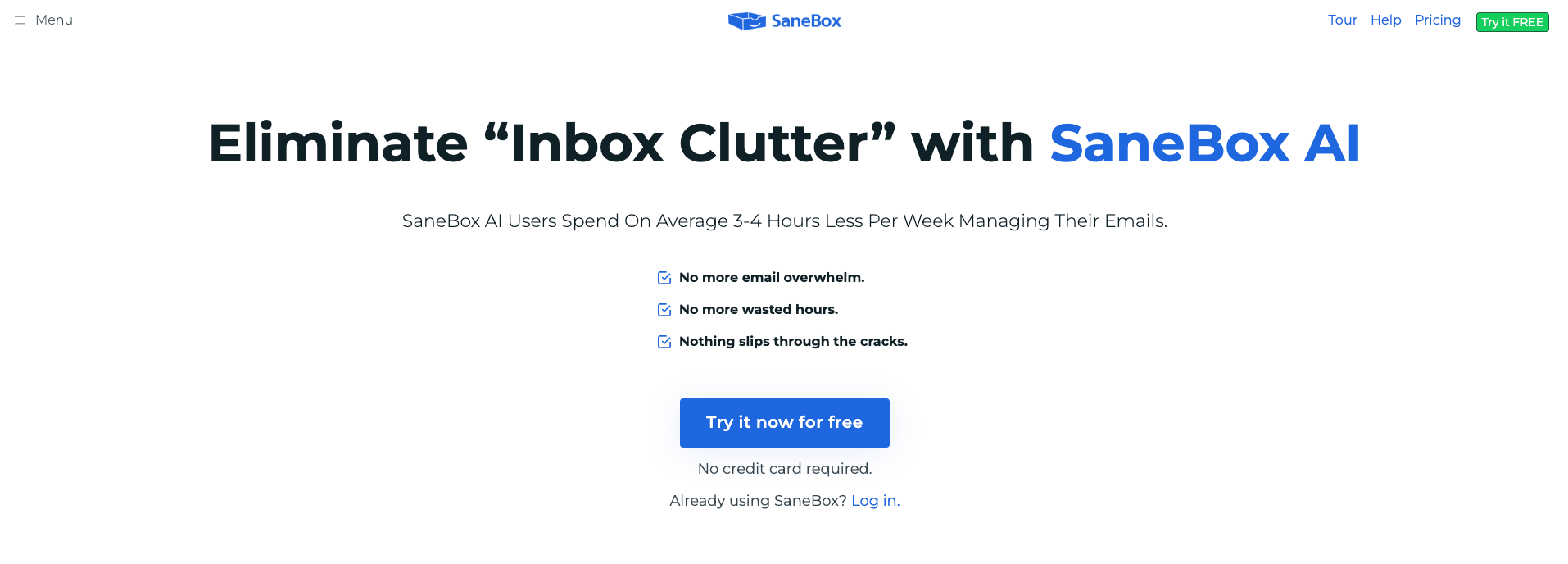
8. SaneBox: Best for hands-off inbox organization
Who it's for: Anyone with a genuinely out-of-control inbox who wants AI to do the sorting quietly in the background without switching email clients or learning a new interface.
Pick this if: Your inbox is noisy and you want something that works on top of what you already use without changing your setup or building any rules.
Key features
- Custom training folders: The more you interact with it, the sharper the sorting gets. You can guide it without writing any rules.
- SaneBlackHole: Drag one email from an unwanted sender in, and they never reach your inbox again.
- Reminders: Flags urgent emails you haven't replied to yet, so nothing slips through without a follow-up.
- Digest: Gives you a summary of unopened emails with bulk actions to sort and train SaneBox on where things should go.
- Cross-client compatibility: Works across Gmail, Outlook, Office 365, Exchange, Yahoo, Apple Mail, and more without changing your existing setup.
Why I picked it
I added SaneBox to my existing Gmail setup without changing anything else. Within a day, newsletters, mailing lists, and low-priority emails were already moving into a SaneLater folder on their own.
There are no rules to set up and nothing to categorize. It watches how you use your email and makes decisions from there. The SaneBlackHole feature is quietly one of the best things about it. One email dragged in, and that sender never surfaces again.
If you have subscribed to more newsletters than you read but never got around to unsubscribing, SaneNews handles that quietly. It routes them into a separate folder so they stop showing up next to emails that need a reply. It took a few days to calibrate, but once it did, opening my inbox stopped feeling like clearing a backlog.
What could improve
SaneBox is purely organizational. There's no AI drafting or reply generation. I was surprised to see that there is nothing that helps you write faster. If sorting your inbox is the whole problem, that's fine. If you want AI to help with the writing side too, this isn't the tool for that. The power features like SaneNoReplies are also locked to higher plans, so the entry price gives you less than you'd expect.
Pricing
SaneBox offers a 14-day free trial. The Snack plan starts at $9.99/month, Lunch is $17.99 per month, and Dinner is $44.99 per month.
Best AI meeting assistants
An AI meeting assistant joins your calls, transcribes everything, and pulls out action items when it's over. Otter keeps it simple and works in person too. Fireflies goes deeper, letting you search across your full call history and pull insights from past conversations.
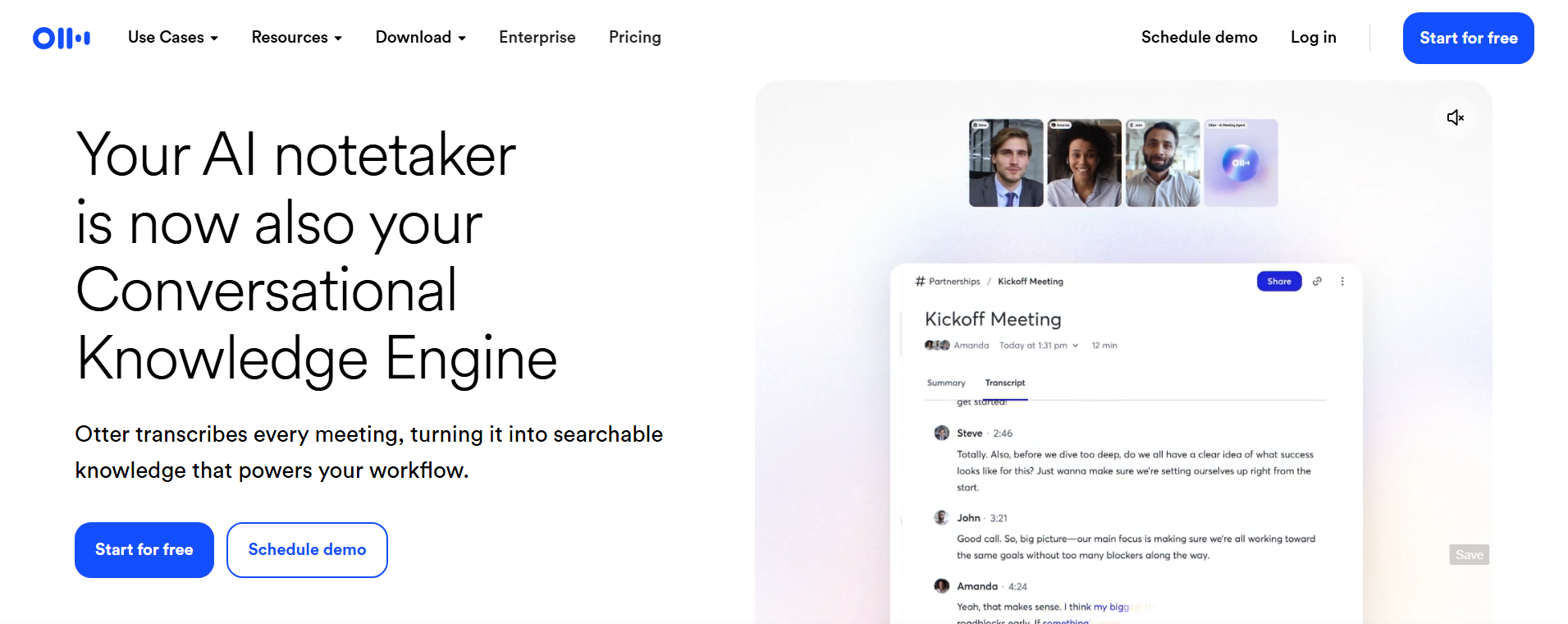
9. Otter: Best for fast, easy transcriptions
Who it's for: Students, educators, sales teams, and anyone who wants accurate transcriptions without a complicated setup.
Pick this if: You need something that works both online and in person with no setup beyond connecting your calendar.
Key features
- Real-time transcription: Every word is captured as the meeting happens, visible to all participants while the call is still running.
- Otter AI Chat: Ask questions mid-meeting and get answers drawn from what's already been said, without leaving the call.
- Custom vocabulary: Add your team's terms, product names, and nicknames so transcripts come back accurate instead of full of odd spellings.
- MCP integration: Connects with Gmail, Notion, Jira, and Salesforce, so tools like Claude or ChatGPT can draw on your full meeting history as context.
- Works across platforms: Zoom, Google Meet, Microsoft Teams, and GoToMeeting, plus in-person recording directly from your phone.
Why I picked it
Most meeting tools need a video call link to work. Otter doesn't, and that's what sold me on it first. I had an in-person client meeting I needed to document. I opened the app on my phone, hit record, and walked in. There’s no need for a setup or asking anyone to connect a bot. When I got back online, the transcript was waiting.
Online calls are just as straightforward. Connect your calendar and it shows up without any configuration.
What caught me mid-call was Otter AI Chat. Someone mentioned a term I wasn't familiar with, and instead of Googling it and losing focus, I typed the question into Otter and got the answer while the meeting kept going. It's a small thing but useful when you're in a fast-moving conversation.
Every team has its own shorthand, and so do the clients you work with. The longer you work with someone, the more internal terms, nicknames, and product names start showing up in every conversation. Otter's vocabulary feature lets you add those terms upfront, so the transcripts reflect how people on that call speak, not a garbled version of it.
What could improve
Speaker labeling gets messy in calls where people talk over each other, and that happens more often than you'd expect in group meetings. Long recordings also take longer to process than you'd want. Neither occurs often, but both are worth knowing if your calls tend to run chaotic.
Pricing
Otter offers a free plan covering basic transcription. The Pro plan starts at $16.99/user per month, and Business starts at $30/user per month. Enterprise pricing is available on request.
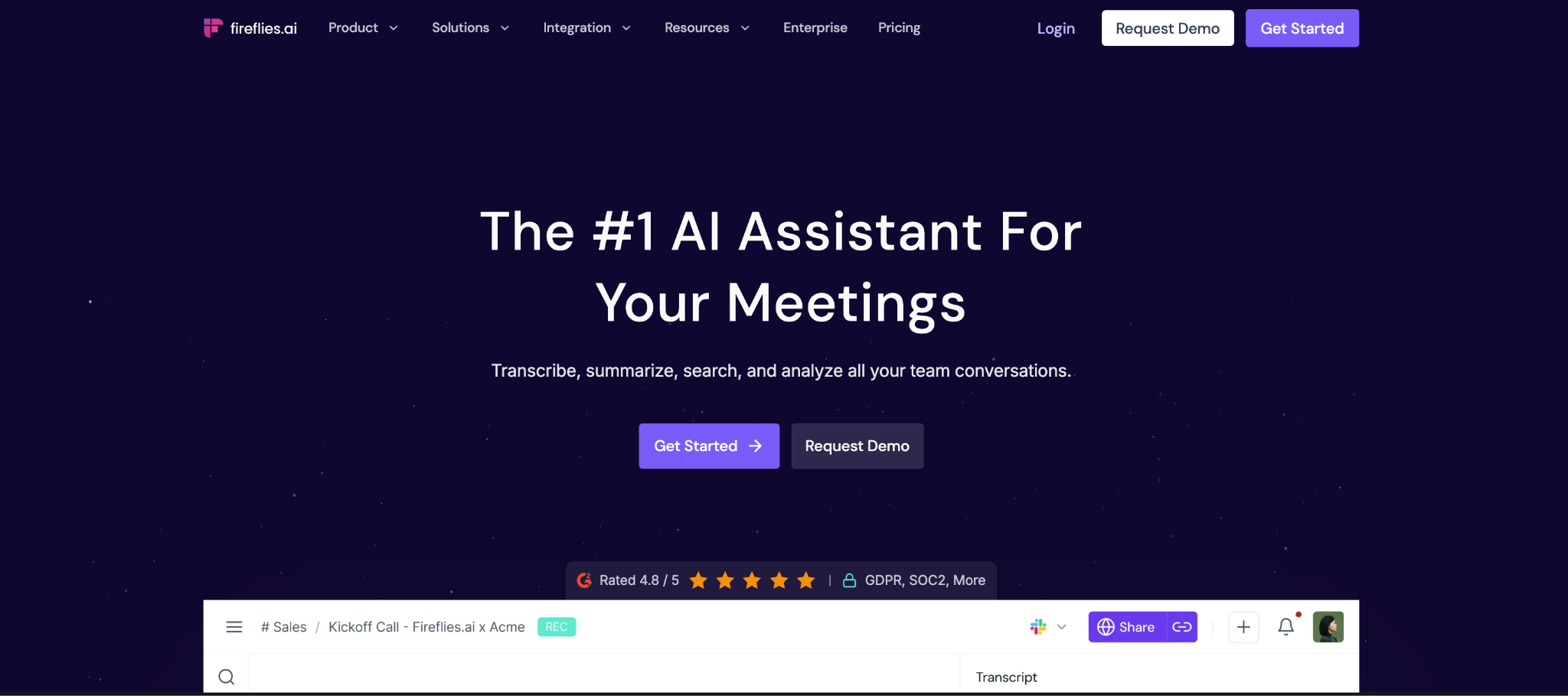
10. Fireflies: Best for teams who want deeper meeting insights
Who it's for: Sales teams, recruiters, and growing teams who need more than notes and want to dig into meetings and spot patterns.
Pick this if: You have recurring calls with multiple people and want to search across everything that's been said, not just take notes on the last meeting.
Key features
- Auto-joins as a guest: Shows up to your meetings without anyone needing to download anything or share a link.
- Action items by individual: After the call, action items get assigned to specific people rather than dropped into a flat list.
- Searchable meeting history: Search across your full call archive by keyword or speaker name, so you can pull up what was said in a meeting from three months ago without scrolling through notes.
- Live Assist: Provides real-time suggestions and answers while the call is still running, not just after it ends.
- Mobile and desktop apps: Available on Android, iOS, and desktop across all plans, so you're not tied to a browser to access your meeting history or recordings.
Why I picked it
Fireflies joins your call as a guest, so there's nothing to download and no link to share. It just shows up. You also get to decide which meetings it shows up to, so it's not sitting in on calls it shouldn't be.
After a meeting, your action items get assigned to individual people. Imagine a sales call with three people talking for 45 minutes. After it ends, Fireflies breaks down exactly what each person agreed to do, not a flat list of action items you still have to sort through yourself. You can also ask things like "What did John agree to?" in plain language and get an answer instantly.
I ended up using the audio clipping feature a lot. During a product call, someone said a phrase I knew I'd want to reference later. I clipped it on the spot instead of writing a note, and it was there when I needed it during the follow-up.
What could improve
Most of the AI features that make Fireflies worth using sit behind the Business plan. The free and Pro tiers give you enough to understand the product, but not enough to rely on it daily. The chat notifications during calls can also distract participants who aren't expecting them, so it's worth turning those off before using it with clients.
Pricing
Fireflies offers a free plan with limited transcription credits. The Pro plan is $18/user per month, and Business is $29 per user per month. Enterprise pricing is available on request.
How to choose the right AI work assistant app
To choose the right AI work assistant, start with what's slowing you down. Is it one thing or several? That determines whether a specialist tool makes more sense than an all-in-one. From there, consider how much setup you're willing to do, what tools it needs to connect with, and whether you want AI that hands work back to you or one that finishes it.
Single-workflow vs. multi-workflow needs
If your main problem is one thing, inbox overload, calendar chaos, or meeting notes, a specialist tool will solve it faster and for less money. Superhuman costs less than Lindy and handles email exceptionally well. But if you're losing time across two or more of these areas at once, the math changes. Managing three specialist tools that don't talk to each other starts to cost more than one assistant covering all of it.
Setup tolerance
Some tools are ready in minutes. Connect your calendar to Reclaim and it starts protecting your focus blocks the same day. Otter works the moment you open the app. Others need more runway. Lindy gets sharper as you delegate more and give it context about how you work. Notion is only as useful as the workspace behind it. The question is how much upfront time your team can commit before expecting results.
Integration fit
The best tool is the one that connects to what you already use. For most teams, that decision starts with Google Workspace or Microsoft 365, and several tools on this list favor one over the other. From there, CRM compatibility matters if you're in sales or client work, and project tool sync matters if your tasks live in Asana, Jira, or Linear. Check the integration list before committing to anything.
Action vs. assistance
There's a real difference between a tool that drafts something and one that sends it. Most tools on this list are assistants: they surface information, generate output, and hand it back to you. A smaller number, Lindy being the clearest example, will take the next step if you let them. Know which one you need before you start a trial, because they feel very different once you're using them daily.
How to choose the right AI work assistant app:
- Choose Claude if you do research-heavy or writing-intensive work and want an AI that holds context across projects without re-explaining everything each time.
- Choose ChatGPT if you need a versatile tool for everyday tasks across writing, research, and thinking, and don't want to commit to a single use case.
- Choose Lindy if you want one assistant handling email, meetings, scheduling, and follow-ups without managing four separate tools.
- Choose Notion AI if your team already lives in Notion and wants AI embedded in existing docs and projects.
- Choose Motion if your calendar and task list are constantly out of sync and you want the AI to reconcile them automatically.
- Choose Reclaim if you're losing focus time to meetings and want the AI to defend it without a full calendar rebuild.
- Choose Superhuman if your biggest problem is email volume and you want a keyboard-first tool built for speed.
- Choose SaneBox if your inbox is noisy and you want something that quietly organizes it in the background without switching email clients.
- Choose Otter if you need reliable meeting capture with minimal setup.
- Choose Fireflies if you want a searchable meeting history and CRM sync across every call.
Let Lindy handle the whole stack
Specialist tools win when the problem is specific. But most professionals aren't losing time to one thing. When the problem spans email, meetings, scheduling, and follow-ups, managing four separate tools starts to cost more than it saves. That's where Lindy fits.
Whether it’s managing your inbox, scheduling meetings, updating your CRM, or following up with leads, Lindy handles it.
Here’s what that looks like in practice:
- Get answers instantly: Text Lindy to pull information from your email, calendar, or CRM without digging through tabs.
- Send emails and follow-ups automatically: Ask Lindy to draft, personalize, and send outreach and handle replies.
- Take meeting notes and share summaries: Lindy joins meetings, writes structured notes, and follows up afterward.
- Update your CRM without manual entry: After a call, Lindy logs notes and automatically fills in missing fields.
- Find and qualify leads in minutes: Tell Lindy your ideal customer profile and get curated lead lists ready for outreach.
- Hundreds of app integrations: Lindy connects with the tools you already use, so everything stays in sync.
FAQs
What is the best AI work assistant app in 2026?
The best AI work assistant app depends on what you're trying to fix. There is no single right answer. If your only problem is email speed, Superhuman is hard to beat. If it is transcription, Otter does that better than most. Specialist tools win when the problem is narrow. But if your day spans email, meetings, scheduling, and follow-ups and you want one assistant covering all of it, Lindy is the strongest pick.
Do AI work assistant apps replace human assistants?
No, AI work assistant apps cannot replace human assistants completely. Tasks that require reading a room, managing relationships, or making calls with incomplete information still need a person. Where AI takes over is in high-volume repeatable tasks: inbox triage, meeting notes, scheduling, and follow-ups.
How much do AI work assistant apps cost?
Prices of AI work assistant apps range from free tiers (Otter, Notion AI) to $30-50 per month for full-featured tools. Superhuman starts at $30 per month. Lindy's Plus plan starts at $49.99 per month and covers inbox management, meeting scheduling, note-taking, and follow-ups. Most tools offer a free trial so you can test before committing.
Do AI calendar assistants work with both Google Calendar and Outlook?
Most AI calendar assistants work with both Google Calendar and Outlook, but not all. Motion, Reclaim, Calendly, Akiflow, Scheduler AI, and Lindy all support both. Trevor AI supports Google Calendar, Outlook, and iCloud. Always verify on the live product page before committing, as integration depth varies even when both calendar types are technically supported.
Are AI assistants for work the same as chatbots?
No, chatbots respond to individual prompts or questions, while AI assistants for work go further. They connect to tools like Gmail, Slack, and calendar apps. They take multi-step actions and can automate parts of a workflow without being prompted each time. Think of a chatbot as something you ask. An AI assistant is something you delegate to.










Blog
Related Articles

.avif)

.avif)

.avif)
.avif)
.avif)
The AI assistant that runs your work life
Lindy saves you two hours a day by proactively managing your inbox, meetings, and calendar, so you can focus on what actually matters.
