How to Automate Meeting Follow-Ups in 10 Easy Steps
Michelle walked through automating meeting follow-ups using tools like Asana, HubSpot, and Slack, covering note capture, task creation, and CRM updates.


I used to handle meeting follow-ups manually. But as the team expanded and the number of meetings and participants went up, that manual post-meeting process wasn’t feasible anymore.
It’d eat up at least 4-6 hours every week.
For tems like sales, customer success, and ops teams, meeting follow-up is an elaborate process of summaries, action items, owners, CRM updates, client and team recaps, and reminders when work stalls.
So, I wanted to figure out how to automate meeting follow-ups to protect my work time from this daily chore. After experimenting with different setups, tools, and workflows, I finally decoded the optimum setup.
Here’s my 10-step guide you can follow to automate meeting follow-ups, from recap to execution, without turning into another project you need to manage.
What you’ll need before automating meeting follow-ups
To automate meeting follow-ups, your meeting notes need to become emails, tasks, CRM updates, and reminders without a human manually following the same process after every meeting.
Here’s what you’ll need:
- A calendar tool: Use Google Calendar, Outlook, Calendly, or another scheduler to trigger the follow-up process after a meeting ends.
- Meeting note-taker or transcript tools: Use an AI note-taker or a meeting recorder and transcript tool to capture meeting notes. The better the notes, the better the follow-up.
- A task or project tool: Use Asana, ClickUp, Jira, Notion, Trello, or another place where action items can live.
- A CRM, if you run sales or client calls: Use HubSpot, Salesforce, Pipedrive, or your current CRM to log summaries, next steps, deal notes, and follow-up dates.
- A standard follow-up format: Decide what every follow-up should include before you automate it. This keeps your output consistent.
- An automation tool or AI assistant: Use this to connect the steps, draft updates, and move information between apps.
Plan for 30 to 60 minutes to set up your first version. Start with one meeting type, test it, then expand once the workflow feels reliable.
How to automate meeting follow-ups: Step-by-step guide
Pick one common meeting, like a sales discovery call or weekly client check-in, and know what your follow-up process should do. Once you get that working, build it one piece at a time. Don’t start with every meeting type.
Follow these steps to make the process easier:
Step 1: Decide what your follow-up should include
Start by defining the output. Your automation needs a clear format before it can produce useful follow-ups. A strong meeting follow-up usually includes:
- A short thank-you or context line
- A brief summary of what you discussed
- Key decisions
- Action items with owners
- Deadlines
- Resources or links you promised
- The next meeting link or CTA
You can simply text this bulleted list to Lindy as an instruction on what to include in the follow-up.
The format keeps the follow-up useful without turning it into a transcript. Nobody wants to read a wall of notes after a 30-minute call.
Keep the summary short. Put the important part near the top, especially the next step.
Step 2: Create rules for each meeting type
A sales call needs a deal context. A customer support call needs details about the issues. An internal project meeting needs tasks and owners.
Create simple rules for each meeting type:
- Sales calls need pain points, next steps, CRM updates, and a follow-up email.
- Client success calls need decisions, blockers, renewal risks, and support tasks.
- Internal meetings need action items, owners, deadlines, and a Slack recap.
- Hiring interviews need candidate notes, scorecards, and next-step emails.
- Networking calls need personal context, reminders, and a light next touchpoint.
Doing this stops your automation from sending the same generic recap after every conversation.
Step 3: Capture notes and transcripts automatically
Your follow-up can only work with the context it receives. Use an AI note taker, meeting recorder, or shared notes doc to capture the conversation.
For most teams, the easiest setup starts with a calendar-connected note tool. It joins or records the meeting, captures the transcript, and creates a summary after the call. You can also use manual notes, but you need a consistent format.
If you don’t want to manage multiple tools, Lindy connects with your calendar, email, notes, and meeting platforms. You can use it to simplify the process.
At a minimum, capture:
- Attendees
- Meeting topic
- Main discussion points
- Decisions
- Action items
- Deadlines
- Open questions
Before ending the meeting, confirm the next steps out loud. Say who owns what and when it’s due. This gives your follow-up system cleaner inputs.
Step 4: Turn notes into a structured summary
Next, convert the notes into a format your team can scan quickly. A structured summary works better than a transcript because it pulls the useful parts into clear sections.
Use a format like this:
- Summary: A short recap of the meeting in 2 to 4 bullets.
- Decisions: What the group agreed on.
- Action items: Each task, owner, and deadline.
- Open questions: Anything that needs clarification.
- Next step: The next meeting, reply, task, or decision needed.
Lindy lets you text the summary format you need in plain English.
Having a uniform structure also makes the next Lsteps easier to push into email, CRM, Slack, and task tools.
Step 5: Draft the follow-up email automatically
Once you have the summary, use it to draft the follow-up email. The email should sound clear, personal, and specific to the meeting.
Ask Lindy to follow this basic format:
Subject: Great speaking today, [Name]
Hi [Name],
Thanks for taking the time today. Here’s a quick recap of what we discussed:
- [Key point 1]
- [Key point 2]
- [Key point 3]
Next steps:
- [Owner] will [task] by [date]
- [Owner] will [task] by [date]
Here’s the [resource/proposal/link] we mentioned: [link]
The next step is [CTA].
Best,
[Your name]
For internal meetings, skip the warm intro and focus on action items. For sales or client meetings, keep the tone friendly and include enough context to show you paid attention.
Step 6: Create tasks from action items
A follow-up email helps, but it doesn’t guarantee the work gets done. Push action items into the system your team already uses. That might mean:
- Creating a task in Asana or ClickUp
- Opening a ticket in Jira
- Adding a card in Trello
- Creating a Notion task
- Assigning a due date to a project owner
Each task should include the task name, owner, deadline, meeting source, and any relevant notes. Avoid vague task titles like “Follow up with client.” Use something specific, like “Send revised onboarding timeline to Acme by Friday.”
Because Lindy connects with all your business tools, this step becomes easier. It handles the post-meeting task creation and assignment without complex setup.
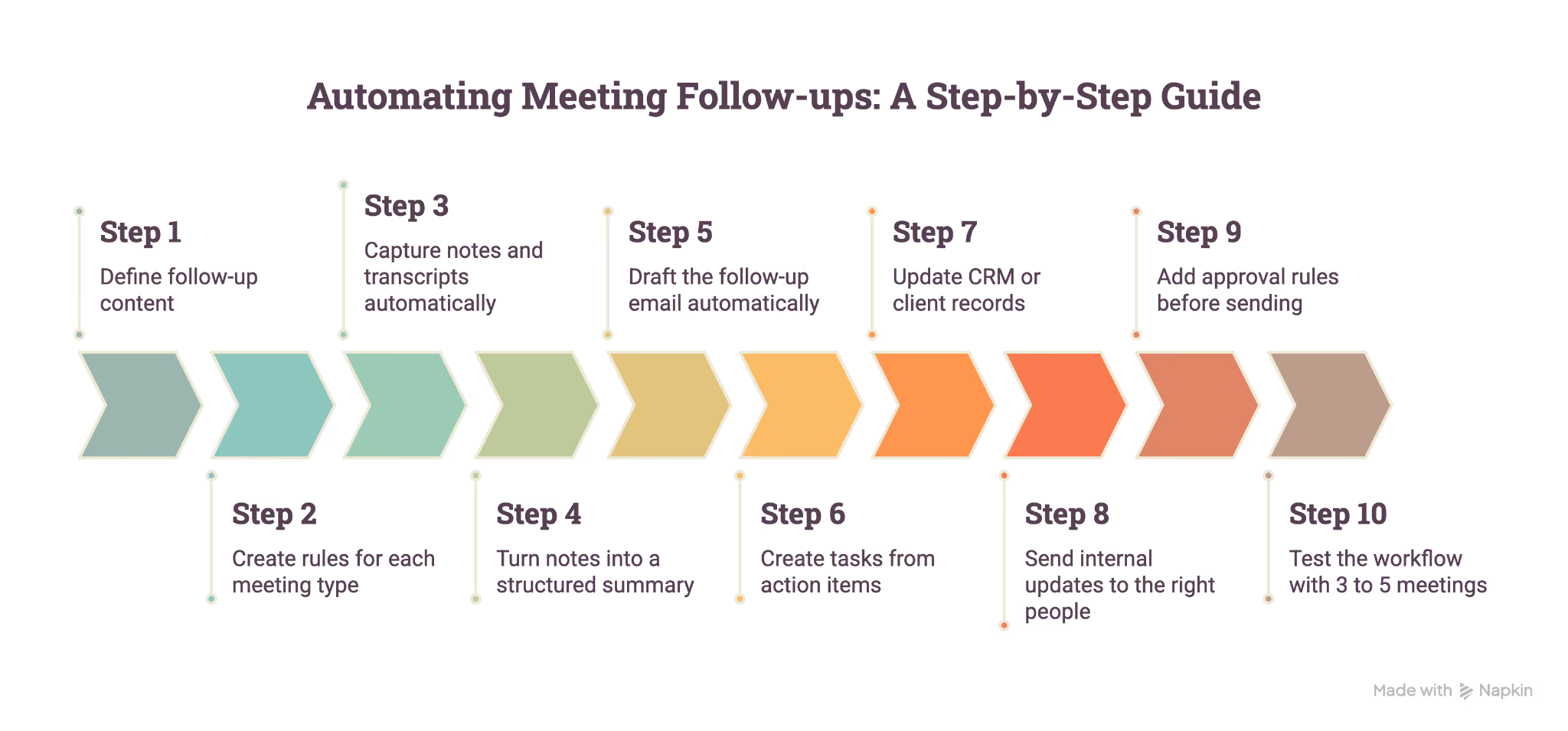
Step 7: Update your CRM or client records
If the meeting affects a lead, customer, renewal, or account, update your CRM right after the call. For sales meetings, log:
- Meeting summary
- Pain points
- Buying timeline
- Next step
- Deal stage
- Follow-up date
- Stakeholders mentioned
For customer meetings, log:
- Current issue or request
- Health signals
- Expansion opportunities
- Risks
- Promised follow-ups
- Support tickets created
Your team shouldn’t need to hunt through call notes to understand where a deal or client relationship stands.
Step 8: Send internal updates to the right people
Not every stakeholder needs the full meeting recap. Most people need a short update that tells them what changed and what they need to do. Send internal updates to Slack or email when:
- A customer raises a blocker
- A prospect asks for pricing or legal review
- A project deadline changes
- A teammate gets assigned an action item
- A meeting creates follow-up work for another team
Keep these updates short. Include the meeting name, key takeaway, owner, deadline, and link to the full notes.
Step 9: Add approval rules before sending
Don’t auto-send every follow-up. Some messages need human review, especially when they involve customers, pricing, contracts, legal terms, or sensitive support issues.
Set approval rules like:
- Auto-send internal recaps
- Require review for client-facing emails
- Require review when the email mentions pricing, contracts, refunds, or legal terms
- Require review when the meeting notes contain unclear action items
- Require review when no owner or deadline exists
You can ask Lindy to seek human approval for sensitive emails. It keeps automation helpful without giving it too much control. You save time and still catch mistakes before they reach clients.
Step 10: Test the workflow with 3 to 5 meetings
Test your setup before you trust it with important meetings. Use a few low-risk calls and check every output. Review these items:
- Did the summary capture the main points?
- Did the follow-up email sound like your team?
- Did action items include owners and deadlines?
- Did tasks go to the right project tool?
- Did the CRM update the correct record?
- Did Slack updates reach the right channel?
- Did the system avoid sharing internal notes with clients?
- Did anything need manual edits?
After the test, adjust your templates, approval rules, and task fields. A good follow-up system should save time without making your team nervous.
Examples of automated meeting follow-up workflows
These examples will give you a starting point when you decide to automate your meeting follow-up workflows. The exact setup, however, will depend on your meetings. You’ll have to adjust the steps to match how your team works.
These are good use cases to start meeting automation with:
Sales discovery call
A sales discovery follow-up should move the deal forward while the conversation still feels fresh. After the meeting, your automation can:
- Summarize the prospect’s goals, pain points, and buying timeline
- Draft a follow-up email with the promised resources
- Create a task for the rep to send the proposal
- Update the CRM with notes, next steps, and deal stage
- Remind the rep if the prospect doesn’t reply within 3 days
The email should focus on what the prospect cares about, not on every topic from the call. Include the next step near the top so they know what to do.
Customer success check-in
A customer success follow-up should document decisions and ensure that the issues don’t sit unresolved. Here’s what you can automate:
- Summarize what the customer raised
- Create support tickets for open issues
- Flag renewal risks or expansion opportunities in the CRM
- Assign internal owners for each of the next steps
- Send the customer a short recap with timelines
It works best when your team separates customer-facing notes from internal notes. Send the customer a clean recap and keep the internal context, like risks, owners, and next steps, in your own notes.
Internal project meeting
An internal project follow-up should turn discussion into assigned work. Automate these post-meeting tasks:
- Pull out decisions, blockers, and next steps
- Create tasks in your project tool
- Assign owners and deadlines
- Share a Slack recap with the project channel
- Link back to the full notes for anyone who needs more detail
Internal recaps can be shorter than client emails. Focus on what changed, who owns the work, and when each task needs to happen.
Tools that help you automate meeting follow-ups
You need the right mix of tools for how your team already works. A single tool won’t be effective for automating meeting follow-ups.
Begin with one step at a time. For example, connect your meeting notes to email first. Once that works, add task creation. Then add CRM updates and internal alerts.
It keeps the setup manageable and helps you spot issues before they affect important client conversations.
Common mistakes to avoid when automating meeting follow-ups
Automation helps only when the follow-up process is clear. If the inputs are messy or the rules are vague, you’ll automate moving bad information. Beware of these errors while setting up the automation:
- Automating before you define the follow-up format: Don’t connect tools before you know what the final follow-up should look like. Start with the email, task, and CRM update you want. Then automate those steps. This keeps the system focused on useful output instead of scattered notes.
- Sending every follow-up without review: Some follow-ups can go out automatically. Others need a quick human check. Review anything that mentions pricing, contracts, refunds, legal terms, complaints, or sensitive client details. A 30-second review can prevent an awkward email.
- Creating tasks without owners or deadlines: A task without an owner becomes a reminder nobody owns. Every action item should include the task, owner, due date, and meeting source. If your notes don’t include those details, your automation should flag the task for review instead of creating vague work.
- Treating every meeting the same: A sales call and an internal project sync need different follow-ups. Create separate rules for each meeting type. This helps your system draft the right message, update the right records, and notify the right people.
- Forgetting to update your CRM: Sales and client meetings lose value when the CRM stays blank. Make CRM updates part of the follow-up process, not a separate task for later. Log the summary, next step, follow-up date, and key context right after the meeting.
- Building a setup that’s too complex: Start with one meeting type and one outcome, like drafting a follow-up email. Then add tasks, CRM updates, and internal alerts once the first step works well.
{{templates}}
How to measure whether your follow-up automation is working
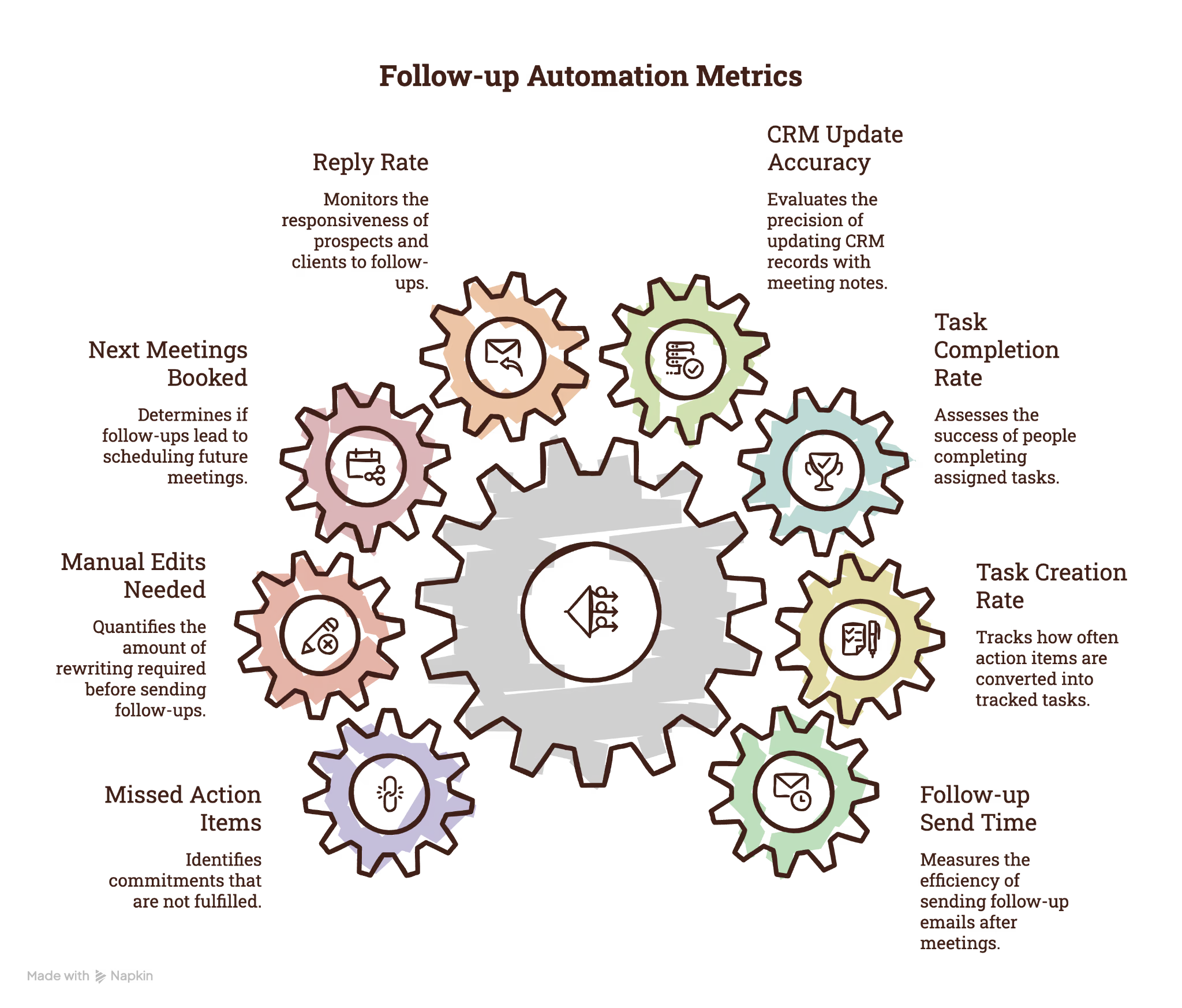
Once your workflow runs, track whether it improves follow-through. Don’t stop at email opens. A follow-up system only works if it helps people complete the next step. Track these metrics:
- Follow-up send time: How long does it take to send the recap after the meeting ends?
- Task creation rate: How often do action items become tracked tasks?
- Task completion rate: Do people complete the tasks your system creates?
- CRM update accuracy: Do meeting notes land on the right contact, company, or deal?
- Reply rate: Do prospects or clients respond to your follow-ups?
- Next meetings booked: Do follow-ups help move conversations forward?
- Manual edits needed: How much rewriting do you still do before sending?
- Missed action items: Do any commitments still fall through?
Review these numbers every few weeks. If your team still rewrites every email, tighten the template. If tasks lack owners, fix the meeting capture step. If the CRM updates the wrong record, add stricter matching rules.
How Lindy can help you automate meeting follow-ups
Once your follow-up process feels clear, you can use Lindy to handle more of the admin around it.
Lindy is an AI assistant you can text to manage your inbox, schedule meetings, update your CRM, and handle daily work tasks. Instead of opening five apps after a call, you can ask Lindy to help turn the meeting into the next steps.
For meeting follow-ups, Lindy has a ready-to-use skill called Meeting Agenda & Follow-Up. You can use it to help organize meeting context, pull out key points, and keep follow-up work moving without having to start from scratch every time.
You can text Lindy with requests like:
- “Summarize this meeting and draft a follow-up email.”
- “Pull out the action items and assign owners.”
- “Update the CRM with the meeting notes.”
- “Remind me to follow up with this lead in 3 days.”
- “Send the team a short recap in Slack.”
That makes Lindy useful beyond meeting notes. It can handle other work, like a sales email, a CRM update, a support handoff, or a reminder for the next call.
Lindy also provides ready-to-use skills to help you get started quickly. Whether you need to parse email attachments, triage your inbox, or summarize a thread, you can use these skills and customize them to fit your specific workflows.
It also connects with hundreds of business apps, so your meeting context can move into the places where your team already works.
You also get enterprise-grade security with Lindy, as it’s SOC 2 Type II certified and is HIPAA, GDPR, and PIPEDA compliant.
For those new to AI or looking to expand their knowledge, Lindy Docs offers complete guides and tutorials. It helps you learn how to use Lindy for your everyday tasks.
Try the Lindy free trial today and automate meeting follow-ups and other repeat tasks.
{{cta}}
Frequently asked questions
What is the best way to automate meeting follow-ups?
The best way to automate meeting follow-ups is to connect your meeting notes to the tools where follow-up work happens. That usually means turning the transcript into a summary, drafting the follow-up email, creating tasks, updating your CRM, and sending internal updates.
Start with one meeting type before you automate everything.
Can AI write meeting follow-up emails?
Yes, AI can write meeting follow-up emails from notes or transcripts. It can summarize the discussion, list action items, include owners and deadlines, and draft the next step. You should still review client-facing emails before sending them, especially when the message includes pricing, contracts, sensitive issues, or open commitments.
How soon should you send a meeting follow-up?
Send most meeting follow-ups within 24 hours.
Here’s what most teams follow: Send internal recaps within 30 minutes, sales follow-ups within 1 to 2 hours, and networking follow-ups the same day.
Can automated meeting follow-ups update my CRM?
Yes, automated meeting follow-ups can update your CRM when your setup connects meeting notes to tools like HubSpot, Salesforce, or Pipedrive. Your CRM update should include the meeting summary, next step, follow-up date, deal stage, customer request, and any important context from the call.
Should meeting follow-ups be fully automated?
Yes, meeting follow-ups can be fully automated, especially the internal recaps and task creation. However, sensitive follow-ups, like client-facing or customer support meetings, must require human approval before sending. Use rules for emails that mention pricing, legal terms, contracts, refunds, complaints, or anything that could create confusion.









