




I have found that saving an email as a PDF is usually the easiest way to keep a proper copy of something important, whether it is a receipt, approval, or booking confirmation. In this guide, I walk through how to do it across Gmail, Outlook, iPhone, and other common email setups.
How to save an email as a PDF: 30-second answer
The quickest way to save an email as a PDF is to open the message, choose Print, and then switch the Destination from a physical printer to Save as PDF. That gives you a downloadable file instead of a printed copy.
You’ll see that this method works across most major email platforms, including Gmail, Outlook, Apple Mail, and many mobile apps. The buttons may look a little different depending on your device, but the basic flow is usually the same.
Why should you save an email as a PDF?
Saving emails as PDFs makes them easier to organize, share, and keep for future reference. Many emails contain important information like receipts, confirmations, or decisions, so converting them to PDFs creates a more permanent record you can store and access later.
Here are some of the most common reasons people save an email as a PDF:
- Saving invoices or receipts: If you buy software, book travel, or pay for a service, the receipt often comes by email. Saving it as a PDF makes it easier to attach to expense reports or keep for tax records.
- Keeping important business communication: Client approvals, project decisions, and vendor conversations often happen in email. A PDF gives you a clean copy you can file outside your inbox.
- Storing legal or contractual emails: If an email includes terms, commitments, deadlines, or important updates, saving it as a PDF helps preserve the message in a more formal format.
- Sharing email content with others: Sometimes you need to send the content of an email to someone who should not be added to the original thread. A PDF is often the simplest way to do that.
- Creating a backup outside your inbox: Inboxes change. Emails get archived, deleted, or lost in clutter. A PDF gives you a copy you control.
Bottom line: Saving an email as a PDF is one of the easiest ways to turn a useful message into a file you can actually manage.
How to save an email as a PDF in Gmail
If you use Gmail, saving an email as a PDF is straightforward once you know where the option lives. Instead of offering a direct “Download as PDF” button, Gmail converts emails through your browser’s Print feature.
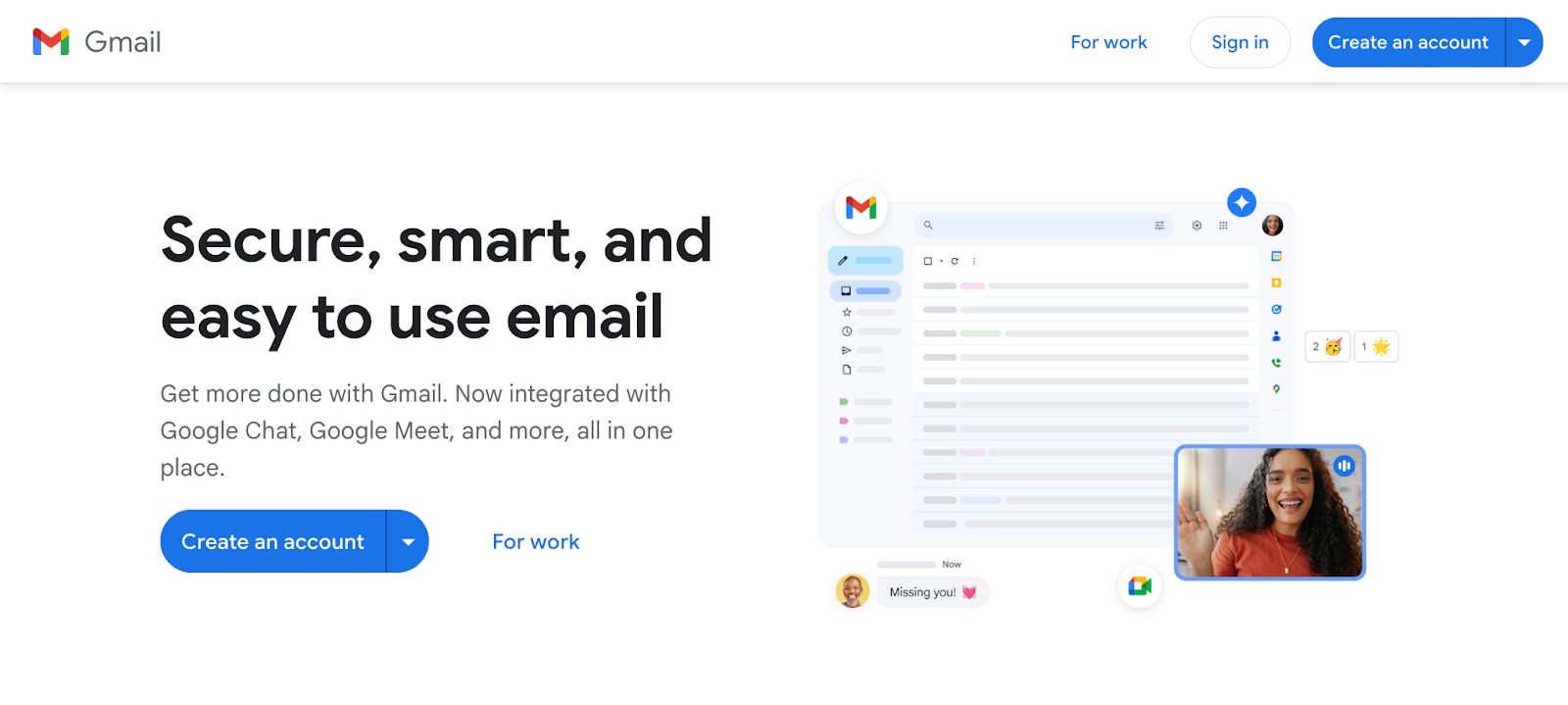
Follow these steps to save an email as a PDF in Gmail:
- Open the email in Gmail: Start by opening the message you want to save. Make sure the entire message content is visible, especially if the email contains attachments or is part of a longer thread.
- Click the Print icon: Look for the printer icon in the top-right corner of the email message. Clicking this icon opens your browser’s print preview window.
- Find the Destination setting: Inside the print window, locate the Destination or Printer setting. Your computer may default to a physical printer.
- Change it to Save as PDF: Switch the printer destination to Save as PDF. This tells your computer to convert the email into a downloadable document instead of printing it.
- Click Save: Click the Save button in the print window. Gmail will prepare the email for export.
- Choose where to store the file: Select the folder where the PDF should be saved and rename the file if needed. Once completed, Gmail downloads the email as a PDF file on your computer.
For example, imagine a client approves a project scope through email. Instead of leaving that message buried in your inbox, you can save it as a PDF and store it in the client’s project folder. That way, the approval is easy to find later without searching through dozens of email threads.
How to save an email as a PDF in Outlook
The easiest way to save an email as a PDF in Outlook is through the Print menu.
On Windows 10 or newer PCs, select ‘Microsoft Print to PDF.’ On Mac, choose ‘Save as PDF’ from the print dialog. If neither option appears, you can use a PDF print driver or third-party tool.
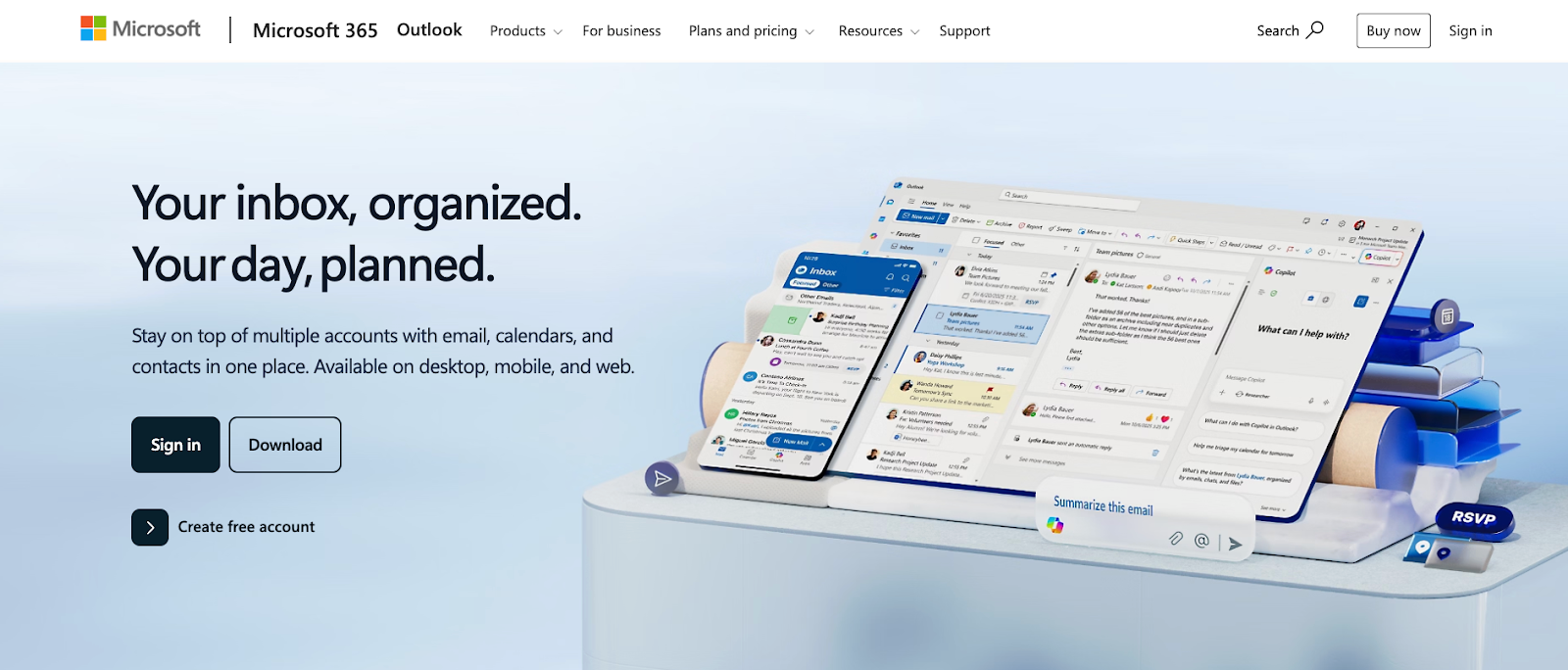
Follow these steps to save the email as a PDF in Outlook:
- Open the email message you want to save: Start by opening the email you want to convert into a PDF. This could be a receipt, invoice, approval message, or any conversation you want to keep as a record.
- Click File, Print, or More actions: Find Print under the File tab or the three-dot menu, depending on your Outlook version.
- Select Print: Clicking Print opens the print preview window. This screen lets you see how the email will look before exporting it.
- Choose Microsoft Print to PDF: In the printer list, select Microsoft Print to PDF instead of a physical printer. This tells your computer to generate a PDF file.
- Click Print: After selecting the PDF printer, click Print. Outlook will now prompt you to save the file.
- Choose where to save the file: Select the folder where you want the PDF stored. It helps to give the file a clear name so you can find it easily later.
- Save the file: Click Save, and Outlook will convert the email into a PDF document on your computer.
Once this step is complete, you’ll have a clean, shareable copy of the email that you can archive, attach to documents, or send to others.
For example, if a supplier emails you a revised quote, you can save that message as a PDF and drop it into your purchasing folder. That keeps the quote easy to share with finance or procurement without forwarding the email thread around.
How to save an email as a PDF on iPhone
You can use the Mail app on your iPhone to convert an email into a PDF. The option isn’t labeled “Save as PDF.” Instead, it works through the Print preview screen. Once you expand the preview, the email automatically turns into a PDF that you can save or share.
Here’s how to turn an email into a PDF on your iPhone:
- Open the email in the Mail app: Start by opening the email you want to save. Make sure the message is fully loaded so the content appears correctly in the PDF.
- Tap the Reply or Share icon: At the bottom of the screen, tap the reply arrow icon. This opens the action menu where you’ll find options like reply, forward, and print.
- Tap Print: Scroll through the menu and select Print. This opens the print preview screen, where the email is displayed as a document.
- Use a pinch-out gesture on the preview: Place two fingers on the preview image and spread them apart (a pinch-out gesture). This action expands the preview and converts it into a full PDF view.
- The preview opens as a PDF: Once expanded, the email becomes a proper PDF document. You can scroll through it just like any other file.
- Tap the Share icon again: In the PDF view, tap the Share icon in the corner of the screen. This allows you to export or store the file.
- Choose where to save the file: Select Save to Files, Books, or another app like iCloud Drive, Google Drive, or Dropbox. Your email is now saved as a PDF in the spot you chose.
After this step, the email is stored as a PDF on your iPhone or in your cloud storage.
For example, if you receive a hotel confirmation email while traveling, you can open it in Mail, convert it to a PDF, and save it to Files so you have an offline copy ready even if you lose signal later.
How to save an email as a PDF on Android
Saving an email as a PDF on Android is usually simple. Most devices include a Save as PDF option in the print settings. From the Gmail or mail app’s Print menu, you can quickly export the email as a PDF and store it on your device or cloud storage.
Follow these steps to save the email as a PDF from your Android device:
- Open the email in Gmail or your preferred mail app: Start by opening the message you want to save as a PDF. Make sure the full email is visible so the content appears correctly in the final document.
- Tap the three-dot menu: In most Android email apps, the options menu appears as three dots in the top-right corner of the screen. Tap this menu to reveal additional actions for the email.
- Tap Print: From the menu options, select Print. This opens the print preview screen, where Android prepares the email for printing or exporting.
- Choose Save as PDF from the printer dropdown: At the top of the print preview screen, you’ll see a printer selection dropdown. Change this setting to Save as PDF instead of selecting a physical printer.
- Tap the Download or Save icon: Once Save as PDF is selected, tap the Download or Save icon. Android will then begin converting the email into a PDF file.
- Choose where to save the file: Some devices will ask you to choose a storage location, such as your Downloads folder, Google Drive, or another app. Select the location where you want the file stored.
That's it. Your email is now a PDF on your Android, ready whenever you need it. Share it, upload it, or just keep it handy.
For example, if a customer sends approval details by email while you are away from your desk, you can save the message as a PDF from your Android phone and upload it to your team folder right away.
How to save multiple emails as a PDF
I have found that saving multiple emails as one PDF is not always built into your email app. In Gmail, for example, you can usually print an entire conversation thread with all replies, but combining separate emails into one PDF often takes an extra step.
If the emails are part of the same thread, open the conversation, choose Print, and save it as a PDF. If they are separate emails, the easiest option is usually to save each one as a PDF first, then merge the files using a PDF tool.
For frequent use, tools like Adobe Acrobat, Mail Backup X, or SysTools Email Backup Wizard can make bulk email exports easier across Windows and Mac. They are especially helpful when you need to save separate emails, not just one thread.
Email to PDF vs screenshot: What’s the difference?
I have found that a PDF is usually the better option when you need to keep the full email intact. Screenshots can work for something quick, but they often cut off details, break longer threads, and make the message harder to search later.
Use a screenshot when you only need one small part of an email. Use a PDF when you want the full message in a cleaner format that is easier to store, share, or print.
One quick tip: Before saving, check the file name, skim the preview, and make sure the full message is included. That small step helps you avoid saving the wrong email, cutting off part of a thread, or ending up with a PDF that is hard to find later.
Don’t want to save emails manually? Text Lindy
Instead of opening emails, printing them to PDF, and sorting them into folders yourself, text Lindy to save important emails for you. Lindy can capture receipts, approvals, invoices, and other key messages, then store them in the right place automatically.
Because Lindy connects with 4,000+ integrations, it can move those files directly into the tools you already use, like Google Drive, Notion, Slack, or your CRM. So instead of manually converting emails one by one, you can just ask Lindy to keep your important messages organized for you.
You can also text Lindy to:
- Save important emails as PDFs automatically
- Organize receipts and invoices from your inbox
- Store approval emails in the right project folder
- Move saved files into Google Drive, Notion, Slack, or your CRM
If your inbox is where a lot of work happens, Lindy helps make sure the important information does not get lost in it.
FAQs
1. Can you convert multiple emails into one PDF?
Converting multiple emails into one PDF is possible in some cases, but it depends on the email app you are using. If the emails are part of one thread, you can often save the full conversation as a PDF. For separate emails, you will usually need to save them first, then merge the files.
2. Why should you save emails as PDFs?
Saving emails as PDFs helps create permanent records of important communication. PDFs preserve formatting, keep text searchable, and make emails easier to store or share. They’re especially useful for receipts, approvals, contracts, travel confirmations, and other records you may need later.
3. Can I save an entire email thread as a PDF?
Saving an entire email thread as a PDF is possible in many email apps when the messages are part of the same conversation. It is still worth checking the preview before saving, because some print views only include part of the thread instead of the full exchange.
4. Do attachments get saved when I turn an email into a PDF?
Attachments usually do not get saved when you turn an email into a PDF. In most cases, the PDF only captures the message itself. If an attachment matters, download it separately so you keep the full context. That is especially worth remembering when the attachment contains the actual invoice, contract, or file you may need later.
5. Is a screenshot better than saving an email as a PDF?
Saving an email as a PDF is usually better than taking a screenshot when you want to keep the full message. Screenshots can work for something quick, but PDFs are cleaner, easier to search, and more useful for longer emails or threads.
6. Can an AI assistant save an email as a PDF for me?
Yes. Just text an AI assistant like Lindy, and it will save your important emails as PDFs, no manual clicks or downloads needed. Lindy turns your messages into organized files, right where you want them.








%20(1).png)
%20(1).png)
.png)
%2520(1).png)

%2520(1).png)
