11 Best Business Calendar Apps for Teams (2026)
Marvin tested eleven business calendar apps, including Google Calendar, Calendly, and Motion, weighing team scheduling, integrations, booking experience, and per-seat pricing.


I once spent twenty minutes installing an app called Business Calendar before realizing it was built for one person's phone, not the six-person team I was trying to get on the same schedule. Good app. Wrong problem.
If you're solving the team version of that problem, you're in the right place. I compared 11 business calendar apps built for shared schedules, meeting booking, and the kind of coordination a single-phone app was never meant to handle.
- Google Calendar: Best for teams already on Google Workspace
- Outlook Calendar: Best for teams already on Microsoft 365
- Apple Calendar: Best for Apple-based teams who want a free, built-in calendar
- Calendly: Best for external meeting booking links
- Cal.com: Best for an open-source scheduling alternative
- Motion: Best for fully automatic tasks and meeting scheduling
- Reclaim.ai: Best for defending focus time on an existing calendar
- Fantastical: Best for Apple users who want natural language input
- TimeTree: Best for informal groups who just need one shared calendar
- Zoho Calendar: Best for businesses already in the Zoho ecosystem
- Morgen: Best for consolidating multiple calendars into one AI-planned view
What is a business calendar app?
A business calendar app helps teams manage shared schedules. It makes it easier to check availability, book meetings, avoid conflicts, add video links, and keep meeting details organized.
That makes it different from a personal calendar app, which tracks your own events and sends reminders. Business calendars have to handle more people, more meetings, and more coordination.
That is why the tools in this category vary. Google Calendar, Outlook, and Apple Calendar are widely used calendars for work. Calendly and Cal.com are booking tools that sit on top of an existing calendar.
Motion, Reclaim, and Morgen use AI to help plan your day, protect focus time, and move tasks when your schedule changes.
Types of business calendar apps
- Default ecosystem calendars: Google Calendar, Outlook Calendar, and Apple Calendar are the calendars most businesses already get through their email provider or device. For many teams, one of these is enough.
- Scheduling and booking tools: Calendly and Cal.com sit on top of your existing calendar and let other people book time with you directly. They are useful when you want to avoid long scheduling threads.
- AI scheduling assistants: Motion, Reclaim, and Morgen work like an AI scheduling assistant, planning your day around tasks, meetings, focus time, and changing priorities. Some fully automate the schedule, while others let you review changes before they happen.
- Specialized calendars: These tools solve more specific scheduling needs. Fantastical is best for Apple users who want natural language event creation. TimeTree works well for simple shared calendars with family, friends, or small groups. Zoho Calendar fits teams already using Zoho’s broader business suite.
How I evaluated these business calendar apps
I tested each app around the scheduling problems that tend to waste the most time in a real workday. I wanted to see how much coordination each one could actually remove once meetings, teammates, and external bookings started piling up. I focused on the following:
- Scheduling flexibility: Could I set working hours, recurring rules, and shared availability without constantly fixing conflicts by hand?
- Integrations: How well did it connect with Google Calendar, Outlook, Zoom, Google Meet, and other apps already in a typical team workflow?
- Team scheduling: I looked at round-robin booking, delegate access, shared calendars, admin controls, and how permissions worked across multiple users.
- Booking experience: Could a client, candidate, or lead find a time and book it without a long email thread?
- Scalability: I looked at whether per-seat pricing and permissions still made sense as a team grew.
- Daily usability: This mattered most to me. Once everything was set up, did the app quietly keep things moving, or was I still chasing availability and cleaning up scheduling conflicts?
The strongest options were the ones I could trust to handle the tedious coordination in the background without creating another system I'd have to babysit.
Quick reference: 11 business calendar apps
| Tool | Key strength | Starting price |
|---|---|---|
| Google Calendar | Auto-detects events from Gmail and syncs across Workspace | Free (Workspace from $7/user/month paid yearly) |
| Outlook Calendar | Delegate access for managing someone else's schedule | Free (M365 from $7/user/month paid yearly) |
| Apple Calendar | Free, built-in scheduling with iCloud sharing and Focus filters across Apple devices | Free (iCloud+ from $0.99/month) |
| Calendly | One-click booking links that sync straight to your calendar | $12/seat/month (free plan available) |
| Cal.com | Open-source with self-hosting and unlimited free bookings | $16/user/month (free plan available) |
| Motion | Automatically reschedules tasks the moment your day changes | $49/month |
| Reclaim.ai | Defends focus time and habits, rescheduling them automatically | $12/seat/month (free plan available) |
| Fantastical | Parses a typed sentence into a fully structured event | $6.99/month (free tier available) |
| TimeTree | In-event comments replace a separate group chat | $4.49/month (free with ads) |
| Zoho Calendar | Bundled into Zoho's suite at a fraction of Workspace or M365 cost | Free (Zoho Mail from $1/user/month) |
| Morgen | AI Planner proposes a schedule you approve before it locks in | $30/month (no free plan) |
1. Google Calendar
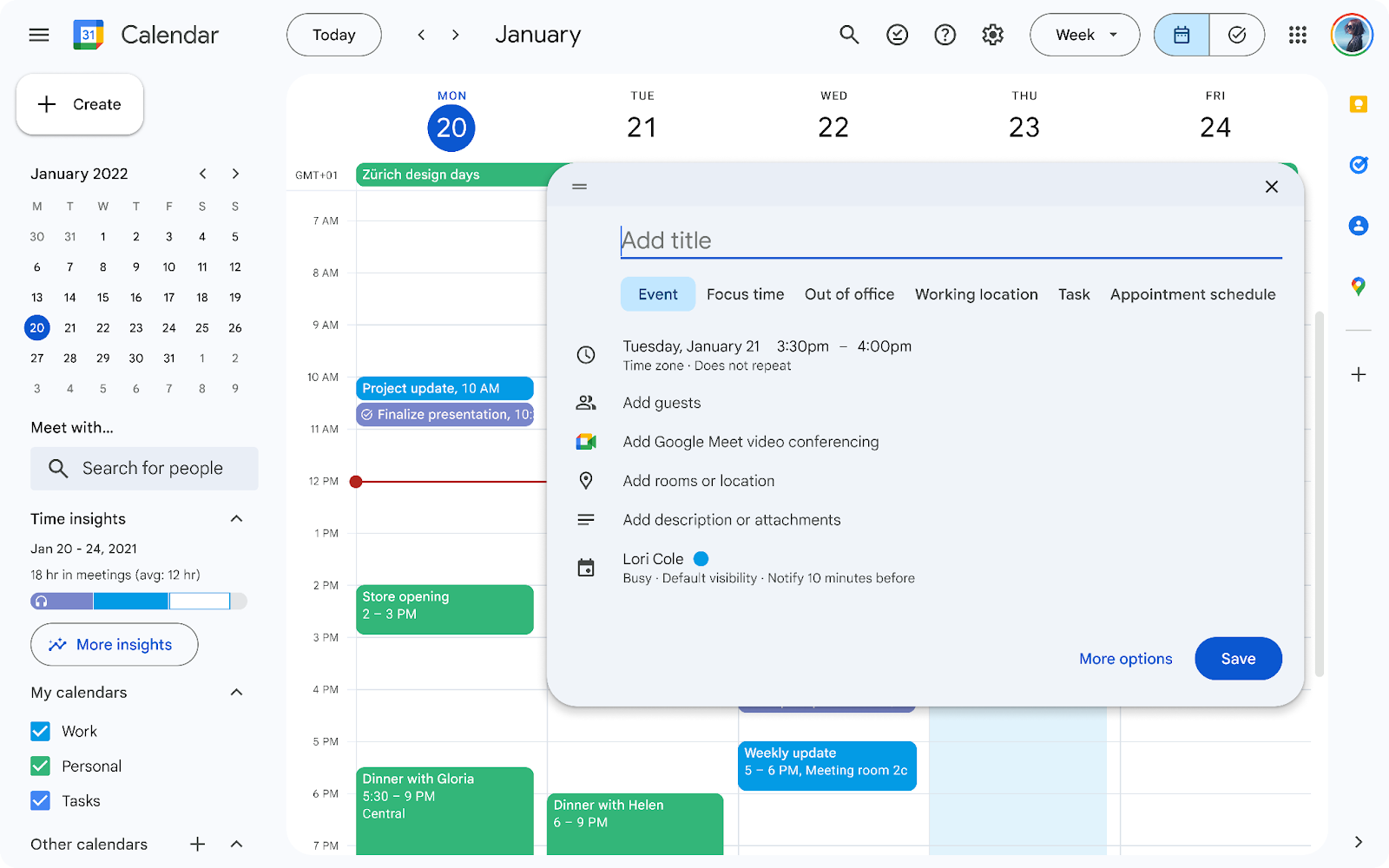
What it does: Google Calendar is the calendar built into every Google account, syncing across Gmail, Meet, and the rest of Workspace so meetings, invites, and event details show up automatically without manual entry.
Best for: Admins and small business owners running their whole company on Google Workspace
Pricing: Google Calendar is free with any Google account, including for business use. Google Workspace adds a custom business domain and admin controls from $7/user/month annually.
Key features
- Gemini-powered suggested times that find open slots across everyone's calendar in the same organization, on eligible plans, plus a basic Find a time view on any work account
- Adds events from Gmail automatically, like flight confirmations and restaurant bookings, though it's off by default in the UK, EU, Switzerland and Japan
- Working location settings on Business Plus and above, so teammates know when someone is in the office, remote, or out
- Focus time that auto-declines meetings on Business Standard and above, plus out-of-office for all accounts
- Automatic meeting notes in Google Meet with “Take notes for me” on Business Standard and above
- Deep integration with Docs, Drive, and Gmail so event details pull in automatically
What stood out for me
The automatic event detection from Gmail is the feature I'd miss most if I switched away. I booked a flight for a work trip, and before I'd even opened my calendar app, the confirmation email had already turned into a properly formatted event with the flight number, departure time, and airport codes filled in.
Hotel and restaurant bookings work the same way. It's a small piece of automation, but it removes the copy-paste step that eats real time whenever travel is involved.
The working location setting is worth calling out, too, if you're on Business Plus or higher. Once a few people on a team started using it consistently, it turned into a quick way to see who was in the office on a given day, without a separate status update in Slack or a guessing game before scheduling an in-person meeting.
What could improve
The suggested-times panel works cleanly only within a single Workspace organization. Try to use it with an external guest, a client, a vendor, or a candidate, and it falls back to guessing unless that person has already shared their calendar with you, which almost nobody does by default.
The Gemini-powered meeting notes and summaries are also rolling out unevenly across plans and languages, so what shows up in Google's own release notes doesn't always match what's actually available when you go looking for it.
2. Outlook Calendar
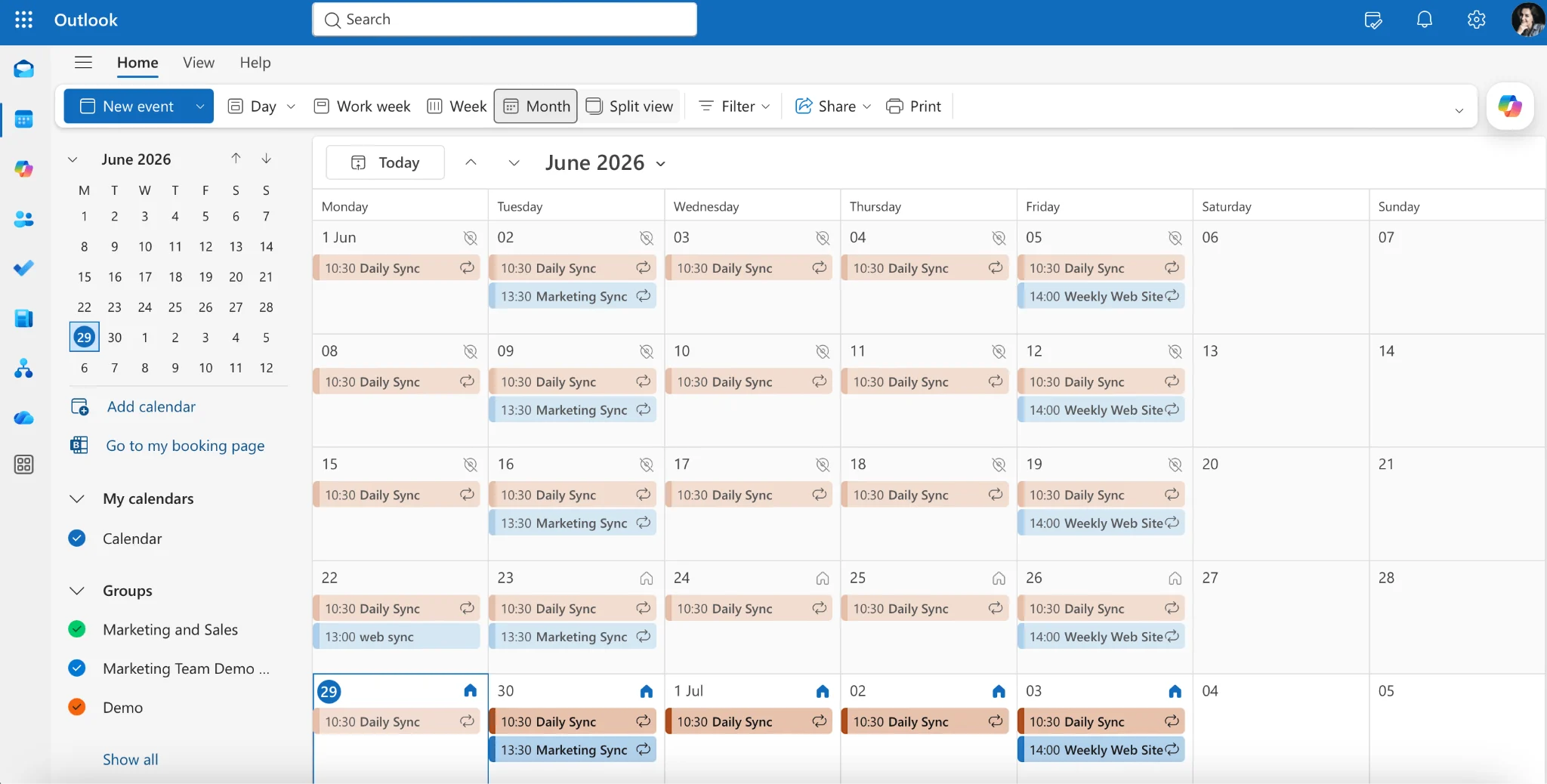
What it does: Outlook Calendar is Microsoft's scheduling tool built into Microsoft 365, syncing meetings, rooms, and availability across Outlook, Teams, and the rest of the Office apps.
Best for: IT admins and office managers running their company on Microsoft 365
Pricing: Outlook Calendar is free with any Microsoft account. Business deployment through Microsoft 365 starts at $7 per user/month, paid yearly. Copilot is available as an $18/user/month add-on, also paid yearly, or built into the Business Standard and Business Premium plans.
Key features
- Delegate calendar access for viewing and managing someone else's calendar with approved permission
- Draft with Copilot, which writes full-sentence replies to scheduling requests rather than the one-tap suggested replies
- Scheduling Assistant showing attendee free/busy status across a Microsoft 365 organization
- Room and resource booking built into the same invite flow
- Shared calendars with configurable permission levels for teams
- Copilot Chat in Outlook for anyone with an eligible Microsoft 365 subscription, with Word, Excel, and PowerPoint needing a Copilot license
What stood out for me
Delegate access is what sold me on this for anyone managing someone else's schedule. If you've ever tried to find a client's next open slot in a calendar you don't own, you know how much friction that can add.
Outlook’s delegate permissions let you search and manage that calendar directly without having to check with the owner every time.
Draft with Copilot builds on that. When I was handling meetings on someone else's behalf, getting full-sentence replies drafted for me made the whole thing feel much closer to managing my own calendar.
What could improve
Copilot is where the real cost sits. The add-on runs $18 per user per month paid yearly, and the plans that include it, Business Standard with Copilot at $23.50 and Business Premium with Copilot at $32, are a step up from the $7 entry plan.
The Copilot licensing split is a real option. Outlook includes Copilot Chat with eligible Microsoft 365 subscriptions, while access in Word, Excel, and PowerPoint depends on your license. What you get from “Copilot” can change depending on which app you open.
3. Apple Calendar
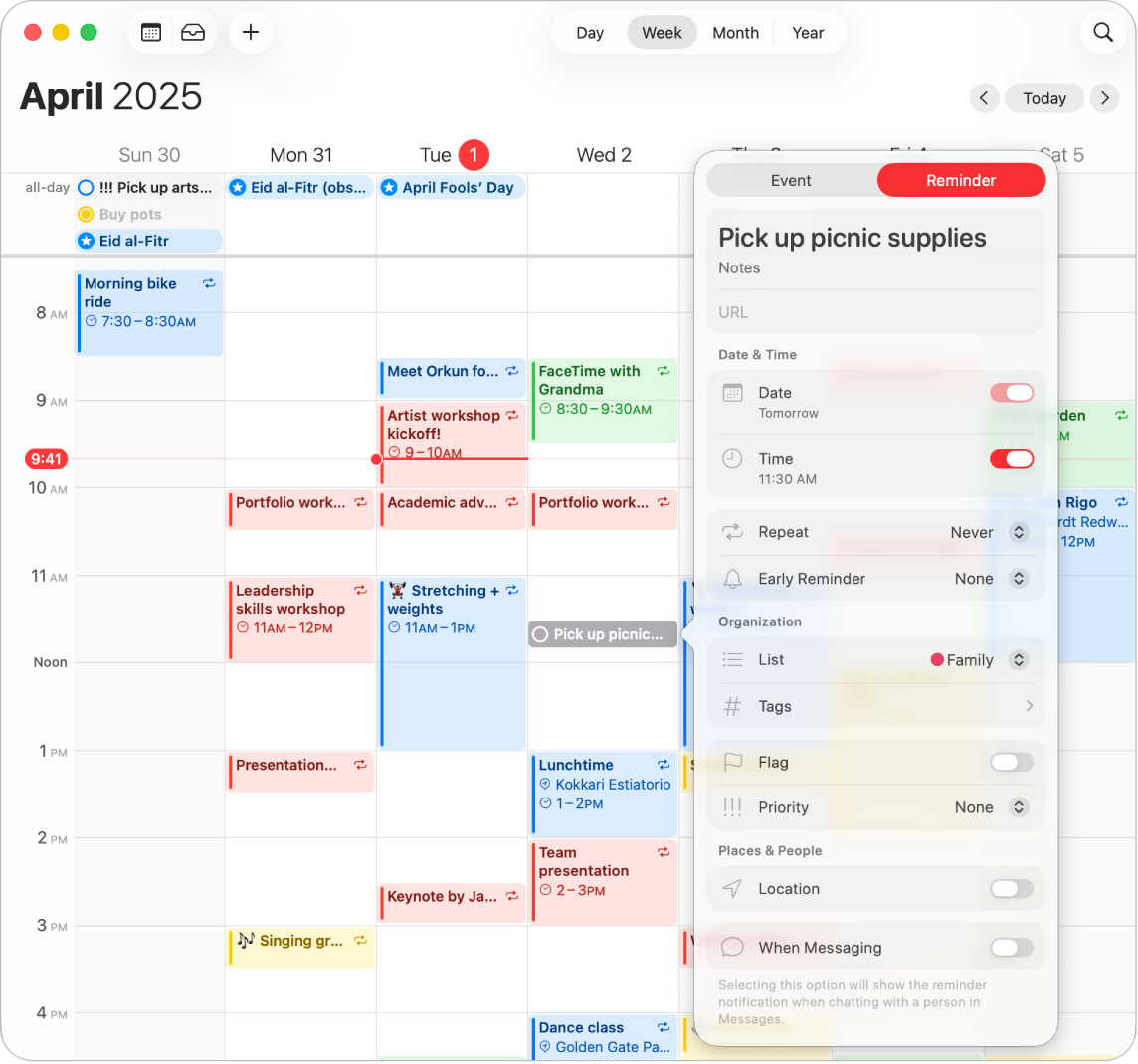
What it does: Apple Calendar is the calendar built into every Mac, iPhone, and iPad, syncing through iCloud so an event created on one device shows up on the rest, with a browser version at iCloud.com for everything else.
Best for: Apple-based teams and solo professionals who want a free, built-in calendar without adding another subscription
Pricing: Apple Calendar is free with any Apple ID, on macOS, iOS, iPadOS, and iCloud.com. Extra iCloud+ storage and Family Sharing start at $0.99/month for 50GB, scaling up to $59.99/month for 12TB, billed monthly with no annual discount.
Key features
- iCloud calendar sharing with Allow Editing or Read-Only permissions, with everyone seeing a collaborator's changes in real time
- Focus filters show only calendars tied to the active Focus mode, such as hiding personal calendars during Work Focus
- Travel time estimates for driving, walking, or transit add an alert directly to the event
- FaceTime links attach natively to events, while pasted Zoom and Teams links work from the same field
- Siri and on-device AI can create events from spoken requests or pull details from emails, texts, and screenshots
- iCloud calendar sharing supports up to 100 private invitees or unlimited subscribers on public calendars
What stood out for me
My mornings start with a Work Focus turning on at 9am, and the personal calendar disappears from view. I don’t have to toggle calendars or switch between personal and work apps. When I switch back to Personal Focus in the evening, everything comes back.
Sharing a calendar with edit permission is surprisingly useful day-to-day. A teammate sees the same calendar, and any changes either of you makes show up immediately.
The reminder piece is what kept me in one app. Reminders with a due date appear right on the calendar grid next to events, and I can check one off, edit it, or add a new one from the same place. A day with three meetings and two to-dos reads as one list.
What could improve
iCloud sharing covers basic coordination, not full delegation. Edit and view-only permissions are available, while true delegate access is reserved for Exchange or CalDAV accounts.
It’s also Apple-first in a way that limits mixed teams. There’s no native Windows or Android app; Windows users are stuck syncing through iCloud for Windows or the browser at icloud.com, and Android has no option beyond the browser.
4. Calendly
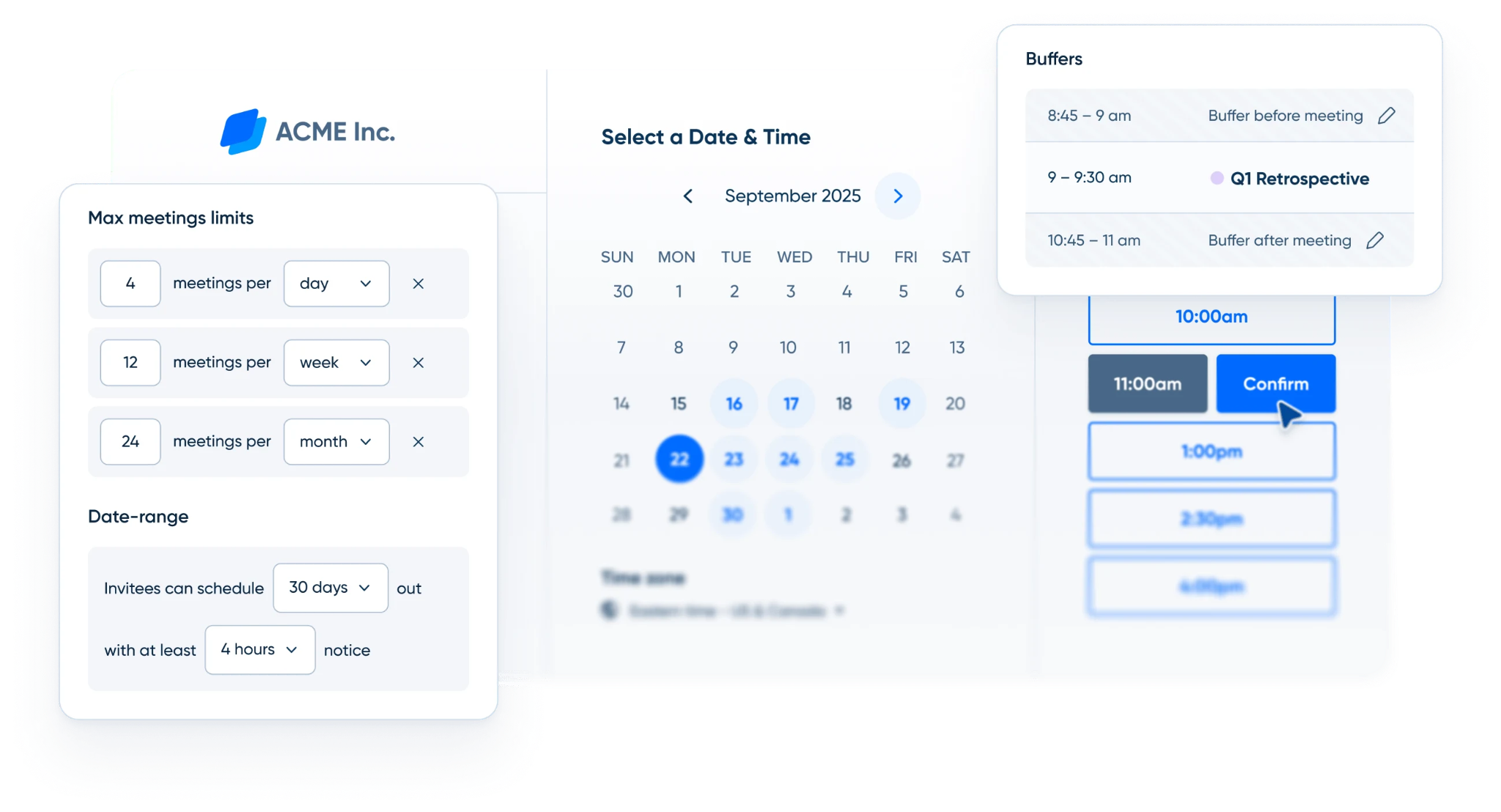
What it does: Calendly is a scheduling tool built around a shareable booking link. Set your availability once, send the link, and the other person picks a time that works, with both calendars updating automatically.
Best for: Recruiters, sales reps, and freelancers who book meetings with people outside their company
Pricing: Calendly offers a free tier; paid plans start at $12/seat/month for the Standard plan. Teams costs $20/seat/month, and Enterprise starts at $15,000 a year with a 50-seat minimum.
Key features
- One-click booking links that sync directly with Google, Outlook, or iCloud calendars
- Round-robin and collective scheduling for routing meetings across a sales or recruiting team
- Automated email and SMS reminders to cut down on no-shows
- HubSpot lead routing on Teams and above, with Salesforce lead routing reserved for Enterprise
- Payment collection through Stripe and PayPal for paid consultations
- Remove Calendly branding from booking pages on Standard and higher plans
What stood out for me
I had a working booking link ready in about ten minutes. I connected my calendar, set my availability, and it was good to go with no onboarding call or admin setup. That simplicity is the main appeal. Sending one link cuts out the usual back-and-forth over time, whether it’s a single client call or a recruiter scheduling interviews all week.
The round-robin routing on the Teams plan is also useful once multiple people share the same booking flow. New meetings can go straight to the next available person without anyone having to claim them manually.
What could improve
The free plan's one-event-type limit shows up fast. The moment a business needs a 30-minute intro call and a separate 60-minute consultation link, that's a paid plan.
Pricing scales per seat, so a 10-person team on the Teams plan is $200 a month, not the $20 on the pricing page. Salesforce lead routing sits on Enterprise, and removing Calendly's branding needs Standard, so neither is available on its own.
5. Cal.com
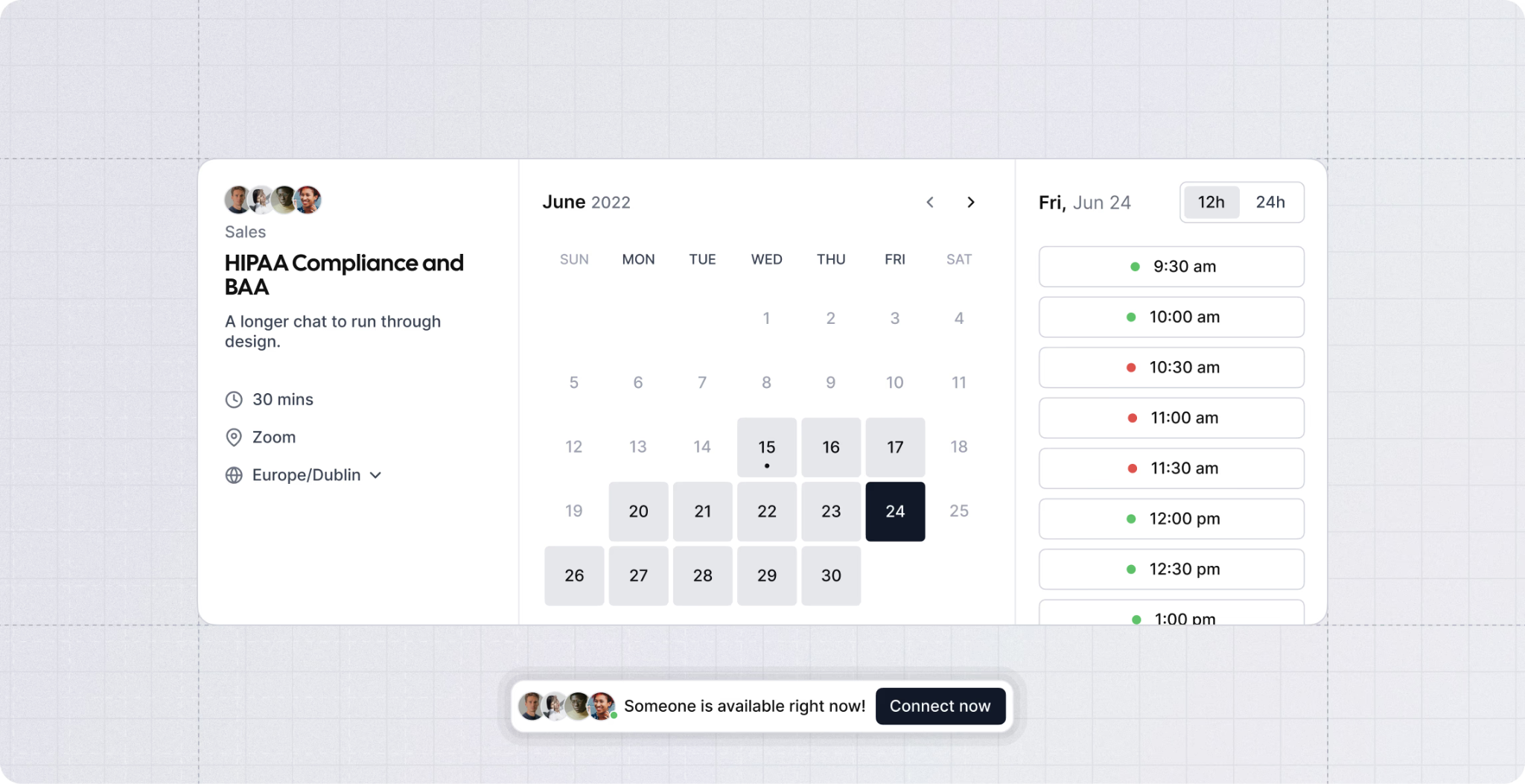
What it does: Cal.com is an open-source scheduling platform built as an alternative to Calendly, with the same booking-link core plus the option to self-host the entire system on your own infrastructure.
Best for: Developers and privacy-conscious individuals who want to own their scheduling infrastructure, and teams who want an open-source booking tool
Pricing: Cal.com has a free individual plan with unlimited bookings. Paid plans start at $16/user/month for Teams and $37/user/month for Organizations, with custom Enterprise pricing. When billed annually, those drop to $12 and $28. You can also self-host for free.
Key features
- Self-hostable community edition under an open-source MIT license, free to run on your own servers for personal use
- Unlimited event types and bookings even on the free cloud plan
- Round-robin scheduling, collective availability, and routing forms for team booking
- API-first design built for embedding scheduling directly into another product
- Integrations with Google, Outlook, Apple Calendar, Zoom, Stripe, Salesforce, and HubSpot
- HIPAA compliance and SAML SSO available on the Organization tier
What stood out for me
What caught my attention first was how generous the free plan is. You can create unlimited event types and take unlimited bookings without paying, which gives Cal.com a clear edge over Calendly's free tier.
For developers and privacy-conscious individuals, self-hosting is one of Cal.com's biggest differentiators. You can run the community edition on your own servers and keep scheduling data inside your own infrastructure, though team features stay on the paid cloud plans.
That protection is worth the most when you're booking sensitive appointments, like healthcare intake or legal consultations, where you don't want that data leaving your own servers at all.
The API-first design also gives Cal.com a different kind of appeal. If you have a technical team, you can embed scheduling directly into your product or workflow instead of relying on a standalone booking page.
What could improve
Self-hosting takes more work than the open-source pitch can make it seem. Running Cal.com yourself means ongoing server management, security patches, updates, and maintenance that most non-technical teams won’t want to handle.
The free plan is capped at a single user. The moment a second person needs their own booking link, that's the $16/user/month Teams plan.
6. Motion
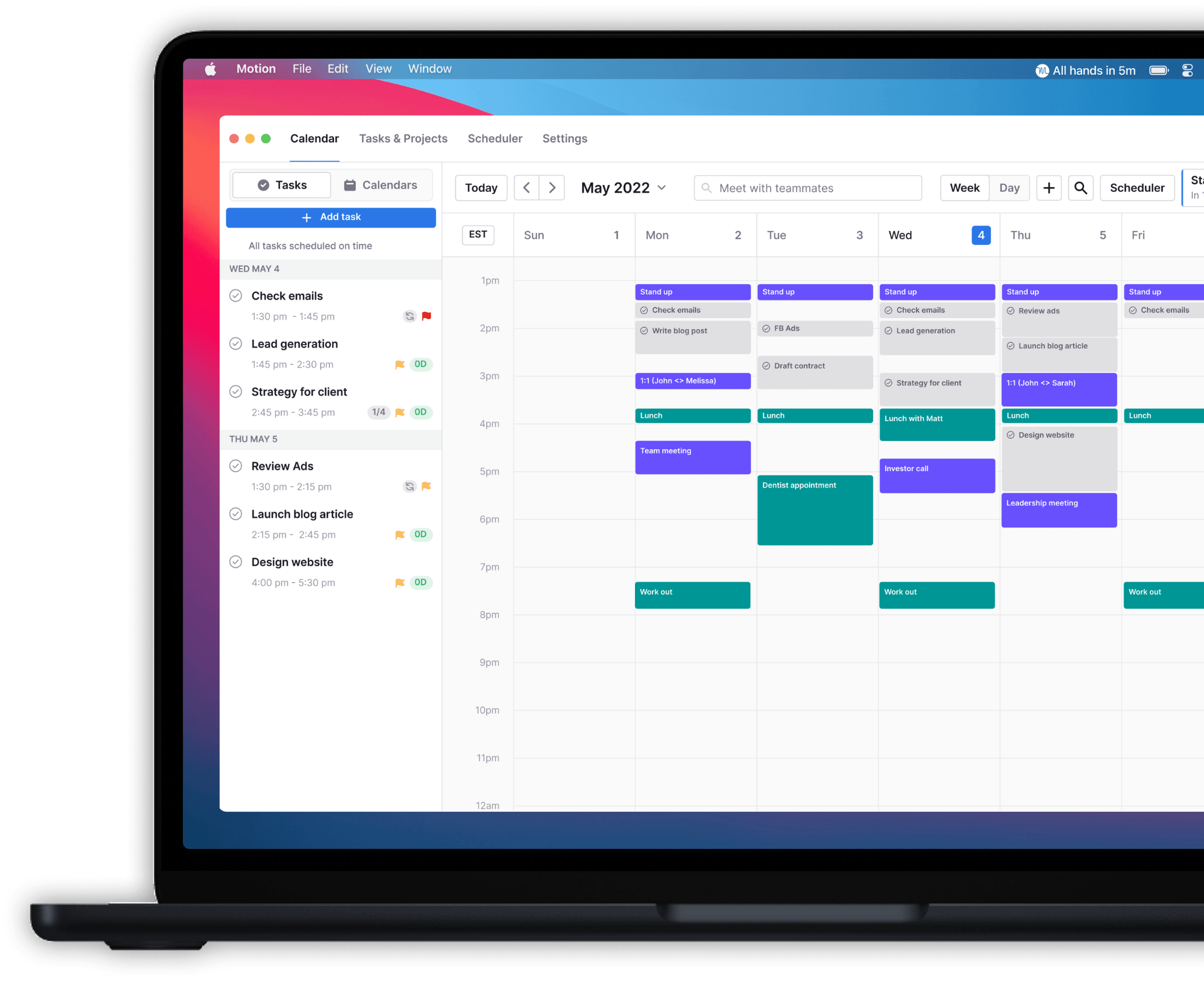
What it does: Motion is a task and project manager that automatically schedules your to-do list into open slots on your calendar, then reshuffles everything whenever a meeting moves or a new task gets added.
Best for: Busy professionals and small teams who want their day planned for them automatically
Pricing: Motion charges $49/month for Pro AI and $69/month for Business AI, both billed monthly per user. There's no permanent free plan, just a trial before the card on file gets charged. See our full Motion pricing breakdown for the annual rates.
Key features
- Automatic task scheduling that places to-dos into open calendar slots based on deadline and priority
- Dynamic rescheduling whenever a new meeting or conflict lands on top of planned work
- Calendar sync across Google, Outlook, and Apple calendars
- Built-in project planning with task dependencies and team workload views
- AI meeting booking links similar to Calendly's core feature
- A monthly AI credit allowance for chat, docs, and writing features bundled into the same subscription
What stood out for me
Motion earns its keep when your day changes after you've already planned it. Add a meeting on top of an existing task block, and Motion moves that task to the next open slot before you've noticed the clash.
That's the big difference from a standard calendar. A standard calendar shows you the conflict and leaves it there. Motion rebuilds the day around it, which matters most when your schedule keeps shifting.
The project planning features are useful too, especially task dependencies, but they feel secondary. The scheduling engine is still the main reason to use Motion.
What could improve
Motion works best when it becomes the main place you manage tasks and projects. If you already use another task manager, running both can create duplicate systems and extra maintenance. In practice, it makes more sense as a full switch than an add-on.
It also doesn’t handle email directly. If a task starts in your inbox, someone still has to read the message and create the task manually before Motion can schedule it.
7. Reclaim.ai
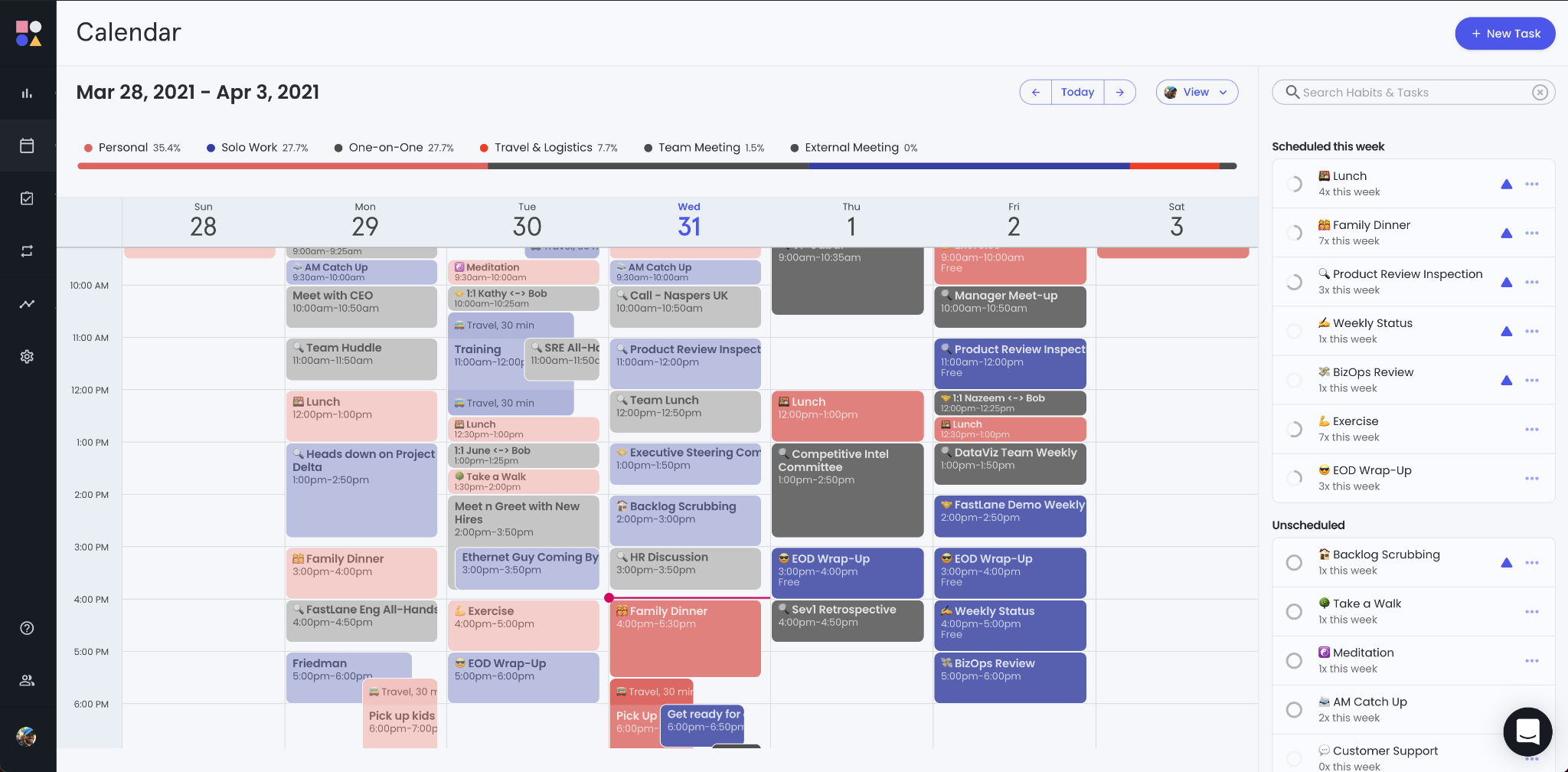
What it does: Reclaim.ai is a scheduling layer that sits on top of Google Calendar or Outlook, automatically defending focus time, habits, and tasks pulled in from other tools against new meeting requests.
Best for: Knowledge workers and managers with meeting-heavy calendars who need to protect deep work time
Pricing: Reclaim's Lite plan is free and covers the basics. Paid tiers are $12/month per seat for Starter and $18/month per seat for Business, with Enterprise available only on annual billing via a custom quote.
Key features
- Focus Time blocks that get defended and automatically rescheduled when a meeting tries to land on top of them
- Habit scheduling for recurring routines like lunch or exercise that flex around your week instead of creating conflicts
- Two-way task integrations with Asana, ClickUp, Todoist, Jira, and Linear
- Smart Meetings that find and lock in the best time across multiple attendees' calendars
- Scheduling Links with priority-aware availability, so a high-priority link can show slots a lower-priority one wouldn't
- SOC 2 Type II certification, now backed by Dropbox after its 2024 acquisition
What stood out for me
Reclaim’s habit scheduling turned out to be more useful than I expected. When a meeting lands on a recurring block, Reclaim finds another open window and moves the habit there.
That means things like lunch, workouts, or weekly deep-work sessions are much harder to lose during a busy week. The calendar keeps adapting around them.
Its task integrations are strong too. Pull something in from Asana or Todoist, and Reclaim carries over details like the due date and priority. The task arrives with useful context already attached, not as a blank time block with a title.
What could improve
For me, the biggest gap was mobile. Reclaim still doesn't have a native app, and I noticed that more than I expected during testing.
I could open the web app on my phone, but it felt limited. There were no native push notifications, and quick calendar changes took more effort than I wanted.
If you’re choosing between the two, check out our Motion vs Reclaim comparison for a closer look at how they stack up.
{{templates}}
8. Fantastical
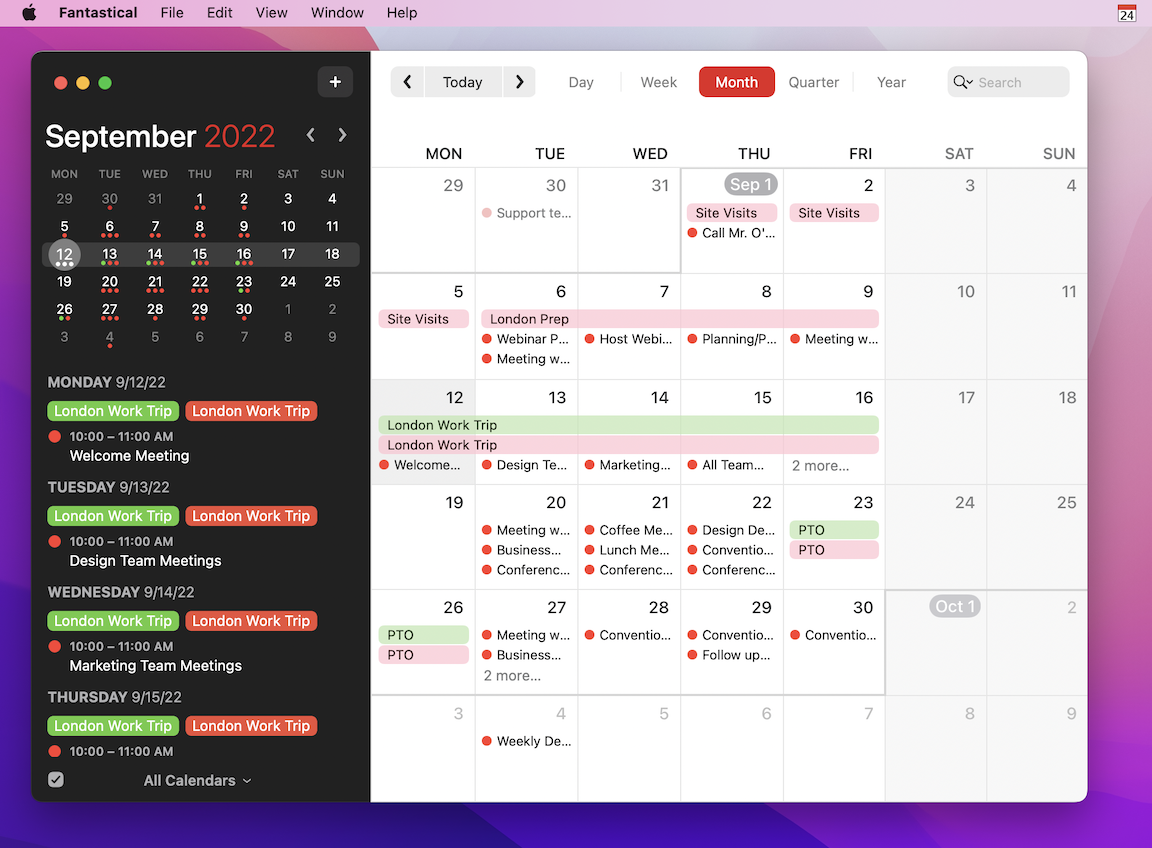
What it does: Fantastical by Flexibits is a calendar app for Apple devices and Windows, built around natural language input. Type a plain sentence like "lunch with Sarah tomorrow at 1," and it parses the details straight into a structured event.
Best for: Apple users and solo professionals who want fast, natural language event entry
Pricing: Fantastical has a free tier to try the basics. Paid plans start at $6.99/month for Individual, while Family costs $10.49/month for up to five people.
Key features
- Natural language event creation that parses plain sentences into complete calendar entries
- Calendar Sets that switch which calendars are visible based on time of day or location
- Openings and Proposals for sharing availability and suggesting meeting times, similar to Calendly
- Automatic conference link detection for Zoom, Teams, Google Meet, and other video tools
- Travel time and time-to-leave alerts built directly into event blocks
- Task management synced with Apple Reminders, Todoist, and Google Tasks
What stood out for me
Type "dinner with Sarah Saturday at 7 at Nomad" and you get a fully structured event with the location filled in, no extra taps. Fifteen years after Fantastical popularized it, this is still the best version of the feature I've come across. It saves real time on the small, low-stakes events that would otherwise take three or four taps to build manually.
Calendar Sets is the other feature that quietly does a lot of work. A whole group of calendars can switch visibility automatically based on the time of day, so a personal calendar isn't cluttering up a work view during business hours, and vice versa after five.
What could improve
This is built for Apple's ecosystem first. There's a Windows app, but no Android one, and the Apple versions get the polish. Tasks live in their own view and sync with Apple Reminders, Todoist and Google Tasks, but projects, dependencies and detailed workflows still need a real task manager alongside it.
It's also worth knowing there's no lifetime license anymore. Existing owners kept everything they paid for, but anyone starting today is on a subscription, and that shift still rankles some longtime users.
9. TimeTree
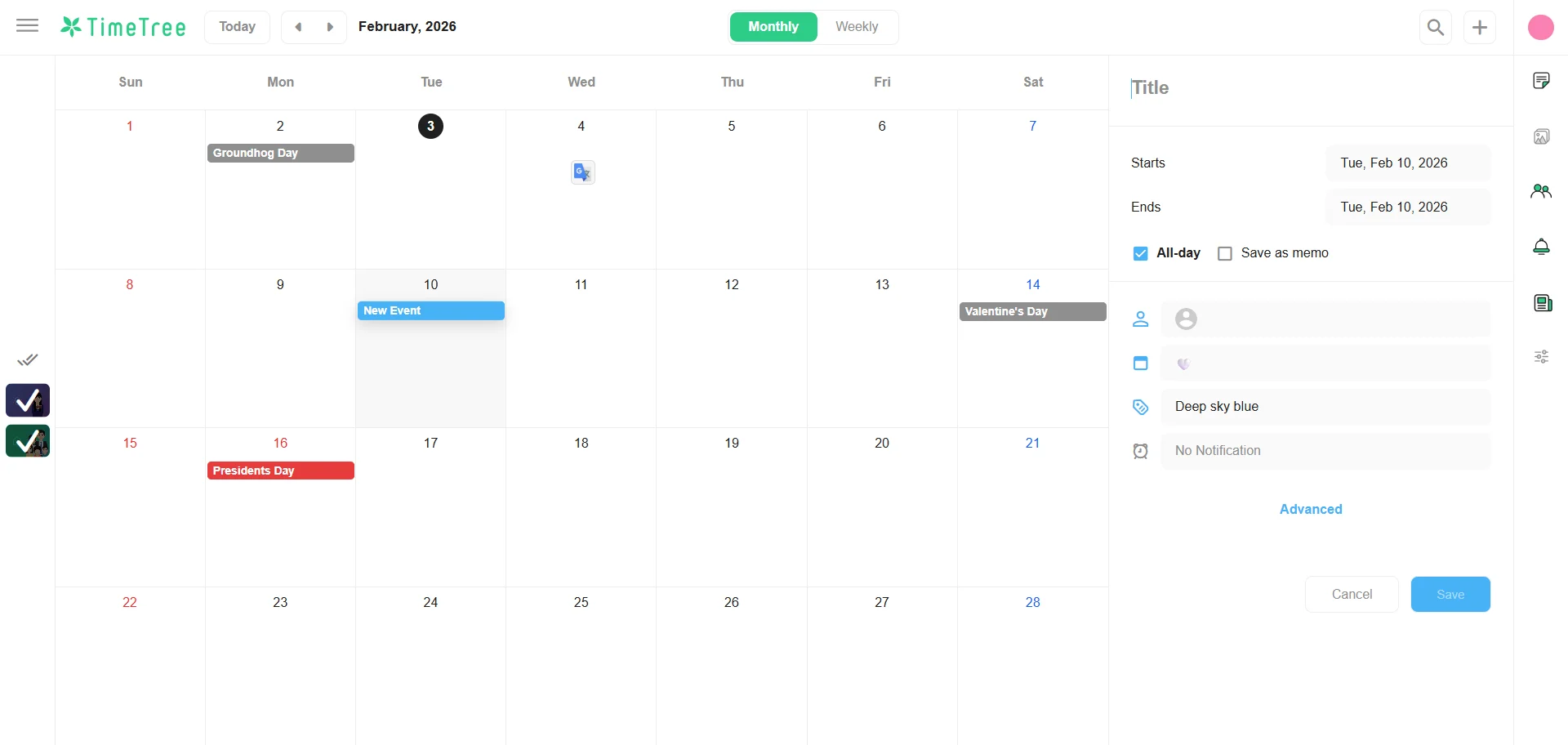
What it does: TimeTree is a shared calendar app built for coordinating schedules with a small group, combining a calendar with in-event comments and photo sharing so people can plan and discuss in the same place.
Best for: Families, small teams, and informal groups who just need one shared calendar
Pricing: TimeTree is free to use, with ads. Premium removes them for $4.49/month or $44.99/year, though there's no shared team plan, so each person pays for their own account.
Key features
- Up to 20 shared calendars per account, with separate ones for family, work, or a sports team
- In-event comments so people can discuss the details of a specific appointment without a separate group chat
- One-way access to your phone calendar and synced Google Calendar events
- Shared memos and to-do lists attached to a calendar
- File attachments, including PDFs and photos, on Premium
- Public calendars you can follow for community and event schedules
What stood out for me
What stood out was how little friction there is in getting a whole group to actually use it. Every group I've seen adopt TimeTree picked it up within minutes, no onboarding, no explaining how it works twice.
The in-event comments made a bigger difference than I expected. A conversation about who’s driving to Saturday’s game stays attached to the event itself, which makes it much easier to find later without digging through an old group chat.
What could improve
This is built for informal, social coordination. The only role is a Creator who can remove members, and there's no reporting, so it fits a small group far better than a business that needs admin oversight.
The pricing model is also worth knowing upfront. Premium is billed per account, so every family or team member who wants the ad-free version buys their own. A five-person group pays five times.
10. Zoho Calendar
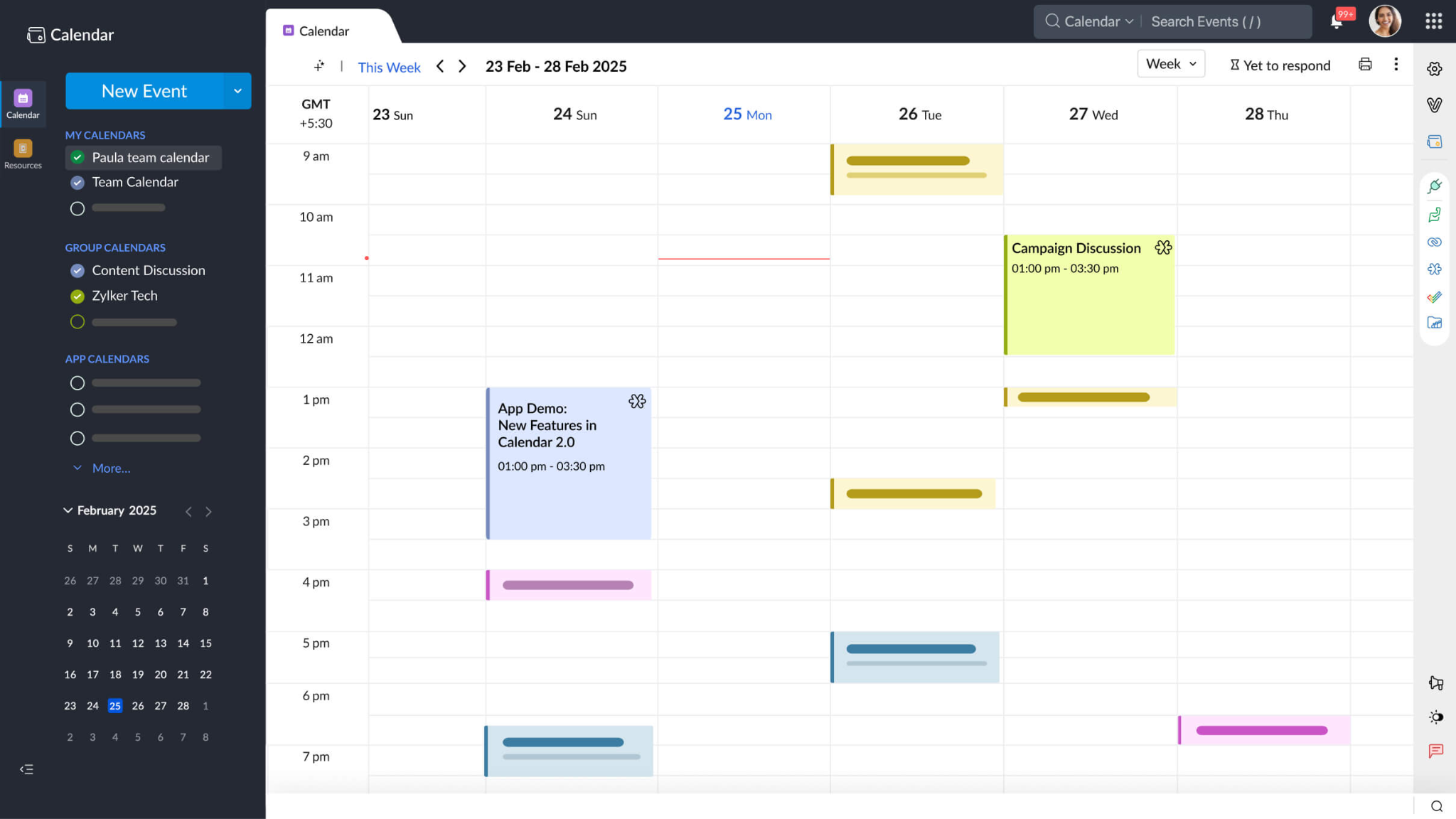
What it does: Zoho Calendar is the scheduling app in Zoho's business suite, letting teams book meetings, reserve rooms, and check availability across time zones within the same ecosystem as Zoho Mail and Zoho's other apps.
Best for: Small business owners and ops teams already running their operations on Zoho's suite of apps
Pricing: Zoho Calendar is free to use and comes included with Zoho Mail, Workplace, and Zoho One. Paid Zoho Mail plans start at about $1/user/month, while Workplace starts around $4/user/month.
Key features
- Smart Add that creates events from a single typed sentence
- Secondary time zone display for coordinating across distributed teams
- Meeting room and resource booking built into the invite flow
- Calendar embedding for publishing availability directly on a business website
- Participant free/busy checking before sending an invite
- AES-256 encryption at rest and TLS 1.2/1.3 in transit, with GDPR-aligned handling
What stood out for me
Zoho Workplace packs a lot into one low-cost bundle. Small teams get calendar, mail, and office apps for a fraction of the price of Google Workspace or Microsoft 365.
Smart Add turns a single typed sentence into an event. The secondary time zone display keeps distributed teams straight. Both matter far more in daily use than they do on a features page.
What could improve
You can sign up for Zoho Calendar free on its own, but there's no paid standalone tier and no public price for it. It really pays off once a business is already on Zoho Mail or Workplace, which makes it a harder recommendation for a team outside that ecosystem.
Zoho's Zia assistant handles event creation and descriptions and is free on paid Workplace plans, but an admin has to switch it on and it doesn't reach Gemini or Copilot depth.
11. Morgen
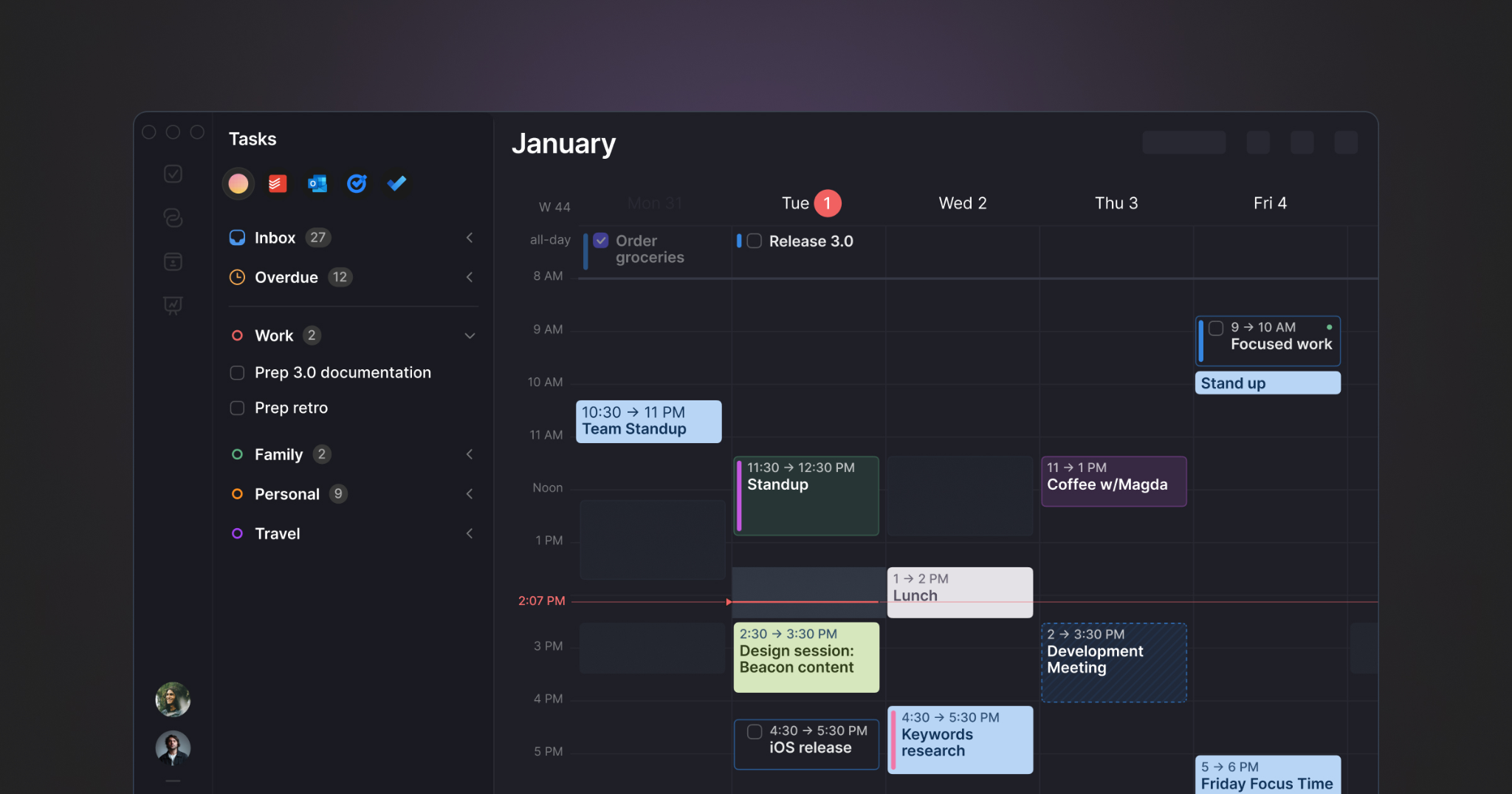
What it does: Morgen pulls every calendar and task tool you use into a single unified view, then uses an AI Planner to suggest a daily schedule that you review and approve before anything actually gets blocked off.
Best for: Freelancers and consultants juggling multiple calendars and task tools who want one AI-planned view
Pricing: Morgen Pro costs $30/month, or $15/month billed annually. Team plans start at $25/seat/month, or $10/seat/month annually with a two-seat minimum. There’s no free plan, but a 14-day trial is available.
Key features
- Unified calendar view across Google, Outlook, and iCloud, plus Fastmail, Zoho, and other CalDAV accounts
- Two-way integrations with eight task tools, including Notion, Todoist, ClickUp, Linear, and Apple Reminders
- AI Planner that drafts a full day's schedule around meetings and tasks for review or adjustment
- Time blocking with recurring tasks and Frames for grouping similar work together
- Booking pages and scheduling links for external meetings
- Available on macOS, Windows, Linux, iOS, Android, and the web
What stood out for me
Morgen's AI Planner proposes a full-day schedule based on your calendars and tasks, and nothing gets blocked off until you approve it. That review step is what separates it from Motion.
Pulling eight separate task tools into one unified view is also more integrations than most competitors in this space bother to offer.
What could improve
Task management inside Morgen itself is thin. It's a name and a deadline, so most people end up running a fuller task tool like Todoist or ClickUp alongside it instead of replacing anything.
The bigger change worth flagging is that Morgen no longer offers a free plan. After the 14-day trial, continued access requires a paid subscription.
How to choose the right business calendar app for you
I’d start with the one scheduling problem that keeps coming up.
If external booking is the issue, Calendly or Cal.com may be enough. If your day keeps getting rearranged, Motion is more relevant. If you want more control over changes, Morgen gives you more of a review step.
Then check three things:
- How much automation do you want: Some apps move things for you. Others wait for approval. Deciding how far you want calendar automation to go narrows the list fast.
- What you already pay for: Google Workspace, Microsoft 365, and Zoho may already cover the basics.
- How well it scales: Look at permissions, delegate access, round-robin booking, admin controls, and per-seat pricing.
The best business calendar app is the one that removes the scheduling work you actually notice. If you’re still chasing availability, resolving conflicts, or jumping between apps, the setup isn't doing enough for you.
{{cta}}
Try Lindy: The teammate that also books your meetings
Daily usability was the thing I cared about most across all eleven, and it kept pointing at the same gap. The calendar handles the time slot. The email before it, the notes during it, and the follow-up after are still on me. Lindy covers that whole stretch.
Because it lives in Slack, one admin can connect it, and the team can start using it there. In a DM, it works more like a personal assistant with access to your calendar, email, and other connected apps.
Here's how that actually plays out for me:
- Before the meeting: Lindy finds a time, sends the invite, and drafts whatever email gets it moving, faster than I'd get through the back-and-forth myself.
- During the meeting: My calls get recorded, transcribed, and dropped into a shared meeting library I can actually search later.
- After the meeting: I go back into past conversations to check what was actually said, instead of trusting my memory of a call from two weeks ago.
- Across the team: Anyone can @mention Lindy in Slack for scheduling questions, so it's not just my workflow anymore.
- For repeat processes: The one scheduling process that works becomes a skill the rest of the team can reuse, instead of me being the only one who knows how to run it.
Frequently asked questions about business calendar apps
1. Can a business calendar app automatically protect focus time?
Yes. Some AI-powered calendar apps can block focus time and move it when meetings create conflicts. Others can also reschedule habits or tasks based on your changing availability.
2. Can I manage multiple work calendars in one app?
Yes, depending on the app. Some options can combine Google, Outlook, iCloud, Zoho, and other calendars into one view, which is useful if you manage separate client, personal, or company accounts.
3. Can an assistant manage someone else’s business calendar?
Yes. Calendars with delegate access allow an assistant to view availability, search the calendar, create events, and manage meetings, with the appropriate permissions. This is especially useful for executives and teams with dedicated scheduling support.
4. Do business calendar apps work across different time zones?
Yes. Most business-focused calendars can display attendee availability across time zones, and some let you show a secondary time zone directly in the calendar. This can make scheduling easier for distributed teams and international clients.
5. Can a business calendar app replace a task manager?
Yes for daily planning, no for project work. Apps with task scheduling and automatic rescheduling can run your day. Projects with dependencies and detailed workflows still need a separate task manager.