9 Best Workflow Management Software Tools for 2026 (Tested)
Marvin tested 30 workflow management tools, including monday.com, ClickUp, and Asana, weighing visual dashboards, task tracking, and team planning to pick nine daily favorites.


I’ve tested over 30 workflow management tools – from task trackers to full-blown automation platforms.
Most help you stay organized. But the best ones move work forward – automating steps, reducing manual effort, and keeping your team in sync.
In this guide, I’ll share the best workflow management tools in 2026, including smart options that combine task management with real AI-powered execution.
What is Workflow Management Software?
Workflow software refers to tools that help businesses design, manage, and automate processes. It allows users to clearly define and assign tasks, track progress, and automate repetitive actions, ultimately improving efficiency and productivity.
At its core, a workflow management platform brings structure to work that’s otherwise scattered across spreadsheets, emails, and chat threads. Instead of manually checking in with teammates or jumping between apps, you use one centralized space to create task flows, assign owners, set deadlines, and build automation rules.
Most workflow software also includes visual dashboards like Kanban boards or Gantt charts to give you a quick snapshot of how projects are moving. Some platforms, like ClickUp or Lindy, even go further by offering AI agents or built-in docs and whiteboards so you don’t have to juggle different tools. If you want deeper automation, pairing these platforms with an ai task manager can streamline your entire workflow. For teams building visual AI pipelines, evaluating popular langflow alternatives can help identify the best tools.
Whether you're managing a marketing campaign, onboarding new hires, or handling IT tickets, a good workflow management app helps you stay on track without micromanaging every step. For a broader look at software to streamline daily operations, explore our guide to the best work apps.
List of the Best Workflow Software in 2026
- monday.com – Best for visual dashboards and timelines. Many teams also integrate these visual boards with outbound sales automation to efficiently manage prospective leads.
- ClickUp – Best for docs, tasks, and whiteboards in one place
- Asana – Best for task tracking with smart reminders. To extend these capabilities beyond basic task flows, evaluate the best automation software for your organization.
- Trello – Best for beginners
- Wrike – Best for enterprise teams
- Smartsheet – Best for spreadsheet-style project management
- Airtable – Best for database-style task management
- Jira – Best for agile teams and sprint planning
- Notion – Best for flexible, build-your-own workspaces
Best workflow management software for visual dashboards and timelines
monday.com
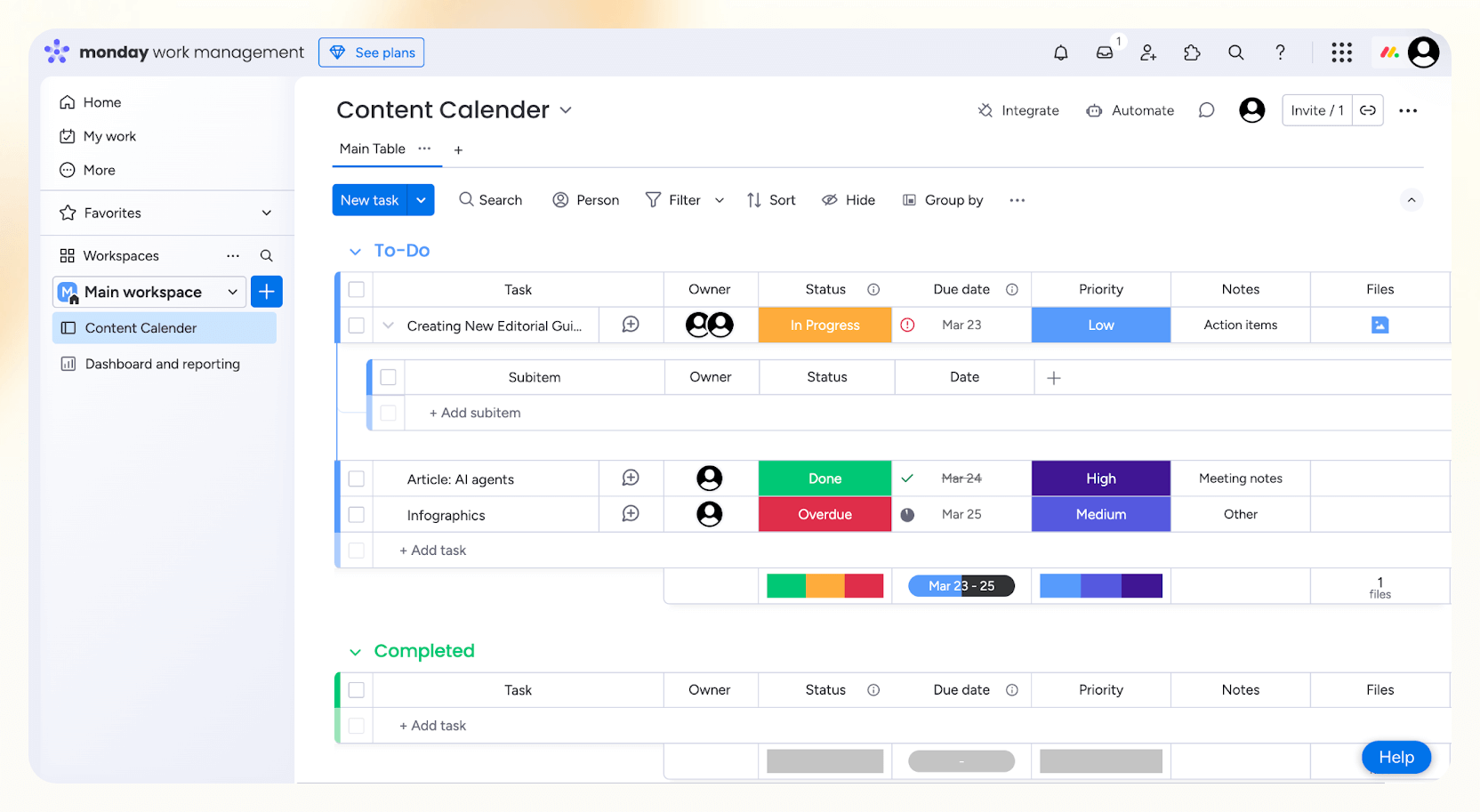
monday.com is built for people who need structure without friction. If you manage multiple tasks, timelines, and teammates, the platform gives you a clean, visual way to stay on top of everything. You can view projects as tables, calendars, Kanban boards, or even detailed Gantt charts.
I personally liked the Kanban view for quick overviews, although customizing the columns wasn’t as smooth as on Trello or Asana.
You get a decent range of customization. Add checkboxes, tags, cost fields, and more, useful when your projects start growing beyond simple to-do lists. The timeline view is one of its strongest features. You can stretch it across days, months, or even years, which is great for longer-term initiatives.
The built-in file sharing option is helpful too. It helps you with tasks like uploading a PDF or design asset directly inside a task, making collaboration easier.
Beyond task tracking, monday.com doubles as a light workspace platform. Its “Work OS” includes mini suites for CRM, software development, and customer support, especially helpful if you're running cross-functional departments under one roof.
That said, if you’re a solopreneur or small team, you might not need that level of depth.
The AI features feel more like bonus tools than essentials. You’ll get text generation and task summaries, but nothing that would justify upgrading just for AI.
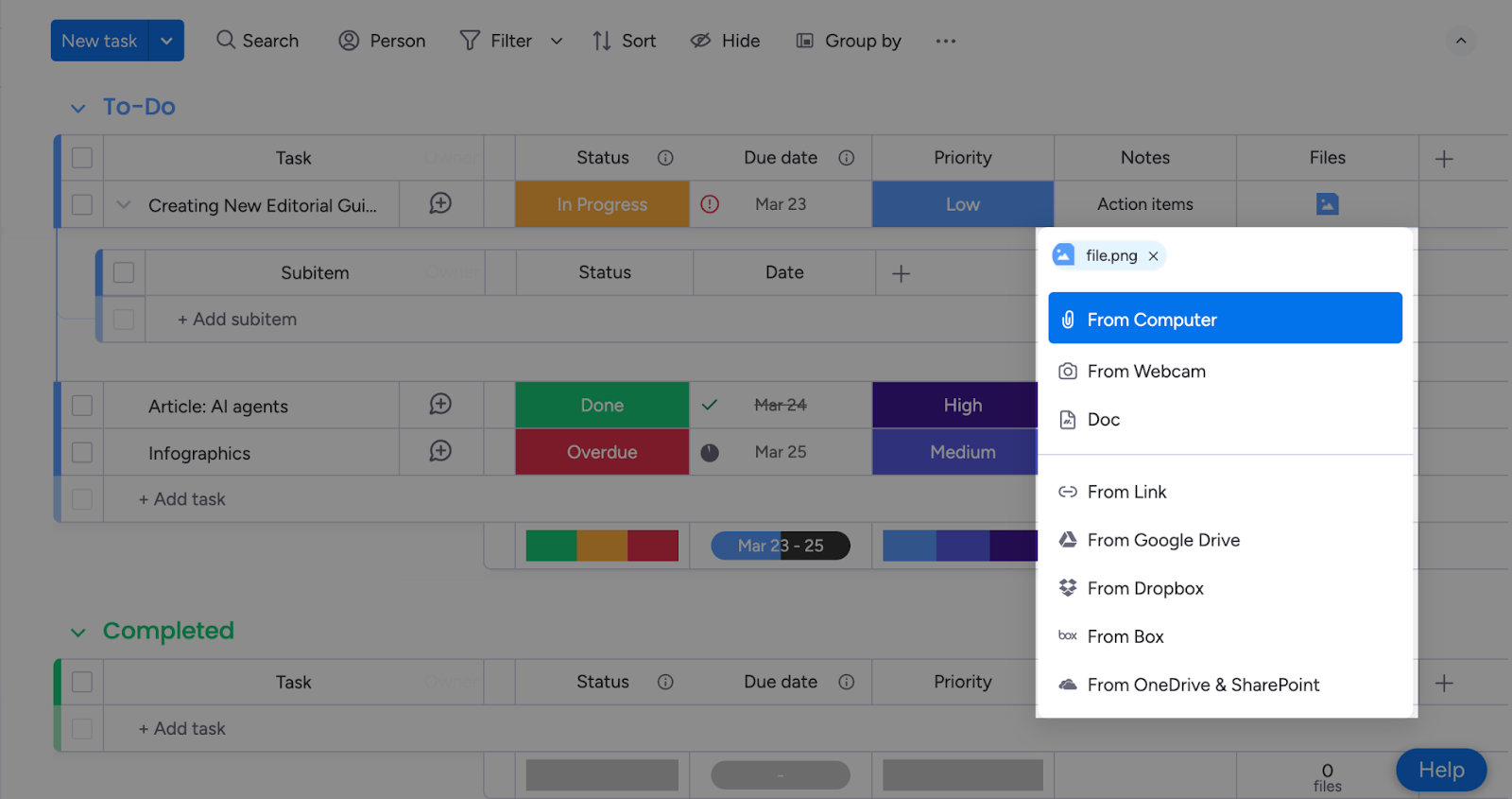
Still, if you rely heavily on dashboards and flexible views, monday.com makes work feel more coordinated without adding unnecessary complexity.
Pros
- AI tools generate task summaries and text
- 850+ integrations and apps for wider compatibility
- Agile project support with sprints and backlogs
Cons
- AI features are fairly limited
- Kanban view customization is clunky
Pricing
- Free plan: Up to two seats, three boards, and three docs, suitable for trying out basic features or running lightweight projects
- Basic ($12 per seat/month billed monthly, or $9 billed annually): Unlimited boards, 1,000 AI credits per month, 200+ templates
- Standard ($14 per seat/month billed monthly, or $12 billed annually): Gantt and calendar views, guest access, 250 automations
- Pro ($24 per seat/month billed monthly, or $19 billed annually): Private boards, time tracking, 25,000 automations, advanced analytics
Best workflow software for docs, tasks, and whiteboards in one place
ClickUp
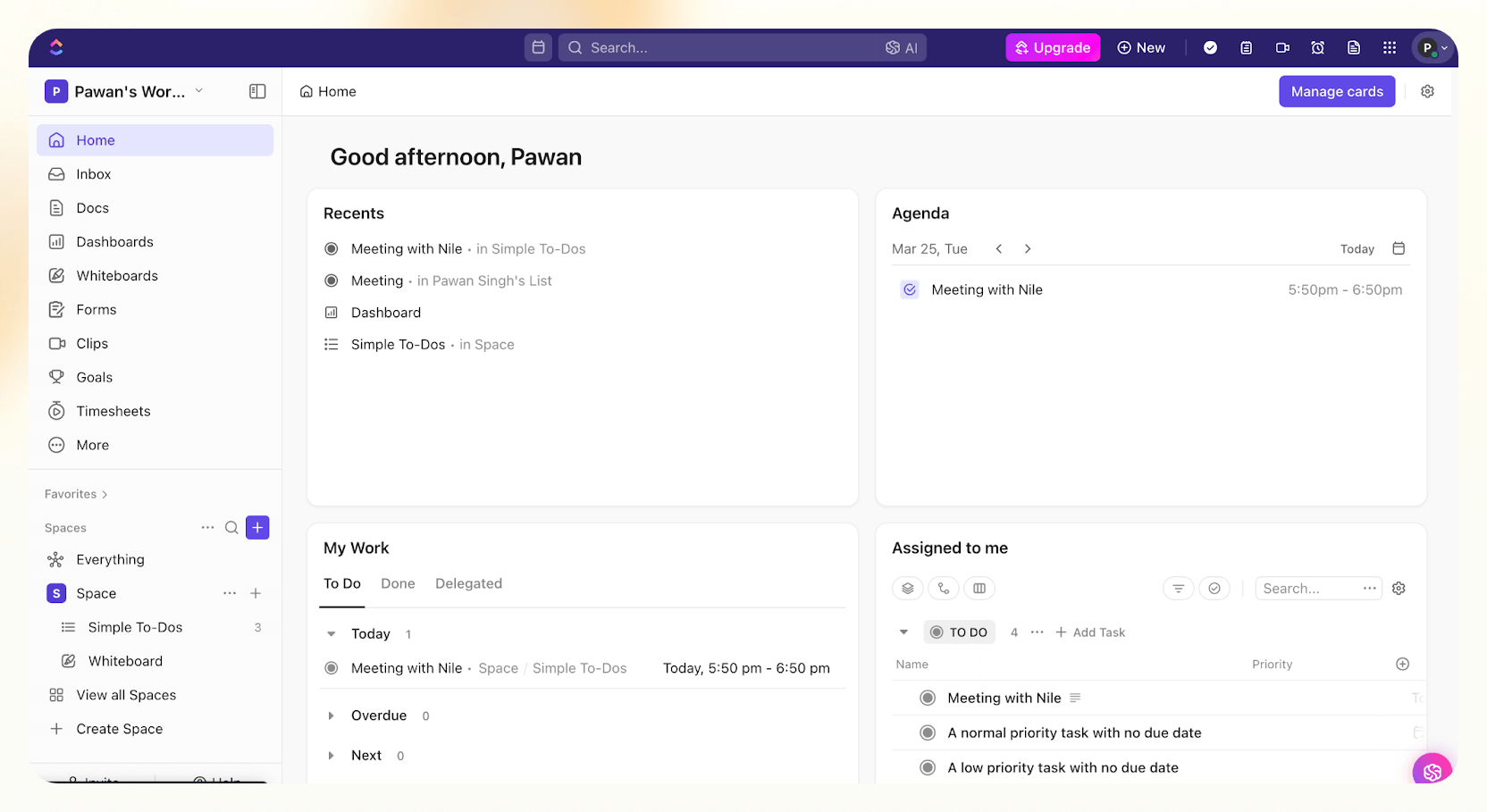
ClickUp is the closest thing I’ve found to a true all-in-one productivity suite. You can manage projects, write collaborative documents, brainstorm on whiteboards, and even record screen updates, all from the same platform. To see how all-in-one suites compare with specialized tools, explore our guide on the best productivity apps.
It’s built for teams that are tired of hopping between apps like Notion, Confluence, Loom, and Trello just to get through the day. Teams looking to centralize documentation alongside project tracking can also evaluate the best knowledge management software available.
One of my favorite features is the “Home” view. It gives you a focused dashboard of everything that matters, like daily priorities, reminders, and upcoming tasks. You can also set up “Spaces” to organize different projects or departments and break them down into subtasks or sprints. ClickUp’s Chrome extension is surprisingly useful, too.
ClickUp can also turn webpages into tasks or capture screenshots with a couple of clicks.
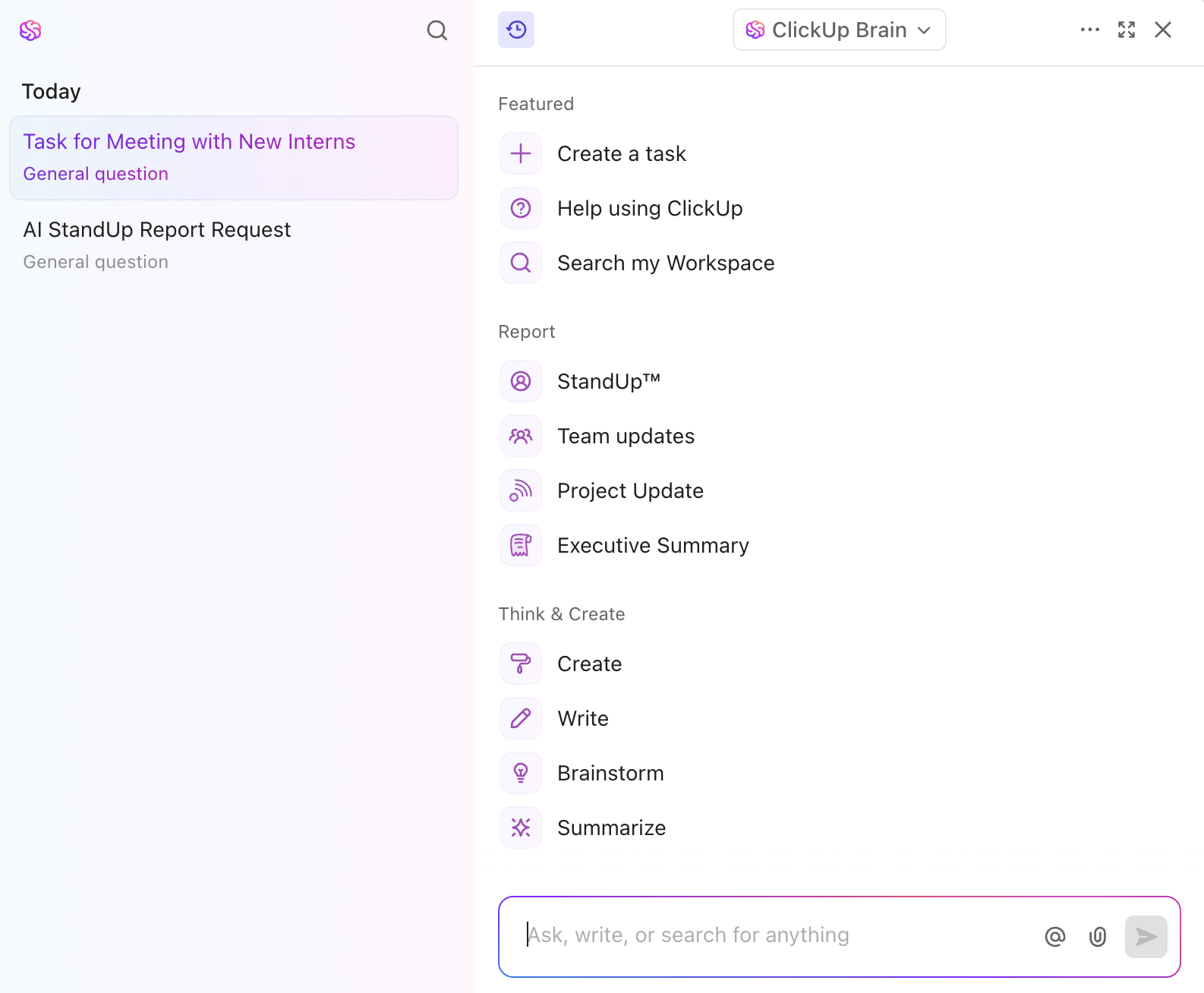
But the highlight is ClickUp Brain, its built-in AI assistant. It can summarize your daily workload, auto-generate task descriptions, scan through docs in Google Drive, and even create content.
While ClickUp is not flawless, it’s great for catching up after a long day or prepping for a team update.
When I tried ClickUp on an old laptop, it felt a bit bloated. With so many features packed in, the interface occasionally lags or feels glitchy, especially if you’re used to leaner platforms like Asana or monday.com.
Pros
- Built-in screen recording for team updates
- Command bar helps locate tasks and docs instantly
- Collaborative docs to support live content embedding
Cons
- Interface can feel heavy or laggy
- Not ideal for teams wanting a minimal setup
Pricing
- Free plan includes unlimited tasks, collaborative docs, Kanban boards, sprint management, video recording, 24/7 support, and 60MB of storage
- Unlimited ($10 per user per month billed monthly, or $7 billed annually): Unlimited storage, dashboards, Gantt charts, custom fields, native time tracking
- Business ($19 per user per month billed monthly, or $12 billed annually): Workload management, mind maps, advanced automation, granular time estimates, plus all Unlimited features
Best workflow management tool for task tracking with smart reminders
Asana
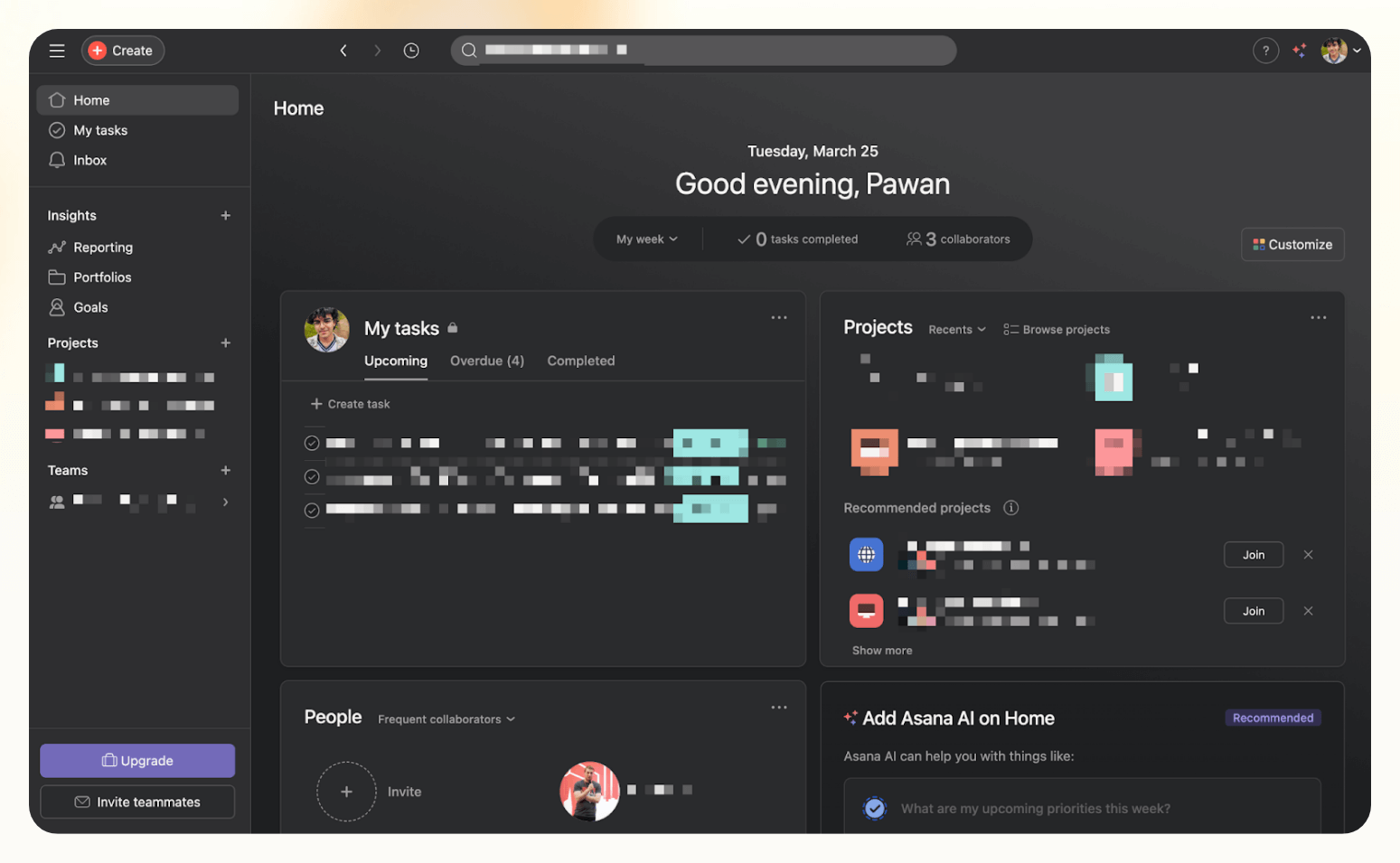
Asana keeps things refreshingly simple. Unlike tools that crowd your screen with widgets and settings, Asana focuses on giving you just what you need to manage your work without distraction.
I’ve used it for years, and what keeps me coming back is how intuitive everything feels, from assigning tasks to tracking them across timelines or Kanban boards.
The home screen is clean and customizable. You can quickly see your tasks, upcoming deadlines, frequent collaborators, and relevant projects. Notifications are smartly filtered; you only get updates for tasks or mentions directly involving you.
And when deadlines creep up or slip past, Asana sends reminders without overwhelming you.
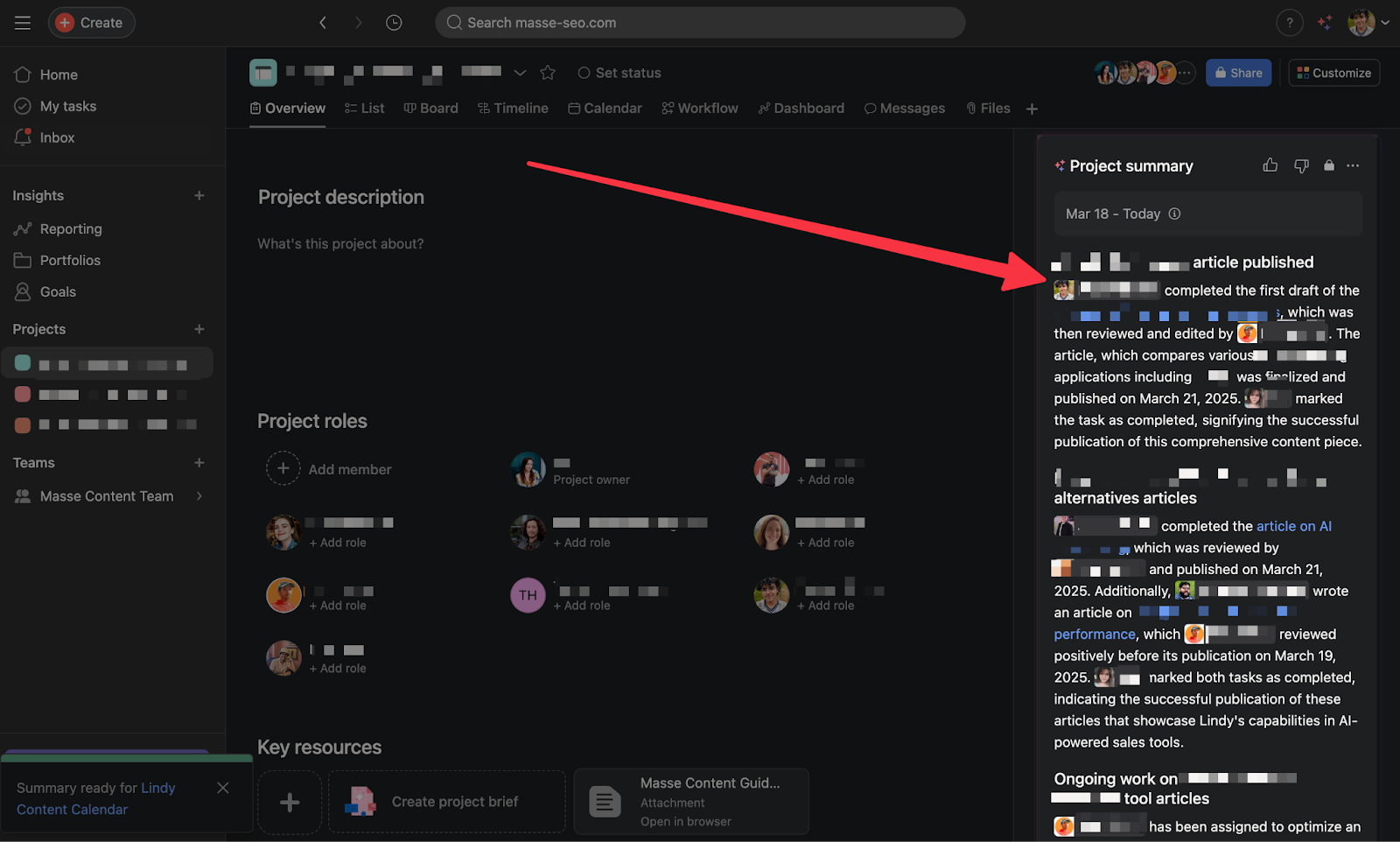
What’s also useful is its new AI assistant. It can summarize project activity, provide updates from specific timeframes, and even help draft task descriptions or quick replies. But the summaries can sometimes be too verbose to be genuinely helpful.
Still, for staying on top of team activity at a glance, it does the job.
Asana also offers a mobile app that mirrors the clarity of the desktop version, and integrates with over 100 other apps like Google Drive, Slack, and even Stripe. If you’re someone who likes your workflows visual, whether in board view or timeline, it feels effortless to organize, assign, and track work in Asana.
Pros
- Strong app integrations
- Clean UI with minimal learning curve
- Smart reminders keep projects on schedule
Cons
- AI summaries can be overly detailed
- Lacks built-in client collaboration features
Pricing
- Free plan: Up to 2 teammates, unlimited projects and tasks, list and board views, activity logs, calendar view, and over 100 integrations
- Starter ($13.49 per user per month billed monthly, or $10.99 billed annually): No seat limit, Gantt and timeline views, reporting dashboards, Asana AI, unlimited automations
- Advanced ($30.49 per user per month billed monthly, or $24.99 billed annually): Advanced dashboards, branching forms, permissions for custom fields, unlimited automations, proofing and approvals
Best workflow management software for beginners
Trello

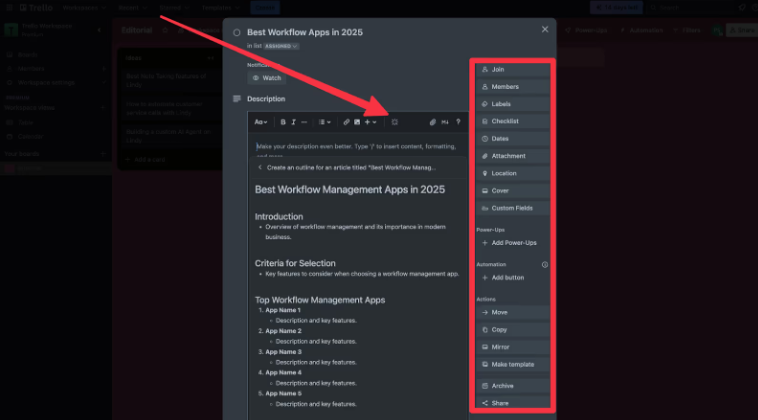
Trello keeps things simple in the best way possible. You sign up, choose what you're trying to organize, be it work, personal tasks, or team projects, and you’re in. The interface is clean: boards for projects, cards for tasks, and lists to keep everything moving.
If your workflow isn’t super complex, Trello feels less like software and more like a digital whiteboard. I’ve gone back to Trello over the years for different side projects, and it’s always refreshing.
You can customize cards with labels, checklists, deadlines, or even quirky touches like emojis and stickers. For one project, I set up a content calendar in less than 10 minutes, and it was more than enough.
Where Trello shines is with its built-in automation tool (formerly called Butler). You can set up simple rules, like moving cards when a task is marked complete, or schedule recurring actions without needing to touch code. It saves time without adding any cognitive load.
That said, Trello isn’t built for complex needs. If you’re running a large team, need timeline views, time tracking, or multiple layers of access control, you’ll start running into walls.
It has “Power-Ups” (add-ons) to expand functionality, but once you start stacking them, costs climb fast.
Still, for beginners or smaller teams who want something visual, approachable, and fast, Trello delivers what it promises, without making you read a user manual.
Pros
- Built-in automation (formerly Butler)
- Flexible card-level customization
- Extremely easy to set up and use
Cons
- Lacks advanced planning views
- Most of the add-ons can get expensive fast
Pricing
- Free plan: Unlimited cards, up to 10 boards per workspace, 250 automation runs, due dates, file attachments, activity logs, and access to Inbox and Quick Capture
- Standard ($6 per user/month billed monthly, or $5 billed annually): Unlimited boards, advanced checklists, 1,000 automation runs, card mirroring, file uploads up to 250MB
- Premium ($12.50 per user/month billed monthly, or $10 billed annually): Admin controls, workspace templates, AI tools, unlimited automation, multiple views (timeline, dashboard, map)
- Enterprise ($17.50 per user/month, billed annually): Everything in Premium plus SSO, unlimited workspaces, enterprise permissions, Power-Up admin, 24/7 support
Best workflow management software for enterprise teams
Wrike

Wrike is a workhorse built with project managers in mind. It doesn’t try to wow you with slick visuals or gimmicks, instead, it focuses on delivering structure, depth, and flexibility where it counts. What surprised me the most was how easy it is to get started.
You’re not dropped into a blank canvas or buried in a tutorial. Instead, Wrike walks you through the essentials with timely prompts and video guides that appear only when you need them.
The layout is fast and intuitive. You can create folders, tasks, and subtasks with drag-and-drop control. Right-click menus make edits and bulk actions much faster than most tools I’ve tested.
The “Stream” view is especially helpful, it acts as a real-time feed of everything happening across your workspace, letting you stay in the loop without micromanaging.
Wrike also brings AI into the mix, particularly in the paid plans. You can use it to summarize long comment threads, rewrite briefs, translate task content, or shift tone based on the audience. It works across multiple languages and cuts down on manual back-and-forth.
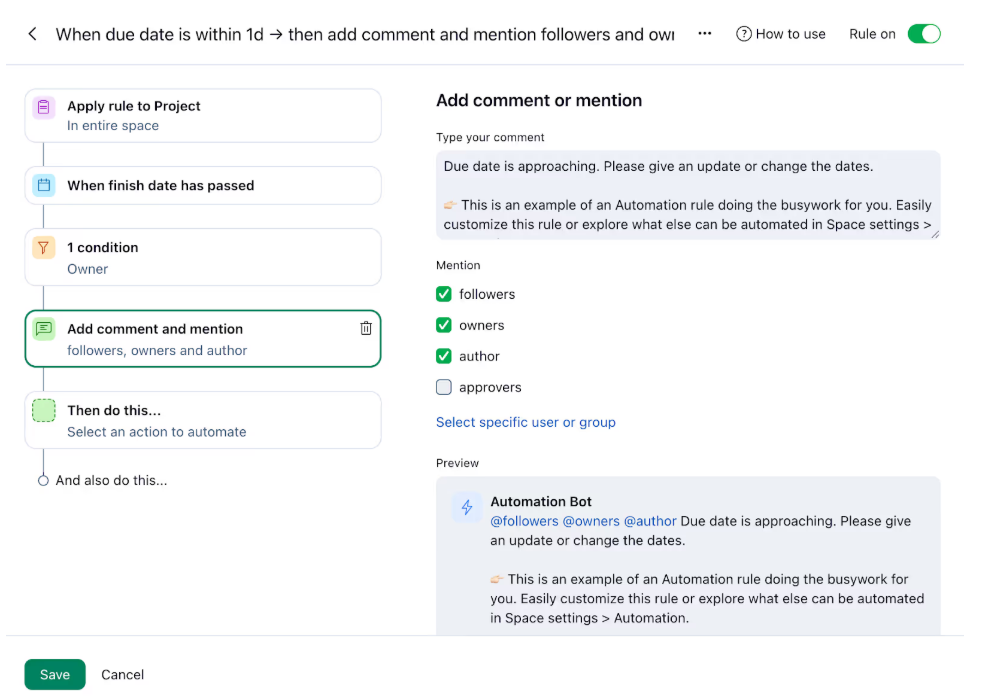
Automation is handled through a simple rule-builder interface. Choose an event, set your conditions, and pick the action you want to trigger. It’s detailed but not difficult, and a big time-saver once set up.
Overall, Wrike leans toward serious functionality without the clutter. If you’re managing a high-volume workflow, it gives you the precision and tools to stay on top of everything.
Pros
- Drag-and-drop allocation tools
- Manual and live time tracking options
- File versioning with side-by-side visual comparison
Cons
- Interface can feel heavy for simple needs
- Slower load times on complex dashboards
Pricing
- Free plan: Basic task and project management, board and table views, access via web, desktop, and mobile apps
- Team ($10 per user/month, billed annually): Unlimited tasks, Gantt charts, shared dashboards, 50 automations per user, AI tools, 2GB storage
- Business ($25 per user/month, billed annually): 5–200 users, resource planning, project blueprints, 200 automations, real-time reports, Adobe extensions, 5GB storage
Best workflow software for spreadsheet-style project management
Smartsheet
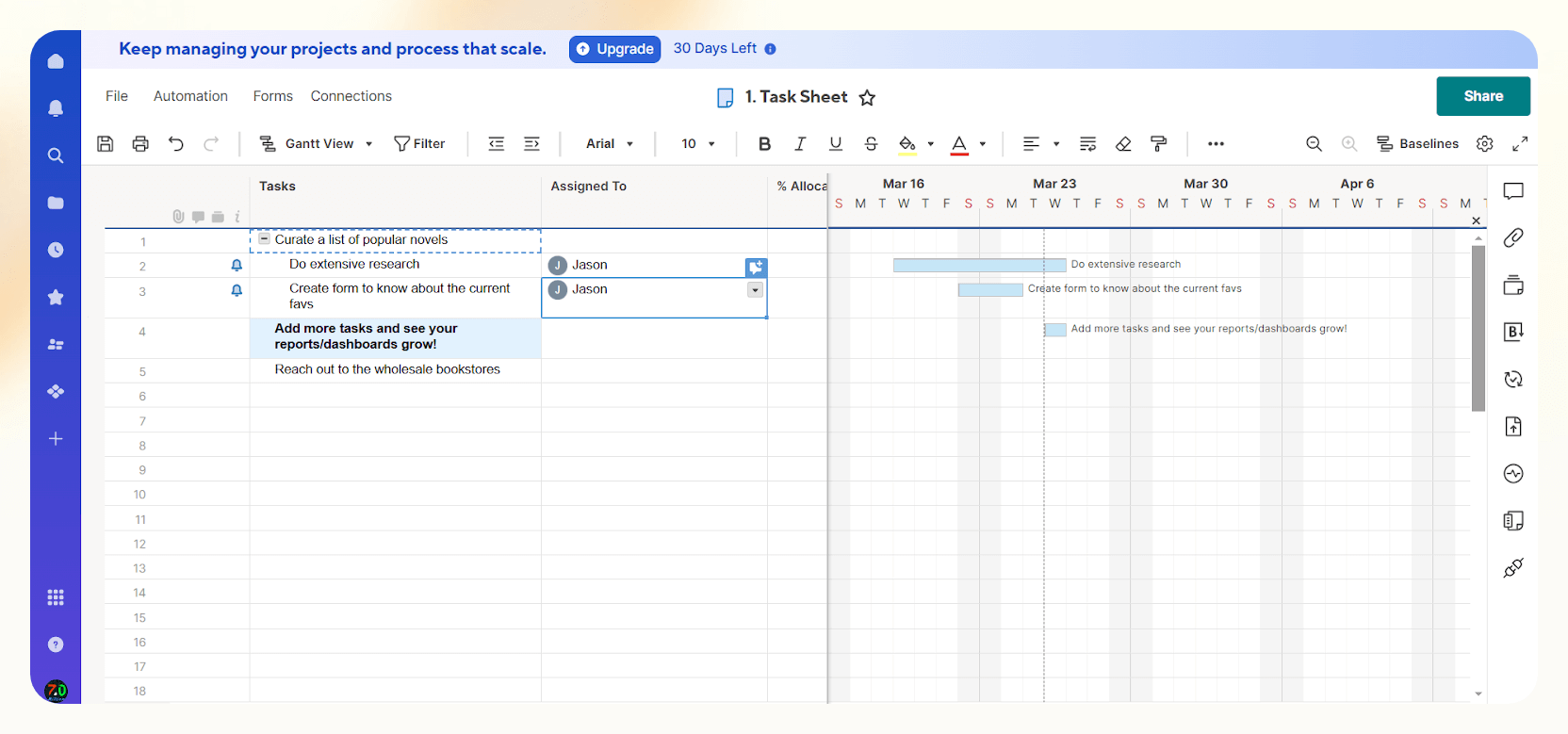
Smartsheet is what happens when a spreadsheet graduates into a full project management platform. It looks like Excel at first glance, but the moment you start building in due dates, owners, checkboxes, and formulas that trigger automations, you realize it’s built for more than just number crunching.
When I tested it for a content calendar, it handled complex setups with ease. I could automate alerts, approvals, and even date logging, all triggered by simple status changes.
One workflow I liked automatically sent a wrap-up email when a task was marked complete. You can also move rows between sheets, send update requests, and generate PDFs, all without writing a line of code.
The Activity Log is especially useful, it shows who did what and when, which is great for keeping teams accountable. On top of that, the project dashboard pulls everything together into visual charts and progress bars, giving you a quick read on your team’s status.
It integrates well with Microsoft Teams, Power BI, Tableau, and Adobe tools, which makes it ideal for teams working across platforms. It took me a bit of time to fully understand the more advanced features, but the tutorials and support docs made the learning curve manageable.
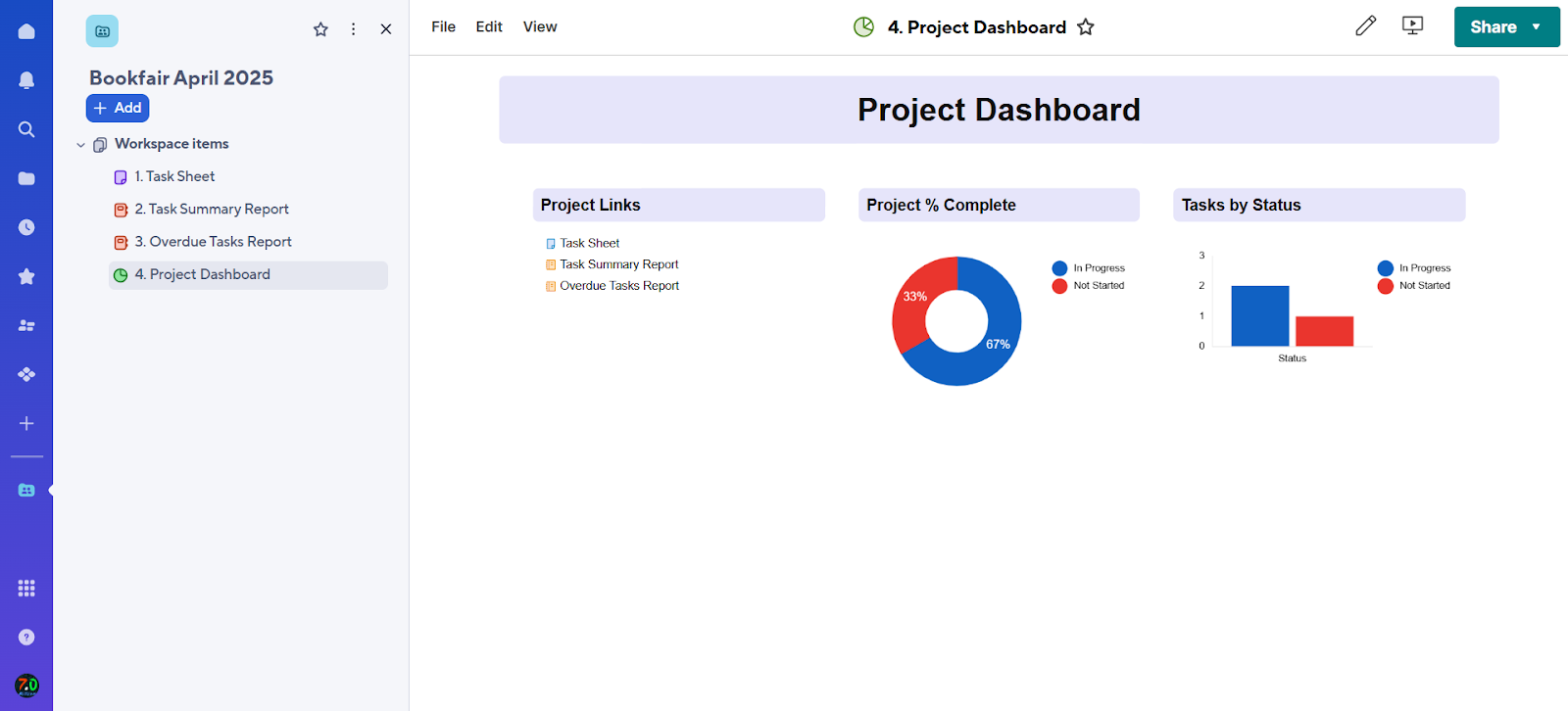
Smartsheet may not be the right pick if all you need is a simple to-do list, but if you’re managing structured, repeatable workflows and want that familiar spreadsheet feel with added power, it fits right in.
Pros
- Builds mobile-ready apps with no code
- AI assists with formulas and content summaries
- Tracks workload and helps resolve over-allocations
Cons
- Learning curve for advanced features
- There’s no free plan for long-term use
Pricing
- Free trial (30 days): Access to full Business plan features
- Pro ($9 per member/month, billed yearly): Gantt, board, and calendar views, unlimited sheets, 250 automation runs
- Business ($19 per member/month, billed yearly): Timeline view, unlimited automation, workload tracking, 1TB storage, admin controls
Best workflow management tool for database-style task management
Airtable
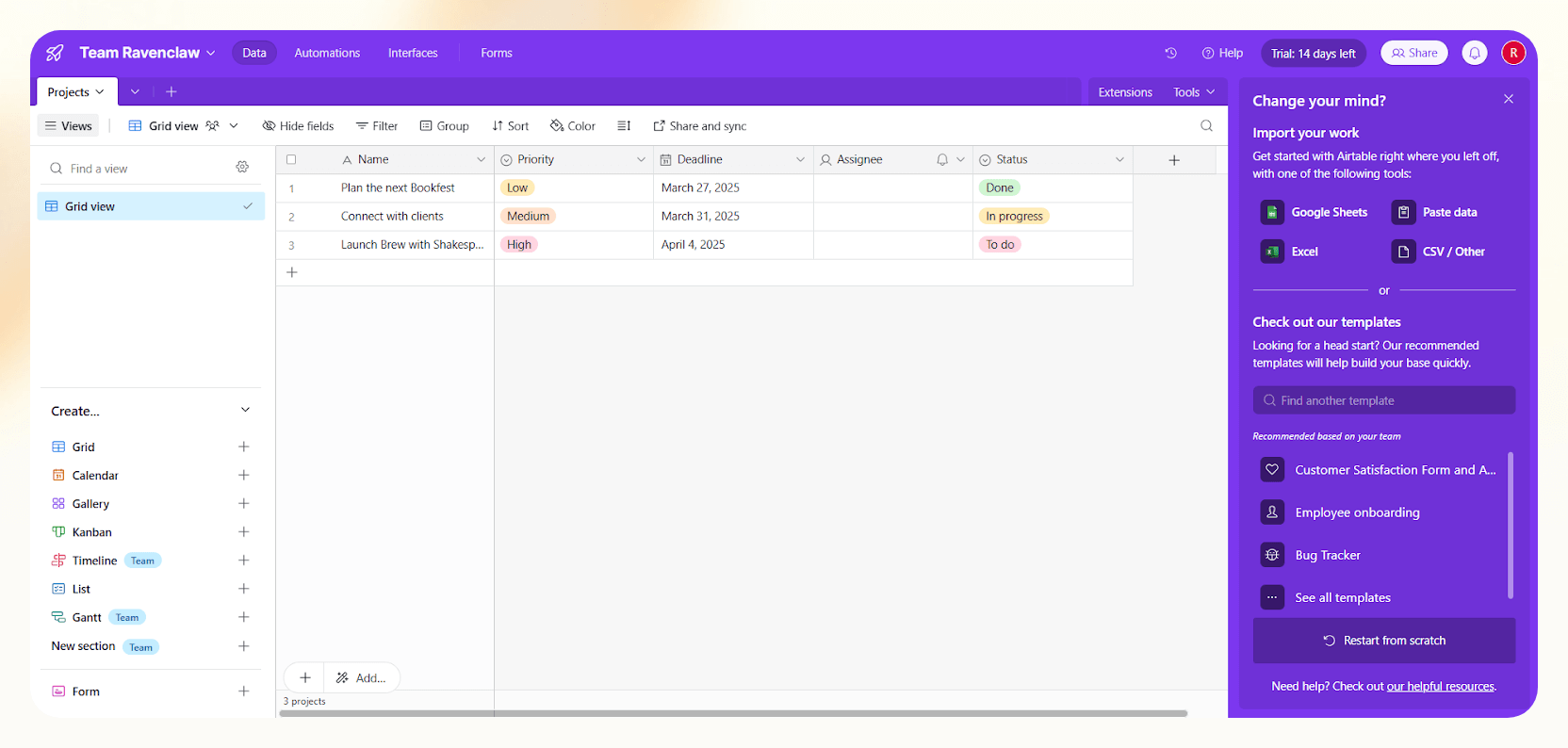
Airtable gives you the feel of a spreadsheet, but with the depth of a database. If you’re used to Excel or Google Sheets, the interface will feel familiar, but Airtable lets you do a lot more.
Each cell can hold attachments, checkboxes, status indicators, or even link to records in other tables. That opens up some interesting possibilities for both personal and team use.
I tested it by building a book-tracking library, complete with images, reading statuses, and short reviews. It felt like I was building my own Goodreads dashboard, and it didn’t take long to set up. The ability to toggle between grid, calendar, Kanban, and gallery views is a standout feature.
If you're a visual thinker, it’s nice to switch perspectives with just a click or two.
You also get a decent set of automation tools. You can connect to apps like Slack, Gmail, or Facebook to send alerts, trigger updates, or create multi-step workflows. While it offers no-code triggers, there's room for deeper control using JavaScript. Integrating Airtable with dedicated ai task management tools can further streamline these automated workflows across your organization.
Airtable even supports building custom extensions if your team needs specific features.
Where things get a bit tricky is with scale. The free plan is generous for getting started, but once your workspace grows or you need heavier automation, the pricing climbs quickly.

The mobile app also feels restrictive, you can’t switch views easily or manage your workspace settings, which makes on-the-go work harder than it should be.
Pros
- Drag-and-drop interface for building workflows
- AI support for categorizing and spec generation
- Two-way sync keeps data aligned across sources
Cons
- Mobile app lacks advanced functionality
- Paid plans get expensive as you scale
Pricing
- Free plan: Up to 1,000 records per base, limited automations, basic views and features
- Team Plan ($20 per seat/month billed annually, or $24 billed monthly): 50,000 records, 25,000 automation runs, 20GB storage, Gantt and Timeline views
- Business Plan ($45 per seat/month billed annually, or $54 billed monthly): 125,000 records, premium integrations, two-way sync, verified data, SAML login, admin panel
Best workflow software for agile teams and sprint planning
Jira
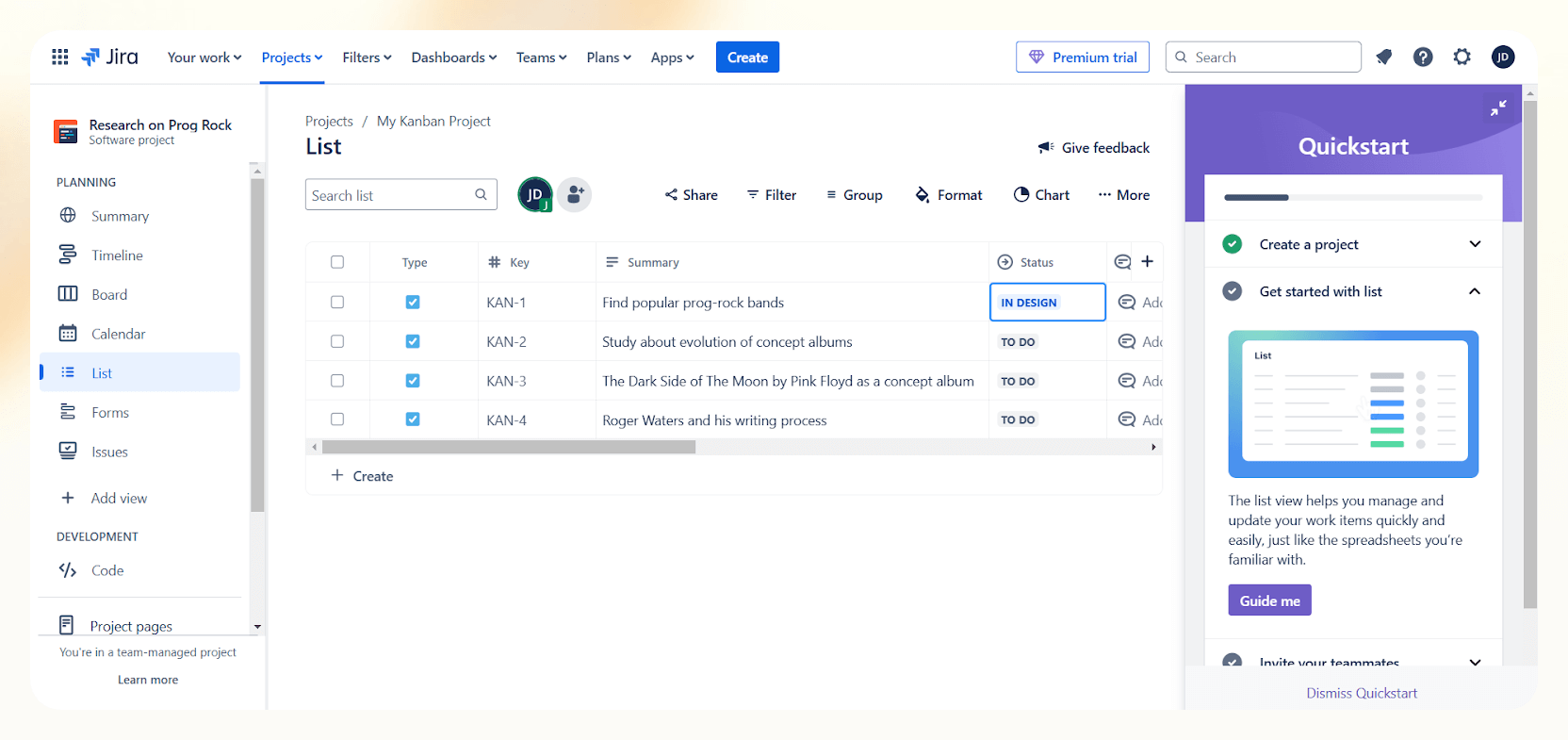
Jira is one of those tools that reveals its value the deeper you go. While it’s built for agile software teams, it’s surprisingly adaptable.
I went in thinking it would be too developer-focused, but ended up using it to plan out a content project, and it worked. The structure is heavy, yes, but if your team thrives on clarity, Jira delivers.
The dashboard gives you list, calendar, and Kanban views, all tied together with real-time syncing. You can drag tasks from “To Do” to “Done” with just a few clicks. There’s a bit of a learning curve though, custom fields, filters, and automation rules crowd the workspace at first.
But once I watched a couple of quick tutorials, I appreciated how tightly Jira helps organize fast-moving projects.
One thing that stands out is Jira’s automation builder. It’s designed around three simple elements like triggers, conditions, and actions, and lets you auto-assign tasks, send reminders, or update statuses without writing a line of code.
There’s even a prebuilt template library, so setting things up doesn’t feel like a chore.
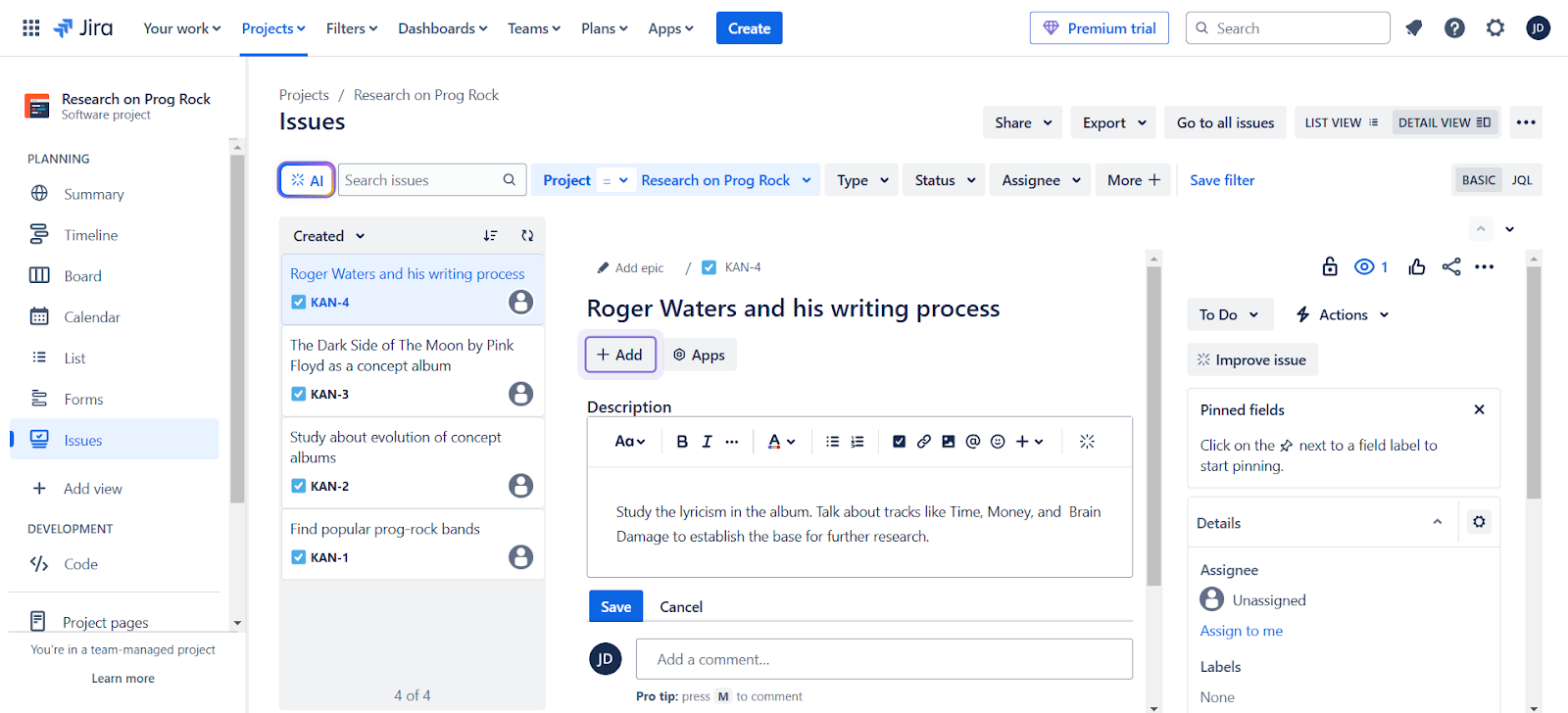
While it's not the friendliest tool for simple workflows, if you’re managing detailed sprints, cross-functional teams, or high-stakes rollouts, Jira has the structure to support it. Just be prepared to invest some time upfront.
Pros
- Mobile app keeps remote teams in sync
- Role-based permissions for secure access
- Sprint reports with burndown and velocity charts
Cons
- Interface is crowded for new users
- Takes time to fully customize workflows
Pricing
- Free plan: Up to 10 users, 2GB storage, task tracking, backlog, timeline, board view, and community support
- Standard ($7.91 per user/month, billed monthly): Roles and permissions, external collaboration, 400 automation steps per user per month, 250GB storage, multi-region support
- Premium ($14.54 per user/month, billed monthly): AI-generated content, unlimited storage, 750 automation steps per user per month, approval workflow
Best workflow management tool for flexible, build-your-own workspaces
Notion
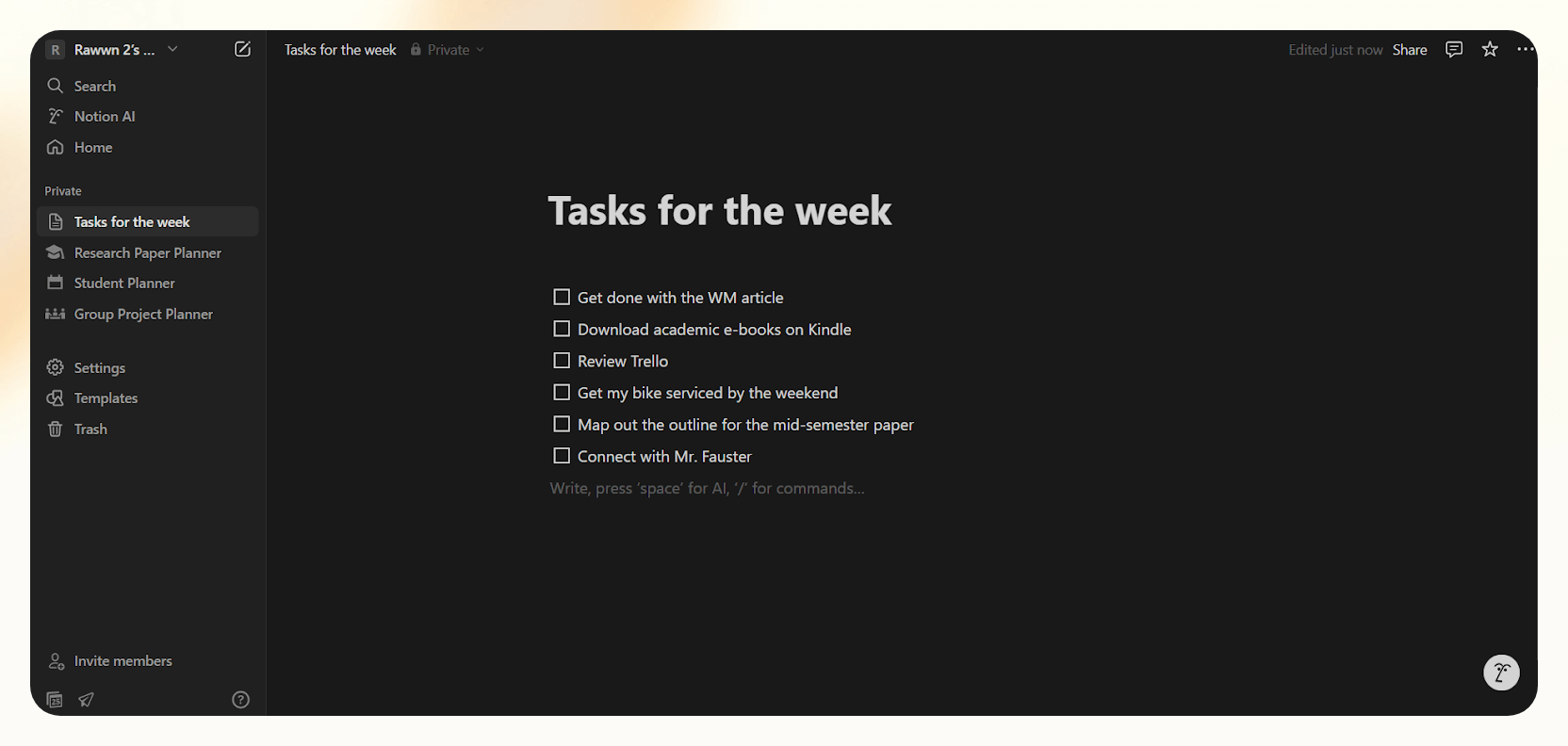
Notion is one of those tools that adapts to however you like to work. It’s part notes app, part database, and part lightweight project manager, all wrapped in a clean, minimalist interface.
If you’ve ever wished you could plan projects, write docs, and track goals without switching tabs, Notion gets pretty close.
What I found most useful is how easy it is to customize. You can drag in databases, link pages, or build a full content calendar without touching a single line of code. Its template library is huge, with one-click setups for use cases like social media, CRM, freelance planning, and project roadmaps.
And once I started using Notion AI, it became even quicker to spin up planning docs or organize scattered notes into structured pages.
That said, it’s more of a canvas than a rigid tool. You have to build your own workflows using building blocks like Kanban boards, tables, timelines, and charts. This makes it super flexible, but can feel like overkill if you just want something to tick off tasks.
Notifications can also get noisy, especially in shared workspaces, unless you manually tune them.
If you mainly want Notion as a team wiki rather than a project tracker, compare it with dedicated knowledge management software first.

And while integrations and light automations are available, Notion still lags behind tools like Wrike or ClickUp when it comes to real-time workflow automation and offline reliability.
Pros
- Real-time editing with mentions and comments
- Search bar scans your entire workspace instantly
- Comes with charts and tables to help visualize progress
Cons
- Automation and integrations are limited
- Offline mode is unreliable for heavy use
Pricing
- Free plan: Collaborative workspace, integrations (Slack, GitHub), basic analytics, up to 10 guests
- Plus ($12 per seat/month billed monthly, or $10 billed annually): Unlimited uploads, synced databases, custom automations, unlimited charts, unlimited guests
- Business ($24 per seat/month billed monthly, or $20 billed annually): SAML SSO, private teamspaces, 90-day page history, bulk exports, dashboards, Notion AI, unlimited guests, priority support
Other Workflow Management Tools We Considered
These tools didn’t make the top nine. If the work you want to automate runs between apps rather than inside one board, a workflow automation tool fits better, and our Gumloop vs Zapier comparison and roundup of n8n alternatives are good places to start.
- Basecamp: Great for simple, remote team communication, but lacks advanced task management and basic features like a Gantt chart.
- Hive: Customizable and intuitive, but performance issues and occasional bugs can make it feel clunky under pressure.
- Kissflow: Good for automating simple processes quickly, though it struggles with complex workflows and has limited design flexibility.
- Nintex: Offers powerful automation for enterprise use cases, but it’s expensive and has a steep learning curve.
- Zoho Projects: A solid option for small businesses with a rich feature set, though the interface can feel dated and overwhelming.
- Celoxis: Strong in reporting and project tracking, but the UI feels outdated, and it’s not very beginner-friendly.
- Miro: Great for collaborative brainstorming and visual planning. Miro feels more like a whiteboard than a traditional workboard.
- Qntrl: Suitable for teams that want structured workflows and integrations with a no-code setup, though the mobile app can be limiting.
- Flokzu: Extensive tools for business process automation and administrative control, but the interface feels outdated, and only a few recent user reviews are available.
- Lucidchart: Integrates with GPT to produce stunning visual process maps and diagrams, but lacks quick support options like live chat and calls.
- ProWorkflow: Features detailed time tracking, reporting, and invoicing, though the lack of a free plan limits its use to medium and large organizations.
- Backlog: An all-around tool for project management, task tracking, version control, and bug tracking. Reporting may require advanced configuration.
- Cflow: Rich API integration to connect tools like G Suite, Office 365, and webhooks, though occasional bugs may occur.
- Striven: All-in-one business management software with beginner-friendly tools, but creative teams might find the interface outdated.
- Leantime: Ideal for startups who value lean methodology, but may fall short for teams needing complex workflow features.
- nTask: Covers end-to-end project management affordably, though recent user reviews are hard to find.
- Aisera: Impressive AI automation for enterprise support teams, but setup is complex and best suited for large organizations.
- Salesforce Einstein: Manages sales, marketing, and support with AI workflows, but pricing can be a hurdle for freelancers and small teams.
- Microsoft Power Automate: Excellent for automating tasks across Microsoft tools, though complex flows can be tricky for non-tech users.
- Pipefy: Simple and flexible no-code workflows make it user-friendly, but the app can be slow at times, just like its customer support.
| Tool | Best For | What it does | Who it’s for | Free Plan | Starting Price |
|---|---|---|---|---|---|
| monday.com | Visual dashboards and timelines | Manages tasks with visual boards and dashboards | Mid to large teams juggling deadlines | 2 seats, 3 boards, 3 docs | $12/seat/month (billed monthly) |
| ClickUp | Docs, tasks, and whiteboards in one place | Combines docs, tasks, AI, and whiteboards | Teams replacing multiple tools | Unlimited tasks, docs, Kanban boards | $10/user/month (billed monthly) |
| Asana | Task tracking with smart reminders | Tracks tasks and projects with smart alerts | Teams managing internal projects | Up to 2 teammates, unlimited tasks | $13.49/user/month (billed monthly) |
| Trello | Beginners | Drag-and-drop task boards | Freelancers, students, small teams | 10 boards/workspace, 250 automation runs | $6/user/month (billed monthly) |
| Wrike | Enterprise teams | Detailed control over projects and workflows | Large teams with complex needs | Basic project and task features | $10/user/month (billed annually) |
| Smartsheet | Spreadsheet-style project management | Grids turned into workflow automation tools | Spreadsheet-loving project teams | 30-day free trial | $9/member/month (billed yearly) |
| Airtable | Database-style task management | Combines spreadsheet and database features | Visual planners managing structured data | 1,000 records/base, limited automations | $20/seat/month (billed annually) |
| Jira | Agile teams and sprint planning | Manages sprints, issues, and project workflows | Software teams and product managers | Up to 10 users, 2GB storage | $7.91/user/month (billed monthly) |
| Notion | Flexible, build-your-own workspaces | Combines notes, tasks, wikis, dashboards | Individuals and small flexible teams | Collab workspace, integrations, 10 guests | $12/seat/month (billed monthly) |
How I Picked the Right Workflow Management Tools (So You Don’t Have To)

I tested every tool on this list with different team sizes, from solo projects to full team setups, to see how well they manage workflows. No sponsored picks, no copy-pasted specs. I built out tasks, created automations, added collaborators, and pushed each tool to handle real work.
This isn’t a list for just tech teams or startups. Whether you're a freelancer trying to stay organized or part of a fast-moving ops team, I looked for tools that save time, reduce busywork, and help you finish what you start.
What mattered most during testing:
- Ease of use: Tools had to feel intuitive right away. Anything that required a manual just to build a task didn’t cut.
- Automation: Platforms needed to offer rule-based actions, not just basic alerts, and work well with tools like Slack, Outlook, and Notion.
- Customizability: Flexibility was key. Whether it was changing views or building complex logic, the best tools allowed full control.
- Smart notifications: A good workflow tool keeps teams in sync without spamming inboxes. Alerts needed to be relevant, not constant.
- Mobile and web access
- Clear and scalable pricing
- Helpful, responsive support
- Fast integration with common tools
- Pre-built templates to get started faster
- Positive reviews and active communities
- Team permissions and role management
Frequently Asked Questions
1. What is the best workflow software for teams?
monday.com works well for visual planning, Asana keeps things simple and organized, and Airtable is great if you love working in structured grids. Each has strengths depending on how your team operates.
2. Can workflow software connect with the tools I already use?
Yes, modern workflow software is designed to integrate with the tools you already use, such as your email, calendar, document storage, and other business applications. This integration is typically achieved through APIs or third-party solutions, ensuring a smooth and efficient workflow.
Most workflow platforms support integrations with tools like Google Workspace, Slack, Notion, Zapier, Salesforce, and many others. These connections let you build centralized systems so you’re not bouncing between different apps all day.
3. Is workflow software suitable for small businesses or solo users?
Yes, workflow software is well-suited for small businesses and solo users. It helps streamline processes, improve collaboration, and increase productivity. Many options offer user-friendly interfaces and affordable pricing, making them accessible for a wide range of users, including those with limited resources or technical expertise.
4. How hard is it to set up a workflow management tool?
Setting up a workflow management tool can range from relatively easy to complex, depending on the tool and the complexity of the workflow you want to automate.
For simple workflows, many tools offer templates and user-friendly interfaces, making setup straightforward. However, for more intricate processes or integrations, setup might require more technical knowledge and time.