14 Best Productivity Apps in 2026: Tested & Reviewed
Lindy tested 14 productivity apps including Notion, Todoist, Motion, and Sunsama, comparing task management, calendar automation, and AI scheduling features.


I’ve downloaded more productivity apps than I’d like to admit. At one point, I had a to-do app, a calendar app, and a notes app that all needed manual updating. I had somehow created more admin work in the name of doing less.
That’s the trap with productivity software. A better-looking app can still become another task you have to manage.
I spent a few weeks using many productivity apps across a normal workweek. Some earned their place by making planning or organization easier. Others reduced repetitive work or helped me get through tasks faster.
These are the 14 I’d keep.
14 best productivity apps: TL;DR
- Notion: Best all-in-one workspace
- Todoist: Best for task management
- Google Calendar: Best for scheduling
- Sunsama: Best for daily planning
- Motion: Best for AI task planning
- Reclaim AI: Best AI calendar assistant
- Toggl Track: Best for time tracking
- Freedom: Best for focus sessions
- Habitica: Best for habit tracking
- Obsidian: Best for knowledge management
- Feedly: Best for information management
- Slack: Best for team communication and productivity
- Loom: Best for async communication
- ChatGPT: Best AI assistant for writing, research, and everyday productivity
1. Notion: Best all-in-one productivity workspace
What it does: Notion combines notes, documents, tasks, and databases into one workspace where you can manage projects, organize information, and collaborate with your team.
Who it's for: Individuals and teams who want one tool to manage notes, tasks, documentation, and planning.
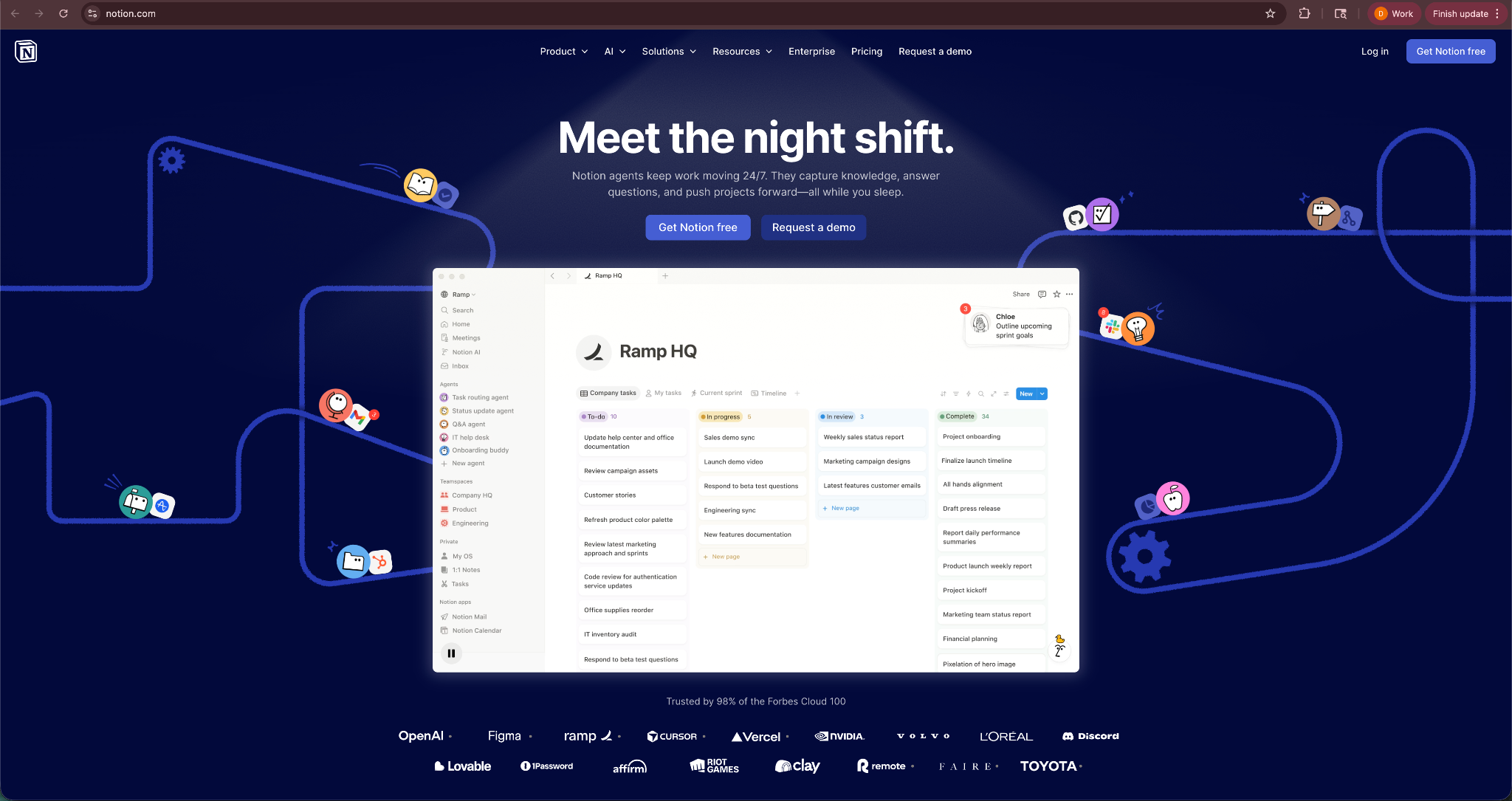
I started using Notion as a simple note-taking app, but it quickly turned into the place where I manage most of my work. I created pages for project planning, writing drafts, meeting notes, and research. Everything stayed organized in one workspace. If you prefer dedicated software for capturing team discussions, read our guide to the best meeting minutes app. To discover additional tools that can streamline your daily workflow, read our guide to the best work apps.
What makes Notion stand out is its flexibility. You can keep it simple with basic notes and checklists, or build structured systems using databases and templates. For example, I built a content calendar with deadlines, progress tracking, and links to drafts, all inside a single page. To connect your workspace with other tools and automate workflows, read our comparison of relay.app vs zapier.
Key features
- All-in-one workspace: Manage notes, documents, tasks, and project planning in a single tool.
- Custom databases: Create structured systems for tracking projects, content calendars, or research.
- Templates for common workflows: Notion provides templates for task management, knowledge bases, and planning.
- Notion AI and AI agents: Notion can transcribe meetings, create AI summaries, and automate tasks with its AI capabilities.
- Team collaboration tools: Teams can share pages, comment on documents, and track progress together.
Pros
- Extremely flexible workspace
- Combines multiple productivity tools into one platform
- Strong collaboration features for teams
- Large library of templates
Cons
- Setup takes time for complex systems
- Large workspaces can become difficult to organize
Pricing
- Free plan with basic features and limited collaboration, with Notion AI trial
- Paid plans start from $12/member/month, billed monthly
Bottom line
Notion works well for people who want a single workspace to organize information, projects, and documentation. If you prefer fewer tools and one central hub for your work, Notion remains one of the most versatile productivity apps available. To explore other intelligent tools for your workflow, check out our guide to the best ai apps.
2. Todoist: Best task management app
What it does: Todoist helps you capture tasks, organize projects, and track deadlines with simple to-do lists and reminders.
Who it's for: Individuals and teams who want a fast, reliable way to manage tasks and stay organized.
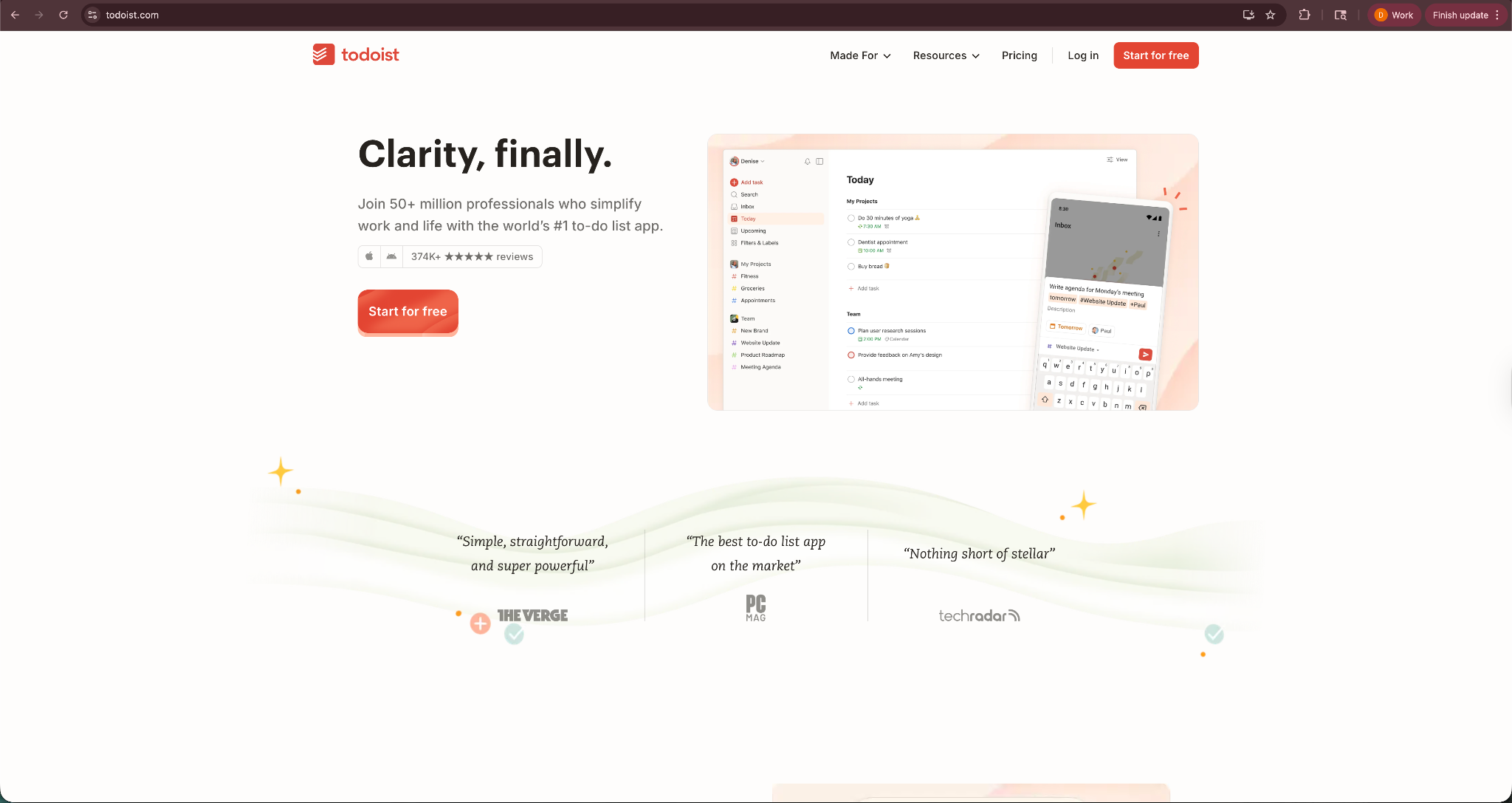
I tested several task management apps while researching this article, including more complex tools like ClickUp and Asana. I kept coming back to Todoist because it stays simple. Adding tasks takes seconds, and the interface never feels overwhelming.
What stood out during testing was how easy it felt to keep my daily tasks organized. I could quickly add tasks with natural language like “Finish report tomorrow at 10 am,” and Todoist automatically scheduled the deadline and reminder.
Key features
- Fast task capture: Add tasks quickly with natural language input such as deadlines, reminders, and recurring tasks.
- Project organization: Group tasks into projects and sub-tasks to keep work structured.
- Priority levels and labels: Use priority flags, labels, and filters to organize tasks and focus on what matters.
- Cross-platform support: Todoist works across web, desktop, and mobile so your tasks stay synced everywhere.
Pros
- Clean and simple interface
- Fast task creation with natural language input
- Works across all major devices
- Free plan works well for personal use
Cons
- Limited project management features compared with tools like ClickUp
- Advanced collaboration features require paid plans
Pricing
- Free plan for personal task management
- Paid plans start from $7/user/month, billed monthly
Bottom line
Todoist focuses on task management and does it well. If you want a reliable task manager that stays simple while still offering powerful organization features, Todoist remains one of the best productivity apps available. Teams looking for automated scheduling and intelligent prioritization can also benefit from dedicated ai task manager software.
3. Google Calendar: Best scheduling app
What it does: Google Calendar helps you schedule meetings, plan your day, and organize events across personal and work calendars.
Who it's for: Individuals and teams who need a simple way to manage schedules and coordinate meetings.
I use Google Calendar daily to plan work blocks, meetings, and deadlines. During testing, I focused on how quickly I could organize a busy week. Creating events, inviting teammates, and setting reminders all took just a few clicks. If you are looking for a dedicated shareable calendar app for your team, read our full guide to the top options.
The biggest advantage is how well it fits into everyday workflows. Google Calendar connects easily with tools like Gmail, Zoom, and Slack, which means meeting invites, reminders, and updates show up automatically without extra effort. To discover additional software that can streamline your daily routines, see our guide to the best work apps.
Key features
- Shared calendars: Create multiple calendars for work, personal tasks, or team projects and share them with others.
- Event scheduling and invites: Schedule meetings, invite participants, and track responses directly from the calendar.
- Smart reminders and notifications: Set reminders so you never miss meetings, deadlines, or important events.
- Booking slots: Share a link and let others book meeting or event slots with you.
- Integration with Google Workspace: Works seamlessly with Gmail, Google Meet, and other Google tools.
Pros
- Simple and familiar interface
- Easy meeting scheduling and collaboration
- Works across all devices
- Free for most users
Cons
- Limited built-in task management features
- Advanced scheduling tools require third-party apps
Pricing
- Comes free with a Google account
- Businesses can access it through Google Workspace plans that start at around $8.40/user/month.
Bottom line
Google Calendar remains one of the most reliable scheduling tools available. If you want a simple way to organize meetings and plan your day, it continues to be a strong choice.
4. Sunsama: Best daily planning app
What it does: Sunsama helps you plan your day by organizing tasks, meetings, and priorities into a focused daily workflow.
Who it's for: Professionals who want a structured way to plan their workday and avoid overloaded schedules.
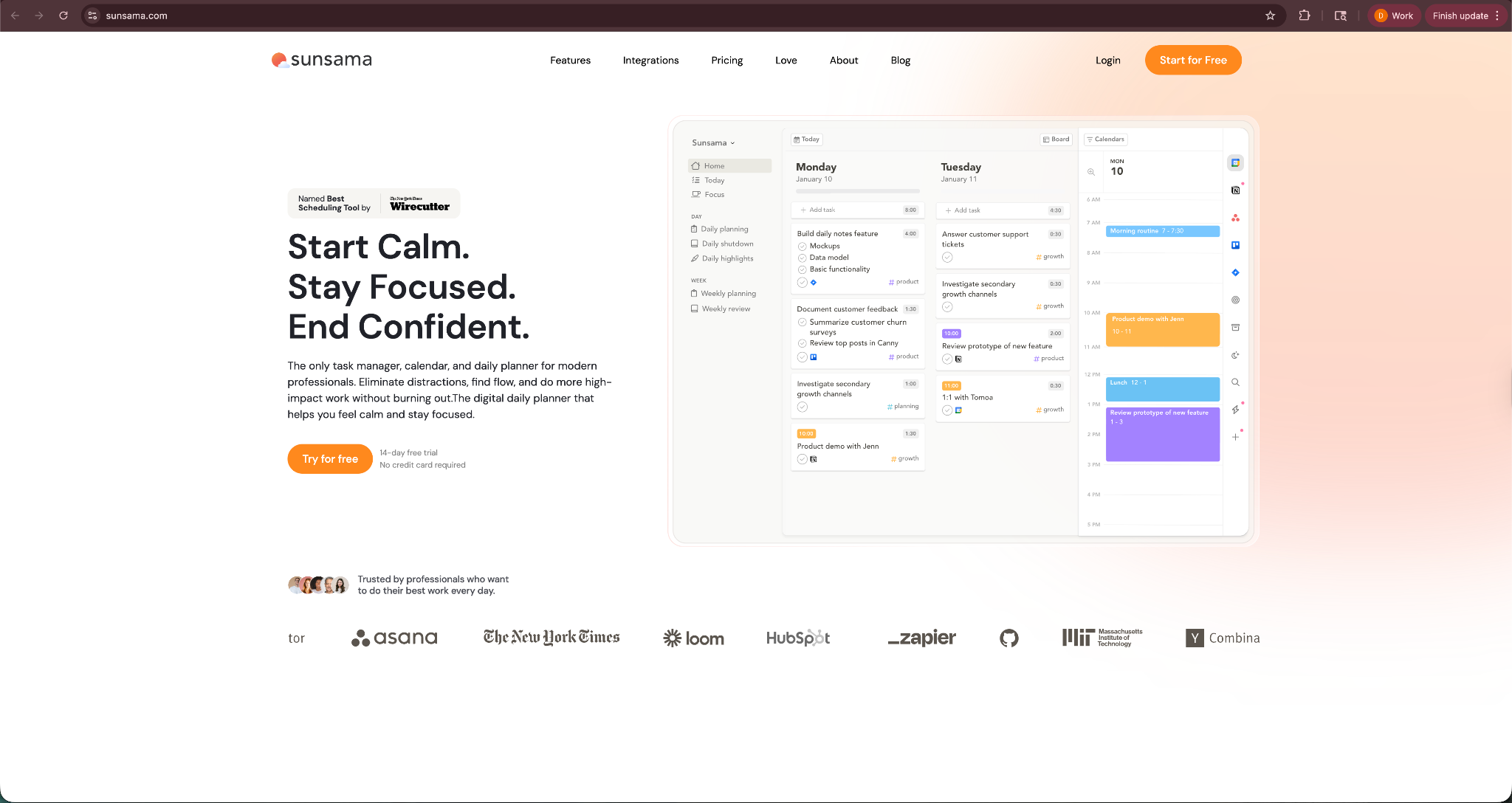
When I tested Sunsama, the biggest difference compared with most productivity apps was its focus on daily planning. Instead of dumping dozens of tasks into a long list, Sunsama encourages you to choose a realistic number of tasks for the day.
During testing, I used Sunsama to plan my work each morning. I pulled tasks from tools like Todoist and Notion, added them to my daily plan, and estimated how long each one would take. It made it easier to see whether my schedule was realistic before the day even started.
Key features
- Daily planning workflow: Sunsama guides you through a simple planning routine that helps you choose and organize tasks for the day.
- Task imports from other tools: Pull tasks from apps like Trello, Asana, or Todoist into your daily plan.
- Time estimates for tasks: Assign time estimates to tasks so you can build a realistic daily schedule.
- Calendar integration: Sync tasks with your calendar so meetings and work blocks appear in the same view.
Pros
- Encourages realistic daily planning
- Helps reduce task overload
- Integrates well with popular productivity tools
- Clean and focused interface
Cons
- Paid plans cost more than many task apps
- Limited features for complex project management
Pricing
- No free plan, only a 14-day free trial
- Paid plans start from $25/month, billed monthly
Bottom line
Sunsama keeps you from planning too much work for one day. If you want a tool that helps you set realistic priorities and structure your schedule, Sunsama works well.
5. Motion: Best AI task planning app
What it does: Motion automatically schedules your tasks and meetings into your calendar so you always know what to work on next.
Who it's for: Busy professionals and teams who want their tasks and meetings organized automatically.
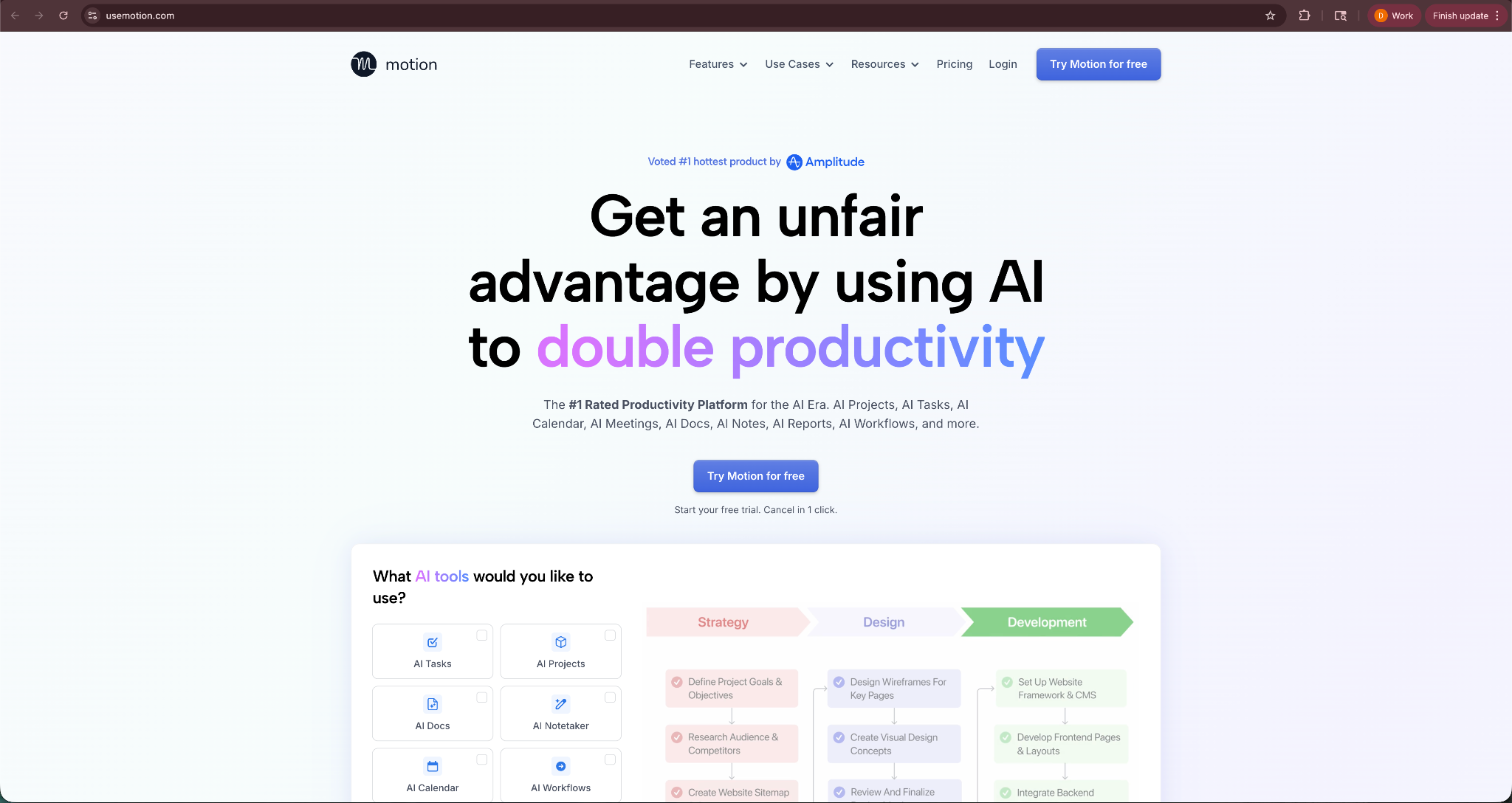
I tested Motion by importing a long list of tasks and deadlines into the platform. Instead of managing them manually, Motion placed each task directly into my calendar based on priority, deadlines, and available time.
The approach that Motion took felt very different from traditional task managers. Instead of checking a task list and deciding what to work on next, Motion has already placed tasks in open time slots. My calendar essentially became my to-do list.
Key features
- Automatic task scheduling: Motion places tasks into your calendar based on deadlines, priorities, and availability.
- Dynamic schedule adjustments: If meetings change or new tasks appear, Motion automatically reorganizes your schedule.
- Task and calendar integration: Combine task management and scheduling in one view.
- Team planning tools: Teams can coordinate schedules and project tasks from a shared workspace.
Pros
- Automatically schedules tasks into your calendar
- Reduces time spent planning your day
- Updates your schedule when plans change
- Combines tasks and calendar planning
Cons
- Higher pricing compared to most productivity tools
- Takes time to trust automated scheduling
Pricing
- No free plan, only a free trial
- Paid plans start from $19/seat/month for individuals and $29/seat/month for teams, both billed monthly To see a full breakdown of plans and tiers, read our complete guide to motion app pricing.
Bottom line
Motion works well for people who prefer a structured schedule instead of managing long task lists. If you want an app that automatically organizes your day, Motion is a strong option.
6. Reclaim AI: Best AI calendar assistant
What it does: Reclaim AI automatically blocks time on your calendar for tasks, habits, and meetings, so your schedule stays balanced.
Who it's for: Professionals who want help protecting focus time while managing meetings and deadlines.
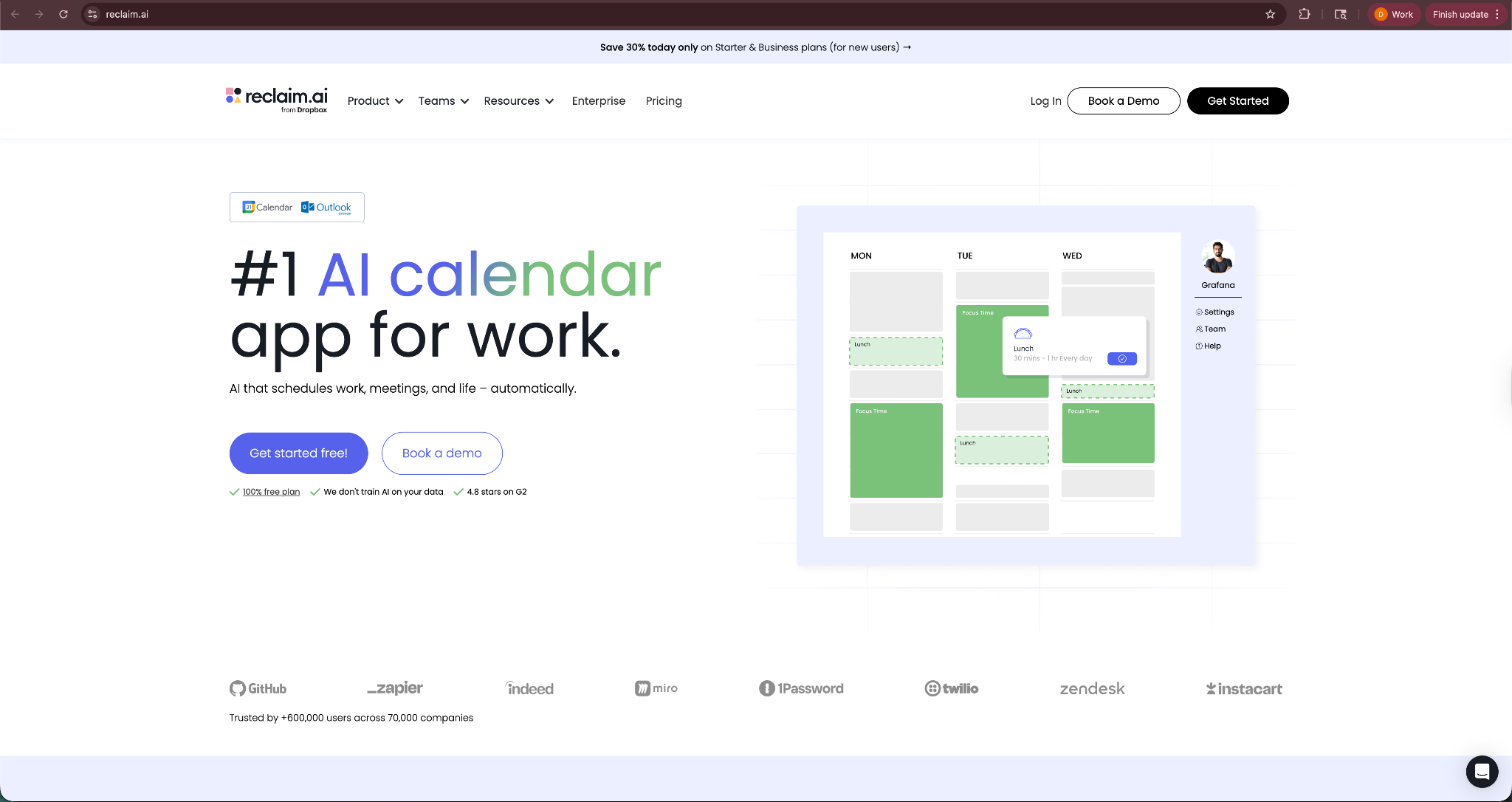
When I tested Reclaim, I connected it to my Google Calendar and added a few recurring tasks and habits. Within minutes, Reclaim started placing time blocks throughout the week to make sure I acted on those priorities.
What impressed me most was how it protected focus time. If meetings filled my calendar, Reclaim automatically moved tasks to new time slots. I did not have to reorganize my schedule every time something changed.
Key features
- Automatic time blocking: Reclaim schedules tasks and habits directly into your calendar.
- Smart meeting scheduling: The tool finds the best time slots for meetings based on availability.
- Flexible task rescheduling: When meetings or priorities change, Reclaim adjusts your schedule automatically.
- Habit scheduling: Block time for routines like exercise, reading, or deep work.
Pros
- Protects focus time on your calendar
- Automatically reorganizes schedules
- Helps balance meetings and tasks
- Works well with Google Calendar
Cons
- Works best inside the Google ecosystem
- Setup takes time to tune priorities and habits
Pricing
- Free plan with limited features
- Paid plans start from $10/seat/month, billed monthly
Bottom line
Reclaim helps people who struggle with overloaded calendars. If meetings constantly interrupt your work, this tool can protect time for important tasks and habits.
7. Toggl Track: Best time tracking app
What it does: Toggl Track helps you measure how much time you spend on tasks, projects, and clients so you can understand where your work hours go.
Who it's for: Freelancers, consultants, and teams who want clear insight into how they spend their time.
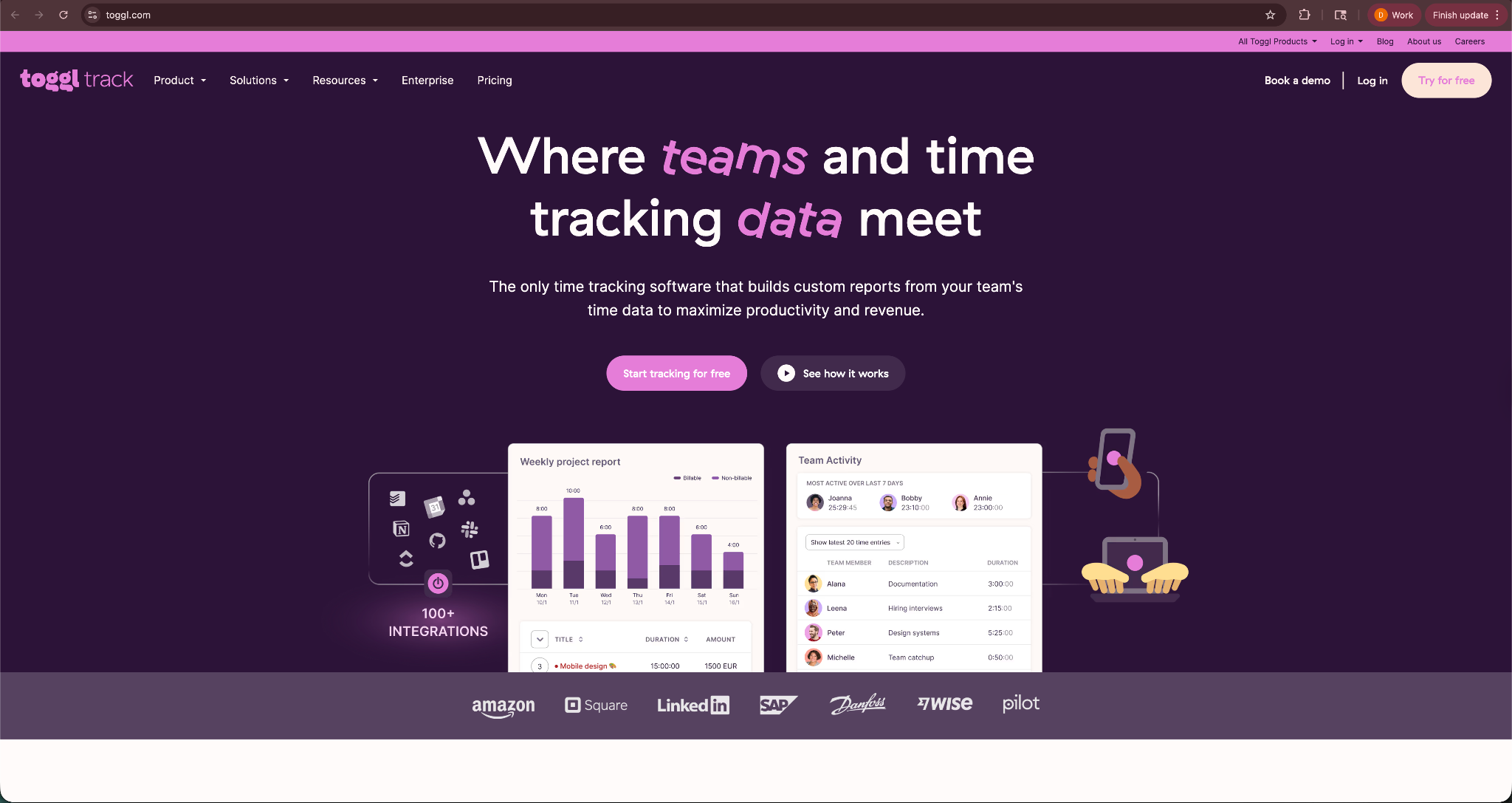
I tested Toggl Track while working on several writing and research tasks during the week. I started the timer each time I switched projects. After a few days, I could see exactly how long different tasks took.
The reporting feature stood out during testing. Toggl grouped time entries into simple charts and reports. This made it easy to spot patterns. For example, I noticed research tasks often took longer than expected, which helped me plan better deadlines.
Key features
- One-click time tracking: Start a timer for any task with a single click on desktop, mobile, or browser.
- Detailed time reports: View reports that show how much time you spend on projects, clients, or tasks.
- Project and client tracking: Organize time entries by project or client to track work more clearly.
- Integrations with work tools: Connect Toggl with tools like Asana, Trello, or Jira to track time within existing workflows.
Pros
- Simple and fast time tracking
- Clear reporting and analytics
- Works across desktop, mobile, and browser
- Free plan works well for individuals
Cons
- Limited project management features
- Team management tools require paid plans
Pricing
- Free plan for individuals with up to 5 users
- Paid plans start from $10/user/month, billed monthly
Bottom line
Toggl Track works well for anyone who wants to understand how they spend their work time. If you want simple time tracking with clear insights, it remains one of the most reliable productivity tools available.
8. Freedom: Best focus and distraction blocking app
What it does: Freedom blocks distracting websites and apps so you can focus on deep work without interruptions.
Who it's for: Anyone who struggles with distractions from social media, news sites, or messaging apps while working.

I tested Freedom during writing sessions where distractions usually break my focus. Before starting work, I created a session that blocked social media, news sites, and a few other websites that tend to pull my attention away.
The difference was noticeable within the first hour. Instead of switching tabs or checking notifications, I stayed inside the task I started. Freedom removes the temptation entirely, which helps you maintain focus during longer work sessions.
Key features
- Website and app blocking: Block distracting websites and applications across devices during focus sessions.
- Scheduled focus sessions: Set recurring sessions so distractions stay blocked during your normal work hours.
- Cross-device blocking: Sync sessions across your computer, phone, and tablet.
- Custom block lists: Create personalized lists of websites or apps that interrupt your focus.
Pros
- Helps reduce digital distractions
- Easy to start focus sessions
- Works across multiple devices
- Simple interface
Cons
- Does not include task management tools
- Requires discipline to maintain regular sessions
Pricing
- Free plan with basic and core features
- Paid plans start from $8.99/month, billed monthly
Bottom line
Freedom solves a simple problem of helping you stay focused. Many people struggle with that while working online. If distractions interrupt your workflow often, this tool can help create focused work sessions.
9. Habitica: Best habit tracking app
What it does: Habitica turns habit tracking and task management into a role-playing game where completing tasks helps you progress in the game.
Who it's for: People who struggle with motivation and want a fun way to build daily habits and stay consistent.
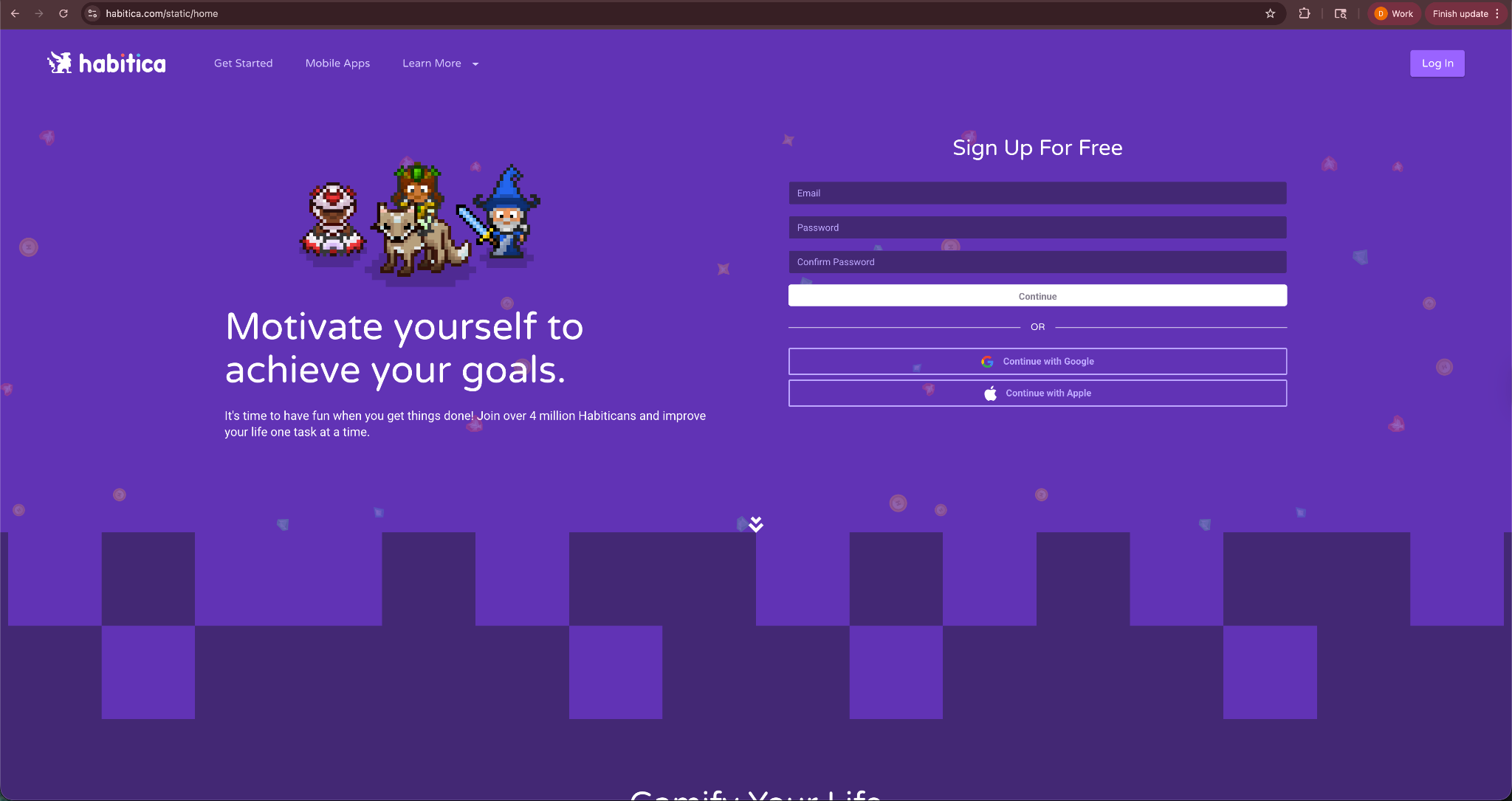
When I tested Habitica, the biggest difference compared with other productivity apps was the game mechanics. Instead of simply checking off tasks, the app rewards progress with experience points, gear, and character upgrades.
That small change of making productivity a game made routine tasks more engaging. Each time I completed a habit or daily task, my character leveled up and unlocked rewards. Over time, the system created a strong incentive to stay consistent with routines.
Key features
- Gamified task system: Completing tasks earns rewards such as experience points, gear, and in-game currency.
- Habit and daily tracking: Track habits, recurring tasks, and one-time to-do items in the same system.
- Character progression: Your character levels up as you complete tasks and maintain streaks.
- Group challenges: Join teams with friends or coworkers to complete shared productivity challenges.
Pros
- Makes productivity more engaging
- Encourages habit consistency
- Free plan offers most core features
- Strong community challenges
Cons
- Game mechanics may not appeal to everyone
- Interface feels less polished than some productivity apps
Pricing
- Free plan with the core functionality of the app
- Paid subscription costs $5/month, billed monthly, and is visible only after you log in
- Group plan costs $9/month + $3/member, billed monthly
Bottom line
Habitica works well for people who lose motivation with traditional productivity tools. If you enjoy game mechanics and rewards, this app can turn routine tasks into a more engaging experience.
10. Obsidian: Best knowledge management app
What it does: Obsidian helps you capture notes and connect ideas through linked documents that build a personal knowledge base.
Who it's for: Writers, researchers, and knowledge workers who want to organize ideas and build a personal knowledge system.
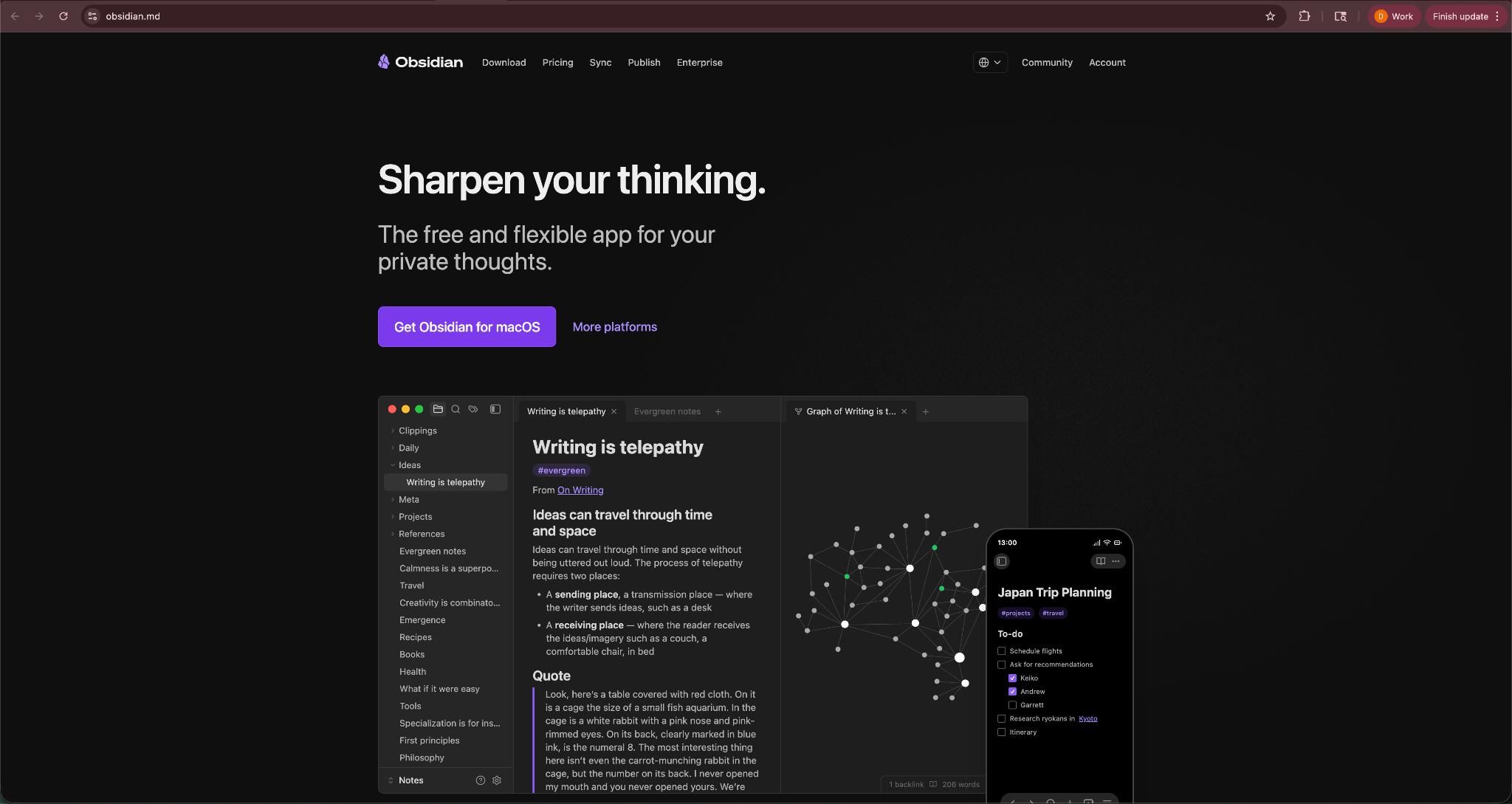
I tested Obsidian while organizing research notes and article outlines. Instead of keeping everything in separate documents, I linked related notes together. It created a network of ideas that made it easier to find connections between topics.
The linking feature stood out during testing. When I mentioned another topic in a note, Obsidian suggested related pages instantly. Over time, my notes turned into a structured knowledge map instead of a scattered collection of documents.
Key features
- Linked note system: Connect related ideas across notes to build a structured knowledge base.
- Local file storage: Notes are stored as plain text files on your device, which gives you full control over your data.
- Graph view of knowledge: Visualize connections between notes through an interactive knowledge graph.
- Plugin ecosystem: Extend the app with community plugins for tasks like calendars, writing tools, and research workflows.
Pros
- Powerful system for organizing ideas
- Strong linking and knowledge mapping features
- Large ecosystem of plugins and customization
- Works offline with local file storage
Cons
- Learning curve for new users
- Collaboration features remain limited
Pricing
- Free to use with no limits as such
- Paid add-ons such as Sync and Publishing start from $5/user/month, billed monthly
Bottom line
Obsidian works well for people who want to build a personal knowledge system instead of basic notes. If you manage a large amount of research, ideas, or documentation, it offers powerful ways to organize and connect information.
11. Feedly: Best information management app
What it does: Feedly helps you track news, blogs, and industry updates in one organized feed so you can stay informed without jumping across multiple websites.
Who it's for: Professionals, researchers, and content creators who follow many sources and want a cleaner way to monitor new information.
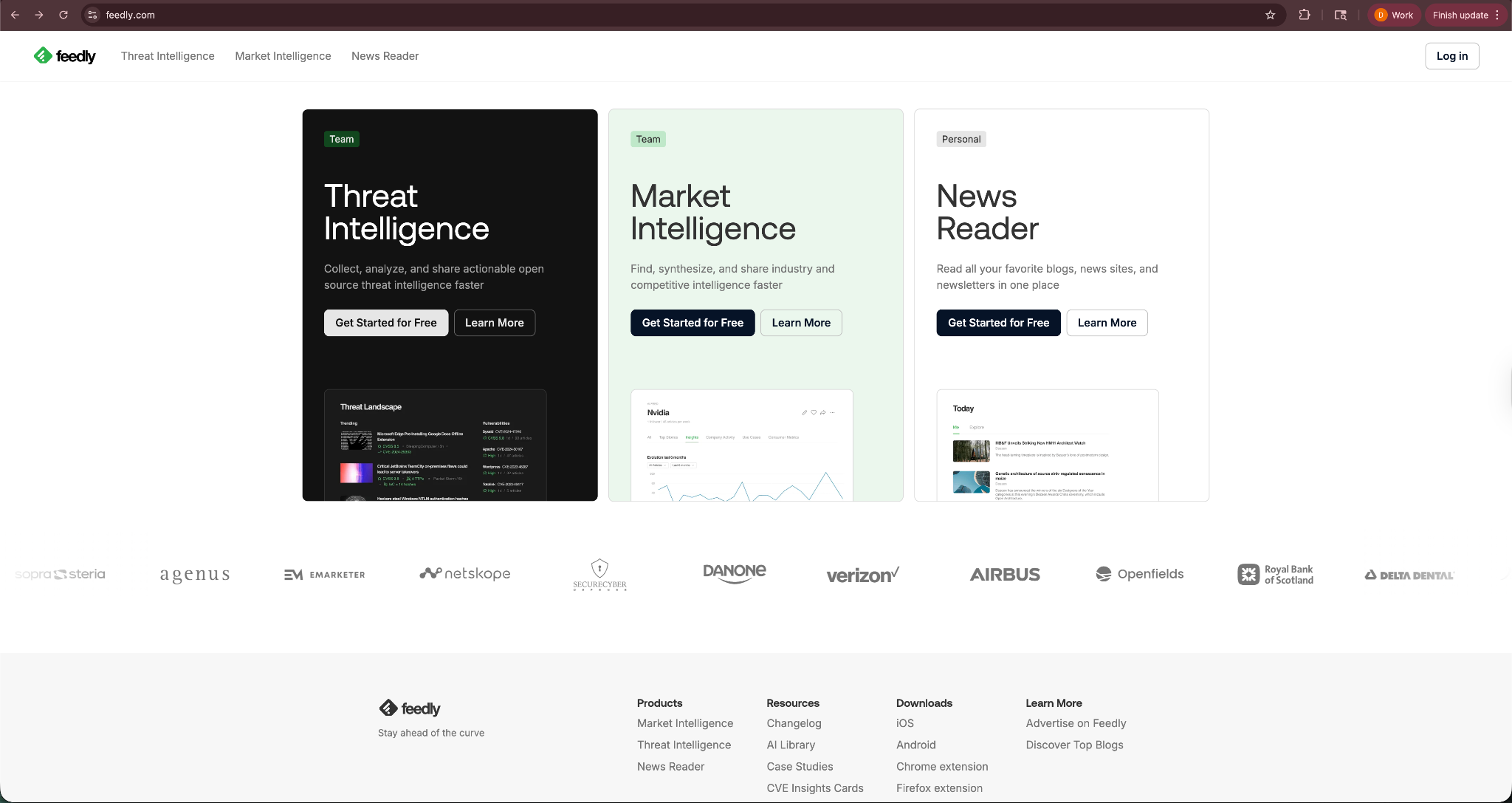
I tested Feedly while tracking updates from several tech and productivity blogs. Instead of visiting each site individually, I added them to Feedly and checked new articles from a single dashboard.
The biggest benefit showed up after a few days of use. Feedly filtered hundreds of articles into a single stream that I could scan quickly. It made it easier to stay updated on industry news without spending hours browsing different sites.
Key features
- Centralized content feed: Follow blogs, news sites, and publications in one organized dashboard.
- Topic-based organization: Group sources into categories such as Market Intelligence, Threat Intelligence, or News Reader.
- AI-powered filtering: Feedly can highlight important topics and filter out irrelevant articles.
- Save and share tools: Bookmark articles for later or share them with teammates.
Pros
- Organizes large amounts of information in one place
- Saves time compared with visiting multiple websites
- Works across web and mobile devices
- Free plan supports most personal use cases
Cons
- Requires time to set up and curate sources
- Advanced filtering features require paid plans
Pricing
- Free plan that allows you to follow 100 feeds and create 3 folders
- Paid plans are visible only after you log in and start from $6/month, billed yearly
Bottom line
Feedly works well for anyone who follows many blogs or news sources. If you want a simple way to track industry updates without opening dozens of tabs, it can make information management much easier.
12. Slack: Best team productivity app
What it does: Slack helps teams communicate, share files, and coordinate work through organized channels and direct messages.
Who it's for: Teams that need a central place to communicate, share updates, and collaborate throughout the workday.
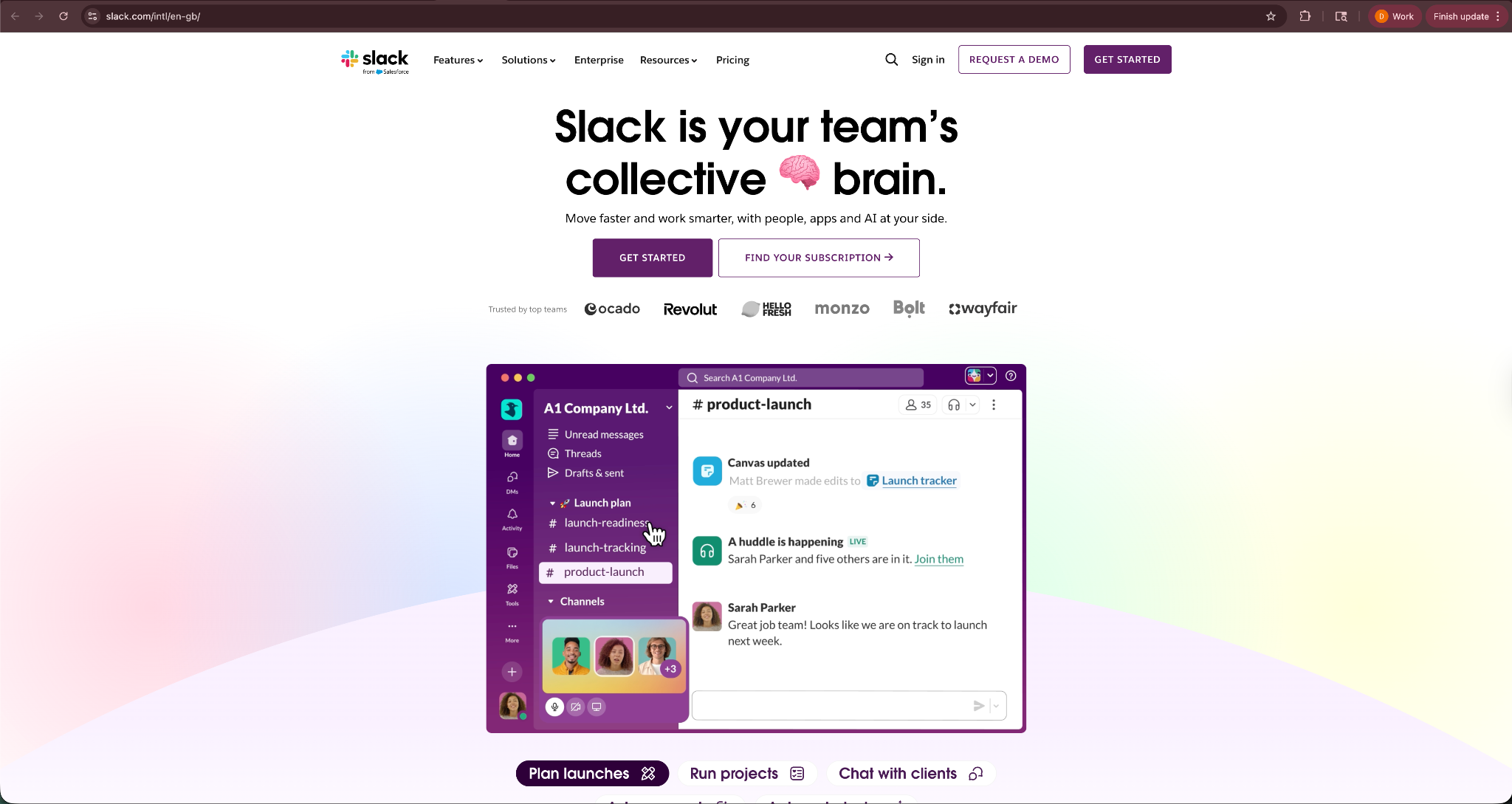
I tested Slack while coordinating projects with teammates across writing, research, and editing tasks. Instead of relying on long email threads, we used channels to organize conversations around specific projects.
The channel structure makes a big difference in daily work. Each project or topic gets its own space, which keeps conversations organized and easy to search later. Over time, Slack becomes a searchable record of discussions, decisions, and shared resources.
Key features
- Organized team channels: Create channels for projects, departments, or topics to keep conversations structured.
- Direct messaging: Send quick messages to teammates for fast communication without email.
- File sharing and collaboration: Share documents, links, and updates directly inside conversations.
- Integrations with work tools: Connect Slack with tools like Google Drive, Notion, or project management apps.
- Slackbot and AI: Organize your day, catch up with notifications, and generate huddle summaries using AI.
Pros
- Clear and organized team communication
- Fast collaboration through channels and messages
- Strong integrations with other productivity tools
- Searchable conversation history
Cons
- High message volume can become distracting
- Advanced features require paid plans
Pricing
- Free plan for small teams with basic features
- Paid plans start from $8.75/user/month, billed monthly
Bottom line
Slack is one of the most widely used communication tools for teams. If your team needs a central place for conversations, updates, and shared files, it continues to be a strong productivity platform.
13. Loom: Best async communication tool
What it does: Loom lets you record quick videos of your screen, camera, or both so you can explain ideas, share updates, or walk through work without scheduling meetings.
Who it's for: Remote teams, managers, and creators who want to communicate clearly without long meetings or written explanations.
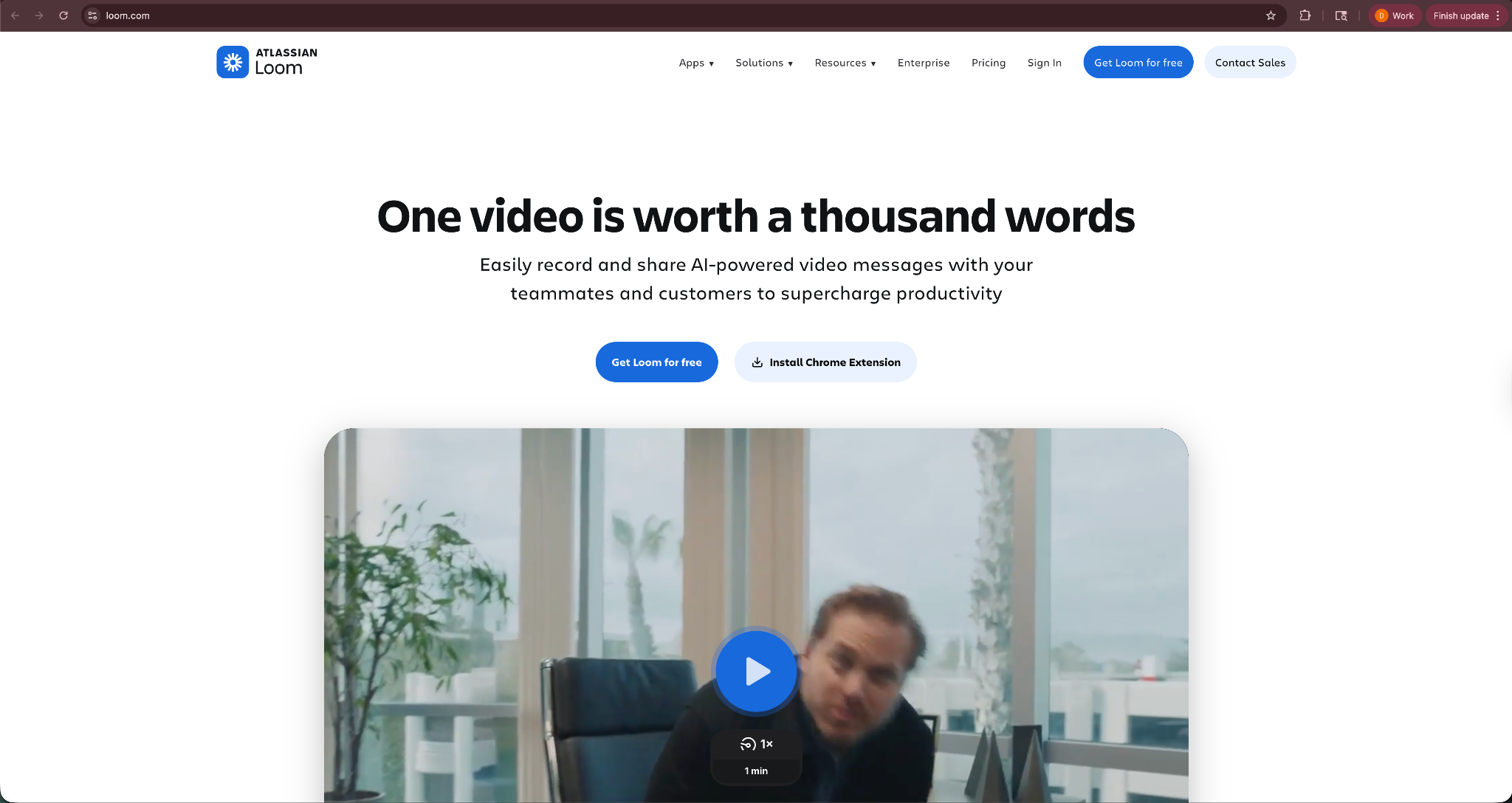
I tested Loom while explaining project feedback and documenting workflows. Instead of writing long messages, I recorded short videos that showed exactly what I meant on the screen, and it saved a surprising amount of time.
A two-minute video often replaced a long written explanation or a scheduled meeting. Teammates could watch the recording whenever they had time and respond with comments or questions.
Key features
- Quick screen recording: Record your screen, camera, or both to explain ideas or demonstrate workflows.
- Instant video sharing: Loom generates a shareable link immediately after recording.
- Viewer comments and reactions: Teammates can leave comments and emoji reactions directly on the video.
- Integrations with work tools: Connect Loom with tools like Slack, Notion, and Google Workspace.
Pros
- Makes explanations faster and clearer
- Reduces unnecessary meetings
- Easy sharing through links
- Works across desktop and browser
Cons
- Free plan limits recording length
- Not ideal for highly detailed documentation
Pricing
- Free plan with 25 videos and a 5-minute recording cap
- Paid plans start from $18/user/month, billed monthly
Bottom line
Loom works well for teams that want faster communication without scheduling meetings. If you often explain ideas or give feedback remotely, quick video messages can make collaboration easier.
14. ChatGPT: Best AI productivity assistant for research and writing
What it does: ChatGPT helps you research topics, summarize information, brainstorm ideas, and draft content through conversational prompts.
Who it's for: Professionals, writers, students, and teams who want help with research, writing, and problem-solving.
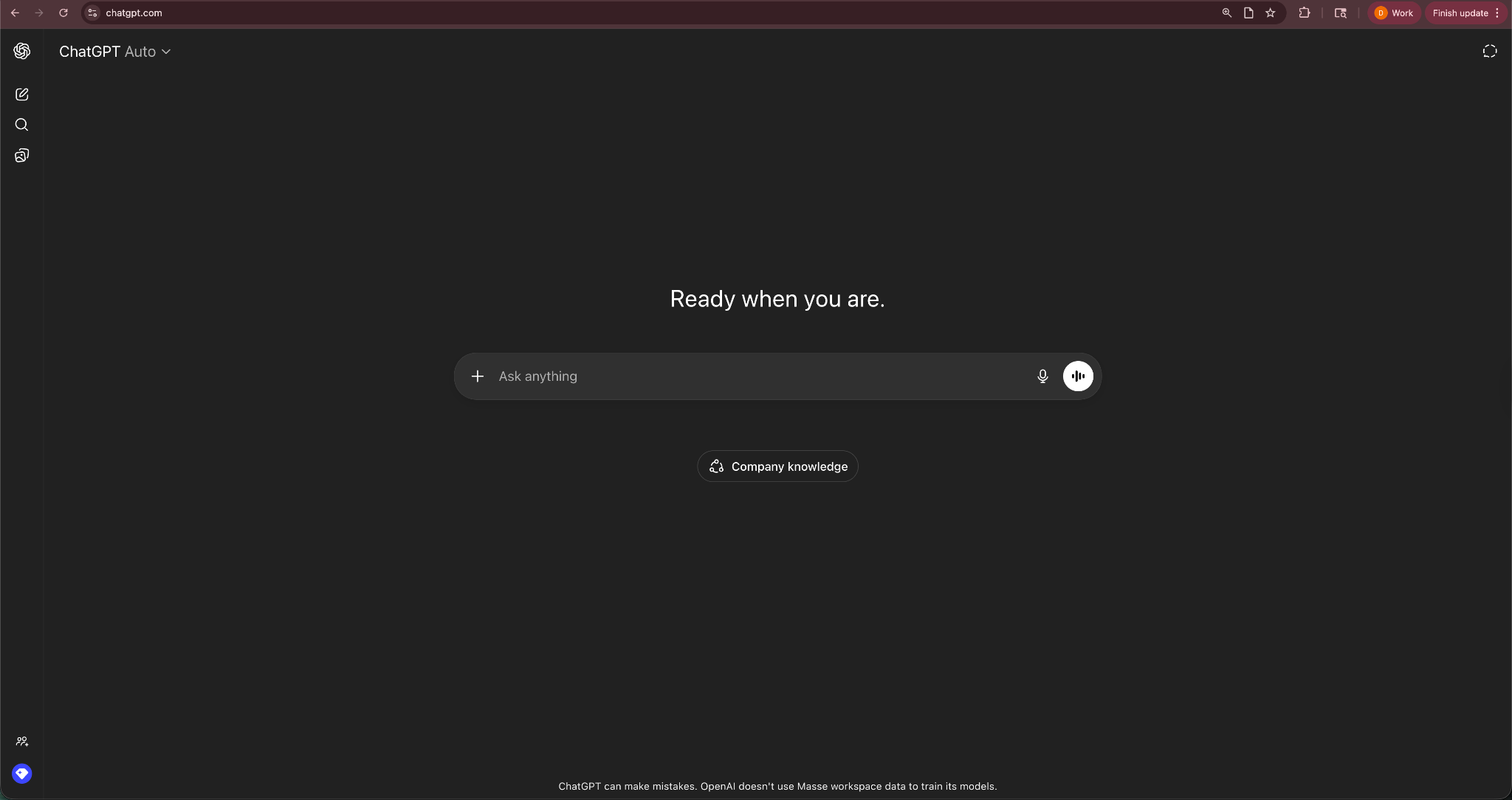
I tested ChatGPT for several daily tasks while writing this article. I used it to summarize long reports, brainstorm outlines, and draft quick explanations before refining the final content.
For daily tasks, ChatGPT is quick and easy to use. Instead of spending an hour researching a topic from multiple sources, I could ask a question and get a detailed summary in seconds. However, I still needed to review and refine the output.
Key features
- Conversational research assistant: Ask questions and get detailed answers across topics like business, technology, and writing.
- Content drafting and editing: Generate outlines, drafts, summaries, and revisions for documents or articles.
- Idea generation and brainstorming: Use prompts to explore ideas for projects, presentations, or creative work.
- Codex: Use AI to generate code snippets, debug them, and integrate them with your IDE.
- File and document analysis: Upload documents and ask ChatGPT to summarize or analyze the content.
Pros
- Speeds up research and brainstorming
- Helps generate outlines and early drafts
- Simple conversational interface
- Works across many professional tasks, like writing code and generating images or videos
Cons
- Requires human review and editing
- Responses depend on the quality of prompts and the model you use
Pricing
- Free plan with limited access to the latest GPT model
- Paid plans start from $8/month, billed monthly
Bottom line
ChatGPT works well as an AI assistant that can help you with tasks like research, writing, code, and generating videos and images. If you regularly brainstorm ideas, analyze information, or draft content, it can significantly speed up your workflow.
How I tested these productivity apps
I tested these productivity apps across common workflows like planning tasks, managing schedules, organizing notes, and coordinating with teammates to see where each tool fits once real work starts.
I also reviewed product documentation, pricing pages, and user feedback to understand how other people use these tools in practice. That helped surface patterns instead of one-off complaints or isolated feature gaps.
I avoided comparing tools outside their intended purpose. A note-taking app should not compete with a task manager, and a focus tool should not be judged like a project management platform. Here’s what I looked for:
- Ease of daily use: I looked at how quickly someone can add tasks, organize work, or retrieve information. Tools that required heavy setup or constant configuration ranked lower than tools that worked smoothly from the start.
- Productivity impact: Many apps organize tasks, but still create extra work. I focused on tools that reduce manual effort, speed up planning, or remove repetitive tasks.
- Workflow compatibility: Most people already use tools like Google Calendar, Slack, Gmail, or Notion. I evaluated how easily each app fits into existing workflows without forcing major changes.
- Focus and organization support: Some tools help people plan tasks. Others help manage knowledge, track time, or protect focus. I looked at how well each app supports a clear productivity system instead of adding more complexity.
- Pricing clarity and accessibility: Pricing models matter over time. I looked at how easy it is to start using each tool and whether paid plans provide clear value as usage grows.
Which productivity app should you choose?
The right productivity app depends on how you organize work and where most of your time goes. Some tools help you manage tasks, while others can plan schedules, protect focus, or handle repetitive work. Use these scenarios to narrow it down quickly:
Choose your productivity app:
- Notion if you want one workspace to organize notes, documents, and projects in the same place.
- Todoist if you want a fast and simple way to manage daily tasks without a complex system.
- Google Calendar if your biggest challenge is scheduling meetings and planning your day.
- Sunsama if you want a structured daily planning routine that helps you prioritize a realistic number of tasks.
- Motion if you want your tasks automatically scheduled into your calendar.
- Reclaim AI if you want to protect focus time and automatically balance meetings with deep work.
- Toggl Track if you want clear insight into how you spend your work hours.
- Freedom if distractions interrupt your work and you need help protecting focus time.
- Habitica if you stay motivated through gamified systems and rewards.
- Obsidian if you want to build a personal knowledge system with linked notes.
- Feedly if you follow many blogs or news sources and want a single place to track updates.
- Slack if your team needs a central place to communicate and coordinate work.
- Loom if you want to replace long explanations or meetings with quick recorded videos.
- ChatGPT if you want help with research, brainstorming ideas, or drafting content.
My final verdict
If I had to choose one productivity tool for most people, I would pick Notion because it combines notes, documents, tasks, and databases in one workspace. You can keep it simple with basic checklists, or build structured systems for projects and documentation, and everything stays organized in one place.
That said, no single tool fits everyone. If you only want a place to manage tasks, Todoist or Sunsama offer simpler systems that focus entirely on planning work.
If your main challenge is organizing knowledge and documentation, Notion or Obsidian make more sense. They help structure information and projects in a way that stays easy to search and expand over time.
For scheduling and calendar planning, Google Calendar, Motion, and Reclaim work well. They help organize meetings, block focus time, and structure your day.
Personally, I prefer tools that reduce the number of decisions I have to make during the day.
Instead of forcing one app to manage everything, I would rather keep a small stack where each tool handles one job well. That kind of system is easier to maintain, and it leaves more time for the work itself.
How to build a simple productivity setup: An example workflow
The most effective productivity setup combines a few tools that handle different parts of work. It separates planning, scheduling, focus, and knowledge. Each tool handles one job well instead of forcing one app to manage everything.
Here is how you can use some of the tools from this list:
Managing tasks → Todoist
Todoist works well as the place where tasks live. Capture ideas quickly, organize them into projects, and assign deadlines. It becomes the main task list you review each day.
Organizing notes → Notion
Use Notion to store project notes, research, meeting summaries, and documentation. Tasks may live in Todoist, but the context behind those tasks stays organized inside Notion.
Scheduling meetings → Google Calendar
Google Calendar handles time. Schedule meetings, block work sessions, and plan deadlines so your calendar reflects what you need to accomplish during the day.
Prioritizing focus time → Freedom
Freedom helps protect deep work sessions by blocking distracting websites and apps. Start a focus session when you need uninterrupted time to complete important tasks.
Managing knowledge → Obsidian
Obsidian helps organize ideas and connect information across projects. Writers, researchers, and knowledge workers often use it as a personal knowledge base.
A setup like this keeps the system simple, and each tool supports a specific part of your workflow. Tools like Lindy can also sit alongside a stack like this, handling routine coordination such as scheduling and email updates.
Frequently asked questions
What is the best productivity app?
There is no single best productivity app for everyone. The right pick depends on whether you need the most help managing tasks, planning your schedule, or organizing information.
For most people, a simple system combines Todoist for task management, Notion for organizing notes and projects, and Google Calendar for scheduling.
What productivity apps do successful people use?
Successful professionals combine several productivity apps like Notion for notes, Todoist for tasks, Google Calendar for scheduling, and Slack for communication.
Are productivity apps worth using?
Yes, productivity apps are worth using as they help remove friction from daily work. They allow you to quickly capture tasks, plan your schedule, and stay organized with minimal effort.
What productivity apps work best for ADHD?
Apps like Todoist, Sunsama, and Habitica work best for ADHD because they offer structure, simplicity, and motivation through clear lists, daily planning, and gamified habit tracking. These features help users stay focused and stick to routines.
How many productivity apps should you use?
Most people should use between 3 and 5 productivity apps to cover essential needs without overwhelming themselves. This typically includes a task manager, calendar, note-taking tool, and a focus app.









