The 17 Best AI Platforms in 2026: Tested & Reviewed
Marvin tested 17 AI platforms across real business workflows, comparing their capabilities for writing, coding, automation, voice, analytics, and productivity to identify the best platform for every use case.
.avif)

AI platforms have evolved into robust systems that can automate workflows, analyze data, generate content, and even talk to your customers.
But with so many different AI platforms on the market — from general-purpose assistants like ChatGPT and Claude to specialized tools like Jasper or Make — choosing the right AI platform for your business can quickly become overwhelming.
Here’s what we’ll cover in this guide:
- 17 best AI platforms and what they do best
- How do they compare on pricing, usability, and flexibility
- Pros and cons of each tool
- Which tools stand out in each category
- Which platforms are ideal for individuals, startups, or enterprise teams
Let’s start with a quick look at how AI platforms differ from standalone tools.
What is an AI platform?
An AI platform is a software product that gives you access to multiple AI capabilities in one place — things like generating content, automating tasks, analyzing data, chatting with customers, or even taking voice calls.
The difference between an AI platform and a standalone tool is flexibility. Tools are often built for narrow, single-use cases. Platforms, on the other hand, allow you to customize inputs, chain together outputs, and integrate them into your team’s existing stack — Slack, Salesforce, Gmail, Notion, or Stripe.
Use cases vary widely depending on the platform. A solo founder might use an AI platform to write sales emails, follow up with leads, and auto-tag customer questions. A mid-size marketing team might use one to generate content at scale, translate it, and update their CMS.
Larger organizations might use AI to route tickets, analyze support data, or enrich millions of CRM records on autopilot. AI platforms let you move faster, remove manual grunt work, and shift your focus toward higher-leverage thinking.
To compile this list, I considered platforms that cater to different categories. Let’s explore them next.
AI platform categories we considered
We focused on platforms that solve problems across work, teams, and scale. Here are the key categories we looked at:
Content generation
These platforms help you write, design, or produce media — everything from blog posts and marketing copy to AI videos and voiceovers.
Examples: Jasper, Copy.ai, Notion AI, Synthesia.
Coding assistants
These tools are designed for developers or technical teams and help write, debug, and explain code. Some can even work across entire projects.
Examples: Cursor, Codex by OpenAI, GitHub Copilot.
Customer support & chatbots
These platforms handle customer inquiries using AI, either through chat or voice. They learn from the knowledge base you provide and can often escalate to human agents when needed. Businesses often deploy a specialized conversational ai platform to automate these chat and voice interactions seamlessly.
Examples: Intercom, Lindy, Vapi.
Automation & integrations
The goal is to connect your tools and automate business processes or internal workflows like lead routing or follow-ups triggered by user actions. To create custom autonomous workflows for your business, explore our list of the best AI agent builders.
Examples: Zapier, Make.
Analytics & decision-making
These platforms help make sense of data. Whether you’re forecasting churn or identifying why revenue dipped, these tools analyze and explain what’s going on.
Examples: Obviously AI, Tellius.
Voice & image processing
Some platforms specialize in audio and visual tasks — like generating realistic voiceovers, editing podcasts, or creating AI art.
Examples: Descript, Midjourney.
AI assistants
These platforms act on your behalf. Tell them what you need in plain English and they handle it across your apps — sending emails, scheduling meetings, updating your CRM, or making calls. For broader daily productivity, explore top software tools in our guide to the best ai apps available today.
Examples: Lindy.
Multimodal & generalist AI
These are the all-rounders. They can write, code, analyze files, browse the web, and more — all within one assistant. They usually support text, image, voice, and file inputs. If you are looking for options beyond OpenAI's flagship assistant, explore our top recommendations for ChatGPT alternatives.
Examples: ChatGPT, Claude, Perplexity.
Enterprise-scale AI frameworks
These are built for larger companies with technical teams and large data needs. They offer customizable models, API access, and integrations with cloud platforms.
Examples: Azure AI, Google Vertex, Amazon Bedrock.
With the categories out of the way, let’s focus on the AI platforms.
The 17 best AI platforms in 2026
I explored and tested 30+ AI platforms for their capabilities, features, and what they do exceptionally well. I found these 17 tools to be most valuable:
- Lindy –– best for an AI assistant you can text to handle work across your apps
- Perplexity –– best for real-time research and fact-checked answers
- Jasper –– best for consistent branding and marketing content at scale
- Copy.ai –– best for fast marketing copy and product messaging
- Notion AI –– best for writing, summarizing, and organizing inside your workspace
- Grammarly –– best for real-time writing feedback and tone correction
- ChatGPT –– best for all-purpose brainstorming, writing, and logic-based tasks
- Claude –– best for thoughtful writing, document reasoning, and context-heavy tasks
- Cursor –– best for coding inside an AI-native IDE
- Synthesia –– best for turning scripts into polished videos with AI avatars
- Descript –– best for editing audio and video by editing text
- Midjourney –– best for generating high-quality, stylized AI visuals
- Vapi AI –– best for building real-time AI voice agents for phone calls
- Obviously AI –– best for running no-code predictions on business data
- Make –– best for building visual, multi-step automations across tools
- Intercom –– best for AI-powered customer support and live chat
- Zapier –– best for connecting apps and automating repeatable workflows
Let’s understand each of these tools in detail and see what tests I ran with them.
1. Lindy – best for an AI assistant you can text to handle work across your apps
If you want to go beyond simple AI chatbots and offload work, Lindy is where I'd start. It's an AI assistant you text to get real work done — tell Lindy what you need in plain English and it handles it. Many professionals also use specialized AI note taking apps alongside these assistants to capture and organize meeting insights automatically.
Lindy can handle everything from sending emails and following up with leads to making phone calls, logging CRM data, or managing internal operations like summarizing meetings or sorting inbox attachments. Setting up an ai personal assistant allows you to automate these repetitive tasks and streamline your daily routine.
Lindy is incredibly easy to use. Tell it what you need across apps like Slack, Gmail, HubSpot, or Salesforce, and it handles the steps, adjusting on the fly if something about the situation changes.
The best part is that you don't need to write code. Lindy comes with prebuilt skills like Email Follow-up Drafter or Meeting Scheduler that you can turn on and customize in plain English, tweaking the instructions to fit your exact use case.
I used the Lead Generator skill with filters like title and industry. Once connected to a source like People Data Labs, I told Lindy in plain English to find me a Content Strategist, Content Lead, Head of Content, or people in similar roles working in-house in software, SaaS, IT services, and product companies.
It searched for the leads that met my criteria and created a Google Sheet with detailed information about those leads. It took me less than 20 minutes to create a 10-person lead list. It easily replaced hours of weekly lead generation grunt work.

If your team spends time on repeatable processes like sales ops, customer support, or internal handoffs, this tool provides the most value.
Key features
- Handles multi-step requests in plain English, no builder or setup required
- Voice assistant for inbound/outbound calling
- Email, CRM, calendar, file, and Slack integrations
- Hundreds of integrations including Gmail, HubSpot, Salesforce, Notion, and Zoom, plus API support
Pros
- Logic and control over your tasks without dev work
- Executes specific instructions exactly as given, no generic output
- Pricing is transparent and scales by usage
Cons
- There is a slight learning curve if you’re used to simple chatbots
- iMessage delegation is iPhone-only, so Android users work through the web app instead
Pricing
Lindy plans start at $49.99/month (Plus), with Pro at $99.99/month and Max at $199.99/month. A 7-day free trial is available on all plans.
{{templates}}
2. Perplexity – best for real-time research and fact-checked answers
Perplexity is a smart, AI search assistant that answers questions, shows its sources, and keeps things concise. It is like a research partner who shows you the right links, explains them in plain English, and doesn’t waste your time.
I’ve used it for things like sourcing up-to-date stats, comparing product features, and checking the latest news on AI regulation. You can technically do all these tasks using Google, but it’s faster and more digestible here. It pulls from credible sources, cites everything in line, and lets you dig deep with the source links.

Perplexity’s Deep Research is a brilliant tool to help you research a topic in depth. It takes around 10-15 minutes to give you the complete results, but it’s totally worth it.
What's underrated about Perplexity is how good it is at follow-up. You can ask something like, "How does Claude compare to ChatGPT?" and then follow up with, "What about for coding?" It'll keep the thread going intelligently.
It’s not a “do-anything” tool like ChatGPT or Claude, but it’s one of the most efficient tools I’ve used for research and reading-heavy workflows.
Key features
- Real-time web results with in-line citations
- Follow-up Q&A with persistent context
- File and image upload for context-aware queries
- iOS, Android, and browser extensions available
Pros
- Fast, reliable info without hallucinations
- Perfect for research, sourcing, and quick comparisons
- Includes free daily access to Pro models
Cons
- Not for tasks like writing or automation
- Some answers can still oversimplify nuanced topics
- Fewer customization options than larger assistants
Pricing
Perplexity plans start at $20/month (Pro, billed monthly), with Max at $200/month. A free plan is available with limited daily use.
3. Jasper – best for consistent branding and marketing content at scale
Jasper is AI software built for marketers. It focuses on keeping content on-brand, maintaining a consistent voice, and scaling creative output across teams.
What stood out to me most was its Brand Voice feature. You feed Jasper examples of your tone and messaging — emails, blog posts, social copy — and it learns how to match that across different formats.
I asked Jasper to write a blog after setting all the parameters –– brand voice, topic, outline, and resources. It took a while and generated a decent response that needed minimal edits.
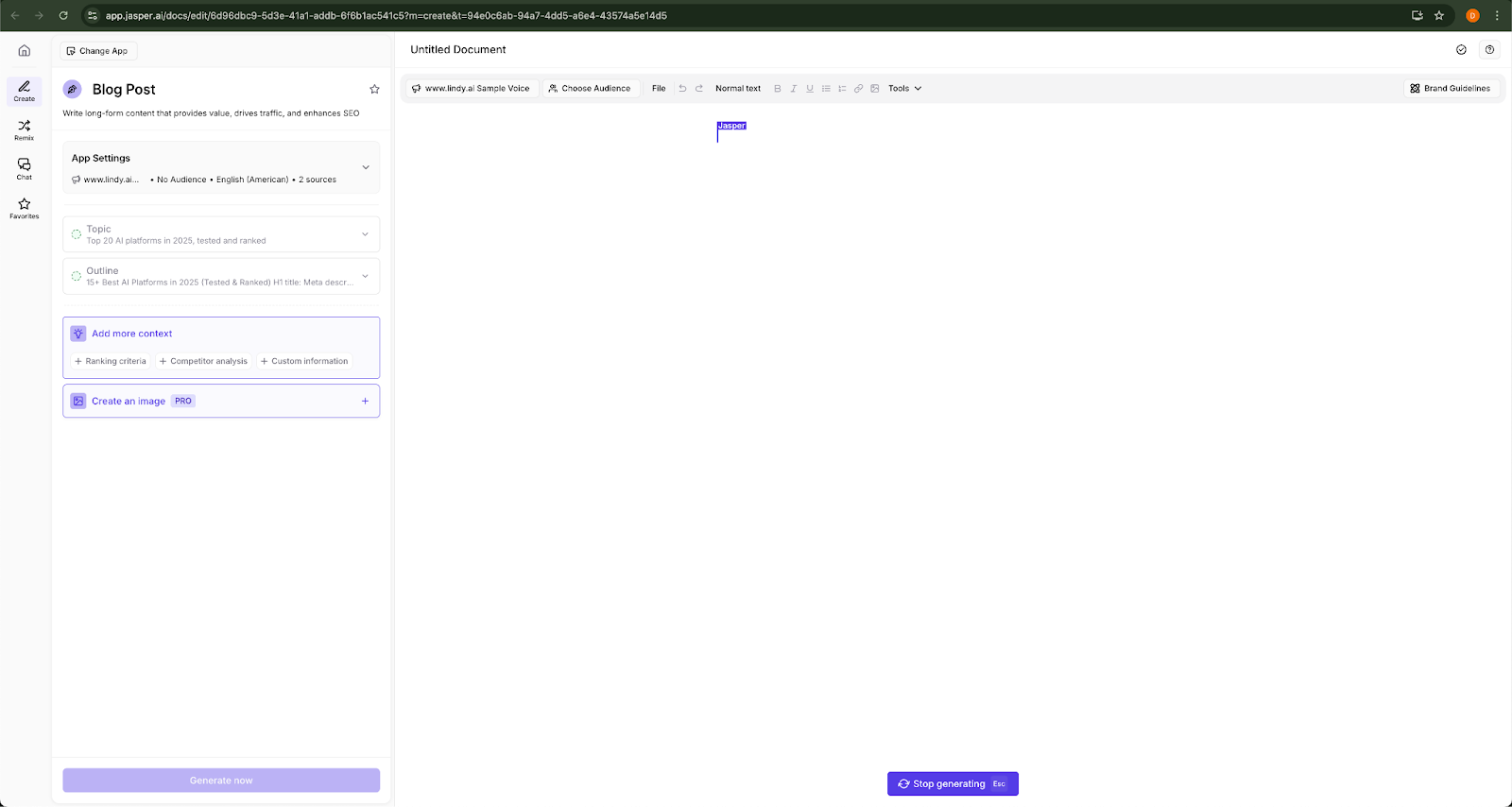
The interface is clean, it has prebuilt workflows –– blog outlines, email campaigns, product descriptions, SEO content, and so on. You can also collaborate with teammates in real-time and leave feedback.
It makes sense if you’re running campaigns, managing a content pipeline, or juggling multiple client voices. However, it’s not cheap and won’t replace strategic thinking. It’s a production tool, not a strategy engine.
Key features
- AI trained on your brand voice
- Campaign workflows for blog, social, email, and ads
- Team collaboration with version control and comments
- Built-in plagiarism checker and SEO mode
- API and CMS integrations
Pros
- Great for scaling consistent content across channels
- Workflow templates save time on repetitive tasks
- Reliable output quality when Brand Voice is dialed in
Cons
- You still need to guide it — it won’t know your strategy
- Pricey for small teams or casual users
- Can feel rigid outside marketing use cases
Pricing
Jasper plans start at $69/month (Pro, billed monthly per seat), with Business available at custom pricing for teams needing advanced governance and deployment options. A free 7-day trial is available on the Pro plan.
4. Copy.ai – best for fast marketing copy and product messaging
Copy.ai uses AI to help you write something punchy — like a product description, ad variant, or value prop test and create AI workflows mostly around content and marketing. It’s a marketing sidekick that helps you go from idea to publishable copy in a few clicks.
The new Workflows feature helps you string together prompts like “summarize this”, “turn it into a headline”, “write a follow-up email,” and then run them on your entire lead list or campaign batch.
For example, I created a two-step sequence that took the content brief from me and turned it into mega blogs, with 15-20 sections in it. It took around 10 minutes for it to generate the entire blog but it saved me hours.

It also comes with hundreds of prebuilt and editable templates — LinkedIn posts, A/B test copy, product launches, and landing page sections. The tone sliders like bold, witty, or persuasive, are surprisingly good for dialing in the right feel without needing a brand brief.
It’s best suited for marketing, sales, and growth teams that need volume and variety without worrying too much about long-form content or heavy editing.
Key features
- AI workflows for batch content generation
- Pre-built templates for 100+ content types
- CSV import for bulk personalization
- Collaboration tools and saved copy history
- Zapier and HubSpot integrations
Pros
- Fast to use and easy to train new teammates on
- Great for short-form and high-variation messaging
- Workflows are powerful for scaling outbound and lead-gen
Cons
- Long-form blog content isn’t its strength
- UI can get cluttered with too many templates
- You’ll still need to check the tone and accuracy
Pricing
Copy.ai's Chat plan starts at $29/month (billed monthly, 5 seats), including unlimited words, unlimited chat projects, and access to OpenAI, Anthropic, and Gemini models. Annual billing is also available at a 20% savings.
5. Notion AI – best for writing, summarizing, and organizing inside your workspace
Notion AI is the most invisible AI baked into Notion for docs, wikis, or project planning. The AI layer quietly makes things easier. You’re not switching tools, not pasting between tabs. It helps you think faster, draft cleaner, or organize a mess.
I’ve used it to summarize meeting notes, clean up brainstorming notes, and draft first-draft outlines for internal docs. It's fast and context-aware. You highlight some text, hit “summarize” or “improve writing,” and it tightens things up without losing your tone.
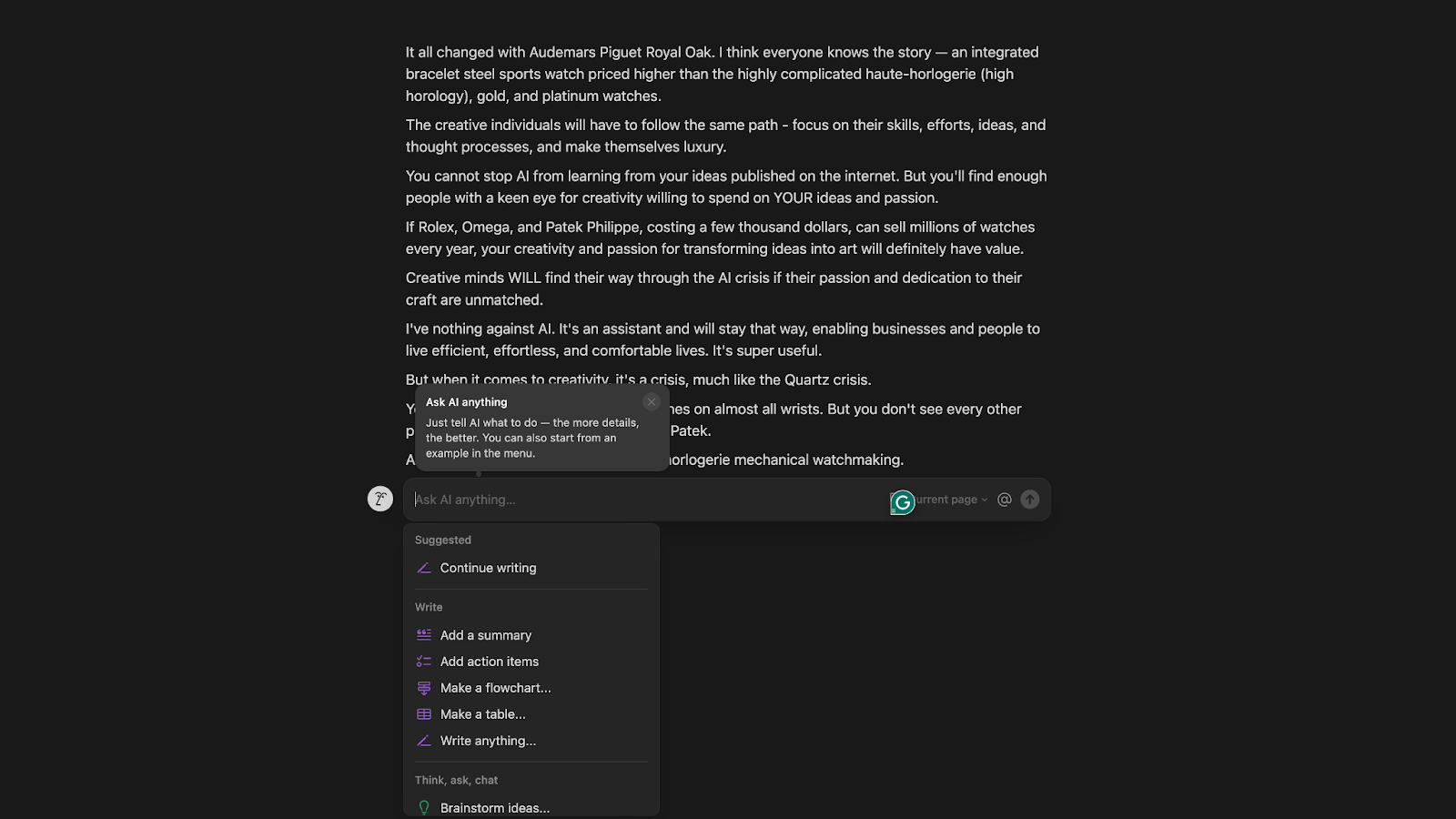
It’s also great for structuring chaotic information. I had a document full of scattered research notes. I asked Notion AI to create action items and tag key takeaways, giving me a clean list from which I could work. Stuff like that saves time.
However, Notion isn’t a complete content tool. It won’t replace your blog writing stack. It shines when you’re already in Notion and need a little push to move faster or think clearly.
Key features
- In-line AI writing, editing, and summarization
- Task list generation and action item extraction
- Q&A on existing Notion docs and databases
- Brainstorming tools for quick idea dumps
- Works across notes, wikis, databases, and calendars
Pros
- Seamless if you already live in Notion
- Great for cleaning up messy docs and notes
- It makes internal communication and planning faster
Cons
- Not suited for long-form content creation
- Lacks formatting controls during AI output
- Can get repetitive if overused on the same doc
Pricing
Notion plans start at $12/month (Plus, billed per member/month), with Business at $24/month and Enterprise at custom pricing. A free plan is also available for individuals organizing personal projects.
6. Grammarly – best for real-time writing feedback and tone correction
Grammarly quietly makes sure your writing doesn’t suck. Whether it’s a Slack message, a sales email, or a LinkedIn post, it catches the stuff that you miss while writing –– awkward phrasing, accidental typing errors, and weird tone shifts.
Grammarly can now tell you if your message sounds too blunt, overly formal, or unclear. Thanks to those nudges, I’ve caught myself softening cold emails or tightening up my blogs. It’s also good at catching passive voice and vague language, which creeps into copy more than most people realize.

They’ve added generative features too — you can rephrase, shorten, or expand sentences. But I don’t use it as a writing tool like I’d use Jasper or ChatGPT. Since the AI text generator isn’t as good as Claude or ChatGPT, I treat it like my proofreader and editing assistant.
It’s also cross-platform, so it works inside Google Docs, Gmail, Slack, and Notion — wherever you type. It invisibly works in the background, and that makes it so effective and unobtrusive.
Key features
- Real-time grammar, spelling, and punctuation checks
- Tone detection and rewrite suggestions
- Rephrasing, summarizing, and shortening tools
- Works across desktop apps, browsers, and mobile
- Weekly performance reports and writing insights
Pros
- Polishes your writing without changing your voice
- Great for teams that send a lot of external communication
- Highly valuable for content teams
Cons
- Not a complete content creation tool, more of a refinement layer
- Suggestions can feel repetitive for advanced writers
- Paid tiers can be expensive if you're only using the basics
Pricing
Grammarly plans start at $30/month (Pro, billed monthly), with custom Enterprise pricing for larger organizations. A free plan is also available for individuals.
7. ChatGPT – best for all-purpose brainstorming, writing, and logic-based tasks
ChatGPT is a generalist AI platform. With GPT-5.5 Instant, it's finally fast, intelligent, and intuitive enough to act like a co-pilot for actual work, whether drafting copy, debugging code, helping with outlines, or parsing a spreadsheet.
It helps me think about a topic like a second brain. I've used it to summarize long meeting notes, draft cold emails, and even role-play customer objections for sales training. GPT-5.5 Instant can now understand images, charts, and voice inputs, making it smarter than older versions.
I even created my custom GPT –– my ghost-writer. I uploaded all the resources, guidelines, and references to dial in my writing style. Now, I use it to create first drafts of my blogs and fact-check technical claims before they go out.

It can now interpret code, search on the web, read files, and analyze images — all in one chat. You don’t need to toggle between apps to ask it to explain a CSV, pull data from a URL, or turn it into a bar chart.
But it's only as good as your prompts. If you’re vague, it’ll be vague. If you’re specific, it’ll deliver. It’s competent, but it still needs direction.
Key features
- Powered by GPT-5.5 Instant (vision, voice, text, reasoning)
- Code interpreter, data analysis, and file uploads
- Real-time web browsing and image understanding
- Custom GPTs for specific roles or workflows
- Voice mode (now near-instant and natural)
Pros
- Super flexible — works across almost any domain
- Massive community and ecosystem (Custom GPTs, APIs, extensions)
- Fast, responsive, and genuinely useful for daily tasks
Cons
- Requires prompt clarity — it’s not always plug-and-play
- Still not great at real-time collaboration or shared workflows
- Some advanced tools are gated behind paid plans
Pricing
ChatGPT plans start at $8/month (Go, billed monthly), with Plus at $20/month and Pro starting from $100/month. A free plan is also available with limited access and core features.
8. Claude – best for thoughtful writing, document reasoning, and context-heavy tasks
Claude, by Anthropic, focuses on reasoning and working with long contexts, making it great for things like contract analysis, structured writing, or reviewing long PDFs. Where ChatGPT is fast and flexible, Claude feels slower but more thoughtful, and in a good way.
You can attach entire files and ask questions like “What’s the clause about termination?” or “Summarize the key objections in this section.” It will cite specific phrases and give you precise and usable results.
Here, I tried creating a thought-leadership LinkedIn post. I gave it the topic, fed it some of my old LinkedIn posts I wrote, and asked it to create a draft that matched my writing style. The result was not in the direction I expected. But maybe that’s because my prompt didn’t specify it. Overall, the first draft was impressive.

The writing style is also more balanced. Claude writes in a neutral, helpful tone that comes across as calm and considered rather than eager to please. This style is great for drafting internal documents, policy updates, or anything that shouldn't sound like a marketing email.
It's not perfect. It's more conservative in its responses. But for analytical tasks, multi-document reasoning, or writing with a calm, professional tone, Claude's hard to beat.
Key features
- Handles up to 200k tokens (entire books or docs)
- File uploads with follow-up Q&A
- Context retention across long conversations
- API access and enterprise-grade security
Pros
- Excellent at deep reading, summarizing, and analysis
- Strong memory and structure in writing
- Free plan is highly capable
Cons
- More reserved than ChatGPT — sometimes overly cautious
- Doesn’t handle code or technical tasks as fluently
- Fewer plug-ins/tools — more of a pure assistant than a platform
Pricing
Claude plans start at $17/month (Pro, billed annually at $200/year), with Max starting from $100/month. A free plan is also available for everyday use.
9. Cursor – best for coding inside an AI-native IDE
Cursor is a complete code editor with AI assistance at every step. It’s easily one of the most productive environments for debugging sessions, refactoring sprints, and even building small prototypes. It’s ideal if you like VS Code and Copilot, but with AI capabilities.
You can highlight a block, ask what it does, tell it to refactor, add comments, or rewrite it for a different framework. It won’t just spit out suggestions, but it modifies your project files, so you’re not copy-pasting snippets from a sidebar. There’s a tight feedback loop between writing, editing, and testing.
I am not that deep into developing, so I tried a simple prompt –– generate the schema markup code for a blog with the primary keyword “AI platforms”. Here’s the output it gave me:
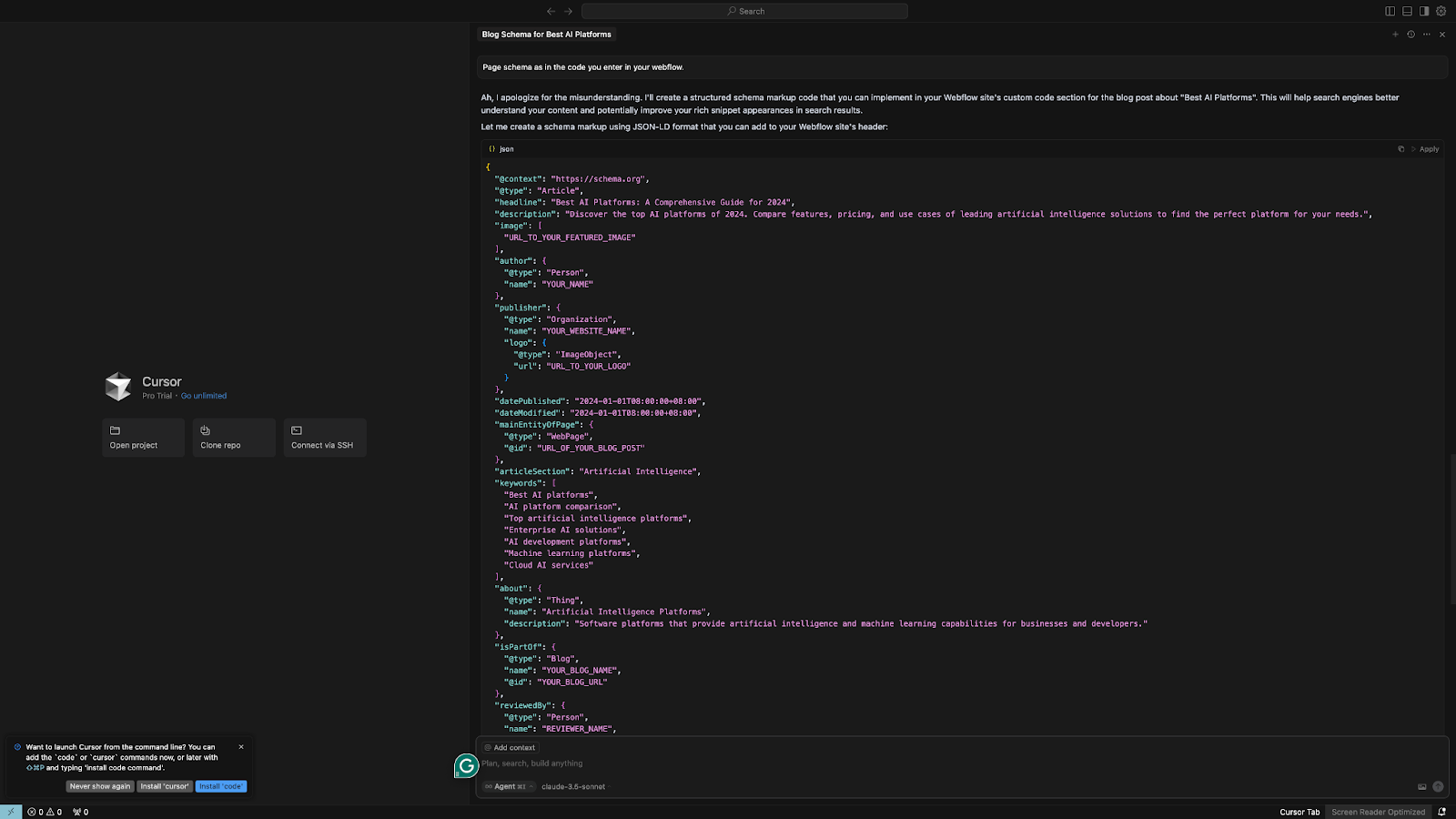
It also understands context way better than older tools. Cursor can read your entire codebase, letting you ask questions like "Where is this function used?" or "Why is this throwing an error?" It answers using context from across your repository.
AI websites.For solo devs and small teams, it’s like having a senior engineer overlooking you, but without the Slack back-and-forth. And if you’re working in a stack like React, Node, or Python, it can help you create some of the best
Key features
- AI assistant baked into your IDE
- Reads your whole codebase and updates files directly
- Smart suggestions for bug fixes, refactoring, and documentation
- Built-in chat for asking project-specific questions
- Supports popular languages and frameworks
Pros
- Feels more “developer-native” than GitHub Copilot
- Real context awareness across your entire repo
- Great for exploring legacy code or onboarding into new projects
Cons
- Still evolving — not as stable or battle-tested as VS Code
- Limited to dev work — not useful outside engineering workflows
- You need a decent setup and permissions for full repo indexing
Pricing
Cursor plans start at $20/month (Individual, billed monthly), with Teams at $40/user/month and custom Enterprise pricing available. A free Hobby plan is also available, no credit card required.
10. Synthesia – best for turning scripts into polished videos with AI avatars
Synthesia lets you generate a clean, studio-style video in minutes using AI. All you need to do is write a script and choose an AI avatar. It’s for teams who want to create a video, but don’t want to deal with cameras, voiceovers, or editing timelines.
I've used it for product demos, internal explainers, onboarding videos, and sales pitches. Instead of creating boring decks, I create an explainer video about the product. It's a lifesaver for sales pitches or product demos when you don't have time to record takes or hire a video team.
Here’s what the editing space in Synthesia looks like:
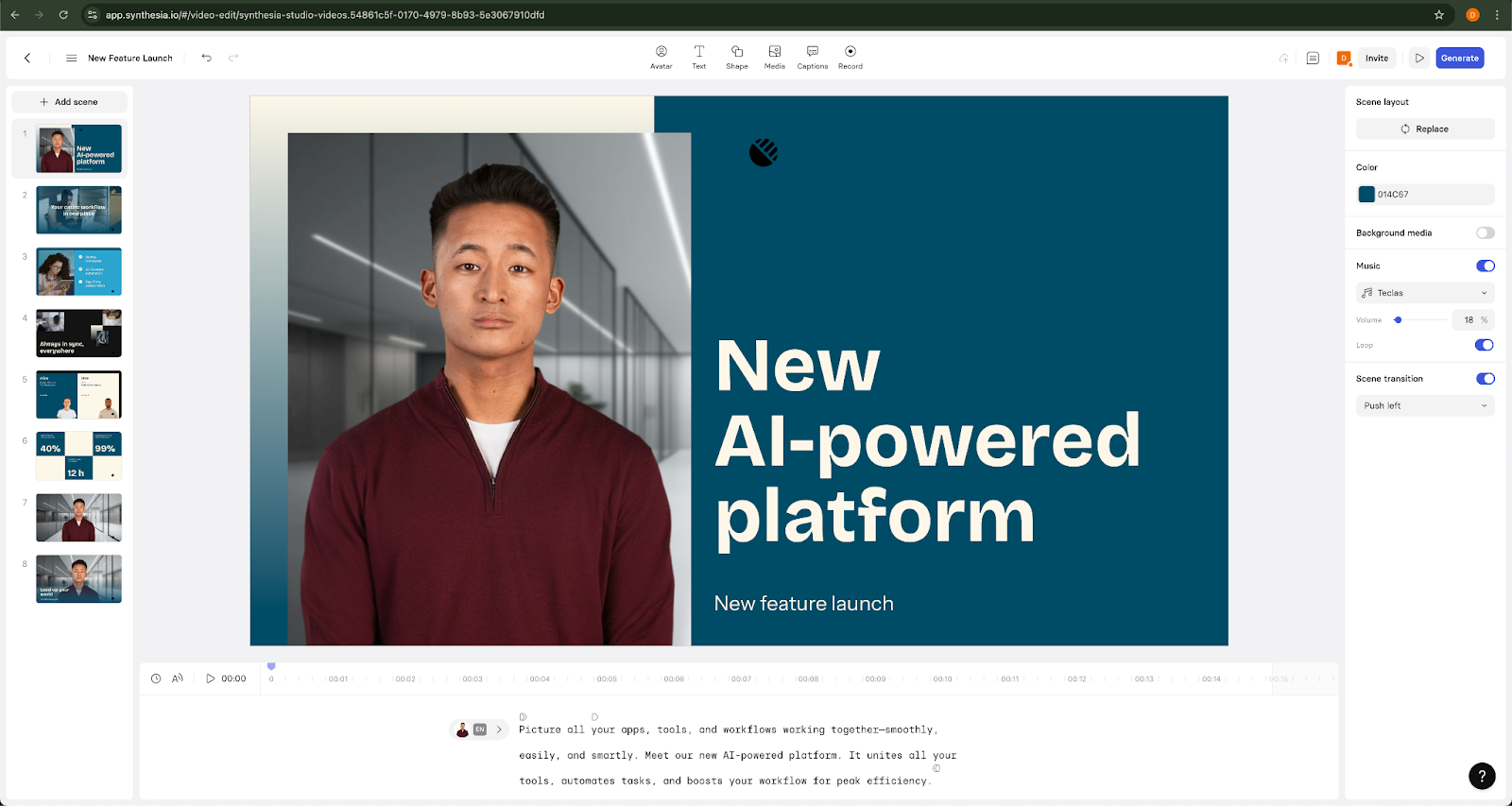
The avatar quality is life-like, and the voice synthesis has dramatically improved. You can choose different accents, tones, and pacing, and add multiple languages. And if you want branding, it supports logos, custom backgrounds, and screen overlays.
This isn’t a full video editor like Descript or Premiere. It’s more like a video assembly line. You give it text, pick your look, and it creates a polished piece you can drop into an email, LMS, or landing page.
Key features
- 240+ AI avatars and 160+ languages
- Custom avatars for your team or brand
- Drag-and-drop video editor (basic overlays, visuals, slides)
- Script-based creation — no filming or audio needed
- Templates for demos, training, support, HR, and more
Pros
- Super-fast way to create video content
- It doesn’t require any filming, gear, or editing skills
- Supports multi-language and localization use cases
Cons
- Not ideal for dynamic or emotional storytelling
- Limited animation and camera movement
- Avatars still feel a little “robotic” in casual content
Pricing
Synthesia plans start at $19/month (Starter, billed monthly), with Creator at $89/month billed monthly, and custom Enterprise pricing for teams. A free plan is also available with no credit card required.
11. Descript – best for editing audio and video by editing text
Descript flips traditional editing on its head. Instead of working with timelines and waveforms like in Adobe or Final Cut, you edit by working with the transcript. You cut a sentence from the text, and it’s edited out from the video or podcast.
I’ve used it to clean up webinar recordings, repurpose interviews, and even build quick YouTube intros.
It’s also great for making corrections without re-recording — the Overdub feature lets you clone your voice and insert missing words or fix mistakes without re-recording that section. It’s not perfect, but for minor fixes, it can work.

The screen recording feature is another bonus. You can record your screen and webcam, narrate over it, and have a video ready to go — all within the same tool. I’ve used it for internal training and async product updates, and it’s faster than juggling Loom + a video editor.
It’s not a substitute for professional video production — motion graphics and multi-track editing have limitations. Still, if you're producing content regularly for YouTube, social media, or your company blog, Descript is the fastest, most accessible way.
Key features
- Edit video/audio by editing the transcript
- Overdub voice cloning to insert or rewrite words
- Automatic transcription with speaker labeling
- Screen recording with webcam and audio
- Multitrack timeline editor for more complex edits
Pros
- Extremely fast for a podcast or video cleanup
- Great for solo creators, marketers, and internal content
- Voice correction without re-recording is a real time-saver
Cons
- Overdub has a learning curve — not seamless for longer edits
- Limited motion graphics or effects
- Desktop app can be glitchy with large files
Pricing
Descript plans start at $24/month (Hobbyist, per person/month; $16/month billed annually), with Creator at $35/month and Business at $65/month, and custom Enterprise pricing for larger teams.
12. Midjourney – best for generating high-quality, stylized AI visuals
Midjourney is one of the most popular generative AI platforms that helps you create visuals that look like they came from a designer’s portfolio. Whether for mockups, mood boards, pitch decks, or even ideating a product concept, Midjourney gives you sharp, detailed, and surprisingly artistic images.
The web app is straightforward, and the prompt system is intuitive on the first try. You describe what you want — a futuristic office with glass walls at sunset, ultra-realistic, cinematic lighting — and you get four high-res options in 30 seconds. If you want to tweak it, hit upscale or re-roll the batch.

Midjourney consistently produces aesthetic and stylized results. It leans toward moody, editorial-style visuals — great if you’re working in branding, storytelling, or concept design. I’ve used it for blog headers, client presentations, ad mockups, and storyboard video ideas.
It’s not perfect for literal requests. Sometimes, it’ll ignore part of your prompt or get the details slightly off. But it’s a powerful tool for creative individuals.
Key features
- Prompt-based generation on the web or in Discord
- Latest model produces photorealistic and stylized images
- Fast iterations with upscale, remix, and variation tools
- Customizable aspect ratio, style, and resolution
- Personal and commercial licenses included
Pros
- Stunning visual quality — consistently impressive outputs
- Fast once you've learned the prompt style
- Great for storyboarding, design inspiration, and mockups
Cons
- Not ideal for exact product renders or literal accuracy
- Limited control over fine details or multi-image consistency
- Struggles with literal, precise requests
Pricing
Midjourney plans start at $10/month (Basic Plan), with Standard at $30/month, Pro at $60/month, and Mega at $120/month.
13. Vapi AI – best for building real-time AI voice agents for phone calls
Vapi AI is built to turn AI into a voice that can talk to customers on the phone. It’s designed for developers and product teams that want to add intelligent, real-time voice agents to apps or workflows without building their telephony stack from scratch.
I used Vapi to create a prototype for an AI receptionist that could answer calls, ask screening questions, and route leads based on their responses. It took less than an hour. You prompt it, set up your logic, and connect it to a phone number. The AI handles the entire conversation live.
The voice agents feel surprisingly conversational. It's not reading a script — it pauses, backtracks, clarifies, and even responds to interruptions naturally. It supports multiple languages and custom voices and integrates with leading LLMs from OpenAI, Anthropic, and other providers.

It’s developer-first, though — this isn’t a no-code builder. You’ll need to be comfortable working with APIs, WebSockets, and a bit of logic setup. But once it’s running, you can use it for use cases like AI support lines, survey agents, appointment booking, or even voice-powered apps.
Key features
- Real-time voice conversations with AI models
- API-based, customizable logic and call flows
- Supports leading LLMs (OpenAI, Anthropic, Mistral), or custom backends
- Twilio-compatible phone number provisioning
- Call recording, event hooks, and webhook integration
Pros
- Feels natural, with voice replies that sound conversational and responsive
- Fast to build with for technical teams
- Great for live lead screening, support, or sales outreach
Cons
- Not no-code — API skills required
- Limited prebuilt flows or templates
- More suited to teams building products, not solo use
Pricing
Vapi AI uses usage-based pricing rather than flat monthly plans.
The Build plan starts at $0.05/minute for calls plus $0.005/message for SMS/chat, with 10 included call concurrency lines (additional lines at $10/line/month). The Scale plan offers custom volume-based pricing with a fixed platform fee for larger usage needs.
14. Obviously AI – best for running no-code predictions on business data
Obviously AI is designed for people who don’t write code but still want to run predictive models on business data. It’s for marketers, ops folks, product managers, and anyone who wants to predict outcomes using large datasets.
I tested it with a dataset of leads and outcomes from my LinkedIn ad campaign. I clicked a few buttons, selected my target variable (conversion rate), and had a working prediction model in about two minutes that told me which inputs had the biggest influence and how confident it was. There was no model tuning or coding needed, just drag-and-drop workflows.

It gives you clean dashboards with things like feature importance and accuracy scores, and even lets you run predictions on new rows of data — so you can upload a fresh CSV and see which rows are likely to convert.
It also has time series forecasting, cohort analysis, and other tools you usually don’t get on no-code platforms.
Obviously AI isn’t for deep data science. You won’t be fine-tuning hyperparameters or deploying custom neural nets. But it’s one of the best AI tools for business if you want quick, explainable insights that help you make decisions and don’t have a data team on standby.
Key features
- No-code predictive modeling for CSV data
- Supports classification, regression, and time series forecasting
- Feature importance analysis and model explainability
- Upload new data for live predictions
- Integrates with Google Sheets, HubSpot, Airtable, and CRMs
Pros
- Anyone can build a usable ML model in minutes
- Output is clean, visual, and easy to share
- Great for small teams without data science resources
Cons
- Not for advanced users or custom model tuning
- Accuracy depends heavily on input data quality
- UI can feel limiting for more complex use cases
Pricing
Obviously AI does not publish pricing for its Startup or SMB plans. Interested users can get started directly or contact the team for details, with Enterprise offered as a custom plan.
15. Make – best for building visual, multi-step automations across tools
Make (formerly Integromat) is an AI automation tool that lets you build complex, multi-step conditional workflows with branching and logic.
The interface looks like a flowchart builder. You drag modules into a canvas, connect them with lines, and create logic like “If a new deal closes in HubSpot, wait 2 days, check if onboarding is complete in Airtable, and if not, send a reminder via Slack.”
I’ve used Make’s prebuilt template to find YouTube videos in a channel, analyze them with ChatGPT, create summaries and email me the results. It’s a super-useful and time-saving workflow if you need to watch a lot of videos for your research. It’s not the easiest to get going with, but once you’re familiar with it, it’s incredibly powerful.

The trade-off is that it’s a bit more technical than Zapier. The UI gives you complete control but is not as polished or beginner-friendly. You’ll occasionally have to debug payloads, map data fields, or set error-handling rules manually — but if you care about logic and control, it’s worth it.
Key features
- Visual drag-and-drop automation builder
- Multi-step flows with branching logic and filters
- Hundreds of built-in integrations + webhooks + API support
- Scheduling, retries, error handling, and advanced data manipulation
- Works well with Google Sheets, CRMs, email, Slack, Airtable, and more
Pros
- Highly flexible for complex workflows
- Cheaper than Zapier at higher volume
- Handles branching logic and conditions with ease
Cons
- UI can feel overwhelming at first
- Occasional bugs or unexpected API issues
- Not ideal for users looking for a one-click setup
Pricing
Make plans start at $12/month (Core, 10k credits/month; $10.59/month billed annually), with Pro at $21/month and Teams at $38/month, plus custom Enterprise pricing for larger organizations. A free plan is also available with up to 1,000 credits per month.
16. Intercom – best for AI-powered customer support and live chat
Intercom used to be a live chat tool for teams, but now it has AI capabilities. Its AI chatbot, Fin, plugs into your knowledge base and handles customer queries without you needing to expand your support team.
I tested Fin, Intercom's AI, over email, chat, and phone channels. I synced a sample company website as a knowledge base and checked the workflow of Fin. Because I was testing it, I didn't deploy it. But in the brief testing, it understood context, followed up naturally, and escalated to human support when needed.

That's the key here: It's not trying to replace your entire CS team, but it handles the repeat stuff so they can focus on actual problems.
Intercom does a great job of blending automation with live agent handoff. You can configure Fin to handle only certain topics, pass tickets to specific teams, or loop in a rep after three messages. This happens within the same sleek UI where your team manages live chat, tickets, email, and in-app messages.
It's also integrated with tools like Salesforce, HubSpot, and Slack, which means support doesn't live in a silo. You can auto-update CRM fields, trigger follow-ups, or send alerts when customers hit friction points without needing another tool.
It's not cheap and is best suited for SaaS or product teams that want to scale support without scaling headcount.
Key features
- Fin AI, an AI chatbot trained on your docs and site content
- Unified inbox for chat, email, and tickets
- No-code workflows and conversation routing
- Proactive messaging (in-app and email)
- Integrations with CRMs, analytics, and product tools
Pros
- Fin resolves support queries with context and accuracy
- Seamless handoff to human agents
- Built-in reporting and usage insights
Cons
- Setup takes time if your KB is incomplete
- Price ramps up quickly as usage grows
- Best results come with clean, well-structured content
Pricing
Intercom plans start at $39/month (Essential, per seat/month, billed monthly), with Advanced at $99/seat/month and Expert at $139/seat/month. All plans also charge from $0.99 per Fin AI outcome, and a free trial is available.
17. Zapier – best for connecting apps and automating repeatable workflows
Zapier is a popular automation platform. With 7,000+ integrations and a no-code interface, it’s one of the easiest ways to automate routine work.
Now, it has added Zapier AI, which lets you create workflows with natural language. Instead of building a Zap from scratch, you can now say something like “Send a Slack message when a Stripe payment fails and create a follow-up task in Asana,” and it’ll draft the whole workflow for you.
I tried executing a simple task –– scan my inbox attachments based on the conditions I provided. If the attachment matches the condition, save it to my Google Drive. The AI helped me set up the workflow in like 5 minutes. Here’s what the workflow looks like:

It’s not the most powerful tool in terms of logic or branching, but it's super simple to set up, and the app support is unmatched.
Zapier also launched Interfaces and Tables, which let you build lightweight internal tools — forms, dashboards, and mini-apps — without writing a line of code. These are great for teams wanting to spin up internal processes quickly without involving developers.
Key features
- 7,000+ app integrations (Google Sheets, Slack, Airtable, HubSpot, etc.)
- Multi-step Zaps with filters, delays, paths, and webhooks
- Zapier AI to build workflows with plain English
- Tables and Interfaces for internal tools and data collection
- Role-based access, folders, and usage controls for teams
Pros
- Massive app ecosystem — covers almost any SaaS tool
- Easy for non-technical users to build automations
- AI features make setup even faster for common workflows
Cons
- Logic branching is limited unless you’re on higher-tier plans
- It is expensive if you're running high-volume zaps
- It still falls short on complex, multi-branch automations compared to more advanced workflow tools
Pricing
Zapier plans start at $29.99/month (Professional, billed monthly), with Team starting from $103.50/month, plus custom Enterprise pricing for larger organizations. A free plan is also available forever with 100 tasks per month.
Next, we’ll compare these tools at a glance.
Top 17 AI platforms: TL;DR
I created a table with crisp summaries of each tool’s core value, best use case, and key tradeoffs. Here’s how they compare:
| Platform | Best For | Primary Use Case | Key Strength | Watch For |
|---|---|---|---|---|
| Lindy | An AI assistant you text to get work done | Sales ops, support, lead routing, email management, meeting scheduling | Plain-English requests + hundreds of integrations | iMessage delegation is iPhone-only |
| Perplexity | Research with real-time, sourced answers | Fact-checking, comparisons, quick answers | Cites sources + supports follow-ups | Not suited for automation or writing |
| Jasper | Scalable marketing content | Campaign copy, blogs, ads | Brand voice training + workflows | Best for teams — solo use is pricey |
| Copy.ai | Generating fast outbound or ad copy | Email, social, product blurbs | Workflows + templates for lead gen | Not ideal for long-form writing |
| Notion AI | Enhancing writing and docs in Notion | Notes, wikis, task lists | Seamless inside Notion workspace | Limited formatting or editing options |
| Grammarly | Real-time editing and tone feedback | Emails, reports, live messages | Works everywhere, improves clarity | Not a creation tool — polish only |
| ChatGPT | All-purpose assistant across writing & logic | Writing, coding, analysis, planning | GPT-5.5 Instant's flexibility + tools in one chat | Needs clear prompts to stay focused |
| Claude | Deep reading and thoughtful writing | Document analysis, summaries, long-form work | Handles huge context + nuanced tone | More cautious than creative |
| Cursor | AI-native code editor with full context | Debugging, refactoring, prototyping | Reads your entire codebase | Still early-stage for big projects |
| Synthesia | Creating videos without filming or editing | Training videos, product explainers | AI avatars + multi-language output | Limited animation/customization |
| Descript | Editing audio/video by editing text | Podcasts, webinars, async video | Transcript-first workflow | Voice cloning not perfect for long edits |
| Midjourney | Creating high-quality visual content | Concept art, blog headers, mockups | Best-in-class image quality | Not literal/factual for precise text or specs |
| Vapi AI | Real-time AI voice agents for phone calls | Inbound/outbound call automation | Natural conversation flow | Requires dev work — not no-code |
| Obviously AI | No-code predictive models from spreadsheets | Churn prediction, lead scoring | Fast insights without a data team | Limited to structured data |
| Make | Building more complex automation visually | Multi-branch workflows, ops tooling | Deep logic control, better for scale | UI can be overwhelming at first |
| Intercom | AI-enhanced customer support at scale | Live chat, ticket triage, async support | Fin AI chatbot + integrated comms | Works best with a strong KB foundation |
| Zapier | Connecting apps with simple workflows | Basic task automation across tools | Huge integration library | Expensive at scale, basic logic only |
The tools you see on this list were added after thorough testing and research. Let’s see how I created this list.
How I tested the best AI platforms
To build this list, I worked hands-on with over 30 AI platforms. I gave each tool tasks an intended user would use in daily work –– writing blog drafts, automating email follow-ups, triaging support requests, editing podcasts, and even building scrappy prototypes.
I’m not deep into programming. So, I tried doing basic stuff with the tools that need programming prowess to get the most out of them. I also consulted my developer connections, read Reddit reviews, and used my hands-on experience with the tools to decide if they deserve a place on this list or not.
Here’s how I evaluated each one:
Flexible use cases
Could the platform handle more than one specific task? I looked for flexibility — tools that could adapt to different problems in writing, operations, support, dev work, and team collaboration.
Quality of output
It’s not enough to do the task — the result has to be usable. I looked at how well each platform generated copy, answered questions, edited content, or interpreted data. Sloppy output or shallow reasoning was a red flag.
Ease of use & integration
Some tools are made for developers, while others are designed for operations or marketing folks. I noted how easy it was to get started, whether there were templates or guardrails, and how well the platform played with common tools like Google Sheets, Slack, HubSpot, or Notion.
I’ve organized these tools by their categories and use cases. Let’s see where each tool lands next.
AI platform categories + tools for each use case
Each platform on this list fits into one or more core categories based on what it’s built to do. Here’s a quick breakdown of the major types of AI platforms:
Content generation platforms
These are built to create text, visuals, or audio using generative AI. Think of them as creative assistants who can write blog posts, product descriptions, social captions, or even generate training videos from a script.
Use cases: Marketing copy, blog writing, video narration, social content, localization
Top picks: Jasper, Copy.ai, Notion AI, Synthesia, Midjourney
Productivity & automation platforms
These tools focus on workflows and help you do work faster. They can route leads, update databases, send follow-ups, or sync tools behind the scenes.
Use cases: Internal ops, CRM syncs, lead routing, task automation, campaign triggers
Top picks: Zapier, Make, Lindy
Conversational AI platforms, customer support
These platforms focus on handling human conversations — via chat or voice. They’re often trained on your help docs, can handle support tickets, and escalate to a human when needed.
Use cases: Customer support, sales chat, call centers, live chat augmentation
Top picks: Intercom, Lindy, Vapi
Enterprise AI & developer tools
These are built for technical teams — with deeper customization, API access, and model control. Some offer private deployment, while others integrate with your cloud stack or internal data.
Use cases: AI product development, internal tooling, private model hosting
Top picks: Intercom, Claude (Team), Obviously AI
Voice, speech, & transcription platforms
These specialize in spoken content, whether generating voiceovers, answering calls, or editing audio. They are great for anyone working with video, podcasts, support lines, or training content.
Use cases: Voiceovers, call summaries, meeting notes, async demos
Top picks: Descript, Vapi
Multimodal & generalist AI platforms
These are the most versatile. They can write, code, analyze spreadsheets, summarize meetings, answer questions from PDFs, and even process images — all from the same interface.
Use cases: Research, writing, dev work, analysis, task automation
Top picks: ChatGPT (Pro), Claude, Perplexity
After testing these tools, I have a few tips to help you choose your next AI platform.
Extra tips for choosing the right AI platform
A great platform on paper can still flop in practice if it doesn’t match your team’s workflows, tech stack, or pace.
Here’s what to keep in mind as you narrow things down:
Team size and technical level
Some tools are built for non-technical operators (like Zapier or Lindy). Others assume you have an engineer or technical PM in the loop (like Make or Cursor). Look for the platform that fits the skill level of those using it.
Real-time vs. batch tasks
If your workflows happen live — like customer calls, live chat, or sales emails — prioritize tools that respond instantly and can handle dynamic context. If your needs are more structured or scheduled (like weekly reports or lead scoring), batch-based tools are often cheaper and easier to manage.
Budget and scaling needs
Many platforms seem affordable initially, but costs can spike fast if you’re processing high volumes or adding multiple users. Double-check pricing tiers for usage caps, credits, or per-seat models.
Tool fatigue vs. all-in-one
If your team already has five tools, adding one more, even if it’s excellent, might be a problem. Some platforms (like Lindy or ChatGPT Pro) offer enough versatility to cover multiple use cases. Sometimes, consolidation is the win.
Other factors to consider
There are a few extra factors I'd suggest you consider:
- Security and compliance: Especially for finance, healthcare, or enterprise environments.
- Support and documentation: Can your team troubleshoot issues without burning cycles?
{{cta}}
How Lindy combines multiple use cases into one tool
If you're evaluating AI platforms and need capabilities across content generation, voice, and support, Lindy might be the solution you're looking for.
Lindy is a versatile AI assistant designed to handle various business needs. Instead of relying on separate tools for different functions, it consolidates that work into one assistant you can text in plain English.
So, if your business needs an AI solution that combines different functionalities into a single platform, Lindy is a strong and flexible option worth considering.
FAQs
1. What is the best AI platform in 2026?
If you need a flexible assistant who can write, analyze data, or help with coding, platforms like ChatGPT (Pro) and Claude are strong options. For operational workflows, like automating email follow-ups, handling customer calls, or syncing CRM data, look at dedicated automation platforms instead of a generalist assistant.
2. Which AI tools are free to use?
ChatGPT, Claude, Perplexity, and Grammarly all give you meaningful functionality at no cost. A few other platforms on this list skip a free tier in favor of a short free trial instead.
3. What can you build with an AI platform?
AI is more capable than ever before. AI platforms let you:
- Create AI phone agents that qualify leads or answer support calls
- Set up email assistants that respond, follow up, and update CRMs
- Automate internal ops — like lead routing, data entry, or meeting summaries
- Generate content at scale for blogs, sales, or training
4. Can AI tools integrate with my workflow?
Most of the tools integrate with popular apps like Google Sheets, Slack, Airtable, or Notion. These AI platforms also allow apps to connect with APIs or webhooks. Integration support matters if you're looking for automation that plays well with the rest of your stack.
5. Are AI platforms safe and compliant?
Yes, most top AI apps prioritize data security. But not every platform is built for compliance-heavy industries, so always check their privacy and data policies, especially certifications like SOC 2 or HIPAA support, if you're in healthcare, finance, or legal.
6. What’s the difference between AI platforms vs. AI tools?
An AI tool usually does one thing. It can be generating copy, summarizing text, or cleaning up audio. An AI platform offers a broader range of functions, typically with workflow logic, automation capabilities, and integrations.
7. Do I need coding skills to use these?
Some platforms, like Zapier and Copy.ai, are built for non-technical users with no-code builders and prebuilt templates. Others, like Vapi or Make, are more technical and may require API knowledge or conditional logic setup. If you’re not a developer, look for tools that visually guide you through setup.
8. Which platforms are best for businesses vs. individuals?
Tools like ChatGPT Pro, Perplexity, and Notion AI are great daily companions for individuals. Businesses should look for platforms that support collaboration, integrations, and automation at scale.
Zapier, Make, and Obviously AI are well-suited for startups and growing teams that want AI to automate repeatable work across sales, ops, and support.
9. How can I use AI for customer support or automation?
You can use AI to:
- Respond to tickets or emails automatically
- Route requests to the right team or agent
- Log conversation details into your CRM
- Summarize support calls or chat transcripts
10. What’s the best all-in-one AI solution?
If you're looking for a single tool that can cover everything from content to automation to calls, you have two options. Here’s how I’ll put them:
- Generalist platforms like ChatGPT Pro or Claude can help with writing, research, and reasoning.
- Automation-focused assistants combine integrations with the ability to take real actions across your tools, rather than just generating text.
The right pick depends on whether you need AI help to think and generate ideas or automate tasks and workflows.