8 Best AI Task Management Tools in 2026 (Tested)
Marvin tested 12 AI task managers, including Motion, ClickUp, and Todoist, across client work, content calendars, and personal tasks to find eight standouts.


Three months ago, I showed up to a client call with nothing prepared. The prep notes I'd meant to write were buried under fourteen other open tasks, spread across four systems that didn't talk to each other.
That's when I started testing AI task managers in earnest. I ran 12 tools through two months of real work: client management, a content calendar, and personal task lists. I tested each one for at least two weeks on paid accounts.
If you're looking for a reliable AI tool for managing timelines, tasks, emails, and social content, here's the short answer: no single tool does all four well. ClickUp and Asana are the strongest for timelines and team tasks, including content and social calendars. Lindy works as an AI email assistant that also handles scheduling and follow-ups. Motion and Reclaim.ai keep deadlines realistic by scheduling tasks on your calendar.
Best AI task management tools in 2026: TL;DR
How the eight compare at a glance: Some handle timelines, emails, and content calendars on top of basic tasks. Teams looking to streamline complex operations often pair these task tools with robust workflow management solutions.
| Tool | Best for | Free trial? |
|---|---|---|
| Motion | Auto-scheduling a packed task list | Yes |
| Reclaim.ai | Protecting deep work time | Yes |
| Lindy | Getting tasks done (emails, scheduling, and follow-ups) | Yes |
| ClickUp | Projects, tasks, and AI in one platform | Yes |
| Asana | Team visibility and AI-suggested priorities | Yes |
| Todoist | Simple personal to-do lists | Yes |
| Notion | Turning scattered notes into task plans | Yes |
| Akiflow | One daily plan across multiple apps | Yes (7 days) |
How to use AI to streamline content creation
The best way to use AI to streamline content creation is to let it manage the work around the content: the timeline, the task handoffs, and the emails between steps. Drafting is only one part of the job. Most delays come from missed handoffs and approvals nobody chased.
Here's how to set that up with the tools on this list:
1. Keep one content calendar. Put every blog post, newsletter, and social post in ClickUp, Asana, or Notion with an owner and a due date.
2. Let AI turn briefs into tasks. Asana AI builds a project plan from a short brief, and Notion AI pulls action items out of messy notes.
3. Auto-schedule the timeline. Motion places each task on your calendar and warns you days ahead if a deadline is at risk. Add AI time tracking to see how long each stage really takes, so the next timeline is more accurate.
4. Hand off the emails and follow-ups. Text Lindy to chase an approval or set up a review call, and it handles the back-and-forth.
What is AI task management?
An AI task manager helps you capture, organize, and track work until it's done, whether that's a project timeline, a to-do list, a backlog of emails, or a social content calendar. You break projects into smaller to-dos, set deadlines, and assign reminders. That's the baseline.
The AI part changes what happens after you add a task. Instead of holding it until you decide what to do with it, the tool starts making decisions for you. It prioritizes based on deadlines and context. It schedules around your actual calendar. It reminds you before things slip, without you having to set a reminder.
Some tools go further and handle the tasks for you. That distinction is worth understanding before you pick a tool.
There are four types of AI task management tools:
- AI scheduling assistants automatically schedule tasks on your calendar based on priority and availability. You still add tasks manually; the AI decides when they occur and reshuffles them as your week changes. Best for people with packed calendars who want someone else to handle sequencing.
- AI-enhanced project management tools are traditional PM platforms with an AI layer built on top. They handle shared projects, deadlines, and team visibility at scale. Best for teams that need everyone looking at the same board.
- AI personal task managers are lightweight to-do apps with smart sorting, natural language input, and AI suggestions. They don't auto-schedule or execute anything, but make capturing and organizing tasks faster. Best for solo workers who want simplicity without overhead.
- AI task execution tools are a different category from everything above. You describe what needs to happen; the tool handles it. The output is a completed action. Best for people whose real problem is execution.
How I tested these tools

The Reddit thread on r/ProductivityApps captures what most people are actually running into: they try one tool, hit a specific friction point (Reclaim marking tasks complete before they were actually done was a complaint that came up more than once), and go looking for something else. That's the pattern this article is built around.
Every tool was tested across the same three workstreams:
- A content calendar with weekly deadlines
- A client management pipeline with ongoing follow-ups
- A personal task list covering everything that didn't fit into either category
Each tool got at least two weeks of real use on a paid account. Free plans weren't enough to fairly evaluate the AI features, and most tools gate their best functionality behind a paywall anyway. What I measured was setup speed, AI accuracy, how often I overrode the tool, and whether my week actually got lighter or looked different.
Four tools didn't make the cut:
- SkedPal has solid auto-scheduling logic but the mobile experience felt half-finished, and the interface hasn't kept pace with newer tools.
- Sunsama is thoughtful about daily planning but leans heavily on ritual and manual input in a way that adds overhead rather than removing it.
- Structured is beautifully designed for timeline-based planning but too limited for anyone managing more than basic personal tasks.
- Fantastical has a strong calendar experience but the task management side is thin, and the AI features don't add enough to justify the price for task-focused users.
The eight tools that made the list each solved a distinct problem well enough to recommend to a specific kind of user. None of them is the right answer for everyone, which is the point of the section after this one.
Best AI task management tool for auto-scheduling a packed task list
Motion

Motion is a personal AI scheduler for people whose calendars are already full and whose task lists keep growing faster than they can work through them.
Most task managers ask you to decide when something gets done. Motion skips that conversation. You add a task, set a deadline, tell it how long the work will take, and Motion slots it into your calendar automatically. This automated approach makes it a strong contender for anyone evaluating a dedicated ai scheduling assistant.
Motion accounts for your existing meetings, your working hours, your priorities, and the gap between when something is due and when you'll realistically do it. The AI rebuilds the plan hundreds of times a day as your week shifts.
That "do date vs. due date" framing is what makes Motion click. A due date is the time by which something must be finished. A do date is when you'll do the work. Motion manages the gap between the two. If a task is at risk of missing its deadline, it warns you days in advance.
What I liked
- Auto-scheduling that holds up under pressure: I threw about 30 tasks at it across two weeks, ranging from 20-minute quick responses to three-hour writing blocks. Motion placed almost all of them sensibly. It read my existing calendar, found real gaps, and built a daily plan that looked like something a competent person would design.
- Task capture from multiple sources: You can forward an email from Gmail or Outlook, and Motion turns it into a task. Zoom and Google Meet meetings pull in automatically. Not having to re-enter things you've already committed elsewhere removes many small sources of friction.
- Honest failure signals: When something can't be scheduled before its deadline, Motion surfaces a "could not fit" warning rather than quietly pushing it out and hoping you don't notice. That's more useful than it sounds.
What I'd change
Every task still has to be added manually. Motion decides when things happen; it doesn't discover tasks for you. If you forget to add something, it won't catch it. That's a real ceiling for anyone hoping the AI handles intake.
The AI occasionally made calls I disagreed with, particularly around longer creative work where I wanted bigger, uninterrupted blocks. You can override manually, but it adds friction back in.
Pricing is on the steeper side for a personal tool. At $49/month on the individual Pro AI plan, you're paying more than most personal task managers on this list.
Pricing
Pro AI starts at $49/month for individuals and $29/seat/month for teams. Business AI is $69/month for individuals and $49/seat/month for teams. All four prices are billed monthly (annual billing lowers them to $29, $19, $39, and $29). Free trial available.
Best AI task management tool for protecting deep work time
Reclaim.ai
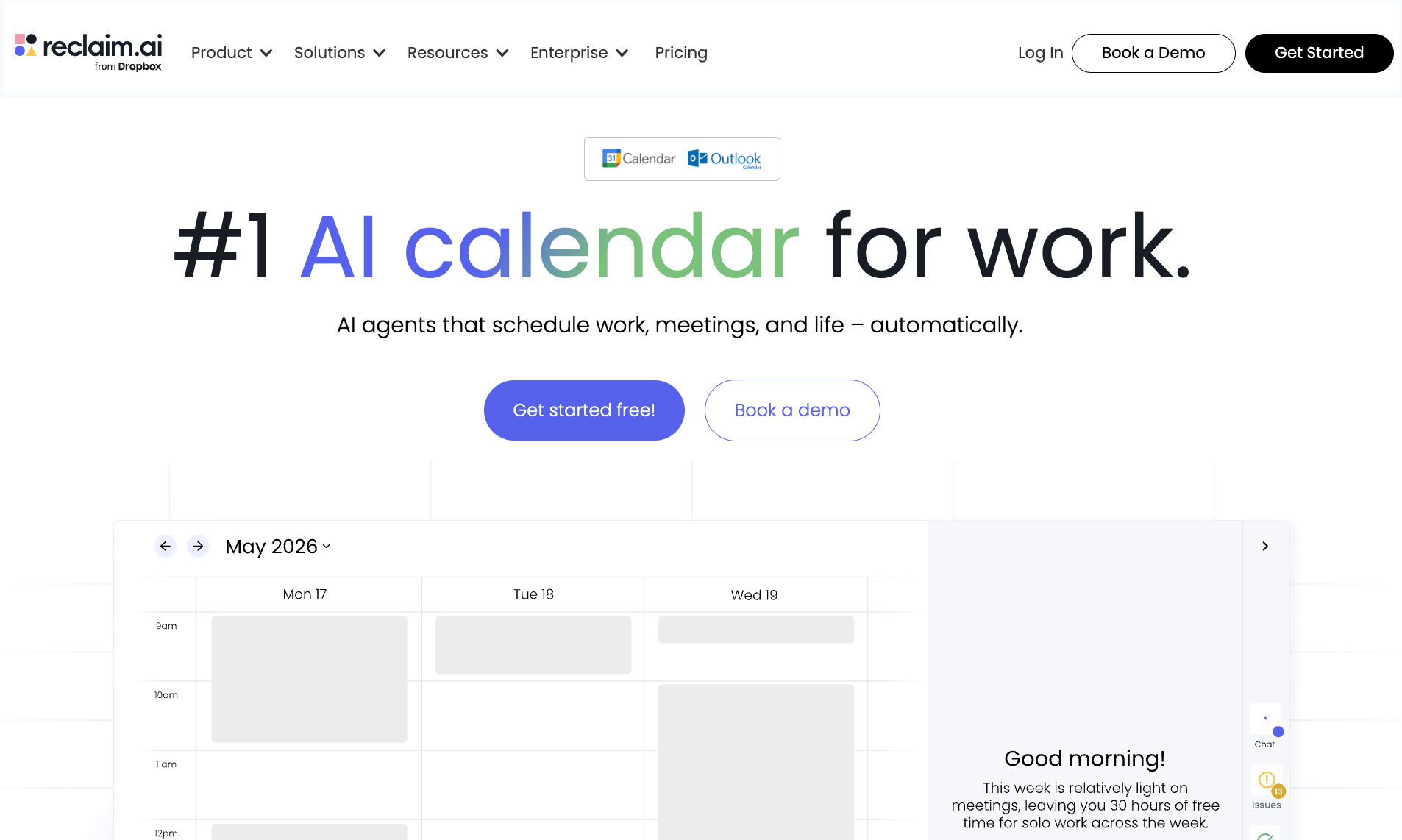
Reclaim is a scheduling tool that protects your calendar from itself. You set recurring habits (deep work, lunch, exercise), and they automatically move around your meetings so they don't disappear when your week gets busy.
A focus block that would normally disappear under a 2 pm call gets shifted to the morning instead. It also syncs tasks from tools like Asana, ClickUp, and Google Tasks into a centralized list, then schedules them into your actual available time.
A friend of mine spent 20 minutes one morning moving meetings around to make room for a deadline he'd forgotten about. With Reclaim's AI Assistant, he could have typed "fix my calendar conflicts," and it would have suggested the reshuffle for him to approve. The whole thing in under a minute, without manually touching a single event.
What I liked
- Habit scheduling that actually holds: I set a 90-minute deep-work block as a daily habit and tested how often it survived over the course of a busy week. Reclaim moved it around successfully more times than I expected, finding real gaps rather than deleting it when things got tight.
- AI task recommendations: The "what to work on next" suggestions pulled from deadline proximity and available time in a way that felt considered. It nudged me toward the right work at the right moments a few times without me asking.
- Smart Meetings and buffer time: Reclaim automatically adds buffer time between back-to-back meetings and can designate no-meeting days. Small things, but they add up across a week.
What I'd change
Reclaim only works if you're already bought into the "block your calendar" style of working. If you don't operate that way, the whole product loses its point. I tested it with a deliberately unstructured week, and it had very little to defend.
The project management side is thin. There's no kanban view, task dependencies, or team visibility either. It pulls tasks from other tools but doesn't replace them. You need Reclaim alongside something else, and not instead of it.
The AI task features are also clearly newer than the calendar features. Scheduling is polished, but task handling still has rough edges.
Pricing
The Lite plan is free. Starter starts at $12/seat/month. Business starts at $18/seat/month. Both prices are billed monthly, and annual billing drops them to $10 and $15/seat/month.
Best AI task management tool for getting tasks done
Lindy

Every other tool on this list helped me decide when something would happen. With Lindy, some of it just happened.
That's the actual difference. Motion schedules tasks. ClickUp tracks them. Asana shows you who owns what. Lindy is an AI assistant you text, and it handles the work. You text it to follow up with a client; it sends the email. You ask it to prep you for a meeting; it pulls the notes and texts you a briefing before the call.
Lindy doesn't track your work. It does it. For anyone whose real problem is execution rather than organization, that often replaces a task manager entirely.
You can also text Lindy via iMessage or SMS, just like you'd text a person. "Follow up with Ben if he doesn't reply by Thursday." "What did I commit to after yesterday's sync?" "Brief me on my 2 pm." It works on any phone, without installing any app.
What I liked
- Meeting prep that arrives without asking: Before every external call, Lindy sends a briefing to your inbox or phone with who you're meeting, their job title and company, a summary of past conversations, and the agenda. It arrives 15 minutes before the call, with enough context to walk in prepared rather than scrambling.
- Meeting notes you can actually query: Lindy joins Google Meet, Zoom, and Teams automatically. After the meeting, it sends a structured summary with key quotes and action items and saves everything to a searchable library. Ask "what did we decide in last week's call with the client?" and it returns a clean answer pulled from the transcript.
- Scheduling without the back-and-forth: When someone emails asking to meet, Lindy detects the request and drafts a reply with three available time slots as clickable links. The other person picks one, and it lands on both calendars. No scheduling link required. You can also text "set up time with Matt to review the proposal," and Lindy will reach out, propose times, and lock it in.
What I'd change
If your work lives on Kanban boards or Gantt charts, Lindy won't replace them. It's only as good as your instructions, so vague asks get vague results. And there's upfront setup involved. Lindy can't do much until you connect your email, calendar, and CRM, so day one is more wiring than working.
Pricing
Free plan with $50 in credits that last 7 days (no credit card required). Team plan from $29.99/user/month for 3,000 credits, with larger credit tiers available and credits pooled across the team. Enterprise pricing is custom.
{{templates}}
Best AI task management tool for projects, tasks, and AI in one platform
ClickUp

ClickUp is the most feature-heavy tool on this list by a significant margin. If Motion is a scalpel, ClickUp is a Swiss Army knife. Everything is in here: tasks, docs, goals, dashboards, Gantt charts, kanban boards, time tracking, automations, and chat.
The AI layer sits on top of it all, letting you ask questions about your workspace, generate subtasks, summarize threads, and get progress updates without having to manually skim through projects.
I typed "where does the content project stand?" and it returned a summary pulled from task statuses, recent comments, and activity across the whole space. It read like a real status update, not a canned search result. That's the difference between an AI assistant and a glorified search bar.
What I liked
- Multiple views for the same work: The ability to switch between a list, a board, a calendar, a timeline, and a Gantt chart on the same set of tasks is useful for teams where different people think about work differently. A developer wants a board. A project manager wants a Gantt. ClickUp lets both of them work in the same place without compromise.
- Automations with real depth: Status changes, assignments, notifications triggered by conditions. A friend who manages a content team used it to automatically reassign tasks when a writer marked something as complete. It held up without manual oversight for three weeks straight.
- Hierarchy that scales: Tasks sit inside projects, projects inside folders, folders inside spaces. It sounds bureaucratic until you're managing five clients and need to keep everything clean. The structure earns its complexity at that scale.
What I'd change
The first week is rough. New users routinely get lost in the settings, and the number of views, fields, and options means you spend real time configuring before you get any value. That overhead doesn't go away quickly.
The AI features are strong but feel bolted on rather than central. You have to go looking for them. Tools like Motion and Reclaim lead with AI. In ClickUp, it's something you discover.
Some users report syncing issues and occasional bugs with real-time updates. I hit a few myself, nothing that broke work but enough to notice.
Pricing
Free plan available. Unlimited plan at $10/user/month. Business plan at $19/user/month. Enterprise pricing on request. Unlimited and Business prices are billed monthly ($7 and $12/user/month billed yearly). AI is a paid add-on: Brain AI is $9/user/month and Everything AI is $28/user/month, both billed yearly.
Best AI task management tool for team visibility and AI-suggested priorities
Asana
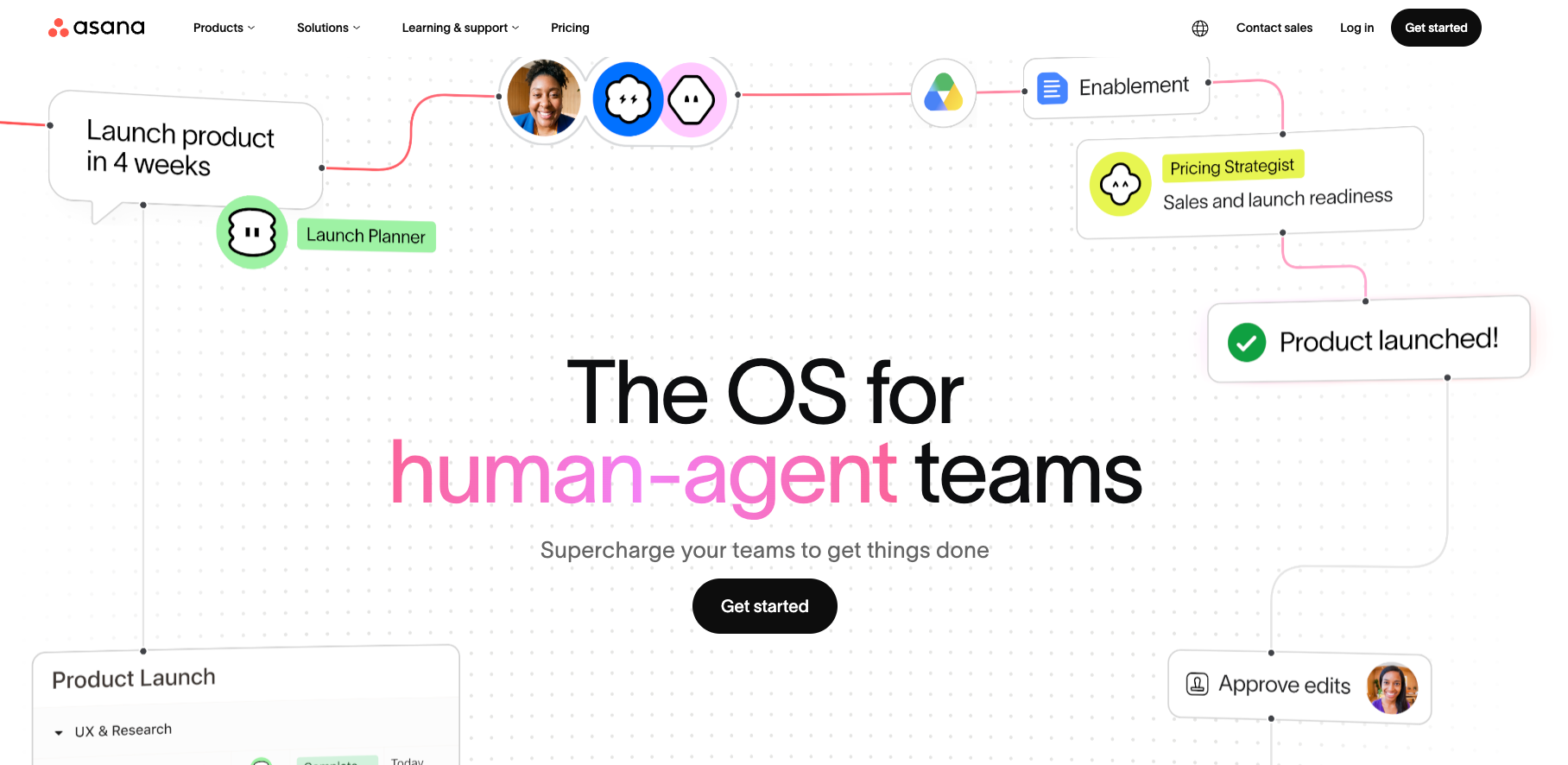
Asana is a mature team task manager that has been adding AI on top of a foundation that already works. If your team is already coordinating projects across multiple people and tools, Asana fits naturally. If you're starting from scratch and want AI to be the main event, there are better starting points on this list.
The AI features (grouped under Asana AI) handle tasks such as suggested task priorities, generating project plans from a brief, and automated status updates for stakeholders. The newest addition is AI Teammates, basically AI that can be assigned work within a project, just like a human teammate would be. You assign it a task, and it runs it. That's a meaningful step beyond just surfacing suggestions.
I like how Asana connects with tools like Gmail, Outlook, Microsoft 365, Slack, Jira, Dropbox, and Microsoft Teams. Asana sits in the middle of a team's existing stack without requiring them to change how they work.
What I liked
- My Tasks view across all projects: Every task assigned to you lands in one place regardless of which project it lives in. Sounds basic, but for anyone managing work across five different team projects, it removes a lot of daily archaeology.
- Multi-homing: A task can live in multiple projects at once. Change it in one place, and it updates everywhere. I tested this across a content calendar and a client project running in parallel. It held up cleanly.
- AI project plan generation: I gave it a two-sentence brief for a product launch, and it returned a structured project plan with phases, tasks, and suggested assignees. Rough around the edges but a useful starting point rather than a blank page.
What I'd change
Asana AI (AI Teammates, Asana Dash, and AI Studio) comes with Starter and every paid plan above it, but the free Personal plan doesn't include it, and AI requests are billed as usage on top of your seats ($0.50 per request prepaid or $0.60 on demand). That cost matters if AI is why you're here.
Asana is better at tracking work than reducing it. It shows you what's happening across a team with real clarity. It doesn't do much to lighten the actual load.
The learning curve is gentler than ClickUp but still real for teams coming from simpler tools. The first two weeks involve a fair amount of deciding how to structure things before the value shows up.
Pricing
Asana's Starter plan starts at $13.49/user/month (billed monthly, or $10.99 billed annually) and includes workflow automation and Asana AI. Advanced is $30.49/user/month billed monthly ($24.99 billed annually). A free Personal plan is available for one or two people.
Best AI task management tool for simple personal to-do lists
Todoist

Todoist is the tool I reach for when I just want a fast, no-fuss personal list. You can capture a task in seconds, set recurring due dates, and flag priorities without wrestling with any settings.
The Quick Add feature is where most of the magic lives. You type "Call Ben Thursday at 3pm," and Todoist creates the task, sets the date, and adds the reminder. It reads natural language well enough that adding tasks starts to feel effortless after a few days.
I have a bad habit of building elaborate tagging systems in new tools and abandoning them within a week. Todoist's four priority levels with color coding were simple enough that I actually stuck with them. P1 for today, P2 for this week, everything else below that. Three weeks in, I was still using the same system without thinking about it.
What I liked
- Quick Add with natural language input: I timed myself adding ten tasks with Todoist versus a more structured PM tool. Todoist was roughly three times faster. That gap compounds across a week of daily task capture.
- Task Assist for breaking down work: The AI can take a large task and suggest subtasks for it. I tested it on "prepare Q3 client report," and it returned a reasonable breakdown covering data gathering, draft, review, and delivery. Not perfect, but a useful starting point rather than a blank subtask list.
- Karma for streak tracking: Todoist awards points for completing tasks and streaks. I know it sounds gimmicky. A friend who has used Todoist for four years told me the Karma system is the only reason he still closes tasks before midnight. It works on the same psychology as a habit tracker.
What I'd change
There is no automatic rescheduling. If you miss a task, it sits there overdue until you move it yourself. For people who have unpredictable days, this gets messy quickly.
The AI features are light. Task Assist and Ramble (voice-to-task) are useful quality-of-life additions, but they are not the reason to choose Todoist. The reason is the core experience. If you need a tool with deeper automation, exploring options for the best ai assistant can help you find a broader solution.
Calendar events show up in Todoist as read-only items, and the calendar layout for time-blocking tasks visually requires the Pro plan. Syncing tasks to Google or Outlook Calendar works on every plan, including the free one.
Pricing
Free Beginner plan available. Pro is $7/user/month, and Business is $10/user/month, both billed monthly ($5 and $8 per user/month billed yearly).
Best AI task management tool for turning scattered notes into task plans
Notion

Notion is a workspace tool with built-in AI, which changes how you should think about it for task management.
If you are already living in Notion, pulling meeting notes, project docs, and half-finished plans into the same place where you manage tasks, the AI layer adds real value. If you are not already a Notion user, there are better starting points on this list.
The Q&A feature is where I spent most of my testing time. You can ask it anything about your workspace in natural language. It searches across every page, doc, and database you have access to. I asked, "What are all the open tasks from last week's client meeting?" and it returned a clean answer, pulled from the meeting notes I had in Notion. That kind of retrieval used to mean ctrl+F across six different pages.
What I liked
- Q&A across the entire workspace: The best use case I found was catching up after missing a meeting. Instead of reading through four pages of notes, I asked: "What decisions were made in Tuesday's standup and what's assigned to me?" Two seconds and a clear answer.
- AI that turns a page into a task list: I pasted a messy set of meeting notes into a Notion page and asked the AI to generate action items from it. It pulled out six tasks correctly, missed one, and invented none. That accuracy rate held up across three other tests.
- Autofill for database summaries: Autofill is a database property that automatically summarizes the content of an entry. For a project tracker, it means you can see a one-line status summary on every task without writing it yourself. It updates as the task changes.
What I'd change
Notion does not automatically schedule tasks on a calendar. It surfaces and organizes; it does not plan your day. If scheduling is the problem you are trying to solve, this is the wrong tool.
While the AI drafts, summarizes, and retrieves well, it won't send emails, update CRMs, or take action outside the workspace.
Full Notion AI features are not included in the base plans. The trial is available on Free and Plus, but the full feature set, including Notion Agent and AI Meeting Notes, requires the Business plan at $24/member/month.
Pricing
Free plan available with a Notion AI trial. Plus at $12/member/month. Business at $24/member/month, which includes full Notion AI, Notion Agent, and AI Meeting Notes. Both prices are billed monthly ($10 and $20/member/month billed yearly).
Best AI task management tool for one daily plan across multiple apps
Akiflow

Most productivity tools ask you to centralize your work inside them. Akiflow does the opposite. It pulls open tasks from wherever they already live (Asana, ClickUp, Todoist, Gmail, Notion, Linear, Slack) into one universal inbox, then helps you time-block them onto your calendar for the day.
If you have ever spent fifteen minutes at the start of your morning manually copying tasks from three different tools into a daily plan, Akiflow is solving exactly that problem.
I used to default to a notes app whenever a task came to me mid-flow, telling myself I'd move it later. I never moved it later. Akiflow's command bar fixed that. Cmd+K from anywhere, type the task in plain English, and it lands in your inbox instantly. The friction was low enough that I actually used it.
What I liked
- Universal inbox that actually aggregates: I connected Gmail, Notion, and a Slack workspace and watched Akiflow pull open items from all three into a single list within a few minutes. No duplicate entry or tab switching. You work from one view regardless of where the task originated.
- Time-blocking with drag-and-drop: The calendar integration is tight. You drag a task from your inbox onto your calendar, set a duration, and it becomes a proper blocked event. I found I was more likely to actually do tasks I had time-blocked versus tasks that just lived on a list.
- Aki, the AI Executive Assistant: Aki suggests what to work on next based on your priorities, available time, and deadlines. It sends a daily briefing, handles reminders, and manages recurring tasks automatically. It nudged me toward the right priorities most mornings, though it occasionally surfaced things that were clearly lower priority than what I needed to do.
What I'd change
Akiflow works best as a layer on top of your existing tools. If you are not already using Asana, ClickUp, or similar, there is less for it to aggregate, and the value proposition gets thinner. It is not a replacement for a project manager, but a coordination layer.
The AI features are more nudges than automation. Aki recommends, but you still make every final call. That is fine, but if you are expecting the AI to manage your day independently, it won't.
At $34/month on the monthly plan, it is priced for professionals who already feel the pain of managing tasks across multiple platforms. If you are mostly working inside one tool, this is probably more than you need.
Pricing
Pro Monthly at $34/month. Pro Yearly at $19/month, billed annually. 7-day free trial available.
{{cta}}
How to choose the right AI task management tool
The honest answer is that most people pick the wrong tool because they're solving the wrong problem. A packed calendar isn't the same problem as scattered tasks across five apps, and neither is the same as needing work actually done rather than organized.
Here's a quick way to find it:
- If your real problem is execution rather than tracking, Lindy plays a different game entirely. Every other tool here organizes or schedules your work. Lindy handles it.
- If you have a packed calendar and need help sequencing everything, Motion or Reclaim.ai makes more sense. Motion automatically builds a daily schedule from your task list. Reclaim protects the deep work blocks you already have.
- If you manage a team and need shared project visibility, ClickUp or Asana are the right level of depth. ClickUp gives you more flexibility and power. Asana gives you a cleaner structure with less configuration overhead.
- If you want a fast, reliable personal task list with just enough AI, Todoist is the answer. There’s no steep learning curve, and the core experience is good.
- If you already live in Notion, adding Notion AI is the path of least resistance. You get AI on top of the workspace you're already using without migrating anything.
Before you sign up for anything, it's worth spending two minutes thinking about where your day actually breaks down. The right tool for your situation is usually obvious once you frame the problem correctly.
FAQs
What's the difference between an AI task manager and a regular to-do app?
A regular to-do app stores tasks and waits for you to act on them. An AI task manager starts making decisions after you add a task. It prioritizes based on your deadlines, schedules work around your actual calendar, and reminds you before things slip. The best ones reduce the number of decisions you have to make about it.
Can AI task managers actually do tasks, or do they help you organize them?
Mostly, they help you organize them. They schedule, prioritize, and remind you, but the doing is still on you. Lindy is the exception. It's an AI assistant you text, and it handles the work. That's a step beyond what scheduling tools like Motion do, and worth knowing before you choose.
Do I need to pay for a good AI task management tool?
Yes, for most of the tools on this list, the meaningful AI features sit behind a paid plan. Reclaim and Todoist both have free tiers worth trying, and ClickUp's free plan is usable for basic task management. But auto-scheduling, AI suggestions, and execution features generally require a paid account. The good news is that most tools offer a free trial, so you can test before committing.
Which AI task manager is best for a solo founder vs. a team?
For a solo founder, it depends on where your day actually breaks down. If a packed calendar is the problem, Motion or Reclaim handles the scheduling. If you want a clean, no-fuss personal list, Todoist is fast and reliable. If the bottleneck is execution, like inbox, follow-up, and meeting prep, look for a tool that handles those tasks directly rather than just tracking them.
For teams, ClickUp and Asana offer shared visibility and project structure that solo tools don't. Both have AI features, though Asana's need a paid plan (Starter and up) and bill AI requests by usage.