


How to Send an Encrypted Email in Outlook: Setup Done Right


If you've ever paused before hitting Send on an email with payroll numbers, patient records, or a signed contract, you already understand why knowing how to send an encrypted email in Outlook is worth the setup.
I've tested both encryption paths Microsoft 365 offers, Purview Message Encryption and S/MIME, across classic Outlook, new Outlook, Outlook for Mac, and the web version. Here's how to set each one up and avoid the failure modes that leave your recipient staring at an unreadable message.
Standard email isn't end-to-end encrypted, so anyone who gets into a mailbox along the way can read everything in it.
What is an encrypted email in Outlook?
Encrypting an email converts the message body and attachments into scrambled ciphertext that only the intended recipient can decode. Anyone else who intercepts or accesses the message gets unreadable output: no content, no context. Outlook supports this through two distinct mechanisms.
Microsoft Purview Message Encryption covers the Encrypt and Do Not Forward options in the compose window for work and school accounts. It's cloud-based, requires no sender certificate, and works even when recipients are on Gmail or Yahoo by directing them to a secure portal.
S/MIME is a certificate-based standard that encrypts and signs messages end-to-end, requiring valid certificates on both sides. That makes it the stronger choice in controlled environments where IT manages certificates centrally, though it scales poorly without that support.
The Purview route works without certificates and covers most external recipients; S/MIME provides stronger identity guarantees but requires certificates on both ends and warns you before sending if the recipient isn't set up for it.
What you’ll need before starting
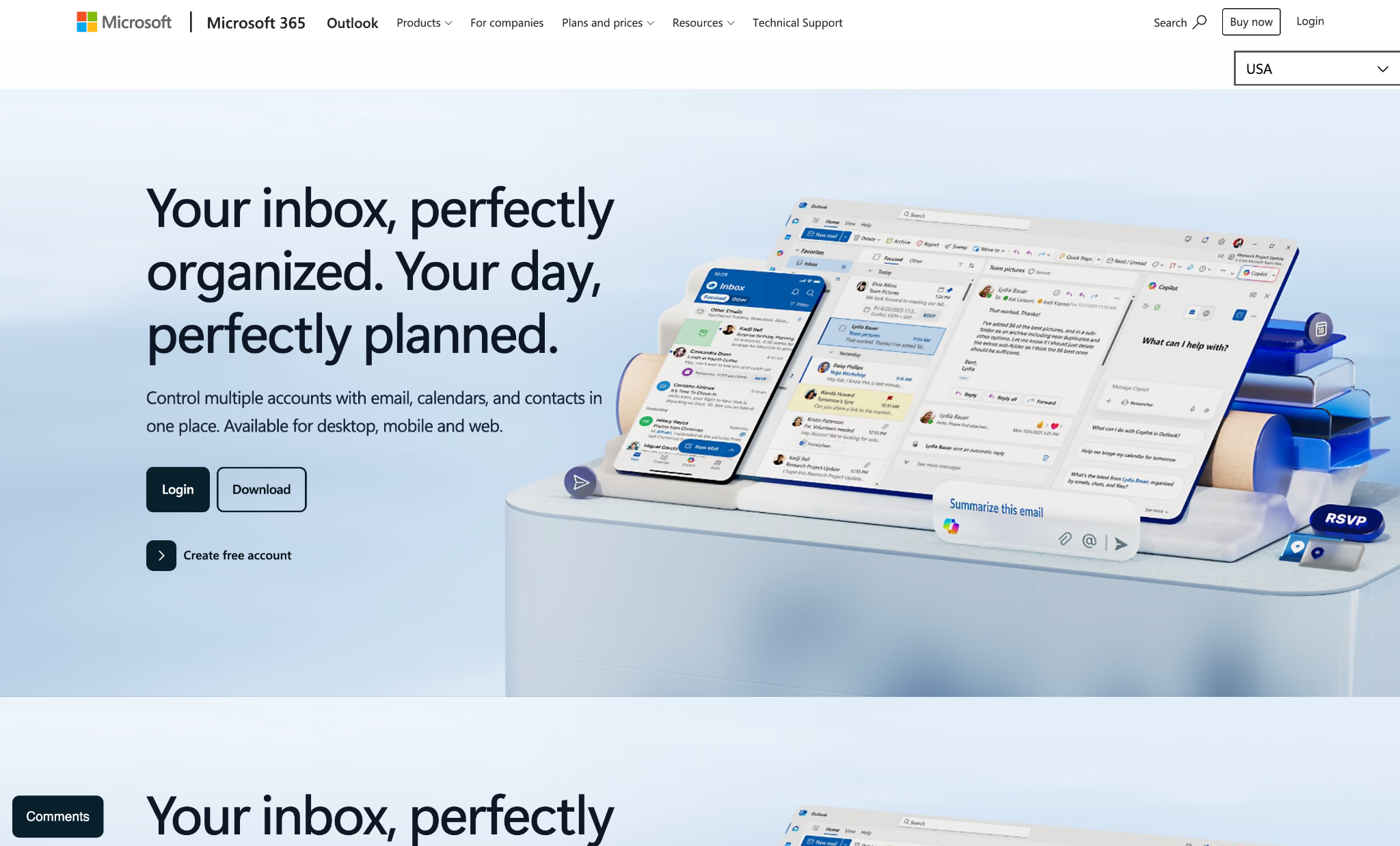
Microsoft Purview Message Encryption needs only a qualifying subscription. S/MIME requires valid certificates on both the sender's and recipient's side.
Prerequisites:
- An Outlook mailbox backed by a qualifying Microsoft 365 subscription. Microsoft Purview Message Encryption is included in Office 365 Enterprise E3 and above, Business Premium, and the education plans for work and school accounts, and in Microsoft 365 Personal and Family for consumer accounts.
- Access to the specific Outlook client you use daily: classic Outlook for Windows, new Outlook for Windows, Outlook for Mac, Outlook on the web, or the Outlook mobile app. The Encrypt controls sit in different places in each version.
- For S/MIME only: a valid S/MIME certificate issued for your email address by your organization's PKI or a trusted certificate authority, covering both signing and encryption.
Data or information required:
- A short list of test recipients, at least one internal and one external, so you can confirm how encrypted messages behave in real inboxes before sending anything sensitive. Recipients using non-Microsoft email clients will experience different flows depending on which encryption method you choose.
- For S/MIME rollouts: the certificate file (typically .pfx or .p12), its import password, and any internal documentation your IT team has provided on how certificates should be configured in Outlook.
Technical requirements for S/MIME:
- Permission to install and manage certificates on your device. In enterprise environments, IT typically handles this centrally or must approve the process.
- Access to File > Options > Trust Center > Trust Center Settings > Email Security in classic Outlook for Windows, which is where S/MIME certificates are bound to your Outlook account.
Time required:
- Microsoft Purview Message Encryption: once your tenant policies are configured, the send flow adds no extra steps. Most people are up and running in under an hour.
- S/MIME, first-time setup: plan for 30 to 40 minutes, though certificate issuance time varies by CA and organization. IT-managed deployments typically run longer.
How to send an encrypted email in Outlook: Step-by-step
The process runs five steps: verify your account, find the Encrypt control in your client, send with Microsoft Purview Message Encryption, set up S/MIME if you need it, and then send with S/MIME.
Step 1: Confirm your account supports encryption
Check your subscription and tenant configuration before you open Outlook.
If the prerequisites aren't in place, the Encrypt button won't appear, and the error you get when something's missing is rarely specific enough to tell you why.
What to check first:
- For work and school accounts, confirm that Microsoft Purview Message Encryption is enabled on your tenant and that your license tier includes it. Enterprise E3 and above, Business Premium, and the education plans cover this natively; Business Basic requires either an upgrade or an add-on license to enable it.
- For Microsoft 365 Personal and Family accounts, encryption is included. Open a new compose window, click Options, and check whether the Encrypt button appears. If it does, your account is ready.
- If you're on a work account and Encrypt is missing from the toolbar, the usual cause is that the Permissions group in the Options tab is disabled by default in many installations. Right-click anywhere on the ribbon, select Customize the Ribbon, navigate to Main Tabs > Options, and enable the Permissions group.
Pro tip: in organizations where IT enabled encryption once and moved on, the feature is technically live but barely monitored.
The Purview reports in the Microsoft Purview portal include an encryption report that shows admins how many messages are getting encrypted, rather than leaving it to guesswork.
Step 2: Find the Encrypt control in the Outlook client you use
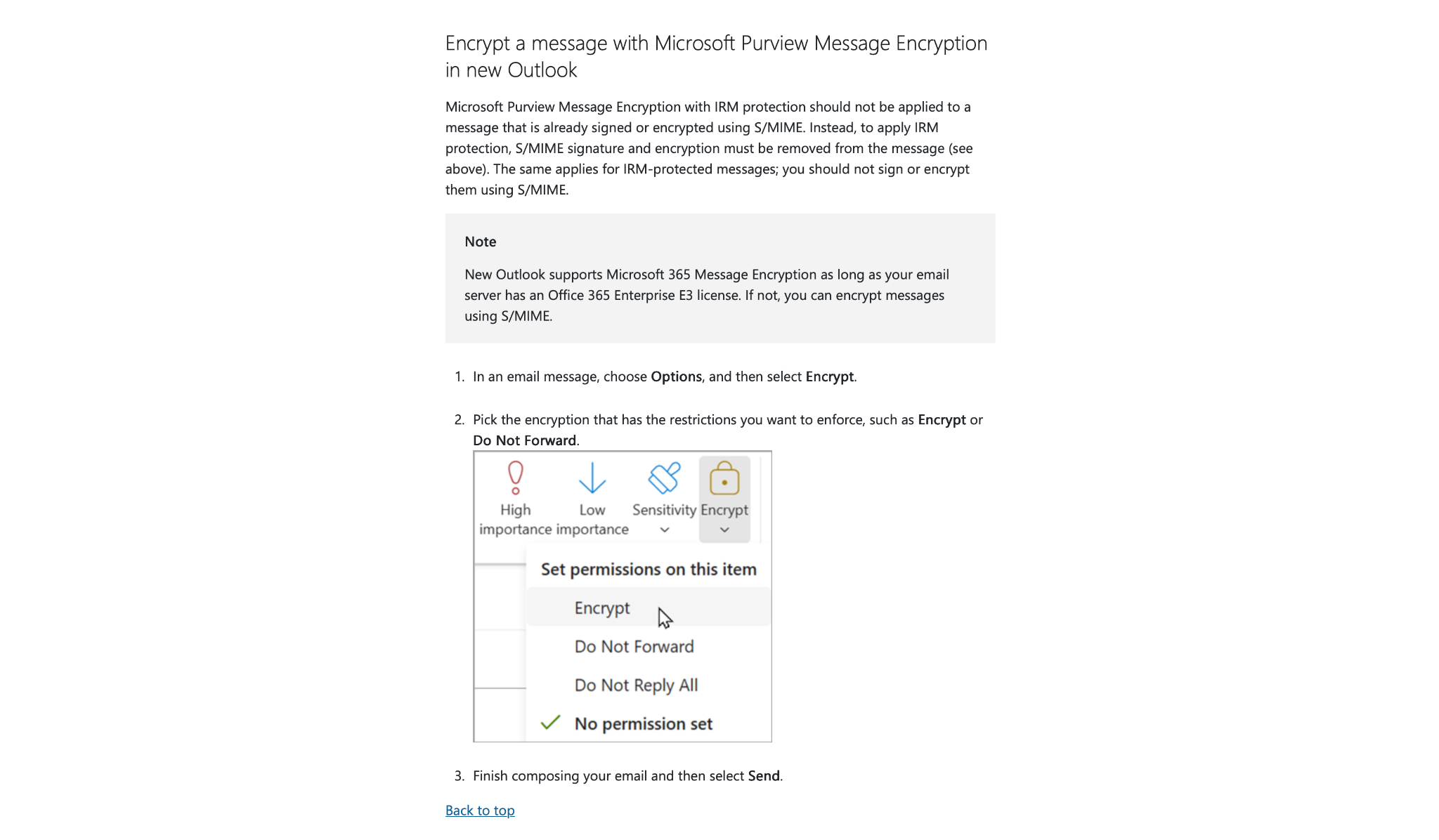
The encryption option appears in a different place depending on which version of Outlook you're using, and version mismatches here are common enough to warrant explicit coverage.
Where to find Encrypt in each client:
- Classic Outlook for Windows (2019, 2021, 2024, or Microsoft 365 desktop): compose a new email, switch to the Options tab, and look for the Encrypt button in the Permissions group. Clicking the dropdown arrow reveals both Encrypt and Do Not Forward.
- New Outlook for Windows (rolled out from 2023 onward): open a new message and select Options > Encrypt. If your window is narrow, it may sit under the ⋯ (More options) overflow menu instead. The same backend conditions apply: if your account isn't licensed or configured for encryption, the option won't appear.
- Outlook on the web (outlook.office.com or outlook.com): open a new message. The Encrypt button may appear directly in the drafting toolbar as a padlock icon, or it may be tucked under the ⋯ (three-dot) overflow menu at the bottom of the draft window, near the Send button. Clicking it opens the encryption panel on the right side.
- Outlook for Mac: go to Options > Encrypt in the new message window.
- Outlook mobile app (iOS and Android): tap the compose icon, tap the ⋯ (three dots) in the top corner of the draft, and choose Encrypt.
Pro tip: a 27-year study of email encryption at one university found that people who used multiple email clients signed and encrypted less often, even after correctly configuring encryption.
Spend five minutes verifying the Encrypt path in every client you use, because the configuration in one version doesn't carry over.
Step 3: Send an encrypted email using Microsoft Purview Message Encryption
No certificate is needed on your end. External recipients on Gmail or Yahoo get a portal link and authenticate before reading; Microsoft 365 users open it like any other message.
How to send it:
- Compose your email as normal.
- Before sending, go to Options > Encrypt (classic and new Outlook) or the ⋯ > Encrypt path (web), and pick the template that matches your need:
- Encrypt (or Encrypt-Only in some interfaces): the message stays encrypted inside Microsoft 365. Recipients on Outlook or Microsoft 365 accounts open it normally; everyone else clicks a link and verifies their identity through the Microsoft 365 Message Encryption portal.
- Do Not Forward (both work and personal accounts): the message is encrypted, and recipients can't forward or print it, and copying is blocked too. Microsoft Office attachments stay encrypted after download; PDFs and images don't, though admins can turn on PDF encryption separately via Exchange Online PowerShell.
- Click Send. Outlook applies the encryption before the message leaves your client.
Before you send anything sensitive, run a low-stakes test with a friendly external recipient on Gmail. Seeing the portal flow from the recipient's side once is worth more than reading about it.
Step 4: Request and install an S/MIME certificate if you need stronger guarantees
Use S/MIME when your recipients already have certificates set up, or when your compliance requirements go beyond message confidentiality and require verified sender identity.
How to get the certificate in place:
- Request an S/MIME certificate through your organization's PKI or a trusted certificate authority. Enterprise S/MIME certificates typically cover both email signing and encryption for your specific address.
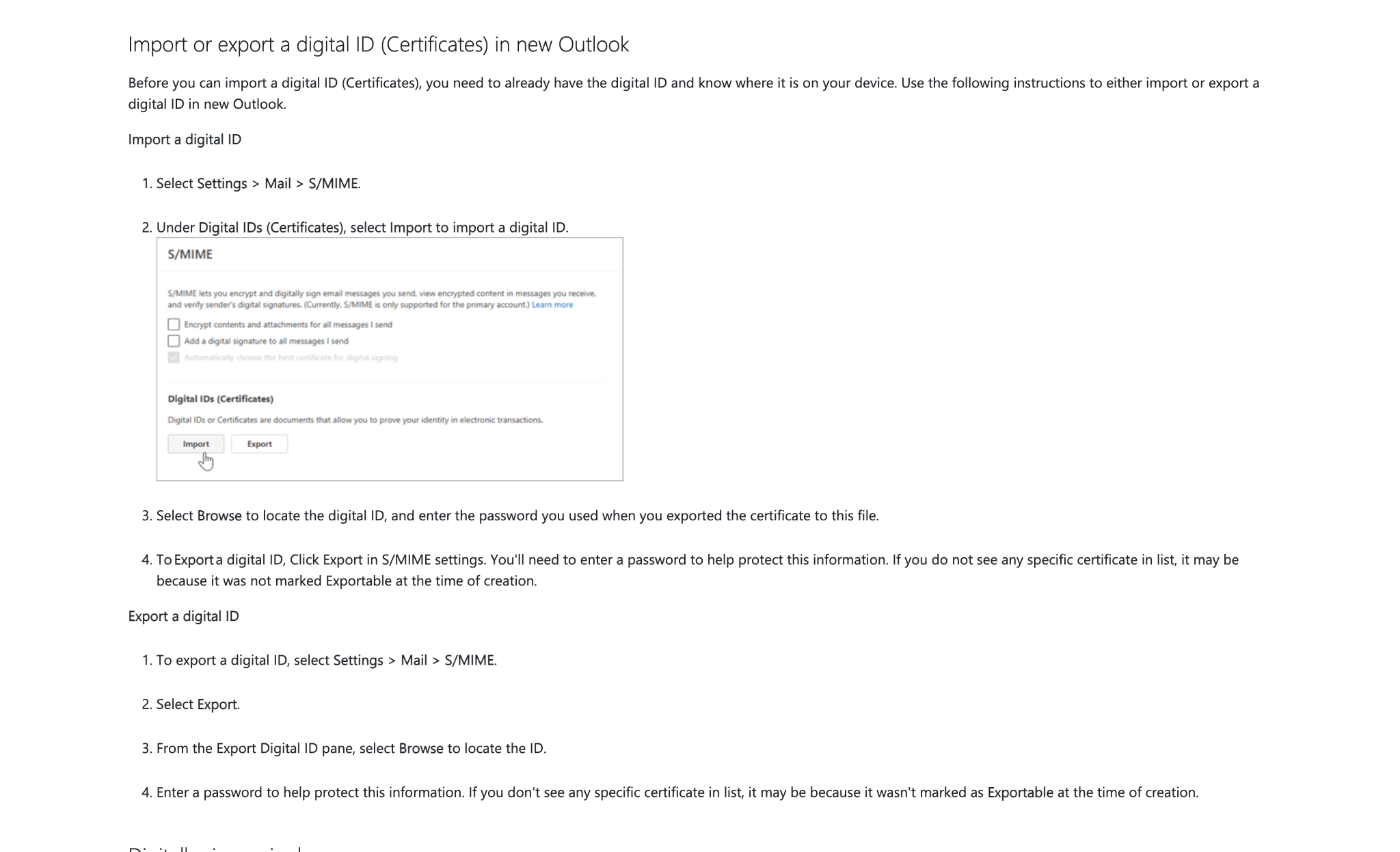
- Once you receive the certificate file (usually .pfx or .p12), open classic Outlook for Windows and navigate to File > Options > Trust Center > Trust Center Settings > Email Security. Use the import function to bind it to your Outlook account. In the new Outlook for Windows, digital IDs don't carry over automatically: install the certificate through Windows Certificate Manager, then configure it in Outlook settings.
- For Outlook on the web (enterprise), go to Settings > Mail > S/MIME to configure encryption and signing preferences there.
Pro tip: decide who owns certificate renewals, revocations, and device changes before rollout (more on this under Common mistakes).
Step 5: Send an encrypted email in Outlook using S/MIME
With your certificate in place, the send flow comes down to a few checkboxes in the message dialog, but S/MIME only works end-to-end if your recipient also has a compatible certificate in their client.
The send flow:
- Open a new email. In classic Outlook for Windows, go to Options > More Options (or the message options dialog, depending on your version) and enable Encrypt this message (S/MIME) and, if needed, Digitally sign this message (S/MIME) to give the other side a way to verify that the message came from you and wasn't altered in transit.
- Complete your message and click Send.
- If Outlook detects that one or more recipients may not be able to decrypt the message because they lack a compatible certificate, it'll display a warning before sending and flag each affected address. Treat that warning as a real decision point, not something to click through.
For external recipients, Microsoft Purview Message Encryption (Step 3) covers more cases unless you've confirmed the other side has S/MIME configured.
{{templates}}
Common mistakes to avoid
Three mistakes that undo the work of setting up encryption properly.
Don't stop at a one-time demo
Turning on Encrypt once, sending a test, and filing it under "done" is how adoption stalls, and the 27-year study above saw exactly this pattern. If encryption matters to your organization, someone needs to own the process of turning it into a team-wide habit, backed by policy.
Don't deploy S/MIME without a lifecycle plan
The most common failure point in enterprise S/MIME deployments is certificate lifecycle management. The encryption protocol itself holds up; the operational layer around it is where things fall apart.
Issuing certificates without clear processes for renewals, revocations, and device changes results in brittle security and users who eventually circumvent it.
Don't skip the recipient's side of the test
With S/MIME, a recipient who lacks a compatible certificate or hasn't configured their client correctly sees garbled content or an attachment they can't open, with nothing in Outlook indicating that the certificate is the cause.
Testing with a real external recipient before you commit to any encrypted workflow is the only reliable way to catch issues before they matter.
Advanced tips: Taking encrypted email further
Purview setup takes under an hour; S/MIME can take a few days if IT manages certificates centrally. After that, the goal is making encryption the default.
Three moves that get you there:
- Automate with sensitivity labels: use Microsoft Purview sensitivity labels and mail flow rules to apply encryption to messages that match specific conditions, such as keywords, data classifications, or attachment patterns. Protection becomes a background policy, applied before the message leaves.
- Pair signing with encryption: combine S/MIME encryption with digital signing when you need recipients to verify both the integrity and the origin of a message. The two do different jobs, and pairing them is standard practice. A digital signature proves who sent the message; encryption keeps the contents private.
- Monitor actual adoption: have your tenant admin pull the encryption report from the Microsoft Purview portal on a regular cadence. The numbers let you spot where encryption is slipping: departments relying on manual steps, client configurations that aren't working, or external partners who consistently struggle with the portal flow.
{{cta}}
Where Lindy fits into an encrypted email workflow
Once you know how to send an encrypted email in Outlook, the work that remains is everything around the message: tracking conversations, following up, and keeping context intact when a thread moves across tools. Outlook handles the cryptography and stops there.
Lindy is an AI teammate that lives in your Slack, connects to the tools your team already approves, and does the coordination work around sensitive threads without ever touching Outlook's encryption layer.
What it handles around the message:
- Context on demand, with citations: @mention Lindy in a channel and ask what your team knows about an account before you reply. It searches the sources your team has connected, Slack history, Notion, Google Drive, meetings, and files, and every answer comes back with the source attached. Nothing comes from inside an encrypted message.
- Encryption nudges in your routine: tell Lindy which kinds of messages should always be encrypted, and it reminds you to turn encryption on before those threads go out.
- Cross-tool coordination: with hundreds of integrations, Lindy connects your email and assistant workflows to your CRM, ticketing system, or project tools so context moves with the work rather than staying siloed in one inbox. Pair it with the routines you already run, like automatic forwarding rules in Outlook.
- Routines and follow-ups in plain English: recurring work described the way you'd say it out loud, like "every Monday at 9, send me the open compliance threads."
- Guardrails you set: admins decide per tool and action whether Lindy can always act, needs approval, or shouldn't offer at all. Every action is enforced and audited, personal context never enters public channels, and Lindy is SOC 2, GDPR, and HIPAA compliant.
Here's what that looks like in practice. Say a client replies to your encrypted payroll thread while you're out. Tell Lindy "remind me to respond to the Acme payroll thread tomorrow at 9 and add it to my task list." It sets the reminder, creates the task, and nudges you in the morning. The message itself stays sealed in Outlook.
Start your 7-day trial to see how Lindy fits into your encrypted email workflow before committing.
Frequently asked questions
Can external recipients open an encrypted email from Outlook?
Yes, though the experience depends on which method you used. Microsoft Purview Message Encryption provides non-Outlook users with a portal link and a one-time passcode. With S/MIME, the sender gets a warning before sending, but the recipient without a compatible certificate just sees unreadable content with no explanation.
What is the difference between Encrypt and Do Not Forward in Outlook?
Encrypt restricts who can open the message but allows forwarding and printing; Do Not Forward locks down distribution entirely, blocks copying and printing, and keeps Office attachments protected after download.
Do I need a special subscription to send an encrypted email in Outlook?
Yes. For work and school accounts, you need Enterprise E3 or above (or Business Premium); for home use, Microsoft 365 Personal and Family include it.
Business Basic requires an upgrade or a separate add-on; free Outlook.com accounts don't include Microsoft Purview Message Encryption.
Can Lindy help me manage encrypted email workflows in Outlook?
Yes. Lindy handles the coordination around encrypted threads, covering follow-ups, context, and task creation, without touching Outlook's encryption layer itself.
What should I do if my recipient can't open my encrypted email?
Switch from S/MIME to the Encrypt-only Microsoft 365 template, which lets recipients on any major email provider authenticate through a browser portal without a certificate.










Blog
Related Articles
%20(1).png)

%20(1).png)
%20(1).png)

%20(1).png)
%20(1).png)
%20(1).png)
The AI assistant that runs your work life
Lindy saves you two hours a day by proactively managing your inbox, meetings, and calendar, so you can focus on what actually matters.
