17 Best AI Tools & Apps I Can’t Stop Using in 2026 (Free/Paid)
Marvin tested 17 AI tools across real business workflows, comparing their capabilities for writing, coding, automation, voice, analytics, and productivity to identify the best tool for every use case.


I've been paying for AI tools since back when using GPT-3 meant setting up an API key just to get a basic response, and I’d have to fix half of what it gave me by hand anyway ("Sure, grandpa," I hear you say!)
Since then, I've signed up for nearly every "easy-to-use" tool I could find: the note-takers, the schedulers, the code assistants, the voice cloners, and the automation tools that promise to run your business while you sleep. Lo and behold, most of it just ended up wasting my time.
At one point, I had three different AI note-takers join the same client call, because I'd signed up for all of them months apart and never shut the old ones off.
That was when I stopped collecting AI tools and started cutting them instead.
Over the past few weeks, I went back through more than 30 of my favorite AI apps and used each one of them on the real work I do every day, from writing these articles to coding, taking calls, and building automations that make my working day a little shorter.
Starting now, these are the 17 that made the cut and will play a part in my daily workflow throughout the rest of 2026.
The 17 best AI tools in 2026: TL;DR
- Claude Cowork: Best for long-document reasoning and context-heavy work
- ChatGPT: Best for all-purpose writing, reasoning, and custom GPTs
- Google Gemini: Best for teams already in Google Workspace
- Perplexity: Best for research with citations you can check
- Lindy: Best for delegating work in Slack or over text
- Microsoft Copilot: Best for Microsoft 365 shops
- Notion: Best for writing and organizing inside your workspace
- Zapier: Best for connecting apps and repeatable workflows
- Cursor: Best for coding inside an AI-native IDE
- Grok: Best for real-time information and X data
- n8n: Best for open-source and self-hosted automation
- Jasper: Best for consistent branding and marketing content across many channels
- Midjourney: Best for generating stylized, high-quality AI visuals
- ElevenLabs: Best for AI voice, narration, and conversational agents
- Descript: Best for editing audio and video by editing the transcript
- Lovable: Best for building a working web app without writing code
- Gamma: Best for turning rough notes into a presentation or document
How I tested the best AI apps
I played with just over 30 tools before narrowing this down to 17. Here's exactly how that happened:
- What had to qualify: Every tool needed a real paid tier I could put a card against. A usage-capped free tier doesn't show you how the tool actually performs day-to-day. I also required each tool to do more than one narrow job. Single-purpose tools, even good ones, went into a "does one thing" pile.
- What I paid for: I ran nearly every tool on this list from a paid or trial account, since a free tier hides too much of what a real user would run into. Testing across a month cost a little over $650 in subscriptions and API credits, combined. If you want to avoid subscription fees entirely, learning how to build your own ai assistant for free is a practical alternative.
- What tasks I ran: I gave each tool the kind of work a real user would throw at it: drafting a blog post from a rough outline, automating an email follow-up sequence, building a small internal tool from a plain-English prompt, generating a presentation from bullet points, cloning a voice for a training video, debugging a broken function. Where two tools compete directly, I ran the same category of task on both, so these aren't vibes-based comparisons. If calendar automation is your priority, choosing a dedicated ai scheduling assistant can streamline complex booking workflows across teams.
- What disqualified a tool: I dropped anything that changed its core workflow mid-testing without notice, left support tickets unanswered for more than a week, or required a sales call just to see real pricing.
- How I scored what's left: Flexibility (can it handle more than one job), output quality (is the result usable), and ease of use (can a non-expert get value fast).
What exactly is an AI platform?
An AI platform is software that combines multiple AI capabilities, such as writing, coding, automation, and data analysis, into a single connected product that handles more than one job.
That makes an AI platform more flexible than a single-purpose AI tool. You can customize inputs, connect outputs across steps, and integrate the platform with tools your team already uses, such as Slack, Salesforce, Gmail, or Notion. For teams focusing on automated dialogue, a dedicated conversational ai platform helps streamline customer interactions directly within these tools.
A solo founder might use one to draft cold emails, follow up with leads, and tag support tickets. A marketing team might generate content in bulk, translate it, and push it into a CMS. A larger company might use one to route tickets, summarize sales calls, or update a CRM without anyone touching a spreadsheet.
AI app categories we considered
To build this list, I grouped apps and tools by what they're built to do. Here are the categories that mattered most in 2026:
Generalist AI
These tools support a wide range of everyday tasks, including writing, coding, file analysis, web browsing, image generation, and voice conversations, all from a single interface. Many of these general assistant platforms also offer dedicated ai apps for android to use on mobile devices.
Examples: ChatGPT, Claude, Google Gemini, Grok, Perplexity.
AI assistants
These handle recurring tasks across your apps on their own, once you tell them what to do, without you asking again each time. Say what you need, such as "triage my inbox," "book this meeting," "update the CRM after every call," and it keeps doing that going forward.
This differs from a personal AI assistant app on your phone. See our breakdown of AI agent types if that distinction matters for your use case.
Examples: Lindy, Microsoft Copilot.
Content generation
These help you create written and visual content, from blog posts and marketing copy to slide decks, images, and other media.
Examples: Jasper, Notion, Gamma.
Coding & app-building
Built for developers writing and debugging real code, and for non-developers who want to turn a plain-English description into working software, a landing page, a simple app, or an internal tool, without writing it by hand.
Examples: Cursor, Lovable.
Automation & integrations
These connect your tools and automate business processes, lead routing, follow-ups, and data syncs, using triggers and workflows via an AI automation tool.
Examples: Zapier, n8n.
Voice & audio
These specialize in generating or editing spoken content like narration, dubbing, transcript-based editing, or acting as an AI note taker for calls and meetings.
Examples: ElevenLabs, Descript.
Visual generation
These generate images from a text prompt, concept art, product mockups, stylized illustrations, and outputs that a photo editor won't easily replicate.
Example: Midjourney.
1. Claude Cowork: Best AI tool for long-document reasoning and hands-on, context-heavy work
Claude, by Anthropic, is built for reasoning and working with long contexts, which makes it great for things like contract analysis, structured writing, or reviewing long PDFs.
Cowork takes that a step further: instead of just answering questions, it works alongside you, reading your files, running multi-step tasks, and actually producing the work rather than just talking about it. Where ChatGPT is fast and flexible, Claude feels slower but more thoughtful, and in a good way.
You can hand it entire files and ask questions like "What's the clause about termination?" or "Summarize the key objections in this section." It cites specific phrases and gives you precise, usable results. With Cowork, you can go a step further and ask it to turn those objections into a response draft, or reorganize a long document, and it'll carry the task through.
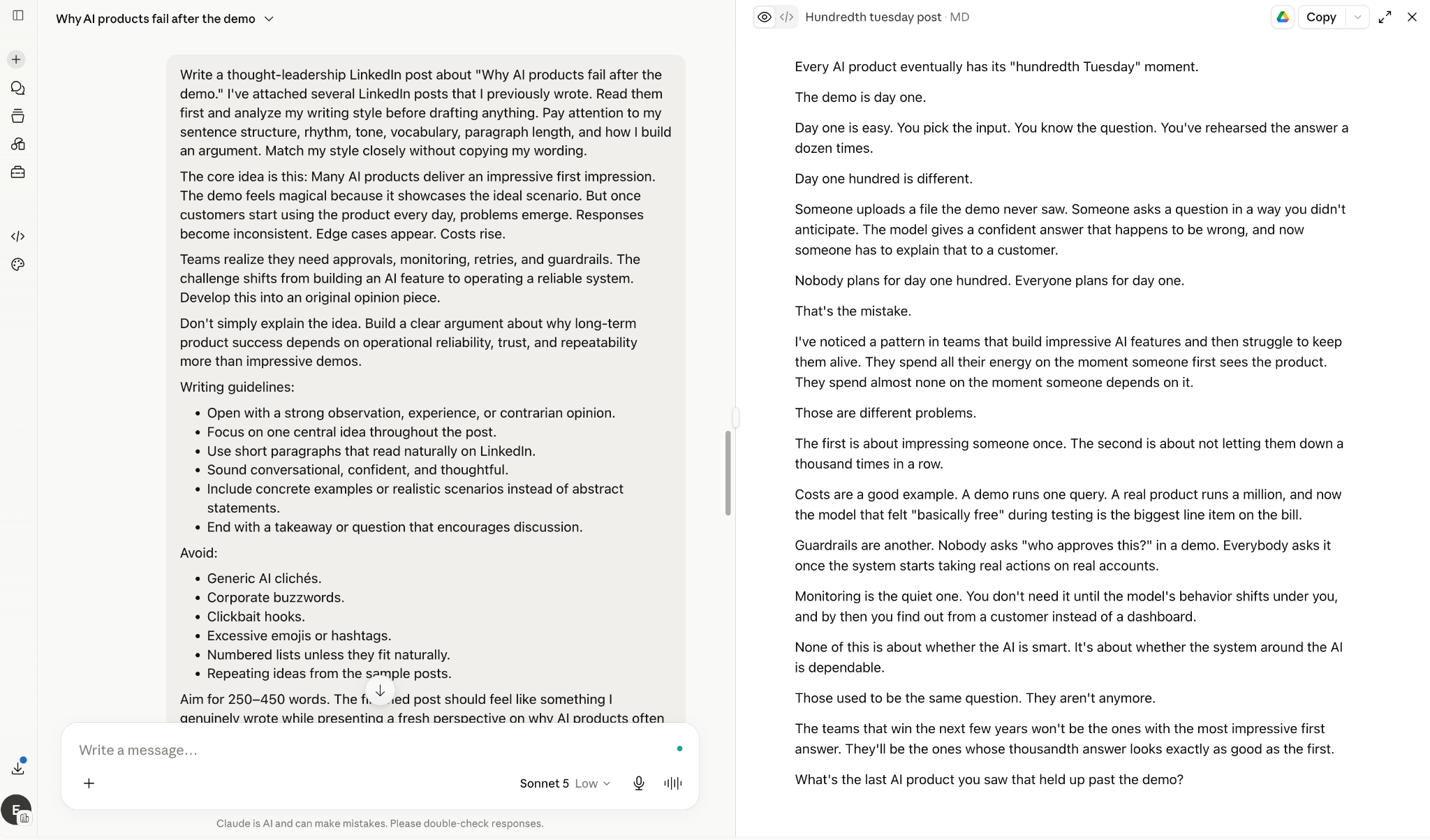
To test it, I tried creating a thought-leadership LinkedIn post. I gave it the topic, fed it some of my old LinkedIn posts, and asked it to match my writing style. The result wasn't the direction I expected, though maybe that's because my prompt didn't specify it. Overall, the first draft was impressive.
The writing style is also more balanced. Claude writes in a neutral, helpful tone that comes across as calm and considered, not eager to please. That makes it great for drafting internal documents, policy updates, or anything that shouldn't sound like a marketing email.
Claude's responses can feel conservative, which may push some users toward a more flexible alternative. Where it earns its keep is analytical work, multi-document reasoning, and, with Cowork, actually getting that work done in a calm, professional tone.
Key features
- Handles up to 200k tokens (entire books or docs)
- Cowork works alongside you: runs multi-step tasks across your files, not just chat
- File uploads with follow-up Q&A
- Context retention across long conversations
- API access and enterprise-grade security
Pros
- Excellent at deep reading, summarizing, and analysis
- Cowork turns answers into finished work
- Strong memory and structure in writing
- Free plan is highly capable
Cons
- More reserved than ChatGPT and sometimes overly cautious
- Fewer plug-ins than a broader tool, with a focus on deep work over breadth
Pricing
Claude plans start at $20/month (Pro, billed monthly, includes Cowork), with Max starting from $100/month. A free plan is also available.
To test it, I tried creating a thought-leadership LinkedIn post. I gave it the topic, fed it some of my old LinkedIn posts, and asked it to match my writing style. The result wasn't the direction I expected, though maybe that's because my prompt didn't specify it. Overall, the first draft was impressive.
The writing style is also more balanced. Claude writes in a neutral, helpful tone that comes across as calm and considered, not eager to please. That makes it great for drafting internal documents, policy updates, or anything that shouldn't sound like a marketing email.
Claude's responses can feel conservative, which may push some users toward a more flexible alternative. Where it earns its keep is analytical work, multi-document reasoning, and, with Cowork, actually getting that work done in a calm, professional tone.
Key features
- Handles up to 200k tokens (entire books or docs)
- Cowork works alongside you: runs multi-step tasks across your files, not just chat
- File uploads with follow-up Q&A
- Context retention across long conversations
- API access and enterprise-grade security
Pros
- Excellent at deep reading, summarizing, and analysis
- Cowork turns answers into finished work
- Strong memory and structure in writing
- Free plan is highly capable
Cons
- More reserved than ChatGPT and sometimes overly cautious
- Fewer plug-ins than a broader tool, with a focus on deep work over breadth
Pricing
Claude plans start at $20/month (Pro, billed monthly, includes Cowork), with Max starting from $100/month. A free plan is also available.
2. ChatGPT: Best AI platform for all-purpose writing, reasoning, and custom GPTs
ChatGPT is a generalist AI app. With GPT-5.5 Instant, it's finally fast, intelligent, and intuitive enough to act like a co-pilot for actual work, whether drafting copy, debugging code, helping with outlines, or parsing a spreadsheet. While ChatGPT functions as a general co-pilot, exploring the best ai agents can help you automate complex tasks more autonomously.
It helps me think about a topic like a second brain. I've used it to summarize long meeting notes, draft cold emails, and even role-play customer objections for sales training. GPT-5.5 Instant can now understand images, charts, and voice inputs, making it smarter than older versions.
I even built my own custom GPT as a ghostwriter. I uploaded resources, guidelines, and references to dial in my writing style. Now, I use it to create first drafts of my blogs and fact-check technical claims before they go out.

It can now interpret code, search the web, read files, and analyze images, all in one chat. You don't need to toggle between apps to ask it to explain a CSV, pull data from a URL, or turn it into a bar chart.
But it's only as good as your prompts. If you’re vague, it’ll be vague. If you’re specific, it’ll deliver. It’s competent, but it still needs direction.
Key features
- Powered by GPT-5.5 Instant (vision, voice, text, reasoning)
- Code interpreter, data analysis, and file uploads
- Real-time web browsing and image understanding
- Custom GPTs for specific roles or workflows
- Voice mode (now near-instant and natural)
Pros
- Works well across almost any domain
- Massive community and ecosystem (Custom GPTs, APIs, extensions)
- Fast, responsive, and genuinely useful for daily tasks
Cons
- Requires prompt clarity, so it's not always plug-and-play
- Still not great at real-time collaboration or shared workflows
- Some advanced tools are gated behind paid plans
Pricing
ChatGPT plans start at $8/month (Go, billed monthly), with Plus at $20/month and Pro starting from $100/month. A free plan is also available with limited access and core features.
3. Google Gemini: Best AI tool for teams already in Google Workspace
If your team already lives in Gmail, Docs, and Sheets, Google Gemini is the AI app already built into the tools you use every day.
I tested Gemini mainly through Google Workspace, where it drafts emails in Gmail, summarizes long Doc threads, and builds formulas in Sheets from a plain-English description.
Deep Research is useful when you need a multi-source summary on a topic. It takes a few minutes, but the citations are usually strong when you check them. Gemini also handles multimodal input well. It can read screenshots, PDFs, and short videos in the same conversation.
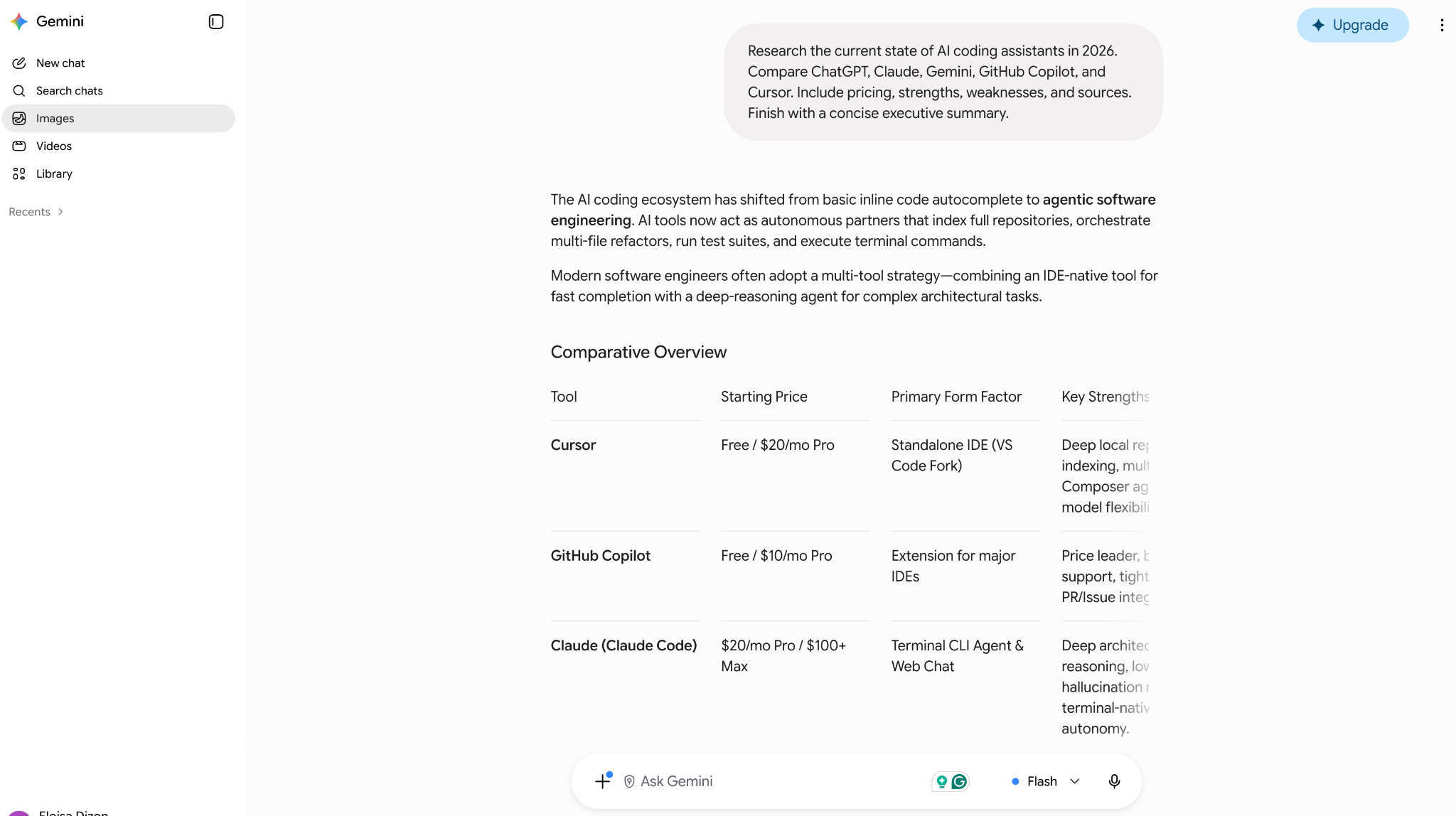
Gemini still feels less expressive than ChatGPT and Claude. The output can come across as flatter and more literal, and it tends to over-hedge when a prompt sounds like advice. If you need a more creative voice, exploring another chatgpt alternative might better suit your team's workflow.
It also feels like two different products depending on how you buy it, with the consumer app at gemini.google.com and the Google Workspace version that most business users will see.
Key features
- Deep Research for multi-source, cited summaries
- Native integration across Gmail, Docs, Sheets, and Calendar
- Multimodal input (images, PDFs, short video)
- Large context window for long documents
Pros
- Genuinely useful if you already run on Google Workspace
- Strong at summarizing and drafting inside existing docs
- Competitive pricing relative to other flagship assistants
Cons
- Output can feel less distinctive than ChatGPT or Claude
- Consumer and Workspace versions are priced and packaged differently, which gets confusing
- Advanced Ultra-tier features are priced well above the standard plan
Pricing
Google AI plans start at $4.99/month (Google AI Plus, billed monthly), with Pro at $19.99/month and Ultra starting from $99.99/month.
4. Perplexity: Best AI website for research with citations you can check
Perplexity is an AI search assistant that answers questions, shows its sources, and keeps things concise. It's like a research partner who shows you the right links, explains them in plain English, and doesn't waste your time.
I've used it for things like sourcing up-to-date stats, comparing product features, and checking the latest news on AI regulation.
You can technically do all these tasks using Google, but it's faster and more digestible here. It pulls from credible sources, cites everything in line, and lets you dig deep with the source links.

Perplexity's Deep Research tool researches a topic in depth, pulling from dozens of sources and compiling them into a structured report. It takes around 10-15 minutes to return complete results, longer than a standard query, but the depth is noticeably different from a quick search.
What's underrated about Perplexity is how good it is at follow-up. You can ask something like, "How does Claude compare to ChatGPT?" and then follow up with, "What about for coding?" It'll keep the thread going intelligently.
Perplexity stays deliberately focused. It works best for research and reading-heavy tasks, where it is one of the most efficient tools I have used.
Key features
- Real-time web results with in-line citations
- Follow-up Q&A with persistent context
- File and image upload for context-aware queries
- iOS, Android, and browser extensions available
Pros
- Fast, reliable info without hallucinations
- Perfect for research, sourcing, and quick comparisons
- Includes free daily access to Pro models
Cons
- Not for tasks like writing or automation
- Some answers can still oversimplify nuanced topics
- Fewer customization options than larger assistants
Pricing
Perplexity plans start at $34/seat/month (Pro, billed monthly), with Max at $271/seat/month. A free plan is available with limited daily use.
5. Lindy: Best AI for delegating work in Slack or over text
Lindy is where I'd start if you want to go beyond simple AI chatbots and offload work. Its main product, Lindy Teammate, lives in your Slack like a company brain: @mention it in a channel to pull answers from your meetings and connected tools, or DM it as a personal assistant for your inbox and calendar.
You can also text Lindy what you need in plain English and it handles it.
Lindy can do everything from sending emails and following up with leads to making phone calls, logging CRM data, or managing internal operations like summarizing meetings or sorting inbox attachments.
Lindy is easy to use. Tell it what you need across apps like Slack, Gmail, HubSpot, or Salesforce, and it works through the steps for you, checking if something needs your input.
You don't need to write code. Lindy comes with prebuilt skills like Email Follow-up Drafter or Meeting Scheduler that you can turn on and customize in plain English, tweaking the instructions to fit your exact use case.
I used the Lead Generator skill with filters like title and industry. Once connected to a source like People Data Labs, I told Lindy in plain English to find me a Content Strategist, Content Lead, Head of Content, or people in similar roles working in-house in software, SaaS, IT services, and product companies.
It searched for the leads that met my criteria and created a Google Sheet with detailed information about those leads. It took less than 20 minutes to build a 10-person lead list, replacing hours of weekly lead generation grunt work.

If your team spends time on repeatable processes like sales ops, customer support, or internal handoffs, this tool provides the most value.
Key features
- Works right inside Slack, where the whole team can reach it in a channel or a DM
- Shared meeting library that records, summarizes, and follows up on its own
- Routines you set in plain English, plus a team memory that keeps its sources attached
- Admin approvals on every action, fully audited, with SOC 2, GDPR, and HIPAA
- Hundreds of integrations including Gmail, HubSpot, Salesforce, Notion, and Zoom, plus API support
Pros
- Logic and control over your tasks without dev work
- Executes specific instructions exactly as given, no generic output
- Simple, transparent plans that scale as your usage grows
Cons
- There is a slight learning curve if you're used to simple chatbots
- Text delegation uses iPhone only, so Android users work through the web app instead
- No permanently free tier, just a 7-day trial across all plans
Pricing
Lindy plans start at $29.99/user/month (Plus), with Pro at $99.99/user/month and Max at $199.99/user/month. A 7-day free trial is available on all plans.
{{templates}}
6. Microsoft Copilot: Best AI platform for Microsoft 365 shops
Microsoft Copilot is built for teams already running Word, Excel, Outlook, and Teams. It adds AI directly inside the apps people already use every day, without making them switch to a separate workspace.
I tested Copilot inside Word and Excel by asking it to turn a long document into an executive brief and build a spreadsheet formula from a plain-English prompt. It handled both well. Teams meeting recaps were also useful when I needed to catch up on a call I had missed. If you need broader document analysis outside of Microsoft, finding the best ai summarizer can help streamline your workflow.
Copilot's biggest limitation is how generic its output can be. Drafts tend to come back safe and formulaic, more of a competent first pass than something I'd publish without heavy editing.

Copilot isn't a standalone purchase; it requires an existing qualifying Microsoft 365 license, and the pricing structure (base license plus Copilot add-on) takes a minute to untangle. For building custom support or sales workflows, Microsoft's separate Copilot Studio is the tool you'd reach for, and it's priced and licensed differently again.
Key features
- Native integration across Word, Excel, Outlook, and Teams
- Meeting summaries and action items pulled from Teams calls
- Drafts, formulas, and analysis generated from plain-English prompts
- Copilot Studio for building custom agents (sold separately)
Pros
- Fits directly into tools teams already use daily
- Strong at summarizing meetings and long documents
- Backed by Microsoft's enterprise security and compliance commitments
Cons
- Requires an existing qualifying Microsoft 365 license, not sold as a standalone product
- Drafts can feel generic compared to ChatGPT or Claude
- Pricing across base license + add-on bundles is genuinely confusing to compare
Pricing
Starting at $9.99/month (Personal, billed monthly), Microsoft 365 with Copilot scales up to $12.99/month for Family and $19.99/month for Premium.
7. Notion: Best AI platform for writing and organizing inside your workspace
Notion bakes AI directly into the docs, wikis, and project pages you're already working in, with no switching tools, no pasting between tabs. It helps you think faster, draft cleaner, or organize a mess, right where the mess already is.
I've used it to summarize meeting notes, clean up brainstorming notes, and draft first-draft outlines for internal docs. It's fast and context-aware. You highlight some text, hit "summarize" or "improve writing," and it tightens things up without losing your tone.
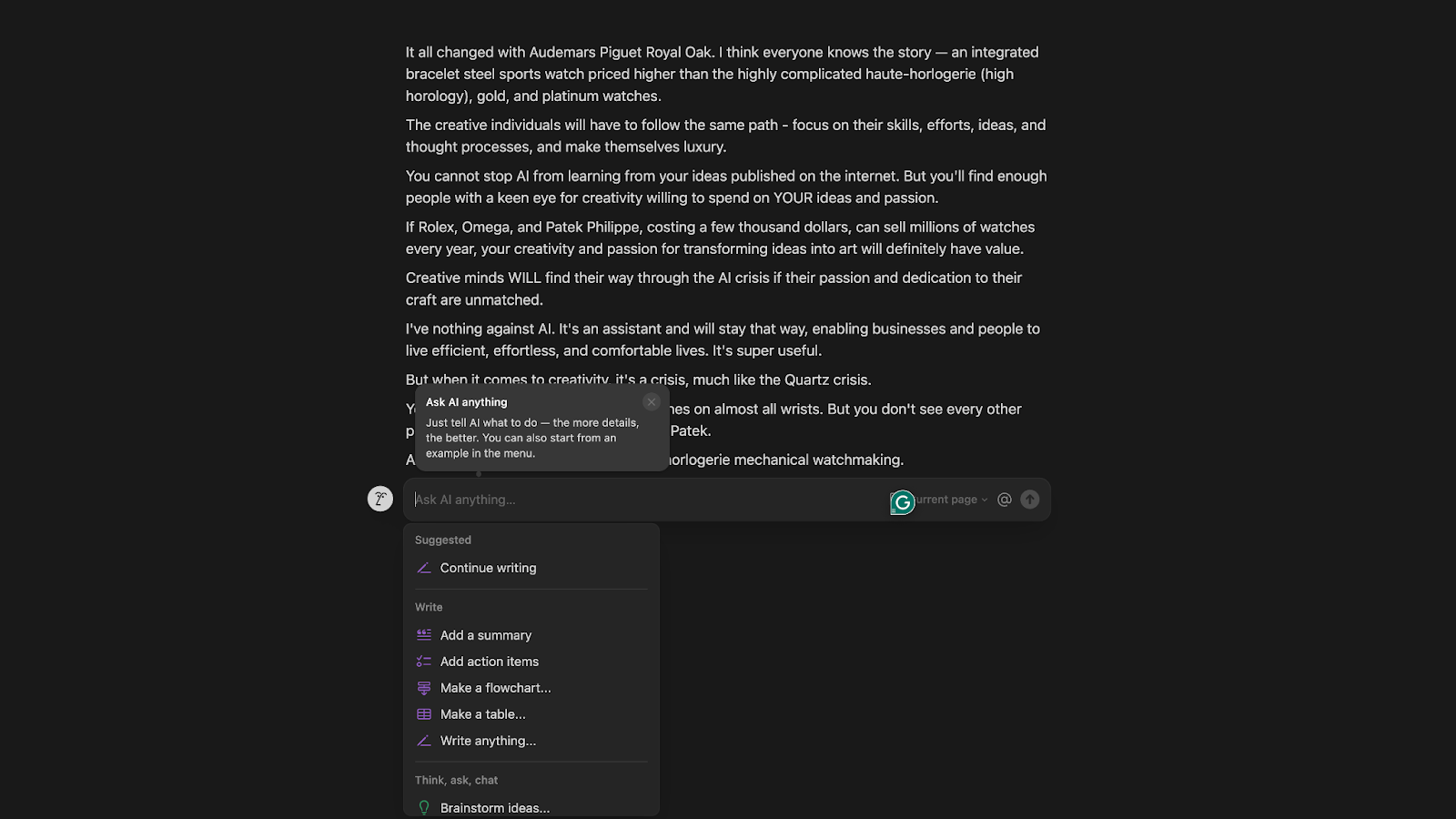
It’s also great for structuring chaotic information. I had a document full of scattered research notes. I asked Notion to create action items and tag key takeaways, giving me a clean list from which I could work. Stuff like that saves time.
However, Notion isn't a complete content tool. It won't replace your blog writing stack. It shines when you're already in Notion and need a little push to move faster or think clearly.
Key features
- In-line AI writing, editing, and summarization
- Task list generation and action item extraction
- Q&A on existing Notion docs and databases
- Brainstorming tools for quick idea dumps
- Works across notes, wikis, databases, and calendars
Pros
- Feels native if you already live in Notion
- Great for cleaning up messy docs and notes
- It makes internal communication and planning faster
Cons
- Not suited for long-form content creation
- Lacks formatting controls during AI output
- Can get repetitive if overused on the same doc
Pricing
Notion's paid tiers start at $12/member/month (Plus, billed monthly) and go up to $24/member/month for Business, with Enterprise priced custom. A free plan covers individuals organizing personal projects.
8. Zapier: Best AI tool for connecting apps and repeatable workflows
Zapier is a popular automation tool. With 9,000+ integrations and a no-code interface, it's one of the easiest ways to automate routine work.
Now, it has added Zapier AI, which lets you create workflows with natural language. Instead of building a Zap from scratch, you can now say something like “Send a Slack message when a Stripe payment fails and create a follow-up task in Asana,” and it’ll draft the whole workflow for you.
I tested it with a simple task. I asked it to scan my inbox attachments using the conditions I provided and save any matching files to Google Drive. The AI helped me set up the workflow in about five minutes.
Here’s what the workflow looks like:
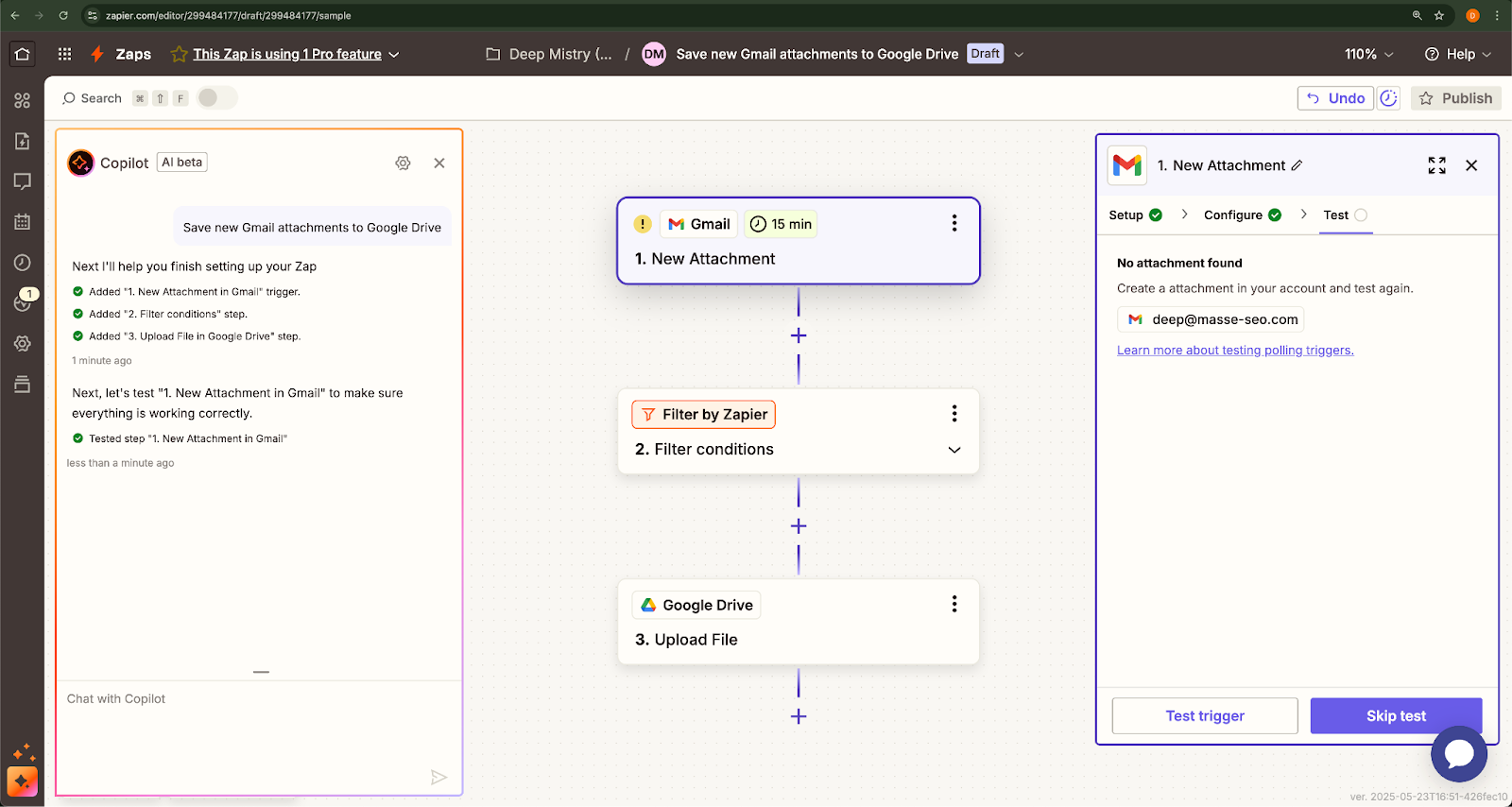
Zapier won't win on deep branching logic, but setup is fast and the app support is unmatched.
Zapier also launched Interfaces and Tables, which let you build lightweight internal tools (forms, dashboards, and mini-apps) without writing a line of code. These are great for teams wanting to spin up internal processes quickly without involving developers.
Key features
- 9,000+ app integrations (Google Sheets, Slack, Airtable, HubSpot, etc.)
- Multi-step Zaps with filters, delays, paths, and webhooks
- Zapier AI to build workflows with plain English
- Tables and Interfaces for internal tools and data collection
- Role-based access, folders, and usage controls for teams
Pros
- Massive app ecosystem that covers almost any SaaS tool
- Easy for non-technical users to build automations
- AI features make setup even faster for common workflows
Cons
- Logic branching is limited unless you’re on higher-tier plans
- It is expensive if you're running high-volume zaps
- It still falls short on complex, multi-branch automations compared to more advanced workflow tools
Pricing
Zapier plans start at $29.99/month (Professional, billed monthly), with Team starting from $103.50/month, plus custom Enterprise pricing for larger organizations. A free plan is also available forever with 100 tasks per month.
9. Cursor: Best AI app for coding inside an AI-native IDE
Cursor is a complete code editor with AI assistance at every step. It’s easily one of the most productive environments for debugging sessions, refactoring sprints, and even building small prototypes. It’s ideal if you like VS Code and Copilot, but with AI capabilities.
You can highlight a block and ask what it does, request a refactor, add comments, or rewrite it for another framework. It edits your project files directly, which removes the need to copy and paste snippets from a sidebar. The result is a tighter loop between writing, editing, and testing.
I am not deeply involved in development, so I tested it with a simple prompt. I asked it to generate schema markup for a blog targeting the primary keyword “AI tools.” Here is the output it gave me:

It also understands context way better than older tools. Cursor can read your entire codebase, letting you ask questions like "Where is this function used?" or "Why is this throwing an error?" It answers using context from across your repository.
For solo devs and small teams, it’s like having a senior engineer overlooking you, but without the Slack back-and-forth. And if you’re working in a stack like React, Node, or Python, it can help you create some of the best AI websites.
Key features
- AI assistant baked into your IDE
- Reads your whole codebase and updates files directly
- Smart suggestions for bug fixes, refactoring, and documentation
- Built-in chat for asking project-specific questions
- Supports popular languages and frameworks
Pros
- Feels more “developer-native” than GitHub Copilot
- Real context awareness across your entire repo
- Great for exploring legacy code or onboarding into new projects
Cons
- Still evolving, so it feels less stable and battle-tested than VS Code
- Limited to development work, with little use outside engineering workflows
- Needs the right setup and permissions to index a full repo properly
Pricing
Cursor plans start at $20/month (Individual, billed monthly), with Teams at $40/user/month and custom Enterprise pricing available. A free Hobby plan is also available; no credit card required.
10. Grok: Best AI tool for real-time information and X data
Grok, from xAI, is built around real-time information from X and a more irreverent conversational style. It is most useful when you want quick reads on current events, trending topics, or what people are saying online right now.
I tested Grok mainly for staying current. I asked it about breaking news, and it returned a fast summary pulled from live X posts and current web results.

Its image and video generation tool, Grok Imagine, is also quick to iterate with, though output quality is inconsistent compared to a dedicated tool like Midjourney. Grok's free tier is more restrictive than ChatGPT's. You'll hit prompt limits within a couple of hours of casual use.
Grok's image-generation tools have also drawn real regulatory scrutiny over misuse, which is worth knowing before you turn on features you don't plan to actively moderate. If real-time social context isn't something you specifically need, a generalist assistant will likely serve you better day-to-day.
Key features
- Live web and X search built into every response
- DeepSearch and extended reasoning ("Big Brain") modes on paid tiers
- Grok Imagine for image and video generation
- Voice mode for spoken conversation
Pros
- Genuinely strong for real-time, current-events questions
- Fast iteration on image and video prompts
- Conversational tone some users prefer over more formal assistants
Cons
- Free tier is more restricted than most competitors
- Image and video features carry real content-moderation risk you need to manage
- Costs more per month than ChatGPT Plus or Claude Pro for standalone access
Pricing
Grok plans start at $30/month (SuperGrok, billed monthly), with SuperGrok Plus at $100/month and SuperGrok Heavy at $300/month for full access to Grok 4.5. A free plan is also available with limited usage.
11. n8n: Best AI platform for open-source and self-hosted automation
n8n is the developer-friendly alternative to Zapier, positioning itself as much as an AI agent builder as a workflow tool. You can self-host it for free or run it through n8n's own cloud, with node-based workflows that support real branching logic and custom code steps.
I tested it with a lead-enrichment workflow that pulled a new spreadsheet row, looked up the company through an API, and posted a summary to Slack. The flowchart builder took longer to learn than Zapier’s, but it offered more control over conditional logic and error handling. The biggest advantage was the option to add a JavaScript or Python node when the no-code blocks fell short.
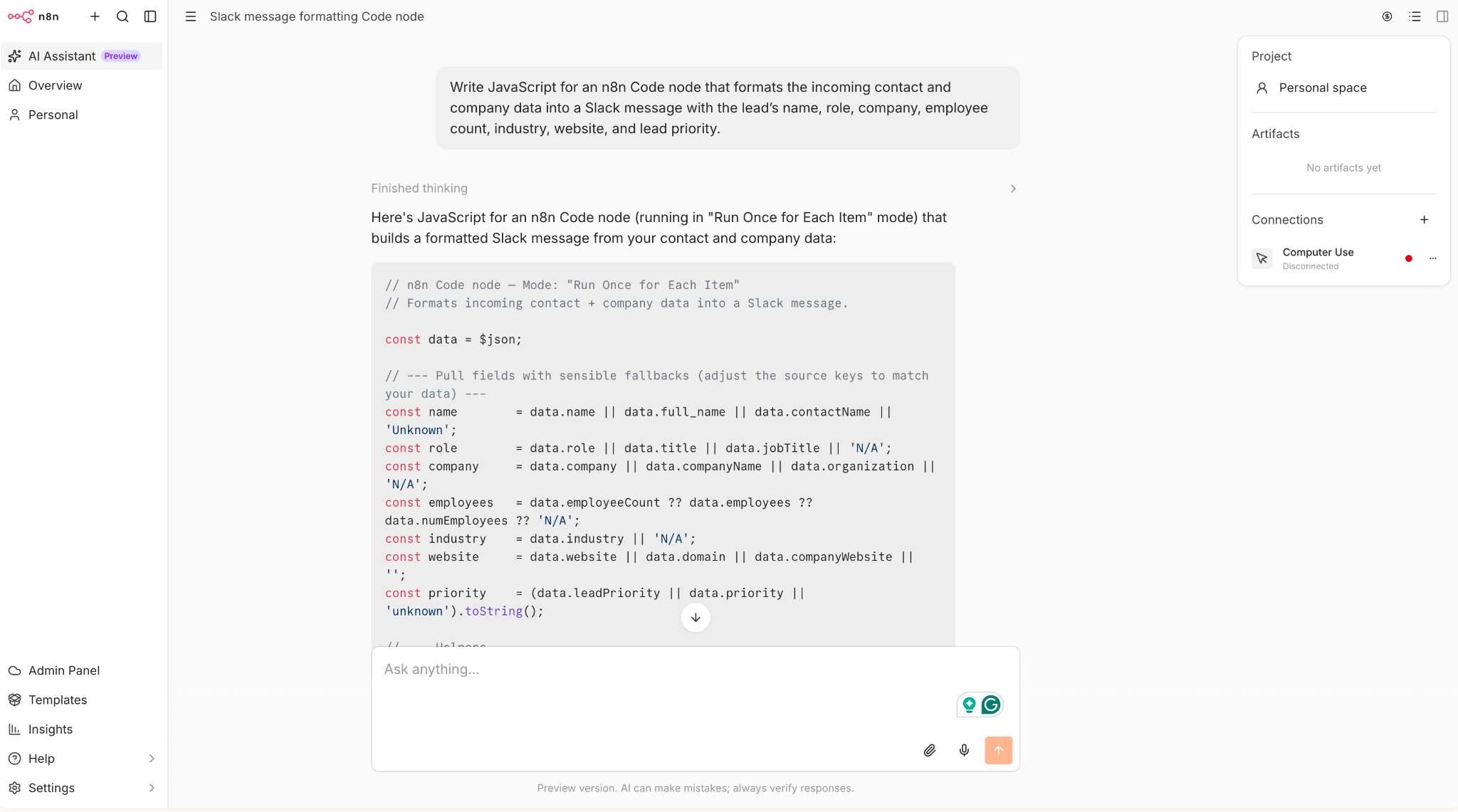
It is the cheaper option if you are comfortable self-hosting. The Community Edition is free, so you only pay for a small server. If you would rather avoid managing infrastructure, n8n's cloud plans are still meaningfully less expensive than Zapier at comparable volume. See our n8n vs. Zapier breakdown for the fuller comparison.
It is less ideal for someone who wants a fully hands-off, no-code experience. You will want at least some technical comfort.
Key features
- Open-source, self-hostable automation with no license fee
- Visual, node-based workflow builder with real branching logic
- Native code steps (JavaScript/Python) alongside no-code blocks
- n8n Cloud option if you'd rather not manage your own server
Pros
- Meaningfully cheaper than Zapier for heavy usage, especially self-hosted
- More flexible logic and error handling than most no-code tools
- Strong fit for technical teams that want full control
Cons
- Steeper learning curve than Zapier for non-technical users
- Self-hosting means you own the maintenance and uptime
- Execution-based cloud pricing can be confusing to budget for upfront
Pricing
n8n offers plans starting at $24/month (Starter, billed monthly), with Pro at $60/month, Business at $960/month, and custom Enterprise pricing. All plans include unlimited users, workflows, and integrations.
12. Jasper: Best AI tool for consistent branding and marketing content across many channels
Jasper is AI software built for marketers. It focuses on keeping content on-brand, maintaining a consistent voice, and scaling creative output across teams.
What stood out to me most was the Brand Voice feature. You give Jasper examples of your tone and messaging, such as emails, blog posts, and social copy, and it learns to match that style across different formats.
I tested it by asking Jasper to write a blog post after setting the brand voice, topic, outline, and resources. It took a while, but the draft was solid and only needed light edits.
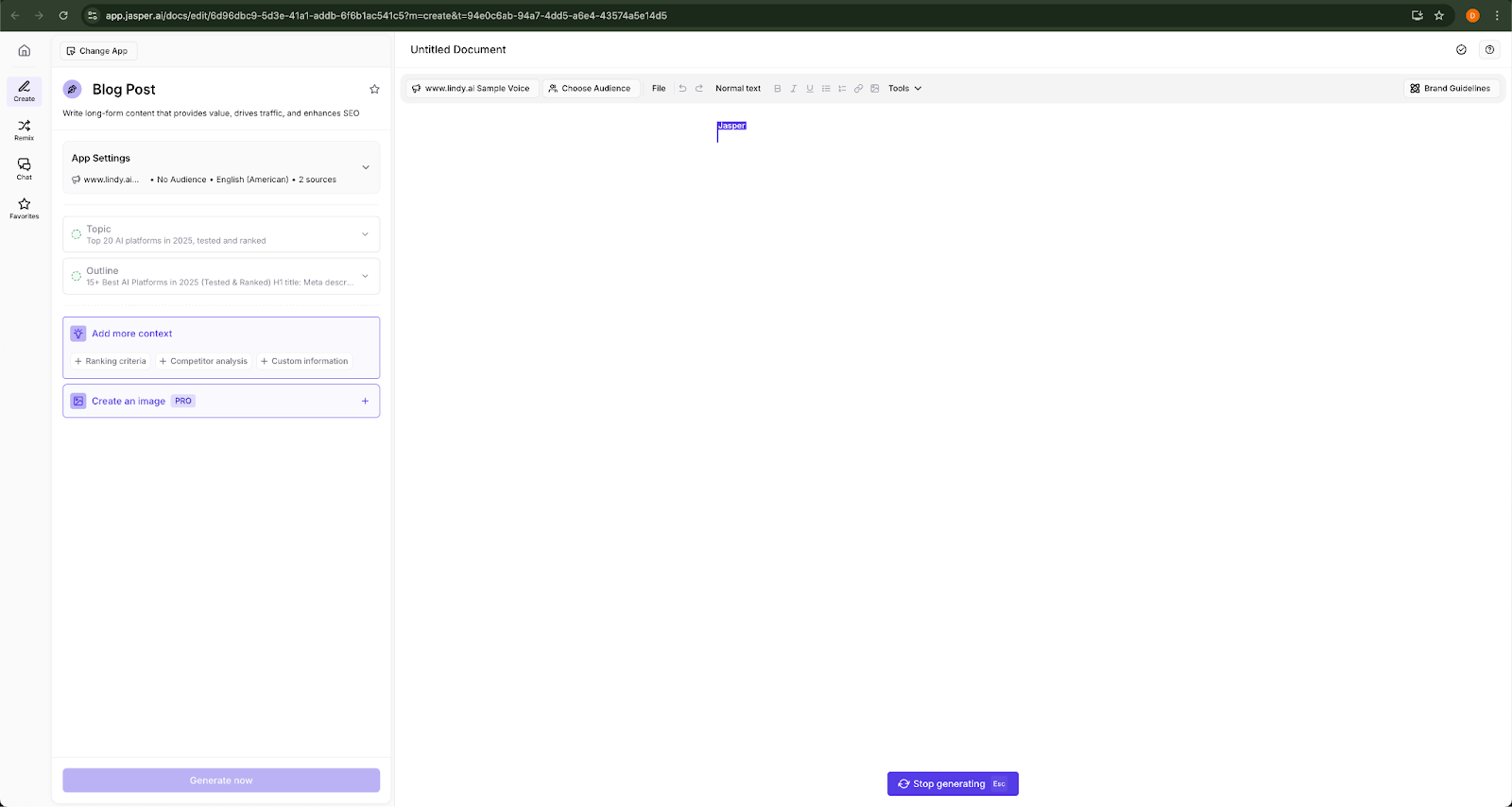
The interface is clean, with prebuilt workflows for blog outlines, email campaigns, product descriptions, SEO content, and other repeatable content tasks. You can also collaborate with teammates in real time and leave feedback.
Jasper makes sense if you are running campaigns, managing a content pipeline, or working across multiple client voices. The trade-off is price. It can speed up production, but it still needs a person setting the strategy and shaping the final message.
Key features
- AI trained on your brand voice
- Campaign workflows for blog, social, email, and ads
- Team collaboration with version control and comments
- Built-in plagiarism checker and SEO mode
- API and CMS integrations
Pros
- Great for scaling consistent content across channels
- Workflow templates save time on repetitive tasks
- Reliable output quality when Brand Voice is dialed in
Cons
- You still need to guide it because it cannot infer your strategy on its own
- Pricey for small teams or casual users
- Can feel rigid outside marketing use cases
Pricing
Jasper plans start at $69/month (Pro, billed monthly per seat), with Business available at custom pricing for teams needing advanced governance and deployment options. A free 7-day trial is available on the Pro plan.
13. Midjourney: Best AI app for generating stylized, high-quality AI visuals
Midjourney is one of the most popular generative AI tools that helps you create visuals that look like they came from a designer's portfolio. Whether for mockups, mood boards, pitch decks, or even ideating a product concept, Midjourney gives you sharp, detailed, and surprisingly artistic images.
The web app is easy to use, and the prompt flow makes sense right away. You describe the image you want, like a futuristic office with glass walls at sunset, ultra-realistic style, and cinematic lighting, and Midjourney returns four high-res options in about 30 seconds. To adjust the result, you can upscale one image or re-roll the batch.
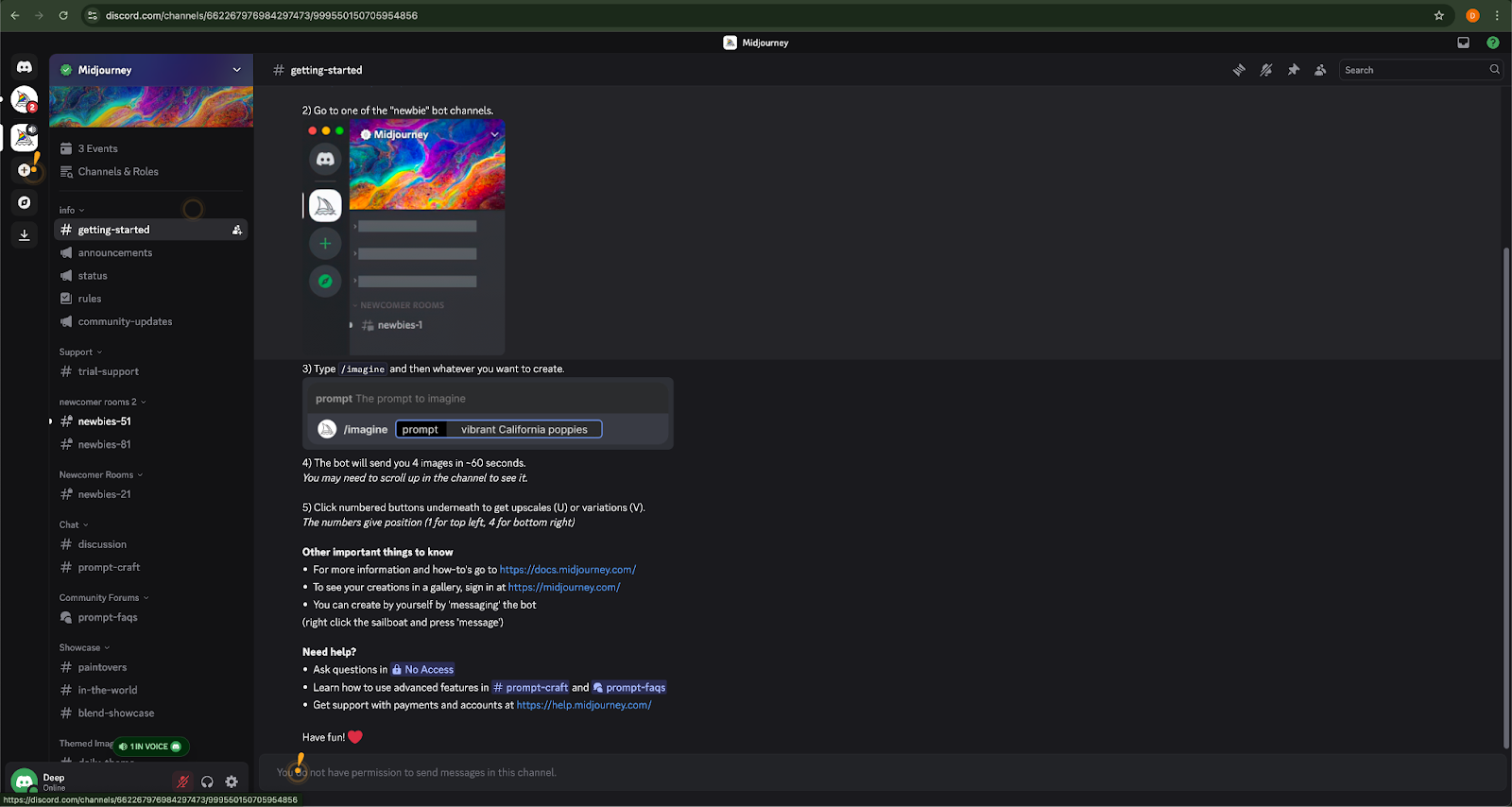
Midjourney consistently produces polished, stylized visuals with a moody, editorial feel. It works especially well for branding, storytelling, and concept design. I’ve used it for blog headers, client presentations, ad mockups, and video storyboards.
Literal prompts can produce inconsistent results, with occasional missed details or partial instructions. Midjourney performs best on creative work such as mood boards, concept art, and other projects that leave room for interpretation.
Key features
- Prompt-based generation on the web or in Discord
- Latest model produces photorealistic and stylized images
- Fast iterations with upscale, remix, and variation tools
- Customizable aspect ratio, style, and resolution
- Personal and commercial licenses included
Pros
- Stunning visual quality, with outputs that look polished and impressive most of the time.
- Fast once you've learned the prompt style
- Great for storyboarding, design inspiration, and mockups
Cons
- Not ideal for exact product renders or literal accuracy
- Limited control over fine details or multi-image consistency
- Text rendering has improved but still isn't fully reliable for longer phrases or precise typography
Pricing
Starting at $10/month (Basic, billed monthly), Midjourney scales up to $30/month for Standard, $60/month for Pro, and $120/month for Mega.
14. ElevenLabs: Best platform for AI voice, narration, and conversational agents
ElevenLabs is the clear leader for AI-generated speech quality. Its narration, dubbing, and voice agents sound natural, with an emotional range that can be hard to tell apart from a real recording in short clips.
I tested ElevenLabs for narration and voice cloning by uploading a short sample, then generating new lines in that cloned voice for a training video.
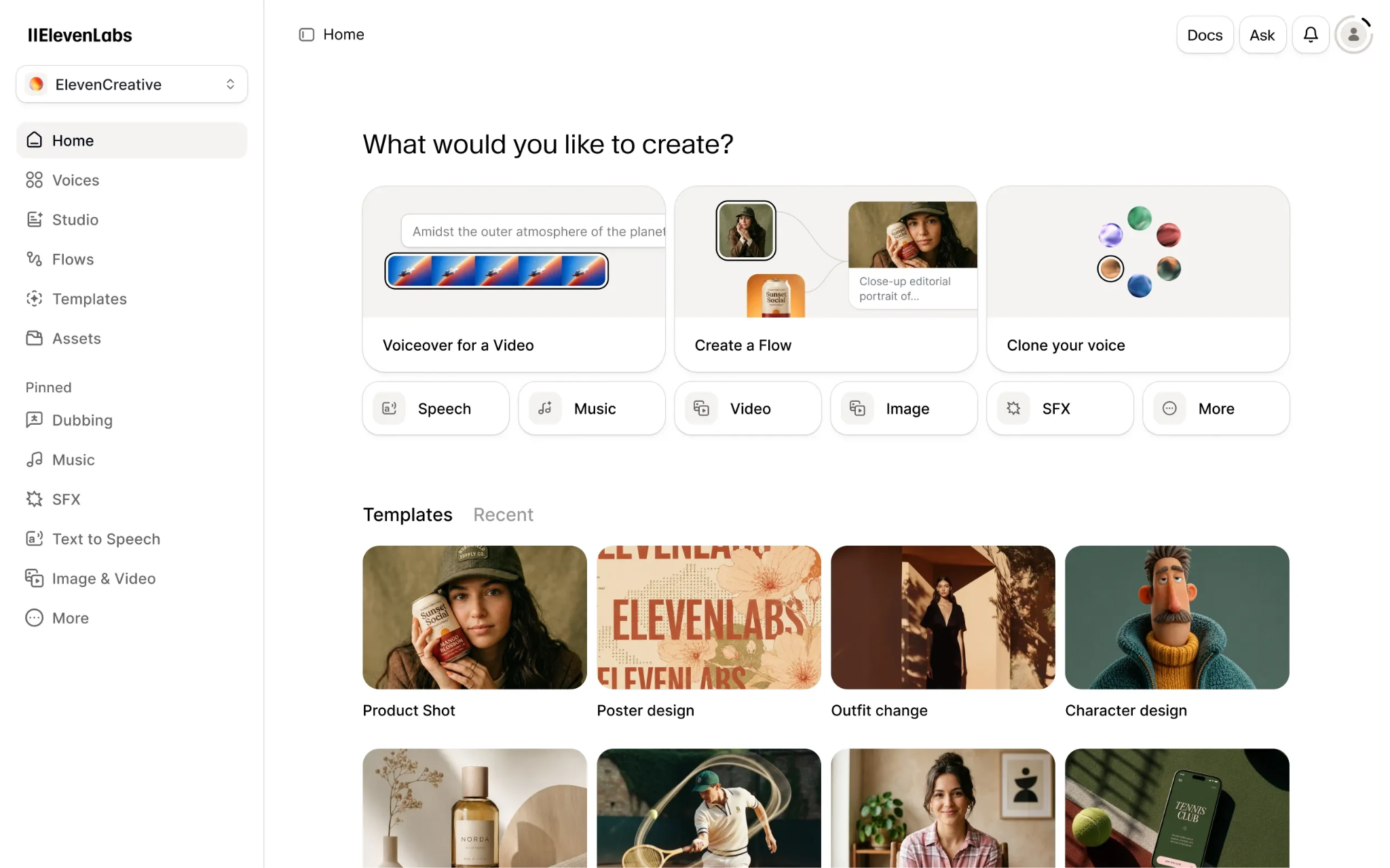
The output held up well across different pacing and tone. The dubbing pipeline was even more impressive. You can feed in an existing video and get a multilingual dub back in the original speaker's voice, which is still rare among competing tools.
The conversational agent builder is useful too. It lets you create a voice bot for support or scheduling calls, with real-time interruption handling built in.
The free and lowest tiers are mainly useful for testing. The credit system also takes a minute to understand because usage is measured in characters, so you will want to check it closely before budgeting around it.
Key features
- Natural-sounding text-to-speech across dozens of languages
- Professional voice cloning from a short sample
- Multilingual dubbing pipeline for existing video
- Conversational voice agents with real-time interaction
Pros
- Best-in-class voice quality and emotional range
- Genuinely strong dubbing and localization pipeline
- Fits a solo creator just as well as a full production team
Cons
- Free and entry tiers are too limited for real production use
- Character-based credit system takes time to budget for accurately
- Costs can climb quickly for high-volume narration or agent minutes
Pricing
ElevenLabs plans start at $6/month (Starter, billed monthly), with Creator at $22/month and Pro at $99/month. A free plan is also available.
15. Descript: Best AI tool for editing audio and video by editing the transcript
Descript flips traditional editing on its head. You edit by working with the transcript, not timelines and waveforms like in Adobe or Final Cut. You cut a sentence from the text, and it's edited out of the video or podcast.
I’ve used it to clean up webinar recordings, repurpose interviews, and even build quick YouTube intros.
It also makes corrections easier through the Overdub feature, which lets you clone your voice, insert missing words, and fix small mistakes without recording the section again. The results can vary, but it works well for minor edits. For creators looking to expand beyond synthetic voice cloning, comparing the best ai voice assistants can help streamline broader audio workflows.

The screen recording feature is another useful addition. You can capture your screen and webcam, add narration, and finish the video within the same tool. I’ve used it for internal training and async product updates, and it feels much faster than switching between Loom and a separate video editor.
Descript has limits with motion graphics and complex multi-track editing. For regular YouTube, social media, or company blog content, it remains one of the fastest and most accessible options.
Key features
- Edit video/audio by editing the transcript
- Overdub voice cloning to insert or rewrite words
- Automatic transcription with speaker labeling
- Screen recording with webcam and audio
- Multitrack timeline editor for more complex edits
Pros
- Extremely fast for a podcast or video cleanup
- Great for solo creators, marketers, and internal content
- Voice correction without re-recording is a real time-saver
Cons
- Overdub takes time to learn, especially for longer editing sessions
- Limited motion graphics or effects
- Desktop app can be glitchy with large files
Pricing
Descript plans start at $24/month (Hobbyist, per person/month; $16/month billed annually), with Creator at $35/month and Business at $65/month, and custom Enterprise pricing for larger teams.
16. Lovable: Best platform for building a working web app without writing code
Lovable is a vibe-coding app builder that turns plain-English prompts into working full-stack web apps. You describe what you want, and it generates something you can click through, test, and use, beyond a static mockup.
I tested it by describing a simple internal tool with a submission form and a filterable table. Within minutes, it generated a working app with a real backend, while Lovable Cloud handled the hosting and database setup.

Iteration felt fast for simple changes. I could describe what I wanted adjusted, and Lovable rebuilt the relevant part without making me start over.
Lovable gets expensive when the app becomes complex. Multiple API integrations, custom business logic, or a tricky webhook can burn through credits quickly because every extra build, fix, and debugging step uses part of your allowance.
It is a strong tool for validating an idea or shipping an internal tool fast. For a production-grade app, I would still plan on having a developer involved for the parts that need deeper logic, security, or reliability.
Key features
- Generates full-stack web apps from plain-English prompts
- Lovable Cloud for built-in hosting and database
- Fast iteration for straightforward feature requests
- SSO and design templates on higher tiers
Pros
- Fast way to turn an idea into a working prototype
- No coding background required to get started
- Good for non-technical PMs and founders shipping MVPs
Cons
- Credit-based pricing gets expensive fast on complex builds
- Struggles with intricate integrations and custom business logic
- Best paired with a developer or code editor for production-grade work
Pricing
Lovable offers a free plan alongside paid tiers starting at $25/month (Pro, billed monthly), with Business at $50/month, plus custom volume-based pricing for Enterprise.
17. Gamma: Best AI tool for turning rough notes into a presentation or document
Gamma turns a prompt, outline, or pasted content into a polished presentation, document, or simple webpage in a couple of minutes, with no slide-by-slide design work required.
I tested it by pasting a rough content brief and asking it to build a presentation deck; it structured the content into a logical flow, picked layouts, and generated supporting visuals automatically.
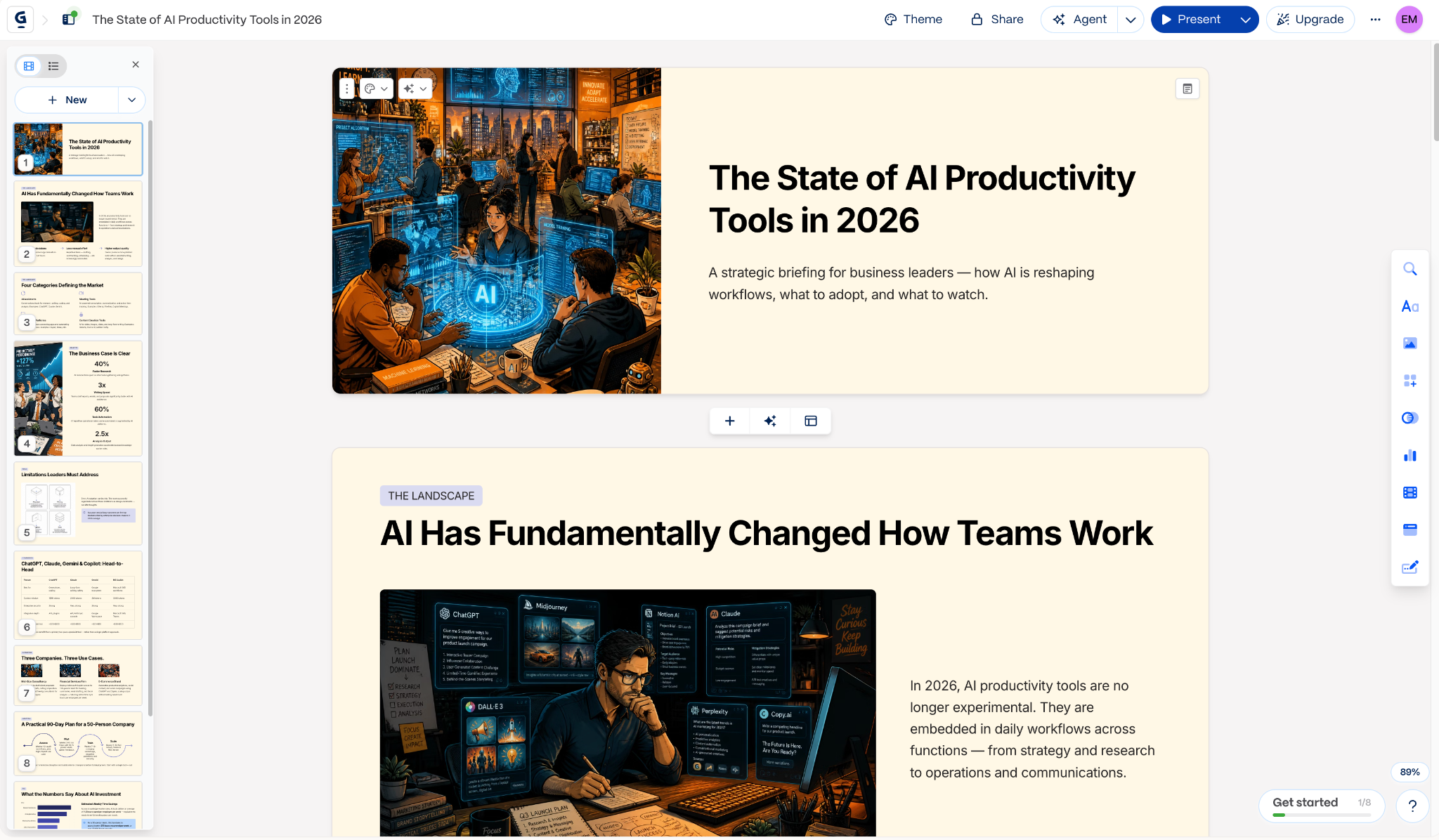
With one click, the deck is ready to share or export. The tool also handles longer, multi-page documents well, and Smart Charts can turn a pasted data table into a usable visual without extra design work.
The free plan is useful for testing, but it caps generations and adds Gamma branding to exports, which matters if you are building something client-facing. Gamma also will not replace a dedicated design tool when you need pixel-level control over the layout.
Key features
- Generates full presentations, documents, or webpages from a prompt
- Smart Charts for turning data into visuals automatically
- AI-native templates and one-click content remixing
- Connectors for pulling in existing docs and conversations
Pros
- Extremely fast way to go from notes to a shareable deck
- Genuinely useful free tier for testing the tool
- Good design defaults without needing a designer
Cons
- Free tier caps generations and adds visible branding
- Less control over fine layout details than a dedicated design tool
- No PowerPoint export on the free plan, which matters for some teams
Pricing
At $12/seat/month (Plus, billed monthly), Gamma includes 1,000 monthly credits and advanced AI image models, with Pro at $25/seat/month adding API access and custom branding, and Ultra at $100/seat/month unlocking the most advanced AI models.
Next, here's how all 17 stack up at a glance.
AI Tools Compared: Pricing, strengths, and tradeoffs
| Platform | Starting price | Key strength | Watch for |
|---|---|---|---|
| Claude Cowork | Free (paid from $20/mo) | Strong at long-document reasoning and analysis | More reserved, weaker for code and technical tasks |
| ChatGPT | Free (paid from $8/mo) | Fast, flexible, useful across almost any domain | Output quality depends heavily on prompt clarity |
| Google Gemini | $4.99/mo | Native integration across Gmail, Docs, and Sheets | Consumer vs. Workspace pricing is confusing |
| Perplexity | Free (paid from $34/mo) | Research with citations you can actually check | Not built for writing or automation tasks |
| Lindy | $49.99/mo (7-day trial, no free tier) | Delegates multi-step work across the team in Slack or over text | Slight learning curve; iMessage delegation is iPhone-only |
| Microsoft Copilot | $9.99/mo | Built into Word, Excel, Outlook, and Teams | Drafts can feel generic; pricing bundles are confusing |
| Notion | Free (paid from $12/member/mo) | AI baked directly into docs and workspace | Not suited for long-form content creation |
| Zapier | Free (paid from $29.99/mo) | Massive app ecosystem, easy no-code automation | Limited logic branching outside higher tiers |
| Cursor | Free (paid from $20/mo) | Deep codebase context inside an AI-native IDE | Limited use outside development work |
| Grok | Free (paid from $30/mo) | Real-time info from X and current events | Free tier is restrictive; image tools carry moderation risk |
| n8n | Free self-hosted (paid from $24/mo) | Open-source, flexible logic and error handling | Steeper learning curve for non-technical users |
| Jasper | $69/mo | Consistent on-brand content across channels | Pricey for small teams; still needs strategic direction |
| Midjourney | $10/mo | Stylized, polished AI-generated visuals | Text rendering still not fully reliable for longer phrases |
| ElevenLabs | Free (paid from $6/mo) | Best-in-class voice quality and dubbing | Free/entry tiers too limited for real production |
| Descript | $24/mo (or $16/mo billed annually) | Edit audio/video by editing the transcript | Limited motion graphics and complex editing |
| Lovable | Free (paid from $25/mo) | Turns prompts into working full-stack web apps | Gets expensive fast on complex builds |
| Gamma | $12/seat/mo | Turns notes into a polished deck or doc in minutes | Free tier caps generations and adds branding |
{{cta}}
Extra tips for choosing the right AI platform
A great tool on paper can still flop in practice if it doesn't match your team's workflows, tech stack, or pace. Quick things to check before you commit:
- Match the tool to your team's skill level. Zapier and Lovable take plain-English instructions and handle the technical part for you; n8n and Cursor assume some technical comfort.
- Match the tool to the pace of the work. Live customer calls and chats need instant, dynamic responses; scheduled tasks like reports or lead scoring fit batch automation just fine.
- Check pricing at scale, not just the entry price. Per-seat and credit-based costs climb fast; self-hosted or flat-tier options can end up cheaper once volume grows.
- Weigh consolidation against tool fatigue. Lindy combines inbox management, scheduling, meeting notes, and follow-ups, while Zapier replaces multiple one-off integrations with a single automation layer. Either can be more useful than adding another tool to a crowded stack.
- Confirm security and compliance if you're in finance, healthcare, or another regulated space.
- Check support and documentation before you're stuck troubleshooting alone.
Final verdict
The best AI tool in 2026 depends on the job you need it to do. For flexible thinking, writing, research, and analysis, ChatGPT, Claude, Perplexity, or Gemini will cover most daily work.
For coding, Cursor or Lovable will get you further than a generalist chatbot. For voice, video, or visual output, ElevenLabs, Descript, Midjourney, or Gamma are built for that specific job.
For recurring admin, a better chatbot won't save the most time. Lindy, Zapier, or n8n can take over the repetitive tasks that keep eating your day, from follow-ups to app handoffs.
Start with the task costing you the most hours this week, then choose the tool built to handle that work.
FAQs
What are the best AI apps in 2026?
There's no single best AI app in 2026; the right one depends on the job. ChatGPT and Claude are strong options for a flexible assistant that can write, analyze data, or help with code.
For operational workflows, like automating email follow-ups, handling customer calls, or syncing CRM data, look at a dedicated assistant like Lindy or an automation tool like Zapier; a generalist chatbot won't cover it.
What are the best AI websites in 2026?
There's no single best AI website, since the right one depends on what you need it to do. For writing, research, and everyday thinking, ChatGPT and Claude cover most of the work well.
If you need to get things done across your apps, like automating follow-ups or updating your CRM, a tool like Lindy or Zapier will take you further than a chat window. And for building something, Cursor and Lovable turn plain-English prompts into working apps.
Which AI tools are free to use?
Most tools on this list offer some kind of free access: ChatGPT, Claude, Google Gemini, Perplexity, Notion, Zapier, Cursor, Grok, Lovable, Gamma, and ElevenLabs all have a free tier, and n8n's self-hosted Community Edition is free software you run yourself.
Lindy and Jasper skip an ongoing free tier in favor of a short free trial, and Microsoft Copilot and Midjourney don't offer a free option at all.
What can you build with an AI platform?
AI tools let you create AI phone agents that qualify leads or answer support calls, set up email assistants that respond and update CRMs automatically, automate internal ops like lead routing and meeting summaries, generate content in bulk for blogs and training, or build a working web app from a plain-English description.
Can AI platforms integrate with my workflow?
Most tools on this list integrate with popular apps like Google Sheets, Slack, Airtable, or Notion, and many also connect through APIs or webhooks. Integration support matters if you want automation that plays well with the rest of your stack: Lindy, Zapier, and n8n are the strongest here.
Are AI tools safe and compliant?
Yes, but coverage varies a lot by tool and use case. Most top AI apps prioritize data security, but not every tool is built for compliance-heavy industries. Always check a vendor's privacy and data policies, especially certifications like SOC 2 or HIPAA support, if you're in healthcare, finance, or legal.
What's the difference between an AI platform and an AI tool?
An AI platform combines several AI capabilities into one connected product, while an AI tool typically does just one job, like generating copy, summarizing text, or cleaning up audio. A platform adds workflow logic, automation, and integrations on top, so it can handle more than one task at a time.
Do I need coding skills to use these tools?
No, not for every tool. Tools like Gamma, Jasper, and Descript are built for non-technical users, with plain-English prompts and no setup beyond signing in.
Others, like Cursor or n8n, are more technical and may benefit from some coding or API knowledge. If you're not a developer, look for tools that guide you visually through setup.
Which tools are best for businesses vs. individuals?
Individuals tend to do well with everyday tools like Claude, Gamma, and Grok, while businesses offloading recurring work need tools built for delegation and automation, like Microsoft Copilot or Jasper. Those business-focused tools also support collaboration and grow with a team's needs, which matters less for a single user.
How can I use AI for customer support or automation?
You can use AI to respond to tickets or emails automatically, route requests to the right team, log conversation details into your CRM, and summarize support calls or chat transcripts.
What's the best all-in-one AI solution?
There's no single best all-in-one solution; it depends on whether you need a generalist thinking tool or an assistant that can take action across your apps. Google Gemini and Claude are stronger for writing, research, and reasoning, while Zapier and n8n are stronger when the work involves integrations, repeated tasks, and real actions across your tools.