
Learn how Lindy MCP works, connect an MCP server in 6 steps, and use it from Slack. Discover examples, permissions, and troubleshooting tips.
Your team asks for a quick update. You open one app to check project progress, another to look up customer details, and a third to see what's changed. Before you know it, you're switching between tabs, copying information, and spending half an hour on something that should've taken two minutes.
That chaotic routine can be a lot simpler.
You can use the Lindy MCP combination to connect your tools to Lindy, so you can ask questions, retrieve information, and get work done from Slack.
Lindy supports 3,000+ built-in integrations and compatible hosted MCP servers, giving your team access to more applications through plain-language requests.
You can connect a server, choose which actions Lindy can perform, and decide when it needs your approval. Here’s how to set it up, use it for everyday tasks, and fix common connection problems.
What is Lindy MCP?
Lindy supports Model Context Protocol (MCP), an open standard that lets AI applications communicate with external tools and data sources.
Think of an MCP server as a bridge between Lindy and another application. It tells Lindy what information it can retrieve and which actions it can perform.
For example, connecting Linear's MCP server lets Lindy read your Linear issues and projects. You can then ask it to check open issues or summarize project progress. MCP is particularly useful for AI agents that work across different business applications.
What you need before connecting an MCP server to Lindy
Connecting an existing MCP server to Lindy takes no coding. Building or hosting your own server may require a developer. You'll need four things:
- A Lindy account: Access to Lindy's Integrations section
- An MCP server URL: A public HTTPS endpoint that supports Streamable HTTP
- Authentication credentials: An API key, token, or OAuth authorization if the server requires one
- Slack access: A workspace connected to Lindy if you want to use MCP tools from Slack
How to connect an MCP server to Lindy: 6 steps to follow
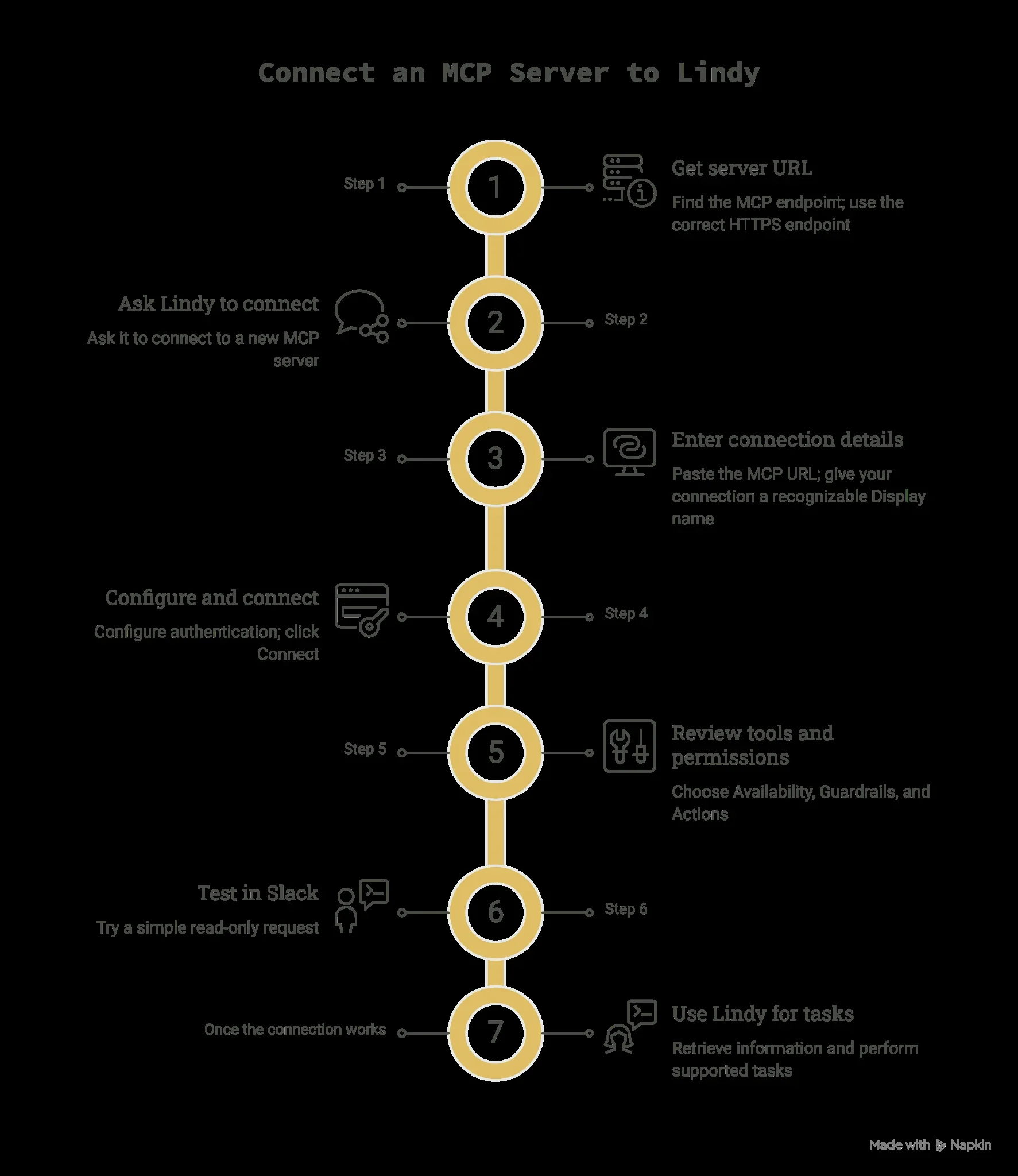
Lindy lets you connect an MCP server from its Integrations menu. Once connected, it identifies the server's supported tools and makes them available as actions. I'll use Linear as our example.
Here are the six steps:
Step 1: Get your MCP server URL
Find the MCP endpoint for the application you want to connect. Most providers publish it in their documentation. For example, Linear provides:
- Standard endpoint: https://mcp.linear.app/mcp
- Read-only endpoint: https://mcp.linear.app/mcp/readonly
The read-only endpoint is a good starting point for retrieving project information without giving Lindy permission to modify issues. You can find both URLs in Linear's MCP documentation.
Make sure you're using the correct HTTPS endpoint. Lindy doesn't directly support local-only MCP servers.
Step 2: Open the Connect MCP server dialog
Sign in to Lindy and go to Integrations. Click + Add and choose MCP. The Connect MCP server dialog will appear.
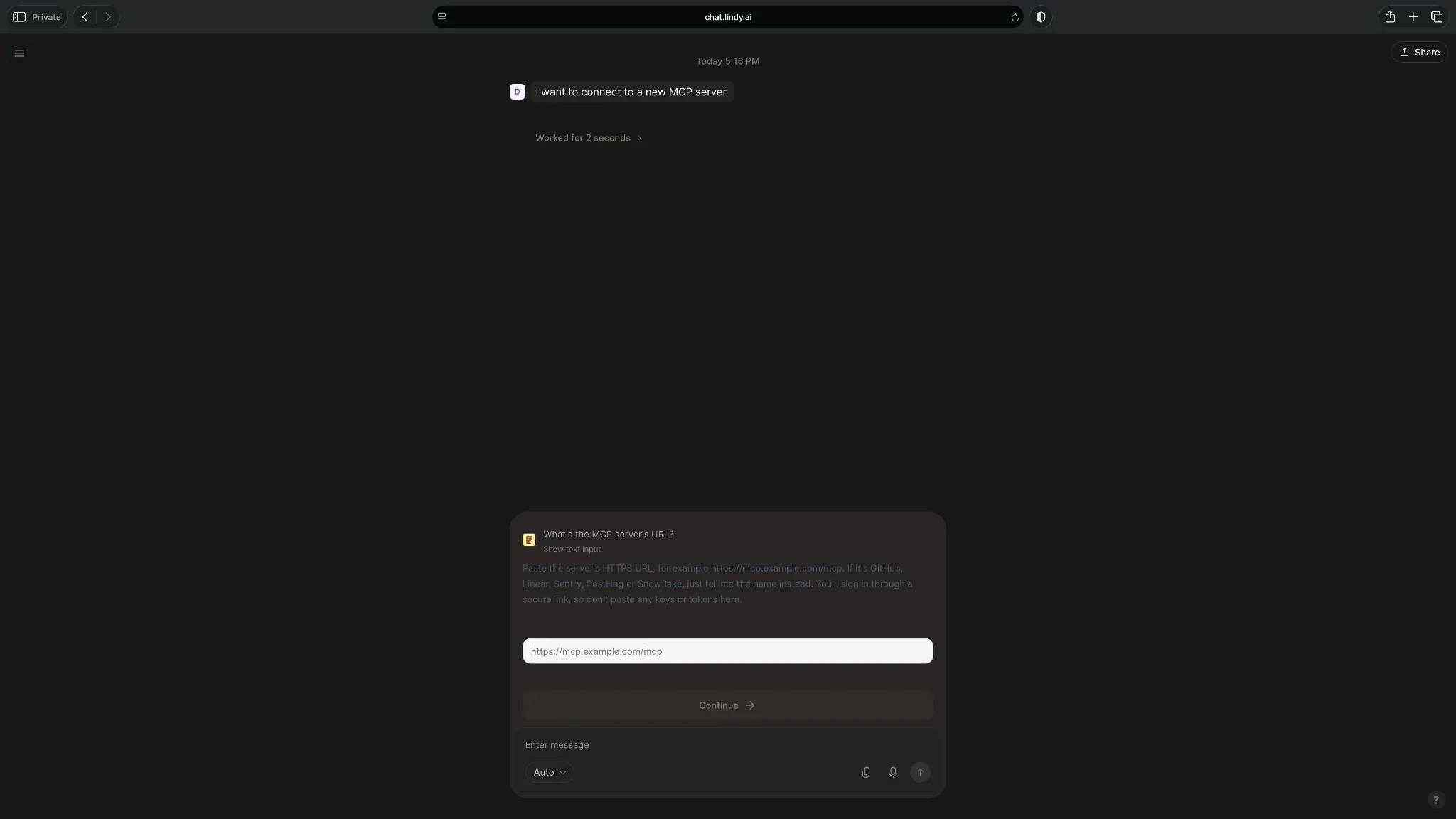
Step 3: Enter your server URL and display name
Paste the MCP URL into the Server URL field. Next, give your connection a recognizable Display name. A descriptive name helps when you connect multiple servers, especially if they share the same hostname.
For example:
- Server URL: https://mcp.linear.app/mcp/readonly
- Display name: Linear read-only
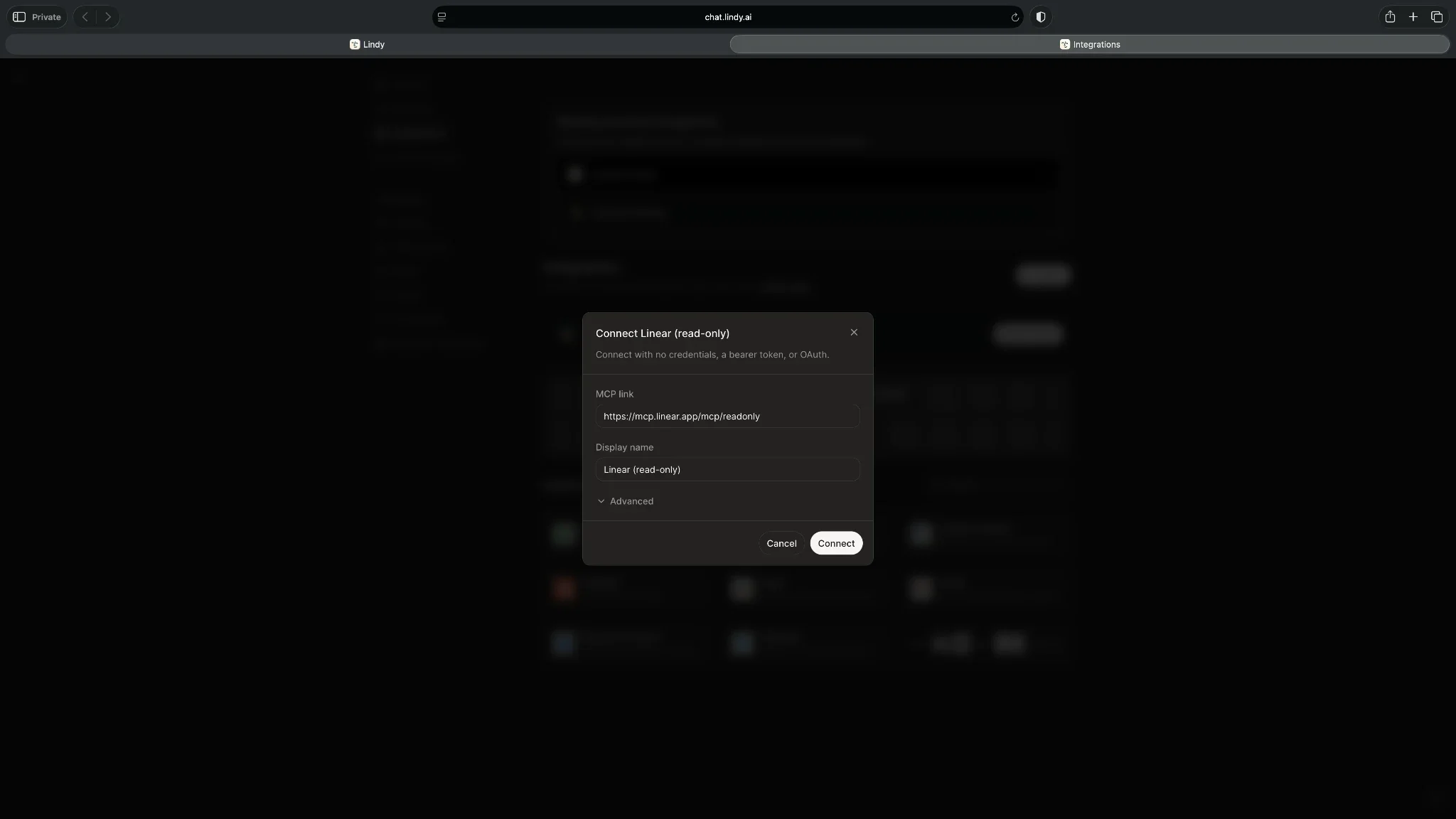
Step 4: Configure authentication and connect
Some MCP servers need authentication before Lindy can access their tools. Lindy supports:
- OAuth: Complete the server's authorization flow when prompted
- Bearer token: Add a static token under Advanced
- Custom headers or query parameters: Use these when required by your server
If your server supports anonymous access or handles authentication through OAuth, you won't need to enter a static credential.
Click Connect once everything is configured. Lindy will display the server in your integrations list, along with its reported and available tool counts.
Step 5: Review your tools and permissions
Open the connected MCP server from Integrations. You'll find three important settings:
- Availability: Choose Only you or Your workspace
- Guardrails: Select Always allow or Ask for approval
- Actions: Review and disable tools you don't need
Lindy enables compatible tools when you connect a server. I recommend starting with read-only actions and enabling additional permissions when necessary.
Step 6: Test your connection in Slack
Now, open your Slack conversation with Lindy. Try this request:
“@Lindy, check Linear and summarize the high-priority issues assigned to me this week.”
If you've configured the connection correctly, Lindy can retrieve the relevant project information and prepare a summary, subject to the server's permissions.
You can use Lindy more like an AI teammate, asking it to fetch information and perform supported tasks from your existing conversations.







4 examples of MCP servers you can connect with Lindy
Each server gives Lindy its own set of tools. Here are four examples worth exploring:
1. Linear: Track projects and manage issues
Your project manager asks for an update five minutes before a meeting. Ask Lindy to pull the open issues for you.
Connect Linear's MCP server and try:
"Check our website redesign project. List the open high-priority issues, who owns each one, and any overdue tasks."
Where it's useful: Sprint reviews, project updates, identifying blockers, and preparing for meetings.
Linear also supports creating and updating issues through its standard MCP endpoint. Start with read-only access and expand permissions as needed.
2. Sentry: Investigate application errors
Your engineering team gets reports that customers can't complete checkout. Someone needs to investigate the errors and identify what deserves attention. Sentry's MCP server supports error searches, issue investigation, and performance analysis.
Example request:
"Check Sentry for checkout-related errors from the last 24 hours. Summarize the most frequent issues and include links to investigate them."
Where it's useful: Incident reviews, bug triage, monitoring recurring errors, and preparing engineering updates.
Sentry also lets you scope MCP connections to an organization or project, which can limit unnecessary access.
3. Stripe: Review invoices and payment information
Finance teams often need to check invoices, customer records, and payment statuses before preparing reports or following up with customers. Stripe's MCP server provides tools for accessing supported billing and payment information.
Example request:
"Check Stripe for unpaid invoices from this month. Group them by customer and show the outstanding amounts."
Where it's useful: Payment tracking, invoice reviews, customer account checks, and financial reporting.
Stripe also exposes tools that can modify financial records. Connect with OAuth or an agent API key that has only the permissions you need, and keep sensitive actions behind approvals.
4. Custom MCP server: Access internal business systems
Your company might use an internal database, inventory platform, or custom application that lacks a built-in Lindy integration. If your developers expose approved operations through a hosted MCP server, Lindy can use its compatible tools.
Example request:
"Check our inventory database and list products with fewer than 20 units remaining. Include their suppliers and reorder quantities."
Where it's useful: Inventory checks, internal reporting, order tracking, and company-specific workflows.
Custom connections are particularly helpful when exploring AI employees for specialized operational tasks.
Remember: Every MCP server offers different tools. The actions Lindy can perform depend on the server's capabilities, credentials, and permissions.
How Lindy handles MCP permissions and approvals
Connecting business applications gives Lindy access to information and potentially sensitive actions. The three settings discussed in Step 5 decide what Lindy can do on its own.
For example, you could allow Lindy to retrieve project information while restricting actions that delete records or change financial data.
Guardrail preferences are personal, even when you share an MCP connection within your workspace. Actions with external consequences are also subject to Lindy's broader approval controls.
Start with limited permissions and expand them as your team becomes comfortable with the connection.
Common Lindy MCP connection problems and how to fix them
MCP connections sometimes fail because of incorrect endpoints, authentication issues, or unsupported tools. Here's how to identify and resolve the most common problems:
Lindy can't connect to your MCP server
Possible cause: You're using an incorrect endpoint, a local server address, or an unsupported transport.
Fix: Check the provider's documentation and confirm you're using a public HTTPS Streamable HTTP endpoint.
For example, Linear recommends /mcp for new connections. Its older /sse endpoint is deprecated.
If you're hosting a custom server, confirm that its endpoint is reachable.
Authentication keeps failing
Possible cause: Your credentials are expired, incorrectly formatted, or missing the required permissions.
Fix: Check whether the server uses OAuth or a static credential. Reauthorize the connection if necessary.
For bearer tokens, verify the value and the required Authorization header. Also, confirm that the connected account has permission to access the requested information.
Lindy shows fewer available tools than expected
Possible cause: The MCP server publishes tools with schemas Lindy doesn't currently support.
Fix: Open the connection and compare its reported tool count with the available count.
If no tools are available, check the endpoint, server catalog, and tool compatibility. A successful connection doesn't guarantee that every server tool will be usable.
Lindy connects, but a requested action doesn't work
Possible cause: The action is disabled, the connected account lacks permission, or the request needs approval.
Fix: Open the MCP server's Actions settings and confirm the required tool is enabled.
Next, review Guardrails and the permissions associated with the connected account. Try a simple read-only request first. If that succeeds, test the more advanced action separately.
Use Lindy MCP to hand off tasks across apps from Slack
Lindy gives your team another way to work with specialized applications and internal systems. Connect a compatible server, review its permissions, and test a simple request in Slack. Once everything works, you can explore more involved tasks across your applications.
Try Lindy for free and see what tasks it can take off your plate.
Frequently asked questions
Which Lindy plans support MCP servers?
Lindy supports MCP servers across all its plans, including the free trial. You get $50 in free credits for seven days with the free trial to test Lindy. The Team plan starts at $49.99/user/month for 5,000 credits.
Does Lindy support remote and local MCP servers?
Lindy supports hosted MCP servers with public HTTPS Streamable HTTP endpoints. However, it doesn’t directly support local-only servers and local standard-input/output connections.
What happens when an MCP tool needs approval?
When you select Ask for approval, Lindy requests permission before calling tools from that MCP server. You can review and approve the request before it proceeds.
Do I need coding skills to connect an MCP server to Lindy?
No, you can connect an existing compatible MCP server by entering its URL and completing any required authentication. Building a custom server may require development experience.
About the editorial team

Lindy leads GTM at Lindy and is the team’s most prolific automation builder. She publishes weekly educational videos and articles on building AI assistants – And yes, she’s a real person!

Marvin is a Growth Engineer at Lindy focused on AI agents, automation, and product-led growth.
