10 Best AI Apps for Android: What I Kept After 3 Weeks
Marvin tested ten Android AI apps over three weeks, including ChatGPT, Gemini, and Perplexity, weighing phone integration, source citations, offline performance, and pricing.


Finding the best AI apps for Android used to mean picking a chatbot and calling it a day. The job has grown well past that, and my own phone is the proof. This week, it transcribed a call from my pocket during a drive, and last night it answered me in airplane mode with no signal.
I spent three weeks living inside these apps on a Pixel and a Galaxy, no laptop allowed.
That meant dictating notes on a train, searching four months of files by voice, cleaning up messy emails from the keyboard, and asking a fully offline model a question in airplane mode to see what still worked.
A few apps I installed got deleted by day two. The ten below stayed on both phones.
AI Apps for Android: TL;DR
- ChatGPT: Choose it if you want one app that does a bit of everything well
- Google Gemini: Choose it if you want AI wired into the phone and Google apps you already use
- Claude: Choose it if you hand your phone long, messy documents to untangle
- Perplexity: Choose it if you want answers with sources you can check yourself
- Microsoft Copilot: Choose it if your work lives in Outlook, Word, and Teams
- Grammarly: Choose it if you want cleaner writing inside every app you type in
- Lindy: Choose it if you want a company-wide AI teammate in Slack that also runs the tasks you text it
- Otter.ai: Choose it if meetings and voice notes pile up faster than you can write them down
- ElevenLabs: Choose it if you want to turn text into natural speech from your pocket
- PocketPal AI: Choose it if you want AI that runs fully offline and keeps everything on your device
How I tested these AI apps for Android
Every app ran on two phones for three weeks, a Pixel and a Galaxy, and each review below opens with the moment that app proved it belonged.
I started with the basics, the stuff you do fifty times a day. Dictating a note one-handed, rewriting a rushed email from the keyboard, asking a quick question mid-conversation without breaking stride. For capture on the go, a dedicated ai note taking app makes dictation and quick summaries much easier. If inbox management is your main focus, pairing these features with a dedicated android email app keeps your workflow seamless.
Then I pushed harder. Feeding a 22-page PDF into an app on the train, transcribing a live meeting, searching months of my own files by voice, and pulling the whole phone offline to see which apps kept answering. For those looking to create custom tools instead of relying on pre-built software, an ai app builder makes crafting mobile utilities straightforward.
I judged every app on five things, and flagged privacy where it mattered: To see how premium productivity software compares on cost, reading about motion app pricing provides a helpful baseline.
- Daily usefulness: Whether I reached for it during a normal day, or forgot it was installed
- Android fit: How well it used the phone itself, from the keyboard and share sheet to widgets and voice
- Free tier: What the free plan covers before a paywall, since few people ever upgrade
- Speed: How fast it went from tapping the icon to giving me something I could use
- Privacy: How each app handled my data, since a phone holds more of it than a laptop ever does
Three apps didn't make the cut. Google Assistant felt frozen in time next to Gemini. Microsoft's SwiftKey AI did less than Gboard already does for free. Character.ai was fun for an evening but had no place in my workday.
This left me with the apps that keep working when your phone is the only device you have, tested well past what a store listing shows.
AI Apps for Android: Quick Comparison
| 💻 Tool | ⚡ Strengths | 🎯 Best For | 💰 Starting Price |
|---|---|---|---|
| ChatGPT | All-round chat, voice, image, file reading | Anyone who wants one flexible AI app | $8/month |
| Google Gemini | Deep Android and Google app integration | Android users living in Gmail, Maps, Docs | $4.99/month |
| Claude | Long documents, careful writing, voice mode | People handing over dense text to untangle | $20/month |
| Perplexity | Cited answers, live web search | Anyone who needs sourced research on the go | $20/month |
| Microsoft Copilot | Outlook, Word, Teams, screen and camera help | Microsoft 365 users | $9.99/month |
| Grammarly | Keyboard-wide writing help in any app | Anyone who wants cleaner writing | $12/month |
| Lindy | Company-wide teammate in Slack, texts back and finishes the task | People who want the work done for them, from start to finish | $29.99/user/month |
| Otter.ai | Live transcription, meeting summaries | Anyone drowning in meetings and voice notes | $16.99/user/month |
| ElevenLabs | Natural text-to-speech and voice design | Creators turning text into audio | $6/month |
| PocketPal AI | Fully offline, on-device, private models | Privacy-first users with no signal | Open source |
Pricing is correct as of August 2026. Check the vendor before you buy, since these plans change often.
1. ChatGPT: Best all-round AI app for Android
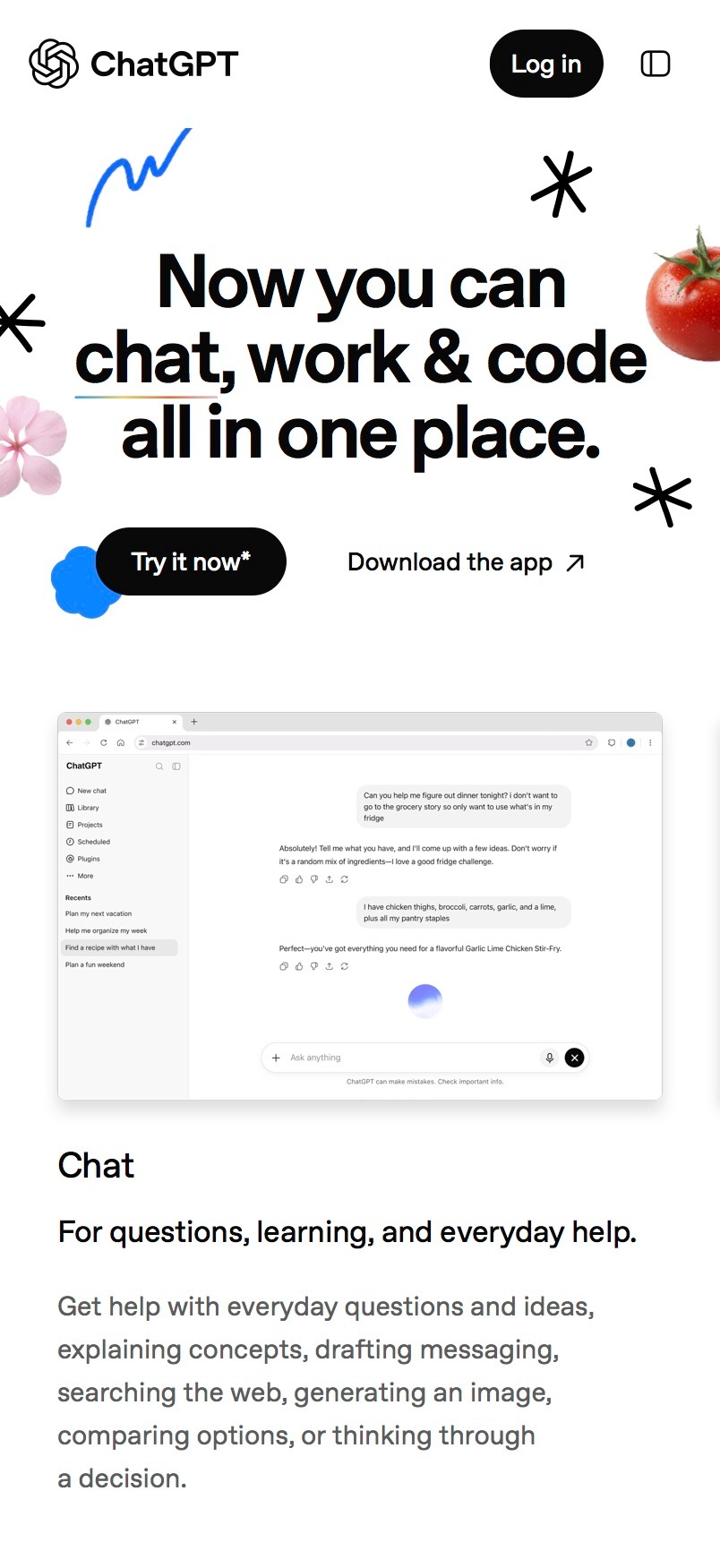
What it does: ChatGPT is the most-installed AI chatbot app to date, and it is the one people think of first. It answers questions, reads photos and PDFs you feed it, holds a spoken voice conversation, and generates images, all from one screen.
Best for: Anyone who wants a single AI app that covers the everyday jobs rather than juggling five that each do one thing.
This is the app I opened more than any other, because I rarely had to stop and think about which tool the job called for. I photographed a parking sign in a language I could not read, and it told me I had twelve minutes before a ticket.
Reading a photo is one thing, but voice is where the phone app pulls ahead of the desktop. Its live voice mode holds a real back-and-forth without cutting me off mid-thought, and I talked through a decision on a walk without touching the screen.
Key features
- Photo and file reading: Point the camera at a document, receipt, or sign, and it extracts and explains what is there without any typing
- Live voice mode: A natural spoken conversation that handles interruptions, pulls from memory, and can search the web while you talk
- Image generation: Describe what you want, and it creates it in the app, useful for a quick graphic while you are away from a desk
- Dictation: An upgraded speech-to-text model that holds up across accents and switches between languages mid-sentence
Pros and cons
Pros:
✅ Covers text, voice, image generation, and file reading in one app, where other rivals here handle only two or three of those
✅ Reads photos, PDFs, spreadsheets, and screenshots in the same chat, so one app covers input types that others split across features
✅ Works the same on any Android phone, with no dependence on a specific brand or ecosystem
Cons:
❌ Reads your screen only through a manual screen share, and cannot act inside other apps, so it stays closer to a chat window than a system assistant like Gemini
❌ Long voice and image sessions ran the battery down faster than plain text chat, enough that I felt it by afternoon
What users say
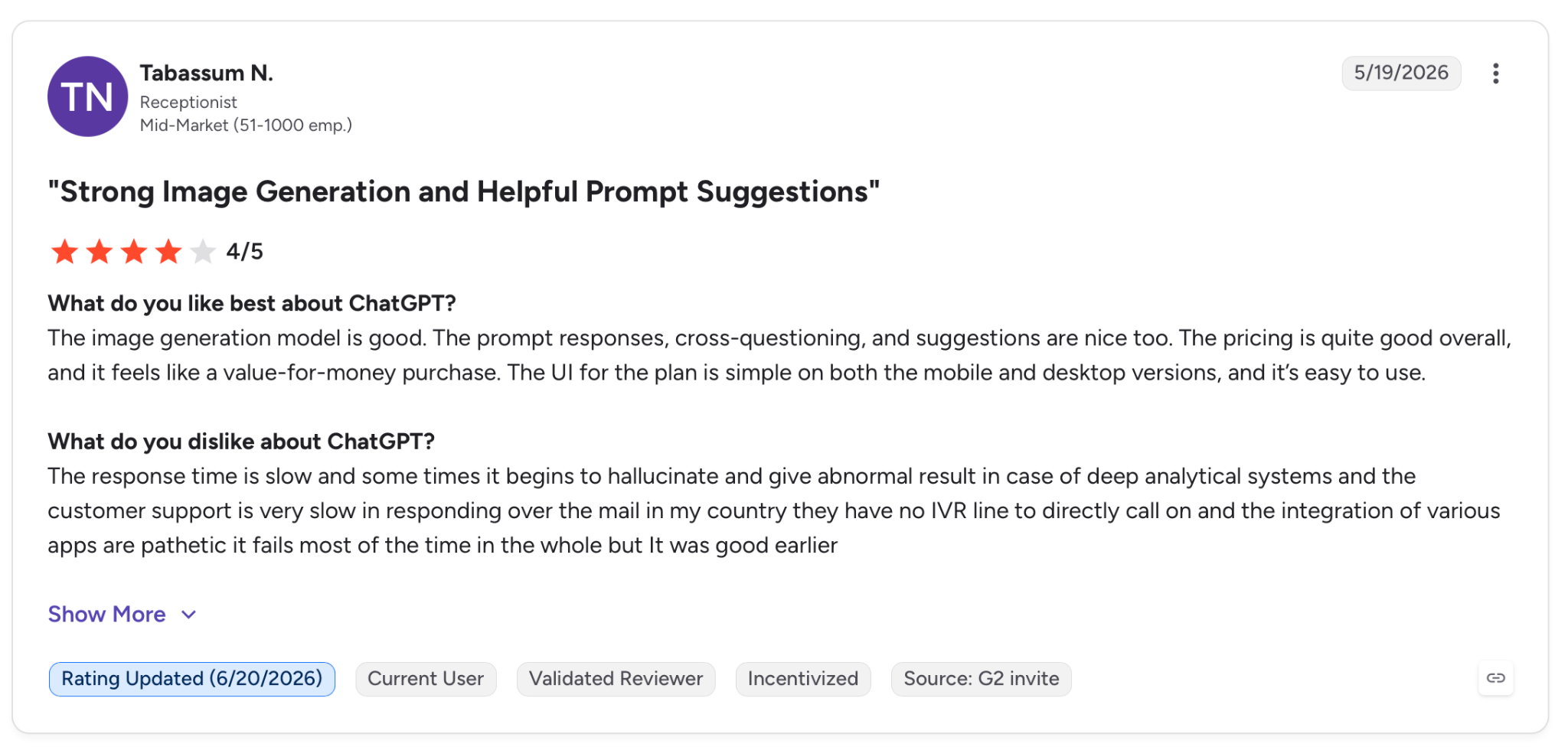
"The UI for the plan is simple on both the mobile and desktop versions, and it’s easy to use." — Tabassum N., G2
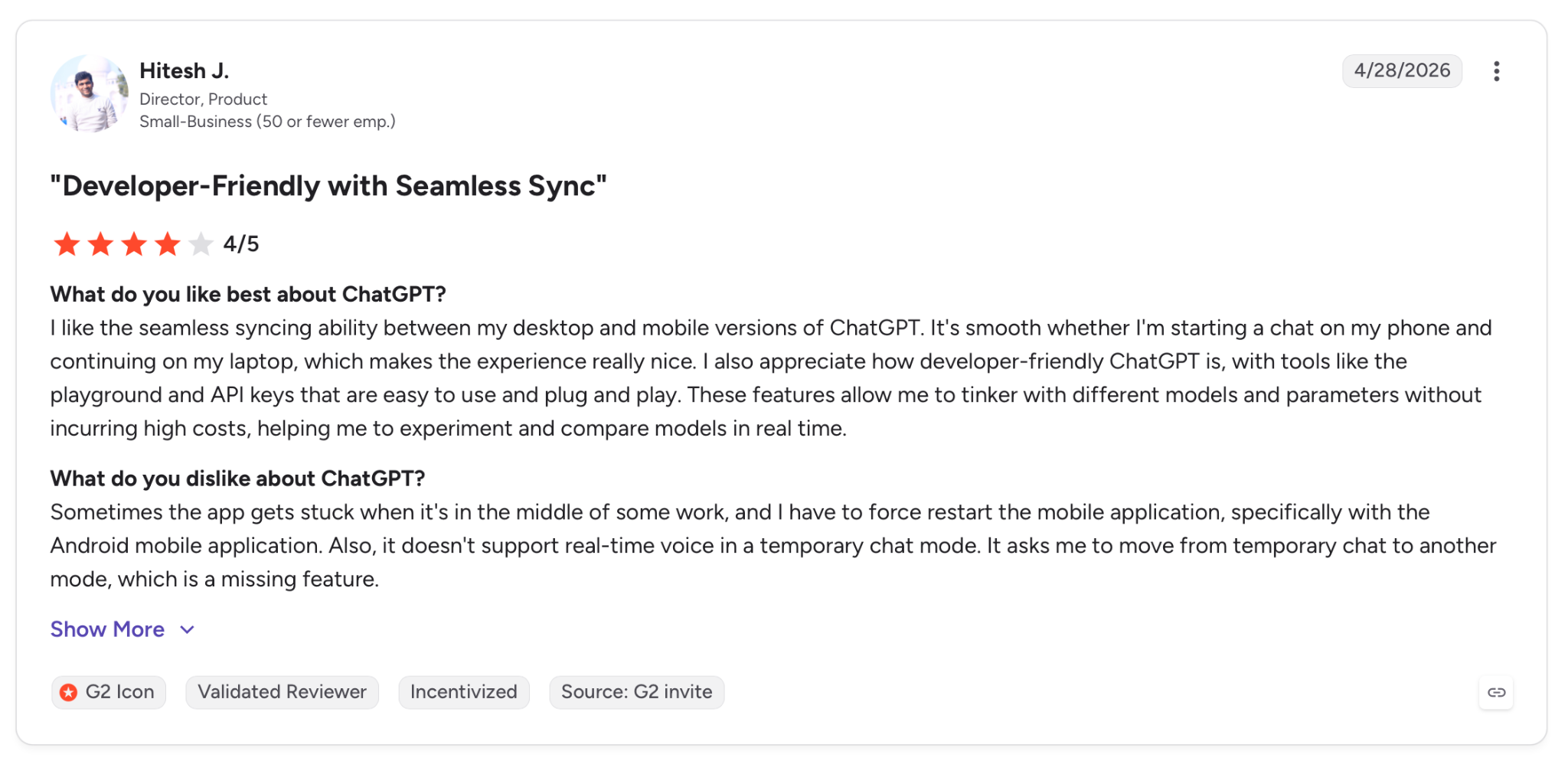
"Sometimes the app gets stuck when it's in the middle of some work, and I have to force-restart the mobile application, specifically with the Android mobile application." — Hitesh J., G2
Pricing
The free plan covers unlimited standard chats, voice, and photo reading. The first paid tier, Go, runs $8/month and lifts message and image limits with more access to the newer model.
Bottom line
If you install one AI app on your phone and stop there, this is the one to pick. It is the least likely to leave you stuck, and its free tier includes voice mode and photo reading that some rivals put behind a paywall.
2. Google Gemini: Best AI app for Android tied into your phone
What it does: Gemini is Google's assistant, and on Android it plugs into parts of the phone no other app here can reach, from the power-button assistant slot to reading whatever is on your screen. It talks back as you speak and acts inside Gmail, Maps, and YouTube on your behalf.
Best for: Android users whose day already flows through Gmail, Calendar, and Maps, and who want the AI sitting one press away from anything.
What sold me was the power button. Hold it, and Gemini comes up ready to answer, taking over the slot the old Google Assistant used to fill, so I never had to open an app first.
I saw it firsthand mid-webpage. I long-pressed to bring it up, tapped "Share screen with Live," and asked it to summarize a dense terms-of-service page. It did, and I never copied a word into another app.
That hands-free habit carried over to Gemini Live, which kept talking with my screen off and the phone in my bag. On a drive, I asked it to pull the address from a confirmation email and send it to Maps, and both happened while I kept my hands on the wheel.
Key features
- On-screen help: Summon Gemini over any app and ask about what you are looking at, from a webpage to a photo, with no copy-paste
- Gemini Live: A spoken conversation that keeps going hands-free with the screen locked, and can take in your camera or shared screen
- Works across Google apps: Draft and summarize in Gmail, start a route in Maps, or find a moment in a YouTube video, all from the assistant
- Camera and file input: Point it at something or hand it a file, and ask in plain language what to do with it
Pros and cons
Pros:
✅ Becomes the phone's default assistant, so it launches over any app from the power button or a "Hey Google" without opening it
✅ Carries out actions across Gmail, Maps, and YouTube directly, rather than just describing how to do them
✅ Ships preinstalled on today's Android phones, so there is nothing to set up
Cons:
❌ Value drops sharply outside Google's apps, so an Outlook or Notion user loses nearly all of the integration
❌ Its answers pulled from your own inbox and files sometimes got details wrong, so they need a check before you act
❌ The newest on-device features require recent Pixel or Galaxy hardware
What users say
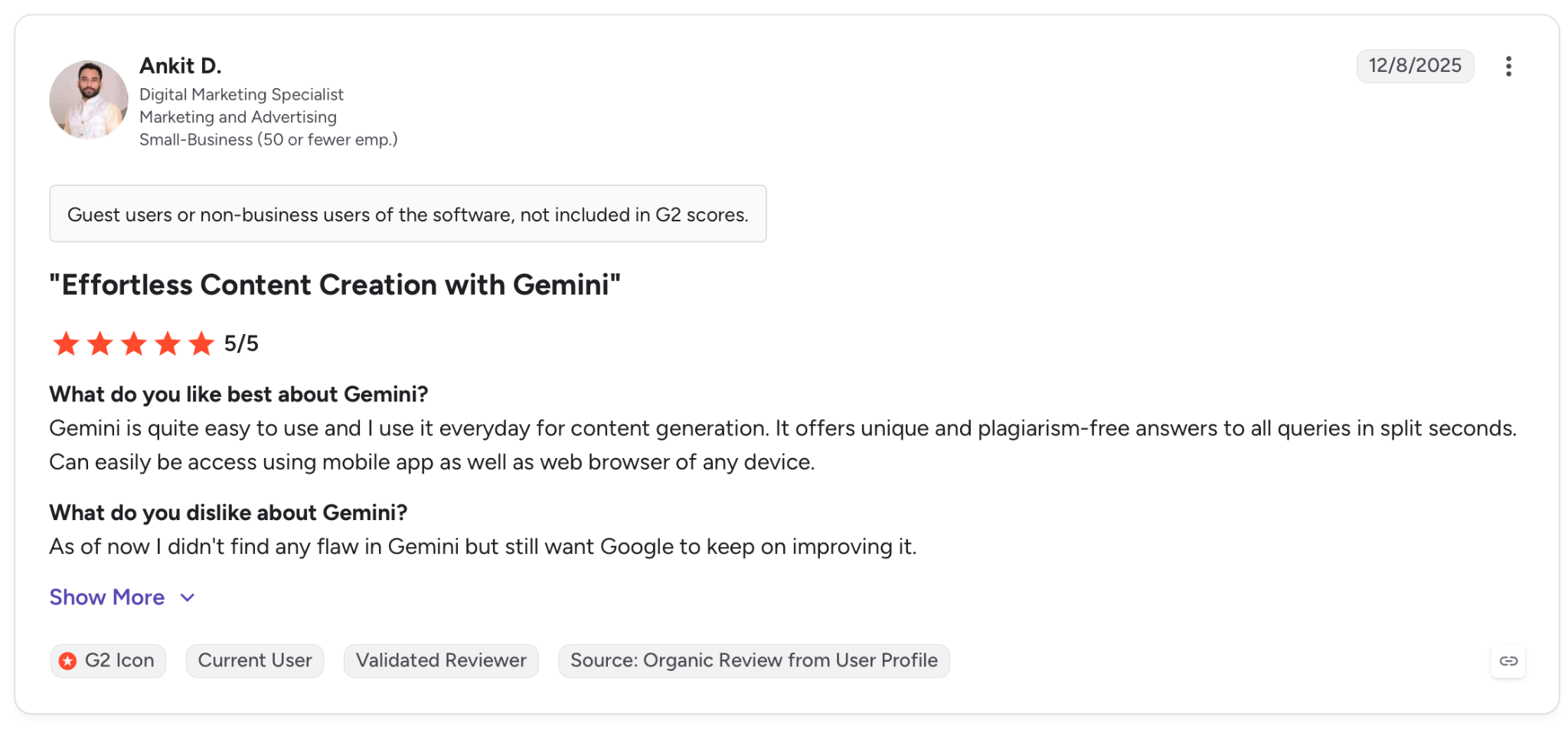
"It offers unique and plagiarism-free answers to all queries in split seconds. Can easily be accessed using the mobile app as well as a web browser on any device." — Ankit D., G2
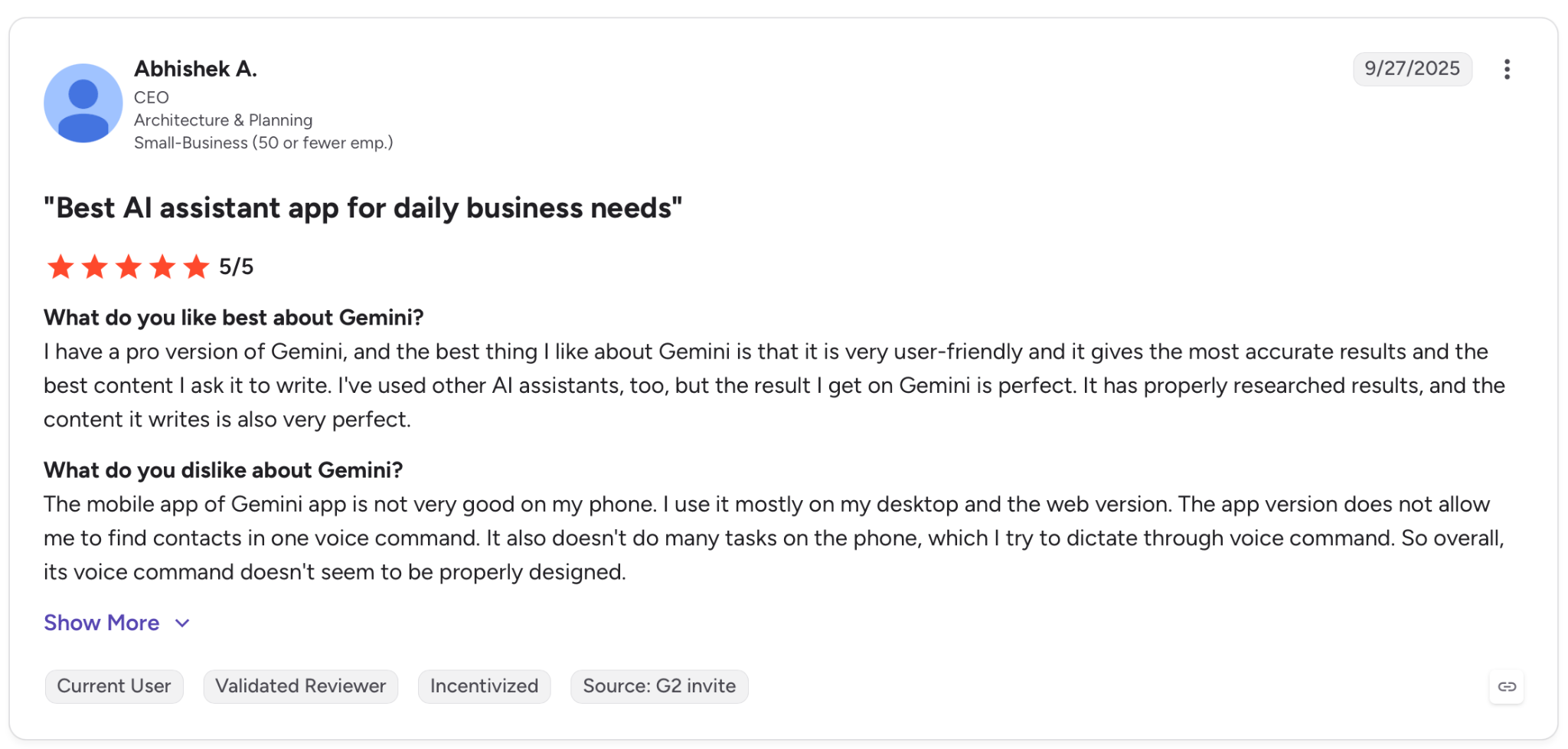
"The app version does not allow me to find contacts in one voice command. It also doesn't do many tasks on the phone, which I try to dictate through voice command." — Abhishek A., G2
Pricing
The Gemini app is free on Android and covers screen help, Live, and the Google app actions. Google AI Plus at $4.99/month adds more access to the top Gemini model, more usage, and 400 GB of storage.
Bottom line
No other app here is stitched into the phone like this. If your life already runs on Google, Gemini stops being an app you open and becomes something you just talk to across Gmail, Maps, and whatever screen you are on.
3. Claude: Best AI app for Android for long, messy documents
What it does: Claude is Anthropic's assistant, and it is the one I hand the hard reading to. Give it a long PDF, a tangled contract, or a thread that needs untangling, and it works through the whole thing, explaining itself as it goes.
Best for: People who photograph or forward dense text to their phone and want it worked through clause by clause, with the reasoning shown.
I fed it a 22-page rental agreement as a PDF from the share sheet. It went deeper than a summary, pulling out the clauses that could cost me money, quoting the exact lines, and telling me which two were unusual, which is the level of detail I keep coming back for.
What keeps that depth handy on a phone is Projects. I keep one project loaded with the documents for a side gig, so any question I ask on the go already has the background without me re-explaining it each time.
Key features
- Deep document reading: Hand it a long PDF or .docx file and it works through the whole thing, citing the parts it draws from
- Projects: Keep related chats and files together so the assistant carries the context between conversations
- Voice mode: Speak to Claude and switch between voice and typing inside the same chat, designed for phone use
- Home screen widget: Start a chat, open the camera, or dictate straight from an Android widget with one tap
Pros and cons
Pros:
✅ Holds far more text in a single chat than the other assistants, so long PDFs go in whole instead of in pieces
✅ Cites the exact lines it draws from, which makes its document answers easy to trust and check
✅ Takes actions in your phone's apps on every plan, drafting messages, creating calendar events, and setting alarms from the chat
Cons:
❌ No image, video, or audio generation model, so for a quick picture or clip you still switch to Gemini or ChatGPT
❌ Its app actions cover the essentials like messages, calendar, and maps, but reach fewer of the phone's own Android services than Gemini does
What users say
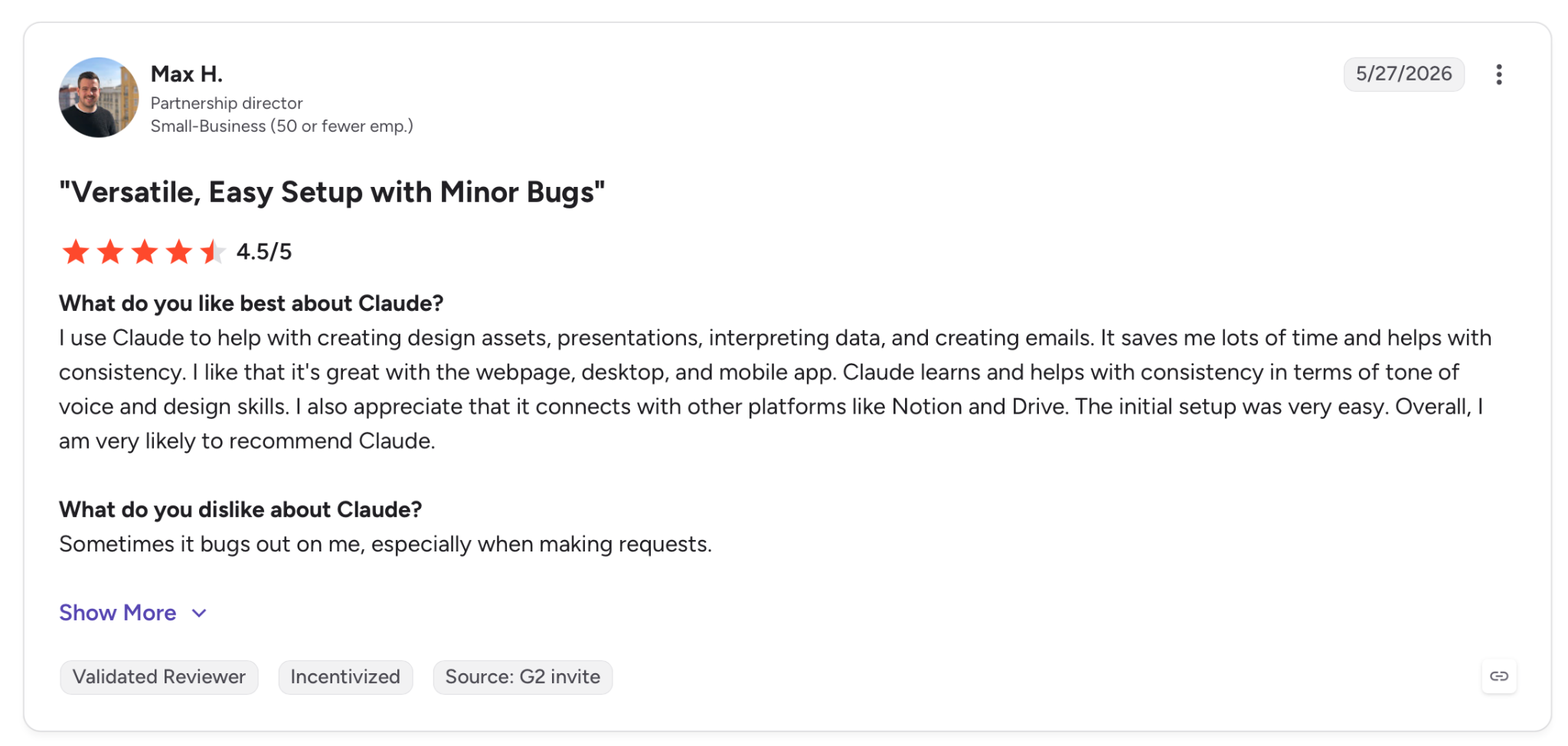
"I like that it's great with the webpage, desktop, and mobile app. Claude learns and helps with consistency in terms of tone of voice and design skills." — Max H., G2
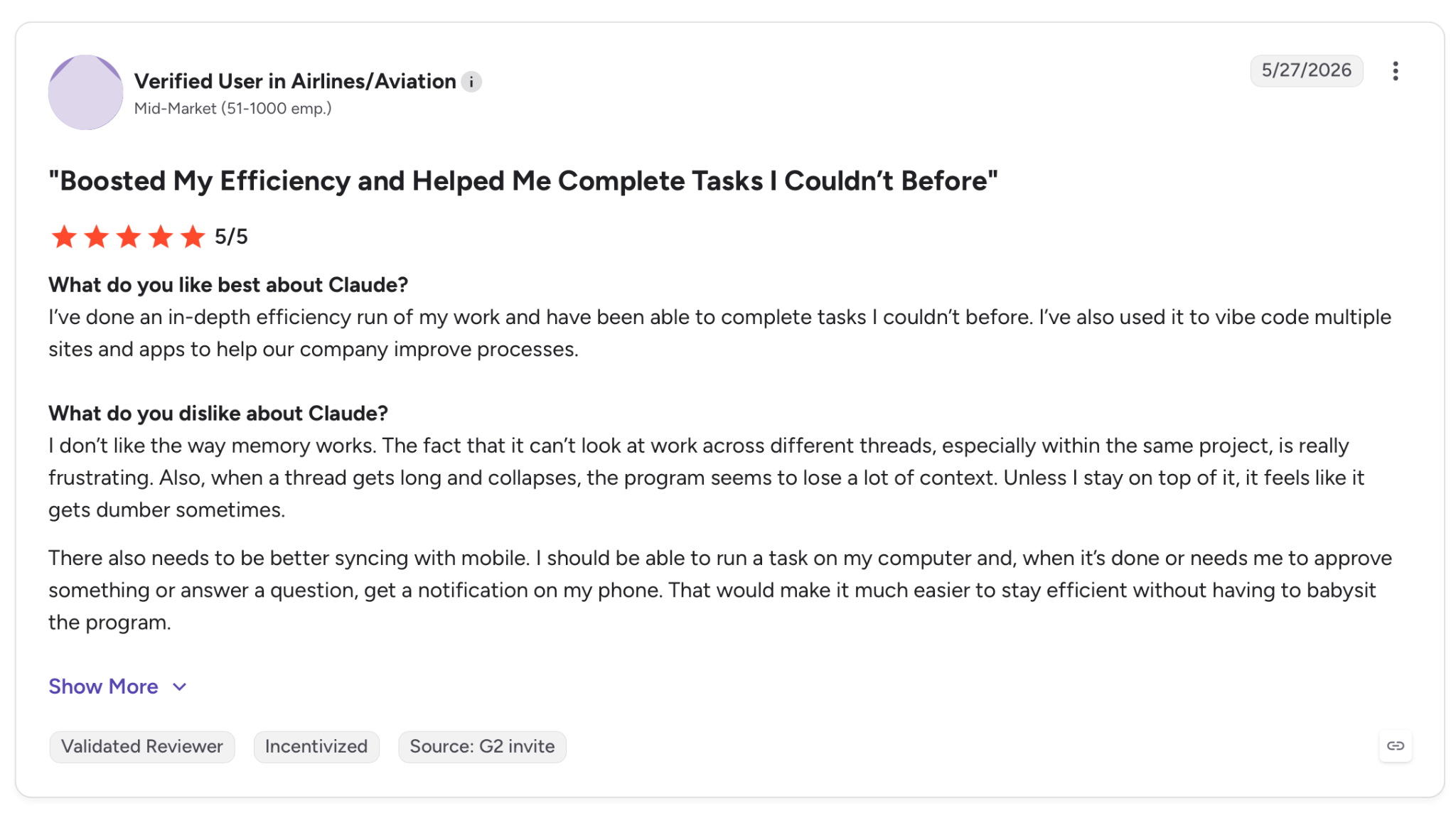
"There also needs to be better syncing with mobile. I should be able to run a task on my computer and, when it’s done or needs me to approve something or answer a question, get a notification on my phone." — Verified User, G2
Pricing
The free tier includes chat, web search, file reading, and voice on Android. Pro at $20/month, billed monthly, increases usage and gives you unlimited Projects for organizing your work.
Bottom line
Claude is the app I trust on a small screen when the reading is long and the details matter. I reach for it whenever getting the fine print right beats getting an answer fast.
4. Perplexity: Best AI app for Android when you need sources
What it does: Perplexity works like a search engine that talks back in full sentences. Every reply arrives with numbered citations you can tap, so you can see the source behind each claim and check it yourself.
Best for: Anyone who does not trust an AI answer until they can check the source and wants that check to take one tap on a phone.
I use it the moment an answer has to survive a fact-check. While booking travel, I asked which neighborhoods to avoid in a city I did not know, and every sentence carried a link I could open to see who said it. That changed how much I believed it.
Those sources get sharper once you use Focus, the control that sets Perplexity apart from the general chatbots. I pointed a query at academic sources only when I wanted research rather than blog noise, and the answer changed shape entirely.
Beyond that, Perplexity works as a system tool too. Set as the Android assistant, it also handles spoken tasks without opening the app.
Key features
- Cited answers: Every response shows numbered, tappable sources, so verifying a claim is one press instead of a separate search
- Focus: Aim a question at one kind of source, like academic papers or social posts, and Perplexity pulls its answer only from that source
- Android assistant: Set it as your assistant and run voice tasks and questions without opening the app first
- Draw to Search: Circle anything on your screen to search it directly, no typing the query out
Pros and cons
Pros:
✅ The only assistant here that sources every answer by default, so claims are traceable without extra prompting
✅ Pulls from live web results, so its answers reflect today rather than a training cutoff
✅ Lets you restrict a query to one class of source, which none of the general chatbots offer
Cons:
❌ Its research-first style makes it weak at free-form brainstorming and creative writing
❌ Depends on what is published online, so niche or very recent topics return thin, shaky answers
What users say
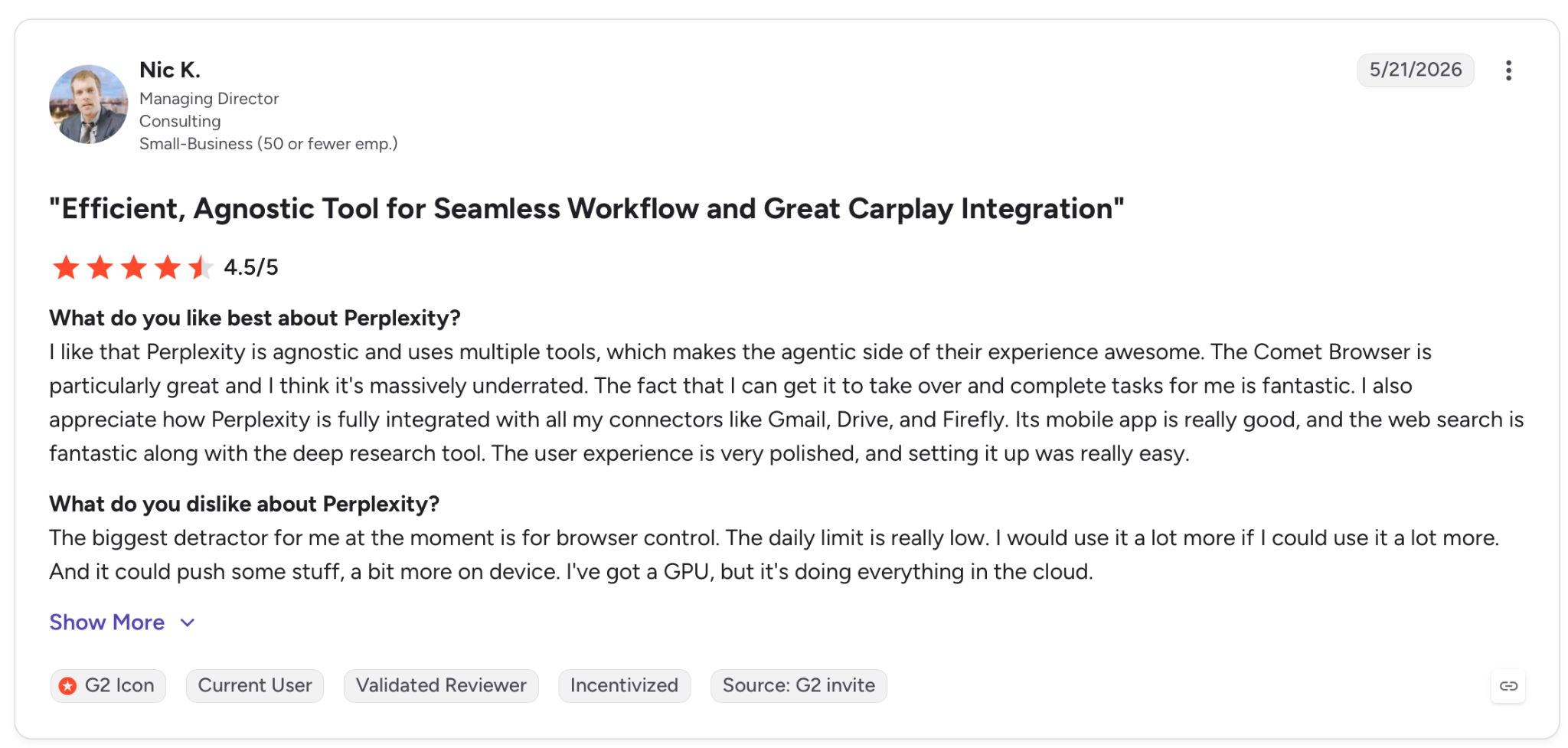
"Its mobile app is really good, and the web search is fantastic along with the deep research tool. The user experience is very polished, and setting it up was really easy." — Nic K., G2
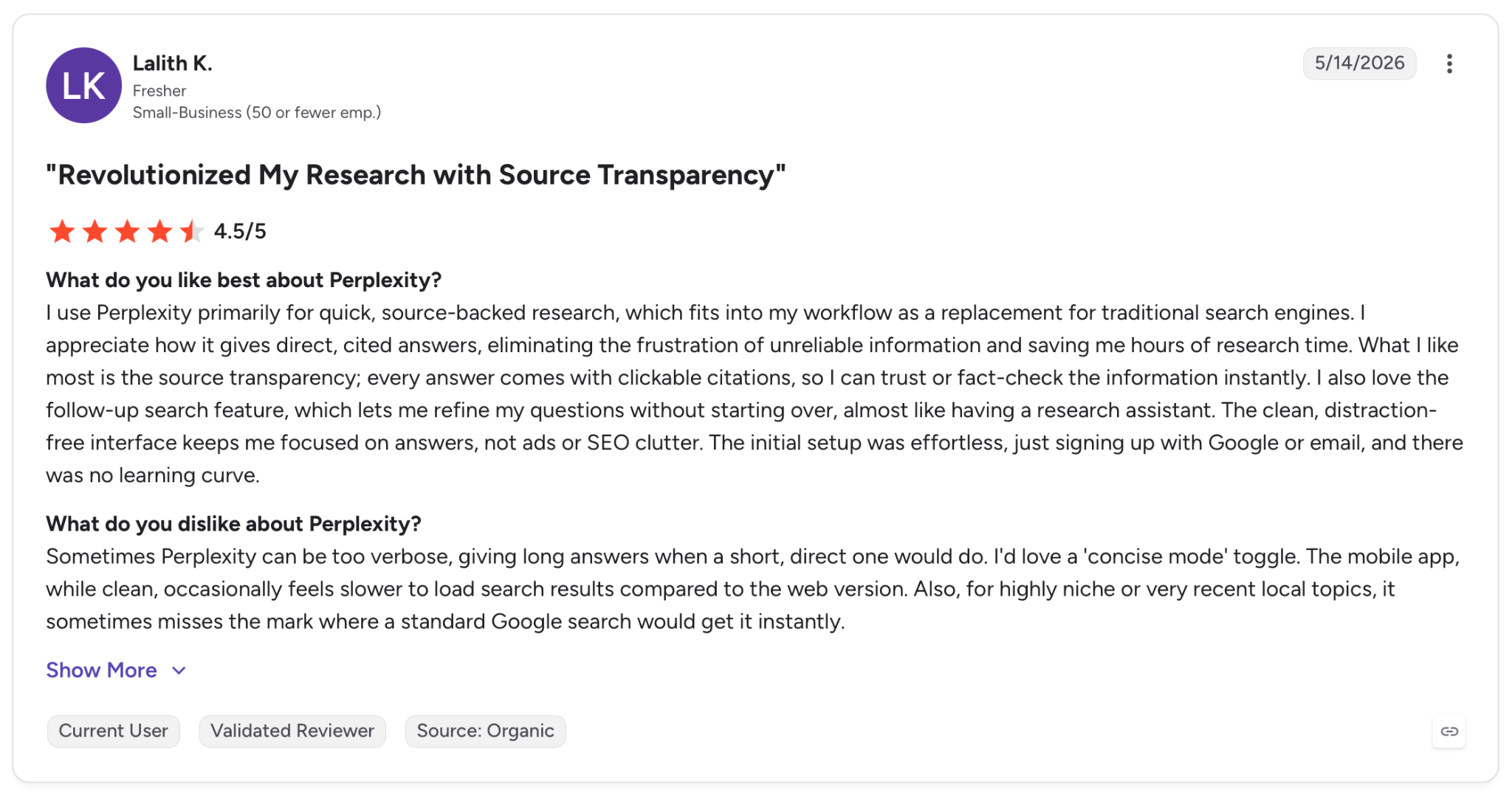
"The mobile app, while clean, occasionally feels slower to load search results compared to the web version." — Lalith K., G2
Pricing
The free plan covers cited search and basic models on Android. Pro at $20/month opens the newer models, more sources per answer, and higher daily limits.
Bottom line
Open Perplexity when the answer has to hold up, not just sound good. I go to it whenever I plan to act on what it tells me, because I can see the receipts before I do.
5. Microsoft Copilot: Best AI app for Android in the Microsoft world
What it does: Copilot is Microsoft's assistant, and it runs on the same models behind ChatGPT with Microsoft's own apps wrapped around it. On Android, it reads your camera, holds a voice chat, and pulls from your Outlook and Office files.
Best for: People whose work lives in Outlook, Word, Excel, and Teams, and who want an assistant that already knows that world.
I came in skeptical, since the underlying model overlaps with ChatGPT. Copilot Vision turned me around. I pointed the camera at a broken appliance panel and asked what a blinking code meant, and it walked me through the fix from what it saw on screen.
Where it stops being interchangeable with ChatGPT is inside Microsoft's stack. I asked it to pull the key points from a long Outlook thread and turn them into a Pages canvas, and it did both without me leaving the app. Outside that world, it feels like any other chatbot.
Key features
- Copilot Vision: Tap the camera and ask about what it sees as you point it, from a product label to an error message on a machine
- Voice chat: Talk through a question out loud and get a spoken answer, with Vision layered in when you point the camera
- Pages: Gather scattered notes and research into one canvas that Copilot organizes and rewrites as you go, though on a personal account, this one needs a Microsoft 365 subscription
- Microsoft 365 reach: Draws on your Outlook, Word, and Excel content to summarize, draft, and answer without copy-paste
Pros and cons
Pros:
✅ Runs on the same OpenAI models as ChatGPT while adding Microsoft's apps on top, so you get both in one place
✅ Pulls directly from Outlook and Office files, so Microsoft users skip the copy-paste other chatbots require
✅ Available at no cost with a standard Microsoft account, separate from any Office subscription
Cons:
❌ Outside Microsoft's apps, it behaves like a standard ChatGPT-based chatbot, with little that sets it apart
❌ Its deepest features assume a Microsoft 365 account, so Google Workspace users leave nearly all of it untouched
❌ You can set it as the default Android assistant, but unlike Gemini, it cannot act inside other apps, so it will not set reminders or update your calendar from that role
What users say
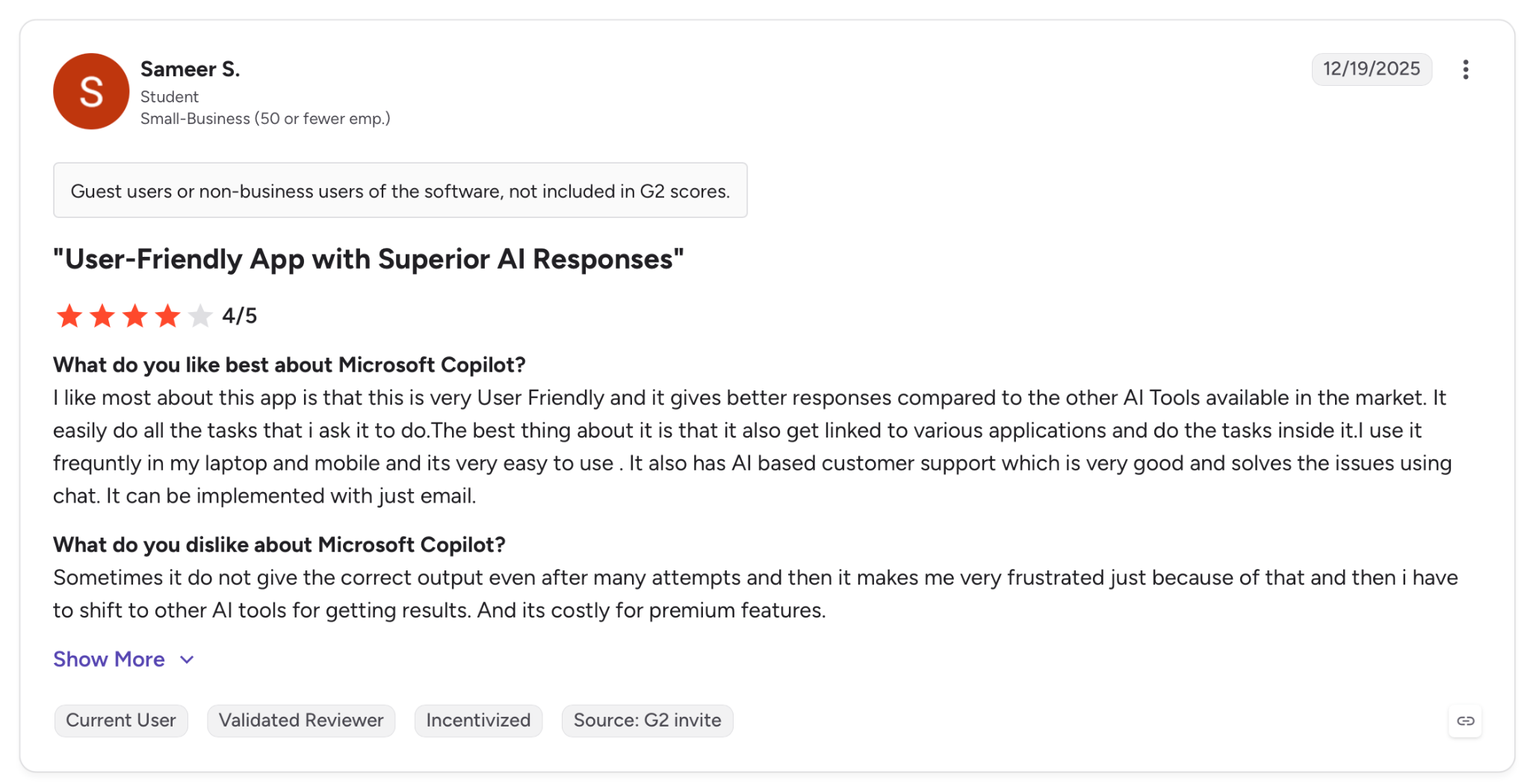
"I use it frequently on my laptop and mobile, and it's very easy to use. It also has AI-based customer support, which is very good and solves the issues using chat. It can be implemented with just email." — Sameer S., G2
"I would like the mobile app to be able to create Excel spreadsheets and Word documents." — David H., G2
Pricing
The Copilot app is free with a Microsoft account. Deeper Office integration comes with Microsoft 365 Personal at $9.99/month, which adds Copilot inside the desktop and mobile Office apps.
Bottom line
If your day already lives inside Microsoft, Copilot is the assistant that fits that world. If it does not, you are essentially using ChatGPT with a different logo.
6. Grammarly: Best AI app for Android for writing in every app
What it does: Grammarly is a keyboard and writing assistant that follows you into every app you type in. It catches mistakes as you write and rewrites whole messages to change their tone, without you leaving the app.
Best for: Heavy phone typers who fire off emails, messages, and posts all day and want them to land right the first time.
This app works without you having to open it. Once the Grammarly keyboard is set, it lives in Gmail, WhatsApp, Slack, and everywhere else. Mid-message to a client, I tapped rewrite and picked a more confident version, all inside the chat.
The tone control is the part I did not expect to use as much as I did. I typed a reply that read as annoyed, asked it to make the same point sound calmer, and it kept my meaning while dropping the edge.
Key features
- Works in any app: Set as your keyboard, it checks and rewrites across email, messaging, and social without switching tools
- Full-message rewrites: Turn a rushed line into a clearer, more descriptive, or more formal version and pick from the options
- Tone shifts: Ask for the same message in a calmer, warmer, or more confident tone and keep the meaning intact
- Voice-to-text cleanup: Dictate a message, and it strips filler words and fixes grammar before handing it back
Pros and cons
Pros:
✅ Lives in the keyboard across email, messaging, and social, so it reaches text the standalone chatbots never see
✅ Rewrites the full message rather than flagging single errors, which changes how a message reads, not just its spelling
✅ Works on the text you are already typing, so there is no paste-in, wait, paste-back loop
Cons:
❌ It sharpens writing you provide but cannot answer questions or generate ideas like a full chatbot
❌ Setting a third-party keyboard as default is a step some users skip, and it needs broad typing permissions to work
What users say
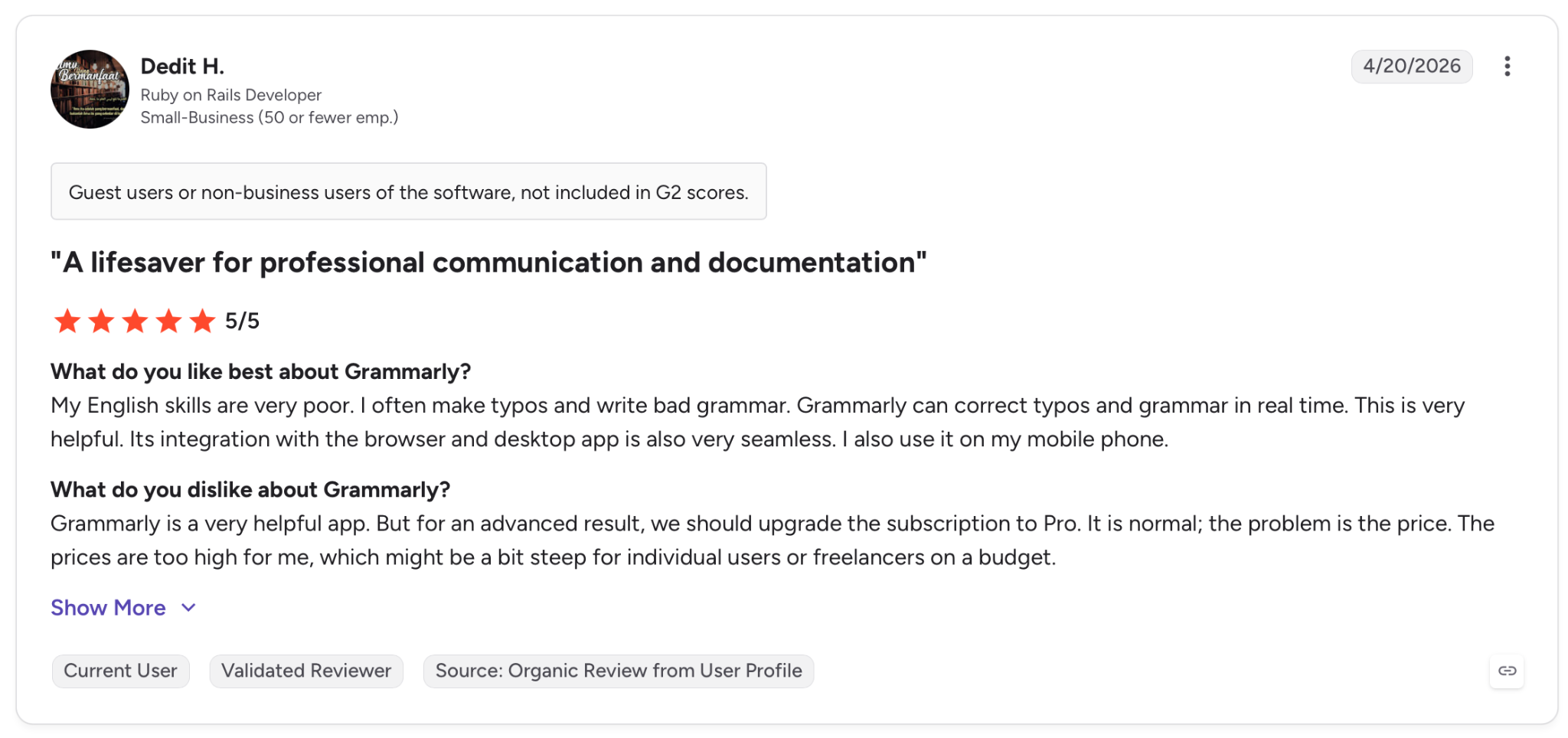
"It’s integration with the browser and desktop app is also very seamless. I also use it on my mobile phone." — Dedit H., G2
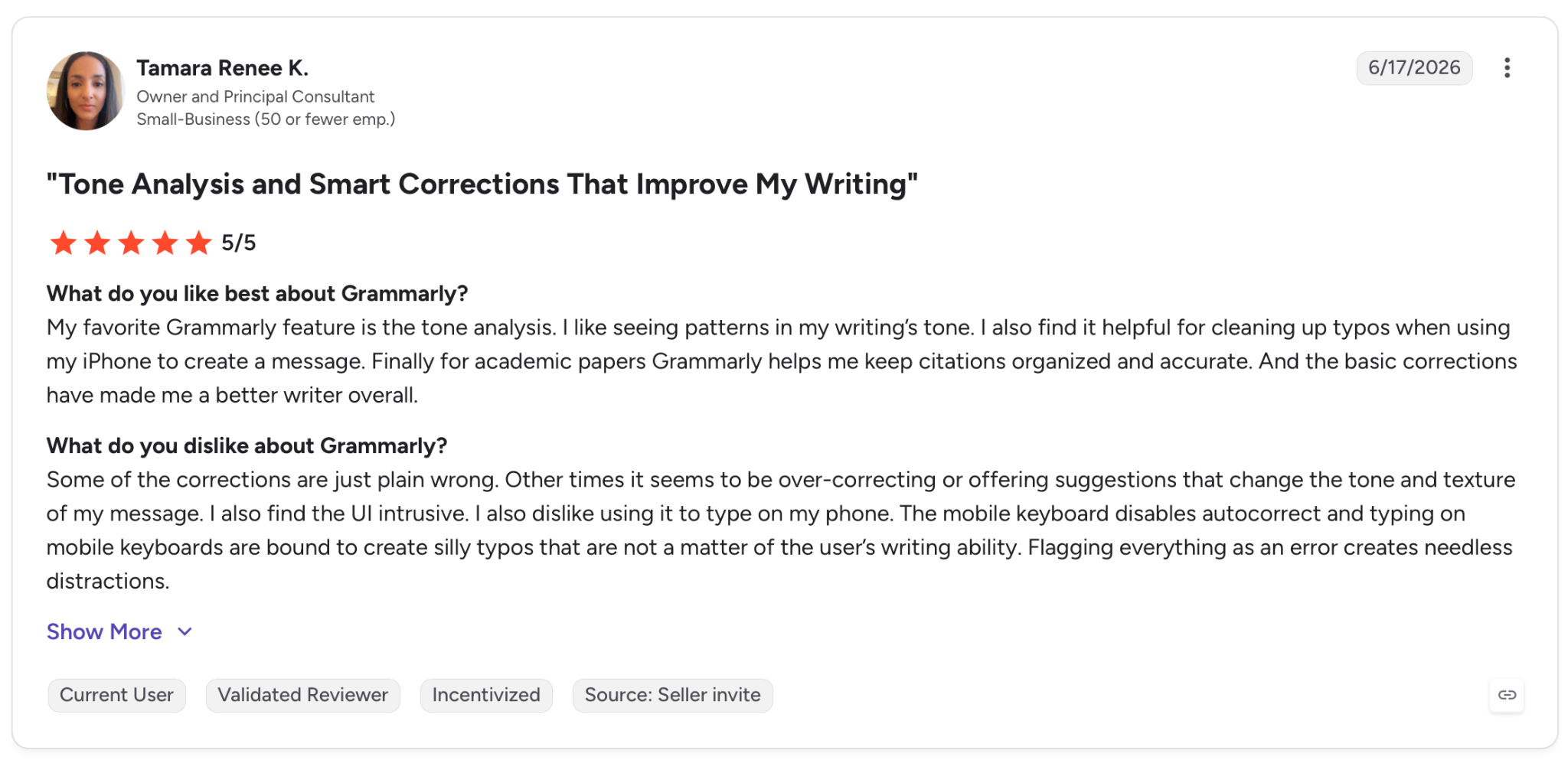
"The mobile keyboard disables autocorrect, and typing on mobile keyboards is bound to create silly typos that are not a matter of the user’s writing ability." — Tamara Renee K., G2
Pricing
The free tier includes spelling, grammar, tone detection, and a set number of AI prompts. Pro at $12/month billed yearly, more if you pay monthly, unlocks unlimited rewrites and more advanced generative help.
Bottom line
Grammarly does not try to be your assistant, and it is better for a narrow focus. If you spend most of your phone time typing, it catches errors and reshapes the tone before you hit send, without getting in the way.
7. Lindy: Best AI app for Android that finishes the task for you
What it does: Lindy is a company-wide AI teammate that lives in Slack. @mention it in a channel, and it answers the whole team from your shared company brain, or DM it as your own assistant. On Android, it reaches you the way a colleague would: text it what you need in plain English, and it runs your inbox, calendar, and meetings, then texts back when the work is done.
Best for: Teams who want one AI teammate in Slack instead of another chat window, and anyone who would rather hand off a task and get it back done.
Lindy comes to you through a text message, which is what makes it feel different on a phone. It reached me on Android through the messaging app I already use, with no separate app to open.
The first time it clicked, I texted "move my 3 pm to tomorrow and let them know," and it checked the calendar, rescheduled, and drafted the note.
It also runs on a schedule without being asked. I set it once with "every Monday at 9, text me my week ahead," and the brief arrived each week on its own, pulled from my calendar and inbox.
You keep control the whole way, since for each connected tool you decide what it can do on its own and what needs your sign-off.
Key features
- Text it like a person: Send a request over iMessage or SMS, and it handles email, scheduling, and follow-ups, then replies when it is finished
- Runs recurring work: Set a job once in plain English, such as a Monday morning brief, and it repeats on its own with no further prompting
- Meeting prep and follow-up: It joins, takes notes, and sends the follow-up, so the busywork around a meeting is handled
- Hundreds of integrations: It connects to the tools your work already runs on, from email and calendar to your CRM, and acts across them
- Permission controls: For each tool and action, you set it to always allow, ask first, or never, and every action it takes is logged
Pros and cons
Pros:
✅ Reaches you over plain text, so on Android it works through your existing messaging app with nothing extra installed
✅ Completes tasks end-to-end rather than returning instructions, acting across your connected tools on its own
✅ Fires off scheduled jobs unprompted, which none of the chat-based apps in this roundup do
Cons:
❌ It is not a native Android app. It works through text and the web, so there is no home screen app to open
❌ It is made for people with a working inbox, calendar, and tool stack, so it is overkill for casual, personal use
What users say
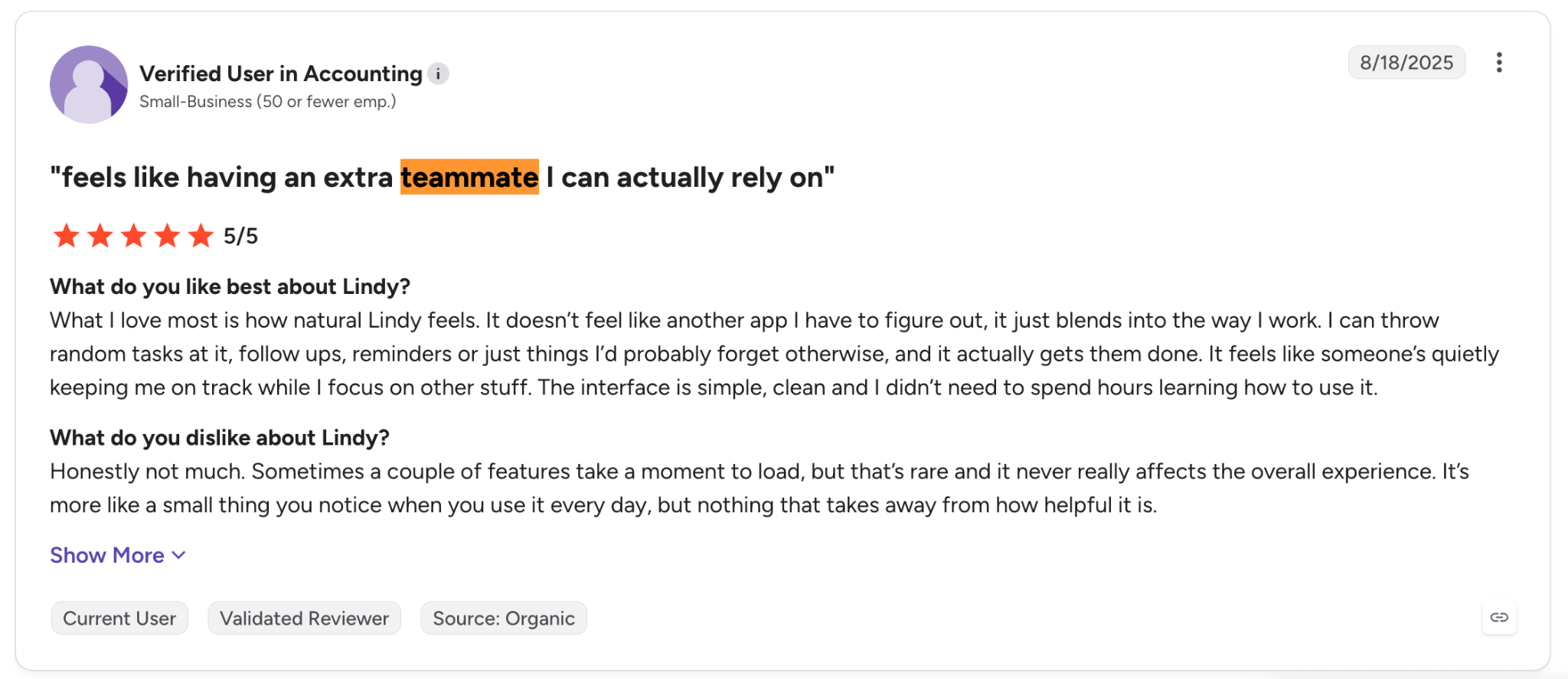
"What I love most is how natural Lindy feels. It doesn’t feel like another app I have to figure out; it just blends into the way I work." — Verified User in Accounting, G2
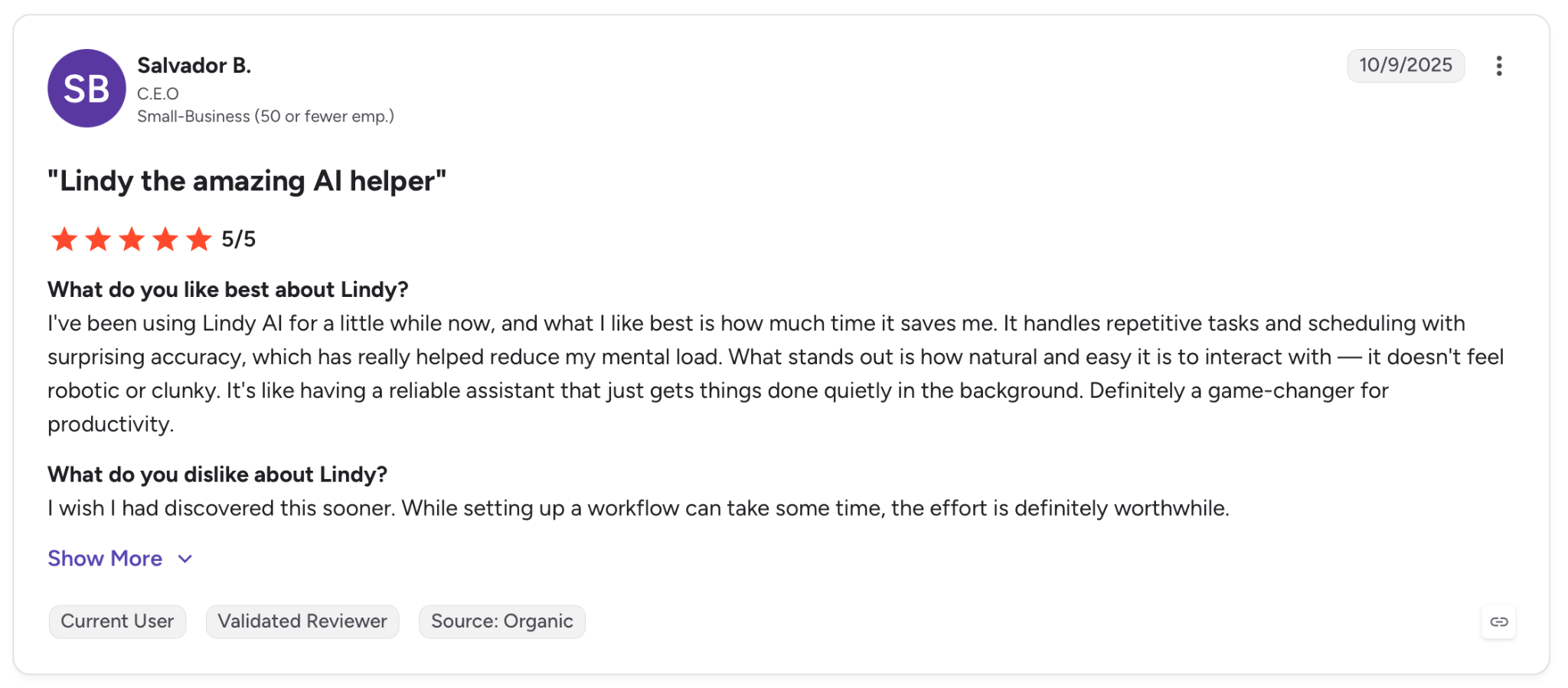
"It's like having a reliable assistant that just gets things done quietly in the background. Definitely a game-changer for productivity." — Salvador B., G2
Pricing
There is no free plan, but you get a 7-day trial. The first paid tier, Plus, runs $29.99/user/month and covers up to five inboxes, email and calendar handling, meeting notes, and the integration library. It includes a shared pool of 3,000 credits per user each month.
Bottom line
Lindy sits apart from the rest of this list because you hand it a job the way you would hand one to a colleague, then get on with your day. If you want your phone to finish work rather than help you do it, it is the one made for that.
{{templates}}
8. Otter.ai: Best AI app for Android for meetings and voice notes
What it does: Otter.ai records and transcribes conversations as they happen, then returns a summary with decisions and action items. On Android, it captures both in-person talks and virtual calls and lets you ask questions about what was said.
Best for: Anyone whose meetings and voice notes outpace what they can write down and who wants the record and the takeaways without lifting a pen.
I ran it in a coffee-shop planning session where I would normally miss half of what was said. Otter transcribed the whole thing live on my phone, tagged who spoke, and had a summary with action items ready before I stood up.
Once the transcript was down, the chat sitting on top of it saved me the biggest chunk of time. After a call, I asked it to draft a follow-up email from what was discussed, and it pulled the right points into a message without me scrubbing back through the recording.
Key features
- Live transcription: Records and transcribes as the conversation happens on the phone, labeling each speaker as they talk
- Auto-join for calls: Its meeting assistant joins Zoom, Google Meet, and Teams to record, take notes, and capture shared slides
- Chat over the transcript: Ask it for a summary, an action-item list, or a follow-up email drawn straight from what was said
- Shared notes: Teammates can comment, mark up, and assign action items inside the same live transcript
Pros and cons
Pros:
✅ Transcribes in-person conversations from the phone itself, not just calls made through a computer
✅ Turns a finished meeting into a summary and action items automatically, without a separate write-up step
✅ Labels speakers as they talk, so the transcript stays readable in a multi-person conversation
Cons:
❌ Accuracy falls off with heavy accents, crosstalk, or a noisy room, and speaker labels get confused on a shared mic
❌ It is made for spoken conversations, so it does nothing for text, writing, or general questions
What users say
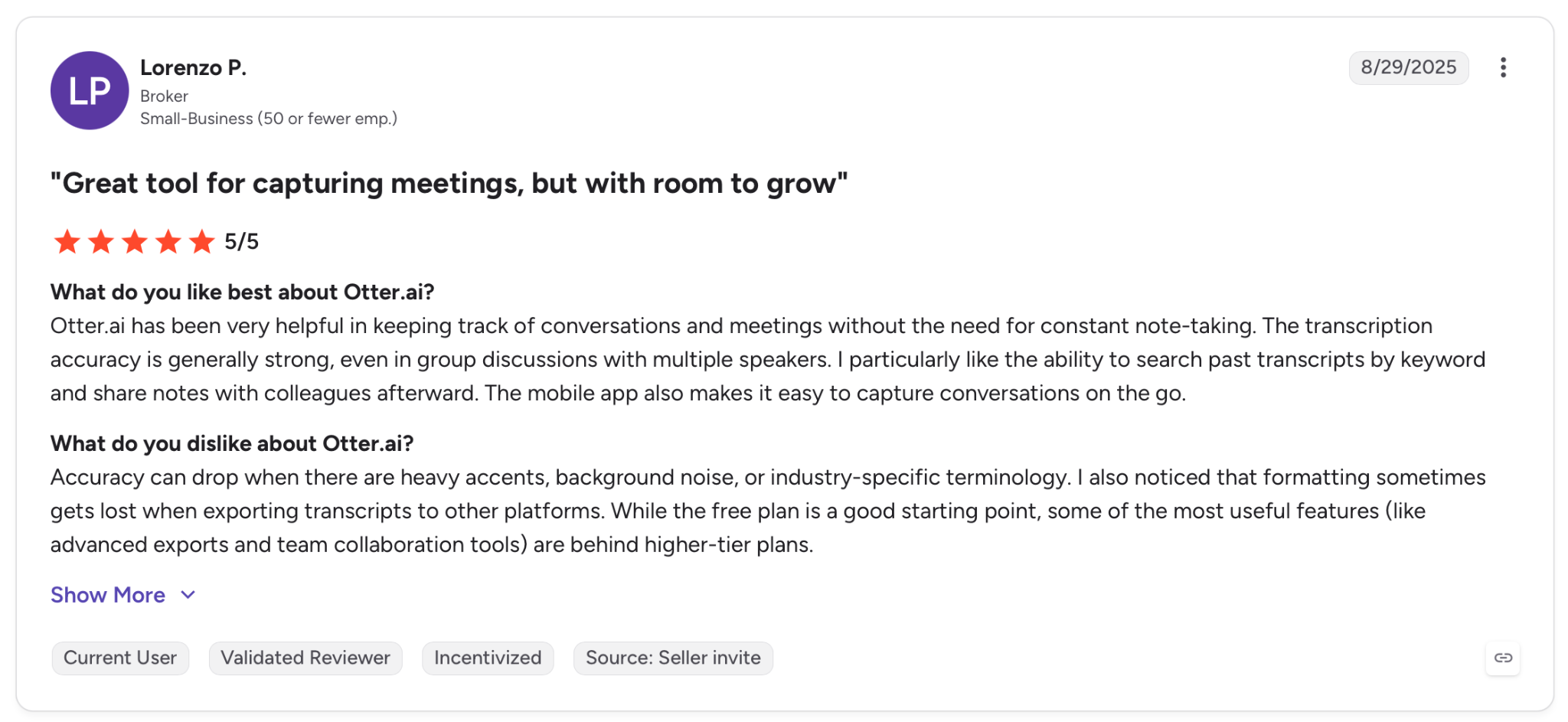
"The mobile app also makes it easy to capture conversations on the go." — Lorenzo P., G2
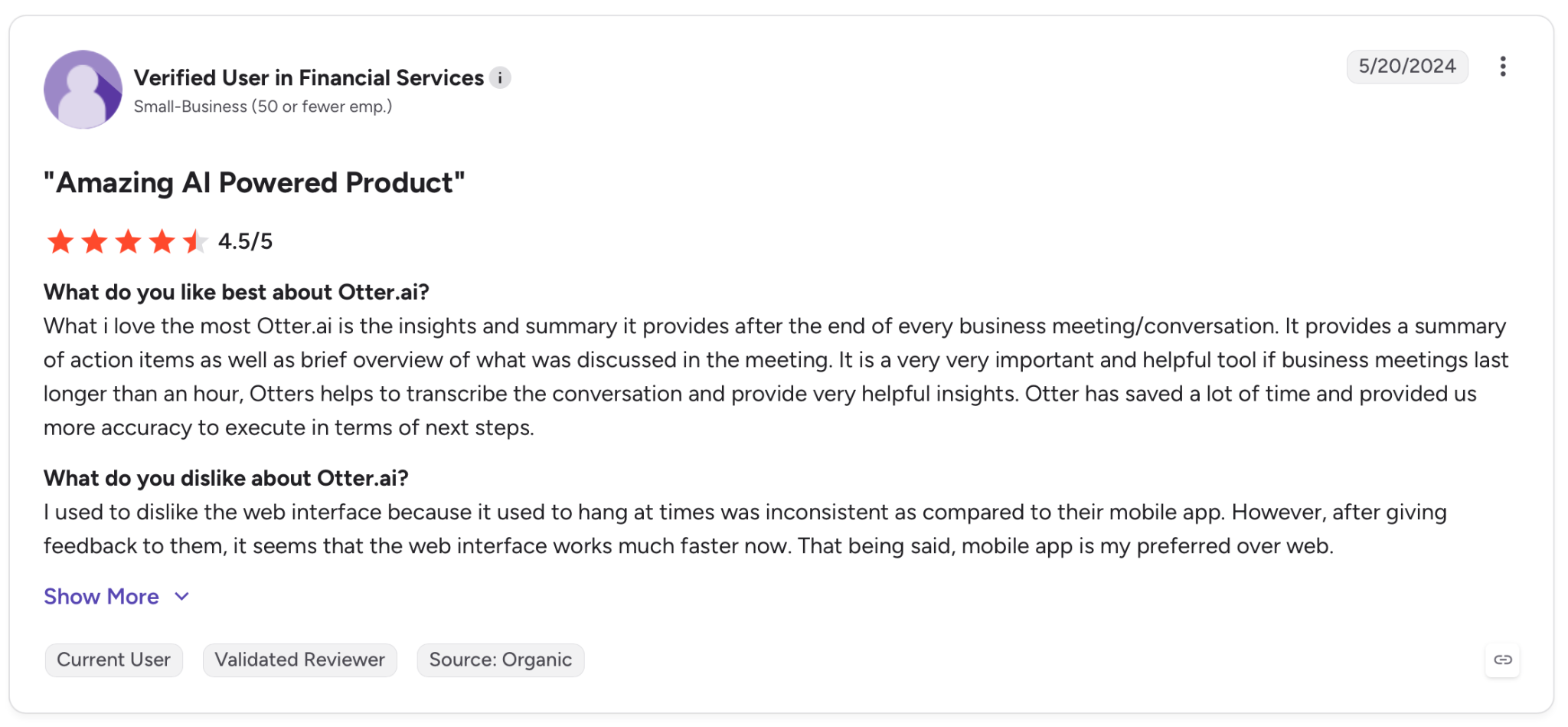
"I used to dislike the web interface because it used to hang at times and was inconsistent as compared to their mobile app. However, after giving feedback to them, it seems that the web interface works much faster now." — Verified User, G2
Pricing
The free Basic plan includes live transcription and a set number of monthly minutes with the Android app. Pro at $16.99/user/month raises the minute cap and adds advanced summaries and the meeting assistant.
Bottom line
If your problem is that conversations happen faster than you can capture them, Otter solves it. It captures the conversation and hands you the notes you would have scrambled to take by hand.
9. ElevenLabs: Best AI app for Android for turning text into speech
What it does: ElevenLabs turns written text into speech that sounds close to a human narrator. Its Reader app on Android reads any article, PDF, or ePub aloud, and its main app generates and designs voices for anything you are making.
Best for: People who would rather listen than read, and creators who need natural-sounding audio from text without hiring a voice actor.
I loaded a long PDF I had been avoiding into the Reader app and listened to it on a walk instead of squinting at my screen. The voice did not have the flat, robotic cadence of the stock Android read-aloud, so I stayed with it to the end. If you want to condense lengthy documents before listening, pairing audio tools with the best ai summarizer can save even more time.
For anything I was making, the main app was the draw. I generated a usable voiceover for a short clip in under five minutes, picked from a library of thousands of voices, and never touched a microphone. It goes beyond a simple reader, into voice design and cloning.
Key features
- Reads anything aloud: The Reader app narrates articles, PDFs, ePubs, and newsletters in a natural voice across dozens of languages
- Large voice library: Choose from thousands of voices and many languages, rather than the handful a phone ships with
- Voice design and cloning: Build a custom voice from scratch or clone one, then use it for your own generations
- Voice tools: Change a voice on existing audio or strip background noise to clean up a recording
Pros and cons
Pros:
✅ Draws on thousands of voices across dozens of languages, a range no phone's stock read-aloud comes close to
✅ Reads your own files, so a PDF or article you already have becomes something to listen to
✅ Adds voice design and cloning, so you can build a custom voice rather than pick from a fixed set
Cons:
❌ It splits across a Reader app and a creation app, so what you can do depends on which one you install
❌ Generating audio uses monthly character limits, so long-form listening and heavy use are metered, not unlimited
❌ It turns text into audio and nothing else, so it sits alongside your main assistant rather than standing in for it
What users say
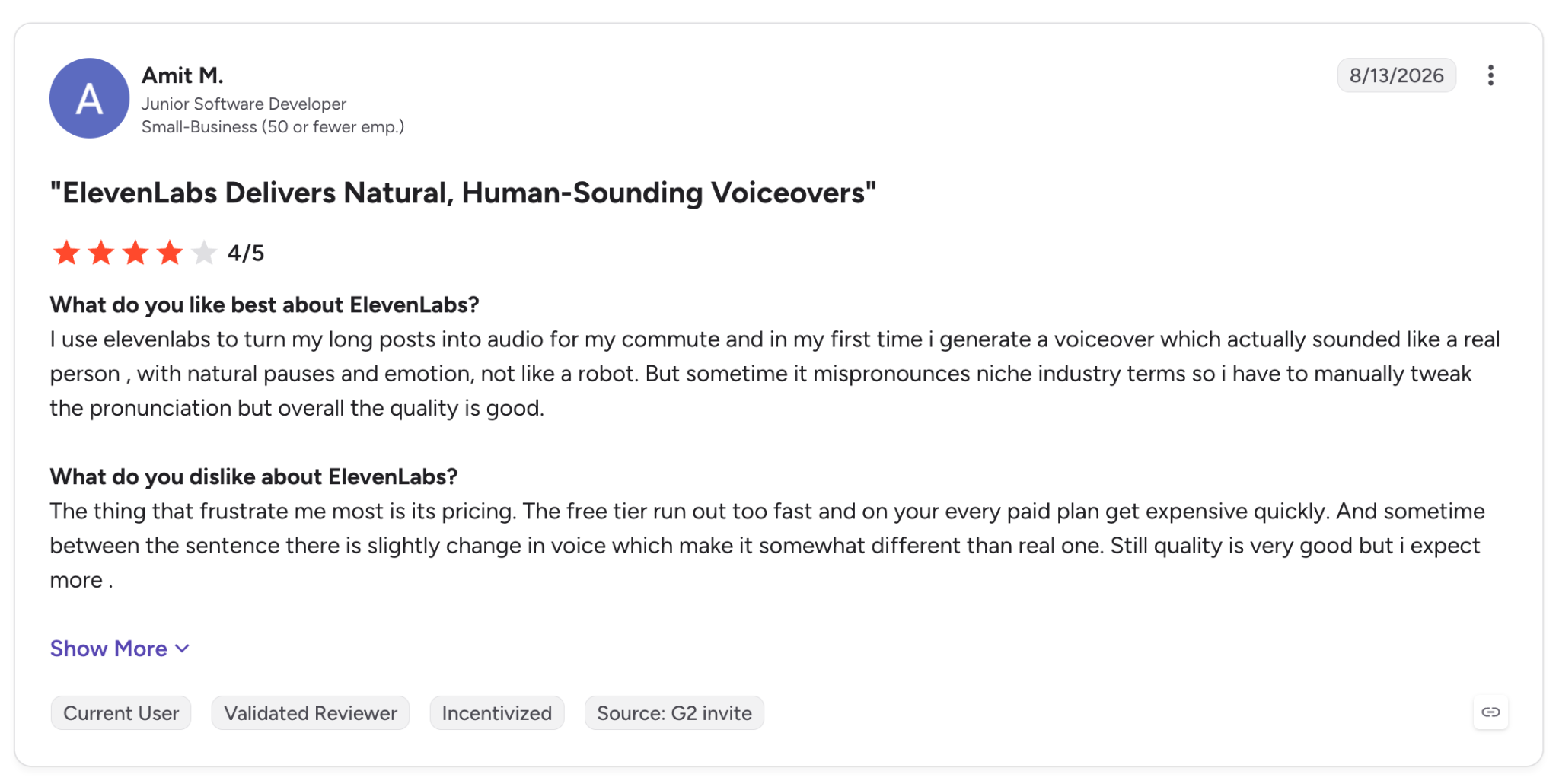
"I use ElevenLabs to turn my long posts into audio for my commute, and the first time, I generated a voiceover that actually sounded like a real person, with natural pauses and emotion, not like a robot." — Amit M., G2
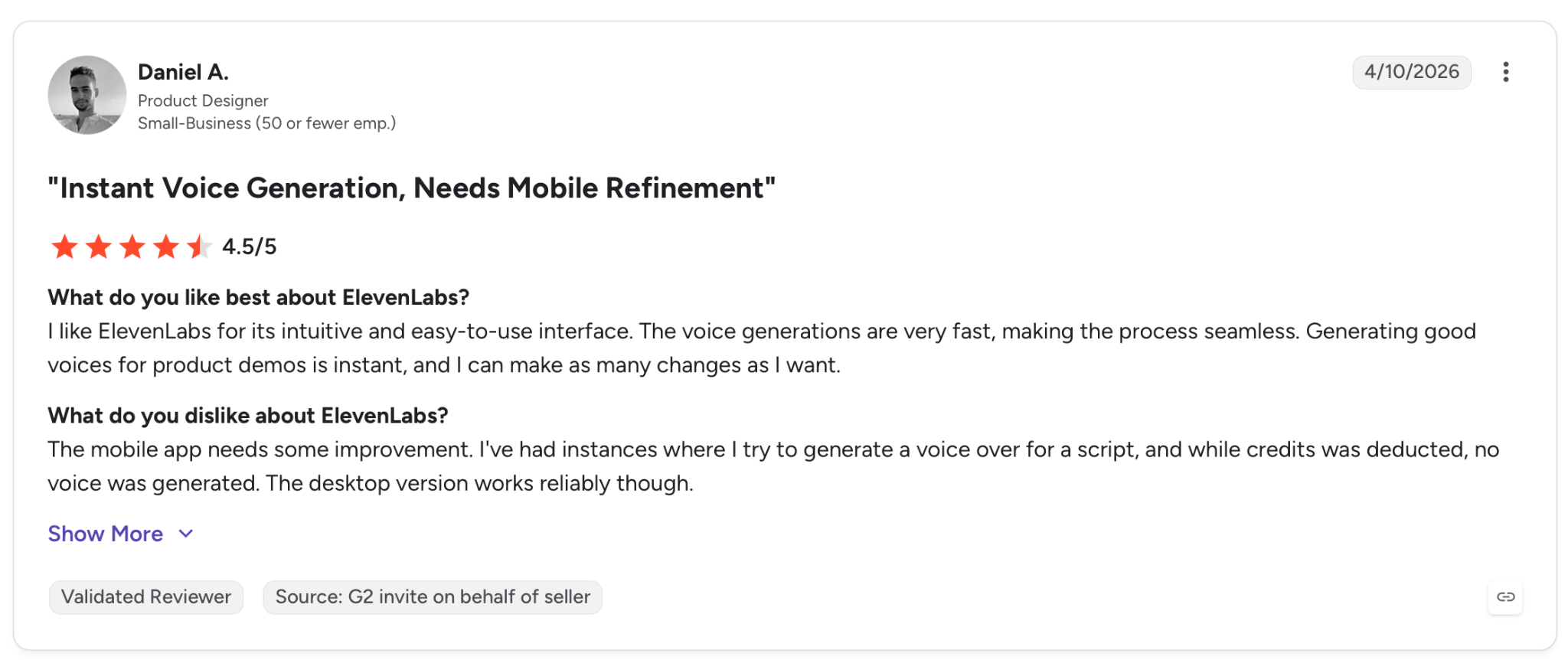
"The mobile app needs some improvement. I've had instances where I try to generate a voice-over for a script, and while credits were deducted, no voice was generated." — Daniel A., G2
Pricing
On Android, text-to-speech and reading cost nothing, with monthly limits. The Starter plan at $6/month raises those limits and adds a commercial license and one-shot voice cloning.
Bottom line
If you consume more than you have time to read, or you make things that need a voice, ElevenLabs is the app for audio. It does one thing well: it turns text you already have into something you can listen to.
10. PocketPal AI: Best AI app for Android that runs fully offline
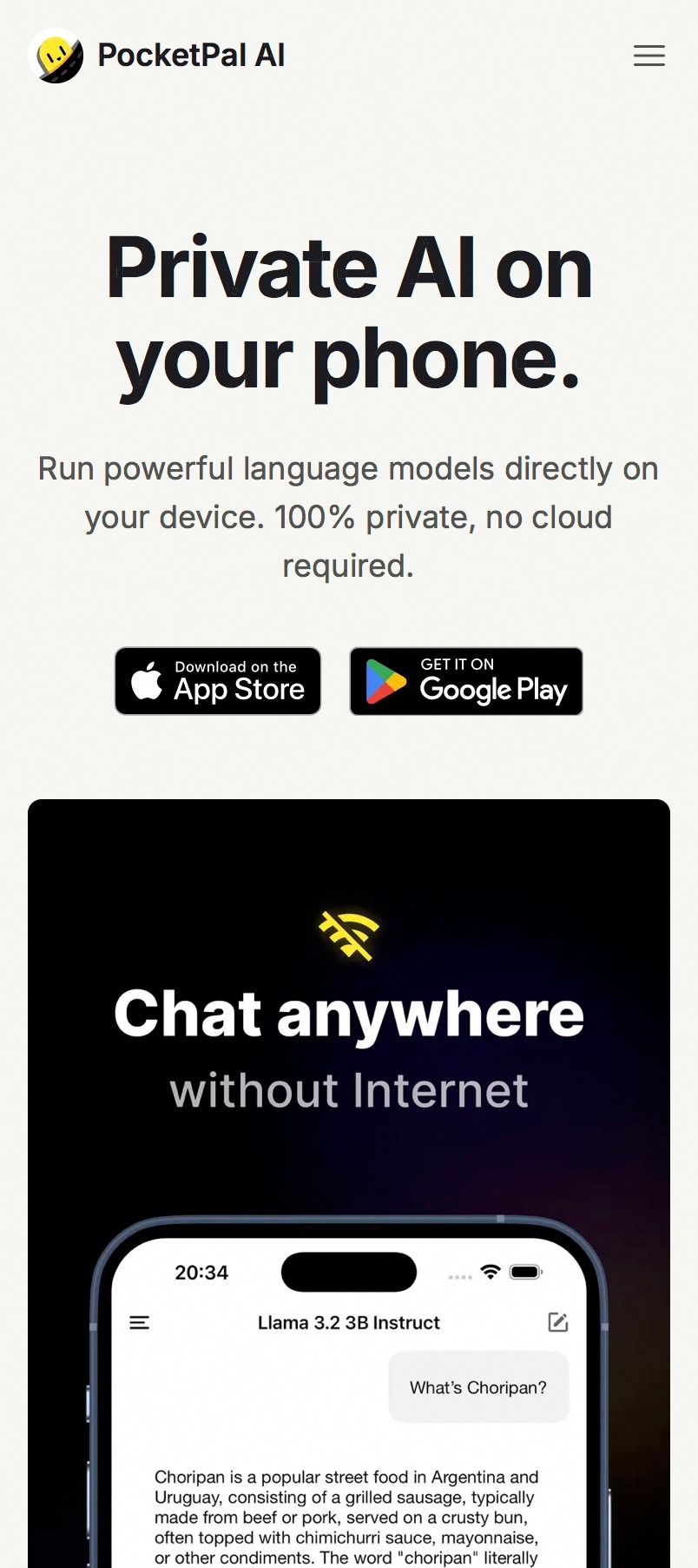
What it does: PocketPal AI runs language models directly on your phone, with no cloud and no account. You download a small model once, and after that it answers your prompts fully offline, with nothing ever leaving the device.
Best for: Privacy-first users and anyone who wants a working AI when there is no signal, from a flight to a dead zone.
This is the app I tested in airplane mode, and it is the only one on the list that kept working. I downloaded a compact model over Wi-Fi first, then cut the connection entirely and kept chatting. Nothing I typed went anywhere but the phone in my hand.
It will trail ChatGPT on a hard question, and that is the trade you accept for a model you fully control. You can pull different open models from Hugging Face, swap between them, and even benchmark how fast each runs on your specific phone.
Key features
- Fully offline: After the one-time model download, everything runs on-device with no connection and no account required
- Bring your own model: Search and download open GGUF models from Hugging Face, then switch between them as you like
- On-device privacy: Prompts and conversations never leave the phone, so nothing is stored on an outside server
- Benchmarking: Measure how fast a model runs on your hardware and compare it against other phones
Pros and cons
Pros:
✅ Keeps answering with no internet at all; the only app in this roundup that works in airplane mode
✅ Processes everything on the device, so no prompt or conversation is ever sent off the phone
✅ Free and open source, with no account, subscription, or sign-in to use it
Cons:
❌ The models are small enough to run on a phone but still trail the cloud assistants on reasoning, coding, and long answers
❌ Picking and downloading a model is more hands-on than the tap-and-go apps people expect
What users say
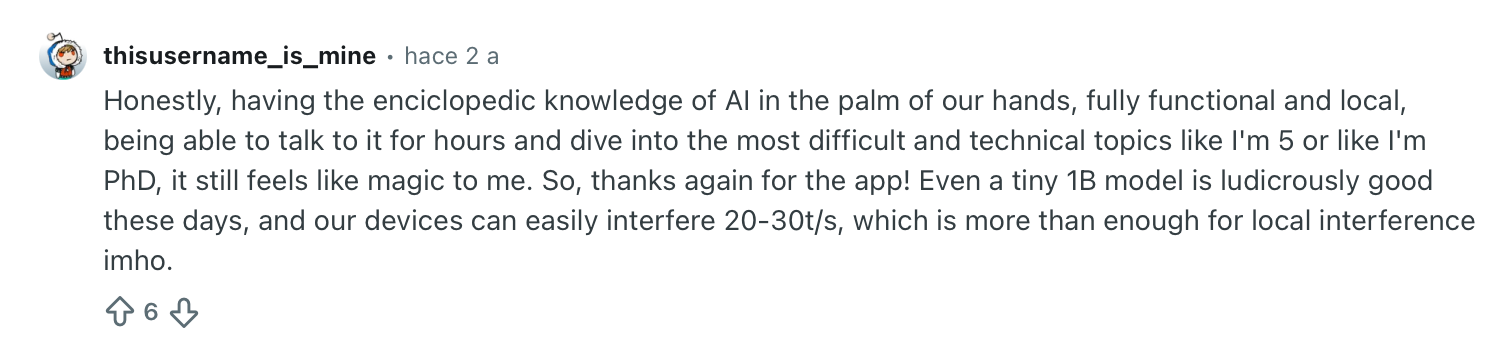
"Honestly, having the encyclopedic knowledge of AI in the palm of our hands, fully functional and local, being able to talk to it for hours and dive into the most difficult and technical topics like I'm 5 or like I'm a PhD, it still feels like magic to me." — Verified User, Reddit
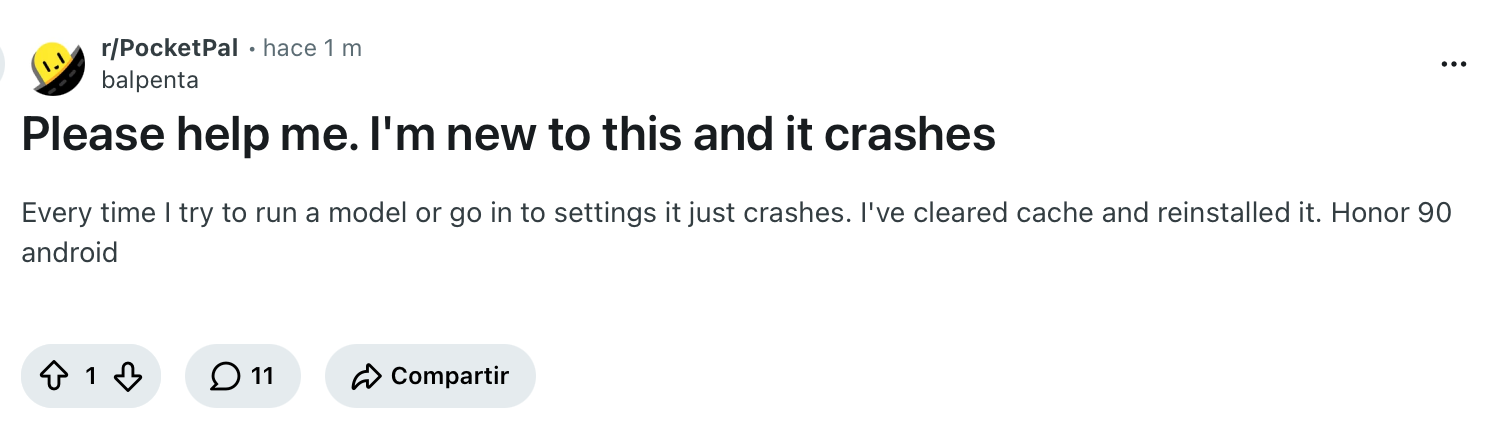
"Every time I try to run a model or go into settings, it just crashes. I've cleared cache and reinstalled it. Honor 90 Android." — Verified User, Reddit
Pricing
PocketPal AI is open source and free to download from Google Play, with no paid tier. The only cost is the storage and processing the models use on your phone.
Bottom line
Keep PocketPal for the moments the others go dark. It trades raw power for total privacy and offline access, and for a flight or a dead zone, that trade is worth making.
Which AI app for Android should you choose?
The right pick depends less on the app and more on the moment you reach for your phone. A few common ones:
- Your commute or errands: Gemini answers from the power button hands-free, and ChatGPT talks through a decision with your phone in your pocket.
- A wall of reading or a long call: Claude works through the dense documents, Otter.ai catches the meetings you can't write down fast enough, and ElevenLabs reads the backlog aloud on a walk.
- When the answer has to hold up: Perplexity sources every claim so you can check it before you act.
- Getting the work off your plate: Lindy takes the task and reports back, while Grammarly cleans up everything you type along the way.
- No signal, or nothing leaves the phone: PocketPal AI runs fully offline, and Copilot earns its place if your day already lives in Outlook and Teams.
Final verdict
No app here wins on its own, so I put together a small stack where each one covers what the others miss. ChatGPT is the one I would install first, since it handles text, voice, images, and file reading in a single app, with more input types than any other here.
After that, it depends on your setup. If you live in Google's apps, Gemini reaches into the system in ways a standalone chatbot cannot.
Then add whatever keeps slowing you down. Claude for long reading, Perplexity when the answer has to be sourced, Grammarly if your day is mostly typing, Otter.ai if meetings outrun your notes, and ElevenLabs if you would rather listen.
PocketPal AI stays installed for the flight or dead zone where the rest stop working, and Microsoft Copilot is worth it if your work already lives in Outlook and Teams.
Lindy is the one that works differently: it's a company-wide AI teammate that lives in Slack, and where the other apps answer you, it carries the task through to completion. If a good answer still leaves the work undone, that's the gap it fills.
Frequently asked questions
What are the best AI apps for Android in 2026?
The best AI apps for Android in 2026 depend on the job. ChatGPT is the strongest all-rounder, Gemini goes deepest into the phone itself, Claude handles long documents, Perplexity gives sourced answers, and Lindy finishes tasks you text it.
What is the best free AI app for Android?
Gemini is the best free AI app for Android for the average user, since it's free and ships preinstalled on the phone. ChatGPT and Microsoft Copilot also have capable free versions, and PocketPal AI is free and open source with no account at all.
Are AI apps for Android safe to use?
Most major AI apps for Android are safe, but they send your prompts to the cloud to get answers. If you are handling private information, PocketPal AI runs fully on-device so nothing leaves your phone, and apps like Lindy let an admin control what each connected tool is allowed to do.
Can an AI app replace Google Assistant on Android?
Yes. Gemini can be set as your default assistant and now replaces Google Assistant on today's Android phones. Perplexity can also be set as the Android assistant, so it responds to voice requests without opening the app.
Do AI apps for Android work offline?
Nearly all do not, since they rely on the cloud to answer. PocketPal AI is the exception on this list. It downloads a model to your phone once, then runs fully offline with no connection needed.